R243-EG0 - Server GIGABYTE - Free user manual and instructions
Find the device manual for free R243-EG0 GIGABYTE in PDF.


| Product type | 2U rack server |
| Brand | Gigabyte |
| Model | R243-EG0 |
| Processor | Dual socket Intel Xeon Scalable (3rd gen.) |
| Memory | 16 slots DDR4, up to 2 TB |
| Storage | 12 hot-swap 3.5" bays (SATA/SAS) |
| RAID controller | Integrated RAID 0/1/5/6/10 |
| Power supply | Dual redundant 800W power supply (80+ Platinum) |
| Cooling | Redundant thermal management fans |
| Dimensions (W x D x H) | 438 x 730 x 87 mm |
| Weight | 18 kg (without disks or rails) |
| Network | 2 integrated 10GbE SFP+ ports |
| Connectivity | 2 USB 3.0 ports, 1 VGA port, 1 IPMI port |
| Remote management | IPMI 2.0 / BMC Aspeed AST2500 |
| Security | TPM 2.0, lockable chassis |
| Maintenance | Quarterly dust cleaning; free ventilation |
| Spare parts | Disks, memory modules, fans, power supply units |
| Repairability | Modular design with tool-less access |
| OS compatibility | Windows Server, Linux (Red Hat, Ubuntu, SUSE) |
| Warranty | 3-year manufacturer warranty (extendable) |
Frequently Asked Questions - R243-EG0 GIGABYTE
User questions about R243-EG0 GIGABYTE
0 question about this device. Answer the ones you know or ask your own.
Ask a new question about this device
Download the instructions for your Server in PDF format for free! Find your manual R243-EG0 - GIGABYTE and take your electronic device back in hand. On this page are published all the documents necessary for the use of your device. R243-EG0 by GIGABYTE.
USER MANUAL R243-EG0 GIGABYTE
© 2023 GIGA-BYTE TECHNOLOGY CO., LTD. All rights reserved.
The trademarks mentioned in this manual are legally registered to their respective owners.
Disclaimer
Information in this manual is protected by copyright laws and is the property of GIGABYTE.
Changes to the specifications and features in this manual may be made by GIGABYTE without prior notice. No part of this manual may be reproduced, copied, translated, transmitted, or published in any form or by any means without GIGABYTE's prior written permission.
Documentation Classifications
In order to assist in the use of this product, GIGABYTE provides the following types of documentations:
■ For detailed product information, carefully read the User's Manual.
For More Information
For related product specifications, the latest firmware and software, and related information, please visit our website at:
http://www.gigabyte.com
For GIGABYTE distributors and resellers, additional sales & marketing materials are available from our reseller portal:
http://reseller.b2b.gigabyte.com
For further information & technical assistance, please contact your GIGABYTE sales representative.
You may also message GIGABYTE server directly by email, Facebook or twitter
Email: server.grp@gigabyte.com
Facebook: https://www.facebook.com/gigabyteserver
Twitter: https://twitter.com/GIGABYTEServer
Conventions
The following conventions are used in this user's guide:
 | NOTE!Gives bits and pieces of additional information related to the current topic. |
 | CAUTION!Gives precautionary measures to avoid possible hardware or software problems. |
 | WARNING!Alerts you to any damage that might result from doing or not doing specific actions. |
Server Warnings and Cautions
Before installing a server, be sure that you understand the following warnings and cautions.

WARNING!
To reduce the risk of electric shock or damage to the equipment:
- Do not disable the power cord grounding plug. The grounding plug is an important safety feature.
- Plug the power cord into a grounded (earthed) electrical outlet that is easily accessible at all times.
- Unplug the power cord from the power supply to disconnect power to the equipment.
- Do not route the power cord where it can be walked on or pinched by items placed against it. Pay particular attention to the plug, electrical outlet, and the point where the cord extends from the server.

WARNING!
To reduce the risk of personal injury from hot surfaces, allow the drives and the internal system components to cool before touching them.

WARNING!
This server is equipped with high speed fans. Keep away from hazardous moving fan blades during servicing.

CAUTION!
- Do not operate the server for long periods with the access panel open or removed. Operating the server in this manner results in improper airflow and improper cooling that can lead to thermal damage.
- Danger of explosion if battery is incorrectly replaced.
- Replace only with the same or equivalent type recommended by the manufacturer.
- Dispose of used batteries according to the manufacturer's instructions.
Electrostatic Discharge (ESD)

CAUTION!
ESD CAN DAMAGE DRIVES, BOARDS, AND OTHER PARTS. WE RECOMMEND THAT YOU PERFORM ALL PROCEDURES AT AN ESD WORKSTATION. IF ONE IS NOT AVAILABLE, PROVIDE SOME ESD PROTECTION BY WEARING AN ANTI-STATIC WRIST STRAP ATTACHED TO CHASSIS GROUND -- ANY UNPAINTED METAL SURFACE -- ON YOUR SERVER WHEN HANDLING PARTS.
Always handle boards carefully. They can be extremely sensitive to ESD. Hold boards only by their edges without any component and pin touching. After removing a board from its protective wrapper or from the system, place the board component side up on a grounded, static free surface. Use a conductive foam pad if available but not the board wrapper. Do not slide board over any surface.
System power on/off: To remove power from system, you must remove the system from rack. Make sure the system is removed from the rack before opening the chassis, adding, or removing any non hot-plug components.
Hazardous conditions, devices and cables: Hazardous electrical conditions may be present on power, telephone, and communication cables. Turn off the system and disconnect the cables attached to the system before servicing it. Otherwise, personal injury or equipment damage can result.
Electrostatic discharge (ESD) and ESD protection: ESD can damage drives, boards, and other parts. We recommend that you perform all procedures in this chapter only at an ESD workstation. If one is not available, provide some ESD protection by wearing an antistatic wrist strap attached to chassis ground (any unpainted metal surface on the server) when handling parts.
ESD and handling boards: Always handle boards carefully. They can be extremely sensitive to electrostatic discharge (ESD). Hold boards only by their edges. After removing a board from its protective wrapper or from the system, place the board component side up on a grounded, static free surface. Use a conductive foam pad if available but not the board wrapper. Do not slide board over any surface.
Installing or removing jumpers: A jumper is a small plastic encased conductor that slips over two jumper pins. Some jumpers have a small tab on top that can be gripped with fin-gertips or with a pair of fine needle nosed pliers. If the jumpers do not have such a tab, take care when using needle nosed pliers to remove or install a jumper; grip the narrow sides of the jumper with the
pliers, never the wide sides. Gripping the wide sides can dam-age the contacts inside the jumper, causing intermittent problems with the function con-trolled by that jumper. Take care to grip with, but not squeeze, the pliers or other tool used to remove a jumper, or the pins on the board may bend or break.

CAUTION!
Risk of explosion if battery is replaced incorrectly or with an incorrect type. Replace the battery only with the same or equivalent type recommended by the manufacturer. Dispose of used batteries according to the manufacturer's instructions.
Table of Contents
Chapter 1 Hardware Installation .... 11
1-1 Installation Precautions.... 11
1-2 Product Specifications.... 12
1-3 System Block Diagram.... 17
Chapter 2 System Appearance....19
2-1 Front View 19
2-2 Rear View....20
2-3 Front Panel LED and Buttons 21
2-3-1 RoT LEDs....23
2-4 Rear System LAN LEDs.... 25
2-5 Power Supply Unit (PSU) LED 26
2-6 Hard Disk Drive LEDs 27
Chapter 3 System Hardware Installation ......26
3-1 Removing Chassis Cover 27
3-2 Removing and Installing the Fan Duct 28
3-3 Removing and installing the Heat Sink 29
3-4 Installing the CPU 30
3-5 Installing the Memory 32
3-5-1 Six Channel Memory Configuration....32
3-5-2 Installing a Memory 33
3-5-3 DIMM Population Table 33
3-5-4 Processor and Memory Module Matrix Table 34
3-6 Removing and Installing the PCIe Card.... 35
3-7 Installing the Mezzanine Card.... 36
3-8 Removing and Installing the Hard Disk Drive.... 37
3-9 Installing the M.2 Device and Heat Sink 39
3-10 Replacing the FAN Assembly 40
3-11 Replacing the Power Supply 41
3-12 Cable Routing 42
Chapter 4 Motherboard Components ....54
4-1 Motherboard Components 54
4-2 Jumper Setting 56
4-3 Backplane Board Storage Connector 57
4-3-1 CBP20C5....57
Chapter 5 BIOS Setup....58
5-1 The Main Menu 60
5-2 Advanced Menu 63
5-2-1 Trusted Computing 64
5-2-2 PSP Firmware Versions....65
5-2-3 Legacy Video Select....66
5-2-4 AST2600 Super IO Configuration....67
5-2-5 S5 RTC Wake Settings....69
5-2-6 UEFI Variables Protection 70
5-2-7 Serial Port Console Redirection 71
5-2-8 CPU Configuration....75
5-2-9 SIO Common Setting....76
5-2-10 PCI Subsystem Settings....77
5-2-11 USB Configuration....79
5-2-12 Network Stack Configuration....81
5-2-13 NVMe Configuration....82
5-2-14 SATA Configuration....83
5-2-15 Graphic Output Configuration....84
5-2-16 AMD Mem Configuration Status....85
5-2-17 Tls Auth Configuration 86
5-2-18 RAM Disk Configuration....87
5-2-19 iSCSI Configuration....88
5-3 AMD CBS Menu....89
5-3-1 CPU Common Options....90
5-3-2 DF Common Options....96
5-3-3 UMC Common Options 104
5-3-4 NBIO Common Options....125
5-3-5 FCH Common Options 136
5-3-6 SOC Miscellaneous Control 145
5-3-7 Workload Tuning....147
5-3-8 CXL Common Options....148
5-4 AMD PBS Menu 149
5-4-1 RAS 150
5-5 Chipset Setup Menu....152
5-5-1 North Bridge 153
5-5-2 Fabric Resource 154
5-6 Server Management Menu....156
5-6-1 System Event Log 158
5-6-2 View FRU Information 159
5-6-3 BMC Network Configuration....160
5-6-4 IPv6 BMC Network Configuration....161
5-7 Security Menu 162
5-7-1 Secure Boot 163
5-8 Boot Menu....165
5-9 Save & Exit Menu....167
5-10 BIOS Recovery 168
5-11 BIOS POST Beep code (AMI standard).... 169
5-11-1 PEI Beep Codes....169
5-11-2 DXE Beep Codes 169
This page intentionally left blank
Chapter 1 Hardware Installation
1-1 Installation Precautions
The motherboard/system contain numerous delicate electronic circuits and components which can become damaged as a result of electrostatic discharge (ESD). Prior to installation, carefully read the service guide and follow these procedures:
- Prior to installation, do not remove or break motherboard S/N (Serial Number) sticker or warranty sticker provided by your dealer. These stickers are required for warranty validation.
- Always remove the AC power by unplugging the power cord from the power outlet before installing or removing the motherboard or other hardware components.
- When connecting hardware components to the internal connectors on the motherboard, make sure they are connected tightly and securely.
- When handling the motherboard, avoid touching any metal leads or connectors.
- It is best to wear an electrostatic discharge (ESD) wrist strap when handling electronic components such as a motherboard, CPU or memory. If you do not have an ESD wrist strap, keep your hands dry and first touch a metal object to eliminate static electricity.
- Prior to installing the motherboard, please have it on top of an antistatic pad or within an electrostatic shielding container.
- Before unplugging the power supply cable from the motherboard, make sure the power supply has been turned off.
- Before turning on the power, make sure the power supply voltage has been set according to the local voltage standard.
- Before using the product, please verify that all cables and power connectors of your hardware components are connected.
- To prevent damage to the motherboard, do not allow screws to come in contact with the motherboard circuit or its components.
- Make sure there are no leftover screws or metal components placed on the motherboard or within the computer casing.
- Do not place the computer system on an uneven surface.
- Do not place the computer system in a high-temperature environment.
- Turning on the computer power during the installation process can lead to damage to system components as well as physical harm to the user.
- If you are uncertain about any installation steps or have a problem related to the use of the product, please consult a certified computer technician.
1-2 Product Specifications
| CPU ◆ AMD EPYCTM 8004 Series processorsSingle processor, 5nm technologyUp to 64-core, 128 threads per processorcTDP up to 225W | |
| Socket ◆ 1 x LGA 4844Socket SP6 | |
| Chipset | System on Chip |
| Memory ◆ 12 x DIMM slotsDDR5 memory supported only6-Channel memory architectureRDIMM modules up to 96GB supportedMemory speed: Up to 4800 MHz (1DPC), 3600 MHz (2DPC) | |
| LAN ◆ Rear side: 1 x 10/100/1000 management LAN | |
| Expansion Slot ◆ PCIe Cable x 4:- 4 x PCIe x16 (Gen5 x16) FHFL slots, for GPUs1 x OCP 3.0 slot with PCIe Gen5 x16 bandwidthSupports NCSI function1 x M.2 slot:- M-key- PCIe Gen3 x4-Supports 2280/22110 cards | |
| Video | Integrated in Aspeed® AST26002D Video Graphic Adapter with PCIe bus interface1920x1200@60Hz 32bpp, DDR4 SDRAM |
| Storage | Front side: 12 x 3.5"/2.5" SATA/SAS hot-swappable bays |
| SAS ◆ Supported via add-on SAS Card | |
| InternalConnectors | 1 x M.2 slot1 x TPM header1 x OCP 3.0 slot |
| Front PanelLED/Buttons | 2 x USB 3.2 Gen11 x Power button with LED1 x ID button with LED1 x NMI button1 x Reset button2 x LAN activity LED (disabled)1 x HDD activity LED1 x System status LED |

Rear Panel I/O ♦ 2 x USB 3.2 Gen1
◆ 1 x Mini-DP
◆ 1 x MLAN
◆ 1 x ID LED

Backplane I/O ♦ Speed and bandwidth: SATA 6Gb/s or SAS 12Gb/s

TPM ♦ 1 x TPM header with SPI interface
♦ Optional TPM2.0 kit: CTM010
◆ 1+1 2400W (240V) 80 PLUS Platinum redundant power supplies
- AC Input:
- 100-127V\~/ 12.5A, 47-63Hz
- 180-240V\~/ 14.5A, 47-63Hz
◆ DC Input:
- 240Vdc/ 12A
- DC Output:
- Max 1000W/ 100-127V\~
+ 12V/ 84A
+ 12Vsb/ 3A
- Max 2200W/ 180-200V\~
+ 12V/ 180A
+ 12Vsb/ 3A
- Max 2400W at 200-240V\~ or 240Vdc Input
+ 12V/ 197A
+ 12Vsb/ 3A
NOTE: The system power supply requires C19 power cord
R243-EG0(AAL1)
◆ 1+1 2700W (240V) 80 PLUS Titanium redundant power supplies
- AC Input:
- 100-127V\~/ 12A, 50-60Hz
- 200-240V\~/ 16A, 50-60Hz
- DC Input: - 240Vdc/ 16A
- DC Output:
- Max 1008W/ 100-127V\~
+ 12V/ 84A
+ 12Vsb/ 3A
- Max 2700W at 200-240V\~ or 240Vdc Input
+ 12V/ 225A
+ 12Vsb/ 3A
NOTE: The system power supply requires C19 power cord
| EnvironmentAmbientTemperatureRelativeHumidity | Operating temperature: 10°C to 35°CNon-operating temperature: -40°C to 60°COperating humidity: 8-80% (non-condensing)Non-operating humidity: 20%-95% (non-condensing) | |
| SystemManagement | Aspeed® AST2600 management controllerGIGABYTE Management Console (AMI MegaRAC SP-X) web interfaceDashboardHTML5 KVMSensor Monitor (Voltage, RPM, Temperature, CPU Status ...etc.)Sensor Reading History DataFRU InformationSEL Log in Linear Storage / Circular Storage PolicyHardware InventoryFan ProfileSystem FirewallPower ConsumptionPower ControlAdvanced power cappingLDAP / AD / RADIUS SupportBackup & Restore ConfigurationRemote BIOS/BMC/CPLD UpdateEvent Log FilterUser ManagementMedia Redirection SettingsPAM Order SettingsSSL SettingsSMTP Settings | |
| [722G] | SystemDimension(WxHxD, mm) | 2U438 x 87.5 x 815 |
* We reserves the right to make any changes to the product specifications and product-related information without prior notice.
This page intentionally left blank
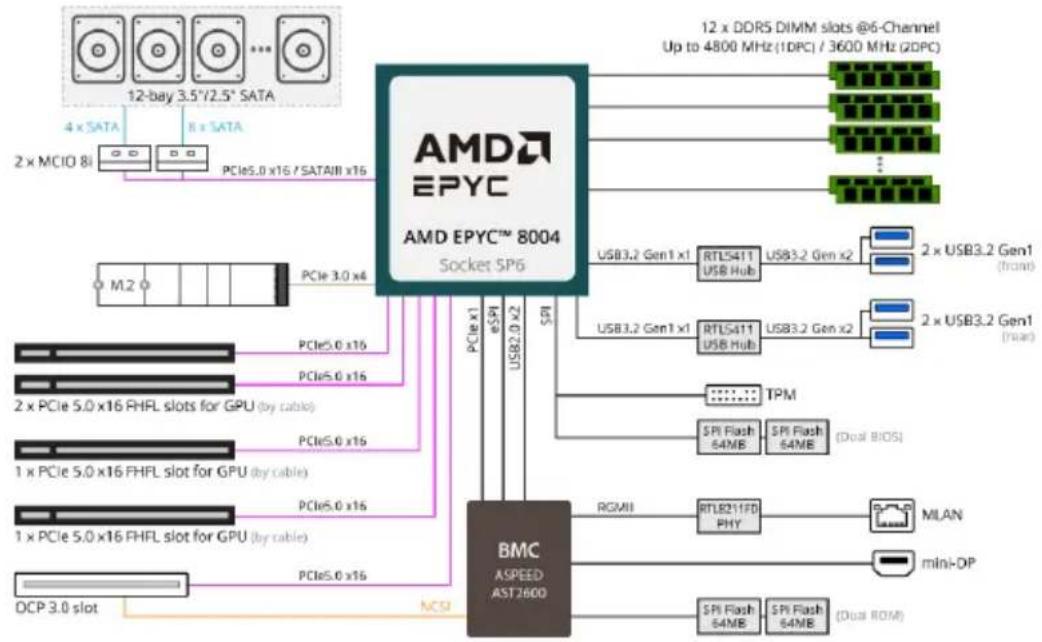
1-3 System Block Diagram
R243-EG0 (AAF1/AAL1)
flowchart
graph TD
    A["AMD EPYC 8004"] -->|PCIe5.0 x16 / SATAII x16| B["PCIe5.0 x16"]
    A -->|PCIe3.0 x4| C["PCIe5.0 x16"]
    A -->|PCIe5.0 x16| D["PCIe5.0 x16"]
    A -->|PCIe5.0 x16| E["PCIe5.0 x16"]
    A -->|PCIe5.0 x16| F["PCIe5.0 x16"]
    A -->|PCIe5.0 x16| G["PCIe5.0 x16"]
    A -->|PCIe5.0 x16| H["OCP 3.0 slot"]
    A -->|PCIe5.0 x16| I["NCSI"]
    A -->|USB3.2 Gen1 x1| J["RTLS411 USB Hub"]
    A -->|USB3.2 Gen1 x1| K["RTLS411 USB Hub"]
    A -->|TPM| L["SPI Flash 64MB"]
    A --> M["RS/MI"]
    A --> N["RTLB211FD PHY"]
    A --> O["SPI Flash 64MB"]
    A --> P["2x USB3.2 Gen1 (front)"]
    A --> Q["2x USB3.2 Gen1 (rear)"]
    A --> R["2x USB3.2 Gen1 (front)"]
    A --> S["2x USB3.2 Gen1 (front)"]
    A --> T["2x USB3.2 Gen1 (front)"]
    A --> U["2x USB3.2 Gen1 (front)"]
    A --> V["2x USB3.2 Gen1 (front)"]
    A --> W["2x USB3.2 Gen1 (front)"]
    A --> X["2x USB3.2 Gen1 (front)"]
    A --> Y["2x USB3.2 Gen1 (front)"]
    A --> Z["2x USB3.2 Gen1 (front)"]
    A --> AA["2x USB3.2 Gen1 (front)"]
    A --> AB["2x USB3.2 Gen1 (front)"]
    A --> AC["2x USB3.2 Gen1 (front)"]
    A --> AD["2x USB3.2 Gen1 (front)"]
    A --> AE["2x USB3.2 Gen1 (front)"]
    A --> AF["2x USB3.2 Gen1 (front)"]
    A --> AG["2x USB3.2 Gen1 (front)"]
    A --> AH["2x USB3.2 Gen1 (front)"]
    A --> AI["2x USB3.2 Gen1 (front)"]
    A --> AJ["2x USB3.2 Gen1 (front)"]
    A --> AK["2x USB3.2 Gen1 (front)"]
    A --> AL["2x USB3.2 Gen1 (front)"]
    A --> AM["2x USB3.2 Gen1 (front)"]
    A --> AN["2x USB3.2 Gen1 (front)"]
    A --> AO["2x USB3.2 Gen1 (front)"]
    A --> AP["2x USB3.2 Gen1 (front)"]
    A --> AQ["2x USB3.2 Gen1 (front)"]
    A --> AR["2x USB3.2 Gen1 (front)"]
    A --> AS["2x USB3.2 Gen1 (front)"]
    A --> AT["2x USB3.2 Gen1 (front)"]
    A --> AU["2x USB3.2 Gen1 (front)"]
    A --> AV["2x USB3.2 Gen1 (front)"]
    A --> AW["2x USB3.2 Gen1 (front)"]
    A --> AX["2x USB3.2 Gen1 (front)"]
    A --> AY["2x USB3.2 Gen1 (front)"]
    A --> AZ["2x USB3.2 Gen1 (front)"]
    A --> BA["2x USB3.2 Gen1 (front)"]
    A --> BB["2x USB3.2 Gen1 (front)"]
    A --> BC["2x USB3.2 Gen1 (front)"]
    A --> BD["2x USB3.2 Gen1 (front)"]
    A --> BE["2x USB3.2 Gen1 (front)"]
    A --> BF["2x USB3.2 Gen1 (front)"]
    A --> BG["2x USB3.2 Gen1 (front)"]
    A --> BH["2x USB3.2 Gen1 (front)"]
    A --> BI["2x USB3.2 Gen1 (front)"]
    A --> BJ["2x USB3.2 Gen1 (front)"]
    A --> BK["2x USB3.2 Gen1 (front)"]
    A --> BL["2x USB3.2 Gen1 (front)"]
    A --> BM["2x USB3.2 Gen1 (front)"]
    A --> BN["2x USB3.2 Gen1 (front)"]
    A --> BO["2x USB3.2 Gen1 (front)"]
    A --> BP["2x USB3.2 Gen1 (front)"]
    A --> BQ["2x USB3.2 Gen1 (front)"]
    A --> BR["2x USB3.2 Gen1 (front)"]
    A --> BS["2x USB3.2 Gen1 (front)"]
    A --> BT["2x USB3.2 Gen1 (front)"]
    A --> BU["2x USB3.2 Gen1 (front)"]
    A --> BV["2x USB3.2 Gen1 (front)"]
    A --> BW["2x USB3.2 Gen1 (front)"]
    A --> BX["2x USB3.2 Gen1 (front)"]
    A --> BY["2x USB3.2 Gen1 (front)"]
    A --> BZ["2x USB3.2 Gen1 (front)"]
    A --> CA["2x USB3.2 Gen1 (front)"]
    A --> CB["2x USB3.2 Gen1 (front)"]
    A --> CC["2x USB3.2 Gen1 (front)"]
    A --> CD["2x USB3.2 Gen1 (front)"]
    A --> CE["2x USB3.2 Gen1 (front)"]
    A --> CF["2x USB3.2 Gen1 (front)"]
    A --> CG["2x USB3.2 Gen1 (front)"]
    A --> CH["2x USB3.2 Gen1 (front)"]
    A --> CI["2x USB3.2 Gen1 (front)"]
    A --> CJ["2x USB3.2 Gen1 (front)"]
    A --> CK["2x USB3.2 Gen1 (front)"]
    A --> CL["2x USB3.2 Gen1 (front)"]
    A --> CM["2x USB3.2 Gen1 (front)"]
    A --> CN["2x USB3.2 Gen1 (front)"]
    A --> CO["2x USB3.2 Gen1 (front)"]
    A --> CP["2x USB3.2 Gen1 (front)"]
    A --> CQ["2x USB3.2 Gen1 (front)"]
Chapter 2 System Appearance
2-1 Front View
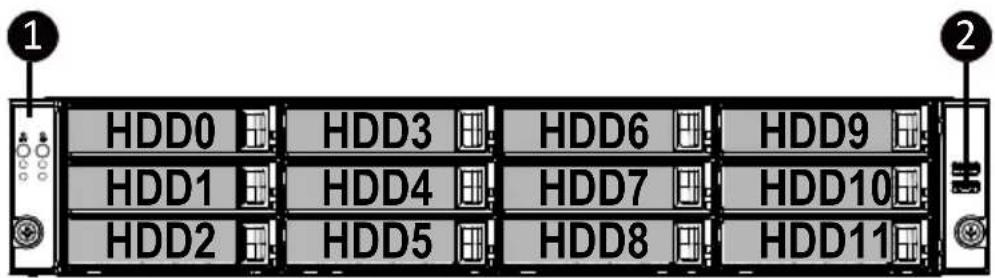
- Front Panel LEDs and buttons
- Front USB 3.0 ports
NOTE! Drives with green latch support NVMe.

- Please Go to Chapter 2-3 Front Panel LED and Buttons for detail description of function LEDs.
2-2 Rear View
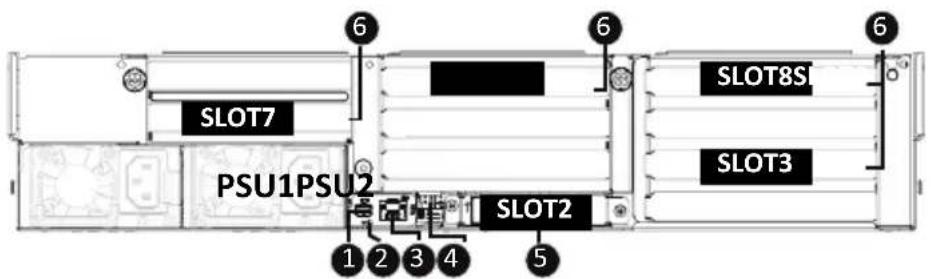
No. Decription
- Mini DP Port
- ID Button with LED
- Server management LAN port
- USB 3.2 Gen1 Port x 2
- OCP 3.0 Slot (Option/SFF)
- PCIe Card Slot
2-3 Front Panel LED and Buttons
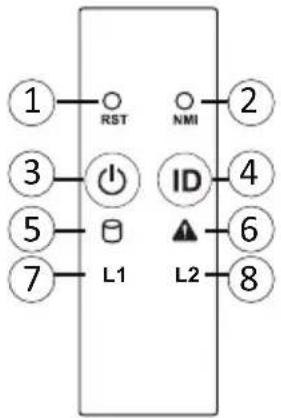
| No. | Name | Color | Status | Description |
| 1. | Reset Button Press the button to reset the system. | |||
| 2. | NMI button | Press the button server generates a NMI to the processor if the multiple-bit ECC errors occur, which effectively halt the server. | ||
| 3. | Power button with LED | Green On System is powered on | ||
| N/A Off | • System is not powered on or in ACPI S5 state (power off) | |||
| 4. | ID Button with LED | Blue On System identification is active. | ||
| N/A Off System identification is disabled. | ||||
| 5. | HDD Status LED | Green | On HDD locate | |
| Blink HDD access | ||||
| Amber On HDD fault | ||||
| Green/ Amber | Blink HDD rebuilding | |||
| N/A Off No HDD access or no HDD fault. | ||||
| 6. | System Status LED | Green On System is operating normally. | ||
| Amber | Critical condition, may indicates: | |||
| On System fan failure | ||||
| System temperature | ||||
| Blink | Non-critical condition, may indicates: | |||
| Redundant power module failure | ||||
| Temperature and voltage issue | ||||
| Chassis intrusion | ||||
| N/A Off | Non-critical condition, may indicates: | |||
| Redundant power module failure | ||||
| Temperature and voltage issue | ||||
| Chassis intrusion | ||||
| 7. | LAN1 Active/Link LED | Green On | Link between system and network or no access | |
| Green Blink Data transmission or receiving is occurring | ||||
| N/A Off No data transmission or receiving is occurring | ||||
| 8. | LAN2 Active/Link LED | Green On | Link between system and network or no access | |
| Green Blink Data transmission or receiving is occurring | ||||
| N/A Off No data transmission or receiving is occurring | ||||
(Note) If your server features RoT function, please see the following section for detail LED behavior.
2-3-1 RoT LEDs
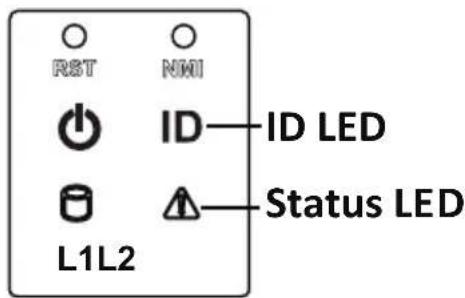
| LED on Front panel (Note5) | ||
| ID LED Status LED | ||
| EC Firmware (FW) Authentication fail or not exit | ||
| EC FW is broken or not exit (Note1) | OFF OFF | |
| Authenticating/Recovering BMC/BIOS Images | ||
| Authenticating Images | OFF OFF | |
| Recovering BMC Active Flash | Blinks Blue 4 times per second | Blinks Green 4 times per second |
| Recovering BIOS Active Flash | Blinks Blue 4 times per second | Blinks Green 4 times per second |
| Authentication (AUTH) Pass | ||
| Recovering BIOS Active Flash | OFF OFF | |
| BMC : AUTH pass after doing recovery BIOS : AUTH pass after doing recovery | OFF OFF | |
| BMC : AUTH pass after doing recovery BIOS : AUTH pass | OFF OFF | |
| BMC : AUTH pass BIOS : AUTH pass after doing recovery | OFF OFF | |
| Active Flash Authentication (AUTH) Fail | ||
| BMC : AUTH Fail (Note2) | Blinks Blue 1 time per second | Blinks Green 1 time per second |
| BIOS : AUTH fail ^(Note2) | Blinks Blue1 time per second | Blinks Amber1 time per second |
| BMC : AUTH fail after doing recovery ^(Note3) | Blinks Blue2 times per second[ON OFF OFF] | Blinks Green2 times per second[ON OFF OFF] |
| BIOS : AUTH fail after doing recovery ^(Note3) | Blinks Blue2 times per second[ON OFF OFF] | Blinks Amber2 times per second[ON OFF OFF] |
| Backup Flash Authentication Fai ^(Note4) | ||
| BMC : AUTH fail | Blinks Blue2 times per second[ON OFF ON OFF] | Blinks Green2 times per second[ON OFF ON OFF] |
| BIOS : AUTH fail | Blinks Blue2 times per second[ON OFF ON OFF] | Blinks Amber2 times per second[ON OFF ON OFF] |
NOTE!
- EC FW is broken or not exited result in Microchip CEC1702 cannot load EC FW for authentication.
2 (1) Authentication fail include below scenarios
Configuration table is missing or modified
Public key is missing or modified
Protected area or signature is modified
Flash empty
-
If active flash is still authentication failed after recovery sequence, Microchip CEC1702 stop the process and showing LED behavior.
-
If backup flash authentication is failed cause by configuration table, public key or protected area is broken. Microchip CEC1702 stop the process and showing LED behavior.
-
Front panel LED is controlled by BMC or Microchip CEC1702. Once Microchip CEC1702 is working(Auth or recovery), the front panel LED is controlled by Microchip CEC1702 and vice versa.
2-4 Rear System LAN LEDs
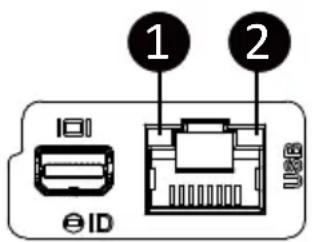
| No. | Name | Color | Status | Description |
| 1. | 1GbESpeed LED | Yellow On 1 Gbps data rate | ||
| Green On 100 Mbps data rate | ||||
| N/A Off 10 Mbps data rate | ||||
| 2. | 1GbELink/Activity LED | Green | On Link between system and network or no access | |
| Blink Data transmission or receiving is occurring | ||||
| N/A Off No data transmission or receiving is occurring | ||||
2-5 Power Supply Unit (PSU) LED
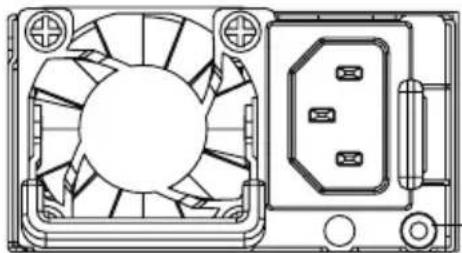
natural_image
Technical line drawing of a fan assembly with internal components and mounting holes (no text or symbols)PSU LED
| State | Description |
| OFF No AC power to all power supplies | |
| 1Hz Green Blinking AC present / only standby on / Cold redundant mode | |
| 2Hz Green Blinking Power supply firmware updating mode | |
| Amber | AC cord unplugged or AC power lost; with a second power supply in parallel still with AC input power |
| Power supply critical event causing shut down: failure, OCP, OVP, fan failure and UVP | |
| 1Hz Amber Blinking | Power supply warning events where the power supply continues to operate: high temp, high power, high current and slow fan |
2-6 Hard Disk Drive LEDs
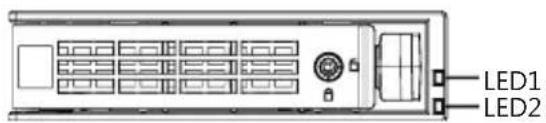
| RAID SKU | LED #1 Locate | HDD Fault | Rebuilding H | HDD Access | HDD Present (No Access) | ||
| No RAID configuration (via HBA) | Disk LED (LED on Back Panel) | Green ON(*1) OFF BLINK (*2) OFF | |||||
| Amber OFF OFF OFF OFF | |||||||
| Removed HDD Slot (LED on Back Panel) | Green | ON(*1) | OFF | -- | -- | ||
| Amber | OFF | OFF | -- | -- | |||
| RAID configuration (via HW RAID Card or SW RAID Card) | Disk LED | Green | ON | OFF | BLINK (*2) | OFF | |
| Amber OFF ON | (Low Speed: 2 Hz) | OFF OFF | |||||
| Removed HDD Slot | Green | ON(*1) | OFF | (*3) | -- | -- | |
| Amber | OFF | ON | (*3) | -- | -- | ||
| LED #2 HDD | Present No HDD |
| Green ON OFF |
NOTE:
*1: Depends on HBA/Utility Spec.
*2: Blink cycle depends on HDD's activity signal.
*3: If HDD is pulled out during rebuilding, the disk status of this HDD is regarded as faulty.
Chapter 3 System Hardware Installation

Pre-installation Instructions
Computer components and electronic circuit boards can be damaged by discharges of static electricity. Working on computers that are still connected to a power supply can be extremely dangerous. Follow the simple guidelines below to avoid damage to your computer or injury to yourself.
- Always disconnect the computer from the power outlet whenever you are working inside the computer case.
- If possible, wear a grounded wrist strap when you are working inside the computer case. Alternatively, discharge any static electricity by touching the bare metal system of the computer case, or the bare metal body of any other grounded appliance.
- Hold electronic circuit boards by the edges only. Do not touch the components on the board unless it is necessary to do so. Do not flex or stress the circuit board.
- Leave all components inside the static-proof packaging until you are ready to use the component for the installation.
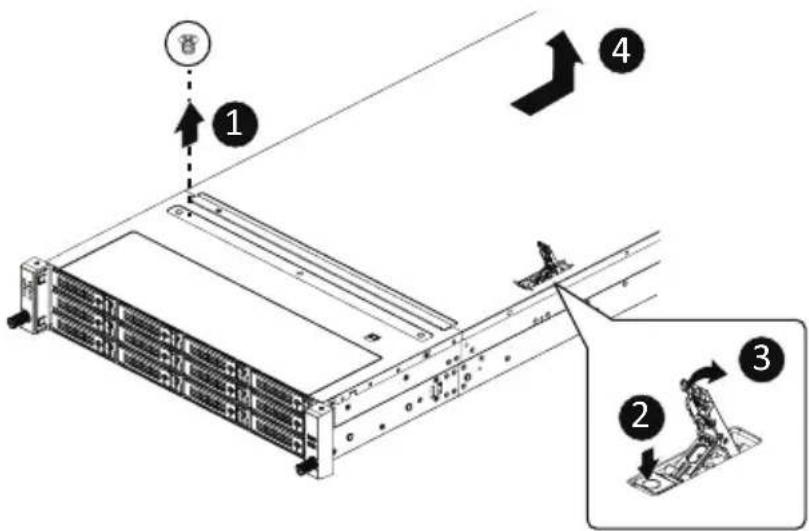
3-1 Removing Chassis Cover

Before you remove or install the system cover
- Make sure the system is not turned on or connected to AC power.
Follow these instructions to remove the system cover:
- Loosen and remove the thumbscrew securing the back cover.
- Push down the indentation located at the side of the back chassis
- Slide the cover horizontally to the back and remove the cover in the direction of the arrow.
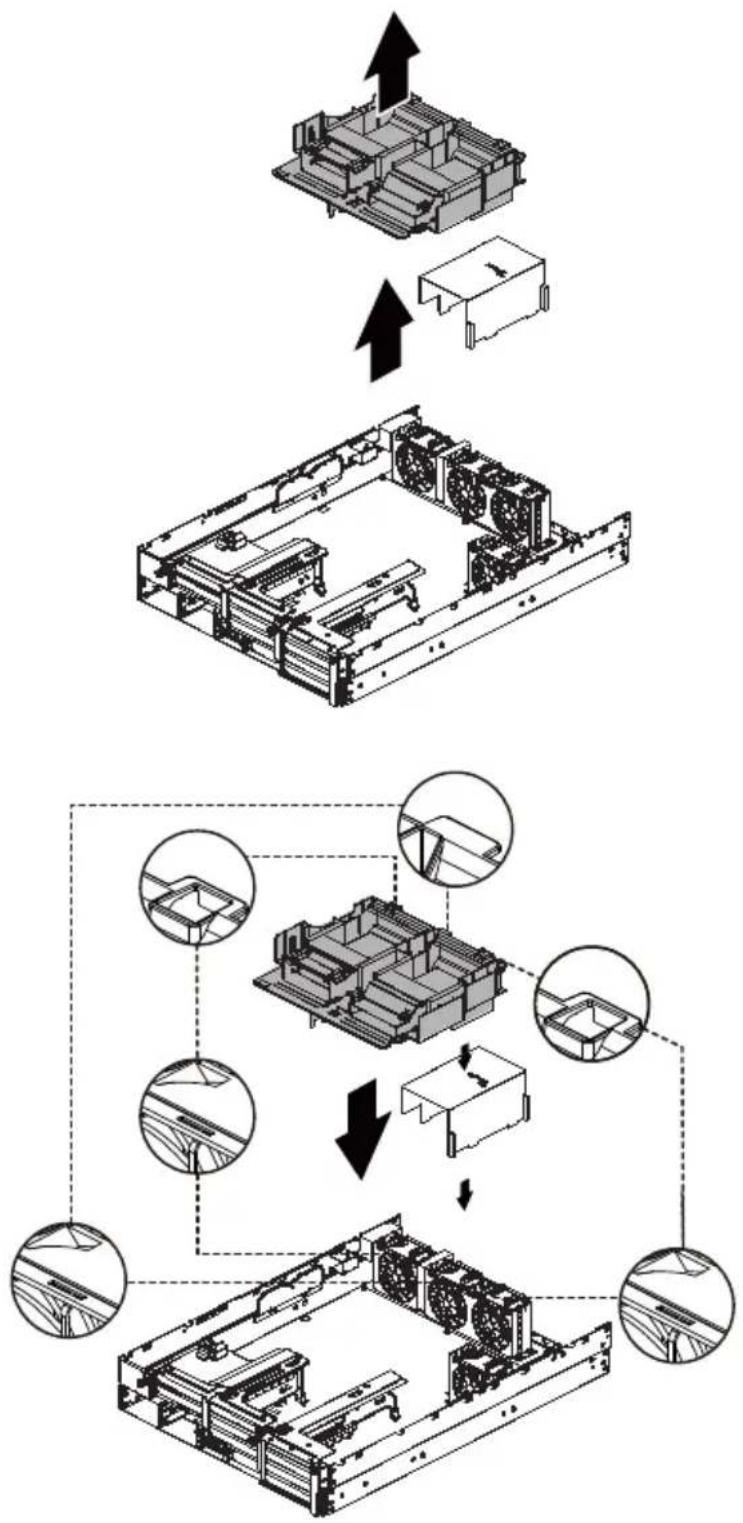
3-2 Removing and Installing the Fan Duct
Follow these instructions to remove/install the fan duct:
- Lift up to remove the fan duct
- To reinstall the fan duct, align the fan duct with the guiding groove. Push down the fan duct until it is firmly seated on the system.
flowchart
graph TD
    A["Device housing"] --> B["Assembly"]
    B --> C{Adjustment}
    C -->|Yes| D["Product assembly"]
    C -->|No| E["Final packaging"]
    D --> F["Final packaging"]
    style A fill:#f9f,stroke:#333
    style E fill:#bbf,stroke:#333
3-3 Removing and installing the Heat Sink

Read the following guidelines before you begin to remove/install the heat sink:
- Always turn off the computer and unplug the power cord from the power outlet before installing the heat sink to prevent hardware damage.
- Unplug all cables from the power outlets.
- Disconnect all telecommunication cables from their ports.
- Place the system unit on a flat and stable surface.
- Open the system according to the instructions.

WARNING!
Failure to turn off the server before you start installing components may cause serious damage. Do not attempt the procedures described in the following sections unless you are a qualified service technician.
Follow these instructions to remove/install the heat sink:
- Loosen the captive screws securing the heat sink in place in reverse order (6 →5→4→3→2→1).
- Lift and remove the heat sink from the system.
- To reinstall the heat sink reverse steps 1-2 while ensuring that you tighten the captive screws in sequential order (1→2→3→4→5→6) as seen in the image below.
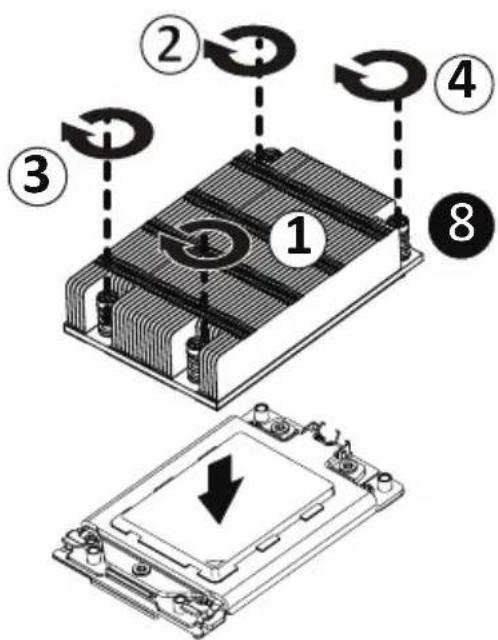

- When installing the heat sink to CPU, use a Torx T20 screwdriver to tighten 6 captive nuts in sequence as 1-6. The screw tightening torque: 12.5-15.0 kgf-cm.
• To ensure the system operates properly, make sure the heatsink is seated on the processor firmly.
3-4 Installing the CPU

Read the following guidelines before you begin to install the CPU:
• Make sure that the motherboard supports the CPU.
- Always turn off the computer and unplug the power cord from the power outlet before installing the CPU to prevent hardware damage.
- Unplug all cables from the power outlets.
- Disconnect all telecommunication cables from their ports.
- Place the system unit on a flat and stable surface.
- Open the system according to the instructions.

WARNING!
Failure to properly turn off the server before you start installing components may cause serious damage. Do not attempt the procedures described in the following sections unless you are a qualified service technician.
Follow these instructions to install the CPU:
- Loosen the captive screw securing the CPU cover.
- Flip open the CPU cover.
- Remove the CPU carrier from the CPU frame using the handle on the CPU carrier.
-
Using the handle on the CPU carrier insert the new CPU carrier with CPU installed into the CPU frame.
NOTE: Ensure the CPU is installed in the CPU carrier in the correct orientation, with the triangle on the CPU aligned to the top left corner of the CPU carrier. -
Flip the CPU frame with CPU installed into place in the CPU socket.
-
Flip the CPU cover into place over the CPU socket.
-
Tighten the CPU cover screw to secure the CPU cover in place.
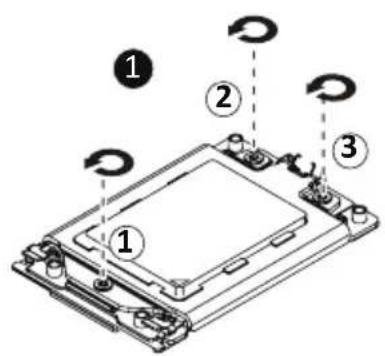
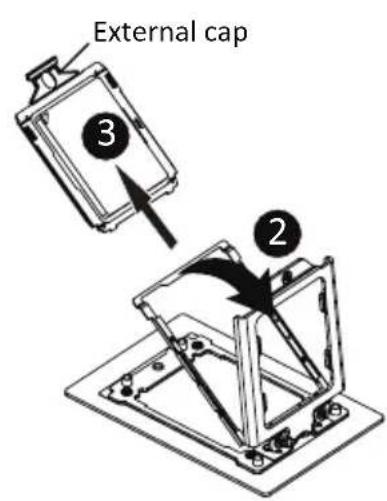
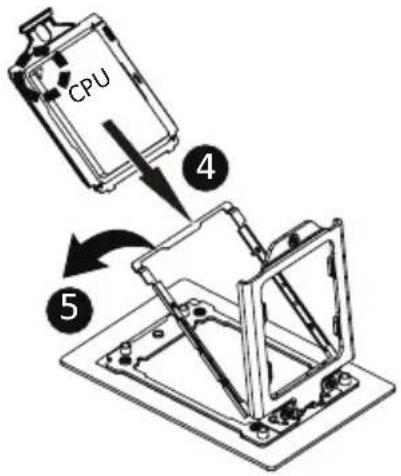
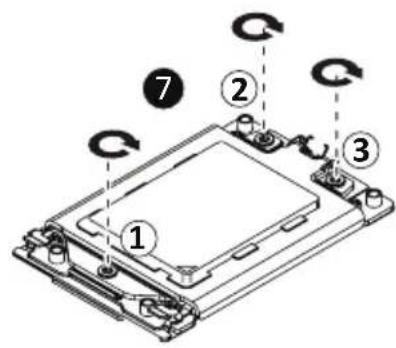
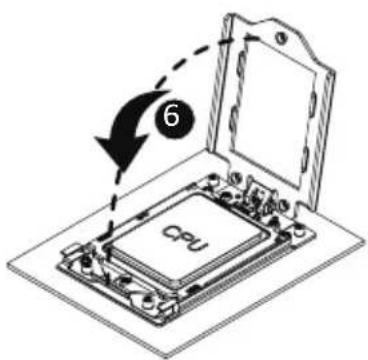

Read the following guidelines before you begin to install the CPU:
- Lock the CPU by using a T-20 6-Lobe screwdriver to tighten screw.
- When installing the heatsink to CPU, use a T-20 6-Lobe screwdriver to tighten 4 captive nuts in sequence as 1-4.
• The screw tightening torque: 13.8 ± 1.3 kgf-cm. - To ensure the system operates properly, make sure the heatsink is seated on the processor firmly.
3-5 Installing the Memory

Read the following guidelines before you begin to install the memory:
- Make sure that the motherboard supports the memory. It is recommended that memory of the same capacity, brand, speed, and chips be used.
- Always turn off the computer and unplug the power cord from the power outlet before installing the memory to prevent hardware damage.
- Memory modules have a foolproof design. A memory module can be installed in only one direction. If you are unable to insert the memory, switch the direction.
3-5-1 Six Channel Memory Configuration
This motherboard provides 12 DDR5 memory slots and supports Six Channel Technology. After the memory is installed, the BIOS will automatically detect the specifications and capacity of the memory.
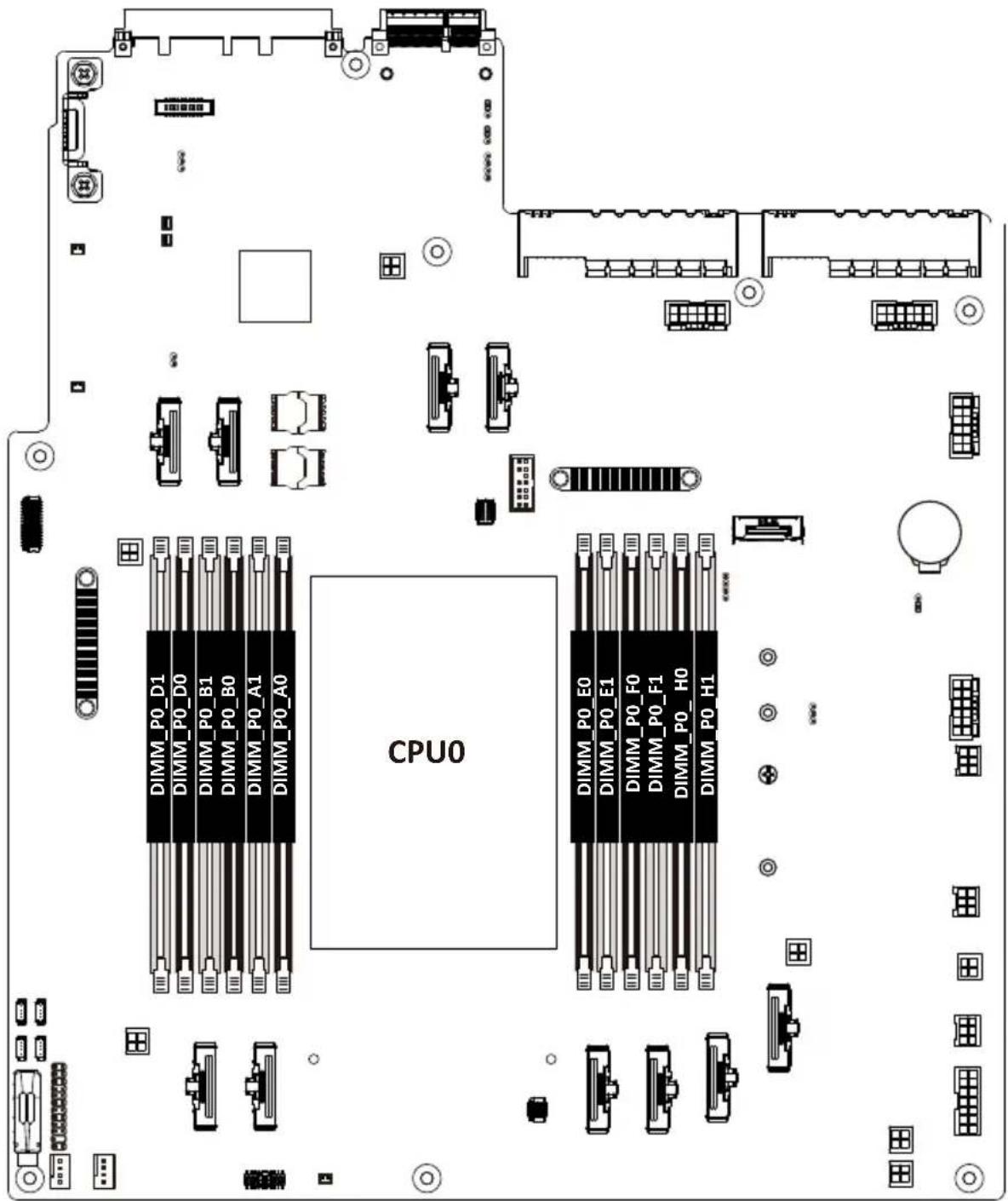
3-5-2 Installing a Memory

Before installing a memory module, make sure to turn off the computer and unplug the power cord from the power outlet to prevent damage to the memory module.
Be sure to install DDR4 DIMMs on this motherboard.
Follow these instructions to install a DIMM module:
- Insert the DIMM memory module vertically into the DIMM slot, and push it down.
- Close the plastic clip at both edges of the DIMM slots to lock the DIMM module.
- Reverse the installation steps when you want to remove the DIMM module.
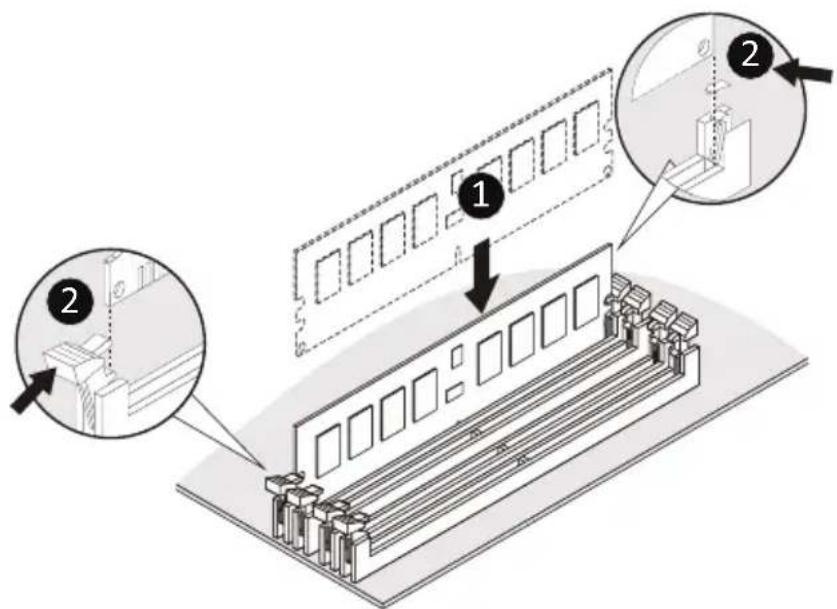
3-5-3 DIMM Population Table
| DIMM | DIMM Population DDR5 Frequency (MT/s) | ||
| Type | DIMM0 DIMM1 14-layer 77mil PCB stackup | ||
| RDIMM | -- 1R 4800 | ||
| 1R 1R 4000 | |||
| -- 2R 4800 | |||
| 2R 2R 3600 | |||
3-5-4 Processor and Memory Module Matrix Table
| Memory Q'ty | CPU0 | ||||||||||||
| F1 | F8 | B0 | B1 | ||||||||||
| 1 DIMM | V | ||||||||||||
| 2 DIMM | V | V | |||||||||||
| 4 DIMM | V | V | V | V | |||||||||
| 6 DIMM | V | V | V | V | V | V | |||||||
| 8 DIMM | V | V | V | V | V | V | V | V | |||||
| 12 DIMM | V | V | V | V | V | V | V | V | V | V | V | V | |
NOTE!
● There should be at least one DDR5 DIMM per socket.
- If only one DIMM is populated in a channel, then populate it in the slot furthest away from CPU of that channel.
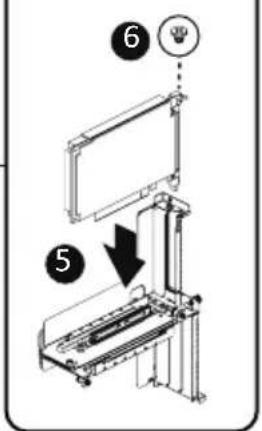
3-6 Removing and Installing the PCIe Card

- Voltages can be present within the server whenever an AC power source is connected. This voltage is present even when the main power switch is in the off position. Ensure that the system is powered off and all power sources have been disconnected from the server prior to installing a PCIe card.
- Failure to observe these warnings could result in personal injury or damage to equipment.
- The PCI riser assembly does not include a riser card or any cabling as standard. To install a PCI card, a riser card must be installed.

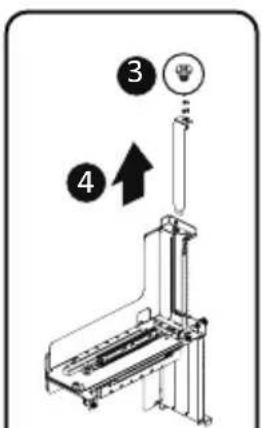
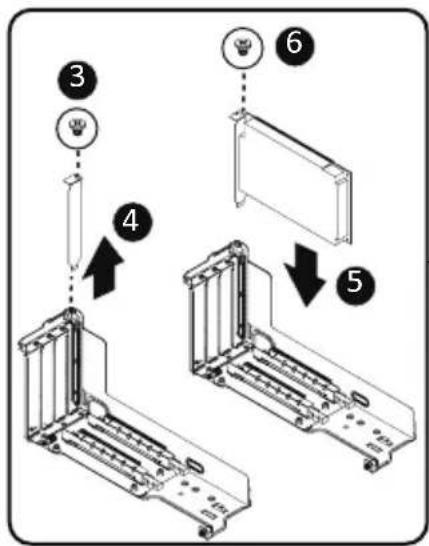
Follow these instructions to install a PCIe card:
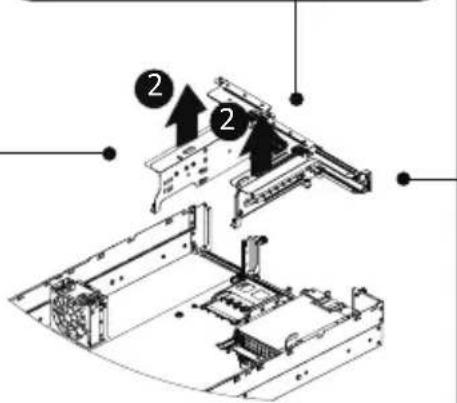
- Loosen the two thumbnail screws securing the riser bracket inside the system.
- Lift up the riser bracket out of system.
- Remove the screw securing the slot cover from riser bracket.
- Orient the PCIe card with the riser guide slot and push in the direction of the arrow until the PCIe card sits in the PCIe card connector.
NOTE: Some riser brackets allow for single or multiple PCIe cards.
Repeat steps 3-4 as necessary.
- Secure the PCIe card with the screw.
- Repeat steps 1-2 to install the PCIe card into the system.
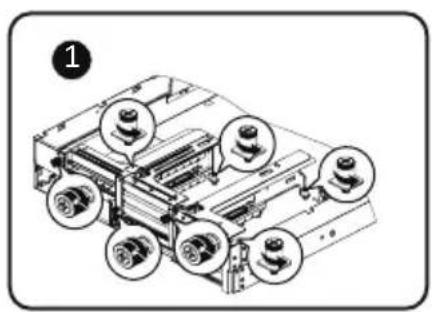
natural_image
Technical diagram of a mechanical device with multiple circular components and no visible text or symbols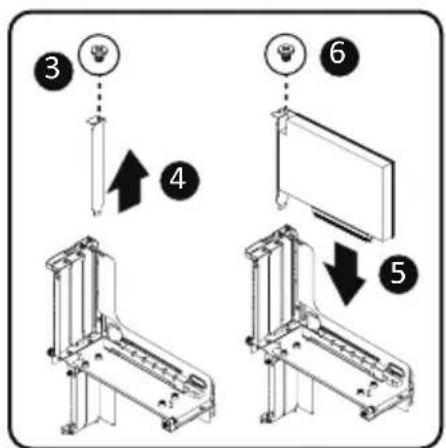
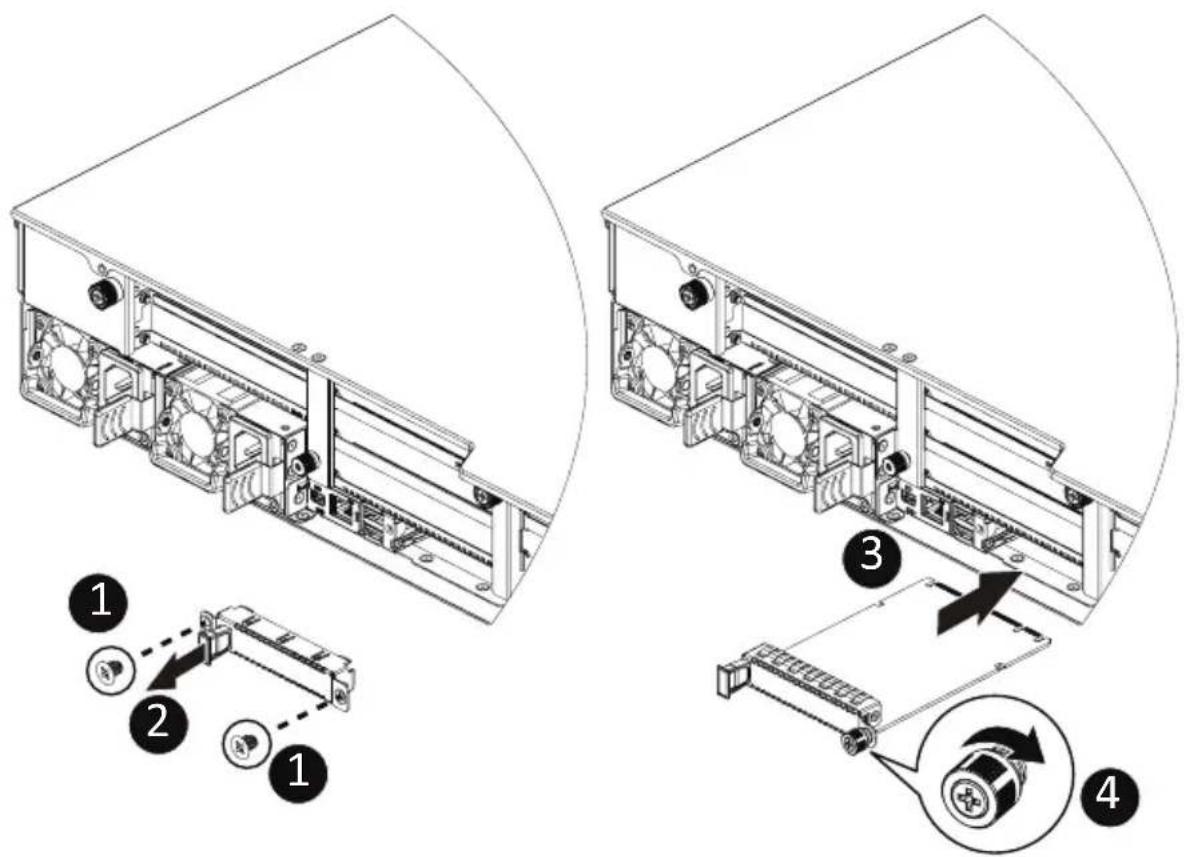
3-7 Installing the Mezzanine Card

Use of the following type of OCP 3.0 NIC is recommended:
- OCP 3.0 SFF with pull tab
• OCP 3.0 SFF with ejector latch
Follow these instructions to install an OCP 3.0 Mezzanine card:
- Remove the two screws securing the OCP 3.0 card slot cover.
- Remove the slot cover from the system.
- Insert the OCP 3.0 card into the card slot ensuring that the card is firmly connected to the connector on the motherboard.
- Tighten the thumbnail screw to secure the OCP 3.0 card in place.
- Reverse steps 3-4 to replace the OCP 3.0 card.

Recommend to use the following type of OCP 3.0 NIC:
• OCP 3.0 SFF with Pull tab
• OCP 3.0 SFF with Ejector latch
3-8 Removing and Installing the Hard Disk Drive

Read the following guidelines before you begin to install the Hard disk drive:
• Take note of the drive tray orientation before sliding it out.
- The tray will not fit back into the bay if inserted incorrectly.
- Make sure that the HDD is connected to the HDD connector on the backplane.
Follow these instructions to install a 3.5" hard disk drive:
- Press the release button.
- Extend the locking lever.
- Pull the locking lever in the direction indicated to remove the 3.5" HDD tray.
- Pull the sides of the HDD tray in the direction indicated.
- Slide the hard disk drive into the HDD tray.
- Push the sides of the HDD tray back in the direction indicated to secure the hard disk drive in place.
- Reinsert the HDD tray into the slot and close the locking lever.
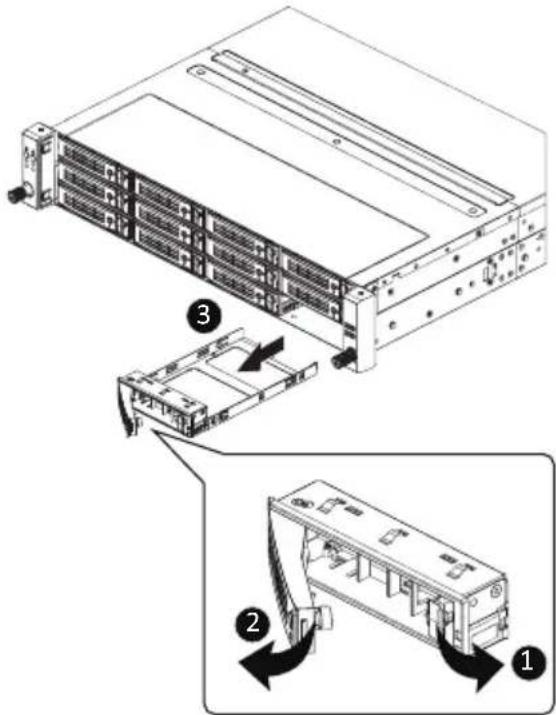
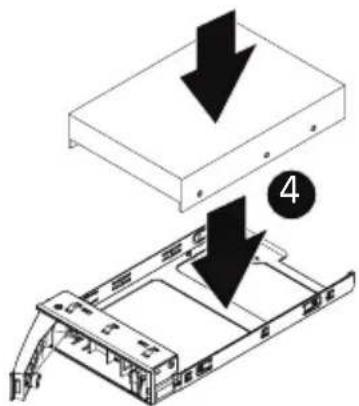
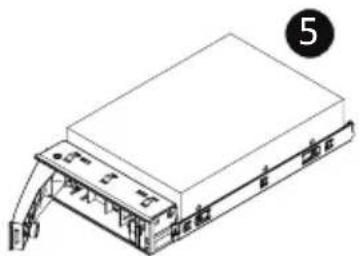
natural_image
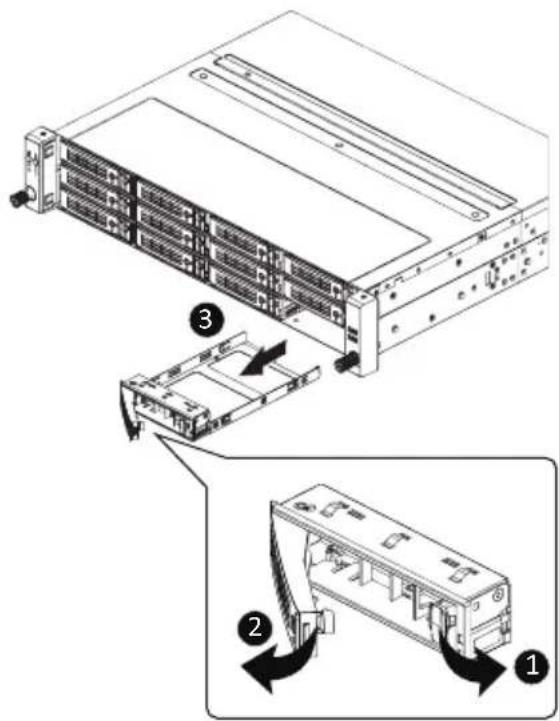
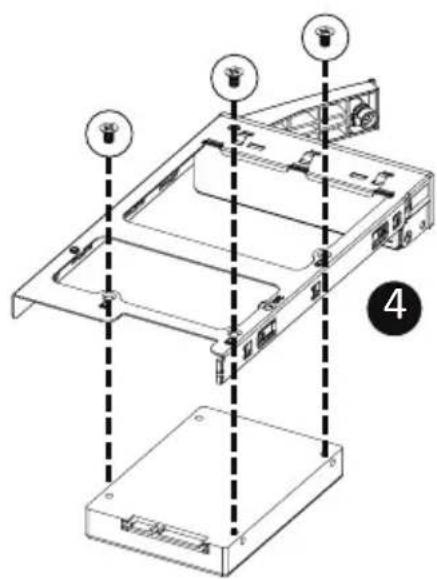
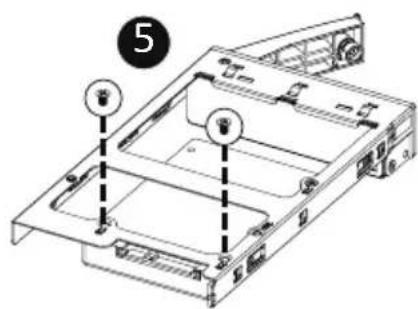
Isometric line drawing of a rectangular electronic device with labeled ports and connectors (no text or symbols)Follow these instructions to install a 2.5" hard disk drive into 3.5" HDD Tray:
- Press the release button.
- Extend the locking lever.
- Pull the locking lever in the direction indicated to remove the HDD tray.
- Align the hard disk drive with the positioning screw on the HDD tray.
- Secure the hard disk drive with five screws.
- Reinsert the HDD tray into the slot and close the locking lever
3-9 Installing the M.2 Device and Heat Sink

CAUTION
The position of the stand-off screw will depend on the size of the M.2 device. The stand-off screw is pre-installed for 22110 cards as standard. Refer to the size of the M.2 device and change the position of the stand-off screw accordingly.

WARNING:
Please ensure a heatsink is attached to any M.2 device installed into the system. Installing an M.2 device without any heatsink may result in the system overheating or system performance being throttled.

- To install/remove the M.2 module and Heatsink use a No. 1 Phillips-head screwdriver with a screw torque of 1.5 ± 0.2 kgf^* cm
Follow these instructions to install the M.2 device and heat sink:
- Insert the M.2 device into the M.2 connector.
- Press down on the M.2 device.
- Install the thermal pad of the M.2 device to the M.2 device.
- Press down on the thermal pad.
- Secure the M.2 device and its thermal pad to the motherboard with a single screw.
- Reverse steps 1-2 to remove the M.2 device.
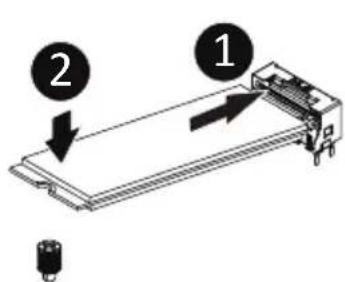

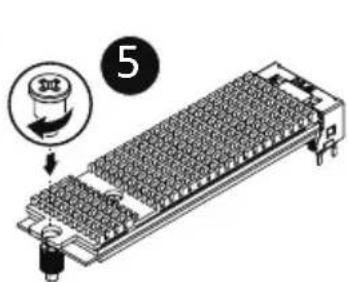
3-10 Replacing the FAN Assembly

- Voltages can be present within the server whenever an AC power source is connected. This voltage is present even when the main power switch is in the off position. Ensure that the system is powered-down and all power sources have been disconnected from the server prior to replacing a system fan.
Failure to observe these warnings could result in personal injury or damage to equipment.
Follow these instructions to replace a fan assembly:
- Pull outward the fan ear.
- Lift up the fan assembly from the chassis.
- Reverse the previous steps to install the replacement fan assembly.
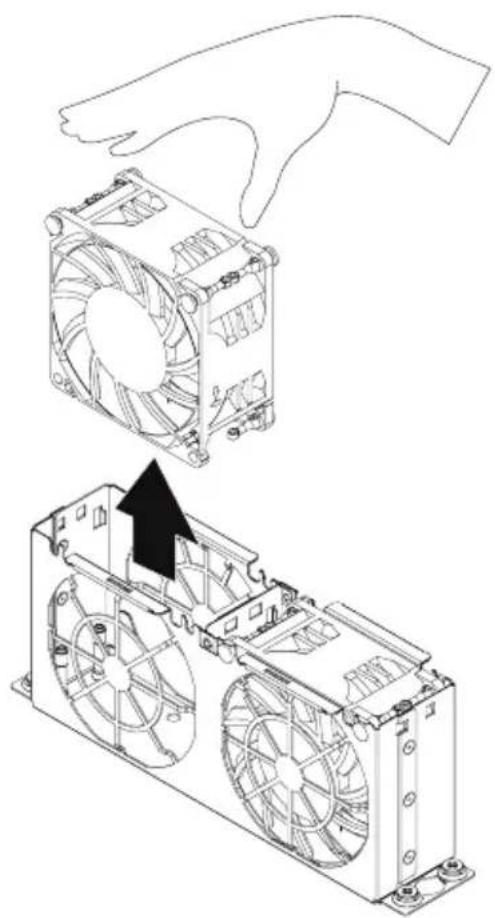
natural_image
Technical line drawing of a computer fan assembly with a hand gesture overlay (no text or symbols)3-11 Replacing the Power Supply

CAUTION!
- In order to reduce the risk of injury from electric shock, disconnect AC power from the power supply before removing the power supply from the system
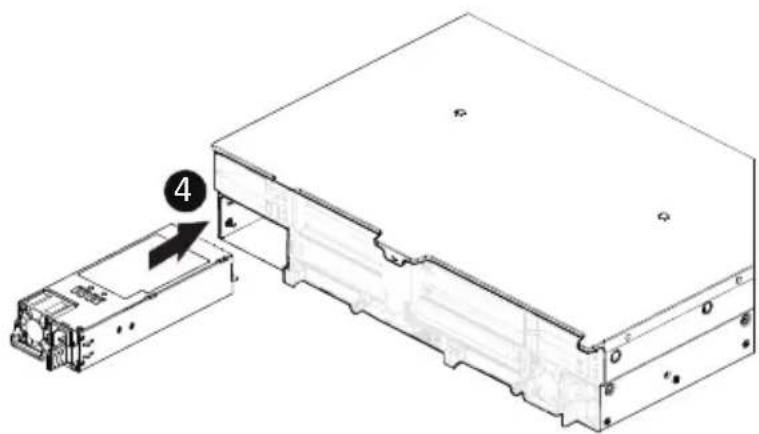
Follow these instructions to replace the power supply:
- Flip and then grasp the power supply handle.
- Press the retaining clip on the top side of the power supply in the direction indicated.
- Pull out the power supply using the handle.
- Insert the replacement power supply firmly into the chassis. Connect the AC power cord to the replacement power supply.
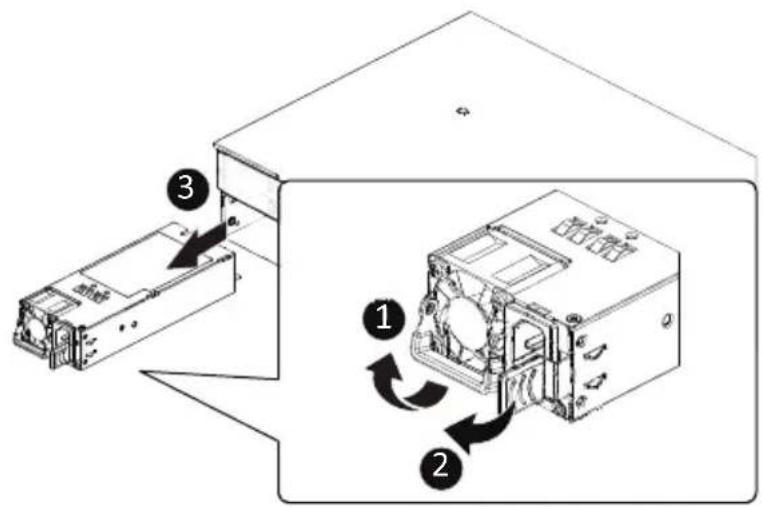
natural_image
Technical line drawing of an electronic device showing internal components and a labeled part (no text or symbols present)3-12 Cable Routing
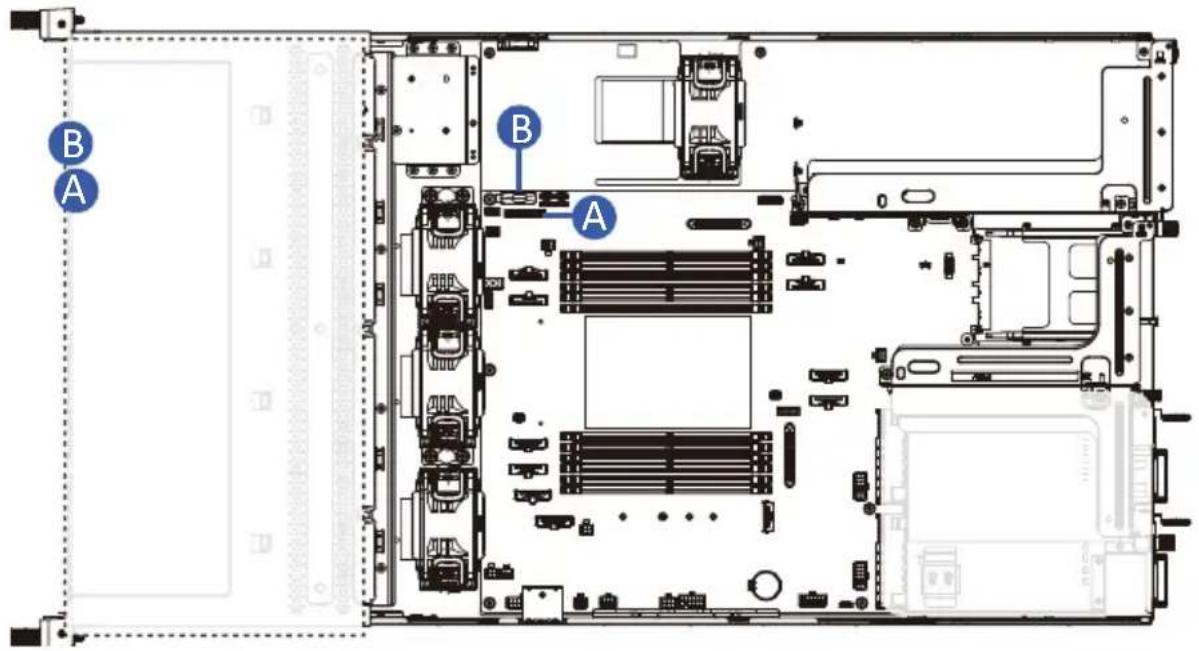
| A Front Switch/LED Cable | Motherboard: FP_1 |
| Front IO Board: FP_1 | |
| B Front USB 3 Cable | Motherboard: F_USB3 |
| Front IO Board: F_USB3 |
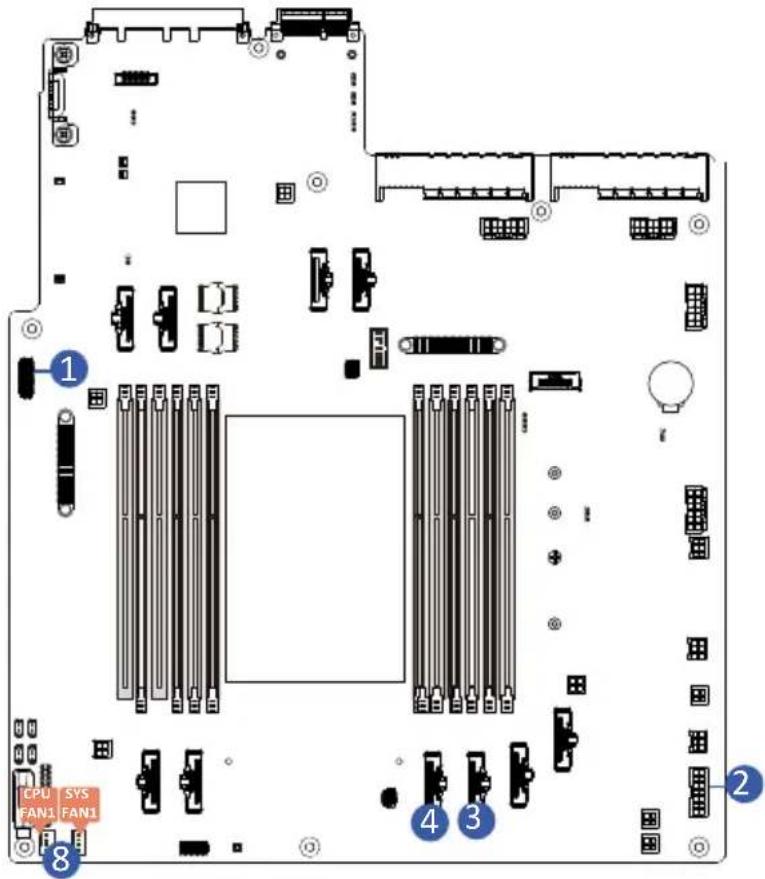
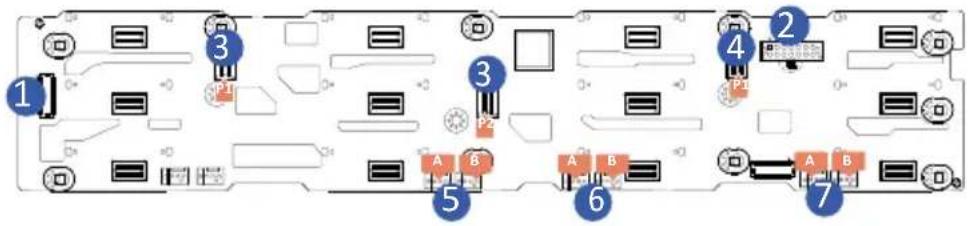
| 1 Backplane Board Signal Cable | Motherboard BP_1 | |
| Backplane Board BP_1 | ||
| 2 Backplane Board Power Cable | Motherboard BP_ATX1 | |
| Backplane Board BP_ATX1 |
| 3 SATA Cable | Motherboard U2_P0_ | G3_0 | |
| Backplane Board (HDD0~HDD7) | SL_SAS0 P1 | ||
| SL_SAS1 P2 | |||
| 4 SATA Cable | Motherboard U2_P0_ | G3_1 | |
| Backplane Board (HDD8~HDD11) | SL_SAS2 P1 | ||
| NA P2 | |||
| 5 Backplane Board Power Cable | FAN2 | |
| Backplane Board | FAN2_A | |
| FAN2_B | ||
| 6 Backplane Board Power Cable | FAN3 | |
| Backplane Board | FAN3_A | |
| FAN3_B | ||
| 7 Backplane Board Power Cable | FAN4 | |
| Backplane Board | FAN4_A | |
| FAN4_B | ||
| 8 Backplane Board Power Cable | FAN1 | |
| Motherboard | CPU0_FAN1 | |
| SYS_FAN1 | ||
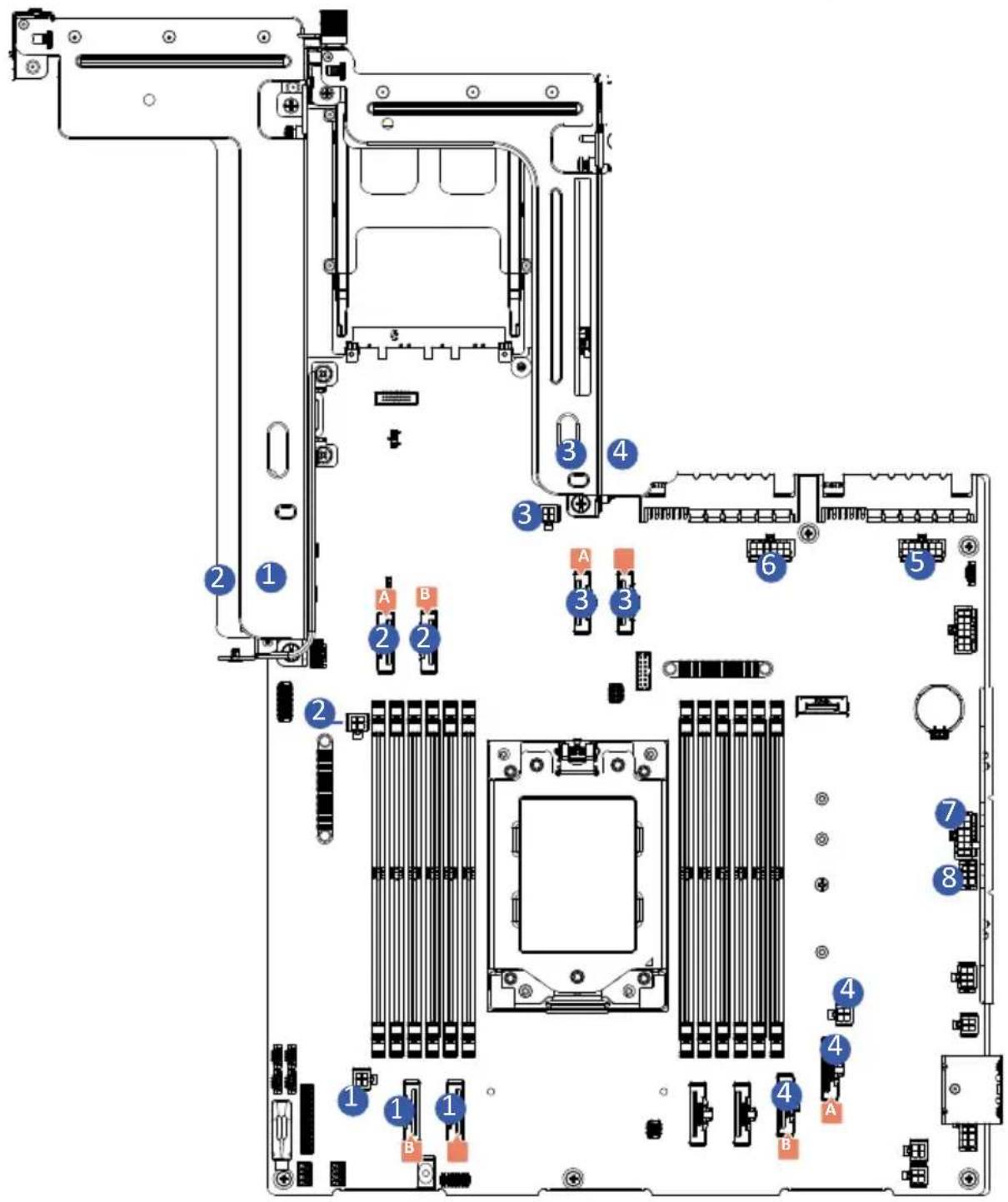
| 1 | PCIe Slot Signal Cable | SLOT3 Cable | ||
| Motherboard Board | U2_P0_G0_0 A | |||
| U2_P0_G0_1 B | ||||
| PCIe Slot Power Cable | SLOT3 Power Cable | |||
| Motherboard Board U2_G0_PWR | ||||
| 2 | PCIe Slot Signal Cable | SLOT8 Cable | ||
| Motherboard | U2_P0_P0_0 A | |||
| U2_P0_P0_1 B | ||||
| PCIe Slot Power Cable | SLOT8 Power Cable | |||
| Motherboard U2_P0_PWR | ||||
| 3 | PCIe Slot Signal Cable | SLOT9 Cable | ||
| Motherboard | U2_P0_P2_0 A | |||
| U2_P0_P2_1 B | ||||
| PCIe Slot Power Cable | SLOT9 Power Cable | |||
| Motherboard U2_P2_PWR | ||||
| 4 | PCIe Slot Signal Cable | SLOT7 Cable | ||
| Motherboard | U2_P0_G2_0 A | |||
| U2_P0_G2_1 B | ||||
| PCIe Slot Power Cable | SLOT7 Power Cable | |||
| Motherboard U2_G2_PWR | ||||
| 5 GPU Power Cable | Motherboard P12V_GPU1 | |||
| GPU Card | ||||
| 6 GPU Power Cable | Motherboard P12V_GPU2 | |||
| GPU Card | ||||
| 7 GPU Power Cable | Motherboard P12V_GPU3 | |||
| GPU Card | ||||
| 8 GPU Power Cable | Motherboard P12V_GPU4 | |||
| GPU Card | ||||
Chapter 4 Motherboard Components
4-1 Motherboard Components
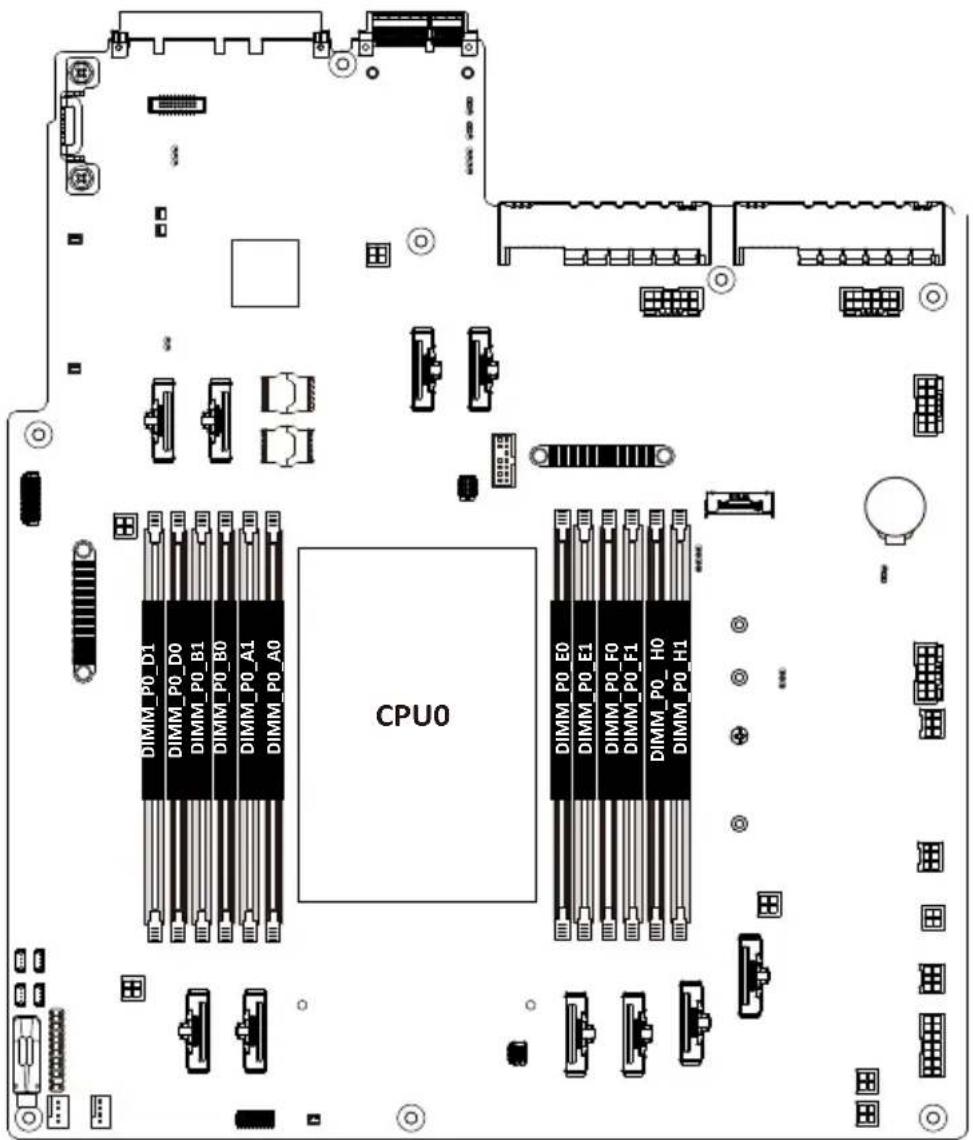
Item Description
1 Power Supply Connector#1 (PSU1)
2 Power Supply Connector#2 (PSU2)
3 P12V GPU Power Connector (P12V_GPU2)
4 P12V GPU Power Connector (P12V_GPU1)
5 2 x 2 Pin MCIO to PCIe Cable P12V Power Cable (U2_G2_PWR)
6 P12V GPU Power Connector (P12V_GPU3)
7 System Battery (BAT)
8 P12V GPU Power Connector (P12V_GPU4)
9 2 x 3 Pin Backplane ATX Power Connector (BP_ATX4)
10 2 x 3 Pin Backplane ATX Power Connector (BP_ATX3)
11 2 x 2 Pin Backplane P12V Power Connector (P12V_BP3)
12 2 x 3 Pin Backplane ATX Power Connector (BP_ATX2)
| 13 2 x 7 Pin Backplane ATX Power Connector (BP_ATX1) |
| 14 2 x 2 Pin Backplane P12V Power Connector (P12V_BP2) |
| 15 2 x 2 Pin Backplane P12V Power Connector (P12V_BP1) |
| 16 MCIO Connector (U2_P0_G2_0) |
| 17 MCIO Connector (U2_P0_G2_1) |
| 18 MCIO Connector (U2_P0_G3_0) |
| 19 MCIO Connector (U2_P0_G3_1) |
| 20 MCIO Connector (U2_P0_G0_0) |
| 21 MCIO Connector (U2_P0_G0_1) |
| 22 AMD Hardware Debug tool Header (HDR) |
| 23 2 x 2 Pin MCIO to PCIe Cable P12V Power Cable(U2_G0_PWR) |
| 24 CPU Fan Connector (CPU0_FAN1) |
| 25 System Fan Connector (SYS_FAN1) |
| 26 Front Panel Header (FP_1) |
| 27 Front Panel USB 3.2 Gen1 Connector (F_USB3) |
| 28 2 x 2 Pin MCIO to PCIe Cable P12V Power Cable (U2_P0_PWR) |
| 29 HDD Backplane Board Connector (BP_1) |
| 30 MCIO Connector (U2_P0_P0_0) |
| 31 MCIO Connector (U2_P0_P0_1) |
| 32 MCIO Connector (U2_P0_P2_0) |
| 33 MCIO Connector (U2_P0_P2_1) |
| 34 TPM Module Connector (SPI_TPM) |
| 35 M.2 Slot (M2_0) |
| 36 2 x 2 Pin MCIO to PCIe Cable P12V Power Cable (U2_P2_PWR) |
| 37 NCSI Connector (CN_NCSI) |
| 38 Connect to rear mDP, USB3.2 Gen1 MLAN function (SLOT_IO) |
| 39 OCP 3.0 Connector (PCIe Gen5 x16)(OCP1) |
4-2 Jumper Setting
![1 HSMB_SEL BIOS Defined 2 PMBUS_SEL BIOS Defined 3 BIOS_PWD Clear supervisor password Normal [Default] 4 BIOS_RCVR BIOS recovery mode Normal [Default] Clear CMOS 3 Enable CLR_CMOS 2 Default CPU0](/content/2026/04/671956/images/0e5d7694c85a1758e3ef1ae0c64ea8893b11eaed52bde23d21660a80ab7da37b.jpg)
4-3 Backplane Board Storage Connector
4-3-1 CBP20C5
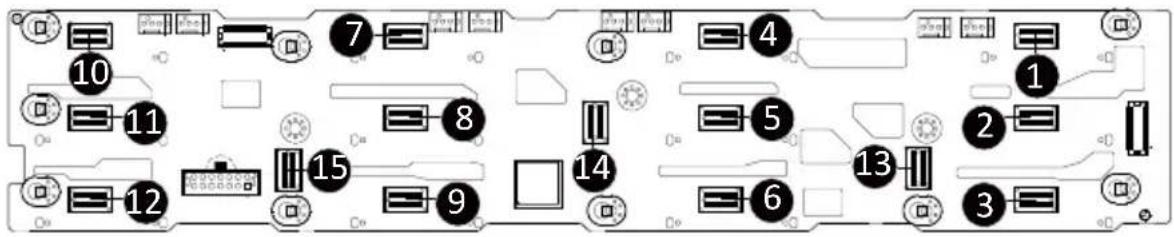
| Item Description |
| 1 SlimLine Connector (SFF-8654 4i/U_2_0) |
| 2 SlimLine Connector (SFF-8654 4i/U_2_1) |
| 3 SlimLine Connector (SFF-8654 4i/U_2_2) |
| 4 SlimLine Connector (SFF-8654 4i/U_2_3) |
| 5 SlimLine Connector (SFF-8654 4i/U_2_4) |
| 6 SlimLine Connector (SFF-8654 4i/U_2_5) |
| 7 SlimLine Connector (SFF-8654 4i/U_2_6) |
| 8 SlimLine Connector (SFF-8654 4i/U_2_7) |
| 9 SlimLine Connector (SFF-8654 4i/U_2_8) |
| 10 SlimLine Connector (SFF-8654 4i/U_2_9) |
| 11 SlimLine Connector (SFF-8654 4i/U_2_10) |
| 12 SlimLine Connector (SFF-8654 4i/U_2_11) |
| 13 SlimLine Connector (SFF-8654 4i/SL_SAS0) |
| 14 SlimLine Connector (SFF-8654 4i/SL_SAS1) |
| 15 SlimLine Connector (SFF-8654 4i/SL_SAS2) |
Chapter 5 BIOS Setup
BIOS (Basic Input and Output System) records hardware parameters of the system in the EFI on the motherboard. Its major functions include conducting the Power-On Self-Test (POST) during system startup, saving system parameters, loading the operating system etc. The BIOS includes a BIOS Setup program that allows the user to modify basic system configuration settings or to activate certain system features. When the power is turned off, the battery on the motherboard supplies the necessary power to the CMOS to keep the configuration values in the CMOS.
To access the BIOS Setup program, press the key during the POST when the power is turned on.

- BIOS flashing is potentially risky, if you do not encounter any problems when using the current BIOS version, it is recommended that you don't flash the BIOS. To flash the BIOS, do it with caution. Inadequate BIOS flashing may result in system malfunction.
- It is recommended that you not alter the default settings (unless you need to) to prevent system instability or other unexpected results. Inadequately altering the settings may result in system's failure to boot. If this occurs, try to clear the CMOS values and reset the board to default values. (Refer to the Exit section in this chapter or introductions of the battery/clearing CMOS jumper in Chapter 1 for how to clear the CMOS values.)
BIOS Setup Program Function Keys
| <←><→> | Move the selection bar to select the screen |
| <↑><↓> | Move the selection bar to select an item |
| <+> | Increase the numeric value or make changes |
| <-> | Decrease the numeric value or make changes |
| Execute command or enter the submenu | |
| Main Menu: Exit the BIOS Setup programSubmenus: Exit current submenu | |
| Show descriptions of general help | |
| Restore the previous BIOS settings for the current submenus | |
| Load the Optimized BIOS default settings for the current submenus | |
| Save all the changes and exit the BIOS Setup program |
Main
This setup page includes all the items of the standard compatible BIOS.
■ Advanced
This setup page includes all the items of AMI BIOS special enhanced features.
(ex: Auto detect fan and temperature status, automatically configure hard disk parameters.)
AMD CBS
This setup page includes the common items for configuration of AMD motherboard-related information.
AMD PBS Option
This setup page includes the common items for configuration of AMD CPM RAS related settings.
Chipset
This setup page includes all the submenu options for configuring the functions of the North Bridge.
■ Server Management
Server additional features enabled/disabled setup menus.
■ Security
Change, set, or disable supervisor and user password. Configuration supervisor password allows you to restrict access to the system and BIOS Setup.
A supervisor password allows you to make changes in BIOS Setup.
A user password only allows you to view the BIOS settings but not to make changes.
Boot
This setup page provides items for configuration of the boot sequence.
■ Save & Exit
Save all the changes made in the BIOS Setup program to the CMOS and exit BIOS Setup. (Pressing
Abandon all changes and the previous settings remain in effect. Pressing
5-1 The Main Menu
Once you enter the BIOS Setup program, the Main Menu (as shown below) appears on the screen. Use arrow keys to move among the items and press
Main Menu Help
The on-screen description of a highlighted setup option is displayed on the bottom line of the Main Menu.
Submenu Help
While in a submenu, press

- When the system is not stable as usual, select the Restore Defaults item to set your system to its defaults.
- The BIOS Setup menus described in this chapter are for reference only and may differ by BIOS version.
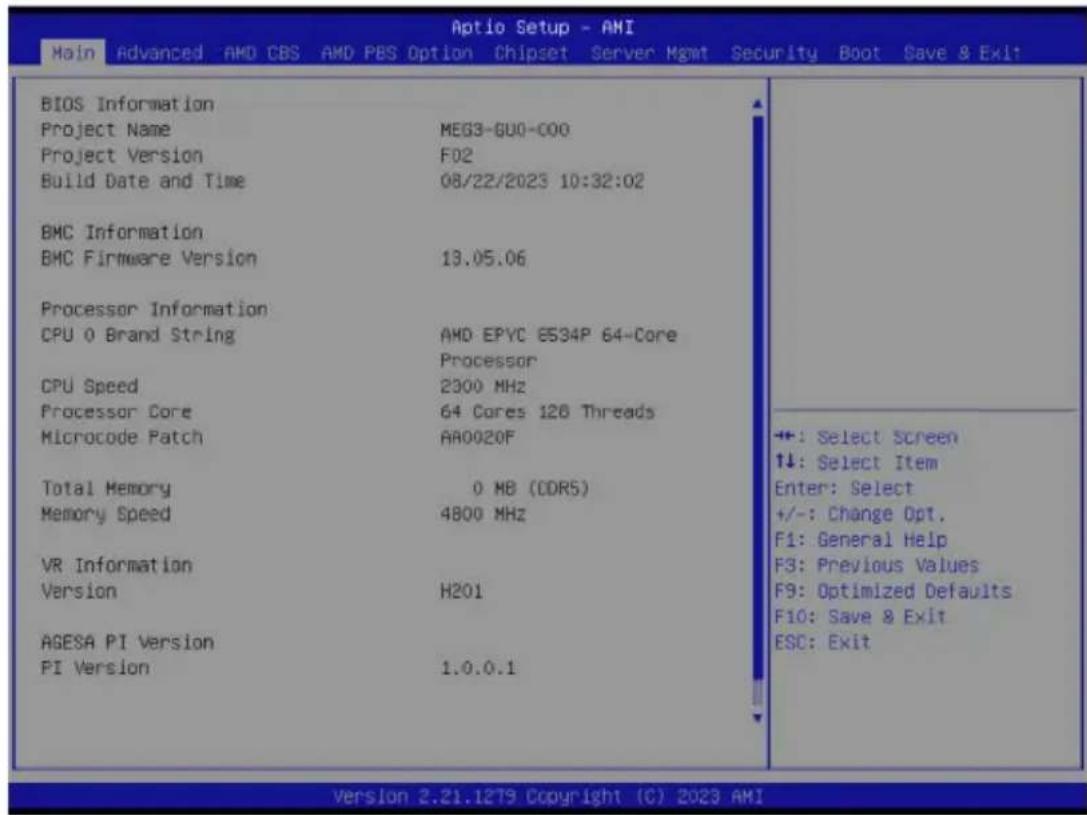
![Aptio Setup - AMI Main Advanced AMD CBS AMD PBS Option Chipset Server Hgmt Security Boot Save & Exit Project Version F02 Build Date and Time 08/22/2023 10:32:02 BMC Information BMC Firmware Version 13.05.06 Processor Information CPU 0 Brand String AMD EPVC 8594P 64-Core CPU Speed Processor Processor Core 2300 MHz Microcode Patch 64 Cores 128 Threads Total Memory 0 MB (DDR5) Memory Speed 4800 MHz VR Information Version H201 AGESA PI Version PI Version 1.0.0.1 System Date [Sun 01/01/2023] System Time [20:04:59] Set the Time. Use Tab to switch between Time elements. +: Select Screen ↑↓: Select Item Enter: Select +/-: Change Opt. F1: General Help F3: Previous Values F9: Optimized Defaults F10: Save & Exit ESC: Exit Version 2.21.1279 Copyright (C) 2023 AMI](/content/2026/04/671956/images/0d3e9e70fbbb2f820f60ba74532a2b41d9026d1ddede9676d28d33ad164751df.jpg)
| Parameter | Description |
| BIOS Information | |
| Project Name | Displays the project name information. |
| Project Version | Displays version number of the BIOS setup utility. |
| Build Date and Time | Displays the date and time when the BIOS setup utility was created. |
| BMC Information^(Note1) | |
| BMC Firmware Version^(Note1) | Displays BMC firmware version information. |
| Processor Information | |
| CPU Brand String/ CPU Speed / Processor Core / Microcode Patch | Displays the technical specifications for the installed processor(s). |
| Total Memory^(Note2) | Displays the total memory size of the installed memory. |
| Memory Speed^(Note2) | Displays the frequency information of the installed memory. |
| VR Information Version Displays VR version information. | |
| AGESA PI Version | |
| PI Version Displays AGESA PI version information. | |
(Note1) Functions available on selected models.
(Note2) This section will display capacity and frequency information of the memory that the customer has installed.
| Parameter | Description |
| System Date | Sets the date following the weekday-month-day-year format. |
| System Time | Sets the system time following the hour-minute-second format. |
5-2 Advanced Menu
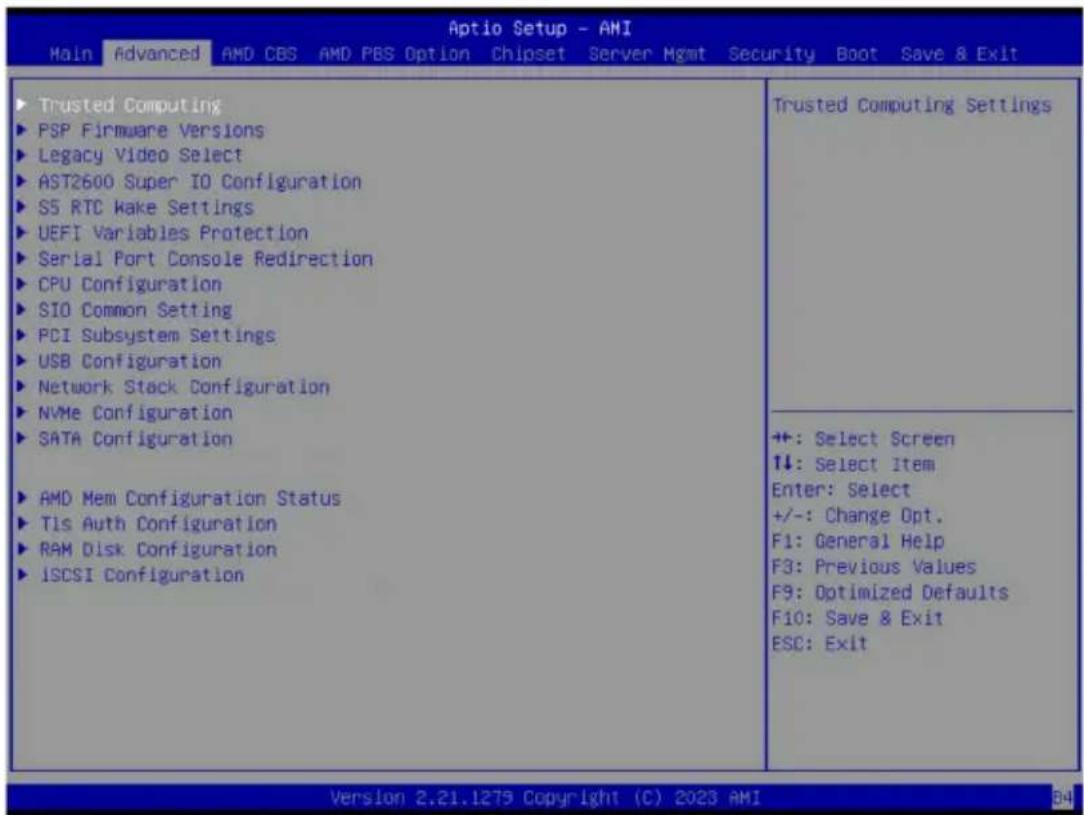
The Advanced Menu displays submenu options for configuring the function of various hardware components. Select a submenu item, then press
When Boot Mode Select is set to UEFI (Default)
| Aptio Setup - AMI Main Advanced AMD CBS AMD PBS Option Chipset Server Mgmt Security Boot Save & Exit | |
| Trusted Computing PSP Firmware Versions Legacy Video Select AST2600 Super IO Configuration S5 RTC Make Settings UEFI Variables Protection Serial Port Console Redirection CPU Configuration SIO Common Setting PCI Subsystem Settings USB Configuration Network Stack Configuration NVMe Configuration SATA Configuration Graphic Output Configuration AMD Mem Configuration Status Tls Auth Configuration RAM Disk Configuration iSCSI Configuration | Trusted Computing Settings |
| +: Select Screen 1↓: Select Item Enter: Select +/-: Change Opt. F1: General Help F3: Previous Values F9: Optimized Defaults F10: Save & Exit ESC: Exit | |
When "Boot Mode Select" is set to Legacy in the Boot > Boot Mode Select section
5-2-1 Trusted Computing
![Aptio Setup - AMI Advanced Configuration Security Device Support [Enable] NO Security Device Found Enables or Disables BIOS support for security device. O.S. will not show Security Device. TCG EFI protocol and INT1A interface will not be available. +: Select Screen ↑↓: Select Item Enter: Select +/-: Change Opt. F1: General Help F3: Previous Values F9: Optimized Defaults F10: Save & Exit ESC: Exit Version 2.21.1279 Copyright (C) 2023 AMI 64](/content/2026/04/671956/images/44312f66c78e5d94cbabf03e98f3a5d53f3a75a4a5e2990cb24161c82a4bdd1a.jpg)
| Parameter | Description |
| Configuration | |
| Security Device Support | Enable/Disable BIOS support for security device. OS will not show security device. TCG EFI protocol and INT1A interface will not be available.Options available: Disable, Enable. Default setting is Enable. |
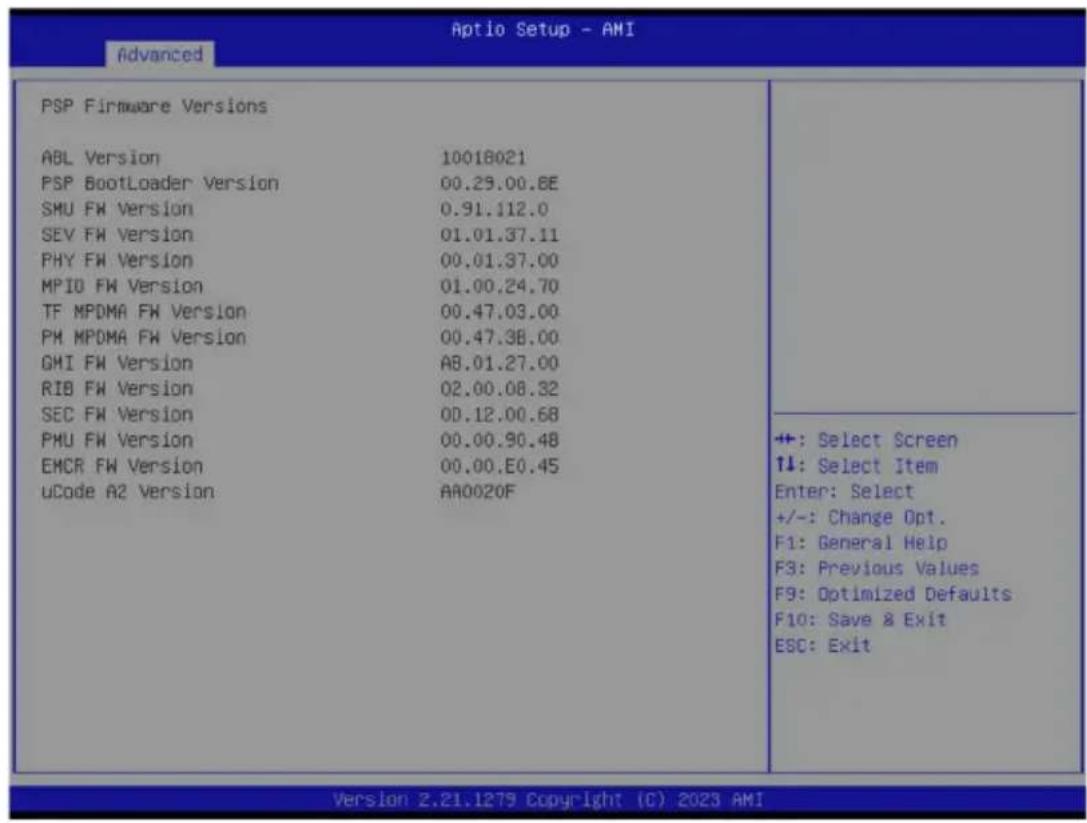
5-2-2 PSP Firmware Versions
The PSP Firmware Versions page displays the basic PSP firmware version information. Items on this window are non-configurable.
5-2-3 Legacy Video Select
![Optio Setup - AMI Advanced OnBrd/Ext VGA Select [Auto] Select between onboard or external VGA support. +: Select Screen ↑↓: Select Item Enter: Select +/-: Change Opt. F1: General Help F3: Previous Values F9: Optimized Defaults F10: Save & Exit ESC: Exit Version 2.21.1279 Copyright (C) 2023 AMI](/content/2026/04/671956/images/3407fadaf77aa01538c18c7224c7c653b1e7ee355b65fb219da886d14a1e9800.jpg)
| Parameter | Description |
| OnBrd/Ext VGA Select | Selects between onboard or external VGA support. Options available: Auto, Onboard, External. Default setting is Auto. |
(Note) This configurable option will be displayed when "Boot Mode Select" is set to Legacy in the Boot > Boot Mode Select section.
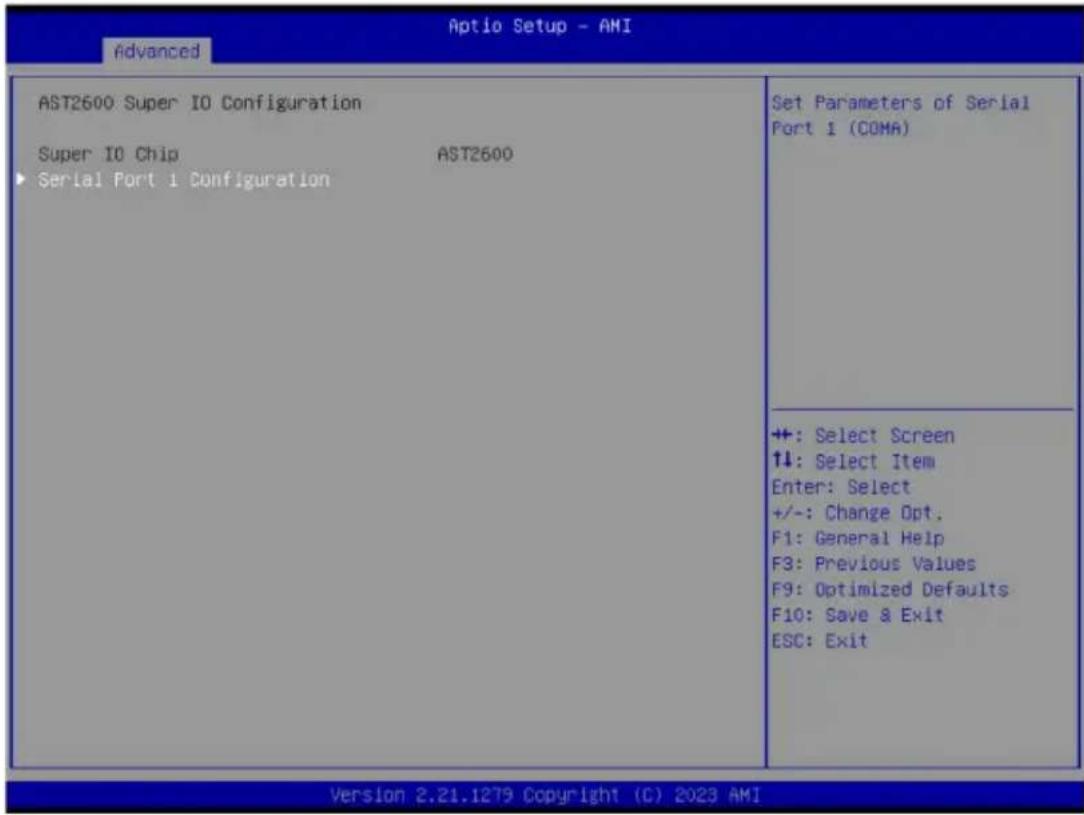
5-2-4 AST2600 Super IO Configuration
| Parameter | Description |
| AST2600 Super IO Configuration | |
| Super IO Chip Displays the super IO chip information | |
| Serial Port 1 Configuration | Press [Enter] for configuration of advanced items. |
5-2-4-1 Serial Port 1 Configuration
![Advanced Serial Port 1 Configuration Serial Port [Enabled] Device Settings IO=3F8h; IRQ=4; Change Settings [Auto] Enable or Disable Serial Port (COM) +: Select Screen ↑↓: Select Item Enter: Select +/-: Change Opt. F1: General Help F3: Previous Values F9: Optimized Defaults F10: Save & Exit ESC: Exit Version 2.21.1279 Copyright (C) 2023 AMI](/content/2026/04/671956/images/6ffcdee136a32b8a73ed4de5323c13b4ccf214ab835082c084ac1947f09faf65.jpg)
| Parameter | Description |
| Serial Port 1 Configuration | |
| Serial Port ^(Note) | Enable/Disable the Serial Port (COM). When set to Enabled allows you to configure the Serial port 1 settings. When set to Disabled, displays no configuration for the serial port.Options available: Disabled, Enabled. Default setting isEnabled. |
| Devices Settings Displays the Serial Port 1 device settings. | |
| Change Settings | Select an optimal settings for Super IO Device.Options available for Serial Port 1:AutoIO=3F8h; IRQ=4;IO=3F8h; IRQ=3, 4, 5, 6, 7, 9, 10, 11, 12;IO=2F8h; IRQ=3, 4, 5, 6, 7, 9, 10, 11, 12;IO=3E8h; IRQ=3, 4, 5, 6, 7, 9, 10, 11, 12;IO=2E8h; IRQ=3, 4, 5, 6, 7, 9, 10, 11, 12;Default setting isAuto. |
(Note) Advanced items prompt when this item is defined.
5-2-5 S5 RTC Wake Settings
![Aptio Setup - AMI Advanced Wake system from SS [Disabled] Enable or disable System wake on alarm event. Select FixedTime, system will wake on the hr::min::sec specified. Select DynamicTime, System will wake on the current time + Increase minute(s) +: Select Screen ↓: Select Item Enter: Select +/-: Change Opt. F1: General Help F3: Previous Values F9: Optimized Defaults F10: Save & Exit ESC: Exit Version 2.21.1279 Copyright (C) 2023 AMI](/content/2026/04/671956/images/9ff89c7ba23599d3ea0337e95a97353d311fd083366b5be9afd52469a5a6b428.jpg)
| Parameter | Description |
| Wake System from S5 | Enable/Disable system wake on alarm event. Options available: Disabled, Fixed Time, Dynamic Time. When Fixed Time is selected, system will wake on the hr::min::sec specified. Default setting is Disabled. |
5-2-6 UEFI Variables Protection
| Password protection of Runtime [Enable] Variables | Control the NVRAM Runtime Variable protection through System Admin Password |
| +: Select Screen 1↓: Select Item Enter: Select +/-: Change Opt. F1: General Help F3: Previous Values F9: Optimized Defaults F10: Save & Exit ESC: Exit |
| Parameter | Description |
| Password protection of Runtime Variables | Control the NVRAM Runtime Variable protection through System Admin Password. Options available: Enable, Disable. Default setting is Enable. |
5-2-7 Serial Port Console Redirection
![Aptio Setup - AMI Advanced COMO Console Redirection [Disabled] ► Console Redirection Settings Legacy Console Redirection ► Legacy Console Redirection Settings Serial Port for Out-of-Band Management/ Windows Emergency Management Services (EMS) Console Redirection EMS [Disabled] ► Console Redirection Settings Console Redirection Enable or Disable. +: Select Screen ↑↓: Select Item Enter: Select +/-: Change Opt. F1: General Help F3: Previous Values F9: Optimized Defaults F10: Save & Exit ESC: Exit Version 2.21.1279 Copyright (C) 2023 AMI](/content/2026/04/671956/images/f04eae90f9a2734ec0204528acb7ec97e470078e66edb1f84b53a42f9775697d.jpg)
| Parameter | Description |
| COM0Console Redirection ^(Note) | Select whether to enable console redirection for specified device. Console redirection enables the users to manage the system from a remote location.Options available: Enabled, Disabled. Default setting isDisabled. |
| COM0Console Redirection Settings | Press [Enter] to configure advanced items.Please note that this item is configurable when COM0 Console Redi-rection is set to Enabled.Terminal Type- Selects a terminal type to be used for console redirection.- Options available: VT100, VT100Plus, ANSI, VT-UTF8. Default setting isANSI.Bits per second- Selects the transfer rate for console redirection.- Options available: 9600, 19200, 38400, 57600, 115200. Default setting is115200.Data Bits- Selects the number of data bits used for console redirection.- Options available: 7, 8. Default setting is8. |
(Note) Advanced items prompt when this item is defined.
| Parameter | Description |
| COM0 Console Redirection Settings (continued) | Parity– A parity bit can be sent with the data bits to detect some transmission errors.– Even: parity bit is 0 if the num of 1's in the data bits is even.– Odd: parity bit is 0 if num of 1's in the data bits is odd.– Mark: parity bit is always 1. Space: Parity bit is always 0.– Mark and Space Parity do not allow for error detection.– Options available: None, Even, Odd, Mark, Space. Default setting is None.Stop Bits– Stop bits indicate the end of a serial data packet. (A start bit indicates the beginning). The standard setting is 1 stop bit.Communication with slow devices may require more than 1 stop bit.– Options available: 1, 2. Default setting is 1.Flow Control– Flow control can prevent data loss from buffer overflow. When sending data, if the receiving buffers are full, a 'stop' signal can be sent to stop the data flow. Once the buffers are empty, a 'start' signal can be sent to re-start the flow. Hardware flow control uses two wires to send start/stop signals.– Options available: None, Hardware RTS/CTS. Default setting is None.VT-UTF8 Combo Key Support– Enable/Disable the VT-UTF8 Combo Key Support.– Options available: Enabled, Disabled. Default setting is Enabled.Recorder Mode– When this mode enabled, only texts will be send. This is to capture Terminal data.– Options available: Enabled, Disabled. Default setting is Disabled.Resolution 100x31– Enable/Disable extended terminal resolution.– Options available: Enabled, Disabled. Default setting is Enabled.Putty KeyPad– Selects Function Key and KeyPad on Putty.– Options available: VT100, LINUX, XTERMR6, SC0, ESCN, VT400. Default setting is VT100. |
| Legacy Console Redirection | |
| Legacy Console Redirection Settings | Press [Enter] to configure advanced items.◆Redirection COM Port-Selects a COM port for Legacy serial redirection.-Default setting isCOM0.◆Resolution-Selects the number of rows and columns used in Console Redirection for legacy OS support.-Options available: 80x24, 80x25. Default setting is80x24.◆Redirect After POST-When Bootloader is selected, then Legacy Console Redirection is disabled before booting to legacy OS. When Always Enable is selected, then Legacy Console Redirection is enabled for legacy OS.-Options available: Always Enable, BootLoader. Default setting isAlways Enable. |
| Serial Port for Out-of-Band Management / Windows Emergency Management Services (EMS) Console Redirection ^(Note) | EMS console redirection allows the user to configure Console Redirection Settings to support Out-of-Band Serial Port management.Options available: Disabled, Enabled. Default setting isDisabled. |
| Serial Port for Out-of-Band EMS Console Redirection Settings | Press [Enter] to configure advanced items.Please note that this item is configurable when Serial Port for Out-of-Band Management EMS Console Redirection is set to Enabled.◆Out-of-Band Mgmt Port-Microsoft Windows Emergency Management Service (EMS) allows for remote management of a Windows Server OS through a serial port.-Default setting isCOM0.◆Terminal Type-Selects a terminal type to be used for console redirection.-Options available: VT100, VT100Plus, ANSI, VT-UTF8. Default setting isANSI.◆Bits per second-Selects the transfer rate for console redirection.-Options available: 9600, 19200, 57600, 115200. Default setting is115200. |
(Note) Advanced items prompt when this item is defined.
| Parameter | Description |
| Serial Port for Out-of-Band EMS Console Redirection Settings(continued) | Flow Control– Flow control can prevent data loss from buffer overflow. When sending data, if the receiving buffers are full, a 'stop' signal can be sent to stop the data flow. Once the buffers are empty, a 'start' signal can be sent to re-start the flow. Hardware flow control uses two wires to send start/stop signals.– Options available: None, Hardware RTS/CTS, Software Xon/Xoff. Default setting is None. |
5-2-8 CPU Configuration
![Advanced CPU Configuration SVM Mode [Enabled] ▶ CPU 0 Information Enable/disable CPU Virtualization +: Select Screen ↑↓: Select Item Enter: Select +/-: Change Opt. F1: General Help F3: Previous Values F9: Optimized Defaults F10: Save & Exit ESC: Exit Version 2.21.1279 Copyright (C) 2023 AMI](/content/2026/04/671956/images/29197ab40f001ff3673b952253a07e661c8f4b9dab8aa264999a83619fce155e.jpg)
| Parameter | Description |
| SVM Mode | Enable/Disable the CPU Virtualization.Options available: Disabled, Enabled. Default setting is Enabled. |
| CPU 0 Information | Press [Enter] to view the memory information related to CPU 0. |
5-2-9 SIO Common Setting
![Aptio Setup - AMI Advanced SIO Common Setting Lock Legacy Resources [Disabled] Enables or Disables Lock of Legacy Resources +: Select Screen 1↓: Select Item Enter: Select +/-: Change Opt. F1: General Help F3: Previous Values F9: Optimized Defaults F10: Save & Exit ESC: Exit Version 2.21.1279 Copyright (C) 2023 AMI](/content/2026/04/671956/images/f8d25a22800e77762177898c6def440e3f8dc1af411575788ab2641b47e50e57.jpg)
| Parameter | Description |
| Lock Legacy Resources | Options available: Disabled, Enabled. Default setting is Disabled. |
5-2-10 PCI Subsystem Settings
![PCI Bus Driver Version MCIO POP0 MCIO POP0 I/O ROM MCIO POP0 MCIO POP0 MCIO POP0 I/O ROM MCIO POP0 MCIO POP2 MCIO POP2 I/O ROM MCIO POP2 MCIO POP2 MCIO POP2 I/O ROM MCIO POP2 OCP3.0 POP3 OCP3.0 POP3 I/O ROM OCP3.0 POP3 MCIO POP3 MCIO POP3 I/O ROM MCIO POP3 A5.01.30 [Auto] [Enabled] [Auto] [Auto] [Enabled] [Auto] [Auto] [Enabled] [Auto] [Auto] [Auto] [Auto] [Auto] [Auto] [Auto] Change MCIO POP0 PCIe lanes. +: Select Screen ↑↓: Select Item Enter: Select +/-: Change Opt. F1: General Help F3: Previous Values F9: Optimized Defaults F10: Save & Exit ESC: Exit Version 2.21.1279 Copyright (C) 2023 AMI](/content/2026/04/671956/images/72d50c1e83c3867cd519133184e0ed4652cb89a18321856494af92392ed552f1.jpg)
![Optio Setup - AMI Advanced MCIO POGO [Auto] MCIO POGO I/O ROM [Enabled] MCIO POGO [Auto] MCIO POP2 [Auto] MCIO POP2 I/O ROM [Enabled] MCIO POP2 [Auto] MCIO POG2 [Auto] MCIO POG2 I/O ROM [Enabled] MCIO POG2 [Auto] OCP3.0 POP3 [Auto] OCP3.0 POP3 I/O ROM [Enabled] OCP3.0 POP3 [Auto] MCIO POG3 [Auto] MCIO POG3 I/O ROM [Enabled] MCIO POG3 [Auto] PCI Devices Common Settings: Above 4G Decoding [Enabled] SR-10V Support [Enabled] Relaxed Ordering [Enabled] Enables or Disables PCI Express Device Relaxed Ordering. +: Select Screen 11: Select Item Enter: Select +/-: Change Opt. F1: General Help F3: Previous Values F9: Optimized Defaults F10: Save & Exit ESC: Exit Version 2.21.1279 Copyright (C) 2023 AMI](/content/2026/04/671956/images/8de1a0821e974f746dc9e5a668bccea75667f816a651a4848406ddc5a85e2f7b.jpg)
| Parameter | Description |
| PCI Bus Driver Version | Displays the PCI Bus Driver version information. |
| MCIO P0P0/ P0G0/ P0P2/ P0G2 (Note1) | Change the MCIO PCIe lanes.Options available: Disabled, Auto, x16, x8x8, x8x4x4, x4x4x8,x4x4x4x4. Default setting isAuto. |
| MCIO P0P0/ P0G0/ P0P2/ P0G2I/O ROM (Note1) | When enabled, this setting will initialize the device expansion ROM for the related PCI-E slot.Options available: Disabled, Enabled. Default setting isEnabled. |
| MCIO P0P0/ P0G0/ P0P2/ P0G2 (Note1) | Configure MCIO PCIe max link speed.Options available: Auto, Gen4, Gen3, Gen2, Gen1.Default setting isAuto. |
| OCP3.0 P0P3 (Note2) | Change the OCP PCIe lanes.Options available: Disabled, Auto, x16, x8x8, x8x4x4, x4x4x8,x4x4x4x4. Default setting isAuto. |
| OCP3.0 P0P3 I/O ROM (Note2) | When enabled, this setting will initialize the device expansion ROM for the related PCI-E slot.Options available: Disabled, Enabled. Default setting isEnabled. |
| OCP3.0 P0P3 (Note2) | Configure OCP PCIe max link speed.Options available: Auto, Gen4, Gen3, Gen2, Gen1.Default setting isAuto. |
| MCIO P0G3 (Note1) | Change MCIO PCIe lanes.Options available: Disabled, Auto, SATA, x16, x8x8, x8x4x4,x4x4x8, x4x4x4x4. Default setting isAuto. |
| MCIO P0G3 I/O ROM (Note1) | When enabled, this setting will initialize the device expansion ROM for the related devices.Options available: Disabled, Enabled. Default setting isEnabled. |
| MCIO P0G3 Link Speed (Note1) | Configure MCIO PCIe max link speed.Options available: Auto, Gen4, Gen3, Gen2, Gen1.Default setting isAuto. |
| PCI Devices Common Settings | |
| Above 4G Decoding | Enable/Disable memory mapped I/O to 4GB or greater address space (Above 4G Decoding).Options available: Disabled, Enabled. Default setting isEnabled. |
| SR-IOV Support | If the system has SR-IOV capable PCIe devices, this item Enable/Disable Single Root IO Virtualization Support.Options available: Disabled, Enabled. Default setting isEnabled. |
| Relaxed Ordering | Enable/Disable PCI express device relaxed ordering.Options available: Disabled, Enabled. Default setting isEnabled. |
(Note1) This section is dependent on the available MCIO connector.
(Note2) This section is dependent on the available OCP lot.
5-2-11 USB Configuration
![Advanced USB Configuration USB Module Version 33 USB Controllers: 2 XHCIs USB Devices: 8 Drives, 2 Keyboards, 2 Mice, 3 Hubs Legacy USB Support [Enabled] XHCI Hand-off [Enabled] USB Mass Storage Driver Support [Enabled] Port 60/64 Emulation [Enabled] USB hardware delays and time-outs: USB transfer time-out [20 sec] Device reset time-out [20 sec] Device power-up delay [Auto] Mass Storage Devices: AMI Virtual CDROM0 1.00 [Auto] AMI Virtual HDisk0 1.00 [Auto] AMI Virtual CDROM1 1.00 [Auto] AMI Virtual CDROM2 1.00 [Auto] AMI Virtual CDROM3 1.00 [Auto] Enables Legacy USB support. AUTO option disables legacy support if no USB devices are connected. DISABLE option will keep USB devices available only for EFI applications. +: Select Screen ↑↓: Select Item Enter: Select +/-: Change Opt. F1: General Help F3: Previous Values F9: Optimized Defaults F10: Save & Exit ESC: Exit Version 2.21.1279 Copyright (C) 2023 AMI](/content/2026/04/671956/images/aeb3855f2288fb0f3aa99ff8bd31f163ce7d2a25aacbb126cf819b17adaae912.jpg)
| Parameter | Description |
| USB Configuration | |
| USB Module Version | Displays the USB module version information. |
| USB Controllers | Displays the supported USB controllers. |
| USB Devices: | Displays the USB devices connected to the system. |
| Legacy USB Support | Enable/Disable the Legacy USB support function. AUTO option disables legacy support if no USB devices are connected. DISABLE option will keep USB devices available only for EFI applications.Options available: Enabled, Disabled, Auto. Default setting is Enabled. |
| XHCI Hand-off | Enable/Disable the XHCI Hand-off support.Options available: Enabled, Disabled. Default setting is Enabled. |
| USB Mass Storage Driver Support ^(Note) | Enable/Disable the USB Mass Storage Driver Support.Options available: Disabled, Enabled. Default setting is Enabled. |
| Port 60/64 Emulation | Enable I/O port 60h/64h emulation support. This should be enabled for the complete USB Keyboard Legacy support for non-USB aware OS.Options available: Enabled/Disabled. Default setting is Enabled. |
| USB hardware delays and time-outs | |
(Note) This item is present only if you attach USB devices.
| Parameter | Description |
| USB transfer time-out | Selects the time-out value for USB Control/Bulk/Interrupt transfers. Options available: 1 sec, 5 sec, 10 sec, 20 sec. Default setting is 20 sec. |
| Device reset time-out | Selects the time-out value during a USB mass storage device reset. Options available: 10 sec, 20 sec, 30 sec, 40 sec. Default setting is 20 sec. |
| Device power-up delay | Maximum time the device will take before it properly reports itself to the Host Controller. "Auto" uses default value: for a Root port it is 100 ms, for a Hub port the delay is taken from Hub descriptor. Options available: Auto, Manual. Default setting is Auto. |
5-2-12 Network Stack Configuration
![Advanced Aptio Setup - AMI Network Stack [Enabled] IPv4 PXE Support [Enabled] IPv4 HTTP Support [Disabled] IPv6 PXE Support [Enabled] IPv6 HTTP Support [Disabled] PXE boot wait time 1 Media detect count 1 Enable/Disable UEFI Network Stack +: Select Screen ↑↓: Select Item Enter: Select +/-: Change Opt. F1: General Help F3: Previous Values F9: Optimized Defaults F10: Save & Exit ESC: Exit Version 2.21.1279 Copyright (C) 2023 AMI](/content/2026/04/671956/images/70425e37a22aa0e9a69f1527b6915a3d69eaf45fb502e3a3287ce48734bd01e3.jpg)
| Parameter | Description |
| Network Stack | Enable/Disable the UEFI network stack.Options available: Enabled, Disabled. Default setting is Enabled. |
| Ipv4 PXE Support^(Note) | Enable/Disable the lpv4 PXE feature.Options available: Enabled, Disabled. Default setting is Enabled. |
| Ipv4 HTTP Support^(Note) | Enable/Disable the lpv4 HTTP feature.Options available: Enabled, Disabled. Default setting is Disabled. |
| Ipv6 PXE Support^(Note) | Enable/Disable the lpv6 PXE feature.Options available: Enabled, Disabled. Default setting is Enabled. |
| Ipv6 HTTP Support^(Note) | Enable/Disable the lpv6 HTTP feature.Options available: Enabled, Disabled. Default setting is Disabled. |
| PXE boot wait time^(Note) | Wait time in seconds to press ESC key to abort the PXE boot.Press the <+> / <-> keys to increase or decrease the desired values. |
| Media detect count^(Note) | Number of times the presence of media will be checked.Press the <+> / <-> keys to increase or decrease the desired values. |
(Note) This item appears when Network Stack is set to Enabled.
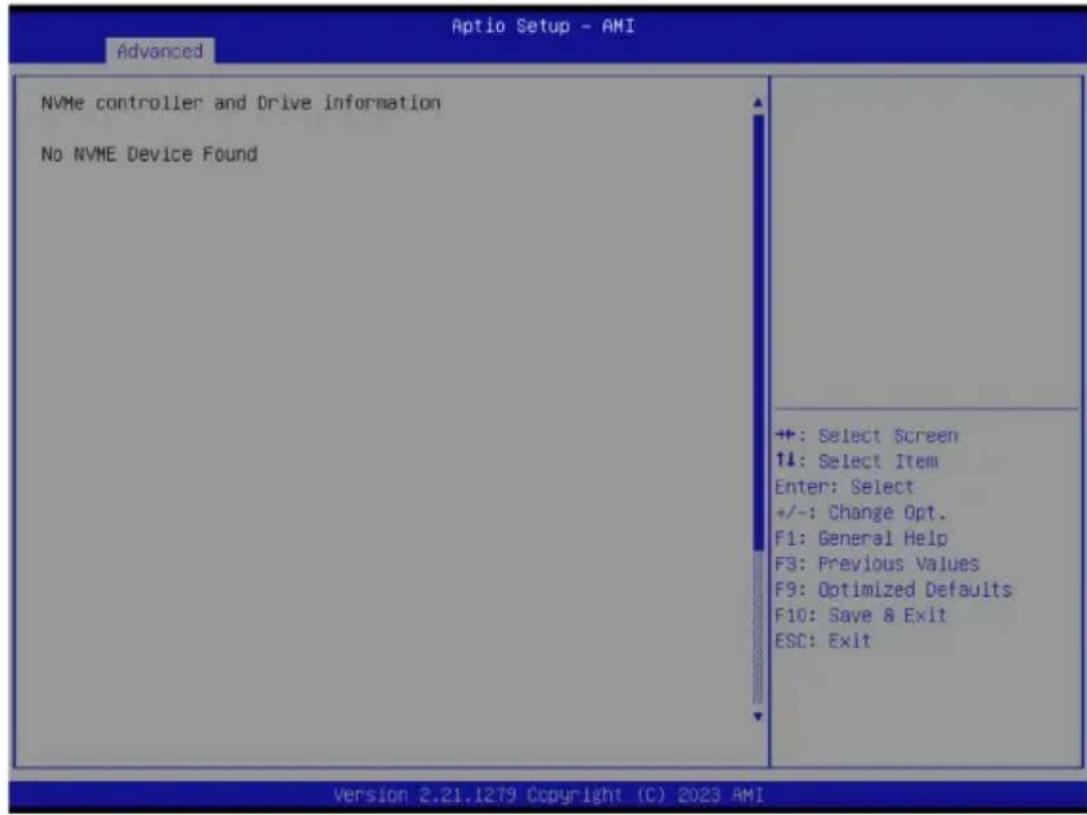
5-2-13 NVMe Configuration
| Parameter | Description |
| NVMe Configuration | Displays the NVMe devices connected to the system. |
5-2-14 SATA Configuration
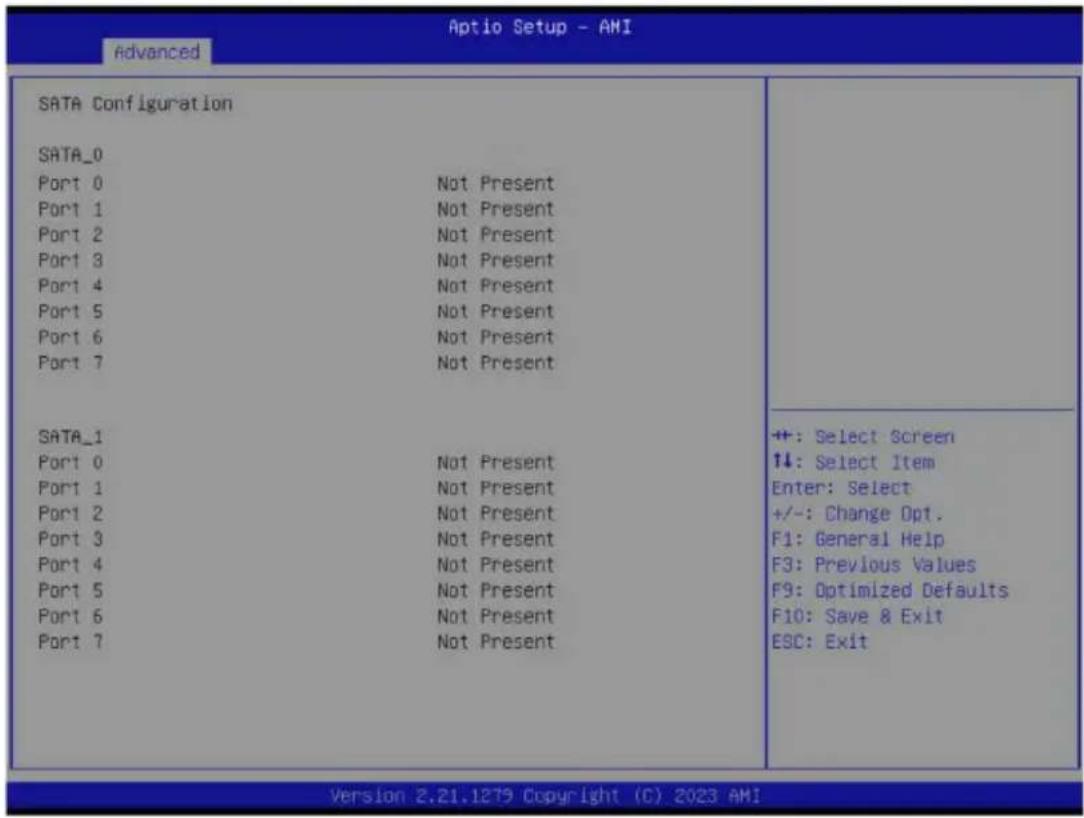
| Parameter | Description |
| SATA Configuration | Displays the installed HDD devices information. System will automatically detect HDD type. |
5-2-15 Graphic Output Configuration
![Aptio Setup - AMI Advanced Graphic Output Configuration Output Device Type [Onboard Device] Select Output Device Type +: Select Screen 11: Select Item Enter: Select +/-: Change Opt. F1: General Help F3: Previous Values F9: Optimized Defaults F10: Save & Exit ESC: Exit Version 2.21.1279 Copyright (C) 2023 AMI](/content/2026/04/671956/images/d0bcd924af6aab5833544e204b49b7de946e00c23781d00be306134e632367c2.jpg)
| Parameter | Description |
| Output Device Type | Selects output device type. Options available: First loaded Device, Onboard Device, External Device, Specific Device. Default setting is Onboard Device. |
5-2-16 AMD Mem Configuration Status
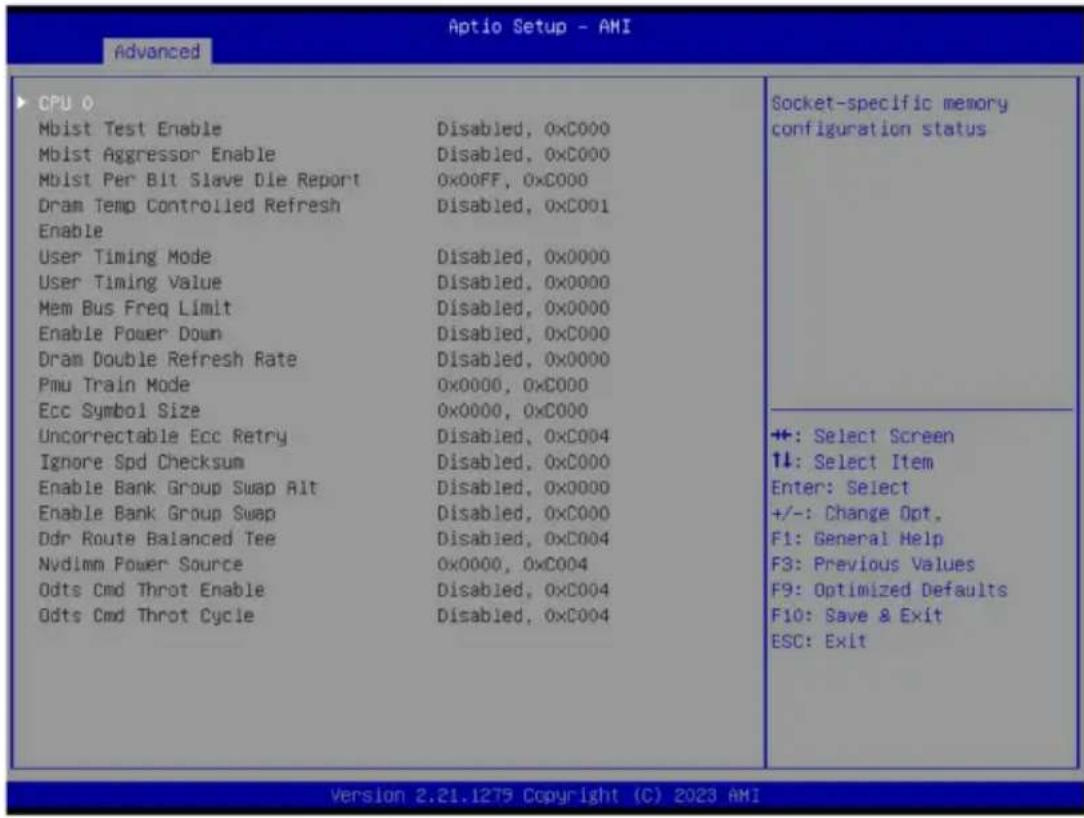
| Parameter | Description |
| CPU 0 | Press [Enter] to view the memory configuration status related to CPU 0. |
5-2-17 TIs Auth Configuration
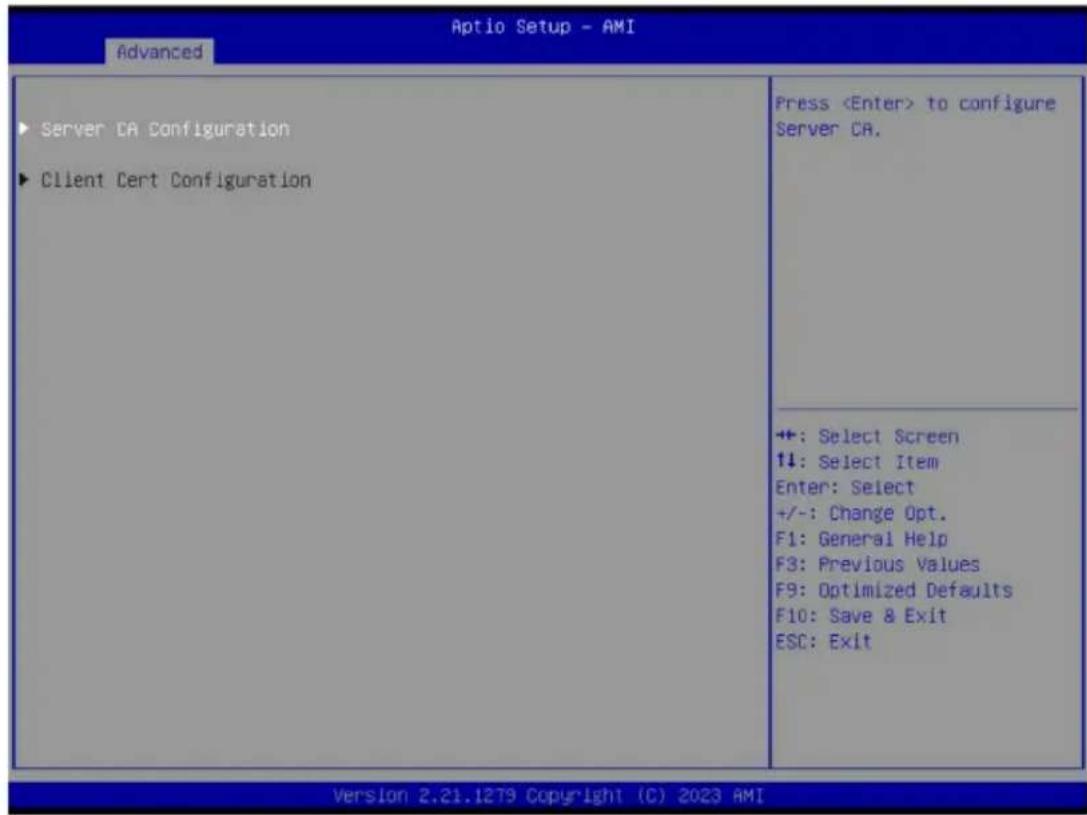
| Parameter Description | |
| Server CA Configuration | Press [Enter] for configuration of advanced items.◆ Enroll Cert- Press [Enter] to enroll a certificate• Enroll Cert Using File• Cert GUIDInput digit character in 1111111-2222-3333-4444-1234567890ab format.- Commit Changes and Exit- Discard Changes and Exit◆ Delete Cert |
| Client Cert Configuration | Press [Enter] for configuration of advanced items. |
5-2-18 RAM Disk Configuration
| Disk Memory Type: [Boot Service Date] ► Create raw ► Create from file Created RAM disk list: Remove selected RAM disk(s). | Specifies type of memory to use from available memory pool in system to create a disk. |
| +: Select Screen 11: Select Item Enter: Select +/-: Change Opt. F1: General Help F3: Previous Values F9: Optimized Defaults F10: Save & Exit ESC: Exit |
| Parameter | Description |
| Disk Memory Type | Specifies the type of memory to use from available memory pool in system to create a disk.Options available: Boot Service Data, Reserved.Default setting isBoot Service Data. |
| Create Raw | Creates a raw RAM disk.◆ Size (Hex)– Input a valid RAM disk size that should be multiple of the RAM disk block size.◆ Create & Exit◆ Discard & Exit |
| Create from file | Creates a RAM disk from a given file. |
| Created RAM disk list | |
| Remove selected RAM disk(s) | Selects the RAM disk(s) to remove. |
5-2-19 iSCSI Configuration
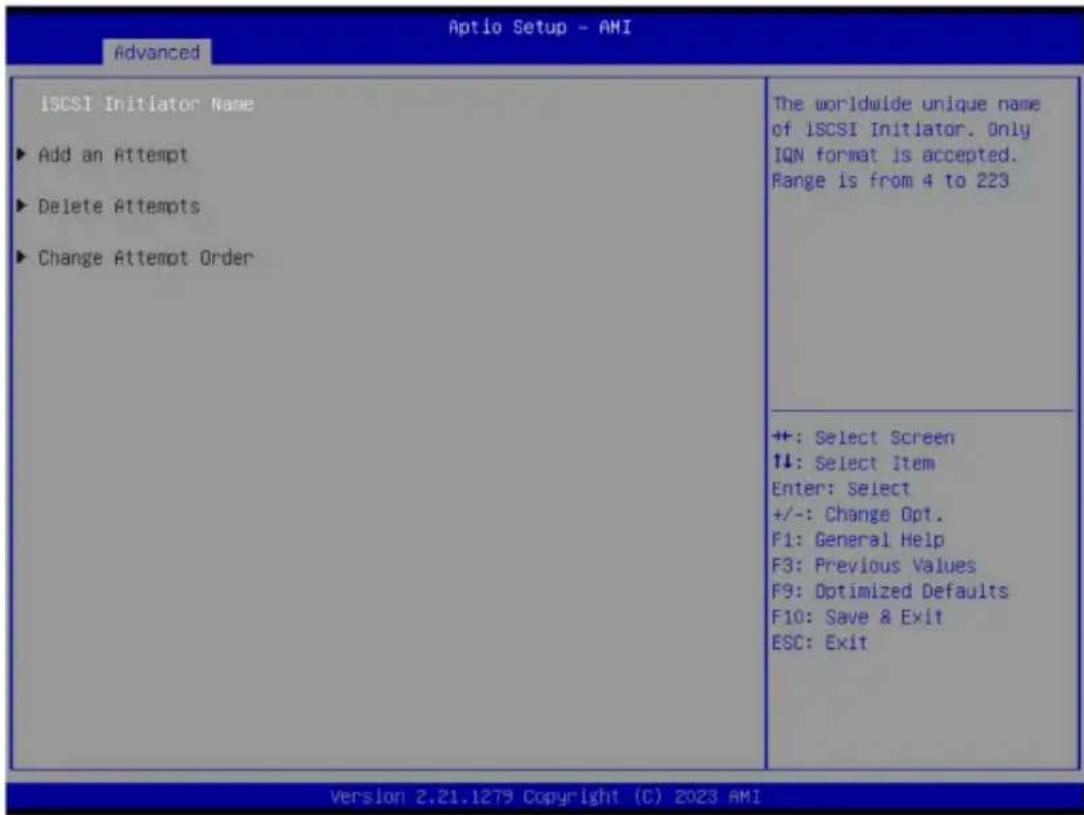
| Parameter | Description |
| iSCSI Initiator Name | Press [Enter] and name iSCSI Initiator. Only IQN format is accepted. Range: from 4 to 223 |
| Add an Attempt | Press [Enter] to configure advanced items. |
| Delete Attempts | Press [Enter] to configure advanced items. |
| Change Attempt Order | Press [Enter] to configure advanced items. |
5-3 AMD CBS Menu
AMD CBS menu displays submenu options for configuring the CPU-related information that the BIOS automatically sets. Select a submenu item, then press [Enter] to access the related submenu screen.
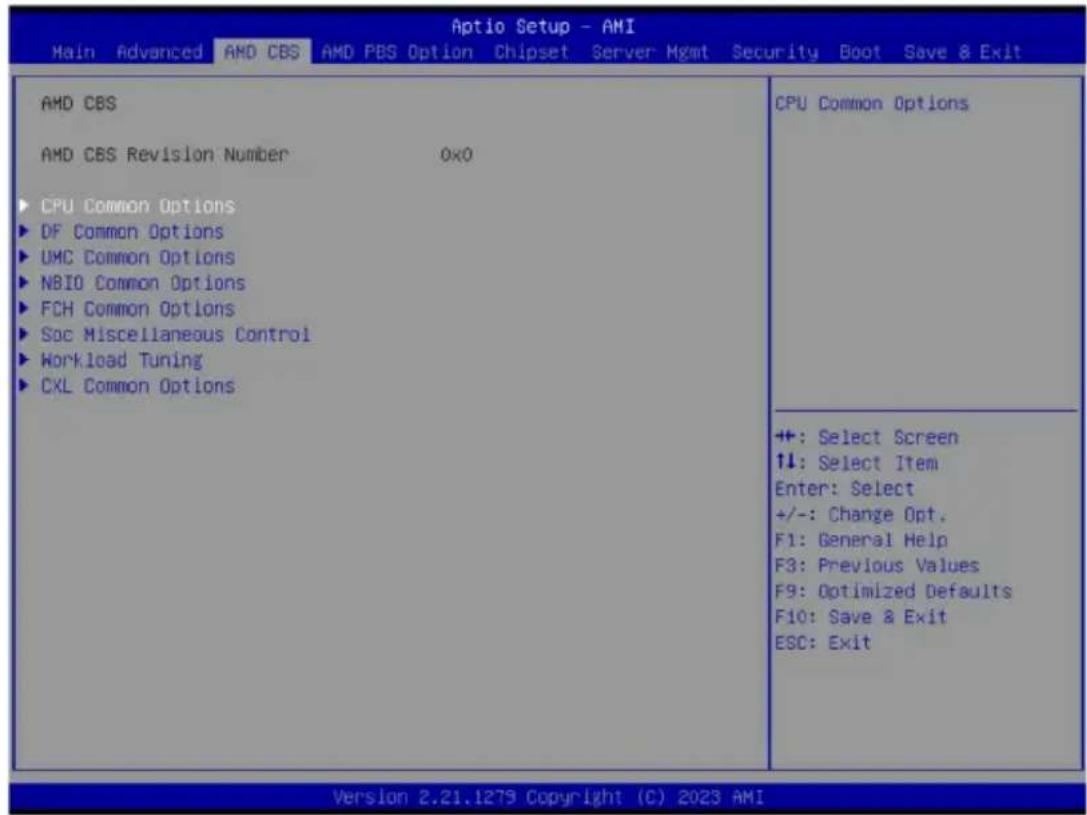
5-3-1 CPU Common Options
![Aptio Setup - AMI AMD CBS CPU Common Options ▶ Performance REP-MOV/STOS Streaming [Enabled] ▶ Prefetcher settings ▶ Core Watchdog RedirectForReturnDis [Auto] Platform First Error Handling [Auto] Core Performance Boost [Auto] Global C-state Control [Auto] Power Supply Idle Control [Auto] SEV-ES ASID Space Limit 1 SEV Control [Enable] Streaming Stores Control [Auto] Local APIC Mode [Auto] ACPI _CST C1 Declaration [Auto] ACPI CST C2 Latency 800 MCA error thresh enable [Auto] MCA FruText [True] SMU and PSP Debug Mode [Auto] PPIN Opt-in [Auto] SNP Memory (RMP Table) Coverage [Auto] SMEE [Auto] Action on BIST Failure [Auto] Performance ++: Select Screen ↑↓: Select Item Enter: Select +/-: Change Opt. F1: General Help F3: Previous Values F9: Optimized Defaults F10: Save & Exit ESC: Exit Version 2.21.1279 Copyright (C) 2023 AMI](/content/2026/04/671956/images/f176a06c2aad644de5cff816b105fc05cbb72df503054c4b6963da7faaebab7c.jpg)
![Aptio Setup - AMI AMD CBS Global C-state Control [Auto] Power Supply Idle Control [Auto] SEV-ES ASID Space Limit 1 SEV Control [Enable] Streaming Stores Control [Auto] Local APIC Mode [Auto] ACPI _CST C1 Declaration [Auto] ACPI CST C2 Latency 800 MCA error thresh enable [Auto] MCA FruText [True] SMU and PSP Debug Mode [Auto] PPIN Opt-in [Auto] SNP Memory (RMP Table) Coverage [Auto] SHEE [Auto] Action on BIST Failure [Auto] Fast Short REP MOVSB (FSRM) [Auto] Enhanced REP MOVSB/STOSB (ERSH) [Auto] Log Transparent Errors [Auto] AVX512 [Auto] MONITOR and MWAIT disable [Auto] Small Hammer Configuration [Auto] Corrector Branch Predictor [Disable] PAUSE Delay [Auto] CPU Speculative Store Modes [Auto] Prefetch/Request Throttle [Auto] Enables XI logic which calculates average latency, updates throttle level, and sends throttle level messages to L2 +: Select Screen ↑↓: Select Item Enter: Select +/-: Change Opt. F1: General Help F3: Previous Values F9: Optimized Defaults F10: Save & Exit ESC: Exit Version 2.21.1279 Copyright (C) 2023 AMI](/content/2026/04/671956/images/c50bd4db9d40e518005edd4f5a154ea9a3d043958b5098cc7fe688422f2ab3d0.jpg)
| Parameter Description | |
| CPU Common Options | |
| Performance Press [Enter] for configuration of advanced items. | |
| REP-MOV/STOS Streaming | Allow REP-MOV/STOS to use non-caching streaming stores for large sizes. Options available: Disabled, Enabled. Default setting is Enabled. |
| Prefetcher settings Press [Enter] for configuration of advanced items. | |
| Core Watchdog Press [Enter] for configuration of advanced items. | |
| RedirectForReturnDis | From a workaround for GCC/C000005 issue for XV Core on CZ A0, setting MSRC001_1029 Decode Configuration (DE_CFG) bit 14 [DecfgNoRdrctForReturns] to 1. Options available: Auto, 1, 0. Default setting is Auto. |
| Platform First Error Handling | Enable/Disable PFEH, cloak individual banks, and mask deferred error interrupts from each bank. Options available: Enabled, Disabled, Auto. Default setting is Auto. |
| Core Performance Boost | Enable/Disable the Core Performance Boost function. Options available: Disabled, Auto. Default setting is Auto. |
| Global C-state Control | Controls the IO based C-state generation and DF C-states. Options available: Disabled, Enabled, Auto. Default setting is Auto. |
| Power Supply Idle Control | Configures the Power Supply Idle Control. Options available: Low Current Idle, Typical Current Idle, Auto. Default setting is Auto. |
| SEV-ES ASID Space Limit | Configures the Space limit for SEV-ES ASIDs. Default setting is 1. |
| SEV Control | Enable/Disable SEV control. Options available: Enable, Disable. Default setting is Enable. |
| Streaming Stores Control | Enable/Disable the Streaming Stores functionality. Options available: Disabled, Enabled, Auto. Default setting is Auto. |
| Local APIC Mode | Sets the Local APIC Mode. Options available: Compatibility, xAPIC, x2APIC, Auto. Default setting is Auto. |
| ACPI_CST C1 Declaration | Determines whether or not to declare the C1 state to the OS.. Options available: Disabled, Enabled, Auto. Default setting is Auto. |
| ACPI CST C2 Latency Enter in microseconds (decimal value). | |
| MCA error thresh enable | Enable MCA error thresholding. Options available: False, True, Auto. Default setting is True. |
| MCA FruText | Enable MCA FruText. Options available: False, True. Default setting is True. |
| SMU and PSP Debug Mode | When this option is enabled, specific uncorrected errors detected by the PSP FW or SMU FW will hand and not reset the system. Options available: Disabled, Enabled, Auto. Default setting is Auto. |
| PPIN Opt-in | Enable/Disable the PPIN feature. Options available: Disabled, Enabled, Auto. Default setting is Auto. |
| SNP Memory (RMP Table) Coverage | Enabled: Enter system memory is covered. Options available: Disabled, Enabled, Custom, Auto. Default setting is Auto. |
| SMEE | Controls the Secure Memory Encryption Enable (SMEE) function. Options available: Disable, Enable, Auto. Default setting isAuto. |
| Action on BIST Failure | Action to take when a CCD BIST failure is detected. Options available: Do nothing, Down-CCD, Auto. Default setting isAuto. |
| Fast Short REP MOVSB (FSRM) | Options available: Disabled, Enabled, Auto. Default setting isAuto. |
| Enhanced REP MOVSB/ STOSB (ERMSB) | Options available: Disabled, Enabled, Auto. Default setting isAuto. |
| Log Transparent Errors | Enable/Disable the log Transparent errors function. Options available: Auto, Disabled, Enabled. Default setting isAuto. |
| AVX512 | Enable/Disable AVX512. Options available: Disabled, Enabled, Auto. Default setting isAuto. |
| MONITOR and MWAIT disable | The MONITOR, MWAIT, MONITORX and MWAITX opcodes become invalid when enabled. Options available: Enabled, Disabled, Auto. Default setting isAuto |
| Small Hammer Configuration | Options available: Disabled, Enabled, Auto. Default setting isAuto. |
| Corrector Branch Predictor Options available: Disable, Enable. Default setting isDisable. | |
| PAUSE Delay | Number a cycles thread will be idle after a PAUSE instruction. Options available: Auto, Disable, 16 cycles, 32 cycles, 64 cycles, 128 cycles. Default setting isAuto. |
| CPU Speculative Store Modes | Select the CPU speculative store modes. Options available: Balanced, More Speculative, Less Speculative, Auto. Default setting isAuto. |
| Prefetch/Request Throttle | Enables XI logic which calculates average latency, updates throttle level, and sends throttle level messages to L2. Options available: Disable, Enable, Auto. Default setting isAuto. |
5-3-1-1 Performance
![Aptio Setup - AMI AMD CBS Performance DC Mode [Normal Operation] ► Custom Core Pstates ► CCD/Core/Thread Enablement SMT Control [Auto] Select overclock operation modes +: Select Screen ↑↓: Select Item Enter: Select +/-: Change Opt. F1: General Help F3: Previous Values F9: Optimized Defaults F10: Save & Exit ESC: Exit Version 2.21.1279 Copyright (C) 2023 AMI](/content/2026/04/671956/images/7632d69393cf29785f91b786fddee10d37a29d2bccb753607251fb9529f58803.jpg)
Parameter Description
| Performance | |
| OC Mode ^(Note) | Options available: Normal Operation, Customized. Default setting is Normal Operation. |
| Custom Core Pstates | Allows you to accept or decline enabling Custom Core Pstates. When accepted, you can disable or customize core pstates. |
| CCD/Core/Thread Enablement | Allows you to accept or decline enabling CCDs, processor cores and threads. When accepted, you can control the number of CCDs to be used, and the number of cores to be used.◆ CCD Control- Options available: Auto, 2 CCDs. Default setting is Auto.◆ Core Control- Options available: Auto, TWO(1+1), FOUR(2+2), SIX(3+3), EIGHT(4+4), TEN(5+5), TWELVE(6+6), FOURTEEN(7+7).- Default setting is Auto. |
| SMT Control | Can be used to disable symmetric multithreading. To re-enable SMT, a POWER CYCLE is needed after select the 'Enable' option. Select 'Auto' base on BIOS PCD. (PcdAmdSmtMode) default setting.Options available: Disable, Enable, Auto. Default setting is Enable. |
(Note) Advanced items are configurable when this item is defined.
5-3-1-2 Prefetcher Settings
![Aptio Setup - AMI AMD CBS Prefetcher settings L1 Stream HW Prefetcher [Auto] L1 Stride Prefetcher [Auto] L1 Region Prefetcher [Auto] L2 Stream HW Prefetcher [Auto] L2 Up/Down Prefetcher [Auto] L1 Burst Prefetch Mode [Auto] Option to Enable | Disable L1 Stream HW Prefetcher +: Select Screen ↑↓: Select Item Enter: Select +/-: Change Opt. F1: General Help F3: Previous Values F9: Optimized Defaults F10: Save & Exit ESC: Exit Version 2.21.1279 Copyright (C) 2023 AMI](/content/2026/04/671956/images/14e9aead8007e1a3042de7dec1de62b0a5de653d24c5650e104bdb361a4da147.jpg)
| Parameter Description | |
| Prefetcher settings | |
| L1 Stream HW Prefetcher | Enable/Disable L1 Stream HW Prefetcher.Options available: Disable, Enable, Auto. Default setting isAuto. |
| L1 Stride Prefetcher | Use memory access history of individual instructions to fetch additional lines when each access is a constant distance from the previous.Enable/Disable L1 Stride Prefetcher.Options available: Disable, Enable, Auto. Default setting isAuto. |
| L1 Region Prefetcher | Use memory access history to fetch additional lines when the data access for a given instruction tends to be followed by other data accesses.Enable/Disable L1 Region Prefetcher.Options available: Disable, Enable, Auto. Default setting isAuto. |
| L2 Stream HW Prefetcher | Enable/Disable L2 Stream HW Prefetcher.Options available: Disable, Enable, Auto. Default setting isAuto. |
| L2 Up/Down Prefetcher | Use memory access history to determine whether to fetch the next or previous line for all memory accesses.Enable/Disable L2 Up/Down Prefetcher.Options available: Disable, Enable, Auto. Default setting isAuto. |
| L1 Burst Prefetch Mode | Enable/Disable L1 Burst Prefetch Mode.Options available: Disable, Enable, Auto. Default setting isAuto. |
5-3-1-3 Core Watchdog
![Aptio Setup - AMI AMD CBS Core Watchdog Core Watchdog Timer Enable [Auto] Enable or disable CPU Watchdog Timer +: Select Screen ↑↓: Select Item Enter: Select +/-: Change Opt. F1: General Help F3: Previous Values F9: Optimized Defaults F10: Save & Exit ESC: Exit Version 2.21.1279 Copyright (C) 2023 AMI](/content/2026/04/671956/images/fc834510fe780e8e68878cbe8f0ee9122db685f3d6265e13ac7ac51a726fd957.jpg)
Parameter Description
| Core Watchdog | |
| Core Watchdog Timer Enable ^(Note) | Enable/Disable CPU Watchdog Timer.Options available: Disabled, Enabled, Auto. Default setting isAuto. |
| Core Watchdog Timer Interval | Select the CPU Watchdog Timer interval.Options available: 2.681s, 1.340s, 669.41ms, 334.05ms, 166.37ms,82.53ms, 40.61ms, 20.970ms, 10.484ms,5.241ms, 2.620ms, 1.309ms,654.08us, 326.4us, 162.56us, 80.64us, 39.68us, Auto.Default setting isAuto. |
(Note) Advanced items prompt when this item is defined.
5-3-2 DF Common Options
![Aptio Setup - AMI AMD CBS DF Common Options ► Memory Addressing ► ACPI ► Link ► SDCI ► Probe Filter DF Watchdog Timer Interval [Auto] Disable DF to external IP [Auto] SyncFloodPropagation Sync Flood Propagation to DF [Auto] Components Freeze DF module queues on error [Auto] CC6 memory region encryption [Auto] CCD B/W Balance Throttle Level [Auto] Number of PCI Segments [Auto] Memory Addressing +: Select Screen 1↓: Select Item Enter: Select +/-: Change Opt. F1: General Help F3: Previous Values F9: Optimized Defaults F10: Save & Exit ESC: Exit Version 2.21.1279 Copyright (C) 2023 AMI](/content/2026/04/671956/images/3a8bfbd2772fb3c4001a082ed97f371ecae8ba47173604062de0ac3b39160dd6.jpg)
| Parameter Description | |
| DF Common Options | |
| Memory Addressing Press [Enter] for configuration of advanced items. | |
| ACPI Press [Enter] for configuration of advanced items. | |
| Link Press [Enter] for configuration of advanced items. | |
| SDCI Press [Enter] for configuration of advanced items. | |
| Probe Filter Press [Enter] for configuration of advanced items. | |
| DF Watchdog Timer Interval | Configures the Data Fabric watchdog timer interval. Options available: Auto, 41ms, 166ms, 334ms, 669ms, 1.34 seconds, 2.68 seconds, 5.36 seconds. Default setting is Auto. |
| Disable DF to external IP sync flood propagation | Enable/Disable SyncFlood to UMC & downstream slaves. Options available: Sync flood disabled, Sync flood enabled, Auto. Default setting is Auto. |
| Sync flood propagation to DF Components | Enable/Disable DF Sync Flood propagation. Options available: Sync flood disabled, Sync flood enabled, Auto. Default setting is Auto. |
| Freeze DF module queues on error | Options available: Disabled, Enabled, Auto. Default setting is Auto. |
| CC6 memory region encryption | Controls whether or not the CC6 save/restor memory is encrypted. Options available: Disabled, Enabled, Auto. Default setting is Auto. |
| CCD B/W Balance Throttle Level | Options available: Auto, Level 0, Level 1, Level 2, Level 3, Level 4. Default setting is Auto. |
Parameter Description
| Number of PCI Segments | Options available: 1 Segment, 2 Segments, 4 Segments, Auto. Default setting is Auto. |
5-3-2-1 Memory Addressing
![Aptio Setup - AMI AMD CBS Memory Addressing NUMA nodes per socket [Auto] Memory interleaving [Auto] 1TB remap [Auto] DRAM map Inversion [Auto] Location of private memory regions [Auto] CXL Memory interleaving [Auto] CXL Sublink interleaving [Auto] Specifies the number of desired NUMA nodes per socket. Zero will attempt to interleave the two sockets together. +: Select Screen +: Select Item Enter: Select +/-: Change Opt. F1: General Help F3: Previous Values F9: Optimized Defaults F10: Save & Exit ESC: Exit Version 2.21.1279 Copyright (C) 2023 AMI](/content/2026/04/671956/images/9cecd87cc9da6a218a577b2a966604c0065caea902ce51cc1cb7fc41669c2ed2.jpg)
| Parameter Description | |
| Memory Addressing | |
| NUMA nodes per socket | Specifies the number of desired NUMA nodes per socket.Options available: NPS0, NPS1, NPS2, NPS4, Auto. Default setting isAuto.NOTE!Available options may vary by system configuration.Only dual processor configuration supports NPS0. |
| Memory interleaving | Enable/Disable the Memory interleaving feature.Options available: Disabled, Auto, Enabled. Default setting isAuto. |
| 1TB remap | Enable/Disable to remap DRAM out of the space just below the 1TB boundary.The ability to remap depends on DRAM configuration, NPS, and interleaving selection, and may not always be possible.Options available: Do not remap, Attempt to remap, Auto.Default setting isAuto. |
| DRAM map inversion | Enable/Disable the DRAM map inversion function.Options available: Disabled, Enabled, Auto. Default setting isAuto. |
| Location of private memory regions | Controls whether or not the private memory regions (PSP, SMU and CC6) are at the top of DRAM or distributed.Options available: Distributed, Consolidated, Auto. Default setting isAuto. |
| CXL Memory interleaving Options available: Disabled, Enabled, Auto. Default setting isAuto. | |
| CXL Sublink interleaving Options available: Enable, Disable, Auto. Default setting isAuto. | |
5-3-2-2 ACPI
![Aptio Setup - AMI AMD CBS ACPI ACPI SRAT L3 Cache As NUMA Domain [Auto] ACPI SLIT Distance Control [Auto] ACPI SLIT remote relative distance [Auto] Enabled: Each CCX in the system will be declared as a separate NUMA domain. Disabled: Memory Addressing \ NUMA nodes per socket will be declared. +: Select Screen 1↓: Select Item Enter: Select +/-: Change Opt. F1: General Help F3: Previous Values F9: Optimized Defaults F10: Save & Exit ESC: Exit Version 2.21.1279 Copyright (C) 2023 AMI](/content/2026/04/671956/images/8b3ed8aadf4ca248cf3adbc47a3a70cdaaf005163fff535b40406e0345d8d370.jpg)
Parameter Description
| ACPI | |
| ACPI SRAT L3 Cache As NUMA Domain | Enable/Disable report each L3 cache as a NUMA Domain to the OS. Options available: Disabled, Enabled, Auto. Default setting isAuto. |
| ACPI SLIT Distance Control | Determines how the SLIT distances are declared. Options available: Manual, Auto. Default setting isAuto. |
| ACPI SLIT remote relative distance | Sets the remote socket distance for 2P systems as near (2.8) or far (3.2). Options available: Near, Far, Auto. Default setting isAuto. |
5-3-2-3 Link
![Aptio Setup - AMI AMD CBS Link GMI encryption control [Auto] ×GMI encryption control [Auto] ×GMI Link Configuration [Auto] 4-link ×GMI max speed [Auto] 3-link ×GMI max speed [Auto] ×GMI 18GACOFC [Auto] ×GMI CRC Scale 5 ×GMI CRC Threshold 25 ×GMI Preset Control [Enabled] ▶ ×GMI Global Preset List ▶ ×GMI Initial Preset ▶ ×GMI TXEQ Search Mask ▶ ×GMI AC/DC Coupled Link ▶ ×GMI Channel Type Control GMI link encryption ++: Select Screen ↑↓: Select Item Enter: Select +/-: Change Opt. F1: General Help F3: Previous Values F9: Optimized Defaults F10: Save & Exit ESC: Exit Version 2.21.1279 Copyright (C) 2023 AMI](/content/2026/04/671956/images/bcd9610dc4f517b4c612d890385025ce875b6d8e3e5ff264c574624ae48146ae.jpg)
| Parameter Description | |
| GMI encryption control | Enable/Disable GMI link encryption. Options available: Disabled, Enabled, Auto. Default setting is Auto. |
| xGMI encryption control | Enable/Disable xGMI link encryption. Options available: Disabled, Enabled, Auto. Default setting is Auto. |
| xGMI Link Configuration | Configures the number of xGMI2 links used on a multi-socket system. Options available: Auto, 3 xGMI Links, 4 xGMI Links. Default setting is Auto. |
| 4-link xGMI max speed | Specifies the max speed of 4-link xGMI. Options available: 12Gbps, 16Gbps, 17Gbps, 18Gbps, 20Gbps, 22Gbps, 23Gbps, 24Gbps, 25Gbps, 26Gbps, 27Gbps, 30Gbps, 32Gbps, Auto. Default setting is Auto. |
| 3-link xGMI max speed | Specifies the max speed of 3-link xGMI. Options available: 12Gbps, 16Gbps, 17Gbps, 18Gbps, 20Gbps, 22Gbps, 23Gbps, 24Gbps, 25Gbps, 26Gbps, 27Gbps, 30Gbps, 32Gbps, Auto. Default setting is Auto. |
| xGMI 18GACOFC | Configures xGMI 18GACOFC. Options available: Auto, Enable, Disable. Default setting is Auto. |
| xGMI CRC Scale | Configures leaky bucket scale for xGMI and WAFL CRC errors. Every scale milliseconds an error will leak from the CRC counter. Default setting is 7. |
| xGMI CRC Threshold | Configures leaky bucket threshold for xGMI and WAFL CRC errors. If link CRC counter exceeds this threshold, an error will be logged. Default setting is 25. |
| xGMI Preset Control | Enable/Disable xGMI Preset control. Options available: Disabled, Enabled, Auto. Default setting is Auto. |
| xGMI Global Preset List Press [Enter] to configure the xGMI Preset list. | |
| xGMI Initial Preset Press [Enter] to configure the xGMI Initial Preset CPU link. | |
| xGMI TXEQ Search Mask Press [Enter] to configure the xGMI TXEQ Search Mask CPU link. | |
| xGMI AC/DC Coupled Link | Press [Enter] to configure the xGMI AC/DC Coupled link.♦ xGMI AC/DC Coupled Link Control ^(Note) – Options available: Manual, Auto. Default setting isAuto. |
| xGMI Channel Type | Press [Enter] to configure the xGMI Channel Type.♦ xGMI Channel Type Control ^(Note) – Options available: Manual, Auto. Default setting isAuto. |
(Note) Advanced items prompt when this item is defined.
5-3-2-4 SDCI
![Aptio Setup - AMI AMD CBS SDCI SDCI [Auto] DisRmtSteer [Auto] Enable or Disable Smart Data Cache Injection feature +: Select Screen ↑↓: Select Item Enter: Select +/-: Change Opt. F1: General Help F3: Previous Values F9: Optimized Defaults F10: Save & Exit ESC: Exit Version 2.21.1279 Copyright (C) 2023 AMI](/content/2026/04/671956/images/5cdd7d164ae9aa0600719c5541c8ac563222fbd385b2ccac29f2e083e3718c53.jpg)
Parameter Description
SDCI(Note)
Options available: Disabled, Enabled, Auto. Default setting is Auto.
DisRmSteer Options available: Disabled, Enabled, Auto. Default setting is Auto.
(Note) Advanced items prompt when this item is defined.
5-3-2-5 Probe Filter
![Aptio Setup - AMI AMD CBS Probe Filter Organization [Dedicated] Periodic Directory Rinse (PDR) [Auto] Tuning Specifies whether multiple memory/CXL channels will share probe filter storage. For memory sizes of 16TB or larger, this feature is ignored as It is auto-selected to 'shared' +: Select Screen +: Select Item Enter: Select +/-: Change Opt. F1: General Help F3: Previous Values F9: Optimized Defaults F10: Save & Exit ESC: Exit Version 2.21.1279 Copyright (C) 2023 AMI](/content/2026/04/671956/images/7ecfaa9857055628eb11d0ad30275104414c95f36935e1a91d99a34fdaf1b4d8.jpg)
| Parameter Description | |
| Organization | Specifies whether multiple memory/CXL channels will share probe filter storage. Options available: Auto, Dedicated, Shared. Default setting is Dedicated. |
| Periodic Directory Rinse (PDR) | Controls PDR settings that may impact performance by workload and/or processor. |
| Tuning | Options available: Memory-Sensitive, Cache-Bound, Neutral, Auto. Default setting is Auto. |
5-3-3 UMC Common Options
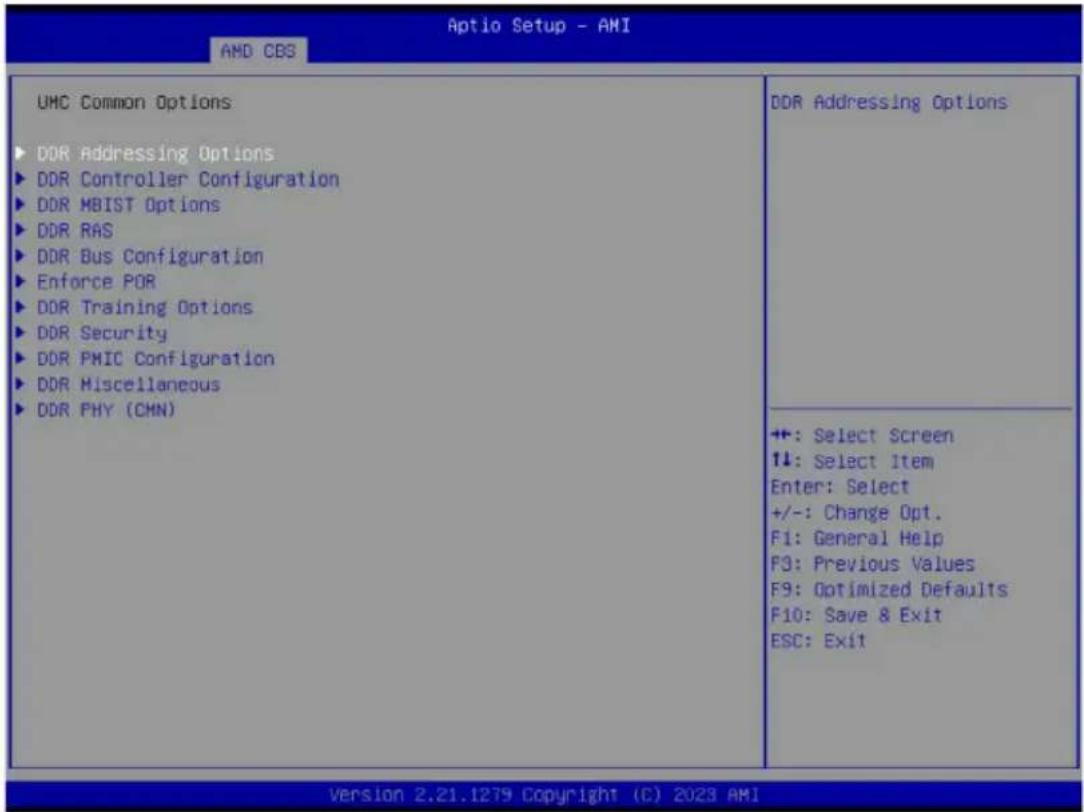
Parameter Description
| UMC Common Options |
| DDR Addressing Options Press [Enter] for configuration of advanced items. |
| DDR Controller Configuration Press [Enter] for configuration of advanced items. |
| DDR MBIST Options Press [Enter] for configuration of advanced items. |
| DDR RAS Press [Enter] for configuration of advanced items. |
| DDR Bus Configuration Press [Enter] for configuration of advanced items. |
| Enforce POR Press [Enter] for configuration of advanced items. |
| DDR Training Options Press [Enter] for configuration of advanced items. |
| DDR Security Press [Enter] for configuration of advanced items. |
| DDR PMIC Configuration Press [Enter] for configuration of advanced items. |
| DDR Miscellaneous Press [Enter] for configuration of advanced items. |
| DDR PHY (CMN) Press [Enter] for configuration of advanced items. |
5-3-3-1 DDR Addressing Options
![Aptio Setup - AMI AMD CBS DDR Addressing Options Chipselect Interleaving [Auto] Address Hash Bank [Auto] Address Hash CS [Auto] Address Hash Subchannel [Auto] BankSwapMode [Auto] Interleave memory blocks across the DRAM chip selects for node 0. ++: Select Screen ↑↓: Select Item Enter: Select +/-: Change Opt. F1: General Help F3: Previous Values F9: Optimized Defaults F10: Save & Exit ESC: Exit Version 2.21.1279 Copyright (C) 2023 AMI](/content/2026/04/671956/images/0f35c96d826ec852cb6b95482edd178f9f389ec7acc41af3c57ca2ea9aa4cc57.jpg)
| Parameter Description | |
| DDR Addressing Options | |
| Chipselect Interleaving | Interleaves memory blocks across the DRAM chip selects for node 0. Options available: Disabled, Auto. Default setting is Auto. |
| Address Hash Bank | Enable or disable bank addressing hashing. Options available: Disabled, Enabled, Auto. Default setting is Auto. |
| Address Hash CS | Enable or disable CS addressing hashing. Options available: Auto, Enabled, Disabled. Default setting is Auto. |
| Address Hash Subchannel | Enable or disable sub-channel addressing hashing. Options available: Auto, Enabled, Disabled. Default setting is Auto. |
| BankSwapMode Options available: Auto, Disabled, Swap CPU. Default setting is Auto. | |
5-3-3-2 DDR Controller Configuration
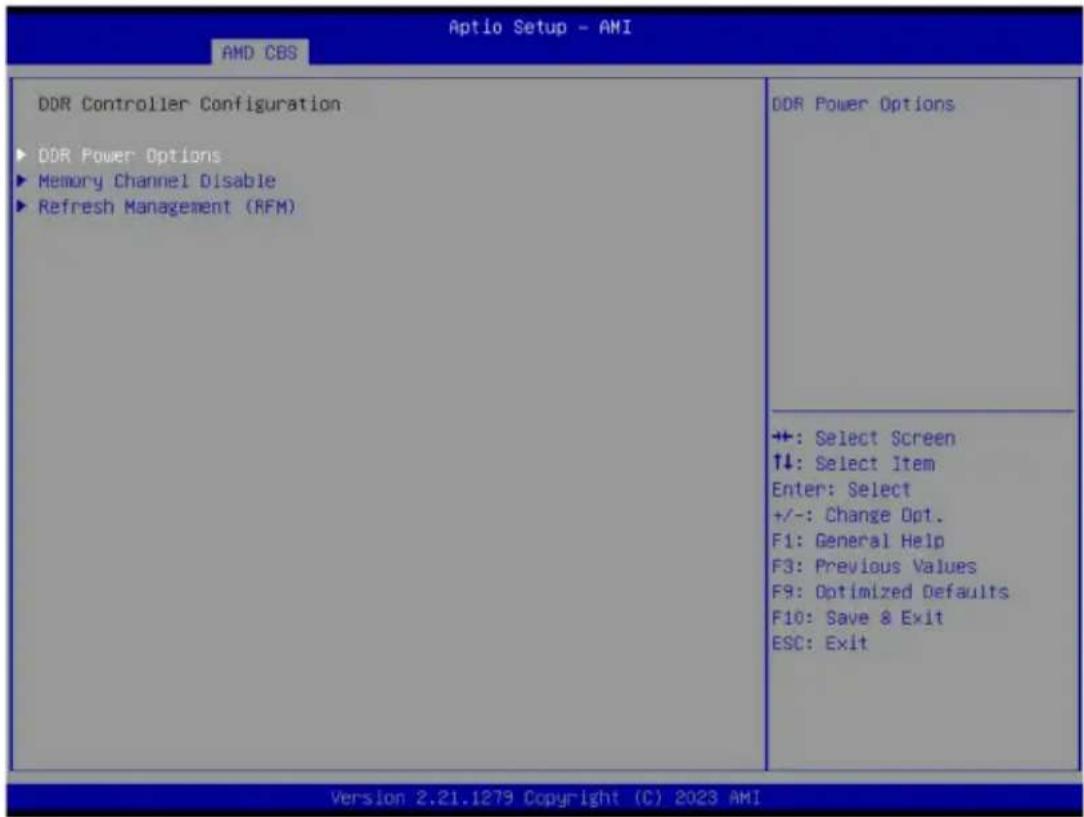
Parameter Description
DDR Cotroller Configuration
DDR Power Options Press [Enter] for configuration of advanced items.
Memory Channel Disable Press [Enter] for configuration of advanced items.
Refresh Management (RFM) Press [Enter] for configuration of advanced items.
5-3-3-2-1 DDR Power Options
![Aptio Setup - AMI AMD CBS DDR Power Options Power Down Enable [Auto] Sub Urgent Refresh Lower Bound 1 Urgent Refresh Limit 4 DRAM Refresh Rate [3.9 usec] Self-Refresh Exit Staggering [n = 9] Enable or disable DDR power down mode +: Select Screen ↑↓: Select Item Enter: Select +/-: Change Opt. F1: General Help F3: Previous Values F9: Optimized Defaults F10: Save & Exit ESC: Exit Version 2.21.1279 Copyright (C) 2023 AMI](/content/2026/04/671956/images/928e10691cfea43a02a669ac37aa54f06c4f45639c9e5f2fa674f6d8f9051a3e.jpg)
| Parameter Description | |
| DDR Power Options | |
| Power Down Enable | Enable or disable DDR power down mode. Options available: Disabled, Enabled, Auto. Default setting is Auto. |
| Sub Urgent Refresh Lower Bound | Specifies the stored refresh limit required to enter sub-urgent refresh mode. |
| Urgent Refresh Limit Specifies the stored refresh limit required to enter urgent refresh mode. | |
| DRAM Refresh Rate | DRAM refresh rate: 1.95us or 3.9us. Options available: 3.9 usec, 1.95usec. Default setting is 3.9 usec. |
| Self-Refresh Exit Staggering Options available: Disabled, n=1~9. Default setting is n=9. | |
5-3-3-2-2 Memory Channel Disable
![Aptio Setup - AMI AMD CBS Memory Channel Disable Memory Channel Disable Bitmask 0 Socket 0 Channel 0 [Enabled] Socket 0 Channel 1 [Enabled] Socket 0 Channel 2 [Enabled] Socket 0 Channel 3 [Enabled] Socket 0 Channel 4 [Enabled] Socket 0 Channel 5 [Enabled] Socket 0 Channel 6 [Enabled] Socket 0 Channel 7 [Enabled] Socket 0 Channel 8 [Enabled] Socket 0 Channel 9 [Enabled] Socket 0 Channel 10 [Enabled] Socket 0 Channel 11 [Enabled] SPD reading will be skipped when channel is disabled. ++: Select Screen ↑↓: Select Item Enter: Select +/-: Change Opt. F1: General Help F3: Previous Values F9: Optimized Defaults F10: Save & Exit ESC: Exit Version 2.21.1279 Copyright (C) 2023 AMI](/content/2026/04/671956/images/45141275dc89dcf23a34777257e8ebd773739ac479f82295262be6f6ad5b246e.jpg)
Parameter Description
Memory Channel Disable
Memory Channel Disable
Bitmask
Socket 0 Channel_# Press [Enter] to enable/disable specific memory channel.
5-3-3-2-3 Refresh Management (RFM)
![Aptio Setup - AMI AMD CBS Refresh Management (RFM) Refresh Management [Auto] RAA Initial Management Threshold [Auto] RAA Maximum Management Threshold [Auto] RAA Refresh Decrement Multiplier [Auto] Auto: Disable Disable: Disable RFM for all Ranks. Enable: Enable RFM for Ranks which support RFM. Force Enable: Enable RFM for all Ranks regardless of support. Selecting 'Force Enable' will cause REFpb/REFsb to be disabled if all ranks +: Select Screen ↑↓: Select Item Enter: Select +/-: Change Opt. F1: General Help F3: Previous Values F9: Optimized Defaults F10: Save & Exit ESC: Exit Version 2.21.1279 Copyright (C) 2023 AMI](/content/2026/04/671956/images/5ce5e045249ac6086649a1115f4470bd7e7999a4641970ded4a0789830cccb9d.jpg)
Parameter Description
| Refresh Management (RFM) | |
| Refresh Management | Configure Refresh Management. Options available: Enable, Disable, Auto, Force Enable. Default setting is Auto. |
| RAA Initial Management Threshold | Override Rolling Accumulated ACT Initial Management Threshold. Options available: 32, 40, 48, 56, 64, 72, 80, Auto. Default setting is Auto. |
| RAA Maximum Management Threshold | Override Rolling Accumulated ACT Maximum Management Threshold. Options available: 3X, 4X, 5X, 6X, Auto. Default setting is Auto. |
| RAA Refresh Decrement Multiplier | Override RAA Refresh Decrement Multiplier. Options available: 0.5, 1, Auto. Default setting is Auto. |
5-3-3-3 DDR MBIST Options
![Aptio Setup - AMI AMD CBS DDR MBIST Options MBIST Enable [Auto] MBIST Test Mode [Auto] MBIST Aggressors [Auto] MBIST Per Bit Slave Die Reporting [Auto] ► Data Eye DDR Healing BIST [Disabled] DDR Healing BIST Execution Mode [One Time] ► PMU Mem BIST Algorithm DDR Healing BIST Repair Type [Soft Repair] Enable or disable Memory MBIST +: Select Screen ↑↓: Select Item Enter: Select +/-: Change Opt. F1: General Help F3: Previous Values F9: Optimized Defaults F10: Save & Exit ESC: Exit Version 2.21.1279 Copyright (C) 2023 AMI](/content/2026/04/671956/images/122b4aaecc94c58e5dee75f110473e15f4ea198c0add99244bedef990989ca1a.jpg)
| Parameter Description | |
| DDR MBIST Options | |
| MBIST Enable | Enable/Disable the Memory MBIST function.Options available: Disabled, Enabled, Auto. Default setting isAuto. |
| MBIST Test Mode ^(Note1) | Selects MBIST Test Mode.Interface Mode: Tests Single and Multiple CS transactions and Basic Connectivity.Data Eye Mode: Measures Voltage vs. Timing.Options available: Auto, Both, Interface Mode, Data Eye Mode. Default setting isAuto. |
| MBIST Aggressors ^(Note1) | Enable/Disable MBIST Aggressor test.Options available: Auto, Enabled, Disabled. Default setting isAuto. |
| MBIST Per Bit Slave Die Reporting ^(Note1) | Enable/Disable to report 2D data eye results in ABL log for each DQ, Chipselect, and Channel.Options available: Auto, Enabled, Disabled. Default setting isAuto. |
| Data Eye | Press [Enter] to configure advanced items. |
| Memory Healing BIST | Enable/Disable memory healing BIST.Options available: Disabled, PMU Mem BIST, Self-Healing Mem BIST, PMU and Self-Healing Mem BIST. Default setting isDisabled. |
(Note1) This item appears when MBIST Enable is set to Enabled.
| Parameter Description | |
| DDR Healing BIST Execution Mode ^(Note2) | Options available: One Time, Every boot.Default setting isOne Time. |
| PMU Mem BIST Algorithm ^(Note2) | Press [Enter] to enable/disable PMU Mem BIST Algorithm. |
| DDR Healing BIST Repair Type ^(Note2) | For DRAM errors found in the BIOS memory BIST select the repair type.Options available: Soft Repair, Hard Repair, No Repairs -Test only. Default setting isSoft Repair. |
(Note2) This item appears when DDR Healing BIST is defined.
5-3-3-3-1 Data Eye
| Data Eye | MBIST Data Eye Pattern Type. 0 - PRBS (default). 1 - SSO, 2 - Both | |
| Pattern Select | [PRBS] | |
| Pattern Length | 3 | |
| Aggressor Channel | [All Channels] | |
| Aggressor Static Lane Control | [Disabled] | |
| Aggressor Static Lane Select | 0 | |
| Upper 32 bits | ||
| Aggressor Static Lane Select | 0 | |
| Lower 32 Bits | ||
| Aggressor Static Lane Select ECC | 0 | |
| Aggressor Static Lane Value | 0 | |
| Target Static Lane Control | [Disabled] | |
| Target Static Lane Select Upper | 0 | |
| 32 bit | ||
| Target Static Lane Select Lower | 0 | |
| 32 Bits | ||
| Target Static Lane Select ECC | 0 | |
| Target Static Lane Value | 0 | |
| Worst Case Margin Granularity | [Per Chip Select] | |
| Read Voltage Sweep Step Size | [1] | |
| Read Timing Sweep Step Size | [1] | |
| Write Voltage Sweep Step Size | [1] | |
| Write Timing Sweep Step Size | [1] | |
| Silent Execution | [Disabled] | |
| Parameter | Description |
| Data Eye | |
| Pattern Select | Options available: PRBS, SSO, Both. Default setting is PRBS. |
| Pattern Length | Determines the pattern length. The possible options are N=3....12. |
| Aggressor Channel | This item helps read the aggressors channels. Options available: One Sub-Channel, Half Channels, All Channels. Default setting is All Channels. |
| Aggressor Static Lane Control | Enable/Disable the Aggressor Static Lane Control function. Options available: Enabled, Disabled. Default setting is Disabled. |
| Aggressor Static Lane Select Upper 32 bits | This item is configurable when Aggressor Static Lane Control is set to Enabled. |
| Aggressor Static Lane Select Lower 32 bits | This item is configurable when Aggressor Static Lane Control is set to Enabled. |
| Aggressor Static Lane Select ECC | This item is configurable when Aggressor Static Lane Control is set to Enabled. |
| Aggressor Static Lane Value | This item is configurable when Aggressor Static Lane Control is set to Enabled. |
| Target Static Lane Control | Enable/Disable the Target Static Lane Control function. Options available: Enabled, Disabled. Default setting is Disabled. |
| Target Static Lane Select Upper 32 bits | This item is configurable when Target Static Lane Control is set to Enabled. |
| Target Static Lane Select Lower 32 bits | This item is configurable when Target Static Lane Control is set to Enabled. |
| Target Static Lane Select ECC | This item is configurable when Target Static Lane Control is set to Enabled. |
| Target Static Lane Value | This item is configurable when Target Static Lane Control is set to Enabled. |
| Worst Case Margin Granularity | Configures Worst Case Margin Granularity.Options available: Per Chip Select, Per Nibble.Default setting is Per Chip Select. |
| Read Voltage Sweep Step Size | Configures the step size for read Data Eye voltage sweep.Options available: 1, 2, 4. Default setting is 1. |
| Read Timing Sweep Step Size | Configures the step size for read Data Eye timing sweep.Options available: 1, 2, 4. Default setting is 1. |
| Write Voltage Sweep Step Size | Configures the step size for write Data Eye voltage sweep.Options available: 1, 2, 4. Default setting is 1. |
| Write Timing Sweep Step Size | Configures the step size for write Data Eye timing sweep.Options available: 1, 2, 4. Default setting is 1. |
| Silent Execution | Execute MBIST Data Eye silently without ABL log output.Options available: Enabled, Disabled. Default setting is Disabled. |
![Aptio Setup - AMI AMD CBS DDR RAS Data Poisoning [Auto] DRAM Boot Time Post Package Repair [Disable] DRAM Runtime Post Package Repair [Disable] RCD Parity [Enabled] Max RCD Parity Error Replay 8 Disable Memory Error Injection [Auto] ▶ ECC Configuration ▶ DRAM Scrubbers DRAM Corrected Error Counter [LeakMode] Enable DRAM Corrected Error Counter [True] Interrupt Enable DRAM Corrected Error Counter Leak 7 Rate DRAM Corrected Error Counter FFF5 Start Count Enable poison data creation on uncorrectable DDR DRAM ECC errors and poison propagation to CPU cores and caches. Requires ECC memory. When FALSE, a fatal error event will occur on DDR ECC errors sets UMC_CH::EccCtrl[UcFatalEn] when +: Select Screen ↑↓: Select Item Enter: Select +/-: Change Opt. F1: General Help F3: Previous Values F9: Optimized Defaults F10: Save & Exit ESC: Exit Version 2.21.1279 Copyright (C) 2023 AMI](/content/2026/04/671956/images/bfa951612c4509f4e118ba1d32620cd08c9188b27a58d7cc5a61a7106b645353.jpg)
Parameter Description
| DDR RAS | |
| Data Poisoning | Enable/Disable the Data Poisoning function. Options available: Auto, Enabled, Disabled. Default setting is Auto. |
| DRAM Boot Time Post Package Repair | Enable/Disable the DRAM Boot Time Post Package Repair function. Options available: Enable, Disable. Default setting is Disable. |
| DRAM Runtime Post Package Repair | Enable/Disable the DRAM Runtime Post Package Repair function. Options available: Enable, Disable. Default setting is Disable. |
| RCD Parity | Enable/Disable the RCD Parity function. Options available: Auto, Enabled, Disabled. Default setting is Enabled. |
Max RCD Parity Error Replay Default setting is 8.
Disable Memory Error Injection Options available: False, True, Auto. Default setting is Auto.
| ECC Configuration | Press [Enter] to configure advanced items.♦ DRAM ECC Symbol Size- Configures the DRAM ECC Symbol Size.- Options available: Auto, x4, x16. Default setting isAuto.♦ DRAM ECC Enable- Enable/Disable DRAM ECC. When set to Auto, it will set ECC to enable.- Options available: Auto, Enabled, Disabled. Default setting isAuto. |
Parameter Description
| ECC Configuration(continued) | DRAM UECC Retry- Enable/Disable DRAM UECC Retry.- Options available: Auto, Enabled, Disabled. Default setting is Disabled.Max DRAM UECC Error Replay ^(Note) - Default setting is 8.Memory Clear- Options available: Auto, Enabled, Disabled. Default setting is Auto.Address XDR after ECC- Options available: Auto, Enabled, Disabled. Default setting is Disabled. |
| DRAM Scrubbers | Press [Enter] to configure advanced items.DRAM ECS Mode- Options available: Auto, AutoECS, ManualECS, DisableECS. Default setting isAuto.DRAM Redirect Scrubber Enable- Options available: Auto, Enabled, Disabled. Default setting isAuto.DRAM Scrub Redirection Limit- Options available: Auto, 8 Scrubs, 4 Scrubs, 2 Scrubs, 1 Scrub. Default setting isAuto.DRAM Scrub Time- Options available: Disabled, 1 hour, 4 hours, 6 hours, 8 hours, 12 hours, 16 hours, 24 hours, 48 hours. Default setting is24 Hours.DRAM Error Threshold Count- Options available: Auto, ETC_4, ETC_16, ETC_64, ETC_256, ETC_1024, ETC_4096. Default setting isAuto.DRAM ECS Count Mode- Options available: Auto, Row Count Mode, Code Word Count Mode. Default setting isAuto.DRAM AutoEcs during Self Refresh- Options available: Auto, AutoEcs Disabled, AutoEcs Enabled. Default setting isAuto.DRAM ECS WriteBack Suppression- Options available: Auto, Enable, Disable. Default setting isAuto.DRAM X4 WriteBack Suppression- Options available: Auto, Enable, Disable. Default setting isAuto. |
| Parameter Description | |
| DRAM Corrected Error Counter Enable | Configure DRAM Corrected Error Counter function. Options available: Disable, NoLeakMode, LeakMode. Default setting is LeakMode. |
| DRAM Corrected Error Counter Interrupt Enable | Enable SMI when DRAM corrected Error Counter count exceeds the threshold value. Options available: False, True. Default setting is True. |
| DRAM Corrected Counter Leak Rate | Program Rate value for DRAM Corrected Error Counter function. Default setting is 7. |
| DRAM Corrected Error Counter Start Count | Program starting value for DRAM Corrected Error Counter function. Default setting is FFF5. |
5-3-3-5 DDR Bus Configuration
![Aptio Setup - AMI AMD CBS DDR Bus Configuration Select the DRAMs On-die Termination impedance for RTT_NOM_WR Dram ODT Impedance RTT_NOM_WR [Auto] Dram ODT Impedance RTT_NOM_RD [Auto] Dram ODT Impedance RTT_WR [Auto] Dram ODT Impedance RTT_PARK [Auto] Dram ODT Impedance DQS_RTT_PARK [Auto] Processor ODT impedance [Auto] Dram DQ drive strengths [Auto] ++: Select Screen ↑↓: Select Item Enter: Select +/-: Change Opt. F1: General Help F3: Previous Values F9: Optimized Defaults F10: Save & Exit ESC: Exit Version 2.21.1279 Copyright (C) 2023 AMI](/content/2026/04/671956/images/9b71e3de83d7a7e2d23f1090b81882da22f5e52241267c7659148abf7413c1ad.jpg)
| Parameter Description | |
| DDR Bus Configuration | |
| Dram ODT impedance RTT_NOM_WR | Select the DRAMs On-die Termination impedance for RTT_NOM_WR. Options available: Auto, RTT_OFF, RZQ (240), RZQ/2 (120), RZQ/3 (80) RZQ/4 (60), RZQ/5(48), RZQ/6(40), RZQ/7(34). Default setting is Auto. |
| Dram ODT impedance RTT_NOM_RD | Select the DRAMs On-die Termination impedance for RTT_NOM_RD. Options available: Auto, RTT_OFF, RZQ (240), RZQ/2 (120), RZQ/3 (80) RZQ/4 (60), RZQ/5(48), RZQ/6(40), RZQ/7(34). Default setting is Auto. |
| Dram ODT impedance RTT_WR | Select the DRAMs On-die Termination impedance for RTT_WR. Options available: Auto, RTT_OFF, RZQ (240), RZQ/2 (120), RZQ/3 (80) RZQ/4 (60), RZQ/5(48), RZQ/6(40), RZQ/7(34). Default setting is Auto. |
| Dram ODT Timpedance RTT_PARK | Select the DRAMs On-die Termination impedance for RTT_PARK. Options available: Auto, RTT_OFF, RZQ (240), RZQ/2 (120), RZQ/3 (80) RZQ/4 (60), RZQ/5(48), RZQ/6(40), RZQ/7(34). Default setting is Auto. |
| Dram ODT Timpedance DQS_RTT_PARK | Select the DRAMs On-die Termination impedance for DQS_RTT_PARK. Options available: Auto, RTT_OFF, RZQ (240), RZQ/2 (120), RZQ/3 (80) RZQ/4 (60), RZQ/5(48), RZQ/6(40), RZQ/7(34). Default setting is Auto. |
Parameter Description
| Processor ODT impedance | Select the ODT impedance for all DBYTE IOs. Options available: Auto, High Impedance, 480 ohm, 240 ohm, 160 ohm, 120 ohm, 96 ohm, 80 ohm, 68.6 ohm, 60 ohm, 53.3 ohm,48 ohm, 43.6 ohm, 40 ohm, 36.9 ohm, 34.3 ohm, 32 ohm, 30 ohm, 28.2 ohm, 26.7 ohm, 25.3 ohm. Default setting isAuto. |
| Dram DQ drive strengths | Select the Dram Pull-up and Pull-Down Output Driver Impedance for all DQ and DMI IOs.. Options available: Auto, 48 ohm, 40 ohm, 34 ohm, Default setting isAuto. |
5-3-3-6 Enforce POR
| Aptio Setup - AMI AMD CBS | |
| Enforce POR WARNING - DAMAGE CAUSED BY USE OF YOUR AMD PROCESSOR OUTSIDE OF SPECIFICATION OR IN EXCESS OF FACTORY SETTINGS ARE NOT COVERED UNDER YOUR AMD PRODUCT WARRANTY AND MAY NOT BE COVERED BY YOUR SYSTEM MANUFACTURER'S WARRANTY. Operating your AMD processor outside of specification or in excess of factory settings, including but not limited to overclocking, may damage or shorten the life of your processor or other system components, create system instabilities (e.g., data loss and corrupted images) and in extreme cases may result in total system failure. AMD does not provide support or service for issues or damages related to use of an AMD processor outside of processor specifications or in excess of factory settings. ► Decline ► Accept | Decline |
| +: Select Screen ↑↓: Select Item Enter: Select +/-: Change Opt. F1: General Help F3: Previous Values F9: Optimized Defaults F10: Save & Exit ESC: Exit | |
| Version 2.21.1279 Copyright (C) 2023 AMI | |
Parameter Description
Enforce POR Decline/Accept to configure the advanced items.
Accept
| Active Memory Timing Settings ^(Note) | Active memory Timing Settings.Options available: Auto, Enabled. Default setting isAuto. |
| Memory Target Speed | Specifies the memory target speed in MT/s.Options available: Auto, DDR3200, DDR3600, DDR4000, DDR4400, DDR4800, DDR5200, DDR5600. Default setting isAuto. |
SPD Timing Press [Enter] to configure advanced items.
Non-SPD Timing Press [Enter] to configure advanced items.
5-3-3-7 DDR Training Options
![Aptio Setup - AMI AMD CBS DDR Training Options DRAM PDA Enumerate ID Programming [Auto] Mode Specify PDA enumeration mode Auto : default 0 : Continuous DQS toggling PDA enumeration mode (default) 1 : Legacy PDA enumeration mode +: Select Screen ↑↓: Select Item Enter: Select +/-: Change Opt. F1: General Help F3: Previous Values F9: Optimized Defaults F10: Save & Exit ESC: Exit Version 2.21.1279 Copyright (C) 2023 AMI](/content/2026/04/671956/images/ca06d446727448d644366246d81c7d83e261ebf1b2713a96d163ad7ec785b2e9.jpg)
Parameter Description
| DDR Training Options | |
| DRAM PDA Enumerate ID Programming Mode | Specify PDA enumeration mode. Options available: Auto, Toggling PDA enumeration mode, Legacy PDA enumeration mode. Default setting isAuto. |
5-3-3-8 DDR Security
![Aptio Setup - AMI AMD CBS DDR Security TSME [Auto] AES [AES-256] Data Scramble [Enabled] SME-MK [Disabled] Transparent SME +: Select Screen ↑↓: Select Item Enter: Select +/-: Change Opt. F1: General Help F3: Previous Values F9: Optimized Defaults F10: Save & Exit ESC: Exit Version 2.21.1279 Copyright (C) 2023 AMI](/content/2026/04/671956/images/2d068ca4e1d160a527e11b1408c54df13d4ecbd7e8ba5f65ed2b930250cf0731.jpg)
Parameter Description
| Security | |
| TSME | Enable/Disable Transparent SME. Options available: Auto, Enabled, Disabled. Default setting is Auto. |
| AES Options available: AES-128, AES-256. Default setting is AES-256. | |
| Data Scramble | Enable/Disable Data Scrambling. Options available: Enabled, Disabled. Default setting is Enabled. |
| SME-MK Options available: Enabled, Disabled. Default setting is Disabled. | |
5-3-3-9 DDR PMIC Configuration
![Aptio Setup - AMI AMD CBS DDR PMIC Configuration PHIC Error Reporting [Auto] PMIC Operation Mode [Programmable Mode] PMIC Fault Recovery [Always] PMIC SWC VDDIO 1100 PMIC SWA/SWB VDD Core 1100 PMIC Stagger Delay 5 Max PMIC Power On FF Enables support for PMIC Error Reporting. +: Select Screen ↑↓: Select Item Enter: Select +/-: Change Opt. F1: General Help F3: Previous Values F9: Optimized Defaults F10: Save & Exit ESC: Exit Version 2.21.1279 Copyright (C) 2023 AMI](/content/2026/04/671956/images/daa126c402357cb2098e218ea8bf409fa98744fe764bd00e0422a55635da7b78.jpg)
| Parameter Description | |
| DDR PMIC Configuration | |
| PMIC Error Reporting | Enables support for PMIC Error Reporting. Options available: Auto, False, True. Default setting is Auto. |
| PMIC Operation Mode | Options available: Secure Mode, Programmable Mode. Default setting is Programmable Mode. |
| PMIC Fault Recovery Options available: Always, Never, Once. Default setting is Always. | |
| PMIC SWC VDDIO Default setting is 1100. | |
| PMIC SWA/SWB VDD Core Default setting is 1100. | |
| PMIC Stagger Delay Default setting is 5. | |
| Max PMIC Power On Default setting is FF. | |
5-3-3-10 DDR Miscellaneous
![Aptio Setup - AMI AMD CBS DDR Miscellaneous DRAM Survives Warm Reset [Disabled] ODTS CMD Throttle Threshold [Auto] 1 - Enabled (default); 0 - Disabled If enabled - Upon warm reset DRAM content is preserved. Training values are saved & retrieved. ++: Select Screen ↓: Select Item Enter: Select +/-: Change Opt. F1: General Help F3: Previous Values F9: Optimized Defaults F10: Save & Exit ESC: Exit Version 2.21.1279 Copyright (C) 2023 AMI](/content/2026/04/671956/images/3b3bf03affdbae6921689bc33900efe9d2823f906e46f64e5b35a86c051df0b7.jpg)
Parameter Description
DDR Miscellaneous
DRAM Survives Warm Reset Options available: Enabled, Disabled. Default setting is Disabled.
ODTS CMD Throttle Threshold Options available: Auto, > 85'C, > 90'C, > 95'C. Default setting is Auto.
5-3-3-11 DDR PHY (CMN)
![Aptio Setup - AMI AMD CBS DDR PHY (CMN) Periodic Training [Auto] Specifies Periodic Training config +: Select Screen ↑↓: Select Item Enter: Select +/-: Change Opt. F1: General Help F3: Previous Values F9: Optimized Defaults F10: Save & Exit ESC: Exit Version 2.21.1279 Copyright (C) 2023 AMI](/content/2026/04/671956/images/a3efa0ee35fbd9d407c9b560275d988c714fe702d99c9a3e4ec331fbd9bcc82f.jpg)
Parameter Description
DDR PHY (CMN)
Periodic Training ^(Note)
Options available: Auto, Enabled, Disabled. Default setting is Auto.
Periodic Training Interval Specifies the Periodic Training interval in millisecond.
(Note) Advanced items prompt when this item is defined.
5-3-4 NBIO Common Options
![Aptio Setup - AMI AMD CBS NBIO Common Options Enable/Disable IOMMU IOMMU [Enabled] DMAr Support [Auto] DMA Protection [Auto] DRTM Virtual Device Support [Auto] DRTM Memory Reservation [Auto] ACS Enable [Auto] PCIe ARI Support [Auto] PCIe ARI Enumeration [Auto] PCIe Ten Bit Tag Support [Auto] ► SMU Common Options ► NBIO RAS Common Options Enable AER Cap [Auto] Early Link Speed [Auto] Hot Plug Handling mode [Auto] Hot Plug Allow FF in Synchronous [Disabled] Presence Detect Select mode [Auto] Data Link Feature Cap [Auto] CV test [Auto] SEV-SNP Support [Auto] Allow Compliance [Auto] SRIS [Auto] Multi Upstream Auto Speed Change [Auto] ++: Select Screen ↑↓: Select Item Enter: Select +/-: Change Opt. F1: General Help F3: Previous Values F9: Optimized Defaults F10: Save & Exit ESC: Exit Version 2.21.1279 Copyright (C) 2023 AMI](/content/2026/04/671956/images/51f5da54bfdf09652ae3654b38b7189aff2cb9c488429d63eca38336a30acf5d.jpg)
![PCIe ARI Enumeration [Auto] PCIe Ten Bit Tag Support [Auto] ► SMU Common Options ► NBIO RAS Common Options Enable AER Cap [Auto] Early Link Speed [Auto] Hot Plug Handling mode [Auto] Hot Plug Allow FF in Synchronous [Disabled] Presence Detect Select mode [Auto] Data Link Feature Cap [Auto] CV test [Auto] SEV-SNP Support [Auto] Allow Compliance [Auto] SRIS [Auto] Multi Upstream Auto Speed Change [Auto] Multi Auto Speed Change On Last [Auto] Rate PCIE Link Speed Capability [Auto] RTM Margining Support [Auto] EQ Bypass To Highest Rate [Auto] Non-PCIe Compliant Support [Auto] PCIE Idle Power Setting [Optimize for Perf/Power] ► nBif Common Options ► Link EQ Preset Options Enable 2 SPC (Gen 4) [Auto] Enable this setting to use 2 symbols per clock for devices at Gen 4 speed. ++: Select Screen ↑↓: Select Item Enter: Select +/-: Change Opt. F1: General Help F3: Previous Values F9: Optimized Defaults F10: Save & Exit ESC: Exit Version 2.21.1279 Copyright (C) 2023 AMI](/content/2026/04/671956/images/ad0119908c8219739c8a27edcf46391e36887fd45af907729f9bc404a1844e05.jpg)
| Parameter | Description |
| NBIO Common Options | |
| IOMMU | Enable/Disable the IOMMU function.Options available: Disabled, Enabled. Default setting is Enabled. |
| DMAr Support | Enable/Disable DMAr system protection during POST.Options available: Disabled, Enabled, Auto. Default setting is Auto. |
| DMA Protection | Enable/Disable DMA remap support in IVRS IVinfo Field.Options available: Auto, Enabled, Disabled. Default setting is Auto. |
| DRTM Virtual Device Support | Enable/Disable DRTM ACPI virtual device.Options available: Disabled, Enabled, Auto. Default setting is Auto. |
| DRTM Memory Reservation | Enable/Disable DRTM Memory reservation.Options available: Disabled, Enabled, Auto. Default setting is Auto. |
| ACS Enable | Enable/Disable ACS.Options available: Enable, Disabled, Auto. Default setting is Auto. |
| PCIe ARI Support | Enable/Disable Alternative Routing-ID Interpretation.Options available: Disable, Enable, Auto. Default setting is Auto. |
| PCIe ARI Enumeration | ARI Forwarding Enable for each downstream port.Options available: Disable, Enable, Auto. Default setting is Auto. |
| PCIe Ten Bit Tag Support | Enable/Disable PCIe ten bit tags for supported devices. (Auto=Disabled)Options available: Disable, Enable, Auto. Default setting is Auto. |
| SMU Common Options Press [Enter] for configuration of advanced items. | |
| NBIO RAS Common Options | Press [Enter] for configuration of advanced items. |
| Enable AER Cap | Enable/Disable Advanced Error Reporting Capability.Options available: Enable, Disabled, Auto. Default setting is Auto. |
| Early Link Speed | Configures Early Link Speed.Options available: Auto, Gen1, Gen2. Default setting is Auto. |
| Hot Plug Handling mode | Controls the Hot Plug Handling mode.Options available: OS First, Firmware First/EDR if OS supports, Firmware First but allow OS First, System Firmware Intermediary, Auto. Default setting is Auto. |
| Hot Plug Allow FF in Synchronous | Allows firmware first hot plug handling mode to operate in mode A and mode B synchronous mappings.Options available: Disabled, Enabled. Default setting is Disabled. |
| Presence Detect Select mode | Controls the Presence Detect Select mode.Options available: OR, AND, Auto. Default setting is Auto. |
| Data Link Feature Cap | Enable/Disable the data link feature capability. Options available: Enabled, Disabled, Auto. Default setting isAuto. |
| CV test | Enable/Disable the running PCIE CV tool support. Options available: Auto, Enabled, Disabled. Default setting isAuto. |
| SEV-SNP Support | Enable/Disable the SEV-SNP support. Options available: Disable, Enable. Default setting isDisable. |
| Allow Compliance | When enabled, allows the PCIe RP to enter Polling.Compliance state. Options available: Auto, Disable, Enable. Default setting isAuto. |
| SRIS Options available: Auto, Disable, Enable. Default setting isAuto. | |
| Multi Upstream Auto Speed Change | Defines the setting of this feature for all PCIe devices. Options available: Disabled, Enabled, Auto. Default setting isAuto. |
| Multi Auto Speed Change On Last Rate | Options available: Disable, Enable, Auto. Default setting isAuto. |
| PCIE Link Speed Capability | Options available: Maximum speed, Gen1, Gen2, Gen3, Gen4, Gen5, Auto. Default setting isAuto. |
| RTM Margining Support Options available: Disable, Enable, Auto. Default setting isAuto. | |
| EQ Bypass To Highest Rate | Options available: Disable, Enable, Auto. Default setting isAuto. |
| Non-PCIe Compliant Support | Options available: Disable, Enable, Auto. Default setting isAuto. |
| PCIE Idle Power Setting | Modify PCIE Power Savings Features that can impact lightly loaded latency. Options available: Optimize for Latency, Optimize for Perf/Power. Default setting isOptimize for Latency. |
| nBif Common Options Press [Enter] for configuration of advanced items. | |
| Link EQ Preset Options Press [Enter] for configuration of advanced items. | |
| Enable 2 SPC (Gen4) | Enable this setting to use 2 symbols per clock for devices at Gen4 speed. Options available: Auto, Enabled. Default setting isAuto. |
5-3-4-1 SMU Common Options
![Aptio Setup - AMI AMD CBS SMU Common Options TDP Control [Auto] PPT Control [Auto] Determinism Control [Auto] xGMI Link Width Control [Auto] APBDIS [Auto] DfPstate Range Support [Auto] Power Profile Selection [High Performance Mode] BoostFmaxEn [Auto] DF PState Frequency Optimizer [Auto] DF Cstates [Auto] CPPC [Auto] HSMP Support [Auto] SVI3 SVC Speed Control [Auto] 3D V-Cache [Auto] Diagnostic Mode [Auto] PCIE Speed PMM Control [Auto] Auto = Use the fused TDP Manual = User can set customized TDP +: Select Screen ↑↓: Select Item Enter: Select +/-: Change Opt. F1: General Help F3: Previous Values F9: Optimized Defaults F10: Save & Exit ESC: Exit Version 2.21.1279 Copyright (C) 2023 AMI](/content/2026/04/671956/images/d584449178b296bba9921d9e1fe5c3c6869b28e3a0ded3bb1399cf2571551166.jpg)
| Parameter | Description |
| SMU Common Options | |
| TDP Control | Options available: Manual, Auto. Default setting isAuto. |
| PPT Control | Options available: Manual, Auto. Default setting isAuto. |
| Determinism Control | Selects use the fused Determinism or set customized Determinism.Options available: Manual, Auto. Default setting isAuto. |
| xGMI Link Width Control | Options available: Manual, Auto. Default setting isAuto. |
| APBDIS Options available: 0, 1, Auto. Default setting isAuto. | |
| DfPstate Range Support | Options available: Disable, Enable, Auto. Default setting isAuto. |
| Power Profile Selection | Options available: High Performance Mode, Efficiency Mode, Maximum IOPerformance Mode. Default setting isHigh Performance Mode. |
| BoostFmaxEn | Options available: Manual, Auto. Default setting isAuto. |
| DF PState FrequencyOptimizer | Options available: Auto, Enabled, Disabled. Default setting isAuto. |
| DF Cstates | Options available: Disabled, Enabled, Auto. Default setting isAuto. |
| CPPC | Enable/Disable the CPPC feature.Options available: Disabled, Enabled, Auto. Default setting isAuto. |
| HSMP Support | Enable/Disable the HSMP support.Options available: Disabled, Enabled, Auto. Default setting isAuto. |
| SVI3 SVC Speed Control | Options available: Auto, Manual. Default setting isAuto. |
| 3D V-Cache Options available: Auto, Disable, 1 stack. Default setting isAuto. | |
| Diagnostic Mode Options available: Disabled, Enabled, Auto. Default setting isAuto. | |
| PCIE Speed PMM Control | Options available: Dynamic link speed determined by Power Management functionality, Static Target Link Speed (GEN4), Static Target Link Speed (GEN5), Auto. Default setting isAuto. |
5-3-4-2 NBIO RAS Common Options
| Aptio Setup - AMI AMD CBS | |
| NBIO RAS Common Options NBIO RAS Control [Auto] Egress Poison Severity High 30011 Egress Poison Severity Low 4 NBIO SyncFlood Generation [Auto] NBIO SyncFlood Reporting [Auto] Egress Poison Mask High FFFF CFFFF Egress Poison Mask Low FFFFFFFB Uncorrected Converted to Poison 30000 Enable Mask High Uncorrected Converted to Poison 4 Enable Mask Low System Hub Watchdog Timer 2500 PCIe Aer Reporting Mechanism [Auto] Edpc Control [Auto] ACS RAS Request Value [Auto] NBIO Poison Consumption [Auto] Sync Flood on PCIe Fatal Error [Auto] | (0) Disabled, (1) MCA |
| +:- Select Screen ↑↓: Select Item Enter: Select +/-: Change Opt. F1: General Help F3: Previous Values F9: Optimized Defaults F10: Save & Exit ESC: Exit | |
| Version 2.21.1279 Copyright (C) 2023 AMI | |
| Parameter | Description |
| NBIO RAS Common Options | |
| NBIO RAS Control Options available: Disabled, MCA, Auto. Default setting is Auto. | |
| Egress Poison Severity High | Configures the Egress Poison High Severity. Each bit set to 1 enables High severity on the associated IOHC egress port. A bit of 0 indicates LOW severity. |
| Egress Poison Severity Low | Configures the Egress Poison Low Severity. Each bit set to 1 enables High severity on the associated IOHC egress port. A bit of 0 indicates LOW severity. |
| NBIO SyncFlood Generation | The value may be used to mask SyncFlood caused by NBIO RAS options. Options available: Enabled, Disabled, Auto. Default setting is Auto. |
| NBIO SyncFlood Reporting | The value may be used to enable SyncFlood reporting to APML. Options available: Enabled, Disabled, Auto. Default setting is Auto. |
| Egress Poison Mask High | Enables mask for masking of errors logged in EGRESS_POISON_STATUS. For each bit set to 1, errors are masked. For each bit set to 0, errors trigger response actions. |
| Egress Poison Mask Low | Enables mask for masking of errors logged in EGRESS_POISON_STATUS. For each bit set to 1, errors are masked. For each bit set to 0, errors trigger response actions. |
| Uncorrected Converted to Poison Enable Mask High | Enables mask for masking of uncorrectable parity errors on internal arrays. |
| Uncorrected Converted to Poison Enable Mask Low | Enables mask for masking of uncorrectable parity errors on internal arrays. |
| System Hub Watchdog Timer | Specifies the timer interval of the SYSHUB Watchdog timer in milliseconds. |
| PCIe Aer Reporting Mechanism | Selects the method of reporting AER errors from PCI Express. Options available: Firmware First, Firmware Frist but allow OS First, OS First, Auto. Default setting isAuto. |
| Edpc Control Options available: Disabled, Enabled, Auto. Default setting isAuto. | |
| ACS RAS Request Value | Options available: Direct Request Access Enabled, Request Blocking Enabled, Request Redirect Enabled, Auto. Default setting isAuto. |
| NBIO Poison Consumption Options available: Auto, Enabled, Disabled. Default setting isAuto. | |
| Sync Flood on PCIe Fatal Error | Options available: Auto, True, False. Default setting isAuto. |
5-3-4-3 nBif Common Options
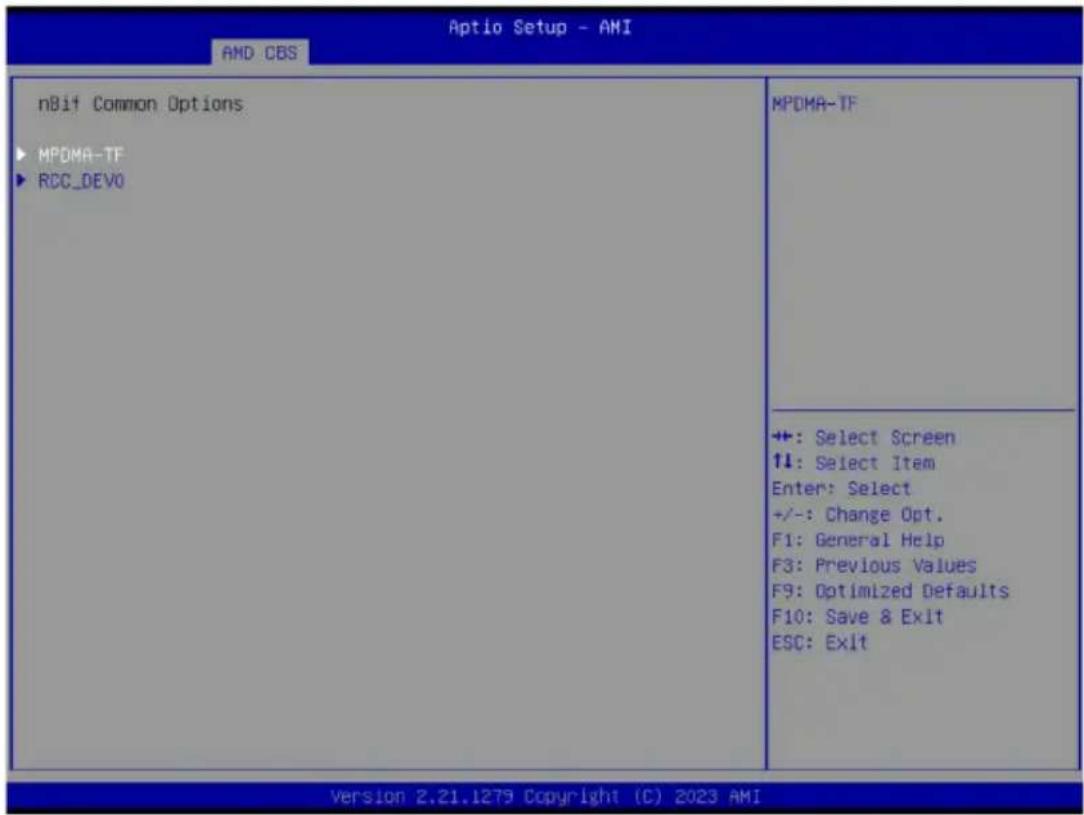
| Parameter | Description |
| MPDMA-TF | ◆ SRIOV- Options available: Auto, Disable, Enable. Default setting isAuto.◆ ARI- Options available: Auto/Default, Disable, Enable. Default setting isAuto/Default.◆ AER- Options available: Auto, Disable, Enable. Default setting isAuto.◆ ACS- Options available: Auto, Disable, Enable. Default setting isAuto.◆ ATS- Options available: Auto, Disable, Enable. Default setting isAuto.◆ PASID- Options available: Auto, Disable, Enable. Default setting isAuto.◆ RTR- Options available: Auto, Disable, Enable. Default setting isAuto.◆ PAGE_REQ- Options available: Auto, Disable, Enable. Default setting isAuto.◆ PWR- Options available: Auto, Disable, Enable. Default setting isAuto.◆ ATC_ENABLE- Options available: Auto, Disable, Enable. Default setting isAuto. |
| RCC_DEV0 | ACS Rcc_Dev0Options available: Auto, Disable, Enable. Default setting isAuto.AER Rcc_Dev0Options available: Auto, Disable, Enable. Default setting isAuto.DlfEnableStrap1Options available: Auto, Disable, Enable. Default setting isAuto.Phy16GTStrap1Options available: Auto, Disable, Enable. Default setting isAuto.MarginEnStrap1Options available: Auto, Disable, Enable. Default setting isAuto.SourceValStrap5Options available: Auto, Disable, Enable. Default setting isAuto.TranslationalBlockingStrap5Options available: Auto, Disable, Enable. Default setting isAuto.P2pReq ACS ControlOptions available: Auto, Disable, Enable. Default setting isAuto.P2pCompStrap5Options available: Auto, Disable, Enable. Default setting isAuto.UpstreamFwdStrap5Options available: Auto, Disable, Enable. Default setting isAuto.P2PEgressStrap5Options available: Auto, Disable, Enable. Default setting isAuto.DirectTranslatedStrap5Options available: Auto, Disable, Enable. Default setting isAuto.SsidEnStrap5Options available: Auto, Disable, Enable. Default setting isAuto.PriEnPageReqOptions available: Auto, Disable, Enable. Default setting isAuto.PriResetPageReqOptions available: Auto, Disable, Enable. Default setting isAuto.SourceVal ACS cntlOptions available: Auto, Disable, Enable. Default setting isAuto.TranslationalBlocking ACS ControlOptions available: Auto, Disable, Enable. Default setting isAuto.P2pComp ACS ControlOptions available: Auto, Disable, Enable. Default setting isAuto.UpstreamFwd ACS ControlOptions available: Auto, Disable, Enable. Default setting isAuto.P2PEgress ACS ControlOptions available: Auto, Disable, Enable. Default setting isAuto.P2pReqStrap5Options available: Auto, Disable, Enable. Default setting isAuto.E2E_PREFIXOptions available: Auto, Disable, Enable. Default setting isAuto. |
| RCC_DEV0(continued) | ♦ EXTENDED_FMT– Options available: Auto, Disable, Enable. Default setting isAuto. |
5-3-4-4 Link EQ Preset Options
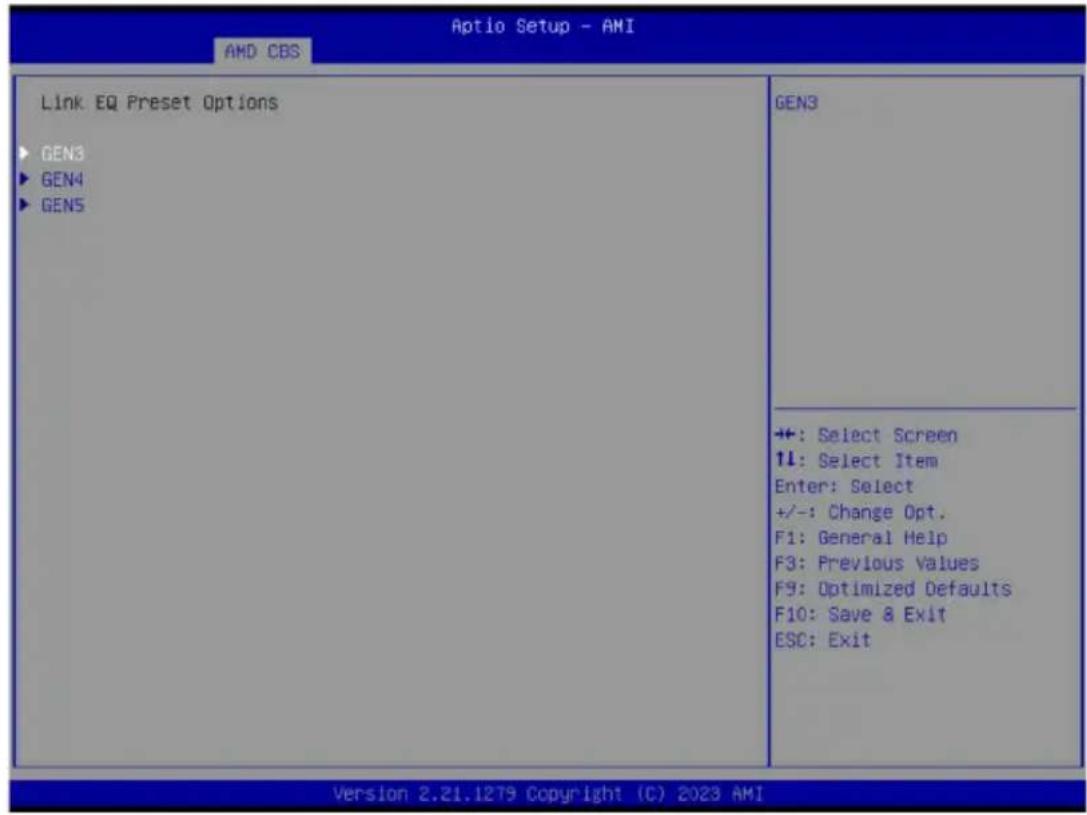
| Parameter | Description |
| GEN3/4/5 | Press [Enter] to configure advanced items.◆ Preset Search Mask Configuration- Options available: Custom, Auto. Default setting isAuto. |
5-3-5 FCH Common Options
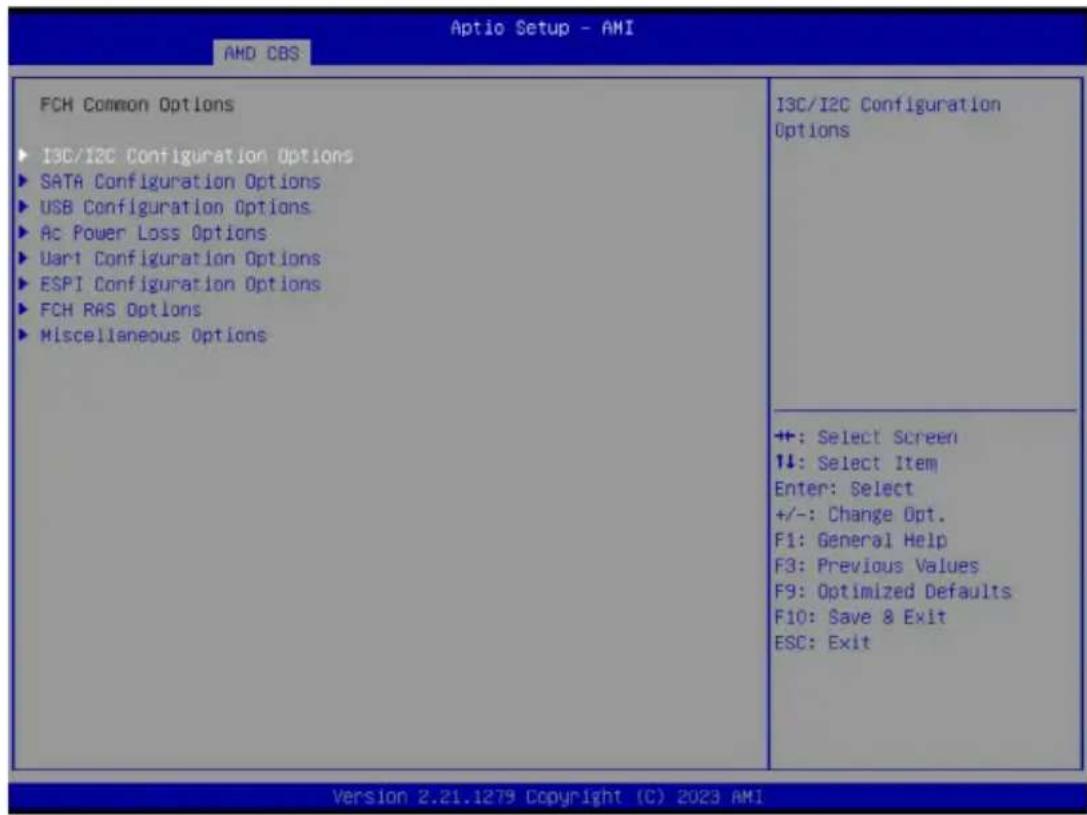
Parameter Description
FCH Common Options
I3C/I2C Configuration Options Press [Enter] for configuration of advanced items.
SATA Configuration Options Press [Enter] for configuration of advanced items.
USB Configuration Options Press [Enter] for configuration of advanced items.
AC Power Loss Options Press [Enter] for configuration of advanced items.
Uart Configuration Options Press [Enter] for configuration of advanced items.
ESPI Configuration Options Press [Enter] for configuration of advanced items.
FCH RAS Options Press [Enter] for configuration of advanced items.
Miscellaneous Options Press [Enter] for configuration of advanced items.
5-3-5-1 I3C/I2C Configuration Options
![Aptio Setup - AMI AMD CBS I3C/I2C Configuration Options I3C/I2C 0 Enable [Auto] I3C/I2C 1 Enable [Auto] I3C/I2C 2 Enable [Auto] I3C/I2C 3 Enable [Auto] I2C 4 Enable [Auto] I2C 5 Enable [Auto] Release SPD Host Control [Disabled] PMFW Poll DDR5 Telemetry [Enabled] Ixc Telemetry Ports Fence Control [Enabled] I2C SDA Hold Override [Auto] APML SD-TSI & RMI Mode [I3C] I3C Mode Speed [Auto] I3C Push Pull MCNT Value 8 I3C SDA Hold Override [Auto] Enable or disable Inter-Integrated Circuit Control 0 +: Select Screen ↑↓: Select Item Enter: Select +/-: Change Opt. F1: General Help F3: Previous Values F9: Optimized Defaults F10: Save & Exit ESC: Exit Version 2.21.1279 Copyright (C) 2023 AMI](/content/2026/04/671956/images/112f2381c94b46bed3170272472b5b13d216810416d7b63c890eac7cb2dcb84b.jpg)
| Parameter | Description |
| I3C/I2C Configuration Options | |
| I3C/I2C 0/1/2/3 Enable | Options available: Both Disabled, I3C Enabled, I2C Enabled, Auto. Default setting is Auto. |
| I2C 4/5 Enable | Options available: Disabled, Enabled, Auto. Default setting is Auto. |
| Release SPD Host Control | Options available: Disabled, Enabled. Default setting is Disabled. |
| PMFW Poll DDR5 Telemetry | Options available: Disabled, Enabled. Default setting is Enabled. |
| Ixc Telemetry Ports Fence Control | Options available: Disabled, Enabled. Default setting is Disabled. |
| I2C SDA Hold Override | Options available: Disabled, Enabled, Auto. Default setting is Auto. |
| APML SB-TSI $ RMI Mode | Options available: I3C, I2C. Default setting is I3C. |
| I3C Mode Speed | Options available: SDR2(6MHz), SDR0(12.5MHz), Auto. Default setting is Auto. |
| I3C Push Pull HCNT Value | SCL push-pull High count for I3C transfers targeted to I3C devices. |
| I3C SDA Hold Override | Override I3C SDA Hold value. Options available: Disabled, Enabled, Auto. Default setting is Auto. |
5-3-5-2 SATA Configuration Options
![Aptio Setup - AMI AMD CBS SATA Configuration Options SATA Enable [Auto] SATA RAS Support [Auto] SATA Staggered Spin-up [Auto] SATA Disabled AHCI Prefetch [Auto] Function Aggressive SATA Device Sleep P0 [Auto] Aggressive SATA Device Sleep P1 [Auto] ▶ SATA Controller options Disable or enable OnChip SATA controller +: Select Screen ↑↓: Select Item Enter: Select +/-: Change Opt. F1: General Help F3: Previous Values F9: Optimized Defaults F10: Save & Exit ESC: Exit Version 2.21.1275 Copyright (C) 2023 AMI](/content/2026/04/671956/images/d3a2746d28bb04de1ea993690a3a5bfb32279ee61d56e3fbcc8eed4cf8f6477f.jpg)
| Parameter | Description |
| SATA Configuration Options | |
| SATA Enable | Enable/Disable OnChip SATA controller. Options available: Disabled, Enabled, Auto. Default setting is Auto. |
| SATA RAS Support | Options available: Disabled, Enabled, Auto. Default setting is Auto. |
| SATA Staggered Spin-up | Options available: Disabled, Enabled, Auto. Default setting is Auto. |
| SATA Disabled AHCI Prefetch Function | Options available: Disabled, Enabled, Auto. Default setting is Auto. |
| Aggressive SATA Device Sleep P0/P1 | Options available: Disabled, Enabled, Auto. Default setting is Auto. |
| SATA Controller options | Press [Enter] for configuration of advanced items. ◆ SATA Controller Enable ◆ SATA Controller eSATA ◆ SATA Controller DevSlp ◆ SATA Controller SGPIO |
5-3-5-3 USB Configuration Options
![Aptio Setup - AMI AMD CBS USB Configuration Options XHCI Controller0 enable [Auto] XHCI Controller1 enable [Auto] USB ecc SMI Enable [Auto] ▶ MCM USB enable Enable or disable USB3 controller. ++: Select Screen ↑↓: Select Item Enter: Select +/-: Change Opt. F1: General Help F3: Previous Values F9: Optimized Defaults F10: Save & Exit ESC: Exit Version 2.21.1279 Copyright (C) 2023 AMI](/content/2026/04/671956/images/5dd6db2b724730851840a85a3e8312cae20a68df09ba8aa93b7a4152d86eb089.jpg)
| Parameter | Description |
| USB Configuration Options | |
| XHCI Controller0/1 enable | Enable/Disable USB controller.Options available: Enabled, Disabled, Auto. Default setting isAuto. |
| USB ecc SMI Enable | Options available: Enable, Off, Auto. Default setting isAuto. |
| MCM USB enable | Press [Enter] for configuration of advanced items.♦ XHCI2/ XHCI3 enable (Socket1)– Options available: Enabled, Disabled, Auto. Default setting isAuto. |
5-3-5-4 AC Power Loss Options
![Aptio Setup - AMI AMD CBS Ac Power Loss Options Ac Loss Control [Last State] Select Ac Loss Control Method +: Select Screen 1↓: Select Item Enter: Select +/-: Change Opt. F1: General Help F3: Previous Values F9: Optimized Defaults F10: Save & Exit ESC: Exit Version 2.21.1279 Copyright (C) 2023 AMI](/content/2026/04/671956/images/bf70d3648c94fb19c4aa6e23110e954a81d5344860f7f41ea240d7ad644dbc4d.jpg)
| Parameter | Description |
| AC Power Loss Options | |
| AC Loss Control | Selects the AC Loss Control Method. Options available: Power Off, Power On, Last State. Default setting is Last State. |
5-3-5-5 Uart Configuration Options
![Aptio Setup - AMI AMD CBS Uart Configuration Options Uart 0 Enable [Auto] Uart 1 Enable [Auto] Uart 2 Enable [Auto] Uart 3 Enable [Auto] Enable or disable Uart0. Uart 0 has no HH flow control if Uart 2 is enabled +: Select Screen ↑↓: Select Item Enter: Select +/-: Change Opt. F1: General Help F3: Previous Values F9: Optimized Defaults F10: Save & Exit ESC: Exit Version 2.21.1279 Copyright (C) 2023 AMI](/content/2026/04/671956/images/5aa20cefef7ef8d3693e122bb130591aaa8080f7e8a242d6b61c01ba56922636.jpg)
| Parameter | Description |
| Uart Configuration Options | |
| Uart 0/1/2/3 Enable | Options available: Disabled, Enabled, Auto. Default setting is Auto. |
5-3-5-6 ESPI Configuration Options
![Aptio Setup - AMI AMD CBS ESPI Configuration Options ESPI Enable [Auto] No help string +: Select Screen ↑↓: Select Item Enter: Select +/-: Change Opt. F1: General Help F3: Previous Values F9: Optimized Defaults F10: Save & Exit ESC: Exit Version 2.21.1279 Copyright (C) 2023 AMI](/content/2026/04/671956/images/fdc4a225fab8e1592c5271ca4bb2c2bb2ea7a62447087d1b3e07dabd0db00fa9.jpg)
| Parameter | Description |
| ESPI Configuration Options | |
| ESPI Enable | Options available: Disabled, Enabled, Auto. Default setting is Auto. |
5-3-5-7 FCH RAS Options
![Aptio Setup - AMI AMD CBS FCH RAS Options ALink RAS Support [Auto] Reset After Sync-Flood [Auto] Enable FCH A-Link parity error +: Select Screen ↑↓: Select Item Enter: Select +/-: Change Opt. F1: General Help F3: Previous Values F9: Optimized Defaults F10: Save & Exit ESC: Exit Version 2.21.1279 Copyright (C) 2023 AMI](/content/2026/04/671956/images/e0a0c3460a3c8183d7f0bb0d734a06a29a3060a598521f7574dc26f5fcf43eb6.jpg)
| Parameter | Description |
| FCH RAS Options | |
| ALink RAS Support | Enable/Disable the ALink RAS Support.Options available: Disabled, Enabled, Auto. Default setting isAuto. |
| Reset after sync flood | Enables AB to forward downstream sync-flood message to system controller.Options available: Enable, Disable, Auto. Default setting isAuto. |
5-3-5-8 Miscellaneous Options
![Aptio Setup - AMI AMD CBS Miscellaneous Options Boot Timer Enable [Auto] Boot Timer enable. Enable : force PMx44 bit 27 = 1 Disable : force PMx44 bit 27 = 0 Auto:PMx44 bit 27 = PcdBootTimerEnable +: Select Screen ↑↓: Select Item Enter: Select +/-: Change Opt. F1: General Help F3: Previous Values F9: Optimized Defaults F10: Save & Exit ESO: Exit Version 2.21.1279 Copyright (C) 2023 AMI](/content/2026/04/671956/images/3511ca58dac420e9cf6e860fd49dc753d5f2b6876e0b33251abfc51a4c33e664.jpg)
| Parameter | Description |
| Miscellaneous Options | |
| Boot Timer Enable | Enable/Disable Boot Timer.Options available: Disabled, Enabled, Auto. Default setting is Auto. |
5-3-6 SOC Miscellaneous Control
![Aptio Setup - AMI AMD CBS Soc Miscellaneous Control ABL Console Out Control [Auto] ABL Console Out Serial Port [Auto] ABL Console Out Serial Port IO [Auto] ABL Basic Console Out Control [Auto] ABL PMU message Control [Auto] ABL Memory Population message [Warning message] Control PSP error injection support [False] ► Firmware Anti-rollback (FAR) Enable : Enable ConsoleOut Function for ABL Disable : Disable ConsoleOut Function for ABL Auto : keep default behavior +: Select Screen ↑↓: Select Item Enter: Select +/-: Change Opt. F1: General Help F3: Previous Values F9: Optimized Defaults F10: Save & Exit ESC: Exit Version 2.21.1279 Copyright (C) 2023 AMI](/content/2026/04/671956/images/3006cbb41209c4e7fd32b19b1cbc4cb4689ea46c6cb60ace1bc2eb7ddc321d14.jpg)
| Parameter | Description |
| SOC Miscellaneous Control | |
| ABL Console Out Control ^(Note) | Enable/Disable the ConsoleOut function for ABL. Options available: Disable, Enable, Auto. Default setting is Auto. |
| ABL Console Out Serial Port ^(Note) | Options available: eSPI, SOC UART0, SOC UART1, Auto. Default setting is Auto. |
| ABL Console Out Serial Port IO | Options available: 0x3F8, 0x2F8, 0x3E8, 0x2E8, Auto. Default setting is Auto. |
| ABL Basic Console Out Control | Enable/Disable the Basic ConsoleOut function for ABL. Options available: Disable, Enable, Auto. Default setting is Auto. |
| ABL PMU message Control | To Control the total number of PMU debug messages. Options available: Auto, Detailed debug message, Coarse debug message, Stage completion, Assertion messages, Firmware completion message only. Default setting is Auto. |
| ABL Memory Population message Control | Options available: Warning message, Fatal error. Default setting is Warning message. |
| PSP error injection support Options available: False, True. Default setting is False. | |
(Note) Advanced items are configurable when this item is defined.
Firmware Anti-rollback (FAR)
Press [Enter] for configuration of advanced items.
♦ FAR enforcement state
- Default setting is Enabled.
◆ SPL value in the CPU Fuse
◆ SPL value in the SPL table
FAR Switch
- Options available: Disabled, Enabled, Auto. Default setting is Auto.
5-3-7 Workload Tuning
![Aptio Setup - AMI AMD CBS Workload Tuning **************** Descriptions ***************** Use BIOS default workload profile. **************** Workload Profile [Auto] Performance Tracing [Auto] Select the profile for different workloads. ++: Select Screen ↑↓: Select Item Enter: Select +/-: Change Opt. F1: General Help F3: Previous Values F9: Optimized Defaults F10: Save & Exit ESC: Exit Version 2.21.1279 Copyright (C) 2023 AMI](/content/2026/04/671956/images/ad170371cf1ecda2da227650ec9334689767d5d113797bca52b25744146a7123.jpg)
| Parameter | Description |
| Workload Tuning | |
| Workload Profile | Select the profile for different workloads. Options available: CPU Intensive, Java Throughput, Java Latency, Power Efficiency, Memory Throughput Intensive, Storage IO Intensive, NIC Throughput Intensive, NIC Latency Sensitive, Accelerator Throughput, VMware vSphere Optimized, Linux KVM Optimized, Container Optimized, RDBMS Optimized, Big Data Analytics Optimized, IOT Gateway, HPC Optimized, OpenStack NFV, OpenStack for ReakTime Kernel, Auto. Default setting isAuto. |
| Performance Tracing | Enable to allow capturing performance traces. Options available: Disabled, Enabled, Auto. Default setting isAuto. |
5-3-8 CXL Common Options
![Aptio Setup - AMI AMD CBS CXL Common Options CXL Control [Auto] CXL SPM [Auto] CXL Encryption [Disabled] CXL DVSEC Lock [Auto] Temp Gen5 Advertisement [Auto] Sync Header Bypass [Auto] ▶ CXL RAS Enable/Disable CXL on all ports +: Select Screen ↑↓: Select Item Enter: Select +/-: Change Opt. F1: General Help F3: Previous Values F9: Optimized Defaults F10: Save & Exit ESC: Exit Version 2.21.1279 Copyright (C) 2023 AMI](/content/2026/04/671956/images/435bae7c2d066ac5963ed6f34a5fed8d5af87fe279fc7d66080e5756e6772568.jpg)
| Parameter | Description |
| CXL Common Options | |
| CXL Control Options available: Auto, Enabled, Disabled. Default setting is Auto. | |
| CXL SPM Options available: Auto, Enabled, Disabled. Default setting is Auto. | |
| CXL Encryption Options available: Enabled, Disabled. Default setting is Disabled. | |
| CXL DVSEC Lock Options available: Auto, Enabled, Disabled. Default setting is Auto. | |
| Temp Gen5 Advertisement | Options available: Disabled, Enabled, Auto. Default setting is Auto. |
| Sync Header Bypass Options available: Auto, Enabled, Disabled. Default setting is Auto. | |
| CXL RAS | Press [Enter] for configuration of advanced items.◆ CXL Protocol Error Reporting- Options available: Disabled, SameAsPcieAer,ForceAerFwFirstIfCxlPresent. Default setting is SameAsPcieAer.◆ CXL Component Error Reporting- Options available: OS First, FW-First. Default setting is FW-First. |
5-4 AMD PBS Menu
AMD PBS Option menu displays submenu options for configuring the function of AMD PBS. Select a submenu item, then press [Enter] to access the related submenu screen.
![Aptio Setup - AMI Main Advanced AMD CBS AMD PBS Option Chipset Server Mgmt Security Boot Save & Exit AMD PBS RAS SPI Locking [Disabled] AMD CPM RAS related settings +: Select Screen ↑↓: Select Item Enter: Select +/-: Change Opt. F1: General Help F3: Previous Values F9: Optimized Defaults F10: Save & Exit ESC: Exit Version 2.21.1279 Copyright (C) 2023 AMI](/content/2026/04/671956/images/51d14806a7e6d04c346b406ac907c147335f753b0a3ed153d4cbd14b46dfa983.jpg)
Parameter Description
RAS Press [Enter] for configuration of advanced items.
SPI Locking Enable/Disable SPI Locking for protect ROM part. Options available: Disabled, Enabled. Default setting is Disabled.
5-4-1 RAS
| RAS Periodic SHI Control | [Enabled] | Enable/ disable Periodic SMI for polling [MCA Threshold] error |
| SHI Threshold | 5 | |
| SHI Scale | 1000 | |
| SHI Scale Unit | [millisecond] | |
| SHI Period | 1000 | |
| GHES Notify Type | [Polled] | |
| GHES UnCorr Notify Type | [NMI] | |
| PCIe GHES Notify Type | [Polled] | |
| PCIe UnCorr GHES Notify Type | [NMI] | |
| PCIe Root Port Corr Err Mask Reg | 0 | |
| PCIe Root Port UnCorr Err Mask Reg | 0 | |
| Pcie Root Port UnCorr Error Sev | 7EF6030 | |
| Reg | ||
| PCIe Device Corr Err Mask Reg | 0 | +: Select Screen ↑↓: Select Item Enter: Select +/-: Change Opt. F1: General Help F3: Previous Values F9: Optimized Defaults F10: Save & Exit ESC: Exit |
| PCIe Device UnCorr Err Mask Reg | 100000 | |
| Pcie Device UnCorr Error Sev Reg | 7EF6030 | |
| CXL OP CIE Mask Enable | [Enabled] | |
| DRAM Hard Post Package Repair | [Disabled] | |
| HEST DMC Structure Support | [Disabled] | |
| CXL Error Report Support | [Disabled] |
| Parameter | Description |
| RAS Periodic SMI Control | Enable/Disable the Periodic SMI for polling [MCA Threshold] error. Options available: Disabled, Enabled. Default setting is Enabled. |
| SMI Threshold Configures the SMI Threshold value. | |
| SMI Scale Configures the SMI Scale value. | |
| SMI Scale Unit | Defines the unit of time scale. Options available: millisecond, second, minute. Default setting is millisecond. |
| SMI Period Configures the SMI Period. | |
| GHES Notify Type | Selects the Notification type for deferred/ corrected errors. Options available: Polled, SCI. Default setting is Polled. |
| GHES UnCorr Notify Type | Selects the Notification type for uncorrected errors. Options available: Polled, NMI. Default setting is NMI. |
| PCIe GHES Notify Type | Selects the Notification type for PCIe corrected errors. Options available: Polled, SCI. Default setting is Polled. |
| PCIe UnCorr GHES Notify Type | Selects the Notification type for PCIe uncorrected errors. Options available: Polled, NMI. Default setting is NMI. |
| PCIe Root Port Corr Err Mask Reg | Initialize the PCIe AER Corrected Error Mask register of Root Port. |
| PCIe Root Port UnCorr Err Mask Reg | Initialize the PCIe AER Uncorrected Error Mask register of Root Port. |
| PCIe Root Port UnCorr Err Sev Reg | Initialize the PCIe AER Uncorrected Error Severity register of Root Port. |
| PCIe Device Corr Err Mask Reg | Initialize the PCIe AER Corrected Error Mask register of PCIe device. |
| PCIe Device UnCorr Err Mask Reg | Initialize the PCIe AER Uncorrected Error Mask register of PCIe device. |
| PCIe Device UnCorr Err Sev Reg | Initialize the PCIe AER Uncorrected Error Severity register of PCIe device. |
| DRAM Hard Post Package Repair | This feature allows spare DRAM rows to replace malfunctioning rows via an in-field repair mechanism.Options available: Disabled, Enabled. Default setting is Disabled. |
| HEST DMC Structure Support | HEST DMC (Deferred Machine Check) Structure Support.Options available: Disabled, Enabled. Default setting is Disabled. |
| CXL Error Report Support | Enable/Disable CXL Error Reporting.Options available: Disabled, Enabled. Default setting is Disabled. |
5-5 Chipset Setup Menu
Chipset Setup menu displays submenu options for configuring the function of the North Bridge.
Select a submenu item, then press
![Aptio Setup - AMI Main Advanced AMD CBS AMD PBS Option Chipset Server Mgmt Security Boot Save & Exit PCIe Link Training Type [1 Step] PCIe Compliance Mode [Off] Program All VR [Enabled] ► North Bridge ► Fabric Resource PCIe Link training in 1 or 2 steps. +: Select Screen ↑↓: Select Item Enter: Select +/-: Change Opt. F1: General Help F3: Previous Values F9: Optimized Defaults F10: Save & Exit ESC: Exit Version 2.21.1279 Copyright (C) 2023 AMI](/content/2026/04/671956/images/ac17b2063e3f7f169c9d65eb525c0b82bb9e067c4026c6883afc3d247ee05d38.jpg)
| Parameter | Description |
| PCIe Link Training Type | Options available: 1 Step, 2 Step. Default setting is 1 Step. |
| PCIe Compliance Mode Options available: Off, On. Default setting is Off. | |
| Program All VR | Enable/Disable program all VR on MB. Options available: Disabled, Enabled. Default setting is Enabled. |
| North Bridge Press [Enter] for configuration of advanced items. | |
| Fabric Resource Press [Enter] for configuration of advanced items. | |
5-5-1 North Bridge
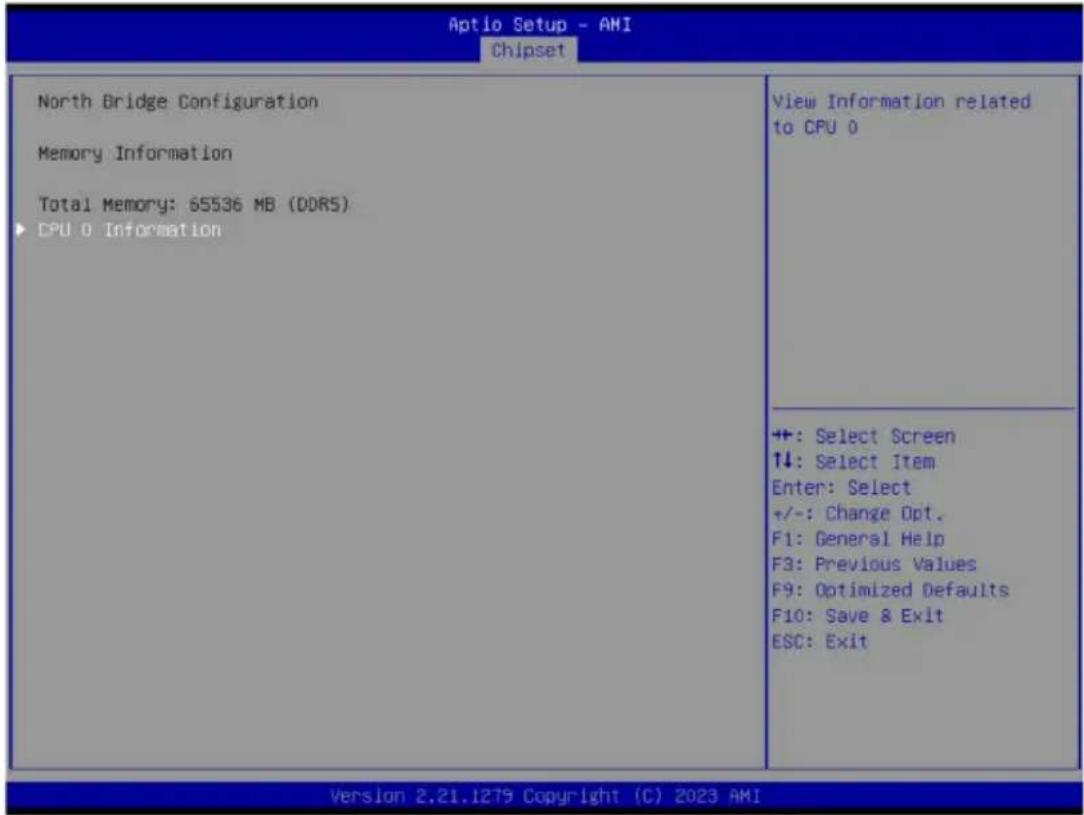
| Parameter | Description |
| North Bridge ConfigurationMemory Information | |
| Total Memory Displays the total memory information. | |
| CPU 0 Information Press [Enter] to view information related to CPU 0. | |
5-5-2 Fabric Resource
![Aptio Setup - AMI Chipset Fabric Resource CPU0 NBI00: N/A N/A N/A PCIe Bus Number 20 Prefetchable Mmio Above 4G size [System Default] PCIe IO Resource FFFF CPU0 NBI01: N/A N/A N/A PCIe Bus Number 20 Prefetchable Mmio Above 4G size [System Default] PCIe IO Resource FFFF CPU0 NBI02: N/A N/A N/A PCIe Bus Number 20 Prefetchable Mmio Above 4G size [System Default] PCIe IO Resource FFFF Change CPU0 NBI00 PCIe bus number +: Select Screen ↑↓: Select Item Enter: Select +/-: Change Opt. F1: General Help F3: Previous Values F9: Optimized Defaults F10: Save & Exit ESC: Exit Version 2.21.1279 Copyright (C) 2023 AMI](/content/2026/04/671956/images/76fc6e9e5dd51c946d53f0fb87dd1f5e08b36fb39a513ac057d4876f2da922de.jpg)
![Aptio Setup - AMI Chipset CPU0 NBI01: N/A N/A N/A PCIe Bus Number 40 Prefetchable Mmio Above 4G size [System Default] PCIe IO Resource FFFF CPU0 NBI02: N/A N/A N/A PCIe Bus Number 40 Prefetchable Mmio Above 4G size [System Default] PCIe IO Resource FFFF CPU0 NBI03: N/A N/A N/A PCIe Bus Number 40 Prefetchable Mmio Above 4G size [System Default] PCIe IO Resource FFFF Change CPU0 NBI03 PCIe IO Resource +: Select Screen 14: Select Item Enter: Select +/-: Change Opt. F1: General Help F3: Previous Values F9: Optimized Defaults F10: Save & Exit ESC: Exit Version 2.21.1279 Copyright (C) 2023 AMI](/content/2026/04/671956/images/fe822964356b4f8cd121132c4b51f956a11ec0938ab68ced86f8286c7d60504f.jpg)
| Parameter | Description |
| Fabric Resource | |
| CPU 0 NBIO_# PCIe Bus Number | Change CPU 0 NBIO_# PCIe Bus Number. |
| Prefetchable Mmio Above 4G size | Change CPU 0/1 NBIO_# Prefetchable MMIO Above 4G Size.Options available: System Default, 0, 1G, 2G, 4G, 8G, 16G, 32G, 64G, 128G, 256G, 512G, 1T, 2T, 4T, 8T. Default setting isSystem Default. |
| PCIe IO Resource Change CPU 0 NBIO_# PCIe IO Resource. | |
5-6 Server Management Menu
![Aptio Setup - AMI Main Advanced AMD CBS AMD PBS Option Chipset Server Mgmt Security Boot Save & Exit FRB-2 Timer [Enabled] FRB-2 Timer timeout [6 minutes] FRB-2 Timer Policy [Do Nothing] DS Watchdog Timer [Disabled] DS Wtd Timer Timeout [10 minutes] DS Wtd Timer Policy [Reset] Wait BMC Ready [2 minutes] ► System Event Log ► View FRU Information ► BMC network configuration ► IPv6 BMC Network Configuration Enter value Between 3 to 6 min for FRB-2 Timer Expiration value +: Select Screen ↑↓: Select Item Enter: Select +/-: Change Opt. F1: General Help F3: Previous Values F9: Optimized Defaults F10: Save & Exit ESC: Exit Version 2.21.1279 Copyright (C) 2023 AMI](/content/2026/04/671956/images/ae3d3d80a2510883c29371ee2cf88352e74fc06d65c1cd578f6be9d108660d4b.jpg)
| Parameter | Description |
| FRB-2 Timer | Enable/Disable FRB-2 timer (POST timer).Default setting is Enabled. |
| FRB-2 Timer timeout | Configures the FRB2 Timer timeout.Options available: 3 minutes, 4 minutes, 5 minutes, 6 minutes. Default setting is 6 minutes. |
| FRB-2 Timer Policy | Configures the FRB2 Timer policy.Options available: Do Nothing, Reset, Power Down, Power Cycle.Default setting is Do Nothing. |
| OS Watchdog Timer | Enable/Disable OS Watchdog Timer function.Options available: Enabled, Disabled. Default setting is Disabled. |
| OS Wtd Timer Timeout ^(Note) | Configures OS Watchdog Timer.Options available: 5 minutes, 10 minutes, 15 minutes, 20 minutes.Default setting is 10 minutes. |
| OS Wtd Timer Policy ^(Note) | Configure OS Watchdog Timer Policy.Options available: Do Nothing, Reset, Power Down, Power Cycle.Default setting is Reset. |
| Wait BMC Ready | Post wait BMC ready and reboot system.Options available: Disabled, 2 minutes, 4 minutes, 6 minutes. Default setting is 2 minutes. |
(Note) This item is configurable when OS Watchdog Timer is set to Enabled.
| Parameter | Description |
| System Event Log | Press [Enter] to configure advanced items. |
| View FRU Information | Press [Enter] to view the FRU information. |
| BMC network configuration | Press [Enter] to configure advanced items. |
| IPv6 BMC Network Configuration | Press [Enter] to configure advanced items. |
5-6-1 System Event Log
![Aptio Setup - AMI Server Mgmt Enabling/Disabling Options SEL Components [Enabled] Erasing Settings Erase SEL [No] When SEL is Full [Do Nothing] Custom EFI Logging Options Log EFI Status Codes [Error code] NOTE: All values changed here do not take effect until computer is restarted. Change this to enable or disable all features of System Event Logging during boot. ++: Select Screen 14: Select Item Enter: Select +/-: Change Opt. F1: General Help F3: Previous Values F9: Optimized Defaults F10: Save & Exit ESC: Exit Version 2.21.1279 Copyright (C) 2023 AMI](/content/2026/04/671956/images/e4c2b250838cb0517891c537e469fa573d3efb1242ca35f5494a992e5dd21888.jpg)
| Parameter | Description |
| Enabling / Disabling Options | |
| SEL Components | Change this item to enable or disable all features of System Event Logging during boot.Options available: Disabled, Enabled. Default setting is Enabled. |
| Erasing Settings | |
| Erase SEL | Choose options for erasing SEL.Options available: No/Yes, On next reset/Yes, On every reset. Default setting is No. |
| When SEL is Full | Choose options for reactions to a full SEL.Options available: Do Nothing, Erase Immediately. Default setting is Do Nothing. |
| Custom EFI Logging Options | |
| Log EFI Status Codes | Enable/Disable the logging of EFI Status Codes (if not already converted to legacy).Options available: Disabled, Both, Error code, Progress code. Default setting is Error code. |
5-6-2 View FRU Information
The FRU page is a simple display page for basic system ID information, as well as System product information. Items on this window are non-configurable.
| Aptio Setup - AMI Server Mgmt | |
| FRU Information | |
| System Manufacturer Giga Computing System Product Name R243-EG0-AAC2-000 System Version 0100 System Serial Number 01234567890123456789AB Board Manufacturer Giga Computing Board Product Name MEG3-GU0-000 Board Version 123456789AB Board Serial Number S2314400023 Chassis Manufacturer Giga Computing Chassis Product Name 01234567 Chassis Serial Number 01234567890123456789AB | ++: Select Screen ↑↓: Select Item Enter: Select +/-: Change Opt. F1: General Help F3: Previous Values F9: Optimized Defaults F10: Save & Exit ESC: Exit |
| Version 2.21.1279 Copyright (C) 2023 AMI | |
5-6-3 BMC Network Configuration
![Aptio Setup - AMI Server Hgmt --BMC network configuration-- Lan channel 1 Configuration Address source [DynamicBmcDhcp] Station IP address 10.1.111.97 Subnet mask 255.255.255.0 Router IP address 10.1.111.253 Station MAC address d8-5e-d3-e3-ec-33 VLAN Support [Disabled] Real-time synchronize BMC network parameter values Select to configure LAN channel parameters statically or dynamically(by BIOS or BMC). Unspecified option will not modify any BMC network parameters during BIOS phase +: Select Screen ↑↓: Select Item Enter: Select +/-: Change Opt. F1: General Help F3: Previous Values F9: Optimized Defaults F10: Save & Exit ESC: Exit Version 2.21.1279 Copyright (C) 2023 AMI](/content/2026/04/671956/images/22af87718530759d6dd48df44c3f316908d4ac6132ed055aeed3f90d94ce7b38.jpg)
| Parameter | Description |
| BMC network configuration | |
| Lan Channel 1 | |
| Configuration Address source | Selects to configure LAN channel parameters statically or dynamically (DHCP). Do nothing option will not modify any BMC network parameters during BIOS phase. Options available: Unspecified, Static, DynamicBmcDhcp. Default setting is DynamicBmcDhcp. |
| Station IP address | Displays IP Address information. |
| Subnet mask | Displays Subnet Mask information. Please note that the IP address must be in three digitals, for example, 192.168.000.001. |
| Router IP address | Displays the Router IP Address information. |
| Station MAC address | Displays the MAC Address information. |
| VLAN Support | Set BMC to enable/disable VLAN support. Options available: Enabled, Disabled. Default setting is Disabled. |
| Real-time synchronize BMC network parameter values | Press [Enter] will set Address source(Static/DHCP) to BMC and then get Station IP address, Subnet mask and Router IP address from BMC. |
5-6-4 IPv6 BMC Network Configuration
![Aptio Setup - AMI Server Mgmt IPv6 BMC Network Configuration IPv6 BMC Lan Channel 1: IPv6 BMC Lan Option [Enable] IPv6 BMC Lan IP Address Source [Dynamic-Obtained by BMC running DHCP] IPv6 BMC Lan IP Address/Prefix ::0 Length -> [::/0] Enable/Disable IPv6 BMC LAN channel function. Disable option will not modify any BMC network during BIOS Phase +: Select Screen ↑↓: Select Item Enter: Select +/-: Change Opt. F1: General Help F3: Previous Values F9: Optimized Defaults F10: Save & Exit ESC: Exit Version 2.21.1279 Copyright (C) 2023 AMI](/content/2026/04/671956/images/525724c5f9c0b94f6ba1d25df6bc6ca0de3e5ee64675d47e255e6cabaab1cd51.jpg)
| Parameter | Description |
| IPv6 BMC network configuration | |
| IPv6 BMC Lan Channel 1 | |
| IPv6 BMC Lan Option | Enable/Disable IPv6 BMC LAN channel function. When this item is disabled, the system will not modify any BMC network during BIOS phase.Options available: Unspecified, Disable, Enable. Default setting is Enable. |
| IPv6 BMC Lan IP Address Source | Selects to configure LAN channel parameters statically or dynamically (by BIOS or BMC).Options available: Unspecified, Static, Dynamic-Obtained by BMC running DHCP. Default setting is Dynamic-Obtained by BMC running DHCP. |
| IPv6 BMC Lan IP Address/ Prefix Length | Check if the IPv6 BMC LAN IP address matches those displayed on the screen. |
5-7 Security Menu
The Security menu allows you to safeguard and protect the system from unauthorized use by setting up access passwords.
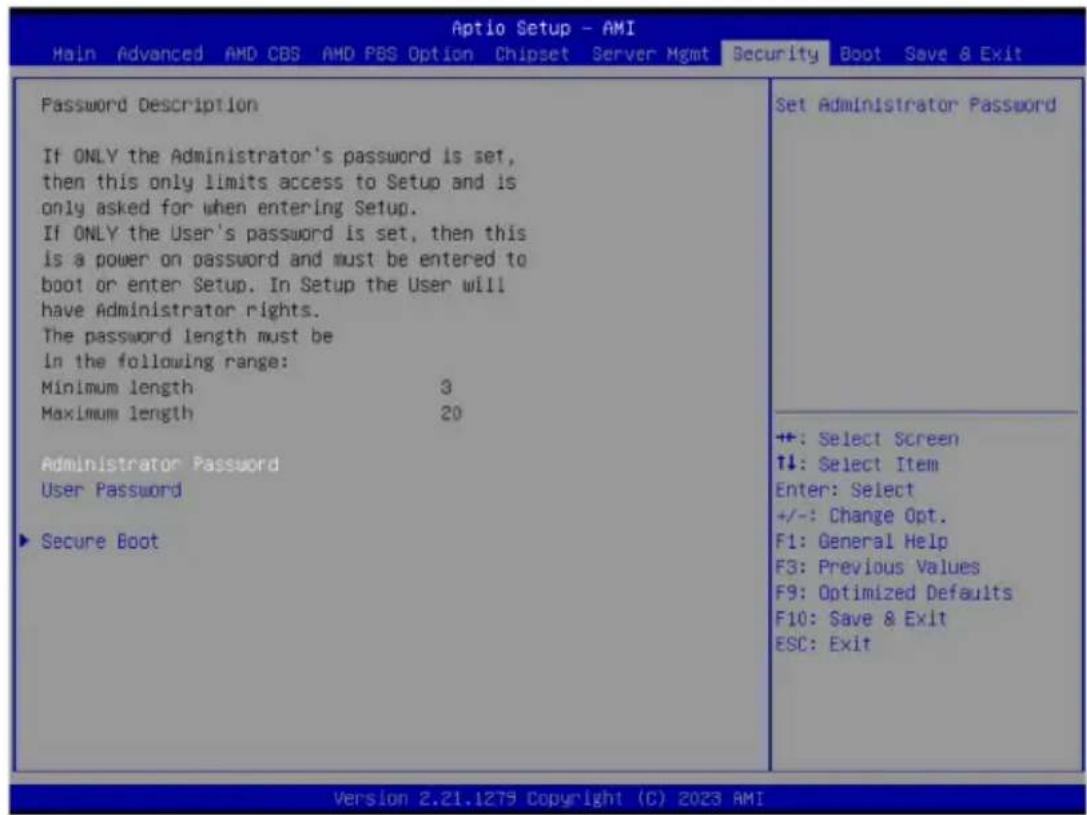
There are two types of passwords that you can set:
- Administrator Password
Entering this password will allow the user to access and change all settings in the Setup Utility. - User Password
Entering this password will restrict a user's access to the Setup menus. To enable or disable this field, a Administrator Password must first be set. A user can only access and modify the System Time, System Date, and Set User Password fields.
| Parameter | Description |
| Administrator Password | Press [Enter] to configure the administrator password. |
| User Password | Press [Enter] to configure the user password. |
| Secure Boot | Press [Enter] to configure advanced items. |
5-7-1 Secure Boot
The Secure Boot submenu is applicable when your device is installed the Windows ^® 8 (or above) operating system.
![Aptio Setup - AMI Security System Mode Setup Secure Boot [Disabled] Not Active Secure Boot Mode [Custom] ►Restore Factory Keys ►Reset To Setup Mode ►Enter Audit Mode ►Key Management +: Select Screen ↑↓: Select Item Enter: Select +/-: Change Opt. F1: General Help F3: Previous Values F9: Optimized Defaults F10: Save & Exit ESC: Exit Version 2.21.1279 Copyright (C) 2023 AMI](/content/2026/04/671956/images/b1086aa81505201bc458406bf328ef633dbcccd02fb6694240cf6c81fa3dfd6e.jpg)
| Parameter | Description |
| System Mode | Displays if the system is in User mode or Setup mode. |
| Secure Boot | Enable/ Disable the Secure Boot function.Options available: Enabled, Disabled. Default setting is Disabled. |
| Secure Boot Mode^(Note) | Secure Boot requires all the applications that are running during the booting process to be pre-signed with valid digital certificates. This way, the system knows all files being loaded before Windows loads to the login screen have not been tampered with.When set to Standard, it will automatically load the Secure Boot keys form the BIOS databases.When set to Custom, you can customize the Secure Boot settings and manually load its keys from the BIOS database.Options available: Standard, Custom. Default setting is Standard. |
| Restore Factory Keys | Forces the system to user mode and installs factory default Secure Boot key database. |
| Reset To Setup Mode | Press [Enter] to reset the system mode to Setup mode. |
| Enter Audit Mode | Press [Enter] to set the system mode to audit mode. |
(Note) Advanced items prompt when this item is set to Custom.
| Parameter | Description |
| Key Management | Press [Enter] to configure advanced items.Please note that this item is configurable when Secure Boot Mode is set to Custom.♦ Factory Key Provision- Allows to provision factory default Secure Boot keys when system is in Setup Mode.- Options available: Enabled, Disabled. Default setting is Disabled.♦ Restore Factory Keys- Installs all factory default keys. It will force the system in User Mode.- Options available: Yes, No.♦ Enroll Efi Image- Press [Enter] to enroll SHA256 hash of the binary into Authorized Signature Database (db).♦ Secure Boot variable- Displays the current status of the variables used for secure boot.♦ Platform Key (PK)- Displays the current status of the Platform Key (PK).- Press [Enter] to configure a new PK.- Options available: Update.♦ Key Exchange Keys (KEK)- Displays the current status of the Key Exchange Key Database (KEK).- Press [Enter] to configure a new KEK or load additional KEK from storage devices.- Options available: Update, Append.♦ Authorized Signatures (DB)- Displays the current status of the Authorized Signature Database.- Press [Enter] to configure a new DB or load additional DB from storage devices.- Options available: Update, Append.♦ Forbidden Signatures (DBX)- Displays the current status of the Forbidden Signature Database.- Press [Enter] to configure a new dbx or load additional dbx from storage devices.- Options available: Update, Append.♦ Authorized TimeStamps (DBT)- Displays the current status of the Authorized TimeStamps Database.- Press [Enter] to configure a new DBT or load additional DBT from storage devices.- Options available: Update, Append.♦ OsRecovery Signatures- Displays the current status of the OsRecovery Signature Database.- Press [Enter] to configure a new OsRecovery Signature or load additional OsRecovery Signature from storage devices.- Options available: Update, Append. |
5-8 Boot Menu
The Boot menu allows you to set the drive priority during system boot-up. BIOS setup will display an error message if the legacy drive(s) specified is not bootable.
![Aptio Setup - AMI Main Advanced AMD CBS AMD PBS Option Chipset Server Hgmt Security Boot Save & Exit Boot Configuration Setup Prompt Timeout 2 Bootup NumLock State [On] Full Screen LOGO Show [Enabled] Setup Flash Dump full Setup Data Dump non-default Setup Data Restore Setup Data Fast Boot [Disabled] Boot mode select [UEFI] FIXED BOOT ORDER Priorities Boot Option #1 [UEFI AP:UEFI: Built-in EFI Shell] Boot Option #2 [CD/DVD] Boot Option #3 [USB Device] Boot Option #4 [Network] Boot Option #5 [Hard Disk:ubuntu (PO: WDC WD10JPVX-22JC3TO] ► UEFI Hard Disk Drive BBS Priorities ► UEFI Application Boot Priorities Number of seconds to wait for setup activation key. 6SSGS(0xFFFF) means Indefinite waiting. +: Select Screen ↑↓: Select Item Enter: Select +/-: Change Opt. F1: General Help F3: Previous Values F9: Optimized Defaults F10: Save & Exit ESC: Exit Version 2.21.1279 Copyright (C) 2023 AMI](/content/2026/04/671956/images/9b80dff7be82cc0c5049f713aa0cffac263a74140d250715e95ad234b4a54206.jpg)
| Parameter | Description |
| Boot Configuration | |
| Setup Prompt Timeout | Number of seconds to wait for setup activation key. 65535 (0xFFFF) means indefinite waiting.Press the numeric keys to input the desired values. |
| Bootup NumLock State | Enable/Disable the Bootup NumLock function.Options available: On, Off. Default setting is On. |
| Full Screen LOGO Show | Enable/Disable showing the logo during POST.Options available: Enabled, Disabled. Default setting is Enabled. |
| Setup Flash | Press [Enter] to run setup flash. |
| Dump full Setup Data | Press [Enter] to dump full setup data to file. |
| Dump non-default Setup Data | Press [Enter] to dump non-default setup data to file. |
| Restore Setup Data | Press [Enter] to restore setup data from file (cJson format). |
| Fast Boot | Options available: Enabled, Disabled. Default setting is Disabled. |
| Boot mode select | Selects the boot mode.Options available: LEGACY, UEFI. Default setting is UEFI. |
| FIXED BOOT ORDER Priorities | |
| Boot Option #1 / #2 / #3 / #4 / #5 | Press [Enter] to configure the boot priority.By default, the server searches for boot devices in the following sequence:1. Hard drive.2. CD-COM/DVD drive.3. USB device.4. Network.5. UEFI. |
| UEFI Hard Disk Drive BBS Priorities | Press [Enter] to configure the boot priority. |
| UEFI Application Boot Priorities | Press [Enter] to configure the boot priority. |
5-9 Save & Exit Menu
The Save & Exit menu displays the various options to quit from the BIOS setup. Highlight any of the exit options then press
| Aptio Setup - AMI Main Advanced AMD CBS AMD PBS Option Chipset Server Mgmt Security Boot Save & Exit | |
| Save Options Save Changes and Exit Discard Changes and Exit Save Changes Default Options Restore Defaults Boot Override UEFI: Built-in EFI Shell Launch EFI Shell from filesystem device | Exit system setup after saving the changes. +: Select Screen ↑↓: Select Item Enter: Select +/-: Change Opt. F1: General Help F3: Previous Values F9: Optimized Defaults F10: Save & Exit ESC: Exit |
| Version 2.21.1279 Copyright (C) 2023 AMI | |
| Parameter | Description |
| Save Options | |
| Save Changes and Exit | Saves changes made and closes the BIOS setup. Options available: Yes, No. |
| Discard Changes and Exit | Discards changes made and exits the BIOS setup. Options available: Yes, No. |
| Save Changes | Saves changes done so far to any of the setup options. Options available: Yes, No. |
| Default Options | |
| Restore Defaults | Loads the default settings for all BIOS setup parameters. Setup Defaults are quite demanding in terms of resources consumption. If you are using low-speed memory chips or other kinds of low-performance components and you choose to load these settings, the system might not function properly. Options available: Yes, No. |
| Boot Override | Press [Enter] to configure the device as the boot-up drive. |
| Launch EFI Shell from filesystem device | Attempts to Launch EFI Shell application (Shell.efi) from one of the available file system devices. |
5-10 BIOS Recovery
The system has an embedded recovery technique. In the event that the BIOS becomes corrupt the boot block can be used to restore the BIOS to a working state. To restore your BIOS, please follow the instructions listed below:
Recovery Instruction:
- Copy the XXX.rom to USB diskette.
- Setting BIOS Recovery jump to enabled status.
- Boot into BIOS recovery.
- Run Proceed with flash update.
- BIOS updated.
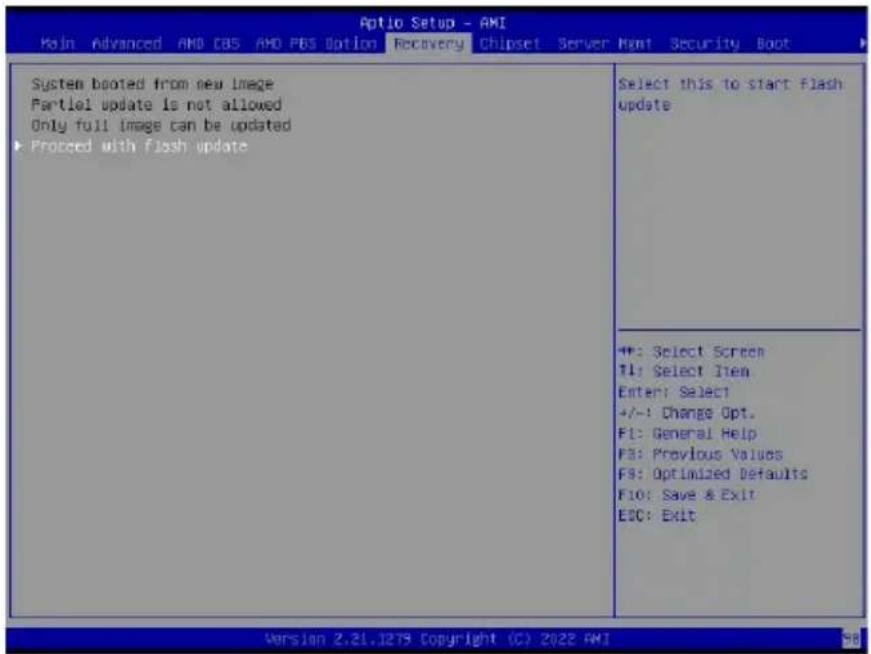
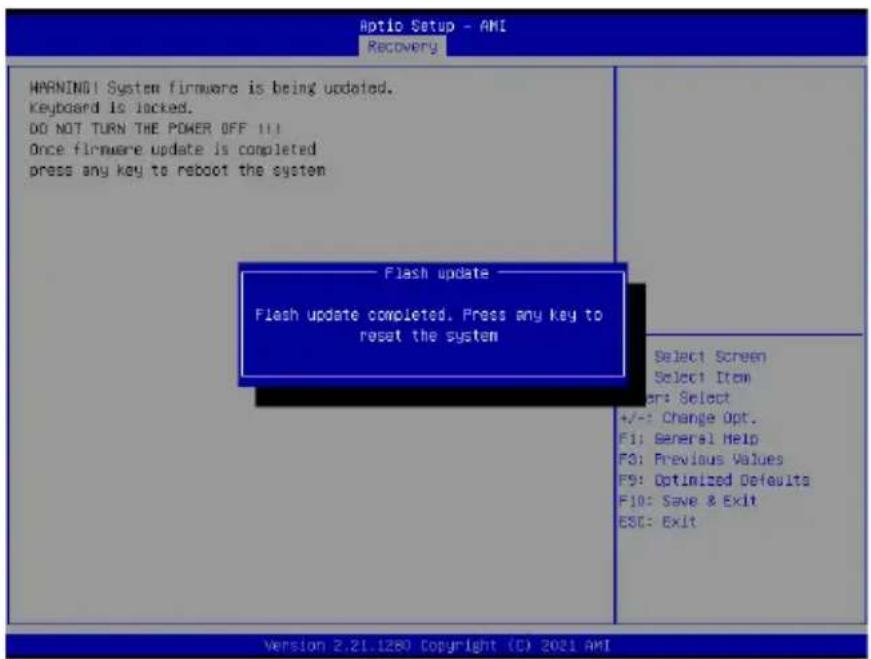
5-11 BIOS POST Beep code (AMI standard)
5-11-1 PEI Beep Codes
| # of Beeps Description | |
| 1 | Memory not Installed. |
| 1 | Memory was installed twice (InstallPeiMemory routine in PEI Core called twice) |
| 2 | Recovery started |
| 3 DXEIPL was not found | |
| 3 DXE Core Firmware | ware Volume was not found |
| 4 Recovery failed | |
| 4 | S3 Resume failed |
| 7 | Reset PPI is not available |
5-11-2 DXE Beep Codes
| # of Beeps Description | |
| 1 Invalid password | |
| 4 Some of the Architectural Protocols are not available | |
| 5 No Console Output Devices are found | |
| 5 No Console Input Devices are found | |
| 6 Flash update is failed | |
| 7 Reset protocol is not available | |
| 8 Platform PCI resource requirements cannot be met | |
- Disclaimer
- Documentation Classifications
- For More Information
- Conventions
- Server Warnings and Cautions
- WARNING!
- CAUTION!
- Electrostatic Discharge (ESD)
- Table of Contents
- Chapter 1 Hardware Installation .... 11
- Chapter 2 System Appearance....19
- Chapter 3 System Hardware Installation ......26
- Chapter 4 Motherboard Components ....54
- Chapter 5 BIOS Setup....58
- 5-1 The Main Menu 60
- 5-2 Advanced Menu 63
- 5-3 AMD CBS Menu....89
- 5-4 AMD PBS Menu 149
- 5-5 Chipset Setup Menu....152
- 5-6 Server Management Menu....156
- Chapter 1 Hardware Installation
- 1-1 Installation Precautions
- 1-2 Product Specifications
- R243-EG0(AAL1)
- 1-3 System Block Diagram
- Chapter 2 System Appearance
- 2-1 Front View
- 2-2 Rear View
- No. Decription
- 2-3 Front Panel LED and Buttons
- 2-3-1 RoT LEDs
- NOTE!
- 2-4 Rear System LAN LEDs
- 2-5 Power Supply Unit (PSU) LED
- 2-6 Hard Disk Drive LEDs
- NOTE:
- Chapter 3 System Hardware Installation
- 3-1 Removing Chassis Cover
- 3-2 Removing and Installing the Fan Duct
- 3-3 Removing and installing the Heat Sink
- Follow these instructions to remove/install the heat sink:
- 3-4 Installing the CPU
- Follow these instructions to install the CPU:
- Read the following guidelines before you begin to install the CPU:
- 3-5 Installing the Memory
- 3-5-1 Six Channel Memory Configuration
- 3-5-2 Installing a Memory
- Follow these instructions to install a DIMM module:
- 3-5-3 DIMM Population Table
- 3-5-4 Processor and Memory Module Matrix Table
- 3-6 Removing and Installing the PCIe Card
- Follow these instructions to install a PCIe card:
- 3-7 Installing the Mezzanine Card
- Follow these instructions to install an OCP 3.0 Mezzanine card:
- 3-8 Removing and Installing the Hard Disk Drive
- Follow these instructions to install a 3.5" hard disk drive:
- Follow these instructions to install a 2.5" hard disk drive into 3.5" HDD Tray:
- 3-9 Installing the M.2 Device and Heat Sink
- CAUTION
- WARNING:
- Follow these instructions to install the M.2 device and heat sink:
- 3-10 Replacing the FAN Assembly
- Follow these instructions to replace a fan assembly:
- 3-11 Replacing the Power Supply
- Follow these instructions to replace the power supply:
- Chapter 4 Motherboard Components
- Item Description
- 4-2 Jumper Setting
- 4-3 Backplane Board Storage Connector
- 4-3-1 CBP20C5
- Chapter 5 BIOS Setup
- Main
- ■ Advanced
- AMD CBS
- AMD PBS Option
- Chipset
- ■ Server Management
- ■ Security
- Boot
- ■ Save & Exit
- 5-1 The Main Menu
- Main Menu Help
- Submenu Help
- 5-2 Advanced Menu
- When Boot Mode Select is set to UEFI (Default)
- When "Boot Mode Select" is set to Legacy in the Boot > Boot Mode Select section
- 5-2-1 Trusted Computing
- 5-2-2 PSP Firmware Versions
- 5-2-3 Legacy Video Select
- 5-2-4 AST2600 Super IO Configuration
- 5-2-4-1 Serial Port 1 Configuration
- 5-2-5 S5 RTC Wake Settings
- 5-2-6 UEFI Variables Protection
- 5-2-7 Serial Port Console Redirection
- 5-2-10 PCI Subsystem Settings
- 5-2-11 USB Configuration
- 5-2-12 Network Stack Configuration
- 5-2-13 NVMe Configuration
- 5-2-14 SATA Configuration
- 5-2-15 Graphic Output Configuration
- 5-2-16 AMD Mem Configuration Status
- 5-2-17 TIs Auth Configuration
- 5-2-18 RAM Disk Configuration
- 5-2-19 iSCSI Configuration
- 5-3 AMD CBS Menu
- 5-3-1 CPU Common Options
- 5-3-1-1 Performance
- 5-3-1-2 Prefetcher Settings
- 5-3-1-3 Core Watchdog
- 5-3-2 DF Common Options
- 5-3-2-1 Memory Addressing
- 5-3-2-2 ACPI
- Parameter Description
- 5-3-2-5 Probe Filter
- 5-3-3 UMC Common Options
- 5-3-3-1 DDR Addressing Options
- 5-3-3-2 DDR Controller Configuration
- 5-3-3-2-1 DDR Power Options
- 5-3-3-2-2 Memory Channel Disable
- 5-3-3-3 DDR MBIST Options
- 5-3-3-3-1 Data Eye
- 5-3-3-5 DDR Bus Configuration
- 5-3-3-6 Enforce POR
- 5-3-3-7 DDR Training Options
- 5-3-3-8 DDR Security
- 5-3-3-9 DDR PMIC Configuration
- 5-3-3-10 DDR Miscellaneous
- 5-3-4 NBIO Common Options
- 5-3-4-1 SMU Common Options
- 5-3-4-2 NBIO RAS Common Options
- 5-3-5 FCH Common Options
- 5-3-5-1 I3C/I2C Configuration Options
- 5-3-5-2 SATA Configuration Options
- 5-3-5-3 USB Configuration Options
- 5-3-5-4 AC Power Loss Options
- 5-3-5-5 Uart Configuration Options
- 5-3-5-6 ESPI Configuration Options
- 5-3-5-7 FCH RAS Options
- 5-3-5-8 Miscellaneous Options
- 5-3-6 SOC Miscellaneous Control
- 5-3-7 Workload Tuning
- 5-3-8 CXL Common Options
- 5-4 AMD PBS Menu
- 5-5 Chipset Setup Menu
- 5-5-1 North Bridge
- 5-5-2 Fabric Resource
- 5-6 Server Management Menu
- 5-6-1 System Event Log
- 5-6-2 View FRU Information
- 5-6-3 BMC Network Configuration
- 5-6-4 IPv6 BMC Network Configuration
- 5-7 Security Menu
- 5-7-1 Secure Boot
- 5-8 Boot Menu
- 5-9 Save & Exit Menu
- 5-10 BIOS Recovery
- Recovery Instruction:
- 5-11 BIOS POST Beep code (AMI standard)
- 5-11-1 PEI Beep Codes
- 5-11-2 DXE Beep Codes
Brand : GIGABYTE
Model : R243-EG0
Category : Server