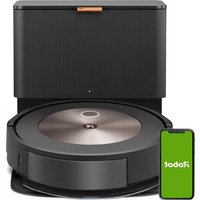
Roomba Combo J5+ - Vacuum Cleaner IROBOT - Free user manual and instructions
Find the device manual for free Roomba Combo J5+ IROBOT in PDF.


| Product type | Robot vacuum and mop with Clean Base self-emptying system |
| Brand | iRobot |
| Model | Roomba Combo J5+ |
| Regulatory models | RVE-Y1, RVE-Y2, ADG-N2 |
| Battery | Rechargeable lithium-ion (models ABL-F, ABL-D2Ax, ABL-D2Bx) |
| Power supply | AC adapter (household current) |
| Automatic emptying system | Clean Base with disposable dust bag |
| Connectivity | Wi-Fi 2.4 GHz and 5 GHz, Bluetooth/BLE |
| App | iRobot Home (iOS and Android) |
| Navigation | PrecisionVision navigation, intelligent mapping, obstacle detection |
| Cleaning functions | Vacuuming, mopping with pad, Dirt Detect mode, automatic scheduling |
| Sensors | Full bin sensor, front camera, floor and cliff sensors |
| Filter | Washable, replace every 2 months |
| Clean Base dust bag | Disposable, replace when indicator light is solid red |
| Maintenance | Regular cleaning of the bin, brushes, sensors, and front wheel |
| Safety | Anti-collision sensors, fall protection (minimum 1.20 m from stairs) |
| Sleep mode | Low power mode can be activated (press Clean button 5 times) |
| Replacement parts | Bags, filters, brushes, mopping pad, battery |
| Manufacturer | iRobot Corporation, 8 Crosby Drive, Bedford MA 01730, USA |
| Support | iRobot Home app or global.irobot.com |
Frequently Asked Questions - Roomba Combo J5+ IROBOT
User questions about Roomba Combo J5+ IROBOT
0 question about this device. Answer the ones you know or ask your own.
Ask a new question about this device
Download the instructions for your Vacuum Cleaner in PDF format for free! Find your manual Roomba Combo J5+ - IROBOT and take your electronic device back in hand. On this page are published all the documents necessary for the use of your device. Roomba Combo J5+ by IROBOT.
USER MANUAL Roomba Combo J5+ IROBOT
natural_image
Line drawing of a modern toilet with lid and ventilation slots (no text or symbols)iRobot®
RoombaCombo™
Robot Vacuum & Mop
& Clean Base™ Automatic Dirt Disposal
This owner's guide includes information for Regulatory Model(s): RVE-Y1, RVE-Y2, ADG-N2, Battery Model(s): ABL-F, ABL-D2Ax, ABL-D2Bx (x = 1 or 2)
SAVE THESE INSTRUCTIONS
WARNING: When using an electrical appliance, basic precautions should always be followed, including the following:
READ ALL INSTRUCTIONS
⚠ WARNING: To reduce the risk of injury or damage, read and follow the safety precautions when setting up, using, and maintaining your robot.
This appliance can be used by children aged from 8 years and above and persons with reduced physical, sensory, or mental capabilities or lack of experience and knowledge if they have been given supervision or instruction concerning use of the appliance in a safe way and understand the hazards involved. Children shall not play with the appliance. Cleaning and user maintenance shall not be made by children without supervision.
This is the safety alert symbol. It is used to alert you to potential physical injury hazards. Obey all safety messages that follow this symbol to avoid possible injury or death.
Risk of electric shock Class II equipment
Risk of fire For indoor use only
Caution Class III equipment
Rated power output, d.c.
Rated power input, d.c.
\~ Rated power input, a.c.
Read operator's manual
Keep out of reach of children
General symbol for recycling
Separate Supply Unit
WARNING: Indicates a hazardous situation that, if not avoided, could result in death or serious injury.
CAUTION: Indicates a hazardous situation that, if not avoided, could result in minor or moderate injury.
NOTICE: Indicates a hazardous situation that, if not avoided, could result in property damage.
GENERAL
WARNING
- Your robot comes with a region-approved power supply cord and is designed to be plugged into a standard household AC power outlet only. Do not use any other power supply cord. For replacement cords, please contact Customer Care to ensure proper selection of country-specific power supply cord.
- Do not open your robot or charging station other than instructed in the Owner's Guide. There are no user serviceable parts inside. Refer servicing to qualified service personnel.
- Risk of electric shock, use indoors in dry location only.
- Do not handle your robot or charging station with wet hands.
- Do not use unauthorised chargers. Use of an unauthorised charger could cause the battery to generate heat, smoke, catch fire or explode.
- Your robot is not a toy. Small children and pets should be supervised when your robot is operating.
- Do not sit or stand on your robot or charging station.
- Store and operate your robot in room-temperature environments only.
- If the room to be cleaned contains a balcony, a physical barrier should be used to prevent robot access to the balcony and ensure safe operation.
- If the room to be cleaned contains equipment, such as a stove, fan, portable heater, or humidifier, remove the equipment before operation. There is a risk of injury, accident or malfunction if the robot comes in contact with and pushes the equipment.
- Do not allow your robot or charging station to become wet.
- Be aware that floors may be slippery after wet cleaning with your robot
- Clean cliff sensors for buildup.
CAUTION
- Do not operate the robot in areas with exposed electrical outlets in the floor.
- Do not use this device to pick up sharp objects, glass, or anything that is burning or smoking.
- Be aware that the robot moves on its own. Take care when walking in the area that the robot is operating in to avoid stepping on it.
- If the device passes over a power cord and drags it, there is a chance an object could be pulled off a table or shelf. Before using this device, pick up objects such as clothing, loose papers, pull cords for blinds or curtains, power cords and any fragile objects. Extinguish candles. Shut off portable heaters.
- Perform the required maintenance as per the Owner's Guide to ensure safe operation of the robot and charging station.
- If the robot is operating on a floor with stairs, please remove any clutter from the top step.
- Do not flip the robot over with the Combo Bin installed.
- Perform the required maintenance as per the Owner's Guide to ensure safe operation of the robot and charging station.
NOTICE
- Do not place anything on top of your robot or charging station.
- Failure to maintain cleanliness of charger contacts could result in loss of ability for the robot to charge the battery.
- Before running your robot on hard floors, please test your robot on a small section of the hard floor to ensure that it is compatible. Using your robot on a hard floor that is not compatible could result in damage to your floor. Contact your hard floor manufacturer with questions on compatibility.
- Before running your robot on carpets or rugs, ensure that the carpets or rugs are compatible with the dual multi-surface rubber brushes on your robot, otherwise known as beater bars. Using your robot on a carpet or rug that is not compatible could result in damage to your carpet or rug. Contact your carpet or rug manufacturer with questions on compatibility.
CLEANING SOLUTION
WARNING
• Household cleaning products are safe when used and stored according
to the instructions on the label. Always be sure to read and follow the directions carefully.
- Only use authorised cleaning solutions found on answers.irobot.com/s/roomba-combo-cleanser.
- For cleaning solution warnings, please refer to the outer box and solution bottle.

Keep away from children Rinse hands after use


Keep away from eyes. If product gets into eyes rinse thoroughly with water
BATTERY

WARNING

- Do not open, crush, heat above 176°F: 80°C or incinerate. Follow the Owner's Guide instructions for proper use, maintenance, handling and disposal.
- Do not short-circuit the battery by allowing metal objects to contact battery terminals or immerse in liquid. Do not subject batteries to mechanical shock.
- Lithium ion batteries and products that contain lithium ion batteries are subject to stringent transportation regulations. If you need to post this product (with the battery included) for service, travel, or any other reason, you MUST refer to the Troubleshooting section of your manual or contact Customer Care for postage instructions.
- Periodically inspect the battery pack for any sign of damage or leakage. Do not charge damaged or leaking battery packs, do not allow the liquid to come in contact with skin or eyes. If contact has been made, wash the affected area with copious amounts of water and seek medical advice. Place the battery in a sealed plastic bag and recycle or dispose of safely according to local environmental regulations, or return it to your local authorised iRobot Service Centre for disposal.

CAUTION
- Battery usage by children should be supervised. Seek medical advice immediately if a cell or a battery has been swallowed.
NOTICE
- The battery pack must be removed from the robot before recycling or disposal. - For best results, only use the Lithium Ion Battery that comes with the robot.
- Do not use non-rechargeable batteries. Use only the rechargeable battery supplied with the product. For replacement, purchase identical iRobot battery or contact iRobot Customer Care for alternative battery options.
• Always charge and remove the battery from your robot and accessories before long-term storage.

This symbol on the battery indicates that the battery must not be disposed of with unsorted common municipal waste. As the end-user, it is your responsibility to dispose of the end-of-life battery in your appliance in an environmentally sensitive manner as follows:
(1) returning it to the distributor/dealer from whom you purchased the product; or (2) depositing it in a designated collection point.
The separate collection and recycling of end-of-life batteries at the time of disposal will help to conserve natural resources and to ensure that it is recycled in a manner that protects human health and the environment. For more information, please contact your local recycling office or the dealer from whom you originally purchased the product. Failure to properly dispose of end-of-life batteries may result in the negative potential effects on the environment and human health due to the substances in the batteries and accumulators.
Information regarding the effects of problematic substances in the battery waste stream may be found at the following source: http://ec.europa.eu/environment/waste/batteries/

AUTOMATIC DIRT DISPOSAL
WARNING

- Do not use if the cord or plug is damaged. If appliance is not working as it should, has been dropped, damaged, left outdoors or dropped into water, return it to a service centre.
• Always disconnect your robot from the dirt disposal before cleaning or maintaining it.
- Do not use the dirt disposal as a step.
- Do not put any object into openings. Do not use with any opening blocked; keep free of dust, lint, hair and anything that may reduce air flow.
- To properly maintain your dirt disposal, do not place foreign objects inside and ensure that it is clear of debris.
- In order to avoid a hazard due to inadvertent resetting of the thermal cut-out, this appliance must not be supplied through an external switching device, such as a timer, or connected to a circuit that is regularly switched on and off by the utility.
- Do not allow liquids to get on or into the dirt disposal.
- Do not pour any liquids into the device and do not immerse in water.
- Do not use outdoors or on wet surfaces.
- Do not allow to be used as a toy. Close attention is necessary when used by or near children.
- Use only as described in this manual.
• To reduce the risk of electric shock, unplug your dirt disposal before cleaning. - Keep the dirt disposal and power cord away from heated surfaces.
NOTICE
- Product may not be used with any type of power converter. Use of power converters will immediately void the warranty.
- If you live in an area prone to electrical storms, it is recommended that you use additional surge protection. Your dirt disposal may be protected with a surge protector in the event of severe electrical storms.
- Do not use without dust bag and/or filters in place.
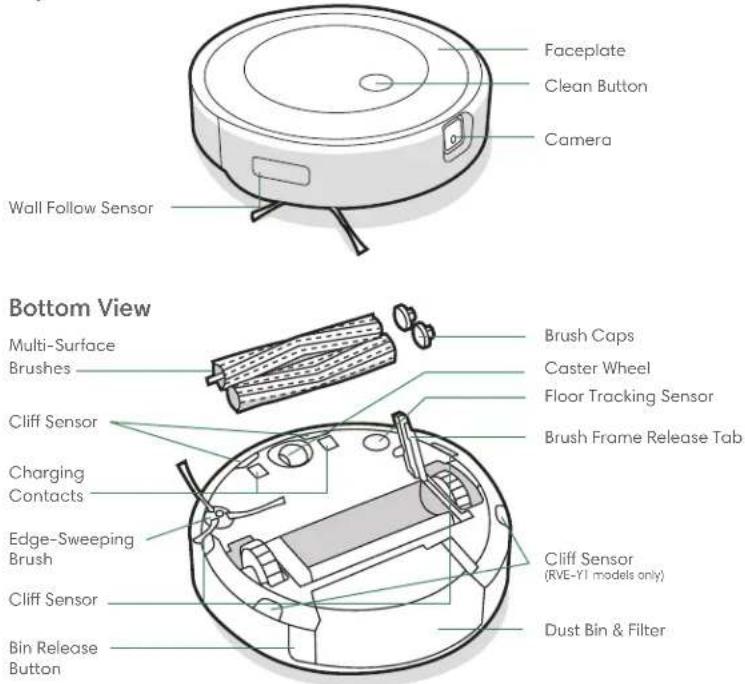
About Your Roomba® Robot Vacuum
Top View
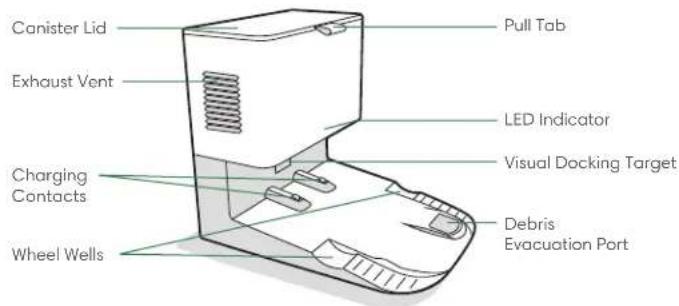
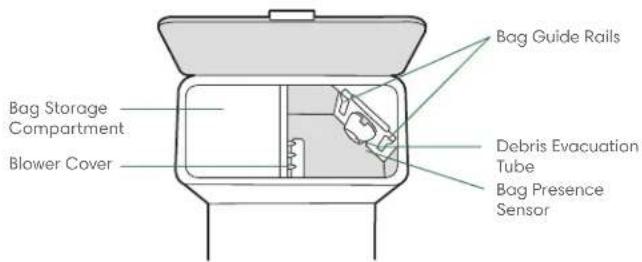
About your Clean Base™ Automatic Dirt Disposal
Front view
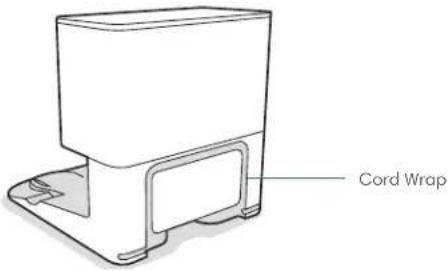
Back view
Top view
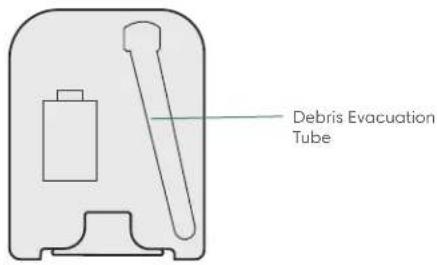
Bottom view
2 For more information, visit global.irobot.com
About Your Roomba Combo™ Bin
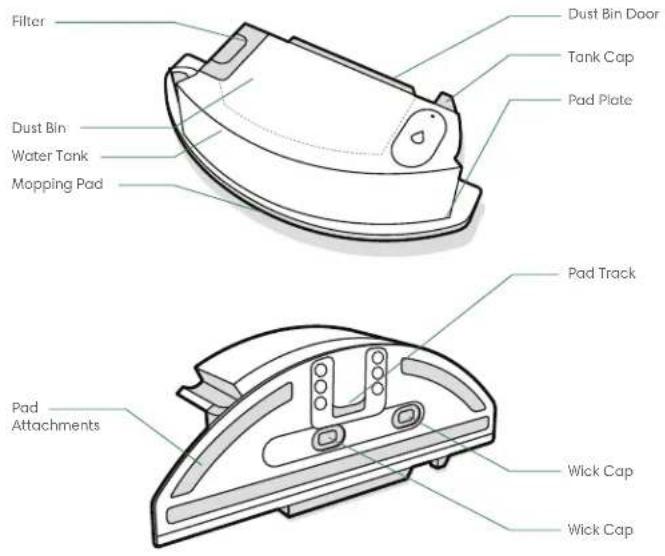

IMPORTANT: You must register your product in the iRobot Home App and complete a mapping run before using your Combo Bin. See the Activate your Combo Bin card for instructions.
1
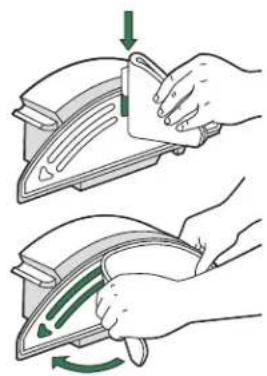
INSTALL THE MOPPING PAD
Slide the pad down over the track. Press the pad to the plate to attach.
natural_image
Illustration of hands using a power tool to clean or adjust a machine component (no text or symbols present)2
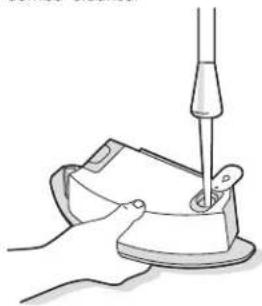
FILL THE BIN
Fill the Combo Bin with water. You may also use a compatible cleaning solution. Compatible solutions are listed at this answers.irobot.com/s/roomba-combo-cleanser
natural_image
Illustration of a hand using a tool to press or install a small electronic component (no text or symbols visible)
Note: The product starts wicking as soon as water is put into the tank.
3
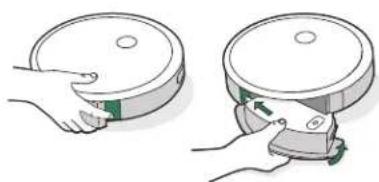
SWAP THE BINS
Remove the Dust Bin from the robot, and install the Combo Bin.

Important: Do not flip the robot over with the Combo Bin installed
natural_image
Illustration of two hands holding circular objects, one with a green tab and the other with a green handle (no text or symbols)Using Your Roomba® Robot Vacuum
Positioning the CleanBase™ Automatic Dirt Disposal
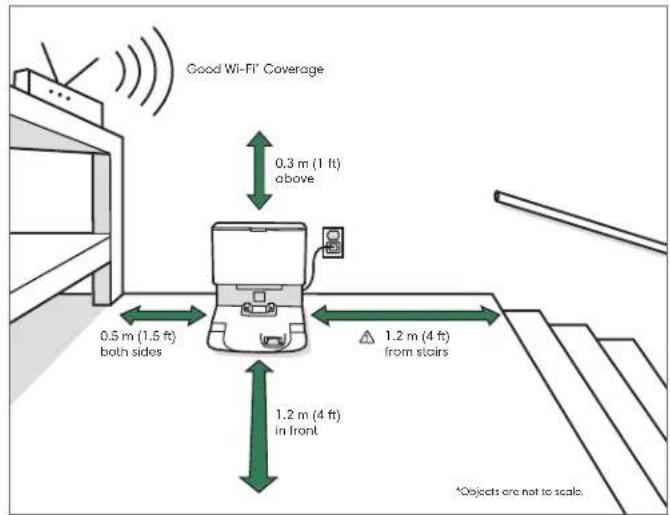
Note: Do not place your CleanBase in direct sunlight. Ensure that the area around the dock is free of clutter to improve docking performance.
WARNING: To prevent the risk of your robot falling downstairs, ensure that the Charging Station is placed at least 1.2 metres (4 feet) away from stairs.
Download the iRobot Home App and Connect to Wifi
- Follow the step-by-step instructions to set up your Roomba.
- Set up PrecisionVision Navigation to avoid obstacles in real time.
- Set an automatic cleaning schedule and customise cleaning preferences.
• Create smart maps to tell your robot where and when to clean.

About your Automatic Dirt Disposal
While cleaning, your robot will automatically return to the dirt disposal to empty its bin and recharge as needed.
The dirt disposal's LED indicator will turn solid red when a new bag is needed. If a clog is detected, the dirt disposal will trigger additional attempts to automatically clear the clog.
Note: If you place your robot on the dirt disposal by hand, it will not empty automatically. In this case, use the iRobot Home App or hold the button down for 2-5 seconds.
Charging
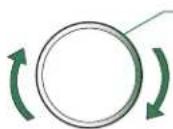
Light Ring Spiral While Charging
White Spiral: charging
Red Spiral: charging, low battery
A solid white light will indicate the battery charge percentage of your robot
- Place the robot on the charging station to activate the battery.

Note: Your robot comes with a partial charge, but we recommend that you charge the robot for 3 hours prior to starting the first cleaning job.
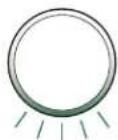
When your robot is fully charged, the light ring indicator will intermittently pulse white at the rear.
- The robot uses a small amount of power whenever it is on the charging station. You can put the robot in a further-reduced power state when not in use. To put your robot into reduced power standby mode, remove the dust bin and tap the clean button 5 times. To exit reduced power standby mode, place your robot on the charging station and tap the clean button. For more details on this Reduced Power Standby Mode, refer to the FAQ page on our website.
- For long-term storage, turn off the robot by removing it from the charging station and holding down the clean button for 3 seconds with one wheel off the ground. Store the robot in a cool, dry place.
Cleaning
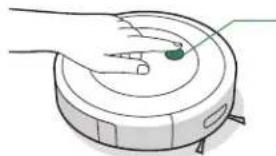
natural_image
Illustration of a robotic vacuum cleaner with a green sensor or sensor on the wheel (no text or symbols)Just press the clean button
Tap to Start/Pause/Resume
Hold for 2-5 seconds to end a job
- Your robot will automatically explore and clean your home. It will return to the charging station at the end of a cleaning job and whenever it needs to recharge.

Remove excess clutter from floors before cleaning. Use your robot frequently to maintain well-conditioned floors.
- To end a job and send the robot back to its charging station, hold the clean button down for 2-5 seconds. A blue light ring pattern will indicate that the robot is seeking the charging station.
- When your robot detects an especially dirty area, it will engage Dirt Detect™ mode, moving in a forward/backward motion to clean the area more thoroughly. The light ring indicator will flash blue.
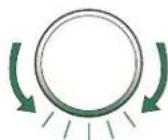
When the robot senses its bin needs to be emptied, the light ring indicator will illuminate in a red sweeping motion toward the rear.
Care and Maintenance
Care and Maintenance Instructions for Your Robot
To keep your robot running at peak performance, perform the procedures on the following pages.
There are additional instructional videos in the iRobot Home App. If you notice the robot picking up less debris from your floor, empty the bin, clean the filter, and clean the brushes.
| Part Care Frequency | Replacement Frequency* | |
| Bin Wash bin as needed - | ||
| Filter | Clean once a week (twice a week if you have a pet).Do not wash. | Every 2 months |
| Full Bin Sensor Clean every 2 weeks - | ||
| Front Caster Wheel Clean every 2 weeks Every 12 months | ||
| Edge-Sweeping Brush and Multi-Surface Brushes | Clean once a month (twice a month if you have a pet) | Every 12 months |
| Sensors and Charging Contacts | Clean once a month - | |
| Camera Window Clean and inspect once a month After 30 washes | ||
| Mopping pad Clean after a mopping job After 30 washes | ||
| Wick cap Replace if dirty or shows wear - |

Note: iRobot manufactures various replacement parts and assemblies. If you think you need a replacement part, please contact iRobot Customer Care for more information.
*Replacement frequency may vary. Parts should be replaced if visible wear appears.
Emptying the Bin
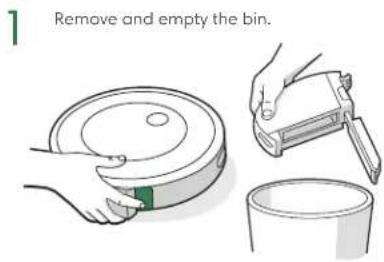
1
Press bin release button to remove bin.
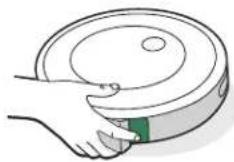
2
Open bin door to empty bin. Rem
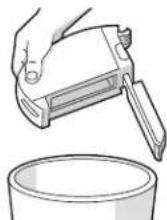
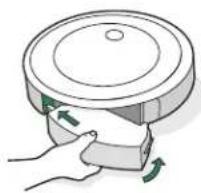
3
Place bin back in the robot.
Cleaning the Filter
1
Remove the bin. Remove the filter by grasping both ends and pulling out.
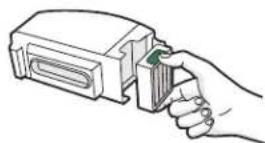
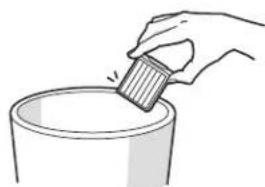
det2
by tapping the filter against your trash container.
natural_image
Line drawing of a hand pouring liquid into a container (no text or symbols)3
Reinsert filter with ridged grips facing out. Place bin back in the robot.
©
Important: The robot will not run if the filter is not installed correctly. Replace the filter every two months.
Cleaning the Full Bin Sensors Cleaning the Edge-Sweeping BrushWashing the Bin
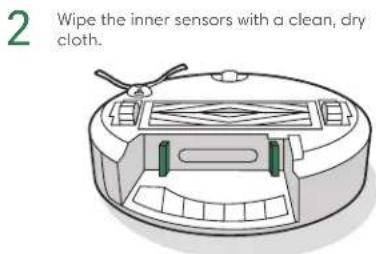
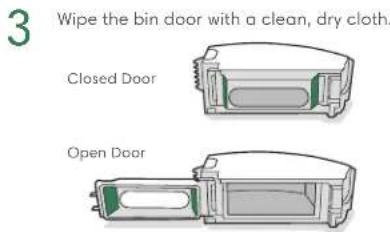
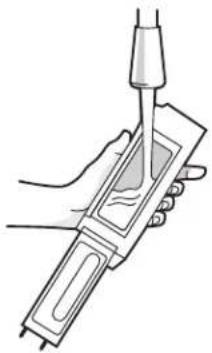
Important: Do not wash the filter. Remove the filter before washing the bin.
1 Release the bin, remove the filter, and open the bin door.
2 Rinse the bin using warm water.
natural_image
Illustration of a hand holding a handheld device with a pipette inserted (no text or symbols visible)Note: Bin is not dishwasher safe.
3 Make sure bin is completely dry. Reinsert filter and place bin back in the robot.
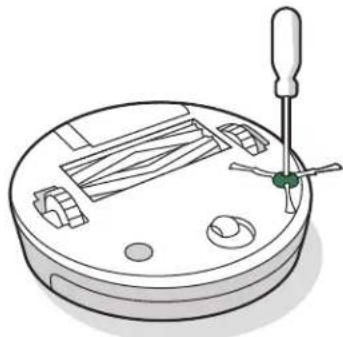
1 Use a coin or small screwdriver to remove the screw holding the Edge-Sweeping Brush in place.
2 Pull to remove the Edge-Sweeping Brush. Remove any hair or debris, then reinstall the brush.
natural_image
Illustration of a circular mechanical device with internal components and a central tool (no text or symbols)Cleaning the Front Caster Wheel
1 Pull firmly on the front wheel module to remove it from the robot.
2 Pull firmly on the wheel to remove it from its housing (see illustration below).
3 Remove any debris from inside the wheel cavity.
4 Reinstall all parts when finished. Make sure the wheel clicks back into place.
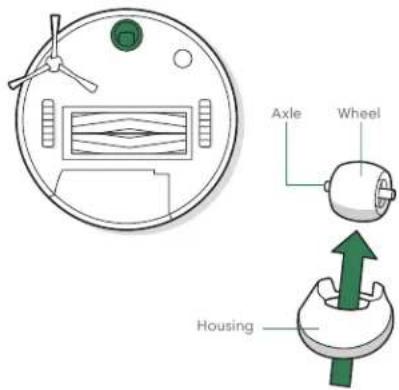
Important: A front wheel clogged with hair and debris could result in damage to your floor. If the wheel is not spinning freely after you have cleaned it, please contact Customer Care.
Cleaning the Multi-Surface Brushes
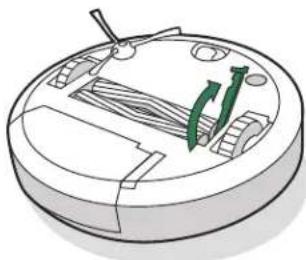
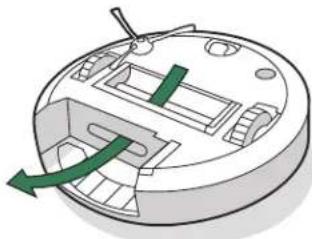
1 Pinch the brush frame release tab, lift the tab, and remove any obstructions.
2 Remove the brushes from the robot. Remove the brush caps from the ends of the brushes. Remove any hair or debris that has collected beneath the caps. Reinstall the brush caps.
3 Remove any hair or debris from the square and hexagonal pegs on the opposite side of the brushes.
natural_image
Diagram of a circular device with internal components and green connectors (no text or symbols)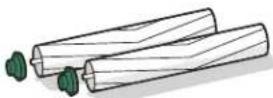
4 Remove the bin from the robot and clear any debris from the vacuum path.
5 Reinstall the brushes in the robot. Match the shape of the brush pegs with the shape of the brush icons in the cleaning head module
natural_image
Diagram of a circular device with internal components and a green arrow indicating rotation or movement (no text or symbols)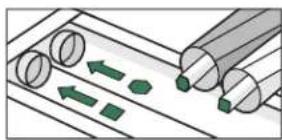
natural_image
Diagram showing green directional arrows between cylindrical and rectangular components, no text or symbols presentCleaning the Sensors, Camera Window and Charging Contacts
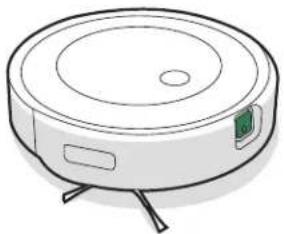
1 Wipe sensors, camera window, and charging contacts with a clean, dry cloth.
natural_image
Line drawing of a robotic vacuum cleaner with green sensor module (no text or symbols)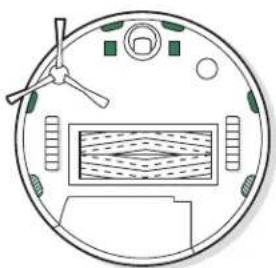
natural_image
Circular diagram with a central rectangular structure and surrounding symbols (no text or labels)RVE-Y1 models only
Important: Do not spray cleaning solution or water onto the sensors or sensor openings.
Cleaning the Mopping Pad Replacing the|Wick Cap
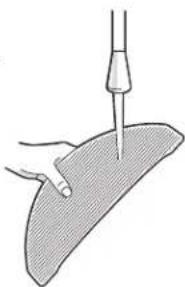
HAND WASHING
Thoroughly wash the pad with warm water.
natural_image
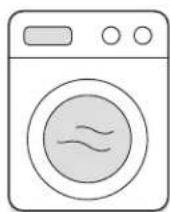
Illustration of a hand using a pipette to lift a curved surface (no text or symbols)MACHINE WASHING
Wash using the warm cycle, then air dry. Do not tumble dry. Do not wash with delicates.
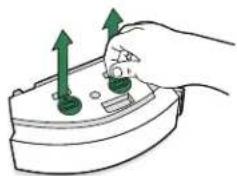
1 Remove pad plate
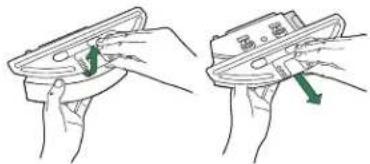
2 Remove the wick cap by pulling on the side rubber tab.
natural_image
Hand holding a device with green arrows pointing upward (no text or symbols)3 Replace with a new wick cap, pressing firmly into place to create a tight seal to prevent leaking.
4 Reintall pad plate
Care and Maintenance Instructions for Your Clean Base
To keep your dirt disposal running at peak performance, follow these care procedures:
| Part Care frequency Replacement frequency | ||
| Bags - Bags should be replaced | when prompted by the LED indicator/app. | |
| Charging Contacts Visual Docking Target | Once every month - | |
| Blower Cover inside canister | Once every month (remove debris from blower cover) | - |

Note: iRobot manufactures various replacement parts and assemblies. If you think you need a replacement part, please contact iRobot Customer Care for more information.
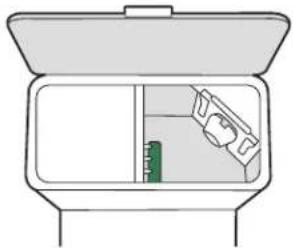
Replacing the Bag
1 Lift up on the canister lid to open.

natural_image
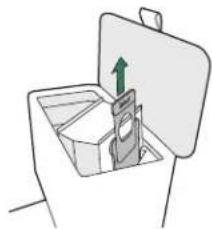
Line drawing of a box with an open lid and internal compartments, no text or symbols present2 Pull up on the plastic card to remove the bag from the canister.
natural_image
Simple line drawing of a box with an upward arrow inside, no text or symbols present
Note: This will seal the bag so dust and debris cannot escape.
3 Discard the used bag.
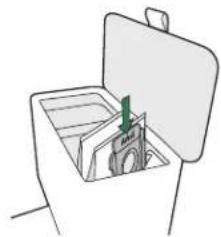
4 Install a new bag, sliding the plastic card into the guide rails.
natural_image
Line drawing of a hand holding an open box with a green handle (no text or symbols)5 Press down on the lid making sure that it is completely closed.
Note: To achieve optimal performance with your robot and automatic dirt disposal, clean and/or replace your robot's filter as needed.
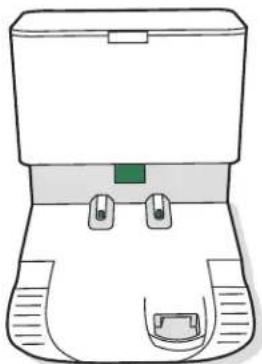
Cleaning the Visual Docking Target and Charging Contacts
Inspect the visual docking target and charging contacts to make sure that they are clear of debris. Wipe with a clean, dry cloth.

Important: Do not spray cleaning solution or water onto the sensors or sensor openings.
natural_image
Line drawing of a toilet with two side-mounted buttons and a green indicator light (no text or symbols)Removing Debris from Blower Cover
Inspect blower cover for any lint or debris build-up, and wipe with a clean dry cloth to remove.
natural_image
Line drawing of a box with an open lid and internal compartments (no text or symbols)Troubleshooting
Troubleshooting Your Robot
- Your robot will tell you something is wrong by playing an audio alert and turning the light ring indicator red. Press the clean button or tap the bumper for details. Check the iRobot Home App for further support.
Red Light Ring
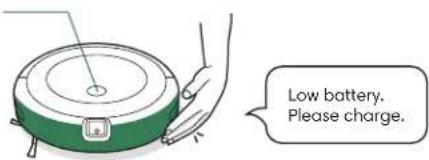
• After 90 minutes of inactivity off the charging station, the robot will automatically end its cleaning job.
- To factory reset your robot, remove the dust bin and hold the clean button down for seven (7) seconds. A sound will let you know when the factory reset has been completed. Press the clean button down once more to confirm.
Battery Safety & Shipping
For best results, only use the iRobot Lithium Ion Battery that comes with your robot.

WARNING: Lithium ion batteries and products that contain lithium ion batteries are subject to stringent transportation regulations. If you need to ship this product for service, travel or any other reason, you MUST follow the below shipping instructions.
- Battery MUST be turned off before shipping.
- Turn off the battery by removing the robot from the charging station and holding down the clean button for 3 seconds with one wheel off the ground. All indicators will turn off.
- Package the robot securely for shipping.
- If you need further assistance, contact our Customer Care team or visit global.irobot.com.
Troubleshooting Your Automatic Dirt Disposal
Your dirt disposal will tell you if something is wrong via an LED indicator on the front of the canister and through the iRobot Home App.
| LED indicator Common error How to fix | ||
| Solid red Bag full or missing 1. Replace bag if it is full or missing.2. Make sure that the bag is securely inserted.3. If problem persists, remove any debris from the port on the bottom of your robot and the dirt disposal. | ||
| Blinking red There is a leak or a clog in the dock evacuation path | 1. Make sure that the canister lid is pushed down and firmly sealed.Hold the clean button on your robot down for 2-5 seconds to manually empty the bin.2. Remove any debris from the port on the bottom of your robot and dirt disposal.3. Unplug the dirt disposal from the wall. Place it on its side and inspect the debris evacuation tube for debris. If necessary, remove the tube to clear any debris. | |
This product has been equipped with a thermal protector designed to protect against damage due to overheating. If the protector operates, the motor will stop running. If this happens, unplug the unit, allow it to cool for 30 minutes, clear any obstructions from the evacuation port and evacuation tube, then plug the unit back in.
Regulatory Information
CE
Hereby, iRobot Corporation declares that this robot vacuum cleaner model RVE-Y1/RVE-Y2 is in compliance with the EU Radio Equipment Directive 2014/53/EU. The full text of the EU Declaration of Conformity is available at the following web address:
www.irobot.com/compliance.
UK CA
Hereby, iRobot Corporation declares that this robot vacuum cleaner model RVE-Y1/RVE-Y2 is in compliance with the Radio Equipment Regulations 2017. The full text of the UKCA Declaration of Conformity is available at the following web address:
www.irobot.com/compliance.
[NO TEXT]
This symbol on the product indicates that the appliance must not be disposed of with unsorted common municipal waste. As the end-user, it is your responsibility to dispose of the end-of-life appliance in an environmentally sensitive manner as follows:
(1) returning it to the distributor/dealer from whom you purchased the product; or
(2) depositing it in a designated collection point.
Disposing of this product correctly will help save valuable resources and prevent any potential negative effects on human health and the environment, which could otherwise arise from inappropriate waste handling. Please contact your local authority for further details or your nearest designated collection point. Penalties may be applicable for incorrect disposal of this waste in accordance with your national legislation. More information may be found at the following source: https://environment.ec.europa.eu/topics/waste-and-recycling/waste-electrical-and-electronic-equipment-weee_en
Chemical information report listing SVHC (substances of very high concern) per EU Regulation EU 1907/2006 can be found here:
www.irobot.com/compliance.
Regulatory Model RVE-Y1 incorporates the Sextant radio module model AXG-Y1. The Sextant radio module is a dual band radio which operates in the WLAN 2.4 GHz and WLAN 5GHz bands. The Sextant radio module also incorporates Bluetooth and BLE which operates in the 2400 MHz - 2483.5 MHz band.
- The 2.4 GHz band is limited to operate between 2400 MHz – 2483.5 MHz with a maximum EIRP output power of 17.78 dBm (59.98 mW) at 2442 MHz.
- The 5 GHz band is limited to operate between 5150 MHz – 5850 MHz with a maximum EIRP output power of 20.81 dBm (120.50 mW) at 5190 MHz.
- For Israel, the 5 GHz band is limited to operate in the 5150 MHz – 5350 MHz band.
Or
Regulatory Model RVE-Y2 incorporates the FN Link radio module Model 6233E-UUB. The 6233E-UUB radio module is a dual-band radio which operates in the WLAN 2.4GHz and WLAN 5GHz bands. The 6233E-UUB radio module also incorporates Bluetooth and BLE which operate in the 2400-2483.5MHz band.
- The 2.4 GHz band is limited to operate between 2400 MHz – 2483.5 MHz with a maximum EIRP output power of 19.75 dBm (94.41 mW) at 2462 MHz.
- The 5 GHz band is limited to operate between 5150 MHz – 5850 MHz with a maximum EIRP output power of 20.07 dBm (101.62 mW) at 5180 MHz.
- For Israel, the 5 GHz band is limited to operate in the 5150 MHz -5350 MHz band.
Recycle your end-of-life iRobot product responsibly as per local regulations. The following is a list of the WEEE recycling organisations contracted by iRobot at the time of product sale.
| Location Organisation URL | ||
| Austria UFH http://www.elektro-ade.at/elektrogeraete-sammeln/liste-der-sammelstoesterreich/ | ||
| Belgium Recupel https://www.recupel.be/en/where-to-go/?searchcollectionPoints=&categories=1%2C2%2C3%2C4# | ||
| Germany Zentek https://www.ear-system.de/ear verzeichnis/sammel-und-ruecknahmestback | ||
| Denmark Elretul https://www.dpa-system.dk/DPAAplications/DPADB.aspx?wf=CollectionPointSearch.as | ||
| Spain Ecotic https://punto-limpio.info/ | ||
| France Eco-systemes https://www.eco-systemes.fr/france | ||
| Ireland WEEE Ireland http://www.weeeireland.ie/household-recycling/where-can-i-recycle/ | ||
| Netherlands Wecycle https://www.watismijnapparaatwaard.nl/ | ||
| Sweden | El-Kretsen | https://www.sopor.nu/sortera-återvinn/ |
| United Kingdom | Repic | http://www.responsible-recycling.co.uk/contact-us/find-your-local-recy |
Manufacturer Address: iRobot Corporation, 8 Crosby Drive, Bedford MA 01730, USA
iRobot
©2023 iRobot Corporation, 8 Crosby Drive, Bedford, MA 01730, USA. All rights reserved. iRobot is a registered trademark of iRobot Corporation, Roomba Robot Vacuum, Clean Base and Dirt Detect are trademarks of iRobot Corporation. Wi-Fi and the Wi-Fi logo are registered trademarks of Wi-Fi Alliance. Apple and App Store are trademarks of Apple Inc., registered in the US and other countries. Google Play is a trademark of Google LLC.
iRobot Customer Care
USA & Canada
If you have questions or comments about your dirt disposal, please contact iRobot before contacting a retailer.
You can start by visiting global.irobot.com for support tips, frequently asked questions, and information about accessories. This information can also be found in the iRobot HOME App. If you need further assistance, call the US Customer Care team at (877) 855-8593.
iRobot USA Customer Care Hours
Monday to Friday, 9AM — 9PM Eastern Time
Saturday and Sunday 9AM — 6PM Eastern Time
Outside USA & Canada
Visit global.irobot.com to:
Learn more about iRobot in your country
Get hints and tips to improve your product performance
Get answers to questions
Contact your local support center
The complete owner's guide is available at about.irobot.com/manual#comboj5plus
natural_image
Illustration of hands using a power tool to press down an iron, showing motion and rotation (no text or symbols)2
REMLISSAGE DU BAC
natural_image
Illustration of a hand using a tool to lift a small object on a flat surface (no text or symbols)natural_image
Illustration of two hands holding a circular device with a green handle, next to a small device with a green handle (no text or symbols)natural_image
Illustration of a hand holding a small green object on a circular device (no text or symbols)natural_image
Line drawing of a hand pouring liquid into a container (no text or symbols)natural_image
Line drawing of a circular robotic device with control panels and a handle (no text or symbols)natural_image
Illustration of a hand using a pipette to measure a device with a screen (no text or symbols visible)natural_image
Illustration of a circular electronic device with a screwdriver inserted, showing internal components and a green indicator (no text or symbols)natural_image
Technical line drawing of a circular mechanical component with internal components and green arrows indicating motion or force (no text or symbols)natural_image
Line drawing of a hand holding a wooden object with a tassel, no text or symbols presentnatural_image
Diagram of a circular device with internal compartments and a green directional arrow indicating rotation (no text or symbols)natural_image
Diagram showing three cylindrical objects with green arrows indicating movement or flow, no text or symbols presentnatural_image
Technical line drawings of a robotic vacuum cleaner and its circular interior layout (no text or symbols)natural_image
Illustration of a medical procedure with a needle inserted into a shaded area (no text or symbols)NETTOYAGE EN MACHINE À LAVER
natural_image
Illustration of two hands holding a small object, one with green arrows indicating movement or change (no text or symbols)natural_image
Hand holding a device with green arrows pointing upward (no text or symbols)natural_image
Line drawing of a box with an open lid and internal compartments (no text or symbols)natural_image
Simple line drawing of a hand inserting a device into a box with an upward arrow (no text or symbols)
natural_image
Simple line drawing of a hand holding an open box with a green handle (no text or symbols)natural_image
Line drawing of a toilet with seat and gasket (no text or symbols)natural_image
Line drawing of a box with an open lid and internal compartments (no text or symbols)Dépannage
Dépannage du robot
www.irobot.com/compliance.
natural_image
Illustration of hands using a power tool to clean iron, showing step-by-step motion (no text or symbols)2
LLENADO DEL DEPÓSITO
natural_image
Illustration of a hand using a tool to cut or mark a piece of material, no text or symbols present
natural_image
Illustration of two hands holding circular objects, one with a green clip and the other with a green clip (no text or symbols)natural_image
Line drawing of a hand holding a small green object on a white circular device (no text or symbols)natural_image
Hand pouring liquid into a container (no text or symbols visible)natural_image
Illustration of a circular robotic device with green control panels and a propeller (no text or symbols)natural_image
Illustration of a hand holding a handheld device with a pipette inserted (no text or symbols visible)natural_image
Illustration of a circular mechanical device with internal components and a screwdriver inserted (no text or symbols)natural_image
Diagram of a circular device with internal components and green arrows indicating motion or force (no text or symbols)natural_image
Line drawing of a hand holding a wooden object with a tassel, no text or symbols presentnatural_image
Diagram of a circular device with internal components and green arrows indicating flow or movement (no text or symbols)natural_image
Diagram showing green arrows pointing to three cylindrical objects on a surface, with no visible text or symbols.natural_image
Line drawing of a robotic vacuum cleaner with a green sensor on the side (no text or symbols)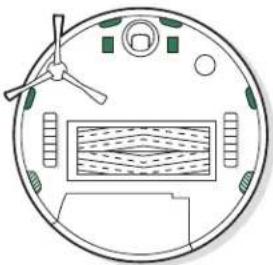
natural_image
Top-down schematic of a circular device with internal components and a fan (no text or symbols)Solo modelos RVE-Y1
natural_image
Illustration of a medical procedure with a pipette inserted into a shaded area (no text or symbols)LAVADO A MÁQUINA
natural_image
Two-step illustration showing hands holding a device, with green arrows indicating the process (no text or symbols)natural_image
Hand holding a device with green arrows indicating upward movement (no text or symbols)natural_image
Line drawing of a small open toolbox with a green arrow indicating direction (no text or symbols)natural_image
Simple line drawing of a hand holding a device inside a container with an upward arrow (no text or symbols)natural_image
Line drawing of a box with an open lid and internal compartments, no text or symbols presentnatural_image
Line drawing of a toilet with seat covers and ventilation slots (no text or symbols)natural_image
Line drawing of a small open box with a green internal component, no text or symbols presentwww.irobot.com/compliance.

www.irobot.com/compliance.

www.irobot.com/compliance.
natural_image
Illustration of hands using a power tool to lift a machine, showing green motion arrows (no text or symbols)3
natural_image
Illustration of a hand using a sewing machine to lift a shoe (no text or symbols visible)
natural_image
Illustration of two hands holding circular objects, one with a green clip and the other with a green clip (no text or symbols)natural_image
Illustration of a hand cleaning a circular robotic vacuum cleaner with a green sensor (no text or symbols)natural_image
Hand pouring liquid into a container (no text or symbols visible)natural_image
Technical line drawing of a circular mechanical device with internal components and mounting holes (no text or symbols)natural_image
Illustration of a hand using a handheld device to test or inspect the screen (no text or symbols visible)natural_image
Illustration of a circular mechanical device with internal components and a screwdriver inserted (no text or symbols)natural_image
Diagram of a circular device with internal components and green arrows indicating motion or force (no text or symbols)natural_image
Diagram of a circular device with internal components and a green arrow indicating rotation (no text or symbols)natural_image
Diagram showing directional arrows between cylindrical and rectangular objects, no text or symbols present
natural_image
Line drawing of a robotic vacuum cleaner with a green sensor on the side (no text or symbols)
natural_image
Top-down schematic of a circular device with internal components and a central screen (no text or symbols)
Solo su modelli RVE-Y1
natural_image
Illustration of a medical procedure with a needle inserted into a shaded area (no text or symbols)natural_image
Illustration of two hands holding a small object, one with green arrows indicating motion (no text or symbols)natural_image
Hand holding a device with green arrows pointing upward (no text or symbols)natural_image
Line drawing of a closed open battery with internal compartments and a green leaf on top (no text or symbols)natural_image
Simple line drawing of a box with an open lid and a green upward arrow inside (no text or symbols)
natural_image
Simple line drawing of an open box with a green arrow pointing to the interior (no text or symbols)natural_image
Line drawing of a toilet with seat, gasket, and ventilation slots (no text or symbols)natural_image
Line drawing of a box with an open lid and internal compartments (no text or symbols)
www.irobot.com/compliance.

www.irobot.com/compliance.

www.irobot.com/compliance.
natural_image
Illustration of hands using a power tool to lift a small object, showing motion and rotation (no text or symbols)2
FÜLLEN DES AUFFANGBEHÄLTERS
natural_image
Illustration of a hand using a tool to press or install a shoe (no text or symbols visible)
natural_image
Illustration of two hands holding circular objects, one with a green clip and the other with a green clip (no text or symbols)natural_image
Illustration of a robotic vacuum cleaner with a green sensor or probe inserted (no text or symbols)natural_image
Technical line drawing of a circular robotic device with internal components and no visible text or symbolsnatural_image
Illustration of a hand holding a handheld device with a pipette inserted (no text or symbols visible)natural_image
Illustration of a circular mechanical device with internal components and a handle (no text or symbols)natural_image
Technical line drawing of a circular mechanical component with internal components and a green tool (no text or symbols)natural_image
Diagram of a circular device with internal components and a green arrow indicating rotation or movement (no text or symbols)natural_image
Diagram of a mechanical assembly with cylindrical components and directional arrows indicating motion (no text or symbols)natural_image
Line drawing of a robotic vacuum cleaner (no text or symbols)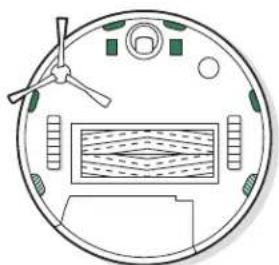
natural_image
Circular diagram with a central rectangular structure and surrounding elements, no text or symbols present.
Nur RVE-Y1 Modelle
natural_image
Illustration of a hand using a tool to lift a curved surface (no text or symbols)MASCHINENWÄSCHE
natural_image
Two-step illustration of hands holding a small object, showing green arrows indicating movement or change (no text or symbols)natural_image
Hand holding a device with green arrows indicating upward movement (no text or symbols)natural_image
Line drawing of a small open toolbox with a green arrow indicating a handle (no text or symbols)natural_image
Simple line drawing of a box with an upward arrow inside, no text or symbols presentnatural_image
Simple line drawing of a box with an open lid and a green handle inside (no text or symbols)natural_image
Line drawing of a toilet with seat, vent, and base (no text or symbols)natural_image
Line drawing of a box with an open lid and internal compartments (no text or symbols)Fehlerbehebung
www.irobot.com/compliance.

www.irobot.com/compliance.

www.irobot.com/compliance.
natural_image
Illustration of two hands using a power tool to clean iron, showing step-by-step motion (no text or symbols)2
NAPEŁNIJ POJEMNIK
natural_image
Illustration of a hand using a sewing machine to lift a shoe (no text or symbols visible)natural_image
Illustration of two hands holding circular objects, one with a green tag, the other with a green arrow (no text or symbols)natural_image
Illustration of a hand holding a circular device with a green sensor or sensor on its surface (no text or symbols)natural_image
Hand pouring liquid into a container (no text or symbols visible)3
natural_image
Technical line drawing of a circular mechanical device with internal components and mounting holes (no text or symbols)natural_image
Illustration of a hand using a pipette to measure a device with a probe inserted (no text or symbols visible)natural_image
Illustration of a circular mechanical device with internal components and a handle, no text or symbols presentnatural_image
Technical line drawing of a circular mechanical component with internal blades and a handle (no text or symbols)natural_image
Diagram of a circular device with internal components and a green arrow indicating rotation or movement (no text or symbols)natural_image
Diagram showing directional arrows between cylindrical and rectangular objects, no text or symbols presentnatural_image
Line drawing of a robotic vacuum cleaner (no text or symbols)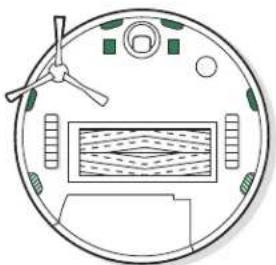
natural_image
Top-down schematic of a circular device with internal components and a handle (no text or symbols)Tylko RVE-Y1 modele
natural_image
Illustration of a medical procedure with a needle inserted into a shaded area (no text or symbols)PRANIE W PRALCE
natural_image
Illustration of two hands holding a small object, one with green arrows indicating movement or change (no text or symbols)natural_image
Hand holding a device with green arrows pointing upward (no text or symbols)natural_image
Line drawing of a closed open battery with internal compartments and a green arrow indicating direction (no text or symbols)natural_image
Simple line drawing of a box with an upward arrow inside, no text or symbols present
natural_image
Simple line drawing of an open box with a green arrow pointing to the interior (no text or symbols)natural_image
Line drawing of a toilet with seat, gasket, and ventilation slots (no text or symbols)natural_image
Diagram of a medical device inside a box, showing internal components and no text or symbolswww.irobot.com/compliance.

- iRobot®
- RoombaCombo™
- GENERAL
- WARNING
- CAUTION
- NOTICE
- CLEANING SOLUTION
- BATTERY
- AUTOMATIC DIRT DISPOSAL
- About Your Roomba® Robot Vacuum
- About your Clean Base™ Automatic Dirt Disposal
- About Your Roomba Combo™ Bin
- 1
- 2
- 3
- Using Your Roomba® Robot Vacuum
- Download the iRobot Home App and Connect to Wifi
- About your Automatic Dirt Disposal
- Charging
- Light Ring Spiral While Charging
- Cleaning
- Care and Maintenance
- Care and Maintenance Instructions for Your Robot
- Emptying the Bin
- Cleaning the Filter
- det2
- ©
- Cleaning the Full Bin Sensors Cleaning the Edge-Sweeping BrushWashing the Bin
- Cleaning the Front Caster Wheel
- Cleaning the Multi-Surface Brushes
- Cleaning the Sensors, Camera Window and Charging Contacts
- Cleaning the Mopping Pad Replacing the|Wick Cap
- Care and Maintenance Instructions for Your Clean Base
- Replacing the Bag
- Cleaning the Visual Docking Target and Charging Contacts
- Removing Debris from Blower Cover
- Troubleshooting
- Troubleshooting Your Robot
- Battery Safety & Shipping
- Troubleshooting Your Automatic Dirt Disposal
- Regulatory Information
- iRobot
- iRobot Customer Care
- USA & Canada
- iRobot USA Customer Care Hours
- Outside USA & Canada
- REMLISSAGE DU BAC
- Dépannage
- Dépannage du robot
- LLENADO DEL DEPÓSITO
- FÜLLEN DES AUFFANGBEHÄLTERS
- MASCHINENWÄSCHE
- Fehlerbehebung
- NAPEŁNIJ POJEMNIK
Brand : IROBOT
Model : Roomba Combo J5+
Category : Vacuum Cleaner