 ManualGo.com
STREETPILOT I3 - Navigation GPS GARMIN - Free user manual and instructions
Find the device manual for free STREETPILOT I3 GARMIN in PDF.


Download the instructions for your Navigation GPS in PDF format for free! Find your manual STREETPILOT I3 - GARMIN and take your electronic device back in hand. On this page are published all the documents necessary for the use of your device. STREETPILOT I3 by GARMIN.
USER MANUAL STREETPILOT I3 GARMIN
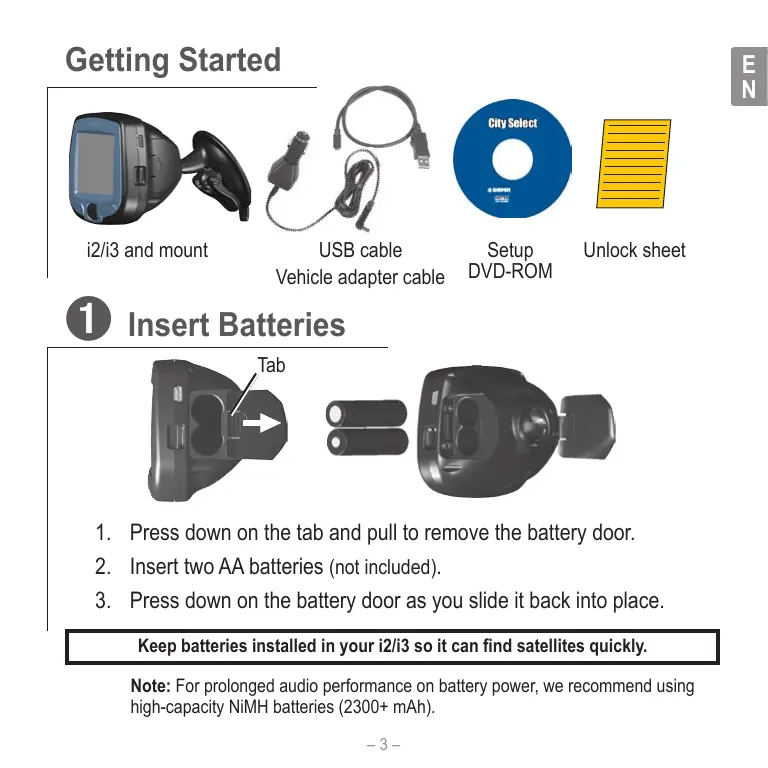
Set up and go! Configurez et prenez la route ! StreetPilot i3 Getting Started i2/i3 and mount
1. Press down on the tab and pull to remove the battery door.
2. Insert two AA batteries (not included).
3. Press down on the battery door as you slide it back into place.
Keep batteries installed in your i2/i3 so it can find satellites quickly. Note: For prolonged audio performance on battery power, we recommend using high-capacity NiMH batteries (2300+ mAh). –3–
➋ Set Up the i2/i3 Press and hold the Power button to turn on the i2/i3. Follow the instructions on the screen to select your language and set up the i2/i3. Roll the Wheel up and down to highlight options. Press in to select options. Wheel Power ➌ Install Software and Load Maps Do not connect your i2/i3 to your computer until you are told to do so!
1. Insert the Setup DVD-ROM into your computer’s DVD-ROM drive.
If the welcome screen does not automatically appear, click Start and then Run on your personal computer. Type the letter of your DVDROM drive followed by setup.exe (example: D:\setup.exe). Then press Enter.
2. Follow the instructions on the screen to install software and load
3. When MapInstall opens, click the map to select the regions you
want to load to your i2/i3. Selected maps are shaded pink. –4– ➍ Mount the i2/i3 Windshield USB port Lever
1. Place the suction cup mount on your windshield with the lever pulled
toward you, as shown above.
2. Press the lever toward the windshield.
3. Plug one end of the vehicle adapter into the USB port on the i2/i3.
Plug the other end into a receptacle in your vehicle. WARNING: For use in vehicles, it is the sole responsibility of the owner/operator of a vehicle with the i2/i3 installed to place and secure the device so it will not interfere with the vehicle operating controls and safety devices, obstruct the driver’s view of driving conditions, or cause personal injury in the event of an accident. –5–
Find a Place and Go!
Select Where To? Select Food, Hotels, and More. Select a category.
Select a destination. Select Start Navigating. Enjoy the route! Tip: To narrow your search, select the <Spell> field and enter letters in the name of the place you are searching for. –6– Following Your Route Follow the route to your destination using the map. The position icon current location.
shows your Text directions Your position Distance to the next turn Time you will arrive at your destination Press to return to main page Your route is marked with a red line. Roll to zoom in and out Follow the arrows as you take turns. –7– A checkered flag marks your destination.
Finding an Address Select Where To? > Address to begin.
Select a country. Select a city or postal code. Press and select the correct item from the list. Enter the street name. Press and select the correct street from the list.
Select the correct address. Select Start Navigating. –8– Setting a Home Location You can set a Home location for the place you return to most often. Then, select Where To? > Go Home to go Home.
From the main page, select Where To? > Go Home. Select an option. Press the Wheel to acknowledge the message. Adjusting Volume and Screen Brightness From the main page, select Settings. Then select Set Volume or Set Brightness. Roll the Wheel up or down to change the setting. More Information For more information about your i2/i3, refer to the Owner’s Manual located on the Setup DVD-ROM. You can also view it online at http://www.garmin.com/products/ spi3 or spi2. Click the Manuals link and then select Download. –9–
For the latest free software updates (excluding map data) throughout the life of your Garmin products, visit the Garmin Web site at www.garmin.com. © Copyright 2005 Garmin Ltd. or its subsidiaries Garmin International, Inc. 1200 East 151st Street, Olathe, Kansas 66062, U.S.A. Garmin (Europe) Ltd. Unit 5, The Quadrangle, Abbey Park Industrial Estate, Romsey, SO51 9DL, U.K. Garmin Corporation No. 68, Jangshu 2nd Road, Shijr, Taipei County, Taiwan www.garmin.com Part Number 190-00613-90 Rev. A