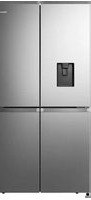
USER MANUAL RQ758N4SWSE HISENSE
Wasserspender
! WARNING
Stromschlaggefahr
Before operating this unit, please read this manual thoroughly, and retain for future reference.
Thank you for choosing Hisense. We are sure you will find your new refrigerator a pleasure to use. However, before you use the appliance, we recommend that you carefully read the instructions, which provide details about installing and using the product. Please keep this manual for future reference.
Table of Contents
REFRIGERATOR SAFETY....3
PARTS AND FEATURES....11
INSTALLATION REQUIREMENTS....12
Location Requirements....12
Electrical Requirements....12
INSTALLATION INSTRUCTIONS....13
Unpack the Refrigerator....13
Complete the Installation ....13
Level Refrigerator....13
Align Doors....14
REFRIGERATOR USE....14
Opening and Closing Doors....14
Water Dispenser....15
Using the Controls....17
Features....20
General Use Information....20
REFRIGERATOR CARE....22
Cleaning....22
Lights....22
Vacation and Moving Care....23
Reinstalling/Using Refrigerator Again....23
TROUBLESHOOTING....24
DISPOSAL OF THE APPLIANCE....26
Your safety and the safety of others are very important.
We have provided many important safety messages in this manual and on your appliance. Always read and obey all safety messages.

This is the safety alert symbol.
This symbol alerts you to potential hazards that can kill or hurt you and others. All safety messages will follow the safety alert symbol and either the word "DANGER," "WARNING" or "CAUTION."
These words mean:
DANGER
An imminently hazardous situation. You could be killed or seriously injured if you don't immediately follow instructions.
WARNING
A potentially hazardous situation which, if not avoided, could result in death or serious bodily injury.
CAUTION
A potentially hazardous situation which, if not avoided, may result in moderate or minor injury.
All safety messages will tell you what the potential hazard is, tell you how to reduce the chance of injury, and tell you what can happen if the instructions are not followed.

For your safety and correct usage, before installing and first using the appliance, read this user manual carefully, including its hints and warnings. To avoid unnecessary mistakes and accidents, it is important to make sure that all people using the appliance are thoroughly familiar with its operation and safety features. Save these instructions and be sure that they remain with the appliance if it is moved or sold, so that anyone using it throughout its life, will be properly informed on its usage and safety notices.
For the safety of life and property, keep the precautions of these user's instructions as the manufacturer is not responsible for damages caused by omission.
Safety for children and others who are vulnerable people
▶ According to EN standard
This appliance can be used by children aged from 8 years and above and persons with reduced physical, sensory or mental capabilities or lack of experience and knowledge if they have been given supervision or instruction concerning use of the appliance in a safe way and understand the hazards involved. Children shall not play with the appliance. Cleaning and user maintenance shall not be made by children without supervision. Children aged from 3 to 8 years are allowed to load and unload refrigerating appliances.
▶ According to IEC standard
This appliance is not intended for use by persons (including children) with reduced physical sensory or mental capabilities, or lack of experience and knowledge, unless they have been given supervision or instruction concerning use of the appliance by a person responsible for their safety.
Children should be supervised to ensure that they do not play with the appliance.
Keep all packaging away from children as there is risk of suffocation.
If you are discarding the appliance, pull the plug out of the socket, cut the connection cable (as close to the appliance as you can) and remove the door to prevent children playing from suffering an electric shock or from closing themselves inside it.
If this appliance, featuring a magnetic door seals, is to replace an older appliance having a spring lock (latch) on the door or lid, be sure to make the spring lock unusable before you discard the old appliance. This will prevent it from becoming a death trap for a child.

General safety
This appliance is intended to be used in household and similar applications such as :
-staff kitchen areas in shops, offices and other working environments;
-farm houses and by clients in hotels, motels and other residential type environments;
-bed and breakfast type environments;
-catering and similar non-retail applications.
Do not store explosive substances such as aerosol cans with a flammable propellant in this appliance.
If the supply cord is damaged, it must be replaced by the manufacturer, its service agent or similarly qualified persons in order to avoid a hazard.
- WARNING — Keep ventilation openings, in the appliance enclosure or in the built-in structure, clear of obstruction.
- WARNING — Do not use mechanical devices or other means to accelerate the defrosting process, other than those recommended by the manufacturer.
▶ WARNING — Do not damage the refrigerant circuit.
WARNING — Do not use electrical appliances inside the food storage compartments of the appliance, unless they are of the type recommended by the manufacturer.
The refrigerant and insulation blowing gas are flammable. When disposing of the appliance, do so only at an authorized waste disposal centre. Do not expose to flame.
▶ WARNING —When positioning the appliance, ensure the supply cord is not trapped or damaged.
- WARNING—Fill with potable water only for the water container.
- WARNING —Do not locate multiple portable socketoutlets or portable power supplies at the rear of the appliance.
Replacing the LED
WARNING—The LED light must not be replaced by the user! If the LED light is damaged, contact the customer helpline for assistance.
Refrigerant
The refrigerant isobutene (R600a) is contained within the refrigerant circuit of the appliance, a natural gas with a high level of environmental compatibility, which is nevertheless flammable. During transportation and installation of the appliance, ensure that none of the components of the refrigerant circuit becomes damaged.
The refrigerant (R600a) is flammable.
WARNING — Refrigerators contain refrigerant and gases in the insulation. Refrigerant and gases must be disposed of professionally as they may cause eye injuries or ignition. Ensure that tubing of the refrigerant circuit is not damage prior to proper disposal.

Warning: risk of fire/flammable materials
If the refrigerant circuit should be damaged:
- Avoid opening flames and sources of ignition. Thoroughly ventilate the room in which the appliance is situated.
It is dangerous to alter the specifications or modify this product in any way.
Any damage to the cord may cause a short circuit, fire, and/or electric shock.
Electrical safety
The power cord must not be lengthened.
Make sure that the power plug is not crushed or damaged. A crushed or damaged power plug may overheat and cause a fire.
Make sure that you can access the main plug of the appliance.
Do not pull the main cable.
If the power plug socket is loose, do not insert the power plug. There is a risk of electric shock or fire.
You must not operate the appliance without the interior lighting lamp cover.
The fridge is only applied with power supply of single phase alternating current of 220\~240V/50Hz. If fluctuation of voltage in the district of user is so large that the voltage exceeds the above scope, for safety sake, be sure to apply A.C. Automatic voltage regulator of more than 350W to the fridge. The fridge must employ a special power socket instead of common one with other electric appliances. Its plug must match the socket with ground wire.
Daily use
In order to sense the temperature and humidity near the appliance and make the appliance run better, add temperature and humidity sensors outside the box of appliance.
Do not store flammable gass or liquids in the appliance, There is a risk of an explosion.
Do not operate any electrical appliances in the appliance (e.g.electric ice cream makers,mixers etc.).
When unplugging always pull the plug from the mains socket, do not pull on the cable.
Do not place hot items near the plastic components of this appliance.
Do not place food products directly against the air outlet on the rear wall.
Store pre-packed frozen food in accordance with the frozen food manufacture's instructions.
The appliances manufactures storage recommendations should be strictly adhered to. Refer to relevant instructions for storage.
Do not place carbonated or fizzy drinks in the freeze compartment as it creates pressure on the container, which may cause it to explode, resulting in damage to the appliance.
➢ Frozen food can cause frost burns if consumed straight from the freezer compartment.
Do not place the appliance in direct sunlight.
Keep buring candles, lamps and other items with naked flames away from the appliance so that do not set the appliance on fire.
The appliance is intended for keeping food stuff and/or beverages in normal household as explained in this instruction booklet The appliance is heavy. Care should be taken when moving it.
Do not remove nor touch items from the freezer compartment if your hands are damp/wet, as this could cause skin abrasions or frost/freezer burns.
➢ Never use the base, drawers, doors etc. to stand on or as supports.
➢ Frozen food must not be refrozen once it has been thawed out.
Do not consume ice popsicles or ice cubes straight from the freezer as this can cause freezer burn to the mouth and lips.
To avoid items falling and causing injury or damage to the appliance, do not overload the door racks or put too much food in the crisper drawers.
WARNING - Food needs to be packed into bags before it is put into the refrigerator. Liquids need to be stored in bottles or capped containers in order to avoid a spill, as the design structure of the product is not easy to clean.
- This refrigerating appliance is not intended to be used as a built-in appliance.

Caution!
Care and cleaning
Before maintenance, switch off the appliance and disconnect the mains plug from the mains socket.
Do not clean the appliance with metal objects, steam cleaner, ethereal oils, organic solvents or abrasive cleansers.
Do not use sharp objects to remove frost from the appliance. Use a plastic scraper.
Installation Important!
For electrical connection carefully, follow the instructions given in this manual.
- Unpack the appliance and check if there are damages on it. Do not connect the appliance if it is damaged. Report possible damages immediately to the place you bought it. In this case retain packing.
It is advisable to wait at least four hours before connecting the appliance to allow the oil to flow back in the compressor.
Adequate air circulation should be around the appliance, lacking this leads to overheating. To achieve sufficient ventilation, follow the instructions relevant to installation. Wherever possible the back of the product should not be too close to a wall to avoid
touching or catching warm parts (compressor, condenser) to prevent the risk of a fire, follow the instructions relevant to installation.
The appliance must not be locate close to radiators or cookers.
Make sure that the mains plug is accessible after the installation of the appliance
Service
▶ Any electrical work required to do the servicing of the appliance should be carried out by qualified electrician or competent person.
This product must be serviced by an authorized Service Center, and only genuine spare parts must be used.
- If the appliance is Frost Free.
2 If the appliance contains freezer compartment.
Water dispenser cleaning (special for water dispenser products):
- Clean water tanks if they have not been used for 48 h; flush the water system connected to a water supply if water has not been drawn for 5 days.
WARNING!
- Food needs to be packed in bags before putting into the refrigerator, and liquids need to be packed in bottles or capped containers to avoid the problem that that the product design structure is not easy to clean.
Proper Disposal of Your Old Refrigerator

WARNING
Suffocation Hazard
Remove doors from your old refrigerator.
Failure to do so can result in death or brain damage.
IMPORTANT: Child entrapment and suffocation are not problems of the past. Junked or abandoned refrigerators are still dangerous- even if they will sit for "just a few days." If you are getting rid of your old refrigerator, please follow these instructions to help prevent accidents.
Before You Throw Away Your Old Refrigerator or Freezer:
- CTake off the doors.
- CLeave the shelves in place so that children may not easily climb inside.
Dispose of refrigerator in accordance with Federal and Local regulations. Refrigerants must be evacuated by a licensed, EPA certified refrigerant technician in accordance with established procedures.
Parts and Features
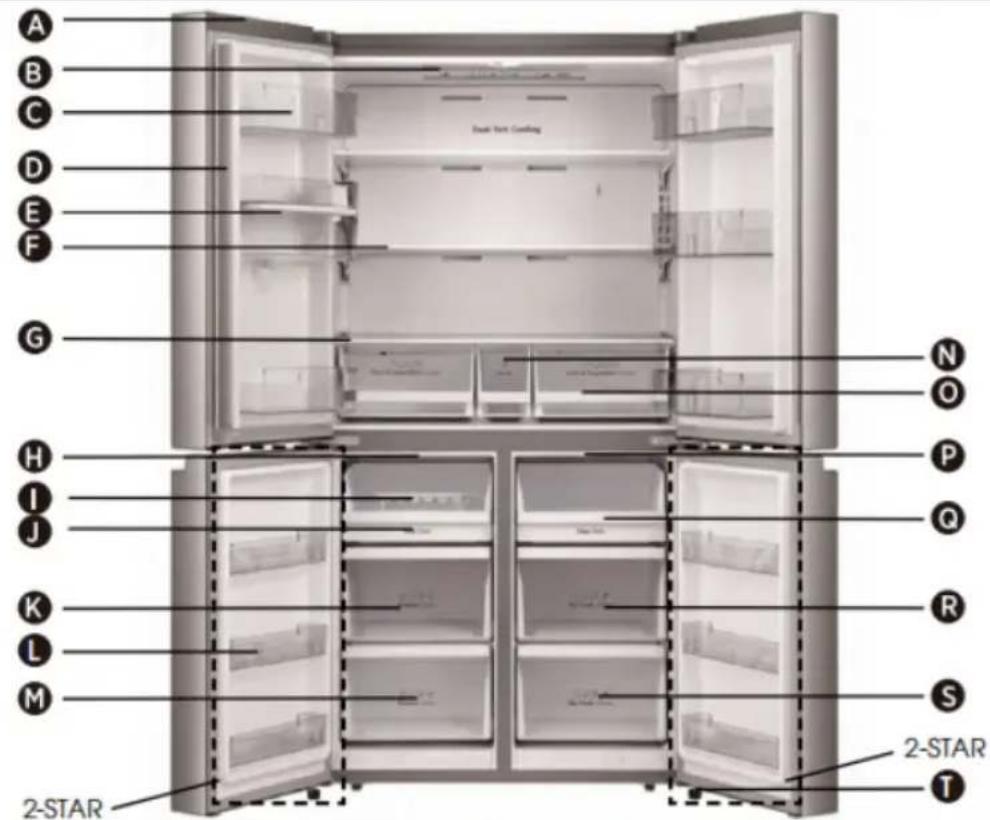
A Wi-Fi Module
B Refrigerator LED Light
C Refrigerator Door Bin
D Mullion
E Water Tank
F Glass Shelf
G Crisper Cover
H Freezer LED Light
Ice-Maker
J Freezer Tray
K Freezer Middle Drawer
Freezer Door Bin
M Freezer Lower Drawer
N Middle Storage Drawer
Fruit and vegetabers Crisper
P Convertible Compartment LED light
Convertible Compartment Tray
R Convertible Compartment Middle Drawer
S Convertible Compartmente Lower Drawer
Leveling Leg
Note!
- Due to unceasing modification of our products, your refrigerator may be slightly different from this instruction manual, but its functions and using methods remain the same.
- To get the best energy efficiency of this product, please place all shelves, drawers and baskets on their original position as per the illustration above.
Location Requirements

WARNING
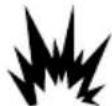
Explosion and Fire Hazard
Keep flammable materials and vapors, such as gasoline, away from appliance.
Failure to do so can result in death, explosion or fire.
IMPORTANT: This refrigerator is designed for indoor, household use only.
Temperature
This refrigerator is intended for use in a location where the temperature ranges from a minimum of 16° C to a maximum of 43° C. The preferred room temperature range for optimum performance, which reduces electricity usage and provides superior cooling, is between 16° and 32° C. It is recommended that you do not install the refrigerator near a heat source, such as an oven or radiator.
Exterior and Dimensions

A Refrigerator doors
B My fresh choice door
© Freezer door
Ventilation
Adequate air circulation around the refrigerator is required for efficient operation.
To ensure proper ventilation, maintain the recommended clearances.
Recommended Clearances

A 2" Above
B 2" Behind
C 1/2" Each Side
Note: If you place the refrigerator next to a fixed wall, leave 1471.4mm minimum space to allow the door to swing open.
Electrical Requirements

WARNING
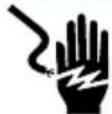
Electrical Shock Hazard
Plug into a grounded 3 prong outlet.
Do not remove the ground prong from the power cord plug.
Do not use an adapter.
Do not use an extension cord.
Failure to do so can result in death, fire or electrical shock.
Before you move your refrigerator into its final location, it is important to make sure you have the proper electrical connection.
Recommended Grounding Method
A 220-240 volt, 50 Hz, AC only 15- or 20-amp fused, grounded electrical supply is required. It is recommended that a separate circuit serving only your refrigerator be provided. Use an outlet that cannot be turned off by a switch. Do not use an extension cord.
NOTE: Before performing any type of installation or cleaning, disconnect the refrigerator from the electrical source. When you are finished, reconnect the refrigerator to the electrical source and reset the temperature controls to the desired setting.
Unpack the Refrigerator

WARNING

Fire or Explosion Hazard
Do not puncture refrigerant tubing.
Follow handling instructions carefully.
Flammable refrigerant used.
Failure to do so can result in death, explosion or fire.
IMPORTANT: Handle with care when moving refrigerator to avoid either damaging the refrigerant tubing or increasing the risk of a leak.

WARNING
Excessive Weight Hazard
Use two or more people to move and install refrigerator.
Failure to do so can result in back or other injury.
Remove the Packaging
- Remove tape and glue residue from surfaces before turning on the refrigerator. Rub a small amount of liquid dish soap over the adhesive with your fingers. Wipe with warm water and dry.
NOTE: Do not use sharp instruments, rubbing alcohol, flammable fluids, or abrasive cleaners to remove tape or glue. These products can damage the surface of your refrigerator. For more information, see "Refrigerator Safety."
- Dispose of/recycle all packaging materials.
- If the refrigerator has been placed in a horizontal or tilted position for any period of time wait 4 hours before plugging it in to allow the oil to settle into the compressor.
When Moving Your Refrigerator:
Your refrigerator is heavy. When moving the refrigerator for cleaning or service, be sure to cover the floor with cardboard or hardboard to avoid floor damage. Always pull the refrigerator straight out when moving it. Do not wiggle or "walk" the refrigerator when trying to move it, as floor damage could occur.
Clean Before Using
After you remove all of the packaging materials, clean the inside of the refrigerator before using it. See the cleaning instructions in "Refrigerator Care."
Do not clean glass shelves or covers with warm water when they are cold. Shelves and covers may break if exposed to sudden temperature changes or impact, such as bumping. Tempered glass is designed to shatter into many small, pebble-size pieces. This is normal. Glass shelves and covers are heavy. Use both hands when removing them to avoid dropping.
Installation Positioning
- This appliance performs well from N to ST. The appliance may not work properly if it is left for a longer period at a temperature above or below the indicated range.
| Climate class | Ambient temperature |
| SN | +10°C to +32°C |
| N | +16°C to +32°C |
| ST | +16°C to +38°C |
| T | +16°C to +43°C |
Complete the Installation

WARNING

Electrical Shock Hazard
Plug into a grounded 3 prong outlet.
Do not remove the ground prong from the power cord plug.
Do not use an adapter.
Do not use an extension cord.
Failure to do so can result in death, fire or electrical shock.
- Plug into a grounded 3 prong outlet.
NOTE: This refrigerator begins operating as soon as it is connected to the power supply
- Move the refrigerator into its final location, making sure to maintain the recommended clearance.
Level Refrigerator
(if needed)
The refrigerator must be level to maintain optimal performance and appearance.
- Turn the leveling feet on the bottom, front of the cabinet to raise or lower that side of the refrigerator until the refrigerator is level side to-side.
- Turn both feet, by the same amount, to slightly raise the front of the refrigerator. This will make it easier for the doors to close.
NOTE: Having someone push against the top of the refrigerator takes some weight off the leveling feet. This makes it easier to turn the feet. Rotate the adjustable feet clockwise to raise or raise counter-clockwise to lower your refrigerator. To make sure that the doors close automatically, tilt the top of your refrigerator backward about 10mm to 15mm. If necessary, use a spanner wrench to adjust the feet.

Align Doors
(if needed)
The gaskets is used to align doors, you can find them in the manual bag.

Refrigerator Use
Opening and Closing Doors
Providing room for doors to open
Make sure that you have enough room in front of your refrigerator to swing the doors open.
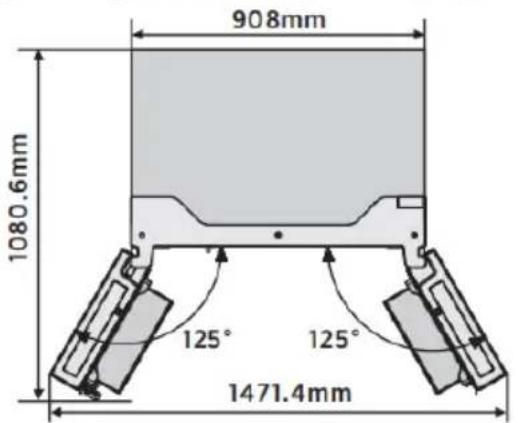
The four doors can be opened and closed either separately or together.
- There is a mullion on the left-hand side refrigerator compartment door.
- When closing the left-hand door, the mullion folds behind the right-hand door joining the two doors.
• The temperature of the door frame is controlled to help prevent moisture from
developing on the mullion. The temperature of the surface may be warm, which is normal, and will not affect the performance of the refrigerator.

NOTE: Before closing the left-hand door, make sure the mullion is folded inward. If the mullion is pulled outward it may become damaged when you try to close the door.

Water Dispenser
The water dispenser, located in fridge door, is used for storing drinking water. This feature provides chilled water easily without opening refrigerator. You should be informed of following tips.
• Before using
Please clean the water dispenser parts before using this appliance for the first time.
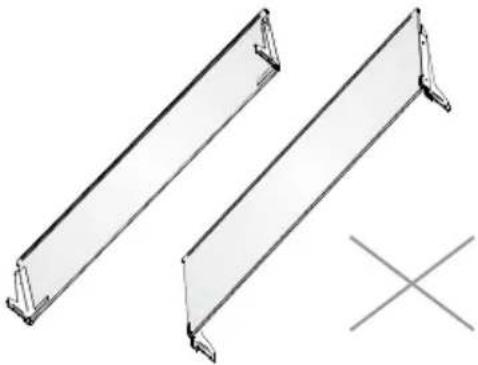
- Hold two sides of the water tank tightly, then pull up the water tank carefully by shaking up and down.
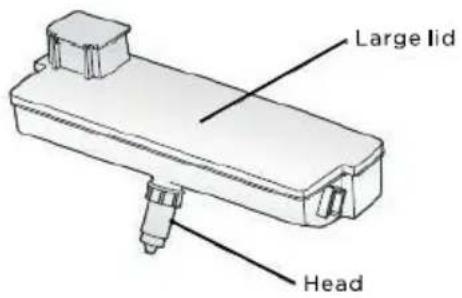
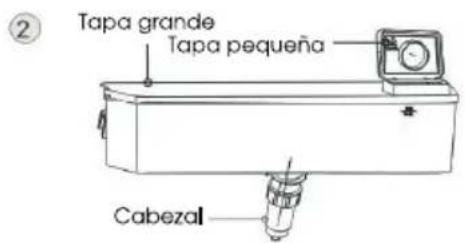
- Unscrew the head, then clean it, and the inside of water tank (including large lid and small lid).
- Dry it in natural way or using a dryer.

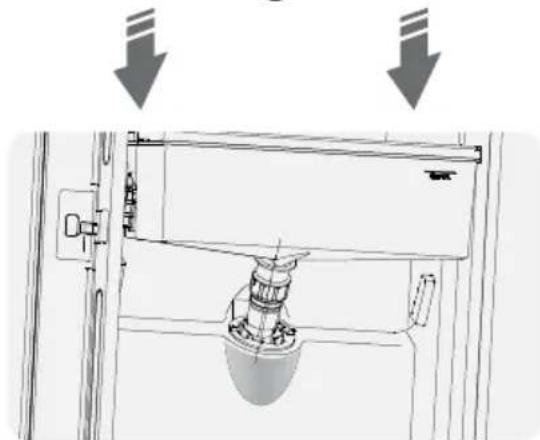
- Assembling
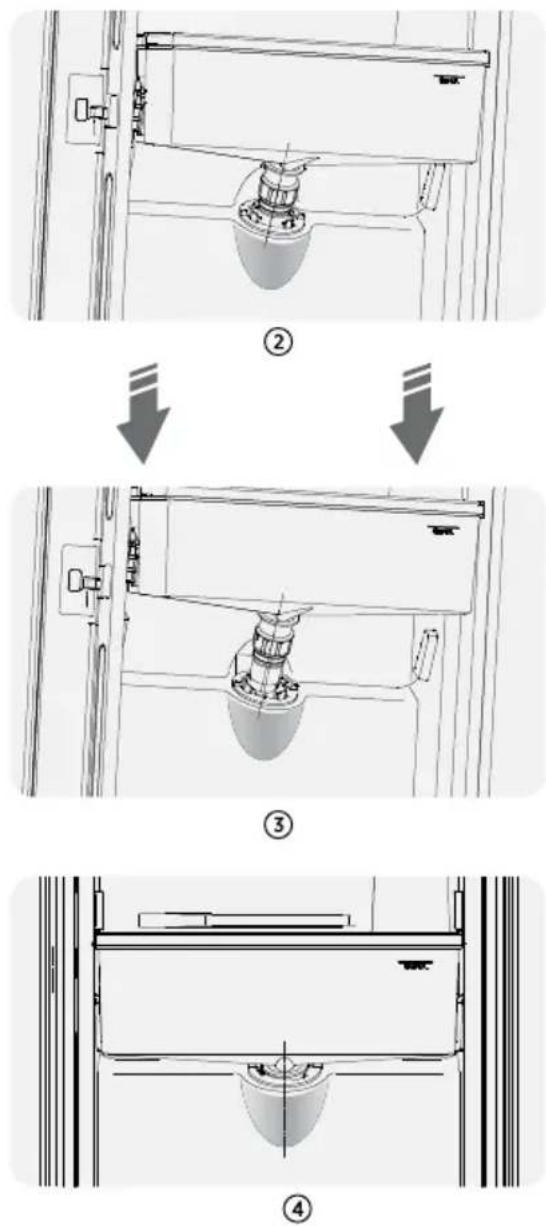
After cleaning, please assemble these parts together, with reverse sequence of cleaning procedure; and then fit them on the door according to the following procedure.
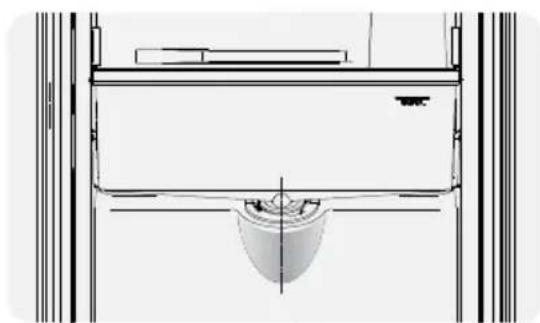
- Insert the head into the hole on the door.
- Fit the tank along the guides on the door.
- Press down on the two side of the tank.
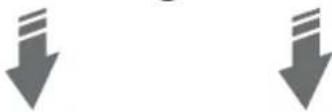
- When you hear a click sound, that means the installation is completed.

①
- Filling water
Before you fill the drinking water into the water tank, ensure that the water tank is steady and in a correct position.
Caution!
Fill with water up to 4L (which is
suggested), and not above the level.
Otherwise, it may overflow when the lid is close.
We recommend that you fill the water by the following ways.
Open the small lid by rotating it and fill water from the inlet of the large lid. please remember to rotate the small lid back to its original position when finish filling water.

Warning!
- Don't touch other parts when filling water, which may cause water leakage.
- Other beverage (milk, juice, carbonated beverage etc.) were not suggested to be filled in except for drinking water, especially beverage including particles (which may result in function failure).
- Hot water was forbidden to be filled into the water tank.
- Receiving water
You should use the correct cups to receive water underneath the water dispenser.

Warning!
- Don't push the water dispenser lever forward without a cup below since it may cause water spilling.
- To avoid cold air leaking out form cabinet, keep the water dispenser parts (especially the water storage box and head) still be installed even if the water dispenser was out of use.
- Cleaning
- Put the water tank out of the door carefully, and then wash the tank, lid, and head lightly in water.
- After you have successfully cleaned the appliance, you should dry it by natural drying or using the dryer.
- If you have used the water dispenser for many times, the water in the receiving tank may drop on the floor, which may make your floor wet, and you should clean the tank with dry towel regularly before overflow.

Display Controls
Your product has one control panel which is installed on the top of refrigerator inside. Use your appliance according to the following control guidelines.

A Power Icon
B Power Control
C Fridge Compartment Temp Icon
D My Fresh Choice
Compartment Temp Icon
E Freezer Compartment Temp Icon
F Zone Choice
G Celsius/Fahrenheit Indicator
H Temperature
Temp Control
J Super Cool Icon
K Eco Icon
L Super Freeze Icon
M Mode Control
N Wi-Fi Control
Wi-Fi Icon

POWER

Press and hold "POWER" button for 3 seconds to turn the power function on or off. When the power function is on, the "◀" icon lights and the display panel will show "RR".
NOTE: When the power function is on, the refrigerator is stopped cooling.
Setting Compartment Temperatures
When you set a temperature, you are setting an average temperature for the entire compartment. The actual compartment temperatures may vary from the temperatures displayed depending on the amount and placement of stored food, and the surrounding room temperature.
Recommended Temperature Settings
• Fridge Compartment: 39°F(4°C)
- Fresh Choice Compartment: 19°F(-7°C)
• Freezer Compartment: 0°F(-18°C)
Celsius/Fahrenheit

To toggle between Celsius and Fahrenheit on the display, press and hold the "TEMP." button for 3 seconds.
Refrigerator (Fridge)

Compartment Temperatur
- Press "ZONE" button repeatedly until the Fridge "icon appears."
- When Fridge is on, "☐" icon is illuminated and then press "TEMP." button repeatedly to cycle through the available temperature settings from 46°F(8°C) to 36°F(2°C).
NOTE: Each press of the button decrease the setting by one Celsius/Fahrenheit degree.

- Release the "TEMP" button control when the desired temperature setting appears.
My Fresh Choice
Compartment Temperature

- Press "ZONE" button repeatedly until the My Fresh Choice " ” icon appears.
- When My Fresh Choice is on, "TEMP." icon is illuminated and then press "TEMP." button repeatedly to cycle through the available temperature settings from 41°F(5°C) to -4°F(-20°C).
NOTE: Each press of the button decrease the setting by one Celsius/Fahrenheit degree.

- Release the "TEMP." button control when the desired temperature setting appears.
Freezer Compartment Temperature

- Press "ZONE" button repeatedly until the Freezer "☐" icon appears.
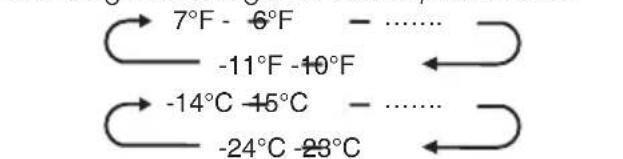
- When Freezer is on, "TEMP" icon is illuminated and then press "TEMP" button repeatedly to cycle through the available temperature settings, from 7°F(-14°C) to -11°F(-24°C).
NOTE: Each press of the button decrease the setting by one Celsius/Fahrenheit degree.

- Release the "TEMP." button control when the desired temperature setting appears.
Super Cool

The Super Cool feature helps to keep food stored in the refrigerator at the set temperature during periods of high usage, large grocery loads, or temporarily warm room temperatures.
The Super Cool feature lowers the temperature in the fridge compartment.
- Press the "MODE" button to activate this function. The 🔔 icon will be illuminated and the fridge temperature indicator will display 36°F(2°C).
- Super cool will automatically turn off after 3 hours.
- When super cool function is on you can turn it off by pressing the "MODE" button or setting fridge temperature. To manually turn off the Super Cool function, the fridge temperature setting will revert back to the previous setting.
Super Freeze

Super Freeze will quickly lower the temperature within the freezer so food will freeze faster than usual. This feature also helps to keep vitamins and nutrition of fresh food fresh for longer period.
- Press "MODE" button repeatedly until the Super Freeze icon appears. Press the "MODE" button to activate this function. The "💡" icon will be illuminated and the temperature for the freezer is set to -11°F(-24°C).
- Super freeze will automatically turn off after 52 hours.
- When Super Freeze function is on you can turn it off by pressing the "MODE" button or setting freezer temperature. To manually turn off the Super freeze function, the freezer temperature setting will revert back to the previous setting.
NOTE: When you selecting the Super Freeze function, ensure there are no bottled or canned drinks (especially carbonated drinks) in the freezer compartment. Bottles and cans may explode.
Eco

Press the "MODE" button to turn on the Eco function, the "icon will be illuminated. When the Eco function is on, the temperature of fridge is automatically switched to 43°F(6°C) and the temperature of freezer is automatically switched to 1°F(-17°C), the temperature of My Fresh Choices is compartment is immovability. When Eco function is on, you can switch it by pressing the "MODE" button or adjusting the fridge/freezer temperature, the refrigerator temperature setting will revert back to the previous setting.
Door Open Alarm
If a door is open for longer than 2 minutes, an alarm will sound to alert you and the control panel will display "B". The alarm will sound 3 times every minute for 8 minutes.
- To turn off the alarm, close all doors completely.
Demo mode
Demo mode is for store display, and it prevents the refrigerator from generating cool air. In this of Cooling off Mode, the refrigerator may seem like it is working but it will not make cool air. The display panel will show special segments as follow.
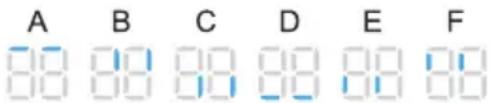
To switch off demo mode, press and hold POWER/Hold 1sc "and "Wi-Fi/Hold 1sc" buttons at same time for 3 seconds and the buzzer gave a long sound.
Wi-Fi function
This appliance may be controlled remotely with a smart phone or a tablet computer. If the appliance is not connected to the home network, it will function like a regular appliance.
What do you need to connect the appliance?
- Signal from the local wireless network (Wi-Fi) should be sufficiently strong in the spot where the appliance is installed.
- Home network router has to be connected to the internet, and the Wi-Fi function on the appliance should be activated.
- The smart phone/tablet computer has to be connected to the internet.
- Operating system on your smart phone/tablet computer should be compatible with the ConnectLife app.
The ConnectLife App is available to download free of charge from the Apple App Store or from the Google Play Store.

- Go to the App Store (on Apple devices), AppGallery (on Huawei devices) or Google Play Store (on Android devices) on your phone/tablet computer.
- Search for "ConnectLife".

- Choose the ConnectLife app and install it on your smart phone/tablet computer.
We recommend downloading and installing the mobile app and creating a ConnectLife account before attempting to set up the connection with your appliance.
Connect appliance to Wi-Fi
After activating the Wi-Fi function, connect your device to your home router in order to connect your appliance with the ConnectLife mobile app.
Step 1: Set the appliance to normal operation. Touch the "Wi-Fi" key for approximately 3 seconds. You entered network connection menu when "BP" appears in the display.
Step 2: Touch the "MODE" key to select "88" within 60 seconds.
Step 3: Touch the "Wi-Fi" key to confirm the selection mode. The Wi-Fi symbol starts blinking and the network of this appliance is now open to connect to, for 5 minutes.
Step 4: When the Wi-Fi symbol is on, it means that the Wi-Fi connection is successful. The display will return to normal.
PAIR Appliance
The appliance can be paired with your mobile device. Simply pair another user to your appliance. This requires, that your appliance was already set up before and is connected to your home network. If not, go back and select CONNECTION SETUP.
Step 1: Set the appliance to normal operation. Touch the "W-B" key for approximately 3 seconds. You entered network connection menu when "B" appears in the display.
Step 2: Touch the "MODE" key to select "88" within 60 seconds.
Step 3: Touch the "Wi-Fi Hold 50" key to confirm the selection mode. The PAIR network of this appliance is now open to connect to, for 5 minutes.
Step 4: When the display returns to normal, it means the PAIR connection is successful.
Unbind all PAIR appliance
By activating this function, the appliance will be removed from all paired app user accounts.
Step 1: Set the appliance to normal operation. Touch the "Wi-Fi" key for approximately 3 seconds. You entered network connection menu when "Wi-Fi" appears in the display.
Step 2: Touch the "MODE" key to select "88" within 60 seconds.
Step 3: Touch the "Wi-Fi" key to confirm the selection mode to realize unbinding.
Step 4: After the device is unbound, it will automatically enter the distribution network state, the " 🔺 " icon flashes, and the distribution network time is up to 5 minutes.
Features
Do not clean glass shelves or covers with warm water when they are cold. Shelves and covers may break if exposed to sudden temperature changes or impact, such as bumping. Tempered glass is designed to shatter into many small, pebble-size pieces. This is normal. Glass shelves and covers are heavy. Use both hands when removing them to avoid dropping.
Refrigerator
IMPORTANT: To avoid damage to the doors, make sure all shelves and drawers are pushed fully into the cabinet before closing a door.
Adjustable Shelves
The height of the shelves can be adjusted to fit your storage needs.
- To remove a shelf, gently lift upward and then pull the shelf forward until the end of the shelf is past the rail support.

- To reinstall a shelf, gently slide the shelf back into the refrigerator compartment, and then lower the shelf onto the rail support.
Removable Door Bins
The bins located in the middle of the door are adjustable.
To Remove and Replace a Door Bin:
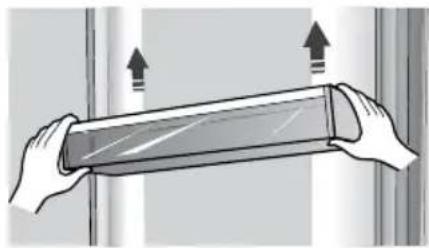
- Place hands on both sides of the bin and lift upward.
- Pull the door bin out.
- Replace the door bin by inserting it above the support and pressing down to snap into place.
Note: The quality of your ice will be only as good as the quality of the water supplied to your ice maker. Avoid connecting the ice maker to a softened water supply. Water softener chemicals (such as salt) can damage parts of the ice maker and lead to poor quality ice. If a softened water supply cannot be avoided, make sure the water softener is operating properly and is well-maintained.
- When first turning on refrigerator after a period of non-use, allow the refrigerator to cool at least 2 hours before adding food.
- Do not block air circulation vents with stored items.
- Store items so that the air can circulate freely around them.
- Cover or wrap stored food well to avoid transfer of odors.
- Once defrosted, food quality will deteriorate rapidly. Defrosted food should not be refrozen.
- Neither bottled nor canned drinks should be stored in the freezer compartment. Bottles and cans may explode.
To avoid contamination of food, please respect the following instructions:
- Opening the door for long periods can cause a significant increase of the temperature in the compartments of the appliance.
-
Clean regularly surfaces that can come in contact with food and accessible drainage systems.
-
Store raw meat and fish in suitable containers in the refrigerator, so that it is not in contact with or drip onto other food.
- Two-star frozen-food compartments are suitable for storing pre-frozen food, storing or making icecream and making ice cubes.
• One-, two- and three-star compartments are not suitable for the freezing of fresh food.
| Order | Compartments Type | Target storage temp.[°C] | Appropriate food |
| 1 | Fridge | +2~+8 | Eggs, cooked food, packaged food, fruits and vegetables, dairy products, cakes, drinks and other foods which are not suitable for freezing. |
| 2 | (***)*-Freezer | ≤-18 | Seafood (fish, shrimp, shellfish), freshwater aquatic products and meat products (recommended for 3 months, the longer the storage time, the worse the taste and nutrition), suitable for frozen fresh food. |
| 3 | **-Freezer | ≤-18 | Seafood (fish, shrimp, shellfish), freshwater aquatic products and meat products (recommended for 3 months, the longer the storage time, the worse the taste and nutrition), are not suitable for frozen fresh. |
| 4 | **-Freezer | ≤-12 | Seafood (fish, shrimp, shellfish), freshwater aquatic products and meat products (recommended for 2 months, the longer the storage time, the worse the taste and nutrition), are not suitable for frozen fresh. food. |
| 5 | *-Freezer | ≤-6 | Seafood (fish, shrimp, shellfish), freshwater aquatic products and meat products (recommended for 1 month, the longer the storage time, the worse the taste and nutrition). |
| 6 | 0-star | -6~0 | Fresh pork, beef, fish, chicken, some packaged processed foods, etc. (Recommended to eat within the same day, preferably no later than 3 days).Partially encapsulated processed foods (non-freezable foods) |
| 7 | Chill | -2~+3 | Fresh/frozen pork, beef, chicken, freshwater aquatic products, etc. (7 days below 0°C and above 0°C is recommended for consumption within that day, preferably no more than 2 days).Seafood (less than 0°C for 15 days, it is not recommended to store above 0°C) |
| 8 | Fresh Food | 0~+4 | Fresh pork, beef, fish, chicken, cooked food, etc.(Recommended to eat within the same day, preferably no more than 3 days) |
| 9 | Wine | +5~+20 | red wine, white wine, sparkling wine etc. |
NOTE: Please store different foods according to the compartments or target storage temperature of your purchased products.
- If the refrigerating appliance is left empty for long periods, switch off, defrost, clean, dry, and leave the door open to prevent mould developing within the appliance.
Water dispenser cleaning(special for water dispenser products):
·Clean water tanks if they have not been used for
48 h; flush the water system connected to a water supply if water has not been drawn for 5 days.
WARNING! Food needs to be packed in bags before putting into the refrigerator, and liquids need to be packed in bottles or capped containers to avoid the problem that the product design structure is not easy to clean.
Cleaning
Both the refrigerator and freezer sections defrost automatically. However, clean both sections about once a month to avoid buildup of odors. Wipe up spills immediately. To avoid odor transfer and drying out of food, wrap or cover foods tightly.

WARNING

Explosion Hazard
Use nonflammable cleaner.
Failure to do so can result in death, explosion or fire.
IMPORTANT:
- Do not use harsh chemicals, ammonia, chlorine bleach, concentrated detergent, solvents, abrasives or metal scouring pads to clean your refrigerator inside or out. They can damage and/or discolor the refrigerator finish.
- Do not use warm water to clean glass shelves while they are still cold. Glass may break when exposed to sudden temperature changes or impact.
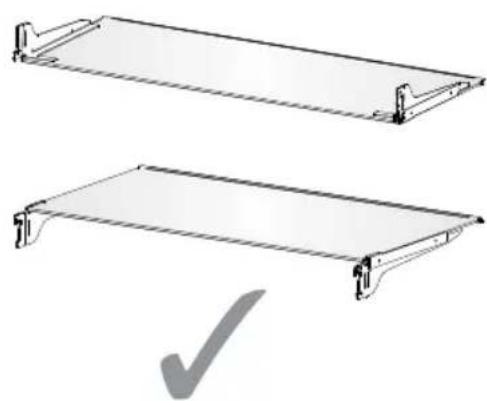
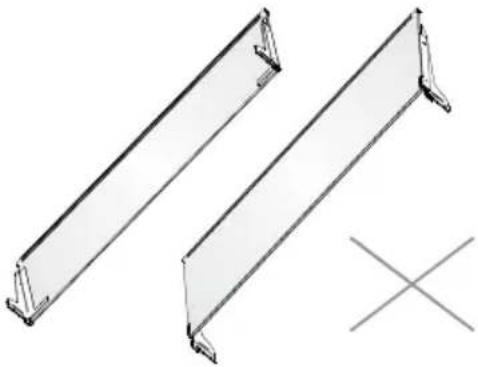
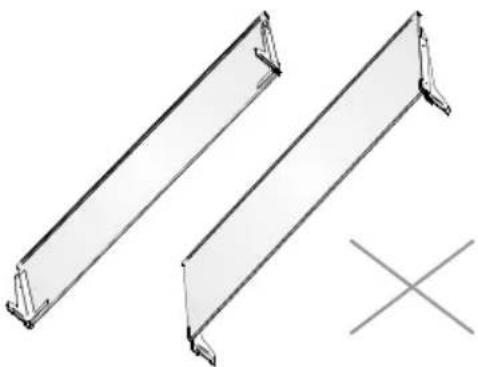
Shelf parts clean
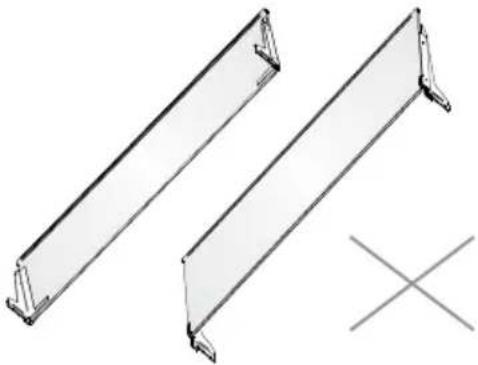
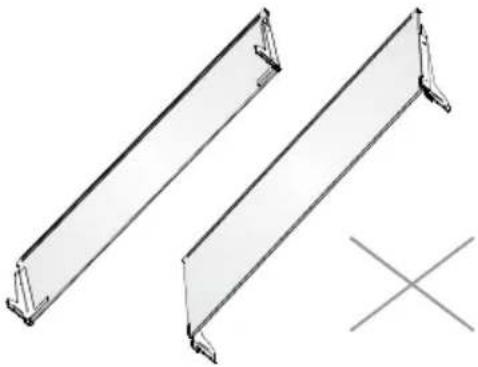
- When cleaning the shelf parts, remove the lower shelf parts should be placed horizontally, either front or back, to prevent the shelf support from falling off.
- If the shelf parts are placed at an Angle and the side of the shelf parts touch the ground. When the cleaning force is not correct, the shelf bracket is easy to fall off.

WARNING

Electrical Shock Hazard
Unplug your appliance or disconnect power before cleaning.
Failure to do so can result in death, electric shock or personal injury.
- Unplug refrigerator or disconnect power.
- Clean the interior.
Hand wash, rinse, and dry removable parts and interior surfaces thoroughly. Use a clean sponge or soft cloth and a mild detergent in warm water.
- Clean the door seals (gaskets). A dirty or sticky door seal may adhere to the cabinet and tear when you open the door.
Using a soft cloth and a solution of mild detergent and warm water, hand wash the door seals. Rinse with clear water and dry thoroughly.
- Clean the exterior surfaces.
Wash exterior surfaces with a clean, soft cloth or sponge and a mild detergent in warm water. Rinse surfaces with clean, warm water and dry immediately to avoid water spots.
- Plug in refrigerator or reconnect power.
Lights
This product contains a light source of energy efficiency class G on the top and side of the refrigerating chamber.
IMPORTANT: Your refrigerator is equipped with LED lighting. These lights are designed to last for the life of your refrigerator. However, if the lights stop operating, please contact a qualified technician for replacement.
Vacation and Moving Care
Vacation
If You Choose to Leave the Refrigerator On While You're Away:
- Use up any perishables and freeze other items.
If You Choose to Turn Off the Refrigerator Before You Leave:
- Remove all food from the refrigerator and freezer.
- Unplug refrigerator or disconnect power.
- Clean refrigerator, wipe it, and dry well.
- Tape rubber or wood blocks to the tops of both doors to prop them open far enough for air to get in. This stops odor and mold from building up.
Moving

WARNING

Fire or Explosion Hazard
Do not puncture refrigerant tubing.
Follow handling instructions carefully.
Flammable refrigerant used.
Failure to do so can result in death, explosion or fire.
IMPORTANT: Handle with care when moving refrigerator to avoid either damaging the refrigerant tubing or increasing the risk of a leak.

WARNING
Excessive Weight Hazard
Use two or more people to move and install refrigerator.
Failure to do so can result in back or other injury
When you are moving your refrigerator to a new home, follow these steps to prepare it for the move.
- Remove all food from the refrigerator and pack all frozen food in dry ice.
- Unplug refrigerator.
- Clean, wipe, and dry thoroughly.
-
Take out all removable parts, wrap them well, and tape them together so they don't shift and rattle during the move.
-
Raise the leveling legs so they don't scrape the floor. See "Level Refrigerator."
- Tape the doors closed and tape the power cord to the back of the refrigerator. When you get to your new home, put everything back and refer to the "Installation Instructions" section for preparation instructions.
Reinstalling/Using Refrigerator Again
If the refrigerator has been placed in a horizontal or tilted position for any period of time wait 4 hours before plugging it in to allow the oil to settle into the compressor.
- Clean refrigerator. See "Cleaning."
- Place refrigerator in desired location and level. See "Installation Instructions."

WARNING

Electrical Shock Hazard
Plug into a grounded 3 prong outlet.
Do not remove the ground prong from the power cord plug.
Do not use an adapter.
Do not use an extension cord.
Failure to do so can result in death, fire or electrical shock.
- Plug into grounded 3 prong outlet.
Try the solutions suggested here first in order to avoid the cost of an unnecessary service call. Refrigerator is Not Operating
| PROBLEM | POSSIBLE CAUSE(S) | SOLUTION |
| Refrigerator does not run | Refrigerator is unplugged. | Plug refrigerator into a grounded 3 prong outlet. |
| Breaker is tripped or turned off, or fuse is blown. | Reset/Turn on breaker or replace fuse. |
| Refrigerator is in defrost mode. | Wait for defrost cycle to end and cooling system to restart. |
| Refrigerator compressor runs frequently or for long periods of timeNote: This refrigerator is designed to run for longer periods of time at a lower energy usage. | Refrigerator is first plugged in. | This is normal. Allow 24 hours for the refrigerator to cool down. |
| Warm or large amounts of food added. | This is normal. |
| Door is left open, or refrigerator is not level. | Check that an item is not preventing door from closing. Level the refrigerator. See "Level Refrigerator." |
| Hot weather or frequent openings. | This is normal. |
| Temperature control set to coldest setting. | Adjust temperature to a warmer setting. |
| Refrigerator has an odor | Food is not sealed or packaged properly. | Reseal packaging. Place an opened box of baking soda in the refrigerator, replace every 3 months. |
| Interior needs to be cleaned. | Clean the interior. See "Cleaning." |
| Food stored too long. | Dispose of spoiled food. |
| Light does not come on | Refrigerator is unplugged. | Plug refrigerator into a grounded 3 prong outlet. |
| LED light is burned out. | Contact a qualified technician to replace the burned out LED. |
| Doors do not close properly | Refrigerator is not level. | See "Level Refrigerator." |
| Something is obstructing door closure. | Check for and remove obstructions. |
| Vibration or rattling | Refrigerator is not resting firmly on floor. | See "Level Refrigerator." |
| Normal Sounds | It sounds like water is flowing from the refrigerator. | Refrigerant flowing in the lines will make this sound when the compressor starts and stops. |
| The refrigerator has an automatic defrosting system. The defrosted water will make this sound. |
| Humming or buzzing sounds | The compressor and fans used for cold air circulation can make this sound. If the refrigerator is not level, the sound will be louder. |
| Cracking or clicking sounds | The interior parts will make this sound as they contract and expand in response to temperature changes. |
| Popping noise | May occur during automatic defrosting. |
Temperature and Moisture
| PROBLEM | POSSIBLE CAUSE(S) | SOLUTION |
| Refrigerator or freezer is too warm | Temperature control is not set cold enough. | Adjust the compartment to a colder setting; allow 24 hours for the temperature to adjust. |
| Doors opened frequently or left open. | Limit door openings to maintain the internal temperature. Check that an item is not preventing door from closing. |
| Warm food added recently. | Allow time for food and refrigerator to cool. |
| The space between the back of the refrigerator and the wall is too close. | Allow 5 cm space between the back of the refrigerator and the wall. |
| Items against back of compartments are blocking proper airflow. | Store items only inside the trim of the glass shelves; don't place items against sides of the compartments or directly in front of any vents. |
| Refrigerator or freezer is too cold | Temperature control is set too cold. | Adjust temperature in the compartment to the next warmer setting; allow 24 hours for temperature to adjust. |
| Moisture on exterior/ interior of refrigerator | High humidity | This is normal during times of high humidity. Dry surface and adjust temperature to a slightly colder setting. |
| Doors opened frequently or left open. | Keep door closed. Check that an item is not preventing the door from closing. Level the refrigerator. See “Level Refrigerator.” |
| Open container of water in refrigerator. | Cover or seal container |
| Frost or ice crystals on frozen food | Freezer door left open or opened frequently. | Limit door openings to maintain the internal temperature. Check that an item is not preventing door from closing. |
| Refrigerator is not level. | Level the refrigerator. See “Level Refrigerator.” |
| Items blocking freezer air vents and preventing proper air flow. | Move items away from rear wall. |
| Food freezing in refrigerator | Food placed too close to the air vent. | Move items away from back and top of the refrigerator. |
| Temperature control set too cold. | Adjust the temperature to a less cold setting. |

DANGER
It is prohibited to dispose of this appliance as household waste.
Packaging materials
Packaging materials with the recycle symbol are recyclable.
Dispose of the packaging into a suitable waste collection container to recycle it.
Before disposal of the appliance
- Pull out the main plug from the main socket.
- Cut off the power cord and discard with the main plug.

WARNING
Refrigerators contain refrigerant and gases in the insulation. Refrigerant and gases must be disposed of professionally as they may cause eye injuries or ignition. Ensure that tubing of the refrigerant circuit is not damaged prior to proper disposal.
| Correct Disposal of this product |
 | This symbol on the product or in its packing indicates that this product may not be treated as household waste. Instead, it should be taken to the appropriate waste collection point for the recycling of electrical and electronic equipment. By ensuring this product is disposed of correctly, you will help prevent potential negative consequences for the environment and human health, which could otherwise be caused by the inappropriate waste handling of this product. For more detailed information about the recycling of this product, please contact your local government, your household waste disposal service, or the shop where you purchased the product. |
Hisense
life reimagined
A 100mm Por encima
B 50mm Por detrás
C 50mm de cada lado
Dispensador de Agua
• Montaje

ADVERTENCIA
Distributeur d'eau
②
③
④
Super Freeze (Super-congélation)

⚠ AVERTISSEMENT
A Porte del frigorífero
B Porta del My Fresh Choice
© Porta del congelatore
Ventilazione
Erogatore d'Acqua


AVVERTENZA
PROBLEEMOPLOSSING....24
AFDANKEN VAN HET APPARAAT....26
A Koelkastdeur
B My fresh choice deur
© Vriezer deur
Ventilatie
A 2" Boven
B 2" Achter
C 1/2" Elke kant
②

③

④
• Water vullen
Vriesvak Compartiment

Temperatuur
De ConnectLife App is gratis te downloaden in de Apple App Store of in de Google Play Store.

Installeren van de ConnectLife app
⚠ WAARSCHUWING
Alinhe as Portas....14
ORIENTAÇÃO DE USO DO REFRIGERADO....14
A Portas da geladeira
B Porta My Fresh Choice
© Porta do congelador
Ventilação
Dispensador de Água
Instalar a app ConnectLife

! AVISO