
Omada Pro AP8635-I - Access Point TP-LINK - Free user manual and instructions
Find the device manual for free Omada Pro AP8635-I TP-LINK in PDF.
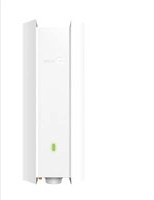


| Product Type | Outdoor Wi-Fi Access Point |
| Brand | TP-Link |
| Model | Omada Pro AP8635-I |
| Dimensions (L x W x H) | 200 x 200 x 50 mm (approx.) |
| Weight | 1.0 kg (approx.) |
| Power Supply | PoE (802.3at) via switch or PoE injector |
| Frequencies | 2.4 GHz and 5 GHz (dual band) |
| Wi-Fi Standard | Wi-Fi 6 (802.11ax) |
| Maximum Speed | Up to 5.4 Gbps (estimation) |
| Ports | 1 Gigabit Ethernet port (PoE in) |
| Management | Standalone mode or via Omada controller (software or hardware) |
| Security | WPA3, WPA2, AES encryption, MAC filtering |
| Antennas | External antennas (included) |
| Installation | Wall or pole mounting with waterproof cable gland |
| Maintenance and Cleaning | Wipe with a soft, dry cloth. Do not use chemicals. |
| Spare Parts and Repairability | No user-serviceable parts. Contact technical support. |
| Operating Temperature | From -30 °C to 70 °C (estimation) |
| Protection Rating | IP67 (dust and water resistant) |
Frequently Asked Questions - Omada Pro AP8635-I TP-LINK
The software is available on the TP-Link website.
User questions about Omada Pro AP8635-I TP-LINK
0 question about this device. Answer the ones you know or ask your own.
Ask a new question about this device
Download the instructions for your Access Point in PDF format for free! Find your manual Omada Pro AP8635-I - TP-LINK and take your electronic device back in hand. On this page are published all the documents necessary for the use of your device. Omada Pro AP8635-I by TP-LINK.
USER MANUAL Omada Pro AP8635-I TP-LINK
Note: The image may differ from the actual product.
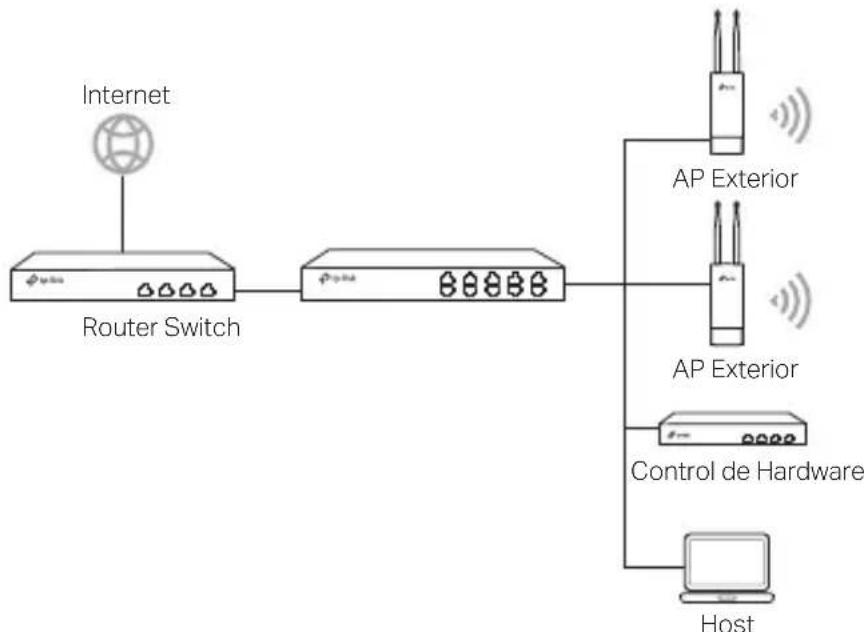
Typical Network Topology
- Managed Mode
Via Centralized Management Software
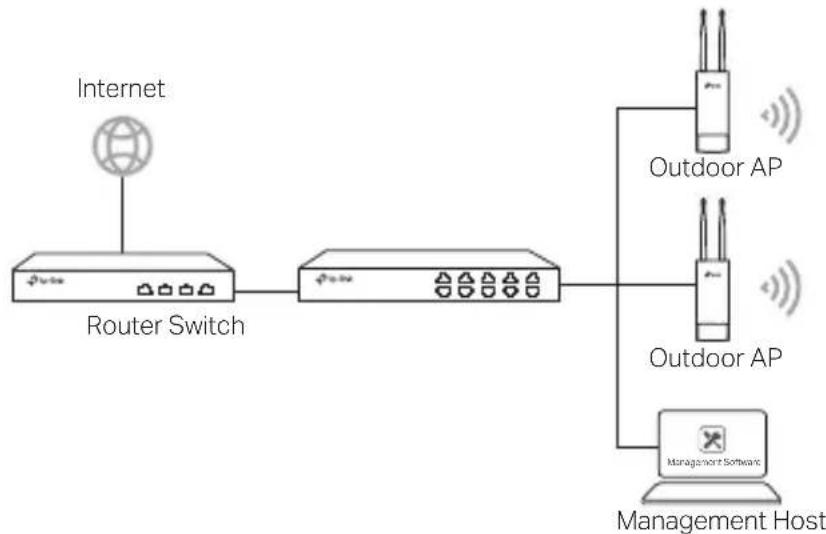
A computer running the centralized management software, which can be in the same or different subnet with the APs, is used to centrally manage the APs.
You can get the corresponding software from our website http://www.tp-link.com Via Hardware Controller (for Omada APs)
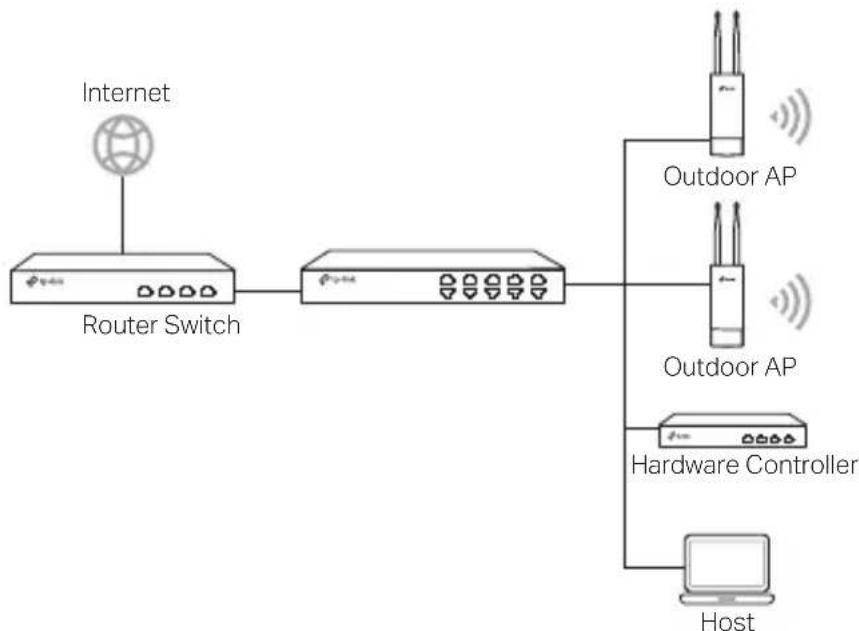
The hardware controller can be in the same or different subnet with the APs. The management host is used to log in to the hardware controller to centrally manage the APs
Standalone Mode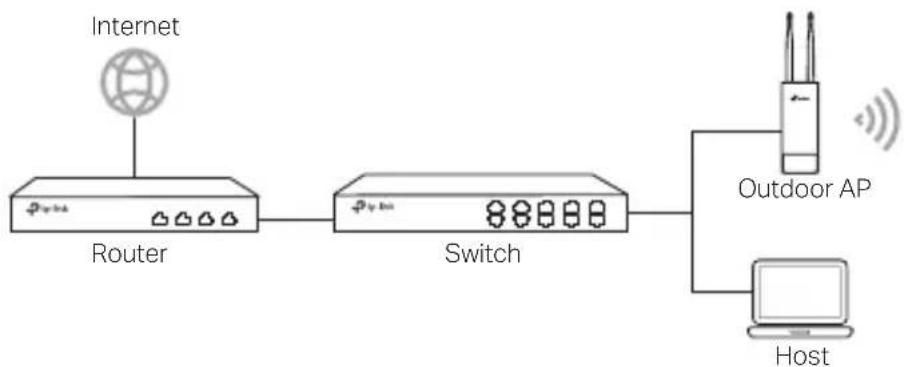
Hardware Connection
Choose a method to connect your device according to the accessories.
Via PoE Switch
Some APs can be powered via the PSE device (such as a PoE switch) which complies with Power Source Class 2 (PS2) or Limited Power Source (LPS) of IEC 62368-1. Note: Availability depends on the actual product. Please refer to the product specifications.
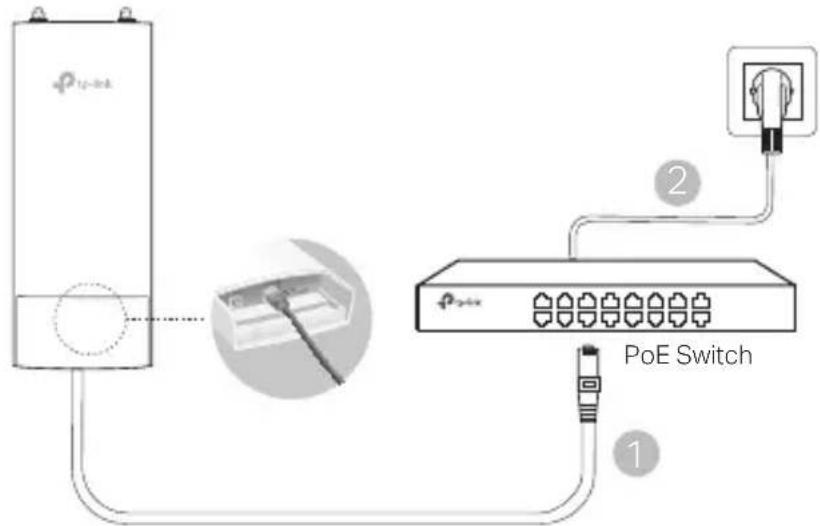
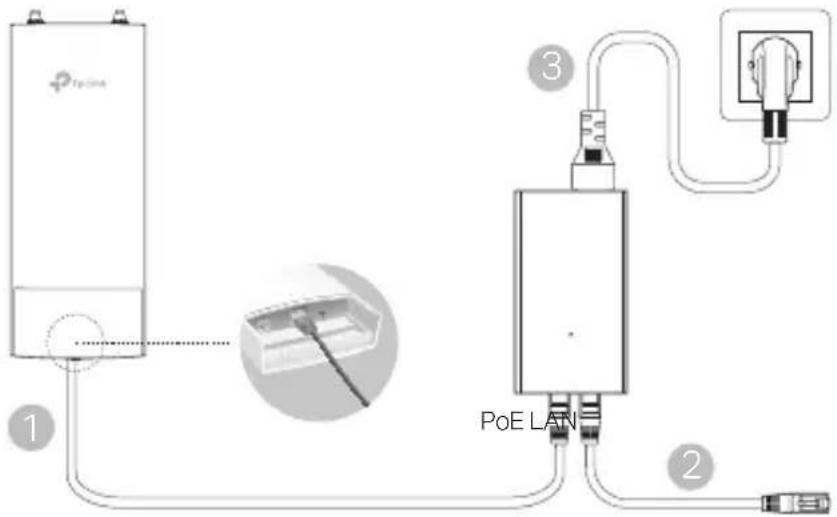
Via PoE Adapter
Some APs can be powered via the PoE adapter.
Note: Availability depends on the actual product. Please refer to the product specifications.
Or
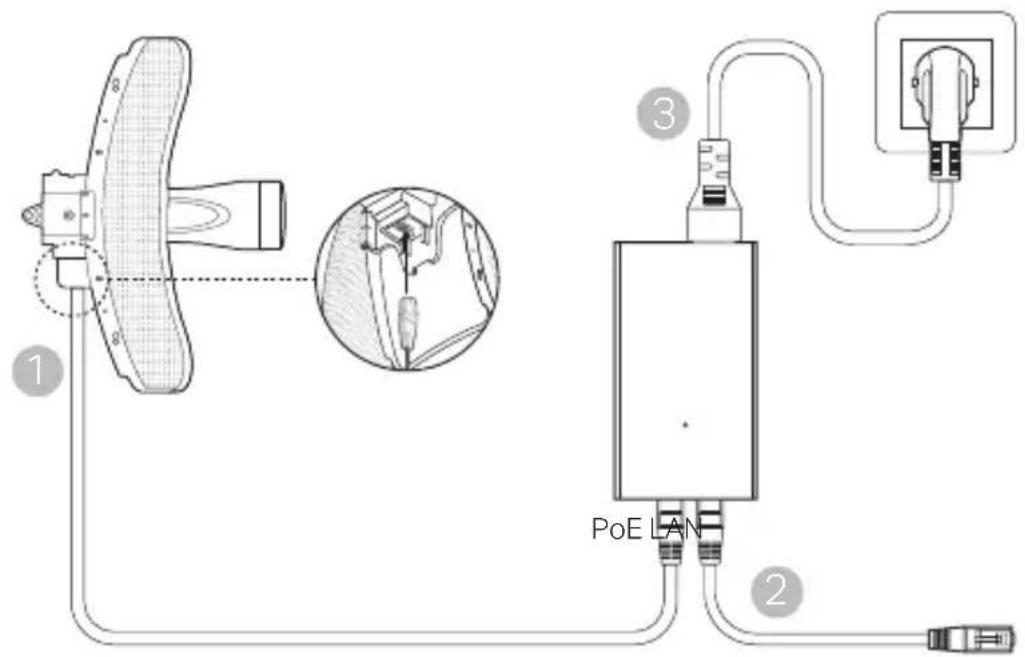
Hardware Installation
- Choose a method to mount the device.
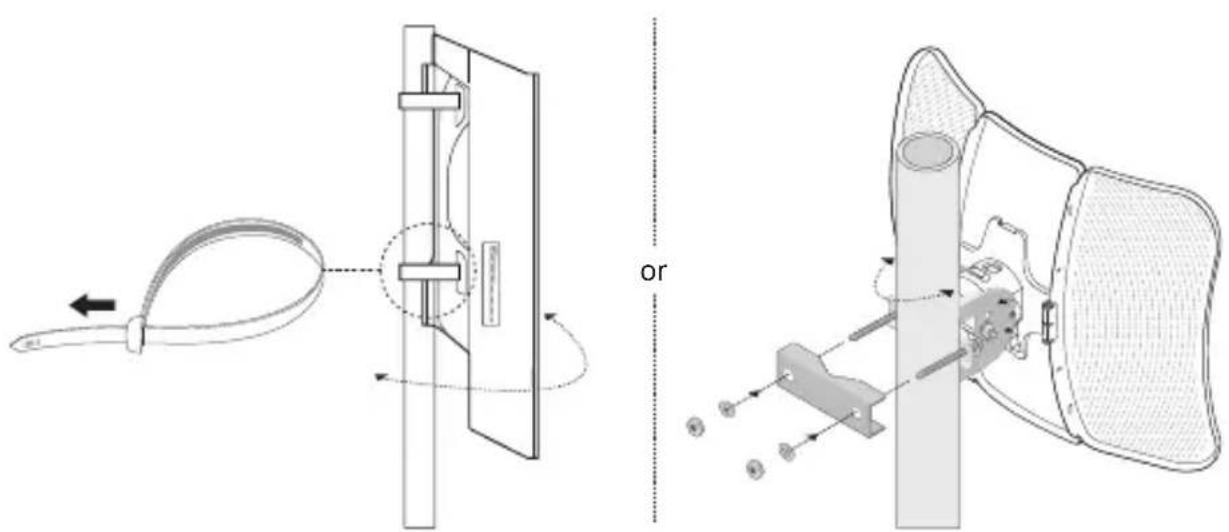
Mounting the Device on a Pole
At the selected site, attach the device to a suitable point of the pole and then approximately align the device to the direction that you have oriented.
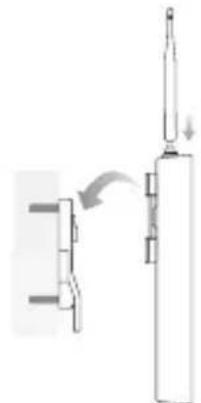
Mounting the Device on the Wall (for the product with mounting brackets)
Mount the mounting bracket to the preferred position in the wall. Push and slide the device to lock it into place. Then connect the antennas to the device.
2. Install the waterproof seal. (For certain devices)
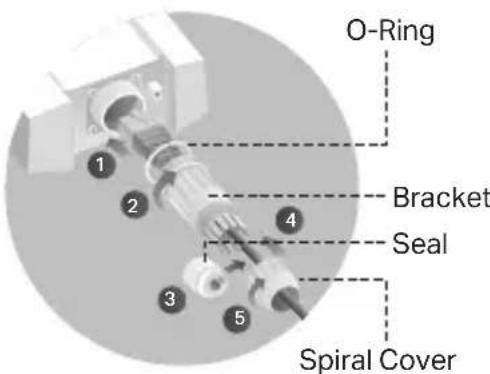
Before installing, fit the Ethernet cable through the spiral cover, bracket, and O-ring. Then follow the steps as shown in the picture:
(1) Connect the Ethernet cable to the port. (2) Fit the O-Ring to the head of the bracket, and screw the bracket to the body of the device. (3) Fit the Ethernet cable through the seal's slit with the thicker side towards the bracket. (4) Plug the seal to the bracket. (5) Screw the spiral cover to the bracket.
Software Configurations
- Managed Mode
To configure mass devices via a centralized management software or a wireless controller, please refer to the corresponding User Guide. You can download the User Guide from our website http://www.tp-link.com
Standalone Mode
To configure a device through a web-based management system, please follow the steps below
- Launch a web browser and enter the IP address of your device in the address bar and press Enter
Note:
- For Omada APs, you can check the IP address through the product label.
- For other products, the default IP address is 192.168.0.254 and the IP address of your computer should be set as 192.168.0.x ("x" is any number from 1 to 253).
- Enter admin for both User Name and Password for login
- Change the default User Name and Password to protect your device, then start configuring the device.
Brand : TP-LINK
Model : Omada Pro AP8635-I
Category : Access Point