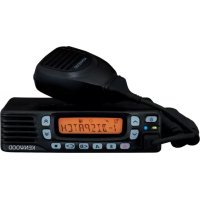
TK8360 - Walkie-talkie KENWOOD - Free user manual and instructions
Find the device manual for free TK8360 KENWOOD in PDF.



| Brand | Kenwood |
| Model | TK8360 |
| Product type | Vehicle mobile two-way radio |
| Power supply | 12 V DC (negative ground) |
| Dimensions (W x D x H) | 160 x 40 x 150 mm (estimated) |
| Weight | 1.2 kg (estimated) |
| Frequency range | VHF/UHF depending on version |
| Main features | Single and multiple scan, DTMF calls, QT/DQT signaling, FleetSync, MDC-1200, voice scrambler, status messages, GPS, talk around, lone worker, emergency call |
| Maintenance and cleaning | Clean with a dry, soft cloth. Do not use solvents. |
| Safety | Compliant with directive 2014/53/EU. Do not use in explosive atmospheres without powering off. |
| Spare parts and repairability | Contact your dealer or a Kenwood authorized service center. |
| General information | User manual of 180 pages. Usage restrictions in some countries. |
Frequently Asked Questions - TK8360 KENWOOD
User questions about TK8360 KENWOOD
0 question about this device. Answer the ones you know or ask your own.
Ask a new question about this device
Download the instructions for your Walkie-talkie in PDF format for free! Find your manual TK8360 - KENWOOD and take your electronic device back in hand. On this page are published all the documents necessary for the use of your device. TK8360 by KENWOOD.
USER MANUAL TK8360 KENWOOD
TRANSCEPTOR FM VHF/ TRANSCEPTOR FM UHF
This equipment complies with the essential requirements of Directive 2014/53/EU.
Restrictions
This equipment requires a licence and is intended for use in the countries as below.

| AT BE DK FI FR DE GR IS IE | ||||
| IT LI LU NL NO PT ES SE CH | ||||
| GB CY CZ EE HU LV LT MT PL | ||||
| SK SI BG RO HR TR |
ISO3166
Firmware Copyrights
The title to and ownership of copyrights for firmware embedded in KENWOOD product memories are reserved for JVCKENWOOD Corporation.
Information on Disposal of Old Electrical and Electronic Equipment and Batteries (applicable for countries that have adopted separate waste collection systems)

Products and batteries with the symbol (crossed-out wheeled bin) cannot be disposed as household waste.
Old electrical and electronic equipment and batteries should be recycled at a facility capable of handling these items and their waste byproducts.
Contact your local authority for details in locating a recycle facility nearest to you.
Proper recycling and waste disposal will help conserve resources whilst preventing detrimental effects on our health and the environment.

THANK YOU
We are grateful you have chosen KENWOOD for your personal mobile applications.
This instruction manual covers only the basic operations of your mobile radio. Ask your dealer for information on any customized features they may have added to your radio.
NOTICES TO THE USER
◆ Government law prohibits the operation of unlicensed transmitters within the territories under government control.
◆ Illegal operation is punishable by fi ne and/or imprisonment.
◆ Refer service to qualified technicians only.
SAFETY: It is important that the operator is aware of, and understands, hazards common to the operation of any transceiver.

WARNING
◆ EXPLOSIVE ATMOSPHERES (GASES, DUST, FUMES, etc.)
Turn OFF your transceiver while taking on fuel or while parked in gasoline service stations. Do not carry spare fuel containers in the trunk of your vehicle if your transceiver is mounted in the trunk area.
◆ INJURY FROM RADIO FREQUENCY TRANSMISSIONS
Do not operate your transceiver when somebody is either standing near to or touching the antenna, to avoid the possibility of radio frequency burns or related physical injury.
◆ DYNAMITE BLASTING CAPS
Operating the transceiver within 500 feet (150 m) of dynamite blasting caps may cause them to explode. Turn OFF your transceiver when in an area where blasting is in progress, or where "TURN OFF TWO-WAY RADIO" signs have been posted. If you are transporting blasting caps in your vehicle, make sure they are carried in a closed metal box with a padded interior. Do not transmit while the caps are being placed into or removed from the container.
PRECAUTIONS
Observe the following precautions to prevent fire, personal injury, and transceiver damage.
- Do not attempt to confi gure the transceiver while driving; it is too dangerous.
- Do not disassemble or modify the transceiver for any reason.
- Do not expose the transceiver to long periods of direct sunlight, nor place it near heating appliances.
- If an abnormal odor or smoke is detected coming from the transceiver, switch the transceiver power off immediately, and contact your KENWOOD dealer.
- Use of the transceiver while you are driving may be against traffic laws. Please check and observe the vehicle regulations in your area.
- Do not use options not specified by KENWOOD.

CAUTION
The transceiver operates in 12 V negative ground systems only! Check the battery polarity and voltage of the vehicle before installing the transceiver.
◆ Use only the supplied DC power cable or a KENWOOD optional DC power cable.
◆ Do not cut and/or remove the fuse holder on the DC power cable.

WARNING
For passenger safety, install the transceiver securely using the supplied mounting bracket and screw set so the transceiver will not break loose in the event of a collision.
CONTENTS
GETTING STARTED ....1
GETTING ACQUAINTED ....3
PROGRAMMABLE FUNCTIONS ....5
BASIC OPERATIONS ....6
SCAN....7
DTMF CALLS 8
SIGNALING 10
5-TONE SIGNALING ....10
FleetSync: ALPHANUMERIC 2-WAY PAGING FUNCTION ....11
ADVANCED OPERATIONS ....13
BACKGROUND OPERATIONS ....16
VGS-1 OPTIONAL VOICE GUIDE & STORAGE UNIT ....17
GETTING STARTED
Note: The following instructions are for use by your KENWOOD dealer, an authorized KENWOOD service facility, or the factory.
SUPPLIED ACCESSORIES
Carefully unpack the transceiver. We recommend that you identify the items listed below before discarding the packing material. If any items are missing or have been damaged during shipment, file a claim with the carrier immediately.
DC power cable (with fuses)....1
• 10 A fuse ....2
Mounting Bracket 1
Screw set
- 5 x 16 mm self-tapping screw. 4
- Hex-headed screw with washer .... 4
- Spring washer .... 4
- Flat washer....4
Instruction manual 1
PREPARATION

WARNING
Various electronic equipment in your vehicle may malfunction if they are not properly protected from the radio frequency energy which is present while transmitting. Typical examples include electronic fuel injection, anti-skid braking, and cruise control. If your vehicle contains such equipment, consult the dealer for the make of vehicle and enlist his/her aid in determining if they will perform normally while transmitting.
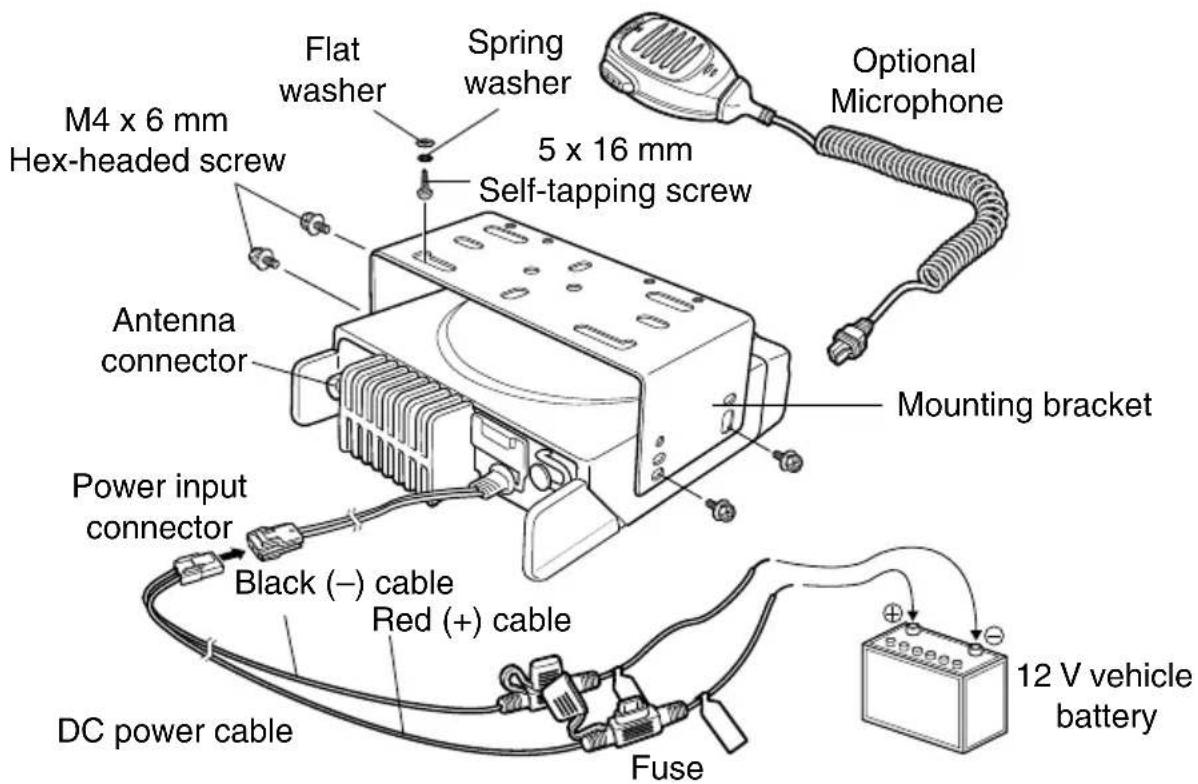
■ Power Cable Connection
The transceiver operates in 12 V negative ground systems only! Check the battery polarity and voltage of the vehicle before installing the transceiver.
1 Check for an existing hole, conveniently located in the firewall, where the power cable can be passed through.
- If no hole exists, use a circle cutter to drill a hole, then install a rubber grommet.
2 Run the power cable through the fi rewall and into the engine compartment.
3 Connect the red lead to the positive (+) battery terminal and the black lead to the negative (−) battery terminal.
- Place the fuse as close to the battery as possible.
4 Coil the surplus cable and secure it with a retaining band.
- Be sure to leave enough slack in the cables so the transceiver can be removed for servicing while keeping the power applied.
■ Installing the Transceiver

WARNING
For passenger safety, install the transceiver securely using the supplied mounting bracket and screw set, so the transceiver will not break loose in the event of a collision.
Note: Before installing the transceiver, check how far the mounting screws will extend below the surface. When drilling mounting holes, be careful not to damage vehicle wiring or parts.
1 Mark the position of the holes in the dash, using the mounting bracket as a template. Using a 4.2 mm (5/32 inch) drill bit, drill the holes, then attach the mounting bracket using the supplied screws.
- Mount the transceiver within easy reach of the user and where there is sufficient space at the rear of the transceiver for cable connections.
2 Connect the antenna and the supplied power cable to the transceiver.
3 Slide the transceiver into the mounting bracket and secure it using the supplied hex-headed screws.
4 Mount the optional microphone hanger in a location where it will be within easy reach of the user.
- The microphone and microphone cable should be mounted in a place where they will not interfere with the safe operation of the vehicle.

CAUTION
When replacing the fuse in the DC power cable, be sure to replace it with a fuse of the same value. Never replace a fuse with one that is rated with a higher value.
GETTING ACQUAINTED
FRONT AND REAR VIEWS

① (Power) switch
Press to switch the transceiver ON or OFF.
② ^ / \keys
Press to activate their programmable functions {page 5}.
③ ↗ / ↘ keys
Press to activate their programmable functions {page 5}.
④ TX/RX Indicator
Lights red while transmitting and green while receiving a signal. Flashes orange when receiving an optional signaling call.
⑤ Microphone jack
Insert the microphone plug into this jack.
⑥ Status Indicator
Lights blue during a specifi ed mode, based on dealer programming.
⑦ △ / S / A / / ■ keys
Press to activate their programmable functions {page 5}.
⑧ Speaker
Internal speaker.
⑨ PTT switch
Press this switch, then speak into the microphone to call a station.
⑩ Antenna connector
Connect the antenna to this connector.
⑪ ACC connector
Connect the ACC to this connector, via the KCT-60.
⑫ External speaker jack
Connect an external speaker to this jack.
⑬ Power input connector
Connect the DC Power Cable to this connector.
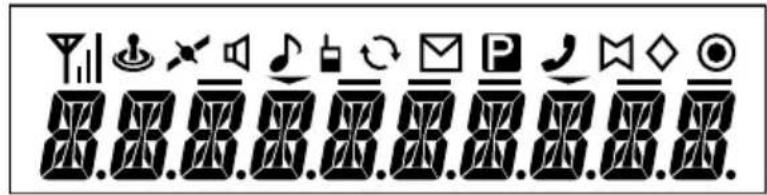
| Icon Description | |
| Displays the signal strength. | |
| Not used. | |
| Lights when the GPS position is determined. | |
| Signaling is turned off. | |
| A DTMF/MDC-1200 call is being received. | |
| The Talk Around function is on. | |
| Lights while scanning or while paused on a channel. Blinks when scan is temporarily stopped. | |
| A caller ID/message is in the stack memory. | |
| The selected channel is the Priority channel. | |
| Not used. | |
| The Horn Alert function is on. | |
| The Scrambler function is on. | |
| The Public Address function is on. | |
| The selected channel is the Channel/Group ID Recall channel. | |
| The current zone is added to the scan sequence. | |
| The External Speaker function is on. | |
| The AUX function is on. | |
| Lights when the Auto Recording function is on. | |
| The current Channel/Group ID is added to the scan sequence. | |
| The Operator Selectable Tone function is on. | |
| The Auto Reply Message function is on. |
PROGRAMMABLE FUNCTIONS
The ∧, ∨, ∧, ∨, △, S, A,
Ask your dealer for details on these functions.
- None
- Auto Reply Message
- Autodial
- Autodial Programming
- AUX
- AUX Output ID1 \~ ID3 (MDC-1200)
- Call 1 \~ 3
- Call Alert (MDC-1200)
- Calling Alert
- CH/GID Down
• CH/GID Down (Continuous) - CH/GID Recall
- CH/GID Up
• CH/GID Up (Continuous) - Channel Entry
- Digit 1x Down ^2
- Digit 10x Down ^2
- Digit 1x Up ^2
- Digit 10x Up ^2
- Direct CH/GID 1 \~ 4
- Direct CH/GID 1 \~ 4 Select
- Display Character
- Emergency ^3
- External Speaker
- Function
• GPS Position Display - Home CH/GID
• Home CH/GID Select - Horn Alert
- Key Lock
- LCD Brightness
- Lone Worker
- Monitor
• Monitor Momentary - OST
- OST List
- Paging Call
- Playback
• Priority Channel Select - Public Address
• Radio Check (MDC-1200)
• Revive (MDC-1200) - Scan
- Scan Del/Add
- Scrambler
- Scrambler Code
- Selcall
- Selcall + Short Message ^1
- Selcall + Status ^1
- Send the GPS Data ^1
- Short Message
- Squelch Level
- Squelch Off
- Squelch Off Momentary
- Stack ^1
- Status ^1
- Status 1 \~ Status 3 ^1
- Stun (MDC-1200)
- Talk Around
• Transceiver Password - Voice Memo
- Volume Down
• Volume Down (Continuous) - Volume Up
• Volume Up (Continuous) - Zone Del/Add
- Zone Down
• Zone Down (Continuous) - Zone Up
- Zone Up (Continuous)
^1 These functions can be programmed only for FleetSync/ MDC-1200.
^2 These functions can be programmed only for 5-tone signaling.
^3 Emergency can be programmed only on the key. When assigned, the dealer must set the key assignment hold to “Enable” and second function as “Emergency”.
BASIC OPERATIONS
SWITCHING POWER ON/OFF
Press ⏻ to switch the transceiver ON.
- A beep sounds and the display illuminates. If the Power-on tone select is set to OFF, the beep will not sound.
- If the Transceiver Password function is programmed, "PASSWORD" will appear on the display. Refer to "Transceiver Password", on page 6.
Press 🏠 again to switch the transceiver OFF.
■ Transceiver Password
To enter the password:
1 Press / to select a digit.
- When using a keypad, simply enter the password digits and proceed to step 4.
2 Press C> to accept the entered digit and move to the next digit.
- Press A or # to delete an incorrect digit. Press and hold A or # to delete all digits.
3 Repeat steps 1 and 2 to enter the entire password.
4 Press S of* to confirm the password.
- If you enter an incorrect password, the transceiver remains locked.
ADJUSTING THE VOLUME
Press the Volume Up key to increase the volume. Press the Volume Down key to decrease the volume.
If Squelch Off has been programmed onto a key, you can use that function to listen to background noise while adjusting the volume level.
SELECTING A ZONE AND CHANNEL/GROUP ID
Select the desired zone and channel/group ID using the keys programmed as Zone Up/ Zone Down and CH/GID Up/ CH/GID Down.
- You can program names for zones and channels/group IDs with up to 10 characters.
■ Home Channel/Group ID
You can select your Home channel/group ID by pressing Home CH/GID. Press the key a second time to return to your previous channel/group ID.
■ Direct Channel/Group ID
You can quickly select a commonly used channel/group ID by pressing Direct CH/GID 1 \~ Direct CH/GID 4. Press the same key a second time to return to your previous channel/group ID (if the key assignment Direct CH/GID return is configured as "Enabled").
TRANSMITTING/ RECEIVING
1 Select your desired zone and channel.
2 Press the microphone PTT switch and speak into the microphone to transmit. Release the PTT switch to receive.
- For best sound quality at the receiving station, hold the microphone approximately 1.5 inches (3 \~ 4 cm) from your mouth.
SCAN
Scan monitors for signals on the transceiver channels. While scanning, the transceiver checks for a signal on each channel and only stops if a matching signal is present. There are two types of scans available.
- Single Scan: Monitors the channels of only the currently selected zone. If set up to scan the Priority channel, it will be scanned even if it is not in the selected zone.
- Multi Scan: Monitors the channels of every zone.
To start/stop scanning, press the key programmed as Scan.
- “SCAN” and the icon appear on the display during scan.
- When a signal is detected, scan pauses at that channel. The transceiver will remain on the busy channel until the signal is no longer present, at which time scan resumes.
Note: To use Scan, there must be at least 2 channels added to the scan sequence.
CHANNEL RECALL
During scan, you can recall the last zone and channel/group ID on which you made a call by pressing the key programmed as CH/GID Recall. Scan will remain paused on the Recall channel until you press the key again.
PRIORITY SCAN
If a Priority channel has been programmed, the transceiver will automatically change to the Priority channel when a call is received on that channel, even if a call is being received on a normal channel.
- The P icon appears on the display when the Priority channel is selected.
TEMPORARY CHANNEL LOCKOUT
During scan, you can temporarily remove specific channels from the scanning sequence by pressing the key programmed as Scan Delete/Add while Scan is paused at the undesired channel. To temporarily remove a zone, press and hold Scan Delete/Add while Scan is paused at a channel in the undesired zone.
- The channel/zone is no longer scanned. However, when scanning is ended and restarted, the Scan settings return to normal.
SCAN DELETE/ADD
You can add and remove zones and/or channels/group IDs to and from your scan list.
1 Select your desired zone and/or channel/group ID.
2 Press the key programmed as Scan Delete/Add to remove a channel or press and hold the key for approximately 1 second to remove a zone.
- When a channel is added to scan, the icon appears on the display.
- When a zone is added to scan, the icon appears on the display.
SCAN REVERT
The Scan Revert channel is the channel selected when you press the PTT switch to transmit during scan. Your dealer can program one of the following types of Scan Revert channels:
- Selected: The last channel selected before scan.
- Selected +Talkback: Same as “Selected”, plus you can respond to calls on the channel at which scan is paused.
• Priority: The Priority channel. - Priority +Talkback: Same as “Priority”, plus you can respond to calls on the channel at which scan is paused.
- Last Called + Selected: The last channel on which you receive a call or the last channel selected before scan, whichever operation occurred latest.
DTMF CALLS
Note: To make DTMF calls, you must use an optional microphone with a DTMF keypad.
MANUAL DIALING
1 Press and hold the PTT switch.
2 Enter the desired digits using the keypad.
- If Keypad Auto-PTT is enabled by your dealer, you do not need to press the PTT switch to transmit; you can make the call simply by pressing the keys.
AUTODIAL
Autodial allows you to quickly call DTMF numbers that have been programmed onto your transceiver.
1 Press the key programmed as Autodial.
2 Press ↗/∨ (if the key assignment list selection is configured as "Enabled") or to select an autodial list number.
- You can also enter a number from 01 \~ 16 directly using the keypad.
3 Press the PTT switch to make the call.
■ Storing an Autodial Entry
1 Press the key programmed as Autodial Programming.
2 Press ⚠/∨ (if the key assignment list selection is configured as "Enabled") or to select a memory location number.
3 Press S to enter a name for the list number.
4 Press ↗/▽ to select a digit.
5 Press C> to accept the entered digit and move the cursor to the right.
- Press A or # to delete an incorrect digit. Press and hold A or # to delete all digits.
6 Repeat steps 4 and 5 to enter the entire name.
7 Press S to accept the name and enter a number.
8 Press ↗/≡ to select a digit.
- You can also enter digits directly using the keypad.
9 Press C> to accept the entered digit and move the cursor to the right.
- Press A or # to delete an incorrect digit. Press and hold A or # to delete all digits.
10 Repeat steps 8 and 9 to enter the entire number.
11 Press S to accept the number and store the entry.
■ Removing an Autodial Entry
1 Press the key programmed as Autodial Programming.
2 Press ↗/▽ (if the key assignment list selection is configured as "Enabled") or to select a memory location number.
3 Press A or #.
- "DELETE" appears on the display.
- Additionally, you can press and hold A or # to delete all entries.
4 Press S or * to confirm the deletion.
REDIALING
1 Press the key programmed as Autodial.
2 Press *, then 0.
- If there is no data in the redial memory, an error tone will sound.
3 Press the PTT switch to make the call.
STUN
This function is used when a transceiver is stolen or lost. When the transceiver receives a call containing a stun code, the transceiver becomes disabled. The stun code is cancelled when the transceiver receives a call with a revive code.
- "STUN" appears on the display while the transceiver is stunned.
SIGNALING
QUIET TALK (QT)/ DIGITAL QUIET TALK (DQT)
Your dealer may have programmed QT or DQT signaling on your transceiver channels. A QT tone/DQT code is a sub-audible tone/code which allows you to ignore (not hear) calls from other parties who are using the same channel.
OPTIONAL SIGNALING
Your dealer may also program several types of optional signaling for your transceiver channels.
5-Tone Signaling: Refer to "5-TONE SIGNALING" on page 10.
DTMF Signaling: DTMF Signaling opens the squelch only when the transceiver receives a call containing a matching DTMF code.
FleetSync Signaling: Refer to "SELCALL (SELECTIVE CALLING)" on page 11.
MDC-1200: MDC-1200 is a data system using Audio Frequency Shift Keying (AFSK). MDC-1200 signaling opens the squelch only when the transceiver receives a call with a matching MDC-1200 ID code.
OPERATOR SELECTABLE TONE (OST)
You can change the preset encode and decode tones for the selected channel. Up to 40 OST pairs can be pre-programmed by your dealer.
1 Select your desired channel.
2 Press and hold the key programmed as OST.
- "TONE" appears on the display, followed by the current OST number.
3 Press ⚠/∨ (if the key assignment list selection is configured as "Enabled") or to select your desired OST number.
- You can also directly enter a number from 01 to 40 using the keypad.
4 Use the transceiver the same as in a regular call.
5 To exit OST mode and return to the preset encode/decode tones, press ▲.
5-TONE SIGNALING
5-tone Signaling opens the squelch only when the transceiver receives a matching call. Transceivers that do not transmit the correct tones will not be heard.
Note: Your transceiver functions can include either 5-tone Signaling or FleetSync/ MDC-1200.
MAKING A SELCALL (SELECTIVE CALLING)
A Selcall is a voice call to a particular station or to a group of stations.
1 Select your desired zone and channel.
2 Press the key programmed as Selcall.
3 Press ⚠/∨ (if the key assignment list selection is configured as “Enabled”) or to select the ID of the station you want to call.
- You can also enter the station ID directly by using the keypad.
4 Press the key programmed as Call 1 to Call 3 to begin your call.
MY ID
Your dealer can program an ID number for your transceiver, to identify you to other parties when you make a call. If set by your dealer, you can edit the ID.
1 If the ID number can be edited, it will appear on the display when you turn the transceiver power ON.
2 Press to select the digit you want to change, then press to increment/decrement the number.
3 Press S or * to complete the entry.
TRANSMITTING
1 Select your desired zone and channel.
2 Press the key programmed as Selcall.
3 Press to select a digit, then press to increment/decrement the number.
4 Press S to complete the entry.
5 Press the key programmed as Call 1 to Call 3 and begin your conversation.
Note: Additionally, you can also use the keys programmed as Digit 1x Down, Digit 1x Up, Digit 10x Down, and Digit 10x Up to adjust the Selcall number. Digit 1x Up/Down increases/decreases the Selcall number by 1 each time the key is pressed. Digit 10x Up/Down increases/decreases the Selcall number by 10 each time the key is pressed.
RECEIVING
When you receive a signal containing the correct tones, squelch opens and you will hear the call. To respond to the call, press the PTT switch and speak into the microphone.
FleetSync: ALPHANUMERIC 2-WAY PAGING FUNCTION
FleetSync is an Alphanumeric 2-way Paging Function and is a protocol owned by JVCKENWOOD Corporation.
Note: If set up by your dealer, your transceiver may use the MDC-1200 feature in place of FleetSync. MDC-1200 and FleetSync cannot be operated simultaneously.
SELCALL (SELECTIVE CALLING)
A Selcall is a voice call to a particular station or to a group of stations.
■ Transmitting
1 Select your desired zone and channel.
2 Press the key programmed as Selcall or Selcall + Status.
3 Press ⬆/∨ (if the key assignment list selection is configured as "Enabled") or to select the ID of the station you want to call.
- You can also enter the station ID directly by using the keypad.
4 Press the PTT switch and begin your conversation.
- You can also press ■ to page the ID, rather than talking.
■ Receiving
If enabled by your dealer, an alert tone will sound and the LED will blink when a Selcall has been received. To respond to the call, press the PTT switch and speak into the microphone.
■ Identifi cation Codes
An ID code is a combination of a 3-digit Fleet number and a 4-digit ID number. Each transceiver must have its own Fleet and ID number.
Note: The ID range may be limited by programming.
PAGING CALL
1 Select your desired zone and channel.
2 Press the key programmed as Paging Call to transmit your PTT List ID, to request a call.
STATUS MESSAGE
Status messages are 2-digit codes ranging from 10 to 99 (80 \~ 99 are reserved for special messages).
A maximum of 15 received messages can be stored in the stack memory of your transceiver and can be reviewed after reception. The 📋 icon appears when a message is stored in the stack memory.
■ Transmitting
If programmed by your dealer, you can press the Call 1 \~ Call 3 keys to quickly send preprogrammed status messages. You can also manually send status messages.
1 Select your desired zone and channel.
2 Press the key programmed as Status or Selcall + Status.
- When pressing the Status key, the target Fleet/ ID is fixed and cannot be selected. Skip to step 5 to continue.
3 In Selcall mode, press ↗ (if the key assignment list selection is configured as "Enabled") or to select the ID of the station you want to call.
- You can also enter the station ID directly by using the keypad.
4 Press S to enter Status mode.
5 Press ⬆/∨ (if the key assignment list selection is configured as “Enabled”) or to select the status ID you want to transmit.
- You can also enter the status ID directly by using the keypad.
6 Press the PTT switch or ■ to initiate the status call.
■ Receiving
When a status call is received, the icon will flash and the calling ID or text message will appear on the display. Press any key to return to normal operation.
■ Reviewing Messages in the Stack
1 Press and hold the key programmed as Stack, Selcall, Status, or Selcall + Status.
2 Press ⬆/∨ (if the key assignment list selection is configured as "Enabled") or to select your desired message.
3 Press ▲ to return to normal operation.
SHORT/LONG MESSAGES
To send and receive short or long messages, use the Selcall + Short Message or Short Message functions, or connect the transceiver to a PC. (Ask your dealer for details.)
- Short messages can contain a maximum of 48 characters. Received short messages are displayed the same as Status messages and are stored in the same stack memory. A combined maximum of 15 Status calls and short messages can be stored in the stack memory.
- Long messages can contain a maximum of 4096 characters and can only be viewed via a PC.
GPS REPORT
If a GPS unit (NMEA-0183 format) is installed on your transceiver, you can press the key programmed as Send the GPS data to send your location data.
ADVANCED OPERATIONS
EMERGENCY CALLS
If your transceiver has been programmed with the Emergency function, you can make emergency calls.
1 Press and hold the key programmed as Emergency.
- Depending on the delay time programmed into your transceiver, the length of time you must hold the Emergency key will vary.
- When the transceiver enters Emergency mode, the transceiver will change to the Emergency channel and begin transmitting based on how the transceiver is set up.
2 To exit Emergency mode, press and hold the Emergency key again.
- If the Emergency mode completes the preset number of cycles, Emergency mode will automatically end and the transceiver will return to normal.
■ Lone Worker Mode
Lone Worker Mode is a safety feature built into the transceiver. If the transceiver is not operated for a pre-programmed period of time, the transceiver will emit a tone and automatically enter Emergency operation. Operating any key will reset the timer.
Press the key programmed as Lone Worker to toggle the Lone Worker function ON or OFF.
- Depending on the delay time programmed into your transceiver, the length of time you must hold the Lone Worker key will vary.
- "L-WK ON" momentarily appears on the display when Lone Worker is activated.
TALK AROUND
During interruptions in service (such as a power failure), you can continue to communicate by using the Talk Around feature. Talk Around allows you to communicate directly with other transceivers without the use of a repeater, as long as they are not too far away or there are no geographical obstacles in the way.
Press the key programmed as Talk Around to toggle the Talk Around function ON or OFF.
- The 👍 icon appears on the display while Talk Around is activated.
VOICE SCRAMBLER
Note:
- Your dealer can activate the built-in scrambler function, or they can add a more secure optional scrambler board to your transceiver. Ask your dealer for details.
This function cannot be used in certain countries. Contact your KENWOOD dealer for further information.
The built-in scrambler prevents others from easily listening in on your calls. When activated, the transceiver distorts your voice so that anybody listening to your conversation will not be able to clearly hear what you are saying.
In order for members of your own group to hear your call while you are using the scrambler, all members must activate their scrambler functions.
Press the key programmed as Scrambler to toggle the Scrambler function ON or OFF.
- The ◇ icon appears on the display while the Scrambler is activated.
When using an optional scrambler board, you can change the scrambler codes:
1 Press and hold the key programmed as Scrambler for 1 second.
- “CODE” appears on the display, followed by the current scrambler code.
2 Press ⚠/∨ (if the key assignment list selection is configured as "Enabled") or to select your desired scrambler code.
3 Press S, or * to store the new setting.
- After changing your scrambler code, be sure to inform all of your group members of the new code so they can also reset their transceivers. The scrambler function will not work with transceivers set up with different scrambler codes.
You can use the key programmed as Monitor or Squelch Off to listen to weak signals that you cannot hear during normal operation and to adjust the volume when no signals are present on your selected channel.
- The icon appears on the display while Monitor or Squelch Off is activated.
Your dealer can program a key with one of four Monitor/Squelch Off functions:
- Monitor: Press to deactivate QT, DQT, DTMF, 5-tone, or FleetSync Signaling. Press again to return to normal operation.
- Monitor Momentary: Press and hold to deactivate QT, DQT, DTMF, 5-tone or FleetSync Signaling. Release to return to normal operation.
- Squelch Off: Press to hear background noise. Press again to return to normal operation.
- Squelch Off Momentary: Press and hold to hear background noise. Release to return to normal operation.
■ Squelch Level
If a key has been programmed as Squelch Level, you can readjust your transceiver's squelch level:
1 Press the key programmed as Squelch Level.
- The icon appears on the display, along with the current squelch level.
2 Press ↗/∨ (if the key assignment list selection is configured as "Enabled") or to select your desired squelch level from 0 to 9.
3 Press S o▲ to store the new setting.
KEY LOCK
Press the key programmed as Key Lock to lock the transceiver front panel and microphone keys.
- When any key is pressed while Key Lock is active, "LOCKED" momentarily appears on the display.
Press the Key Lock key again to unlock the keys.
SIGNAL STRENGTH
The Signal Strength indicator shows the strength of received signals:


Strong Sufficient Weak Very Weak
PUBLIC ADDRESS (PA)
The PA system can only be used with an external speaker.
1 Press the key programmed as Public Address to activate the Public Address function.
• The Ⓞ icon appears on the display.
2 Press and hold the PTT switch, then speak into the microphone to make your address through the external speaker.
3 Press the Public Address key again to exit Public Address.
HORN ALERT
Press the key programmed as Horn Alert to toggle the Horn Alert function ON or OFF.
- The ⚙ icon appears on the display while Horn Alert is activated.
EXTERNAL SPEAKER
After attaching an external speaker to the transceiver, press the key programmed as External Speaker to output all received signals through the external speaker.
- The icon appears on the display.
Press the External Speaker key again to output all received signals only through the built-in speaker.
LCD BRIGHTNESS
You can cycle the display brightness between high, low, and off by pressing the key programmed as LCD Brightness.
The Time-out Timer prevents you from using a channel for an extended duration. If you continuously transmit for a preset time, the transceiver will stop transmitting and an alert tone will sound. Release the PTT switch.
AUXILIARY PORT
Press the key programmed as AUX to activate the auxiliary port. The auxiliary port is used with optional boards.
- The icon appears on the display when the auxiliary port is active.
BUSY CHANNEL LOCKOUT (BCL)
If BCL is set up by your dealer, you will be unable to transmit if the channel is already in use.
- "BUSY" appears on the display when you press the PTT switch. Use a different channel or wait until the channel becomes free.
If your dealer has programmed BCL Override for your transceiver, you can override the BCL by pressing the PTT switch again, immediately after releasing it, when the channel is busy.
PTT ID
PTT ID is the transceiver unique ID code which is sent each time the PTT switch is pressed and/or released.
COMPANDER
If programmed by your dealer for a channel, the commander will remove excessive noise from transmitted signals, providing higher clarity of signals.
TRANSMIT POWER
Your dealer has programmed a transmit power level for each channel. Power levels can be high or low.
VGS-1 OPTIONAL VOICE GUIDE & STORAGE UNIT
When using the optional VGS-1 voice guide & storage unit, you gain access to the voice recorder and voice announcement functions. Ask your dealer for details.
VOICE RECORDER
The voice recorder provides you with an auto recorder to record your conversations and a voice memo function to create voice memos.
■ Auto Recording
If activated, the auto recording function will continuously record all transmitted and received signals. The recording storage area retains 30 seconds of recording, so all transmitted and received signals are simultaneously recorded and erased, leaving only the last 30 seconds of recording in memory.
- The icon appears on the display when the Auto Recording function is activated.
■ Voice Memos
You can record a voice memo for later playback.
1 Press the key programmed as Voice Memo or press and hold the key programmed as Playback for 1 second.
- The duration of recording memory will appear on the display and begin counting down.
2 Speak into the microphone to record your voice memo.
3 Press the S, ■, or * key to end the recording at any time and store it into the transceiver memory.
- If the memory becomes full, recording will stop automatically and store the voice memo to memory.
■ Auto Reply Message
You can set the transceiver to automatically respond to Individual Calls.
1 Press the key programmed as Auto Reply Message.
- "AUTO REPLY" momentarily appears on the display.
2 When you receive an Individual Call, Auto Reply will begin after waiting for 3 seconds, the transceiver will send an automatic response to the caller, and "GREETING" appears on the display
- If you are available to receive the call, press any key to cancel the auto response.
- If there is a channel available on your transceiver for recording, “I am not available. Leave your Message.” will be sent to the caller. The caller can then leave a recorded message on your transceiver which you can later recall and listen to. When a message is stored on your transceiver, “MSG RCVD” appears on the display.
- If there is no channel available on your transceiver for recording, “I am not available” will be sent to the caller and “MEM FULL” appears on the display.
■ Playback
You can play back a recorded conversation, memo, or message.
1 Press the key programmed as Playback.
- If the last action on your transceiver was to auto record your conversation, "STORE" will appear on the display, otherwise a recording channel with the time of the recording will appear.
2 Press ↗/≡ to select the channel you want to play back.
- "AR" represents auto recordings.
- "VM" represents voice memos.
- "RM" represents reply messages.
3 The transceiver will announce the time and channel, then the recording will play back.
- When the entire recording has been played, "END OF MSG" is displayed.
- Press A or # to delete the selected recording. Press and hold A or # to delete all recorded data.
VOICE GUIDE
If set up by your dealer, when changing the zone and/or channel/group ID, an audio voice will announce the new zone and channel number/group ID. Additionally, when changing a function setting, an audio voice will announce the new setting. (Voice announcements vary by dealer setting.)
MODE D'EMPLOI
JVCKENWOOD Corporation
NOTIFICATION
■ Transceiver-Passwort
W D W D W D W D W D W D W D W D W D W D W
■ Sprachnotizen
◆ EXPLOSIEVE ATMOSFEER (GAS, STOF, ROOK enz.)
DTMF ARAMALARI ....8
SİNYALLEME....10
5 TONLU SiNYALLEME ....10
FleetSync: ALFANÜMERİK ÇİFT YÖNLÜ ÇAĞRI FONKSİYONU......11
① (Güç) düğmesi

- Restrictions
- Firmware Copyrights
- Information on Disposal of Old Electrical and Electronic Equipment and Batteries (applicable for countries that have adopted separate waste collection systems)
- THANK YOU
- NOTICES TO THE USER
- WARNING
- PRECAUTIONS
- CAUTION
- CONTENTS
- GETTING STARTED
- SUPPLIED ACCESSORIES
- Screw set
- PREPARATION
- ■ Power Cable Connection
- ■ Installing the Transceiver
- GETTING ACQUAINTED
- FRONT AND REAR VIEWS
- PROGRAMMABLE FUNCTIONS
- BASIC OPERATIONS
- SWITCHING POWER ON/OFF
- ■ Transceiver Password
- ADJUSTING THE VOLUME
- SELECTING A ZONE AND CHANNEL/GROUP ID
- ■ Home Channel/Group ID
- ■ Direct Channel/Group ID
- TRANSMITTING/ RECEIVING
- SCAN
- CHANNEL RECALL
- PRIORITY SCAN
- TEMPORARY CHANNEL LOCKOUT
- SCAN DELETE/ADD
- SCAN REVERT
- DTMF CALLS
- MANUAL DIALING
- AUTODIAL
- ■ Storing an Autodial Entry
- ■ Removing an Autodial Entry
- REDIALING
- STUN
- SIGNALING
- QUIET TALK (QT)/ DIGITAL QUIET TALK (DQT)
- OPTIONAL SIGNALING
- OPERATOR SELECTABLE TONE (OST)
- 5-TONE SIGNALING
- MAKING A SELCALL (SELECTIVE CALLING)
- MY ID
- TRANSMITTING
- RECEIVING
- FleetSync: ALPHANUMERIC 2-WAY PAGING FUNCTION
- SELCALL (SELECTIVE CALLING)
- ■ Transmitting
- ■ Receiving
- ■ Identifi cation Codes
- PAGING CALL
- STATUS MESSAGE
- ■ Reviewing Messages in the Stack
- SHORT/LONG MESSAGES
- GPS REPORT
- ADVANCED OPERATIONS
- EMERGENCY CALLS
- ■ Lone Worker Mode
- TALK AROUND
- VOICE SCRAMBLER
- Note:
- ■ Squelch Level
- KEY LOCK
- SIGNAL STRENGTH
- PUBLIC ADDRESS (PA)
- HORN ALERT
- EXTERNAL SPEAKER
- LCD BRIGHTNESS
- AUXILIARY PORT
- BUSY CHANNEL LOCKOUT (BCL)
- PTT ID
- COMPANDER
- TRANSMIT POWER
- VGS-1 OPTIONAL VOICE GUIDE & STORAGE UNIT
- VOICE RECORDER
- ■ Auto Recording
- ■ Voice Memos
- ■ Auto Reply Message
- ■ Playback
- VOICE GUIDE
- MODE D'EMPLOI
- JVCKENWOOD Corporation
- NOTIFICATION
- ■ Transceiver-Passwort
- ■ Sprachnotizen
Brand : KENWOOD
Model : TK8360
Category : Walkie-talkie