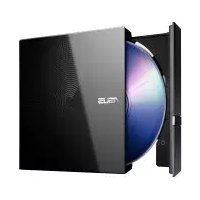
SDRW08D6SU - Optical disc burner ASUS - Free user manual and instructions
Find the device manual for free SDRW08D6SU ASUS in PDF.


| Product Type | External optical disc drive |
| Brand | ASUS |
| Model | SDRW08D6SU |
| Dimensions (approx.) | 140 x 140 x 13,5 mm |
| Weight (approx.) | 200 g |
| Interface | USB 2.0 (Y-cable included) |
| Power Supply | USB bus (5V, up to 500 mA per port, may require two USB ports) |
| Supported disc formats | CD-R, CD-RW, DVD±R, DVD±RW, DVD+R DL, DVD-R DL |
| DVD±R write speed | 8x max |
| DVD±RW write speed | 6x max |
| CD-R write speed | 24x max |
| DVD read speed | 8x max |
| CD read speed | 24x max |
| System compatibility | Windows, macOS (without additional driver) |
| Installation methods | Y-cable or USB Type-C cable (depending on model) |
| Care and cleaning | Wipe with a soft, dry cloth; do not use solvents |
| Safety | Do not disassemble, avoid shocks and temperature variations (0-40 °C) |
| Spare parts / accessories | Optional stand, USB cable, power adapter (not included for this model) |
| General information | External slim DVD drive, USB powered, CE and ISED certified |
Frequently Asked Questions - SDRW08D6SU ASUS
User questions about SDRW08D6SU ASUS
0 question about this device. Answer the ones you know or ask your own.
Ask a new question about this device
Download the instructions for your Optical disc burner in PDF format for free! Find your manual SDRW08D6SU - ASUS and take your electronic device back in hand. On this page are published all the documents necessary for the use of your device. SDRW08D6SU by ASUS.
USER MANUAL SDRW08D6SU ASUS
Quick Installation Guide
English
繁體中文
简体中文
6bIrapckn
Cestina
Dansk
Deutsch
EAAnyika
Espanol
Eesti
Suomi
Français
Magyar
Bahasa Indonesia
Italiano
日本語
Ka3aKaua
中国
Lietuviu
Latviešu
Bahasa Malayu
Nederlandsls
Norsk
Polski
Portugués
Romána
Pycckn
Slovencina
Slovenscina
Svenska
y
Türkce
(Kurulum Kilavuzu)
Tiếng Viet
YkpaaiHcbKa
Model / HopMaTnBHaMoeNb : SDRW-08D2S-U / SDRW-08D2S-U LITE / SDRW-08U5S-U / SDRW-08U7M-U /
SDRW-08U8M-U / SDRW-08U9M-U / SBC-06D2X-U / SBW-06D2X-U / SBW-06D5H-U /
BW-16D1H-U/BW-16D1H-UPRO/BW-16D1X-U
Contents
English 5 Romana 17
繁體中文 6 Slovencina.18
简体中文 6 Slovenšcina.18
日本語 7 Espanol 19
7 Svenska 19
Francais 8 Turkce 20
Deutsch .8 yKpaIHcbKa. 20
Installing the external Optical Drive
The installation and bundled cables of your optical drive may differ between models, please refer to the following installation methods and select the one that most suits your model.
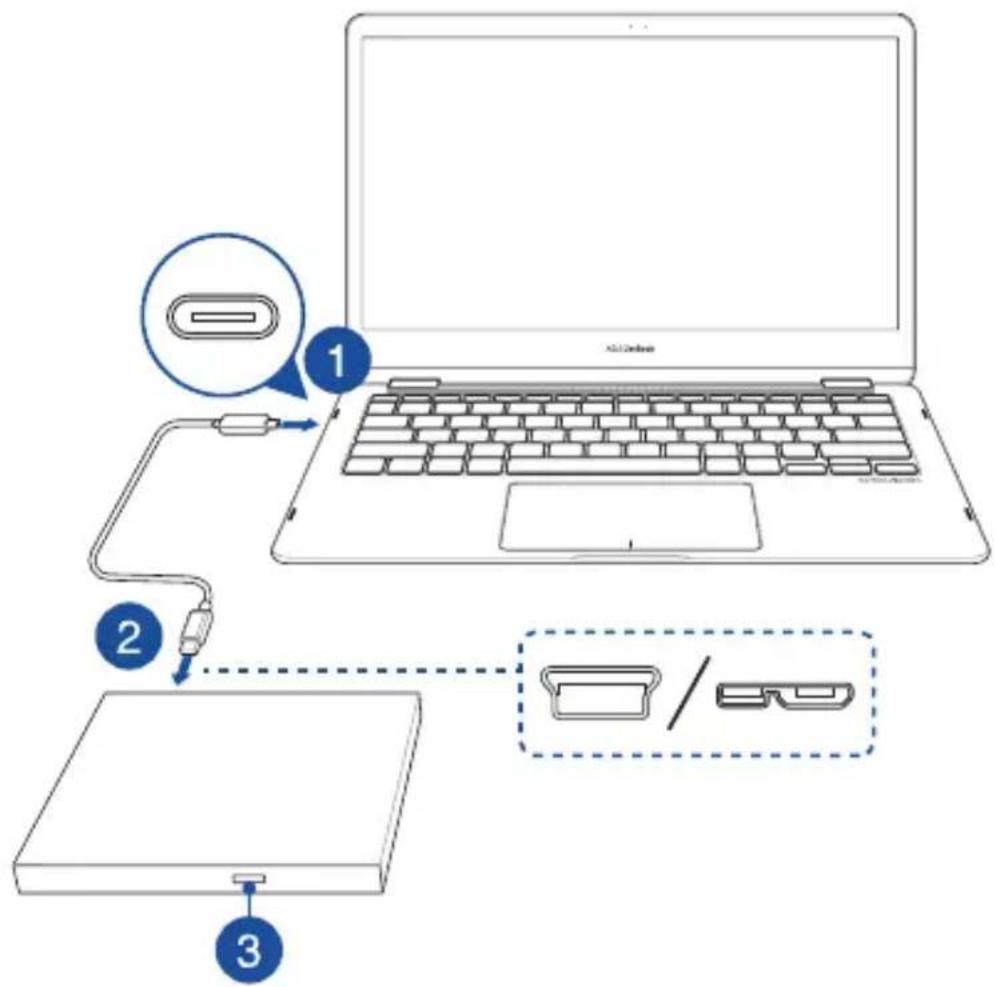
Using the bundled USB Type-C cable
Models: SDRW-08U8M-U / SDRW-08U9M-U / SBW-06D5H-U
- Connect the USB Type-C® connector on the bundled cable to a USB Type-C® port on your computer.
- Connect the bundled cable to your optical drive.
NOTE: This connector and port may vary between models.
- (For Windows only) Press the Eject button to open the optical drive tray.
Using the bundled Y-Cable
Models: SDRW-08D2S-U / SDRW-08D2S-U LITE / SDRW-08D6S-U / SDRW-08U5S-U / SDRW-08U7M-U / SDRW-08U9M-U / SBC-06D2X-U / SBW-06D2X-U / SBW-06D5H-U / SDR-08B1-U
- Connect the USB connector on the Y-cable to a USB port on your computer.
(optional) Connect the USB connector to another USB port for additional power if your computer's USB port does not provide enough power through the USB connector, resulting in the optical drive not functioning properly.
NOTE:
- USB connector is only used for additional power, and cannot be used for data transfer
- If you are using a Blu-ray optical disc drive, please ensure to connect both USB connectors ( and Eo USB ports on your computer.
-
You may need to use a USB extension cable (purchased separately) to connect the additional USB connector if you do not have enough free USB ports on one side of the computer.
-
Connect the Y-cable to your optical drive.
NOTE: This connector and port may vary between models.
- (For Windows only) Press the Eject button to open the optical drive tray.

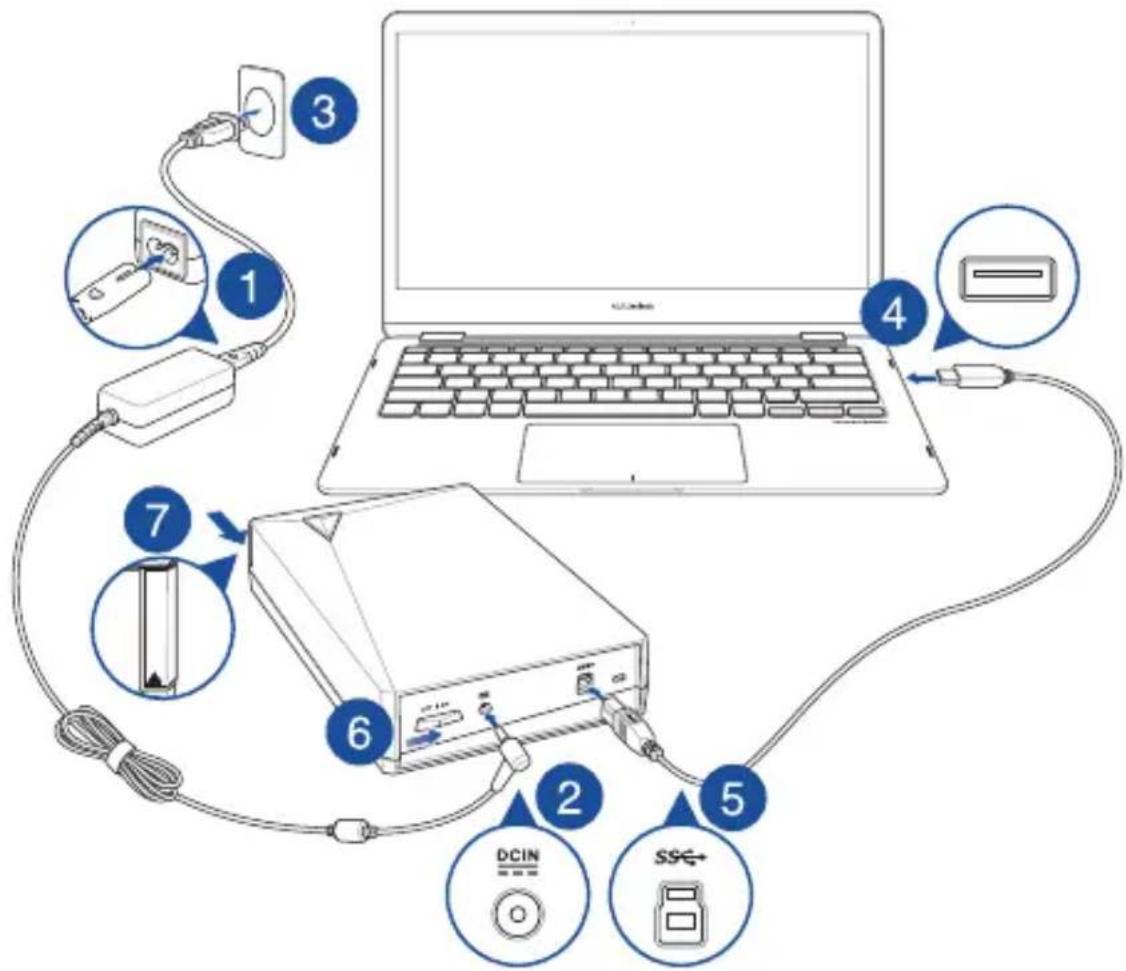
Using the bundled USB cable and power adapter
Models: BW-16D1H-U/BW-16D1H-UPRO/BW-16D1X-U
To connect the USB cable and power adapter please refer to the illustration below. After the cables and power have been connected, push the power switch to the ON position to power on your optical drive and press the Eject button (For Windows only) to open the optical drive tray.
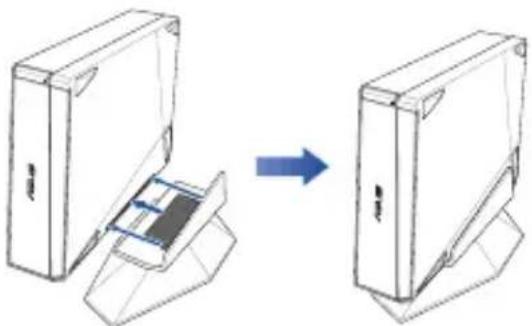
Setting up the optical drive stand (on selected models)
Models: BW-16D1H-U/BW-16D1H-U PRO
Models: SBC-06D2X-U / SBW-06D2X-U

Support
For more information on your external optical drive, please refer to https://www.asus.com/support.
安装外接式光碟機
U3non3BaHe Ha BkIoueHnY-06pa3en Ka6eN
Moelen: SDRW-08D2S-U / SDRW-08D2S-U LITE / SDRW-08D6S-U / SDRW-08U5S-U / SDRW-08U7M-U / SDRW-08U9M-U / SBC-06D2X-U / SBW-06D2X-U / SBW-06D5H-U / SDR-08B1-U
1.CbpxKe USB KOtKaTa Ha 56pa3Hn Ka6eB USB npTa Ha BaWn KOMNToBp.
(KaToOniura CbpxkTe USB KOHTAKTa KbM Dpyr USB nop3 a DonbHInTeHo 3axpaHbae, aKO USB npTbHa BaWma KomnIOTp he npedocTABA DoCTaTbUHO 3axpaHbae Upe3 USB KOHTAKTa Kceto BODI do HnpeBaHInHO yHKuOHnpAe Ha ONtHNOyCtpoCTBO.
3A6EJEXKA: USB KONTAKTbCe u3NON3Ba eDINHCTBeHO 3a DonbNHHTeHNO 3axpaHBAHe H He MoXe da Ce W3NON3Ba 3a npehoc Ha daHHN.
-
Ako n3non3Bate ontTuHNo yCtpoCTBO Blu-ray, trpa6Ba da CbbpKeTe uDbata USB KONTAKTa ( ) KbM USB NOPTOBe Ta Baun HA KomnIOTpBp.
Mozhe da Tp86Ba da n3nonBate USB ynbkntenen Ka6en (kyneh otdenho) 3a cbbp3bae KbM DonbHnHTeneh USB KOtAKT aKO HMaTe DoCTaBvHo Cbo6oHN USB npTObe OT eHaTa CTpaHa Ha KOMNIOTBpa. -
CbpxeTe Y-06pa3HnKa6en Kb mOnTuHOTO yCTpoiCTBO.
3A6EIXKKA: To3n KOHTAKN I TO3n NOPT MOKe Da BapnpaT 3a pa3nHnTe MoDen.
- (Cama 3a Windows) HaTnCHete 6yToHa Eject (N3BaxkDaHe), 3a da OTBOpTe Tabata Ha ONTHHOTO yCTPOCTBO.
U3no3BaHe Ha BkIoueHn USB ka6en 3axpaHbaua aadTep
Moden: BW-16D1H-U/BW-16D1H-U PRO/BW-16D1X-U
3a da cbbpxte USB ka6ena n 3axpaHbauia aanTep, BnKTe NIOCTpauNTa Ha cTpaHua 5. Cne KaTO ka6eJIte n 3axpaHbAero ca CBp3aHn,
HaTnCHHe T KIOUa Ha 3axpaHbAteo B No3uINaON (BKN.) 63a BKnIOUbaHe Ha ONtNHOto YcTPOCTBO H aTHnCHTe 6yToHa Eect (M3BaXdaHe)
7 (cmo 3a Windows), 3a da OTBOPNTe TaBaTa Ha ONTNUHO Yo yCTpoIyCTBO.
HCTaIpaHe Ha cToiKaTa Ha ONTuHOTO yCTpoNCTBO (Ha n36paHn MoeHN)
3a INHCTaIIpaHe Ha CTOnKaTa HA ONTHUHOTo yCTpOncTBO BVKTe CTpaHnua 5.
PoaDbxka
3a NOBuee INHFOpMaun OTHOCHO BauTeo BbHNO ONTNUO yCTPOINCTBO BNKeTte htps://www.asus.com/support.
IPIUMITKA: 3'cHbau USB BnKOpuCTOByTbcra NWe dna doaTKOBOro XNBneHHa i He MoKe 3actocobyBaTuCA npepaui daHX
- RaKo Bn KopNCTeCe ONTNuHMM DnCKOBODom dIy Blu-ray, nIKKnOuITb 6nDbA 3'EnHyBaui USB (i) do npotrib USB ha komn'topei.
- Moze 3nado6ntncn oodoybua USB (npodaetcokpmo) npiiknoeHHaDAtko 3'edhybaa USB kano mano binbHex noprib USB 360ky ha KOMN'otepi.
Bilwe IHopmaui npo 30bHniOnTnHn DnCKOBODnB. Ha https://www.asus.com/support.
Memasang Pematu Optikal luaran
wnuua: 2014 USB E9 "awwchunwunwulwuwunwunwunwunwunwunwunwauayal
- nanaa aannnnaa ananr naa uasu uusu uunnnnnaeua USB waa (AuaB) 1nnwaa USB unannnnaa
-
1000000000000000000000000000000000000000000000000000000000000000000000
-
14
wnu: 1nauwaaafanaanauauauu
- (a Windows wnu) nau u nuaan wauuanaaau
nntu USB uataaunauanwaaan
山 ~ u : B W _ - 1 6 D 1 H - U / B W - 1 6 D 1 H - U P R O / B W - 1 6 D 1 X - U
unununununun unus 15 wannnnaan nnnn nn nnnn nn nnnn nn nnnn nn nnnn nn nnnn nn nnnn nn nnnn nn nnnn nn nnnn nn nnnn nn nnnn nn nnnn nn nnnn nn nnnn nn nnnn nn nnnn nn nnnn nn nnnn nn nnnn nn nnnn nn nnnn nn nnnn nn nnnn nn nnnn nn nnnn
n nnnn nnnn nn nnnn nnnn nnnn nnnn nnnn nnnn nnnn nnnn nnnn nnnn nnnn nnnn nnnn nnnn nnnn nnnn nnnn nnnn nnnn nnnn nnnn nnnn nnnn nnnn nnnn nnnn nnnn nnnn nnnn nnnn nnnn nnnn nnnn nnnn
. USB- n 1A USB-n nnn nn nnnn nnnn nnnn nnnn nnnn nnnn nnnn nnnn nnnn nnnn nnnn nnnn nnnn nnnn nnnn nnnn nnnn nnnn nnnn nnnn nnnn nnnn nnnn nnnn nnnn nnnn nnnn nnnn nnnn nnnn nnnn nnnn nnnn nnnn nn
y-nnnn 2
nnnnnnnnnnnnnnnnn
wnnnn nn nnnn nn nnnn (Windows)
yennnnn nnnnne nnnnne nnnnne nnnnne nnnnne nnnnne nnnnne nnnnne nnnnne nnnnne nnnnne nnnnne nnnnne nnnnne nnnnne nnnnne nnnnne nnnnne nnnnne nnnnne nnnnne nnnnne nnnnne nnnnne nnnnne nnnnnee
BW-16D1H-U/BW-16D1H-U PRO/BW-16D1X-U
6 (n) ON xnn nn nnn nn nn nn nn nn nn nn nn nn nn nn nn nn nn nn nn nn nn nn nn nn nn nn nn nn nn nn nn nn nn nn nn nn nn nn nn nn nn nn nn nn nn nn nn nn nn nn nn nn nn nn nn nn nn nn nn nn nn nn nn nn nn nn nn nn nn nn nn nn nn nn nn nn nn nn nn nn nn nn nn nn nn nn nn nn nn nn nn nn nn nn nn nn nn nn nn nn nn nn nn
()
1.5 Tnuya yu, 0nn pni tyann npnn
ninn
https://www.asus.com/supportnwnnnn nnnnnnnnnnnnnnnnnnnnnnn
JL USB Type-C
SDRW-08U8M-U/SDRW-08U9M-U/SBW-06D5H-U:
USB Type-C USB Type-C
aal al jy 1
jbj jbj jbj jbj jbj jbj jbj jbj jbj jbj jbj jbj jbj jbj jbj jbj jbj jbj jbj jbj jbj jbj jbj jbj jbj jbj jbj jbj jbj jbj jbj jbj jbj jbj jbj jbj jbj jbj jbj jbj jbj jbj jbj jbj jbj
()Eject (Windows)
8y y 1
SDRW-08D2S-U/SDRW-08D2S-ULITE/SDRW-08D6S-U/SDRW-08U5S-U/SDRW-08U7M-U/SDRW-08U9M-U/SBC-06D2X-U
/ SBW-06D2X-U / SBW-06D5H-U / SDR-08B1-U
JUSUBYK USB
L 1 USB
y
y 158B J aagaaa
USB USB
USB USB
.
jial jai y Jus
jbj jbi jbi jbi jbi jbi jbi jbi jbi jbi jbi jbi jbi jbi jbi jbi jbi jbi jbi jbi jbi jbi jbi jbi jbi jbi jbi jbi jbi jbi jbi jbi jbi jbi jbi jbi jbi jbi jbi jbi jbi jbi jbi jbi jbi jbi jbi jbi jbi jbi jbi j bi
()Eject (Windows)
BW-16D1H-U/BW-16D1H-UPRO/BW-16D1X-U:
ON 1
(Windows) 7 (E) Eject jj j j j j j j j j j j j j j j j j j j j j j j j j j j
(0jz jz) gaiy
0aai gai jgai all jai jai
3y j 10000000000000000000000000000000000000000000000000
BW-16D1H-U/BW-16D1H-U PRO/BW-16D1X-U la
ON 1
. 1 (Windows) Eject
(la jzjg)y
a a a a a a a a a a a a a a a a a
https://www.asus.com/support
Safety Guidelines
- Do not place damaged discs inside the device. A damaged disc may break while in use and damage the device.
Use of any controls, adjustments, or procedures other than those specified in this manual may result to hazardous radiation exposure. - Do not attempt to disassemble the drive.
Do not move the device from a cold to a warm or hot environment. Drastic change in temperature is harmful to the device. - Before moving or uninstalling the drive, remove any disc in it.
- Prevent liquids or any metal from getting into the device, If this situation occurs, contact your retailer for help.
- Do not use any evaporating solvents to clean the device. If you accidentally sprayed any solvent on the device, use a clean cloth to wipe it. You may also use a neutral cleaner to dilute the solvent to easily wipe it from the device.
- Do not turn off the computer while the device is in reading or writing mode.
Do not place discs into the device immediately if they came from a cold environment, especially during cold seasons. Wait until the discs have reached room temperature. - Use this product in environments with ambient temperatures between 0^ (32^) and 40^ (104^) .
CD-ROM Drive Safety Warning
CLASS 1 LASER PRODUCT
PRODUIT LASER DE CLASSE 1
Australia Statement Notice
From 1 January 2012 updated warranties apply to all ASUS products, consistent with the Australian Consumer Law. For the latest product warranty details please visit http://support.asus.com. Our goods come with guarantees that cannot be excluded under the Australian Consumer Law. You are entitled to a replacement or refund for a major failure and compensation for any other reasonably foreseeable loss or damage. You are also entitled to have the goods repaired or replaced if the goods fail to be of acceptable quality and the failure does not amount to a major failure. If you require assistance please call ASUS Customer Service 1300 2787 88 or visit us at http://support.asus.com.
Declaration of compliance for product environmental regulation
ASUS follows the green design concept to design and manufacture our products, and makes sure that each stage of the product life cycle of ASUS product is in line with global environmental regulations. In addition, ASUS disclose the relevant information based on regulation requirements.
Please refer to http://csr.asus.com/Compliance.htm for information disclosure based on regulation requirements. ASUS is complied with:
EU REACH and Article 33
Complying with the REACH (Registration, Evaluation, Authorisation, and Restriction of Chemicals) regulatory framework, we published the chemical substances in our products at ASUS REACH website at http://csr.asus.com/english/REACH.htm.
This product complies with the EU RoHS Directive. For more details, see http://csr.asus.com/english/article.aspx?id=35
India RoHS
This product complies with the "India E-Waste (Management) Rules, 2016" and prohibits use of lead, mercury, hexavalent chromium, polybrominated biphenyls (PBBs) and polybrominated diphenyl ethers (PBDEs) in concentrations exceeding 0.1% by weight in homogenous materials and 0.01% by weight in homogenous materials for cadmium, except for the exemptions listed in Schedule II of the Rule.
Vietnam RoHS
ASUS products sold in Vietnam, on or after September 23, 2011, meet the requirements of the Vietnam Circular 30/2011/TT-BCT.
Các sán pham ASUS bàn tαi Viet Nam, vao ngay 23 tháng 9 nám2011 tro vé sau, déu phài dap úng cac yèu cαu cuà Thóng tu 30/2011/TT-BCT cuà Viet Nam.
Turkey RoHS
ASUS recycling and takeback programs come from our commitment to the highest standards for protecting our environment. We believe in providing solutions for you to be able to responsibly recycle our products, batteries, other components as well as the packaging materials. Please go to http://csr.asus.com/english/ Takeback.htm for detailed recycling information in different regions.
安全資訊
使用装置
Compliance Statement of Innovation, Science and Economic Development Canada (ISED)
This device complies with Innovation, Science and Economic Development Canada licence exempt RSS standard(s). Operation is subject to the following two conditions: (1) this device may not cause interference, and (2) this device must accept any interference, including interference that may cause undesired operation of the device.
CANICES-003(B)/NMB-003(B)
France sorting and recycling information

FR
KC: Korea Warning Statement
B目()
i
EAC Certification Logo

FCC COMPLIANCE INFORMATION
Per FCC Part 2 Section 2.1077
Responsible Party : Asus Computer International
Address: 48720 Kato Rd, Fremont, CA 94538
Phone/Fax No : (510)739- 3777/(510)608-4555
hereby declares that the product
| Product Name Model Name Input rating | ||
| External Slim Optical Drive | SDRW-08D2S-U, SDRW-08U5S-U, SDRW-08U7M-U, SDRW-08U8M-U, SDRW-08U9M-U, SBC-06D2X-U, SBW-06D2X-U | 5V, 2.0A |
| External Slim Blu-ray Drive SBW-06D5H-U 5V, 2.0A | ||
| External H/H Optical Drive BW-16D1H-U, BW-16D1X-U 12V, 3.0A | ||
compliance statement:
These devices comply with part 15 of the FCC Rules. Operation is subject to the following two conditions: (1) These devices may not cause harmful interference, and (2) these devices must accept any interference received, including interference that may cause undesired operation.
Complies with 21 CFR 1040.10 and 1040.11 except for conformance with IEC 60825-1 Ed. 3., as described in Laser Notice No. 56, dated May 8, 2019.
Simplified UKCA Declaration of Conformity
ASUSTeK Computer Inc. hereby declares that this device is in compliance with the essential requirements and other relevant provisions of related UKCA Directives. Full text of UKCA declaration of conformity is available at: www.asus.com/support
Simplified EU Declaration of Conformity
English ASUSTeK Computer Inc. hereby declares that this device is in compliance with the essential requirements and other relevant provisions of related Directives. Full text of EU declaration of conformity is available at: www.asus.com/support
Address, City 1F., No. 15, Lide Rd., Beitou Dist., Taipei City 112, Taiwan
Authorized Representative in Europe ASUS COMPUTER GmbH
City Address Harkortstrasse 21-23, 40880 Ratingen
Country Germany
Authorized Representative in United Kingdom ASUSTEK (UK) LIMITED
City Address 1st Floor, Sackville House, 143-149 Fenchurch Street, London, EC3M 6BL
England
Country United Kingdom
For a superior burning experience
- Quick Installation Guide
- Contents
- Installing the external Optical Drive
- Using the bundled USB Type-C cable
- Using the bundled Y-Cable
- NOTE:
- Using the bundled USB cable and power adapter
- Setting up the optical drive stand (on selected models)
- Support
- 安装外接式光碟機
- U3non3BaHe Ha BkIoueHnY-06pa3en Ka6eN
- 3A6EIXKKA: To3n KOHTAKN I TO3n NOPT MOKe Da BapnpaT 3a pa3nHnTe MoDen.
- U3no3BaHe Ha BkIoueHn USB ka6en 3axpaHbaua aadTep
- HCTaIpaHe Ha cToiKaTa Ha ONTuHOTO yCTpoNCTBO (Ha n36paHn MoeHN)
- PoaDbxka
- Memasang Pematu Optikal luaran
- nntu USB uataaunauanwaaan
- Safety Guidelines
- CD-ROM Drive Safety Warning
- CLASS 1 LASER PRODUCT
- PRODUIT LASER DE CLASSE 1
- Australia Statement Notice
- Declaration of compliance for product environmental regulation
- EU REACH and Article 33
- India RoHS
- Vietnam RoHS
- Turkey RoHS
- 安全資訊
- 使用装置
- Compliance Statement of Innovation, Science and Economic Development Canada (ISED)
- France sorting and recycling information
- FR
- KC: Korea Warning Statement
- EAC Certification Logo
- FCC COMPLIANCE INFORMATION
- Simplified UKCA Declaration of Conformity
- Simplified EU Declaration of Conformity
Brand : ASUS
Model : SDRW08D6SU
Category : Optical disc burner