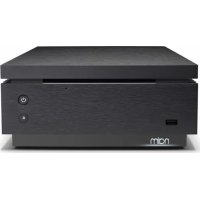
Uniti Core - Cd player/recorder NAIM - Free user manual and instructions
Find the device manual for free Uniti Core NAIM in PDF.


| Brand | Naim |
| Model | Uniti Core |
| Product type | CD player/recorder with music server |
| Power supply | Mains via supplied power cable |
| Main functions | CD ripping, internal/external storage, playback via UPnP, digital audio output |
| Internal storage | Hard drive (HDD) or SSD (optional, user-installable) |
| External storage | NAS or USB device (storage or backup) |
| Network connectivity | Ethernet (supplied network cable) |
| Audio output | Digital (BNC/phono) |
| Mobile app | Naim (iOS/Android) for setup and control |
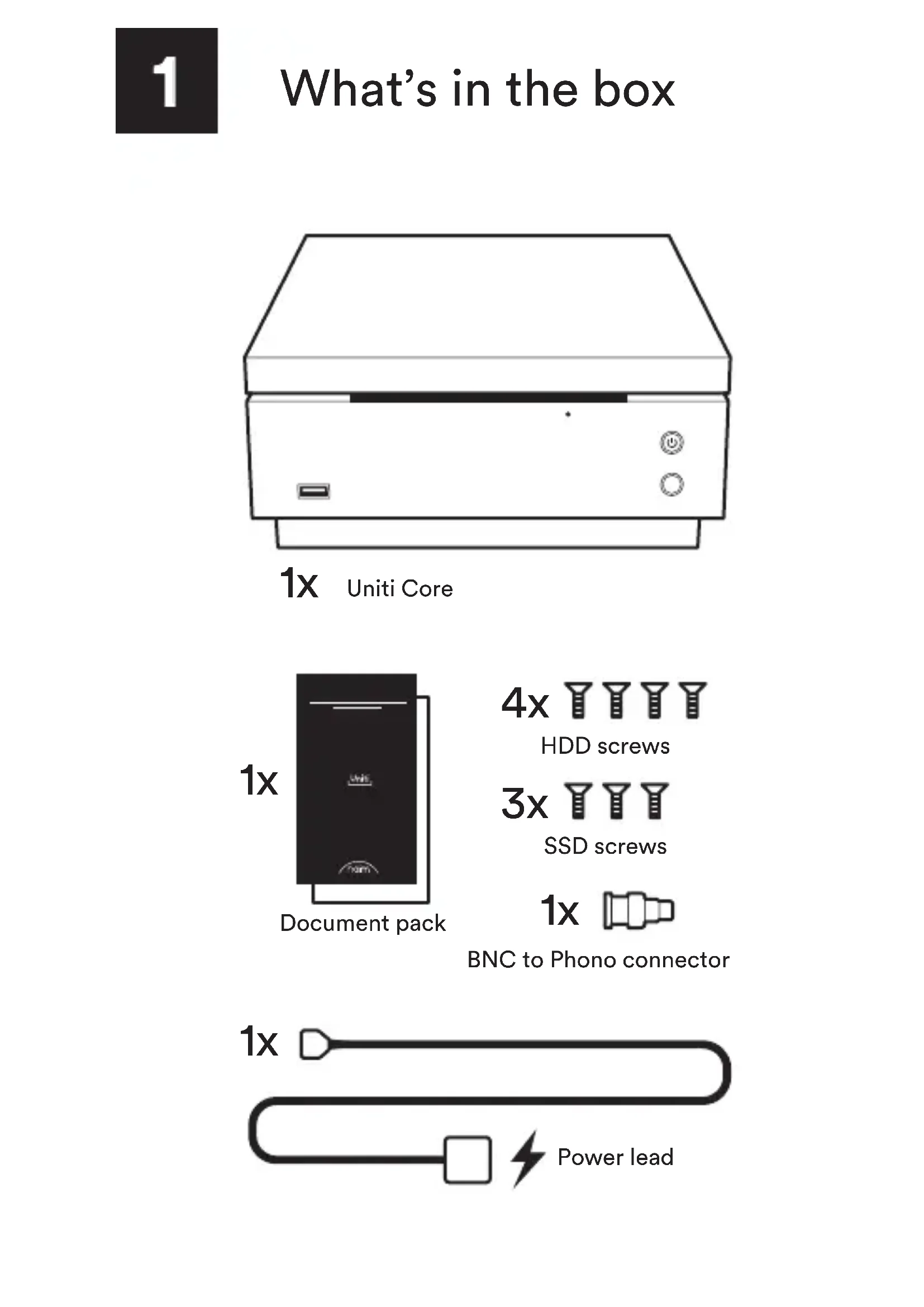
| Box contents | Uniti Core, documentation, power cable, BNC-phono connector, screws for HDD/SSD |
| Safety | Unplug before opening for storage installation |
| Maintenance | Clean with a soft, dry cloth. Unplug before cleaning. |
| Repairability | Hard drive/SSD replaceable by user. Visits recommended on the Naim website for support. |
Frequently Asked Questions - Uniti Core NAIM
User questions about Uniti Core NAIM
0 question about this device. Answer the ones you know or ask your own.
Ask a new question about this device
Download the instructions for your Cd player/recorder in PDF format for free! Find your manual Uniti Core - NAIM and take your electronic device back in hand. On this page are published all the documents necessary for the use of your device. Uniti Core by NAIM.
USER MANUAL Uniti Core NAIM
natural_image
Line drawing of a printer with two buttons and a paper feed (no text or symbols)1x
Uniti Core
1x
Document pack
4x
HDD screws
3x
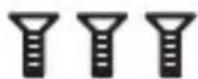
SSD screws
1x
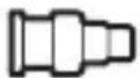
BNC to Phono connector
1x
2
Get to know your system
Uniti Core is a complete music centre. It can be used to rip your entire CD collection, store and stream 1,000's of albums and catalogue and back up all of your music. You'll be listening to more music than ever before.
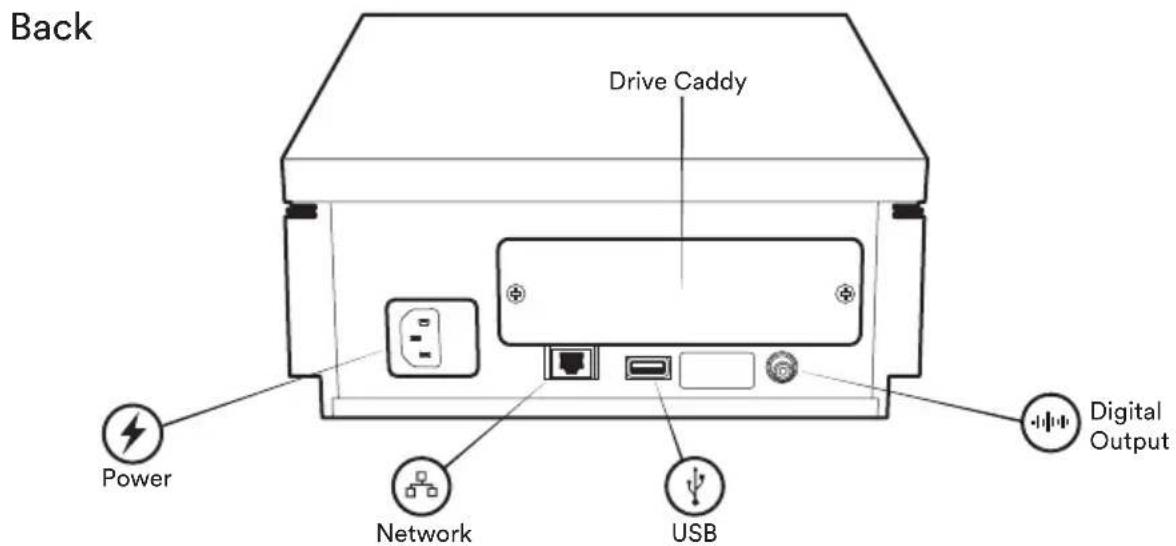
The diagrams below show the operational features and sockets of Uniti Core.
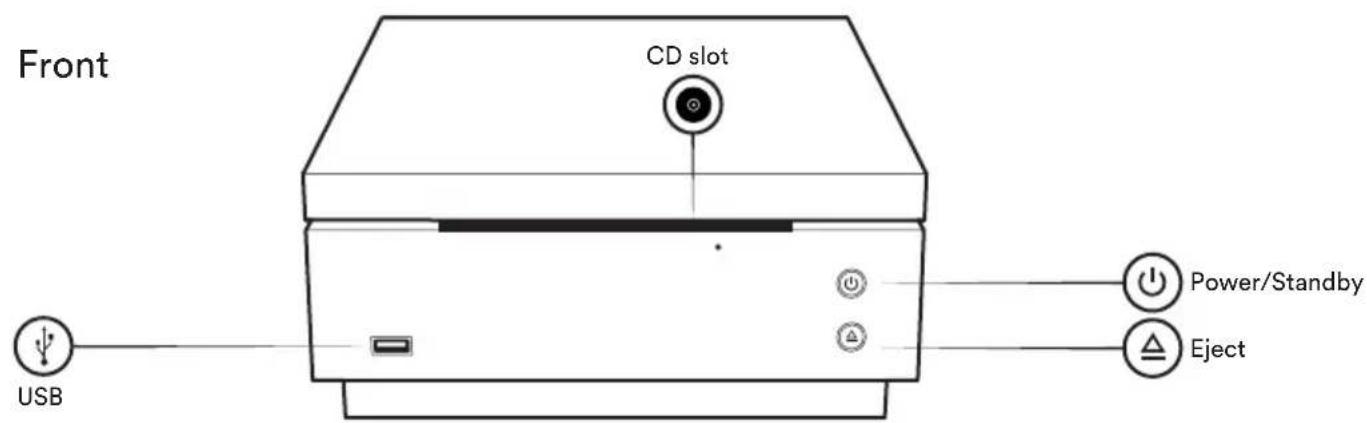
Simple setup
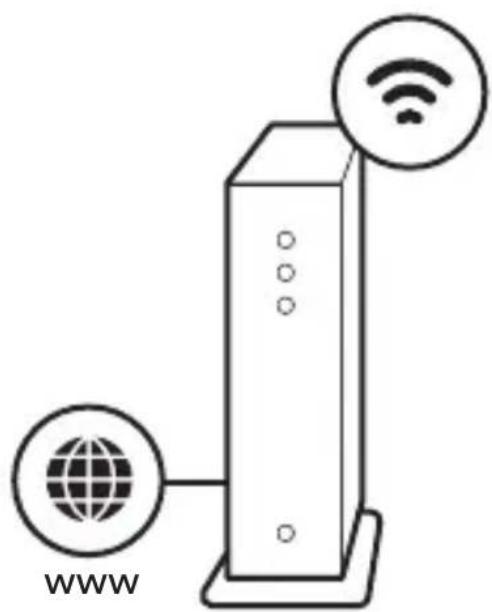
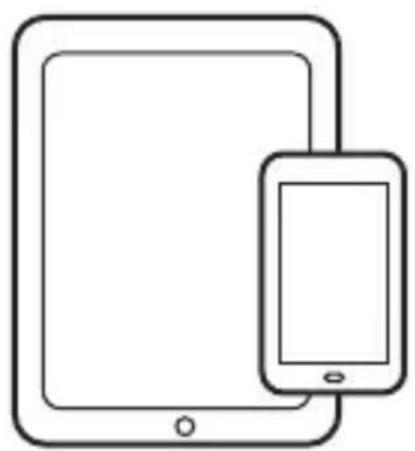
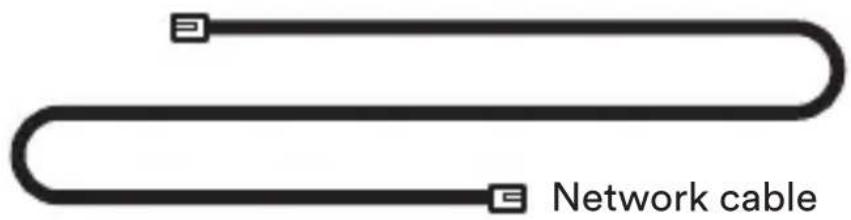
To get started, you will need an Internet connection with a router and network cable, some form of music storage and a tablet or smartphone. You will also need a cross-head screwdriver if fitting internal storage.
natural_image
Diagram of a server connected to a globe and wireless signal icon (no text or symbols)Wi-Fi
Router with Wi-Fi
natural_image
Line drawing of two devices: a tablet and a smartphone, both without any text or symbols.Tablet or smartphone
See stage 4 for music storage options.
Music storage
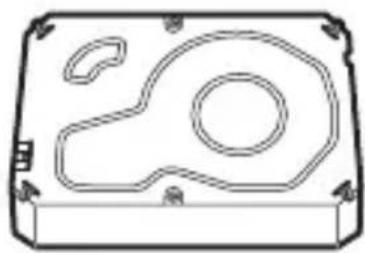
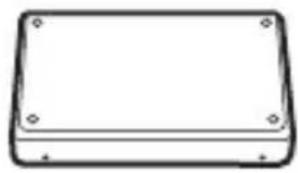
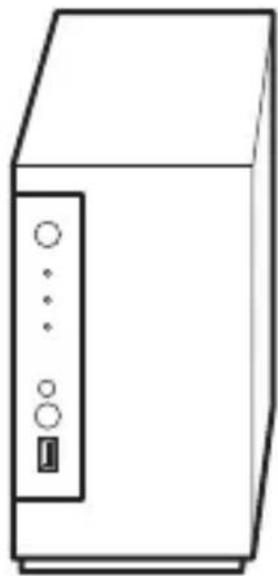
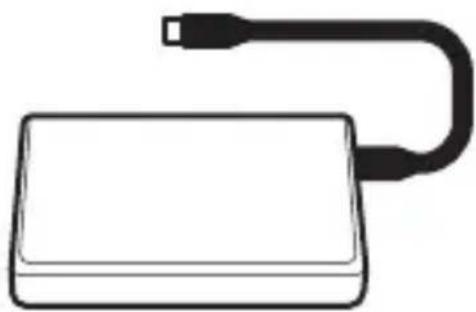
To make the most of your Uniti Core storage is needed. Three different storage options are illustrated below.

Internal Hard Disk Drive (HDD) or Solid State Drive (SSD)
natural_image
Technical line drawing of a mechanical housing or enclosure with internal components (no text or symbols)HDD
natural_image
Simple line drawing of a rectangular electronic component with four corner holes (no text or symbols)SSD
natural_image
Line drawing of a desktop computer tower case with indicator lights (no text or symbols)
NAS external storage (can be a store or backup device)

USB external storage (can be a store or backup device)
natural_image
Simple line drawing of a rectangular device with a curved black cable extending from its top (no text or symbols)For recommended drives and devices please visit www.naimaudio.com/naim-support and look for 'Uniti Core'
Installing storage

SAFETY WARNING: the unit must be disconnected from the mains before opening the back of the unit.
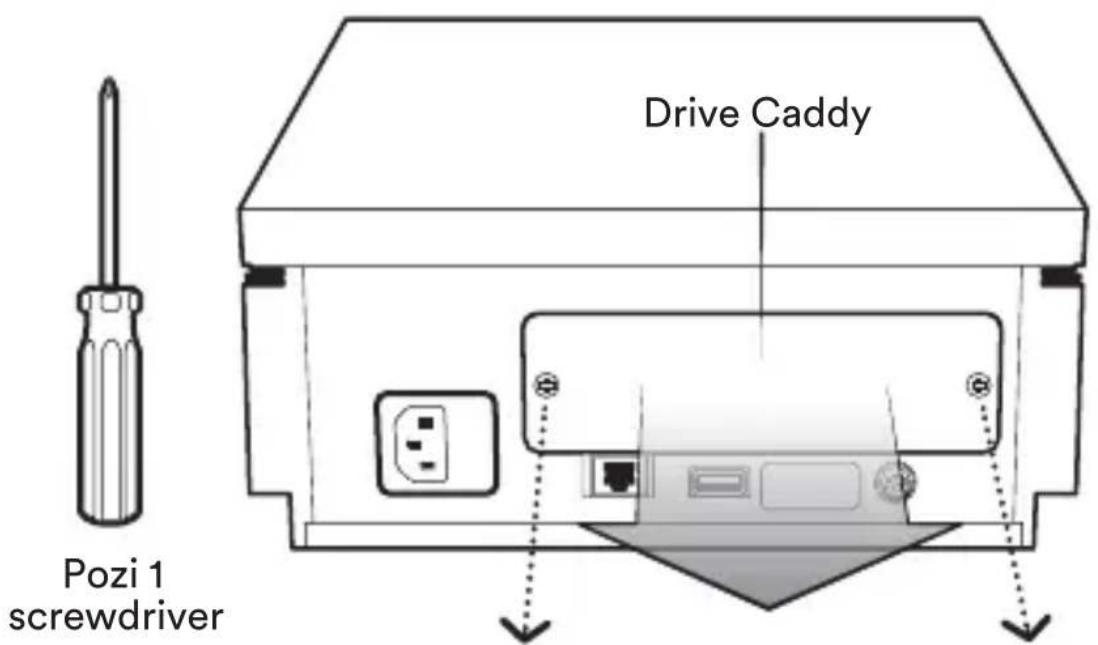
A Undo the screws from the back of the unit to remove the drive caddy
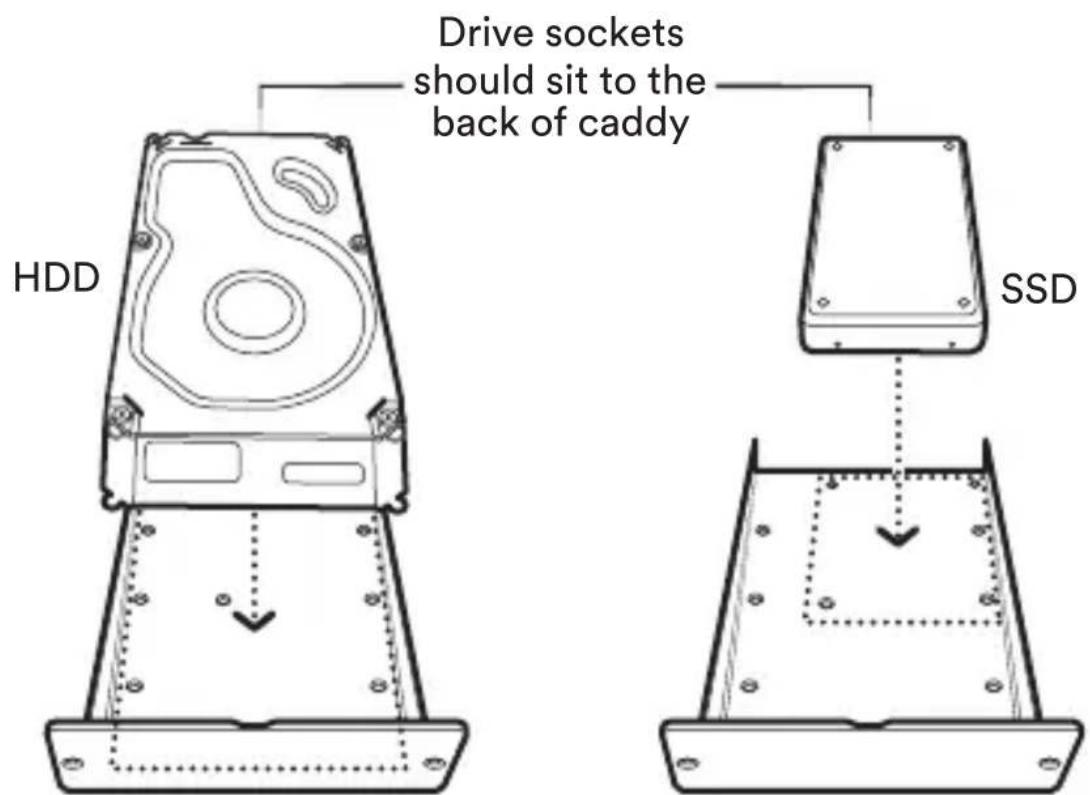

Position the HDD or SSD at the back of the caddy tray
Installing storage
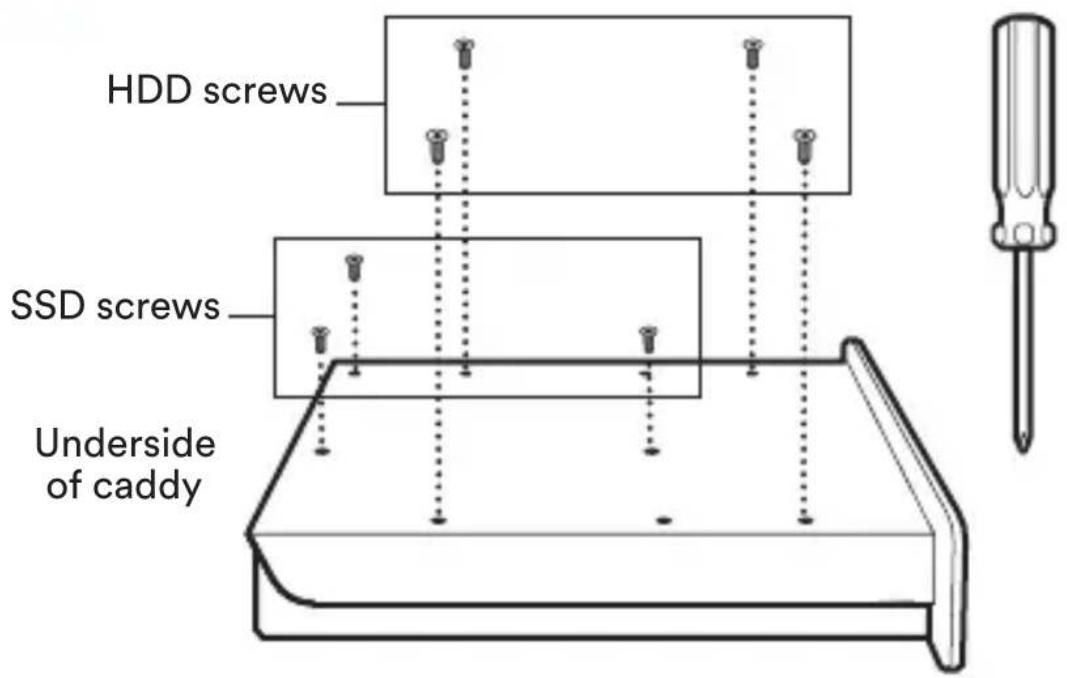

Use the screws provided to secure the drive to the caddy
natural_image
Technical line drawing of a mechanical device with screwdriver and housing (no text or symbols)
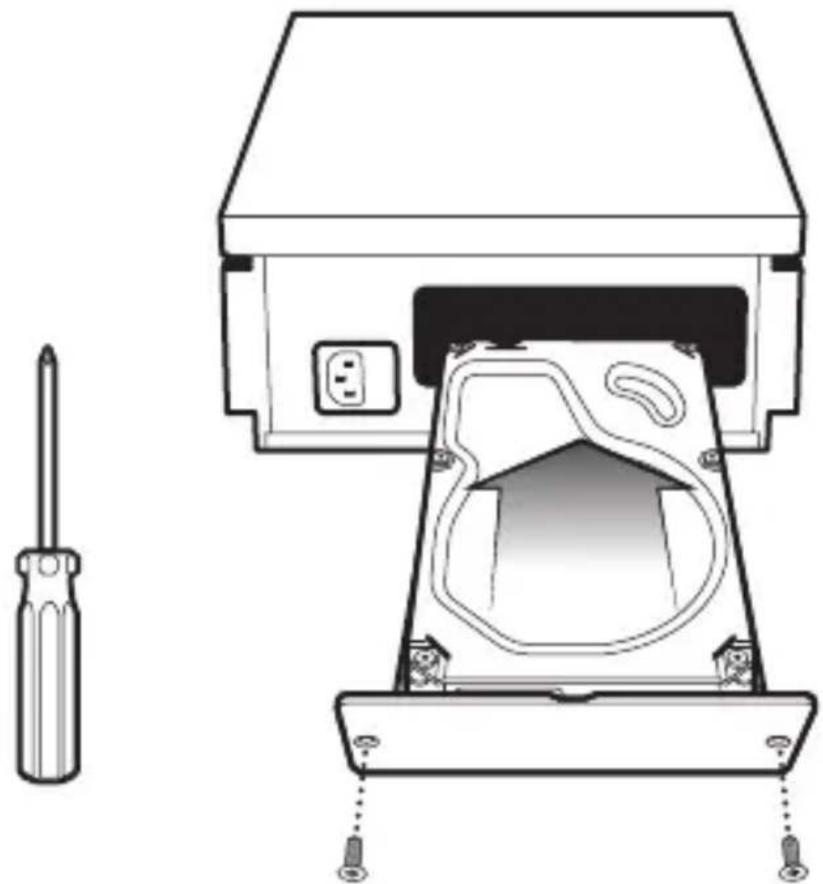
Slide the caddy and drive back into the device and secure with the screws
Please note: all screws should be hand tightened only
Connection and power
(A) Connect the Uniti Core to the router with the network cable, then connect the power lead (B) to the unit's power socket and then to the mains. (C) Optional connection to NAS drive.
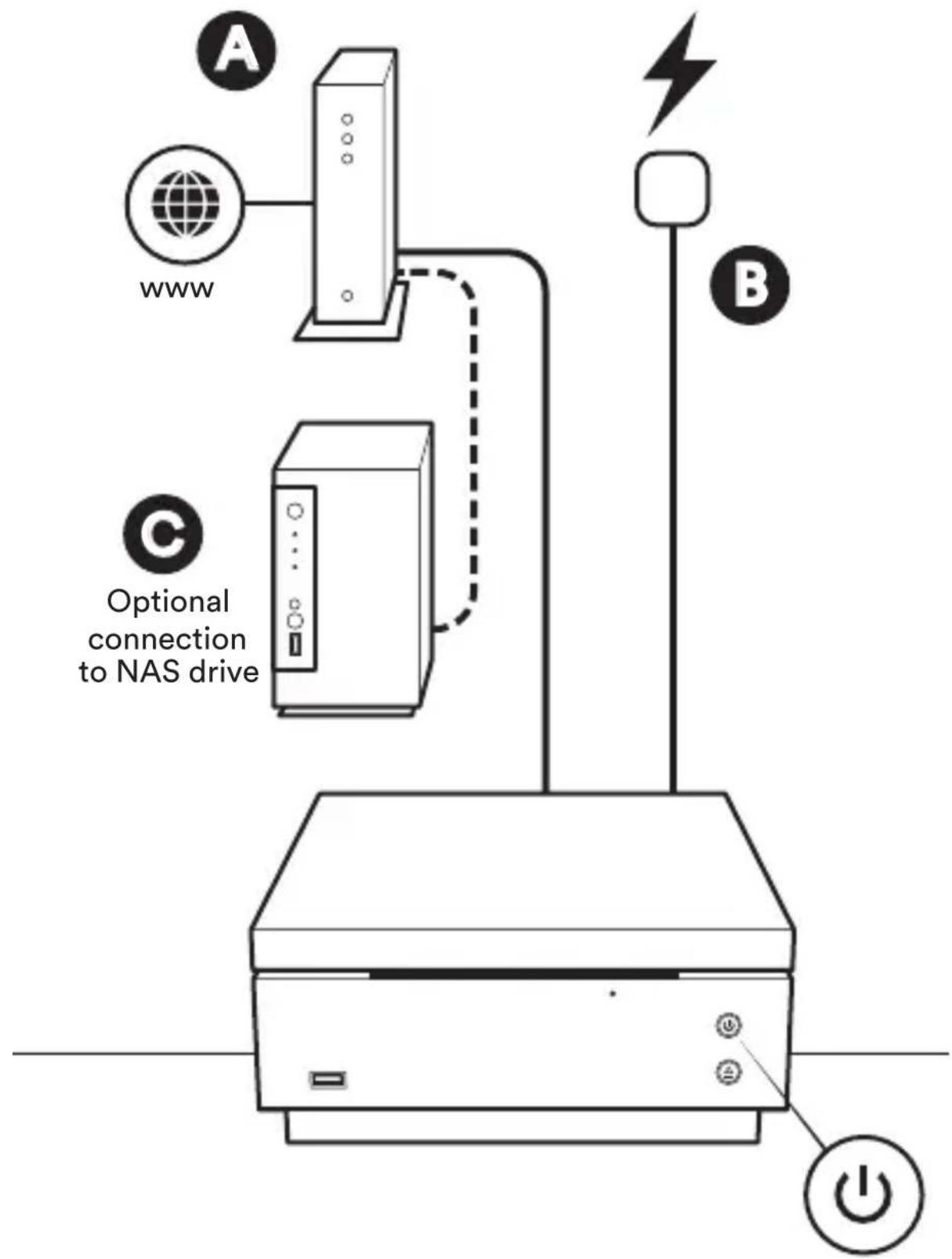
flowchart
graph TD
    A["www"] --> B["Optional connection to NAS drive"]
    C["Power"] --> D["Switch"]
    style A fill:#f9f,stroke:#333
    style B fill:#ccf,stroke:#333
    style C fill:#cfc,stroke:#333
    style D fill:#fcc,stroke:#333
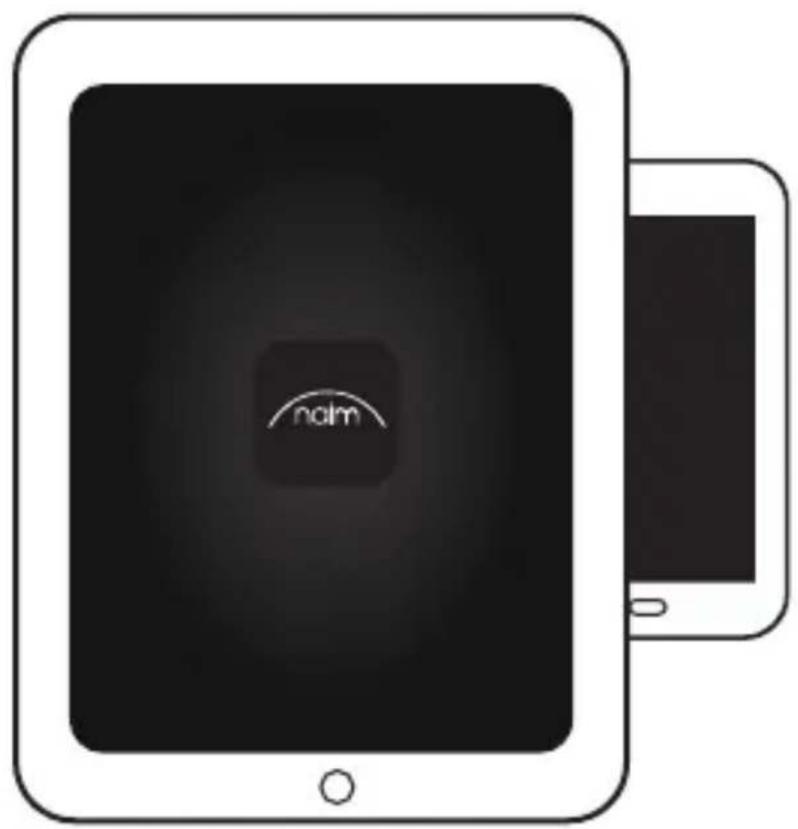
Download Naim app
Download and install the Naim app for your iOS or Android device.
Launch the Naim app and follow the setup instructions to configure the product and set up music storage.




natural_image
Illustration of a tablet device with a 'naim' app icon on screen, no text or symbols presentRipping music
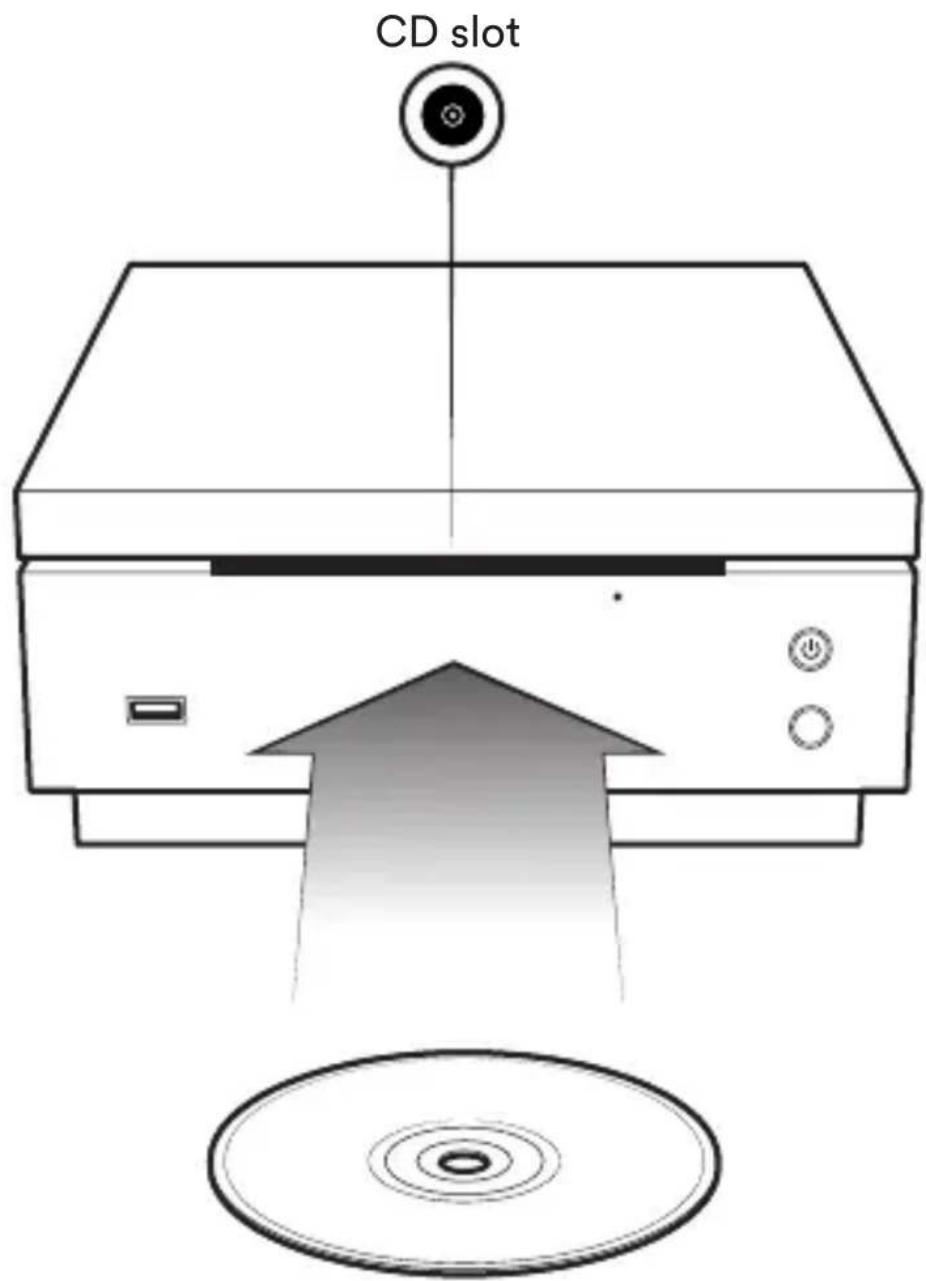
Once your Uniti Core is powered and set up you can begin ripping your music. To do this, simply feed the CD into the slot on the front of the unit. The Naim app can be used to monitor the ripping process.
After the Uniti Core has read and saved your disc, it will eject it. Remove and repeat with the next CD.
CD
Playing music
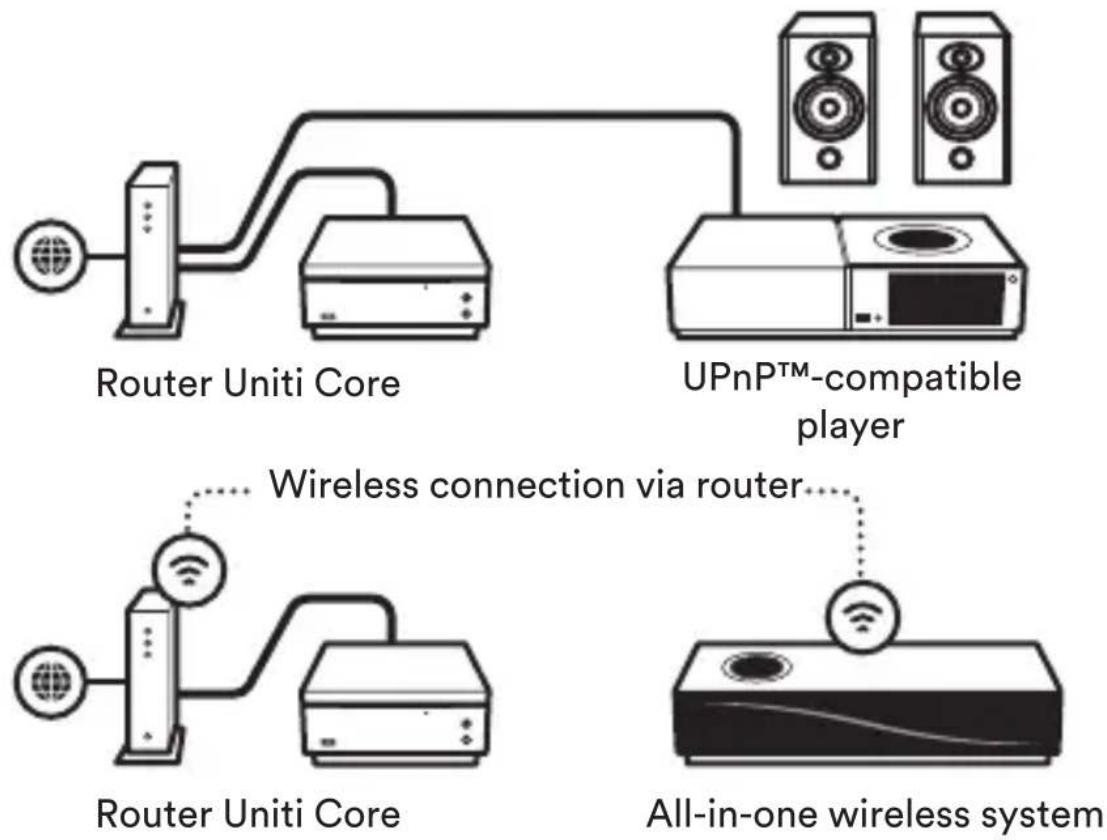
The Uniti Core can operate as a UPnP™ music server providing audio files to any UPnP™-compatible player on the same network. Uniti Core also incorporates a digital audio output for local playback via the digital input of a hi-fi system. Music can be played locally from internal storage, a network drive or attached USB drives using the Naim app.
UPnP™ music server
Connection via the same network or wireless connection via router
Digital music source
Direct connection from digital output to digital input
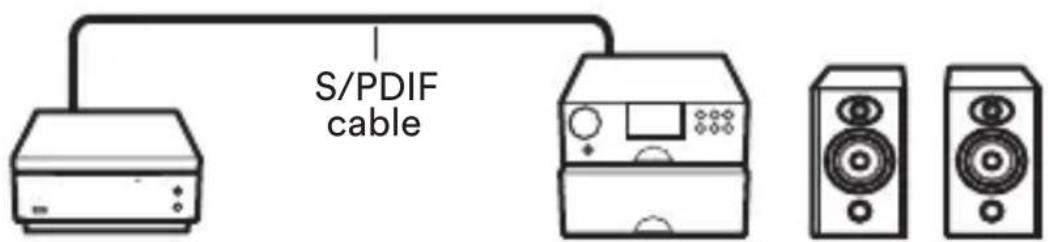
Uniti Core
Hi-Fi system
Visit the Naim website for further support, including useful video tutorials and interactive setup and support guides.
www.naimaudio.com/naim-support

Contact
uniti-support@naimaudio.com
Support helpline:
+44 (0) 333 321 9923 (UK)
+1 800 961 5681 (USA and Canada)
中文
1 内容物
www.naimaudio.com/naim-support
Français
www.naimaudio.com/naim-support
Deutsch
1 Lieferumfang
1 x Uniti Core, 1 x Kundendokumente,
1 x Netzkabel, 1 x BNC-Cinch-Adapter,
www.naimaudio.com/naim-support
Italiano
www.naimaudio.com/naim-support
日本語
1 粗包内容
www.naimaudio.com/naim-support
5 ストレージのインストール
www.naimaudio.com/naim-support
Polski
www.naimaudio.com/naim-support
Português
1 Conteúdo da caixa
www.naimaudio.com/naim-support


Brand : NAIM
Model : Uniti Core
Category : Cd player/recorder