ManualGo.com
KDX280BT - Car stereo JVC - Free user manual and instructions
Find the device manual for free KDX280BT JVC in PDF.



Download the instructions for your Car stereo in PDF format for free! Find your manual KDX280BT - JVC and take your electronic device back in hand. On this page are published all the documents necessary for the use of your device. KDX280BT by JVC.
USER MANUAL KDX280BT JVC
For customer Use:Enter below the Model No. and Serial No. which are located on the top or bottom of the cabinet. Retain this information for future reference.Model No. Serial No. KD-X38MBS_K_B5A-3840-00_Cover_1st Draft.indd 1KD-X38MBS_K_B5A-3840-00_Cover_1st Draft.indd 1 23/8/2021 4:36:56 PM23/8/2021 4:36:56 PMData Size: B6L (182 mm x 128 mm) Book Size: B6L (182 mm x 128 mm)
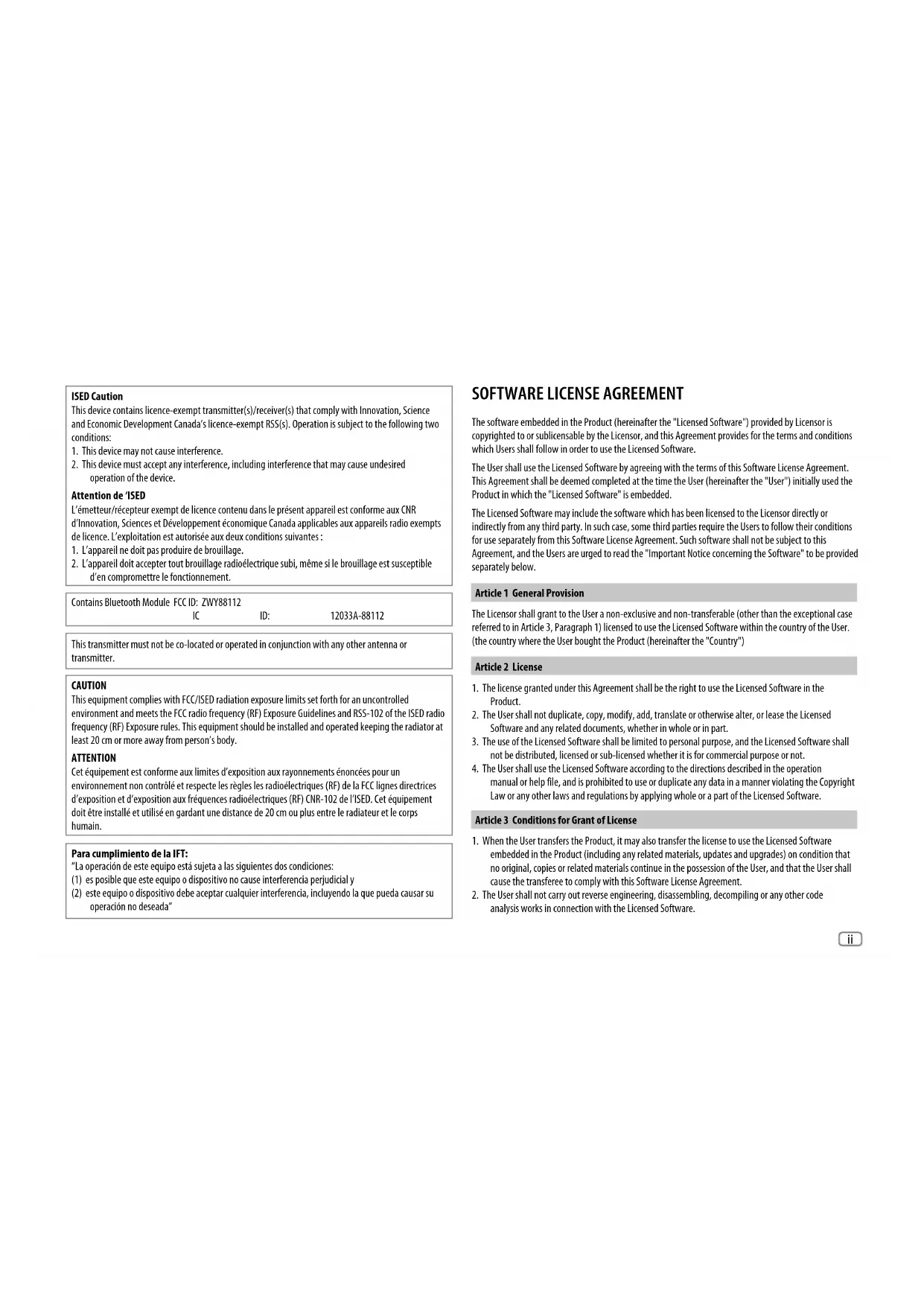
1. This device may not cause interference.
2. This device must accept any interference, including interference that may cause undesired
The software embedded in the Product (hereinafter the "Licensed Software") provided by Licensor is copyrighted to or sublicensable by the Licensor, and this Agreement provides for the terms and conditions which Users shall follow in order to use the Licensed Software. The User shall use the Licensed Software by agreeing with the terms of this Software License Agreement. This Agreement shall be deemed completed at the time the User (hereinafter the "User") initially used the Product in which the "Licensed Software" is embedded. The Licensed Software may include the software which has been licensed to the Licensor directly or indirectly from any third party. In such case, some third parties require the Users to follow their conditions for use separately from this Software License Agreement. Such software shall not be subject to this Agreement, and the Users are urged to read the "Important Notice concerning the Software" to be provided separately below. Article 1 General Provision The Licensor shall grant to the User a non-exclusive and non-transferable (other than the exceptional case referred to in Article 3, Paragraph 1) licensed to use the Licensed Software within the country of the User. (the country where the User bought the Product (hereinafter the "Country") Article 2 License
1. The license granted under this Agreement shall be the right to use the Licensed Software in the
Software and any related documents, whether in whole or in part.
3. The use of the Licensed Software shall be limited to personal purpose, and the Licensed Software shall
not be distributed, licensed or sub-licensed whether it is for commercial purpose or not.
4. The User shall use the Licensed Software according to the directions described in the operation
manual or help file, and is prohibited to use or duplicate any data in a manner violating the Copyright Law or any other laws and regulations by applying whole or a part of the Licensed Software. Article 3 Conditions for Grant of License
1. When the User transfers the Product, it may also transfer the license to use the Licensed Software
embedded in the Product (including any related materials, updates and upgrades) on condition that no original, copies or related materials continue in the possession of the User, and that the User shall cause the transferee to comply with this Software License Agreement.
2. The User shall not carry out reverse engineering, disassembling, decompiling or any other code
analysis works in connection with the Licensed Software. KD-X38MBS_K_B5A-3840-00_Cover_1st Draft.indd iiKD-X38MBS_K_B5A-3840-00_Cover_1st Draft.indd ii 23/8/2021 4:36:58 PM23/8/2021 4:36:58 PMData Size: B6L (182 mm x 128 mm) Book Size: B6L (182 mm x 128 mm) iii Article 4 Right pertaining to the Licensed Software Any and all copyrights and other rights pertaining to the Licensed Software and related documents shall belong to the Licensor or the original holder of the right who granted to the Licensor the license or sublicense for the Licensed Software (hereinafter the "Original Rightholder"), and the User shall not be entitled to any right other than the license granted hereunder, in respect of the Licensed Software and any related documents. Article 5 Indemnification of Licensor
1. Neither the Licensor nor the Original Rightholder shall be liable for any damage incurred by the User
or any third party due to the exercise of the license granted to the User under this Agreement, unless otherwise restricted by law.
2. The Licensor will offer no guarantee for the merchantability, convertibility and consistency with
certain objective of the Licensed Software. Article 6 Liability to Third Party If any dispute has arisen with any third party due to an infringement upon a copyright, patent or any other intellectual property right that was caused by the User's use of the Licensed Software, the User shall settle such dispute at its own cost and hold the Licensor and the Original Rightholder harmless from any inconvenience it may cause. Article 7 Confidentiality The User shall keep the confidentiality of such portion of the Licensed Software, related documents thereof or any other information to be granted under this Agreement, as well as the conditions of this Agreement as has not yet entered the public domain, and shall not disclose or divulge the same to any third party without approval of the Licensor. Article 8 Termination In case the User falls under any of the events described in the following items, the Licensor may immediately terminate this Agreement or claim that the User compensates for the damage incurred by the Licensor due to such event: (1) when the User violated any provision of this Agreement; or (2) when a petition has been filed against the User for an attachment, provisional attachment, provisional disposition or any other compulsory execution. Article 9 Destruction of the Licensed Software If this Agreement is terminated pursuant to the provision of Article 8, the User shall destroy the Licensed Software, any related documents and copies thereof within two (2) weeks from such date of termination. Article 10 Protection of Copyright
1. The copyright and all the other intellectual property rights relating to the Licensed Software
shall belong to the Licensor and the Original Rightholder, and in no event shall they be under the ownership of the User.
2. The User shall, whenever it uses the Licensed Software, comply with any laws relating to the
copyright and other intellectual property rights. Article 11 Export Restriction
1. It is prohibited to export the Licensed Software and any related documents outside the country
of the User (including transmission thereof outside the country of the User via Internet of other communication tools).
2. The User shall understand that the Licensed Software shall be subject to the export restrictions
adopted by the country of User and any other countries.
3. The User shall agree that the software will be subject to any and all applicable international and
domestic laws (including the export control regulation of the country of User and any other countries, and any restrictions concerning the end-users, the use by end-users and importing countries to be provided by the country of User and any other countries, and any other governmental authorities). Article 12 Miscellaneous
1. In the event any part of this Agreement is invalidated by operation of law, the residual provisions
shall continue in force.
2. Matters not stipulated in this Agreement or any ambiguity or question raised in the construction of
this Agreement shall be provided or settled upon good-faith consultation between the Licensor and the User.
3. The Licensor and the User hereby agree that this Agreement is governed by the laws of Japan, and
any dispute arising from, and relating to the rights and obligations under, this Agreement shall be submitted to the exclusive jurisdiction of the Tokyo District Court for its first instance. KD-X38MBS_K_B5A-3840-00_Cover_1st Draft.indd iiiKD-X38MBS_K_B5A-3840-00_Cover_1st Draft.indd iii 23/8/2021 4:36:58 PM23/8/2021 4:36:58 PMData Size: B6L (182 mm x 128 mm) Book Size: B6L (182 mm x 128 mm)
Important Notice concerning the Software -jansson Copyright (c) 2009-2012 Petri Lehtinen <petri@digip.org> Permission is hereby granted, free of charge, to any person obtaining a copy of this software and associated documentation files (the "Software"), to deal in the Software without restriction, including without limitation the rights to use, copy, modify, merge, publish, distribute, sublicense, and/or sell copies of the Software, and to permit persons to whom the Software is furnished to do so, subject to the following conditions: The above copyright notice and this permission notice shall be included in all copies or substantial portions of the Software. THE SOFTWARE IS PROVIDED "AS IS", WITHOUT WARRANTY OF ANY KIND, EXPRESS OR IMPLIED, INCLUDING BUT NOT LIMITED TO THE WARRANTIES OF MERCHANTABILITY, FITNESS FOR A PARTICULAR PURPOSE AND NONINFRINGEMENT. IN NO EVENT SHALL THE AUTHORS OR COPYRIGHT HOLDERS BE LIABLE FOR ANY CLAIM, DAMAGES OR OTHER LIABILITY, WHETHER IN AN ACTION OF CONTRACT, TORT OR OTHERWISE, ARISING FROM, OUT OF OR IN CONNECTION WITH THE SOFTWARE OR THE USE OR OTHER DEALINGS IN THE SOFTWARE. -cJSON Copyright (c) 2009 Dave Gamble Permission is hereby granted, free of charge, to any person obtaining a copy of this software and associated documentation files (the "Software"), to deal in the Software without restriction, including without limitation the rights to use, copy, modify, merge, publish, distribute, sublicense, and/or sell copies of the Software, and to permit persons to whom the Software is furnished to do so, subject to the following conditions: The above copyright notice and this permission notice shall be included in all copies or substantial portions of the Software. THE SOFTWARE IS PROVIDED "AS IS", WITHOUT WARRANTY OF ANY KIND, EXPRESS OR IMPLIED, INCLUDING BUT NOT LIMITED TO THE WARRANTIES OF MERCHANTABILITY, FITNESS FOR A PARTICULAR PURPOSE AND NONINFRINGEMENT. IN NO EVENT SHALL THE AUTHORS OR COPYRIGHT HOLDERS BE LIABLE FOR ANY CLAIM, DAMAGES OR OTHER LIABILITY, WHETHER IN AN ACTION OF CONTRACT, TORT OR OTHERWISE, ARISING FROM, OUT OF OR IN CONNECTION WITH THE SOFTWARE OR THE USE OR OTHER DEALINGS IN THE SOFTWARE. -CMP The MIT License (MIT) Copyright (c) 2014 Charles Gunyon Permission is hereby granted, free of charge, to any person obtaining a copy of this software and associated documentation files (the "Software"), to deal in the Software without restriction, including without limitation the rights to use, copy, modify, merge, publish, distribute, sublicense, and/or sell copies of the Software, and to permit persons to whom the Software is furnished to do so, subject to the following conditions: The above copyright notice and this permission notice shall be included in all copies or substantial portions of the Software. THE SOFTWARE IS PROVIDED "AS IS", WITHOUT WARRANTY OF ANY KIND, EXPRESS OR IMPLIED, INCLUDING BUT NOT LIMITED TO THE WARRANTIES OF MERCHANTABILITY, FITNESS FOR A PARTICULAR PURPOSE AND NONINFRINGEMENT. IN NO EVENT SHALL THE AUTHORS OR COPYRIGHT HOLDERS BE LIABLE FOR ANY CLAIM, DAMAGES OR OTHER LIABILITY, WHETHER IN AN ACTION OF CONTRACT, TORT OR OTHERWISE, ARISING FROM, OUT OF OR IN CONNECTION WITH THE SOFTWARE OR THE USE OR OTHER DEALINGS IN THE SOFTWARE. nanopb Copyright (c) 2011 Petteri Aimonen <jpa at nanopb.mail.kapsi.fi> This software is provided 'as-is', without any express or implied warranty. In no event will the authors be held liable for any damages arising from the use of this software. Permission is granted to anyone to use this software for any purpose, including commercial applications, and to alter it and redistribute it freely, subject to the following restrictions:
1. The origin of this software must not be misrepresented; you must not claim that you wrote
the original software. If you use this software in a product, an acknowledgment in the product documentation would be appreciated but is not required.
2. Altered source versions must be plainly marked as such, and must not be misrepresented as being the
3. This notice may not be removed or altered from any source distribution.
KD-X38MBS_K_B5A-3840-00_Cover_1st Draft.indd ivKD-X38MBS_K_B5A-3840-00_Cover_1st Draft.indd iv 23/8/2021 4:36:58 PM23/8/2021 4:36:58 PMData Size: B6L (182 mm x 128 mm) Book Size: B6L (182 mm x 128 mm)
sha2 AUTHOR: Aaron D. Gifford - http://www.aarongifford.com/ Copyright (c) 2000-2001, Aaron D. Gifford All rights reserved. You may obtain a copy of the license at https://opensource.org/licenses/BSD-3-Clause THE SOFTWARE IS PROVIDED “AS IS”, WITHOUT WARRANTY OF ANY KIND, EXPRESS OR IMPLIED, INCLUDING BUT NOT LIMITED TO THE WARRANTIES OF MERCHANTABILITY, FITNESS FOR A PARTICULAR PURPOSE AND NONINFRINGEMENT. IN NO EVENT SHALL THE AUTHORS OR COPYRIGHT HOLDERS BE LIABLE FOR ANY CLAIM, DAMAGES OR OTHER LIABILITY, WHETHER IN AN ACTION OF CONTRACT, TORT OR OTHERWISE, ARISING FROM, OUT OF OR IN CONNECTION WITH THE SOFTWARE OR THE USE OR OTHER DEALINGS IN THE SOFTWARE. Posix Copyright (c) 1990, 1993 The Regents of the University of California. All rights reserved. Redistribution and use in source and binary forms, with or without modification, are permitted provided that the following conditions are met:
1. Redistributions of source code must retain the above copyright notice, this list of conditions and the
following disclaimer.
2. Redistributions in binary form must reproduce the above copyright notice, this list of conditions and
the following disclaimer in the documentation and/or other materials provided with the distribution.
3. All advertising materials mentioning features or use of this software must display the following
acknowledgement: This product includes software developed by the University of California, Berkeley and its contributors.
4. Neither the name of the University nor the names of its contributors may be used to endorse or
promote products derived from this software without specific prior written permission. Copyright (C) 1993 by Sun Microsystems, Inc. All rights reserved. Developed at SunPro, a Sun Microsystems, Inc. business. Permission to use, copy, modify, and distribute this software is freely granted, provided that this notice is preserved. Copyright (C) 1991-2, RSA Data Security, Inc. Created 1991. All rights reserved. License to copy and use this software is granted provided that it is identified as the “RSA Data Security, Inc. MD4 Message-Digest Algorithm” in all material mentioning or referencing this software or this function. Copyright (c) 1995, 1996 Carnegie-Mellon University. All rights reserved. Author: Chris G. Demetriou Permission to use, copy, modify and distribute this software and its documentation is hereby granted, provided that both the copyright notice and this permission notice appear in all copies of the software, derivative works or modified versions, and any portions thereof, and that both notices appear in supporting documentation. CARNEGIE MELLON ALLOWS FREE USE OF THIS SOFTWARE IN ITS “AS IS” CONDITION. CARNEGIE MELLON DISCLAIMS ANY LIABILITY OF ANY KIND FOR ANY DAMAGES WHATSOEVER RESULTING FROM THE USE OF THIS SOFTWARE. Carnegie Mellon requests users of this software to return to Software Distribution Coordinator or Software.Distribution@
School of Computer Science Carnegie Mellon University Pittsburgh PA 15213-3890 any improvements or extensions that they make and grant Carnegie the rights to redistribute these changes. License is also granted to make and use derivative works provided that such works are identified as “derived from the RSA Data Security, Inc. MD4 Message-Digest Algorithm” in all material mentioning or referencing the derived work. RSA Data Security, Inc. makes no representations concerning either the merchantability of this software or the suitability of this software for any particular purpose. It is provided “as is” without express or implied warranty of any kind. Copyright (c) 1993 Martin Birgmeier All rights reserved. You may redistribute unmodified or modified versions of this source code provided that the above copyright notice and this and the following conditions are retained. This software is provided “as is”, and comes with no warranties of any kind. I shall in no event be liable for anything that happens to anyone/anything when using this software. These notices must be retained in any copies of any part of this documentation and/or software. KD-X38MBS_K_B5A-3840-00_Cover_1st Draft.indd vKD-X38MBS_K_B5A-3840-00_Cover_1st Draft.indd v 23/8/2021 4:36:59 PM23/8/2021 4:36:59 PMData Size: B6L (182 mm x 128 mm) Book Size: B6L (182 mm x 128 mm)
- To ensure proper use, please read through this manual before using this product. It is especially important that you read and observe Warnings and Cautions in this manual.
- Please keep the manual in a safe and accessible place for future reference. WARNING Do not operate any function that takes your attention away from safe driving. CAUTION Volume setting:
- Adjust the volume so that you can hear sounds outside the car to prevent accidents.
- Lower the volume before playing digital sources to avoid damaging the speakers by the sudden increase of the output level. General:
- Avoid using the external device if it might hinder safe driving.
- Make sure all important data has been backed up. We shall bear no responsibility for any loss of recorded data.
- Never put or leave any metallic objects (such as coins or metal tools) inside the unit to prevent a short circuit.
- Depending on the types of cars, the antenna will automatically extend when you turn on the unit with the antenna control wire connected (page36). Turn off the unit when parking at a low ceiling area. How to read this manual
- The displays and faceplates shown in this manual are examples used to provide clear explanations of the operations. For this reason, they may be different from the actual displays or faceplates.
- Operations are explained mainly using buttons on the faceplate of KD-X38MBS.
- English indications are used for the purpose of explanation. You can select the display language from the menu. (Page6)
[XX] indicates the selected items.
- (PageXX) indicates references are available on the stated page. This symbol on the product means there are important operating and maintenance instructions in this manual. Be sure to carefully read instructions in this manual. KD-X38MBS_K_B5A-3840-00_EN_1st Draft.indd 3KD-X38MBS_K_B5A-3840-00_EN_1st Draft.indd 3 23/8/2021 4:47:08 PM23/8/2021 4:47:08 PM4 ENGLISH Data Size: B6L (182 mm x 128 mm) Book Size: B6L (182 mm x 128 mm) Basics To On the faceplate Turn on the power Press B SRC.
- Press and hold to turn off the power. Adjust the volume Turn the volume knob. Press the volume knob to mute the sound or pause playback.
- Press again to cancel. The volume level returns to the previous level before muting or pause. Select a source
- Press B SRC repeatedly.
- Press B SRC, then turn the volume knob within 2 seconds. Change the display information Press repeatedly. (Page30, 31) Attach How to reset Detach Faceplate Reset the unit within 5seconds after detaching the faceplate. KD-X38MBS: KD-X280BT/KD-XD28BT/KD-SX27BT:
Data Size: B6L (182 mm x 128 mm) Book Size: B6L (182 mm x 128 mm) Getting Started Acknowledge the crossover type and cancel the demonstration When you turn on the power for the first time (or [FACTORY RESET] is set to [YES] , see page6), the display shows: “2-WAY X’OVER” or “3-WAY X’OVER” “PRESS” “VOLUME KNOB” “TO CONFIRM”. 1 Press the volume knob to acknowledge the current crossover type. Then, the display shows: “CANCEL DEMO” “PRESS” “VOLUME KNOB”.
- To change the crossover type, see page23. 2 Press the volume knob. [YES] is selected for the initial setup. 3 Press the volume knob again. “DEMO OFF” appears. Set the clock and date
Set the basic settings
Press and hold . 2 Turn the volume knob to select an item (see the following table), then press the knob. 3 Repeat step 2 until the desired item is selected or activated. 4 Press to exit. To return to the previous setting item, press
KD-X38MBS_K_B5A-3840-00_EN_1st Draft.indd 5KD-X38MBS_K_B5A-3840-00_EN_1st Draft.indd 5 23/8/2021 4:47:08 PM23/8/2021 4:47:08 PM6 ENGLISH Data Size: B6L (182 mm x 128 mm) Book Size: B6L (182 mm x 128 mm)
[UPDATE SYSTEM] [F/W UP xxxx] [YES]: Starts upgrading the firmware. ; [NO]: Cancels (upgrading is not activated). For details on how to update the firmware, visit <https://www.jvc.net/cs/car/>. [FACTORY RESET] [YES]: Resets the settings to default (except the stored station). ; [NO]: Cancels. [CLOCK] [TIME SYNC] [ON]: The clock time is automatically set using the Clock Time (CT) data in FM Radio Broadcast Data System signal. ; [OFF]: Cancels. [CLOCK DISPLAY] [ON]: The clock time is shown on the display even when the unit is turned off. ; [OFF]: Cancels. [ENGLISH] Select the display language for menu and music information if applicable. By default, [ENGLISH] is selected. [ESPANOL] [FRANCAIS]*3 [DEMOMODE] [ON]: Activates the display demonstration automatically if no operation is done for about 15 seconds. ; [OFF]: Deactivates. *2 Firmware downgrade is prohibited. *3 Only for KD-X38MBS. Radio Search for a station
Press B SRC repeatedly to select FM or AM. 2 Press S / T to search for a station automatically. (or) Press and hold S / T until “M” flashes, then press repeatedly to search for a station manually. Settings in memory You can store up to 18 stations for FM and 6 stations for AM. Store a station While listening to a station... Press and hold one of the number buttons (1 to 6). (or) 1 Press and hold the volume knob until “PRESETMODE” flashes. 2 Turn the volume knob to select a preset number, then press the knob. “MEMORY” appears once the station is stored. Getting Started KD-X38MBS_K_B5A-3840-00_EN_1st Draft.indd 6KD-X38MBS_K_B5A-3840-00_EN_1st Draft.indd 6 23/8/2021 4:47:08 PM23/8/2021 4:47:08 PMENGLISH
Press and hold . 2 Turn the volume knob to select an item (see the following table), then press the knob. 3 Repeat step 2 until the desired item is selected/activated or follow the instructions stated on the selected item. 4 Press to exit. To return to the previous setting item, press
Default: [XX] [TUNER SETTING] [RADIO TIMER] (For KD-X38MBS) Turns on the radio at a specific time regardless of the current source.
[ONCE]/[DAILY]/[WEEKLY]/[OFF]: Select how often the timer will be turned on.
[FM]/[AM]/[SIRIUS XM]*1: Select the source.
[01] to [18] (for FM/SIRIUS XM)/[01] to [06] (for AM): Select the preset station.
Set the activation day*2 and time.
” indicator lights up when complete. Radio Timer will not activate for the following cases.
- The unit is turned off.
- [OFF] is selected for [AM SRC] in [SOURCESELECT] after Radio Timer for AM is selected. (Page 5) Radio [SSM] [SSM01–06]/[SSM07–12]/[SSM13–18]: Automatically presets up to 18 stations for FM. “SSM” stops flashing when the first 6 stations are stored. Select [SSM07–12]/[SSM13–18] to store the following 12 stations. [IF BAND] [AUTO]: Increases the tuner selectivity to reduce interference noises from adjacent FM stations. (Stereo effect may be lost.) ; [WIDE]: Subjects to interference noises from adjacent FM stations, but sound quality will not be degraded and the stereo effect will remain. [MONO SET] [ON]: Improves the FM reception, but the stereo effect will be lost. ; [OFF]: Cancels. [AREA] [N.AMERICA]: For North/Central/South America, AM/FM intervals: 10 kHz/200 kHz. ; [S.AMERICA]: For some South American countries, AM/FM intervals: 10 kHz/50 kHz. ; [EUROPE]: For any other areas, AM/FM intervals: 9 kHz/50 kHz. [PTY SEARCH] Select a PTY code for FM Radio Broadcast Data Sytem (see the following “PTY code for FM Radio Broadcast Data System”). If there is a station broadcasting a program of the same PTY code as you have selected, that station is tuned in. *1 Selectable only when SiriusXM Vehicle Tuner is connected. (Page 10) *2 Selectable only when [ONCE] or [WEEKLY] is selected in step 1. PTY code for FM Radio Broadcast Data System [NEWS], [INFORM] (information), [SPORTS], [TALK], [ROCK], [CLSROCK] (classic rock), [ADLTHIT] (adult hits), [SOFTRCK] (softrock), [TOP40], [COUNTRY], [OLDIES], [SOFT], [NOSTALGA] (nostalgia), [JAZZ], [CLASSICL] (classical), [R&B] (rhythm and blues), [SOFTR&B] (soft rhythm and blues), [LANGUAGE], [RELMUSC] (religious music), [RELTALK] (religious talk), [PERSNLTY] (personality), [PUBLIC], [COLLEGE], [HABLESP] (Spanish talk), [MUSCESP] (Spanish music), [HIPHOP], [WEATHER] KD-X38MBS_K_B5A-3840-00_EN_1st Draft.indd 7KD-X38MBS_K_B5A-3840-00_EN_1st Draft.indd 7 23/8/2021 4:47:09 PM23/8/2021 4:47:09 PM8 ENGLISH Data Size: B6L (182 mm x 128 mm) Book Size: B6L (182 mm x 128 mm) USB/iPod Connect a USB device USB device USB input terminal USB 2.0 cable* (commercially available) The source changes to USB automatically and playback starts.
- Do not leave the cable inside the car when not in use. Connect an iPod/iPhone (for KD-X38MBS) USB input terminal Accessory of the iPod/iPhone* iPod/ iPhone The source changes to iPodUSB automatically and playback starts.
- You can also connect iPod/iPhone via Bluetooth. (Page15)
- Do not leave the cable inside the car when not in use. Basic operations Selectable source:
- KD-X38MBS: USB/iPodUSB or iPodBT
- KD-X280BT/KD-XD28BT/KD-SX27BT: USB For playable audio file, see “Playable files” on page29 To On the faceplate Reverse/Fast-forward Press and hold S / T. Select a file Press S / T. Select a folder* Press 2 J / 1 K. Repeat play Press 4 B repeatedly. [TRACK REPEAT]
iPod Random play Press 3 A repeatedly. [FOLDERRANDOM]
- This does not work for iPod. KD-X38MBS_K_B5A-3840-00_EN_1st Draft.indd 8KD-X38MBS_K_B5A-3840-00_EN_1st Draft.indd 8 23/8/2021 4:47:09 PM23/8/2021 4:47:09 PMENGLISH
Data Size: B6L (182 mm x 128 mm) Book Size: B6L (182 mm x 128 mm) Select music drive While in USB source, press 5 MODE repeatedly. Stored songs in the following drive will be played back.
- Selected internal or external memory of a smartphone (Mass Storage Class).
- Selected drive of a multiple drive device. (This unit can support multiple drive device of up to 4 drives. However, this unit may take some time to read if three or more cards are connected.) Select a file to play From a folder or list
Press . 2 Turn the volume knob to select a folder/list, then press the knob. 3 Turn the volume knob to select a file, then press the knob. Selected file starts playing. USB/iPod Quick search (applicable only for USB source) If you have many files, you can search through them quickly. 1 Press . 2 Turn the volume knob to select a folder/list, then press the knob. 3 Turn the volume knob quickly to browse through the list quickly. 4 Turn the volume knob to select a file, then press the knob. Selected file starts playing. Alphabet search (applicable only for iPodUSB source and iPodBT source) You can search for a file according to the first character. 1 Press . 2 Turn the volume knob to select a list, then press the knob. 3 Press 2 J / 1 K or turn the volume knob quickly to select the desired character (A to Z, 0to9, OTHERS). Select “OTHERS” if the first character is other than A to Z, 0 to 9. 4 Press the volume knob to start searching. Files with the characters you searched for or with similar characters (alphabetical order) will be displayed. 5 Turn the volume knob to select a file, then press the knob. Selected file starts playing.
KD-X38MBS_K_B5A-3840-00_EN_1st Draft.indd 9KD-X38MBS_K_B5A-3840-00_EN_1st Draft.indd 9 23/8/2021 4:47:09 PM23/8/2021 4:47:09 PM10 ENGLISH Data Size: B6L (182 mm x 128 mm) Book Size: B6L (182 mm x 128 mm) You can listen to music from a portable audio player via the auxiliary input jack. Preparation: Select [ON] for [BUILT-IN AUX]
Connect a portable audio player (commercially available).
3.5 mm (1/8") stereo mini plug with “L”
shaped connector (commercially available) Portable audio player Auxiliary input jack 2 Press B SRC repeatedly to select AUX. 3 Turn on the portable audio player and start playback. Use a 3-core plug head stereo mini plug for optimum audio output. AUX SiriusXM® Radio (for KD-X38MBS) Only SiriusXM® brings you more of what you love to listen to, all in one place. Get over 140 channels, including commercial-free music plus the best sports, news, talk, comedy and entertainment. Welcome to the world of satellite radio. A SiriusXM Vehicle Tuner and Subscription are required. For more information, visit <www.siriusxm.com>. Preparation: 1 Connect the optional SiriusXM Vehicle Tuner (commercially available). Antenna Expansion port on the rear panel SiriusXM Vehicle Tuner 2 Check your Radio ID for activation. The SiriusXM Radio ID is required for activation and can be found by tuning to Channel 0 as well as on the label found on the SiriusXM Vehicle Tuner and its packaging. The Radio ID does not include the letters I, O, S or F. 3 Activate the subscription. For users in the U.S.A.: Online: Go to <www.siriusxm.com/activatenow> Phone: Call 1-866-635-2349 For users in Canada: Online: Go to <www.siriusxm.ca/activate> Phone: Call 1-888-539-7474 4 Press B SRC repeatedly to select SIRIUSXM to start updating. KD-X38MBS_K_B5A-3840-00_EN_1st Draft.indd 10KD-X38MBS_K_B5A-3840-00_EN_1st Draft.indd 10 23/8/2021 4:47:09 PM23/8/2021 4:47:09 PMENGLISH
Press B SRC repeatedly to select SIRIUSXM. 2 Press . “ ” indicator lights up. 3 Turn the volume knob to select a CATEGORY, then press the knob. 4 Turn the volume knob to select a category from the list, then press the knob. If “ALL CHANNELS” is selected, all the available channels will be shown. 5 Turn the volume knob to select a channel, then press the knob.
- Pressing and holding 1/2 changes the channel rapidly.
- If no operation is done for 10 seconds, a channel will be selected automatically. (or) Press S / T to search for a channel manually.
- Pressing and holding S / T changes the channel rapidly. If a locked channel or a mature channel is selected, a pass code input screen appears. Enter the pass code to receive the channel. (Page13) Parental Control The Parental Control feature allows you to limit access to any SiriusXM channels, including those with mature content. When enabled, the Parental Control feature requires you to enter a pass code to tune to the locked channels.
- Information on setting up the pass code and locking channels can be found on page13. SiriusXM® Radio (for KD-X38MBS) Settings in memory You can store up to 18 channels. Store a channel While listening to a channel... Press and hold one of the number buttons (1 to 6). (or) 1 Press and hold the volume knob until “PRESETMODE” flashes. 2 Turn the volume knob to select a preset number, then press the knob. The preset number flashes and “MEMORY” appears. Select a stored channel Press one of the number buttons (1to6). (or) 1 Press . 2 Turn the volume knob to select PRESET, then press the knob. 3 Turn the volume knob to select a preset number, then press the knob. KD-X38MBS_K_B5A-3840-00_EN_1st Draft.indd 11KD-X38MBS_K_B5A-3840-00_EN_1st Draft.indd 11 23/8/2021 4:47:09 PM23/8/2021 4:47:09 PM12 ENGLISH Data Size: B6L (182 mm x 128 mm) Book Size: B6L (182 mm x 128 mm) Using SiriusXM Vehicle Tuner later than SXV200: This unit can assign a maximum of 18 SmartFavorites channels. Initially, all preset channels are assigned as SmartFavorites.
” appears following the last character of the channel name for the SmartFavorites channels. When you select a SmartFavorite channel, you can rewind and replay up to 30 minutes of any of the missed news, talk, sports or music content.
- Playback starts from the beginning of the song if [TUNE START] is set to [ON] (page13) for most music channels stored as a SmartFavorite. To On the faceplate Select a stored SmartFavorite channel Press one of the number buttons (1to6). 1 Press . 2 Turn the volume knob to select PRESET, then press the knob. 3 Turn the volume knob to select a preset number, then press the knob. Cancel SmartFavorites channels 1 Press . 2 Turn the volume knob to select PRESET, then press the knob. 3 Turn the volume knob to select a preset number, then press and hold the knob.
” is removed from the last character. Reassign SmartFavorites channels Repeat step 1 to step 3 of “Cancel SmartFavorites channels”.
” appears following the last character. SiriusXM Replay™ While listening to a channel... 1 Press the volume knob. “ ” indicator lights up and the unit memorizes this paused position. 2 Press the volume knob to start Replay. Replay starts from the paused position in step 1. During Replay... To On the faceplate Playback/pause Press the volume knob. Skip backward/forward* Press S / T. Rewind/Fast-forward* Press and hold S / T. Go to Live and exit Replay* Press and hold the volume knob. 1 Press . 2 Turn the volume knob to select LIVE, then press the knob.
- When Live is reached or selected, Live playback starts and exit Replay. SmartFavorites and TuneStart™ User preset channels are initially assigned as the SmartFavorites channels. SmartFavorite channel is available with SXV200 or later SiriusXM Vehicle Tuner. The SiriusXM Vehicle Tuner automatically buffers the broadcast audio content of the SmartFavorites channels in the background. Using SXV200: This unit can assign a maximum of 6 SmartFavorites channels. If you try to assign the 7th channel, an error beep tone will be heard. Initially, preset channels 1 to 6 are assigned as SmartFavorites. SiriusXM® Radio (for KD-X38MBS) KD-X38MBS_K_B5A-3840-00_EN_1st Draft.indd 12KD-X38MBS_K_B5A-3840-00_EN_1st Draft.indd 12 23/8/2021 4:47:09 PM23/8/2021 4:47:09 PMENGLISH
Data Size: B6L (182 mm x 128 mm) Book Size: B6L (182 mm x 128 mm) TuneScan™ You can get a short preview of the songs that you have missed on each of your SmartFavorites music channels or a music channel currently tuned into. 1 Press . 2 Turn the volume knob to select TUNE SCAN, then press the knob. Scanning start for the first 6 seconds of the recorded music contents.
- To listen to the current song, press the volume knob to stop scanning. The unit continues playing the current song.
- To select the previous/next song, press S / T.
- To cancel scanning, press and hold the volume knob. Playback returns to the channel before you entered TuneScan.
- Pressing any button other than volume knob or S / T will interrupt scanning and eventually stop scanning. SiriusXM settings
Press and hold . 2 Turn the volume knob to select an item (see the following table), then press the knob. 3 Repeat step 2 until the desired item is selected/activated or follow the instructions stated on the selected item. 4 Press to exit. To return to the previous setting item, press
to move to the entry position.
Repeat step 1 and step 2 to enter the current pass code. (Initial pass code is 0000.)
Press the volume knob to confirm. [CODESET]
to move to the entry position.
Repeat step 1 and step 2 to enter a new 4-digit pass code.
Press the volume knob to confirm.
Repeat step 1 to step 4 to reconfirm the pass code.
- Make a note of the new pass code to enter channel lock settings for next time. [LOCK SETTING] [MATURE CH]: Selects the SiriusXM-defined lock setting. ; [USER DEFINED]: Selects the individual channels the user wants to lock. ; [OFF]: Cancels. [CHANNEL EDIT]*1
Turn the volume knob to select a channel you want to lock, then press the knob. “L” appears in front of the channel number.
Press and hold to exit. [CHANNEL CLEAR]*1 [YES]: Clears all the locked channels. ; [NO]: Cancels. [TUNE START]*2 [ON]: All qualified music channels in the SmartFavorites will start playback from the beginning of the song. ; [OFF]: Cancels. [SIGNAL LEVEL] Shows the strength ([NO SIGNAL]/[WEAK]/[GOOD]/[STRONG]) of the current received signal. [BUFFER USAGE] Shows the memory usage ([0%] to [100%]) for Replay buffer. [SXM RESET] [YES]: Resets all SiriusXM settings to default. ; [NO]: Cancels. *1 Displayed only when [LOCK SETTING] is set to [USER DEFINED]. *2 Available only if the connected SiriusXM Vehicle Tuner is SXV200 or later which supports SmartFavorites. SiriusXM® Radio (for KD-X38MBS) KD-X38MBS_K_B5A-3840-00_EN_1st Draft.indd 13KD-X38MBS_K_B5A-3840-00_EN_1st Draft.indd 13 23/8/2021 4:47:09 PM23/8/2021 4:47:09 PM14 ENGLISH Data Size: B6L (182 mm x 128 mm) Book Size: B6L (182 mm x 128 mm) JVC Remote Application You can control the JVC car receiver from the following device using JVC Remote application.
- KD-X38MBS: iPhone/iPodtouch (via Bluetooth or via USB input terminal) or Android device (via Bluetooth)
- KD-X280BT/KD-XD28BT/KD-SX27BT: Android device (via Bluetooth) For more information, visit <https://www.jvc.net/cs/car/>. Preparation: Install the latest version of JVC Remote application on your device before connecting. Start using JVC Remote application
Start up the JVC Remote application on your device. 2 Connect your device.
- For Android device: Pair the Android device with this unit via Bluetooth. (Page15)
- For iPhone/iPodtouch: Connect iPhone/iPodtouch to the USB input terminal. (Page8) (or) Pair the iPhone/iPodtouch with this unit via Bluetooth. (Page15) (Make sure the USB input terminal is not connected to any device.) 3 Select the device to use from the menu. See the following “Settings to use JVC Remote application”. For KD-X38MBS: By default, [ANDROID] is selected. To use iPhone/ iPodtouch, select [YES] for [IOS]
Settings to use JVC Remote application
Press and hold . 2 Turn the volume knob to select an item (see the following table), then press the knob. 3 Repeat step 2 until the desired item is selected or activated. 4 Press to exit. To return to the previous setting item, press
Default: [XX] [REMOTE APP] [SELECT] (For KD-X38MBS) Selects the device ([IOS] or [ANDROID]) to use the application. [IOS] [YES]: Selects iPhone/iPod touch to use the application via Bluetooth or connected via USB input terminal. ; [NO]: Cancels. If [IOS] is selected, select iPod BT source (or iPod USB source if your iPhone/ iPod touch is connected via USB input terminal) to activate the application.
- The connectivity of the application will be interrupted or disconnected if: – You change from iPod BT source to any playback source connected via the USB input terminal. – You change from iPod USB source to iPod BT source. [ANDROID] [YES]: Selects Android device to use the application via Bluetooth. ; [NO]: Cancels. [ANDROID LIST] Selects the Android device to use from the list.
- For KD-X38MBS: Displayed only when [ANDROID] of [SELECT] is set to [YES]. [STATUS] Shows the status of the selected device. For KD-X38MBS: [IOS CONNECTED]: You are able to use the application using the iPhone/iPod touch connected via Bluetooth or USB input terminal. For KD-X38MBS: [IOS NOT CONNECTED]: No iOS device is connected to use the application. [ANDROID CONNECTED]: You are able to use the application using the Android device connected via Bluetooth. [ANDROID NOT CONNECTED]: No Android device is connected to use the application. KD-X38MBS_K_B5A-3840-00_EN_2nd Draft.indd 14KD-X38MBS_K_B5A-3840-00_EN_2nd Draft.indd 14 12/10/2021 10:56:54 PM12/10/2021 10:56:54 PMENGLISH
Data Size: B6L (182 mm x 128 mm) Book Size: B6L (182 mm x 128 mm) Pair and connect a Bluetooth device for the first time
Press B SRC to turn on the unit. 2 Search and select the name of your receiver (“KD-X38MBS”/ “KD-X280BT“/“KD-XD28BT”/“KD-SX27BT”) on the Bluetooth device. “BTPAIRING” flashes on the display.
- For some Bluetooth devices, you may need to enter the Personal Identification Number (PIN) code immediately after searching. 3 Perform (A) or (B) depending on what appears on the display. For some Bluetooth devices, pairing sequence may vary from the steps described below. (A) “Device Name” “XXXXXX” “VOL–YES” “BACK–NO” “XXXXXX” is a 6-digit passkey randomly generated during each pairing. Ensure that the passkeys appear on the unit and Bluetooth device are the same. Press the volume knob to confirm the passkey. Operate the Bluetooth device to confirm the passkey. (B) “Device Name” “VOL–YES” “BACK–NO” Press the volume knob to start pairing.
- If “PAIRING” “PIN 0000” scrolls on the display, enter the PIN code “0000” into the Bluetooth device. You can change to a desired PIN code before pairing. (Page19)
- If only “PAIRING” appears, operate the Bluetooth device to confirm pairing. “PAIRINGCOMPLETED” appears when pairing is completed and “O” will light up when the Bluetooth connection is established.
- KD-X38MBS, “ ” indicator lights up to show the strength of the battery of the connected device. See also [FORMAT] on page28 for the battery and signal strength shown on the display.
- KD-X280BT/KD-XD28BT/KD-SX27BT, “ ” and/or “ ” indicator(s) light(s) up. Bluetooth®
- Depending on the Bluetooth version, operating system and the firmware version of your mobile phone, Bluetooth features may not work with this unit.
- Be sure to turn on the Bluetooth function of the device to make the following operations.
- Signal conditions vary depending on the surroundings. Bluetooth — Connection Supported Bluetooth profiles – Hands-Free Profile (HFP) – Advanced Audio Distribution Profile (A2DP) – Audio/Video Remote Control Profile (AVRCP) – Serial Port Profile (SPP) – Phonebook Access Profile (PBAP) Supported Bluetooth codecs – Sub Band Codec (SBC) – Advanced Audio Coding (AAC) (for KD-X38MBS) Connect the microphone Adjust the microphone angle Secure using cord clamps (not supplied) if necessary. MIC (microphone input terminal)* Microphone (supplied) Rear panel
- For the location of the microphone input terminal/microphone input jack, refer to page 37. KD-X38MBS_K_B5A-3840-00_EN_1st Draft.indd 15KD-X38MBS_K_B5A-3840-00_EN_1st Draft.indd 15 23/8/2021 4:47:09 PM23/8/2021 4:47:09 PM16 ENGLISH Data Size: B6L (182 mm x 128 mm) Book Size: B6L (182 mm x 128 mm)
- This unit supports Secure Simple Pairing (SSP).
- Up to five devices can be registered (paired) in total.
- Once the pairing is completed, the Bluetooth device will remain registered in the unit even if you reset the unit. To delete the paired device, see [DEVICE DELETE] on page19.
- A maximum of two Bluetooth phones and one Bluetooth audio device can be connected at any time. To connect or disconnect the registered device, see [PHONESELECT]
[BTMODE] . (Page19) However, while in BT AUDIO source, you can connect to five Bluetooth audio devices and switch between these five devices. (Page21)
- Some Bluetooth devices may not automatically connect to the unit after pairing. Connect the device to the unit manually.
- When the battery of the connected Bluetooth device runs low, “Device Name” “LOW BATTERY” appears.
- Refer to the instruction manual of the Bluetooth device for more information. Auto Pairing (for KD-X38MBS) When you connect iPhone/iPod touch to the USB input terminal, pairing request (via Bluetooth) is automatically activated if [AUTO PAIRING] is set to [ON] . (Page19) Press the volume knob to pair once you have confirmed the device name. Bluetooth — Mobile phone Receive a call When there is an incoming call:
- KD-X38MBS: The buttons will blink in the color you have selected in [RING COLOR]
(Page18) KD-X280BT/KD-XD28BT/KD-SX27BT: The buttons will blink in the blinking pattern you have selected in [RING ILLUMI] . (Page18)
- The unit answers the call automatically if [AUTO ANSWER] is set to a selected time. (Page18) During a call:
- KD-X38MBS: The buttons stop blinking and illuminate in the color you have selected in [RING COLOR] . (Page18) KD-X280BT/KD-XD28BT/KD-SX27BT: The buttons stop blinking.
- If you turn off the unit or detach the faceplate, Bluetooth is disconnected. Bluetooth® KD-X38MBS_K_B5A-3840-00_EN_1st Draft.indd 16KD-X38MBS_K_B5A-3840-00_EN_1st Draft.indd 16 23/8/2021 4:47:10 PM23/8/2021 4:47:10 PMENGLISH
Data Size: B6L (182 mm x 128 mm) Book Size: B6L (182 mm x 128 mm) The following operations may differ or be unavailable depending on the connected phone. To On the faceplate First incoming call... Answer a call Press or the volume knob. Reject a call Press and hold or the volume knob. End a call Press and hold or the volume knob. While talking on the first incoming call... Answer another incoming call and hold the current call Press or the volume knob. Reject another incoming call Press and hold or the volume knob. While having two active calls... End current call and activate held call Press and hold or the volume knob. Swap between the current call and held call Press
Adjust the phone volume*1 [00]
Turn the volume knob during a call. Switch between hands-free and private talk modes*2 Press during a call. *1 This adjustment will not affect the volume of the other sources. *2 Operations may vary according to the connected Bluetooth device. Improve the voice quality While talking on the phone... 1 Press and hold . 2 Turn the volume knob to select an item (see the following table), then press the knob. 3 Repeat step 2 until the desired item is selected or activated. 4 Press to exit. To return to the previous setting item, press
Default: [XX] [MIC GAIN] [LEVEL –10] to [LEVEL +10] ([LEVEL –04]): The sensitivity of the microphone increases as the number increases. [NR LEVEL] [LEVEL –05] to [LEVEL +05] ([LEVEL 00]): Adjust the noise reduction level until the least noise is being heard during a phone conversation. [ECHO CANCEL] [LEVEL –05] to [LEVEL +05] ([LEVEL 00]): Adjust the echo cancellation delay time until the least echo is being heard during a phone conversation.
- Call quality may depend on mobile phone. Make the settings for receiving a call
Bluetooth® KD-X38MBS_K_B5A-3840-00_EN_1st Draft.indd 17KD-X38MBS_K_B5A-3840-00_EN_1st Draft.indd 17 23/8/2021 4:47:10 PM23/8/2021 4:47:10 PM18 ENGLISH Data Size: B6L (182 mm x 128 mm) Book Size: B6L (182 mm x 128 mm) Default: [XX] [SETTINGS] [AUTO ANSWER] [01SEC] to [30SEC]: Answers an incoming call automatically in the selected time (in seconds). ; [OFF]: Cancels. [RING COLOR] (For KD-X38MBS) [COLOR01] to [COLOR49] ([COLOR08]): Selects the illumination color for the buttons as notification when there is an incoming call and during a call. ; [OFF]: Cancels. [RING ILLUMI] (For KD-X280BT/KD-XD28BT/KD-SX27BT) [BLINK01] to [BLINK05] ([BLINK02]): Selects the blinking pattern for the buttons as notification when there is an incoming call. ; [OFF]: Cancels. Make a call You can make a call from the call history, phonebook, or dialing the number. Call by voice is also possible if your mobile phone has the feature. 1 Press to enter Bluetooth mode. “(First device name)” appears.
- If two Bluetooth phones are connected, press again to switch to the other phone. “(Second device name)” appears. 2 Turn the volume knob to select an item (see the following table), then press the knob. 3 Repeat step 2 until the desired item is selected/activated or follow the instructions stated on the selected item. To return to the previous setting item, press
Bluetooth® [RECENT CALL] (Applicable only if the phone supports PBAP.)
- “<” indicates call received, “>“ indicates call made, “M” indicates call missed.
- “NO HISTORY” appears if there is no recorded call history or call number.
Press the volume knob to call. [PHONEBOOK] (Applicable only if the phone supports PBAP.)
to select the desired letter (A to Z, 0 to 9, and OTHERS).
- “OTHERS” appears if the first character is other than A to Z, 0 to 9.
- For using phonebook with this unit, make sure to allow access to or transfer from your smartphone. Depending on the connected phone, the process may be different.
- This unit can display only non-accent letters. (Accent letters such as “Ú” are showns as “U”.) [DIAL NUMBER]
Turn the volume knob to select a number (0 to 9) or character ( , #, +).
to move the entry position. Repeat step 1 and step 2 until you finish entering the phone number.
Press the volume knob to call. [VOICE] Speak the name of the contact you want to call or the voice command to control the phone functions. (See also the following “Make a call using voice recognition”.) Make a call using voice recognition
Press and hold to activate the voice recognition of the connected phone. 2 Speak the name of the contact you want to call or the voice command to control the phone functions.
- Supported Voice Recognition features vary for each phone. Refer to the instruction manual of the connected phone for details. KD-X38MBS_K_B5A-3840-00_EN_1st Draft.indd 18KD-X38MBS_K_B5A-3840-00_EN_1st Draft.indd 18 23/8/2021 4:47:10 PM23/8/2021 4:47:10 PMENGLISH
Data Size: B6L (182 mm x 128 mm) Book Size: B6L (182 mm x 128 mm) Store a contact in memory You can store up to 6 contacts into the number buttons (1 to 6). 1 Press to enter Bluetooth mode. 2 Turn the volume knob to select [RECENTCALL]
[DIALNUMBER] , then press the knob. 3 Turn the volume knob to select a contact or enter a phone number. If a contact is selected, press the volume knob to show the phone number. 4 Press and hold one of the number buttons (1 to 6). “MEMORY P(selected preset number)” appears when the contact is stored. To erase a contact from the preset memory, select [DIALNUMBER] in step 2, store a blank number in step 3 and proceed to step 4. Make a call to a registered number
Press to enter Bluetooth mode. 2 Press one of the number buttons (1 to 6). 3 Press the volume knob to call. “NO PRESET” appears if there is no contact stored. Bluetooth mode settings
Press and hold . 2 Turn the volume knob to select an item (see the following table), then press the knob. 3 Repeat step 2 until the desired item is selected/activated or follow the instructions stated on the selected item. 4 Press to exit. To return to the previous setting item, press
Bluetooth® Default: [XX] [BT MODE] [PHONE SELECT] Selects the phone or audio device to connect or disconnect.
” appears in front of the device name when connected.
” appears in front of the current playback audio device.
- You can connect a maximum of two Bluetooth phones and one Bluetooth audio device at a time. [AUDIO SELECT] [DEVICE DELETE]
Turn the volume knob to select a device to delete, then press the knob.
to move the entry position. Repeat step 1 and step 2 until you finish entering the PIN code.
Press the volume knob to confirm. [RECONNECT] [ON]: The unit is automatically reconnect when the last connected Bluetooth device is within the connectable range. ; [OFF]: Cancels. [AUTO PAIRING] (For KD-X38MBS) [ON]: The unit is automatically paired with the supported Bluetooth device (iPhone/iPod touch) when it is connected through USB input terminal. Depending on the operating system of the connected device, this function may not work. ; [OFF]: Cancels. [INITIALIZE] [YES]: Initializes all the Bluetooth settings (including stored pairing, phonebook, and etc.). ; [NO]: Cancels. [INFORMATION] [MYBTNAME]: Displays the name of your receiver (“KD-X38MBS”/ “KD-X280BT”/“KD-XD28BT”/“KD-SX27BT”). ; [MYADDRESS]: Shows address of this unit. KD-X38MBS_K_B5A-3840-00_EN_1st Draft.indd 19KD-X38MBS_K_B5A-3840-00_EN_1st Draft.indd 19 23/8/2021 4:47:10 PM23/8/2021 4:47:10 PM20 ENGLISH Data Size: B6L (182 mm x 128 mm) Book Size: B6L (182 mm x 128 mm) Bluetooth compatibility check mode You can check the connectivity of the supported profile between the Bluetooth device and the unit.
- Make sure there is no Bluetooth device paired. 1 Press and hold . “BLUETOOTH” “CHECK MODE” appears. “SEARCH NOW USING PHONE” “PIN IS 0000” scrolls on the display. 2 Search and select the name of your receiver (“KD-X38MBS”/ “KD-X280BT”/“KD-XD28BT”/“KD-SX27BT”) on the Bluetooth device within 3minutes. 3 Perform (A), (B) or (C) depending on what appears on the display. (A) “PAIRING” “XXXXXX” (6-digit passkey): Ensure that the same passkey appears on the unit and Bluetooth device, then operate the Bluetooth device to confirm the passkey. (B) “PAIRING” “PIN IS 0000”: Enter “0000” on the Bluetooth device. (C) “PAIRING”: Operate the Bluetooth device to confirm pairing. After pairing is done successfully, “PAIRING OK” “Device Name” appears and Bluetooth compatibility check starts. If “CONNECT NOW USING PHONE” appears, operate the Bluetooth device to allow phonebook access to continue. “TESTING” flashes on the display. Bluetooth® The connectivity result flashes on the display. “PAIRING OK” and/or “HANDS-FREE OK”*1 and/or “AUD.STREAM OK”*2 and/ or “PBAP OK”*3: Compatible *1 Compatible with Hands-Free Profile (HFP) *2 Compatible with Advanced Audio Distribution Profile (A2DP) *3 Compatible with Phonebook Access profile (PBAP) After 30 seconds, “PAIRING DELETED” appears to indicate that pairing has been deleted, and the unit exits check mode.
- To cancel, press and hold B SRC to turn off the power, then turn on the power again. KD-X38MBS_K_B5A-3840-00_EN_1st Draft.indd 20KD-X38MBS_K_B5A-3840-00_EN_1st Draft.indd 20 23/8/2021 4:47:11 PM23/8/2021 4:47:11 PMENGLISH
- Operations and display indications may differ according to their availability on the connected device.
- Depending on the connected device, some features may not work with your device. While in BT AUDIO source, you can connect to five Bluetooth audio devices and switch between these five devices. Listen to the audio player via Bluetooth
Press B SRC repeatedly to select BTAUDIO.
- Pressing enters BT AUDIO directly. 2 Operate the audio player via Bluetooth to start playback. To On the faceplate Playback/pause Press the volume knob. Select group or folder Press 2 J / 1 K. Reverse skip/Forward skip Press S / T. Reverse/Fast-forward Press and hold S / T. Bluetooth® To On the faceplate Repeat play Press 4 repeatedly. [TRACKREPEAT], [ALLREPEAT], [GROUPREPEAT], [REPEATOFF] Random play Press 3 repeatedly. [GROUPRANDOM], [ALLRANDOM], [RANDOMOFF] Select a file from a folder/list Refer to “Select a file to play” on page9. Switch between connected Bluetooth audio devices Press 5. (Pressing the “Play” key on the connected device itself also causes switching of sound output from the device.) Listen to iPod/iPhone via Bluetooth (for KD-X38MBS) You can listen to the songs on the iPod/iPhone via Bluetooth on this unit. Press B SRC repeatedly to select iPodBT.
- You can operate the iPod/iPhone in the same way as iPod/iPhone via USB input terminal. (Page8)
- If you plug in an iPod/iPhone to the USB input terminal while listening to iPodBT source, the source automatically changes to iPodUSB source. Press B SRC to select iPodBT source if the device is still connected via Bluetooth. KD-X38MBS_K_B5A-3840-00_EN_1st Draft.indd 21KD-X38MBS_K_B5A-3840-00_EN_1st Draft.indd 21 23/8/2021 4:47:11 PM23/8/2021 4:47:11 PM22 ENGLISH Data Size: B6L (182 mm x 128 mm) Book Size: B6L (182 mm x 128 mm) Audio Settings 1 Press and hold . 2 Turn the volume knob to select an item (see the following table), then press the knob. 3 Repeat step 2 until the desired item is selected/activated or follow the instructions stated on the selected item. 4 Press to exit. To return to the previous setting item, press
Drive equalizer ([DRVN 3]/[DRVN 2]/[DRVN 1]) boosts specific frequencies in the audio signal to reduce the noise heard from outside the car or running noise of the tyres. [EASYEQ] Adjusts your own sound settings.
- The settings are stored to [USER] in [PRESET EQ].
- The settings made may affect the current settings of [PRO EQ]. [SUB.W SP]*1*2: [00] to [+06] (Default: [+03] [SUB.W]*1*3: [–50] to [+10] [00] [BASS]: [LVL–09] to [LVL+09] [LVL00] [MID]: [LVL–09] to [LVL+09] [LVL00] [TRE]: [LVL–09] to [LVL+09] [LVL00]) [PRO EQ] Adjusts your own sound settings for each source.
- The settings are stored to [USER] in [PRESET EQ].
- The settings made may affect the current settings of [EASYEQ]. [62.5HZ] [LEVEL–09] to [LEVEL+09] ([LEVEL00]): Adjusts the level to memorize for each source. (Before making an adjustment, select the source you want to adjust.) [ON]: Turns on the extended bass. ; [OFF]: Cancels. [100HZ]/[160HZ]/[250HZ]/[400HZ]/[630HZ]/[1KHZ]/[1.6KHZ]/[2.5KHZ]/[4KHZ]/
[6.3KHZ]/[10KHZ]/[16KHZ]
[LEVEL–09] to [LEVEL+09] ([LEVEL00]): Adjusts the level to memorize for each source. (Before making an adjustment, select the source you want to adjust.) [Q FACTOR] [1.35]/[1.50]/[2.00]: Adjust the quality factor. [AUDIO CONTROL] [BASS BOOST] [LEVEL+01] to [LEVEL+05]: Selects your preferred bass boost level. ; [OFF]: Cancels. [LOUDNESS] [LEVEL01]/[LEVEL02]: Boosts low or high frequencies to produce a well- balanced sound at low volume. ; [OFF]: Cancels. [SUB.W LEVEL]*1 [SPK-OUT]*2 (Not applicable when 3-way crossover is selected.) [SUB.W00] to [SUB.W+06] ([SUB.W+03]): Adjusts the output level of the subwoofer connected via speaker lead. (Page 36) [PRE-OUT]*3 [SUB.W–50] to [SUB.W+10] ([SUB.W00]): Adjusts the output level of the subwoofer connected to the lineout terminals (SW or REAR/SW) through an external amplifier. (Page 37) [SUBWOOFER SET]*3 [ON]: Turns on the subwoofer output. ; [OFF]: Cancels. *1, *2, *3: (see page 23) KD-X38MBS_K_B5A-3840-00_EN_1st Draft.indd 22KD-X38MBS_K_B5A-3840-00_EN_1st Draft.indd 22 23/8/2021 4:47:11 PM23/8/2021 4:47:11 PMENGLISH
Data Size: B6L (182 mm x 128 mm) Book Size: B6L (182 mm x 128 mm) Audio Settings [FADER] (Not applicable when 3-way crossover is selected.) [POSITIONR15] to [POSITIONF15] ([POSITION00]): Adjusts the front and rear speaker output balance. [BALANCE]*4 [POSITIONL15] to [POSITIONR15] ([POSITION00]): Adjusts the left and right speaker output balance. [VOLUME ADJUST] [LEVEL–15] to [LEVEL+06] ([LEVEL00]): Presets the initial volume level of each source by comparing to the FM volume levels. (Before adjustment, select the source you want to adjust.) [AMPGAIN] [LOWPOWER]: Limits the maximum volume level to 25. (Select if the maximum power of each speaker is less than 50 W to prevent damaging the speakers.) ; [HIGHPOWER]: The maximum volume level is 35. [SPK/PREOUT] (Not applicable when 3-way crossover is selected.) Depending on the speaker connection method, select the appropriate setting for the desired output. (See “Speaker output settings” on page 24.) [SPEAKER SIZE] Depending on the crossover type you have selected (see the following [X'OVER TYPE]), 2-way crossover or 3-way crossover setting items will be shown. (See “Crossover settings” on page 25.) By default, 2-way crossover type is selected.
[DTA SETTINGS] For settings, see “Digital Time Alignment settings” on page 27. [CAR SETTINGS] [X ‘ OVER TYPE] Caution: Adjusts the volume before changing the [X ‘ OVER TYPE] to avoid the sudden increase or decrease of the output level.
- Once you have changed the crossover type, the next time when you turn on the power, the display shows: “2-WAY X’OVER” or “3-WAY X’OVER”
“PRESS” “VOLUME KNOB”
“TO CONFIRM” Press the volume knob to acknowledge in order to proceed to the next desired operation. [2-WAY] (Displayed only when [3-WAY] is selected.) [YES]: Selects two way crossover type. ; [NO]: Cancels. [3-WAY] (Displayed only when [2-WAY] is selected.) [YES]: Selects three way crossover type. ; [NO]: Cancels. [SOUND EFFECT] [SPACE ENHANCE] (Not applicable for FM/AM source.) [SMALL]/[MEDIUM]/[LARGE]: Virtually enhances the sound space. ; [OFF]: Cancels. [SND RESPONSE] [LEVEL1]/[LEVEL2]/[LEVEL3]: Virtually makes the sound more realistic. ; [OFF]: Cancels. [SOUND LIFT] [LOW]/[MIDDLE]/[HIGH]: Virtually adjusts the sound position heard from the speakers. ; [OFF]: Cancels.
[ON]: Boosts the frequency to reduce the noise heard from outside the car or running noise of the tyres. ; [OFF]: Cancels. [K2 TECHNOLOGY] (Not applicable for FM/AM source, SIRIUS XM source and AUX source.) [ON]: Improves the sound quality of compressed music. ; [OFF]: Cancels. *1 Displayed only when [SUBWOOFER SET] is set to [ON]. (Page 22) *2 For 2-way crossover: Displayed only when [SPK/PREOUT] is set to [SUB.W/SUB.W]. (Page 24) *3 For 2-way crossover: Displayed only when [SPK/PREOUT] is set to [REAR/SUB.W] or [SUB.W/SUB.W]. (Page 24) *4 This adjustment will not affect the subwoofer output. KD-X38MBS_K_B5A-3840-00_EN_1st Draft.indd 23KD-X38MBS_K_B5A-3840-00_EN_1st Draft.indd 23 23/8/2021 4:47:11 PM23/8/2021 4:47:11 PM24 ENGLISH Data Size: B6L (182 mm x 128 mm) Book Size: B6L (182 mm x 128 mm) Audio Settings Speaker output settings
(Applicable only if [X ' OVER TYPE ] is set to [2-WAY]) (page23) Select the output setting for the speakers
, based on the speaker connection method. Connection via lineout terminals For connections through an external amplifier (Page37) KD-X38MBS: Setting on
Audio signal through lineout terminal
Audio signal through lineout terminal
Audio signal through lineout terminal REAR/SW [REAR/REAR] Rear speakers output [REAR/SUB.W] (default) Subwoofer output [SUB.W/SUB.W] Subwoofer output Connection via speaker leads You can also connect the speakers without using an external amplifier but still being able to enjoy the subwoofer output with these settings. (Page36) Setting on
Audio signal through rear speaker lead L (left) R (right) [REAR/REAR] Rear speakers output Rear speakers output [REAR/SUB.W]* Rear speakers output Rear speakers output [SUB.W/SUB.W] Subwoofer output (Mute)
[120HZ] is selected in [SUBWOOFERLPF] and [THROUGH] is not available. (Page26)
[POSITION R02] is selected in [FADER] and selectable range is [POSITION R15]
- Except for KD-X38MBS. KD-X38MBS_K_B5A-3840-00_EN_1st Draft.indd 24KD-X38MBS_K_B5A-3840-00_EN_1st Draft.indd 24 23/8/2021 4:47:11 PM23/8/2021 4:47:11 PMENGLISH
[GAIN LEFT] [–08DB] to [00DB] [GAIN RIGHT] [–08DB] to [00DB]
[FRONT HPF] [F-HPF FRQ]
[R-HPF SLOPE] [–06DB]/[–12DB]/[–18DB]/[–24DB] [R-HPF GAIN] [–08DB] to [00DB] *1, *2, *3: (see page 26) Crossover settings Below are the available setting items for 2-way crossover and 3-way crossover. CAUTION Select a crossover type according to how the speakers are connected. (Page36, 37) If you select a wrong type:
- The speakers may be damaged.
- The output sound level may be extremely high or low. SPEAKER SIZE Selects according to the connected speaker size for optimum performance.
- The frequency and slope settings are automatically set for the crossover of the selected speaker.
- If [NONE] is selected for the following speaker in [SPEAKER SIZE] , the [X ‘ OVER] setting of the selected speaker is not available. – 2-way crossover: [TWEETER]
[SUBWOOFER] – 3-way crossover: [WOOFER] X ‘ OVER (crossover)
[LPFFRQ] : Adjusts the crossover frequency for the selected speakers (high pass filter or low pass filter).
[THROUGH] is selected, all signals are sent to the selected speakers.
Adjusts the crossover slope. Selectable only if a setting other than [THROUGH] is selected for the crossover frequency.
[PHASE] : Selects the phase of the speaker output to be in line with the other speaker output.
[–08DB] to [00DB] 3-way crossover setting items [SPEAKER SIZE] [TWEETER]
Data Size: B6L (182 mm x 128 mm) Book Size: B6L (182 mm x 128 mm) Audio Settings Digital Time Alignment settings Digital Time Alignment sets the delay time of the speaker output to create a more suitable environment for your vehicle.
- For more information, see the following “Determining the delay time automatically”. [DTA SETTINGS] [POSITION] Selects your listening position (reference point). [ALL]: Not compensating ; [FRONT RIGHT]: Front right seat ; [FRONT LEFT]: Front left seat ; [FRONT ALL]: Front seats
- [FRONT ALL] is displayed only when [X ' OVER TYPE] is set to [2-WAY]. (Page 23) [DISTANCE]*1 [0FT] to [20.01FT]: Fine adjust the distance to compensate. [GAIN]*1 [–8DB] to [0DB]: Fine adjust the output volume of the selected speaker. [DTA RESET] [YES]: Resets the settings ([DISTANCE] and [GAIN]) of the selected [POSITION] to default. ; [NO]: Cancels. [CAR SETTINGS] Identify your car type and rear speaker location in order to make the adjustment for [DTA SETTINGS]. [CAR TYPE] [COMPACT]/[FULL SIZE CAR]/[WAGON]/[MINIVAN]/[SUV]/ [MINIVAN(LONG)]: Selects the type of vehicle. ; [OFF]: Not compensating. [R-SP LOCATION]*2 Selects the location of the rear speakers in your vehicle to calculate the furthest distance from the listening position selected (reference point).
- [DOOR]/[REAR DECK]: Selectable only when [CAR TYPE] is selected as [OFF], [COMPACT], [FULL SIZE CAR], [WAGON] or [SUV].
- [2ND ROW]/[3RD ROW]: Selectable only when [CAR TYPE] is selected as [MINIVAN] or [MINIVAN(LONG)]. Determining the delay time automatically If you specify the distance from the currently set listening position to every speaker, the delay time will be automatically calculated.
Set [POSITION] and determine the listening position as the reference point (the reference point for [FRONT ALL] will be the center between the right and left in the front seats).
Measure the distances from the reference point to the speakers.
Calculate the distance between the furthest speaker (subwoofer on the illustration) and other speakers.
Sets the [DISTANCE] calculated in step 3 for individual speakers.
Adjusts [GAIN] for individual speakers. Example: When [FRONT ALL] is selected as the listening position *1 Before making an adjustment, select the speaker: When 2-way crossover is selected: [FRONT LEFT]/[FRONT RIGHT]/[REAR LEFT]/[REAR RIGHT]/[SUBWOOFER]:
[REAR RIGHT] and [SUBWOOFER] is selectable only if a setting other than [NONE] is selected for [REAR] and [SUBWOOFER]
[WOOFER] is selectable only if a setting other than [NONE] is selected for [WOOFER]
[SPEAKER SIZE] . (Page 26) *2 Displayed only when [X ' OVER TYPE ] is set to [2-WAY] (page 23) and if a setting other than [NONE] is selected for [REAR] of [SPEAKER SIZE]. (Page
KD-X38MBS_K_B5A-3840-00_EN_1st Draft.indd 27KD-X38MBS_K_B5A-3840-00_EN_1st Draft.indd 27 23/8/2021 4:47:11 PM23/8/2021 4:47:11 PM28 ENGLISH Data Size: B6L (182 mm x 128 mm) Book Size: B6L (182 mm x 128 mm) Display Settings Zone identification for brightness settings KD-X38MBS: Zone identification for color settings KD-X38MBS: 1 Press and hold . 2 Turn the volume knob to select an item (see the following table), then press the knob. 3 Repeat step 2 until the desired item is selected/activated or follow the instructions stated on the selected item. 4 Press to exit. To return to the previous setting item, press
Default: [XX] [DISPLAY] [DIMMER] Dims the illumination. [OFF]: Dimmer is turned off. Brightness changes to [DAY] setting. [ON]: Dimmer is turned on. Brightness changes to [NIGHT] setting. (See the following “[BRIGHTNESS]” settings.) [DIMMER TIME]: Set the time to turn on dimmer and to turn off dimmer.
Turn the volume knob to adjust the [OFF] time, then press the knob. (Default: [ON]: [PM6:00] ; [OFF]: [AM6:00]) [DIMMER AUTO]: Dimmer turns on and off automatically when you turn off or on the car headlights.*1 [BRIGHTNESS] Sets the brightness for day and night separately.
[DAY]/[NIGHT]: Select day or night.
Select a zone. (See the illustration on the left column.)
[LEVEL00] to [LEVEL31]: Set the brightness level. [TEXT SCROLL]*2 [SCROLL ONCE]: Scrolls the display information once. ; [SCROLL AUTO]: Repeats scrolling at 5-second intervals. ; [SCROLL OFF]: Cancels. [FORMAT]*3 (For KD-X38MBS) Information below is shown on the supplementary display when Bluetooth device is connected. (Page 30) [BATT/SIGNAL]: Shows the strength of the battery and signal. ; [DATE]: Shows the date. *1 The illumination control wire connection is required. (Page 36) *2 Some characters or symbols will not be shown correctly (or will be blank). *3 Functionality depends on the type of phone used. KD-X280BT/KD-XD28BT/KD-SX27BT: KD-X38MBS_K_B5A-3840-00_EN_1st Draft.indd 28KD-X38MBS_K_B5A-3840-00_EN_1st Draft.indd 28 23/8/2021 4:47:11 PM23/8/2021 4:47:11 PMENGLISH
Data Size: B6L (182 mm x 128 mm) Book Size: B6L (182 mm x 128 mm) Display Settings [COLOR] (for KD-X38MBS) [PRESET] Selects illumination colors for the buttons on different zones separately.
Select a color for the selected zone.
- [COLOR01] to [COLOR49]
- [USER]: The color you have created for [DAYCOLOR] or [NIGHTCOLOR] is shown.
- [COLORFLOW01] to [COLORFLOW03]: Color changes at different speeds.
- [CRYSTAL]/[FLOWER]/[FOREST]/[GRADATION]/[OCEAN]/[RELAX]/ [SUNSET]: The selected color pattern is shown.* (Selectable only when [ALLZONE] is selected in step 1.) [DAYCOLOR] Stores your own day and night illumination colors for different zones.
[00] to [31]: Select the level. Repeat step 2 and step 3 for all the primary colors.
- Your setting is stored to [USER] in [PRESET].
- [NIGHTCOLOR] or [DAYCOLOR] is changed by turning on or off your car’s headlights. [NIGHTCOLOR] [COLOR GUIDE] [ON]: The illumination color of [ZONE1] and [ZONE2] change to white color when settings are performed on menu and list search, except in color setting mode. ; [OFF]: Cancels.
- If one of these color patterns is selected, the [ZONE1] and [ZONE2] illumination colors will change to the default colors. References Maintenance Cleaning the unit Wipe off dirt on the faceplate with a dry silicone or soft cloth. Cleaning the connector Detach the faceplate and clean the connector gently with a cotton swab. Be careful not to damage the connector. More information For: – Latest firmware updates and latest compatible item list – JVC original application – Any other latest information Visit <https://www.jvc.net/cs/car/>. Playable files
- USB mass storage class device: Playable audio file: KD-X38MBS: MP3 (.mp3), WMA (.wma), AAC (.aac), AAC (.m4a), WAV (.wav), FLAC (.flac) KD-X280BT/KD-XD28BT/KD-SX27BT: MP3 (.mp3), WMA (.wma), WAV (.wav), FLAC (.flac) Playable file system: FAT12, FAT16, FAT32 Even when audio files comply with the standards listed above, playback may be impossible depending on the types or conditions of media or devices.
- For detailed information and notes about the playable audio files, visit <https://www.jvc.net/cs/car/audiofile/>. Connector (on the reverse side of the faceplate) KD-X38MBS_K_B5A-3840-00_EN_1st Draft.indd 29KD-X38MBS_K_B5A-3840-00_EN_1st Draft.indd 29 23/8/2021 4:47:12 PM23/8/2021 4:47:12 PM30 ENGLISH Data Size: B6L (182 mm x 128 mm) Book Size: B6L (182 mm x 128 mm) References About USB devices
- You cannot connect a USB device via a USB hub.
- Connecting a cable whose total length is longer than 5 m may result in abnormal playback.
- This unit cannot recognize a USB device whose rating is other than 5 V and exceeds 1.5 A. About iPod/iPhone (for KD-X38MBS)
- Made for – iPod touch (6th generation) – iPhone 5S, 6, 6 Plus, 6S, 6S Plus, SE, 7, 7 Plus, 8, 8 Plus, X, XS, XS MAX, XR, 11, 11 Pro, 11 Pro Max, SE (2nd generation), 12, 12 mini, 12 Pro, 12 Pro Max
- The song order displayed on the selection menu of this unit may differ from that of the iPod/ iPhone.
- Depending on the version of the operating system of the iPod/iPhone, some functions may not operate on this unit. Change the display information Each time you press , the display information changes.
- If the information is unavailable or not recorded, “NO TEXT”, “NO NAME”, or other information (eg. station name) appears or display will be blank. KD-X38MBS: Main display Clock display or Level meterSupplementary display*1 *1 Date will be replaced with battery and signal strength of the connected Bluetooth device if [FORMAT] is set to [BATT/SIGNAL]. (Page 28) Source name Display information: Main (Supplementary) FM or AM Frequency (Date) Frequency (Date) with Music Synchronization Effect*2 back to the beginning For FM Radio Broadcast Data System stations only: Station name/Program type (Date) Station name/Program type (Date) with Music Synchronization Effect*2 Radio text (Date) Radio text+ (Radio text+) Song title (Artist) Song title (Date) Frequency (Date) back to the beginning USB For MP3/WMA/AAC/WAV/FLAC files: Song title (Artist) Song title (Artist) with Music Synchronization Effect*2 Song title (Album title) Song title (Date) File name (Folder name) File name (Date) Playing time (Date) back to the beginning iPod USB/iPod BT Song title (Artist) Song title (Artist) with Music Synchronization Effect*2 Song title (Album title) Song title (Date) Playing time (Date) back to the beginning SIRIUS XM Channel number (Status) Channel number (Status) with Music Synchronization Effect*2 Channel name (Status) Artist (Status) Song title (Status) Content information (Status) Category name (Status) Date (Status) back to the beginning BT AUDIO Song title (Artist) Song title (Artist) with Music Synchronization Effect*2 Song title (Album title) Song title (Date) Playing time (Date) back to the beginning AUX Source name (Date) Source name (Date) with Music Synchronization Effect*2 back to the beginning *2 During Music Synchronization Effect, the illumination color or brightness level of the buttons changes and synchronizes with the music level (depending on the color setting made for [PRESET] on page 29). KD-X38MBS_K_B5A-3840-00_EN_1st Draft.indd 30KD-X38MBS_K_B5A-3840-00_EN_1st Draft.indd 30 23/8/2021 4:47:12 PM23/8/2021 4:47:12 PMENGLISH
Data Size: B6L (182 mm x 128 mm) Book Size: B6L (182 mm x 128 mm) References KD-X280BT/KD-XD28BT/KD-SX27BT: Main display Clock display Source name Display information: Main FM or AM Frequency Frequency with Music Synchronization Effect* Date back to the beginning For FM Radio Broadcast Data System stations only: Station name/Program type Station name/Program type with Music Synchronization Effect* Radio text Radio text+ Radio text+ song title/Radio text+ artist Frequency Date back to the beginning USB For MP3/WMA/WAV/FLAC files: Song title/Artist Song title/Artist with Music Synchronization Effect* Album title/Artist Folder name File name Playing time Date back to the beginning BT AUDIO Song title/Artist Song title/Artist with Music Synchronization Effect* Album title/Artist Playing time Date back to the beginning AUX Source name Source name with Music Synchronization Effect* Date back to the beginning
- During Music Synchronization Effect, the brightness level of the buttons changes and synchronizes with the music level. Symptom Remedy General Sound cannot be heard. • Adjust the volume to the optimum level.
- Check the cords and connections.
“MISWIRING CHECK WIRING
THEN PWR ON” appears. Turn the power off, then check to be sure the terminals of the speaker wires are insulated properly. Turn the power on again.
“PROTECTING SEND SERVICE”
appears. Send the unit to the nearest service center. Source cannot be selected. Check the [SOURCESELECT] setting. (Page 5) The unit does not work at all. Reset the unit. (Page 4) Correct characters are not displayed.
- This unit can only display uppercase letters, numbers, and a limited number of symbols.
- Depending on the display language you have selected (page 6), some characters may not be displayed correctly. Radio
- Radio reception is poor.
- Static noise while listening to the radio. Connect the antenna firmly. USB/iPod Playback order is not as intended. USB device, the folders are played in the order of creation (date and time). The files within each folder are played in the order of the file name (alphabet). Elapsed playing time is not correct. This depends on the recording process earlier (USB). “NOT SUPPORT” appears and file skips. Check whether the file is a playable format. (Page 29) “READING” keeps flashing. • Do not use too many hierarchical levels and folders.
- Reattach the device (USB/iPod/iPhone). Troubleshooting KD-X38MBS_K_B5A-3840-00_EN_1st Draft.indd 31KD-X38MBS_K_B5A-3840-00_EN_1st Draft.indd 31 23/8/2021 4:47:12 PM23/8/2021 4:47:12 PM32 ENGLISH Data Size: B6L (182 mm x 128 mm) Book Size: B6L (182 mm x 128 mm) Symptom Remedy USB/iPod “UNSUPPORTED DEVICE” appears.
- Check whether the connected USB device is compatible with this unit and ensure the file systems are in supported formats. (Page 29)
- Reattach the USB device. “UNRESPONSIVE DEVICE” appears. Make sure the USB device is not malfunction and reattach the USB device.
SUPPORTED” appears. This unit cannot support a USB device connected via a USB hub. “CANNOT PLAY” appears. Connect a USB device that contains playable audio files.
- The source does not change to “USB” when you connect a USB device while listening to another source.
- “USB ERROR” appears. The USB port is drawing more power than the design limit. Turn the power off and unplug the USB device. Then, turn on the power and reattach the USB device. If this does not solve the problem, turn the power off and on (or reset the unit) before replacing with another USB device. The iPod/iPhone does not turn on or does not work.
- Check the connection between this unit and iPod/iPhone.
- Disconnect and reset the iPod/iPhone using hard reset. “LOADING” appears when you enter search mode by pressing
This unit is still preparing the iPod/iPhone music list. It may take some time to load, try again later. “NO DEVICE” Connect a device (USB/iPod/iPhone), and change the source to USB/iPod USB again. “iPod ERROR” • Reconnect the iPod.
SRC to turn off the power. Turn the power on again for error recovery. “MEMORY FULL” You have reached the maximum storage limit of your iPod/iPhone. Symptom Remedy SiriusXM® Radio “CH LOCKED LOCK CODE?” The selected channel is locked. Enter the correct pass code to unlock. (Page 13) “CHAN UNSUB” The selected channel is unsubscribed. Call 1-866-635-2349 in the U.S.A. or 1-888-539-7474 in Canada to subscribe. (Page 10) “CH UNAVAIL” The selected channel is unavailable. For more information about the SiriusXM channel lineup, visit <www.siriusxm.com>. “CHECK ANTENNA” Check that the antenna and its connection are in good condition. “CHECK TUNER” Make sure the SiriusXM Vehicle Tuner is connected to the unit. “NO SIGNAL” Make sure the antenna is mounted outside the vehicle. “SUBSCRIPTION UPDATED
CONTINUE.” Your subscription is updated. Press the volume knob to continue. “CODE ERROR” Make sure you have entered the correct pass code. (Page 13) “NO CONTENT” There is insufficient content to start TuneScan. “SCAN CANCEL” TuneScan has been aborted. Troubleshooting KD-X38MBS_K_B5A-3840-00_EN_3rd Draft.indd 32KD-X38MBS_K_B5A-3840-00_EN_3rd Draft.indd 32 21/1/2022 8:21:20 AM21/1/2022 8:21:20 AMENGLISH
Data Size: B6L (182 mm x 128 mm) Book Size: B6L (182 mm x 128 mm) Troubleshooting Symptom Remedy Bluetooth® No Bluetooth device is detected.
- Search from the Bluetooth device again.
- Reset the unit. (Page 4) Bluetooth pairing cannot be made.
- Make sure you have entered the same PIN code to both the unit and Bluetooth device.
- Delete pairing information from both the unit and the Bluetooth device, then perform pairing again. (Page 15) Echo or noise is heard during a phone conversation.
- Adjust the microphone unit’s position. (Page 15)
- Check the [ECHO CANCEL] setting. (Page 17) Phone sound quality is poor.
- Reduce the distance between the unit and the Bluetooth device.
- Move the car to a place where you can get a better signal reception. Phone call sound cannot be heard from the car speakers. Press during a call to switch between hands-free and private talk mode. (Page 17) Voice calling method is not successful.
- Use voice calling method in a more quiet environment.
- Reduce the distance from the microphone when you speak the name.
- Make sure the same voice as the registered voice tag is used. Sound is being interrupted or skipped during playback of a Bluetooth audio player.
- Reduce the distance between the unit and the Bluetooth audio player.
- Turn off, then turn on the unit and try to connect again.
- Other Bluetooth devices might be trying to connect to the unit. The connected Bluetooth audio player cannot be controlled.
- Check whether the connected Bluetooth audio player supports Audio/Video Remote Control Profile (AVRCP). (Refer to the instructions of your audio player.)
- Disconnect and connect the Bluetooth player again. Symptom Remedy Bluetooth® “PLEASE WAIT” The unit is preparing to use the Bluetooth function. If the message does not disappear, turn off and turn on the unit, then connect the device again. “NOT SUPPORT” The connected phone does not support Voice Recognition feature or phonebook transfer. “NO ENTRY” There is no registered device connected/found via Bluetooth. “ERROR” Try the operation again. If “ERROR” appears again, check if the device supports the function you have tried. “NO INFO”/“NO DATA” Bluetooth device cannot get the contact information. “H/W ERROR” Reset the unit and try the operation again. If “H/W ERROR” appears again, consult your nearest service center. “SWITCHING NG” The connected phones might not support phone switching feature. The Bluetooth connection between the Bluetooth device and the unit is unstable. Delete the unused registered Bluetooth device from the unit. (Page 19) If you have any troubles, try the following: 1 Check TROUBLESHOOTING 2 Reset the unit (page4) 3 Contact (USA only) Call: 1-800-252-5722 ( or ) visit: <https://www.jvc.com> KD-X38MBS_K_B5A-3840-00_EN_3rd Draft.indd 33KD-X38MBS_K_B5A-3840-00_EN_3rd Draft.indd 33 21/1/2022 8:21:22 AM21/1/2022 8:21:22 AM34 ENGLISH Data Size: B6L (182 mm x 128 mm) Book Size: B6L (182 mm x 128 mm) This section is for the professional installer. For safety’s sake, leave wiring and mounting to professionals. Consult the car audio dealer. WARNING
- The unit can only be used with a 12 V DC power supply, negative ground.
- Disconnect the battery’s negative terminal before wiring and mounting.
- Do not connect Battery wire (yellow) and Ignition wire (red) to the car chassis or Ground wire (black) to prevent a short circuit.
- To prevent short circuit: – Insulate unconnected wires with vinyl tape. – Be sure to ground this unit to the car’s chassis again after installation. – Secure the wires with cable clamps and wrap vinyl tape around the wires that come in contact with metal parts to protect the wires. CAUTION
- Install this unit in the console of your vehicle. Do not touch the metal parts of this unit during and shortly after use of the unit. Metal parts such as the heat sink and enclosure become hot.
- Do not connect the wires of speakers to the car chassis or Ground wire (black), or connect them in parallel.
- Connect speakers with a maximum power of more than 50 W. If the maximum power of the speakers is lower than 50 W, change the [AMPGAIN] setting to avoid damaging the speakers. (Page 23)
- Mount the unit at an angle of less than 30º.
- If your vehicle wiring harness does not have the ignition terminal, connect Ignition wire (red) to the terminal on the vehicle’s fuse box which provides 12 V DC power supply and is turned on and off by the ignition key.
- Keep all cables away from heat dissipate metal parts.
- After the unit is installed, check whether the brake lamps, blinkers, wipers, etc. on the car are working properly.
- If the fuse blows, first make sure the wires are not touching car’s chassis, then replace the old fuse with one that has the same rating. Installation/Connection Part list for installation (A) Faceplate (×1) (B) Trim plate (×1) (C) Mounting sleeve (×1) (D) Wiring harness (×1) (E) Extraction key (×2) Basic procedure
Remove the key from the ignition switch, then disconnect the terminal of the car battery.
Connect the wires properly. See “Wiring connection” on page 36.
Install the unit to your car. See “Installing the unit (in-dash mounting)” on page 35.
Connect the terminal of the car battery.
SRC to turn on the power.
Detach the faceplate and reset the unit within 5 seconds. (Page4) KD-X38MBS_K_B5A-3840-00_EN_1st Draft.indd 34KD-X38MBS_K_B5A-3840-00_EN_1st Draft.indd 34 23/8/2021 4:47:13 PM23/8/2021 4:47:13 PMENGLISH
Data Size: B6L (182 mm x 128 mm) Book Size: B6L (182 mm x 128 mm) Installing the unit (in-dash mounting) Removing the unitInstalling the unit (without mounting sleeve)
Remove the mounting sleeve and trim plate from the unit.
Align the holes in the unit (on both sides) with the vehicle mounting bracket and secure the unit with screws (commercially available). Use only the specified screws. Using wrong screws might damage the unit. Installation/Connection Do the required wiring. (Page 36) Bend the appropriate tabs to hold the sleeve firmly in place. Hook on the top side Orientate the trim plate as illustrated before fitting. Dashboard of your car KD-X38MBS_K_B5A-3840-00_EN_1st Draft.indd 35KD-X38MBS_K_B5A-3840-00_EN_1st Draft.indd 35 23/8/2021 4:47:13 PM23/8/2021 4:47:13 PM36 ENGLISH Data Size: B6L (182 mm x 128 mm) Book Size: B6L (182 mm x 128 mm)
- You can also connect a subwoofer speaker directly using this lead without an external subwoofer amplifier. For setting, see page 24. Wiring connection Car fuse block Ignition switch Blue/white: To amplifier Blue: To power antenna Make this connection if your vehicle factory wiring harness does not have “12 V ignition switch” wire. Separate red wire Fuse (10 A) Antenna terminal Factory wiring harness (vehicle) Vehicle dashboard Black: Ground White: Front speaker/For 3-way crossover: Mid range speaker (left) White/black Gray: Front speaker/For 3-way crossover: Mid range speaker (right) Gray/black Green: Rear speaker */For 3-way crossover: Tweeter (left) Green/black * Purple: Rear speaker/For 3-way crossover: Tweeter (right) Purple/black Join the same color wires together. Red: Ignition 12 V Orange/white: Illumination Blue/white: Remote (12 V 350 mA) Light blue/yellow To the steering wheel remote control adapter Custom wiring harness (separately purchased) Recommended connection IMPORTANT We recommend installing the unit with a commercially available custom wiring harness specific for your car and leave this job to professionals for your safety. Consult your car audio dealer. (Not used) Brown Yellow: Battery 12 V Installation/Connection KD-X38MBS_K_B5A-3840-00_EN_1st Draft.indd 36KD-X38MBS_K_B5A-3840-00_EN_1st Draft.indd 36 23/8/2021 4:47:13 PM23/8/2021 4:47:13 PMENGLISH
- Firmly connect the ground wire of the amplifier to the car’s chassis to avoid damaging the unit. Model Output terminals 2-way crossover 3-way crossover KD-X38MBS REAR: Rear output Tweeter output FRONT: Front output Mid Range output SW: Subwoofer output Woofer output KD-XD28BT FRONT: Front output Mid Range output REAR/SW: Rear/subwoofer output Woofer output KD-X280BT/ KD-SX27BT REAR/SW: Rear/subwoofer output Woofer output JVC Amplifier* Signal cord (not supplied) To remote lead (blue/white) of the wiring harness. (Page 36) Remote wire (not supplied) Output terminals KD-X38MBS_K_B5A-3840-00_EN_1st Draft.indd 37KD-X38MBS_K_B5A-3840-00_EN_1st Draft.indd 37 23/8/2021 4:47:13 PM23/8/2021 4:47:13 PM38 ENGLISH Data Size: B6L (182 mm x 128 mm) Book Size: B6L (182 mm x 128 mm) Specifications Tuner FM Frequency Range 87.9 MHz — 107.9 MHz (200 kHz step)
87.5 MHz — 108.0 MHz (50 kHz step)
[LOCK SETTING] [MATURE CH]
[MIC GAIN] [LEVEL –10]
[NR LEVEL] [LEVEL –05]
[ECHO CANCEL] [LEVEL –05]
[+06] (Défaut: [+03] [SUB.W] *1*3: [–50]
[VOLUME ADJUST] [LEVEL–15]
“PRESS” “VOLUME KNOB” “TO CONFIRM”
[SND RESPONSE] [LEVEL1]
[12.5KHZ] [GAIN LEFT] [–08DB]
[FRONT HPF] [F-HPF FRQ]
[THROUGH] [F-HPF SLOPE] [–06DB]
[–24DB] [F-HPF GAIN] [–08DB]
[THROUGH] [R-HPF SLOPE] [–06DB]
[–24DB] [R-HPF GAIN] [–08DB]
[SUBWOOFER] – Transition 3 voies: [WOOFER] X ‘ OVER (transition)
[SW LPF GAIN] [–08DB]
[12.5KHZ] [SLOPE] [–06DB]
[THROUGH] [HPF SLOPE] [–06DB]
[THROUGH] [LPF SLOPE] [–06DB]
[THROUGH] [SLOPE] [–06DB]
“MISWIRING CHECK WIRING THEN
[LOCK SETTING] [MATURE CH]
[MIC GAIN] [LEVEL –10]
[NR LEVEL] [LEVEL –05]
[ECHO CANCEL] [LEVEL –05]
[VOLUME ADJUST] [LEVEL–15]
“PRESS” “VOLUME KNOB” “TO CONFIRM”
[SND RESPONSE] [LEVEL1]
[12.5KHZ] [GAIN LEFT] [–08DB]
[FRONT HPF] [F-HPF FRQ]
[THROUGH] [F-HPF SLOPE] [–06DB]
[–24DB] [F-HPF GAIN] [–08DB]
[THROUGH] [R-HPF SLOPE] [–06DB]
[–24DB] [R-HPF GAIN] [–08DB]
[SW LPF GAIN] [–08DB]
[12.5KHZ] [SLOPE] [–06DB]
[THROUGH] [HPF SLOPE] [–06DB]
[THROUGH] [LPF SLOPE] [–06DB]
[THROUGH] [SLOPE] [–06DB]
- Windows Media is a registered trademark or trademark of Microsoft Corporation in the United States and/or other countries. This product is protected by certain intellectual property rights of Microsoft. Use or distribution of such technology outside of this product is prohibited without a license from Microsoft.
- Use of the Made for Apple badge means that an accessory has been designed to connect specifically to the Apple product(s) identified in the badge and has been certified by the developer to meet Apple performance standards. Apple is not responsible for the operation of this device or its compliance with safety and regulatory standards. Please note that the use of this accessory with an Apple product may affect wireless performance.
- Apple, iPhone, iPod, and iPod touch are trademarks of Apple Inc., registered in the U.S. and other countries.
- IOS is a trademark or registered trademark of Cisco in the U.S. and other countries and is used under license.
- SiriusXM and all related marks and logos are trademarks of Sirius XM Radio, Inc. All rights reserved.
- Android is a trademark of Google LLC.
- The Bluetooth® word mark and logos are registered trademarks owned by Bluetooth SIG, Inc. and any use of such marks by JVCKENWOOD Corporation is under license. Other trademarks and trade names are those of their respective owners. KD-X38MBS_K_B5A-3840-00_Cover_1st Draft.indd 2KD-X38MBS_K_B5A-3840-00_Cover_1st Draft.indd 2 23/8/2021 4:36:59 PM23/8/2021 4:36:59 PM