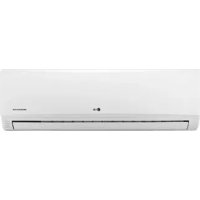
AP09RK - Air conditioner LG - Free user manual and instructions
Find the device manual for free AP09RK LG in PDF.



| Brand | LG |
| Model | AP09RK |
| Product type | Wall-mounted air conditioner |
| Refrigerant | R32 (flammable) |
| Power supply | 230 V, 50 Hz (dedicated outlet with circuit breaker) |
| Operating modes | Cooling, heating, dehumidification, fan, automatic changeover |
| Jet function | Rapid cooling or heating for 30 minutes |
| Fan speed | 5 speeds (including Natural) |
| Airflow direction | Vertical and horizontal (auto swing) |
| Timer | On/Off, sleep mode, simple timer (up to 7 h) |
| UVnano function | Bacteria reduction by UV-C (optional) |
| Air purification | Ionizer + smart purification (PM1.0 sensor) |
| Overall cleanliness display | 4 levels (green, yellow, orange, red) for PM1.0, PM2.5, PM10 |
| Energy control | 3 power reduction steps (20%, 40%, 60%) |
| Silence function | Outdoor unit noise reduction |
| Auto cleaning | Moisture removal after shutdown |
| Connectivity | 2.4 GHz Wi-Fi via LG ThinQ app |
| Smart diagnosis | Via app or audible (Diagnosis button) |
| Remote control | Wireless, AAA batteries (1.5 V) |
| Filter maintenance | Micro dust filter (monthly cleaning), optional triple filter (replacement) |
| PM1.0 sensor cleaning | With damp cotton swab |
| Safety | Auto shut-off on failure, auto restart, child lock (not specified) |
Frequently Asked Questions - AP09RK LG
User questions about AP09RK LG
0 question about this device. Answer the ones you know or ask your own.
Ask a new question about this device
Download the instructions for your Air conditioner in PDF format for free! Find your manual AP09RK - LG and take your electronic device back in hand. On this page are published all the documents necessary for the use of your device. AP09RK by LG.
USER MANUAL AP09RK LG
Read this owner's manual thoroughly before operating the appliance and keep it handy for reference at all times.
TYPE: WALL MOUNTED
Original instruction
EN ENGLISH
PL POLSKI
CZ ČEŠTINA
SK SLOVENČINA
LT LIETUVIŲ
МК МАКЕДОНСКИ
FR FRANÇAIS
HU MAGYAR
ET EESTI
SL SLOVENŠČINA
GA GAEILGE
SQ SHQIP
EL EΛΛΗΝΙΚΑ
BG БЪЛГАРСКИ
MT MALTI
LV LATVIEŠU
SR SRPSKI
BS BOSANSKI
NL NEDERLANDS
HR HRVATSKI
RO ROMÂNĂ
MFL69780827
Rev.00_110421
LG Electronics Inc. Single Point of Contact (EU/UK) & EU Importer:
LG Electronics European Shared Service Center B.V.
Krijgsman 1, 1186 DM Amstelveen, The Netherlands
This manual may contain images or content different from the model you purchased.
This manual is subject to revision by the manufacturer.
SAFETY INSTRUCTIONS ....3
IMPORTANT SAFETY INSTRUCTIONS ....4
OPERATION 12
Notes for Operation....12
Parts and Functions....12
Wireless Remote Control 13
Restarting the Air Conditioner Automatically....18
Using the Mode Function 18
Using the Jet Mode Function 21
Using the Fan Speed Function....22
Using the Air Flow Direction Function 22
Setting the On/Off Timer 23
Using the Sleep Function (Optional)....24
Using the Simple Timer Function (Optional) 24
Using the Energy Display Function (Optional)....25
Using the Light Off Function (Optional)....25
Using the Comfort Air Function (Optional) 25
Using the Energy Control Function (Optional) 26
Using UVnano Function (Optional) 26
How to Use Air Purification....27
Checking Overall Cleanliness 27
Using Special Functions....29
SMART FUNCTIONS....31
LG ThinQ Application 31
Smart Diagnosis....33
MAINTENANCE....34
Replace and Clean the Micro Dust Filter 36
Replace the Triple Filter (Optional) 37
Clean the PM1.0 Sensor....38
TROUBLESHOOTING....39
The following safety guidelines are intended to prevent unforeseen risks or damage from unsafe or incorrect operation of the appliance.
The guidelines are separated into ‘WARNING’ and ‘CAUTION’ as described below.

This symbol is displayed to indicate matters and operations that can cause risk. Read the part with this symbol carefully and follow the instructions in order to avoid risk.

WARNING
This indicates that the failure to follow the instructions can cause serious injury or death.

CAUTION
This indicates that the failure to follow the instructions can cause the minor injury or damage to the product.
The following symbols are displayed on indoor and outdoor units. (for R32)

This symbol indicates that this appliance uses a flammable refrigerant. If the refrigerant is leaked and exposure to an external ignition source, there is a risk of fire.

This symbol indicates that the Operation Manual should be read carefully.

This symbol indicates that a service personnel should be handling this equipment with reference to the Installation Manual.

This symbol indicates that information is available such as the Operating Manual or Installation Manual.
IMPORTANT SAFETY INSTRUCTIONS

WARNING
To reduce the risk of explosion, fire, death, electric shock, injury or scalding to persons when using this product, follow basic precautions, including the following:
Children in the Household
This appliance is not intended for use by persons (including children) with reduced physical, sensory or mental capabilities, or lack of experience and knowledge, unless they have been given supervision or instruction concerning use of the appliance by a person responsible for their safety. Children should be supervised to ensure that they do not play with the appliance.
For use in Europe:
This appliance can be used by children aged from 8 years and above and persons with reduced physical, sensory or mental capabilities or lack of experience and knowledge if they have been given supervision or instruction concerning use of the appliance in a safe way and understand the hazards involved. Children shall not play with the appliance. Cleaning and user maintenance shall not be made by children without supervision.
Installation
- Do not install the air conditioner on an unstable surface or in a place where there is danger of it falling.
- Contact an authorized service center when installing or relocating the air conditioner.
• Install the panel and the cover of the control box safely. - Do not install the air conditioner in a place where flammable liquids or gases such as gasoline, propane, paint thinner, etc., are stored.
- Make sure that the pipe and the power cable connecting the indoor and outdoor units are not pulled too tight when installing the air conditioner.
- Use standard circuit breaker and fuse that conform to the rating of the air conditioner.
- Do not input air or gas into the system except with the specific refrigerant.
- Use non-flammable gas (nitrogen) to check for leak and to purge air; using compressed air or flammable gas may cause fire or explosion.
- The indoor/outdoor wiring connections must be secured tightly, and the cable should be routed properly so that there is no force pulling the cable from the connection terminals. Improper or loose connections can cause heat generation or fire.
• Install dedicated electric outlet and circuit breaker before using the air conditioner. - Do not connect the ground wire to a gas pipe, a lightning rod, or a telephone ground wire.
- Keep any required ventilation openings clear of obstruction. (for R32)
- Means for disconnection must be incorporated in the fixed wiring in accordance with the wiring rules.
- Do not install the unit in potentially explosive atmospheres.
Operation
- Be sure to use only those parts listed in the service parts list. Never attempt to modify the equipment.
- Make sure that children do not climb on or hit the outdoor unit.
- Dispose of the batteries in a place where there is no danger of fire.
- Use only the refrigerant specified on the air conditioner label.
- Cut off the power supply if there is any noise, smell, or smoke coming from the air conditioner.
- Do not leave flammable substances such as gasoline, benzene, or thinner near the air conditioner.
- Contact an authorized service center when the air conditioner is submerged by flood waters.
- Do not use the air conditioner for an extended period of time in a small place without proper ventilation.
- In the event of a gas leak (such as Freon, propane gas, LP gas, etc.) ventilate sufficiently before using the air conditioner again.
- Be sure to ventilate sufficiently when the air conditioner and a heating appliance such as a heater are used simultaneously.
- Do not block the inlet or outlet of air flow.
- Do not insert hands or other objects through the air inlet or outlet while the air conditioner is operating.
- Make sure that the power cable is neither dirty, loose, nor broken.
- Never touch, operate, or repair the air conditioner with wet hands.
-
Do not place any objects on the power cable.
-
Do not place a heater or other heating appliances near the power cable.
- Do not modify or extend the power cable. Scratches or peeling insulation on the power cables may result in fire or electric shock, and should be replaced.
- Cut off the power supply immediately in the event of a blackout or a thunderstorm.
• Take care to ensure that power cable could not be pulled out or damaged during operation. - Do not touch refrigerant pipe, water pipe and any internal parts while the unit is operating or immediately after operation.
Maintenance
- Do not clean the appliance by spraying water directly onto the product.
- Before cleaning or performing maintenance, disconnect the power supply and wait until the fan stops.
Technical Safety
- Installation or repairs made by unauthorized persons can pose hazards to you and others.
-
Any person who is involved with working on or breaking into a refrigerant circuit should hold a current valid certificate from an industry-accredited assessment authority, which authorizes their competence to handle refrigerants safely in accordance with an industry recognized assessment specification. (for R32)
-
Servicing shall only be performed as recommended by the equipment manufacturer. Maintenance and repair requiring the assistance of other skilled personnel shall be carried out under the supervision of the person competent in the use of flammable refrigerants. (for R32)
- The information contained in the manual is intended for use by a qualified service technician who is familiar with the safety procedures and equipped with the proper tools and test instruments.
- Failure to read and follow all instructions in this manual can result in equipment malfunction, property damage, personal injury and/or death.
- The appliance shall be installed in accordance with national wiring regulations.
- When the power cord is to be replaced, the replacement work shall be performed by authorized personnel using only genuine replacement parts.
- This appliance must be properly grounded to minimize risk of electric shock.
- Do not cut or remove the grounding prong from the power plug.
- Attaching the earth wire to the power outlet cover screw does not ground the appliance unless the cover screw is metal, uninsulated, and the power outlet is grounded through house wiring.
- If you have any doubt whether the air conditioner is properly grounded, have the power outlet and circuit checked by a qualified electrician.
-
The refrigerant and insulation blowing gas used in the appliance require special disposal procedures. Consult a service agent or a similarly qualified person before disposing of them.
-
If the supply cord is damaged, it must be replaced by the manufacturer, its service agent or similarly qualified person in order to avoid a hazard.
- The appliance shall be stored in a well-ventilated area where the room size corresponds to the room area as specified for operation. (for R32)
- The appliance shall be stored in a room without continuously operating open flames (for example an operating gas appliance) and ignition sources (for example an operating electric heater). (for R32)
- The appliance shall be stored so as to prevent mechanical damage from occurring. (for R32)
- Unintended use of the appliance or damage to the housing may result in the escape of dangerous UV-C radiation. UV-C radiation may, even in little doses, cause harm to the eyes and skin.
• This appliance contains a UV-C lamp. - When the appliances are damaged or need to replaced, disconnect the power supply and contact the service center.
- Do not operate UV-C lamp outside of the appliance.
- Do not clean and touch air deflector during operation.
- Before opening doors and access panels bearing the ultraviolet radiation hazard symbol for the conducting user maintenance, it is recommended to disconnect the power.
- Read the maintenance instructions before opening the appliance.
- Appliances that are obviously damaged must not be operated.
- The appliance must be disconnected from the supply before replacing the UV-C lamp.

CAUTION
To reduce the risk of minor injury to persons, malfunction, or damage to the product or property when using this product, follow basic precautions, including the following:
Installation
- Do not install the air conditioner in an area where it is directly exposed to sea wind (salt spray).
- Install the drain hose properly for the smooth drainage of water condensation.
- Exercise caution when unpacking or installing the air conditioner.
- Do not touch the leaking refrigerant during installation or repair.
- Transport the air conditioner with two or more people or use a forklift.
- Install the outdoor unit such that it is protected from direct sunlight. Do not place the indoor unit in a place where it is directly exposed to sunlight via the windows.
- Safely dispose of packing materials such as screws, nails, plastic bag or batteries using proper packaging after installation or repair.
- Install the air conditioner in a place where the noise from the outdoor unit or the exhaust fumes will not inconvenience the neighbors.
Failure to do so may result in conflict with the neighbors.
Operation
- Remove the batteries if the remote control is not to be used for an extended period of time.
-
Make sure that the filter is installed before operating the air conditioner.
-
Be sure to check if there is a refrigerant leak after installing or repairing the air conditioner.
- Do not place any object on the air conditioner.
- Never mix different types of batteries, or old and new batteries for the remote control.
- Do not let the air conditioner run for a long time when humidity is very high or when a door or a window has been left open.
- Stop using the remote control if there is a fluid leak in the battery. If your clothes or skin are exposed to the leaking battery fluid, wash off with clean water.
- Do not expose people, animals, or plants to the cold or hot wind from the air conditioner for extended periods of time.
- If the leaking battery fluid has been swallowed, rinse the inside of the mouth thoroughly and consult a doctor.
- Do not drink the water drained from the air conditioner.
- Do not use the product for special purposes, such as preserving foods, works of art, and etc. It is an air conditioner for consumer purposes, not a precision refrigeration system. There is risk of damage or loss of property.
- Do not recharge or disassemble the batteries.
Maintenance
- Never touch the metal parts of the air conditioner when removing the micro dust filter.
- Use a sturdy stool or ladder when cleaning, maintaining, or repairing the air conditioner at a height.
- Never use strong cleaning agents or solvents when cleaning the air conditioner or spray water. Use a smooth cloth.
- To clean the interior, contact an authorized service center or dealer. Using harsh detergents may cause corrosion or damage to the unit.
Notes for Operation
Suggestion for Energy Saving
- Do not over-cool the space. This may be harmful for your health and may consume more electricity.
- Block sunlight with blinds or curtains while you are operating the air conditioner.
- Keep doors or windows closed tightly while you are operating the air conditioner.
- Adjust the direction of the air flow vertically or horizontally to circulate indoor air.
• Speed up the fan to cool or warm indoor air quickly, within a short period of time. - Open windows regularly for ventilation. The indoor air quality may deteriorate if the air conditioner is used for long durations.
- Clean the micro dust filter once a month, or more, if necessary. Dust and impurities collected in the micro dust filter may block the air flow or reduce the unit performance.
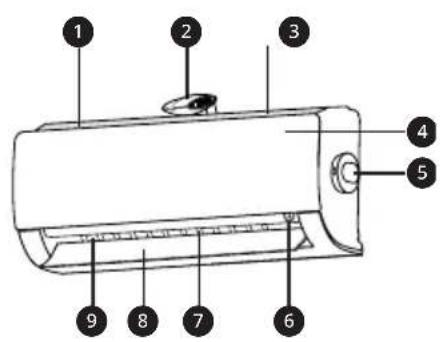
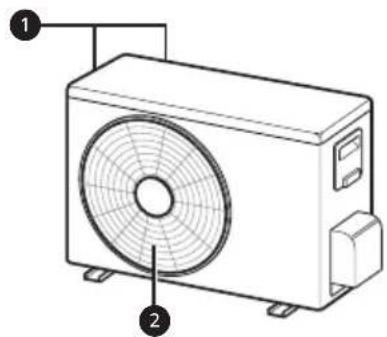
Parts and Functions
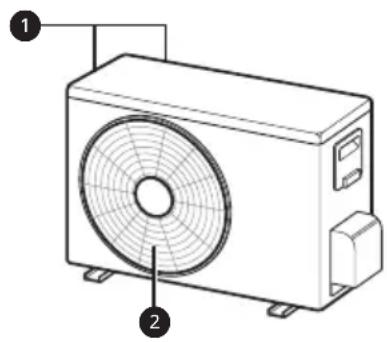
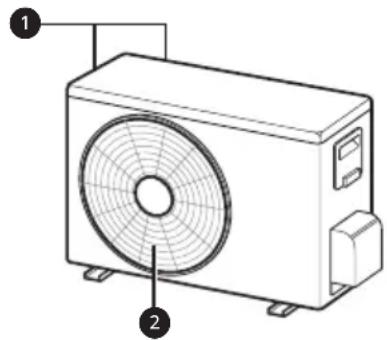
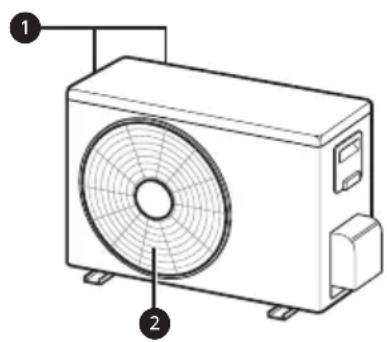
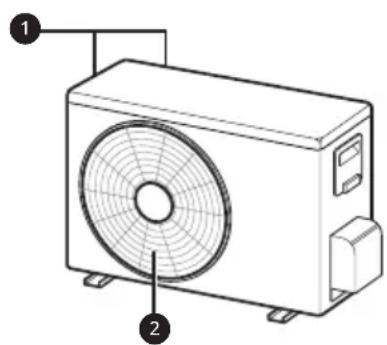
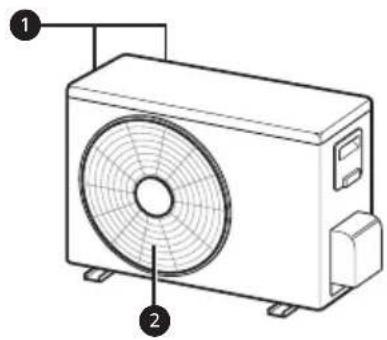
Indoor Unit Outdoor Unit
natural_image
Line drawing of a mechanical fan or air conditioner unit with labeled components (no text or symbols present)1 Air Filter + Micro Dust Filter
2 lonizer
3 Air Intake
4 Front Cover
5 PM1.0 Sensor
6 On/Off Button
7 Air Deflector (Vertical Louver)
8 Air Deflector (Horizontal Vane)
9 Air Outlet
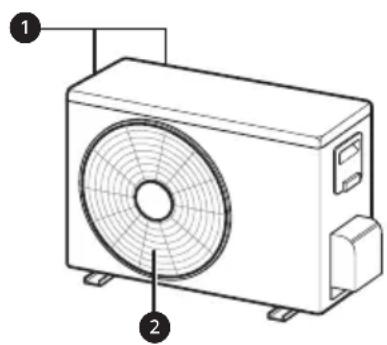
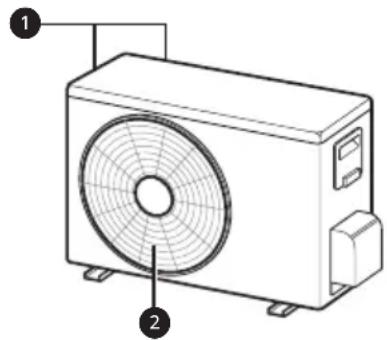
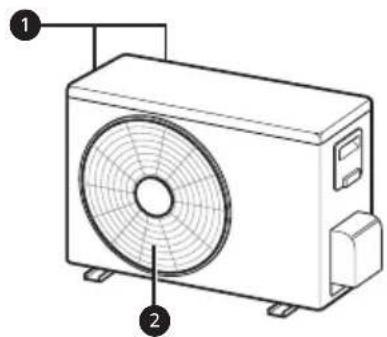
1 Air Intake Vents
2 Air Outlet Vents
NOTE
- The number and location of operation lamps may vary according to the model of the air conditioner.
- The feature may be changed according to the type of model.
Wireless Remote Control
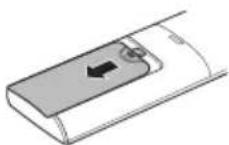
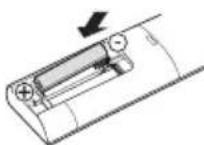
Inserting Batteries
If the display screen of the remote control begins to fade, replace the batteries. Insert AAA (1.5 V) batteries before using the remote control.
1 Remove the battery cover.
2 Insert the new batteries and make sure that the + and - terminals of the batteries are installed correctly.
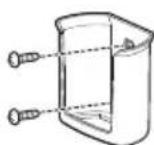
Installing the Remote Control Holder
To protect the remote control, install the holder where there is no direct sunlight.
1 Choose a safe and easily accessible location.
2 Fix the holder by fastening 2 screws firmly with a screwdriver.
Operating Method
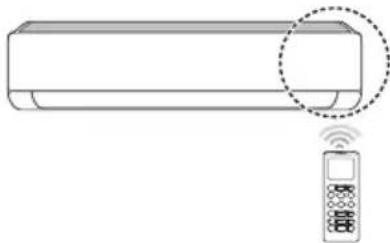
Point the remote control towards the signal receiver at the right side of the air conditioner to operate it.
natural_image
Line drawing of a modern air conditioner with a remote control unit and a circled detail (no text or symbols)NOTE
- The remote control may operate other electronic devices if it is directed towards them. Make sure to point the remote control towards the air conditioner signal receiver.
- For proper operation, use a soft cloth to clean the signal transmitter and receiver.
- In case of a function not provided in the product, no buzzer sound occurs from the product when a button for such function on the remote control is pressed except for Air Flow Direction (Swing), Energy Display (Air Purification function)
Setting the Current Time
1 Insert batteries.
- The icon below blinks at the bottom of the display screen.

2 Press or button to select the minutes.
3 Press Set/Cancel button to finish.
NOTE
- The On/Off Timer is available after setting the current time.
Operating the Air Conditioner without the Remote Control
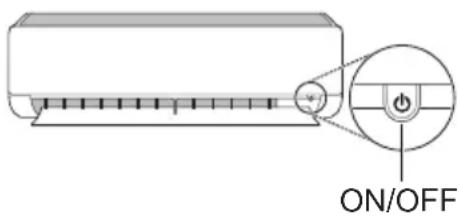
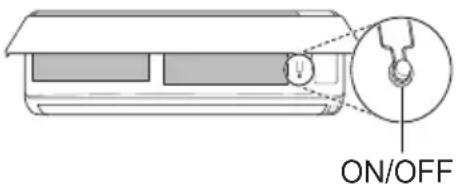
You can use the ON/OFF button of the indoor unit to operate the air conditioner when the remote control is unavailable.
1 Open the front cover (Type 2) or horizontal vane (Type 1).
2 Press the ON/OFF button.
Type 1
Type 2
NOTE
- The stepping motor may be broken, if the horizontal vane opens rapidly.
• The fan speed is set to high. - The feature may be changed according to the type of model.
- The temperature cannot be altered when using this emergency ON/OFF button.
- For cooling-only models, the temperature is set to 22 °C
- For cooling & heating models, the temperature is set from 22 °C to 24 °C
Using Wireless Remote Control
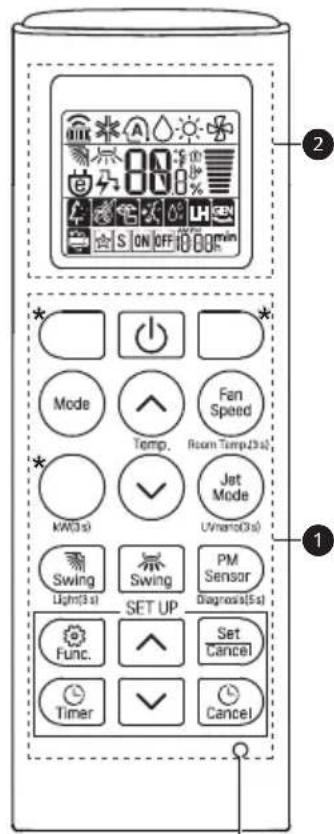
You can operate the air conditioner more conveniently with the remote control.
| 1Button | 2Display Screen | Description | Available Function | |
| Single Split | Multi | |||
| - | To turn on/off the air conditioner. | O | O | |
| 88° | To adjust the desired room temperature in cooling, heating or auto changeover mode. | O | O | |
| Mode | To select the cooling mode. | O | O | |
| To select the heating mode. | O | O | ||
| To select the dehumidification mode. | O | O | ||
| To select the fan mode. | O O | |||
| To select the auto changeover/auto operation mode. | O | O | ||
| Jet Mode | Po | To change room temperature quickly. | O | O |
| Fan Speed | To adjust the fan speed. | O | O | |
| To adjust the air flow direction vertically or horizontally. | O | O | ||
NOTE
- * buttons may be changed according to the type of model.
- When connected to the Multi Outdoor unit, the Energy Display, Energy Control, Silent and Smart Diagnosis function may not be supported.

2
| 1Button | 2Display Screen | Description | Available Function | |
| Single Split | Multi | |||
 |  | To turn on/off air conditioner automatically at desired time. | O | O |
| Set/ Cancel | - | To set/cancel the special functions and timer. | O | O |
 | - | To cancel the timer settings. | O | O |
 | - | To adjust time. O O | ||
| Light(3 s) - | To set the brightness of the display on the indoor unit. | O | O | |
| Room Temp.(3 s) |  | To display the room temperature. | O | O |
| *Comfort Air |  | To adjust the air flow to deflect wind. | O | O |
| kW(3 s) - | To set whether or not to display information regarding energy. | O | X | |
| *Energy Ctrl. | [B7DK] | To bring the effect of the power saving. | O | X |
| Diagnosis (5 s) | - | To conveniently check maintenance information of a product. | O | X |
| PM Sensor - | To check indoor dust status. | O | O | |
| *Air Purify - | The lon generator uses millions of ions to help improve indoor air quality. | O | O | |
| UVnano (3 s) | - | To keep the fan clean. | O(Optional) | O(Optional) |
Reset
 |  | Description | Available Function | |
| Single Split | Multi | |||
 | To reduce noise from outdoor units. | O | X | |
| [DO0Y] | To remove moisture generated inside the indoor unit. | O | O | |
| Reset - | To initialize the remote control settings. | O | O | |
NOTE
- Some functions may not be supported, depending on the model.
- * buttons may be changed according to the type of model.
- Press the Set/Cancel button to operate the selected Func.
Restarting the Air Conditioner Automatically
When the air conditioner is turned on again after a power failure, this function restores the previous settings.
Disabling Auto Restart
1 Open the front cover (Type 2) or horizontal vane (Type 1).
2 Press the ON/OFF button and hold it for 6 seconds, then the unit will beep twice and the lamp will blink twice 4 times.
- To re-enable the function, press the ON/OFF button and hold it for 6 seconds. The unit will beep twice and the lamp will blink 4 times.
Type 1
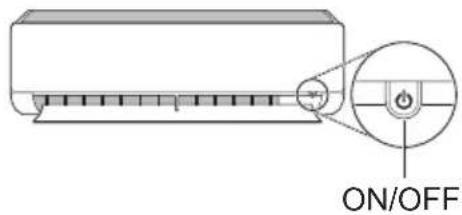
Type 2
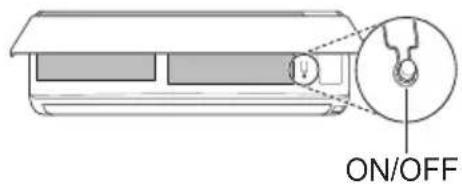
NOTE
- The feature may be changed according to the type of model.
- If you press and hold the ON/OFF button for 3 – 5 seconds, instead of 6 seconds, the unit will switch to the test operation. In the test operation, the unit blows out strong cooling air for 18 minutes and then returns to factory default settings.
Using the Mode Function
This function allows you to select the desired function.
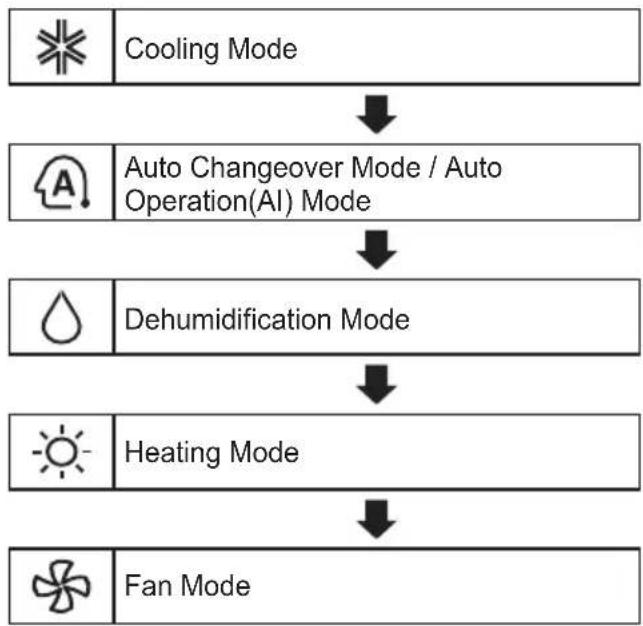
flowchart
graph TD
    A[" cooling Mode "] --> B[" Auto Changeover Mode / Auto Operation(AI) Mode "]
    B --> C[" Dehumidification Mode "]
    C --> D[" Heating Mode "]
    D --> E[" Fan Mode "]
Cooling Mode
1 Turn the appliance on.
2 Press Mode button repeatedly to select the Cooling Mode.
• ✱ is displayed on the display screen.
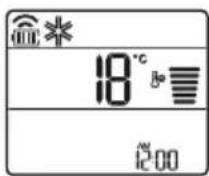
3 Press or button to set the desired temperature.
Auto Operation (Artificial Intelligence)
Multi Model
In this operation mode, the system is automatically operated by the electronic controls.
1 Turn the appliance on.
2 Press Mode button repeatedly to select the Auto Operation.
• A is displayed on the display screen.
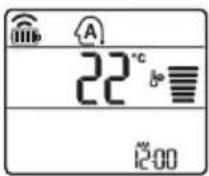
3 Press or button to set the desired temperature.
4 Press Fan Speed button to adjust the fan speed.
Auto Changeover Mode
Single Split Model
This mode changes the mode automatically to maintain the set temperature at ±2 ^
1 Turn the appliance on.
2 Press Mode button repeatedly to select the Auto Changeover Mode.
• A is displayed on the display screen.
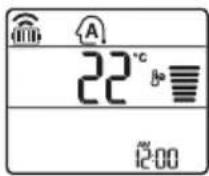
3 Press or button to set the desired temperature.
4 Press Fan Speed button to adjust the fan speed.
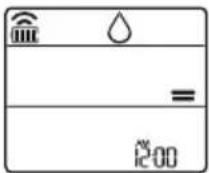
Dehumidification Mode
This mode removes excess moisture from a highly humid environment or during the rainy season, in order to prevent mildew from setting in. This mode adjusts the room temperature and the fan speed automatically to maintain the optimal level of humidity.
1 Turn the appliance on.
2 Press Mode button repeatedly to select the Dehumidification Mode.
- is displayed on the display screen.
NOTE
• In this mode you cannot adjust the room temperature, it is adjusted automatically.
- The room temperature is not displayed on the display screen.
- In the dehumidification mode, compressor and indoor fan may not operate when the room temperature is below 24 °C
Heating Mode
1 Turn the appliance on.
2 Press Mode button repeatedly to select the Heating Mode.
- is displayed on the display screen.

3 Press or button to set the desired temperature.
NOTE
• will be displayed on the indoor unit when defrosting is operating.
• Furthermore, this indication will be displayed on the indoor unit:
- When preheating is operating.
- When the room temperature has been reached to the set temperature.
Fan Mode
This mode only circulates the indoor air without changing the room temperature.
1 Turn the appliance on.
2 Press Mode button repeatedly to select the Fan Mode.
• is displayed on the display screen.
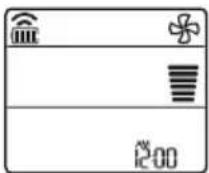
3 Press Fan Speed button to adjust the fan speed.
NOTE
- On will be displayed on the indoor unit when fan mode is operating.
Using the Jet Mode Function
Changing Room Temperature Quickly
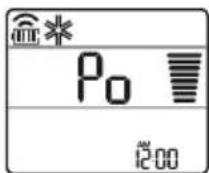
This function allows you to cool indoor air quickly during the summer or warm it quickly during winter.
- The Jet Mode function is available with Cooling, Heating and Dehumidification Mode.
1 Turn the appliance on.
2 Press Mode button repeatedly to select the desired mode.
3 Press Jet Mode button.
- P_0 is displayed on the display screen.
NOTE
- Jet Heating Mode is not available on some models.
- In Jet Cooling Mode, strong air blows out for 30 minutes.
- After 30 minutes later, setting temperature is maintaining 18^ C If you want to change the temperature, Press or button to set the desired temperature.
- In Jet Heating Mode, strong air blows out for 30 minutes.
- After 30 minutes later, setting temperature is maintaining 30^ If you want to change the temperature, Press or button to set the desired temperature.
- This function may operate differently from the remote control display.
Using the Fan Speed Function
Adjusting the Fan Speed
- Press Fan Speed button repeatedly to adjust the fan speed.
| Display Screen Speed | |
| High | |
| Medium - High | |
| Medium | |
| Medium - Low | |
| Low | |
| - Natural Wind | |
NOTE
- The fan speed of Natural Wind adjusts automatically.
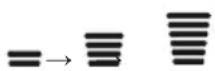
- The fan speed icons are displayed on some indoor units.

- Indoor unit display is displayed only 5 seconds and return to the setting temperature on some models.
Using the Air Flow Direction Function
This function adjusts the direction of the air flow vertically (horizontally).
- Press Swing (Swing) button repeatedly and select the desired direction.
- Select() to adjust the direction of the air flow automatically.
NOTE
- Adjusting the air flow direction horizontally may not be supported, depending on the model.
- Adjusting the air deflector arbitrarily may cause product failure.
- If you restart the air conditioner, it starts to operate with the previously set direction of air flow, so the air deflector may not match the icon displayed on the remote control. When this occurs, press Swing or Swing button to adjust the direction of the air flow again.
- This function may operate differently from the remote control display.
Setting the On/Off Timer
This function sets the air conditioner to turn on/off automatically at desired time.
On/Off Timer can be set together.
Setting the On Timer
1 Press button repeatedly.
- The icon below blinks at the bottom of the display screen.

2 Press or button to select the minutes.
3 Press Set/Cancel button to finish.
- After setting the timer, current time and ON icon are displayed on the display screen indicating that the desired time is set.
Canceling the On Timer
1 Press button repeatedly.
- The icon below blinks at the bottom of the display screen.
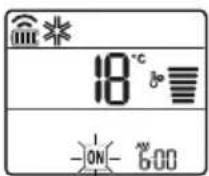
2 Press Set/Cancel button to cancel the setting.
Setting the Off Timer
1 Press button repeatedly.
- The icon below blinks at the bottom of the display screen.
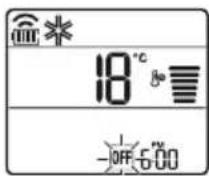
2 Press or button to select the minutes.
3 Press Set/Cancel button to finish.
• After setting the timer, current time and OFF icon are displayed on the display screen indicating that the desired time is set.
NOTE
- This function is disabled when you set Simple Timer.
Canceling the Off Timer
1 Press button repeatedly.
- The icon below blinks at the bottom of the display screen.
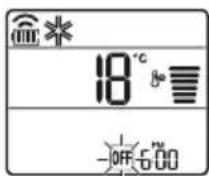
2 Press Set/Cancel button to cancel the setting.
Canceling the Timer Setting
- Press button to cancel all timer settings.
Using the Sleep Function (Optional)
This function turns off the air conditioner automatically when you go to sleep.
1 Turn the appliance on.
2 Press button repeatedly.
- The icon below blinks at the bottom of the display screen.
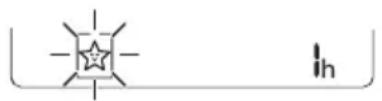
3 Press or button to select the hour (up to 7 hours).
4 Press Set/Cancel button to finish.
• [is] displayed on the display screen.
NOTE
- \$ displayed on some indoor units.
- Indoor unit display is displayed from 1H to 7H which is displayed only 5 seconds and then return to the setting temperature.
- In the Cooling and Dehumidification Mode, the temperature increases by 1 °C after 30 minutes and additional 1 °C after another 30 minutes for a more comfortable sleep.
- The temperature increases up to 2 °C from the preset temperature.
- Although the remark for fan speed on the display screen may be changed, the fan speed is adjusted automatically.
Using the Simple Timer Function (Optional)
This function turns off the air conditioner automatically when you go to sleep.
1 Turn the appliance on.
2 Press button repeatedly.
- The icon below blinks at the bottom of the display screen.
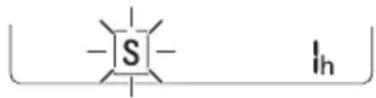
3 Press or button to select the hour (up to 7 hours).
4 Press Set/Cancel button to finish.
- [S] displayed on the display screen.
NOTE
- This function is disabled when you set Off Timer.
Using the Energy Display Function (Optional)
This function displays the amount of electricity generated on the indoor display as the product operates.
Display the Current Energy Usage
1 Turn the appliance on.
2 Press button and hold it about 3 seconds. • The instantaneous power consumption (88) is displayed for a while on some indoor units.
NOTE
- The unit of the displayed value is kW.
- It is not displayed on the wireless remote control.
- If it is more than 99 kW, which is the range of expression, maintain it as 99 kW.
- Display wattage under 10 kW with 0.1 kW unit, and display one over 10 kW with 1 kW unit.
- The actual power may differ from the power displayed.
- When connected to the Multi Outdoor unit, this function may not be supported.
Using the Light Off Function (Optional)
Display Screen Brightness
You can set the brightness of the indoor unit display screen.
- Press button and hold it about 3 seconds.
NOTE
- Turn on/off the Display screen.
Using the Comfort Air Function (Optional)
Comfort Vane Operation
This function conveniently sets the vane to a preset position to deflect the supply air away from blowing directly onto the occupants in the room.
1 Turn the appliance on.
2 Press Comfort Air button repeatedly and select the desired direction.
• or is displayed on the display screen.
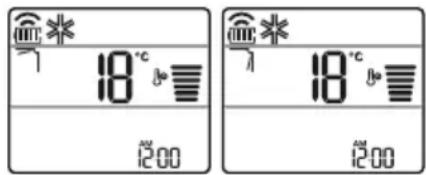
NOTE
• on is displayed on some indoor units.
- This function is disabled when you press Mode or Jet Mode button.
- This function is disabled and auto swing of vertical direction is set up when you press button.
- When this function is off, the horizontal vane operates automatically depending on the set mode.

Using the Energy Control Function (Optional)
1 Turn the appliance on.
2 Press Energy Ctrl button.
- Press Energy Ctrl button repeatedly to select each step.
| 1 step 2 step 3 step |
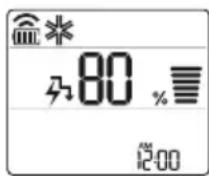
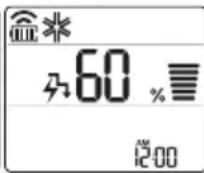
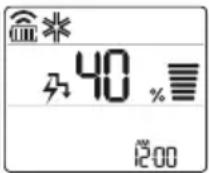
NOTE
- 1 step: The power Input is decreased by 20% compared to rated power input.
-80 is displayed on the display screen. - 2 step : The power Input is decreased by 40 % compared to rated power input.
-60 is displayed on the display screen. - 3 step (Optional): The power Input is decreased by 60% compared to rated power input.
40 is displayed on the display screen. - L (1 step), LL (2 step) is displayed on some indoor units.
- This function is available with Cooling Mode.
- Capacity may decrease when Energy Control mode is selected.
- Desired temperature is displayed about 5 seconds if you press Fan Speed, ☑ button.
- Room temperature is displayed about 5 seconds if you press button for 3 seconds.
- When connected to the Multi Outdoor unit, this function may not be supported.
Using UVnano Function (Optional)
UVnano is a compound word of UV (ultraviolet rays) and nanometer (length unit).
This function reduces various bacteria inside the air conditioner.
Model name: LTPL-G35UV275GS-JA LTPL-G35U275GS-TWA CUD7GF1A
Press Jet Mode button and hold it about 3 seconds.
NOTE
- UV is displayed on some indoor units, depending on the model.
- The UV LED operates at regular intervals to keep the fan clean.
- The UVnano function stops when the air conditioner is turned off.
- When Auto Clean Function starts, UVnano Function works together to keep the fan clean.
- This function is disabled with Heating Mode.
How to Use Air Purification
Ionizer and air purification filter make the indoor air pleasant.
- Press Air Purify button to start the air purification operation.
- is displayed on the display screen.
Using Air Purification During Operation Modes
- During cooling, dehumidification, heating or auto changeover operation, if you press Air Purify button, you can use air purification operation at the same time.
- During air purification operation, if you press Mode button, you can use cooling, dehumidification, heating or auto changeover operation at the same time.
Smart Air Purification
- Dust sensor detects the indoor air contamination level, and if overall cleanliness is Orange (Bad) or more, it automatically starts air purification operation. When overall cleanliness reaches Green (Good), air purification operation stops. If you do not want smart air purification operation, clear by pressing Air Purify button. Until you turn off the product and turn on again, air purification operation is not operated automatically.
- It works only in overall cleanliness function applied model.
CAUTION
- During air purification operation, do not touch top side of the product. (Static electricity may be generated by anion created from dust collection ionizer.)
- Do not put metal objects near the appliance. (Static electricity may be generated by anion created from dust collection ionizer.)
NOTE
- Air purification single operation is the operation with low energy consumption.
- During air purification single operation, wind direction function can be used, but temperature control function cannot be used.
- During cooling operation or dehumidification operation, if you want air purification single operation, press power button to turn off the product, and press Air Purify button.
- Ionizer and filter components may be different for each model.
Checking Overall Cleanliness
It displays the indoor cleanliness.
1 Turn the appliance on.
2 During the operation, if you press PM Sensor button, you can check the indoor cleanliness in each level.
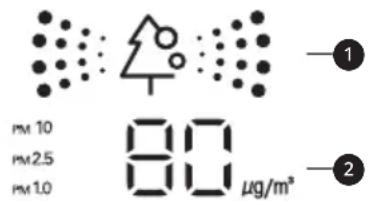

Overall cleanliness cold

Dust size dust conc
- Dust concentration is displayed in unit of 1 within 8\~999 g/m ^3 . Dust concentration referred to the data sheet of the sensor manufacturer.
- Dust concentration may continuously change according to the change of the indoor environment.
- Overall cleanliness color is displayed based on the highest contamination level among fine dust(PM10), ultra fine dust(PM2.5), and super ultra fine dust(PM1.0).
- Overall cleanliness color is displayed in 4 levels according to the indoor contamination level.
- If dust concentration is high, the difference between the displayed dust concentration and the actual dust concentration may become bigger.
| Color Level | Display standard ( g/m^3 ) | |||
| Super ultra fine dust (PM1.0) | Ultra fine dust (PM2.5) | Fine dust (PM10) | ||
| Green | Green (Good) | 12 or less | 12 or less 54 | or less |
| Yellow | Yellow (Normal) | 13 - 35 | 13 - 35 55 - 15 | 4 |
| Orange | Orange (Bad) | 36 - 55 | 36 - 55 155 - 2 | 54 |
| Red | Red (Very bad) | 56 or more | 56 or more | 255 or more |
NOTE
- Fine / Ultra fine / Super ultra fine dust concentration may be different according to the surrounding environment. (Construction site, road side, factory, etc.)
- Dust concentration may be different according to the installation environment. It is influenced by couches, beds, carpets, cleaners, humidity, smoke, insects, pets, etc.
- In the environment with external air inflow such as near the door, window, or ventilation gate, etc., dust concentration may be measured as high.
- Even in the same space, due to the air circulation, dust concentration may be displayed differently from other products.
- Cleanliness display displays the fine dust comprehensively, so it may be different from fine dust, ultra fine dust, or super ultra fine dust concentration value.
- Fine dust / ultra fine dust concentration displayed on the product may be different from Ministry of Environment announcement, and it may be different from other measurement devices or other products' measurement standards.
- The displayed fine dust, ultra fine dust, and super ultra fine dust concentration value may be different from Ministry of Environment forecast.
- If products generating steam or fine particles (humidifiers, cooking apparatus, sprays, etc.) are used, fine dust concentration may change.
-
You can check cleanliness only when the air conditioner is in operation state.
-
Dust concentration display value may be different from the actual dust concentration, and it may display different cleanliness color from the actual dust concentration level.
- Guide to dust particles' size
– Fine dust: Dust with particle size of 10 m or less (Generated from workplace combustion, vehicle exhaust, etc.)
- Ultra fine dust: Dust with particle size of 2.5 m or less (Composed of ion component, carbon compound, and metal compound)
– Super ultra fine dust: Dust with particle size of 1.0 m or less (Cigarette smoke, etc.)
- Dust concentration and overall cleanliness level displayed on the product may be different from Ministry of Environment announcements.
- Ministry of Environment uses weight method or beta ray absorption method to measure the dust concentration, but LG product measures the number of dusts and converts to mass concentration, so it may be different from the actual dust concentration.
- The same standard as ultra fine dust is applied to super ultra fine dust's dust concentration level. (LG standard)
- Dust concentration evaluation is carried out with LG standard test dust.
- The shaking around the dust sensor may hinder the normal operation of the dust sensor, and the displayed concentration may be different from the actual dust concentration.
- You can use it only in overall cleanliness function applied models.
- PM Sensor button in the remote controller can make to check each dust particle's size dust concentration for 10 seconds.
- After 10 seconds, the display is displayed the worst dust concentration among Fine, Ultra fine, Super ultra fine Dust particle's size.
Using Special Functions
1 Turn the appliance on.
2 Press Func button repeatedly to select the desired function.
3 Press Set/Cancel button to finish.
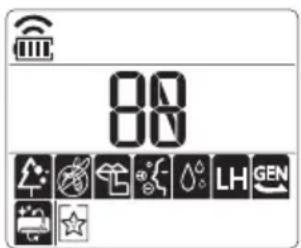
| Display Screen | Description |
 | To reduce noise from outdoor units. |
 | To remove moisture generated inside the indoor unit. |
NOTE
- Some functions may not be supported, depending on the model.
- Some functions may operate differently from the remote control display.
Canceling Special Functions
1 Press Func button repeatedly to select the desired function.
2 Press Set/Cancel button to cancel the function.
Using the Silent Function
This function prevents potential claims by neighbors, reducing noise from outdoor units.
• is displayed on the display screen.
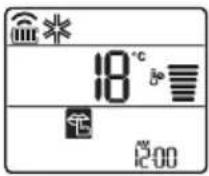
NOTE
- This function is disabled when you press Mode or Energy Ctrl or Jet Mode button.
- This function is available with Cooling, Heating, Auto Changeover, Auto Operation Mode.
- When connected to the Multi Outdoor unit, this function may not be supported.
Using the Auto Clean Function
In the Cooling and Dehumidification Mode, moisture is generated inside the indoor unit. This function removes such moisture.
• is displayed on the display screen.
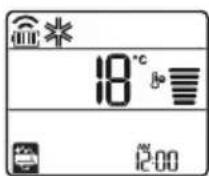
NOTE
- Some functions cannot be used while the Auto Clean function is in operation.
- When UVnano Function is set, Auto Clean Function works together.
- If you turn off the unit, the fan continues to run for 30 minutes and cleans the inside of the indoor unit.
- is displayed on some indoor units, depending on the model.
LG ThinQ Application
This feature is only available on models with the 📄 or ThinQ logo.
The LG ThinQ application allows you to communicate with the appliance using a smartphone.
LG ThinQ Application Features
Communicate with the appliance from a smartphone using the convenient smart features.
Smart Diagnosis
If you experience a problem while using the appliance, this smart diagnosis feature will help you diagnose the problem.
Settings
Allows you to set various options on the appliance and in the application.
NOTE
- If you change your wireless router, internet service provider, or password, delete the registered appliance from the LG ThinQ application and register it again.
- The application is subject to change for appliance improvement purposes without notice to users.
• Functions may vary by model.
Before Using LG ThinQ Application
1 Check the distance between the appliance and the wireless router (Wi-Fi network).
- If the distance between the appliance and the wireless router is too far, the signal strength becomes weak. It may take a long time to register or installation may fail.
2 Turn off the Mobile data or Cellular Data on your smartphone.
3 Connect your smartphone to the wireless router.
NOTE
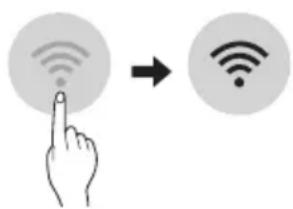
- To verify the Wi-Fi connection, check that icon on the control panel is lit.
- The appliance supports 2.4 GHz Wi-Fi networks only. To check your network frequency, contact your Internet service provider or refer to your wireless router manual.
- LG ThinQ is not responsible for any network connection problems or any faults, malfunctions, or errors caused by network connection.
- If the appliance is having trouble connecting to the Wi-Fi network, it may be too far from the router. Purchase a Wi-Fi repeater (range extender) to improve the Wi-Fi signal strength.
- The Wi-Fi connection may not connect or may be interrupted because of the home network environment.
- The network connection may not work properly depending on the Internet service provider.
-
The surrounding wireless environment can make the wireless network service run slowly.
-
The appliance cannot be registered due to problems with the wireless signal transmission. Unplug the appliance and wait about a minute before trying again.
- If the firewall on your wireless router is enabled, disable the firewall or add an exception to it.
- The wireless network name (SSID) should be a combination of English letters and numbers. (Do not use special characters.)
- Smartphone user interface (UI) may vary depending on the mobile operating system (OS) and the manufacturer.
- If the security protocol of the router is set to WEP, you may fail to set up the network. Please change it to other security protocols (WPA2 is recommended) and register the product again.
Installing the LG ThinQ Application
Search for the LG ThinQ application from the Google Play Store or Apple App Store on a smartphone. Follow instructions to download and install the application.
Open Source Software Notice Information
To obtain the source code under GPL, LGPL, MPL, and other open source licenses that have the obligations to disclose source code, that is contained in this product, and to access all referred license terms, copyright notices and other relevant documents please visit https://opensource.lge.com.
LG Electronics will also provide open source code to you on CD-ROM for a charge covering the cost of performing such distribution (such as the cost of media, shipping, and handling) upon email request to opensource@lge.com.
This offer is valid to anyone in receipt of this information for a period of three years after our last shipment of this product.
Smart Diagnosis
This feature is only available on models with the 🧑 or 📁lego.
Use this feature to help you diagnose and solve problems with your appliance.
NOTE
- For reasons not attributable to LGE's negligence, the service may not operate due to external factors such as, but not limited to, Wi-Fi unavailability, Wi-Fi disconnection, local app store policy, or app unavailability.
- The feature may be subject to change without prior notice and may have a different form depending on where you are located.
Using LG ThinQ to Diagnose Issues
If you experience a problem with your Wi-Fi equipped appliance, it can transmit troubleshooting data to a smartphone using the LG ThinQ application.
- Launch the LG ThinQ application and select the Smart Diagnosis feature in the menu. Follow the instructions provided in the LG ThinQ application.
Using Audible Diagnosis to Diagnose Issues
Follow the instructions below to use the audible diagnosis method.
- Launch the LG ThinQ application and select the Smart Diagnosis feature in the menu. Follow the instructions for audible diagnosis provided in the LG ThinQ application.
1 Plug the power plug in the outlet properly.
2 Place the mouthpiece of your smartphone close to the or loge.
3 Press and hold the Diagnosis(5 s) button for 5 seconds or longer while holding the smartphone mouthpiece to the logo until the data transfer is complete.
- Keep the smartphone in place until the data transfer has finished. Time remaining for data transfer is displayed.
4 After the data transfer is complete, the diagnosis will be displayed in the application.
NOTE
- For best results, do not move the phone while the tones are being transmitted.
- Be sure to keep ambient noise to a minimum or the phone may not correctly receive the buzzer beeps from the indoor unit.

WARNING
- Before cleaning or performing maintenance, disconnect the power supply and wait until the fan stops.
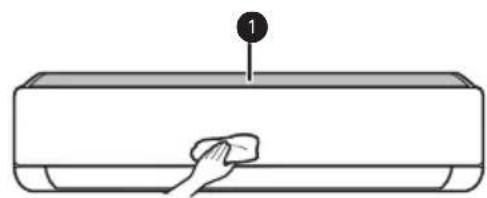
If the air conditioner will not be used for an extended period of time, dry the air conditioner to maintain it in best condition. Clean the product regularly to maintain optimal performance and to prevent possible breakdown.
- Dry the air conditioner in Fan mode for 3 to 4 hours and disconnect the power. There may be internal damage if moisture is left in its components.
- Before using the air conditioner again, dry the inner components of the air conditioner in Fan mode for 3 to 4 hours. This will help to remove the odor generated from moisture.
natural_image
Line drawing of a hand cleaning a wall-mounted appliance with a cloth (no text or symbols)[Unreadable]
Micro Dust Filter
- The feature may be changed according to the type of model.
| Type Description | Option Interval | |
| Micro dust filter | Clean with a vacuum or brush. | Once a month |
| Triple filter | Do not clean the Triple filter. (It can be replaced only.) | - |
| Allergy filter | Clean with a vacuum or brush. | Every 6 months |
| Ionizer (Optional) | Use dry cotton bud to remove any dust. | Every 6 months |
| Indoor unit | Clean the Indoor unit surface by using a soft, dry cloth. | Regularly |
| Have a professional clean the condensate drain pan. | Once a year | |
| Have a professional clean the condensate drain pipe. | Every 4 months | |
| Replace the remote control batteries. | Once a year | |
| Outdoor unit | Have a professional clean the heat exchanger coils and the panel vents. (Consult with technician.) | Once a year |
| Have a professional clean the fan. | Once a year | |
| Have a professional clean the condensate drain pan. | Once a year | |
| Have a professional verify that all the fan assembly is firmly tightened. | Once a year | |
| Clean the electric components with air. | Once a year |
NOTE
- Never use water that is higher than 40^ when you clean the filters. It may cause deformation or discoloration.
- Never use volatile substances when you clean the filters. They may damage the surface of the product.
- Do not wash the Triple filter with water, because the filter can be damaged (Optional).
- Do not wash the Micro dust filter with water, because the filter can be damaged.
- Do not wash the Allergy filter with water, because the filter can be damaged (Optional).
Replace and Clean the Micro Dust Filter
Clean the micro dust filter once a month, or more, if necessary.
Disassemble and Clean the Micro Dust Filter
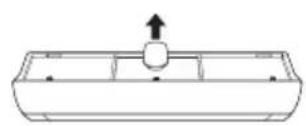
If you look at the indoor unit from above it, can assemble the top filter easily.
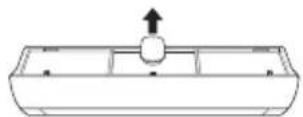
1 Turn off the power to the unit.
2 Hold the ionizer, lift it up slightly. And then, hold the knobs of the micro dust filter, lift it up slightly.
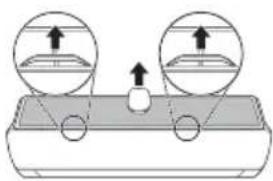
natural_image
Diagram of a device with two circular insets showing upward arrows, no text or symbols present3 Remove it from the indoor unit.

4 Clean the filter with a vacuum cleaner or brush. (Do not wash the micro dust filter with water.)
Assemble the Micro Dust Filter
1 Turn off the power to the unit.
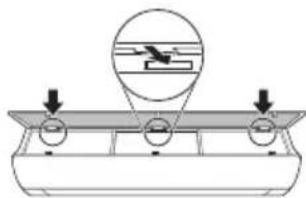
2 Hold the ionizer, lift it up slightly. And then insert the hooks of the micro dust filter into the front cover.
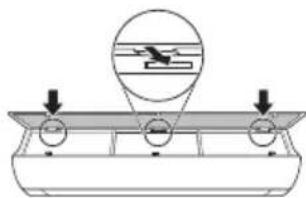
natural_image
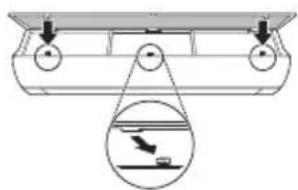
Diagram of a mechanical setup with three circular components and an airplane flying above a platform (no text or symbols)3 Push down hooks to assemble the micro dust filter.
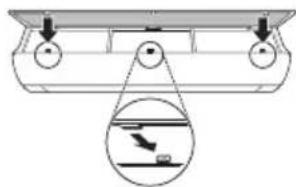
natural_image
Diagram of a boat hull with pulley system and inset showing a speedometer (no text or symbols)4 Check the side of the front cover for correct assembly of the micro dust filter.
NOTE
- The micro dust filter can be broken when it is bent.
- When the micro dust filter is not assembled correctly, dust and other substances can enter into the indoor unit.
- If dust is caught in the filter, cooling performance is degraded, wind sound gets rough, and the electricity bill increases, so clean the micro dust filter once a month and replace it once every 6 months.
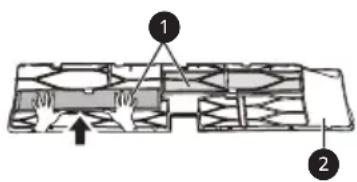
Replace the Triple Filter (Optional)
It effectively removes indoor odor using activated carbon.
1 Take out the micro dust filter.
• See the Disassemble and clean the micro dust filter.
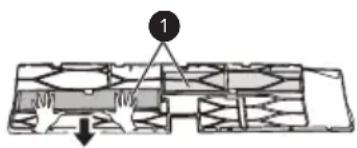
2 Take out the Triple filter (1).
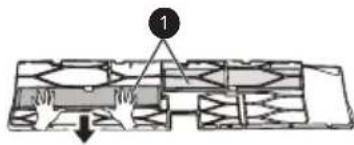
3 Assemble the new Triple filter (1) in the micro dust filter (2).
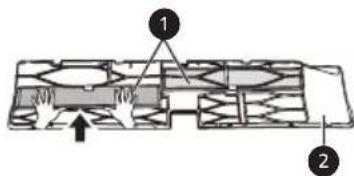
4 Assemble Triple filter and micro dust filter in the reverse order of disassembly.
CAUTION
- The front panel may fall and cause injury, so be careful.
- After filter replacement, during the re-insertion, completely insert entire micro dust filter. (If it is not fully inserted, it may cause performance degradation or other product failures.)
- Operating air conditioner without filter causes performance degradation and failure of the air conditioner.
- Do not disassemble Triple filter itself, and prevent damage or deformation of it. It may cause no-operation of the product or failure by abnormal operation.
- When you replace the filter, be careful not to drop it under the product.
- For safety, before cleaning or replacement, turn off the product power and pull out the power plug or turn down the main power switch.
NOTE
- The shape and composition of the filter may be different for each model.
- If you want filter replacement, you can purchase it at nearby service center.
- If contamination is severe, or if filter effect is degraded, replace with a new filter.
- During Triple filter storage, do not rip the packaging. (Filter's lifespan will be reduced.)
- Be careful not to have water enter inside Triple filter. (Filter's effect will be degraded.)
Clean the PM1.0 Sensor
1 Open the PM1.0 sensor cover on the side of the product.
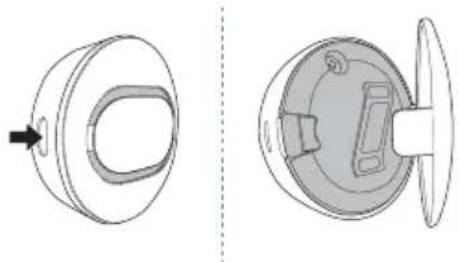
natural_image
Technical line drawings of a mechanical component, showing front and side views (no text or symbols)2 Put a little water on a cotton swab, wipe the lens, and wipe again it with a dry cotton swab to remove the moisture.
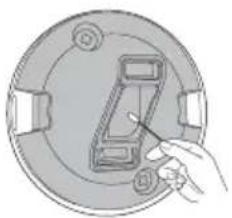
natural_image
Diagram of a hand inserting a component into a circular device (no text or symbols visible)NOTE
- It is applied only for overall cleanliness display models.
Self-diagnosis Function
This product has a built-in self-diagnosis function. If an error occurs, the lamp of the indoor unit will blink in 2 second intervals. If this occurs, contact your local dealer or service center.
Before Calling for Service
Please check the following before you contact the service center. If the problem persists, contact your local service center.
| Symptoms | Possible Causes & Solution |
| The air conditioner does not work normally. | Burning smell and strange sounds are coming from the unit.Turn off the air conditioner, switch OFF, or disconnect the power supply, and contact the service center. |
| Water leaks from the indoor unit even when the humidity level is low.Turn off the air conditioner, switch OFF, or disconnect the power supply, and contact the service center. | |
| The power cable is damaged or it is generating excessive heat.Turn off the air conditioner, switch OFF, or disconnect the power supply, and contact the service center. | |
| A switch, a circuit breaker (safety, ground), or a fuse is not operated properly.Turn off the air conditioner, switch OFF, or disconnect the power supply, and contact the service center. | |
| The unit generates an error code from its self-diagnosis.Turn off the air conditioner, switch OFF, or disconnect the power supply, and contact the service center. | |
| The air conditioner does not work. | The air conditioner is unplugged.Check whether the power cord is plugged into the outlet or the power isolators are switched on. |
| A fuse exploded, or the power supply is blocked.Replace the fuse or check if the circuit breaker has tripped. | |
| A power failure has occurred.Turn off the air conditioner when a power failure occurs.When the power is restored, wait 3 minutes, and then turn on the air conditioner. | |
| The voltage is too high or too low.Check if the circuit breaker has tripped. | |
| The air conditioner was turned off automatically at a preset time.Turn the air conditioner on. | |
| The battery setting in the remote controller is incorrect.Make sure that the batteries are inserted correctly in your remote controller.If the batteries are placed correctly, but the air conditioner still does not operate, replace the batteries and try again. | |
| The air conditioner does not emit cool air. | Air is not circulating properly. • Make sure that there are no curtains, blinds, or pieces of furniture blocking the front of the air conditioner. |
| The micro dust filter is dirty. • Clean the micro dust filter once a month. • See “Replace and Clean the Micro Dust Filter” for more information. | |
| The room temperature is too high. • In summer, cooling the indoor air fully may take some time. In this case, select the Jet Mode to cool the indoor air quickly. | |
| Cold air is escaping from the room. • Make sure that no cold air is escaping through the ventilation points in the room. | |
| The desired temperature is higher than the current temperature. • Set the desired temperature to a level lower than the current temperature. | |
| There is a heating source nearby. • Avoid using heat generators like electric ovens or gas burners while the air conditioner is in operation. | |
| Fan Mode is selected. • During Fan Mode, air blows from the air conditioner without cooling or heating the indoor air. • Switch the operation mode to cooling operation. | |
| Outside temperature is too high. • The cooling effect may not be sufficient. | |
| The fan speed cannot be adjusted. | The Jet Mode, or Auto Operation Mode is selected. • In some operation modes, you cannot adjust the fan speed. Select an operation mode in which you can adjust the fan speed. |
| The temperature cannot be adjusted. | The Fan Mode or Jet Mode is selected. • In some operation modes, you cannot adjust the temperature. Select an operation mode in which you can adjust the temperature. |
| The air conditioner stops during operation. | The air conditioner is suddenly turned off. • The Timer Function may have timed out, which turns the unit off. Check the timer settings. |
| A power failure has occurred during operation. • Wait for the power to come back. If you have the Auto Restart function enabled, your unit will resume its last operation several minutes after power is restored. | |
| The indoor unit is still operating even when the unit has been turned off. | The Auto Clean function is being operated.Allow the Auto Clean function to continue since it removes any remaining moisture inside the indoor unit. If you do not want this feature, you can turn the unit off. |
| The air outlet on the indoor unit is discharging mist. | The cooled air from the air conditioner makes mist.When the room temperature decreases, this phenomenon will disappear. |
| Water leaks from the outdoor unit. | In the heating operations, condensed water drops from the heat exchanger.This symptom requires installing a drain hose under the base pan. Contact the installer. |
| There is noise or vibration. | A clicking sound can be heard when the unit starts or stops due to movement of the reversing valve.Creaking sound: The plastic parts of the indoor unit creak when they shrink or expand due to sudden temperature changes.Flowing or Blowing sound: This is the flow of refrigerant through the air conditioner.These are normal symptoms. The noise will stop. |
| The indoor unit gives off an odor. | Odors (such as cigarette smoke) may be absorbed into the indoor unit and discharged with airflow.If the smell does not disappear, you need to wash the filter. If this does not work, contact the service center to clean your heat exchanger. |
| The air conditioner does not emit warm air. | When Heating Mode starts, the vane is almost closed, and no air comes out, even though the outdoor unit is operating.This symptom is normal. Please wait until the unit has generated enough warm air to blow through the indoor unit. |
| The outdoor unit is in Defrosting Mode.In Heating Mode, ice/frost is built up on the coils when the outside temperature falls. This function removes a layer of frost on the coil, and it should finish in approximately 15 minutes. | |
| Outside temperature is too low.The heating effect may not be sufficient. | |
| There are differences of overall cleanliness display values and colors for each product. | Air circulation is continued after the product operation.If products of different models are used in one space, the contamination concentration value may be displayed differently by the indoor air circulation, and if it is a closed space, as more fine dusts are removed, the difference of the values gets smaller. |
| Overall cleanliness does not change from Good. All the windows of the room are closed. | If it is a closed space with almost no air circulation, the level may not change from Good.If overall cleanliness changes when the window or door of the room is opened and air is circulated, it is normal. |
| The PM1.0 Sensor is dirty.Clean the PM1.0 Sensor. | |
| Your home appliance and smartphone is not connected to the Wi-Fi network. | The password for the Wi-Fi that you are trying to connect to is incorrect.Find the Wi-Fi network connected to your smartphone and remove it, then register your appliance on LG ThinQ. |
| Mobile data for your smartphone is turned on.Turn off the Mobile data of your smartphone and register the appliance using the Wi-Fi network. | |
| The wireless network name (SSID) is set incorrectly.The wireless network name (SSID) should be a combination of English letters and numbers. (Do not use special characters.) | |
| The router frequency is not 2.4 GHz.Only a 2.4 GHz router frequency is supported. Set the wireless router to 2.4 GHz and connect the appliance to the wireless router. To check the router frequency, check with your Internet service provider or the router manufacturer. | |
| The distance between the appliance and the router is too far.If the distance between the appliance and the router is too far, the signal may be weak and the connection may not be configured correctly. Move the location of the router so that it is closer to the appliance. |
NOTE
- Some functions may not be supported, depending on the model.
MANUEL' PROPRIÉTAIRE
CLIMATISATION

Smart Diagnosis (Diagnostic intelligent) 33
MAINTENANCE....34
natural_image
Line drawing of a mechanical fan or air conditioner unit with labeled parts (1 and 2), no text or symbols present.natural_image
Line drawing of a wall-mounted air conditioner with a remote control unit emitting signal waves (no text or symbols)REMARQUE
2
REMARQUE
Application LG ThinQ
Smart Diagnosis (Diagnostic intelligent)
REMARQUE
Smart Diagnosis (Diagnostic intelligent)
natural_image
Line drawing of a hand cleaning a rectangular appliance with a cloth (no text or symbols)F1
natural_image
Diagram showing two circular insets with upward arrows pointing to a central object, no text or symbols present.natural_image
Simple line drawing of a container with two upward arrows indicating top and bottom positions (no text or symbols)natural_image
Two technical diagrams showing a container with an upward arrow and a circular component inserted into a tray, both without any text or symbols.natural_image
Diagram of a boat hull with a circular valve and a magnified inset showing a bird flying above water (no text or symbols)natural_image
Technical line drawings of a mechanical component, showing front and side views (no text or symbols)natural_image
Illustration of a hand inserting a device into a circular device (no text or symbols visible)REMARQUE
Smart Diagnosis....33
ΣΥΝΤΗΡΗΣΗ 34
natural_image
Line drawing of a wall-mounted air conditioner with a remote control unit emitting signal waves (no text or symbols)ΣΗΜΕΙΩΣΗ
ΣΗΜΕΙΩΣΗ
ΣΗΜΕΙΩΣΗ
natural_image
Line drawing of a hand cleaning a wall-mounted appliance with a cloth (no text or symbols)中
Φίλτρο Micro Dust
natural_image
Diagram showing two circular insets with upward arrows pointing to a central object, no text or symbols present.natural_image
Simple line drawing of a rectangular device with two upward arrows pointing to the top panel (no text or symbols)natural_image
Diagram of a mechanical setup with a circular component and two downward arrows on a base (no text or symbols)natural_image
Diagram of a boat with two circular ports and an inset showing a speedboat (no text or symbols)natural_image
Technical line drawings of a mechanical component, showing front and side views (no text or symbols)natural_image
Diagram of a mechanical component with a hand pointing to a slot (no text or symbols)ΣΗΜΕΙΩΣΗ
SMART FUNCTIONS....31
LG ThinQ applicatie ....31
Smart Diagnosis....33
ONDERHOUD 34
PROBLEEMOPLOSSING....39
natural_image
Line drawing of a mechanical fan or air conditioner unit with labeled components (no text or symbols present)natural_image
Line drawing of a wall-mounted air conditioner with a remote control unit emitting signal waves (no text or symbols)OPMERKING
OPMERKING
OPMERKING
natural_image
Line drawing of a hand cleaning a wall with a cloth (no text or symbols)[No text]
Micro-stofffilter
natural_image
Diagram showing two circular insets with upward arrows pointing to a central object, no text or symbols present.natural_image
Simple line drawing of a container with an open lid and two upward arrows indicating top positions (no text or symbols)natural_image
Diagram of a mechanical setup with three circular components and an inset showing a lever mechanism (no text or symbols)natural_image
Diagram of a boat hull with two circular ports and a magnified inset showing a boat on water (no text or symbols)natural_image
Technical line drawings of a mechanical component, showing front and side views (no text or symbols)natural_image
Illustration of a hand inserting a device into a circular device (no text or symbols visible)OPMERKING
Smart Diagnosis....33
KONSERWACJA 34
natural_image
Line drawing of a front-mounted air conditioner unit with fan blades and labeled components (no text or symbols beyond labels)natural_image
Line drawing of a wall-mounted air conditioner with a remote control unit emitting signal waves (no text or symbols)UWAGA
UWAGA
natural_image
Diagram of a hand cleaning a rectangular appliance with a cloth (no text or symbols)Fi
Filtr drobnego pyłu
natural_image
Diagram of a device with two circular insets showing upward arrows, no text or symbols presentnatural_image
Diagram of a rectangular container with two upward arrows indicating top-down or orientation (no text or symbols)natural_image
Diagram showing two views of a boat with an airplane inside, no text or symbols presentnatural_image
Diagram showing a boat with two circular ports and a magnified inset of a boat's hull (no text or symbols)natural_image
Technical line drawings of a mechanical component, showing front and side views (no text or symbols)natural_image
Illustration of a hand inserting a small electronic component into a circular housing (no text or symbols)UWAGA
natural_image
Line drawing of a mechanical fan or air conditioner unit with labeled parts (1 and 2), no text or symbols present.natural_image
Line drawing of a rectangular air conditioner with a remote control unit, no text or symbols presentMEGJEGYZÉS
MEGJEGYZÉS
natural_image
Line drawing of a hand cleaning a car air conditioner with a cloth (no text or symbols)M
Mikro Porszürő
natural_image
Diagram showing two circular views of a device with an arrow indicating direction, no text or symbols presentnatural_image
Two technical diagrams showing a boat's side view and a boat's side view with a circular inset showing a floating object (no text or symbols)natural_image
Diagram of a mechanical or structural assembly with two circular components and an inset showing a suspended object (no text or symbols)natural_image
Technical line drawings of a mechanical component, showing front and side views (no text or symbols)natural_image
Illustration of a hand inserting a small electronic component into a circular housing (no text or symbols)MEGJEGYZÉS
natural_image
Line drawing of a mechanical fan or air conditioner unit with labeled parts (1 and 2), no text or symbols present.natural_image
Line drawing of a wall-mounted air conditioner with a remote control unit emitting signal waves (no text or symbols)ЗАБЕЛЕЖКА
2
ЗАБЕЛЕЖКА
ЗАБЕЛЕЖКА
natural_image
Line drawing of a hand cleaning a car air conditioner with a cloth (no text or symbols)[Unreadable]
Микрофилтър за прах
natural_image
Diagram showing two circular insets with upward arrows pointing to a central object, no text or symbols present.natural_image
Simple line drawing of a device with two upward arrows pointing to the top panel (no text or symbols)natural_image
Diagram showing two views of a boat with an upward arrow and a circular inset view of a boat's center (no text or symbols)natural_image
Diagram of a boat hull with a circular valve and a magnified inset showing a bird flying above water (no text or symbols)natural_image
Technical line drawings of a mechanical component, showing front and side views (no text or symbols)natural_image
Illustration of a hand inserting a small electronic component into a circular housing (no text or symbols)ЗАБЕЛЕЖКА
SIGURNOSNE UPUTE....3
VAŽNE SIGURNOSNE UPUTE 4
RAD....12
Napomene za rad....12
VAŽNE SIGURNOSNE UPUTE

UPOZORENJE
natural_image
Line drawing of a mechanical fan or air conditioner unit with labeled components (no text or symbols present)1 Filtar zraka + filtar mikroprašine
2 Ionizator
3 Ulaz zraka
4 Prednji poklopac
5 PM1,0 senzor
6 Tipka za uključivanje/isključivanje
7 Skretač zraka (okomiti rešetkasti otvor)
8 Skretač zraka (vodoravno krilo)
9 Izlaz zraka
natural_image
Line drawing of a modern air conditioner with a remote control unit and a circled detail (no text or symbols)NAPOMENA
Reset
 | 2Prikazzaslona | Opis | Dostupno Funkcija | |
| monosustavom | Multi | |||
 | [H208] | Za smanjivanje buke vanjskih jedinica. | O | X |
 | Za uklanjanje vlage koja nastaje unutar unutarnje jedinice. | O | O | |
| Reset - | Za pokretanje postavki daljinskog upravljača. | O | O | |
NAPOMENA
- Neke funkcije možda nisu podržane ovisno o modelu.
- * tipke mogu biti drugačiji prema vrsti modela.
- Pritisnite tipku Set/Cancel za upravljanje odabranom Func.
Automatsko ponovno pokretanje klima-uredaja
Kada se klima-uredaj uključi ponovno nakon nestanka struje, ovom se funkcijom vraćaju prethodne postavke.
Onemogućavanje automatskog ponovnog pokretanja
1 Otvorite prednji poklopac (Vrsta 2) ili vodoravno krilo (Vrsta 1).
NAPOMENA
• Ili, prikazuje se na nekim unutarnjim jedinicama.
- Ova se funkcija onemogućava kada pritisnete tipku Mode ili Jet Mode.
- Ova se funkcija onemogućava i automatsko njihanje okomitog smjera postavlja se kada pritisnete tipku Swing.
- Kada je ova funkcija isključena, vodoravno krilo radi automatski ovisno o postavljenom načinu rada.
Upotreba funkcije upravljanja energijom (Neobavezno)
1 Uključite uređaj.
2 Pritisnite tipku Energy Ctrl.
3 Povežite svoj pametni telefon s bežičnim usmjerivačem.
NAPOMENA
- Kako biste provjerili bežičnu Wi-Fi vezu, provjerite svijetli li ikona na upravljačkoj ploči.
- Uređaj podržava samo Wi-Fi mreže od 2,4 GHz. Da biste provjerili mrežnu frekvenciju, obratite se davatelju internetskih usluga ili vidite priručnik za bežični usmjerivač.
- LG ThinQ nije odgovoran za bilo kakve probleme mrežne veze ili bilo kakve pogreške, kvarove ili greške uzrokovane mrežnom vezom.
- Ako uređaj ima problema pri povezivanju s Wi-Fi mrežom, možda je predaleko od usmjernika (router). Nabavite Wi-Fi repetitor (proširivač raspona) kako biste poboljšali jačinu Wi-Fi signala.
- Wi-Fi veza se možda neće uspostaviti ili može biti prekinuta zbog okoline kućne mreže.
- Mrežna veza možda neće ispravno raditi, ovisno o davatelju internetskih usluga.
-
Okolno bežično okruženje može uzrokovati spori rad bežične mreže.
-
Uređaj se ne može registrirati zbog problema s bežičnim prijenosom signala. Isključite uređaj i pričekajte oko minutu prije ponovnog pokušaja.
- Ako je na bežičnom usmjerivaču uključen vatrozid (firewall), onemogućite vatrozid ili dodajte izuzetak.
- Naziv bežične mreže (SSID) trebao bi biti kombinacija latiničnih slova i brojeva. (Nemojte koristiti posebne znakove)
- Korisničko sučelje (UI) pametnog telefona može varirati ovisno o mobilnom operativnom sustavu (OS) i proizvođaču.
- Ako je sigurnosni protokol usmjernika podešen na WEP možda nećete moći postaviti mrežu. Molimo promijenite na druge sigurnosne protokole (preporuča se WPA2) i ponovno registrirajte proizvod.
natural_image
Line drawing of a hand cleaning a wall-mounted appliance with a cloth (no text or symbols)F
Filtar mikroprašine
natural_image
Diagram showing two circular insets with upward arrows pointing to a central object, no text or symbols present.natural_image
Simple line drawing of a vehicle chassis with two upward arrows indicating top-down orientation (no text or symbols)4 Očistite filtar usisivačem ili četkom. (Ne perite filtar mikroprašine vodom.)
Sastavljanje filtra mikroprašine
1 Isključite napajanje i izvucite kabel za napajanje.
2 Primate ionizator i lagano ga podignite. Zatim umetnite kuke filtra mikroprašine u prednji poklopac.
natural_image
Diagram of a mechanical setup with a circular component and downward arrows, no text or symbols present3 Gurnite kuke prema dolje kako biste sastavili filtar mikroprašine.
natural_image
Diagram of a boat hull with two circular ports and a magnified inset showing a boat on water (no text or symbols)4 Provjerite bočnu stranu prednjeg poklopca za ispravno sastavljanje filtra mikroprašine.
NAPOMENA
- Filtar mikroprašine može se slomiti kada se savija.
- Kada se filtar mikroprašine ne sastavi ispravno, prašina i druge tvari ulaze u unutarnju jedinicu.
- Kad se u filtru nakupi prašina, dolazi do smanjenja učinkovitosti hlađenja, čuje se grub zvuk šuštanja zraka, a račun za struju raste, stoga očistite filtar mikroprašine jednom mjesečno i zamijenite ga svakih 6 mjeseci.
Zamjena trostrukog filtra (Neobavezno)
Pomoću aktivnog ugljena učinkovito uklanja miris zatvorenih prostora.
1 Izvadite filtar mikroprašine.
- Pogledajte dio s uputama za rastavljanje i čišćenje filtra mikroprašine.
2 Izvadite trostruki filtar (1).
3 Ugradite novi trostruki filtar (①) u filtru mikroprašine (②).
4 Ponovno sastavite trostruki filtar mikroprašine obrnutim redoslijedom rastavljanja.
OPREZ
- Prednja ploča može pasti i uzrokovati ozljede, zato budite oprezni.
- Nakon zamjene filtra, tijekom ponovne ugradnje, u potpunosti umetnite cijeli filtar mikroprašine. (Ako nije do kraja umetnut, može prouzročiti pogoršanje učinkovitosti ili druge kvarove proizvoda.)
- Rad klima-uređaja bez filtra uzrokuje pogoršanje performansi i kvar klima-uređaja.
- Ne rastavljajte sam trostruki filtar i tako spriječite njegovo oštećenje ili izobličenje. To može dovesti do nemogućnosti rada proizvoda ili do kvara uslijed nepravilnog rada.
- Kad mijenjate filtar, pripazite da vam ne ispadne ispod proizvoda.
- U svrhu sigurnosti, isključite napajanje proizvoda prije čišćenja ili zamjene i izvucite utikač ili isključite glavni prekidač.
NAPOMENA
- Oblik i sastav filtra mogu biti različiti za svaki model.
- Ako vam je potreban zamjenski filtar, možete ga kupiti u obližnjem servisnom centru.
- U slučajevima jakog onečišćenja ili kad je učinak filtra smanjen, zamijenite ga novim filtrom.
- Ne otvarajte pakiranje za vrijeme skladištenja trostrukog filtra. (Životni vijek filtra bit će smanjen.)
- Pripazite da voda ne uđe u trostruki filtar. (Učinak filtra bit će umanjen.)
Očistite senzor čestica PM1,0
natural_image
Technical line drawings of a mechanical component, showing front and side views (no text or symbols)natural_image
Diagram of a mechanical component with a hand pointing to a slot (no text or symbols)NAPOMENA
- Odnosi se samo na modele s prikazom sveukupne čistoće na zaslonu.
Funkcija samodijagnosticiranja
natural_image
Line drawing of a wall-mounted air conditioner with a remote control unit emitting signal waves (no text or symbols)POZNÁMKA
Reset
POZNÁMKA
natural_image
Line drawing of a hand cleaning a rectangular appliance with a cloth (no text or symbols)F1
Filtr na mikro prach
natural_image
Diagram showing two circular insets with upward arrows pointing to a central object, no text or symbols present.natural_image
Diagram of a mechanical setup with a circular component and downward arrows, no text or symbols presentnatural_image
Diagram of a mechanical or structural assembly with two circular components and an inset showing a suspended object (no text or symbols)natural_image
Technical line drawings of a mechanical component, showing front and side views (no text or symbols)natural_image
Illustration of a hand inserting a component into a circular device (no text or symbols visible)POZNÁMKA
Olulised ohutusjuhised....4
KASUTAMINE....12
Smart Diagnosis....33
HOOLDAMINE 34
Olulised ohutusjuhised

OHT
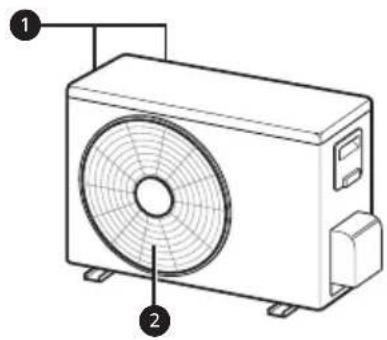
natural_image
Line drawing of a wall-mounted air conditioner with a remote control unit emitting signal waves (no text or symbols)TÄHELEPANU
Reset
TÄHELEPANU
TÄHELEPANU
natural_image
Line drawing of a hand cleaning a wall-mounted appliance with a cloth (no text or symbols)M
Mikrotolmu filter
natural_image
Diagram of a device with two circular insets showing upward arrows, no text or symbols presentnatural_image
Diagram of a mechanical setup with a circular component and downward arrows, no text or symbols present3 Mikrotolmu filtri paigaldamiseks lükake konksud allapoole.
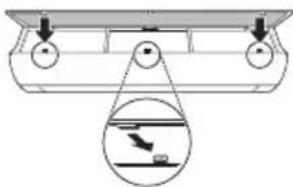
natural_image
Diagram of a mechanical or structural assembly with two circular components and an inset showing a suspended object (no text or symbols)3 Paigaldage uus kolmekordne filter (1) mikrotolmu filtrisse (2).
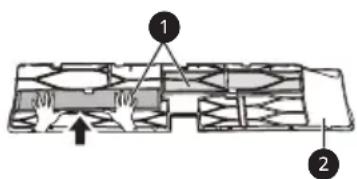
1 Avage PM1,0 anduri kate toote küljel.
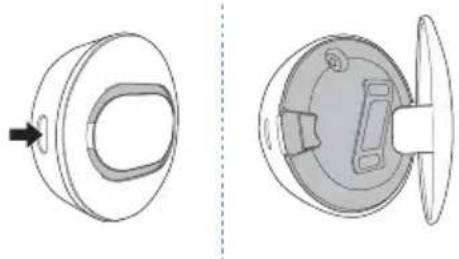
natural_image
Technical line drawing of a mechanical component, showing front and side views (no text or symbols)natural_image
Illustration of a hand inserting a component into a circular device (no text or symbols visible)TÄHELEPANU
Smart Diagnosis....33
MANUTENZJONI 34
Ibdel u Naddaf il-Filtru tat-Trab Fin Hafna....36
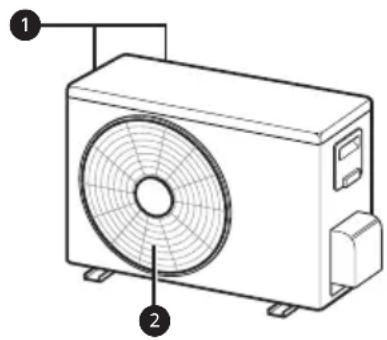
natural_image
Line drawing of a mechanical fan or air conditioner unit with labeled parts (no text or symbols present)① Filtru tal-Arja + Filtru tat-Trab Fin Hafna
2 Jonizzatur
3 Dhul tal-Arja
4 Ghatu ta' Quddiem
5 PM1.0 Sensur
6 Buttuna On/Off
7 Diflettur tal-Arja (Luver vertikali)
8 Diflettur tal-Arja (Luver orizzontali)
9 Żbokk tal-Arja
1 Ventijiet tad-Dhul tal-Arja
2 Ventijiet tal-Hrug tal-Arja
NOTA
Remote Control Bla Wajer
Meta Ddahhal il-Batteriji
Jekk l-iskrin tal-wiri tar-remote control jibda jićčara, ibdel il-batteriji. Daňhal batteriji AAA (1.5 V) qabel ma tuža r-remote control.
1 Nehhi I-ghatu tal-batteriji.
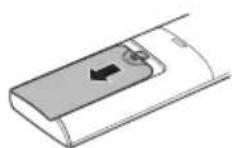
2 Dañhal il-batteriji l-godda u aghmel cert li t-terminals + u - tal-batteriji huma installati tajjeb.
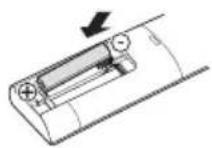
Installazzjoni tal-Holder tar-Remote Control
Biex tipproteği r-remote control, installa l-holder fejn ma hemmx dawl tax-xemx dirett.
1 Aghžel post sigur u fejn tilhqu facilment.
natural_image
Line drawing of a wall-mounted air conditioner with a remote control unit (no text or symbols)NOTA
2
| 1Buttuna | 2Skrin tad-Displej | Deskrizzjoni | Funzjoni disponibbli | |
| maqsum singolari | Multi | |||
| [3x37] | [DS22] | Sabiex tnaqqas il-hoss mill-unitajiet ta' barra. | O | X |
| [ZXDC] | Sabiex tnehhi l-indewwa ĝgenerata fl-unità ta' ĝewwa. | O | O | |
| Reset - | Sabiex tinizjalizza l-konfigurazzjoniet tar-remote control. | O | O | |
NOTA
| pass 1 pass 2 pass 3 |

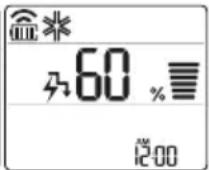
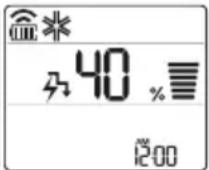
NOTA
• pass 1: Id-Dhul tal-energija jitnaqqas b'20 % meta mqabbel mad-dhul tal-energija kklassifikat.
-80intwera fuq l-iskrin tal-wiri.
• pass 2: Id-Dhul tal-energija jitnaqqas b'40 % meta mqabbel mad-dhul tal-energija kklassifikat.
60intwera fuq l-iskrin tal-wiri.
- pass 3 (Faultattiv): Id-Dhul tal-energija jitnaqqas b'60 % meta mqabbel mad-dhul tal-energija klassifikat.
3 Qabbad I-ismartphone mar-router wireless.
NOTA
- Biex tivverifika l-konnessjoni tal-Wi-Fi, icčekkja li l-icon i hemm fuq il-panew tal-kontroll hija mixghula.
- Dan it-taghmir jiflaħ Wi-Fi netwerk ta' 2.4GHz biss. Biex tiċċekkja I-frekwenza tar-router, ikkuntattja I-fornitur tas-servizz tal-internet tiegħek jew irreferi għall- manwal tal-wireless router.
- LG ThinQ mhuwiex responsabbli ta' problemi, ŋsarat jew malfunzjonijiet fil-konnessjoni tan-netwerk, ikkawżati mill-konnessjoni tan-netwerk.
- Jekk I-apparat ikun 'il bogħod mir-router dan jaf ma jkunx jista' jagħmel konnessjoni man-netwerk tal-Wi-Fi. Ixtri Wi-Fi repeater (range extender) biex ittejjeb is-saħħa tal-Wi-Fi.
- Il-konnessjoni tal-Wi-Fi tista' tigi interrotta jew ma taqbadx minhabba l-ambjent tan-netwerk tad-dar.
- Il-konnessjoni tan-netwerk tista' ma taħdimx kif suppost minħabba l-fornitur tas-servizz tal-internet.
-
L-ambjent tal-wireless tal-madwar jista' jikkawża lis-servizz tal-wireless netwerk jaħdem bil-mod.
-
It-taghmir ma jistax jigi rregistrat minhabba problemi fit-trasmissjoni ta' qawwa tal-wireless. Skonnettja t-taghmir u stenna madwar minuta qabel terga tipprova.
- Jekk il-firewall fuq ir-router wireless tiegħek huwa attivat, skonnettja l-firewall jew agħmel eċċezzjoni għal dan.
- L-isem tan-netwerk tal-wireless (SSID) ghandu jkun kombinazzjoni ta' ittri Ingliži u numri. (Tužax karattri specjali)
- II-user interface (UI) tal-ismartphone tista' tvarja ghax din tiddependi fuq is-sistema operattiva (OS) tal-mobajl u l-manifattur.
- Jekk il-protokoll ta' sigurtà tar-router huwa stabbilit għal WEP, jista' ma jirnexxilekx tħaddem in-netwerk. Jekk jogħgbok ibdlu għal protokolli ta' sigurtà oħra (WPA2 huwa rakkomandat) u erga' rreġistra l-prodott.
Kif tinstalla I-Applikazzjoni LG ThinQ
Fittex I-applikazzjoni LG ThinQ minn Google Play Store jew Apple App Store fuq smartphone. Segwi I-istruzzjonijiet biex tniżżel u tinstalla I-applikazzjoni.
natural_image
Line drawing of a hand cleaning a car air conditioner with a cloth (no text or symbols)F1
Filtru tat-trab fin hafna
natural_image
Diagram of a device with two circular insets showing upward arrows, no text or symbols presentnatural_image
Diagram of a mechanical setup with two circular components and an airplane flying above a horizontal plate (no text or symbols)3 Aghfas il-gancijiet 'l isfel sabiex tarma l-filtru tat-trab fin hafna.
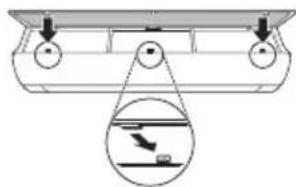
natural_image
Diagram showing a mechanical setup with pulleys and a magnified inset of a boat (no text or symbols)4 Icčekkja I-ğenb tal-ghata ta' quddiem ghall-armar korrett tal-filtru tat-trab fin hafna.
NOTA
3 Arma I-Filtru triplu (1) fil-filtru tat-trab fin hafna (2).
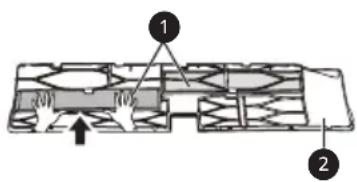
4 Arma I-Filtru triplu u I-filtru tat-trab fin hafna fl-ordni inversa taž-žarmar.
ATTENZJONI
natural_image
Technical line drawings of a mechanical component, showing front and side views (no text or symbols)2 Poğgi ftit ilma fuq tajjara, imsaħ il-lenti, u erga' imsaħha b'tajjara niexfa biex tneħħi l-umdu.
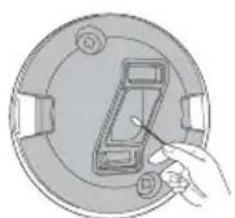
natural_image
Diagram of a hand inserting a component into a circular housing (no text or symbols)NOTA
- Dan jigi applikat biss ghal tindif generali tal-mudelli tal-wiri.
Funzjoni tal-Awto-Dijanjoži
INSTRUCTIUNI DE SIGURANTĂ....3
INSTRUCTIUNI DE SIGURANTĂ IMPORTANTE ....4
OPERARE....12
Smart Diagnosis....33
ÎNTRETINEREA....34
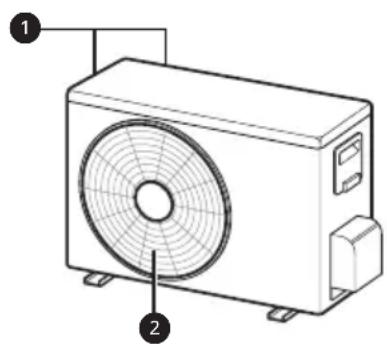
natural_image
Line drawing of a mechanical fan or air conditioner unit with labeled parts (1 and 2), no text or symbols present.natural_image
Line drawing of a modern air conditioner with a remote control unit and a circled detail (no text or symbols)NOTĂ
2
NOTĂ
| Pasul 1 Pasul 2 Pasul 3 |
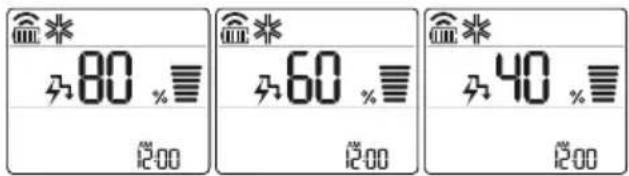
NOTĂ
NOTĂ
natural_image
Line drawing of a hand cleaning a car air conditioner with a cloth (no text or symbols)图
Microfiltru de praf
natural_image
Diagram of a device with two circular insets showing upward arrows, no text or symbols presentnatural_image
Diagram of a rectangular container with two upward arrows indicating top positions (no text or symbols present)natural_image
Diagram of a mechanical setup with two circular components and an airplane flying above a horizontal plate (no text or symbols)natural_image
Diagram of a boat hull with pulley system and inset showing underwater wave (no text or symbols)natural_image
Technical line drawings of a mechanical component, showing front and side views (no text or symbols)natural_image
Illustration of a hand inserting a device into a circular device (no text or symbols visible)NOTĂ
DÔLEŽITÉ BEZPEČNOSTNÉ POKYNY....4
PREVÁDZKA 12
Smart Diagnosis ....33
ÚDRŽBA 34
Výmena a čistenie filtra na mikro prach....36
DÔLEŽITÉ BEZPEČNOSTNÉ POKYNY

VAROVANIE
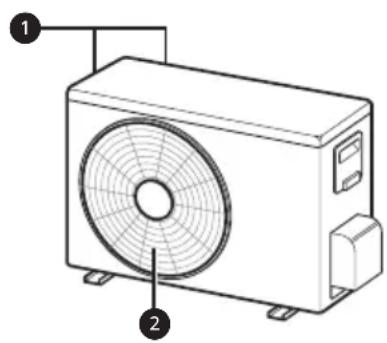
natural_image
Line drawing of a mechanical fan or air conditioner unit with labeled parts (1 and 2), no text or symbols present.natural_image
Line drawing of a modern air conditioner with a remote control unit and a circled detail (no text or symbols)POZNÁMKA
POZNÁMKA
POZNÁMKA
natural_image
Line drawing of a hand cleaning a wall-mounted appliance with a cloth (no text or symbols)4
Filter na mikro prach
natural_image
Diagram showing two circular insets with upward arrows pointing to a rectangular object, no text or symbols present.natural_image
Diagram of a mechanical setup with two circular components and an airplane flying above a platform (no text or symbols)natural_image
Diagram of a mechanical or structural assembly with two circular components and an inset showing a suspended object (no text or symbols)natural_image
Technical line drawings of a mechanical component, showing front and side views (no text or symbols)natural_image
Illustration of a hand inserting a component into a circular device (no text or symbols visible)POZNÁMKA
Smart Diagnosis....33
VZDRŽEVANJE 34
Zamenjajte in očistite mikrofilter za prah....36
Zamenjajte trojni filter (izbirno)....37
Očistite senzor za delce PM1,0....38
ODPRAVLJANJE TEŽAV 39
natural_image
Line drawing of a wall-mounted air conditioner with a remote control unit emitting signal waves (no text or symbols)OPOMBA
2
OPOMBA
2 Pritisnite gumb Energy Ctrl.
- Za izbor posameznih korakov večkrat zaporedoma pritisnite gumb Energy Ctrl.
| 1. korak 2. korak 3. korak |
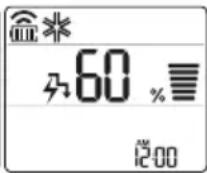

OPOMBA
OPOMBA
natural_image
Line drawing of a hand cleaning a wall-mounted appliance with a cloth (no text or symbols)He
Mikrofilter za prah
natural_image
Diagram showing two circular insets with upward arrows pointing to a central object, no text or symbols present.3 Odstranite filter iz notranje enote.
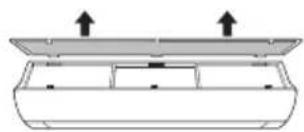
natural_image
Simple line drawing of a vehicle chassis with two upward arrows indicating top-down orientation (no text or symbols)4 Filter očistite s sesalcem ali krtačo (mikrofiltra za prah ne perite z vodo).
Mikrofilter za prah sestavite
natural_image
Diagram of a mechanical setup with three circular components and an inset showing a lever mechanism (no text or symbols)3 Kavlja potisnite navzdol, da sestavite mikrofilter za prah.
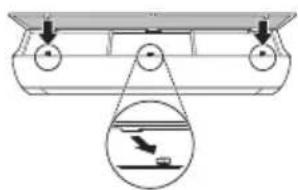
natural_image
Diagram of a boat hull with two circular ports and a magnified inset showing a boat on water (no text or symbols)4 Za pravilno sestavljanje mikrofiltra za prah preverite stranski del sprednjega pokrova.
OPOMBA
3 Novi trojni filter (1) sestavite v mikrofilter za prah (2).
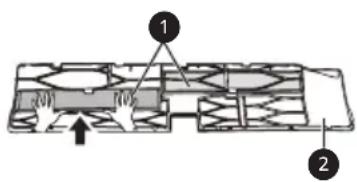
4 Trojni filter in mikrofilter za prah sestavite v obratnem vrstnem redu razstavljanja.
POZOR
natural_image
Technical line drawings of a mechanical component, showing front and side views (no text or symbols)natural_image
Diagram of a mechanical component with a hand pointing to a slot (no text or symbols)OPOMBA
- To storite, će želite temeljito očistiti modele z zaslonom.
Funkcija samodiagnosticiranja
Ta izdelek ima vgrajeno funkcijo samodiagnosticiranja. Če se pojavi napaka, bo lučka notranje enote utripala v dvosekundnih intervalih. Če pride do tega, stopite v stik z lokalnim trgovcem ali servisom.
Preden pokličete servis
VEIDS: PIESTIPRINÃMS PIE SIENAS
Pýðing á upprunalegu kennsla
Smart Diagnosis....33
APKOPE 34
Notiriet PM1,0 sensoru 38
TRAUCĒJUMU MEKLĒŠANA....39
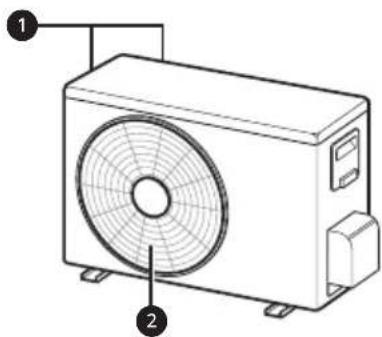
natural_image
Line drawing of a mechanical fan or air conditioner unit with labeled components (no text or symbols present)natural_image
Line drawing of a rectangular air conditioner with a remote control unit nearby (no text or symbols)PIEZIME
2
PIEZIME
PIEZIME
natural_image
Line drawing of a hand cleaning a wall-mounted appliance with a cloth (no text or symbols)[Unreadable]
natural_image
Diagram showing two circular insets with upward arrows pointing to a central object, no text or symbols present.natural_image
Simple line drawing of a container with two upward arrows indicating top and bottom positions (no text or symbols)natural_image
Two technical diagrams showing a container with an upward arrow and a circular component inserted into a tray, both without any text or symbols.natural_image
Diagram of a boat hull with a pulley system and an inset showing a bird flying over water (no text or symbols)natural_image
Technical line drawing of a mechanical component, showing front and side views (no text or symbols)natural_image
Illustration of a hand inserting a component into a circular device (no text or symbols visible)PIEZIME
NURODYMAI DËL SAUGOS....3
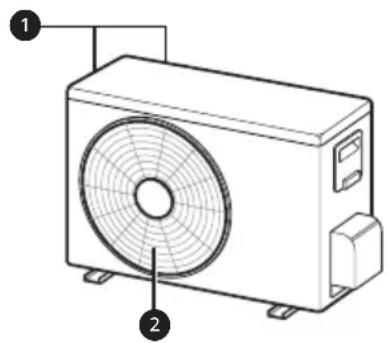
natural_image
Line drawing of a front-mounted air conditioner unit with fan and vent slots (no text or symbols)natural_image
Line drawing of a wall-mounted air conditioner with a remote control unit emitting signal waves (no text or symbols)PASTABA
PASTABA
PASTABA
natural_image
Line drawing of a hand cleaning a car air conditioner with a cloth (no text or symbols)[Unreadable]
natural_image
Diagram of a device with two circular insets showing upward arrows, no text or symbols presentnatural_image
Diagram showing two views of a boat with an airplane flying above its side, no text or symbols present.natural_image
Diagram showing a mechanical setup with pulleys and a magnified inset of a boat (no text or symbols)natural_image
Technical line drawing of a mechanical component, showing front and side views (no text or symbols)natural_image
Illustration of a hand inserting a component into a circular housing (no text or symbols)PASTABA
LÁMHLEABHAR' ÚINÉARA
AER-CHÓIRITHEOIR

Smart Diagnosis....33
COTHABHÁIL....34
Athchuir agus Glan an Scagaire Mion-deannaigh....36
Athchuir an Scagaire Triarach (roghnach) 37
Glan an Braiteoir PM1.0....38
FABHTCHEARTÚ 39
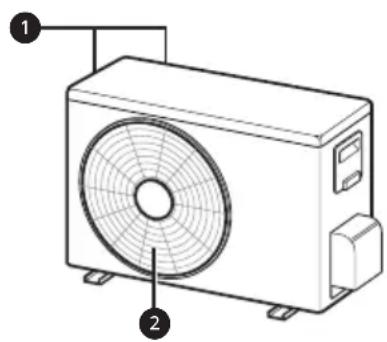
natural_image
Line drawing of a mechanical fan or air conditioner unit with labeled components (no text or symbols present)① Scagaire Aeir + Scagaire Mion-deannaigh
2 lanaitheoir
3 Iontógáil Aer
4 Clúdach Tósaigh
5 PM1.0 braiteoir
6 Cnaipe Air/As
7 Sraonaire aer (ingireach)
8 Sraonaire aer (cothrománach)
9 Asraon aer
1 Gaothaire lontógála Aer
2 Gaothaire Asraon Aer
NOTE
natural_image
Line drawing of a rectangular air conditioner with a remote control unit nearby (no text or symbols)NOTE
Reset
| 1Button | 2Scáthlán | Cur síos | Ar fáil Feidhm | |
| Singil scaoilte | lolrach | |||
 | | Chun torann a ísliú ón aonad amuigh. | O | X |
| Chun tais ginithe taobh istigh den aonad laistigh a bhaint. | O | O | |
| Reset - | Chun socruithe an cianrialtáin a thosú. | O | O | |
NOTE
NOTE
3 Ceangail do ghuthán cliste leis an ródaire gan sreang.
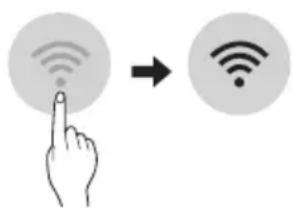
NOTE
natural_image
Line drawing of a hand cleaning a wall-mounted appliance with a cloth (no text or symbols)
Scagaire Mion-deannaigh
natural_image
Diagram showing two circular views of a device with arrows indicating direction (no text or symbols)3 Bain ón aonad laistigh é.
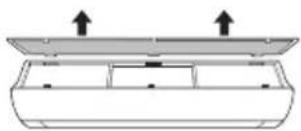
natural_image
Simple line drawing of a device with two upward arrows pointing to the top panel (no text or symbols)4 Glan an scagaire le glantóir folúis nó scuab. (Ná nigh an scagaire mion-deannaigh le huisce.)
natural_image
Two technical diagrams showing a container with an upward arrow and a circular component inserted into a tray, both without any text or symbols.natural_image
Diagram of a boat hull with a circular inset showing a bird flying above water (no text or symbols)3 Cóimeáil an Scagaire Triarach nua (1) isteach sa scagaire mion-deannaigh (2).
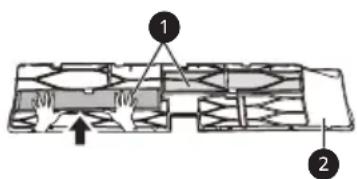
natural_image
Technical line drawings of a mechanical component, showing front and side views (no text or symbols)2 Cuir beagán uisce ar mhaipín cadáis, cuimil na lionsaí, agus cuimil arís é le maipín cadáis tirim chun an tais a bhaint.
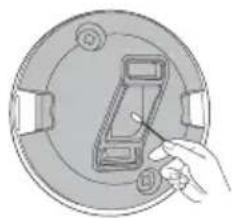
natural_image
Diagram of a hand inserting a component into a circular device (no text or symbols visible)NOTE
VAŽNA BEZBEDNOSNA UPUTSTVA....4
RAD....12
Napomene za rad....12
Delovi i funkcije 12
Bežični daljinski upravljač 13
Automatsko ponovno pokretanje klima uređaja....18
Korišćenje funkcije režima 18
VAŽNA BEZBEDNOSNA UPUTSTVA

UPOZORENJE
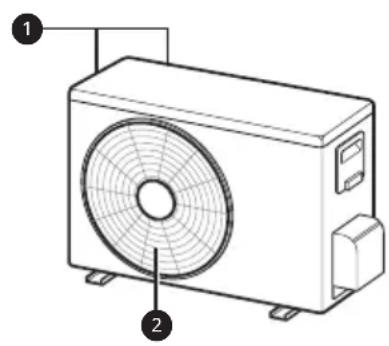
natural_image
Line drawing of a mechanical fan or air conditioner unit with labeled parts (1 and 2), no text or symbols present.1 Filter za vazduh + mikrofilter za prašinu
2 Jonizator
3 Dovod vazduha
4 Prednji poklopac
5 PM1,0 senzor
6 Dugme za uključivanje/isključivanje
7 Usmerivač vazduha (vertikalni rešetkasti otvor)
8 Usmerivač vazduha (horizontalna lopatica)
9 Odvod vazduha
natural_image
Line drawing of a wall-mounted air conditioner with a remote control unit and a circular annotation highlighting the portion of the device (no text or symbols present)NAPOMENA
- Daljinskim upravljačem možete da upravljate i drugim elektronskim uređajima ako ih usmerite prema njima. Vodite računa da daljinski upravljač usmerite prema prijemniku signala na klima uređaju.
- Da bi uređaj ispravno radio, koristite mekanu tkaninu da očistite predajnik i prijemnik signala.
- U slučaju da proizvod ne poseduje neku funkciju, neće se aktivirati zvučni signal na proizvodu kada se pritisne dugme za tu funkciju na daljinskom upravljaču, osim u slučaju funkcija za smer protoka vazduha (Swing), prikaz energije (pročišćavanje vazduha ().
2
NAPOMENA
- Na nekim unutrašnjim jedinicama se prikazuje ili
- Ova funkcija je onemogućena kada pritisnete dugme Mode ili Jet Mode.
- Ova funkcija je onemogućena i postavljeno je automatsko usmeravanje na vertikalni pravac kada pritisnete dugme Swing.
- Kada je ova funkcija isključena, horizontalna lopatica radi automatski u zavisnosti od podešenog režima.
NAPOMENA
- Da biste proverili Wi-Fi vezu, proverite da li je ikonica osvetljena na kontrolnoj tabli.
- Uređaj podržava samo Wi-Fi mreže od 2,4 GHz. Da biste proverili mrežnu frekvenciju, obratite se internet provajderu ili pogledajte priručnik za bežični ruter.
- LG ThinQ ne snosi odgovornost za probleme sa povezivanjem na mrežu niti za bilo koje smetnje, kvarove ili greške izazvane povezivanjem na mrežu.
- Ako uređaj ne može da se poveže na Wi-Fi mrežu, možda je suviše daleko od rutera. Kupite pojačivač Wi-Fi signala (proširivač opsega) da biste pojačali Wi-Fi signal.
- Veza sa Wi-Fi mrežom možda neće biti uspostavljena ili će biti prekinuta zbog uslova u kojima funkcioniše kućna mreža.
- Povezivanje na mrežu možda neće funkcionisati ispravno zbog pružaoca internet usluga.
-
Zbog okolnih bežičnih mreža možda će vaša bežična mreža biti spora.
-
Uređaj se ne može da se registruje zbog problema s bežičnim prenosom signala. Isključite uređaj i sačekajte oko jednog minuta pre nego što pokušate ponovo.
- Ako je na bežičnom ruteru uključen zaštitni zid, isključite zaštitni zid ili dodajte izuzetak.
- Naziv bežične mreže (SSID) treba da se sastoji od kombinacije latiničnih slova i brojeva. (Nemojte da koristite posebne znakove)
- Korisnički interfejs pametnog telefona može da se razlikuje u zavisnosti od mobilnog operativnog sistema i proizvođača.
- Ako je sigurnosni protokol rutera podešen na WEP možda nećete moći da podesite mrežu. Molimo da promenite na druge sigurnosne protokole (preporučuje se WPA2) i ponovo registrujte proizvod.
Instalacija aplikacije LG ThinQ
Pretražite aplikaciju LG ThinQ u radnji Google Play Store & Apple App Store putem pametnog telefona.
natural_image
Line drawing of a hand cleaning a car air conditioner with a cloth (no text or symbols)M
natural_image
Diagram showing two circular insets with upward arrows pointing to a central object, no text or symbols present.natural_image
Diagram of a mechanical setup with two circular components and an airplane flying above a platform (no text or symbols)3 Gurnite kuke nadole da biste postavili mikrofilter za prašinu.
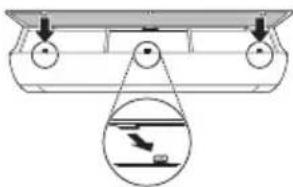
natural_image
Diagram of a mechanical or structural assembly with two circular components and an inset showing a suspended object (no text or symbols)4 Pogledajte bočnu stranu prednjeg poklopca da biste proverili da li je mikrofilter za prašinu ispravno montiran.
NAPOMENA
3 Sklopite novi trostruki filter (①) u mikrofilteru za prašinu (②).
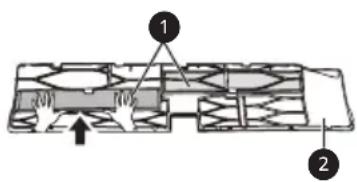
4 Sklopite trostruki filter i mikrofilter za prašinu prema obrnutom redosledu u odnosu na rasklapanje.
OPREZ
- Prednji panel može da padne i da dovede do povrede, stoga budite oprezni.
- Nakon zamene filtera, tokom ponovnog umetanja, u potpunosti ubacite ceo mikrofilter za prašinu. (Ako se ne ubaci ceo, može da dovede do smanjenja učinka ili drugog kvara proizvoda.)
- Korišćenje klima uređaja bez filtera dovodi do smanjenja učinka i kvara klima uređaja.
- Nemojte da rastavljate sam trostruki filter i sprečite njegovo oštećenje ili deformaciju. To može da dovede do kvara proizvoda ili neispravnosti zbog nepravilnog rada.
- Kada zamenite filter, budite pažljivi da ga ne ispustite ispod proizvoda.
- U cilju bezbednosti, pre čišćenja ili zamene, isključite napajanje proizvoda i iskopčajte utikač za napajanje ili isključite glavni prekidač za napajanje.
NAPOMENA
natural_image
Technical line drawing of a mechanical component with cross-sectional and top views (no text or symbols)2 Stavite malo vode na pamučni tufer, obrišite sočivo i ponovo ga obrišite suvim pamučnim tuferom da biste uklonili vlagu.
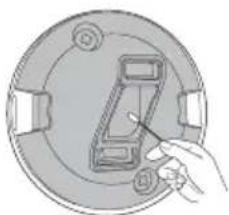
natural_image
Illustration of a hand inserting a component into a circular device (no text or symbols visible)NAPOMENA
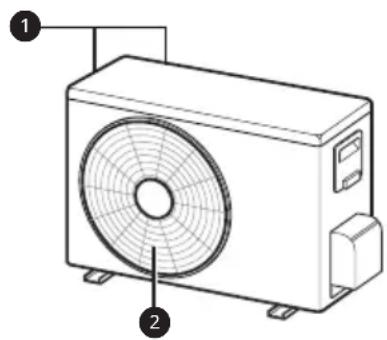
natural_image
Line drawing of a rectangular air conditioner unit with fan and base, labeled with components 1 and 2 (no text or symbols on the device itself)natural_image
Line drawing of a wall-mounted air conditioner with a remote control unit emitting signal waves (no text or symbols)НАПОМЕНА
НАПОМЕНА
НАПОМЕНА
natural_image
Line drawing of a hand cleaning a car air conditioner with a cloth (no text or symbols)10
natural_image
Diagram showing two circular views of a device with an upward arrow, no text or symbols presentnatural_image
Simple line drawing of a rectangular container with two upward arrows above it (no text or symbols)natural_image
Diagram of a mechanical setup with a circular component and three circular components on a base, showing directional arrows (no text or symbols)natural_image
Diagram of a boat with circular ports and a magnified inset showing a boat's side view (no text or symbols)natural_image
Technical line drawings of a mechanical component, showing front and side views (no text or symbols)natural_image
Illustration of a hand inserting a small electronic component into a circular housing (no text or symbols)НАПОМЕНА
Smart Diagnosis....33
MIRËMBAJTJA....34
Pastroni sensorin e PM1,0....38
ZGJIDHJA E PROBLEMEVE ....39
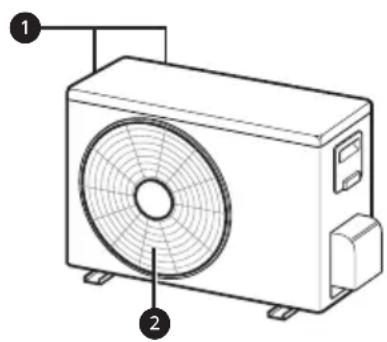
natural_image
Line drawing of a mechanical fan or air conditioner unit with labeled components (no text or symbols present)① Filtri i ajrit + Mikrofiltri i pluhurit
2 Jonizuesi
3 Konsumi i ajrit
4 Kapaku i përparmë
5 Sensorin e PM1,0
6 Butoni i Ndezjes/Fikjes
7 Deflektori i ajrit (fleta vertikale)
8 Deflektori i ajrit (fleta horizontale)
9 Shkarkuesi i ajrit
natural_image
Line drawing of a wall-mounted air conditioner with a remote control unit (no text or symbols)SHËNIM
SHËNIM
- UV is displayed on some indoor units, depending on the model.
- The UV LED operates at regular intervals to keep the fan clean.
- The UVnano function stops when the air conditioner is turned off.
- When Auto Clean Function starts, UVnano Function works together to keep the fan clean.
- This function is disabled with Heating Mode.
SHËNIM
natural_image
Line drawing of a hand cleaning a wall-mounted appliance with a cloth (no text or symbols)[NO TEXT]
Mikrofiltri i Pluhurit
natural_image
Diagram showing two circular insets with upward arrows pointing to a central object, no text or symbols present.natural_image
Diagram of a mechanical setup with a circular component and downward arrows, no text or symbols presentnatural_image
Diagram of a boat hull with two circular ports and an inset showing a boat on water (no text or symbols)Pastroni sensorin e PM1,0
natural_image
Technical line drawings of a mechanical component, showing front and side views (no text or symbols)natural_image
Illustration of a hand inserting a device into a circular device (no text or symbols visible)SHËNIM
SIGURNOSNA UPUTSTVA....3
VAŽNA SIGURNOSNA UPUTSTVA....4
RAD....12
Napomene prilikom rada....12
Očistite senzor PM1,0....38
RJEŠAVANJE PROBLEMA....39
VAŽNA SIGURNOSNA UPUTSTVA

UPOZORENJE
Da biste smanjili opasnost od eksplozije, požara, smrti, strujnog udara, povrede ili opekotina za osobe prilikom korištenja ovog proizvoda, pridržavajte se osnovnih mjera predostrožnosti, uključujući sljedeće:
Djecu u domaćinstvu
Ovaj uređaj nije namijenjen za upotrebu od strane osoba (uključujući djecu) sa smanjenim fizičkim, senzornim ili mentalnim sposobnostima, ili s nedostatkom iskustva i znanja, osim u slučaju da su te osobe pod stalnim nadzorom ili su instruirane po pitanju korištenja uređaja od strane osobe koja je odgovorna za njihovu sigurnost. Djeca trebaju biti pod nadzorom kako bi se osiguralo da se ne igraju s uređajem.

natural_image
Line drawing of a rectangular air conditioner unit with fan and vent, labeled with components 1 and 2 (no text or symbols on the device itself)① Filter za vazduh + mikrofilter za prašinu
2 Ionizator
3 Ulaz zraka
4 Prednji poklopac
5 PM1,0 senzor
6 Tipka za uključivanje/isključivanje (On/Off)
7 Deflektor zraka (vertikalna krilca)
8 Deflektor zraka (horizontalna krilca)
9 Izlaz zraka
natural_image
Line drawing of a wall-mounted air conditioner with a remote control unit nearby (no text or symbols)NAPOMENA
NAPOMENA
NAPOMENA
- Da biste provjerili Wi-Fi vezu, provjerite da li na upravljačkoj ploči svijetli oznaka Wi-Fi
- Ovaj uređaj podržava isključivo Wi-Fi mreže od 2,4 GHz. Da biste provjerili mrežnu frekvenciju, obratite se pružatelju internetskih usluga ili pogledajte uputstvo za upotrebu bežičnog usmjerivača.
- LG ThinQ nije odgovoran za bilo kakve probleme s mrežnim vezama ili bilo kakve smetnje, kvarove ili pogreške uzrokovane mrežnom vezom.
- Ako uređaj ima problema s povezivanjem na Wi-Fi mrežu, možda je previše udaljen od usmjerivača. Kupite ponavljač Wi-Fi signala (proširivač dometa) kako biste pojačali Wi-Fi signal.
- Povezivanje na Wi-Fi mrežu možda neće biti uspješno ili se veza može prekinuti zbog okruženja u kojem se nalazi kućna mreža.
- Mrežna veza možda neće raditi ispravno ovisno o pružatelju internetskih usluga.
-
Okruženje bežične mreže može učiniti da bežična mreža bude spora.
-
Uređaj se ne može registrirati zbog problema s prijenosom bežičnog signala. Odspojite uređaj i sačekajte oko minutu prije ponovnog pokušaja.
- Ako je na bežičnom usmjerivaču omogućen zaštitni zid, onemogućite ga ili dodajte izuzetak.
- Naziv bežične mreže (SSID) trebao bi biti kombinacija engleskih slova i brojeva. (Nemojte koristiti posebne znakove.)
- Korisnički interfejs pametnog telefona (UI) može se razlikovati ovisno o operativnom sistemu (OS) i proizvođaču.
- Ako je sigurnosni protokol usmjerivača postavljen na WEP, možda nećete moći postaviti mrežu. Podesite drugačije sigurnosne protokole (preporučujemo WPA2) i ponovno registrirajte uređaj.
Instaliranje LG ThinQ aplikacije
Pretražite LG ThinQ aplikaciju u Google Play trgovini ili Apple trgovini aplikacijama na pametnom telefonu. Slijedite uputstva da preuzmete i instalirate aplikaciju.
natural_image
Line drawing of a hand cleaning a car air conditioner with a cloth (no text or symbols)M
natural_image
Diagram showing two circular insets with upward arrows pointing to a central object, no text or symbols present.natural_image
Simple line drawing of a container with two upward arrows indicating top and bottom positions (no text or symbols)4 Očistite filter usisivačem ili četkom. (Nemojte da perete mikrofilter za prašinu vodom.)
Rasklopite mikrofilter za prašinu
1 Isključite napajanje i isključite napojni kabal iz utičnice.
2 Držite jonizator i podignite ga blago. Zatim ubacite kuke mikrofiltera za prašinu u prednji poklopac.
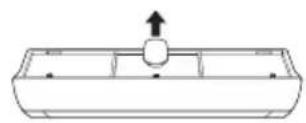
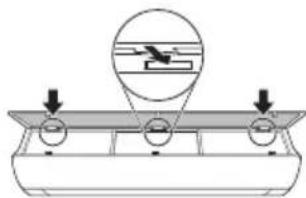
natural_image
Diagram of a mechanical setup with a circular component and downward arrows, no text or symbols present3 Gurnite kuke nadole da biste postavili mikrofilter za prašinu.
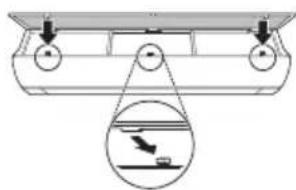
natural_image
Diagram of a boat hull with two circular ports and a magnified inset showing a bird flying above water (no text or symbols)4 Pogledajte bočnu stranu prednjeg poklopca da biste proverili da li je mikrofilter za prašinu ispravno montiran.
NAPOMENA
3 Sklopite novi trostruki filter (①) u mikrofilteru za prašinu (②).
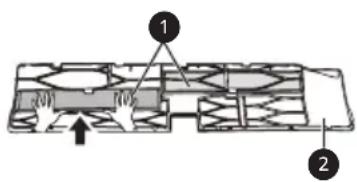
4 Sklopite trostruki filter i mikrofilter za prašinu prema obrnutom redosledu u odnosu na rasklapanje.
OPREZ
- Prednji panel može da padne i da dovede do povrede, stoga budite oprezni.
- Nakon zamene filtera, tokom ponovnog umetanja, u potpunosti ubacite ceo mikrofilter za prašinu. (Ako se ne ubaci ceo, može da dovede do smanjenja učinka ili drugog kvara proizvoda.)
- Korišćenje klima uređaja bez filtera dovodi do smanjenja učinka i kvara klima uređaja.
- Nemojte da rastavljate sam trostruki filter i sprečite njegovo oštećenje ili deformaciju. To može da dovede do kvara proizvoda ili neispravnosti zbog nepravilnog rada.
- Kada zamenite filter, budite pažljivi da ga ne ispustite ispod proizvoda.
- U cilju bezbednosti, pre čišćenja ili zamene, isključite napajanje proizvoda i iskopčajte utikač za napajanje ili isključite glavni prekidač za napajanje.
NAPOMENA
natural_image
Technical line drawings of a mechanical component, showing front and side views (no text or symbols)2 Stavite malo vode na pamučnu vatu, obrišite sočiva i ponovo ih obrišite suhom pamučnom vatom kako biste uklonili vlagu.
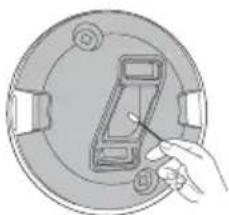
natural_image
Illustration of a hand inserting a component into a circular device (no text or symbols visible)NAPOMENA
- To se primjenjuje samo radi sveukupne čistoće displeja na kojima se prikazuju podaci.
Funkcija samodijagnoze
Ovaj proizvod ima ugrađenu samodijagnostičku funkciju. Ako se pojavi greška, lampica unutrašnje jedinice će treperiti u intervalima od 2 sekunde. Ako dođe do toga, obratite se svom lokalnom trgovcu ili servisnom centru
- SAFETY INSTRUCTIONS ....3
- OPERATION 12
- SMART FUNCTIONS....31
- MAINTENANCE....34
- TROUBLESHOOTING....39
- WARNING
- CAUTION
- IMPORTANT SAFETY INSTRUCTIONS
- Children in the Household
- For use in Europe:
- Installation
- Operation
- Maintenance
- Technical Safety
- Notes for Operation
- Suggestion for Energy Saving
- Parts and Functions
- Indoor Unit Outdoor Unit
- NOTE
- Wireless Remote Control
- Inserting Batteries
- Installing the Remote Control Holder
- Operating Method
- Setting the Current Time
- Insert batteries.
- Operating the Air Conditioner without the Remote Control
- Using Wireless Remote Control
- Restarting the Air Conditioner Automatically
- Disabling Auto Restart
- Using the Mode Function
- Cooling Mode
- Auto Operation (Artificial Intelligence)
- Multi Model
- Auto Changeover Mode
- Single Split Model
- Dehumidification Mode
- Heating Mode
- Fan Mode
- Using the Jet Mode Function
- Changing Room Temperature Quickly
- Using the Fan Speed Function
- Adjusting the Fan Speed
- Using the Air Flow Direction Function
- Setting the On/Off Timer
- Setting the On Timer
- Press button repeatedly.
- Canceling the On Timer
- Setting the Off Timer
- Canceling the Off Timer
- Canceling the Timer Setting
- Using the Sleep Function (Optional)
- Using the Simple Timer Function (Optional)
- Using the Energy Display Function (Optional)
- Display the Current Energy Usage
- Using the Light Off Function (Optional)
- Display Screen Brightness
- Using the Comfort Air Function (Optional)
- Comfort Vane Operation
- Using the Energy Control Function (Optional)
- Using UVnano Function (Optional)
- How to Use Air Purification
- Using Air Purification During Operation Modes
- Smart Air Purification
- Checking Overall Cleanliness
- Using Special Functions
- Canceling Special Functions
- Using the Silent Function
- Using the Auto Clean Function
- LG ThinQ Application
- LG ThinQ Application Features
- Smart Diagnosis
- Settings
- Before Using LG ThinQ Application
- Installing the LG ThinQ Application
- Open Source Software Notice Information
- Using LG ThinQ to Diagnose Issues
- Using Audible Diagnosis to Diagnose Issues
- Replace and Clean the Micro Dust Filter
- Disassemble and Clean the Micro Dust Filter
- Assemble the Micro Dust Filter
- Replace the Triple Filter (Optional)
- Clean the PM1.0 Sensor
- Self-diagnosis Function
- Before Calling for Service
- MANUEL' PROPRIÉTAIRE
- CLIMATISATION
- REMARQUE
- Application LG ThinQ
- Smart Diagnosis (Diagnostic intelligent)
- ΣΥΝΤΗΡΗΣΗ 34
- ΣΗΜΕΙΩΣΗ
- ONDERHOUD 34
- PROBLEEMOPLOSSING....39
- OPMERKING
- KONSERWACJA 34
- UWAGA
- MEGJEGYZÉS
- ЗАБЕЛЕЖКА
- SIGURNOSNE UPUTE....3
- RAD....12
- VAŽNE SIGURNOSNE UPUTE
- UPOZORENJE
- NAPOMENA
- Automatsko ponovno pokretanje klima-uredaja
- Onemogućavanje automatskog ponovnog pokretanja
- Upotreba funkcije upravljanja energijom (Neobavezno)
- Sastavljanje filtra mikroprašine
- Zamjena trostrukog filtra (Neobavezno)
- OPREZ
- Očistite senzor čestica PM1,0
- Funkcija samodijagnosticiranja
- POZNÁMKA
- KASUTAMINE....12
- HOOLDAMINE 34
- Olulised ohutusjuhised
- OHT
- TÄHELEPANU
- Avage PM1,0 anduri kate toote küljel.
- MANUTENZJONI 34
- NOTA
- Remote Control Bla Wajer
- Meta Ddahhal il-Batteriji
- Installazzjoni tal-Holder tar-Remote Control
- Kif tinstalla I-Applikazzjoni LG ThinQ
- ATTENZJONI
- Funzjoni tal-Awto-Dijanjoži
- INSTRUCTIUNI DE SIGURANTĂ....3
- OPERARE....12
- ÎNTRETINEREA....34
- NOTĂ
- PREVÁDZKA 12
- ÚDRŽBA 34
- DÔLEŽITÉ BEZPEČNOSTNÉ POKYNY
- VAROVANIE
- VZDRŽEVANJE 34
- ODPRAVLJANJE TEŽAV 39
- OPOMBA
- Pritisnite gumb Energy Ctrl.
- Mikrofilter za prah sestavite
- POZOR
- Funkcija samodiagnosticiranja
- Preden pokličete servis
- APKOPE 34
- TRAUCĒJUMU MEKLĒŠANA....39
- PIEZIME
- NURODYMAI DËL SAUGOS....3
- PASTABA
- LÁMHLEABHAR' ÚINÉARA
- AER-CHÓIRITHEOIR
- COTHABHÁIL....34
- FABHTCHEARTÚ 39
- VAŽNA BEZBEDNOSNA UPUTSTVA
- Instalacija aplikacije LG ThinQ
- НАПОМЕНА
- MIRËMBAJTJA....34
- ZGJIDHJA E PROBLEMEVE ....39
- SHËNIM
- Pastroni sensorin e PM1,0
- SIGURNOSNA UPUTSTVA....3
- RJEŠAVANJE PROBLEMA....39
- VAŽNA SIGURNOSNA UPUTSTVA
- Djecu u domaćinstvu
- Instaliranje LG ThinQ aplikacije
- Rasklopite mikrofilter za prašinu
- Funkcija samodijagnoze
Brand : LG
Model : AP09RK
Category : Air conditioner