ManualGo.com
TX-32A300B - TV PANASONIC - Free user manual and instructions
Find the device manual for free TX-32A300B PANASONIC in PDF.



Download the instructions for your TV in PDF format for free! Find your manual TX-32A300B - PANASONIC and take your electronic device back in hand. On this page are published all the documents necessary for the use of your device. TX-32A300B by PANASONIC.
USER MANUAL TX-32A300B PANASONIC
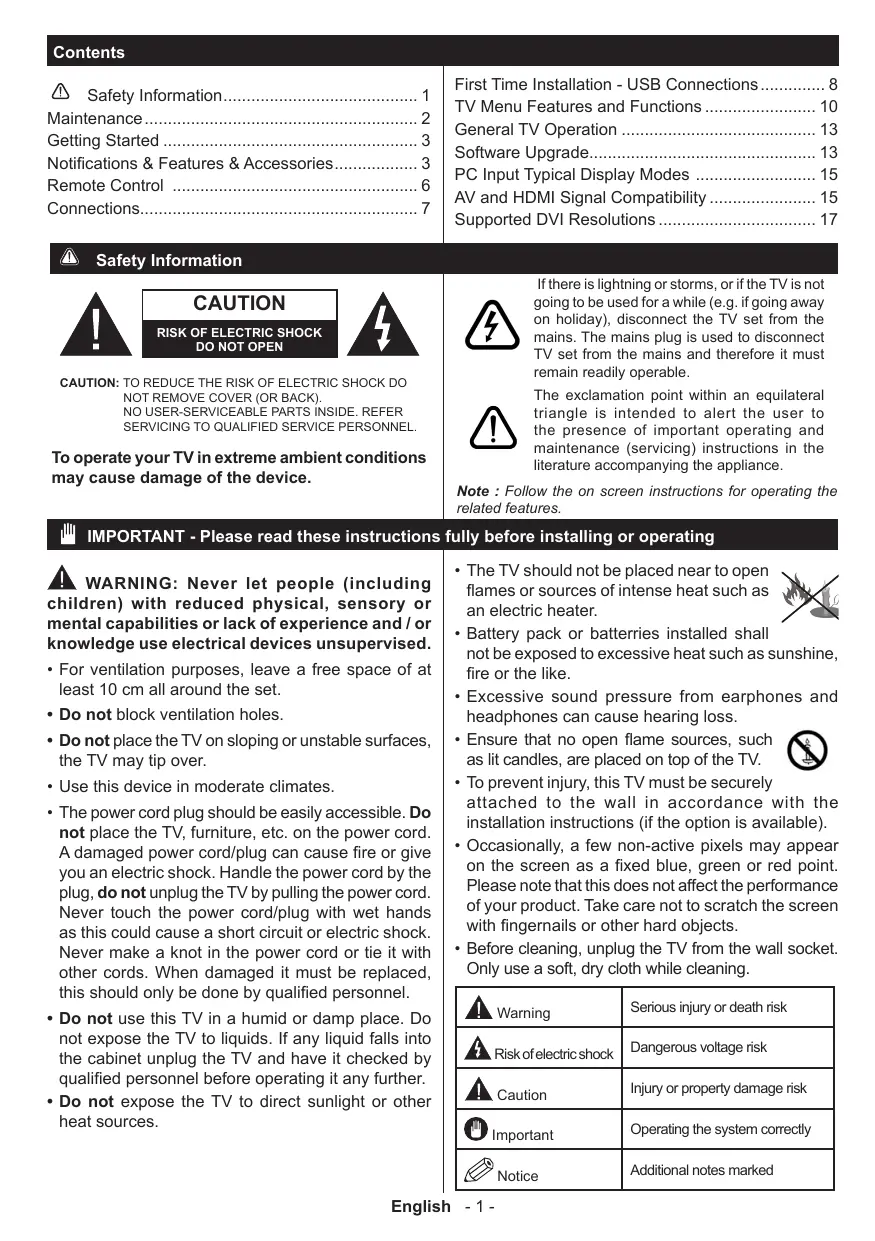
NO USER-SERVICEABLE PARTS INSIDE. REFER
SERVICING TO QUALIFIED SERVICE PERSONNEL. To operate your TV in extreme ambient conditions may cause damage of the device. The exclamation point within an equilateral triangle is intended to alert the user to the presence of important operating and maintenance (servicing) instructions in the literature accompanying the appliance. Note : Follow the on screen instructions for operating the related features. IMPORTANT - Please read these instructions fully before installing or operating
WARNING: Never let people (including
children) with reduced physical, sensory or mental capabilities or lack of experience and / or knowledge use electrical devices unsupervised.
- For ventilation purposes, leave a free space of at least 10 cm all around the set.
- Do not block ventilation holes.
- Do not place the TV on sloping or unstable surfaces, the TV may tip over.
- Use this device in moderate climates.
- The power cord plug should be easily accessible. Do not place the TV, furniture, etc. on the power cord. A damaged power cord/plug can cause fire or give you an electric shock. Handle the power cord by the plug, do not unplug the TV by pulling the power cord. Never touch the power cord/plug with wet hands as this could cause a short circuit or electric shock. Never make a knot in the power cord or tie it with other cords. When damaged it must be replaced, this should only be done by qualified personnel.
- Do not use this TV in a humid or damp place. Do not expose the TV to liquids. If any liquid falls into the cabinet unplug the TV and have it checked by qualified personnel before operating it any further.
- Do not expose the TV to direct sunlight or other heat sources.
- The TV should not be placed near to open flames or sources of intense heat such as an electric heater.
- Battery pack or batterries installed shall not be exposed to excessive heat such as sunshine, fire or the like.
- Excessive sound pressure from earphones and headphones can cause hearing loss.
- Ensure that no open flame sources, such as lit candles, are placed on top of the TV.
- To prevent injury, this TV must be securely attached to the wall in accordance with the installation instructions (if the option is available).
- Occasionally, a few non-active pixels may appear on the screen as a fixed blue, green or red point. Please note that this does not affect the performance of your product. Take care not to scratch the screen with fingernails or other hard objects.
- Before cleaning, unplug the TV from the wall socket. Only use a soft, dry cloth while cleaning. Warning Serious injury or death risk Risk of electric shock Dangerous voltage risk Caution Injury or property damage risk Important Operating the system correctly Notice English - 1 - Additional notes marked Maintenance First, remove the mains plug from the socket outlet. Display panel, Cabinet, Pedestal Regular care: Gently wipe the surface of the display panel, cabinet, or pedestal by using a soft cloth to clean the dirt or fingerprints. For stubborn dirt: (1) First clean the dust on the surface. (2) Dampen a soft cloth with clean water or diluted neutral detergent (1 part detergent to 100 parts water). (3) Wring the cloth firmly. (Please note that liquids should not enter inside the TV. May lead to product failure.) (4) Finally, wipe away all the moisture. Caution Do not use a hard cloth or rub the surface too hard, otherwise this may cause scratches on the surface. ● Take care not to subject the surfaces to insect repellent, solvent, thinner or other volatile substances. This may degrade surface quality or cause peeling of the paint. ● The surface of the display panel is specially treated and may be easily damaged. Take care not to tap or scratch the surface with your fingernail or other hard objects. ● Do not allow the cabinet and pedestal to make contact with a rubber or PVC substance for a long time. This may degrade surface quality. Mains plug Wipe the mains plug with a dry cloth at regular intervals. Moisture and dust may cause fire or electrical shock. English - 2 - Getting Started Notifications & Features & Accessories
- Automatic programming system. Environmental Information This television is designed to consume less energy to help save the environment. To reduce energy consumption, you should take the following steps: You can use the Power Save Mode setting, located in the Picture menu. If you set the Power Save Mode as Eco, the TV will switch to energy-saving mode and the luminance level of TV set will be decreased to the optimum level. Note that some picture settings will be unavailable to be changed when the TV is in Power Save Mode. If pressed Right button, “Screen will be off in 15 seconds.” message will be displayed on the screen. Select PROCEED and press OK to turn the screen off immediately. If you don’t press any button, the screen will be off in 15 seconds. Press any button on the remote or on the TV to turn the screen on again. If you disable Power Save Mode, picture mode will be automatically set to Dynamic. When the TV is not in use, please switch off or disconnect the TV from the mains plug. This will also reduce energy consumption. Standby Notifications
1) If the TV does not receive any input signal (e.g.
from an aerial or HDMI source) for 5 minutes, the TV will go into standby. When you next switch-on, the following message will be displayed: “TV switched to stand-by mode automatically because there was no signal for a long time”. Press OK to continue.
- Automatic power down after up to six hours.
- PLL (Frequency Search).
- Plug&Play for Windows 98, ME, 2000, XP, Vista, Windows 7.
- Game Mode (Optional). Accessories Included
- Side AV Connection Cable TV Control Switch & Operation
2) If the TV has been left on and not been operated
for a while, the TV will go into standby. When you next switch-on, the following message will be displayed. “TV switched to stand-by mode automatically because no operation was made for a long time” Press OK to continue. Features
- Remote controlled colour LCD TV. 1.Up direction
- Fully integrated digital/cable TV (DVB-T/C)
- HDMI inputs are for connecting a device that has a HDMI socket.
- Scart socket for external devices (such as DVD Players, PVR, video games, etc.)
- Stereo sound system.
- Headphone connection. To change volume: Increase the volume by pushing the button up. Decrease the volume by pushing the button down. To change channel: Press the middle of the button, the channel information banner will appear on screen. English - 3 - To turn the TV off: Press the middle of the button down and hold it down for a few seconds, the TV will turn into standby mode. Operation with the Remote Control Press the MENU button on your remote control to display the main menu screen. Use the “ ” or “ ” buttons to select a menu tab and press the OK button to select option. Use the “ ” or “ ” or “ ” or “ ” buttons to select or set an item. Press BACK/ RETURN, EXIT or MENU button to quit a menu screen. Input Selection Once you have connected external systems to your TV, you can switch to different input sources. Press the AV button on your remote control consecutively to select the different inputs. Changing Channels and Volume You can change the channel and adjust the volume by using the V+/- and P+/- buttons on the remote. Inserting the Batteries into the Remote Lift the cover on the back of the remote upward gently. Install two AAA batteries. Make sure to match the + and - ends of the batteries in the battery compartment (observe the correct polarity) Replace the cover. HDMI 1 To change source: Press the middle of the button twice, the source list will appear on screen. Scroll through the available sources by pushing the button up or down. Antenna Connection Connect the “aerial” or “cable TV” plug to AERIAL HDMI 2 Scroll through the stored channels by pushing the button up or down INPUT (ANT) socket located on the back of the TV. SPDIF Coax.OUT Notification Manufactured under license from Dolby Laboratories. TRADEMARK ACKNOWLEDGMENT “Dolby” and the double-D symbol are trademarks of Dolby Laboratories. “HDMI, the HDMI logo and High-Definition Multimedia Interface are trademarks or registered trademarks of HDMI Licensing LLC.” Information for Users on Disposal of Old Equipment and Batteries [European Union only] These symbols indicate that equipment with these symbols should not be disposed of as general household waste. If you want to dispose of the product or battery, please consider the collection systems or facilities for appropriate recycling. Notice: The sign Pb below the symbol for batteries indicates that this battery contains lead. Battery Connect Power Products IMPORTANT: The TV set is designed to operate on 220-240V AC, 50 Hz socket. After unpacking, allow the TV set to reach the ambient room temperature before you connect the set to the mains. Plug the power cable to the mains socket outlet. English - 4 - Specification Authorized Representative: Panasonic Testing Centre Panasonic Marketing Europe GmbH Winsbergring 15, 22525 Hamburg, Germany Web Site: http://panasonic.net TV Broadcasting
Digital Reception Fully integrated digital terrestrial-cable. TV(DVB-T-C) Number of Preset Channels
Channel Indicator On Screen Display RF Aerial Input 75 Ohm (unbalanced) Operating Voltage 220-240V AC, 50Hz. Audio A2 Stereo + Nicam Stereo Headphone 3.5mm mini stereo jack Audio Output Power (WRMS.) (10% THD) 2x6 W Power Consumption 65W Weight 6 kg TV Dimensions DxLxH (with foot) 185 x 735 x 476mm TV Dimensions DxLxH (without foot) 77/97 x 735 x 438mm Display 16/9 32” Operation temperature and operation humidity 0ºC up to 40ºC, 85% humidity max English - 5 - Getting Started Remote Control
Standby / On Numeric buttons Freeze Image / Hold (in TXT mode) Info / Reveal (in TXT mode) Volume Increase / Decrease Menu On / Off Navigation buttons Select / Confirm Option Menu On / Off Media Browser TV Source / Channel list Change Aspect Ratio Coloured buttons (Red, Green, Yellow, Blue) Mono- Stereo Dual I-II / Audio-Subtitle Language Fast Rewind (in media browser mode) No function Pause (in Media Browser mode) Play (in media browser mode) Subtitle On / Off (where available) Stop (in media browser mode) Fast Forward (in Media Browser mode)
Change equalizer mode Set auto TV off timer Teletext - Mix Electronic Programme Guide Return / Back / Index page (in TXT mode) Exit Mute Programme Up / Down Previous programme / Previous source Inputs Teletext Press “TEXT ” button to enter. Press again to activate mix mode. Press once more to exit. Follow the instructions displayed on digital teletext screen. English - 6 - Getting Started Connections Connector Type Cables Device Scart Connection (back) VGA Connection (back) SIDE AV PC/YPbPr Audio Connection (side) Side Audio/Video Connection Cable (Supplied) PC Audio Cable (Not supplied) HDMI Connection (back) SPDIFF (Coaxial Out) Connection (back) YPBPR YPbPr Video Connection (side) SIDE AV YPbPr Connection Cable (supplied) Side AV (Audio/Video) Connection (side) HEADPHONE AV Connection Cable (supplied) NOTE: When connecting a device via the YPbPr or S i d e AV i n p u t , y o u m u s t use connection cables to enable connection. See the illustrations on the left side. | To enable PC audio, you will need to connect an AUDIO cable to the side audio inputs. | If an external device is connected via the SCART socket, the TV will automatically switch to AV mode.| When receiving DTV channels (Mpeg4 H.264) or while in Media Browser mode, output will not be available via the scart socket. | When using the wall mounting kit (optional), we recommend that you plug all your cables into the back of the TV before mounting on the wall. | Insert or remove the CI module only when the TV is SWITCHED OFF. You should refer to the module instruction manual for details of the settings. | Each USB input of your TV supports devices up to 500mA. Connecting devices that have current value above 500mA may damage your TV. By connecting an HDMI cable to your TV, you have to use only a shielded HDMI cable to guarantee a sufficient immunity against parasitic frequency radiation. If you want to connect a device to the TV, make sure that both the TV and the device are turned off before making any connection. After the connection is done, you can turn on the units and use them. Headphone Connection (side) USB Connection (side) Connection CAM module (side) English - 7 - Getting Started First Time Installation - USB Connections Connect the power cord to the 220-240V AC, 50 Hz. (*) LCN is the Logical Channel Number system that organizes available broadcasts in accordance with a recognizable channel sequence (if available). To switch on the TV from standby mode either: Press MENU button to quit channel list and watch TV. Press the “ ” button, P+ / P- or a numeric button on the remote control. Cable Installation To Switch the TV On Press the side function switch until the TV comes on from standby. To Switch the TV Off Press the “ “ button on the remote control or press the side function switch until the TV switches into standby mode. To power down the TV completely, unplug the power cord from the mains socket. Note: When the TV is switched to standby mode, the standby LED can blink to indicate that features such as Standby Search, Over Air Download or Timer is active. The LED can also blink when you switch on the TV from standby mode. First Time Installation When turned on for the first time, the language selection screen is displayed. Select the desired language and press OK. On the next screen, set your preferences using the navigation buttons and when finished, press OK to continue. Note: Depending on the Country selection you may be asked to set and confirm a PIN at this point. The selected PIN cannot be 0000. You have to enter it if you are asked to enter a PIN for any menu operation later. You can activate Store Mode option at this point. This option is intended only for store use. It is recommended to select Home Mode for home use. If Store Mode is selected, a confirmation screen will be displayed. Select YES to proceed. This option will be available in Other Settings menu and can be turned off/on later. If Home Mode is selected, Store Mode will not be available after the First Time Installation. Press OK button to continue. Aerial Installation If you select Aerial option from the search type selection screen, the television will search for digital terrestrial TV broadcasts. After all the available stations are stored, the Channel List will be displayed on the screen. While the search continues a message will appear, asking whether you want to sort channels according to the LCN(*). Select Yes and press OK to confirm. If you select Cable option and press OK button on the remote control a confirmation screen will be displayed. Select YES and press OK to proceed. To cancel operation, select NO and press OK. You can select frequency ranges from next screen. Enter the frequency range manually by using the numeric buttons. When finished, press OK button to start automatic search. Note: Searching duration will change depending on the selected search step. Media Playback via USB Input You can connect a 2.5” and 3.5” inch (hdd with external power supply) external hard disk drives or USB memory stick to your TV by using the USB inputs of the TV. IMPORTANT! Back up your files before making any connections to the TV. The Manufacturer will not be responsible for any file damage or data loss. Certain types of USB devices (e.g. MP3 Players) or USB hard disk drives/memory sticks may not be compatible with this TV. The TV supports FAT32 and NTFS disk formatting. While formatting a USB hard disk that has 1TB (Tera Byte) or more file capacity, you can experience problems with the formatting process. Quickly plugging and unplugging USB devices, is a very hazardous operation. This may cause physical damage to the USB player and the USB device itself. Do not pull out the USB module while playing a file. You can use USB hubs with your TV’s USB inputs. External power supplied USB hubs are recommended in such a case. It is recommended to use the TV’s USB input(s) directly, if you are going to connect a USB hard disk. Note: When viewing image files the media browser menu can only display 1000 image files stored on the connected. Media Player Menu You can play photo, music, and movie files stored on a USB disk by connecting it to your TV. Connect a USB disk to one of the USB inputs located on the side of the TV. Pressing the MENU button while in the Media Browser mode will access the Picture, Sound and Setup menu options. Pressing the MENU button again will exit from this screen. You can set your Media Player preferences by using the Setup menu. English - 8 - Loop/Shuffle Mode Operation Start playback with and activate Start playback with OK and activate Start playback with OK/ and activate TV plays next file and loop the list. The same file will be played in a loop (repeat). The file will be played in a shuffle. Option Menu The Option Setup menu allows you to access some options quickly. This menu includes Power Save Mode, Picture Mode, Equalizer Settings, Favourites, Sleep Timer and Information booklet options. Press OPTION button on the remote control to view the option menu. See the following chapters for details of the listed features. English - 9 - TV Menu Features and Functions Picture Menu Contents Mode You can change the picture mode to suit your preference or requirements. Picture mode can be set to one of these options: Cinema, Game, Sports, Dynamic and Natural. Contrast Sets the lightness and darkness values of the screen. Brightness Sets the brightness value for the screen. Sharpness Sets the sharpness value for the objects displayed on the screen. Colour Sets the colour value, adjusting the colors. Power Save Mode To set the Power Save Mode as Eco, Picture Off and Disabled. (When the Mode is Dynamic, Power Save mode is automatically set as disabled.) Backlight (Optional) This setting controls the backlight level. The backlight function will be inactive if the Power Save Mode is set to Eco. The backlight cannot be activated in VGA, Media Browser mode or while the picture mode is set to Game. Noise Reduction If the broadcast signal is weak and the picture is noisy, use the Noise Reduction setting to reduce the amount of noise. Advanced Settings Dynamic Contrast You can change the Dynamic Contrast ratio to desired value. Colour Temp Sets the desired colour tone. Picture Zoom Sets the desired picture size from picture zoom menu. Note: Auto (Only available in Scart mode with SCART PIN8 high voltage/low voltage switching) HDMI True Black While watching from HDMI source, this feature will be visible in the Picture Settings menu. You can use this feature to enhance blackness in the picture. Film Mode Films are recorded at a different number of frames per second to normal television programmes. Turn this feature on when you are watching films to see the fast motion scenes clearly. Skin Tone Skin tone can be changed between -5 and 5. Colour Shift Adjust the desired colour tone. RGB Gain You can configure the colour temperature values using the RGB Gain feature. Reset Resets the picture settings to factory default settings.(Except Game Mode) Autoposition (in PC mode) Automatically optimizes the display. Press OK to optimize. H Position (in PC mode) This item shifts the image horizontally to the right hand side or left hand side of the screen. V Position (in PC mode) This item shifts the image vertically towards the top or bottom of the screen. Dot Clock (in PC mode) Dot Clock adjustments correct the interference that appear as vertical banding in dot intensive presentations like spreadsheets or paragraphs or text in smaller fonts. Phase (in PC mode) Depending on the resolution and scan frequency that you input to the TV set, you may see a hazy or noisy picture on the screen. In such a case you can use this item to get a clear picture by trial and error method. While in VGA (PC) mode, some items in Picture menu will be unavailable. Instead, VGA mode settings will be added to the Picture Settings while in PC mode. English - 10 - Sound Menu Contents Volume Adjusts the volume level. Equalizer Selects the equalizer mode. Custom settings can be made only when in user mode. Balance This setting is used for emphasizing left or right speaker balance. Headphone Sets headphone volume. Please ensure before using headphones that this menu item is set to Headphones. If it is set to Line Output, The output from the headphone socket will be set to maximum which could damage your hearing. Also please ensure before using headphones that the headphone volume is set to a low level, to prevent damage to your hearing. Sound Mode You can select a sound mode. (If the selected channel supports). AVL (Automatic Volume Limiting) Function sets the sound to obtain fixed output level between programmes. Headphone/Lineout When you connect an external amplifier to your TV using the headphone jack, you can select this option as Lineout. If you have connected headphones to the TV, set this option as Headphone. Dynamic Bass Enables or disables the Dynamic Bass. Surround Sound (Optional) Surround sound mode can be changed as On or Off. Digital Out Sets digital out audio type. Setup Menu Contents Conditional Access Controls conditional access modules when available. Language Configures language settings (may change depending on the country selected) Pre fe r r e d a n d cu r r e n t se tti n g s will be available. Current settings can be changed only if the broadcaster supports. Parental Enter correct password to change parental settings. You can easily adjust menu lock, maturity lock(may change depending on the country selected) and child lock in this menu. You can also set new pin number. Note: Default PIN can be set to 0000 or 1234. If you have defined the PIN(is requested depending on the country selection) during the First Time Installation use the PIN that you have defined. Timers Sets off timer to turn off the TV after a certain time. Sets timers for selected programmes. Date/Time Sets date and time. Sources Enables or disables selected source options. English - 11 - Other Settings: Displays other setting options of the TV set: Menu Timeout Changes timeout duration for menu screens. Scan Encrypted Channels When this setting is on, the search process will locate the encrypted channels as well. Blue Background Activates or deactivates the blue background system when the signal is weak or absent. Software Upgrade To ensure that your TV always has the most up to date firmware. Application Version Displays application version. Hard of Hearing Enables any special feature sent from the broadcaster. Audio Description Audio description refers to an additional narration track for blind and visually impaired viewers of visual media, including television and movies. You can use this feature, only if the broadcaster supports that additional narration track. Auto TV Off You can set the timeout value of auto off feature. When the timeout value is reached and the TV has not been operated for a selected time, the TV will go into standby mode. Standby Search (Optional) If the Standby Search is set to On, when the TV is in standby mode, available broadcasts will be searched. If the TV locates any new or missing broadcasts, a menu screen will be displayed, asking you whether or not to execute these changes. The Channel list will be updated and changed after this process. Store Mode If you are displaying the TV in a store, you can activate this mode. Whilst Store Mode is enabled, some items in the TV menu may not be available. Power Up Mode This setting confrigures the power up mode preference. Install and Retune Menu Contents Automatic Channel Scan (Retune) (If available) Displays automatic tuning options. Digital Aerial: Searches and stores aerial DVB stations. Digital Cable: Searches and stores cable DVB stations. Analogue: Searches and stores analogue stations. Digital Aerial & Analogue: Searches and stores aerial DVB and analogue stations. Digital Cable & Analogue: Searches and stores cable DVB and analogue stations. Manual Channel Scan This feature can be used for direct broadcast entry. Network Channel Scan Searches for the linked channels in the broadcast system. Analogue Fine Tune You can use this setting for fine tuning analogue channels. This feature is not available if no analogue channels are stored. First Time Installation Deletes all stored channels and settings, resets TV to factory settings. Clear Service List (*) This setting is visible only when the Country option is set to Denmark, Sweden, Norway or Finland. Use this setting to clear channels stored. English - 12 - General TV Operation Using the Channel List The TV sorts all stored stations in the Channel List. You can edit this channel list, set favourites or set active stations to be listed by using the Channel List options. Configuring Parental Settings To prohibit viewing of certain programmes, channels and menus can be locked by using the parental control system. To display parental lock menu options, the PIN number should be entered. After coding the correct PIN number, parental settings menu will be displayed. Menu Lock: Menu lock setting enables or disables the menu access. Maturity Lock: When set, this option gets the maturity information from the broadcast and if this maturity level is disabled, disables access to the broadcast. Child Lock: When Child Lock is set, the TV can only be controlled by the remote control. In this case the control panel buttons will not work. Set PIN: Defines a new PIN number. Note: Default PIN can be set to 0000 or 1234. If you have defined the PIN(is requested depending on the country selection) during the First Time Installation use the PIN that you have defined. Electronic Programme Guide (EPG) Some, but not all channels send information about the current and next programmes. Press the GUIDE button to view the EPG menu. Red button (Prev Day): Displays the programmes of previous day. Green button (Next day): Displays the programmes of the next day. Yellow button (Zoom): Press the Yellow button to see events in a wider time interval. Blue button (Filter): Views filtering options. SUBT.: Press Subtitles button to view Select Genre menu. Using this feature, you can search the programme guide database in accordance with the genre. Info available in the programme guide will be searched and results matching your criteria will be highlighted. Info button: Displays detailed information about selected programmes. Numeric Buttons (Jump): Jumps to the preferred channel directly via numeric buttons. OK: Displays programme options. Text button (Search): Displays Guide Search menu. Swap(Now): Displays current event of the highlighted channel. Programme Options In EPG menu, press the OK button to enter the Event Options menu. Select Channel In EPG menu, using this option, you can switch to the selected channel. Set Timer / Delete Timer After you have selected a programme in the EPG menu, press the OK button. Select the Set Timer on Event option and press the OK button. You can set a timer for future programmes. To cancel an already set timer, highlight that programme and press the OK button. Then select “Delete Timer” option. The timer will be cancelled. Software Upgrade Your TV is capable of finding and updating automatically via the Aerial/Cable signal. Software upgrade search via user interface Simply navigate on your main menu. Choose Setup and select Other Settings menu. In Other Settings menu navigate on to the Software for Upgrade item and press OK button to check for a new software upgrade. If a new upgrade is found, it starts to download the upgrade. Press OK to continue with the reboot operation. 3 AM search and upgrade mode While the TV is connected to an aerial signal. If Automatic scanning in the Upgrade Options menu is enabled, the TV wakes up at 03:00 and searches broadcast channels for new software upgrades. If new software is found and downloaded successfully, the next time the TV powers up , it will have the new software version. Note: If the TV fails to come on after the upgrade unplug the TV for 2 minutes and plug in again. Troubleshooting & Tips Tv will not turn on Make sure the power cord is plugged in securely to wall outlet. The batteries in the remote control may be exhausted. Press the Power button on the TV. Poor picture
- Have you selected the correct TV system?
- Low signal level can cause picture distortion.Please check antenna access.
- Check if you have entered the correct channel frequency if you have done manual tuning. English - 13 -
- The picture quality may degrade when two devices are connected to the TV at the same time. In such a case, disconnect one of the devices. No picture
- No Picture means that your TV is not receiving a transmission. Have you selected the correct button on the remote control? Try once more. Also make sure the correct input source has been selected.
- Is the antenna connected properly?
- Is the antenna cable damaged?
- Are suitable plugs used to connect the antenna?
- If you are in doubt, consult your dealer. No sound
- Has the TV been set to mute? To cancel mute, press the “ ” button, or increase the volume level.
- Sound is coming from only one speaker. Is the balance set to one extreme? See Sound Menu section. Remote control - does not operate
- The batteries may be exhausted. Replace the bateries. Input sources - can not be selected
- If you cannot select an input source, it is possible that no device is connected. if not
- Check the AV cables and connections if you have tried to connect a device. English - 14 - PC Input Typical Display Modes The following table is an illustration of some of the typical video display modes. Your TV may not support all resolutions. Index Resolution Frequency
(X: Not Available, O: Available) In some cases a signal on the LCD TV may not be displayed properly. The problem may be an inconsistency with standards from the source equipment (DVD, Set-top box, etc. ). If you do experience such a problem please contact your dealer and also the manufacturer of the source equipment. English - 15 - Supported File Formats for USB Mode Media Extension Format Notes Video .dat, .mpg, .mpeg Mpeg1-2 1080P@30fps, 50Mbit/sec .ts, .trp, .tp, .m2ts MPEG2 , H.264,
Sub1, Sub2, Sub3 English - 16 - Supported DVI Resolutions When connecting devices to your TV’s connectors by using DVI converter cable(DVI to HDMI cable - not supplied), you can refer to the following resolution information. 56Hz 60Hz 66Hz 640x400 72Hz 75Hz
inches inches Visible sizepower (diagonal) 80 cm 32 inches 98 cm 39 inches 126 cm 35W F E On modescreen average consumption 34/WW 34/WW 76/W50 inches sumption 34 W
51kWh On mode average power consumption
G F Annual energy consumption 47kWh kWh 47 kWh kWh kWh 47 kWh
0,5W Annualpower energyconsumption consumption 47 W kWh 47W kWh 105 W kWh HG Standby
Standby power consumption consumption
W (H) W (H) J I Screen resolution 1,366 (W) 1,920(W) (W)0.20 1,080 (H) 1,920 (W)0.20 × 1,080 1,366 (W) × 768 (H) 1,920 (W) 1,080 (H) 1,920 ××1,080 J Energy Screenconsumption resolution XYZ 1,366 (W) × television (H) energy (W) 1,080 (H) energy consumption will depend 1,920on(W) × 1,080 (H) kWh per year,operating based on4the power the operating 4 hours per for1,920 actual how h per year, based K on*1: the power consumption of the television hours perconsumption day for 365 days. The actual consumption willday depend ondays. how×The television is used. XYZ kWh per year, based on the power consumption of the television operating 4 hours per day for 365 days. The actual energy consumption will depend on how Energy consumption K *1:the the television isactive used.off with the remote control and no function is active when the TV isisturned h the remote control and no function L *2: *2: when the on TV the is turned off with consumption, the remote control and nolabel function is active LFor ofTV rated power refer to the on the TV back cover. er consumption, M refer tothe theinformation label back cover. M For the information of rated power consumption, refer to the label on the TV back cover. A Product fiche AB Product Supplier fiche Español Español Svenska Svenska Norsk Norsk Suomi Suomi Español Svenska Norsk Suomi Deutsch Deutsch Nederlands Nederlands Slovenčina - 69 - Italiano Italiano Français Français Lietuvių k. Português Dansk