ManualGo.com
TH50PX700B - Plasma TV PANASONIC - Free user manual and instructions
Find the device manual for free TH50PX700B PANASONIC in PDF.


Download the instructions for your Plasma TV in PDF format for free! Find your manual TH50PX700B - PANASONIC and take your electronic device back in hand. On this page are published all the documents necessary for the use of your device. TH50PX700B by PANASONIC.
USER MANUAL TH50PX700B PANASONIC
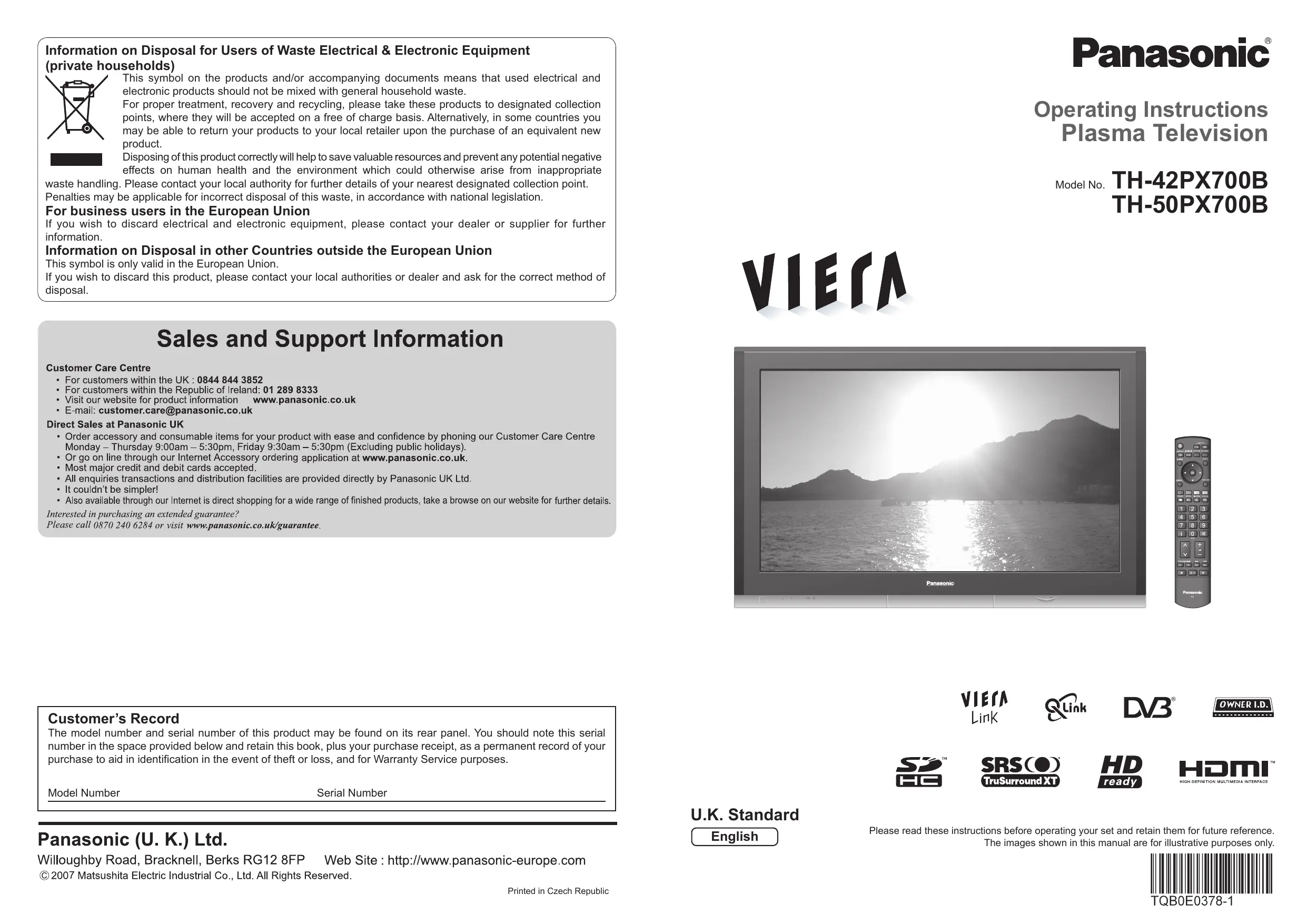
Information on Disposal for Users of Waste Electrical & Electronic Equipment (private households) This symbol on the products and/or accompanying documents means that used electrical and electronic products should not be mixed with general household waste. For proper treatment, recovery and recycling, please take these products to designated collection points, where they will be accepted on a free of charge basis. Alternatively, in some countries you may be able to return your products to your local retailer upon the purchase of an equivalent new product. Disposing of this product correctly will help to save valuable resources and prevent any potential negative effects on human health and the environment which could otherwise arise from inappropriate waste handling. Please contact your local authority for further details of your nearest designated collection point. Penalties may be applicable for incorrect disposal of this waste, in accordance with national legislation. Operating Instructions Plasma Television Model No. For business users in the European Union TH-42PX700B TH-50PX700B If you wish to discard electrical and electronic equipment, please contact your dealer or supplier for further information. Information on Disposal in other Countries outside the European Union This symbol is only valid in the European Union. If you wish to discard this product, please contact your local authorities or dealer and ask for the correct method of disposal.
Customer’s Record The model number and serial number of this product may be found on its rear panel. You should note this serial number in the space provided below and retain this book, plus your purchase receipt, as a permanent record of your purchase to aid in identification in the event of theft or loss, and for Warranty Service purposes. Model Number Serial Number U.K. Standard English Printed in Czech Republic Please read these instructions before operating your set and retain them for future reference. The images shown in this manual are for illustrative purposes only. Turn your living room into a home theatre! Contents Experience an amazing level of multi-media excitement Receive digital terrestrial broadcastings using an integrated (Digital Video Broadcasting) tuner HD ready HD ready means the ability to display high-definition pictures from HDMI and Component video inputs. (Display DVB programmes with TV Guide (p. 14) / Timer recording (p. 36) / Register and instantly call up favourite programmes with Profile Edit (p. 29)) Audio description (AD) is an ancillary component associated with a broadcast which delivers a verbal description of the visual scene as an aid to understanding and enjoyment particularly for visually-impaired viewers. V-real 2 V-real 2 technology is the collective name for original technologies developed by Panasonic to enhance total image quality: V-real 2 PROCESSOR: Enhance and output the incoming video signals as high-image-quality signals. The resulting video signals deliver the kind of high resolution that large screens require. V-real 2 DRIVER: Precisely controls panel drive to optimise its performance. Achieves high image quality with the equivalent of high steps of gradation. V-real 2 PANEL: Provide clear, vivid display of the video signal after processing by the V-real 2 Processor and Driver. High contrast Contrast is the difference in light intensity High Contrast between the brightest white and the darkest black that the VIERA can produce. The ability to express rich, deep blacks is extremely important for displaying beautiful pictures.
Safety Precautions ······································ 4 (Warning & Caution) Notes ··························································· 5 Maintenance ··············································· 5 Quick Start Guide Accessories / Options ········· 6 Identifying Controls ·············· 7 Basic Connection ·················· 8 Auto Setup······························ 10 Quick Start Guide Sharp pictures with HDMI terminal Control DVD recorder / VCR via TV with Q-Link connection (p. 40) Create home theatre and Panasonic equipment link-ups with “VIERA Link” without complicated settings! (p. 42) Support Audio Description signal (p. 12 and p. 22) Be Sure to Read MAX.
Watching TV ·············································· 12 Using TV Guide ········································· 14 Watching VCR, DVD and Satellites ·········· 16 Viewing Teletext ········································ 18 Advanced Features How to Use Menu Functions ····················· 21 (picture, sound quality, etc.) DVB Settings (DVB) ·································· 26 (pay-TV, software update) Editing Channels ······································· 28 Tuning Channels ······································· 30 Restore Settings ······································· 32 Owner ID ··················································· 33 Input Labels ·············································· 34 Displaying PC Screen on TV····················· 35 Recording Controls (DVB) ························ 36 Viewing from card (Photos) ······················· 38 Q-Link Functions ······································· 40 HDMI Functions ······································· 41 (HDMI terminal / VIERA Link) External Equipment ··································· 44 Technical Information ································ 46 FAQs ························································· 50 On screen messages ································ 52 Specifications ············································ 54 Licence ······················································ 55 Index ························································· 55 FAQs, etc. Trade Mark of the DVB Digital Video Broadcasting Project (1991 to 1996) TH-42PX700B Declaration of Conformity No 4493, 15 January 2007 TH-50PX700B Declaration of Conformity No 4494, 15 January 2007
Advanced Lead-free display All VIERA plasma display panels are lead-free. This reduces the impact on the environment when recycling or disposing of them in the future. Basic Features Viewing High gradation Gradation refers to the smoothness of colour Gradation Steps expression. Rich, fine gradation is extremely important for maximising the high resolution panel. Enjoy your TV!
Safety Precautions Notes Warning & Caution Handling the mains plug Ensure that the mains plug is easily accessible at all times. The On / Off switch on this model does not fully disconnect the TV from the mains supply. Remove the mains plug from the wall socket when the TV is not used for a prolonged period of time. Ensure the grounding pin on the mains plug is securely connected to prevent electrical shock. An apparatus with CLASS I construction shall be connected to a mains socket outlet with a protective earthing connection. Do not use any mains lead other than that provided with this TV. (This may cause fire or electrical shock.) Do not expose to direct sunlight and other sources of heat Power source This TV is designed to operate on 220-240V, 50 / 60 Hz AC. Do not remove the cover Do not remove the rear cover as live parts are accessible when it is removed. There are no user serviceable parts inside. AC 220-240 V 50 / 60 Hz Avoid exposing the TV to direct sunlight and other sources of heat. To prevent fire never place any type of candle or naked flame on top or near the TV. Transport only in upright position Do not display a still picture for a long time Do not expose to rain or excessive moisture To prevent damage which might result in electric shock or fire, do not expose this TV to rain or excessive moisture. This TV must not be exposed to dripping or splashing water and objects filled with liquid, such as vases, must not be placed on top of or above the TV. Auto power standby function Do not block the rear ventilation openings If no signal is received and no operation is performed in TV mode for 30 minutes, the TV will automatically go to standby mode. Ventilation should not be impeded by covering the ventilation openings with items such as newspapers, tablecloths and curtains. Allow sufficient space around the TV for radiated heat Minimum distance
Electronic equipment In particular, do not place video equipment near the TV (electromagnetic interference may distort images / sound). Equipment with an infrared sensor This TV also emits infrared rays (this may affect operation of other equipment). Maintenance Display panel
FOR YOUR SAFETY, PLEASE READ THE FOLLOWING TEXT CAREFULLY. This appliance is supplied with a moulded three pin mains plug for your safety and convenience. A 5 amp fuse is fitted in this mains plug. Shall the fuse need to be replaced, please ensure that the replacement fuse has a rating of 5 amps and that it is approved by ASTA or BSI to BS1362. on the body of the fuse. Check for the ASTA mark ASA or the BSI mark If the mains plug contains a removable fuse cover, you must ensure that it is refitted when the fuse is replaced. If you lose the fuse cover the mains plug must not be used until a replacement cover is obtained. A replacement fuse cover may be purchased from your local Panasonic Dealer. If the fitted moulded mains plug is unsuitable for the socket outlet in your home, then the fuse shall be removed and the mains plug cut off and disposed of safety. There is a danger of severe electrical shock if the cut off mains plug is inserted into any 13 amp socket. If a new mains plug is to be fitted, please observe the wiring code as shown below. If in any doubt, please consult a qualified electrician.
WARNING: – THIS APPARATUS MUST BE EARTHED.
IMPORTANT: – The wires in this mains lead are coloured in accordance with the following code: – Green-and-Yellow: Earth Blue: Neutral Brown: Live As the colours of the wire in the mains lead of this appliance may not correspond with the coloured markings identifying the terminals in your mains plug, proceed as follows. The wire which is coloured GREEN-AND-YELLOW must be connected to the terminal in the mains plug which is marked with the letter E or by the Earth symbol or coloured GREEN or GREEN-AND-YELLOW. The wire which is coloured BLUE must be connected to the terminal in the mains plug which is marked with the letter N or coloured BLACK. The wire which is coloured BROWN must be connected to the terminal in the mains plug which is marked with the letter L or coloured RED. How to replace the fuse. Open the fuse compartment with a screwdriver and replace the fuse. Keep the TV away from these equipment First, remove the mains plug from the socket outlet.
Transporting the TV with its display panel facing upright or downward may cause damage to the internal circuitry. This causes the image to remain on the plasma screen (“image retention”). This is not considered a malfunction and is not covered by the warranty. Typical still images Channel number and other logos Image displayed in 4:3 mode Video game Computer image To prevent image retention, contrast is lowered automatically after a few minutes if no signals are sent or no operations are performed. (p. 50) (cm) Do not place the TV on sloped or unstable surfaces The TV may fall off or tip over. Use only the dedicated stands / mounting equipment Using an unauthorized stand or other fixtures may make the TV shaky, risking injury. Be sure to ask your local Panasonic dealer to perform setup. Use optional stands / mounts (p. 6). Do not allow children to handle SD card As with a small object, SD card can be swallowed by young children. Please remove SD card immediately after use. Regular care: Gently wipe the surface clean of dirt by using a soft cloth. Major contamination: Wipe the surface clean using a soft cloth dampened with clean water or diluted neutral detergent by 100 times of water. Then, using a soft dry cloth, evenly wipe the surface clean until it is dry. Caution
The surface of the display panel has been specially treated and may be easily damaged. Do not tap or scratch the surface with your fingernail or other hard object. Use care not to subject the surface to insect repellent, solvent, thinner, or other volatile substances (this may degrade surface quality). Cabinet Regular care: Wipe the surface clean using a soft dry cloth. Major contamination: Dampen a soft cloth with clean water or water containing a small amount of neutral detergent. Then, wring the cloth and wipe the surface clean with it. Finally, wipe the surface clean with a dry cloth. Caution
Use care not to subject the TV’s surfaces to detergent. (A liquid inside the TV could lead to product failure.) Use care not to subject surfaces to insect repellent, solvent, thinner, or other volatile substances (this may deteriorate the surface by peeling the paint). Do not allow the cabinet to make contact with a rubber or PVC substance for a long time. Mains plug Wipe the mains plug with a dry cloth at regular intervals. (Moisture and dust may lead to fire or electrical shock.)
N2QAYB000114 Identifying Controls Check that you have the accessories and items shown Batteries for the Clamper (2) Mains Lead TMME258 K2CT3DH00018 Remote Control Transmitter (2)
Operating Instructions Pan European Guarantee Card 1 Year Guarantee Registration CRM (Customer Relationship Management) Mains power On / Off switch HDMI3 terminal (p. 44) (p. 44) Remote control signal receiver C.A.T.S. (Contrast Automatic Tracking System) sensor (senses brightness to adjust picture quality in “Auto” Mode in Picture Menu) (p. 22) Power LED
Hook Rear of the TV Push both side hooks and pull out Snap shut
Access VIERA Link Menu (p. 43) TV Guide (p. 14) EXIT OK button to confirm selections and choices Press after selecting programme positions to quickly change programme. Viewing SD Card (p. 38) Option menu Sets the selectable settings of viewing and sound options easily (p. 12) EXIT (Returns to TV screen) RETURN Main Menu Press to access VIERA Link, Picture, Sound and Setup menus (p. 21) Cursor buttons to make selections and adjustments Identifying Controls Accessories / Options Remove from the TV Caution Pedestal
(Switches TV On or Off standby) Snap open Incorrect installation may cause battery leakage and corrosion, resulting in damage to the remote control. Do not mix old and new batteries. Do not mix different battery types (such as alkaline and manganese batteries). Do not use rechargeable (Ni-Cd) batteries. Do not burn or breakup batteries. DVB LED Standby On / Off switch Close Note the correct polarity (+ or -) Standby: red On: green When using the remote control, indicates the TV has received a command.
AV4 terminals (p. 44) Increases or decreases the programme position by one. When a function is already displayed, press to increase or decrease the selected function. When in Standby mode, switches TV On. Using the clamper Pull open
Headphones jack Quick Start Guide Installing remote’s batteries Changes the input mode Returns to the previous menu Coloured buttons used for the selection, navigation and operation of various functions Teletext (p. 18) Subtitles Showing subtitles (p. 12) Still picture (p. 13) Teletext Hold (p. 20) Programme / channel change buttons (0-9) and Teletext page buttons. (p. 12 and p. 19) When in Standby mode, switches TV On. Teletext Index (p. 20) Sound mute On / Off Programme Information (p. 13) Selects programmes in sequence Volume (angle) TY-WK42PR3W (TH-50PX700B) VCR / DVD operations (p. 17) Caution
In order to maintain the unit’s performance and safety, be absolutely sure to ask your dealer or a licenced contractor to secure the wall-hanging brackets. Carefully read the instructions accompanying the plasma TV stand or pedestal, and be absolutely sure to take steps to prevent the TV from tipping over. Handle the TV carefully during installation since subjecting it to impact or other forces may cause product damage. Multi window (p. 13) Surround (p. 22) MULTI WINDOW
DIRECT TV Recording To immediately record programme in VCR / DVD recorder with Q-Link connection (p. 40)
Basic Connection External equipment and cables shown are not supplied with this TV. Please ensure that the unit is disconnected from the mains socket before attaching or disconnecting any leads. When disconnecting the mains lead, be absolutely sure to disconnect the mains plug at the socket outlet first. Example 1 Connecting aerial Example 2 Connecting DVD Recorder / VCR TV only TV, DVD Recorder or VCR Rear of the TV Aerial Aerial Rear of the TV AC 220-240 V 50 / 60 Hz
Mains lead (supplied) Aerial To unfasten RF cable Quick Start Guide Mains lead (supplied) TV, DVD Recorder / VCR and Satellite Rear of the TV AC 220-240 V 50 / 60 Hz Example 3 Connecting DVD Recorder / VCR and Sattelite receiver
Basic Connection AC 220-240 V 50 / 60 Hz Mains lead (supplied) SCART cable (fully wired) SCART cable (fully wired) RF cable RF OUT RF cable RF IN DVD Recorder or VCR RF IN DVD Recorder or VCR
Note RF cable RF OUT RF cable Connect to AV3 for a DVD Recorder / VCR supporting Q-Link (p. 40). Connect to AV1 for a Satellite receiver. If connecting the TV and Satellite receiver with SCART cable, you can watch satellite broadcast by RGB input signal. SCART cable (fully wired) SCART cable (fully wired) RF OUT SCART: 21 pin connection used for video, audio and switching signals (Also known as Euro SCART and Peritel) RF: Radio Frequency - Signal received from terrestrial aerial. RGB / S-Video / Video: Choose between these three video formats depending on personal preference and equipment requirement. (RGB - Red, Green and Blue) VCR: Video Cassette Recorder DVD: Digital Versatile Disc RF IN RF cable RF IN Satellite receiver
Auto Setup Search and store TV channels automatically. These steps are not necessary if the setup has been completed by your local dealer.
Plug the TV into mains socket and switch On
■ How to use remote control You can now use the remote control to turn On the TV or turn the TV to standby mode. (Power LED: On) Open the main menu Auto Setup will start to search for TV channels and store them in the numbered order as specified by the broadcasters. Move the cursor / select the menu
RETURN Using the On Screen Displays Access the menu / store settings after adjustments have been made or options have been set RETURN Return to the previous menu Exit the menu system and return to the normal viewing screen
■ When inputting owner ID Owner ID 1 of 2 Please enter new PIN PIN EXIT Change RETURN
Page up 9 PIN entry Page down Following the on-screen operation guide, enter your own choice of PIN number, name, etc. For detailed procedures “Owner ID” (p. 33) Make a note of the PIN number in case you forget it. ■ ON SCREEN HELP Instructions box
1 of 2 Please enter new PIN PIN ■ When inputting owner ID later EXIT Auto Setup EXIT
PLEASE WAIT Programme : 63 Remote control unavailable If a compatible recording equipment with Q-Link or similar technologies (p. 40) is connected, analogue channel information is automatically downloaded to the equipment. Quick Start Guide Digital Scan Analogue Scan INPUT Many features available on this TV can be accessed via the On Screen Display menu. (Takes a few seconds to be displayed)
EXIT Change RETURN If you input the ID later “Owner ID” (p. 33)
Page up 9 PIN entry Page down On-screen operation guide will help you.
Select the picture setting Viewing Mode Please select your preferred viewing mode. Dynamic Normal Cinema Auto
Also possible to change the setting in Picture Menu (p. 22) select set
Note If tuning has failed “Auto Setup” (p. 30). If downloading has failed “Download” (p. 23). If you turned the TV Off during Standby mode last time, the TV will be in Standby mode when you turn the TV On with Mains power On / Off switch. Auto Setup is now complete and your TV is ready for viewing.
To check programme list at-a-glance TV Guide (p. 14) To edit channels Editing Channels (p. 28) Analogue Programme Edit (p. 31)
■ Other useful functions (Operate after Watching TV
(Press for about 1 second) Mains power On / Off switch should be On. Channel Current time Category
Information banner You can also select the mode using the TV button on the front panel of the TV. access select Setup Menu
- Check or change the current programme status instantly Display the current programme status
Store Picture-and-Picture mode (PandP) DVD AV1/RGB yellow AV1/RGB Exit OPTION change select Subtitle Language (DVB mode) Possible if the programme has some languages of subtitles Multi Audio (DVB mode) Possible if the programme has some languages of sounds NICAM (Analogue mode) Sound Menu (p. 22) Volume Correction Adjusts volume of individual channel or input mode Audio Description (DVB mode) This function can aid visually-impaired viewers by adding an additional audio track to describe events on-screen. Select “On” if the programme has this signal, then you will hear the description sound Also possible to change the settings in Menu list (p. 22 and p. 23). RETURN MULTI WINDOW Picture-in-Picture mode (PinP) set select “Preferred Subtitles” (p. 23) (If available) Note EXIT (Press repeatedly until you reach the desired mode) DVD (if available) To change Select Change Enjoy viewing two images at once, such as a TV programme and a DVD. 1/2 DVB Timer Programming DVB Profile Edit DVB Service List Q-Link Settings Child Lock Tuning Menu Off Timer Off Power on Preference Teletext FASTEXT To cancel Set to “Off” or turn the TV off To display the remaining time Information banner (p. 13) When the remaining time is within 3 minutes, the remaining time will flash on screen.
Sound 23:35 Now Aspect Selection To change the mode Display Aspect During the list is displayed, Selection list select the mode To change the mode using the ASPECT button only To watch pay-TV (p. 27) Main Menu Display subtitles
Corontation Street 20 : 00 ~ 20 : 55 Viewing Change aspect ratio Note VIERA Link EXIT Information on next programme To hide (DVB) To watch the programme listed in the banner Appears also when changing channel. Information banner operation 2nd press 1st press 3rd press Banner + programme synopsis Display banner Exit (DVB) “AD”, “Subtitles”, “TXT”, “Multi-Audio” indications are displayed Example: as available on particular channels or services, but may not be available for all individual programmes being broadcast. [AD] Press the button twice to confirm availability of these functions. Enjoy viewing the picture at its optimum size and aspect. To select the two or three-digit programme number, e.g. 39 (in a short time) To select programmes using TV Guide (p. 14) blue To set display timeout “Banner Display Timeout” (p. 23) Change the aspect ratio (p. 46) Turn the TV off automatically after a fixed period Off Timer
Information of another channel Mute Bad Signal Encrypted
Volume Freeze / unfreeze picture Display programme information Turn power on
PandP green Swap Exit Main screen blue Watch TV, DVD, etc. in multi window PinP
AV1/RGB Swap Sub screen Remote control operations apply to the main screen. DVD Exit PandP Swap Colour bar Operations in multi window
To exit multi window (return to the single-screen view with main screen) To change the layout, images, first show the colour bar To change the layout To swap MULTI WINDOW green yellow blue To exit multi window red To change the input mode or position of sub screen Swap sub screen Change the input mode or position for main screen blue by the remote control (p. 12 or p. 16) Swap again blue
Using TV Guide TV Guide―Electronic Programme Guide (EPG) provides an on-screen listing of programmes currently broadcast and future broadcasts over the next seven days (depending on the broadcaster). Analogue broadcasts will be listed after DVB broadcasts. “D” means DVB channel and “A” means Analogue channel. ■ Other useful functions (Operate after viewing TV Guide) Select the channel or programme now on the air INPUT View “Portrait” to see one channel at a time View “Landscape” to see many channels EXIT Programme TV Guide date RETURN access Prog.Types All Types 20:00 - 20:30 DIY SOS : We open in the Battersbys Time: 19:30 20:00 20:30 D 1 BBC ONE Eastender DIY SOS The Bill D 7 BBC THR Hot Wars Channel select access 21:00 21:30 Red Cap Coronation Street D 70 CBBC Cha 10 O’ clock News BBC Panorama Sex And The City D 105 BBCi I’ m A Celebrity D 719 BBC Radi Rugby View details of the programme (DVB mode)
The Bill Pepsi Char. Good bye Hello Terminator Pop Idol News 15 To 1 The The Bill Select the programme View details TV Guide Landscape (Displays by broadcaster) -24 Hr select Details EXIT Return to List Page up Page down +24 Hr Prog.type Category
Off DVB LED will turn on if Timer Programming is set. set To previous day (DVB mode) Select timer EXIT Edit timer
+24 Hr Prog.type Timer programming to record (DVB mode) Category Portrait (Displays by time) green ■ To view a programme list of the selected type (DVB mode) Prog. typ e All Type s All 21:0T0ype s ■ To check / change / cancel a timer programming event “Timer Programming” (p. 36) (Type list)
The Bil l Entertainmen Goodt by e Hel l Spor EXIT yellow Terminato r Children’s New s Educatio n
Th e view The Bil l Lifestyl e Dram a ■ To view a programme list of the selected category Categor y All Service s (Category list) All Service s All DVB Services All Analogue Services Only analogue TV channels are listed Free TV blue
Orange DVB LED (Rapid blinking during recording) ■ To return to TV Guide RETURN Note Using TV Guide ■ To next day (DVB mode) -24 Hr DVB LED
RETURN Delete Select programme Change display mode EXIT Select channel Timer Programming RETURN red ■ To return to TV (Timer Programming screen) Viewing Select the programme to be broadcast select
Select “View” (DVB) When recording programmes, you must make the proper settings on the external recording equipment connected to the TV. If a compatible recording equipment with Q-Link or similar technologies is connected to the TV (p. 8) and the “Q-Link Settings” (p. 23) are completed, no setting of the equipment is required. Also read the manual of the recording equipment. If you select the programme now on the air, the confirmation screen whether watching or recording will appear. Select “Timer Programming” to record from the time you finish the Timer Programming setting. Note When this TV is turned on for the first time, or the TV is switched off for more than a week, it may take some time before the TV Guide is completely shown. Pay TV Radio Information Profile 1 Profile 2 To list favourite channels (p. 29) select category Profile 3 Profile 4
Watching VCR, DVD and Satellites Connect the external equipment (VCRs, DVD equipment, etc.) and you can watch the input. Connect the Satellite receiver and you can watch satellite broadcasts. To connect the equipment (p. 8 and p. 9) The Remote Control is capable of operating some functions of selected Panasonic external equipment.
■ When connecting with SCART as example 2 or 3 (p. 8 and p. 9) Receives input signals automatically when playback starts or satellite receiver is switched on Input signals are automatically identified by the SCART (pin 8) terminal. This function is also available for HDMI connections (p. 43). If input mode is not switched automatically Perform and Dependant on the setup of the equipment
VCR / DVD switch Select VCR to operate Panasonic VCR or DVD equipment Select DVD to operate Panasonic DVD equipment or Player home theatre Standby Set to Standby mode / Turn on Play Playback videocassette / DVD Stop Stop the operations Select the input mode connected to the equipment Input Selection AV1 AV2/AV2S AV3/AV3S AV4/AV4S COMPONENT HDMI1 HDMI2 HDMI3
Rewind / Skip / Search VCR: Rewind, view the picture rapidly in reverse DVD: Skip to the previous track or title Press and hold to search backward watch select Fast-forward / Skip / Search VCR: Fast-forward, view the picture rapidly forward DVD: Skip to the next track or title Press and hold to search forward Pause Pause / Restart DVD: Press and hold to play at slow speed You can also select the input using the AV button on the remote control or the front panel of the TV. Press the button repeatedly until the desired input is selected. You can label or skip each input modes “Input Labels” (p. 34) Programme Up / Down Select programme View Displays the selected mode Record Start recording ∗Setting your remote control to operate Panasonic VCR, DVD, etc. Enter the appropriate code for the equipment to be controlled, see table below
EC/HDMI1 Applicable for EC mode and VIERA Link Panasonic equipment connected to the TV can be directly operated with the remote control. Set the VCR / DVD switch to the appropriate position Press and hold during the following operations ■ To return to TV
Note “VCR” position Equipment VCR DVD If the external equipment has an aspect adjustment function, set to “16:9”. For details, see the manual of the equipment or ask your local dealer.
“DVD” position Equipment DVD Player home theatre Press Watching VCR, DVD and Satellites
Note Confirm correct operation after the code changed. The codes will be reset to default values if batteries are replaced. “DVD” means DVD player, DVD recorders and Recorder home theatre. Some operations may not be possible on some equipment models.
Viewing Teletext You can enjoy news, weather forecasts and subtitles, etc. (depending on the broadcaster) DVB (digital broadcasting) mode Analogue mode What is FASTEXT mode (default)? DVB teletext services DVB teletext services differ greatly from analogue teletext. When you switch to a DVB teletext service, the images you see can contain graphics and text, laid out and controlled in a manner decided by the broadcaster. You can check if the programme has teletext information.
In FASTEXT mode, four differently coloured subjects are situated at the bottom of the screen. To access more information about one of these subjects, press the appropriately coloured button. This facility enables fast access to information on the subjects shown. What is List mode? Information banner (p. 13) Displayed if programme has teletext information
Corontation Street 20 : 00 ~ 20 : 55 23:35 Now Profile 1 Change category For info press TXT In List mode, four differently coloured page numbers are situated at the bottom of the screen. Each of these numbers can be altered and stored in the TV’s memory. (“Store frequently viewed pages”, p. 20) ■ To change mode If in Analogue mode Select DVB INPUT
“Teletext” in Setup Menu (p. 23)
Switch to Teletext RETURN 17:51 28 Feb
down red green yellow blue (Corresponds to the colour bar) As the blue bar is displayed ■ To adjust contrast When “◄”, “►”, “▲”, “▼” symbol is displayed ■ To return to TV red green yellow blue When options with numbers are displayed When “i” is displayed Time / date
When “select” or “go” is displayed When the key words are displayed on colour bar
17:51 28 Feb Viewing Teletext
In all cases, it is possible to navigate the pages using buttons on the remote control, but because the commands available must apply to all manufacturers of DVB equipment, some on screen commands may not correspond exactly to the remote control buttons. For example: << 01 02 03 04 05 06 07 Displays the index page (content varies depending on the broadcasters) Viewing RETURN Sub page number (information) ■ To return to TV MULTI WINDOW MULTI WINDOW
To change the channel
Note As soon as you switch to a DVB channel with links to a teletext service, software is downloaded in the background to enable the teletext function. This means that when switching to a DVB channel, you should wait for approximately 5 seconds before pressing the TEXT button - this will allow the software to download. If you press the TEXT button before download is complete, there will be a short delay before the text screen is displayed. While navigating DVB teletext, you will find there is a short delay when moving between pages while the page downloads. There is often a prompt shown somewhere on the page (for example “Loading”) to let you know that this is happening.
(BOTTOM) (Expand the BOTTOM half) (Continued)
How to Use Menu Functions ■ Using Analogue teletext (Continued) Various menus allow you to make settings for the picture, sound, and other functions. HOLD INDEX View in multi window ■ To resume Return to the main index page
EXIT View subtitles by pressing STTL button
Enter new page number press and hold MULTI WINDOW at any time EXIT example: P6 Sub pages: The number of sub pages varies depending on the broadcasters (up to 79 pages). It may take some time for searching, during which time you can watch TV. ■ To return to the previous screen View the TV picture while searching for a teletext page
RETURN Teletext automatically updates itself when new information becomes available. Changes to TV screen temporarily (You cannot change the channel.) Warm Off Off Picture Menu Viewing Mode Contrast Brightness Colour Sharpness Tint Colour Balance Colour Management P-NR 1/2 Auto change store or access (Required by some functions) Warm Off Off (example: Picture Menu) Number and positions of alternatives Colour Balance Changed ■ Adjust using the slide bar Sharpness Moved ■ Go to the next screen Tuning Menu View the updated page The news page provides a function that indicates arrival of latest news (“News Flash”).
Appears at top of the screen Appears when updating is completed Picture Menu Viewing Mode Contrast Brightness Colour Sharpness Tint Colour Balance Colour Management P-NR (example: Picture Menu) The number changes to white. blue Select the item Viewing
Operations can be made only in Teletext screen. View sub page (Only when teletext is more than one page) Watch TV while waiting for update VIERA Link (example: Picture Menu) MULTI WINDOW
access Main Menu Sound RETURN Watch TV and Teletext in two windows at once As page is displayed Displays the functions that can be set (varies according to the input signal) Picture Factory setting is “P888” (subtitle service) on blue button (List mode). Colour button you want to change View sub page
INPUT Store frequently viewed pages in the colour bar Store frequently viewed pages
Subtitles Stop automatic updating How to Use Menu Functions (picture, sound quality, etc.) Viewing Teletext If you wish to hold the current page without updating
Viewing Teletext Access Displays the next screen ■ To change menu pages down
With an NTSC signal source connected to the TV, the picture hue can be adjusted to suit your taste Allows you to set the overall colour tone of the picture (Cool / Normal / Warm) Automatically adjusts colours to vivid ones (Off / On) Not valid on PC signal Picture Noise Reduction Automatically reduces unwanted picture noise (Off / Min / Mid / Max) Not valid on PC signal Occasionally, whilst viewing still or slow moving pictures, colour patterning may be seen Set to “On” to display sharper and more accurate colours (Off / On) For PAL or NTSC signal reception only Not valid on RGB, S-Video, components, PC, HDMI and SD Card Analogue mode only Press the OK button to reset the present Picture Mode to the default settings P-NR is reset to Off (Analogue) or Min (DVB) Select two different sound settings (Music / Speech) In each Sound Mode setting, Bass and Treble can be adjusted and stored to suit your particular sound requirement Changes to any settings in a mode will affect all signal sources Sound quality can be improved Increases or decreases level to enhance or minimise lower, deeper sound output Increases or decreases level to enhance or minimise sharper, higher sound output Adjusts volume level of right and left speakers Adjusts the volume of the headphones Surround sound settings (Off / Simulated Surround / SRS TruSurround XT) Simulated Surround: Provides a dynamic enhancer to simulate improved spatial effects SRS TruSurround XT: SRS TruSurround XT® creates a high quality surround sound effect using just two speakers from the source which can output surround encoded signals Switching is also possible by the Surround button on the remote control (p. 7) Adjusts volume of individual channel or input mode Selects the preferred language for DVB multi audio (depending on the broadcaster) NICAM (Near Instantaneous Companded Audio Multiplex) A format for digital sound over television Reproduces stereo sound (Off / On) Off if reception is poor (FM monaural sound) Analogue mode only Select to fit the input signal (Auto / Digital / Analogue) (p. 41) Auto : Automatic detection of digital or analogue sound source Digital : HDMI cable connection Analogue : HDMI-DVI adapter cable connection HDMI input mode only HDMI2 terminal is for digital signal only No setting for HDMI2 available Useful for visually-impaired viewers (Off / On) Select “On” to sound the description sound if the programme has the signal
Adjusts the volume for audio description Set to “On” to active the description sound track from TV speakers (Off / On) Set to “On” to active the description sound track from headphones (Off / On) Press the OK button to reset the present Sound Mode to the default settings Effective to Bass, Treble, Balance and Headphone Volume
Creates list of favourite programmes (p. 29) Skips the unwanted DVB channels (p. 29) Q-Link Selects which AV terminal is to be used for data communication between this TV and a compatible recording equipment (AV2 / AV3) (p. 40) Select the connected terminal to the recording equipment even it is not compatible with Q-Link. AV2 / AV3 out Chooses the signal to be transmitted from the TV to Q-Link (Analogue / DVB / AV1 / AV2 / AV3 / AV4 / Monitor) Monitor: Image displayed on screen Component, PC and HDMI signals cannot be outputted Download Downloads analogue channel information to a Q-Link compatible equipment connected to the TV Child Lock Auto Setup Analogue Programme Edit DVB Manual Tuning Analogue Manual Tuning Add New DVB Services New Service Message DVB Signal Condition Off Timer
Locks a programme channel to prevent access to it (p. 29) Automatically sets the channels received in the area (p. 30) Edits analogue channels (p. 31) Sets the DVB channels manually (p. 31) Sets the analogue channels manually (p. 31) Adds new DVB services (p. 31) Selects whether to give a notification message when a new DVB service is found (p. 31) Checks the DVB signal condition (p. 31) Sets the time the TV automatically turns Off (Off / 15 / 30 / 45 / 60 / 75 / 90 minutes) Power on Preference Set to “TV” to view picture from TV tuner. Set to “AV” to view input from an external equipment connected to a SCART terminal, e.g. satellite receiver (TV / AV) The external equipment must be switched on and sending a control signal for automatic switching at power on to occur Teletext Analogue teletext display mode (FASTEXT / List) (p. 19) Preferred Subtitles Selects the preferred language for DVB subtitles (depending on the broadcaster) To display subtitles p. 12 Shipping Condition Owner ID Common Interface System Update Power Save Resets all settings, for example, when moving house (p. 32)
Inputs the owner ID (p. 33) Uses include to watch pay-TV (p. 27) Advanced Surround Increases or decreases the levels of these options according to your personal preference Setup Mode Selects four different screen settings (Dynamic / Normal / Cinema / Auto) In each Viewing Mode setting, Contrast, Brightness, Colour, Sharpness, Tint (in NTSC only), Colour balance, Colour Management and 3D-COMB can be adjusted and stored to suit your particular viewing requirement (e.g., you may require different settings for viewing sports, films, news etc.) Set for each input signal Changes will be stored automatically. By analysing and processing the incoming picture, all four modes feature automatic enhancement Records future programmes (p. 36) How to Use Menu Functions (picture, sound quality, etc.) 3D-COMB
Tuning Menu P-NR DVB Timer Programming DVB Profile Edit DVB Service List Controls the connected Panasonic equipment “Access and control the connected equipment by VIERA remote control” (p. 43) “Speaker control” (p. 43) You can also access VIERA Link Menu directly using the VIERA Link button on the remote control. Adjustments / Configurations (alternatives)
Picture Contrast, Brightness, Colour, Sharpness Tint Colour Balance Colour Management Item Menu Q-Link Settings Viewing Mode Adjustments / Configurations (alternatives) Downloads new software to TV (p. 27) Reduces brightness of picture to economise on power consumption (Off / On) Side Panel Increases the brightness of the side panel (Off / Low / Mid / High) The recommended setting is “High” to prevent panel “image retention” Input Labels Banner Display Timeout VIERA Link SD Card LED Software Licence System Information Labels or skips each input terminals (p. 34)
Sets how long the information banner (p. 13) stays on screen 0 (No display) to 10 sec. in 1-sec. increments
Sets to use VIERA Link functions (Off / On) (p. 42) Lights blue LED while SD Card is inserted (Off / On) (p. 39) Displays the software licence information Displays the system information of this TV A different menu will be displayed while PC or SD Card is used. (p. 35 and p. 39) Only available items can be selected.
CH21 DVB Manual Tuning [CH21] Frequency Signal Quality Signal Strength Prog. Channel TS ID. Quality (p. 31) Off Stopped (p. 31) Off Off Auto Setup - Digital and Analogue Only available in PC Digital Scan Analogue Scan Input Resolution Clock H-pos V-pos Clock Phase Sync Reset to Default 1/3
Service Name Net ID. TS ID. Quality This will take about 3 mins. (p. 31) (p. 30) DVB Signal Condition DVB Programme [70] CBBC Channel Signal Quality Off Signal Strength Shipping Condition 2/3 English Access Access Access Access Off Off Access 3 seconds All tuning data will be erased Are you sure? Are you sure? (p. 32)
Owner ID Please enter new PIN PIN
BBC1 This will take about 3 mins. PC Setup Auto Access Set
(p. 33) Slot 1: 3/3 System Update
Access Access Input Labels Auto Update Search in Standby On System Update Search Now (p. 27) (p. 23) NTSC (National Television System Committee): One of television signal used in USA, etc.
How to Use Menu Functions (picture, sound quality, etc.) Mode Bass Treble Balance Headphone Volume Surround Volume Correction Preferred Multi Audio NICAM Wed 12/05/04 10:46 All DVB Services Only available in NTSC / PAL Only available in PC 2/2 Sound Menu Only available in DVB 20:00 21:30 (p. 37) (p. 22) Only available in DVB min. 18:00 7/8 SA
DVB Settings (DVB mode) DVB Settings provide access to various advanced features.
The Common Interface Module menu provides access to software contained on Common Interface (CI) Modules. This TV receiver works only Pay TV modules complying with CI standard. If in Analogue mode Select DVB Caution
Slot 1: Select “Common Interface” or “System Update” Setup Menu Preferred Subtitles Shipping Condition Owner ID Common Interface System Update Power Save Side Panel Input Labels Banner Display Timeout The features that appear on screen are dependent on the contents of the selected CI module. Normally pay-TV services will appear without and . If pay-TV services does not appear, perform and . For more details, see the manual of the CI module, or check with the broadcaster. Access “Common Interface” select Sound 2/3 Rear of the TV Off Module inserted access 2 of 2 Follow the on-screen instructions example: select, go access
English Coloured characters Access Access Off Off red green yellow blue On-screen operation guide may not correspond to the remote control buttons. select Download new software to TV. For details (p. 47)
■ To return to TV EXIT Set Update TV's software system System Update Select “Auto Update Search in Standby” and then set “On” or “Off” System Update Auto Update Search in Standby On System Update Search Now
select On: Automatically performs a search in standby and downloads an update, if any software updates are available ■ To update immediately Select “System Update Search Now” access select
3 seconds If System Update is performed, the software will be updated (it may change TV functions). If you do not wish to do so, set “Auto Update Search in Standby” to Off.
CI slot Turn Off Mains power On / Off switch whenever inserting or removing the CI module. If a view card and a card reader come as a set, first insert the card reader, then insert the view card into the card reader. Do not insert the module up side down. Searches for an update (for several min.) and displays a corresponding message if any Download
Download may take for about 20 min.
Editing Channels You can make your favourite channel lists, skip unwanted channels and control channel audience.
Select DVB or Analogue Profile Editor “DVB Profile Edit” and “DVB Service List” are available in DVB mode only.
List favourite channels
INPUT Create your favourite channel list (Profile) from various broadcasters (up to 4: Profile 1 to 4). The list is added to “Category” in TV Guide (p. 14) and information banner (p. 13) and then easily accessed. A channel is added Select a channel and add it to the list Display the menu DVB Profile Edit (DVB mode) To display another Profile Select “DVB Profile Edit”, “DVB Service List” or “Child Lock” Setup Menu 1/3 Access Off Off FASTEXT To delete all channels Channel numbers (known as logical channel numbers) cannot be changed, due to broadcast restrictions. add / delete DVB Service List
CBBC Channel Cartoon Nwk BBCi BBC Radio Wales BBC Radio Cymru BBC ONE Wales BBC THREE select :add :delete (skip) You can lock specific channels and control who watches them. (When a channel is selected, a message appears; by entering the PIN number, you can watch the channel.) select Enter the PIN number (4 digits) Child Lock-PIN Entry Please enter new PIN PIN 1 of 2
Set Change PIN Service List
Enter the PIN number twice at first setting. Make a note of the PIN number in case you forget it.
To cancel Select the locked channel access Child Lock Control channel audience Access select Select the channel to be locked Child Lock Child Lock Service List
To change the PIN number Select “Change PIN” in set Lock Appears when the channel is locked
blue Select a service and add / delete (DVB mode) Access Access
You can hide unwanted services. The deleted services cannot be displayed except in this function. Use this function to skip unwanted services. DVB Service List access yellow Confirm green Advanced DVB Timer Programming DVB Profile Edit DVB Service List Q-Link Settings Child Lock Tuning Menu Off Timer Power on Preference Teletext Select the new position Editing Channels Skip unwanted channels
green Select the character
red To delete the channel access select yellow RETURN To move the channel Setup Profile 1 1 BBC One Wales blue red
Select the field of Profile to edit and: RETURN
To lock all channels yellow To cancel all channel locks blue and enter a new PIN number twice. Note Setting “Shipping Condition” (p. 32) erases the PIN number and all settings.
Tuning Channels You can re-tune all TV channels when moving house or search for new services which may have recently started broadcasting. INPUT
EXIT “DVB Manual Tuning”, “Add New DVB Services”, “New Service Message” and “DVB Signal Condition” are available in DVB mode only. “Analogue Programme Edit” and “Analogue Manual Tuning” are available in Analogue mode only. access Main Menu Chan.
Settings are made automatically Auto Setup - Digital and Analogue Auto Setup Digital Scan Analogue Scan
BBC1 This will take about 3 mins. [CH21] Frequency Signal Quality Signal Strength Prog. 474,00 MHz
All previous settings are erased. The analogue settings are downloaded to a Q-Link compatible equipment connected to the TV. When the operation is completed, the digital service at programme position “1” will be displayed. If no DVB services are found, the first analogue service will be displayed. If tuning has not done completely “DVB Manual Tuning”, “Analogue Manual Tuning” For Auto Setup, using the buttons on the front of the TV Analogue Manual Tuning Add DVB channel automatically All services found will be added to the DVB Service List (p. 29) automatically. Set Analogue channel manually after Auto Setup. If a VCR is connected with only the RF cable, select programme position “0”. Analogue Manual Tuning Programme Manual Tuning 21 [CH33]
Select the programme position Select the channel Search and store search store Any new services found will be added to the DVB Service List (p. 29) automatically. Add New DVB Services Please wait! Prog. Add New DVB Services
The new service is added with the current settings saved as they are. This will take about 3 mins. Display a notification message New Service Message Press repeatedly until “Auto Setup” appears Access “Auto Setup” Check DVB signal Start “Auto Setup” DVB Signal Condition ■ To return to TV search Advanced Access Access Access Access Access Off Access Automatically set the DVB and Analogue channels received in the area. If a Child Lock PIN number (p. 29) has been set, it must be entered. Start Auto Setup select channel DVB Manual Tuning DVB Manual Tuning Set Analogue channel manually Store Normally use “Auto Setup” or “Add New DVB Services” to add DVB channels to your service list. If tuning has not done completely, use this function. Stopped Select a function and set Auto Setup Analogue Programme Edit DVB Manual Tuning Analogue Manual Tuning Add New DVB Services New Service Message DVB Signal Condition Set DVB channel manually Select the “Name” field Enter the “User input” mode Select the character (Maximum: Set five characters) Tuning Channels DVB Timer Programming DVB Profile Edit DVB Service List Q-Link Settings Child Lock Tuning Menu Off Timer Power on Preference Teletext access 1/3 Profile 1 Change category For info press
■ To return to TV RETURN Select “Tuning Menu”
Select the channel to edit Select DVB or Analogue
Edit the analogue programme position settings Selects whether to give a notification message when a new DVB service is found. (Off / On) Selecting OK (Auto Setup) will delete New DVB service found! Press OK to start Auto Setup. current Profile and Childlock settings. Press EXIT to lgnore.
Selecting Auto Setup will delete current Profile and Childlock settings Selects a channel and checks the DVB signal condition. Use for adjusting the direction of the aerial. To change the programme
(during the menu appears) DVB Signal Condition DVB Programme [70] CBBC Channel Signal Quality Off Signal Strength
A good Signal Strength is not an indication of suitable signal for DVB reception. Please use the Signal Quality indicator as follows: Signal Quality: Green bar Good Yellow bar Poor Red bar Bad (Check the aerial)
Restore Settings Owner ID Resets the TV to its original condition, i.e. no channels tuned in. All settings other than “Owner ID” (channels, picture, sound quality, etc.) are reset. Entry of the security code (PIN number) and “personal information” (your name, address and post code). In the unfortunate event of theft it will help the Police to determine the owner. If you have skipped the Owner ID input in “Auto Setup” (p. 10), and input it later, start from . If you input the Owner ID in “Auto Setup” (p. 10), perform .
■ To return to TV EXIT Owner ID 1 of 2 Please enter new PIN PIN Set
Enter the PIN number twice at first setting. Make a note of the PIN number in case you forget it. Page up 9 PIN entry Page down Enter your name, address, and post code, in that order Check the message and initialise Shipping Condition Restore Settings Shipping Condition All tuning data will be erased Are you sure? Are you sure? Confirm Select the entry field set EXIT Enter the “User input” mode Owner ID Select the character RETURN Hold down for about 3 sec. Displays the information on the screen (for several sec.) Owner ID Set Follow the on-screen instructions
“Auto Setup” will automatically start when Mains power On / Off switch is next turned On. (p. 10) ■ To re-tune TV channels only, e.g. after moving house “Auto Setup” (p. 30)
VIERA Link access Main Menu access Main Menu The PIN number is not displayed. EXIT To change the PIN number access Select the “PIN” field select Enter a new PIN number twice
Input Labels Displaying PC Screen on TV For easier identification and selection of the input mode, you can label each input terminals or skip terminal that is not connected to any equipment. (To select the input mode p. 16) The screen of the PC connected to the TV can be displayed on the TV. You can also listen to PC sound with the audio cable connected. To connect PC (p. 44)
Corresponding signals (p. 49) If “H-freq.” or “V-freq.” is shown in red, the signals may not be supported. ■ To return to TV ■ PC menu setting (changed as desired) access 2/3
EXIT set W/B High B White balance of bright blue area White balance of dark blue area Gamma (2.0 / 2.2 / 2.5 / S Curve) select and repeatedly adjusted White balance of dark red area W/B Low B Clock Switches to a wide view VGA (640 × 480 pixels), WVGA (852 × 480 pixels), XGA (1,024 × 768 pixels), WXGA (1,366 × 768 pixels) Options change depending on signals
Set to the minimum level if noise occurs Adjusts horizontal position H-pos The labels you set will be displayed in “Input Selection” menu (p. 16) or banner. If “Skip” is selected, you cannot select the mode.
Setup ■ User input Adjusts vertical position V-pos You can name each input terminals freely. Select “User input” Set characters Store select User input select access RETURN Eliminates flicker and distortion Adjust after Clock adjustment
Set to the minimum level if noise occurs Name A B C D E U V W X Y a b c d e u v w x y F G H I
Other items p. 22 and p. 23 Chooses another synchronous signal if the image is distorted (H & V / On G) H & V : by the horizontal and vertical signals from your PC On G : by the green signal from your PC (if available)
Recording Controls (DVB mode) Timer Programming from Menu Start making the settings The Timer programming menu allows you to choose programmes that you wish to record. At the correct time, the DVB system will switch on and tune to the correct station (even if the TV is in Standby mode). TV Guide may also be used to set timer programmes. (p. 14) If the recording equipment is compatible with Q-Link or similar technologies (p. 40), and setup / connection are done completely (p. 40 and p. 44), you do not need to programme the equipment – the DVB system will control the recording progress. If the recording equipment is not compatible with Q-Link or similar technologies, set “Q-Link” in Setup Menu (p. 23) to the connected terminal (AV2 or AV3), and make timer programming of the recording equipment (Read the manuals of the equipment).
Select DVB Set timer programming details RETURN
Off Channel Subtitles (Off / Auto) Ending time Starting time Date one day ahead Recording time (automatic display) Daily SU-SA: Sunday to Saturday Daily MO-SA: Monday to Saturday Daily MO-FR: Monday to Friday Weekly SA/FR/TH/WE/TU/MO/SU: Same time on the same day every week daily or weekly (press repeatedly) To change a timer programming event access Main Menu Select the programme to be changed using Correct as necessary (as above) VIERA Link and press Picture To cancel a timer programming event select Sound Setup
EXIT ■ To stop recording
Note Confirm the DVB LED lights (Orange). If not, a timer programming is not available. A message will appear if you try to programme a timer event which overlaps an already programmed event. 2 min. before the starting time: a reminder message appears. EXIT (To remove the message ; To cancel the programming 10 sec. before the starting time: in DVB mode, the TV automatically selects the programmed channel. Cancelling the programming may not be valid immediately before the starting time. In this case, directly operate the recording equipment to cancel recording. TV Guide–Electronic Programme Guide (EPG)–Timer Recording View TV Guide Store store EXIT Select the programme to be broadcast select Caution
red Direct TV recording: You can record the current programme to DVD Recorder or VCR immediately. (p. 40) access select and press Advanced ■ To return to TV
Select the programme to be deleted using Recording Controls (DVB) EXIT DVB Timer Programming Previous timer programming event , and can also be entered with numeric buttons.
set select the item start If in Analogue mode INPUT Repeat the operations as below, and set items in the order of to The TV must either be On or in standby. For preparations of a recording equipment, read the manual of equipment. No other DVB channel can be selected during recording. However you can watch analogue channels. It may not be possible to record an encrypted programme (which is copy-protected).
RETURN Delete set (Timer Programming screen)
DVB LED Orange DVB LED (Rapid blinking during recording) ■ To check / change / cancel a timer programming event “Timer Programming” (above)
Viewing from card (Photos)
The still images recorded by the digital camera will be displayed.
For details on SD Cards (p. 48) ■ To insert To open Warning message for output signal is displayed. ■ To remove Blue LED Signal output from all AV terminals will be disabled during SD card view. Press OK to proceed. Press EXIT to return to TV viewing.
Card Enter SD mode (Photo View Mode) Label surface Push until a click is heard Open the cover
Press the centre of the card Note Blue LED lights while SD Card is inserted if set “SD Card LED” to “On” in Setup Menu (p. 23). EXIT
Slide show ■ Start Slide show (operate in step Error display (images that could not be loaded, etc.) select
Select the photo for the first view Start Slide show
Select “Viewing setup” Select the functions and set access Main Menu set Viewing Setup Slide show Selected photo information is displayed Picture (Thumbnail screen) Viewing Setup View ■ To display the operation guide
During the operation, no signals are output from the monitor output terminals. “Date” shows the date on which the recording was made by the digital camera. It shows “**/**/****” when recordings are made without date signal. Cautions in handling SD Card Do not remove the card while the TV is accessing data (this can damage card or TV). Do not touch the pins on the back of the card. Do not subject the card to a high pressure or impact. Insert the card in the correct direction (otherwise, card may be damaged). Electrical interference, static electricity, or erroneous operation may damage the data or card. Back up the recorded data at regular intervals in case of deteriorated or damaged data or erratic operation of the TV. (Panasonic is not liable for any deterioration or damage of recorded data.) select Advanced To previous photo Rotate 90˚ (anti-clockwise) Single view
To pause Viewing from card (Photos)
RETURN Select the photo to be viewed Meaning / Action Is SD Card in?
Insert a SD card. No valid file to play
The card has no data. Cannot read file
The file is broken or unreadable. The TV does not support the format. (For the applicable formats and data, see p. 48.)
Q-Link Functions HDMI Functions Q-Link connects the TV and VCR / DVD recorder, enables easy recording and playback. HDMI (high-definition multimedia interface) allows you to enjoy high-definition digital images and highquality sound by connecting the TV and the equipment. HDMI-compatible equipment (∗1) with an HDMI or DVI output terminal, such as a set top box or a DVD player, can be connected to the HDMI terminal using an HDMI compliant (fully wired) cable. About connections, see “External Equipment” (p. 44). ■ Condition
Use the VCR / DVD recorder with the following logos: “Q-Link”, “NEXTVIEWLINK”, “DATA LOGIC”, “Easy Link”, “Megalogic”, or “SMARTLINK” Connect the equipment to this TV’s AV2 or AV3 terminal via a “fully-wired” SCART cable. (p. 44) Q-Link terminal setup in Setup menu (Q-Link, AV2 / AV3 out). (p. 23) Download analogue channel settings Perform Auto Setup. (p. 30) When first using this TV, see “Auto Setup”. (p. 10) Perform download to the equipment. (p. 23) Features available Some recording equipments are not applicable. Read the manuals of the equipment. Direct TV Recording: Recording the current programme in VCR / DVD recorder immediately.
■ To change DVB channel, stop recording EXIT (∗1): The HDMI logo is displayed on HDMI-compliant equipment. (∗2): Enquire at your local digital equipment retailer shop. ■ Summary of Control functions Connecting with an HDMI cable to Panasonic equipment with VIERA Link function, you can control the equipment (p. 42). You can use VIERA Link and Q-Link functions together. VIERA Link only (HDMI) Q-Link only (SCART) Easy playback
Power off link When VCR or DVD recorder starts playback or direct navigator / function menu for the equipment are activated, the TV is turned on and input mode is switched automatically so that you can view the content. (Only when TV is in Standby mode.) Easy control only with VIERA remote control
Analogue channel download
When TV is set to Standby mode, the recording equipment is also automatically set to Standby. (Only when the videocassette or DVD is not active.)
- “DATA LOGIC” (a trademark of Metz Corporation)
- “Easy Link” (a trademark of Philips Corporation) Read the manuals of the equipment too.
Advanced Power on link and Easy playback Recording information or if recording is not possible, a message is displayed. (Only when the programme number is “0” or “AV mode” for some equipment.) Connection VIERA Link and Q-Link (HDMI) (SCART) Function Information / Message HDMI Functions Q-Link Functions When Direct TV Recording is performed, the recording equipment is automatically turned on if it is in Standby mode. The recording equipment is recording from its own tuner. You can turn the TV off during recording (Analogue only). If you turn the TV off during recording from an AV source, the recording will be stopped. When Direct TV Recording is performed while watching DVB channel, the DVB programme position is locked and no other DVB channel can be selected. However you can watch analogue channels.
What you see is What you record
Note HDMI is the world’s first complete digital consumer AV interface complying with a non-compression standard. If the external equipment has only a DVI output, connect to the HDMI1 terminal via a DVI to HDMI adapter cable (∗2). When the DVI to HDMI adapter cable is used, connect the audio cable to the audio input terminal (HDMI1: use COMPONENT-AUDIO terminals / HDMI3: use AV4 audio terminals). Audio settings can be made on the “HDMI1 / 3 Input” menu screen. (p. 22) Applicable audio signal sampling frequencies (2ch L.PCM): 48 kHz, 44.1 kHz, 32 kHz HDMI2 terminal is for digital audio signal only. Use with a PC is not assumed. If the connected equipment has an aspect adjustment function, set the aspect ratio to “16:9”. These HDMI connectors are “type A”. These HDMI connectors are compatible with HDCP (High-Bandwidth Digital Content Protection) copyright protection. An equipment having no digital output terminal may be connected to the input terminal of either “Component”, “S-VIDEO”, or “Video” to receive analogue signals. The HDMI input terminal can be used with only the following image signals: 480i, 480p, 576i, 576p, 720p, 1080i and 1080p. Match the output setting of the digital equipment. For details of the applicable HDMI signals, see p. 49.
- “Megalogic” (a trademark of Grundig Corporation)
- “SMARTLINK” (a trademark of Sony Corporation)
HDMI Functions You can control some functions of the connected Panasonic equipment with this TV remote control (point the remote control at the TV’s signal receiver).
Access and operate the menu of the equipment ControlTM”∗ VIERA Link “
Control 2” function is connected Access and control the connected equipment by VIERA remote control Recorder / Player / Home Cinema / Video Camera Displayed the type of the connected equipment. Select the type of the equipment and access. of the equipment is connected select VIERA Link Menu VIERA Link Control Speaker Selection Others Home Cinema Others “Others” is displayed. You cannot access it. Use its own remote control to operate the equipment. Operate the menu of the equipment
■ When other type or other manufacturer OPTION
Return to the previous menu red green yellow blue 3/3
select set Speaker control Display the operation guide for the equipment The same functions with the OPTION button of the equipment Access when the key words are displayed on colour bar About the operations for the equipment, read the manual of the equipment. Automatic Input switching-When the connected Panasonic equipment is operated, input mode is switched automatically. When it is stopped operating, input mode is returned. When the connected Panasonic equipment starts playback or direct navigator / function menu for the equipment are activated, the TV is automatically turned on. (Only when TV is in Standby mode.) When TV is set to Standby mode, the connected Panasonic equipment is also automatically set to Standby.
This function will work even if the TV enters standby mode automatically by Off Timer function or auto power standby function. You can control the theatre speaker with TV’s remote control. This function is available when Panasonic Amplifier or Player theatre is connected. If you cannot access the menu, check the Home Cinema settings and the equipment (p. 42). Amplifier or Player theatre will be automatically Display “VIERA Link Menu” turned on (if it is in Standby mode) and the sound is from theatre speakers connected to the equipment. Select “Speaker Selection” VIERA Link Menu Volume up / down VIERA Link Control Recorder
Select “VIERA Link” Exit the menu Advanced Sound
Displayed the type of the connected equipment. But you cannot access it. Use its own remote control to operate the equipment. The menu of the accessed equipment (Input mode will be changed automatically) access VIERA Link Set to “On” (default is On) Recorder Home Cinema Recorder / Player / Home Cinema / Video Camera access Easy playback Main Menu Setup Menu VIERA Link Control Speaker Selection Recorder Home Cinema Store / Set / Access Select “Setup” VIERA Link SD Card LED Software Licence System Information VIERA Link Menu VIERA Link Control Speaker Selection RETURN Picture
“Home Cinema” means Player theatre, Recorder theatre and Amplifier. ■ When the equipment with “HDAVI ■ When the equipment with
select Select the equipment you want to access
Recorder Home Cinema
∗Enjoy additional HDMI Inter-Operability with Panasonic products which have “HDAVI Control” function. This TV supports “HDAVI Control 2” function. Connections to some Panasonic equipment (DVD Recorder DIGA, HD Video Camera, Player theatre, Amplifier, etc.) with HDMI cables allow you to interface them automatically. The equipment with “HDAVI Control” function enables the following operations: Easy playback (p. 43) Power on link (p. 43) Power off link (p. 43) Speaker control (p. 43) In addition, the equipment with “HDAVI Control 2” function enables the following operation: Access and control the connected equipment by VIERA remote control (p. 43) These features are limited to models incorporating Panasonic’s “HDAVI Control” and “VIERA Link”. VIERA Link “HDAVI Control”, based on the control functions provided by HDMI which is an industry standard known as HDMI CEC (Consumer Electronics Control), is a unique function that we have developed and added. As such, its operation with other manufacturers’ equipment that supports HDMI CEC cannot be guaranteed. Refer to individual manuals for compatibility information. About applicable equipment, consult your local Panasonic dealer or refer to the URL: www.panasonic.co.uk HDMI cable This function needs an HDMI compliant (fully wired) cable. Non-HDMI-compliant cables cannot be utilized. It is recommended that you use Panasonic’s HDMI cable. Recommended part number: RP-CDHG15 (1.5 m) RP-CDHG30 (3.0 m) RP-CDHG50 (5.0 m) Preparations Setup the equipment to enable this function. Read the manuals of the equipment. About connections, see “External Equipment” (p. 45). Read the manuals of the equipment too. For the first time / When adding new equipment, reconnecting equipment or changing setup After connection turn the equipment on and then switch the TV on. Select the input mode to HDMI1, HDMI2 or HDMI3 (p. 16), and make sure that an image is displayed correctly. INPUT If you cannot access the menu, check the settings and the equipment (p. 42).
Speaker Selection Home Cinema Set to “Home Cinema” or “TV” select set Mute
The sound of TV speakers is mute. When the equipment is turned off, TV speakers will be active. ■ TV TV speakers are active.
External Equipment To watch satellite broadcasts To record / playback HD Satellite receiver DVD Recorder / VCR RF cable
These diagrams show our recommendations for how to connect the TV to your various equipment. For other connections, consult the instructions for each piece of equipment, the table below, and the specifications (p. 54). SCART cable Fully wired HDMI compliant cable SCART cable HDMI equipment
Fully wired HDMI compliant cable DVD Recorder (Viewing) Camcorder / HDMI equipment Fully wired HDMI compliant cable RCA cable (Listening) Conversion adapter (if necessary) Computer To listen with speakers
■Types of connectable equipment to each connector Connector AV1 AV2 AV3 AV4 (Front of TV) COMPONENT
Recording / Playback (equipment) To record / playback videocassettes / DVDs (VCR / DVD recorder) To watch DVDs (DVD player) To watch camcorder images (Video camera) To watch satellite broadcasts (Set top box) To play games (Game equipment) To use amplifier with speaker system Q-Link Direct TV Recording VIERA Link
: Recommended Connection DIGITAL AUDIO OUT Use fully wired HDMI compliant cable. Read the manuals of the equipment too. HDMI cable Panasonic Amplifier RCA cable Speaker system
Technical Information Aspect Ratio Multi Window The optimum size and aspect can be chosen, and you can enjoy finer images. (p. 13) ■Auto: Auto aspect determines the best aspect ratio to use to fill your screen. It does this using a four step process to determine if the picture being viewed is a widescreen picture. If Auto aspect detects a widescreen signal it switches into the appropriate 16:9 or 14:9 widescreen mode. If Auto aspect does not detect a widescreen signal then this advanced TV enhances the picture for optimum viewing pleasure. The text shown on the screen indicates how Auto aspect determined which ratio to use: “WIDE” appears in the top left of the screen if a widescreen identification signal (WSS) is found or a signal found through a SCART terminal. Auto aspect switches to the appropriate 16:9 or 14:9 widescreen ratio. This function will also work in any aspect mode. “Auto” appears in the top left of the screen if black stripes above and below the picture are detected. Auto aspect chooses the best ratio and expands the picture to fill the screen. This process can take several minutes, depending on the darkness of the picture. Aspect Control Signal Control signal through SCART Widescreen signal (WSS) (pin 8) or HDMI terminal HDMI HDMI Auto 16:9 14:9 4:3 Zoom1 Zoom2 Zoom3 TV AV1 AV2 AV3 AV4 Component AV1 AV2 AV3 HDMI
Updating the DVB software From time to time, a new version of software for DVB mode may become available for download to enhance performance or operations of the TV. A notification banner will appear when you tune to one of the BBC channels, or you can search for a new version software by using the “System Update Search Now” function (p. 27). New version 1.00 found. Do you really want to update the software and reboot the system? Press OK to download the new version Press EXIT to lgnore To start downloading press “OK”, this may take up to 20 minutes to complete. To ignore the new software press “EXIT”, but this banner will keep appearing during the period of new software availability, usually 2 to 3 days.
To download any new software automatically, ensure that the “Auto Update Search in Standby” function in the System Update menu is set to “On” (p. 27). The TV will then download new software automatically at night if it is left in standby without any timer programme in progress. Note The ratio varies depending on the programme, etc. If the ratio is greater than the standard “16:9”, black bands may appear at the top and bottom of the screen. If the screen size looks unusual when a widescreen-recorded programme is played back on a VCR, adjust the tracking of the VCR. (See the VCR manual.) Aspect mode can be memorized for SD (Standard definition) and HD (High definition) signals separately. To select the ratio manually: (Only “16:9” or “4:3” in PC mode) Auto 16:9 14:9
Note During software download and update, DO NOT switch off the TV. Directly displays the image at “16:9” without distortion (anamorphic). 4:3 Displays the image at the standard “14:9” without enlargement. Zoom1 Displays the image at the standard “4:3” without distortion. Zoom2 Zoom3 Displays a “2.35:1” letterbox (anamorphic) image full-screen without distortion. At “16:9”, displays the image at its maximum (with slight enlargement). Displays a “16:9” letterbox (anamorphic) image full-screen without distortion. ControlTM” HDMI connections to some Panasonic equipment allow you to interface them automatically. (p. 42) This function may not work normally depending on the equipment condition. Image or sound may not be available for the first few seconds when the playback starts. Image or sound may not be available for the first few seconds when Input mode is switched. Volume function will be displayed when adjusting the volume of the equipment. If you connect the equipment that has “HDAVI Control 2” function to the TV with HDMI cable, the sound from DIGITAL AUDIO OUT terminal can support multi channel sound from the input source. Easy playback is also available by using the remote control for Amplifier or Player theatre. Read the manuals of the equipment. If more than one equipments of the same type are connected to the TV by HDMI cables, for example two DIGA DVD recorders to HDMI1 and 2, VIERA Link will only be available for the lower terminal number, in this case HDMI1. “HDAVI Control 2” is the newest standard (current as of February, 2007) for Panasonic’s HDAVI Control compatible equipment. This standard is compatible with Panasonic’s conventional HDAVI equipment.
FAQs, etc. Displays a “16:9” letterbox or “4:3” image without distortion. VIERA Link “ Technical Information The best ratio is chosen and the picture expanded to fill the screen.
You can watch two images at once. (p. 13) The same input mode cannot be displayed at once. The sound is active for main screen only in multi window. You cannot change the aspect ratio in multi window. Multi window cannot be used with PC, SD card or HDMI (available for main screen only). Some signals are reformatted for suitable viewing on your display. Multi window will be exited by pressing the GUIDE button to display TV Guide. The display timeout for the input mode or programme position can be adjusted by “Banner Display Timeout” in Setup Menu (p. 23). If main screen has digital teletext signals, some key words may appear on colour bar. In this case the operations can be possible by using colour buttons on the remote control except for the colour bar is displayed by pressing the button.
Technical Information Data format for Card browsing PC connection Photo : Still images recorded with digital still cameras compatible with JPEG files of DCF∗ and EXIF standards Data format : Baseline JPEG (Sub-sampling 4:4:4, 4:2:2 or 4:2:0) Max. number of files : 9,999 Image resolution : 160 × 120 to 10,000,000 Compliant card type (maximum capacity): SDHC Card (4 GB), SD Card (2 GB), Multi Media Card (128 MB), miniSD Card (1 GB) (requiring miniSD adapter) If miniSD Card is used, insert / remove it together with the adapter. Check the latest information on the card type at the following website. (English only) http://panasonic.co.jp/pavc/global/cs/
∗DCF (Design rule for camera file system): Unified standard established by Japan Electronics and Information Technology Industries Association (JEITA).
A PC may be connected to this TV so that the PC screen is displayed and sound is heard from the TV. PC signals that can be inputted: Horizontal scanning frequency 31 to 69 kHz; vertical scanning frequency 59 to 86 Hz (more than 1,024 signal lines could result in incorrect display of the image). A PC adapter is not necessary for the DOS/V-compliant D-sub 15-pin connector.
Note Some PC models cannot be connected to this TV. When using PC, set the colour display quality of PC to the highest position. For details of the applicable PC signals, see below. Max. display resolution Model No. Aspect Note A JPEG image modified with a PC may not be displayed. Images imported from a PC must be compatible with EXIF (Exchangeable Image File) 2.0, 2.1, and 2.2. Partly degraded files might be displayed at a reduced resolution. Only “.JPG” extension can be read by this TV. The folder and file names may be different depending on the digital camera used. Do not use two-byte characters or other special codes. The card may become unusable with this TV if file or folder names are changed.
NC (not connected) GND (Ground) Signal Name GND (Ground) GND (Ground) GND (Ground) NC (not connected) GND (Ground) Pin No. Signal Name NC (not connected) NC (not connected)
NC (not connected) Input signal that can be displayed
Vertical frequency (Hz)
Signals other than above may not be displayed properly. The above signals are reformatted for optimal viewing on your display. Applicable input signal for PC is basically compatible to VESA standard timing. PC signal is magnified or compressed for display, so that it may not be possible to show fine detail with sufficient clarity. FAQs, etc. Socket Earth CVBS out (video) CVBS earth Red in, S.C. - in Red earth Green in Green earth Blue in Blue earth Audio out (L) Audio out (R) Pin No. Technical Information ■ AV3 SCART terminal
FAQs Before requesting service or assistance, please follow these simple guides to resolve the problem. If problem still persists, please contact your local Panasonic dealer or Panasonic Customer Care Centre for assistance. For details (p. 56)
Screen White spots or shadow images (noise) Check the position, direction, and connection of the aerial. Is the TV in “AV mode”? Is the mains lead plugged into the socket outlet? Is the TV turned On? Check Picture Menu (p. 22) and volume. Check all required SCART cables and connections are firmly in place. Auto aspect is designed to provide you with the best aspect ratio to use to fill your screen. For user control please see p. 46. No programmes shown on TV Guide
72 Cartoo Direct TV record / Q-Link functions not recording
Please confirm SCART cable and connection. Also please set “AV2 / AV3 out” in the Setup Menu (p. 23). Permanently lit spots on screen
Due to production process involved in this technology this may result in some pixels which are permanently lit or unlit. This is not a malfunction. Contrast is reduced
Is “Colour” or “Contrast” in the Picture Menu set to the minimum? (p. 22) (no sound or low volume)
Reset channels. (p. 30) Unusual image is displayed
Turn off the TV with Mains power On / Off switch, then turn it on again. Blurry or distorted image No sound is produced Sound level is low or sound is distorted Contrast is lowered when the following conditions without any user operation for a few minutes: ● no signal in DVB or AV mode ● selected locked channel ● selected invalid channel ● selected radio channel ● displayed menu Is “Sound mute” active? (p. 7) Is the volume set to the minimum? Sound signal reception may be deteriorated. Set “NICAM” (p. 22) in the Sound Menu to “Off”. (Analogue only) Due to the digital reception technologies involved, quality of the DTV signals may be relatively low in some cases, despite good reception of analogue programmes. Interference or frozen / disappearing image in DVB
Check “DVB Signal Condition”. (p. 31) If “Signal Quality” or “Signal Strength” are displayed in red, check aerial. If problem persists, consult your local Panasonic dealer. Turn the TV off with the Mains power On / Off switch, then turn it On again. Sound is unusual
Set the sound setting of the connected equipment to “2ch L.PCM”. Check the “HDMI1 / 3 Input” setting in the Sound Menu. (p. 22) If digital sound connection has a problem, select analogue sound connection. (p. 41) Pictures from external equipment are unusual when the equipment is connected via HDMI
Is the HDMI cable connected properly? (p. 44) Turn Off the TV and equipment, then turn them On again. Check an input signal from the equipment. (p. 49) Use an equipment compliant with EIA/CEA-861/861B. “VIERA Link” function does not work and an error message appears
Confirm the connection. Turn the connected equipment on and then switch the TV on. (p. 42) TV goes into “Standby mode”
Off Timer function is activated. The TV enters “Standby mode” about 30 min. after broadcasting ends. The remote control does not work An error message appears
Are the batteries installed correctly? (p. 6) Has the TV been switched On? Follow the message’s instructions. If the problem persists, contact the authorized Service Centre. FAQs, etc. Check the DVB transmitter. Adjust the direction of the aerial to another transmitter installed nearby. Check the analogue broadcast. If the image quality is poor, check the aerial and consult your nearest dealer. No image can be displayed You can simply clear these by pressing the button . Press again to redisplay. Other
1 BBC O Set “P-NR” in the Picture Menu (to remove noise). (p. 22) Check nearby electrical products (car, motorcycle, fluorescent lamp). Frequently Asked Questions Using AV button please confirm your selection is S-Video I.e. AV2/AV2S (p. 16).
Sound Neither image nor sound is produced
“Shipping Condition” will erase all tuning data (p. 32). “Auto Setup” will be erased all present DVB and Analogue tuning datas (p. 30). No stations found Please insert the aerial
No analogue signal can be found in Auto Setup. Are you sure ?
Make sure the operation is with your desire. PIN incorrect !
The PIN number you entered is wrong. Are you sure you want to delete this timer ? Press OK to delete timer Press Exit to return
Make sure the deleting programme event is with your desire. Please check aerial or local DVB service availability. Press OK to start Auto Setup
Please follow the message. If it is still failed, consult your local Panasonic dealer. Please check settings and connections on HDMI devices.
Invalid system time. Please exit !
Invalid DVB Channel Max. number of Timers already set !
New version 1.90 found. Do you really want to update the software and reboot the system ? Press OK to download the new version Press EXIT to Ignore
Check the Q-Link connection and setting (p. 40). The impossible source (Component / HDMI / PC) to be record. Invalid DVB channel is selected. Cannot get the time information. Check the connection of the RF cable. You cannot select the same input source between Main and Sub screen when you are viewing in multi window. (p. 13) Recording in progress
Shipping condition completed. TV can now be switched off.
“Auto Setup” will automatically start when Mains power On / Off switch is next turned On. (p. 10) Software successfully updated Press EXIT to continue
The software updating is finished. Software Update failed. Please try again later. Press EXIT to continue
Perform “System Update Search Now” in System Update (p. 27). If it is still failed, there may not be the new software. This service is locked ! Press OK to enter PIN
The selected channel is locked in Child Lock (p. 29). Timer already expired !
Starting time in Timer Programming is already past. Set correctly (p. 37). Timer Event Due to Start DVB 1: BBC1 has been Programmed for recording at 20:00
This message will appear 2 minutes before timer programming event due to start. Timer incorrect !
Set Starting and Ending times in Timer Programming correctly (p. 37). Timer overlap !
Tuner Locked Please stop recording to operate
If you want to unlock, cancel Direct TV Recording (p. 40) or Timer Programming (p. 36). Unable to download, Check Equipment
The tape or disc is active. Stop the equipment and try again. Please wait. Maximum timer programming event is 8. A function is in progress. The recording equipment is recording the programme signal from its own tuner. You can turn the TV off and leave the equipment recording in the normal way. There is a new DVB station. There is a new software available. No DVB signal can be found in Auto Setup. Check the CI module inserted completely (p. 27). The tape or disc may be “write protected”, missing or damaged. The equipment may already be recording. The recording cannot be done by any reason. Check the equipment. Disc or tape may be full. The station stops the services. Check the connection of the RF cable. The timer programme events are overlapped. Cannot record other channel at the same time. Check the Starting and Ending times in Timer Programming (p. 37). FAQs, etc. No recording - UNKNOWN REASON
Q-Link channel download is in progress. On screen messages
The signal is weak. Check the aerial.
New DVB Service Found! Press OK start Auto Setup Press EXIT to Ignore. Selecting Auto Setup will delete current Profile and Childlock settings No DVB Service found
0.7 W (Without DVB recording)
20 W (With DVB recording)
0.5 W (Without DVB recording)
20 W (With DVB recording) Aspect Ratio 16:9 106 cm (diagonal) 127 cm (diagonal) 922 mm (W) × 518 mm (H) 1,106 mm (W) × 622 mm (H) 786,432 (1,024 (W) × 768 (H)) 1,049,088 (1,366 (W) × 768 (H)) [3,072 × 768 dots] [4,098 × 768 dots] Woofer (Φ 80 mm) × 2 pcs, Tweeter (23 mm × 100 mm) × 2 pcs
31 W (15.5 W + 15.5 W ), 10% THD
M3 (3.5 mm) stereo mini Jack × 1
SXGA ······ (compressed) Horizontal scanning frequency 31 - 69 kHz Vertical scanning frequency 59 - 86 Hz PAL I
PAL 525/60 :Playback of NTSC tape from some PAL Video recorders (VCR) or NTSC disc playback from DVD player and recorder. DVB :Digital terrestrial services via UHF aerial input. M.NTSC :Playback from M.NTSC Video recorders (VCR). NTSC (AV input only) :Playback from NTSC Video recorders (VCR). UHF Temperature : 0 °C - 35 °C Humidity : 20 % - 80 % RH (non-condensing) 21 Pin terminal (Audio/Video in, Audio/Video out, RGB in) 21 Pin terminal (Audio/Video in, Audio/Video out, S-Video in, Q-Link) 21 Pin terminal (Audio/Video in, Audio/Video out, RGB in, S-Video in, Q-Link) RCA PIN Type × 1
1.0 V[p-p] (including synchronization)
PB, PR ±0.35 V[p-p] RCA PIN Type × 2
TYPE A Connectors This TV supports “HDAVI Control 2” function.
R,G,B/0.7 V[p-p] (75 Ω) HD, VD/TTL Level 2.0 - 5.0 V[p-p] (high impedance) SD CARD slot × 1 RCA PIN Type × 2
Visible screen size Sound Speaker Audio Output Headphones PC signals Receiving Systems / Band name Aerial - Rear Operating Conditions Connection Terminals AV1 (Scart terminal) AV2 (Scart terminal) AV3 (Scart terminal) VIDEO AV4 S-VIDEO
Note Design and Specifications are subject to change without notice. Weight and Dimensions shown are approximate. This equipment complies with the EMC standards listed below. EN55013, EN61000-3-2, EN61000-3-3, EN55020, EN55022, EN55024.
Accessories ······························································· 6 Add New DVB Services ··········································· 31 Analogue Manual Tuning ········································· 31 Analogue Programme Edit ······································ 31 Aspect ······························································· 13, 46 Audio Description ·············································· 12, 22 Auto Setup ························································· 10, 30 AV2 / AV3 out ····················································· 23, 40
New Service Message ············································· 31 NICAM ····································································· 22 NTSC ································································· 24, 54
Off timer ····························································· 12, 23 Optional accessories ················································· 6 Owner ID ··························································· 10, 33
PAL ·········································································· 54 PC······································································ 35, 49 PIN number ················································· 10, 29, 33 P-NR ········································································ 22 Power LED ·························································· 7, 10
Q-Link ································································ 23, 40 Quick Start Guide ················································· 6-11
Remote control ······················································ 6, 7 Reset to Default ······················································· 22 RGB ··········································································· 8
Sales and Support Information ································ 56 Satellite receiver ············································ 9, 16, 44 SCART ································································ 8, 48 SD Card ····························································· 38, 48 Shipping Condition ·················································· 32 Simulated Surround ················································· 22 Slide Show ······························································ 39 Specifications ·························································· 54 SRS TruSurround XT··············································· 22 Subtitles ····························································· 12, 20 Surround ·································································· 22 S-Video ································································ 8, 48 System Update ·················································· 27, 47
Teletext ······························································· 18-20 Tuning Menu ···························································· 30 TV Guide ································································· 14 TV speaker ······························································ 43 Type list ··································································· 14 Banner Display Timeout ·········································· 23 Category list ···························································· 14 Child Lock ································································ 29 CI module ································································ 27 Clamper ····································································· 6 COMPONENT ··················································· 44, 49 Connection ·························································· 8, 44 Direct TV Recording ················································ 40 Download to equipment ····································· 10, 23 D-sub 15-pin ···························································· 49 DVB LED ······················································· 7, 15, 37 DVB Manual Tuning ················································ 31 DVB Profile Edit ······················································· 29 DVB Settings ··························································· 26 DVB Signal Condition ·············································· 31 DVB Timer Programming ········································ 36 DVI··········································································· 41 DVDs ··································································· 8, 16 EPG ········································································· 14 External equipment ······································· 8, 16, 44 External input ···················································· 16, 35
FAQs·································································· 50, 51
Information banner ·················································· 13 Input Labels ····························································· 34 Input signal ······························································ 49
Update the software ·········································· 27, 47 User input ································································ 34
Licence ···································································· 55
Video ··································································· 8, 16 VIERA Link ·················································· 42, 45, 47 Viewing Mode ···················································· 10, 22 Volume Correction ··················································· 22
WSS ········································································ 46 HDMI ···························································· 41-43, 48 Hold ··································································· 13, 20 Home Cinema ··················································· 43, 45 Mains Lead ································································ 8 Mains power On / Off switch································ 7, 12 Maintenance ······························································ 5 Menu Functions ·················································· 21-25 Mode ······································································· 22 Multi Audio ··································································· 12 Multi window ······················································· 13, 47 Zoom ······································································· 46 FAQs, etc.
Trademark Credits DVB is a trademark of the DVB Digital Video Broadcasting Project (1991 to 1996). VGA is a trademark of International Business Machines Corporation. Macintosh is a registered trademark of Apple Computer, USA. S-VGA is a registered trademark of the Video Electronics Standard Association. Even if no special notation has been made of company or product trademarks, these trademarks have been fully respected. SDHC Logo is a trademark. HDMI, the HDMI Logo and High-Definition Multimedia Interface are trademarks or registered trademarks of HDMI Licensing LLC. HDAVI ControlTM is a trademark of Matsushita Electric Industrial Co., Ltd. TruSurround XT, SRS and symbol are trademarks of SRS Labs, Inc. TruSurround XT technology is incorporated under license from SRS Labs, Inc.