 ManualGo.com
TH37PE30B - Television PANASONIC - Free user manual and instructions
Find the device manual for free TH37PE30B PANASONIC in PDF.


Download the instructions for your Television in PDF format for free! Find your manual TH37PE30B - PANASONIC and take your electronic device back in hand. On this page are published all the documents necessary for the use of your device. TH37PE30B by PANASONIC.
USER MANUAL TH37PE30B PANASONIC
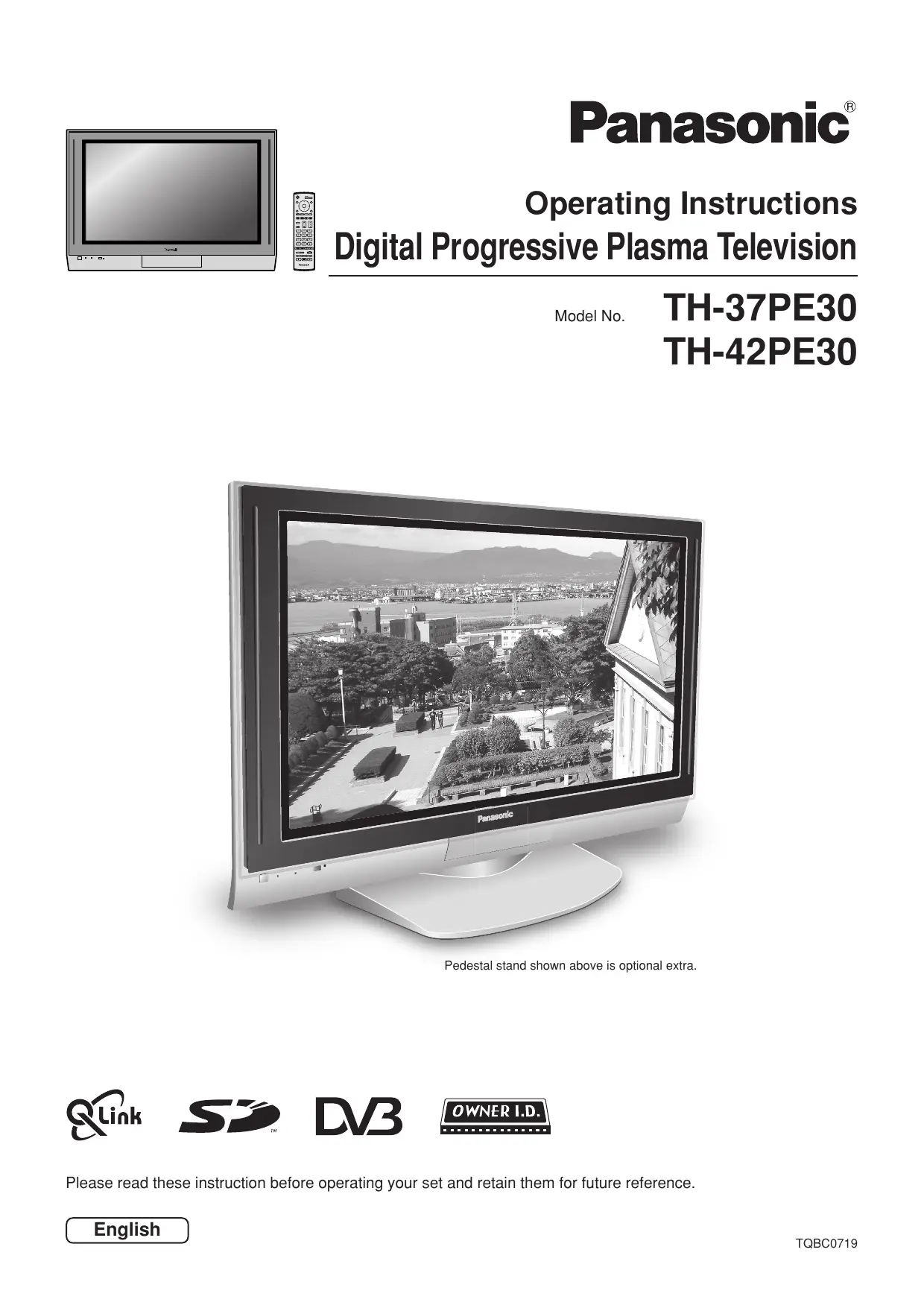
MODE Operating Instructions
- VGA is a trademark of International Business Machines Corporation.
- Macintosh is a registered trademark of Apple Computer, USA.
- S-VGA is a registered trademark of the Video Electronics Standard Association. Even if no special notation has been made of company or product trademarks, these trademarks have been fully respected.
- SD Logo is a trademark.
- DVB is a trademark of the DVB Digital Video Broadcasting Project (1991 to 1996) . CAUTION: Symptoms After-images appear ABCDEF Check Do not allow a still picture to be displayed for an extended period, as this can cause a permanent after-image to remain on the Plasma TV. Examples of still pictures include logos, video games, computer images, teletext and images displayed in 4:3 mode. With no signal present, and without any user operation, the Panasonic screensaver will appear automatically after 2 minutes to prevent image retention. During DVB teletext or radio service, the level of the contrast can be set to decrease automatically to prevent image retention. Note: The permanent after-image on the Plasma TV resulting from fixed image use is not an operating defect and as such is not covered by the Warranty. This product is not designed to display fixed images for extended periods of time.
Important Safety Notice WARNING
1) To prevent damage which may result in fire or shock hazard, do not expose this appliance to rain or
moisture. Do not place containers with water (flower vase, cups, cosmetics, etc.) above the set. (including on shelves above, etc.)
2) To prevent electric shock, do not remove cover. No user serviceable parts inside. Refer servicing to qualified
3) Do not remove the earthing pin on the power plug. This apparatus is equipped with a three pin earthing-type power
plug. This plug will only fit an earthing-type power outlet. This is a safety feature. If you are unable to insert the plug into the outlet, contact an electrician. Do not defeat the purpose of the earthing plug. CAUTION
1) This appliance is intended for use in environments which are relatively free of electromagnetic fields.
Using this appliance near sources of strong electromagnetic fields or where electrical noise may overlap with the input signals could cause the picture and sound to wobble or cause interference such as noise to appear. To avoid the possibility of damage to this appliance, keep it away from sources of strong electromagnetic fields.
2) If a static electricity discharge occurs inside the front cover, the screen may momentarily flicker. This is not a
malfunction. The screen will return to normality in a short while. To prevent electric shock, ensure the grounding pin on the AC cord power plug is securely connected.
IMPORTANT: THE MOULDED PLUG
FOR YOUR SAFETY, PLEASE READ THE FOLLOWING TEXT CAREFULLY. This appliance is supplied with a moulded three pin mains plug for your safety and convenience. A 5 amp fuse is fitted in this plug. Shall the fuse need to be replaced, please ensure that the replacement fuse has a rating of 5 amps and that it is approved by ASTA or BSI to BS1362. Check for the ASTA mark ASA or the BSI mark on the body of the fuse. If the plug contains a removable fuse cover, you must ensure that it is refitted when the fuse is replaced. If you lose the fuse cover the plug must not be used until a replacement cover is obtained. A replacement fuse cover can be purchased from your local Panasonic Dealer. If the fitted moulded plug is unsuitable for the socket outlet in your home, then the fuse shall be removed and the plug cut off and disposed of safety. There is a danger of severe electrical shock if the cut off plug is inserted into any 13 amp socket. If a new plug is to be fitted, please observe the wiring code as shown below. If in any doubt, please consult a qualified electrician.
WARNING: — THIS APPARATUS MUST BE EARTHED.
IMPORTANT: —The wires in this mains lead are coloured in accordance with the following code: — Green-and-Yellow: Earth Blue: Neutral Brown: Live As the colours of the wire in the mains lead of this appliance may not correspond with the coloured markings identifying the terminals in your plug, proceed as follows. The wire which is coloured GREEN-AND-YELLOW must be connected to the terminal in the plug which is marked with the letter E or by the Earth symbol or coloured GREEN or GREEN-AND-YELLOW. The wire which is coloured BLUE must be connected to the terminal in the plug which is marked with the letter N or coloured BLACK. The wire which is coloured BROWN must be connected to the terminal in the plug which is marked with the letter L or coloured RED. How to replace the fuse. Open the fuse compartment with a screwdriver and replace the fuse.
Safety Precautions WARNING Setup This Plasma TV is for use only with the following optional accessories. Use with any other type of optional accessories may cause instability which could result in the possibility of injury. (All of the following accessories are manufactured by Matsushita Electric Industrial Co., Ltd.)
- Wall-hanging bracket (angle) ....... TY-WK42PR2W Always be sure to ask a qualified technician to carry out installation. Do not place the Plasma TV on sloped or unstable surfaces. The Plasma TV may fall off or tip over.
Do not place any objects on top of the Plasma TV. If water is spilt onto the Plasma TV or foreign objects get inside it, a short-circuit may occur which could result in fire or electric shock. If any foreign objects get inside the Plasma TV, please consult your local Panasonic dealer.
If using the pedestal (optional accessory), leave a space of at least 10 cm at the top, left and right, at least 6 cm at the bottom, and at least 7 cm at the rear. If using some other setting-up method, leave a space of at least 10 cm at the top, bottom, left and right, and at least 1.9 cm at the rear. Electromagnetic interference may occur if electronic equipments are placed near each other. It will cause interference in image, sound, etc. In particular, keep video equipment away from this product.
Batteries, packaging and old equipment should not be disposed of as domestic waste, but in accordance with the applicable regulations. When using the Plasma TV The Plasma TV is designed to operate on 220 - 240 V AC, 50/60 Hz. Do not cover the ventilation holes. Doing so may cause the Plasma TV to overheat, which can cause fire or damage to the Plasma TV.
Do not insert any foreign objects into the Plasma TV. Do not insert any metal or flammable objects into the ventilations holes or drop them onto the Plasma TV, as doing so can cause fire or electric shock.
Do not remove the cover or modify it in any way. High voltages which can cause severe electric shocks are present inside the Plasma TV. For any inspection, adjustment and repair work, please contact your local Panasonic dealer.
Securely insert the power cord plug as far as it will go. If the plug is not fully inserted, heat may be generated which could cause fire. If the plug is damaged or the wall socket plate is loose, do not use them.
Do not handle the power cord plug with wet hands. Doing so may cause electric shocks.
Do not do anything that may damage the power cable. When disconnecting the power cable, pull on the plug body, not the cable. Do not damage the cable, make any modifications to it, place heavy objects on top of it, heat it, place it near any hot objects, twist it, bend it excessively or pull it. To do so may cause fire and electric shock. If the power cable is damaged, have it repaired at your local Panasonic dealer.
If the Plasma TV is not going to be used for any prolonged length of time, unplug the power cord plug from the wall outlet.
Safety Precautions If problems occur during use If a problem occurs (such as no picture or no sound), or if smoke or an abnormal odour starts to come out from the Plasma TV, immediately unplug the power cord plug from the wall outlet. If you continue to use the Plasma TV in this condition, fire or electric shock could result. After checking that the smoke has stopped, contact your local Panasonic dealer so that the necessary repairs can be made. Repairing the Plasma TV yourself is extremely dangerous, and should never be attempted.
If water or foreign objects get inside the Plasma TV, if the Plasma TV is dropped, or if the cabinet becomes damages, disconnect the power cord plug immediately. A short circuit may occur, which could cause fire. Contact your local Panasonic dealer for any repairs that need to be made.
CAUTION When using the Plasma TV Do not bring your hands, face or objects close to the ventilation holes of the Plasma TV. Heated air comes out from the ventilation holes at the top of Plasma TV will be hot. Do not bring your hands or face, or objects which cannot withstand heat, close to this port, otherwise burns or deformation could result.
Be sure to disconnect all cables before moving the Plasma TV. If the Plasma TV is moved while some of the cables are still connected, the cables may become damaged, and fire or electric shock could result.
Disconnect the power cord plug from the wall socket as a safety precaution before carrying out any cleaning. Electric shocks can result if this is not done.
Clean the power cable regularly to prevent it becoming dusty. If dust built up on the power cord plug, the resultant humidity can damage the insulation, which could result in fire. Pull the power cord plug out from the wall outlet and wipe the mains lead with a dry cloth.
This Plasma TV radiates infrared rays, therefore it may affect other infrared communication equipment. Install your infrared sensor in a place away from direct or reflected light from your Plasma TV. Maintenance The front of the display panel has been specially treated. Wipe the panel surface gently using only a cleaning cloth or a soft, lint-free cloth. If the surface is particularly dirty, wipe with a soft, lint-free cloth which has been soaked in pure water or water to which a small amount of neutral detergent has been added, and then wipe it evenly with a dry cloth of the same type until the surface is dry. Do not scratch or hit the surface of the panel with fingernails or other hard objects, otherwise the surface may become damaged. Furthermore, avoid contact with volatile substances such as insect sprays, solvents and thinner, otherwise the quality of the surface may be adversely affected.
If the cabinet becomes dirty, wipe it with a soft, dry cloth. If the cabinet is particularly dirty, soak the cloth in water to which a small amount of neutral detergent has been added and then wring the cloth dry. Use this cloth to wipe the cabinet, and then wipe it dry with a dry cloth. Do not allow any detergent to come into direct contact with the surface of the Plasma TV. If water droplets get inside the unit, operating problems may result. Avoid contact with volatile substances such as insect sprays, solvents and thinner, otherwise the quality of the cabinet surface may be adversely affected or the coating may peel off. Furthermore, do not leave it for long periods in contact with articles made from rubber or PVC.
Accessories Check that you have the accessories and items shown Operating Instruction book (TQBC0719) Remote Control Transmitter (EUR7635010) Mains Lead TV Guarantee Ferrite core J0KG00000014 × 2 (Large size) Clamper TMME206 × 2 MODE
Open Open Pull back the tabs. (in two places) Press the cable through and close. Pull back the tabs. (in two places) Press the cable through and close. Fitting remote control batteries
“R6 (UM3)” size Pull and hold the hook, then open the battery cover. Insert batteries - note correct polarity ( + and -). Replace the cover.
- Make sure that the batteries are fitted the correct way round.
- Do not mix old batteries with new batteries. Remove old, exhausted batteries immediately.
- Do not mix different battery types, i.e. Alkaline and Manganese or use rechargeable (Ni - Cad) batteries.
How to open the front cover
Terminal cover open and close Open Close
1. Push down hooks and pull the
cover slightly towards yourself to disengage the claws (at 4 points).
2. Slowly pull out in the downward
1. Insert the claws (at 4 points)
2. Push until it clicks.
When connecting the Scart cable to the TV’s Scart terminals, connect through this window. (This window cannot close completely when connecting the Scart cable.) Other cable should be connected before closing the terminal cover. Fastening method Clamper Open Close Fastening of Mains Lead and other cables
Fastening method of other cables Attach the clamper on the installation hole, and fasten them. Bundle the cable with the cable fastening clamper. Fastening band Fastening
Fastening method of Mains Lead
1. Insert the power plug into the main body.
2. Fasten with the mains lead fastening band.
Loosening Pull off. To tighten. Keep the knob pressed.
Quick Start Guide Connection and setting up options Note: Please ensure that the unit is disconnected from the mains before attaching or disconnecting any leads. Satellite Receiver RF cable (Not supplied) Scart cables (Not supplied) AV4 S VIDEO VIDEO RGB VIDEO AV2 S VIDEO RF cable (Not supplied) AV1 RGB VIDEO VCR / DVD Recorder Scart Connections
- The VCR / DVD Recorder can be connected to the TV using a Scart cable, if you are using a Scart equipped VCR / DVD Recorder.
- Use the TV’s any Scart terminal for any VCR. Always use a “fully wired” Scart cable.
- Use the TV’s AV1 or AV4 Scart terminal for any DVD Recorder. Always use a “fully wired” Scart cable.
- Use the TV’s AV1 or AV4 Scart terminal for Satellite Receiver. Always use a “fully wired” Scart cable. RF Connection
- Connect the RF cable to the “Aerial In” terminal of the VCR / DVD Recorder and an RF cable from the VCR / DVD Recorder “Aerial Out” terminal to the TV Aerial terminal ( Notes:
- If using a “Q-Link” VCR / DVD Recorder, then the AV1 Scart of the VCR / DVD Recorder must be connected to the AV2 or AV4 terminal of the TV. If your VCR or DVD Recorder is not a “Q-Link” device, please consult the operating instruction book for that product. Further information on Q-Link can be found on page 31.
- Further details of Audio / Video connections can be found on page 45, 46.
- Additional equipment and cables are not supplied.
1 Connect the mains lead to the Plasma TV. 2 Connect the mains plug to the wall socket.
Ensure that the VCR or DVD Recorder is in Standby mode. Press the MODE
switch on the TV set to turn the set on. To switch the TV set to Standby mode, press the button on the remote control. The TV set can be switched on by pressing the button again if it was switched to Standby mode.
Note: This TV will still consume some power as long as the mains plug is still inserted into the wall socket. IDTV Power Indicator Standby : Red On : No Light DVB Indicator DVB system active for recording or DVB tuner lock on : Orange Otherwise : No Light
Remote control signal sensor C.A.T.S sensor Plasma C.A.T.S (Contrast Automatic Tracking System) Plasma C.A.T.S automatically senses the ambient light conditions and adjusts the brightness and gradation accordingly, to optimise contrast. (Effective when Viewing mode is set to Auto.) Programmes will appear immediately if your dealer has programmed the TV for you. If the TV has not been programmed for you then Auto setup will begin. The TV will search for Analogue stations and DVB stations: TV stations will be located, sorted into order and stored ready for use. Stations are sorted into the following order:
- DVB Stations: Are sorted by their logical channel number sent by the broadcasters, which cannot be moved or changed.
- Analogue Stations: Are sorted into channel order, but can be changed to your preference. See page 17. The sorted programme order depends upon the TV signal, the broadcasting system, and reception conditions.
TV to VCR or DVD Recorder Download If a “Q-Link”, “NEXTVIEWLINK” or compatible recording device has been switched On and connected to a Scart terminal before starting Step 2, programme information will be downloaded to that device. CH44
DOWNLOAD IN PROGRESS
PLEASE WAIT Programme : 63 Remote control unavailable Only the analogue programme positions will be downloaded to the recording device, in the correct order. See page 31. Not all VCRs / DVD Recorders support this download of programme information, some may require to be started manually. Refer to the recording device’s operating instruction book. If a recording device other than those described above has been connected, then there will be no download operation. Notes:
- If the recording device has not accepted download data from the TV, you may need to select the Download option from the device’s menu system. Refer to the recording device’s operating instruction book.
- If Q-Link is not operating correctly, check the following : The Scart cable is connected to the TV’s Scart terminal, AV2 or AV4, and correctly setup in the menu. The Scart cable is connected to the recording device’s compatible (Q-Link, NEXTVIEWLINK or similar technology) Scart terminal. The Scart cable is a “fully wired” type.
- For further information on Q-Link and connecting equipment, see page 31, 46, 50.
Owner ID As an added feature, this TV has the option of adding a security code (Owner ID) and personal details into its memory, so that in the unfortunate event of theft it will help the Police to trace the owner. Using the numeric buttons to enter required 4 digit Owner ID PIN NUMBER. If a 4 digit PIN NUMBER was entered, you will be taken automatically to the NAME line. MODE
If not, using the left or right cursor buttons move to the NAME line. Change character using the up or down cursor buttons. IDTV Select the character position using the left or right cursor buttons. Repeat above until NAME, HOUSE NUMBER and POSTCODE are entered. Press the OK button to store the details. Press the OK button again, when you are asked “Are you sure ? ”.
Yo u n o w h a v e t h e o p p o r t u n i t y to enter your details and help the police crack crime see instruction book Change character Store Owner ID Select character Exit For further information on Owner I.D., see page 22. A space is provided on page 22 to write down the PIN NUMBER for future reference. Owner ID PIN NUMBER NAME HOUSE NO POSTCODE
Your plasma TV is now ready for use.
To view a list of the stations that have been found, press the GUIDE button. See page 30. GUIDE MODE
Use the cursor buttons to move the cursor bar up and down the list.
Use the programme change button to step through the guide page by page. To view the selected programme press the OK button. Categories (DVB mode only) To make stations easier to find, specific stations can be listed by category; press the left or right cursor button to choose a category. The chosen category name is shown on screen. For example, if you select Free TV, only ‘free-to-air’ stations will be listed – you can view any of these now. If you select Pay TV, only subscription stations will be listed – you will need to contact the service provider to find out how to subscribe to these stations. A separate guide is available when viewing analogue mode. In this guide, use the cursor buttons to move the cursor bar around the list, use the programme change button to step through the guide page by page. Press the OK button to view the selected programme. Both guides can be cleared from the screen using the EXIT button.
Basic controls: front panel and remote control SD Card slot (see page 38) PC Card slot (see page 38)
TV/AV button (see page 45) STR (Normalization store) Used to store tuning and other function settings. AV3 terminals (see page 45) PC input terminal (see page 47) Headphones jack (see page 45) F (Function select) Increases or decreases the programme position by one. When Displays the On Screen Display functions, use repeatedly to a function is already displayed, press to increase or decrease select from the available functions - Volume, Contrast, the selected function. When in Standby mode, switches TV On. Brightness, Colour, Sharpness, Tint (in NTSC mode), Bass, Treble, Balance and Tuning mode. Photo View mode button Standby On / Off button MODE button (see page 14, 15) (see page 37-40) Switches TV On or Off (Standby mode). Switch between viewing DVB and Analogue modes. GUIDE button DVB Analogue Displays the DVB and Analogue TV Guide. Switch between viewing TV or AV input. MODE (see page 30) (see page 45) Cursor buttons to make selections and adjustments. Menu button Press to access the Picture, Sound and Setup menus. (see page 12-15) GUIDE TV/AV Press to confirm selections and choices. Press after selecting programme positions 1-99 (0-9 in Analogue mode) to avoid delay.
Sound mute On / Off Direct channel access (Analogue mode only) During normal TV viewing or when in the Tuning, Programme edit or Manual tuning menus, press and then enter channel number using the numeric buttons. VCR
ASPECT ASPECT control button (see page 32, 33) Ambience On / Off (see page 14) Coloured buttons used for the selection, navigation and operation of various functions. Text Hold button (see page 42)
N (Normalize) button Resets all settings to their default levels. Channel up / down button Exit the mode.
Programme / channel change buttons (09) and Teletext page buttons. (see page 42, 43) When in Standby mode, switches TV On. Status button Press to display status information for the current Programme position. (see page 26)
Using the On Screen Displays Many features available on this TV can be accessed via the On Screen Display menu system. Use the remote control as shown below to access and adjust features as desired. The MENU button is used to open the main menus and also to return to the previous menu. MENU MODE
The up and down cursor buttons are used to move the cursor and select menus.
The left and right cursor buttons are used to access menus, adjust levels or to select from a range of options. The OK button is used with a number of features to store settings after adjustments have been made or options have been set. The EXIT button is used to exit the menu system and return to the normal viewing screen. An On Screen Help box is displayed whenever a menu is displayed on the TV. This Help box indicates which buttons on the remote control are used to navigate the menu shown, see above for descriptions of button functions. Note: The Help box is not shown in the menu pictures in this instruction book due to space limitations.
EXIT Press the EXIT button at any time to go back to watching TV. Viewing mode The Viewing mode menu allows you to select four different screen settings - Dynamic, Normal, Cinema and Auto. In each Viewing mode setting, Contrast, Brightness, Colour, Sharpness, Tint (in NTSC only), Colour balance, P-NR, MPEG NR and 3D-COMB can be adjusted and stored to suit your particular viewing requirement. (e.g., you may require different settings for viewing sports, films, news etc.) Changes to any settings in a viewing mode will affect all signal sources: RF, AV1, AV2, AV3 and AV4. Changes will be stored automatically. By analysing and processing the incoming picture, all four modes feature automatic enhancement. Contrast, Brightness, Colour, Sharpness Increase or decrease the levels of these options according to your personal preference. Tint The picture hue can be adjusted to suit your taste. Note: When the TV is receiving NTSC, Component video (60Hz) signals, Tint is displayed. Colour balance Allows you to set the overall colour tone of the picture. Choose from Cool, Normal and Warm. P-NR Automatically reduces unwanted picture noise when viewing Analogue TV broadcast. MPEG NR Reduces MPEG noise. Allows you to choose from Off, Min, Mid and Max. This function is effective in reducing the picture noise when viewing DVD or digital broadcasting. The effect will be changed based on the scene and image. Note: MPEG Compression technology of the image signal adopted by DVD or digital broadcasting. IDTV Main menu P i c t u r e menu Sound menu Setup menu Picture menu Viewing mode Contrast Brightness Colour Sharpness Tint Colour balance P-NR MPEG NR 3D-COMB Dynamic Normal Off Off
Not available in DVB mode. Occasionally, whilst viewing still or slow moving pictures, colour patterning may be seen. Set 3D-COMB to On to display sharper and more accurate colours. Displayed only when receiving PAL or NTSC signals. Not displayed during RGB Video, S-Video input and AV4C input mode.
Adjust chosen option or access chosen menu. EXIT Press the EXIT button at any time to go back to watching TV. IDTV Bass Increase or decrease level to enhance or minimise lower, deeper sound output. Main menu P i c t u r e menu Treble Increase or decrease level to enhance or minimise sharper, higher sound output. Sound menu Balance The levels of sound between the left and right speakers can be adjusted to suit your listening position. Headphone volume Can be adjusted independently of the TV speakers so that everyone can enjoy listening at a level comfortable for them. NICAM Not available in DVB mode. Select On to provide stereo sound reproduction. Select Off for FM Mono sound output. If Nicam Mono is being transmitted select either FM Mono (Off), Nicam Mono I (M1) or Nicam Mono II (M2). The options depend upon the signal being transmitted. If reception deteriorates it is advisable to switch to FM Mono (Off). Multi audio Multi audio, which will only appear when a DVB programme is selected, allows you to select an alternative sound track. The number of options available depends on each broadcast. Setup menu Mode Sound quality can be improved when watching music scene or drama by selecting the appropriate Music or Speech mode. Ambience Ambience provides a dynamic enhancer to simulate improved spatial effects.
Adjust chosen option or access chosen menu. EXIT Press the EXIT button at any time to go back to watching TV. IDTV Q-Link AV2 / AV4 out Allows you to select which AV terminal is to be used for data communication between this TV and a compatible recording device. Choose from AV2 and AV4. See page 31. Main menu P i c t u r e menu Offers a choice of signals to send to the Scart terminal selected in the Q-Link option. You can choose from the current TV (Analogue, DVB) programme position, the signal entering AV1 / AV2 / AV3 / AV4 or Monitor - the picture displayed on screen. Teletext Allows you to choose between FASTEXT or List mode. See page 42-44. Off timer Switches the TV off within a preset time which you can choose from between 0 to 90 minutes in 15 minute intervals. Side panel Allows you to choose from Off, Low, Mid and High. Do not display a picture in 4:3, 14:9, Picture out of picture, Picture and picture, Picture and text modes Side panel for an extended period, as this can cause an after-image to remain on the side panels either side of the display field. 4:3 To prevent the appearance of such an afterimage, illuminate the side panels. Power save By reducing the brighness of picture, power consumption can be lowered. Power on preference Set to TV to view picture from TV tuner. Set to AV to view input from an external equipment connected to a Scart socket, e.g. satellite receiver. Note: The external equipment must be switched on and sending a control signal for automatic switching at power on to occur. Sound menu Setup menu Analogue TV mode Setup menu Q-Link AV2 out Teletext Off timer Side panel Power save Power on preference Analogue Tuning Menu AV2 Monitor FASTEXT Off High Off
DVB mode Setup menu DVB Timer programming DVB Tuner lock DVB Auto Setup DVB System Setup New Service Message Shipping condition Q-Link AV2 out Off timer Child lock Side panel Power save Power on preference Access Off Off AV2 Monitor Off Off High Off
Analogue AV mode Setup menu Q-Link AV2 out Teletext Off timer Volume correction Side panel Power save Power on preference AV2 Monitor FASTEXT Off Analogue Tuning Menu Provides access to many other features including Programme edit and Auto setup. See page 17-19. DVB Timer Programming Allows you to enter programme times at which the DVB tuner must switch on, ready for recording. See page 28. DVB Tuner lock Prevents you from accidentally changing programme position while recording a DVB broadcast. If the TV is switched into standby mode while DVB tuner lock is on, the DVB tuner will remain active to ensure recording can still take place. DVB Auto Setup Allows you to clear all current digital tuning data, and scan for new services. See page 19. DVB System Setup Provides access to various specialised DVB options. See page 23. New Service Message This TV continually scans for updated DVB services and notifies you of any changes. Set to On to receive notification. Set to Off if you do not wish to be informed of any updates. High Off
Shipping condition Allows you to clear all tuning information and reset all control levels back to factory settings. See page 21. Child Lock You may wish to lock a DVB programme channel to prevent access to it. Set to On to lock the current programme position. Set to Off to unlock. When a programme position is locked, Direct Channel Access using the C and numeric keys on the remote control is not available. Volume correction During AV mode, Volume correction is displayed. You can adjust volume level of AV mode. Volume level is memorised.
Access Analogue Tuning Menu. Move to choose menu option. IDTV Adjust chosen option or access chosen menu. EXIT Press the EXIT button at any time to go back to watching TV. Press the OK button after having adjusted some features to store the new settings as the default (replacing the factory setting). Programme edit Access in order to customize your programme settings (e.g., adding or deleting a programme position). See page 17, 18. Auto setup Allows you to automatically retune the TV. Useful if you move house and wish to retune your TV to the local stations. See page 19.
Main menu P i c t u r e menu Sound menu Setup menu Setup menu Manual tuning Allows individual programme positions to be tuned manually. See page 20. Shipping Condition Allows you to clear all tuning information and reset all control levels back to factory settings. See page 21. Q-Link AV2 out Teletext Off timer Side panel Power save Power on preference Analogue Tuning Menu AV2 Monitor FASTEXT Off High Off Access Analogue Tuning Menu Owner ID Allows you to enter a security code and address information. See page 22. Programme edit Auto setup Manual tuning Shipping condition Owner ID Access Programme edit Prog.
Access Analogue Tuning Menu. Move to choose Programme edit. IDTV Access Programme edit. Move to choose programme position (e.g., Prog. 3). Make required change, e.g., moving a programme channel (see the relevant procedure below). EXIT Press the EXIT button at any time to go back to watching TV.
Press the OK button after having adjusted some features to store the new settings. Adding / deleting a programme channel Move the cursor to the programme to be deleted or added. Programme edit Prog. Press the Green button to add a programme channel to the programme position, or the Red button to delete one. Red Green
Off Off Off Off Off Add Cancel Press the same button again to confirm your decision. Moving a programme channel Move the cursor to the programme to be moved. Programme edit Prog. Press the Yellow button. Yellow Choose the new position for the programme channel.
Off Off Off Off Off Confirm Cancel Press the Yellow button again to confirm your decision.
Tuning menu – Programme edit (Analogue mode only) Renaming a programme channel Move to the Name column. Programme edit Prog.
Choose the new character. The box at the bottom of the screen shows the character currently selected.
Off Off Off Off Off ABCDEFGHIJKLMNOPQRST UVWXYZ+-. 0123456789 Move to the next character position. Continue until renaming is done. Press the OK button to store the new name.
Locking a programme channel You may wish to lock a programme channel to prevent access to it. Programme edit Prog. Move to the Lock column.
Choose between Lock On or Lock Off. Press the OK button to store the new setting.
Note: When a programme position is locked, Direct Channel Access using the C and numeric buttons on the remote control is not available. Copying programme information to a recording device You can copy programme information to a compatible recording device connected to AV2 / AV4. See page 46 for connection information. Press the Blue button. Programme data will now be sent to the recording device(s). This might take a few seconds, depending on the number of stations stored. If the message “Feature not available” appears on the screen, the television is unable to send the programme information to the recording device(s). See the device’s instruction book for further information.
Move to choose Analogue Tuning Menu. Move to choose DVB Auto Setup.
Access DVB Auto Setup. Access Analogue Tuning Menu. Move to choose Auto setup. IDTV Access Auto setup. Press to start Auto setup. Notes:
- If you proceed with the next step all tuning data will be erased (all stations and their programme positions stored in your TV’s memory will be wiped out so the new settings can be stored).
- If you exit the procedure after this point and before Auto setup is complete, no station information will be stored. Restart and complete the Auto setup procedure so that the TV is retuned. WARNING WARNING All analogue tuning data will be erased All digital tuning data will be erased Start Analogue Tune Exit Return Return Start Digital Scan Exit CH44 DVB Auto Setup
AUTO SETUP IN PROGRESS
The TV will search for, locate, store and then sort into order your local stations. If compatible recording device is connected via the AV2 / AV4 terminal, programme data will be sent to the device via Q-Link. See page 31. Once this operation is completed the TV will display the programme now stored on programme position 1.
Tuning menu – Manual tuning (Analogue mode only) It is possible to retune individual programme positions: MODE During Analogue mode MENU
Access Analogue Tuning Menu. Move to choose Manual tuning. IDTV Access Manual tuning.
CH44 Select the programme position to be tuned. Search down/up Return Programme down/up Press repeatedly until required station is found. Store Exit Manual tuning When the desired station is found, press the OK button to store. The programme position will flash.
EXIT Press the EXIT button at any time to go back to watching TV. Note: If your VCR is connected to this TV by an RF cable only, choose programme position “0” to tune to the VCR signals. Manual tuning (via front panel) (Analogue mode only) It is also possible to use the control panel buttons on the front of your TV to tune individual programme positions: Press the F button until Tuning mode is reached.
Press the -/ or +/ button to access Tuning mode.
Press the TV/AV button to move between Change programme and Search. TV/AV Press the -/ or +/ button to change programme position or start search.
CH44 Repeat above procedure to tune additional programme positions. Manual tuning (Front panel) : Search TV / AV : Move cursor STR : To store : To exit Press the F button at any time to go back to watching TV.
STR When the desired station is found, press the STR button to store. The programme position will flash.
TV / AV Shipping condition Shipping condition allows you to reset the TV to its original condition, i.e. no channels tuned in. This is useful, for example, if you move to a different area when you will probably want the TV to tune itself to your new local stations. This can be done either through the Shipping condition menu or through the Auto setup menu. The Shipping condition menu will reset all data, clearing all analogue and DVB tuning information and resetting all control levels back to factory settings. You may need to adjust your VCR or programme position ‘0’ VCR after operating the Shipping condition menu. During Analogue or DVB mode MENU Press the MENU button. MODE Move to choose Setup menu.
Access Analogue Tuning Menu. Move to choose Shipping condition. IDTV Access Shipping condition. Press OK to start.
Analogue Tuning Menu Press again, to confirm, each time that you are asked, “Are you sure?”. Programme edit Auto setup Manual tuning Shipping condition Owner ID Switch the TV off at the mains power switch. Access Shipping condition All tuning data will be erased Are you sure ? The next time you switch the TV on, Auto setup will begin. Analogue and DVB stations will be located, sorted and stored ready for use. See page 19. Are you sure ? Start Return Exit
Owner ID Owner ID allows you to enter a security code(Owner ID) and personal details into its memory, so that in the unfortunate event of theft it will help the police to trace the owner. If you wish to check the personal details already entered into the TV (except your PIN number), press the F button(Front panel) and hold for 6 seconds(initially the volume level function will appear, as you continue to hold down the F button it will disappear again, and the Owner ID information will appear). The details already entered are displayed on screen and will disappear after a few seconds.
SD CARD PUSH-EJECT STR If Owner ID information was not entered when you switched on your TV for the first time or it is necessary to alter some of the information, Owner ID can be re-accessed via the Analogue Tuning Menu. STR
Move to choose Owner ID. Access Owner ID. IDTV If the Owner ID has previously been set, enter the PIN NUMBER (using 0 to 9 on the remote control) followed by OK to proceed, this will take you to the NAME option.
If no Owner ID has previously been set, enter the required 4 digit Owner ID PIN NUMBER (using 0 to 9 on the remote control).
If a 4 digit PIN NUMBER was entered above, you will be taken automatically to the NAME line. Analogue Tuning Menu Programme edit Auto setup Manual tuning Shipping condition Owner ID Access Yo u n o w h a v e t h e o p p o r t u n i t y to enter your details and help the police crack crime see instruction book Change character Store Owner ID Select character Return Exit If not, move to the NAME line. Owner ID Change character. PIN NUMBER NAME HOUSE NO POSTCODE Select character position.
Repeat above until NAME, HOUSE NUMBER and POSTCODE are entered. Press OK to store the details. Press again when you are asked, “Are you sure?”.
For future reference, write your PIN NUMBER here :
DVB System Setup The DVB System Setup menu provides access to DVB specific options. Note: If DVB transmissions cannot be received clearly, the DVB System Setup menu may not be available. During DVB mode MENU Press the MENU button. MODE Move to choose Setup menu.
Move to choose DVB System Setup. Access DVB System Setup.
Move to choose menu option. Adjust chosen option or access chosen menu. Press the EXIT button at any time to go back to watching TV. Pressing the OK button after having adjusted some features will store the setting as the default (replacing the factory setting). Signal Quality The signal quality function displays an indication of signal quality for each DVB programme position. The DVB system requires a good quality signal to provide the best picture. When viewing analogue pictures, interference such as signal reflection from nearby buildings or mountains causes ‘ghosting’, but still provides a viewable picture. For the DVB system, interference such as this can disrupt the flow of data causing the picture to appear to be made up of large blocks, or to freeze intermittently. If the picture disappears completely, this could mean that signal quality is very poor. If this happens often, you may need to improve your aerial system to provide a better signal. Common Interface The Common Interface Module menu provides access Module to functions contained on a Common Interface Module inserted into the CI slot, located at the rear of the TV. See page 24. Favourites Setup Allows you to select your favourite programme positions and display them as a list in the TV Guide. See page 25. Preferred Subtitles This option allows you to select the language in which subtitles should appear (if available) when the STTL button is pressed. EXIT IDTV
DVB System Setup Signal Quality Common Interface Module Favourites Setup Preferred Subtitles System Update Display Timeout Screensaver Active Settings Access English 3 seconds After 2 minutes Default System Update This menu allows you to download new software to the television. See page 27. Display Timeout This option allows you to set how long the information banner stays on screen. Select from 0 (no display) to 10 seconds in 1 second increments. Screensaver Active This option allows you to set the time the screensaver starts. This is for preventing image retention. Select from Off (no screensaver), After 1, 2, 5 minutes. This option is available for DVB mode. There are 2 types of Screensaver:
- Scrolling “Panasonic” display - When there is no signal connected and no TV operations.
- Dimmed picture - When viewing digital text or listening to radio channels. Settings Changes made within the DVB-Setup menu will cause settings to change from “Default” to “User defined”. To return to the default settings for this TV, select “Default”, then press OK to store your setting.
Common Interface Module menu The Common Interface Module menu provides access to software contained on Common Interface (CI) Modules. These can be inserted in the “CI” slot located at the rear of the TV. IMPORTANT NOTES: Switch off the TV using the front panel switch before inserting or removing a module. If you are installing a TV software update, please follow the dedicated instructions supplied with the module. Insert the CI module: Some Common Interface Modules may be a two piece design consisting of a card reader together with the viewing card. When using this design of card, first insert the card reader firmly into the CI slot on the TV. Secondly, insert the viewing card into the reader. Switch on the TV. During DVB mode MENU Press the MENU button. MODE
Move to choose DVB System Setup. Access DVB System Setup.
Move to choose Common Interface Module. Access Common Interface Module. IDTV Access the module. If no module is inserted the message “No Module Inserted” will be displayed. (If you have inserted a module, check that it is fully inserted.) Main menu P i c t u r e menu The features that now appear on screen are dependent on the contents of the selected Common Interface Module. Refer to the instructions supplied with the card or contact the vendor. Sound menu In all cases, it is possible to navigate the pages using buttons on the remote control, but because the commands available must apply to all manufacturers of DVB equipment, some on screen commands may not correspond exactly to the remote control buttons. For example: For the on screen command ‘select’ or ‘go’, use the OK button. If you see the
DVB System Setup If you see a line of key words displayed in red, green, yellow and blue, use the coloured buttons to operate the functions. EXIT Signal Quality Common Interface Module Favourites Setup Preferred Subtitles System Update Display Timeout Screensaver Active Settings Access English 3 seconds After 2 minutes Default The EXIT button should always allow you to exit the CI software. Common Interface Slot 1: No module inserted
Access Favourites Setup menu (DVB mode only) The Favourites Setup menu allows you to select your favourite programme positions and display them as a list in the TV Guide, to allow quick and easy access to the programs you watch most often. During DVB mode MODE MENU Press the MENU button.
Access DVB System Setup. Move to choose Favourites Setup. IDTV Access Favourites Setup. Main menu P i c t u r e menu Move to the programme position which you wish to set as a favourite. Sound menu Press the OK button to set your favourite.
A tick appears next to the selected program position. You may move to and select as many programme positions as you wish. To clear a previously selected favourite, select it with the cursor bar and press the OK button. Press the MENU button to return to the DVB-Setup menu. Press the EXIT button at any time to exit Favourites Setup. A list of favourites can be accessed by pressing the GUIDE button. See page 30. Setup menu Setup menu
Information banner In DVB mode The Information banner provides access to information on current and upcoming programmes and easy switching between all channels or just those in your Favourites list. Press the (Information) button. An information banner will appear with details of the current programme being broadcast. These details may include the channel number and programme position, the title and duration of the current or next programme, details of transmitted support services (for example text, multi audio, subtitles) and the current time. You can set how long the information banner stays on screen when you change TV channel. See page 23. Use the cursor up and down buttons to scroll through the programme list. If you have set favourite channels and want to scroll through only those channels, press the Blue button. To step through your favourite channels press the Blue button repeatedly. Further information on the individual programmes shown can be displayed by pressing the (Information) button. To return to the normal Information banner view press the (Information) button once more, alternatively, press the EXIT button to return to normal viewing mode. For information on the upcoming (next) programme on any individual channel, press the left or right cursor button. To select any programme listed in the Information banner press the OK button. In Analogue mode Pressing the (Information) button will display the analogue channel information for a few seconds. This will then be timed out to display just the programme position number near the top left corner of the screen. To remove this programme position number, press the (Information) button again.
IDTV Blue 2 BBC 2 Call My Bluff 17:00 - 17:30 17:06 Favourites: <NOW> Multi Audio For info press: TXT Subtitle EXIT 2 BBC 2 Call My Bluff 17:00 - 17:30 17:06 Favourites: <NOW> Exit info: Two teams try to convince each other that they’re telling the truth in this word quiz.WS
Multi Audio TXT Subtitle System Update menu (DVB mode only) The System Update menu allows the DVB system to check that it has the latest software. If newer software is available, it can be downloaded. During DVB mode MODE MENU
Main menu P i c t u r e menu Access DVB System Setup. Move to choose System Update. Sound menu Access System Update. The System Update menu will appear. Setup menu Setup menu The DVB system will now begin to search for new software-this will take a few seconds. If a newer version is available: Important Note! You must not switch off the TV while downloading is in progress, as errors could occur. Downloading will take a few minutes to complete, so check first that there are no imminent programmes that you wish to watch. Press the OK button to initiate download.
DVB System Setup Signal Quality Common Interface Module Favourites Setup Preferred Subtitles System Update Display Timeout Screensaver Active Settings English Access 3 seconds After 2 minutes Default If a newer version is not available: New version found! A message will appear telling you that the current software is up-to-date. Press the EXIT button at any time to go back to watching TV. Do you really want to update the software and reboot the system? EXIT System Update Searching for new version: Ready! Current version E10_0.11 is up to date. System Update notification Occasionally, a newer version of software may become available. An automatic update message may be shown when you switch on your TV. Note: The “New service message” option must be set to On, in the Setup menu, for this message to appear. The message will only appear when you are watching any of the BBC channels. Press the OK button to initiate download.
EXIT Press the EXIT button to ignore this message. Important Note! You must not switch off the TV while downloading is in progress, as errors could occur. Downloading will take a few minutes to complete, so check first that there are no imminent programmes that you wish to watch.
DVB Timer programming menu For an external recording device to record DVB programmes, the integrated DVB system must be active to provide the signal. The Timer programming menu allows you to choose programmes that you wish to record. At the correct time, the DVB system will switch on and tune to the correct station (even if the TV is in standby mode). If the recording device is compatible with Q-Link or similar technologies (see page 31) and connected to the TV’s AV2 / AV4 terminal, you do not need to program the device – the DVB system will control the recording process. The device must be connected to the TV’s AV2 / AV4 terminal using a SCART cable to record DVB programmes. During DVB mode MENU Press the MENU button. MODE
Move to choose DVB Timer programming. Access DVB Timer programming. Press the OK button to begin programming.
Select the Programme position to be recorded. IDTV Move to the Date field. Main menu P i c t u r e menu Set the Date on which recording is to take place. The current Date and Time are shown at the top of the menu. See page 29 for further Date options. Move to the Start time field Move to the End time field and set the Start time and set the End time Sound menu
Setup menu The duration of the recording is shown in the Min. column. The channel position, start and end times can also be input using the numeric keys on the remote control.
EXIT Press the EXIT button to leave the DVB Timer Programming screen. Notes:
- To delete a timer programme, select the recording with the cursor bar and press the Red button.
- To edit a previously entered timer programme, select it with the cursor bar and press the OK button.
- Timer programmes can also be entered from the TV Guide. See page 30. Two minutes before the recording is due to start, a reminder will appear on screen: Press the OK button to remove the reminder from the screen. If you wish to cancel the recording, press the EXIT button.
Delete Notes: Thirty seconds before the recording is due to start the DVB system will tune to the correct station. If you were already watching another DVB station you will see the station change on screen. If you were watching an analogue channel, you will not see the change. You can continue to watch analogue stations while a timer recording is in progress. If you attempt to switch to another DVB programme position while a timer recording is in progress the message “DVB prog. is locked for recording” will be displayed. Press the OK button to continue recording, or EXIT to unlock the programme position. Beware that if you press EXIT, timer programming for this DVB position will be immediately deleted. To immediately cancel a recording that is already in progress, press GUIDE then EXIT.
DVB Timer programming menu Daily and Weekly Timer Programmes While in the Date field of the DVB Timer programming menu, you can select various options to determine how often a recording should be made. Press the down cursor button repeatedly to access the following options: Daily Su–Sa The recording device will record at the same time every day. DVB Timer Programming Pos. Name
Delete Daily Mo–Sa The recording device will record at the same time each day from Monday to Saturday. Daily Mo–Fr The recording device will record at the same time each day from Monday to Friday. Weekly Sa, Fr, Th, We, Tu, Mo or Su The recording device will record at the same time on the same day each week. Notes:
- If new timer programme data overlaps any part of an existing timer programme, the message “Timer Incorrect” will be displayed and the new data will be cleared. If overlapping data is entered using the Timer function on the TV Guide menu (see page 30), the message “Timer overlap with other timer!” will appear.
- The TV set must be “On” or in “Standby” mode for the DVB programme signals to be output to the external recording device. Encrypted Programmes In the future, some DVB programmes may be “encrypted”. This means that the DVB programme cannot be viewed or recorded unless you have the correct Common Interface module to decode the programme. When you attempt to view or set Timer recording of an encrypted programme and you have no CI module inserted, a message will appear on screen.
TV Guide The DVB TV Guide displays the current programmes being transmitted, and forthcoming programmes on each DVB channel, up to seven days ahead (If broadcasters transmit the programmes information). GUIDE Press the GUIDE button. Three separate guides can be accessed by pressing the GUIDE button repeatedly. Choose from ‘Category’, ‘Favourites list’ and ‘Type’. The Favourites list can be customised using the DVB System Setup menu (see page 25). After a few moments the DVB TV Guide will be displayed. If you wish to view one of the listed DVB stations, select it with the up or down cursor buttons and press the OK button. From the ‘Category’ and ‘Type’ guides, you can also view a list of DVB channels by category, for example ‘Free TV’ or ‘Radio’ services, ‘News’ or ‘entertainment’ by pressing the left or right cursor buttons. The categories displayed will change, depending on which of the guides you have selected. MODE
Thu Fri Sat PROG. 1 BBC ONE 2 BBC 2 3 I TV 4 S4C 5 fiye 6 I TV 2 7 BBC THREE Info and Time Prog. You can view further information about the selected programme: Select a DVB channel using the up or down cursor buttons. Press the Green button to move the highlighted cursor bar to the EPG (Electronic Programme Guide). Pay TV Radio
Sun Mon Tue Wed EPG Date 14/08/03 Time 13 : 09 13 : 00 BBC News 13 : 23 Wales Today Select EPG Green DVB TV Guide The EPG lists current and forthcoming programmes up to seven days in advance (if being broadcast). The days of the week are represented by numbers, displayed above them. Use the numeric keys on your remote control to move the EPG listing through the next seven days. Press the Green button to move the highlighted cursor bar back to the EPG (Electronic Programme Guide). Select the programme for which you require further information using the up or down cursor buttons. Press the Yellow button to display the information. Press the Yellow button again to return to the list of programmes. When you select a programme from the EPG list which has yet to start, press the Blue button to send details of the selected programme to the timer programme menu, ready for automatic recording at the correct time. Press the Red button to move the highlighted cursor bar back to the list of DVB channels. Prog. Category
Fri Thu PROG. 1 BBC ONE 2 BBC 2 3 I TV 4 S4C 5 fiye 6 I TV 2 7 BBC THREE Select PROG
Sun Mon Tue Wed EPG Date 14/08/03 Time 13 : 09 BBC NEWS 13 : 00 BBC News 13 : 23 Wales Today Return Q-Link Q-Link allows the television to communicate with a compatible VCR or DVD Recorder. For Q-Link communication to work, the TV must be connected to a recording device with the “Q-Link”, “NEXTVIEWLINK”, “DATA LOGIC”, “Easy Link”, “Megalogic” or “SMARTLINK” logo using a “fully wired” Scart cable between the AV2 / AV4 terminal of the television and the appropriate terminal on your VCR or DVD Recorder. For connection to the appropriate Scart terminal on the recording device, refer to the device’s instruction book. When using a “NEXTVIEWLINK” device the main features possible are the following : Preset Download This allows the programme order from the TV to be downloaded to the recording device, helping to ensure that correct recordings are made; there are several ways to perform this operation :
1. During installation as explained in the “Quick Start Guide” on page 8-10.
2. When Auto setup is started from within the Tuning menu. See page 16.
3. Preset download started from the recording device, refer to the device’s instruction book.
Because a recording device cannot tune to DVB stations, only the analogue programme positions are downloaded to the device. What You See Is What You Record (DIRECT TV RECORDING) This will allow the immediate recording of the programme currently shown on the TV, by the recording device
attached to the Scart terminal, which can be chosen using “Q-Link”. See page 15.
If the recording device is in Standby mode with usable recording media inserted, it will automatically switch on when you press the DIRECT TV REC button. If a “Q-Link” device is connected, a message will appear on the TV screen showing what is being recorded, or if it is not possible to record. Some “Q-Link” compatible devices will only display the message when on the VCR programme position(0) or in AV mode. Refer to the device’s instruction book. Recording in progress The recording device is recording the programme signal from its own tuner. If you wish you can switch off the TV and leave the device recording in the normal way.
IDTV No recording -Check tape or disc The tape or disc may have been “write protected”, missing or may be damaged. The device may already be recording. Refer to the device’s instruction book. Recording DVB stations If you press the DIRECT TV REC button while watching a DVB station, the recording device will automatically switch to its AV input to record the DVB signal from the TV (via the SCART cable), and the DVB programme position will be locked. If you attempt to select another DVB programme position while recording, you will see the message “DVB programme is locked”. Press the OK button to clear the message, or the EXIT button to unlock the programme. Beware that if you press EXIT, the DVB programme will be unlocked – switching to another DVB programme will spoil your intended recording. Stop the recording manually. Additionally, when using a “Q-Link” device the main features possible are the following : The following features are only available from the device connected to the Scart terminal selected using “Q-Link”. See page 15. TV / Recording device Auto Power On If you insert pre-recorded media into the recording device and press the Play button whilst the TV is in Standby mode, the TV will automatically switch on and select the correct AV input so that you can view the content. Recording device Auto Power Standby When the TV is switched into Standby mode, the recording device will also switch into Standby mode if there is no media inserted, or if there is media inserted and the device is in Rewind or Stop mode. If a VCR is rewinding a tape, it will not switch into Standby mode until rewinding has finished. Recording device Image View On If the TV is in Standby mode and the recording device sends a menu to be displayed on the TV screen (e.g., Main menu), the TV will automatically switch On and the menu will be displayed. This TV will also communicate with other recording device’s that bear the following logos :
- “DATA LOGIC” (a trademark of Metz Corporation)
- “Megalogic” (a trademark of Grundig Corporation)
- “Easy Link” (a trademark of Philips Corporation)
- “SMARTLINK” (a trademark of Sony Corporation) Important Note: Some recording devices may not support all or some of the above functions. Refer to the instruction book for the device. If Q-Link functions do not work, check the connection and ensure that the scart lead is a fully-wired type.
Aspect Controls The Widescreen TV will allow you to enjoy viewing the picture at its optimum size and aspect, including widescreen cinema format pictures. MODE Press the ASPECT button repeatedly to move through the seven aspect options: Panasonic Auto, 16:9, 14:9, 4:3, Zoom1, Zoom2 and Zoom3 ASPECT
PC mode: 16:9, Just, 4:3 and Zoom Photo View mode: Panasonic Auto, 16:9, 14:9, 4:3 and Just Press the ASPECT button. Whilst the on screen selector keys are displayed, use the Red or Green buttons to move in either direction through the seven aspect options (except PC mode and Photo View mode). Panasonic Auto Red
Green IDTV WIDE Panasonic Auto determines the best aspect ratio to use to fill your screen. It does this using a four step process to determine if the picture being viewed is a widescreen picture. If Panasonic Auto detects a widescreen signal it switches into the appropriate widescreen mode. If Panasonic Auto does not detect a widescreen signal then this advanced TV set enhances the picture for optimum viewing pleasure. The text shown on the screen indicates how Panasonic Auto determined which ratio to use: Panasonic Auto switches to the appropriate widescreen ratio. “Panasonic Auto” appears in the top left of the screen if black stripes above and below the picture are detected. Panasonic Auto chooses the best ratio and expands the picture to fill the screen. This process can take several minutes, depending on the darkness of the picture. “WIDE” appears in the top left of the screen, Panasonic Auto switches to the appropriate 16:9 or 14:9 widescreen ratio. Panasonic Auto You may prefer to manually select one of the other aspect options available to view the picture. Notes:
- If, in Panasonic Auto mode, you experience problems with the screen display size when playing back widescreen format recordings from your VCR then it is possible that the tracking control of your VCR requires adjustment (your VCR instruction book will contain adjustment details).
- The widescreen aspect ratios of different films and programmes can vary. If these are wider than a standard 16:9 aspect picture then a black band may be visible at the top and bottom of the screen.
- “WIDE” will appear in the top left corner of the screen and picture aspect changes accordingly in any aspect modes, if a widescreen identification signal (WSS) is detected or a control signal is found through a Scart terminal. “Panasonic Auto” appears in the top left of the screen. The best ratio is chosen and the picture expanded to fill the screen. Panasonic Auto Press the ASPECT button, then use the Red or Green buttons to move in either direction through the seven aspect options.
Aspect Controls 16 : 9 16 : 9 16:9 will display a true 16:9 (anamorphic) picture with no aspect distortions. 16 : 9 14 : 9 14 : 9 14:9 will display a 14:9 picture at its standard 14:9 size without any stretching. 14 : 9 4:3 4:3 4:3 will display a 4:3 picture at its standard 4:3 size with no aspect distortions. 4:3 Just (PC mode and Photo View mode only) Just Use Just when you wish to expand a 4:3 picture to fill the whole screen. The 4:3 picture will be stretched horizontally so that the image fills the screen, this is done in such a way that the stretching is only obvious at the left and right edges of the screen. Just Zoom1 Zoom1 Zoom1 will display 16:9 letterbox or 4:3 pictures with no aspect distortions. Zoom1 Zoom2 Zoom2 Zoom2 will display 16:9 anamorphic letterbox pictures as a full screen display with no aspect distortions. Zoom2 Zoom3 Zoom3 Zoom3 will display 21:9 letterbox pictures as a full screen display with no aspect distortions. 16:9 will display the picture at its maximum size but with sligth stretching. Zoom3
Multi window You can watch two different pictures at the same time, e.g. one from a TV channel and the other from an AV input. MULTI WINDOW Press the MULTI WINDOW button. Whilst the on screen selector keys are displayed, use the Red or Green buttons to move between the picture in picture feature, picture out of picture and picture and picture feature. The on screen selector keys that appear for the features clear after a few seconds. If you want to select an operation when the keys are not shown, press the MULTI WINDOW button again and the keys will reappear. Press the MULTI WINDOW button (whilst the selector keys are displayed) to return to normal viewing. Note: This TV has one tuner. When the main and sub windows are both TV mode, these are the same TV channel. MODE
Picture in picture mode Picture in picture
Allows two pictures to be viewed at the same time. Press the Yellow button to select the contents of the smaller window, switching between displaying a TV channel and all AV sources in turn. To change the TV channel: press the Yellow button until the currently selected TV channel is shown, then use the remote control to change channel (whilst the on screen selector keys are still displayed). Press the Blue button to swap the contents of the two windows. Use the remote control to select a TV channel or an AV source to appear in the main window. AV1 Source main window
Source Swap Picture out of picture Allows two pictures to be viewed at the same time, as picture in picture does. The difference is how the two pictures are displayed: in picture in picture the smaller window appears within the main picture; in picture out of picture the smaller window appears to the right of the main picture. Press the Yellow button to select the contents of the smaller window, switching between displaying a TV channel and all AV sources in turn. To change the TV channel: press the Yellow button until the currently selected TV channel is shown, then use the remote control to change channel (whilst the on screen selector keys are still displayed). Press the Blue button to swap the contents of the two windows. Use the remote control to select a TV channel or an AV source to appear in the main window. The two pictures have been swapped, the picture in the smaller window has become the main window picture. Picture out of picture mode
AV1 Source Swap Picture and picture Picture and picture mode Allows two pictures to be viewed at the same time. Press the Yellow button to select the contents of the right window, switching between displaying a TV channel and all AV sources in turn. To change the TV channel: press the Yellow button until the currently selected TV channel is shown, then use the remote control to change channel (whilst the on screen selector keys are still displayed). Press the Blue button to swap the contents of the two windows. Use the remote control to select a TV channel or an AV source to appear in the left window.
AV1 Source Swap PC mode When you switch to PC input (AV3/PC), the menu will be changed. MODE Press the TV/AV button. Whilst the on screen selector keys are displayed, press the Yellow button to access PC mode. Press the TV/AV button again to go back to watching TV. TV/AV
During PC mode Press the MENU button. MENU IDTV Move to choose Picture. Access Picture.
Move to choose menu option. Adjust chosen option or access chosen menu. Press the EXIT button to return to PC menu. Press the MENU button at any time to exit the menu. EXIT MENU Note: Press the N button or press OK whilst the cursor is at the “Normalise” position to reset all settings to their default levels. Picture Mode The Picture Mode menu allows you to select four different screen settings - Auto, Normal, Dynamic and Cinema. In each Picture Mode setting, Contrast, Brightness and Sharpness can be adjusted and stored to suit your particular viewing requirement. Contrast, Brightness, Sharpness Increase or decrease the levels of these options according to your personal preference. White balance Allows you to set the overall colour tone of the picture. Choose from Cool, Normal and Warm. Advanced settings Advanced settings On enables fine picture adjustment at a professional level. PC Menu Picture Picture Pos. /Size Signal Picture Normalise Normal Picture Mode Contrast Brightness Sharpness White balance Advanced settings Normal
Adjusts the white balance for light red areas. Adjusts the white balance for light blue areas. Adjusts the white balance for dark red areas. Adjusts the white balance for dark blue areas. S Curve
Note: Carry out “W/B” adjustment as follows.
1. Adjust the white balance of the bright sections using the “W/B High R” and “W/B High B” settings.
2. Adjust the white balance of the dark sections using the “W/B Low R” and “W/B Low B” settings.
3. Repeat steps 1 and 2 to adjust.
Steps 1 and 2 affect each other’s settings, so repeat each step in turn to make the adjustment.
Signal Adjust Sync. EXIT Press the EXIT button to return to PC menu. MENU H&V Sync H-Freq. V-Freq. Press the MENU button at any time to exit the menu. Sync H & V : To synchronize by the horizontal and vertical signals from your PC. on G : To synchronize by the green signal form your PC (if available).
Photo View mode Still image data (JPEG) made with a digital camera or digital video camera can be played back using an SD Card / PC Card. Displayable Image Formats: Baseline JPEG 64 × 64 - 8192 × 8192 pixels (sub-sampling 4:2:2 or 4:2:0) Displayable number of folders: Max 100 Notes:
- Some parts of an image may not be displayed or the image may be displayed on a smaller scale depending on the size of the image.
- Only EXIF standard JPEG images can be displayed on this TV.
- Photo view cannot support over 3000 JPEG files.
- Cards must be formatted with FAT12 or FAT16 in order to be viewed on this TV.
- Photo view is not compatible with card type hard disk (Micro Drive, Mobile type hard disk).
- Some PC Cards may not be usable.
- Without operations for 5 minutes, Screensaver will start automatically to prevent image retention (except Slide show). To exit, press any button. Card Data Protection
- Do not remove the card whilst it is being accessed.
- Do not touch the terminals on the back of the SD Card / PC Card.
- Electrical interference, electrostatic discharges and malfunctions of the TV set or card may all result in damage to the card or data loss. It is recommended that any important data also be backed up on a PC.
- Stored data should be periodically backed up as a protection against data corruption, data loss or device malfunction. Please note that our company shall not accept any liability for damage or loss of stored data.
- Before inserting or removing the PC Card, make sure that the TV is turned off. Otherwise, it may damage the unit. Do not insert anything other than the PC Card. Cautions:
- Always insert card in the correct direction. Failure to do so may result in damage to the card and this set.
- The SD Card and PC Card are precision devices. Do not subject them to excessive pressure or strong impacts.
As with any small object, SD Cards can be swallowed by young children. Do not allow children to handle the SD Card. Please remove the SD Card immediately after use. Folders and Files Digital cameras that are compliant with DCF specifications use folders with a specific structure. The following diagram shows an example of the folder structure. Example: If the Card file hierarchy is displayed on the PC as shown below. ROOT DCIM Folder The digital camera creates this folder automatically. 100_PANA Folder Folder names consist of a 3-digit folder number which is followed by five arbitrary characters. Digital camera images are stored within these folders. JPEG files in the 100_PANA folder are displayed when a Card, which is structured as shown left, is inserted. DCIM 100_PANA P1000001.jpg P1000002.jpg P1000003.jpg P1000004.jpg 101_PANA P1010001.jpg P1010002.jpg P1010003.jpg P1010004.jpg Notes:
- The folder name may vary according to the digital camera being used.
- When a directory or file is created, only the characters “A-Z”, “a-z”, “0-9” and “_” are used. Two-byte characters or other special codes shall not be used. P1000001.JPG: DCF File File names consist of four arbitrary characters followed by a 4-digit file number. DCF files are image files (normally JPEG files) that have been taken by a digital camera.
JEC PUSH-E Direct the label side upward. Push the center of the card. Insert it to the depth. PC Card Before inserting or removing the PC Card, make sure that the TV is turned off. Otherwise, it may damage the unit. Do not insert anything other than the PC Card. Insertion Removal Holding both edges, securely insert it to the depth.
EJECT CARD Press the removal button. ECT RD EJ PC CA Align the direction of mark.
JEC PUSH-E Terminal face to the depth Direct the label side upward. SD Card slot SD Card Multi Media Card miniSD Card If PC Card cannot be removed Push in PC Card again, and press the removal button. Caution If PC Card adapter is used, remove it together with the adapter. Press the SD button. MODE The screen below is displayed automatically when a card is inserted. If “Card is not inserted correctly” appears, confirm that a card is correctly inserted. Press the SD button again to exit Photo View mode. Card Menu Screen
- miniSD Card requires miniSDTM adapter.
- The media* listed in the right column above can be read via the PC Card in the PC Card adapter.
- Hard disk PC Cards and other recorded media cannot be used.
- Place the selected media onto the PC Card and then insert into the PC Card Slot.
- When both SD Card and PC Card are inserted, the SD Card contents have priority and will be displayed.
- If the Card is incompatible, “This type of card is not supported” is displayed on screen. Remove the Card only when Access indication is not displayed.
- If the file is not formatted with FAT12 or FAT16, “This type of format is not supported” is displayed.
- If the JPEG file is corrupted and cannot be decoded, “This type of image is not supported” is displayed. Notes:
- Insert / remove the SD Card while Card Menu Screen or “Card is not inserted correctly” is displayed.
- Be sure Access indication is not displayed before Card insertion / removal.
- Before reinserting the SD Card after removing it, wait until “Card is not inserted correctly” is displayed. If there are Cards in both Card Slots, wait until the Card Menu Screen of the other Slot is displayed and Access indication is no longer displayed before reinserting the Card.
- If the JPEG is modified using a PC, it will not be displayed on the TV.
- It may take long time to display the thumbnail if there are lots of files or if the file size is big. File Allocation Table (FAT) A table that contains the status of various segments of disk space used for file storage. Also, the file system that maintains the table. Selected File 0001 / 0013 PHOTO VIEW MODE Exi Menu Single Access PC Card Indication This indication is displayed whilst PC Card is inserted.
Selected File number / Total number of Files Index Area 12 files are displayed here. Select SD Card Indication This indication is displayed whilst SD Card is inserted. PC Card slot Compact Flash* Smart Media* Memory Stick* xD Picture Card* Flash ATA Card* Filename Date Pixel : 102-0001 : 30 / 03 / 2002 : 1600X1200 Access Indication Access is displayed whilst data is read. File Data The information of the selected file (framed in yellow) is displayed. Photo View mode Picture menu MODE During Photo View mode MENU
Access Picture menu. Move to choose menu option. Adjust chosen option or access chosen menu. EXIT Press the EXIT button at any time to exit Picture menu. Contrast, Brightness, Colour, Sharpness Increase or decrease the levels of these options according to your personal preference. Tint The picture hue can be adjusted to suit your taste. Colour balance Allows you to set the overall colour tone of the picture. Choose from Cool, Normal and Warm. Main menu Picture menu Viewing setup Picture menu Contrast Brightness Colour Sharpness Tint Colour balance Normal Picture menu Contrast Brightness Colour Sharpness Tint Colour balance Normal Viewing setup During Photo View mode MENU Press the MENU button. Move to choose Viewing setup. Access Viewing setup. Move to choose menu option. Adjust chosen option or access chosen menu. EXIT Press the EXIT button at any time to exit Viewing setup. Slide show Provides access to Slide Show mode. See page 40. Interval Allows you to select the display intervals between 5 to 90 seconds. Sequence Allows you to select the Order or Random. Repeat When Repeat is On, the Slide Show repeats automatically. Card Select either SD or PC when both cards are inserted in the slots. Main menu Picture menu Viewing setup Viewing setup Slide show Interval Sequence Repeat Card Access 5Sec Order
Photo View mode When you press the SD button, thumbnail screen is displayed automatically. After that you can choose your desirable view mode between the following three modes. Multi mode 12 images are displayed. 0001 / 0013 PHOTO VIEW MODE Press to select desired image. Exit Select Press the OK button to display Single mode.
Rotate Zoom Press the Red or Green button to rotate the image. Each press rotates images 90 °. Press the Yellow button to magnify the image. To restore press the Blue button. Red Green Yellow Blue Slide Show Images are displayed one after another as a slide show. Viewing setup Slide show Interval Sequence Repeat Card To start Slide Show access Viewing setup. After setting Interval, Sequence and Repeat, access Slide show. When both SD Card and PC Card are inserted, move to choose Card and select SD or PC before accessing Slide show. See page 39. Press the OK button at any time to return to the Single mode. Note: When you are in the Slide Show mode, you can change the Aspect of the image on screen by pressing the ASPECT button on the remote control. See page 32.
VCR / DVD operation The Remote Control is capable of operating some functions of selected Panasonic VCRs and DVD (Digital Versatile Disc) equipment. Some VCR and DVD equipment have different functions, so to ensure compatibility please refer to the equipment’s instruction book or consult your dealer for details. Standby Press to switch the VCR, DVD or DVD recorder to Standby mode. Press again to switch back on. DVB Analogue MODE GUIDE TV/AV VCR DVD
Play Press to playback the tape or DVD. INDEX HOLD Stop Press to stop the tape or DVD.
Skip / Fast Forward / Cue VCR: Press to fast forward the tape. In Play mode, press to view the picture rapidly forward (Cue). DVD: Press once to skip to the next track or title. Skip / Rewind / Review VCR: Press to rewind the tape. In Play mode, press to view the picture rapidly in reverse (Review). DVD: Press once to skip to the previous track or title. VCR
ASPECT VCR / DVD switch Use this switch to select whether controls operate the DVD equipment or VCR.
REC VCR DVD Pause / Still Press in Play mode, the picture will pause. Press again to restart play. PROGRAMME PROGRAMME IDTV REC Programme Up / Down Press to increase or decrease the programme position by one. Record Press this button to start recording.
Teletext operation (Analogue mode only)
- Teletext features may vary depending on the Broadcasting Companies and is only available if the channel selected is transmitting Teletext.
- Pressing the MENU button whilst in Teletext operation will display the contrast function with a cyan bar, press alter the setting as required.
- Pressing the MENU button whilst in Teletext operation will display special function options at the bottom of the screen.
- Pressing the Volume up / down button whilst in Teletext operation will display the volume function with a green bar, to alter the setting as required. press What is List mode ? In List mode, four differently coloured page numbers are situated at the bottom of the screen. Each of these numbers can be altered and stored in the TV’s memory. What is FASTEXT mode? In FASTEXT mode, four differently coloured subjects are situated at the bottom of the display. To access more information about one of these subjects, press the appropriately coloured button. This facility enables fast access to information on the subjects shown. Note: If Teletext is in use, the aspect ratio is set to 16:9. TV / Teletext mode Press the TV/TEXT button to switch between the current programme. TV/TEXT
Page Selection Pages can be selected in two ways : a. Press the Up / Down buttons to increase or decrease the page number by one. b. By entering the page number, using 0 - 9 on the remote control. Full / Top / Bottom Press the MENU button to display special functions, followed by the Green button. Press the Green button again to expand the BOTTOM half. Press again to return to normal (FULL) size. MENU Green Reveal Press the MENU button to display special functions, followed by the Red button to reveal hidden words e.g. quiz page answers. Press again to hide. MENU Red Red / Green / Yellow / Blue buttons In FASTEXT mode they correspond to the differently coloured subjects. In List mode they correspond to the differently coloured page numbers.
List Store In List mode the four page numbers can be altered (programme positions 1 - 25 only). To do this, press one of the four coloured buttons and enter the new page number. Press and hold the OK button, the page numbers will change to white indicating that the page is stored.
HOLD To hold the Teletext page when viewing multi-page information. Press again to return to automatic page update. HOLD Blue
STTL Favourite Page (F.P.) Stores a favourite page in memory for instant recall. To store such a page, the TV must be in List mode, and the programme position must be from 1 - 25. Press the Blue button, select the page number, then press and hold the OK button. The page number is now stored. Press STTL to recall this page. Teletext operation (Analogue mode only) It is not possible to change the programme position when in News flash, Update or Sub Coded Page Access operation. MENU Yellow Update Display Press the MENU button to display special functions, followed by the Yellow button to view the TV picture whilst searching for a Teletext page (this is not necessary in picture and text mode, as the picture is displayed on the left of the screen). When found, the screen will display the page number at the top left. Press the Yellow button to view the page. Press the TV/TEXT button again to return to normal TV operation. News Flash When a news flash page has been selected, press the MENU, Yellow buttons, to view the TV picture. When an update is received, the page number will be displayed on screen. Press the Yellow button to display the News Flash. Press the TV/TEXT button to return to normal TV operation. Update Press the MENU, Yellow buttons to see the update of information on certain pages. When an update is received, the page number will be displayed at the top left of the screen. Press the Yellow button to view the page. Press the TV/TEXT button to return to normal TV operation. Accessing sub pages When Teletext information exceeds one page, it may take some time for the automatic changing of the sub pages to reach the sub page you require. As each sub page is found its number is displayed at the top of the page so that you may select it; as more sub pages are picked up, the display at the top of the page changes, so that you are always offered the most recently transmitted selection of sub pages. In Teletext operation, use the following procedure to access sub pages:
MENU Yellow Blue If the sub page you want to look at is not yet available, press the MENU button (to display special functions) followed by the Yellow button to view the TV picture whilst waiting for more sub pages to be found. The sub pages found will be displayed across the top of the screen. When the sub page you are waiting for is available press the Yellow button to return to viewing the Teletext pages, then use the left and right cursor buttons to select the sub page of your choice. The maximum number for sub page that can be entered is restricted to 79 by broadcasters. Notes:
- If you do not want to display the on screen selector keys on the TV picture whilst waiting for a sub page to be found, press the MENU button to clear the keys from the screen. Press again to redisplay the keys.
- If you have cleared the special function keys from the screen and then used the left and right cursor buttons to select a sub page, whilst still viewing the TV picture, you must press the MENU button then the Yellow button to display the Teletext page again.
- If the top of the page indicates that sub pages are being transmitted but the page displayed never changes, then the ‘sub page number’ is there to show the page contents have been updated, there are no sub pages. Alternatively, if you know which sub page you require, press the MENU button (to display special functions) followed by the Blue button; T**** will be displayed where the page number is normally found. Enter desired sub page number before the T**** disappears. e.g., to select page 6 enter 0, 0, 0 and 6. Press the Yellow button to view the TV picture whilst waiting for more sub pages to be found. The sub pages found will be displayed across the top of the screen. When the page is available, press the Yellow button to view the page. Regardless of how many pages are found, pressing the Yellow button will take you to the sub page which you requested. Press the TV/TEXT button to return to normal TV operation. INDEX INDEX When in FASTEXT operation Press the INDEX button to return to the main index page. Depending on the way information is transmitted, this may have to be pressed more than once to return to the main index page.
Teletext operation (DVB mode only) DVB teletext services (Digital text) DVB teletext services differ greatly from analogue teletext. When you switch to a DVB teletext service, the images you see can contain graphics and text, laid out and controlled in a manner decided by the broadcaster. In all cases, it is possible to navigate the pages using buttons on the remote control, but because the commands available must apply to all manufacturers of DVB equipment, some on screen commands may not correspond exactly to the remote control buttons.
- If you see a line of key words displayed in red, green, yellow and blue, use the coloured multifunction buttons to operate the functions.
- For numbered options, use the numeric keypad.
- The TV/TEXT button should allow you to exit the teletext system. Alternatively, press the Channel up / down buttons to select another channel. As soon as you switch to a DVB channel with links to a teletext service, software is downloaded in the background to enable the teletext function. This means that when switching to a DVB channel, you should wait for approximately 5 seconds before pressing the TV/TEXT button – this will allow the software to download. If you press the TV/TEXT button before download is complete, there will be a short delay before the text screen is displayed. While navigating DVB teletext, you will find there is a short delay when moving between pages while the page downloads. There is often a prompt shown somewhere on the page (for example “Loading”) to let you know what is happening. Picture and text (Analogue mode only) Press the TV/TEXT button, followed by the MULTI WINDOW button to move between viewing teletext and the picture and text feature. Picture and text lets you see the current programme and a page of teletext side by side. Whilst using this feature, the remote control affects the teletext page; if you wish to make changes to the programme viewed press the TV/TEXT button to return to watching the programme on its own then make the desired changes. Teletext mode TV/TEXT MODE
Picture and text mode Teletext
IDTV Still Press the HOLD button to freeze the picture. Press again to return to watching the current programme. HOLD MODE
Connections It is possible to connect a variety of additional equipment to this TV. The following pages detail how to connect external equipment to the front and rear of the TV. Once your equipment is connected, use the following procedure to view the input: TV/AV Press the TV/AV button. Whilst the on screen selector keys are displayed, press coloured buttons to select the AV source you wish to view. Red button : AV1 Scart terminal Green button : AV2 Scart terminal Yellow button : AV3 Audio, Video, S-Video / PC terminals Blue button : AV4 Scart, Component terminals The on screen selector keys that appear clear after a few seconds. If you want to select an input when the keys are not shown, press the TV/AV button again and the keys will reappear. MODE
- You can also select an AV source using the TV/AV button on the front panel of the TV. Press the TV/AV button repeatedly until you reach the AV source you wish to view.
- When in AV mode a reduced number of options are available in the Sound and Setup menus (e.g., in the Setup menu there is no Analogue Tuning Menu option). IDTV How to connect the Headphones / AV3 terminals
Less than 10 cm (M3 plug) AUDIO Less than 10 cm Connect the S-VIDEO or VIDEO terminal. VIDEO S-VIDEO cable (Optional) Ferrite core (Small size) (supplied) Notes:
- The volume level of the headphones can be adjusted by selecting “Headphone volume” from the Sound menu.
- Additional equipment and cables shown are not supplied with this TV set.
Connections How to connect the Audio Output terminals AV 4C
Amplifier to Speaker System AUDIO OUT
AV4 This terminal accepts progressive or nonprogressive signals format. Notes:
- Additional equipment and cables shown are not supplied with this TV set.
- Do not connect a computer with TTL output (5V) to this set.
- For Scart terminal wiring information see page 50.
- When a Monaural VCR is used, connect the Monaural Audio cable to the Audio “L”(Left) terminal.
Connections How to connect the PC Input terminals COMPUTER
Ferrite core (Small size) (supplied) Less than 10 cm AUDIO Stereo plug Connect a cable which matches the audio output terminal on the computer. Conversion adapter (if necessary) Less than 10 cm Less than 10 cm RGB PC cable D-sub 15p Ferrite core (Large size) (supplied) Notes:
- Computer signals which can be input are those with a horizontal scanning frequency of 15 to 110 kHz and vertical scanning frequency of 48 to 120 Hz. (However, the image will not be displayed properly if the signals exceed 1,200 lines.)
- The display resolution is a maximum of 640 × 480 dots when the aspect mode is set to “4:3”, and 852 × 480 dots when the aspect mode is set to “16:9”. If the display resolution exceeds these maximums, it may not be possible to show fine detail with sufficient clarity.
- The PC input terminals are DDC1/2B-compatible. If the computer being connected is not DDC1/2B-compatible, you will need to make setting changes to the computer at the time of connection.
- Some PC models cannot be connected to the set.
- There is no need to use an adapter for computers with DOS/V compatible D-sub 15P terminal.
- The computer shown in the illustration is for example purposes only.
- Additional equipment and cables shown are not supplied with this set.
- Do not set the horizontal and vertical scanning frequencies for PC signals which are above or below the specified frequency range.
- Component Input is possible with the pin 1, 2, 3 of the D-sub 15P Connector. Signal Names for D-sub 15P Connector
Pin Layout for PC Input Terminal Pin No.
Signal Name R (PR/CR) G (Y) B (PB/CB) GND (Ground) Pin No. Signal Name Pin No. Signal Name GND (Ground) NC (not connected) GND (Ground)
GND (Ground) HD/SYNC NC (not connected)
Troubleshooting If there is a problem with your TV please refer to the table below to determine the symptoms, then carry out the suggested check. If this does not solve the problem, please contact your local Panasonic dealer, quoting the model number and serial number (both found on the rear of the TV). Symptoms Picture Checks Sound Snowy Picture Noisy Sound Aerial location, direction or connection Multiple Images Normal Sound Aerial location, direction or connection Interference Noisy Sound Electrical appliances Cars / Motorcycles Fluorescent lights Switch on P-NR in Picture menu to reduce picture noise. Normal Picture No Sound Volume level Sound mute switched on. No Picture No Sound TV set to AV mode. Not plugged into AC outlet. Not switched on. Picture / Sound controls set at minimum levels. Check if in Standby mode. No Colour Normal Sound Colour controls set at minimum levels. Poor or Distorted Picture Weak or No Sound Retune Channel (s). Normal Picture Weak or Distorted Sound Sound reception may have deteriorated. Switch NICAM setting (Sound menu in Analogue only) to Off until reception improves. Plasma TV panel Symptoms Some parts of the screen do not light up. After-images appear ABCDEF Check The plasma TV panel is manufactured using an extremely high level of precision technology, however, sometimes some parts of the screen may be missing picture elements or have luminous spots. This is not a malfunction. Do not allow a still picture to be displayed for an extended period, as this can cause a permanent after-image to remain on the Plasma TV. Examples of still pictures include logos, video games, computer images, teletext and images displayed in 4:3 mode. With no signal present, and without any user operation, the Panasonic screensaver will appear automatically after 2 minutes to prevent image retention. During DVB teletext or radio service, the level of the contrast can be set to decrease automatically to prevent image retention. Note: The permanent after-image on the Plasma TV resulting from fixed image use is not an operating defect and as such is not covered by the Warranty. This product is not designed to display fixed images for extended periods of time. Sleep Feature If the set is not switched off when the TV station stops transmitting, it will automatically go to standby mode after 30 minutes, This function will not operate when this TV is in AV mode. Notes:
- External surfaces of the unit may become hot during operation. But this is completely normal.
- See label on the base of this equipment for ratings and other information.
DVB Troubleshooting Some problems will only occur when viewing DVB channels. Due to the different techniques involved in digital reception, DVB signal quality can be poor even if you appear to have a strong signal when viewing analogue programmes. The DVB system requires a good quality signal to provide the best picture. When viewing analogue pictures, interference such as signal reflection from nearby buildings or mountains causes ‘ghosting’, but still provides a viewable picture. For the DVB system, interference such as this can disrupt the flow of data causing the picture to appear to be made up of large blocks, or to freeze intermittently. If the picture disappears completely, this could mean that signal quality is very poor. If this happens often, you may need to improve your aerial system to provide a better signal. This TV contains a complex microprocessor which enables you to view enhanced digital services. Occasionally this device may need to be reset. This can be done by pressing the standby button on your remote control. Checks Symptoms No DVB channels listed in the TV Guide after Auto Setup. DVB TV Guide Prog. Category All Services
Fri Free TV Sat Pay TV Check that DVB transmissions are available from the transmitter you are currently using. If not, try directing the aerial at another local transmitter. Radio
Sun Mon Tue Wed EPG Date 14/08/03 Time 13 : 09 Check analogue transmissions. If picture quality is poor, you will need to improve or change your aerial system to receive DVB channels. Consult a local installer. Select EPG Blocky interference. Picture freezes intermittently. Blocky interference indicates that the signal quality is poor. You should consider improving your aerial system. To check the quality of your signal use the Signal Quality feature (see page 23). Good quality signal – indication is green. Poor quality signal – indication is red. I have a good aerial system, but still cannot receive DVB stations. If you have tried the previous solutions and are still unable to receive DVB channels, you may need to provide dedicated aerial feeds to the TV and other equipment. This can be implemented using an aerial splitter or separate aerials.
8 Status CVBS 6 Audio in (L) 4 Audio earth 2 Audio in (R) AV2 - Pins 15 and 20 are dependent on AV2 S-VHS / VIDEO switching. Suitable inputs for AV1 include RGB (Red / Green / Blue). Chrominance in
8 Status CVBS 6 Audio in (L) 4 Audio earth 2 Audio in (R) AV4 - Pins 15 and 20 are dependent on AV4 S-VHS / VIDEO switching. Input signals that can be displayed Applicable input signals for PC Input (D-sub 15P) (∗ Mark)
Note: Signals other than above may not be displayed properly.
11.0 W (TV + DVB system set to record Timer programmes)
1.0 Vp-p (including synchronization)
- Design and specifications are subject to change without notice. Mass and dimensions shown are approximate.
- This equipment complies with the EMC standards listed below. EN55013, EN61000-3-2, EN61000-3-3, EN55020.
Sales and Support Information Customer Care Centre
- For UK customers: 08705 357357
- For Republic of Ireland customers: 01 289 8333
- Visit our website for product information www.panasonic.co.uk
- E-mail: customer.care@panasonic.co.uk Direct Sales at Panasonic UK
- Order accessory and consumable items for your product with ease and confidence by phoning our Customer Care Centre Monday – Friday 9:00am – 5:30pm (Excluding public holidays).
- Or go on line through our Internet Accessory ordering application at www.panasonic.co.uk.
- Most major credit and debit cards accepted.
- All enquiries transactions and distribution facilities are provided directly by Panasonic UK Ltd.
- It couldn’t be simpler!
- Also available through our Internet is direct shopping for a wide range of finished products, take a browse on our website for further details. Exclusive to Plasma / DVD Ram / LCD Television / LCD Projector product: Interested in purchasing an extended guarantee? Please contact your dealer or our Customer Support Department on 01344 476540 or customer.care@panasonic.co.uk for more details. Trade Mark of the DVB Digital Video Broadcasting Project (1991 to 1996) TH-37PE30 Declaration of Conformity No 3029, 10th February 2004 TH-42PE30 Declaration of Conformity No 3030, 10th February 2004 Customer’ Record The model number and serial number of this product can be found on its rear panel. You should note this serial number in the space provided below and retain this book, plus your purchase receipt, as a permanent record of your purchase to aid in identification in the event of theft or loss, and for Warranty Service purposes. Model Number Serial Number Panasonic (U. K.) Ltd. Willoughby Road, Bracknell, Berks RG12 8FP Web Site http://www.panasonic.co.uk 2004 Matsushita Electric Industrial Co., Ltd. All Rights Reserved. MBS0204S0