ManualGo.com
DZ9511CED - DVD player LG - Free user manual and instructions
Find the device manual for free DZ9511CED LG in PDF.


Download the instructions for your DVD player in PDF format for free! Find your manual DZ9511CED - LG and take your electronic device back in hand. On this page are published all the documents necessary for the use of your device. DZ9511CED by LG.
USER MANUAL DZ9511CED LG
servicing instructions.Indicateshazards likely tocauseharmtotheunititselforothermaterial damage. DVDandfinalized
mayappearonyourLCD display during operation andindicatesthatthefunction explained inthisowner'smanualisnotavailableonthat specific DVDvideodisc. Notes
not touch the playback side
the disc. Hold the disc the edgesso that fingerprints notgeton the surface. Never stick paper tape the disc. Storing Discs After playing,store the disc
its case. not expose the disc direct sunlightorsources
heat and never leave
aparkedcarexposedto direct sunlight. Cleaning Discs Fingerprints and dust the disc cancause poor picturequality and sound distortion. Before playing, clean the disc with clean cloth. Wipe the disc from the centerout. notusestrong solvents such asalcohol,benzine,thinner,commercially available cleaners,or anti-static spray intended for older vinyl records. Remote Control Battery Installation Detachthe battery coverontherearoftheremotecontrol,andinserttwobatteries(sizeAAA)withand aligned correctly.5 Introduction Before Use (Continued) MaintenanceandServiceRefertotheinformationinthischapterbeforecontactingaservicetechnician. Handling the Unit Whenshippingthe unit Please save the original shipping carton and packing materials.
ship the unit, for maximum protection, re-pack the unit
was originally packed
the factory. Keepingtheexterior surfaces clean
not use volatile liquids such
insecticide spray near the unit.
contact with the unit for
time. since they leave marks
the surface. Cleaningthe unit
clean the player, use
the surfaces are extremely dirty, use
soft cloth lightly moistened with
not use strong solvents such
these might damage the surface
the unit. Maintainingthe Unit The DVD player
high-tech, precision device.
the optical pick-up lens and disc drive parts are dirty
worn, the picture quality could
diminished. Depending
the operating environment, regular inspection and maintenance are recommended after every 1,000 hours
use. For details, please contact your nearest authorized service center. Types Playable DiscsThisunitplays DVD, Video CD, Audio CD, DVD±R, DVD±RW, SVCD, andCD-RorCD-RWthatcontainsaudio titles, MP3, WMAorJPEGfiles. Manufactured under license fromDolby Laboratories. "Dolby","ProLogic",andthe double-D symbol are trademarksofDolby Laboratories. DTSandDTSDigital Out are trademarksofDigitalTheaterSystems, Inc. NOTES
the recording equipment
either side (the labeled side
not use irregularly shaped CDs (e.g., heart-shaped
octagonal) since they may result
DVDs and Video CDs Some playback operations
DVDs and Video CDs may
intentionally programmed
software manufacturers. This unit plays DVDs and Video CDs according
disc content designed
the software manufacturer, therefore some playback features may not
previous chapter ortrack. STOP(x) Stops playback. TITLE Displays title menu, ifavailable.RETURNRemovesthe setup menu, displays thevideoCDwithPBC. MARKERMarksany point during playback.
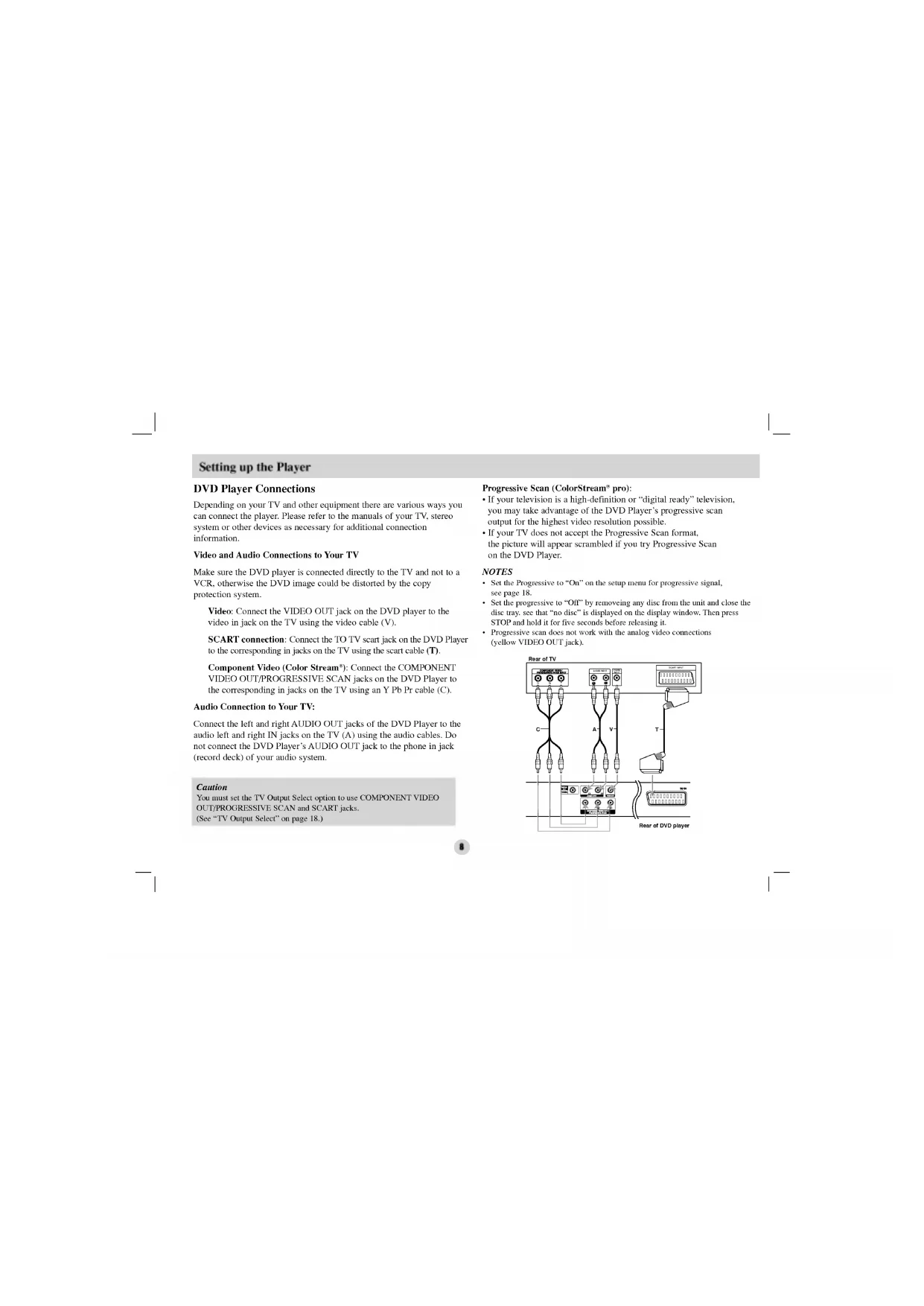
Ifyourtelevisionisa high-definition "digital ready" television,youmaytake advantage oftheDVD Player's progressive scanoutputforthe highest videoresolution possible.
the setup menu for progressivesignal, see page
"Off" byremoveing any disc from the unit and close the disc tray. see that "no disc"
for five seconds before releasing it.
Progressive scan does not work with the analog video connections (yellow VIDEO OUT jack). Setting
Caution You must set the
Output Select option
use COMPONENT VIDEO OUT/PROGRESSIVE SCAN and SCART jacks. (See "TV Output Select"
audio /video receiver equippedwith
audiocable.Digital Multi-channel soundAdigitalmulti-channelconnectionprovidesthebestsoundquality.Forthisyouneed multi-channelaudio/videoreceiverthatsupports one
the digital output does not match the capabilities
your receiver, the receiver produces
strong, distorted sound
Six Channel Digital Surround Sound via
digital connection can only
the on-screen display, press AUDIO. Setting upthe Player (continued) Amplifier (Receiver) Rear
AUDIO INPUT DIGITAL INPUT COAXIALOn-Screen Display Someitemscanbe changed using themenu.1.PressDISPLAY during playback. 2.Pressb toselectanitem.Theselecteditemis highlighted. 3.Pressv/Vto change the setting. PressENTER.Youcanalsousethenumberbuttonsif appropriate (e.g. inputting thetitle number). Title(Track) Number, Time search Chapter Number (DVD disc only) Moving
during playback. 2.PressSCAN
repeatedly toselectthe required speed. DVD;X2,X4,X16orX32VideoCD;X2,X4orX83.ToexitSearch mode, pressPLAY.StillPictureand Frame-by-Frame Playback Press PAUSE/STEP ontheremotecontrol during playback. Advancethe picture frame-by-frame
Chapter: repeats thecurrent chapter.
Title: repeats thecurrenttitle. Off:doesnotplay repeatedly. VideoCDs Track: repeats thecurrenttrack All: repeats allthetracksonadisc. Off:doesnotplay repeatedly. NOTES
with PBC, you must set PBC
once during Repeat Chapter (Track) playback, the repeat playback cancels. Random1.PressRANDOM during playback. Theunitautomatically begins random playback andRandomappearsontheTVscreen.2.Toreturntonormal playback, pressRANDOM repeatedly untilNormalappearsonthemenuscreen.TIPS
pressing SKIP during random playback, the unit selects another track and resumes random playback.
with PBC, You must set PBC
steps). 3UsethebBvVbuttonstomove through thezoomed picture. 4.Toresumenormal playback, pressCLEAR.NOTEZoommaynotworkonsomeDVDs.Camera Angle Ifthedisccontainsscenesrecordedatdifferentcamera angles, youcan change toadifferentcamera angle during playback. PressANGLE repeatedly during playback toselectadesired angle. Notethatthenumberofthecurrent angle appearsonthe display. SubtitlesPressSUBTITLE repeatedly during playback display thedifferentsubtitle languages. Changing theAudioChannelPressAUDIO repeatedly during playback tohearadifferentaudiochannel (Stereo, LEFTor RIGHT). LastScene Memory This player memorizeslastscenefromthelastdiscthatisviewed.Thelastsceneremainsinmemoryevenifyouremovethediscfromthe player orswitchoffthe player. Ifyouloadadiscthathasthescene memorized, thesceneis automatically recalled.NOTEThis player doesnotmemorizethesceneofadiscifyouswitchoffthe player before commencing play thedisc.ScreenSaverThescreensaverappearswhenyouleavetheDVD player Stop modeforaboutfiveminutes.IftheScreenSaveris displayed forfive minutes, theDVD Player automatically turnsitselfoff. System SelectYoumustselectthe appropriate system modeforyourTV system. Ifnodiscappearsinthe display window, pressandhold PAUSE/STEP formorethan5secondstobeabletoselecta system (PAL, NTSC, Auto).13AudioCDOnceyouinsertanaudioCDamenuappearsontheTVscreen.Pressv/VtoselectatrackthenpressPLAYorENTERto playback starts.MP3/WMA1.Pressv/Vtoselectafolder,andpressPLAYorENTERtoseethefoldercontents.2.Pressv/VtoselectatrackthenpressPLAYorENTER. Playback starts.TIPS?
the MUSIC menu and want
the Folder list, use the
with MP3/WMA and JPEG you can switch MP3/WMA and JPEG. Press
see the folder contents. MP3/WMAdisc compatibility withthis player islimited follows:?Sampling frequency: within
48kHz (WMA)? Bit rate: within
-320kbps(MP3), -192kbps(WMA)? The player cannot read
MP3/WMA file that has
file extension other than ".mp3" ".wma". CD-R physical format should
you record MP3 WMA files using software that cannot create
file system(eg.Direct-CD)
recommend that you use Easy-CDCreator, which creates
file system.? File names should have
letters and must incorporate
.wma extension. They should not contain special letters such
This DVD player requires discs and recordings
meet certain technical standards
achieve optimalplaybackquality. Pre-recorded DVDs are automatically set
these standards. There are many different types
recordable disc formats (including CD-R containing MP3
WMA files) and these require certain pre-existing conditions (seeabove)
ensure compatibleplayback.Customers should note that permission required
order download MP3/ WMA files and music from the Internet.Our company has right togrant such permission. Permission should always sought from the copyright owner. Playing Audio
WMA Disc Features Pause1.PressPAUSE/STEPduringplayback.2.Toreturntoplayback,pressPLAY,ENTER pressPAUSE/STEP again. Moving anotherTrack1.PressSKIP
during random playback, the unit selects another track and resumes random playback. RepeatTrack/All/NormalYou can play
disc.1.PressREPEATwhen playing
disc. Normal:doesnot play repeatedly.NOTE
you press SKIP once duringRepeat Track playback, the repeat playback cancels. RepeatA-B1.Torepeat sequenceduringdiscplaybackpressA-Batyourchosen starting point. The Repeat iconand"A"appear the menu screen. 2.PressA-B again atyourchosenend point. The Repeat iconand"AB"appear the menu screen, andthesequencebeginsto play repeatedly.3.Toexitthesequenceandreturntonormal play, pressA-B again. Search1.PressSCAN
duringplayback.2.PressSCAN
repeatedlytoselecttherequiredspeed.2X,4Xor8X3.ToexitSearch mode, pressPLAY. Playing Audio
select folder,andpressENTER
see thefolder contents. Moving
oncewhile viewing picture toadvancetothenextor previous file.Tor otate picture Press
during showing picture torotatethe picture clockwiseorcounterclockwise.StillPicture1.PressPAUSE/STEP during slideshow.The player willnowgointoPAUSEmode.2.Toreturntotheslideshow,pressPLAY,ENTERorpressPAUSE/STEP again. ZoomUsezoomto enlarge thevideo image. 1.PressZOOM during playback toactivatetheZoomfunction.2.EachpressoftheZOOMbutton changes thescreeninthesequence:100% 150% 200% 100%3UsethebBvVbuttonstomove through thezoomed picture. 4.Toresumenormal playback, pressCLEARorpressZOOM repeatedly toselectthe100%.JPEGdisc compatibility withthis player islimited follows: Depending upon the size and number
long time for the DVD player
read the disc's contents.
on-screen display after several minutes, some
reduce the resolution
pixels and burn another disc.
Ensure that all the selected files have the ".jpg" extensions when copying into the
the files have ".jpe" ".jpeg"extensions,please rename them
File names without ".jpg" extension will not
read this DVD player. Even though the files are shown
"YPbPr". CautionIfyourTVdoes not accept the Progressive Scan format, the picture willappearscrambledifyou try Progressive ScanontheDVD Player. Ifyou set Progressive Scan Onin error, you must reset theunit. PressB.Select"Off" using thev Vbuttons.The Setup menuappears. PressSTOPandholditforfivesecondsbefore releasing it.Thevideo output willberestored thestandard setting anda picture willonce again bevisibleonaconventional analog TVormonitor.TV Output SelectSetthe player's Output Select options according
mistake before pressing ENTER
each section, press CLEAR
delete password numbers one
one then correct it.
you enter the wrong password, you can not proceed
the next step. DVD Rating Unlock Password NEW Area code LOCK Move Select Exit DE21 Initial Settings Initial Settings (continued) Password (Security Code)Youcancreateor change password. 1.Select Password the LOCKmenu then pressB. The "Change" highlighted 2.Press ENTER then the password window willappear.3. make
change the password: When the "Old Password" sectionis highlighted, enter the 4-digit password you have created then press ENTER. The"New Password" sectionwill
highlighted. Enteranew 4-digit password using the numbered buttons then press ENTER. Enter the new 4-digit security password again verify when the "Confirm Password" sectionis highlighted. The "OK"will
highlighted. 4.PressSETUPtoexit the menu. you forget your Security Code Ifyou forget your security code youcanclearit using the following steps: 1.Removeany disc from the unit and close the disc tray. See that "nodISC" displayed the display window. 2.PressSETUP and setup menuapearson the TVscreen.Use the numbered buttons toenter the 6-digit number "210499". See that "P-CLr"is displayed the display window. 3.Enteranew password described above. Area Code Enter the code the area whose standards were used torate the DVD video disc, based the listin the reference chapter. 1.Select"Area Code" the LOCKmenu then pressB.2.Select the first character using
buttons. Shift the cursor using button and select the second character using
buttons then press ENTER, the password window willappear4.Press ENTER, the password window willappear.
youhaveentered password already: Entera 4-digit password you have entered using the numbered buttons. The "OK"will
highlighted. 6.Press ENTER toconfirmyourArea Code selection, then pressSETUPtoexit the menu.OTHERS ThePBC,Auto Play andB.L.E. settings canbe changed. PBCSet Playback Control(PBC)toOnorOff.On:VideoCDswithPBCare played according tothePBC.Off:VideoCDswithPBCare played thesamewayasAudioCDs.NOTES?PBC:Playback Control (Video
interact with the system via menus, search functions, other typicalcomputer-likeoperations. Moreover, still pictures high resolution can played theyare included
the disc. Video CDs not equipped with PBC (Version 1.1) operate
select the track you want
view and press RETURN
the menuscreen. Menu settings and operatingprocedures may differ. Follow the instructions the each menuscreen. You also may set PBC
Off. Auto Play YoucansetuptheDVD Player soaDVDdisc automatically starts playing whenevertheDVDisinserted.IfAuto Play modeisset toOn,thisDVD player willsearchfortitlethathasthe longest playback timeandthen play backthetitle automatically. On: Auto Play functionisactivated. Off: Auto Play functionisnotactivated.NOTETheAuto Play functionmaynotworkforsomeDVDs. B.L.E. (BlackLevel Expansion) Toselecttheblacklevelof playback pictures. Setyour preference andmonitor's ability. On: Expanded greyscale.(0IREcutoff) Off: Standardgreyscale.(7.5IREcutoff)NOTE The B.L.E. function works NTSC systemonly.DVDVCD Initial Settings (continued)
PBCOnOffAutoPlayOnB.L.E.OTHERSMoveSelectExit23 Reference Additional Information COPYRIGHTS:It isforbiddenbylawtocopy,broadcast,show,broadcastviacable, play public,
rent copyrighted materialwithoutpermission.This product featuresthecopyprotectionfunction developed byMacrovision.Copyprotectionsignals are recorded
some discs.Whenrecordingand playing thepicturesofthesediscs
controllable TVs more than one code number listed, try entering them one
allbuttonsmaynotfunction the TV, even after entering thecorrectmanufacturercode. Ifyouenter
new codenumber,thecodenumber previously enteredwillbeerased. Whenyou replace thebatteriesoftheremote,thecodenumberyouhavesetmayberesettothe default setting. Settheappropriatecodenumber again.24
oubleshooting Symptom Nopower.Thepowerison,buttheDVD player doesnotwork.No picture. Nosound.TheDVD player doesnotstart playback. Theremotecontroldoesnotwork properly. Possible Cause ?Thepowercordisdisconnected.?Nodiscisinserted.?TheTVisnotset toreceiveDVD signal output. ?Thevideocableisnotconnected securely. ?The equipment connectedwiththeaudiocableisnotset toreceiveDVD signal output. ?Thepowerofthe equipment connectedwiththeaudiocableisturnedoff.?TheAUDIO options are settothewrong position. ?An unplayable discisinserted.?The rating levelisset.?Theremotecontrolisnot pointed attheremote sensor
theDVD player. ?TheremotecontrolistoofarfromtheDVD player. Correction Plug thepowercordintothewalloutlet securely. ?Insert disc. (Check thattheDVD audioCDindicatorinthe display windowis lit.) ?Selectthe appropriate video input mode theTV.?Connectthevideocable securely. ?Selectthecorrect input modeoftheaudioreceiver you can listentothesoundfromtheDVD player. urn
the equipment connectedwiththeaudiocable.?Setthe Digital Audio Output tothecorrect position, thenturn theDVD player again