 ManualGo.com
65SM86007LA - TV LG - Free user manual and instructions
Find the device manual for free 65SM86007LA LG in PDF.



Download the instructions for your TV in PDF format for free! Find your manual 65SM86007LA - LG and take your electronic device back in hand. On this page are published all the documents necessary for the use of your device. 65SM86007LA by LG.
USER MANUAL 65SM86007LA LG
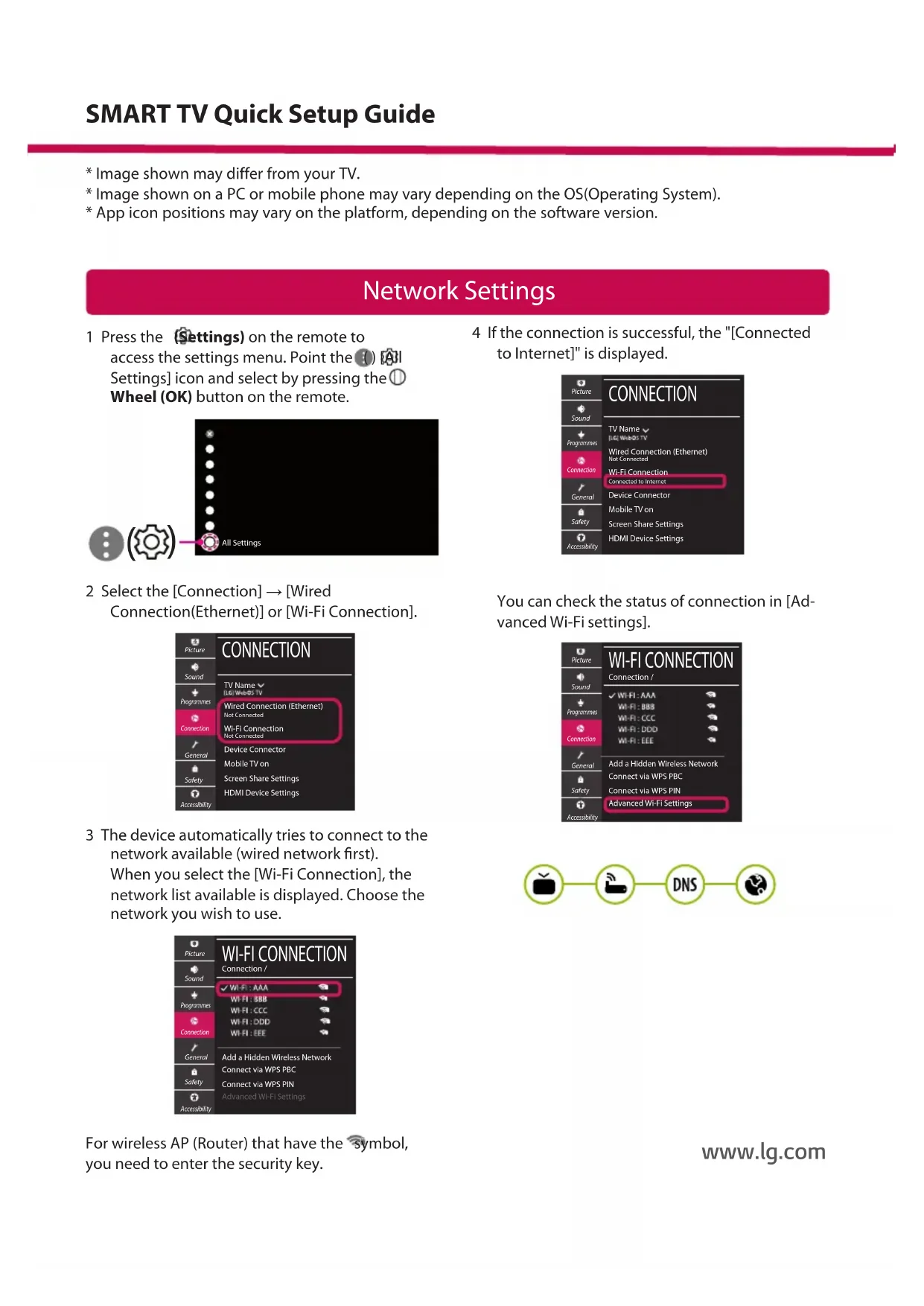
2 Select the [Connection] → [Wired Connection(Ethernet)] or [Wi-Fi Connection]. CONNECTION TV Name Wired Connection (Ethernet)Not ConnectedWi-Fi ConnectionNot ConnectedDevice ConnectorMobile TV onScreen Share SettingsHDMI Device SettingsPictureSoundProgrammesConnectionGeneralSafetyAccessibility 3 The device automatically tries to connect to the network available (wired network rst). When you select the [Wi-Fi Connection], the network list available is displayed. Choose the network you wish to use. WI-FI CONNECTION Connection / Add a Hidden Wireless NetworkConnect via WPS PBCConnect via WPS PINAdvanced Wi-Fi SettingsPictureSoundProgrammesConnectionGeneralSafetyAccessibility For wireless AP (Router) that have the symbol, you need to enter the security key. 4 If the connection is successful, the "[Connected to Internet]" is displayed. CONNECTION TV Name Wired Connection (Ethernet)Not ConnectedWi-Fi ConnectionConnected to InternetDevice ConnectorMobile TV onScreen Share SettingsHDMI Device SettingsPictureSoundProgrammesConnectionGeneralSafetyAccessibility You can check the status of connection in [Ad- vanced Wi-Fi settings]. WI-FI CONNECTION Connection / Add a Hidden Wireless NetworkConnect via WPS PBCConnect via WPS PINAdvanced Wi-Fi SettingsPictureSoundProgrammesConnectionGeneralSafetyAccessibility
- Image shown may differ from your TV.
- Image shown on a PC or mobile phone may vary depending on the OS(Operating System).
- App icon positions may vary on the platform, depending on the software version. SMART TV Quick Setup Guide www.lg.comTroubleshooting Network Problems 1 Press the (Settings) on the remote to access the settings menu. Point the ( ) [All Settings] icon and select by pressing the Wheel (OK) button on the remote. All Settings
2 Select the [Connection] → [Wired Connection (Ethernet)] or [Wi-Fi Connection] → [Advanced Wi-Fi Settings]. CONNECTION TV Name Wired Connection (Ethernet)Not ConnectedWi-Fi ConnectionNot ConnectedDevice ConnectorMobile TV onScreen Share SettingsHDMI Device Settings
WI-FI CONNECTION Connection / Add a Hidden Wireless NetworkConnect via WPS PBCConnect via WPS PINAdvanced Wi-Fi SettingsPicture PictureSound SoundProgrammes ProgrammesConnection ConnectionGeneral GeneralSafety SafetyAccessibility Accessibility Follow the instructions below that correlate to your network status. Check the TV or the AP (Router). When X appears next to TV:
Check the connection status of the TV, AP (Router).
Power off and power on the TV, AP (Router).
If you are using a static IP, enter the IP directly.
Contact internet service provider or AP (Router) company. Check the AP (Router) or consult your Internet service provider. When X appears next to Gateway:
Unplug the power cord of the AP (Router) and try to connect after 5 seconds.
Initialize (Reset) the AP (Router).
Contact internet service provider or AP (Router) company. When X appears next to DNS:
Unplug the power cord of the AP (Router) and try to connect after 5 seconds.
Initialize (Reset) the AP (Router).
Check that the MAC address of the TV/AP (Router) is registered with your Internet service provider. (The MAC address displayed on the right pane of the network status window should be registered with your Internet service provider.)
Check the AP (Router) manufacturer’s website to make sure your router has the latest firmware version installed.SmartShare Connection to Smartphone Updating the TV Firmware
- If the TV is turned on for the first time after it was shipped from the factory, initialization of the TV may take a few minutes. 1 (Settings) →
[All Settings] → [General] → [About This TV] → [CHECK FOR UPDATES] 2 After checking the version of the software, update it. If you check the "[Allow Automatic Updates]", you can update the software automatically. GENERAL LanguageLocationTime & DateTimersAI ServiceAccount ManagementEco ModeAbout This TVAdditional Settings PictureSoundProgrammesConnectionGeneralSafetyAccessibility