
Compaq 6510b - Laptop HP - Free user manual and instructions
Find the device manual for free Compaq 6510b HP in PDF.
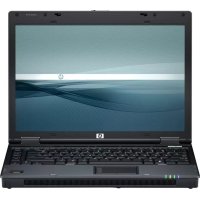

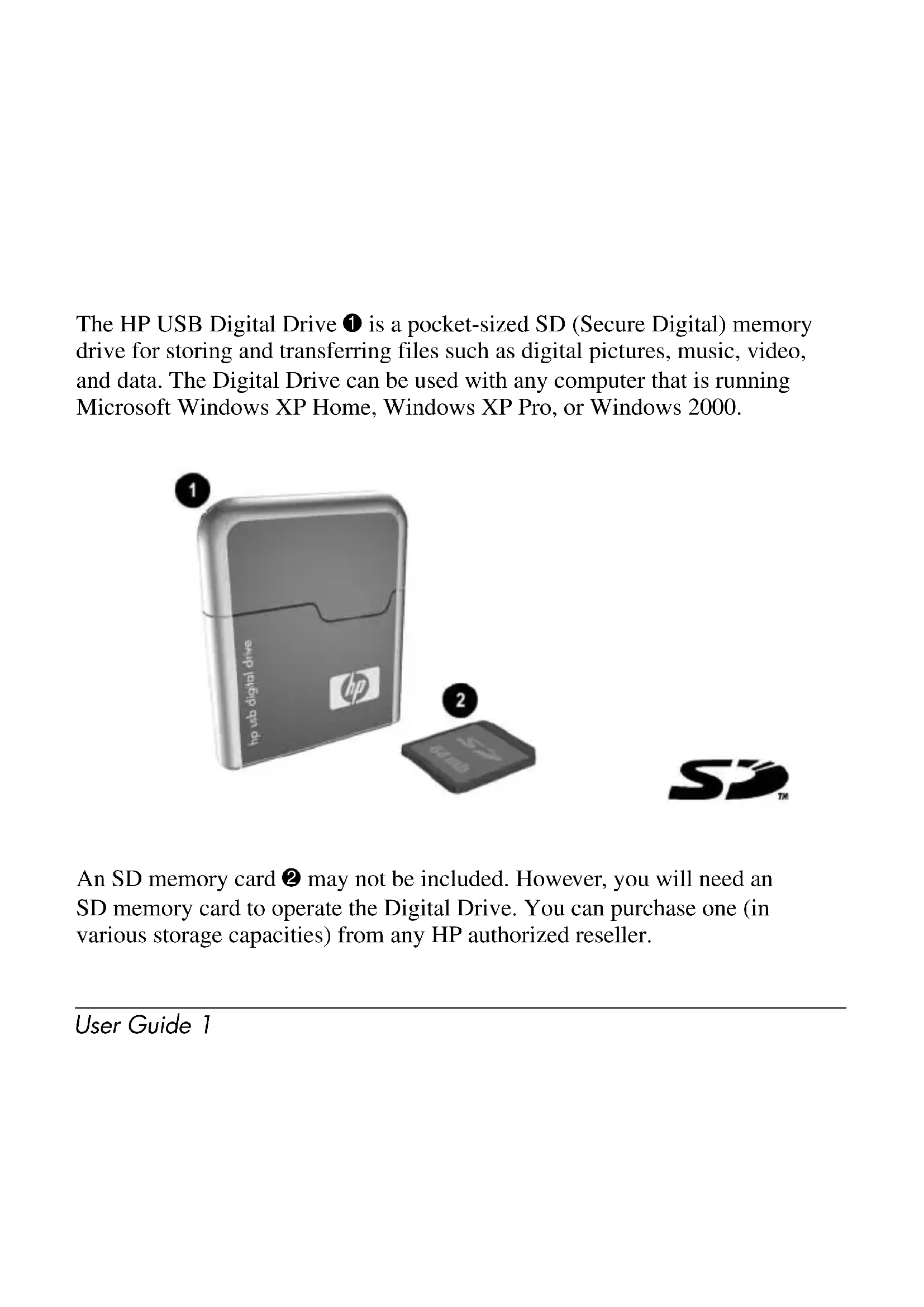


| Product type | Laptop |
| Brand | HP |
| Model | Compaq 6510b |
| Processor | Intel Core 2 Duo (up to 2.2 GHz) |
| RAM | Up to 4 GB DDR2 |
| Hard drive | SATA, capacity up to 160 GB |
| Screen | 14.1 inches, 1280x800 resolution |
| Graphics | Integrated Intel GMA X3100 |
| Connectivity | USB 2.0 (3 ports), VGA, Ethernet 10/100, Wi-Fi 802.11a/b/g, Bluetooth (depending on model) |
| Optical drive | DVD±RW burner |
| Battery | 6-cell Lithium-ion (about 3 hours battery life) |
| Power supply | 65 W AC adapter |
| Dimensions (W x D x H) | 33.0 x 24.0 x 3.0 cm |
| Weight | Approximately 2.4 kg |
| Operating system | Windows XP Professional or Vista Business |
| Maintenance and cleaning | Use a soft dry cloth, avoid liquids |
| Security | Kensington lock, fingerprint reader (depending on model) |
| Spare parts and repairability | Parts available from HP, easy access to components (RAM, hard drive) |
| General information | Durable professional laptop, magnesium chassis |
Frequently Asked Questions - Compaq 6510b HP
User questions about Compaq 6510b HP
0 question about this device. Answer the ones you know or ask your own.
Ask a new question about this device
Download the instructions for your Laptop in PDF format for free! Find your manual Compaq 6510b - HP and take your electronic device back in hand. On this page are published all the documents necessary for the use of your device. Compaq 6510b by HP.
USER MANUAL Compaq 6510b HP
The HP USB Digital Drive ① is a pocket-sized SD (Secure Digital) memory drive for storing and transferring files such as digital pictures, music, video, and data. The Digital Drive can be used with any computer that is running Microsoft Windows XP Home, Windows XP Pro, or Windows 2000.
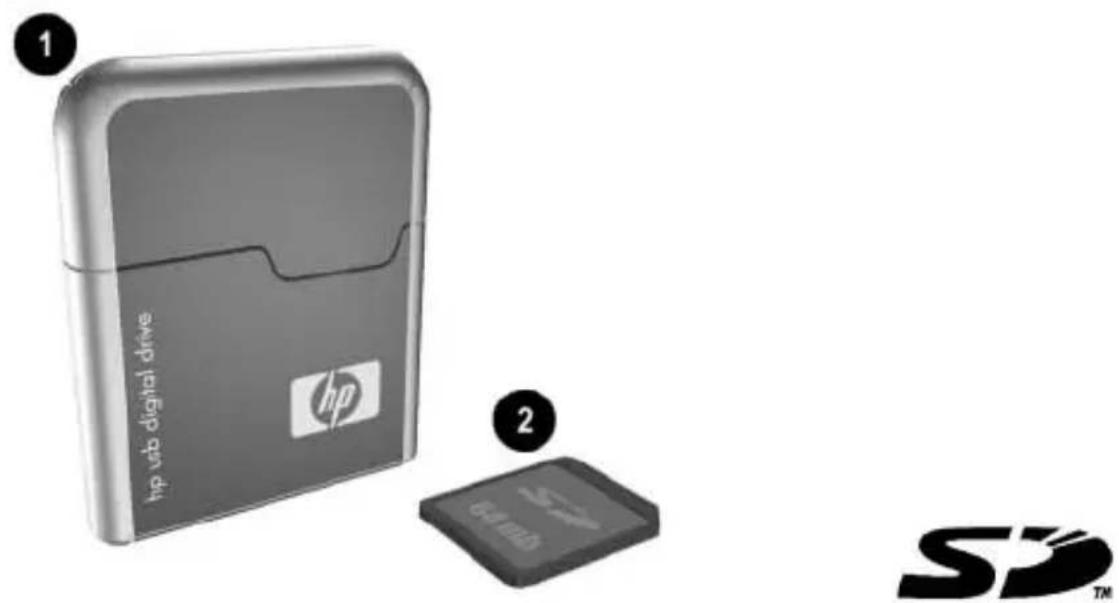
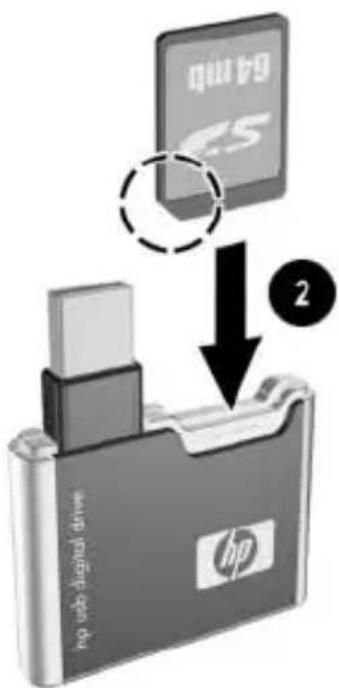
An SD memory card ② may not be included. However, you will need an SD memory card to operate the Digital Drive. You can purchase one (in various storage capacities) from any HP authorized reseller.
Installing the SD Memory Card
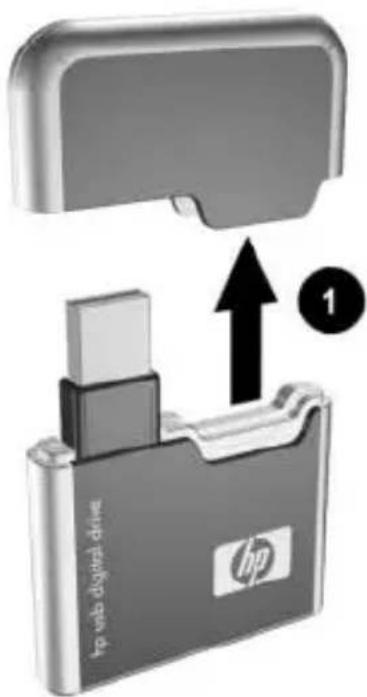
- Remove the cap of the Digital Drive.
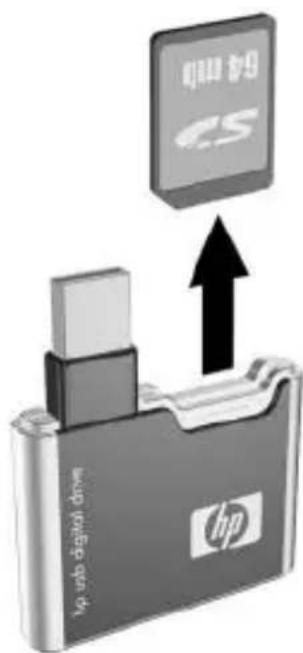
- Insert the SD memory card into the SD slot ② with the notched corner positioned on the lower left as shown. If the SD memory card does not slide in properly, gently pull it out and reinsert it.
Connecting the Digital Drive to a USB Port
The Digital Drive can be connected to a USB port on any computer either directly (with the USB connector cable in its unextended position) or by extension (with the USB connector cable extended). Refer to the documentation included with your computer for the USB port location.
To connect the Digital Drive to a USB port directly (with the connector cable in the unextended position):
Insert the USB connector on the Digital Drive into a USB port on your computer.
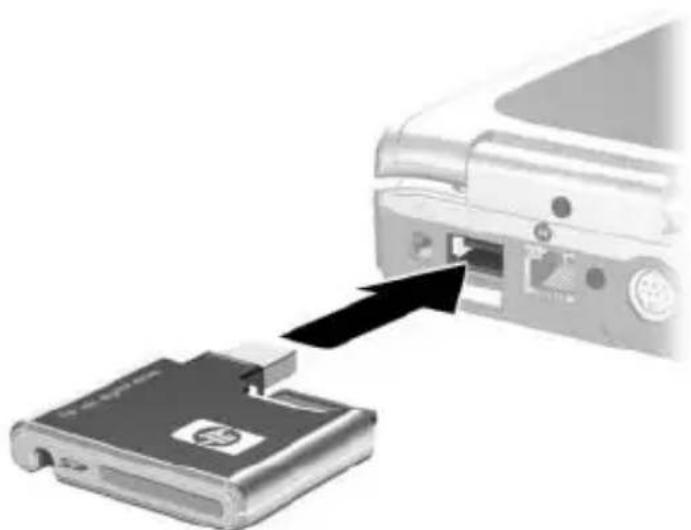
The status light on the Digital Drive turns on when the connection is successful. If the status light does not turn on, remove the Digital Drive from the USB port, then reinsert the USB connector.
To connect the Digital Drive to a USB port by extension (with the USB cable in its extended position):
- Rotate the USB connector cable out of its track gently until it is fully extended.
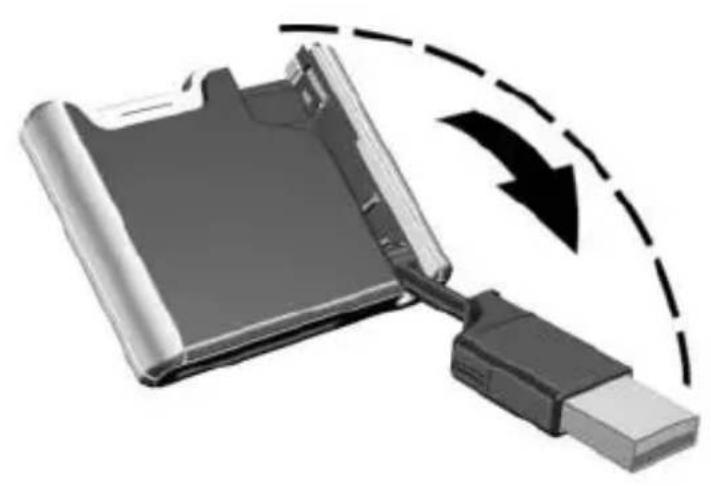
- Insert the USB connector on the Digital Drive into a USB port on your computer.
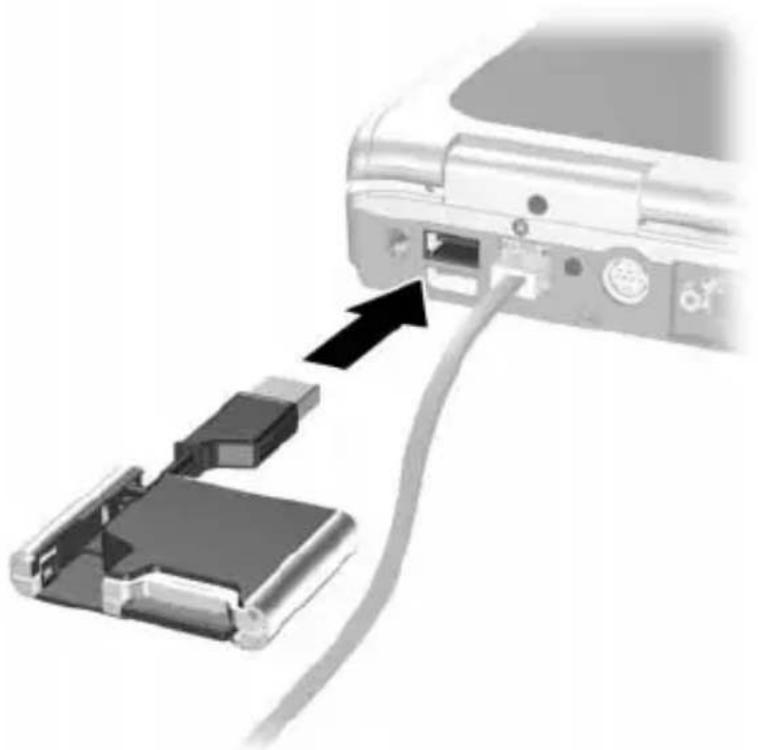
The status light on the Digital Drive turns on when the connection is successful. If the status light does not turn on, remove the Digital Drive from the USB port, then reinsert the USB connector.
Accessing the Digital Drive
You are now ready to use the Digital Drive as a storage device.
Select the Digital Drive icon in "My Computer" to display the contents of the Digital Drive.
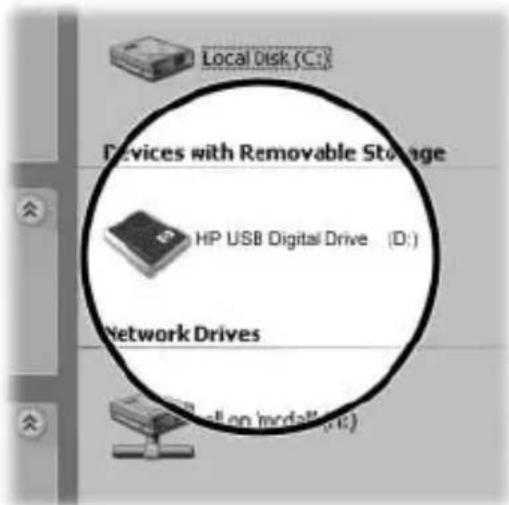

The status light on the Digital Drive flashes when you copy and move files to and from the Digital Drive.
Disconnecting the Digital Drive

Do not attempt to remove the Digital Drive when the status light on the Digital Drive is flashing.
- Select the "Safely Remove Hardware" icon on your taskbar.
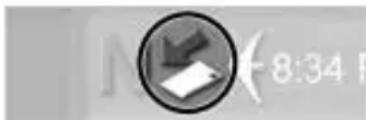
A dialog box displays a list of connected devices.
- Select the Digital Drive and wait until the "Safe to Remove Hardware" message appears on your screen.
- Gently unplug the Digital Drive from the USB port.

If the USB connector cable is in the extended position, return it on its track for safe storage.
Removing the SD Memory Card

Do not attempt to pull the SD memory card out when the status light on the Digital Drive is flashing.
After you disconnect the Digital Drive from your computer, gently pull the SD memory card from the Digital Drive.
Accessing Technical Support
Support services are available on the Internet through HP technical support. You can either browse the postings as a guest, or register as a user and submit your own questions. HP responds to questions in a timely manner.
To access HP technical support, visit the HP Web site at http://www.hp.com, and select your country or region.
When you call technical support, have the following items available:
The HP USB Digital Drive ■Conditions under which the problem occurred ■Error messages that have occurred ■Hardware and software you are using
© 2003 Hewlett-Packard Development Company, L.P.
Microsoft and Windows are trademarks of Microsoft Corporation in the U.S. and/or other countries. SD Logo is a trademark.
The information contained herein is subject to change without notice. The warranties for HP products and services are set forth in the express warranty statements accompanying such products and services. HP shall not be liable for technical or editorial errors or omissions contained herein.
User Guide HP USB Digital Drive First Edition July 2003
Brand : HP
Model : Compaq 6510b
Category : Laptop