ManualGo.com
 MEX-DV2200 - Car stereo SONY - Free user manual and instructions
Find the device manual for free MEX-DV2200 SONY in PDF.


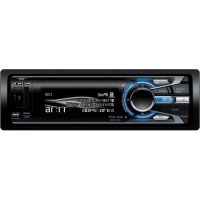
Download the instructions for your Car stereo in PDF format for free! Find your manual MEX-DV2200 - SONY and take your electronic device back in hand. On this page are published all the documents necessary for the use of your device. MEX-DV2200 by SONY.
USER MANUAL MEX-DV2200 SONY
Operating Instructions
The model and serial numbers are located on the bottom of the unit. Record the serial number in the space provided below. Refer to these numbers whenever you call upon your Sony dealer regarding this product. Model No.
©2008 Sony Corporation
To prevent fire or shock hazard, do not expose the unit to rain or moisture. To avoid electrical shock, do not open the cabinet. Refer servicing to qualified personnel only.
CAUTION The use of optical instruments with this product will increase eye hazard. As the laser beam used in this CD/DVD player is harmful to eyes, do not attempt to disassemble the cabinet.
Refer servicing to qualified personnel only.
This equipment has been tested and found to comply with the limits for a Class B digital device, pursuant to Part 15 of the FCC Rules.
These limits are designed to provide reasonable protection against harmful interference in a residential installation. This equipment generates, uses, and can radiate radio frequency energy and, if not installed and used in accordance with the instructions, may cause harmful interference to radio communications. However, there is no guarantee that interference will not occur in a particular installation. If this equipment does cause harmful interference to radio or television reception, which can be determined by turning the equipment off and on, the user is encouraged to try to correct the interference by one or more of the following measures: – Reorient or relocate the receiving antenna. – Increase the separation between the equipment and receiver. – Connect the equipment into an outlet on a circuit different from that to which the receiver is connected. – Consult the dealer or an experienced radio/TV technician for help. You are cautioned that any changes or modifications not expressly approved in this manual could void your authority to operate this equipment.
For the state of california, USA only
Perchlorate Material – special handling may apply, See www.dtsc.ca.gov/hazardouswaste/perchlorate Perchlorate Material: Lithium battery contains perchlorate Warning if your car’s ignition has no ACC position Be sure to set the Auto Off function (page 46). The unit will shut off completely and automatically in the set time after the unit is turned off, which prevents battery drain. If you do not set the Auto Off function, press and hold (OFF) until the display disappears each time you turn the ignition off. To cancel the demonstration (DEMO) display, see page 47. After resetting the unit, if you fail to set the initial speaker setup correctly due to time out or a mistake, the settings can be reconfigured in other menus. To set the speaker connection status, see page 40. To set the listening position, see page 37.
• Comply with the traffic laws in your country. • For your safety, the monitor connected to the FRONT VIDEO OUT turns off automatically when the parking brake is not applied. Preventing an accident Pictures and karaoke function are available only after you park the car and set the parking brake. If the car starts moving during video playback or karaoke mode, pictures from the FRONT VIDEO OUT automatically disappear after displaying the following caution. The monitor connected to the REAR VIDEO OUT is active while the car is in motion. The pictures on the screen are turned off and the karaoke mode is deactivated, but audio source can be heard.
Video blocked for your safety.
Karaoke function blocked.
Do not operate the unit or watch the monitor while driving.
Advanced Operations — Radio
Enjoying Surround Sound
For installation and connections, see the supplied installation/connections manual.
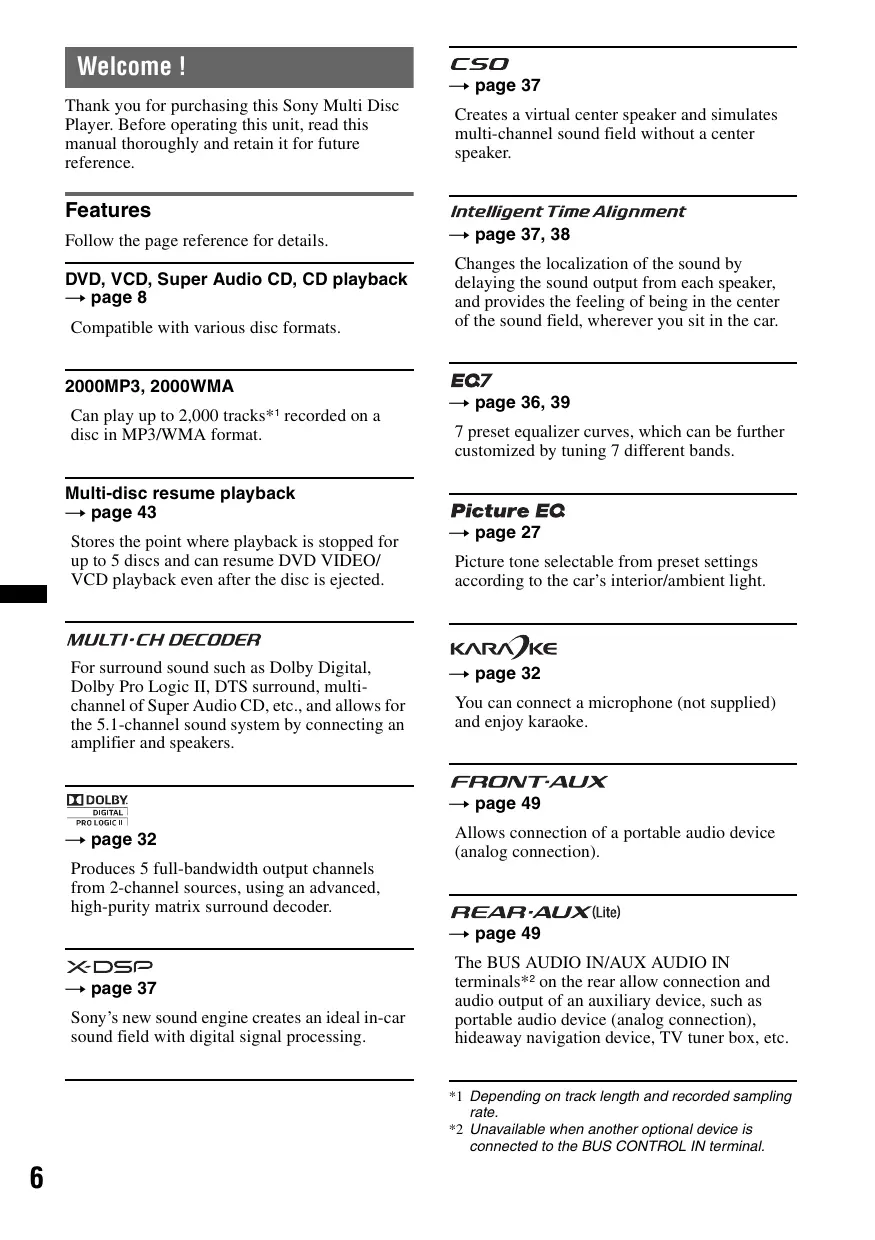
Thank you for purchasing this Sony Multi Disc Player. Before operating this unit, read this manual thoroughly and retain it for future reference.
Creates a virtual center speaker and simulates multi-channel sound field without a center speaker.
Follow the page reference for details. DVD, VCD, Super Audio CD, CD playback t page 8 Compatible with various disc formats. 2000MP3, 2000WMA Can play up to 2,000 tracks*1 recorded on a disc in MP3/WMA format.
Changes the localization of the sound by delaying the sound output from each speaker, and provides the feeling of being in the center of the sound field, wherever you sit in the car.
7 preset equalizer curves, which can be further customized by tuning 7 different bands.
Multi-disc resume playback t page 43
Stores the point where playback is stopped for up to 5 discs and can resume DVD VIDEO/ VCD playback even after the disc is ejected.
For surround sound such as Dolby Digital,
Dolby Pro Logic II, DTS surround, multichannel of Super Audio CD, etc., and allows for the 5.1-channel sound system by connecting an amplifier and speakers.
Picture tone selectable from preset settings according to the car’s interior/ambient light.
You can connect a microphone (not supplied) and enjoy karaoke.
Allows connection of a portable audio device
(analog connection).
Produces 5 full-bandwidth output channels from 2-channel sources, using an advanced, high-purity matrix surround decoder. t page 49 t page 37
Sony’s new sound engine creates an ideal in-car sound field with digital signal processing.
The BUS AUDIO IN/AUX AUDIO IN terminals*2 on the rear allow connection and audio output of an auxiliary device, such as portable audio device (analog connection), hideaway navigation device, TV tuner box, etc.
*1 Depending on track length and recorded sampling rate. *2 Unavailable when another optional device is connected to the BUS CONTROL IN terminal.
This product incorporates copyright protection technology that is protected by method claims of certain U.S. patents, other intellectual property rights owned by Macrovision Corporation, and other rights owners. Use of this copyright protection technology must be authorized by Macrovision Corporation, and is intended for home and other limited viewing uses only unless otherwise authorized by Macrovision Corporation. Reverse engineering or disassembly is prohibited.
The “SAT Radio Ready” logo indicates that this product will control a satellite radio tuner module (sold separately). Please see your nearest authorized
Sony dealer for details on the satellite radio tuner module. “SAT Radio,” “SAT Radio Ready,” the SAT Radio and SAT Radio Ready logos and all related marks are trademarks of Sirius Satellite Radio Inc. and XM Satellite Radio Inc.
Manufactured under license from Dolby Laboratories.
“Dolby,” “Pro Logic,” and the double-D symbol are trademarks of Dolby Laboratories. Manufactured under license under U.S. Patent #'s: 5,451,942; 5,956,674; 5,974,380; 5,978,762; 6,487,535 & other U.S. and worldwide patents issued & pending. DTS and DTS Digital Surround are registered trademarks and the DTS logos and Symbol are trademarks of DTS, Inc. © 1996-2007 DTS, Inc. All Rights Reserved.
Windows Media, and the
Windows logo are trademarks or registered trademarks of Microsoft Corporation in the United States and/or other countries. This product is protected by certain intellectual property rights of Microsoft Corporation. Use or distribution of such technology outside of this product is prohibited without a license from Microsoft or an authorized Microsoft subsidiary.
“DVD VIDEO,” “DVD-R,” “DVD-RW,”
“DVD+R,” and “DVD+RW” are trademarks.
The “HD Radio Ready” logo indicates that this product will control a Sony HD RadioTM tuner
(sold separately). For HD RadioTM tuner operation, please refer to the HD RadioTM tuner Operating Instructions. HD RadioTM and the HD Radio Ready logo are proprietary trademarks of iBiquity Digital Corp.
Playable discs and symbols used in this manual
This unit can play various video/audio discs. The following chart helps you to check if a disc is supported by this unit, as well as what functions are available for a given disc type. Disc symbol in manual
*1 Audio files can also be stored. For details, see page 9.
*2 Image files can also be stored. For details, see page 9. Note “DVD” may be used in this manual as a general term for DVD VIDEOs, DVD-Rs/DVD-RWs, and DVD+Rs/ DVD+RWs.
The following chart shows the supported compression formats, their file types, and the disc types on which those files can be stored.
Available functions differ depending on the format, regardless of disc type. The format symbols below appear next to the description of functions available for that format. Format symbol in manual
CD-ROM CD-R CD-RW Tip
For details on compression formats, see page 53.
The following discs cannot be played on this unit. • 8 cm (3 1/4 in) discs • 12 cm (4 3/4 in) discs utilizing only the inner 8 cm (3 1/4 in) data portion (the rest is transparent) • CD-ROM containing files other than MP3/WMA/JPEG • CD-G • Photo-CD • VSD (Video Single Disc) • DVD-ROM containing files other than MP3/WMA/JPEG • DVD-RAM • DVD-Audio • Active-Audio (Data) • SVCD (Super Video CD) • CDV • Discs created in Packet Write format Note Even compatible discs may not be playable on this unit, depending on their recorded condition.
The region system is used to protect software copyrights.
The region code is located on the bottom of the unit, and only DVDs labeled with an identical region code can be played on this unit.
If you try to play any other DVD, the message “Playback prohibited by region code.” will appear on the monitor screen. Depending on the DVD, no region code may be labeled even though playing the
DVD is prohibited by area restrictions.
Location and function of controls
OPEN SEEK SOURCE DSPL MODE REP PUS SEEK
Refer to the pages listed for details.
Instructions in this manual generally describe the controls on the card remote commander. You can also use the controls on the main unit if they have the same or similar names to those on the card remote commander. A OFF button page 14, 16, 18, 23 To power off/stop the source (press); shut off completely (press and hold). B
(Back)/DSPL (Display) button page 24, 49
To return to the previous display/change display items.
C SOURCE button page 14, 15, 20, 36,
50 To power on; change the source (Radio/Disc/ AUX)*1. D m (Microphone) button page 32 To activate the karaoke mode. E Control dial/SOUND/ENTER button page 14, 26, 33, 34, 36, 39, 40, 45, 49, 50 To adjust the volume/adjust a setting (rotate); open the sound menu/apply a setting (press). F Receptor for the card remote commander G Display window H OPEN button page 15, 16, 17, 18 I SEEK +/– buttons page 17, 19, 20, 22 Disc: To skip a chapter/track/scene (press); reverse/fast-forward disc (press and hold momentarily); reverse/fast-forward track (press and hold).*2 Radio: To tune in stations automatically (press); find a station manually (press and hold).
K L SETUP button page 26, 35, 36, 39, 40,
45, 49, 50 To open the system setup menu. M Number buttons Disc: (1): b REP page 16, 17, 30, 51 (2): SHUF B page 16, 17, 30, 51 (3)/(4): ALBUM –/+ (V/v) page 16, 17, 19, 22, 50 To skip an album/move the cursor (press); skip albums continuously (press and hold).*4 (6): u (play/pause) page 16, 17, 18, 19, 22 To start/pause playback. Radio: To receive stored stations (press); store stations (press and hold). N SCRL (Scroll) button To scroll the display item. O AUX input jack page 49 To connect a portable audio device. P RESET button page 14 Q Z (eject) button page 17, 18 To eject the disc. R Disc slot page 16, 18 To insert the disc. *1 While the auxiliary device such as a CD changer, HD Radio tuner or SAT tuner is connected, “CDC”, “HD,” “XM” or “SR” appears on the display when (SOURCE) is pressed. You can switch the changer, HD Radio tuner band or SAT tuner band by pressing (MODE) if several auxiliary devices are connected. *2 Operation differs depending on the disc (page 17, 19). *3 When a Super Audio CD/CD/MP3/WMA/JPEG is played. *4 If the changer is connected, operation is different (page 50).
J MODE button page 20, 36, 50
To select the radio band (FM/AM); select an auxiliary device.*1
Card remote commander RM-X169
Refer to the pages listed for details.
Remove the insulation film before use (page 15). A OFF button page 14, 16, 18, 23 To power off/stop the source (press); shut off completely (press and hold). B SOUND button page 33, 36, 37 To open the sound menu. C VISUAL SETUP button page 23, 26, 27, 28, 29, 30, 31, 35, 38, 41 To open the play mode/visual setup menu.
(Back)/O (Return) button page 22,
24, 29, 35, 38, 41 To return to the previous display; return to the menu on a VCD*1.
P SRC (Source) button page 20, 36, 50
To power on; change the source (Radio/Disc/ AUX)*5.
F Number buttons page 16, 17, 22, 23,
24, 29, 31, 36 Disc: To locate a title/chapter/track. Radio: To receive stored stations (press); store stations (press and hold).
Q MODE button page 20, 36, 50
To select the radio band (FM/AM); select an auxiliary device.*5
G CLEAR button page 29, 31
To delete an entered number.
R VOL (Volume) +/– buttons
To adjust the volume.
H DSPL (Display) button page 24, 49
To change display items.
*1 When playing with PBC function.
*2 Operation differs depending on the disc (page 17, 19). *3 When the SAT tuner is connected. *4 When a Super Audio CD/CD/MP3/WMA/JPEG is played. *5 While the auxiliary device such as a CD changer, HD Radio tuner or SAT tuner is connected, “CDC”, “HD,” “XM” or “SR” appears on the display when (SOURCE) is pressed. You can switch the changer, HD Radio tuner band or SAT tuner band by pressing (MODE) if several auxiliary devices are connected.
J ATT (Attenuate) button
To attenuate the sound (to cancel, press again). K u (Play/Pause) button page 16, 17, 18, 19, 22 To start/pause playback. L .m/M> buttons page 17, 19, 20, 22 Disc: To skip a chapter/track/scene (press); reverse/fast-forward disc (press and hold momentarily); reverse/fast-forward track (press and hold).*2 Radio: To tune in stations automatically (press); find a station manually (press and hold).
If the unit is turned off and the display disappears, it cannot be operated with the card remote commander unless (SOURCE) on the main unit is pressed, or a disc is inserted to activate the unit first.
M DVD playback setting buttons
(AUDIO): page 17, 25 To change the audio language/format. (For VCD/CD/MP3/WMA, to change the audio channel.) (SUBTITLE): page 17 To change the subtitle language. (ANGLE): page 17 To change the viewing angle. (TOP MENU): page 17 To open the top menu on a DVD. (MENU): page 17 To open the menu on a disc.
N O </M/m/, (Cursor)/ENTER buttons
To move the cursor and apply a setting.
Performing initial setup
Installing the unit and an optional monitor
Firstly, install and connect the unit and an optional monitor. This unit can be operated using the displays that appear on the unit and/or the optional monitor. Note that this manual includes instructions concerning displays on both unit and/or optional monitor.
OFF SOURCE Control dial
After resetting, the display for initial speaker setup appears.
Be sure to set correctly following the procedure below to enjoy the various sound functions of this unit.
To skip the initial setup, press (OFF)/ (SOURCE), or insert a disc. Note The initial setup display automatically changes to the center speaker setup if no operation is performed for 30 seconds. During setup procedure, it is canceled if no operation is performed for 15 seconds.
Press the control dial in the initial setup display.
Rotate the control dial to set the center speaker connection status, then press it.
Select “C ON” if the center speaker is connected, or select “C OFF” if not.
Rotate the control dial to set the subwoofer connection status, then press it.
Select “SUB ON” if the subwoofer is connected, or select “SUB OFF” if not.
For details, see the supplied installation/ connections manual.
Note Be sure to install the optional monitor safely, and in a place where it does not obstruct the driver’s view.
Before operating the unit for the first time, or after replacing the car battery or changing the connections, you must reset the unit. Detach the front panel (page 15) and press the RESET button (page 10) with a pointed object, such as a ball-point pen. Note Pressing the RESET button will erase the clock setting and some stored contents.
Rotate the control dial to select your listening position, then press it.
Select “FRONT L” if your listening position is front left, or select “FRONT R” if front right. The clock display appears when the setting is complete.
This setting can then be further configured in setup or the sound menu.
For details on setting the speaker connection status, see “Speaker configuration and volume setup” on page 40. For details on setting the listening position, see “Optimizing sound for the listening position — Intelligent Time Alignment” on page 37. Note If you set to “C ON” without connecting the center speaker, vocal sound is not output, and if you set to “SUB ON” without connecting the subwoofer, bass sound is not output. With the card remote commander Press M/m instead of rotating the control dial, press (ENTER) instead of pressing the control dial.
Preparing the card remote commander
Press (OPEN) while the unit is off.
The front panel is flipped down.
Slide the front panel to the right, then gently pull out the left end of the front panel.
2 Notes • Do not drop or put excessive pressure on the front panel and display window. • Do not subject the front panel to heat/high temperature or moisture. Avoid leaving it in a parked car or on a dashboard/rear tray.
Attaching the front panel
Place the hole A of the front panel onto the spindle B on the unit, then lightly push the left side in. Press (SOURCE) on the main unit (or insert a disc) to operate the unit.
Remove the insulation film.
For how to replace the battery, see page 53.
Detaching the front panel
Do not put anything on the inner surface of the front panel.
You can detach the front panel of this unit to prevent theft.
If you turn the ignition switch to the OFF position without detaching the front panel, the caution alarm will sound for a few seconds. The alarm will only sound if the built-in amplifier is used.
Depending on the disc, some operations may be different or restricted. Refer to the operating instructions supplied with your disc.
Turn on your monitor, then select the input source on your monitor corresponding to this unit.
Press (OPEN) on the main unit.
Close the front panel.
Playback starts automatically. If playback does not start automatically, press u.
If the DVD menu appears, press (1)(b)/(2)(B)/(3)(V)/(4)(v) to move the cursor, then press (6) (u) to confirm.
With the card remote commander, press the </M/m/,/number buttons to move the cursor, then press (ENTER) to confirm.
Press (OPEN) on the main unit.
Press Z (rear of front panel).
A DVD is divided into several sections, which make up a picture or music feature. These sections are called “titles.” When you play a DVD that contains several titles, you can select a desired title using the DVD’s top menu. For DVDs that allow you to select items such as subtitle/sound language(s), select these items using the DVD menu.
Other playback operations
pause/resume play after pause
skip a chapter/track/scene
reverse/fast-forward disc
and hold .m/M> momentarily; and then repeatedly to switch the speed (× 2 t × 12 t × 120 t
cancel reverse/fast-forward
select items in the DVD menu*
Main unit: (1)(b)/(2)(B)/(3)(V)/(4)(v) to move the cursor, then press (6) (u) to confirm
Remote: </M/m/,/number buttons to move the cursor, then press (ENTER) to confirm
change audio language/format/channel
Remote: (AUDIO) repeatedly until the desired item appears
turn off/change the subtitle language*1
Remote: (SUBTITLE) repeatedly until the desired item appears*2
change the viewing angle*1
Remote: (ANGLE) repeatedly until the desired angle number appears
*1 Unavailable depending on the disc.
*2 When the 4-digit input prompt appears, input the language code (page 60) for the desired language.
Depending on the disc, some operations may be different or restricted. Refer to the operating instructions supplied with your disc.
Press (OPEN) on the main unit.
Close the front panel.
Playback starts automatically. If playback does not start automatically, press u.
Press (OPEN) on the main unit.
Press Z (rear of front panel).
Other playback operations
pause/resume play after pause
reverse/fast-forward track
Main unit: (3) (ALBUM –)/(4) (ALBUM +)
skip albums continuously*
Main unit: and hold (3) (ALBUM –)/(4) (ALBUM +)
Remote: and hold M/m
* When an MP3/WMA is played.
Listening to the radio
SOURCE SRC MODE SEEK
Press (SOURCE) repeatedly until “TUNER” appears.
Press (MODE) repeatedly until the desired band (FM1, FM2, FM3,
AM1 or AM2) appears. A
B A Radio band/Function
To tune automatically Press (SEEK) –/+. Scanning stops when the unit receives a station. Repeat this procedure until the desired station is received. To tune manually Press and hold (SEEK) –/+ to locate the approximate frequency, then press (SEEK) –/+ repeatedly to fine adjust to the desired frequency.
For details on other radio functions, see “Advanced Operations — Radio” on page 36. With the card remote commander Use (SRC) instead of (SOURCE), and .m/M> instead of (SEEK) –/+.
Enjoying Surround Sound
2 Enjoying 2-channel sources in multi-channel sound
Creating an ideal field for multi-channel sound
x For VCD/CD/MP3/WMA/AUX playback or radio reception
1 Activate Dolby Pro Logic mode.
A procedure example to create an ideal field for multi-channel (5.1-channel) sound is introduced in this section. Follow the page reference for details.
Set the speaker configuration.
Set the connection status of the center speaker and subwoofer. t By initial setup (page 14) t By system setup (page 40)
2 Activate CSO if a center speaker is not connected. t page 37
3 Enjoying multi-channel sources x For playback of DVD/CD in multichannel format (Dolby Digital, DTS, etc.)
1 Activate CSO if a center speaker is not connected.
Select your listening position.
To select “FRONT L” (front left) or “FRONT R” (front right) t By initial setup (page 14) t By the sound menu (page 37) t By visual setup (page 38)
x For playback of the multi-channel area of an Super Audio CD
1 Set “SUPER AUDIO CD MODE”/“SACD MOD” to “HQ.” t page 35
To select “FRONT” (center front) or
HPF/LPF (page 48) settings are deactivated when set to “HQ.”
t By the sound menu (page 37) t By visual setup (page 38)
To calibrate precisely
4 Sound characteristic adjustment
t By visual setup (page 38) t By system setup (page 39)
Adjust the following items according to your preference.
Adjust the volume of each connected speaker.
Adjust the volume from each speaker so that their perceived level is equal from your listening position. t page 40
Set the cut-off frequencies of the front/ rear speaker (HPF) and subwoofer
* Not available if CSO is activated.
Adjust the balance (BAL) and fader
(FAD) of speakers. t page 36
Advanced Operations — Discs
This chapter consists of the following sections. • Video-specific operations* t page 22 to 29 • Video*/audio common operations t page 30 to 34 • Audio-specific operations t page 34 to 35 * Including JPEG operations.
Other playback operations
</, (rotates every 90º)
(3) (ALBUM –)/ (4) (ALBUM +)
skip albums continuously
Main unit: and hold (3) (ALBUM –)/
• If a large-sized image is rotated, it may take longer to display. • Progressive JPEG files cannot be displayed. Tip You can also select a file to play using a list (QuickBrowZer) (page 33).
If the disc contains multiple file types, only the selected file type (audio/image) can be played. To play JPEG image files of such a disc, press during playback, select the file type (image) to list up, then select the desired file (page 34).
You can enjoy a slide show of JPEG files on this unit. The slide show starts automatically when you insert a disc or press u. For details on how to start playback, follow step 1 to 4 of “Playing video discs” on page 16.
The PBC menu assists your operation interactively while a PBC compatible VCD is played.
Start playing a PBC compatible VCD.
The PBC menu appears.
Press the number buttons to select the desired item, then press (ENTER).
Follow the instructions in the menu for interactive operations.
To return to the previous display, press O.
Playing without the PBC function
During playback, press (OFF).
Press the number buttons to select the desired item, then press (ENTER).
“Play without PBC.” appears and playback starts. The PBC menu does not appear during playback.
• The items on the menu, and operation procedures differ depending on the disc. • During PBC playback, the track number, playback item, etc., do not appear in the play mode menu (page 23). • Resume playback is unavailable during playback without PBC. Tip To resume PBC playback, stop playback by pressing (OFF), then press u.
Using play mode menu
ENTER Number buttons
E.g., when playing a DVD B C D EF
1:ENGLISH 2:FRENCH 3:SPANISH SUBTITLE Select :
I H ENTER J A Play mode menu items
For details, see “List of play mode menu items” on page 24. B DVD: Title number/Total VCD: Track number/Total*1 JPEG: Album number/Total C DVD: Chapter number/Total JPEG: Image number/Total D Elapsed playback time*2 E Format F Playback status (PLAY N, PAUSE X, etc.) G Current setting H Options I Selected item J Selected item name and/or operation assist messages *1 When playing a VCD with the PBC function (page 22), no indication appears. *2 During JPEG playback, no indication appears.
continue to next page t
You can use the play mode menu on this unit to control playback or configure playback settings. To show the play mode menu, press (VISUAL SETUP) during playback. To hide, press (VISUAL SETUP) again. Notes • During audio disc playback, (VISUAL SETUP) is inactive. • During JPEG playback, (VISUAL SETUP) is active only when an image is fully displayed. Tip If you press (VISUAL SETUP) while the playback is stopped, the visual setup menu (by the monitor) appears where you can configure various settings, such as display language, audio adjustment, etc. (page 41).
List of play mode menu items
To adjust picture quality.
Press </M/m/,/number buttons to select an item, then press (ENTER).
To return to the previous display, press O. Refer to the pages listed for details.
* Excluding DVD-R/DVD-R DL/DVD-RW in VR mode.
To select a title, scene or track to play.
When “SHUFFLE” or “REPEAT” is activated or “ANGLE” is available, its check-box lights up in green (e.g., t ). However, you may not be able to change the angle depending on the scene, even if the check-box is lit in green.
To select an album to display.
Viewing time/text information of the disc
To select a chapter to play. IMAGE 31 To select an image to display. TIME 31 To check the elapsed playback time; input time code. AUDIO 17, 25 To change the audio language/format/channel; check the program format.
DSPL Checking time information
The playback time and remaining time of the current title, chapter, track, etc., can be checked during video/image playback.
To turn subtitles on or off/change the subtitle language.
During playback, press (DSPL).
The current playback information appears.
To change the angle.
To magnify an image. REPEAT 30 To play a title/chapter/track/album/image repeatedly.
To play chapters/tracks/images in random order. *
Press (DSPL) repeatedly to switch the time information.
Time information differs depending on the disc/ format as follows.
DVD playback • T **:**:** Elapsed playback time of the current title • T-**:**:** Remaining time of the current title
Elapsed playback time of the current chapter • C-**:**:** Remaining time of the current chapter
Changing the audio language/ format
(Only when playing version 1.0/1.1, or version 2.0 without PBC function.) • T **:** Elapsed playback time of the current track • T-**:** Remaining time of the current track • D **:** Elapsed playback time of the current disc • D-**:** Remaining time of the current disc
The audio language can be changed if the disc is recorded with multilingual tracks. You can also change the audio format when playing a disc recorded in multiple audio formats (e.g., Dolby
Digital). During playback, press (AUDIO) repeatedly until the desired audio language/format appears. Audio language/format
1:ENGLISH Dolby D JPEG playback
• Album number/Total • Image number/Total The audio language switches among the available languages. When the 4-digit input prompt appears, input the language code (page 60) for the desired language. When the same language is displayed two or more times, the disc is recorded in multiple audio formats.
Checking text information
The text information (album name, image name, etc.) of JPEG files can be checked. Album/image number 037(325)
Changing the audio channel
When playing VCD/CD/MP3/WMA, you can select the right or left channel sound to listen through both right and left speakers. The options are indicated below.
* Album name appears when the album number is displayed. Image name appears when the image number is displayed. “NO TEXT” appears if there is no text information.
STEREO (ST): Standard stereo sound (default)
1/L (L): Left channel sound (monaural) 2/R (R): Right channel sound (monaural)
During playback, press (AUDIO) repeatedly until the desired audio channel appears.
E.g., when playing an MP3
Configuring audio settings
VISUAL SETUP AUDIO Audio channel
TRACK NAME ALBUM NAME ARTIST NAME MP3
You may not be able to change the audio setting depending on the disc. Tip You can also change the settings of video discs by selecting “AUDIO” in the play mode menu (page 23).
Checking the program format
Adjusting the audio output level
You can check the number of channels and component position on the DVD VIDEO being played.
The audio output level differs depending on the recorded format. To reduce the volume level differences between disc and source, you can adjust audio output level according to the recorded format. The default level is set for PCM format, and the level for Dolby Digital and DTS format can be adjusted separately from the default level.
During playback, press
(VISUAL SETUP). The play mode menu appears.
The program format appears.
Current audio format*
12(67) 018(034) T 1:35:55
1:ENGLISH Dolby D During playback, press
(SYSTEM SETUP). The system setup item appears on the main unit.
Press M/m to select “DVD-LVL,” then press (ENTER).
Press m to set to “ADJST ON,” then press (ENTER).
Press M/m to select “DOLBY ADJ” or
“DTS ADJ,” then press (ENTER).
Press M/m to adjust the output level.
The output level is adjustable in single steps, between –10 and +10.
R RS Current program format
* “PCM,” “DOLBY DIGITAL,” “DTS,” etc., appears depending on the disc.
The letters in the program format display represent the following sound components and its position.
: Front (left) : Front (right) : Center : Rear (left) : Rear (right) : Rear (monaural): The rear component of the Dolby Surround processed signal and the Dolby Digital signal : Low Frequency Effect signal The program format name and channel numbers appear as follow. Example: Dolby Digital 5.1 ch Rear component × 2
DIGITAL Press (ENTER).
The setting is complete.
To hide the system setup display, press
(SYSTEM SETUP). With the main unit Press (SETUP) instead of (SYSTEM SETUP), rotate the control dial instead of pressing M/m, then press the control dial instead of (ENTER).
DOLBY DIGITAL 3 / 2 . 1
Front component × 2 + Center component × 1
VISUAL SETUP To hide the play mode menu, press
ENTER You can magnify pictures.
During playback, press
(VISUAL SETUP). The play mode menu appears.
(CENTER ZOOM), then press (ENTER). The current option appears. 12(67) 018(034) T 1:35:55
Press M/m to select the desired option
(×1, ×1.6*), then press (ENTER). * The picture may become grainy.
The picture is magnified.
To hide the play mode menu, press (VISUAL SETUP). To scroll the picture, press </M/m/,. To restore the original scale, select “×1” in step 3. Notes • Depending on the disc, you may not be able to change the magnification. • When you resume playback, the picture returns to its original scale.
(PICTURE PLAY DVD VIDEO DAYTIME SUNSET SHINE CUSTOM NORMAL NORMAL PLAY DVD VIDEO
EQ), then press (ENTER). The current option appears.
Press M/m to select the desired option, then press (ENTER).
Options differ depending on the setting in visual setup (page 43).
In visual setup, the settings of “PICTURE EQ” in “CUSTOM SETUP” switch the options as follows. AUTO: Switches the night time/day time use options automatically depending on whether the light is on/off. LIGHT OFF: Shows the day time use options. LIGHT ON: Shows the night time use options. The options for each setting are indicated below. For all settings NORMAL: Normal picture quality. CUSTOM: User-adjustable settings (page 28).
Adjusting the picture quality
— Picture EQ When set to “LIGHT OFF”/“AUTO” (with light off)
DAYTIME: Suitable in a bright place. SUNSET: Suitable when it gets little dark. SHINE: Suitable in a very bright place (e.g., when sunlight reflects on the monitor).
ENTER You can select a picture quality suitable for the interior brightness of the car.
During playback, press
(VISUAL SETUP). The play mode menu appears.
When set to “LIGHT ON”/“AUTO” (with light on)
NIGHT: Darkens the monitor to not distract your driving at night. MIDNIGHT: Darkens the monitor more than the “NIGHT” setting. THEATER: Brightens the monitor; suitable when you want to enjoy a bright monitor at night. Tip You can also change the picture quality by selecting “PICTURE EQ” in the play mode menu (page 23).
Customizing the picture quality
The option “CUSTOM” allows you to make your own picture quality setting by adjusting picture tones. You can store adjustments for both “LIGHT OFF” and “LIGHT ON” settings.
During playback, press
(VISUAL SETUP). The play mode menu appears.
EQ), then press (ENTER). The current option appears.
Press M/m to select “CUSTOM,” then press (ENTER).
Locking discs — Parental control
* * Excluding DVD-R/DVD-R DL/DVD-RW in VR mode.
CLEAR You can lock a disc, or set playback restrictions according to a predetermined level such as viewer age. Restricted scenes can be blocked or replaced with different scenes when a parental control compatible DVD is played.
Press M/m to select the picture tone, then press </, to adjust the level.
To hide the play mode menu, press
Activating parental control
Press (VISUAL SETUP) while the unit is off.
The visual setup menu appears.
(CUSTOM SETUP), then press (ENTER). The custom setup items appear.
Press M/m to select “PARENTAL CONTROL,” then press (ENTER).
The options appear. CUSTOM SETUP PARENTAL CONTROL : SLIDE SHOW TIME : MULTI-DISC RESUME : PLAY LIST PLAY : PICTURE EQ :
Press M/m to select “ON t,” then press (ENTER).
The password setting display appears. CUSTOM SETUP PARENTAL CONTROL Enter a new 4-digit password, then press ENTER .
Press the number buttons to enter your password, then press (ENTER).
The confirmation display appears.
To confirm, press the number buttons to reenter your password, then press
(ENTER). The setting is complete.
To delete an entered number, press (CLEAR).
To return to the previous display, press O. To hide the visual setup menu, press (VISUAL SETUP).
Press M/m to select the desired area to apply its movie ratings, then press
(ENTER). The area is selected. When you select “OTHERS t,” enter the area code selecting from “Area code list” on page 60, using the number buttons.
Press M/m to select “LEVEL,” then press (ENTER).
The options appear. CUSTOM SETUP PARENTAL CONTROL: LEVEL : STANDARD :
Deactivating parental control
Select “OFF t” in step 4 above, then enter your password. If parental control is deactivated, “Parental control canceled” appears.
Changing the password
Select “PASSWORD t” in step 4 above, enter your current password, enter your new password, then reenter to confirm.
Changing the area and its movie rating level
The restriction levels can be set depending on the area and its movie ratings.
Press (VISUAL SETUP) while the unit is off.
The visual setup menu appears.
(CUSTOM SETUP), then press (ENTER). The custom setup items appear.
Press M/m to select “PARENTAL CONTROL,” then press (ENTER).
Press M/m to select “PLAYER t,” then press (ENTER).
When parental control is already activated, the display to enter your password appears. To change the setting, enter your password, then press (ENTER).
Press M/m to select “STANDARD,” then press (ENTER).
The lower the number, the stricter the restriction level.
Press M/m to select the desired rating, then press (ENTER).
The setting is complete.
Repeat and shuffle play
The shuffle options and switching order of each disc/format are indicated below.
OFF TITLE: Plays chapters in current title in random order.
OFF DISC: Plays tracks in current disc in random order.
OFF ALBUM: Plays tracks/images in current album in random order.
During playback, press (1) (REP) or
(2) (SHUF) on the main unit repeatedly until the desired option appears.
*1 Available only when playing version 1.0/1.1 VCD, or version 2.0 VCD without PBC function.
*2 Excluding DVD-R/DVD-R DL/DVD-RW in VR mode.
To return to normal play mode, select “OFF.”
Repeat or shuffle play starts. The repeat options and switching order of each disc/format are indicated below. Disc/format
Setting from the play mode menu
OFF CHAPTER: Repeats the current chapter.
TITLE: Repeats the current title. *1
OFF TRACK: Repeats the current track.
OFF TRACK: Repeats the current track. ALBUM: Repeats the current album.
During playback, press
(VISUAL SETUP). The play mode menu appears.
OFF IMAGE: Repeats the current image.
ALBUM: Repeats the current album.
PLAY DVD VIDEO Press M/m to select the desired option, then press (ENTER).
Repeat or shuffle play starts.
Press (VISUAL SETUP) to hide the play mode menu.
ALBUM Starts playing from a selected album.
IMAGE Starts playing from a selected image.
The selected play mode is canceled when the disc being played is ejected.
* Available only when playing VCD without PBC function.
During playback, press
(VISUAL SETUP). The play mode menu appears.
CLEAR PLAY DVD VIDEO You can directly locate a desired point by specifying the title number, chapter number, etc.
During playback, press the number buttons to enter an item (track, title, etc.) number, then press (ENTER).
Playback starts from the beginning of the selected point.
The number in parentheses indicates the total number of selected item.
Press the number buttons to enter an item number or time code.
For example, to locate 2 hours, 10 minutes, and 20 seconds, just enter “21020.” To clear numbers already input, press (CLEAR).
Playback starts from the selected point.
Setting from the play mode menu
Search items differ depending on the disc/format as follows.
Press (VISUAL SETUP) to hide the play mode menu.
TITLE Starts playing from a selected title.
CHAPTER Starts playing from a selected chapter. TIME Starts playing from the point determined by the input time code. *
TRACK Starts playing from a selected track.
Multi-channel output of 2channel sources — Pro Logic II Enjoying karaoke
Dolby Pro Logic II produces 5 full-bandwidth output channels from 2-channel sources. This is done using an advanced, high-purity matrix surround decoder that extracts the spatial properties of the original recording without adding any new sounds or tonal colorations.
The Pro Logic II mode options and switching order are indicated below. MUSIC: Provides a deep, wide sound space to stereo audio recordings. MOVIE: Provides enhanced sound field directionality that approaches the quality of discrete 5.1-channel sound to stereo television shows and all programs encoded in Dolby Surround.
During playback, press (PLII) repeatedly until the desired option appears.
MUSIC To deactivate, select “OFF.”
Notes • This function is unavailable for discs in Dolby Digital (other than 2-channel) or DTS format. • The Pro Logic II mode is deactivated in the karaoke mode. Tip You can also change the setting by selecting “PROLOGIC II” in the visual setup menu (page 44).
You can connect a microphone (not supplied) to the unit, and enjoy karaoke (singing along with a disc) by setting the unit to karaoke mode.
The karaoke mode options and switching order are indicated below. MIC ON: Activates the microphone and echo effects. MIC ON+VC: Activates the microphone and cancels the vocal sound. MIC OFF: Cancels the karaoke mode. Before starting, connect a microphone to the MIC input jack of the unit.
During playback, press m repeatedly until the desired option appears.
DIGITAL The karaoke mode is activated.
When playback is stopped, the MIC input is deactivated. Notes • Some karaoke DVDs/VCDs/CDs may have the instruments on one channel and vocals on the other channel, and may ask you to select a channel (Left, Right, or Stereo). In this case, set to “MIC ON” and press (AUDIO) repeatedly to set the channel. • Some karaoke DVDs/VCDs/CDs may have a control menu where you can cancel vocal sound, etc. In this case, follow the instructions of the disc. • While the karaoke mode is activated, multi-channel sources are downmixed to 2 channels, and the following are deactivated. – Pro Logic II (page 32) – EQ7 (page 36) – CSO (page 37) – Intelligent Time Alignment (page 37) – HPF, LPF (page 48) – Output of SUB OUT • The karaoke function is unavailable with a disc in DTS format.
Adjusting the microphone volume
1 While the karaoke mode is activated, press (SOUND) repeatedly until “MIC VOL” appears on the main unit.
Listing up tracks/images
2 Press M/m to adjust the volume level.
The volume level is adjustable in single steps, between 0 and 20. 3 Press . The setting is complete and the display returns to normal play mode.
Selecting a track/image
1 While the karaoke mode is activated, press (SOUND) repeatedly until “MIC ECHO” appears on the main unit.
DIGITAL You can list up albums/tracks/images on the monitor, and select a desired one to play.
This function is convenient especially for the disc in MP3/WMA/JPEG format containing many albums/tracks, etc.
2 Press M/m to adjust the echo level. The echo level is adjustable in single steps, between 1 and 6. 3 Press . The setting is complete and the display returns to normal play mode.
During playback, press .
The list of tracks/images in the current disc/ album* appears.
TRACK NAME ALBUM NAME ARTIST NAME MP3
ST To cancel the echo, select “MIC ECHO OFF” in step 2.
With the main unit Press the control dial instead of (SOUND), rotate the control dial instead of pressing M/m.
To return/proceed to the previous/next page, press </,.
To move to upper level, press .* To select the desired folder, press M/m, then (ENTER).* * Only when playing MP3/WMA/JPEG.
Press M/m to select the desired track/ image, then press (ENTER).
Playback of the selected track/image starts.
The discs in the CD changer (if connected) cannot be listed up. With the main unit Rotate the control dial instead of pressing M/m, or press (SEEK) +/– instead of </,, then press the control dial instead of (ENTER).
Selecting a file type
If the disc contains multiple file types, only the selected file type (audio/image) can be played. The playback priority order of file type is initially set to audio, then image (e.g., if the disc contains audio files and image files, only audio files are played). You can select the file type to list up, then select the desired file to play.
During playback, press
Press M/m to select the desired file, then press (ENTER).
Playback of the selected file starts.
D Current audio channel
When playing CD/MP3/WMA, the audio channel can be changed. For details, see “Changing the audio channel” on page 25. E Track number/Total F Elapsed playback time G Current play mode H Operation assist messages Tip You can select a track to play using a list (QuickBrowZer) (page 33).
Press M/m to select the file type to list up, then press (ENTER).
To list up MP3 and WMA files, select “LIST UP AUDIO FILES.” To list up JPEG files, select “LIST UP IMAGE FILES.”
Configuring playback settings
for Super Audio CD VISUAL SETUP With the main unit
Rotate the control dial instead of pressing M/m, then press the control dial instead of (ENTER).
SYSTEM SETUP O ENTER M/m
Viewing audio disc information
During audio playback, you can check the disc information or display the sleeve image* of MP3/WMA file on the monitor. * The recommended size is from 240 × 240 to 960 × 960 pixels.
E.g., when playing an MP3
A TRACK NAME ALBUM NAME ARTIST NAME MP3
H A Track number or track name
Disc name/Album name Artist name B Format C Playback status (N, X, etc.)
D Selecting a playback layer
Some Super Audio CD consists of 2 layers: Super Audio CD layer and CD layer, and Super Audio CD layer consists of 2 areas: 2-channel area and multi-channel area.
A C ST SHUF G B D A CD layer
A layer that is readable by a conventional CD player. B Super Audio CD layer A high density signal layer. C 2-channel area An area in which 2-channel stereo tracks are recorded. D Multi-channel area An area in which multi-channel (up to 5.1 channels) tracks are recorded. If the disc contains different content on its layers, you can select a layer (to compare sound quality, for example).
The setting is configurable both from the visual setup menu (page 41) and the system setup menu
(page 45). The options for “SUPER AUDIO CD LAYER” (visual setup) and “DISC.LAYER” (system setup) are indicated below. MULTI (visual setup)/MLT (system setup): Plays the multi-channel area in the Super Audio CD layer. 2CH: Plays 2-channel (stereo) area in the Super Audio CD layer. CD: Plays the CD layer.
By the visual setup menu
Press (VISUAL SETUP) while the unit is off.
The visual setup menu appears.
(AUDIO SETUP), then press (ENTER). The audio setup items appear.
To hide the system setup display, press
(SYSTEM SETUP). Note For Super Audio CDs consisting of only a Super Audio CD layer, that layer is played regardless of setting. Tip The setting in visual setup will switch the setting in system setup automatically, and vice versa.
Selecting the sound quality
This unit allows you to change the sound quality of Super Audio CD playback by switching the sampling frequency. The setting is configurable both from the visual setup menu (page 41) and the system setup menu (page 45). The options for “SUPER AUDIO CD MODE” (visual setup) and “SA-CD MOD” (system setup) are indicated below. HQ: Outputs at 176.4 kHz (high sound quality). STD: Outputs at 44.1 kHz (standard CD sound quality).
By the visual setup menu
The setting procedure is the same as for setting the playback layer (page 34). Press (VISUAL SETUP), then select “AUDIO SETUP” c “SUPER AUDIO CD MODE” c “HQ” or “STD.”
By the system setup menu
Press M/m to select “MULTI,” “2CH,” or
“CD,” then press (ENTER). The setting is complete.
By the system setup menu
Press (SYSTEM SETUP) while the unit is off.
The system setup item appears.
Press M/m to select “DISC.LAYER,” then press (ENTER).
Press M/m to select “MLT,” “2CH,” or
“CD,” then press (ENTER). The setting is complete.
The setting procedure is the same as for setting the playback layer (page 34).
Press (SYSTEM SETUP), then select “SA-CD MOD” c “HQ” or “STD.” Note When set to “HQ,” EQ7 (page 36), CSO (page 37), Intelligent Time Alignment (page 37) and HPF/LPF (page 48) settings are deactivated. To activate, set to “STD.” Tip The setting in visual setup will switch the setting in system setup automatically, and vice versa.
Advanced Operations — Radio
Storing and receiving stations
characteristics — SOUND SYSTEM SETUP SOUND ENTER Caution
When tuning in stations while driving, use Best Tuning Memory (BTM) to prevent an accident.
Press (SYSTEM SETUP).
The system setup item appears.
Press M/m to select “BTM,” then press
(ENTER). The unit stores stations in order of frequency on the number buttons ((1) to (6)). A beep sounds when the setting is stored.
Press (SOURCE) instead of (SRC), press (SETUP) instead of (SYSTEM SETUP), rotate the control dial instead of pressing M/m, then press the control dial instead of (ENTER).
During playback/reception, press
(SOUND) repeatedly until the desired setting item appears on the main unit.
Press M/m to adjust the level or select the desired option.
. The setting is complete and the display returns to normal play/reception mode.
Press the control dial instead of (SOUND), rotate the control dial instead of pressing M/m.
The setting items in the sound menu are indicated below.
Follow the page reference for details. BAL (Balance): Adjusts the sound balance between the left and right speakers.
While receiving the station that you want to store, press and hold a number button ((1) to (6)) until
“MEM” appears on the main unit. The number button indication appears on the main unit.
C SP (Center Speaker)*1: Adjusts the center speaker volume.
If you try to store another station on the same number button, the previously stored station will be replaced.
Receiving stored stations
Press (SRC) repeatedly until “TUNER” appears on the main unit.
To change the band, press (MODE) repeatedly. You can select from FM1, FM2, FM3, AM1 or AM2.
You can adjust the sound characteristics according to your preference.
Select the band, then press a number button ((1) to (6)).
FAD (Fader): Adjusts the relative level between the front and rear speakers.
EQ7: Selects an equalizer curve from 7 music types.
CSO (Center Speaker Organizer)*3: Activates/ deactivates virtual center speaker (page 37).
POS (Position): Selects the listening position
(page 37). *1 Appears only when a center speaker is connected and set to “C ON” (page 40). *2 Appears only when a subwoofer is connected and set to “SUB ON” (page 40). *3 Appears only when a center speaker is not connected and set to “C OFF” (page 40).
Enjoying sophisticated sound functions — X-DSP SOUND VISUAL SETUP SYSTEM SETUP O
ENTER X-DSP, Sony’s new sound engine, creates an ideal in-car sound field with digital signal processing. X-DSP contains the following features: CSO (Center Speaker Organizer),
Intelligent Time Alignment, and EQ7.
Optimizing sound for the listening position — Intelligent Time
Alignment The unit can change the localization of sound by delaying the sound output from each speaker to suit your position, and simulate a natural sound field with the feeling of being in the center of it wherever you sit in the car. The setting is configurable both from the sound menu (page 36) and the visual setup menu (page 41). The options for “POS” (sound menu) and “POSITION SELECT” (visual setup menu) are indicated below. FRONT L (1): Front left FRONT R (2): Front right FRONT (3): Center front ALL (4): In the center of your car CUSTOM*: Precisely calibrated position
* Appears only in visual setup.
For details on how to calibrate, see “Precisely calibrating the listening position — Intelligent Time Alignment Tune” on page 38.
Creating a virtual center speaker
— CSO To fully enjoy surround sound, it is adequate to have 5 speakers (front left/right, rear left/right, center) and 1 subwoofer. CSO (Center Speaker Organizer) allows you to create a virtual center speaker even if it is not connected.
Press (SOUND) repeatedly until “POS” appears, then select your listening position.
For details on this procedure, see “Adjusting the sound characteristics — SOUND” on page 36. continue to next page t
To activate CSO, press (SOUND) repeatedly until “CSO” appears, then set to “ON.”
For details on this procedure, see “Adjusting the sound characteristics — SOUND” on page 36. Note CSO is deactivated while the karaoke mode (page 32) or EQ7 (page 36) is activated, or “SUPER AUDIO CD MODE”/“SA-CD MOD” is set to “HQ” (page 44, 48).
By the visual setup menu
Precisely calibrating the listening position — Intelligent Time
Press (VISUAL SETUP) while the unit is off.
The visual setup menu appears.
(AUDIO SETUP), then press (ENTER). The audio setup items appear.
You can precisely calibrate your listening position from each speaker so that the sound delay reaches the listener more correctly.
Press M/m to select “POSITION SELECT,” then press (ENTER).
The setting is configurable both from the visual setup menu (page 41) and the system setup menu
Before starting, measure the distance between your listening position and each speaker.
By the visual setup menu
Press M/m to select the desired option, then press (ENTER).
The setting is complete.
Intelligent Time Alignment is deactivated while the karaoke mode (page 32) is activated, or “SUPER AUDIO CD MODE”/“SA-CD MOD” is set to “HQ” (page 44, 48).
From the visual setup menu, select
(AUDIO SETUP) c “POSITION SELECT” c “CUSTOM,” then press (ENTER). For details on this procedure, see “Optimizing sound for the listening position — Intelligent Time Alignment” on page 37. The speaker list appears.
The setting in sound menu will switch the setting in the visual setup menu automatically, and vice versa.
Set the distance between your listening position and each speaker.
To select the speaker, press M/m and (ENTER). To adjust the distance, press M/m, and to confirm, press (ENTER). The distance is adjustable in 2 cm (13/16 in) steps, between 0 and 400 cm (0 and 13 1/10 ft).
To return to the previous display, press O.
To hide the visual setup menu, press (VISUAL SETUP). Note If a center speaker is not connected, ignore its setting.
By the system setup menu
Press (SYSTEM SETUP) while the unit is off.
The system setup item appears on the main unit.
Press M/m to select “SP SETUP,” then press (ENTER).
Press M/m to select “POS TUNE,” then press (ENTER).
Press M/m to select the desired speaker to set, then press (ENTER).
The speaker switches as follows: FL (Front Left) t C* (Center) t FR (Front Right) t SR (Rear Right) t SL (Rear Left). * Appears only when a center speaker is connected and set to “C ON” (page 14, 40).
Set the distance between your listening position and each speaker.
To adjust the distance, press M/m. The distance is adjustable in 2 cm (13/16 in) steps, between 0 and 400 cm (0 and 13 1/10 ft).
The setting is complete.
To set the other speakers, repeat step 4 and 5.
To hide the system setup display, press (SYSTEM SETUP). Tip The setting in visual setup will switch the setting in system setup automatically, and vice versa. With the main unit Press (SETUP) instead of (SYSTEM SETUP), rotate the control dial instead of pressing M/m, then press the control dial instead of (ENTER).
Customizing the equalizer curve
— EQ7 Tune “CUSTOM” of EQ7 allows you to make your own equalizer settings. You can adjust the level of 7 different bands: 62 Hz, 157 Hz, 396 Hz, 1 kHz, 2.5 kHz, 6.3 kHz, and 16 kHz.
During playback/reception, press
(SYSTEM SETUP). The system setup item appears on the main unit.
Press M/m to select “EQ7 TUNE,” then press (ENTER).
Press M/m to select “CUSTOM,” then press (ENTER).
Adjust the level of each frequency.
To adjust the level, press M/m. The level is adjustable in single steps, between –8 and +8.
To switch the frequency, press </,.
To restore the factory-set equalizer curve, press and hold (ENTER).
The setting is complete and the display returns to normal play/reception mode.
To hide the system setup display, press
(SYSTEM SETUP). Note EQ7 is deactivated while the karaoke mode (page 32) or CSO (page 37) is activated, or “SUPER AUDIO CD MODE”/“SA-CD MOD” is set to “HQ” (page 44, 48). Tip Other equalizer types are also adjustable. With the main unit Press (SETUP) instead of (SYSTEM SETUP), rotate the control dial instead of pressing M/m, or press (SEEK) +/– instead of </,, then press the control dial instead of (ENTER).
Speaker configuration and volume setup
ENTER By sensing the setting status of the center speaker and subwoofer, the unit adjusts your setting options accordingly. For example, if the connection status of the center speaker is set to off, you can activate the virtual center speaker
(page 37), and if it is set to on, you can adjust its volume, etc. The procedure also includes the volume adjustments of each connected speaker.
Press (SYSTEM SETUP) while the unit is off.
The system setup item appears on the main unit.
Press M/m to select “SP SETUP,” then press (ENTER).
Press M/m to select “CENTER” or
“SUB,” then press (ENTER). The setting of center speaker/subwoofer connection status made in initial setup (page 14) appears.
Set the connection status of the center speaker and subwoofer.
Press M/m to select “ON” or “OFF,” then press (ENTER).
Press M/m to select “LEVEL ADJ,” then press (ENTER).
Adjust the volume of each speaker.
To adjust the level, press M/m. The level is adjustable in single steps, between –6 and +6. To switch the speaker, press </,. The speaker switches as follows: FL (Front Left) t C* (Center) t FR (Front Right) t SR (Rear Right) t SL (Rear Left) t SUB* (Subwoofer). * Appears only when connected and set to “ON” in step 4.
The setting is complete.
If you set to “C ON” without connecting the center speaker, vocal sound is not output, and if you set to “SUB ON” without connecting the subwoofer, bass sound is not output. With the main unit Press (SETUP) instead of (SYSTEM SETUP), rotate the control dial instead of pressing M/m, or press (SEEK) +/– instead of </,, then press the control dial instead of (ENTER).
E.g., when setting the aspect ratio to “4:3 PAN SCAN.”
Various settings are configurable from the following two setup menus.
• Visual setup menu (page 41)
Allows configuration of visual-related items (by the monitor).
Press (VISUAL SETUP) while the unit is off.
The visual setup menu appears. LANGUAGE SETUP MENU : AUDIO : SUBTITLE :
• System setup menu (page 45)
Allows configuration of system-related items (by the main unit).
ENGLISH ENGLISH ENGLISH Visual setup
The visual setup menu includes the following categories.
LANGUAGE SETUP (page 42)
Sets the menu, subtitle language, etc.
(DISPLAY SETUP), then press (ENTER). The display setup items appear. DISPLAY SETUP MONITOR TYPE : WALLPAPER :
DISPLAY SETUP (page 42)
Adjusts the settings of the connected monitor.
CUSTOM SETUP (page 43)
Customizes the playback of discs. AUDIO SETUP (page 44) Adjusts the sound settings according to the disc. RESET (page 45) Resets all setting items.
Basic operation of visual setup
Press M/m to select “MONITOR TYPE,” then press (ENTER).
The options appear. DISPLAY SETUP MONITOR TYPE : WALLPAPER :
You can set items in the menu by the following procedure.
Press M/m to select “4:3 PAN SCAN,” then press (ENTER).
The setting is complete.
Language setup for display or soundtrack
Select (LANGUAGE SETUP), then select the desired item and option below, using M/m and (ENTER). For details on this procedure, see “Basic operation of visual setup” on page 41. Item
MENU To change the disc’s menu language.
AUDIO To change the soundtrack language.
SUBTITLE To change the subtitle language recorded on the disc.
Select (DISPLAY SETUP), then select the desired item and option below, using M/m and (ENTER). For details on this procedure, see “Basic operation of visual setup” on page 41. “z” indicates the default setting. Item
MONITOR TYPE Selects an aspect ratio suitable for the connected monitor.
To display the wide picture.
Suitable when connecting to a wide-screen monitor or a monitor with a wide mode function.
4:3 LETTER BOX To display a wide picture with bands on the upper and lower positions of the screen.
Suitable when connecting to a 4:3 screen monitor.
4:3 PAN SCAN To display a wide picture on the entire screen and automatically cut off the portions that do not fit.
To select the design of wallpaper.
Depending on the disc, “4:3 LETTER BOX” may be selected automatically instead of “4:3 PAN SCAN,” and vice versa.
Select (CUSTOM SETUP), then select the desired item and option below, using M/m and (ENTER). For details on this procedure, see “Basic operation of visual setup” on page 41. Follow the page reference for details. “z” indicates the default setting. Item
(page 28) *1 Sets the playback restrictions to not play inappropriate discs or scenes.
To deactivate parental control.
To set the restriction standard and its level.
To set a new 4-digit password.
5 sec. (z), 10 sec.,
To select the slide show interval. 20 sec., 40 sec., 60 sec.
FIXED To deactivate the slide show.
To store the resume settings in memory for up to 5 discs. (The settings remain in memory even if you set to “OFF.”)
OFF To not store the resume settings in memory.
Resume playback is available only for the current disc in the unit.
PICTURE EQ (page 27)
To play originally recorded titles.
To play edited play list.
To switch the night time/day time use options automatically depending on whether the light is on/off. (Available only when the illumination control lead is connected.)
LIGHT OFF To show the day time use options.
LIGHT ON To show the night time use options.
Selects the setting option to show in the play mode menu.
*1 Excluding DVD-R/DVD-R DL/DVD-RW in VR mode.
*2 DVD VIDEO only. Note If parental control is applied, the resume playback will not work. In this case, playback starts from the beginning of the disc when it is inserted.
Select (AUDIO SETUP), then select the desired item and option below, using M/m and (ENTER). For details on this procedure, see “Basic operation of visual setup” on page 41. Follow the page reference for details. “z” indicates the default setting. Item
SUPER AUDIO CD MODE (page 35) Selects the sound quality for Super STD Audio CD playback.
To have high sound quality.
To play multi-channel area in the
Super Audio CD layer.
POSITION SELECT (page 37) Sets the listening position to obtain the feeling of being in the center of FRONT the sound field wherever you sit in ALL the car.
* Makes the sound clear when the volume is low. Only for a DVD conforming to Audio DRC (Dynamic Range Control).
PROLOGIC II (page 32)
Outputs 2-channel sources in multi-channel.
To have standard sound quality.
To play 2-channel (stereo) area in the Super Audio CD layer.
To play CD layer (if contained). To not set the listening position. To set to center front. To set to the center of your car.
FRONT L To set to front left.
FRONT R To set to front right.
CUSTOM To precisely calibrate the listening position (page 38).
To select the standard setting.
WIDE RANGE To obtain the feeling of being at a live performance.
5.1CH OUTPUT Switches the method of outputting DOWNMIX 5.1-channel sources.
To output in 5.1 channels.
To downmix to 2 channels.
To deactivate the Pro Logic II mode.
MUSIC To create deep, wide sound for stereo audio recordings.
MOVIE To enhance the sound field of stereo television shows and all programs encoded in Dolby Surround.
* Excluding DVD-R/DVD-R DL/DVD-RW in VR mode.
Resetting all settings
The system setup menu includes the following categories.
All settings (excluding parental control setting) in visual setup can be reset.
Select (RESET), then “YES” using M/m and (ENTER). For details on this procedure, see “Basic operation of visual setup” on page 41.
Do not power off the unit while resetting, as it takes a few seconds to complete.
Basic operation of system setup
SET: General settings (page 46)
DSPL: Display settings (page 47) R/M: Receive mode settings (page 47) SOUND: Sound settings (page 48)
You can set items in the menu by the following procedure.
E.g., when setting the demonstration
Press (SYSTEM SETUP) while the unit is off.
The system setup item appears on the main unit.
Press M/m to select “DEMO,” then press (ENTER).
Press M/m to select “ON” or “OFF,” then (ENTER).
The setting is complete.
To hide the system setup display, press
(SYSTEM SETUP). With the main unit Press (SETUP) instead of (SYSTEM SETUP), rotate the control dial instead of pressing M/m, then press the control dial instead of (ENTER).
continue to next page t
Follow the page reference for details. “z” indicates the default setting.
CLOCK ADJ (Clock Adjust)
To activate the operation sound.
OFF To deactivate the operation sound.
COLOR SYS (Color System)
Changes the video output signal according to the connected monitor.
RM (Rotary Commander)
Changes the operative direction of the rotary commander controls.
To use in the factory-set position.
REV To use on the right side of the steering column.
A.OFF (Auto Off) To deactivate the Auto Off Shuts off automatically after a function. desired time when the unit is 30S, 30M, 60M To select the desired time. off.
To show moving patterns and spectrum analyzer.
ON To show moving patterns.
OFF To deactivate the Motion
To activate the demonstration.
OFF To deactivate the demonstration.
To dim the display automatically when you turn lights on. (Available only when the illumination control lead is connected.)
ON To deactivate the dimmer.
To adjust the contrast of the display.
A.SCRL (Auto Scroll)
Scrolls long items automatically.
M.DSPL (Motion Display)
Selects the Motion Display mode.
DEMO (Demonstration)
During playback/ radio reception.
Changes the display brightness.
To only tune into stations with stronger signals.
To tune normal reception.
MONO (Monaural Mode)
Selects monaural reception mode to improve poor FM reception.
ON To hear stereo broadcast in monaural.
To hear stereo broadcast in stereo.
IF Narrows the reception frequency automatically to eliminate noise.
To narrow automatically.
WIDE To always hear FM stereo broadcasts in stereo and with full frequency reception.
BTM (Best Tuning Memory)
During radio reception.
During FM reception.
During radio reception. continue to next page t
During playback*1/ radio reception.
To select the level.
During AUX playback.
ADJUST ON To allow for adjusting the output level of Dolby
Digital and DTS format separately.
To deactivate the level adjustment.
(–10 ~ +10 dB) z: +8
To select the level.
DOLBY ADJ (Dolby Level
During disc playback.
DTS ADJ (DTS Level Adjust) (–10 ~ +10 dB) To select the level. z: +4
(page 26)*2 SP SETUP (Speaker Setup) (page 40)
To set the connection status
SUB (Subwoofer To set the connection status
Setup) (page 40) (ON, OFF).
DISC.LAYER (page 34)
Selects the playback layer (area) of a Super Audio CD.
Selects the sound quality for Super Audio CD playback.
(Level Adjust) (page 40)
To select the front/rear speaker cut-off frequency
(OFF (z), 80HZ, 120HZ).
To set the listining position
(0 ~ 400 cm (0 and 13 1/10 ft)).
To play multi-channel area in the Super Audio CD layer.
2CH To play 2-channel (stereo) area in the Super Audio CD layer.
CD To have high sound quality.
STD To have standard sound quality.
*1 Unavailable during karaoke mode or when “SA-CD MOD” is set to “HQ.”
*2 Appears and available only when “DVD-LVL” is set to “ADJUST ON.”
During playback*1/radio reception.
Using Optional Equipment
SYSTEM SETUP </M/m/,
ENTER The clock uses a 12-hour indication.
Press (SYSTEM SETUP).
The system setup item appears on the main unit. Press M/m to select “CLOCK ADJ,” then press (ENTER). The hour indication flashes.
You can connect auxiliary devices to the unit, and listen on your car speakers. Up to 2 devices can be connected, one to the AUX input jack
(stereo mini jack) on the front, and the other to the BUS AUDIO IN/AUX AUDIO IN terminals* on the rear. The volume level is adjustable for any difference between the unit and the auxiliary device. * Unavailable when another optional device is connected to the BUS CONTROL IN terminal. To connect both an auxiliary device and optional device, use the optional AUX-IN selector.
Press M/m to set the hour and minute.
To move the digital indication, press </,.
The setting is complete.
To hide the system setup display, press
(SYSTEM SETUP). To show the clock during playback, press (DSPL) repeatedly until it appears.
Connecting an auxiliary device
1 Turn off the auxiliary device. 2 Turn down the volume on the unit. 3 Connect to the unit. On the front: Connect to the AUX input jack.
Press (SETUP) instead of (SYSTEM SETUP), rotate the control dial instead of pressing M/m, or press (SEEK) +/– instead of </,, then press the control dial instead of (ENTER).
AUX Connecting cord*
(not supplied) * Be sure to use a straight type plug.
continue to next page t
Connect to the BUS AUDIO IN/AUX AUDIO IN terminals.
Selecting an auxiliary device
1 Press (SRC) repeatedly until “AUX” appears on the main unit. 2 Press (MODE) to select “FRONT-IN” or “REAR-IN.” Operate by the auxiliary device itself.
SRC MODE Adjusting the volume level
Be sure to adjust the volume of each connected device before playback. Note The input level may be high if the sound distortion of AUX input occurs. Check the input level by the deflection of the spectrum analyzer. To show the spectrum analyzer, set “M.DSPL” to “SA” (page 47). If the spectrum analyzer indicates a peak value, lower the input level.
1 Turn down the volume on the unit.
2 Press (SRC) repeatedly until “AUX” appears on the main unit. If two auxiliary devices are connected, select the device to adjust its volume by pressing (MODE). 3 Start playback of the auxiliary device at a moderate volume. 4 Set your usual listening volume on the unit. 5 Press (SYSTEM SETUP). 6 Press M/m to select “AUX-LVL,” then press (ENTER). 7 Press M/m to adjust the input level. The input level is adjustable in single steps, between –6 and +18. 8 Press (ENTER). The setting is complete. To hide the system setup display, press (SYSTEM SETUP). With the main unit Press (SOURCE) instead of (SRC), press (SETUP) instead of (SYSTEM SETUP), rotate the control dial instead of pressing M/m, then press the control dial instead of (ENTER).
Selecting the changer
1 Press (SRC) repeatedly until “CDC” appears. 2 Press (MODE) repeatedly until the desired changer appears. Unit number
With the main unit Press (SOURCE) instead of (SRC).
Skipping albums and discs
1 During playback, press M/m. To skip
and release (hold for a moment).
within 2 seconds of first releasing.
then, press again within 2 seconds and hold.
* When an MP3 is played.
With the main unit Use (3)/(4) (ALBUM –/+) instead of M/m.
Repeat and shuffle play
1 During playback, press (1) (REP) or (2)
(SHUF) on the main unit repeatedly until the desired setting appears.
• PRESET/DISC control
The same as M/m on the card remote commander or (3)/(4) (ALBUM –/+) on the main unit (push in and rotate). • VOL (volume) control The same as (VOL) +/– on the card remote commander or the control dial on the main unit (rotate). • SEEK/AMS control The same as .m/M> on the card remote commander or (SEEK) –/+ on the main unit (rotate, or rotate and hold).
Changing the operative direction
The operative direction of the controls is factoryset as shown below.
tracks in the changer in random order.
tracks in all changers in random order.
*1 When one or more CD changers are connected.
*2 When two or more CD changers are connected.
To return to normal play mode, select “REP OFF” or “SHUF OFF.”
If you need to mount the rotary commander on the right hand side of the steering column, you can reverse the operative direction.
1 While pushing the VOL control, press and hold (SOUND).
Rotary commander RM-X4S Attaching the label
Attach the indication label depending on how you mount the rotary commander.
SOUND MODE DSPL DSPL MODE SOUND Location of controls
The corresponding buttons on the rotary commander control the same functions as those on the card remote commander or the main unit. ATT SOUND PRESET/
DISC MODE OFF SOURCE DSPL VOL SEEK/AMS OFF The following controls on the rotary commander require a different operation from the unit.
Additional Information
• Cool off the unit beforehand if your car has been parked in direct sunlight. • Power antenna (aerial) extends automatically.
Moisture condensation
Should moisture condensation occur inside the unit, remove the disc and wait for about an hour for it to dry out; otherwise the unit will not operate properly.
To maintain high sound quality
Do not splash liquid onto the unit or discs.
• Do not expose discs to direct sunlight or heat sources such as hot air ducts, nor leave it in a car parked in direct sunlight. • Before playing, wipe the discs with a cleaning cloth from the center out. Do not use solvents such as benzine, thinner, commercially available cleaners. • This unit is designed to playback discs that conform to the Compact Disc (CD) standard. DualDiscs and some of the music discs encoded with copyright protection technologies do not conform to the Compact Disc (CD) standard, therefore, these discs may not be playable by this unit. • Discs that this unit CANNOT play – Discs with labels, stickers, or sticky tape or paper attached. Doing so may cause a malfunction, or may ruin the disc. – Discs with non-standard shapes (e.g., heart, square, star). Attempting to do so may damage the unit. – 8 cm (3 1/4 in) discs.
Note on playback operations of DVDs and VCDs
Some playback operations of DVDs and VCDs may be intentionally set by software producers. Since this unit plays DVDs and VCDs according to the disc contents the software producers designed, some playback features may not be available. Also, refer to the instructions supplied with the DVDs or VCDs.
Notes on DATA CDs and DATA DVDs
• Some DATA CDs/DATA DVDs (depending on the equipment used for its recording, or the disc condition) may not play on this unit. • Finalization is required for some discs (page 52). • The unit is compatible with the following standards. For DATA CDs – ISO 9660 level 1/level 2 format, Joliet/Romeo in the expansion format – Multi Session For DATA DVDs – UDF Bridge format (combined UDF and ISO 9660) – Multi Border • The maximum number of: – folders (albums): 256 (including root and empty folders). – files (tracks/images) and folders contained in a disc: 2,000 (if a folder/file names contain many characters, this number may become less than 2,000). – displayable characters for a folder/file name: 64 (Joliet/Romeo).
Notes on finalizing discs
The following discs are required to be finalized to play on this unit. • DVD-R/DVD-R DL (in video mode/VR mode) • DVD-RW in video mode • DVD+R/DVD+R DL • CD-R • CD-RW The following discs can be played without finalization. • DVD+RW – automatically finalized. • DVD-RW in VR mode – finalization not required. For details, see the manual supplied with the disc.
Notes on Multi Session CDs/Multi
Border DVDs This unit can play Multi Session CDs/Multi Border DVDs under the following conditions. Note that the session must be closed and the disc must be finalized. • When CD-DA (Compact Disc Digital Audio) is recorded in the first session: The unit recognizes the disc as CD-DA and only CD-DA of the first session is played, even if an other format (e.g., MP3) is recorded in other sessions. • When CD-DA is recorded other than in the first session: The unit recognizes the disc as a DATA CD or DATA DVD, and all CD-DA sessions are skipped. • When an MP3/WMA/JPEG is recorded: Only the sessions containing the selected file type (audio/image)* are played (if CD-DA or other data exists in other sessions, they are skipped). * For details on how to select the file type, see page 34.
(album) MP3/WMA/ JPEG file (track/image)
• JPEG, which stands for Joint Photographic Experts Group, is an image file compression format standard. It compresses still images approximately 1/10 to 1/100 of original size. • When naming a JPEG file, be sure to add the file extension “.jpg” to the file name. Note on JPEG Playback of the following JPEG files is not supported. – lossless compression – copyright-protected
Replacing the lithium battery of the card remote commander
• MP3, which stands for MPEG-1 Audio Layer-3, is a music file compression format standard. It compresses audio CD data to approximately 1/10 of its original size. • ID3 tag versions 1.0, 1.1, 2.2, 2.3 and 2.4 apply to MP3 only. ID3 tag is 15/30 characters (1.0 and 1.1), or 63/126 characters (2.2, 2.3 and 2.4). • When naming an MP3 file, be sure to add the file extension “.mp3” to the file name. • During playback or fast-forward/reverse of a VBR (variable bit rate) MP3 file, elapsed playback time may not display accurately. Note on MP3 If you play a high-bit-rate MP3, such as 384 kbps, sound may be intermittent.
• WMA, which stands for Windows Media Audio, is a music file compression format standard. It compresses audio CD data to approximately 1/22* of its original size. • WMA tag is 63 characters. • When naming a WMA file, be sure to add the file extension “.wma” to the file name. • During playback or fast-forward/reverse of a VBR (variable bit rate) WMA file, elapsed playback time may not display accurately. * only for 64 kbps Note on WMA Playback of the following WMA files is not supported. – lossless compression – copyright-protected
Under normal conditions, the battery will last approximately 1 year. (The service life may be shorter, depending on the conditions of use.)
When the battery becomes weak, the range of the card remote commander becomes shorter. Replace the battery with a new CR2025 lithium battery. Use of any other battery may present a risk of fire or explosion. + side up
Notes on the lithium battery • Keep the lithium battery out of the reach of children. Should the battery be swallowed, immediately consult a doctor. • Wipe the battery with a dry cloth to assure a good contact. • Be sure to observe the correct polarity when installing the battery. • Do not hold the battery with metallic tweezers, otherwise a short-circuit may occur.
WARNING Battery may explode if mistreated.
Do not recharge, disassemble, or dispose of in fire. continue to next page t
When replacing the fuse, be sure to use one matching the amperage rating stated on the original fuse. If the fuse blows, check the power connection and replace the fuse. If the fuse blows again after replacement, there may be an internal malfunction. In such a case, consult your nearest Sony dealer.
Remove the protection collar.
1 Detach the front panel (page 15). 2 Pinch both edges of the protection collar, then pull it out.
Cleaning the connectors
The unit may not function properly if the connectors between the unit and the front panel are not clean. In order to prevent this, detach the front panel (page 15) and clean the connectors with a cotton swab. Do not apply too much force. Otherwise, the connectors may be damaged.
Back of the front panel
• For safety, turn off the ignition before cleaning the connectors, and remove the key from the ignition switch. • Never touch the connectors directly with your fingers or with any metal device.
1 Insert both release keys simultaneously until they click. Hook facing inwards.
2 Pull the release keys to unseat the unit.
3 Slide the unit out of the mounting.
AUDIO POWER SPECIFICATIONS CEA2006 Standard Power Output: 17 Watts RMS × 4 at 4 Ohms < 1% THD+N SN Ratio: 82 dBA (reference: 1 Watt into 4 Ohms)
Laser: Semiconductor laser Signal format system: PAL/NTSC switchable
DVD/CD Player section
Signal-to-noise ratio: 120 dB Frequency response: 10 – 20,000 Hz Wow and flutter: Below measurable limit Harmonic distortion: 0.01 %
FM Tuning range: 87.5 – 107.9 MHz Antenna (aerial) terminal: External antenna (aerial) connector Intermediate frequency: 10.7 MHz/450 kHz Usable sensitivity: 9 dBf Selectivity: 75 dB at 400 kHz Signal-to-noise ratio: 67 dB (stereo), 69 dB (mono) Harmonic distortion at 1 kHz: 0.5 % (stereo), 0.3 % (mono) Separation: 35 dB at 1 kHz Frequency response: 30 – 15,000 Hz
AM Tuning range: 530 – 1,710 kHz
Antenna (aerial) terminal: External antenna (aerial) connector Intermediate frequency: 10.7 MHz/450 kHz
Sensitivity: 30 µV Power amplifier section
Outputs: Speaker outputs (sure seal connectors) Speaker impedance: 4 – 8 ohms Maximum power output: 52 W × 4 (at 4 ohms)
Power requirements: 12 V DC car battery
(negative ground (earth)) Dimensions: Approx. 178 × 50 × 183 mm (7 1/8 × 2 × 7 1/4 in) (w/h/d) Mounting dimensions: Approx. 182 × 53 × 163 mm (7 1/4 × 2 1/8 × 6 1/2 in) (w/h/d) Mass: Approx. 1.4 kg (3 lb 2 oz) Supplied accessories: Card remote commander: RM-X169 Parts for installation and connections (1 set) Optional accessories/equipment: Mobile monitor: XVM-B62 Rotary commander: RM-X4S BUS cable (supplied with an RCA pin cord): RC61 (1 m), RC-62 (2 m) CD changer (10 discs): CDX-757MX CD changer (6 discs): CDX-T69 Source selector: XA-C40 AUX-IN selector: XA-300
Interface adaptor for iPod: XA-120IP HD Radio™ tuner: XT-100HD Your dealer may not handle some of the above listed accessories. Please ask the dealer for detailed information.
US and foreign patents licensed from Dolby
Laboratories. MPEG Layer-3 audio coding technology and patents licensed from Fraunhofer IIS and Thomson. Note This unit cannot be connected to a digital preamplifier or an equalizer which is Sony BUS system compatible. Design and specifications are subject to change without notice.
• Halogenated flame retardants are not used in the certain printed wiring boards.
• Halogenated flame retardants are not used in cabinets. • Packaging cushions are made from paper.
Outputs: Video output terminals (front/rear) Audio output terminals (front/rear) Center output terminal Subwoofer output terminal Power antenna (aerial) relay control terminal Power amplifier control terminal Inputs: Telephone ATT control terminal Illumination control terminal BUS audio input/AUX audio input terminals BUS control input terminal Remote controller input terminal Antenna (aerial) input terminal Parking break control terminal Microphone input terminal AUX input jack (stereo mini jack)
The following checklist will help you remedy problems you may encounter with your unit. Before going through the checklist below, check the connection and operating procedures. Depending on the connected monitor, the unit may take a few seconds to turn off after turning the ignition off. This is not a malfunction.
No power is being supplied to the unit. • Check the connection or fuse. • If the unit is turned off and the display disappears, it cannot be operated with the remote commander. t Turn on the unit. The power antenna (aerial) does not extend. The power antenna (aerial) does not have a relay box. No beep sound. • The beep sound is canceled (page 46). • An optional power amplifier is connected and you are not using the built-in amplifier. The contents of the memory have been erased. • The RESET button has been pressed. t Store again into the memory. • The power supply lead or battery has been disconnected or it is not connected properly. Stored stations and correct time are erased. The fuse has blown. Makes noise when the position of the ignition is switched. The leads are not matched correctly with the car’s accessory power connector. The display disappears from/does not appear in the display window. • The dimmer is set “DIM ON” (page 47). • The display disappears if you press and hold (OFF). t Press and hold (OFF) on the unit until the display appears. • The connectors are dirty (page 54). The Auto Off function does not operate. The unit is turned on. The Auto Off function activates after turning off the unit. t Turn off the unit.
There is no picture/picture noise occurs. • A connection has not been made correctly. • Check the connection to the connected equipment, and set the input selector of the equipment to the source corresponding to this unit. • Defective or dirty disc. • Installation is not correct. t Install the unit at an angle of less than 45° in a sturdy part of the car. • The monitor is connected to the FRONT AUDIO/ VIDEO OUT, and the parking cord (light green) is not connected to the parking brake switch cord, or the parking brake is not applied. • The color system setting is incorrect. t Set the color system to “PAL” or “NTSC” according to the connected monitor (page 46). Picture does not fit in the screen. The aspect ratio is fixed on the DVD.
There is no sound/sound skips/sound cracks. • A connection has not been made correctly. • Check the connection to the connected equipment, and set the input selector of the equipment to the source corresponding to this unit. • Defective or dirty disc. • Installation is not correct. t Install the unit at an angle of less than 45° in a sturdy part of the car. • The MP3 file sampling rate is not 16, 22.05, 24, 32, 44.1, or 48 kHz. • The WMA file sampling rate is not 32, 44.1, or 48 kHz. • The MP3 file bit rate is not 8 to 384 kbps. • The WMA file bit rate is not 32 to 384 kbps. • The unit is in pause/reverse/fast-forward mode. • The settings for the outputs are not made correctly. • The DVD output level is too low (page 26). • The volume is too low. • The ATT function is activated, or the Telephone ATT function (when the interface cable of a car telephone is connected to the ATT lead) is activated. • The center speaker or subwoofer configuration is incorrect (page 40). • The position of the fader control “FAD” is not set for a 2-speaker system. • The CD changer is incompatible with the disc (MP3/ WMA). t Play back with this unit. Sound is noisy. • Keep cords and cables away from each other. • If an Super Audio CD is played and “SUPER AUDIO CD MODE”/ “SA-CD MOD” is set to “HQ,” instead set to “STD” (page 44, 48).
The disc cannot be loaded. • Another disc is already loaded. • The disc has been forcibly inserted upside down or in the wrong way. The disc does not play back. • Defective or dirty disc. • The disc is not applicable. • The DVD is not applicable due to the region code. • The disc is not finalized (page 52). • The disc format and file version are incompatible with this unit (page 8, 52). • Press Z to remove the disc. MP3/WMA/JPEG files do not play back. • Recording was not performed according to the ISO 9660 level 1 or level 2, the Joliet or Romeo in the expansion format (DATA CD), or the UDF Bridge format (DATA DVD) (page 52). • The file extension is incorrect (page 53). • Files are not stored in MP3/WMA/JPEG format. • If the disc contains multiple file types, only the selected file type (audio/image) can be played. t Select the appropriate file type using the list (page 34). MP3/WMA/JPEG files take longer to play back than others. The following discs take a longer time to start playback. – a disc recorded with a complicated tree structure. – a disc recorded in Multi Session/Multi Border. – a disc to which data can be added. The disc does not start playing from the beginning. Resume playback or multi-disc resume playback (page 43) has taken effect. Certain functions cannot be performed. Depending on the disc, you may not be able to perform operations such as stop, search, or repeat/shuffle play. For details, see the manual supplied with the disc. The soundtrack/subtitle language or angle cannot be changed. • Use the DVD menu instead of the direct selection button on the card remote commander (page 17). • Multilingual tracks, multilingual subtitles, or multiangles are not recorded on the DVD. • The DVD prohibits changing. The display items do not scroll. • For discs with very many characters, those may not scroll. • “A.SCRL” is set to “OFF.” t Set “A.SCRL ON” (page 47). The operation buttons do not function. The disc will not eject. Press the RESET button (page 14). You forgot the password for parental control. Enter “5776” in the password input display to unlock (page 28).
The stations cannot be received. The sound is hampered by noises. • The connection is not correct. t Connect a power antenna (aerial) control lead (blue) or accessory power supply lead (red) to the power supply lead of a car’s antenna (aerial) booster (only when your car has built-in FM/AM antenna (aerial) in the rear/side glass). t Check the connection of the car antenna (aerial). t If the auto antenna (aerial) will not go up, check the connection of the power antenna (aerial) control lead. Preset tuning is not possible. • Store the correct frequency in the memory. • The broadcast signal is too weak. Automatic tuning is not possible. • Setting of the local seek mode is not correct. t Tuning stops too frequently: Set “LOCAL ON” (page 47). t Tuning does not stop at a station: Set “MONO ON” (page 47). • The broadcast signal is too weak. t Perform manual tuning. During FM reception, the “ST” indication flashes. • Tune in the frequency accurately. • The broadcast signal is too weak. t Set “MONO ON” (page 47). An FM program broadcast in stereo is heard in monaural. The unit is in monaural reception mode. t Set “MONO OFF” (page 47).
Error displays/Messages
On the main unit ERROR • The disc is dirty or inserted upside down. t Clean or insert the disc correctly. • A blank disc has been inserted. • The disc cannot play due to a problem. t Insert another disc. • The disc is not compatible with this unit. t Insert a compatible disc. • Press Z to remove the disc. FAILURE (Illuminates until any button is pressed.) The connection of speakers/amplifiers is incorrect. t See the supplied installation/connections manual to check the connection. FAILURE (Illuminates for about 1 second.) When the SAT tuner is connected, storing an SAT radio channel into a preset failed. t Be sure to receive the channel that you want to store, then try it again. L. SEEK +/– The local seek mode is on during automatic tuning.
continue to next page t
NO DISC The disc is not inserted in the CD changer. t Insert discs in the changer.
NO MAGAZINE The disc magazine is not inserted in the CD changer. t Insert the magazine in the changer. NO MUSIC The disc is not a music file. t Insert a music CD in this unit or MP3 playable changer. NO NAME A disc/album/track/image name is not written in the file. OFFSET There may be an internal malfunction. t Check the connection. If the error indication remains on in the display, consult your nearest Sony dealer. READ The unit is reading all file/album information on the disc. t Wait until reading is complete and playback starts automatically. Depending on the disc structure, it may take more than a minute. RESET The unit and CD changer cannot be operated due to a problem. t Press the RESET button (page 14). “ ” or “ ” During reverse or fast-forward, you have reached the beginning or the end of the disc and you cannot go any further. “ ” The character cannot be displayed with the unit.
Playback prohibited by region code. The DVD playback is prohibited due to the different region code. Cannot play this disc. • The disc is incompatible with this unit. • The disc is not finalized. No playable data. The disc does not contain playable data. Cannot read this disc. • The unit cannot read the data due to some problem. • The data is damaged or corrupted. Please press RESET. The unit cannot operate due to some problem. t Press the RESET button (page 14).
If these solutions do not help improve the situation, consult your nearest Sony dealer.
If you take the unit to be repaired because of disc playback trouble, bring the disc that was used at the time the problem began.
Album Section of a music piece or an image on a DATA CD/DVD containing MP3/WMA audio tracks or JPEG files. Chapter Subdivision of a title on a DVD. A title is composed of several chapters. Dolby Digital Digital audio compression technology developed by Dolby Laboratories. This technology conforms to 5.1-channel surround sound. The rear channel is stereo and there is a discrete subwoofer channel in this format. Dolby Digital provides the same 5.1 discrete channels of high quality digital audio found in Dolby Digital cinema audio systems. Good channel separation is realized because all of the channel data are recorded discretely and little deterioration is realized because all channel data processing is digital. Dolby Pro Logic II Dolby Pro Logic II creates five full-bandwidth output channels from 2 channel sources. This is done using an advanced, high-purity matrix surround decoder that extracts the spatial properties of the original recording without adding any new sounds or tonal colorations. DTS Digital audio compression technology developed by Digital Theater Systems, Inc. This technology conforms to 5.1-channel surround. This format comprises of stereo rear channel and there is discrete subwoofer channel in this format. DTS provides the same 5.1 discrete channels of high quality digital audio. The good channel separation is realized due to the all channel data being recorded discretely and processed in digitally.
DVD A disc that contains up to 8 hours of moving pictures even though its diameter is the same as a
CD. The data capacity of a single-layer and single-sided DVD is 4.7 GB (Giga Byte), which is 7 times that of a CD. The data capacity of a double-layer and single-sided DVD is 8.5 GB, a single-layer and double-sided DVD is 9.4 GB, and double-layer and double-sided DVD is 17 GB. The picture data uses the MPEG 2 format, one of the worldwide standards of digital compression technology. The picture data is compressed to about 1/40 (average) of its original size. The DVD also uses a variable rate coding technology that changes the data to be allocated according to the status of the picture. Audio information is recorded in a multichannel format, such as Dolby Digital, allowing you to enjoy a more real audio presence. Furthermore, various advanced functions such as the multi-angle, multilingual, and Parental Control functions are provided with the DVD. DVD-RW A DVD-RW is a recordable and rewritable disc that is the same size as a DVD VIDEO. The DVD-RW has two different modes: VR mode and video mode. DVD-RWs created in video mode have the same format as a DVD VIDEO, while discs created in VR (Video Recording) mode allow the contents to be programmed or edited. DVD+RW A DVD+RW (plus RW) is a recordable and rewritable disc. DVD+RWs use a recording format that is comparable to the DVD VIDEO format. File An MP3/WMA track or JPEG image on a DATA CD/DATA DVD. (“File” is an exclusive definition for this unit.) A single file consists of a single track or image.
Super Audio CD Super Audio CD is a new high-quality audio disc standard where music is recorded in the DSD
(Direct Stream Digital) format (conventional CDs are recorded in the PCM format). The DSD format, using a sampling frequency 64 times higher than that of a conventional CD, and with 1-bit quantization, achieves both a wide frequency range and a wide dynamic range across the audible frequency range, and so provides music reproduction extremely faithful to the original sound. Title The longest section of a picture or music feature on a DVD, movie, etc., in video software, or the entire album in audio software. Track Section of a picture or a music piece on a VIDEO CD, CD, Super Audio CD, or MP3/WMA. An album is composed of several tracks (MP3/WMA only). VIDEO CD A compact disc that contains moving pictures. The picture data uses the MPEG 1 format, one of a worldwide standard of digital compression technology. The picture data is compressed to about 1/140 of its original size. Consequently, a 12 cm VIDEO CD can contain up to 74 minutes of moving pictures. VIDEO CDs also contain compact audio data. Sounds outside the range of human hearing are compressed while sounds we can hear are not compressed. VIDEO CDs can hold 6 times the audio information of conventional audio CDs. There are 3 versions of VIDEO CDs. • Version 1.0, 1.1: You can play only moving pictures and sound. • Version 2.0: You can play high-resolution still pictures and enjoy PBC functions. This unit conforms to all 3 versions above.
Film based software, Video based software
DVDs can be classified as Film based or Video based software. Film based DVDs contain the same images (24 frames per second) that are shown at movie theaters. Video based DVDs, such as television dramas or sit-coms, displays images at 30 frames (or 60 fields) per second. Scene On a VIDEO CD with PBC (playback control) functions, the menu screens, moving pictures and still pictures are divided into sections called “scenes.”
Language code/area code list
Language code list The language spellings conform to the ISO 639: 1988 (E/F) standard. Code
1028 1032 1039 1044 1045 1051 1052 1053 1057 1059 1060 1061 1066
Abkhazian Afrikaans Amharic Arabic Assamese Aymara Azerbaijani Bashkir Byelorussian Bulgarian Bihari Bislama Bengali; Bangla Tibetan Breton Catalan Corsican Czech Welsh Danish German Bhutani Greek English Esperanto Spanish Estonian Basque Persian Finnish Fiji Faroese French Frisian
1186 1194 1196 1203 1209 1217 1226 1229 1233 1235 1239 1245 1248 1253 1254 1257 1261 1269 1283 1287 1297 1298 1299 1300 1301 1305 1307 1311 1313 1326 1327 1332 1334
1349 1350 1352 1353 1356 1357 1358 1363 1365 1369 1376 1379 1393 1403 1408 1417 1428 1435
Shona Somali Albanian Serbian Siswati Sesotho Sundanese Swedish Swahili Tamil Telugu Tajik Thai Tigrinya Turkmen Tagalog Setswana Tonga Turkish Tsonga Tatar Twi Ukrainian Urdu Uzbek Vietnamese Volapük Wolof Xhosa Yoruba Chinese Zulu
Macedonian Malayalam Mongolian Moldavian Marathi Malay Maltese Burmese Nauru Nepali Dutch Norwegian Occitan (Afan)Oromo Oriya Punjabi Polish Pashto; Pushto Portuguese Quechua RhaetoRomance Kirundi Romanian Russian Kinyarwanda Sanskrit Sindhi Sangho SerboCroatian Singhalese Slovak Slovenian
1508 1509 1511 1512 1513 1514 1515 1516 1517 1521 1525 1527 1528 1529 1531 1532 1534 1535 1538 1539 1540 1543 1557 1564 1572 1581 1587 1613 1632 1665 1684 1697
Scots Gaelic Galician Guarani Gujarati Hausa Hindi Croatian Hungarian Armenian Interlingua Interlingue Inupiak Indonesian Icelandic Italian Hebrew Japanese Yiddish Javanese Georgian Kazakh Greenlandic Cambodian Kannada Korean Kashmiri Kurdish Kirghiz Latin Lingala Laothian Lithuanian Latvian; Lettish Malagasy
1070 1079 1093 1097 1103 1105 1109 1130 1142 1144 1145 1149 1150 1151 1157 1165 1166 1171 1174 1181
1463 1481 1482 1483 1489 1491 1495 1498 1501 1502
2047 2046 2057 2070 2079 2090 2092 2115
Australia Austria Belgium Brazil Canada Chile China Denmark
2174 2109 2248 2238 2254 2276 2304 2363
France Germany India Indonesia Italy Japan Korea Malaysia
2376 2390 2379 2427 2424 2436 2489 2501
Netherlands New Zealand Norway Pakistan Philippines Portugal Russia Singapore
Sweden Switzerland Thailand United Kingdom
D L Demonstration (DEMO) 47
Dimmer (DIM) 47 Direct search play 31 Discs 8 Display setup (DISPLAY SETUP) 42 Dolby Digital 25, 26 Dolby level adjust (DOLBY ADJ) 26 DTS 26 DTS level adjust (DTS ADJ) 26 DVD Level (DVD-LVL) 26, 48 DVD menu 17 DVD’s top menu 17 Dynamic Range Control (DRC) 44
Angle (ANGLE) 17 Area code 60 Audio (AUDIO) Channel 25 Format 25 Language 25, 42 Audio DRC (AUDIO DRC) 44 Audio setup (AUDIO SETUP) 44 Auto Off (A.OFF) 46 Auto Scroll (A.SCRL) 47 Auxiliary equipment 49 Auxiliary Level (AUX-LVL) 48, 50
M Menu language (MENU) 42
Monaural Mode (MONO) 47 Monitor type (MONITOR TYPE) 42 Motion Display (M.DSPL) 47 MP3 9, 53 Multi Border DVD 52 Multi Session CD 52 Multi-disc resume playback (MULTI-DISC RESUME) 6, 43
B F Balance (BAL) 36
Beep sound (BEEP) 46 Best Tuning Memory (BTM) 36
Formats 9 Front AUX 49 Fuse 54
N C H P Card remote commander
12, 15, 53 Center Speaker (C SP) 36 Center Speaker Organizer (CSO) 36, 37 Center Speaker Setup (CENTER) 40 Chapter (CHAPTER) 31 Clock Adjust (CLOCK ADJ) 49 Color System (COLOR SYS) 46 Contrast (CONTRAST) 47 Custom setup (CUSTOM SETUP) 43
High Pass Filter (HPF) 48
Image (IMAGE) 31 Initial setup 14 Intelligent Time Alignment 37, 38
Parental control (PARENTAL CONTROL) 28, 43 Picture EQ (PICTURE EQ) 27, 43 Play list play (PLAY LIST PLAY) 43 Play mode menu 23 Playable discs 8 Playback control (PBC) 22 Position Tune (POS TUNE) 39 Pro Logic II (PROLOGIC II) 32, 44 Program format 26
continue to next page t
Repeat play (REP) 30, 51 Reset (RESET) 45 Resume play 17, 19 Rotary Commander (RM) 46, 51
T Time/text information
(TIME) 24, 31 Title (TITLE) 31 Track (TRACK) 31
Volume Echo 33 Main unit 11 Microphone 33 Speaker 36, 40
W Wallpaper (WALLPAPER) 42
Z DATA CD CD-ROM CD-R CD-RW Retirez le film isolant.
3 Sources multi-canal
Appareil principal :
(3) (ALBUM –)/ (4) (ALBUM +)
1:ENGLISH 2:FRENCH 3:SPANISH SUBTITLE Select :
I H ENTER J Composant LFE × 1
ENTER DAYTIME SUNSET SHINE CUSTOM NORMAL NORMAL
TRACK NAME ALBUM NAME ARTIST NAME To list up, press
BROWSE C B F D ST SHUF G
H VISUAL SETUP SYSTEM SETUP O ENTER M/m
ENTER ENGLISH ENGLISH ENGLISH
PICTURE EQ (page 28)
Appareil hors tension.
Appareil hors tension.
Appareil hors tension.
Appareil hors tension.
SOUND MODE DSPL DSPL MODE SOUND Pour diminuer
Retirez le tour de protection.
Abkhazian Afrikaans Amharic Arabic Assamese Aymara Azerbaijani Bashkir Byelorussian Bulgarian Bihari Bislama Bengali; Bangla Tibetan Breton Catalan Corsican Czech Welsh Danish German Bhutani Greek English Esperanto Spanish Estonian Basque Persian Finnish Fiji Faroese French Frisian
1186 1194 1196 1203 1209 1217 1226 1229 1233 1235 1239 1245 1248 1253 1254 1257 1261 1269 1283 1287 1297 1298 1299 1300 1301 1305 1307 1311 1313 1326 1327 1332 1334
Scots Gaelic Galician Guarani Gujarati Hausa Hindi Croatian Hungarian Armenian Interlingua Interlingue Inupiak Indonesian Icelandic Italian Hebrew Japanese Yiddish Javanese Georgian Kazakh Greenlandic Cambodian Kannada Korean Kashmiri Kurdish Kirghiz Latin Lingala Laothian Lithuanian Latvian; Lettish Malagasy
1349 1350 1352 1353 1356 1357 1358 1363 1365 1369 1376 1379 1393 1403 1408 1417 1428 1435
1508 1509 1511 1512 1513 1514 1515 1516 1517 1521 1525 1527 1528 1529 1531 1532 1534 1535 1538 1539 1540 1543 1557 1564 1572 1581 1587 1613 1632 1665 1684 1697
Shona Somali Albanian Serbian Siswati Sesotho Sundanese Swedish Swahili Tamil Telugu Tajik Thai Tigrinya Turkmen Tagalog Setswana Tonga Turkish Tsonga Tatar Twi Ukrainian Urdu Uzbek Vietnamese Volapük Wolof Xhosa Yoruba Chinese Zulu
Macedonian Malayalam Mongolian Moldavian Marathi Malay Maltese Burmese Nauru Nepali Dutch Norwegian Occitan (Afan)Oromo Oriya Punjabi Polish Pashto; Pushto Portuguese Quechua RhaetoRomance Kirundi Romanian Russian Kinyarwanda Sanskrit Sindhi Sangho SerboCroatian Singhalese Slovak Slovenian
1070 1079 1093 1097 1103 1105 1109 1130 1142 1144 1145 1149 1150 1151 1157 1165 1166 1171 1174 1181
1463 1481 1482 1483 1489 1491 1495 1498 1501 1502
Appareil principal 11 Écho 34 Haut-parleur 38, 42 Microphone 34
DATA CD CD-ROM CD-R CD-RW
1:ENGLISH 2:FRENCH 3:SPANISH SUBTITLE Select :
I H ENTER J VISUAL SETUP
ENTER DAYTIME SUNSET SHINE CUSTOM NORMAL NORMAL
TRACK NAME ALBUM NAME ARTIST NAME TRACK NAME ALBUM NAME ARTIST NAME MP3
H VISUAL SETUP SYSTEM SETUP O ENTER M/m
ENTER ENGLISH ENGLISH ENGLISH
SOUND MODE DSPL DSPL MODE SOUND SOURCE DSPL VOL SEEK/AMS OFF Samoan
Shona Somali Albanian Serbian Siswati Sesotho Sundanese Swedish Swahili Tamil Telugu Tajik Thai Tigrinya Turkmen Tagalog Setswana Tonga Turkish Tsonga Tatar Twi Ukrainian Urdu Uzbek Vietnamese Volapük Wolof Xhosa Yoruba Chinese Zulu
1070 1079 1093 1097 1103 1105 1109 1130 1142 1144 1145 1149 1150 1151 1157 1165 1166 1171 1174 1181
Abkhazian Afrikaans Amharic Arabic Assamese Aymara Azerbaijani Bashkir Byelorussian Bulgarian Bihari Bislama Bengali; Bangla Tibetan Breton Catalan Corsican Czech Welsh Danish German Bhutani Greek English Esperanto Spanish Estonian Basque Persian Finnish Fiji Faroese French Frisian
Scots Gaelic Galician Guarani Gujarati Hausa Hindi Croatian Hungarian Armenian Interlingua Interlingue Inupiak Indonesian Icelandic Italian Hebrew Japanese Yiddish Javanese Georgian Kazakh Greenlandic Cambodian Kannada Korean Kashmiri Kurdish Kirghiz Latin Lingala Laothian Lithuanian Latvian; Lettish Malagasy
1463 1481 1482 1483 1489 1491 1495 1498 1501 1502 1503 1505 1506
Macedonian Malayalam Mongolian Moldavian Marathi Malay Maltese Burmese Nauru Nepali Dutch Norwegian Occitan (Afan)Oromo Oriya Punjabi Polish Pashto; Pushto Portuguese Quechua RhaetoRomance Kirundi Romanian Russian Kinyarwanda Sanskrit Sindhi Sangho SerboCroatian Singhalese Slovak Slovenian
http://www.sony.net/
Sony Corporation Printed in Thailand