SMPK2066 - Mp3 player SYLVANIA - Free user manual and instructions
Find the device manual for free SMPK2066 SYLVANIA in PDF.


| Product type | MP3 Player |
| Brand | Sylvania |
| Model | SMPK2066 |
| Dimensions (L x W x H) | 74.5 mm x 41 mm x 14 mm |
| Weight | 40 g |
| Power supply | Built-in rechargeable lithium-ion battery, charging via USB (5 V / 0.5 A) |
| Battery life (music) | Up to 10 hours |
| Battery life (video) | Up to 4 hours |
| Screen | Color LCD 1.44 inch (128 x 128 pixels, 65K colors) |
| Audio formats | MP3, WMA, WAV |
| Video formats | SMV (conversion required from MPG, AVI, etc.) |
| Image formats | JPG, BMP |
| Voice recording | Yes, in WAV format (built-in microphone) |
| Internal memory | 1 GB, 2 GB or 4 GB depending on version |
| Max number of files | 500 music files or 30 folders |
| Equalizer | 17 modes (Normal, Rock, Jazz, Classical, etc.) |
| Signal-to-noise ratio | Greater than 90 dB |
| USB interface | USB 2.0 |
| Care and cleaning | Clean with a slightly damp soft cloth. Do not use alcohol or solvent. |
| Safety | Do not use while driving. Avoid excessive volume. Disconnect properly from the PC. |
| Repairability | Reset possible via the Reset button. Firmware update possible. |
Frequently Asked Questions - SMPK2066 SYLVANIA
User questions about SMPK2066 SYLVANIA
0 question about this device. Answer the ones you know or ask your own.
Ask a new question about this device
Download the instructions for your Mp3 player in PDF format for free! Find your manual SMPK2066 - SYLVANIA and take your electronic device back in hand. On this page are published all the documents necessary for the use of your device. SMPK2066 by SYLVANIA.
USER MANUAL SMPK2066 SYLVANIA
Reminder: Thank you for selecting our product. In order to ensure correct operation, please read this manual carefully.
1. Instruction
(1) We try to ensure the correctness and the completeness of this manual, but mistakes and omissions may still exist.
(2) Our company is not responsible for any data loss caused by malpractice of software, wrong repair or other accident, or any indirect loss herein arising.
(3) Revision to the software and hardware or user manual is not subject to further notification, and our company boasts the finial interpretation right to this manual.
(4)The software, hardware and instruction manual are subject to change and improvement should be done without notice. All rights reserved.
(5) Don't press the screen or the buttons too hard to avoid damages to the player.
Contents
- Instruction....1
2.Precaution 3 - System requirement....3
- Introduction....4
4.1 Features....4
4.2 Button layout 4
4.3 Battery charge....5
4.4 USB driver installation....5
4.5 Connection and download....5
4.5.1 Connection to PC....5
4.5.2 MP3 music download....5
4.5.3 Remove from USB port....6
4.6 LCD display....7
4.7 Menu....7
4.7.1 Main menu....7
4.7.2 Selection and exit....7
4.8 Power on and off....7
4.8.1 Power on player....7
4.8.2 Power off player....8
5.Application....8
5.1 Music playback function....8
5.1.1 Play all 8
5.1.2 Internal device 8
5.2 Photo....9
5.2.1 Manual browse....9
5.2.2 Slide show....9
5.2.3 Thumbnail....10
5.3 Movie 10
5.4 Voice....12
5.5 Record 12
5.6 Delete....13
5.6.1 Delete one 13
5.6.2 Delete all....13
5.7 Settings....14
5.7.1 Language....14
5.7.2 EQ....14
5.7.3 Play mode....14
5.7.4 Record Settings 14
5.7.5 Contrast....14
5.7.6 Timer off....15
5.7.7 Reset 15
5.8 About....15
5.9 Exit....15
- Other functions ...... 15
6.1 A-B play mode....15
6.2 Button lock 15
-
Trouble shooting....16
-
Specification 16
2. Precaution
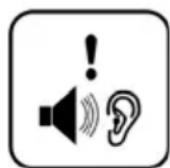
(1) Do not use this player when driving, riding or operating any other vehicles as it may lead to traffic accidents, which is illegal in some regions. Even when walking on the road, especially crossing the roads, listening with high volume is also hazardous. Please pay special attention or stop using this player in places with potential hazard.
(2) Before powering on the player, please plug in the earphone to avoid damaging the earphone and for the maintenance of the player. Turn off the player when stop using it.
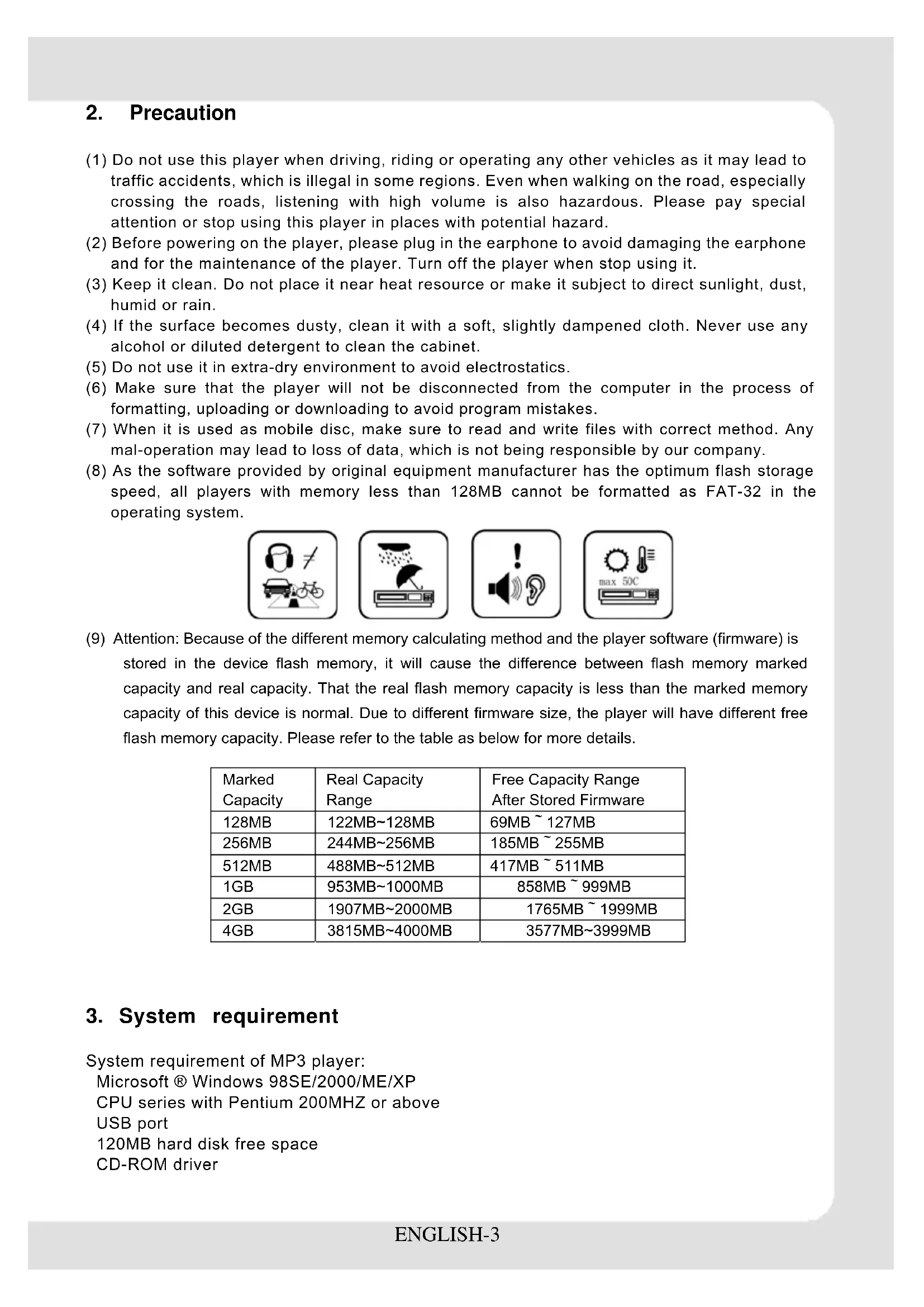
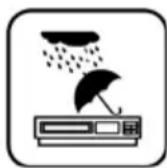
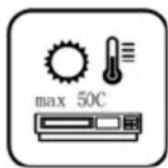
(3) Keep it clean. Do not place it near heat resource or make it subject to direct sunlight, dust, humid or rain.
(4) If the surface becomes dusty, clean it with a soft, slightly dampened cloth. Never use any alcohol or diluted detergent to clean the cabinet.
(5) Do not use it in extra-dry environment to avoid electrostatics.
(6) Make sure that the player will not be disconnected from the computer in the process of formatting, uploading or downloading to avoid program mistakes.
(7) When it is used as mobile disc, make sure to read and write files with correct method. Any mal-operation may lead to loss of data, which is not being responsible by our company.
(8) As the software provided by original equipment manufacturer has the optimum flash storage speed, all players with memory less than 128MB cannot be formatted as FAT-32 in the operating system.

(9) Attention: Because of the different memory calculating method and the player software (firmware) is stored in the device flash memory, it will cause the difference between flash memory marked capacity and real capacity. That the real flash memory capacity is less than the marked memory capacity of this device is normal. Due to different firmware size, the player will have different free flash memory capacity. Please refer to the table as below for more details.
| Marked Capacity | Real Capacity Range | Free Capacity Range After Stored Firmware |
| 128MB | 122MB~128MB | 69MB ~ 127MB |
| 256MB | 244MB~256MB | 185MB ~ 255MB |
| 512MB | 488MB~512MB | 417MB ~ 511MB |
| 1GB | 953MB~1000MB | 858MB ~ 999MB |
| 2GB | 1907MB~2000MB | 1765MB ~ 1999MB |
| 4GB | 3815MB~4000MB | 3577MB~3999MB |
3. System requirement
System requirement of MP3 player:
Microsoft ® Windows 98SE/2000/ME/XP
CPU series with Pentium 200MHZ or above
USB port
120MB hard disk free space
CD-ROM driver
4. Introduction
4.1 Features
(1) Support formats such as MP3 WMA WAV SMV JPG BMP
This product supports playback of music files, photo browsing and movie playing with high quality.
(2) Folder management
Easy to choose the folder or music file to play.
(3) Build-in 1.44"CSTN color LCD
There is a build-in 1.44" color screen, which can display photo and movie clearly.
(4) Removable disc
This product can be connected to PC with USB cable and serve as a removable disc.
(5) Build-in rechargeable Li battery
Charging is convenient and there is no need to buy extra batteries.
(6) Convenient firmware upgrade
The firmware can be upgraded with software downloaded from Internet or in the attached disc (if any).
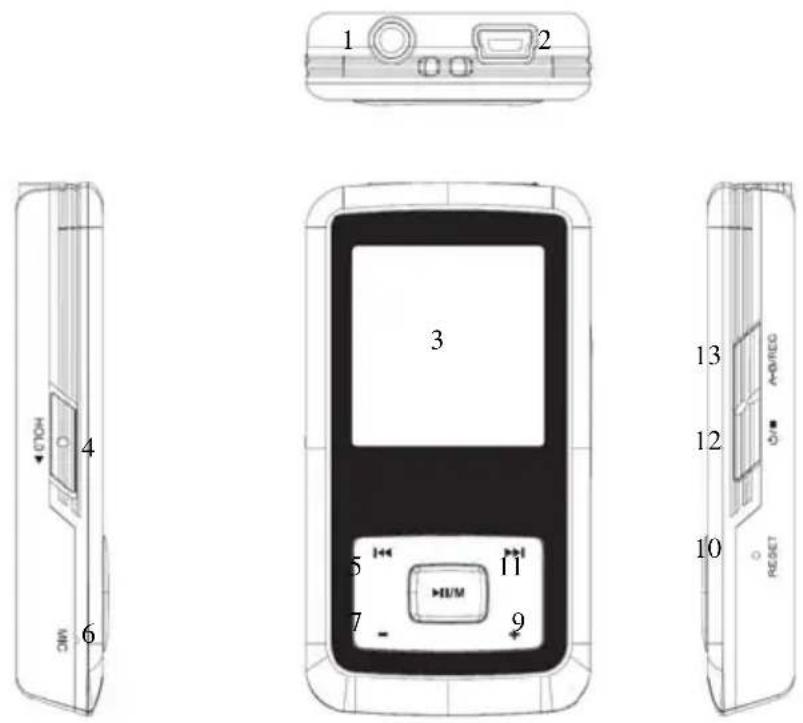
4.2 Button layout
(1) Earphone jack
(8) Play / pause button ▶ II
(2) USB port
(9) Volume up button+
(3) Display area
(10) Reset hole
(4) Button lock
(11) Fast forward button▶
(5) Rewind button
(12) Power button■
(6) Microphone
(13) A-B repeat / record button
(7) Volume down button -
4.3 Battery charge
This product adopts build-in rechargeable Li battery.

You can connect the mp3 player to PC or use USB adapter to charge the battery.
This icon will be displayed at the upper left corner of the screen. The following pictures indicate the charging status of the battery:
(1) When the battery is charging, the icon will be changing from an empty battery to a full one to indicate the process.
(2) The following icon will replace the charging one when the battery is full but the power supply is not being cut off.
(3) The player will be automatically shut off when the power is used up. In this case, all setting will be saved.
(4) Power saving mode: User can define the power off mode, such as stop off, sleep off, backlight off to save power. Please refer to the setting instruction in function section for details.
Note: The mp3 player only accepts the standard USB 2.0 output voltage and current to charge the built-in Li-Ion battery: 5-Volt voltage and less than 500mA current. If the charging voltage and current are out of the compass, it will damage the battery and the mp3 player. There will be no warranty in this case. Please make sure of the output voltage and the current of the USB port on your PC or USB adapter before charging this player. If you found the screen is blinking during using the USB wall adapter, please use the PC USB port to charge the player instead of USB wall adapter.
4.4 USB driver installation
(USB driver needs to be installed only on when Windows 98SE operating system is used.)
(1) Execute Setup.exe in driver CD and complete the driver installation.
(2) Reboot the PC.
(3) Connect the MP3 player to the USB port of the PC.
4.5 Connection and download
4.5.1 Connection to PC
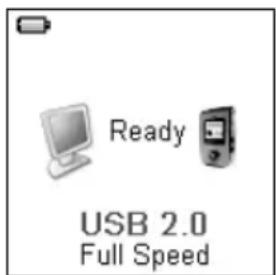
Plug the attached USB cable to PC, and connect the other end to the MP3 player. If the connection is successful, the screen of player will display the following picture. Please do not use USB hub or USB extended line.
4.5.2 MP3 music download
When the connection is done, select the desired files and click the right key of the mouse and select "copy". Double click to open the disc icon of the player (i.e. "H", the name of disc may differ) and then click the right key of the mouse and select "paste". During the process of writing, the player may display the following picture. Note that, this MP3 player supports 500 music files or 30 folders
(includes sub-folders), it will build the play list sorted by letter order by scanning the first 500 files which are stored in the first 30 folders. So please do not use too many folders and sub-folders to store the music files.
4.5.3 Remove from USB port
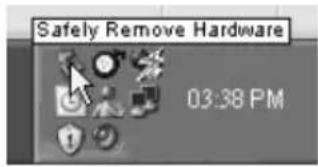
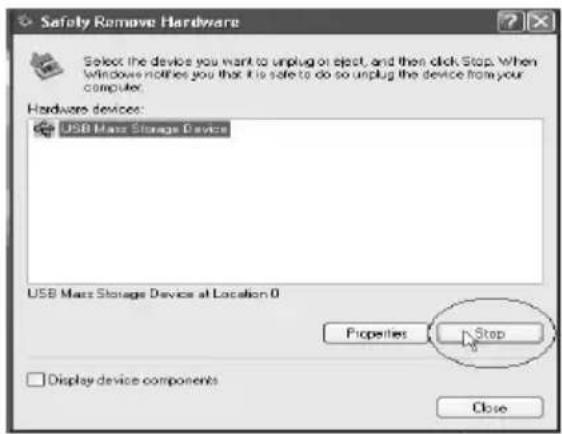
(1) Double click the icon of safely remove hardware on the task column, and the relevant dialog box will be displayed.
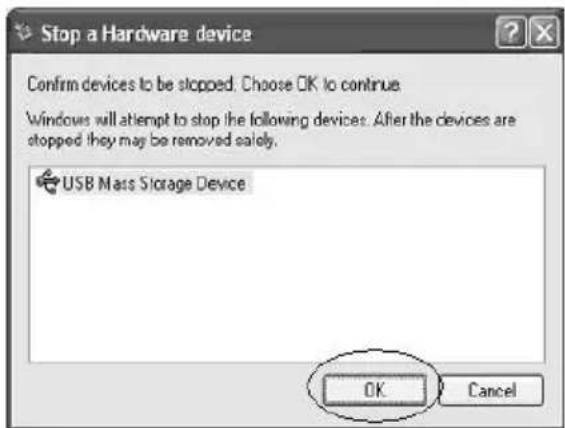
(2) On the picture of safely remove hardware dialog box, select the item of "USB mass storage device" and click "stop" button. The screen will display "stop a Hardware Device" as point (3).
(3) Click "OK" button.
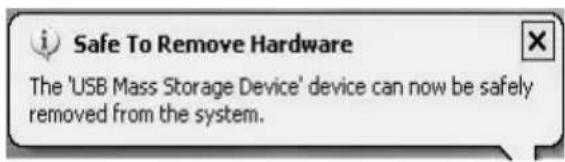
(4) When the screen displays "Safe to Remove Hardware", the player can be safely removed from PC.
Special reminder:
Do not disconnect the USB cable when the data is being transmitted between PC and the player, which may leads to the loss of data or the damage of the player. Disconnection should be conducted only when "device can now be safely removed from the system" is displayed; When the USB is in operation, other button is invalid. If the player fails to power on due to data loss or Input/Output mistake reminder by mal-operation, please refer to trouble shooting section for solution.
4.6 LCD display
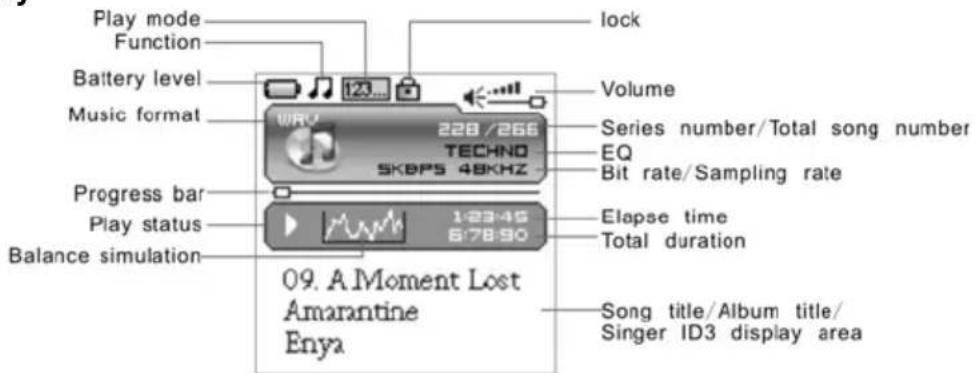
4.7 Menu
4.7.1 Main menu
(1) MUSIC: Select MUSIC in the main menu, the device will enter music sub-menu.
(2) PHOTO: Select PHOTO in the main menu, the device will enter photo sub-menu.
(3) MOVIE: Select MOVIE in the main menu, the device will enter movie function.
(4) VOICE: Select VOICE in the main menu, the device will enter voice playback function.
(5) MIC. RECORD: Select MIC. RECORD in the main menu, the device will enter microphone record function.
(6) DELETE: Select DELETE in the main menu, the device will enter delete sub-menu.
(7) SETTINGS: Select SETTINGS in the main menu, the device will enter setting sub-menu.
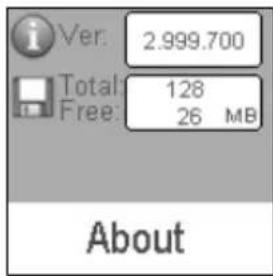
(8) ABOUT: Select ABUOT in the main menu to check the memory status and software version of the device.
(9) EXIT: EXIT the main menu and return to the music playback function.
4.7.2 Selection and exit
(1) Long press play button ▶ II or press power button ■ to exit and return to the upper level menu. The uppermost menu is main menu, which includes: music mode, photo mode, movie mode, voice mode, record mode, delete mode, setting mode, about and exit.
(2) Select next or previous item by pressing fast forward button ▶ or rewind button◀. If the main menu is in music picture, press rewind button ◀ to switch to information page; if the main menu is in information page, press fast forward button ▶to switch to music picture.
(3) Press play button ▶ II to confirm and enter the selected item.
4.8 Power on and off
4.8.1 Power on player
Press power/stop button ■to turn it on while the player is off. Power on images will be shown before going to the defaulted music play mode and followed by music playback. The power on time is determined by the music file number in the player.
This player supports user-defined image when power on. You can save the photo file with size 128*128 pixel and named LOGO.BMP under the root directory of this device. The user-defined image will be displayed when you turn on the player on next time.
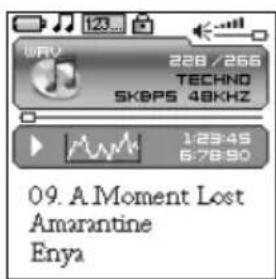
4.8.2 Power off player
(1) When the player is powered off, the following statuses will be saved, which includes: current mode, music elapse time, user settings.
(i.e. volume, EQ, and timing off and play mode etc.)
(2) If the player is powered off normally (i.e. the user shut it off or it is shut off according to the setting), the above-mentioned modes will be saved. If the player is powered off by pressing reset button, the above-mentioned modes will not be saved.
(3) Expect in record mode, long press power button ■ until the letters of "Bye Bye" appears and the screen will turn dark, the player will be powered off.
5. Application
5.1 Music playback function
Press rewind button ◀ or fast forward button ▶ in the main menu to select Music function. Press play button ▶ II to enter the sub-menu of Music Play All or Internal Device.
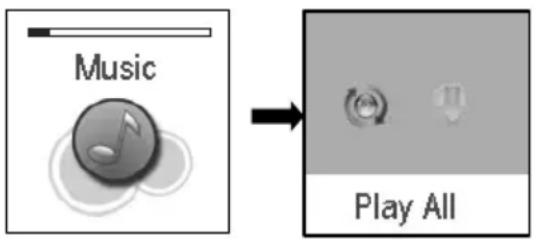
Operation instruction:
(1) When the music is stopped or played, press rewind button ◀ or fast forward button ▶ to select previous or next file.
(2) When playing the music, long press rewind button ◀ or fast forward button▶ to move fast backward or forward within the track.
(3) When playing the music, press play button ▶ II to pause and press play button ▶ II again to resume the playing. Press power button ■ to stop the playing.
(4) Press A-B/REC button to set the start point of repeat section A-B, the screen display A→, press that button again to set the end of repeat section A-B, the screen will display A→B and start repeating section AB. Press A-B/REC button for the third time to cancel section AB repeat function.
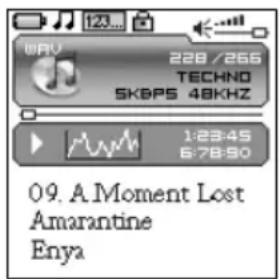
5.1.1 Play all
In main menu, press play button ▶ II to enter Music mode. Then press rewind button ◀ or fast forward button ▶ to select Play All, and press play button ▶ II to enter and start playing all music in the player.
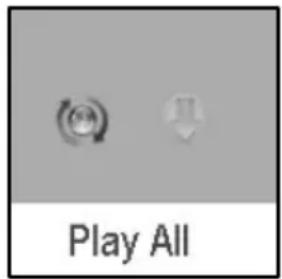
5.1.2 Internal device
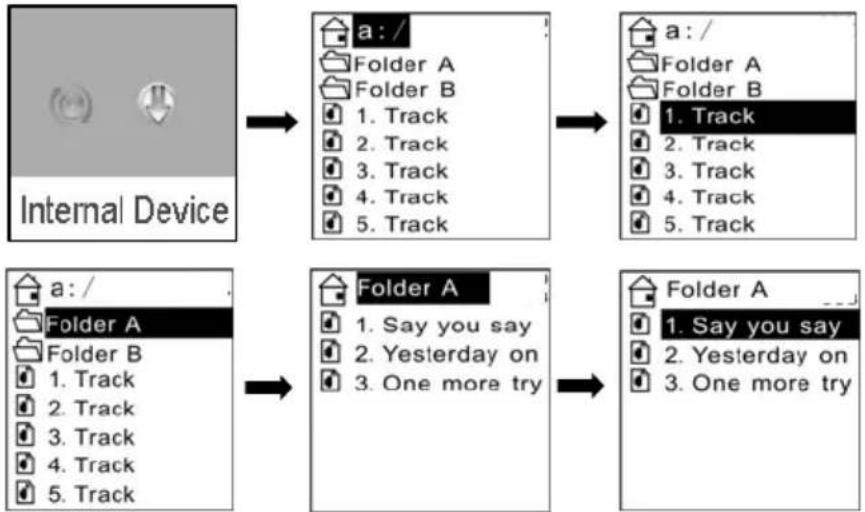
In main menu, press play button ▶ II to enter Music mode. Then press rewind button ◀ or fast forward button ▶ to select Internal device, and press play button ▶ II to enter the function of play list. Press rewind button ◀ or fast forward button ▶ to select folder or a single music and press play button ▶ II to start playing. Use volume up button+ or volume
down- button to enter or exit a certain folder. The player will play the selected music or all the music in a certain selected layer of folder (subfolder inclusive).
Play one file
flowchart
graph TD
    A["Internal Device"] --> B["a: /"]
    B --> C["Folder A"]
    C --> D["Folder B"]
    D --> E["1. Track"]
    D --> F["2. Track"]
    D --> G["3. Track"]
    D --> H["4. Track"]
    D --> I["5. Track"]
    J["a: /"] --> K["Folder A"]
    K --> L["Folder B"]
    L --> M["1. Track"]
    L --> N["2. Track"]
    L --> O["3. Track"]
    L --> P["4. Track"]
    L --> Q["5. Track"]
    R["a: /"] --> S["Folder A"]
    S --> T["Folder B"]
    T --> U["1. Track"]
    T --> V["2. Track"]
    T --> W["3. Track"]
    T --> X["4. Track"]
    T --> Y["5. Track"]
    Z["a: /"] --> AA["Folder A"]
    AA --> AB["Folder B"]
    AB --> AC["1. Track"]
    AB --> AD["2. Track"]
    AB --> AE["3. Track"]
    AB --> AF["4. Track"]
    AB --> AG["5. Track"]
    AH["Folder A"] --> AI["1. Say you say"]
    AI --> AJ["2. Yesterday on"]
    AI --> AK["3. One more try"]
    AI --> AL["Folder A"]
    AL --> AM["1. Say you say"]
    AL --> AN["2. Yesterday on"]
    AL --> AO["3. One more try"]
The difference of playing songs in folders and playing under root directory
| Play mode Under root directory In folder and its subdirectory. | ||
| Normal Play all the songs under root directory and in folders one time and then stop. | Play all the songs in current folder one time and then stop. | |
| Repeat one Repeat play the current song. Repeat play the current song in current folder. | ||
| Repeat all Repeat play all the songs under root directory and in folders. | Repeat play all the songs in current folder except the songs in folder's sub-folder. | |
| Random | Repeat play all the songs under root directory and in folders. | Repeat play all the songs under root directory and in folders. |
| Rand.&Rep. | Shuffle repeat play all the songs under root directory and in folders. | Shuffle repeat play all the songs under root directory and in folders. |
5.2 Photo
Press rewind button ◀ or fast forward button ▶ in the main menu to select Photo function. Press play button ▶ II to enter the sub menu of Photo : Manual, Slide Show and Thumbnail. This player supports pictures in JPG and BMP formats. In order to get a smooth and clear display, please convert the resolution of pictures to 128x128 on PC and then put them in PHOTO folder (If there is no PHOTO folder, please create one). Please be noted that the player cannot find that photo if it is not stored in PHOTO folder of the player. The PHOTO folder will be created by the software automatically if there is no PHOTO folder on the player.
5.2.1 Manual browse
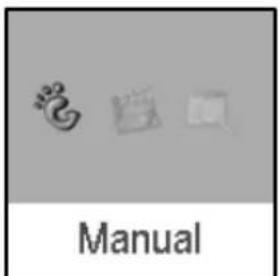
After entering photo function, press rewind button ◀ or fast forward button ▶ to select manual browse and press rewind button ◀ or fast forward button ▶ to browse the photo manually.
5.2.2 Slide show
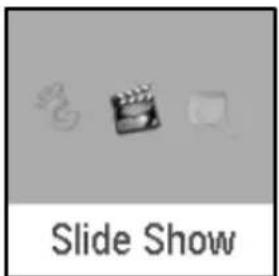
After entering photo function, press rewind button or fast forward button to select slide show and press rewind button or fast forward button to browse the photo automatically.

5.2.3 Thumbnail
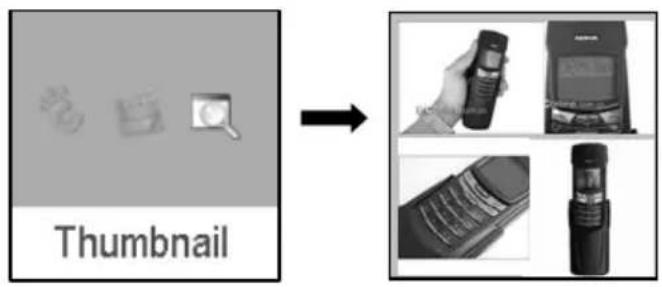
After entering photo function, press rewind button ◀ or fast forward button ▶ to select thumbnail display and press play button ▶ II to start displaying photo in thumbnail form.
5.3 Movie
Press rewind button ◀ or fast forward button ▶ in main menu to select Movie function and press play button ▶ II to enter Movie play.
(1) This player supports the playing of movie files in SMV format. Convert the desired movie (MPG, MP4, Real Player, Quick Time, DVD, AVI, WMV format) to SMV format with transcoder software (video2smv.exe) in the attached CD (if any) or save in the player or downloaded from Internet.
(2) Movie should be put in MVIDEO folder of the player. If there is no this folder, please create one. Please be noted that the player cannot find those movie files if they are not stored in MVIDEO folder of the player. MVIDEO folder will be created by the software automatically after power on.
(3) When the movie is playing, long press volume up button + or volume down buton - to adjust the volume.
How to transfer the movie file to SMV format by Video2smv.exe process
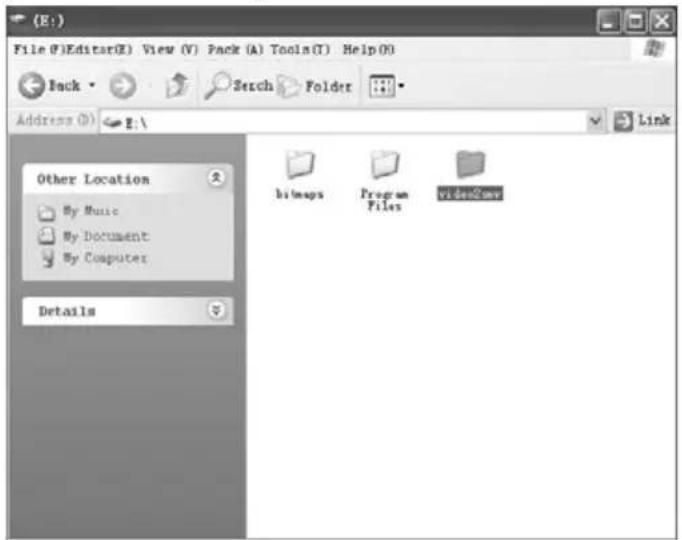
a. Select video2smv and double click it to enter the folder as indicates in the following figure:
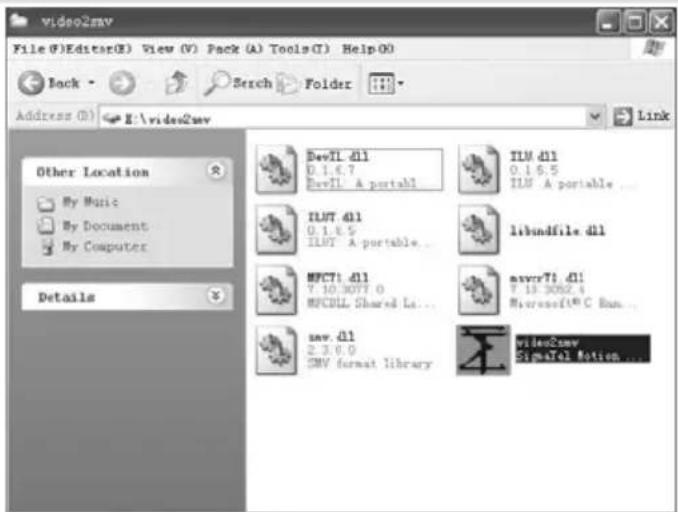
b. Select and double click video2smv.exe program to enter as indicates in the following figure:
c. Click "Add" to select the files that need to be converted. You can set the size and quality at the same time. The screen resolution of this player is 128x128 pixel, so please set the size less than 128*128 pixel. The higher quality produces larger SMV file size and vice versa. The higher the quality setting value, the clearer the picture will be and vice versa. Click Setting to select the directory where the converted SMV files store.
![SBF Transcoder File Edit Tools Help Add Delete Convert Sitting About Files Start End Size[KB] Status Size: 96×64 Quality: 120MΩ/Hour Audio: 11 KB/Sec Video: 85 KB/Sec Frame: 10 Frame/Sec Results: N/A](/content/2026/03/506017/images/9707f25affcbc7db408e0ab0c3d4909bde6982acd8da01014180fa9c37d20231.jpg)
d. Click Convert to start the converting. Meanwhile you can click "stop" to stop transferring.
![SW Transcoder File Edit Tools Help Add Delete Stop Setting About Files C:\Documents and Settings\new\桌面\MV_0643.cvi Start End Size[KB] States 0:00:00 0:00:23 Converting Size 96x64 Quality 128MB/Hour Audio: 11 KB/Sec Video: 25 KB/Sec Frame: 10 Frame/Sec Rotate: N/A](/content/2026/03/506017/images/2914cb4ffc74723bd9e133e8b81c4a83148d76d53f37c7548e8301eb9ea239ad.jpg)
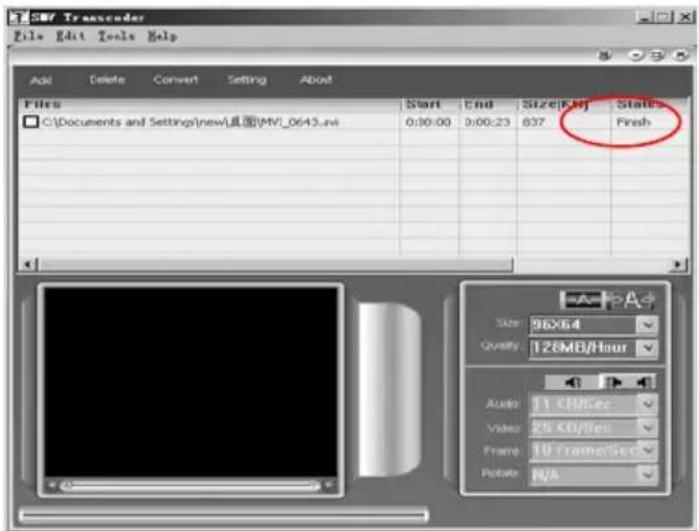
e. When there is Finish appears in the column of Status, it means the conversion is finished. You may close the windows and transfer the formatted movie with SMV format to the player.
Attention : If you can use the windows media player to play the video files in your PC, and the video file type is supported by video2smv, it will be able to be converted to SMV format. If it shows no Codec to convert the video files, please try to download and install the free Codec pack on Internet, such as K-Lite codec pack. (http://www.k-litecodecpack.com)
5.4 Voice
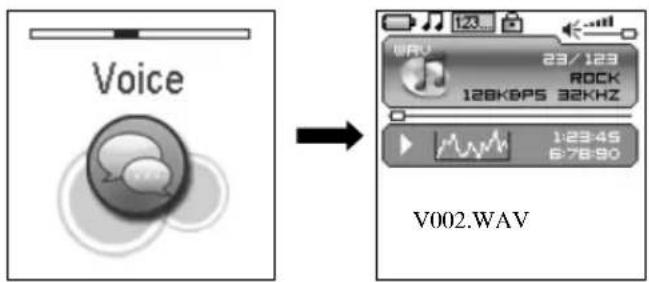
Press rewind button ◀ or fast forward button ▶ in the main menu to select Voice function and press play button ▶ II to enter that voice play function.
The following functions are provided in voice mode:
(1) Play recorded files from microphone
(2) Support record files in WAV format (ADPCM), that stored in VOICE directory of the
player.
Operation instruction:
(1) When in voice standby or play mode, press rewind button ◀ or fast forward button▶ to select the previous or next voice file.
(2) When in voice play mode, long press rewind button ◀ or fast forward button ▶ to move fast backward or forward within the track.
(3) When in voice play mode, press play button ▶ II to pause and press play button ▶ II again to resume play. Press power button ■ to stop playing.
5.5 Record
Press rewind button ◀ or fast forward button ▶ in the main menu to select MIC. RECORD function and press PLAY button ▶ II to enter MIC. RECORD function. Or long press A-B/REC button to enter microphone record function when the player is in any state.
(1) The flashing recording state icon ● indicates recording is in progress; At this moment, press play button ▶ II, recording pause icon ● II will appear and the microphone recording will be paused. Press PLAY button ▶ II again to resume microphone recording. Press POWER button ■ to stop microphone recording. When the microphone recording is stopped, the interface will be changed to voice playback function.
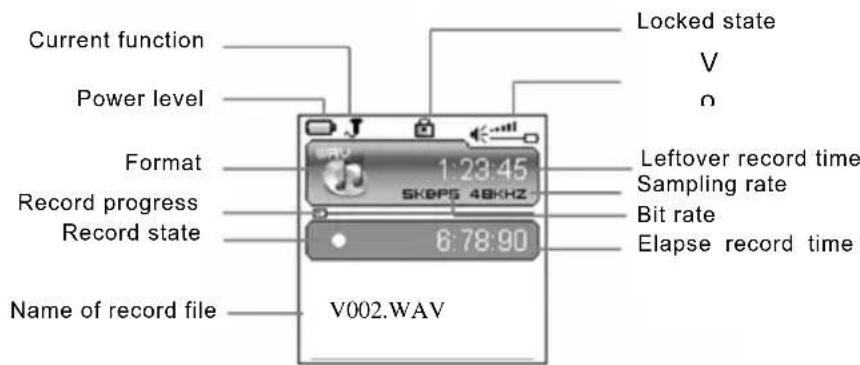
(2) 7 recording sampling rate: user can set the sampling rate of recorded file. The higher the sampling rate, the better recording quality will gain. The lower the sampling rate, the more common quality will gain with longer recording duration. There are total 7 sampling rate available: 8KHz, 11KHz, 16KHz, 22KHz, 32KHz, 44KHz and 48KHz.
(3) If the memory is full during the recording, Device Full will be displayed and the player will stop recording and save the recorded files automatically. No more recording can be done in this case.
(4) If the battery is running out of power during the recording, Low Battery will be displayed and the player will stop recording and save the recorded files automatically. No more recording can be done in this case.
(5) The recorded file is defined automatically as V###.WAV, ### is a figure composed of three numbers starting with 001 for the first file and 002 for the second one...The format of recorded file is WAV.
5.6 Delete
In Delete you can choose to delete all the files stored in the player.
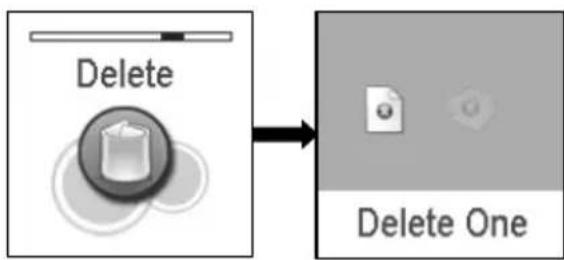
Press rewind button ◀ or fast forward button ▶ in the main menu to select Delete function and press play button ▶ II to enter Delete function, which includes delete one and delete all. Note that, deleted files can't be recovered.
flowchart
graph LR
    A["Delete"] --> B["Delete One"]
5.6.1 Delete one
Press rewind button ◀ or fast forward button ▶ to select the files that need to be deleted and press play button ▶ II to confirm the deletion. Long press play button ▶ II or press power button ■ to quit the deletion and return to the main menu.
5.6.2 Delete all
Press rewind button ◀ or fast forward button ▶ to select if or not to delete all files in the player. Press play button ▶ II to confirm the selection. If YES, all music files (MP3 and WMA), voice files (WAV) and movie files (SMV) user's own files and photo files(JPG and BMP) in the player will be deleted. Long press POWER/STOP button to stop deleting, but deleted files can't be recovered.
5.7 Settings
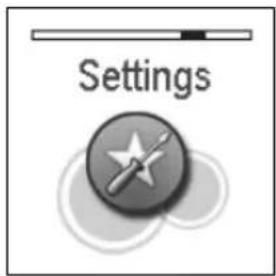
Press rewind button ◀ or fast forward button ▶ in the main menu to select Settings menu and press play button ▶ II to enter Settings menu, which includes language setting, EQ setting, play mode setting, recording format setting, contrast setting, timing off setting and resume default value setting.
5.7.1 Language

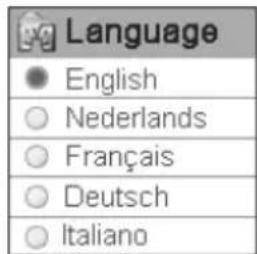
Press rewind button ◀ or fast forward button ▶ in language setting menu to select language and press play button ▶ II to confirm. Long press play button ▶ II or press power button ■ to skip this setting. The following languages are available: English, Dutch, French, German, Italian, Portuguese, Spanish, Hebrew, Poland and Hungarian. It will be difference due to different firmware version
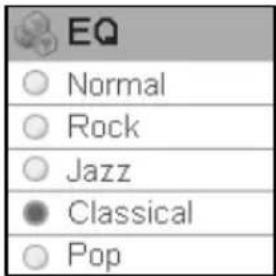
5.7.2 EQ

Press rewind button ◀ or fast forward button ▶ in EQ setting menu to select EQ and press play button ▶ II to confirm. Long press play button ▶ II or press power button ■ to skip this setting. When playing music, the change of EQ can be felt in the earphone. EQ of this player includes: Normal, Rock, Jazz, Classical, Pop, Ultra Bass, Blues, Club, Dance, Full Bass and Treble, Full Treble, Large Hall, Live, Party, Reggae, Ska, Soft Music, Soft Rock, and Techno.
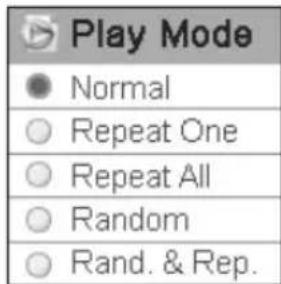
5.7.3 Play mode

Press rewind button ◀ or fast forward button ▶ in play mode setting menu to select play mode and press play button ▶ II to confirm. Long press play button ▶ II or press power button ■ to skip this setting. The play mode of this player includes: normal, repeat one, repeat all, random and random & repeat. Random and random & repeat can only be applied to music play.
5.7.4 Record Settings

Press rewind button ◀ or fast forward button ▶ in Record Type setting menu to select recording format and press PLAY button ▶ II to confirm. Long press play button ▶ II or press power button ■ to skip this setting. This setting is used to set the sampling rate of microphone recording. The available recording formats for this player are: 8KHz, 11KHz, 16KHZ, 22KHz, 32KHz, 44KHz and 48KHz.
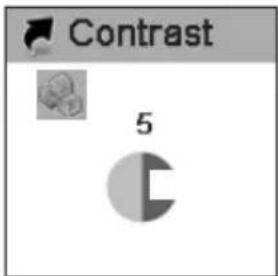
5.7.5 Contrast

Press rewind button ◀ or fast forward button ▶ in the contrast setting menu to select contrast and press play button ▶ II to confirm. Long press play button ▶ II or press power button ■ to skip this setting.
5.7.6 Timer

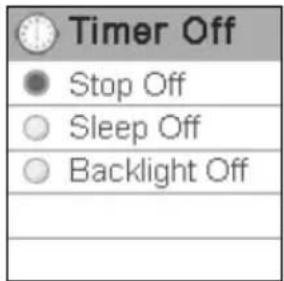
Press rewind button ◀ or fast forward button ▶ in timing off setting menu to select timing off and press play button ▶ II to confirm. Long press play button ▶ II or press power button ■ to skip this setting. The sub menus of timing off are: stop off, sleep off and backlight off.
(1) Stop off: Disable, 15 SEC, 30 SEC, 1 MIN, 2 MIN, 5 MIN, 10 MIN and 30 MIN.
(2) Sleep off: Disable, 10 MIN, 15 MIN, 30 MIN, 60 MIN, 90 MIN, 2 HR and 3 HR.
(3) Backlight off: 1 MIN, 5 MIN, 10 MIN, 30 MIN, 60 MIN and Always On.
5.7.7 Reset

Select "Yes" to restore all settings to default value and the player will be automatically reset (V3.07 later firmware version).
5.8 About
Press rewind button ◄ or fast forward button ▶ in the main menu to select ABOUT and x.xxx.xxx play button ▶ II to enter ABOUT. You can check the total memory capacity, free space and version of the software. The "x.xxx.xx" means the number of the software version. It is variational according to the update of software.
5.9 Exit
Exit and return to the music playback function.
6. Other functions
6.1 A-B play mode
In music or voice play mode:
(1) Press A-B/REC button to set the starting point of repeat section A-B, and the play mode icon A→ will be displayed.
(2) Press A-B/REC button again to set the finishing point of repeat section A-B, and the play mode icon A→B will be display. The player will start repeating section AB.
(3) Press A-B/REC button for the third time to cancel the repeating of AB and the icon will return to play mode.
6.2 Button lock
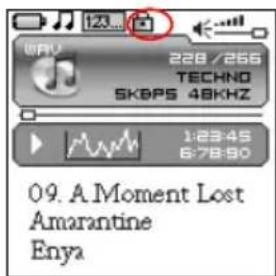
In any state, push the lock button HOLD to the direction of the arrow to lock the button and all button operations are invalid. In music or voice play mode the screen will display a lock icon (as below figure). You have to push the HOLD button to the contrary direction of the arrow to unlock the button before any other button operations.
7. Trouble shooting
If there is no picture displayed after the player is connected to PC and cannot serve as storage disc or cannot be powered on after the battery is fully charged, please refer to the following steps to update the software in the player.
(1) Download the most updated software from the attached CD (if any) or from the website and implement the setup.exe files in the folder to complete the installation.
(2) Long press power button of the player for five seconds and then plug in the USB cable.
(3) Implement the updated software installed by step (1) to start software upgrade and release the Power/Stop button.
(4) The upgrade of software may format the player, so please copy the music or files in the player.
(5) If the software upgrade program cannot detect the player, please unplug the USB cable and repeat step (2) and (3) until the player is detected and the software upgrade is completed.
8. Specification
| Technical Specification | MP3 bit rate | 32~320Kbps | Music format | MP3, WMA |
| Photo format | JPG,BMP | Movie format | SMV | |
| Sampling rate 8/1 | 1/16/22/32/44/48KHz | Frequency response | 20Hz~20KHz | |
| Recorded format WAV (ADPCM) | Dynamic current | <70mA (play mp3 music & backlight OFF) | ||
| Maximum Record duration | 9 hours (128M 8KHz) | Power off current | <500uA | |
| SNR | >90db | Dimension | 74.5x41x1 | |
| Dynamic scope | >80db (1KHZ) | Weight | 40g | |
| Distortion | <0.05% | Screen | 1.44"CSTN 128x128 65K color screen | |
| Output power | 5mW*2 | Battery | Rechargeable Li-Ion battery | |
| Music number limitation | 500 files or 30 folders | Play time(music) | >11H Display off (350mAh) | |
| Play time(Video) | >4H (350mAh) | |||
| Working environment | Humidity <85%, -10~40 Celsius | USB port | USB 1.1/2.0 Full Speed | |
| Capacity | ☐128MB ☐256MB ☐512MB ☐1GB ☐2GB ☐4GB | |||
SYLVANIA
SMPK2066
Lecteur de MP3
Manuel
natural_image
Symbol of a trash bin with crossed lines indicating no waste or restriction, and a solid black rectangle below (no text or labels)Configuration requise....6
Onglet
flowchart
graph LR
    A["Delete"] --> B["Delete One"]
Supprimer tout
- Instruction
- Contents
- Precaution
- System requirement
- Introduction
- Features
- Button layout
- Battery charge
- USB driver installation
- Connection and download
- Connection to PC
- MP3 music download
- Remove from USB port
- Special reminder:
- LCD display
- Menu
- Main menu
- Selection and exit
- Power on and off
- Power on player
- Power off player
- Application
- Music playback function
- Play all
- Internal device
- Photo
- Manual browse
- Slide show
- Thumbnail
- Movie
- How to transfer the movie file to SMV format by Video2smv.exe process
- Voice
- Record
- Delete
- Delete one
- Delete all
- Settings
- Language
- EQ
- Play mode
- Record Settings
- Contrast
- Timer
- Reset
- About
- Exit
- Other functions
- A-B play mode
- Button lock
- Trouble shooting
- Specification
- SYLVANIA
- SMPK2066
- Lecteur de MP3
- Manuel
- Onglet
- Supprimer tout
Brand : SYLVANIA
Model : SMPK2066
Category : Mp3 player