 ManualGo.com
 YooTab 5001 - Tablet YooDigital - Free user manual and instructions
Find the device manual for free YooTab 5001 YooDigital in PDF.


Download the instructions for your Tablet in PDF format for free! Find your manual YooTab 5001 - YooDigital and take your electronic device back in hand. On this page are published all the documents necessary for the use of your device. YooTab 5001 by YooDigital.
USER MANUAL YooTab 5001 YooDigital
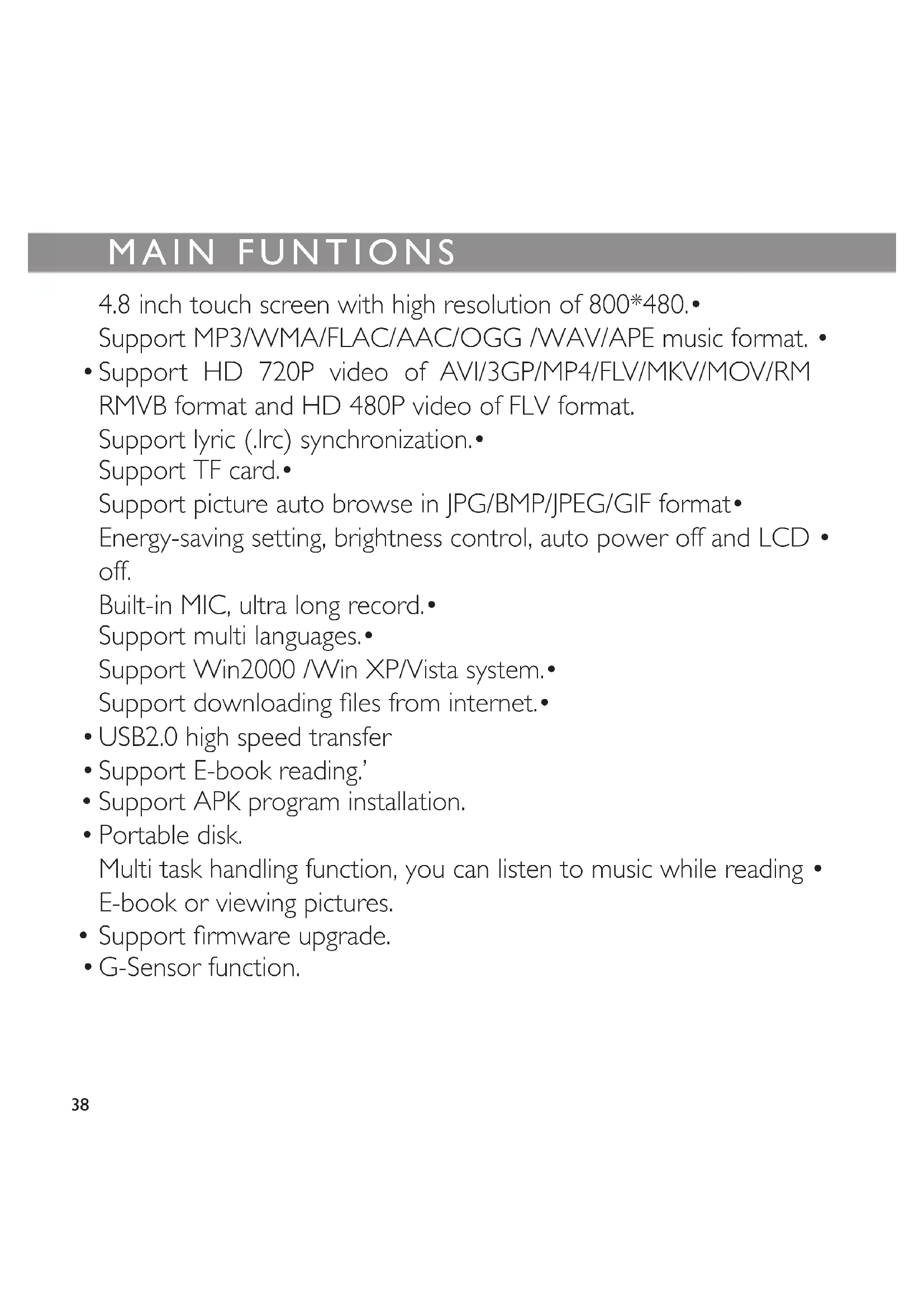
4.8 inch touch screen with high resolution of 800*480.•
Support MP3/WMA/FLAC/AAC/OGG /WAV/APE music format. • Support HD 720P video of AVI/3GP/MP4/FLV/MKV/MOV/RM • RMVB format and HD 480P video of FLV format. Support lyric (.lrc) synchronization.• Support TF card.• Support picture auto browse in JPG/BMP/JPEG/GIF format• Energy-saving setting, brightness control, auto power off and LCD • off. Built-in MIC, ultra long record.• Support multi languages.• Support Win2000 /Win XP/Vista system.• Supportdownloadinglesfrominternet.• USB2.0 high speed transfer• Support E-book reading.’• Support APK program installation.• Portable disk.• Multi task handling function, you can listen to music while reading • E-book or viewing pictures. Supportrmwareupgrade.• G-Sensor function.• MAIN fU cAUTIONS39
All warranty information, product features and specications are subject to change without notice ! PRECAUTIONS Please read the manual carefully before using the player to avoid unexpected damage.
1. Do not use the MID in extremely hot, cold, dusty or damp
2. Do not drop the MID when using it.
3. The usage life of battery is subject to the operating condition and
4. Please charge the battery in the following instances:
A. The icon of battery level shows low. B. System powers off automatically and powers off again after restarting.
5. During the formatting or uploading/downloading, do not discon-
nect the MID from the PC. Disconnection during updating or data transfermaydamagelesortheMID.
6. Static discharge to the cable during connection to the computer
maycorruptlesorthestorageareaoftheMID.
7. The images in this manual may vary slightly from actual product.
8. Dismantling the MID and will void the warranty. Please check the
trouble shooting section of this manual if experiencing problems
9. Our company reserves the right to improve the product. Different40
software and hardware versions might affect the product performan- ce and functions, therefore the product shall be subject to change without further notice
10. Please respect the copyright laws in your area.
11. The MID is equipped with the touch screen, so keys on machine
surface are for assistance only. SUrfAcE LAyOUT AbOUT ThE MID41 AbOUT ThE MID MID : Mobile Internet Device. Keys and interfaces on machine surface have functions shown below : There are ve function keys located on the machine surface. Power key : long press to turn on/off the Mid. When the MID was turned on, user can turn on/off the screen by pressing this key. Volume key : press to increase/decrease the system volume. Return key : press to return the previous screen. Menu key : press to popup the submenu of some interface. When the screen is locked, pressing the menu key can unlock it. Home Key : press to return the home screen. To your MID, keys home, return, menu on the touch screen and that on the machine surface have the same function.
- How to Power On/Off the MID ? To power on/off the MID, please press power key and hold for 3S. This period will need several seconds, please wait patient.
- How to turn on/off the LCD ? After powering on the MID, if you are not watching video, you can short press power key to turn off the LCD to save power. To turn on the LCD, please short press power key again. Note : The screen is locked also when the screen is turned off, to unlock the screen, please press the menu key on machine surface after turn on the LCD screen.
- The operation of touch screen The MID screen can be operated by skin touch only. There are three methods to operate the screen: a) Touch : touching any function icon on the screen can enter the corres- ponding interface. b) Touch and hold : touching any icon on home screen and hold it can do more operations. For example, touching an icon on home screen and hold it, when the recycle bin icon is shown on the right screen, drag- ging the selected icon to this icon can delete it from the home screen. c)Drag:Draggingyourngeronthescreencanscrollthescreen.
- How to reset the MID ? If your MID cannot response to any function key, please press the power key and hold for 10S to reset the MID
The battery icon on the screen shows the rest volume of electricity. To save the power, in system setting interface, please set Brightness and Screen timeout to a reasonable level.
- How to charge the MID ? Please charge the MID timely before the battery icon shows blank. The MID can be charged via the commanded DC charger or the USB interface. When the MID is on, the battery icon shows pulse underthechargingstateandshowsfullwhenthechargingisnished. IfchargetheMIDwhenitisoff,theMIDwillbeturnedonrstly. The charging period via DC charger is more effective than that via USB port. The whole charging period need 4 hours. It is normal to ndthatthemachinesurfaceiswarmunderchargingstate.
- G-sensor If do settings setting>Sound & display>Display settings>Orientation >on, the MID will switch the screen orientation automatically when it is being rotated.
- Connect to Computer and File Transfer Start your computer and connect the MID using the supplied USB cable, an interface is shown for your choice, on which if touch Don’t Mount, the MID enters the charging mode, if touch Mount, then the player enters the USB connection mode. In the USB connection mode, the MID will be detected as standard remova- bledisksbyyourcomputerandallowsthetransferandmanagementofles on the player without the need for the instillation of 3rd party software. hOME ScrEEN44 hOME ScrEEN Press power key and hold for 3S to power on the MID, then the default home screen is shown as the below : There are 4 home screens. You can switch them by dragging your ngersonthehomescreenleftorrightanddooperationsshown below : home screen : touch to back to the home screen. system notice : dragitdowntoseethesystemnotications. status bar : it is used to show the current status of network connection, battery volume and system time. Menu : touch to popup submenu shown below:
: touch to add program shortcuts, Widget, Folders or Wallpapers to the home screen. : touch to set the wallpaper. : touch to activate the search function. :touchtoviewthesystemnotications. : touch to enter system setting interface. Return : touch to return the previous screen. : Short cut to Google Search. All programs: touch to view all programs and functions applied in your MID as the below: On the system function interface shown above, user can touch each icon to enter its application interface directly.
Function windows: touch to enter the 4 function window management interface, on which Users can reset the title of each window according to their own needs as follows: Press any of the window title to pop-up the new title inputting frame, then click the space of the frame to pop-up keyboard, last click «OK» or «Cancel» buttontoconrmwhetherrenamethiswindow. On function windows management interface, clicking any window icon can enter this window. User can add Shortcuts, Widgets, and Folders to each window add them to the home screen. Touch to shown the digital entertainment shortcuts shown below: hOME Scr
SUrf ON INTErNET On the system function interface, touch function icon to open internet browser shown below : : Touch it to popup the text input keyboard, and long press to popup a frame, on which user can switch text input method. : Touch to pop submenu shown below: : touch to enter new website input interface. : touch to add bookmarks and view website most visited and web page memorized in history. To clear history, please touch menu key to popup the history clearing item. : touch to open another new window.
: touch to refresh the current screen. : touch to view the web page just closed. : touch to do operations Find on page, Select text, Page info, Share page, Downloads and Settings on current web page.
SySTEM SETTINgS On the system function interface, touch function icon to enter the system setting interface, on which user can do settings shown below : a) Wireless controls: touch to enter Wi-Fi managing interface, on which user can view current Wi-Fi connection under item Wi-Fi. On Wi-Fi managing in- terface, if user touch item Wi-Fi settings, then your MID will scan all Wi-Fi networks available and list them on the screen as the below: On the above interface, touching any Wi-Fi network scanned can view its signal status and select whether connect it or not, and touching menu key can select do operations scanning network again and doing more ad- vanced settings. b) Sound & display: touch to set ringtones, notifications and screen brightness. c) Security & location: touch to set my location and password. d) Applications: touch to enter applications managing interface. e) SD card & MID storage: touch to view SD card & MID storage. f) Date & time: touch to set system time and date. g) Locale & text: touch to set the system language.
Market h) About MID: touch to view basic information about your MID.Note : it is important to do system setting, please enter the setting interface of your Mid to view each setting items carefully before using your MID. APK INSTALLER Your MID support managing APK program. On the system function interface, touch function icon ApkInstaller to enter the corresponding interface, on which user can ma- nage APK programs on your MID. MARKET On the system function interface, touch function icon Market to enter the market interface. If you are a new user to the market, you will be required to create your user name and others. YoucanndtherearemanyfreeAPKprogramsonthemarket.Your MID supports installing APK programs downloaded from Market or other ways.
EMAIL Your can receive and send Email on your MID directly. On the system function interface, touch function icon Gmail to enter the corresponding interface. After well setting your account, you can receive and send Email through your MID directly. GOOGLE MAPS On the system function interface, touch function icon Google Maps to view the world maps. Touching menu key can popup the submenu. VIDEO PLAYER On the system function interface, touch function icon Video Player toenterthevideoelistinginterface.Dragyourngeronthe screen up and down to view the list and touch any one to enter video playing interface like the below :
Icons in the tool bar shown on the above interface have functions shown below: / Volume: touch to decrease/increase the volume. Progress bar : it is used to view video playing progress. Dragging it can fast reverse/forward the video. : touch to add the current point to be a bookmark. : touch to set the screen brightness. / : touch to play the previous/next video. / : long press to fast reverse/forward the current video. / : pause/play: touch to pause/ resume the normal play. : touch to play video in different size. : touch to return thee previous directory. : touch to show sub menu which includes items Play from beginning(this will delete bookmark), Delete bookmark, Help, Version and Return. To hide/show the toolbar, please touch the screen centre directly. Note1: If a bookmark is set, then, then if a movie had not been played com- pletely last time, the MID will remember the pause point. User can select whether play this movie from the pause point next time. Note 2 :Onthevideolelist,longpressingalecanpopuptheledelete frame,onwhichusercanselectwhetherdeletetheselectedle. Note 3 : YourMIDcan’tplaythevideolewhichsizeislargerthan2G.
:touchtolistallmusiclesonscreen. : touch to enter song search & download interface. : touch to sort song by singer. : touch to sort song by album. : touch to sort song by genre. : touch to sort song by location. : touch to create and delete play list. : touch to play the selected song. : touch to return the previous screen.Drag yourngeron thescreen upand downtoviewthelistand touch any one to enter audio playing interface like the below:
Icons in the tool bar shown on the above interface have functions shown below : Progress bar : it is used to view video playing progress. Dragging it can fast reverse/forward the video. / : touch to play the previous/next song. / : long press to fast reverse/forward the currentsong. / pause/play : touch to pause/ resume the normal play. : touch to set sound effect to Normal, Rock, Popular, Classical, Heavy bass, Jazz and My effect. : touch to set the repeat point A, touch it again to set the repeat end point B, then music part between point a and B will be played repeatedly. To exit the repeat mode, please touch this icon the third time. : touch to set the song repeat mode to intro, single once, single repeat, all once, all repeat. : touch to add the current song to my Playlist. : touch to display/hide the song tag. / Volume : touch to decrease/increase the volume.
: touch to return the previous screen. Note 1: The folder LYRIC located in the root directory is designed to save thelyricle(.lrc). Please makesurethenameofthelyric le is same as thatofthecorrespondingsong,andmakesurethelyriclesaresavedinthe folder LYRIC, if so, then the lyrics will be synchronized to demonstrate when listening music. Note 2 : Has few code very special MP3/WMA audio frequency document, has the possibility to be unable on this aircraft to broadcast, after please use the audio frequency transformation tool transforms, to duplicate on this air- craft to broadcast again. On the system function interface, touch function icon PhotoBrowser toenterphotoleexplorerinterface,onwhich scrollyourngersonthescreenleftandrightto4viewthelelist, then touch a photo le to enter the photo play interface shown below :
VIDEO PLAYER PHOTO BROWSER56 Icons in the tool bar shown on the above interface have functions shown below : : touch to zoom in/out the current picture. : Touch to set the screen brightness. : touch to right/left revolve the picture. : touch to start photo slideshow. To exit photo slideshow, please touch the screen. : touch to do screen settings, slideshow settings, setting wallpa- per and view machine information. : touch to return the previous screen. To hide/show the toolbar, please touch the screen centre directly. On the digital entertainment menu, touch function icon Ebook to enter the corresponding interface, on which user can select a text le(.txt)toread.
EBOOK57 On the system function interface, touch function icon Sound Recor- der to enter the voice recording interface shown below: Touchingcanstartrecord,afternishtherecord,touchingcan popup the record saving dialogue, this time touching can listen to record just recorded. Alltherecordles(VXXXX.3gpp)aresavedinfolderRecord,which islocatedintherootdirectory.Usercanplaytherecordlelikeplay songs. On the system function interface, touch function icon Advanced Task Manager to enter the corresponding interface, on which user can view and select closing programs being run. Remember touching menu key can popup submenu contained.
SOUND rEcOrDEr ADvANcED TASK MANAgEr58 - Alarm Clock: unusable when the MID is powered off. - Calculator - Calendar - Global Time
- The MID cannot be turned on. Please charge it via the DC charger to check if the battery is low. If not, then please reset the MID.
- No sound can be heard from the earphones.
1. Check if the volume is set as 0. Adjust the volume as required.
2.Checkthevolumeoftheleattemptingtobeplayed. 3.Conrmtheearphoneisproperlyconnected.
- Noise through earphones.
1. Check if the earphone plug is clean, foreign particles can cause
static to be heard through the earphone during playback. 2.Checkifthemusicleisdamaged.Conrmbyplayingothermusic. Thedamagedlemightcreateseriousnoisesorvoicedithering.
- Incorrect language displayed. Please make sure that you have selected the correct language. Set language in (Setting) => (System Setting) => (Language Selection)
- Files cannot be downloaded.
1. Make sure the proper connection between computer and MID.
OThEr fUNcTIONS TrOUbLEShOOTINg59
2. Check if the memory is full.
3. Check if the USB cable is damaged and replace if necessary.
All rights reserved.