 ManualGo.com
LC40FI5122E - TV SHARP - Free user manual and instructions
Find the device manual for free LC40FI5122E SHARP in PDF.



Download the instructions for your TV in PDF format for free! Find your manual LC40FI5122E - SHARP and take your electronic device back in hand. On this page are published all the documents necessary for the use of your device. LC40FI5122E by SHARP.
USER MANUAL LC40FI5122E SHARP
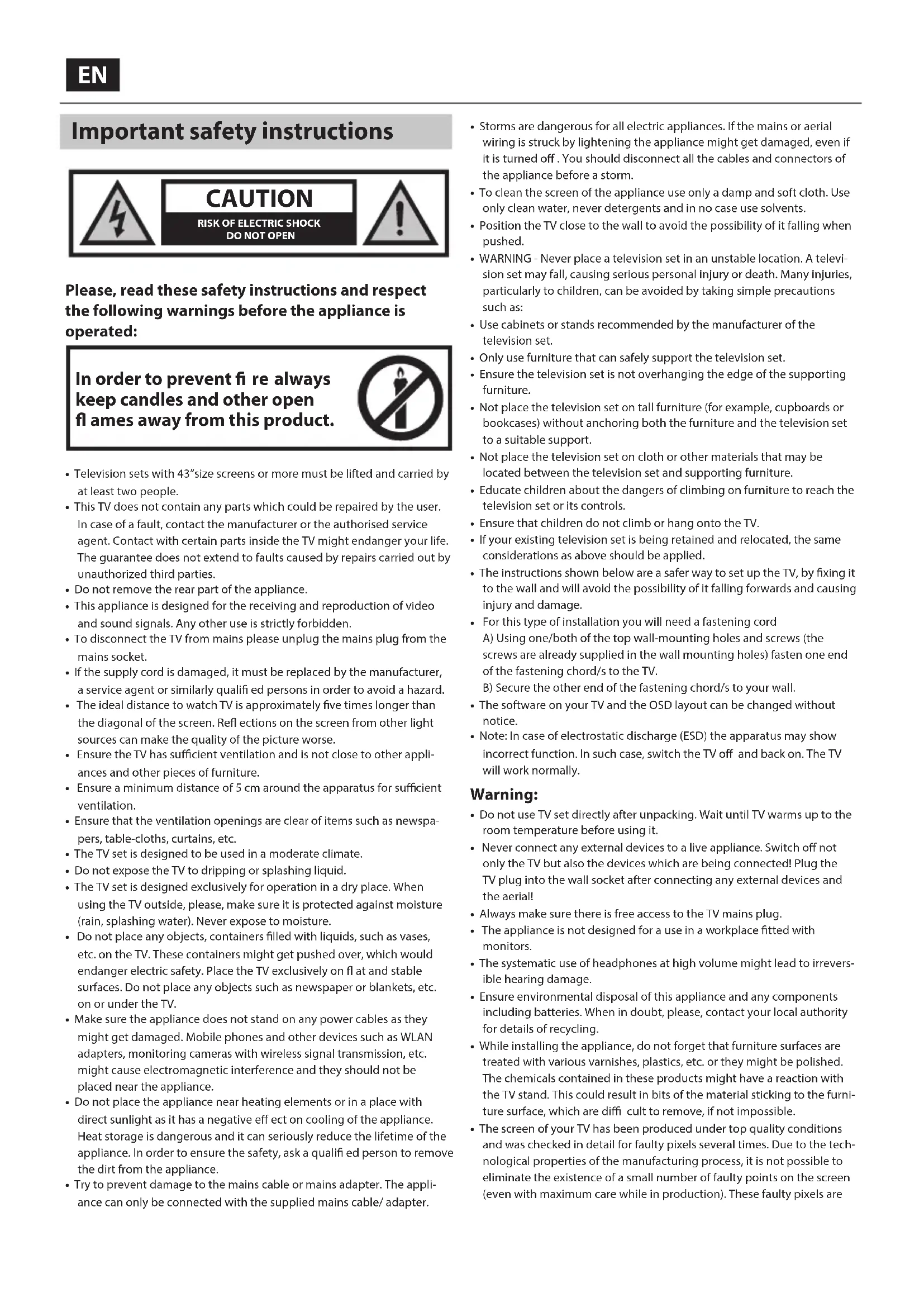
Please, read these safety instructions and respect the following warnings before the appliance is operated: In order to prevent re always keep candles and other open ames away from this product.
- Television sets with 43”size screens or more must be lifted and carried by at least two people.
- This TV does not contain any parts which could be repaired by the user. In case of afault, contact the manufacturer or the authorised service agent. Contact with certain parts inside the TV might endanger your life. The guarantee does not extend to faults caused by repairs carried out by unauthorized third parties.
- Do not remove the rear part of the appliance.
- This appliance is designed for the receiving and reproduction of video and sound signals. Any other use is strictly forbidden.
- To disconnect the TV from mains please unplug the mains plug from the mains socket.
- If the supply cord is damaged, it must be replaced by the manufacturer, aservice agent or similarly quali ed persons in order to avoid ahazard.
- The ideal distance to watch TV is approximately ve times longer than the diagonal of the screen. Re ections on the screen from other light sources can make the quality of the picture worse.
- Ensure the TV has su cient ventilation and is not close to other appli- ances and other pieces of furniture.
- Ensure a minimum distance of 5 cm around the apparatus for su cient ventilation.
- Ensure that the ventilation openings are clear of items such as newspa- pers, table-cloths, curtains, etc.
- The TV set is designed to be used in amoderate climate.
- Do not expose the TV to dripping or splashing liquid.
- The TV set is designed exclusively for operation in adry place. When using the TV outside, please, make sure it is protected against moisture (rain, splashing water). Never expose to moisture.
- Do not place any objects, containers lled with liquids, such as vases, etc. on the TV. These containers might get pushed over, which would endanger electric safety. Place the TV exclusively on at and stable surfaces. Do not place any objects such as newspaper or blankets, etc. on or under the TV.
- Make sure the appliance does not stand on any power cables as they might get damaged. Mobile phones and other devices such as WLAN adapters, monitoring cameras with wireless signal transmission, etc. might cause electromagnetic interference and they should not be placed near the appliance.
- Do not place the appliance near heating elements or in aplace with direct sunlight as it has anegative e ect on cooling of the appliance. Heat storage is dangerous and it can seriously reduce the lifetime of the appliance. In order to ensure the safety, ask aquali ed person to remove the dirt from the appliance.
- Try to prevent damage to the mains cable or mains adapter. The appli- ance can only be connected with the supplied mains cable/ adapter.
- Storms are dangerous for all electric appliances. If the mains or aerial wiring is struck by lightening the appliance might get damaged, even if it is turned o . You should disconnect all the cables and connectors of the appliance before astorm.
- To clean the screen of the appliance use only adamp and soft cloth. Use only clean water, never detergents and in no case use solvents.
- Position the TV close to the wall to avoid the possibility of it falling when pushed.
- WARNING - Never place a television set in an unstable location. A televi- sion set may fall, causing serious personal injury or death. Many injuries, particularly to children, can be avoided by taking simple precautions such as:
- Use cabinets or stands recommended by the manufacturer of the television set.
- Only use furniture that can safely support the television set.
- Ensure the television set is not overhanging the edge of the supporting furniture.
- Not place the television set on tall furniture (for example, cupboards or bookcases) without anchoring both the furniture and the television set to a suitable support.
- Not place the television set on cloth or other materials that may be located between the television set and supporting furniture.
- Educate children about the dangers of climbing on furniture to reach the television set or its controls.
- Ensure that children do not climb or hang onto the TV.
- If your existing television set is being retained and relocated, the same considerations as above should be applied.
- The instructions shown below are asafer way to set up the TV, by fixing it to the wall and will avoid the possibility of it falling forwards and causing injury and damage.
For this type of installation you will need afastening cord A) Using one/both of the top wall-mounting holes and screws (the screws are already supplied in the wall mounting holes) fasten one end of the fastening chord/sto the TV. B) Secure the other end of the fastening chord/sto your wall.
- The software on your TV and the OSD layout can be changed without notice.
- Note: In case of electrostatic discharge (ESD) the apparatus may show incorrect function. In such case, switch the TV o and back on. The TV will work normally.
- Do not use TV set directly after unpacking. Wait until TV warms up to the room temperature before using it.
- Never connect any external devices to alive appliance. Switch o not only the TV but also the devices which are being connected! Plug the TV plug into the wall socket after connecting any external devices and the aerial!
- Always make sure there is free access to the TV mains plug.
- The appliance is not designed for ause in aworkplace tted with monitors.
- The systematic use of headphones at high volume might lead to irrevers- ible hearing damage.
- Ensure environmental disposal of this appliance and any components including batteries. When in doubt, please, contact your local authority for details of recycling.
- While installing the appliance, do not forget that furniture surfaces are treated with various varnishes, plastics, etc. or they might be polished. The chemicals contained in these products might have areaction with the TV stand. This could result in bits of the material sticking to the furni- ture surface, which are di cult to remove, if not impossible.
- The screen of your TV has been produced under top quality conditions and was checked in detail for faulty pixels several times. Due to the tech- nological properties of the manufacturing process, it is not possible to eliminate the existence of asmall number of faulty points on the screen (even with maximum care while in production). These faulty pixels are5 not considered faults in terms of guarantee conditions, if their extent is not greater than the boundaries de ned by DIN norm.
The manufacturer cannot be held responsible, or be liable, for customer service-related issues related to the third party content or services. Any questions, comments or service-related inquiries relating to the third party content or service should be made directly to the applicable content or service provider.
- There are a variety of reasons you may be unable to access content or services from the device unrelated to the device itself, including, but not limited to, power failure, the Internet connection, or failure to con gure your device correctly. Universal Media Corporation, its directors, o cers, employees, agents, contractors and a liates shall not be liable to you or any third party with respect to such failures or maintenance outages, regardless of cause or whether or not it could have been avoided.
- All third party content or services accessible via this device is provided to you on an “as-is” and “as available” basis and Universal Media Corporation and its a liates make no warranty or representation of any kind to you, either express or implied, including, without limitation, any warranties of merchantability, non-infringement, tness for a particular purpose or any warranties of suitability, availability, accuracy, completeness, se- curity, title, usefulness, lack of negligence or error-free or uninterrupted operation or use of the content or services provided to you or that the content or services will meet your requirements or expectations.
- ‘Universal Media Corporation’ is not an agent of and assumes no responsibility for the acts or omissions of third party content or service providers, nor any aspect of the content or service related to such third party providers.
- In no event will ‘Universal Media Corporation’ and/or its a liates be liable to you or any third party for any direct, indirect, special, incidental, punitive, consequential or other damages, whether the theory of liability is based on contract, tort, negligence, breach of warranty, strict liability or otherwise and whether or not Universal Media Corporation and/or its a liates have been advised of the possibility of such damages. Important information regarding use of video games, computers, captions and other xed image displays.
- The extended use of xed image program material can cause aperma- nent “shadow image “ on the LCD screen (this is sometimes incorrectly referred to as “burnout to the screen“). This shadow image is then perma- nently visible on the screen in the background. It is irreversible damage. You can avoid such adamage by following instructions below:
- Reduce the brightness/contrast setting to aminimum viewing level.
- Do not display the xed image for along period of time. Avoid display- ing of: » Teletext time and charts, » TV/DVD menu, e.g. DVD contents, » In the„Pause“ mode (hold): Do not use this mode for along time, e.g. while watching aDVD or avideo. » Turn o the appliance if you are not using it. Batteries
- Observe the correct polarity when inserting the batteries.
- Do not expose batteries to high temperatures and do not place them on locations where the tempera- ture might increase quickly, e.g. near the re or on the direct sunshine.
- Do not expose batteries to excessive radiant heat, do not throw them into the re, do not disassemble them and do not try to recharge un-rechargeable batteries. They could leak or explode. » Never use di erent batteries together or mix new and old ones. » Dispose of batteries in an environmentally friendly way. » Most of the EU countries regulate the disposal of batteries by law. Disposal
- Do not dispose of this TV as unsorted municipal waste. Return it to adesignated collection point for the recycling of WEEE. By doing so, you will help to conserve resources and protect the environment. Contact your retailer or local authorities for more information. CE Statement:
- Hereby, UMC Poland Sp. z o.o. declares that this LED TV is in compliance with the essential requirements and other relevant provisions of RED Directive 2014/53/EU. htt ps://www.sharpconsumer.eu/documents-of- conformity/ Trademarks
- The terms HDMI and HDMI High-De nition Multimedia Interface, and the HDMI Logo are trademarks or registered trademarks of HDMI Licensing, LLC in the United States and other countries.
- The “HD TV” Logo is atrademark of DIGITALEUROPE.
- The “HD TV 1080p” Logo is atrademark of DIGITALEUROPE.
- The DVB logo is the registered trademark of the Digital Video Broad- casting - DVB - project.
- Manufactured under license from Dolby Laboratories. Dolby, Dolby Audio and the double-D symbol are trademarks of Dolby Laboratories.
For DTS patents, see http://patents.dts.com. Manufactured under license from DTS Licensing Limited. DTS, the Symbol, & DTS and the Symbol together are registered trademarks. DTS TruSurround is a trademark of DTS, Inc. © DTS, Inc. All Rights Reserved.
- YouTube and the YouTube logo are trademarks of Google Inc
- The Wi-Fi CERTIFIED Logo is a certi cation mark of the Wi-Fi Alliance.
- Wi-Fi CERTIFIED Miracast and Miracast are trademarks of Wi-Fi Alliance
- DLNA, the DLNA Logo and DLNA CERTIFIED are trademarks, service marks, or certi cation marks of the Digital Living Network Alliance.
- MHL and the MHL logo are a trademark, registered trademark or service mark of MHL, LLC in the United States and /or other countries.
- The Bluetooth word mark and logos are registered trademarks owned by Bluetooth SIG,. Inc.
- Harman Kardon is trademark of HARMAN International Industries, Incorporated, registered in the United States and/or other countries.EN What is included in the box Supply of this TV includes following parts:
- 2x AAA batteries Attaching the Stand Please follow the instructions on last page of this user manual. Wall mounting the TV
1. Remove the four screws that are supplied in the wall mounting holes.
2. The wall mount can now be easily attached to the mounting holes on
3. Install the wall mounting bracket to the television as advised by the
bracket manufacturer. Getting started - initial set up
1. Using the RF cable, connect the TV to the TV Aerial wall socket.
Connect the power cable to the Electrical outlet.
2. For connecting to the Internet with a wired connection connect a
Cat 5/Ethernet cable (not included) from the TV to your broadband modem/router.
3. Insert the batteries supplied into the Remote control.
4. Then press Standby button to power on TV.
5. You will be now welcomed with the First Time Installation screen.
If it does not appear, on the remote control, please press [MENU] then 8-8-8-8 and the menu will appear. If you wish to make changes to any of the default settings, use the scroll ▲/▼/◄/► buttons. To exit this menu at anytime, press [EXIT] button.
6. Please set desired settings in First Time Installation screen.
STEP 1 - Set the TV Menu language. STEP 2 - set your country STEP 3 - Set type of network connection. If you wish to skip this step and connect TV to network later, please choose Skip Network Setting STEP 4 - Select the location of TV. For home use, please select Home. For shop demonstration mode, set Store. STEP 5 - choose if your TV has stand, or if it is mounted on the wall. TV will set optimal audio settings for selected option. STEP 6 - choose input source which you want to use. If you have connected RF cable directly to TV, choose DTV. If you have satellite directly connected to your TV, choose DVB-S. In case you are using set- top-box, please pick correct input to which it is connected.
7. If you selected in last step DTV or DVB-S2, you will be asked if you
want to tune channels. If you choose “No”, you can tune channels later from SETTINGS/CHANNEL menu. If you choose “Yes”, tuning menu will appear. Digital TV (DTV) tuning: In DVB Antenna, please choose which type of signal you have. Terrestrial (DVB-T) or Cable (DVB-C). Then enter Auto tuning and set your desired settings. Again choose Auto tuning to start tuning of channels. Satellite (DVB-S2) tuning: Enter Auto Tuning and enter Satellite. Here you can choose between the various satellites. Select satellite which you wish to tune by pressing OK button on remote control. Then return to previous menu by pressing BACK button on your remote control and choose Auto tuning to start tuning of channels. NOTE: To shorten tuning time of satellite channels, some countries have preinstalled channel list for most popular satellite in that region. If this is the case for your selected country, you will be asked if you wish to load preinstalled channel list. If you choose “Yes”, satellite channel list will be imported to your TV within few seconds. TIP: If you are missing channels, the reason for this is likely to be signal strength, you should consider connecting signal booster and re-tuning the TV. Remote control
3. 0 – 9 – to select aTV channel directly.
– To return to the previous channel viewed.
6. PICTURE – Scrolls through picture mode options.
7. VOL ▲/▼ – To increase / decrease the sound level.
8. CH ▲/▼ – To increase or decrease the channel being watched.
9. SOUND – Scrolls through sound mode options.
13. (▲/▼/◄/►/ OK) – Allows you to navigate the on-screen menus and
adjust the system settings to your preference.
16. INFO – Press once for now/next channel information. Press twice for
18. SUBTITLE – To switch the dialogue at the bottom of the screen (on/
19. TV – Switch to digital TV source.
– To restart the current chapter
– To advance forward to the next chapter
– To stop the playback
– Opens the list of recordings.
– To play in fast rewind mode.
– To play in fast forward mode.
– Additional teletext and OSD functions
- - for TV with buttons TV Control Stick* TV control stick is located on the lower left corner of back side of the TV. You can use it instead of remote control to control most of the functions of your TV. While TV is in standby mode:
- short press of control stick - Power On While watching TV:
- - for TV with control stick Choosing Mode Input/Source To switch between the di erent input/connections. a) Using the buttons on the remote control:
] - The source menu will appear.
2. Press [◄] or [►] to select the input you require.
3. Press [SOURCE] to change input/source to the one selected.
b2) Using the TV control stick*:
1. Shortly press control stick to enter menu.
2. Press control stick down and navigate cursor to SOURCES menu.
3. Shortly press control stick to enter SOURCES menu.
4. with control stick choose the input/source yourequire.
5. By short press of control stick, you will change input/source to the
- - Only on supported devices TV Menu navigation To access this menu, press [MENU] button on the remote control. To enter amenu press [OK]. If you wish to make changes to any of the default settings, use the scroll (▲/▼/◄/►) buttons. To con rm any settings press [OK] button. To exit this menu at anytime, press [EXIT] button. Net ix World’s leading Internet television network. It is o ering thousands of movies and TV shows, including original series, documentaries and feature lms. Members can play, pause and resume watching, all without commercials or commitments. You can log in to this application with your existing Net ix account. If you do not have Net ix account yet, you can register via this app or via o cial Net ix website. YouTube Videosharing app allows you to discover and watch originally-created videos. NOTE: For Youtube app to work, it is required to have set up correct date and time in TV. For more information about setting up date/time in TV, please refer to the TIME menu chapter of this user guide. Please ensure that your network is not blocking access to YouTube and the speed of your internet connection is fast enough for viewing YouTube content.EN More Apps Contains the most commonly used apps for quick and easy access. AQUOS NET+ - Opens the Sharp SMART portal. Weather - Weather forecasting app AccuWeather. Browser - Application for accessing websites via the internet. Navigation in the browser: – CH+ - scroll page up – CH- - scroll page down – Red Button - show/hide browser menu bar – Yellow Button - Zoom in – Blue Button - Zoom out Sources From this menu, you can switch your TV input signal to di erent source/ connected device. Media USB - Multimedia mode o ers the playback of various content saved on a USB Memory Stick. The content will be divided into various le types: Photo, Music and Movie. The ‘File Option’ will show and allow you to play all types of supported content.
1. You can navigate through the menu using the scroll ▲/▼/◄/►
buttons. To con rm the item you wish to play/view press [OK] button.
2. While viewing content you can control the playback modes using the
remote control buttons or by bringing up the playback navigation menu and selecting on-screen buttons ▲/▼/◄/► and [OK] NOTE: USB extension cables are not recommended as they can cause a reduction in picture/audio quality and stoppages during play back of USB content. Miracast* - Allows you to view content from your smart phone or tablet on the TV screen. Miracast is formed using Wi-Fi Direct, so access to a Wi-Fi network is not needed. You can share content from your smartphone or tablet based on Android 4.4 and newer system. Media Server - Automatically searches for digital media servers (DMS) connected to your home network and enables the playback and rendering of content from media servers
- - This function is only available on selected smartphones and note- books. PICTURE Picture Mode - Choose from the following presets. – Standard - Default settings – Movie - Set to be lighter in colour and less bright. – Personal - Lets you manually alter all the settings. – Eco - Consume 15% less energy. – Dynamic - Recommended settings for fast moving pictures. Contrast - Switch the balance between black and white. Brightness - Increase or decrease the brightness of the picture. Colour - Increases the colour from black and white. Sharpness - Increase or decrease the sharpness of the picture. Colour Temperature - Choose from the following presets. – Normal - Default settings. – Warm - Increases red within the picture. – Cold - Increases blue within the picture. Aspect Ratio - Picture format varies depending on the channel/broadcast. There are a number of di erent options to best meet your needs. – Auto - Automatically displays the best picture format. So the picture is in the correct position. May have black lines at the top/bottom and/or sides. – 4:3 - Displays the 4:3 picture in its original size. Side bars are shown to ll the 16:9 screen. – 16:9 - Fills the screen with a regular 16:9 signal. – Zoom 1/2 - The picture is the correct proportion but zoomed in to ll the screen. – Dot by Dot (HDMI) - Will display the picture in its original resolution without any change. – Full Screen - Stretch signal to ll the screen. PC* – Auto Adjust - Lets you automatically con gure the television to be used as acomputer monitor. – H O set - Changes the horizontal position of the picture. – VO set - Changes the vertical position of the picture. – Size - increase picture size. – Phase - To adjust delay time of phase in order to reduce the noise of picture
- - Only on supported devices Expert Settings – Noise Reduction - Filters and reduces the noise (interference) of the picture. – Active Contrast - Automatically optimises the ‘backlight’ and ‘contrast’ of the picture according to the brightness of the screen. SOUND Sound Mode - Choose from the following presets – Standard - Default settings – Music - Emphasises music over voices – Movie - Provides live and full sound for movies – Personal - Selects your personal sound settings – Sports - Emphasises sound for sports Equalizer - Adjusts the volume of di erent sound frequencies. The equalizer sound levels can only be adjusted when the sound mode ‘Personal’ is selected. Balance - To switch the sound between the left and right speakers. Auto Volume Level (AVL) - When ‘on’ is selected, the volume will stay at aconstant level regardless of input/source. DTS TruSurround - Allows you to turn surround sound e ect ON or OFF. Digital Output - This is the digital Audio output. Choose from the following options: – O - O – Auto - Selects the best settings automatically – PCM - Select this option if you are connecting to aStereo Hi- via digital cable (Pulse-code modulation (PCM) is adigital representation of an analogue signal). Audio Description - Additional sound track for visually impaired. Available only on selected DTV shows. AD Volume - to adjust volume of Audio Description sound track AudioTrack - allows you to choose di erent audio/ language for Digital TV or media. Audio Delay (ms) - Enables the user to adjust sound setting to sync picture and audio for TV speakers. SPDIF Delay (ms) - Enables the user to adjust sound setting to sync picture and audio for external speakers connected via digital audio output. SETTINGS CHANNEL DVB Antenna - Set the type of DTV signal – Terrestrial - Terrestrial (DVB-T) – Cable - Cable (DVB-C)9 Auto Tuning - Allows you to retune the television for all digital channels, digital radio stations and analogue channels. Analogue Manual Tuning - Allows you to manually tune your analogue signal. Digital Manual Tuning - Allows you to manually tune your digital signal. Channel Edit - Allows you to delete, skip and add favourite channels. Red Button - delete selected channel. Yellow Button - Move selected channel. Go with cursor to channel, which you wish to move to di erent position, then press YELLOW button. Now move selected channel with UP/ DOWN arrow to desired position and press YELLOW button again to con rm its new position in channel list. Blue Button - Skip selected channel. Channels selected to Skip will not be displayed while pressing CH+ or CH- buttons. Signal Information - Information about DVB signal. CI Information - Pay per view services require a“smartcard” to be inserted into the TV. If you subscribe to apay per view service the provider will issue you with a‘CAM’ and a“smartcard”. The CAM can then be inserted into the COMMON INTERFACE PORT (CI Card In). Sorting by LCN - Set LCN to ON if you want to arrange channels by provider preferences (only applies to DVB-T and DVB-C channels). Channel Auto Update - if you set this option ON, channel positions, names and frequencies will be periodically updated by the provider. This may cause issues if you ordered channels in the list of channels by yourself. In such case we recommend to keep this option o . Recorded list* - List of recorded TV shows. Schedule List - Lists your programme reminders. Satellite Setup - This menu is only available in DVB-S2 mode. You can select the type of satellite, your transponder and your LNB type, etc. OAD (Software Update) - Switch on/o OAD (over air download) software updates.
- - Only for devices with built in PVR function NETWORK Network Con guration - First you will need to select your connection type. You can choose between either a Wi-Fi or Wire (cable) connection. NOTE: For connecting to the Internet with a wired connection, connect a Cat 5/Ethernet cable (not included) from the TV to your broadband modem/router. IP con g - LAN network connection settings Auto - Will automatically connect the TV to your home network (this is the default setting and is highly recommended) Manual - Allows you to manually change the IP, Netmask, Gateway and DNS information. Wi–Fi Con guration - Wireless network connection settings Wi–Fi Auto Search - Automatically searches for available wireless networks. Select the desired Wi–Fi network and then enter the network password (if network is password protected). Once the password is accepted, you will not be asked for it again. NOTE: The connection process may take a few minutes, please be patient. Every time the TV is then powered on it will automatically connect to the network, this may also take some time. Network Info - Information about the network settings Network Test - A network connection test TIME Auto Sync - Automatically sets the time and date on the TV set. Requires the TV to be tuned in with a digital signal and/or an internet connection. Turn “Auto Sync” o to manually adjust the time and date settings. If “Auto Sync” is set to o with the time and date manually adjusted, this information will be reset when the power to the TV is disconnected. Clock - Shows the date and time. Can be adjusted when “Auto Sync” is set to o . O Time - Allows you to set aspeci c time for your TV to turn o . On Time - Allows you to set aspeci c time for your TV to turn on, the channel it will then display, the source it will be on and also the volume. This function can then be toggled to repeat every day or acertain day. Sleep Timer - Lets you set the sleep timer so the television automatically switches o after aset amount of time. O -> 10min -> 20min -> 30min -> 60min -> 90min -> 120min -> 180min -> 240min. OSD Timer - Lets you adjust the amount of time the On Screen Menu stays on the screen before disappearing. Auto standby - Adjustment for the auto standby in hourly increments: O -> 3h -> 4h -> 5h. Time Zone - Change your current time zone. LOCK System Lock - Allows you to lock or unlock the menu. You will be asked to enter a4 digit password. Use the ◄ button to quit the password input. Use the ► button to clear. Default password is 0000. Set Password - Change the default password. Channel lock - Lock speci c TV channels. Parental Guidance - Lock TV channels based on age restriction. Key lock - Allows you to lock the TV control stick on the back side of the TV set. Source Lock - Allows you to hide selected inputs from the source menu. Hotel Mode - Advanced settings for hotels. SETUP Language - Allows you to change the language of the menu. Audio Languages - Allows you to change audio language on selected DVB channels. Subtitle Language - Allows you to change subtitles language on selected DVB channels. Hearing Impaired - If signal provides support for the hearing impaired, the subtitles can be played by pressing the “Subtitle”. If you set Hearing Impaired ON and switch to achannel with supports for hearing impaired subtitles will be activated automatically. Blue Screen - Changes the background when there is no input between transparent and ablue background (Only available on some sources). PVR File System - PVR Recording options* Select disk - Select USB port and disk partition TimeShift Size - Set size time of shift bu er. Format - You can format connected USB storage device to FAT 32 le system.
WARNING: ALL DATA ON THE USB DEVICE WILL BE DELETED
Speed - Tests write speed of connected USB storage devices.
- - only for devices with built in PVR function First Time Installation - Starts the rst time installation. Software Update (USB) - From time to time we may release new rmware to improve the operation of the television (available to download). This menu lets you install the new software/ rmware onto the television. Further details of how to do this will be issued with the rmware. Contact the helpline or refer to the ‘www.sharp.eu’ website. Software Upgrade (NET) - Allows for the TV software to be updated over the Internet. This function will search for new software and update it when necessary. NOTE: The TV will automatically search for new releases of software every time it is turned on. If new software is found, it will ask you if you would like to download and install it. If you select "Yes" the TV will upgrade to the latest software.
WARNING: Do not turn o the TV’s power until the upgrade is complete!
Reset TV - This resets the menus to factory settings. HDMI CEC* - Allows you to operate devices connected via HDMI with TV remote control. Device list* - Allows you to access devices menu and operate the menu using TV remote control. HDMI CEC - enable/disable HDMI CEC function Auto standby* - Automatically turn on/ o connected devices via HDMI CEC HDMI ARC* - Sends audio signal from terrestrial/satellite broadcast via HDMI to the AV receiver without using any additional audio cables, this functions is available only on HDMI 2 output.
- - HDMI CEC must be supported by connected device.EN LED Status - Allows the user to switch the LED Power indicator light ON or OFF, when the TV is being operated. (When this option is set to OFF the LED Power indicator light will flash when the remote control is used). HbbTV - Allows the user to switch HbbTV on/o . To use HbbTV, TV must be connected to the internet and watched channel must support HbbTV service. Version Info - shows version of TV software Source Edit - this allows user to manually rename items in your list of input sources. For example, you can rename inputs to the names of connected devices. AQUOS NET+ To access the AQUOS NET+ Menu at any time press the NET+ button on the remote control or select it from More Apps menu. NOTE: Please wait while the TV connects to the Wi-Fi network. It may take a few minutes after you switch on the TV. Navigate the menu using the scroll ▲/▼/◄/► buttons. To con rm the item you wish to play/view press [OK] button. For ‘one-step’ back press [Menu] button, and to access additional functions use the coloured buttons. To leave AQUOS NET+ press [EXIT] button. Home - Home screen with recommended movies and recently opened applications All Apps - Opens a list of available applications Movies - Opens a list of available movies TV Shows - Opens a list of available TV shows Music - Opens a list of available Music and Music videos Games - List of games and gaming related apps. Sport - List of sport related apps. News - List of news apps. Search - search for app by entering its name or part of the name. My apps - By adding apps to the “My Apps” list, you will be able to quickly access your favourite apps. To add an app to the list, simply highlight any app and press the green button, this will now appear in your "My apps" list. To remove an unwanted app from the “My Apps” list, you must highlight the app you want to delete and press GREEN button. Settings - In the settings menu you can change the language of the Aquos NET+ portal, set up a lter for applications speci c to the language selected and reset all user settings back to the default settings. RESET OF USER SETTINGS: If you wish to completely reset all user settings on AQUOS NET+, you must rst enter the Settings menu of the portal and select “Reset your device”. Please select YES with cursor and then press OK on the remote control to con rm the reset of the settings. NOTE: To meet our customers’ demands, we are improving our products. As a result of our ongoing e orts new applications will be added continuously to the AQUOS NET+. Applications and content in AQUOS NET+ can be changed without notice. Some of the functions and content may not be available in your country. 7 Day TV Guide TV Guide is available in Digital TV mode. It provides information about forthcoming programmes (where supported by the Digital channel). You can view the start and end time of all programmes and on all channels for the next 7 days and set reminders.
[TV GUIDE]. The following 7 Day TV Guide will appear.
2. Navigate through the menu using
You can now: Record selected TV channel and TV show by pressing the RED button.* Set areminder by pressing GREEN. View aprevious day by pressing YELLOW. View the next day by pressing BLUE. [INFO] shows detailed information about the selected post
3. Press [EXIT] to exit the 7 day TV Guide.
- - only for models with recording function USB Record - Digital mode* Built into this television is aUSB record facility. This function is available in Digital mode when used in conjunction with acompatible USB memory stick or USB Hard drive. The bene ts of this are as follows:
- Pause live TV and then playback, fast forward and rewind (up to live TV).
- One button record, if you decide you want to record the current programme.
- Easy programmable recording from the 7 day TV Guide Due to the nature of the product, it is necessary to use ahigh speed USB memory stick (as the TV reads from and writes to the memory stick at the same time, some memory sticks may not be suitable). Minimum Speci cation - USB Memory Stick – Read Speed - 20 Mb/s(Megabit Per Second) – Write Speed - 6 Mb/s(Megabit Per Second) Pause Live TV (Time Shift)* Pausing Live TV is very simple.
- Press the play/pause button and the television will pause and the live content will be recorded. To resume watching press play/pause again.
- Press fast forward to go forward in arecording (i.e. to skip adverts).
- Press fast rewind to go back in arecording (i.e. if you fast forwarded too far). TIP: When you switch the TV to standby or change channel the Time Shift memory is wiped. To restart time shift you must press play/pause button. One Button Record At any point in time you may decide to record the current channel that you are watching. To do this you need to press the [REC] button. TIP: This television contains one TV tuner, therefore it can only record the channel you are watching or record one channel while the television is in standby mode. NOTE: USB record function is only available in Digital TV mode. Due to copyright laws and illegal copying/recording it is not possible to record to/from any other input/output source.
- - only for devices with built in PVR function11 LC-32HI5012E LC-32HI5122E LC-40FI5012E LC-40FI5122E A+ A+ 32" / 81cm 40" / 102cm 31,0 W 45,0 W 45 kWh 66 kWh <0,50 W <0,50 W 1366 (H) x 768 (V) 1920 (H) x 1080 (V) Product che Trademark Model Energy e ciency class Visible screen size (diagonal) On-mode power consumption Annual energy consumption* Standby power consumption** O mode power consumption Screen resolution
- - Energy consumption XYZ kWh per year, based on the power consumption of the television operating 4 hours per day for 365 days. The actual energy consumption will depend on how the television is used. ** - when the TV is turned o with the remote control and no function is active N/ADE Wichtige Sicherheitsanweisungen VORSICHT