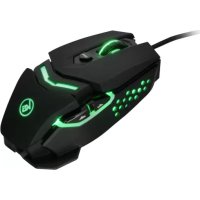
Fokus II - Mouse IOGEAR - Free user manual and instructions
Find the device manual for free Fokus II IOGEAR in PDF.

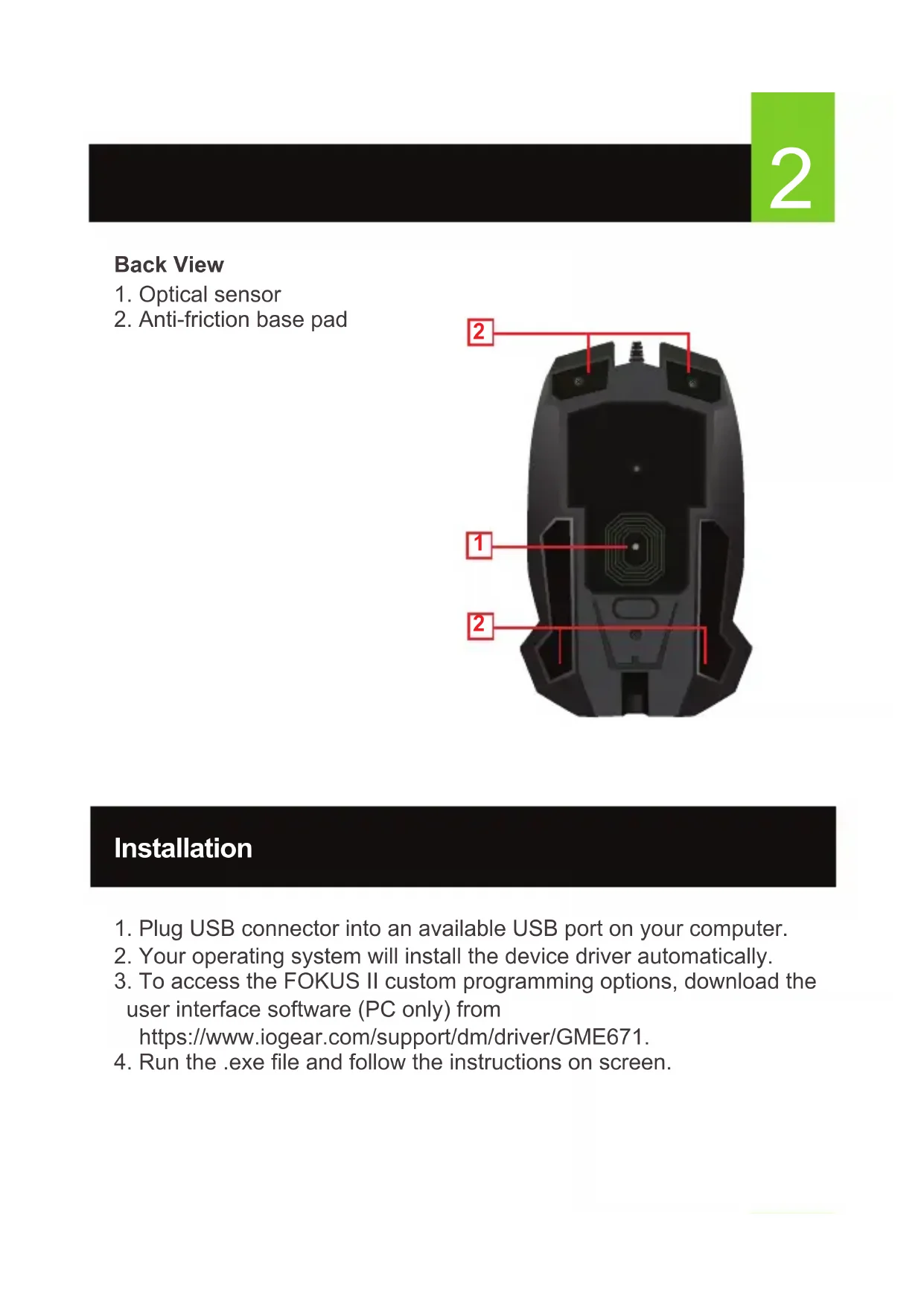


| Product Type | Wired Optical Mouse |
| Brand | IOGEAR |
| Model | Fokus II (GME671) |
| Interface | USB 2.0 |
| Sensor | Optical |
| Resolution | 800 / 1600 / 2000 / 2400 / 4000 / 6000 / 12000 DPI |
| Number of Buttons | 8 Programmable Buttons |
| Scroll Wheel | Yes, with click function |
| Polling Rate | 125 / 500 / 1000 reports/s |
| Supported Operating Systems | Windows Vista, 7, 8, 8.1, 10 |
| Customization Software | Available on the IOGEAR website |
| Power | Via USB port |
| Cable Length | Approximately 1.8 m |
| Dimensions (L x W x H) | Approximately 120 x 70 x 40 mm |
| Weight | Approximately 100 g |
| Material | Plastic with non-slip coating |
| Color | Black |
| Warranty | 3 years limited |
| Cleaning | Soft, dry cloth |
Frequently Asked Questions - Fokus II IOGEAR
User questions about Fokus II IOGEAR
0 question about this device. Answer the ones you know or ask your own.
Ask a new question about this device
Download the instructions for your Mouse in PDF format for free! Find your manual Fokus II - IOGEAR and take your electronic device back in hand. On this page are published all the documents necessary for the use of your device. Fokus II by IOGEAR.
USER MANUAL Fokus II IOGEAR
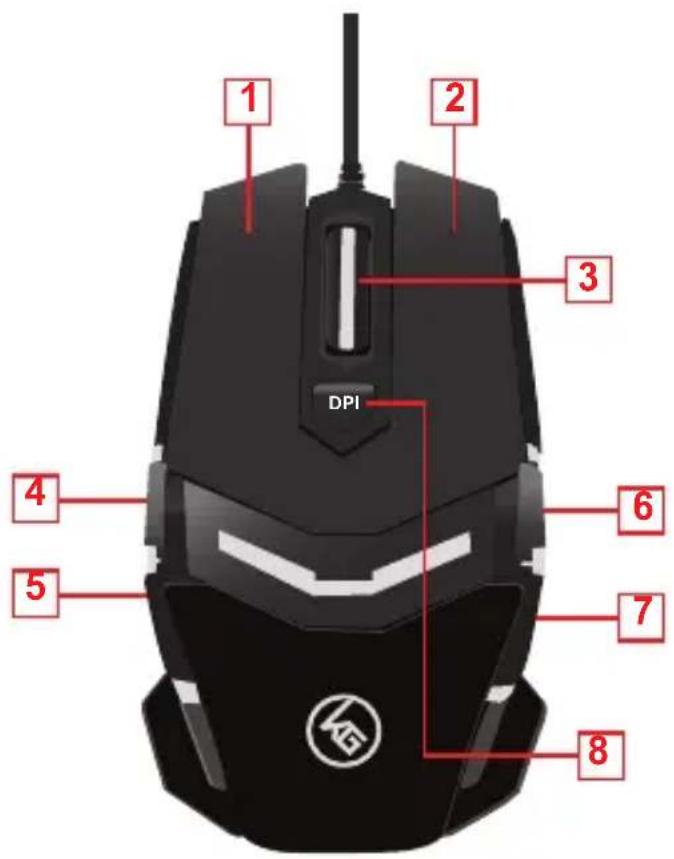
1.Left button/Select
2. Right button / Menu
3.Scroll wheel / 3rd button
4. 4th button / Forward
5. 5th button / Backward
6. 6th button / Volume +
7. 7th button / Volume -
8. 8th button / DPI +
2
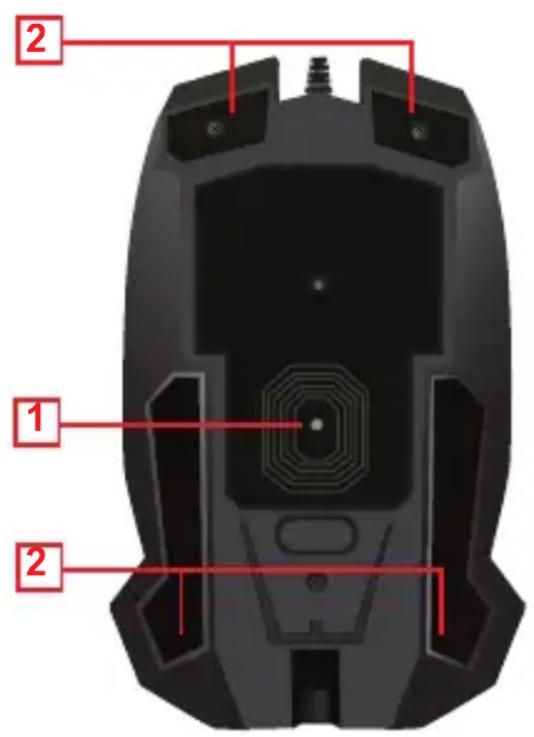
Back View
- Optical sensor
- Anti-friction base pad
Installation
- Plug USB connector into an available USB port on your computer.
- Your operating system will install the device driver automatically.
- To access the FOKUS II custom programming options, download the user interface software (PC only) from
https://www.iogear.com/support/dm/driver/GME671.
- Run the .exe file and follow the instructions on screen.
DPI Setting
The GME671's DPI button cycles through 7 preset resolution settings or through 7 custom settings that can be programmed with the user interface software. Press the DPI button to increase to the next higher resolution setting. After the reaching the highest setting, press the DPI button again to start over from the lowest setting. The DPI button illumination changes color to indicate the DPI has been changed.
Default DPI Resolutions LED Color
| 800 | Red |
| 1600 | Blue |
| 2000 | Green |
| 2400 | Orange |
| 4000 | Pink |
| 6000 | Cyan |
| 12000 | Yellow |
Report Rate Setting
The GME671 features an adjustable reporting rate 125, 500 or 1000 reports per second (rps) to better tailor the mouse to your system. Theoretically speaking, the highest 1000 rps settings should be the best setting for gaming, however due to the difference between system polling rates and refresh rates, and availability of system resources, a lower setting of 500 or sometimes even 125 rps may provide improved motion smoothness with some games. Try the different settings in the GME671 user interface software, and see which works best for you.
Compliance Statement
WARNING: This product can expose you to chemicals including styrene which is known to the State of California to cause cancer and birth defects or other reproductive harm. For more information, go to www.P65Warnings.ca.gov
Federal Communication Commission Interference Statement
This equipment has been tested and found to comply with the limits for a Class B digital service, pursuant to Part 15 of the FCC rules. These limits are designed to provide reasonable protection against harmful interference in a residential installation. Any changes or modifications made to this equipment may void the user's authority to operate this equipment. This equipment generates, uses, and can radiate radio frequency energy. If not installed and used in accordance with the instructions, may cause harmful interference to radio communications. However, there is no guarantee that interference will not occur in a particular installation. If this equipment does cause harmful interference to radio or television reception, which can be determined by turning the equipment off and on, the user is encouraged to try to correct the interference by one or more of the following measures:
- Reorient or relocate the receiving antenna
- Increase the separation between the equipment and receiver
- Connect the equipment into an outlet on a circuit different from that to which the receiver is connected
- Consult the dealer or an experienced radio/TV technician for help
FCC Caution: Any changes or modifications not expressly approved by the party responsible for compliance could void the user's authority to operate this equipment.
Canadian ICES Statements
Canadian Department of Communications Radio Interference Regulations This digital apparatus does not exceed the Class B limits for radio-noise emissions from a digital apparatus as set out in the Radio Interference Regulations of the Canadian Department of Communications. This Class B digital apparatus complies with Canadian ICES-003.
Limited Warranty
Warranty Information
This product carries a 3 Year Limited Warranty. For the terms and conditions of this warranty, please go to https://www.iogear.com/support/warranty
Register online at https://www.iogear.com/register
Important Product Information Product Model Serial Number
Contact
WE'RE HERE TO HELP YOU!
NEED ASSISTANCE SETTING UP THIS PRODUCT?
Make sure you:
- Visit www.iogear.com for more product information
- Visit www.iogear.com/support for live help and product support
IOGEAR
https://iogear.custhelp.com support@iogear.com www.iogear.com
https://iogear.custhelp.com
support@iogear.com
www.iogear.com
https://www.iogear.com/support/warranty
https://iogear.custhelp.com
support@iogear.com
www.iogear.com
Brand : IOGEAR
Model : Fokus II
Category : Mouse