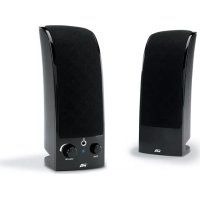
CA2402 - Loudspeaker Cyber Acoustics - Free user manual and instructions
Find the device manual for free CA2402 Cyber Acoustics in PDF.

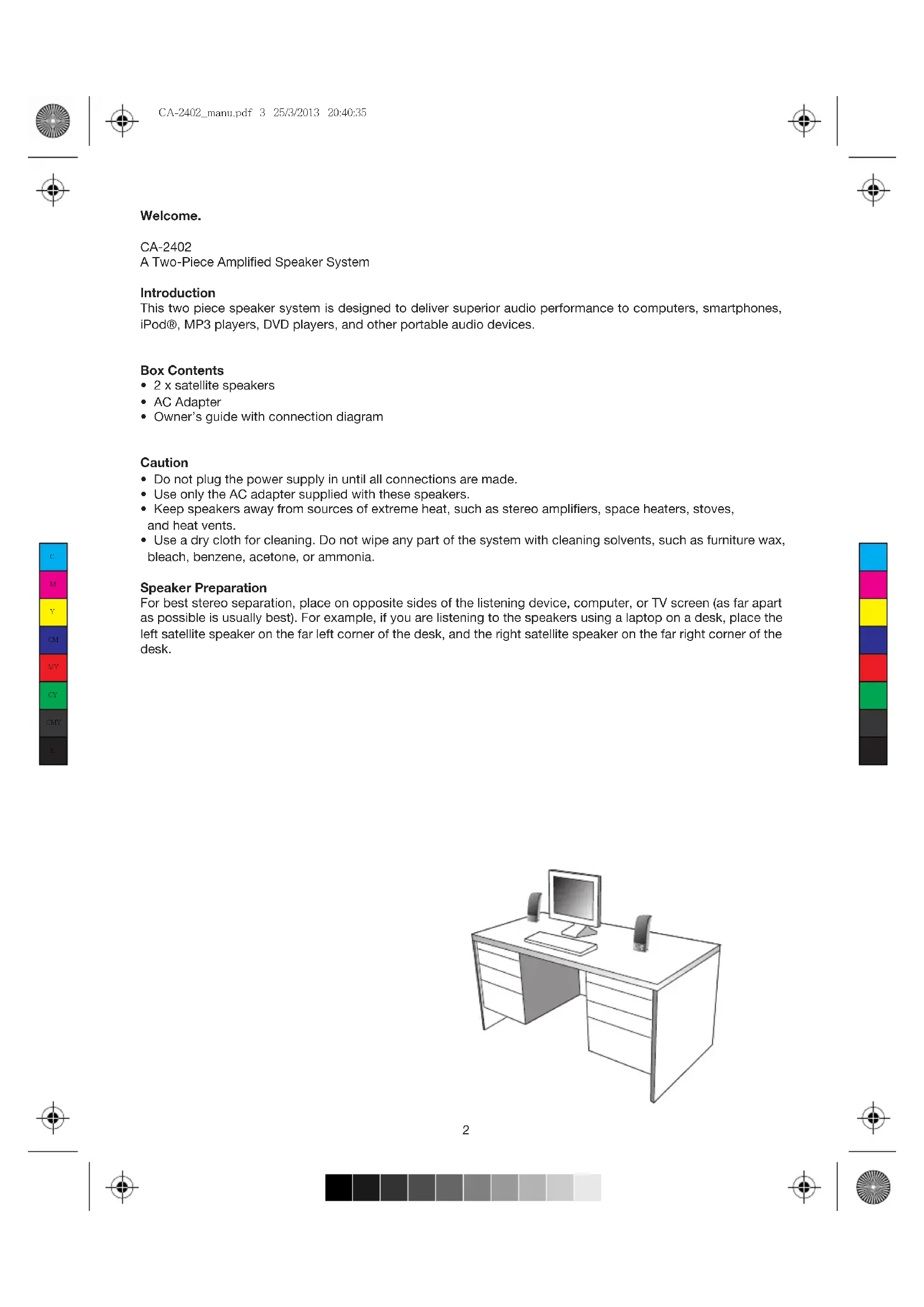


| Product Type | 2-way Powered Speaker System |
| Brand | Cyber Acoustics |
| Model | CA2402 |
| Number of Speakers | 2 satellites |
| Power Supply | AC adapter (included) |
| Audio Input | 3.5mm jack (green) |
| Additional Connectivity | Headphone jack (on right speaker) |
| Controls | On/off switch, volume knob |
| Indicator Light | Blue LED |
| Compatibility | Computers, smartphones, iPod, MP3 players, CD/DVD, game consoles (with Y-adapter cable sold separately) |
| Recommended Placement | On either side of the audio source for optimal stereo effect |
| Maintenance | Clean with a dry cloth; do not use solvents |
| Safety Instructions | Do not expose to excessive heat; use only the supplied adapter |
| Approximate Dimensions (per speaker) | 9 x 9 x 11.5 cm |
| Approximate Weight (total) | 0.8 kg |
| Customer Service | Phone: 360-883-0333 (PST 8am-5pm), email support@cyberacoustics.com |
Frequently Asked Questions - CA2402 Cyber Acoustics
User questions about CA2402 Cyber Acoustics
0 question about this device. Answer the ones you know or ask your own.
Ask a new question about this device
Download the instructions for your Loudspeaker in PDF format for free! Find your manual CA2402 - Cyber Acoustics and take your electronic device back in hand. On this page are published all the documents necessary for the use of your device. CA2402 by Cyber Acoustics.
USER MANUAL CA2402 Cyber Acoustics
CA-2402_manu.pdf 1 25/3/2013 20:40:35



Cyber Acoustics

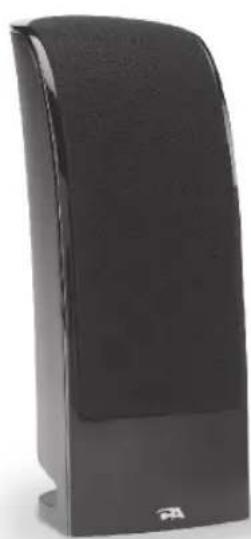

CA-2402
Owner's Guide
Amplified Speaker System





A Two-Piece Amplified Speaker System
Introduction
This two piece speaker system is designed to deliver superior audio performance to computers, smartphones, iPod®, MP3 players, DVD players, and other portable audio devices.
Box Contents
- 2 x satellite speakers
- AC Adapter
- Owner's guide with connection diagram
Caution
- Do not plug the power supply in until all connections are made.
- Use only the AC adapter supplied with these speakers.
- Keep speakers away from sources of extreme heat, such as stereo amplifiers, space heaters, stoves, and heat vents.
- Use a dry cloth for cleaning. Do not wipe any part of the system with cleaning solvents, such as furniture wax, bleach, benzene, acetone, or ammonia.
Speaker Preparation
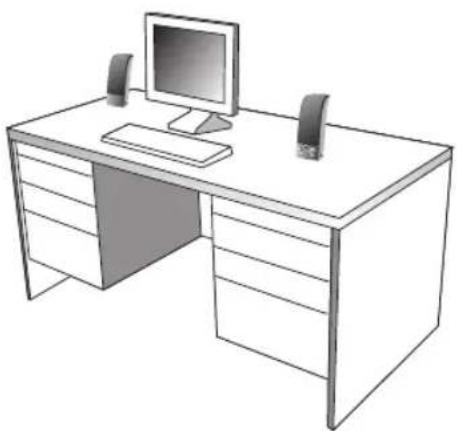
For best stereo separation, place on opposite sides of the listening device, computer, or TV screen (as far apart as possible is usually best). For example, if you are listening to the speakers using a laptop on a desk, place the left satellite speaker on the far left corner of the desk, and the right satellite speaker on the far right corner of the desk.







Speaker Connection
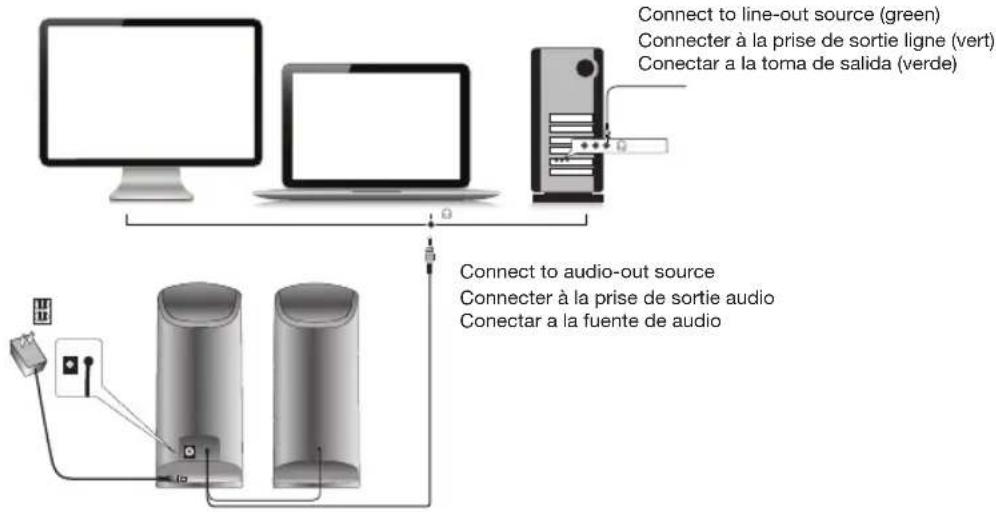
You can connect these speakers to a variety of devices, such as laptop, desktop, smartphone, iPod, MP3 player, CD player, DVD player, and other audio devices. Please read the following instructions along with the diagrams provided to identify which diagram most closely matches your connection source.
Computer
• Take the cable with the green plug and plug it into the green output/source jack in the back or front of the computer (also referred to as the sound/audio out jack).
• Take the AC power adapter and plug it into a wall socket or power strip.
Smartphone, iPod, MP3 player, DVD Player, or CD player
• Take the cable with the green plug and plug it into the green output/source jack of the audio device.
• Take the AC power cord and plug it into a wall socket or power strip.
Gaming system
- In order to connect these speakers to a game console, you will need a console gaming adapter, also known as a "Y adapter", which has dual RCA outputs. This item is sold separately.
- Turn off the power to your gaming system.
• Take the red and white dual-RCA connections on the Y adapter, and plug them into the matching red and white RCA jacks on your gaming system. - Take the green stereo jack at the other end of the "Y" adapter and plug that into the cable with the green plug coming from the back of the right speaker.
![graph TD A["Computer"] --> B["Line-out source (green)"] C["Laptop"] --> B D["Video Device"] --> E["Audio-out source"] F["Headphones"] --> G["Headphone jack"] H["Video System"] --> I["Video Game Output"] J["RCA “Y” adapter cable (not included)"] --> I style A fill:#f9f,stroke:#333 style C fill:#f9f,s…](/content/2026/03/458698/images/56b7387bb90e45b4f6cc737aba6319f333a1e97ea4a47724037bcf6055ce2741.jpg)



Controls and Features
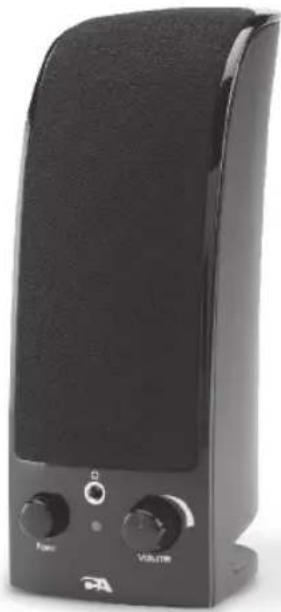
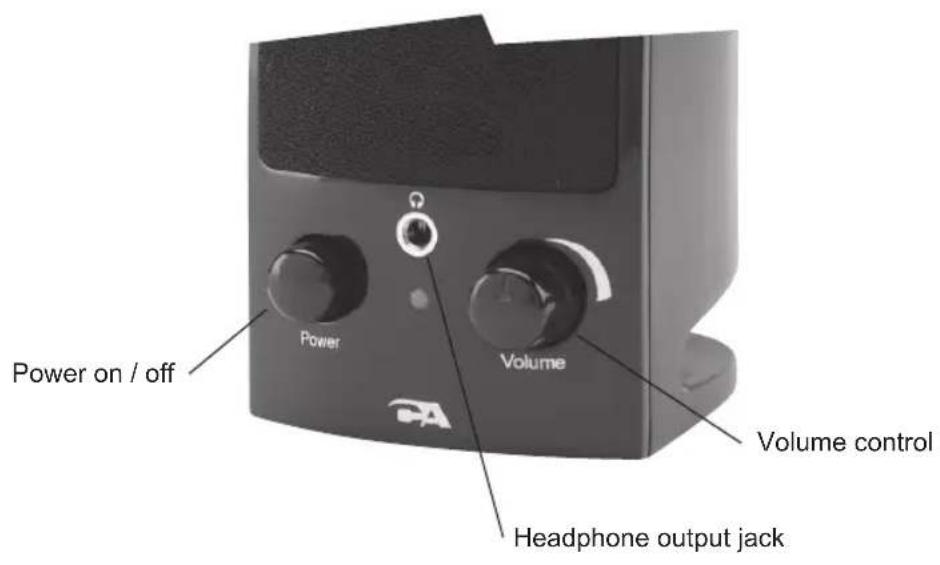
- Power—the on/off control is on the right satellite speaker. Press to turn the speaker on or off.
- Volume Control—this volume is on the right satellite speaker. Rotate clockwise to turn the volume up, and counter-clockwise to turn the volume down.
- Headphone Output Jack—connect your headphones to this jack and they will mute the speaker system automatically. The master volume can then be used to turn the volume up or down to your headphones.







Troubleshooting
Symptom:
Speaker system will not power on.
Solution:
- Power button is not turned on. Press in and check for the blue LED indicator light to come on.
- Verify the AC power adapter is plugged into the wall outlet.
- Check if the wall outlet or power strip you are using is actually getting power, i.e. not a switched outlet.
Symptom:
Speaker does not produce sound.
Solution:
- Verify the speaker is getting power. Check above steps.
- Make sure the volume is turned up to an audible listening level.
- Verify that all cables are plugged into the correct jacks.
- Many times users believe that the speakers are not working, when in fact they are having trouble with the sound source. The most common problem when connecting to a computer is that the connections are incorrect. Make sure you are connected to the audio output jack from your computer. Many times, this jack will be green. Also, make sure your media device or CD/DVD device is playing and the software volume settings are turned up and not muted.
- If you still have problems, disconnect the speaker source cable from your computer and connect to a smartphone, iPod, or anything else with a 3.5mm headphone output. If your speakers work on this other source, you know they are functioning as normal and the issue likely lies with your computer or the connections.
Symptom:
Sound is distorted.
Solution:
- Turn the volume down by 25% or 50%. If this does not work, also check the audio software volume level and decrease it if necessary.
- Adjust the computer's master volume control by balancing the volume until it's at 50% , then adjust the volume levels on the speakers.
If you have questions or need assistance with your speakers, we're here to help.
Call 360-883-0333 during the hours of 8 am to 5 pm (United States PST) or send email to support@cyberacoustics.com
iPod, iPhone, iPad, and iPad mini are trademarks of Apple, Inc.







Bienvenue
CA-2402


Speaker does not produce sound.
Solución:
Amplified Speaker System







Brand : Cyber Acoustics
Model : CA2402
Category : Loudspeaker