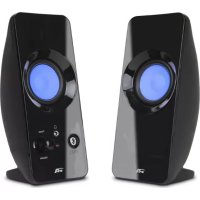
CA2806BT - Loudspeaker Cyber Acoustics - Free user manual and instructions
Find the device manual for free CA2806BT Cyber Acoustics in PDF.


| Product Type | Bluetooth Wireless Speaker System |
| Brand | Cyber Acoustics |
| Model | CA2806BT |
| Number of Speakers | 2 satellite speakers |
| Wireless Connectivity | Bluetooth |
| Auxiliary Input | 3.5mm AUX jack |
| Headphone Output | Yes, with speaker muting |
| Power | AC adapter included (100-240V) |
| Lighting | On/Off button |
| Volume Control | Rotary control on right speaker |
| Source Button | Toggles between Bluetooth and AUX |
| Cleaning | Dry cloth, avoid solvents |
| Safety | Plug in after all connections, avoid heat sources |
| Bluetooth Range | Approximately 9 meters in line of sight |
| Compatibility | Smartphones, tablets, computers, MP3 players, etc. |
| Box Contents | 2 speakers, AC adapter, AUX cable, user guide |
| Support | Technical support: support@cyberacoustics.com, phone 360-883-0333 (PST) |
Frequently Asked Questions - CA2806BT Cyber Acoustics
User questions about CA2806BT Cyber Acoustics
0 question about this device. Answer the ones you know or ask your own.
Ask a new question about this device
Download the instructions for your Loudspeaker in PDF format for free! Find your manual CA2806BT - Cyber Acoustics and take your electronic device back in hand. On this page are published all the documents necessary for the use of your device. CA2806BT by Cyber Acoustics.
USER MANUAL CA2806BT Cyber Acoustics
natural_image
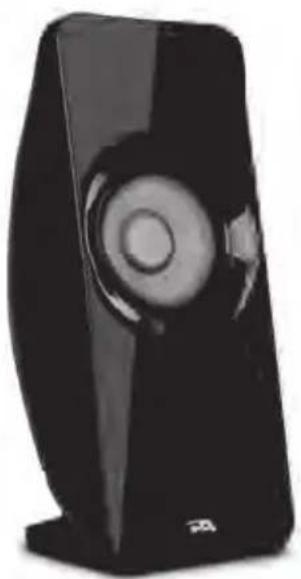
Black electronic device with a circular lens and rectangular body (no visible text or symbols)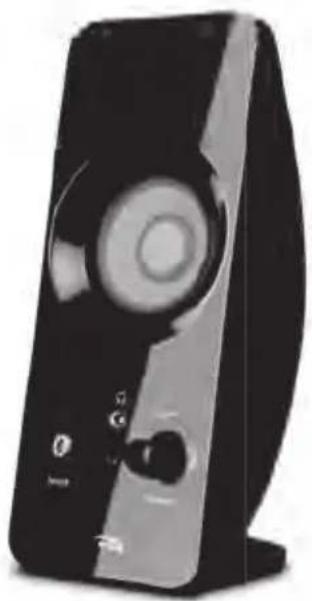
natural_image
Black and white photo of a modern audio player with a circular head and control buttons (no visible text or symbols)CA-2806BT Owner's Guide Bluetooth Speaker System
Thank you!
Merci!
¡Gracias!
Getting Started
Pour commencer
Inicio
natural_image
Simple line drawing of an open box with an arrow indicating direction (no text or symbols)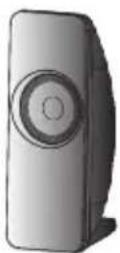

Bluetooth Connection
Connexion Bluetooth
Conexión Bluetooth

natural_image
Front view of a blank computer monitor with no visible text or symbols on the screen.
natural_image
Simple illustration of a laptop computer with blank screen and base (no text or symbols)

Bluetooth

AUX IN Connection
AUX IN Connexion
AUX IN Conexión
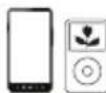
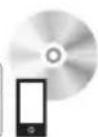
Connect to headphone jack
Bluetooth Wireless Speaker System
Congratulations
Your "CA-2806BT" speaker contains Bluetooth® technology, allowing you to wirelessly play music from nearly any Bluetooth enabled device. Now you can enter the room, select music to play on most smartphones, tablets, or laptops, and control your listening enjoyment from the comfort of your lap. From your device, you can easily control and change music tracks, playlists, adjust volume up or down, or even listen to podcasts, or many other audio applications available on your device.
Box Contents
- 2 x satellite speakers
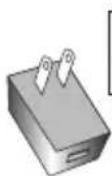
• AC adapter (AC 100 - 240V) - AUX cable
- Owner's guide with connection diagram
Caution
- Do not plug the power supply in until all connections are made.
- Use only the AC power cable supplied with these speakers.
- Keep speakers away from sources of extreme heat, such as stereo amplifiers, space heaters, stoves, and heat vents.
- Use a dry cloth for cleaning. Do not wipe any part of the system with cleaning solvents, such as furniture wax, bleach, benzene, acetone, or ammonia.
Speaker Preparation
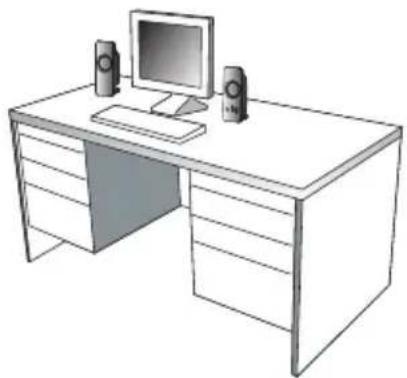
- Speakers—For best stereo separation, place on opposite sides of the listening device, computer, or TV screen (as far apart as possible is usually best). For example, if you are listening to the speakers using a laptop on a desk, place the left satellite speaker on the far left corner of the desk, and the right satellite speaker on the far right corner of the desk.
natural_image
Line drawing of a desktop computer with monitor, tower, and speakers (no text or symbols)Speaker Connection
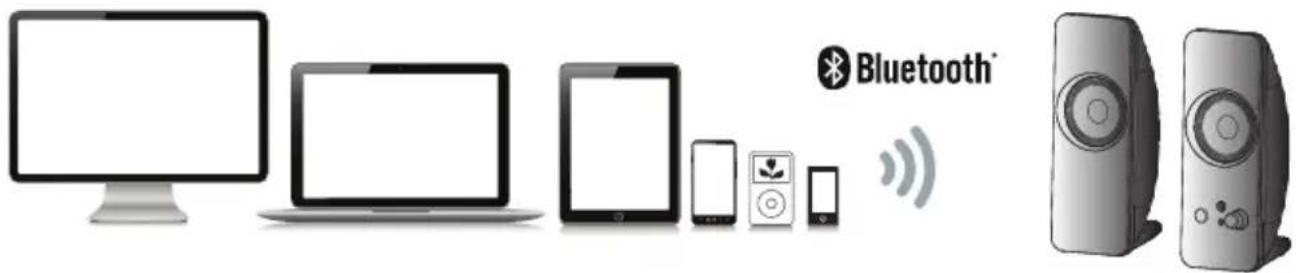
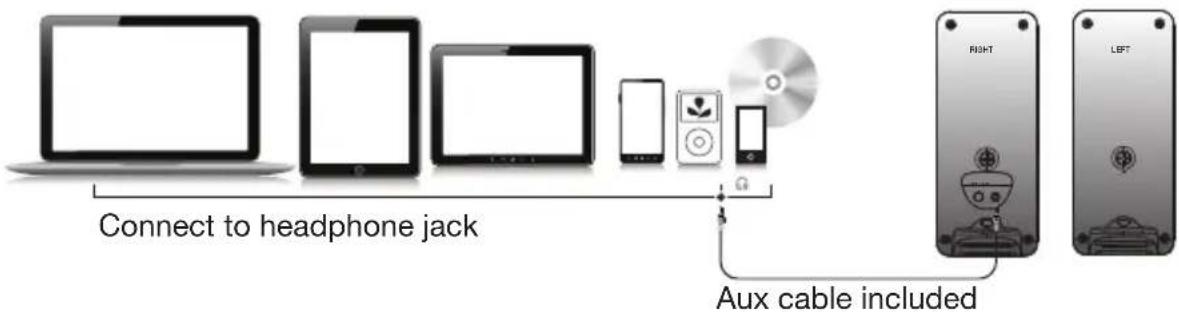
You can connect these speakers to a variety of devices, such as laptop, computer, smartphone, iPod, MP3 player, CD player, DVD player, and other audio devices. Please read the following instructions along with the diagrams provided to identify which diagram most closely matches your connection source.
Bluetooth Connection
First time connection with new devices
- When the system is switched on it will go into the Bluetooth pairing mode by default.
- Bluetooth LED status light will begin blinking. Search your device's Bluetooth list for "CA 2.0 BT SPEAKER" and tap to connect/pair.
- After successful connection, a tone will sound, and the Bluetooth LED status light will stop flashing and turn solid blue.
Reconnecting with previous devices
- When the system is on, the speaker system will automatically switch to previous playing mode. If it is at Bluetooth mode, the system will automatically search and attempt connect with the last paired device. If it is at Aux mode, press the Source button once; the system will automatically search and attempt connect with the last paired device.
- Make sure this Bluetooth source is nearby the system to automatically reconnect.
Force pairing and connection with new devices
- When the system is on, the speaker system has connected to any device. Press and hold the source button for three seconds until blue LED begins blinking. Search your device's Bluetooth list for "CA 2.0 BT SPEAKER" and tap to connect/pair.
AUX IN Connection
Speakers default to Bluetooth mode when initially turned on. Press the Source button once and you will hear a tone as the system switches to AUX IN mode. The LED status light will change to solid GREEN. Connect your source device to the AUX IN jacks.
Bluetooth Connection
AUX IN Connection
Controls and Features
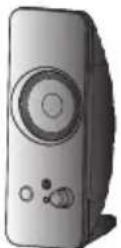
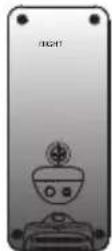
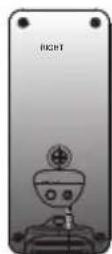
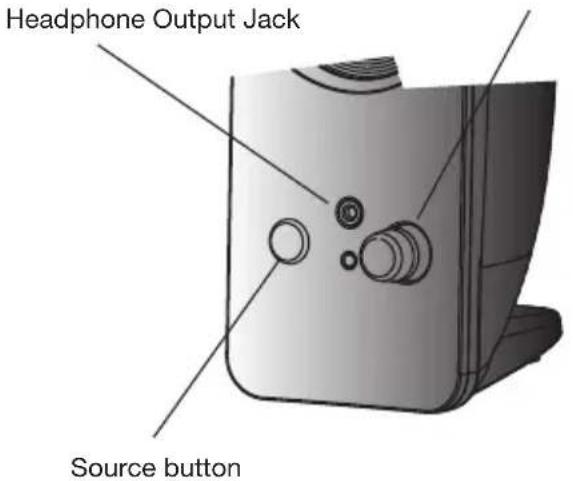
- Power – The on/off button is on the right satellite speaker. Rotate clockwise to turn on. Rotate counter-clockwise to turn the system off.
- Master Volume Control – This control is on the right satellite speaker and is indicated by the word “volume”. Rotate clockwise to turn volume up or counter-clockwise to turn volume down.
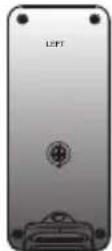
- Source button - Press once to turn from bluetooth mode to AUX IN mode.
- Headphone Output Jack – Connect your favorite headphones to this jack and they will mute the speakers automatically. The volume controls can then be used to turn up or down the volume to your headphones.
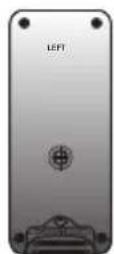
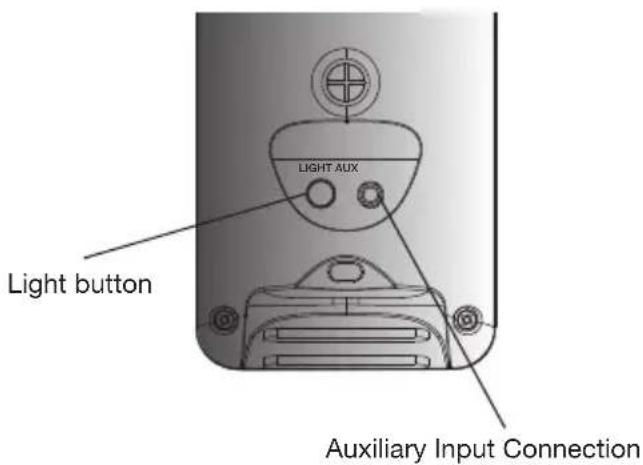
- Light button - Press once to turn driver light on and off.
- Auxiliary Input Connection – The auxiliary input jack allows connection of a second source.
Power / Master Volume Control
Trouble shooting Bluetooth connections
Can't connect for the first time
- Turn off the speaker completely and then turn on the speaker. Follow the above manual on Bluetooth Connection for 1st time connection.
Can't connect when returning to the speaker system
- If the system does not automatically reconnect with your Bluetooth-enabled device, you may need to physically go to your device's Bluetooth setting and manually select again "CA 2.0 BT SPEAKER" to reconnect.
-
You may also try going to your device's Bluetooth settings and select "Forget this device" to remove the speaker system from the list. You may need to turn off the Bluetooth function on your devices to fully clear the list. Then see steps above by following the Bluetooth Connection for 1st time connection.
-
Check to see if any other devices are already connected to the system. The first indication for this is the speaker LED status light will show solid Blue. The speaker can only pair with one device at a time. Go to that source device to disconnect from the system first. Then you can follow the above steps for 1st time Bluetooth Connection. Audio is choppy or keeps disconnecting
-
Be sure to check your room environment. Bluetooth technology has a range limit of approximately 30 feet - line of sight. This generally means your best results will be limiting your source device and speakers to the same room. Extremely large rooms, or rooms with a lot of wireless electronics, wi-fi routers, etc., may affect the quality of sound, connection or connection consistency.
-
Check for obstructions, walls, too many people, or other objects that might impede the Bluetooth signal.
-
Try returning the Bluetooth source device to a closer proximity with your speakers.
Troubleshooting
Speaker system will not power on.
- Power knob is not turned on. Rotate clockwise and check for the blue LED indicator light to come on.
- Verify the AC power cord is securely plugged into the wall outlet.
- Check if the wall outlet, or power strip (if used), is actually getting power, i.e. not a switched outlet.
Speaker does not produce sound.
- Verify the speaker is getting power. Check above steps.
- Make sure the volume is turned up to an audible listening level.
- Verify that all cables are plugged into the correct jacks.
- Often the issue is not with the speakers, but the sound source. The most common is connecting to a computer using an incorrect port/jack. Double check the speakers are connected to the audio output jack from your computer. Often this jack will be green. Also make sure the media source volume settings are turned up and not set on mute.
- If you're still having problems, disconnect the speaker source cable and connect to a smartphone, iPod, or most anything with a 3.5mm headphone output. If your speakers then work, you know the speakers are functioning correctly and the issue likely lies with the computer or other source connections.
Sound is distorted.
- Turn the volume down by 25% or 50%. If this does not work, also check the audio source volume level and decrease there if necessary.
- Adjust the computer's master volume control by balancing the volume until it's at 50% , then adjust the volume levels on the speakers.
Additional support:
Online...
Get the latest updated video tutorials, FAQ, and product feature specifications available 24/7, or email support@cyberacoustics.com
Call in person...
Technical support is also available at 360-883-0333, M-F 8-5 United States West Coast time.
iPod, iPhone, iPad, and iPad mini are trademarks of Apple, Inc.
FCC STATEMENT
- This device complies with Part 15 of the FCC Rules. Operation is subject to the following two conditions:
(1) This device may not cause harmful interference.
(2) This device must accept any interference received, including interference that may cause undesired operation. - Changes or modifications not expressly approved by the party responsible for compliance could void the user's authority to operate the equipment.
NOTE: This equipment has been tested and found to comply with the limits for a Class B digital device, pursuant to Part 15 of the FCC Rules. These limits are designed to provide reasonable protection against harmful interference in a residential installation.
This equipment generates, uses and can radiate radio frequency energy and, if not installed and used in accordance with the instructions, may cause harmful interference to radio communications. However, there is no guarantee that interference will not occur in a particular installation. If this equipment does cause harmful interference to radio or television reception, which can be determined by turning the equipment off and on, the user is encouraged to try to correct the interference by one or more of the following measures: Reorient or relocate the receiving antenna.
Increase the separation between the equipment and receiver.
Connect the equipment into an outlet on a circuit different from that to which the receiver is connected.
Consult the dealer or an experienced radio/TV technician for help.
Canada ICES-003 - This Class B digital apparatus complies with Canadian ICES-003.
Merci!
CA-2806BT
natural_image
Line drawing of a desktop computer with monitor, speaker tower, and front desk (no text or symbols)natural_image
Line drawing of a desktop computer with monitor, tower, and speakers (no text or symbols)Speaker does not produce sound.
Solución:


- Thank you!
- Merci!
- ¡Gracias!
- Congratulations
- Box Contents
- Caution
- Speaker Preparation
- Speaker Connection
- Bluetooth Connection
- First time connection with new devices
- Reconnecting with previous devices
- Force pairing and connection with new devices
- AUX IN Connection
- Controls and Features
- Trouble shooting Bluetooth connections
- Can't connect for the first time
- Can't connect when returning to the speaker system
- Troubleshooting
- Speaker system will not power on.
- Speaker does not produce sound.
- Sound is distorted.
- Additional support:
- Online...
- Call in person...
- FCC STATEMENT
- Solución:
Brand : Cyber Acoustics
Model : CA2806BT
Category : Loudspeaker