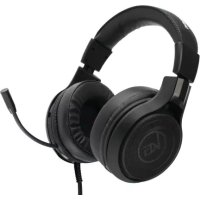
GHG601 - Headphones IOGEAR - Free user manual and instructions
Find the device manual for free GHG601 IOGEAR in PDF.



| Product Type | Universal Gaming Headset |
| Brand | IOGEAR |
| Model | GHG601 |
| Connectivity | 3.5mm Jack |
| Compatibility | PS4, Xbox One (controller with 3.5mm jack), PC (with included adapter), Mac, smartphones, tablets, MP3 players |
| Microphone | Flexible built-in microphone |
| Volume Control | Adjustment wheel on the cable |
| Earcup Type | Circumaural (estimated) |
| Headband | Adjustable ergonomic |
| Cable Length | 1.2 m (estimated) |
| Weight | 280 g (estimated) |
| Warranty | 1 year limited |
| Package Contents | GHG601 headset, PC audio adapter, quick start guide, warranty card |
| Care | Clean with a soft, dry cloth |
| Safety Precautions | Set volume to minimum before use; avoid prolonged exposure to high volume to prevent hearing damage |
| Certification | FCC Class B, ICES-003 Class B |
Frequently Asked Questions - GHG601 IOGEAR
User questions about GHG601 IOGEAR
0 question about this device. Answer the ones you know or ask your own.
Ask a new question about this device
Download the instructions for your Headphones in PDF format for free! Find your manual GHG601 - IOGEAR and take your electronic device back in hand. On this page are published all the documents necessary for the use of your device. GHG601 by IOGEAR.
USER MANUAL GHG601 IOGEAR
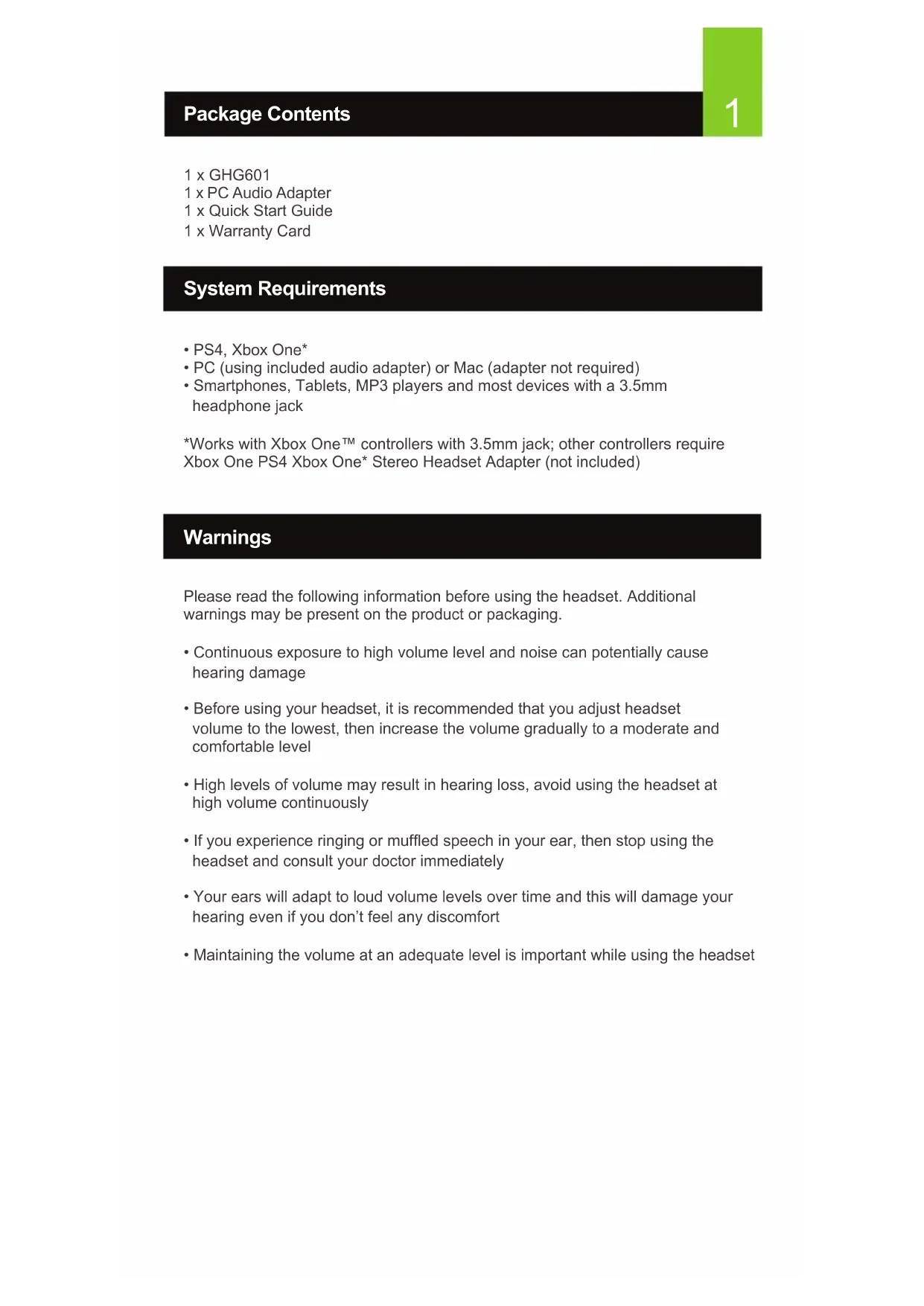
- PS4, Xbox One*
• PC (using included audio adapter) or Mac (adapter not required) - Smartphones, Tablets, MP3 players and most devices with a 3.5mm headphone jack
*Works with Xbox One™ controllers with 3.5mm jack; other controllers require Xbox One PS4 Xbox One* Stereo Headset Adapter (not included)
Warnings
Please read the following information before using the headset. Additional warnings may be present on the product or packaging.
- Continuous exposure to high volume level and noise can potentially cause hearing damage
- Before using your headset, it is recommended that you adjust headset volume to the lowest, then increase the volume gradually to a moderate and comfortable level
- High levels of volume may result in hearing loss, avoid using the headset at high volume continuously
- If you experience ringing or muffled speech in your ear, then stop using the headset and consult your doctor immediately
- Your ears will adapt to loud volume levels over time and this will damage your hearing even if you don't feel any discomfort
- Maintaining the volume at an adequate level is important while using the headset
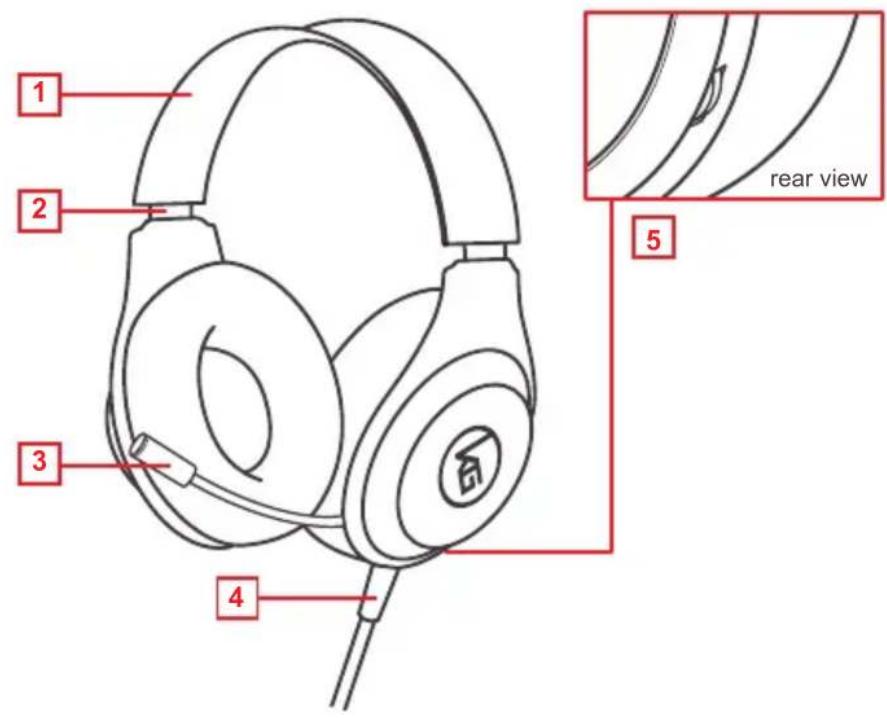
Overview
- Ergonomically designed headband
- Adjustment setting to fit any head shape
- Flexible boom microphone
- 3.5mm right angle stereo plug
- Volume control
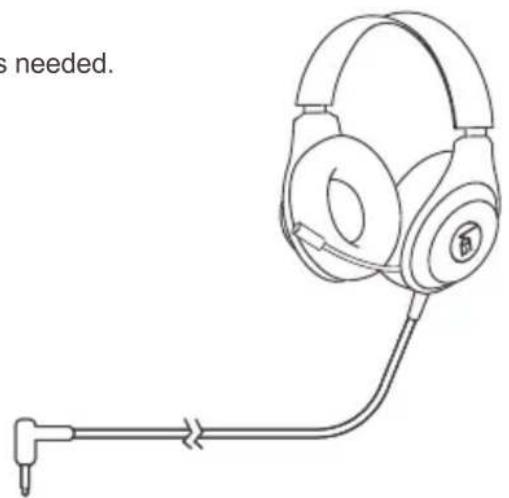
Connect to devices with a 3.5mm jack
- Insert the 3.5mm plug.
- Adjust headphone level as needed.
natural_image
Line drawing of a pair of headphones connected to a power cord (no text or symbols)
natural_image
Line drawing of a laptop computer with blank screen (no text or symbols)Connect to PC
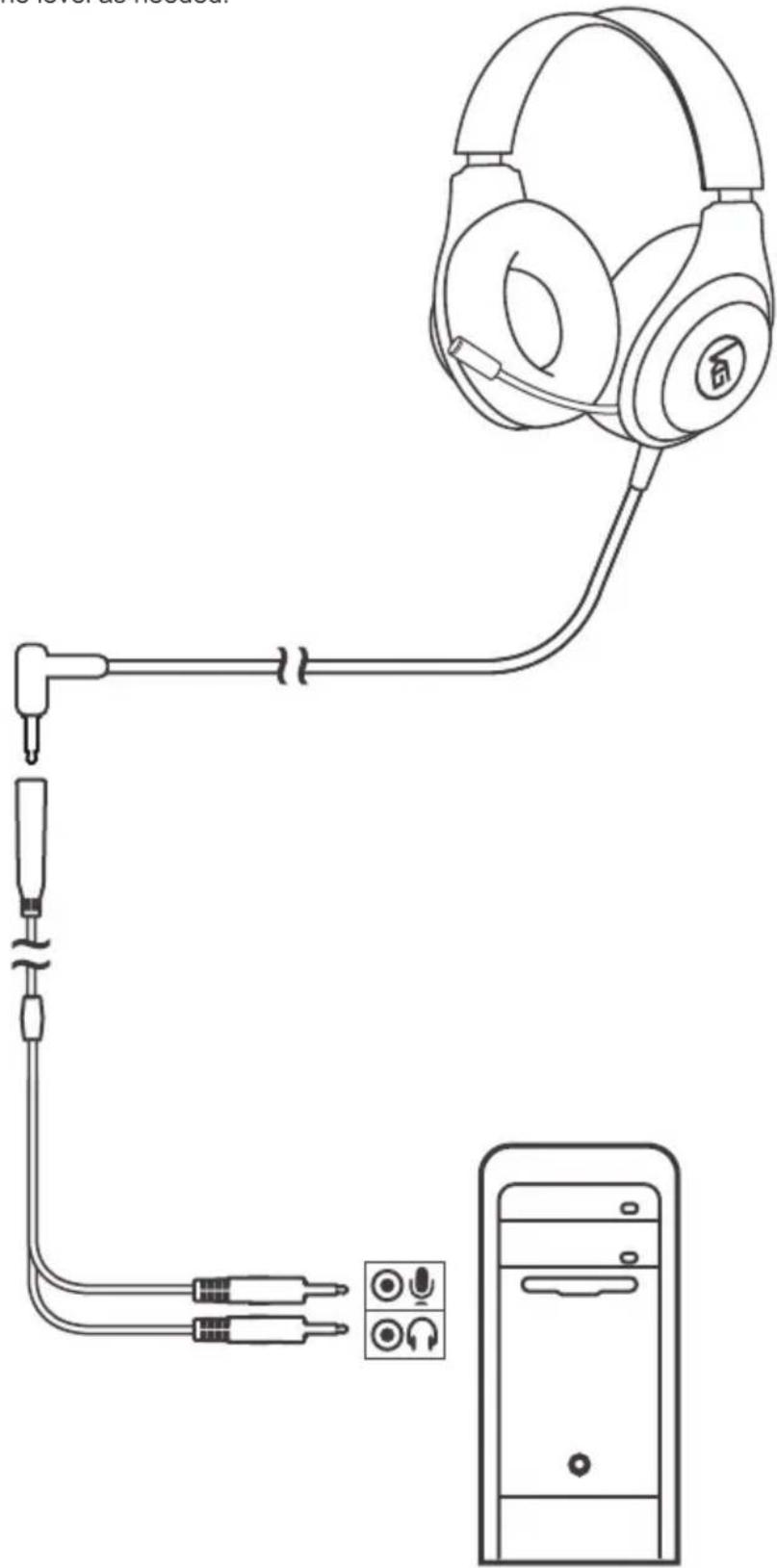
- Connect the GHG601's 3.5mm plug to the 3.5mm jack on the PC Audio Adapter.
- Connect the PC Audio Adapter's speaker plug (green band) to the PC's speaker jack.
- Connect the PC Audio Adapter's microphone plug (pink band) to the PC's microphone jack.
- Adjust headphone level as needed.
natural_image
Line drawing of a microphone setup with headphones, audio jack, and computer monitor (no text or symbols)Compliance Information
WARNING: This product can expose you to chemicals including styrene which is known to the State of California to cause cancer and birth defects or other reproductive harm. For more information, go to www.P65Warnings.ca.gov
Federal Communication Commission Interference Statement
This equipment has been tested and found to comply with the limits for a Class B digital service, pursuant to Part 15 of the FCC rules. These limits are designed to provide reasonable protection against harmful interference in a residential installation. Any changes or modifications made to this equipment may void the user's authority to operate this equipment. This equipment generates, uses, and can radiate radio frequency energy. If not installed and used in accordance with the instructions, may cause harmful interference to radio communications. However, there is no guarantee that interference will not occur in a particular installation. If this equipment does cause harmful interference to radio or television reception, which can be determined by turning the equipment off and on, the user is encouraged to try to correct the interference by one or more of the following measures:
- Reorient or relocate the receiving antenna
- Increase the separation between the equipment and receiver
- Connect the equipment into an outlet on a circuit different from that to which the receiver is connected
- Consult the dealer or an experienced radio/TV technician for help
FCC Caution: Any changes or modifications not expressly approved by the party responsible for compliance could void the user's authority to operate this equipment.
Canadian ICES Statements
Canadian Department of Communications Radio Interference Regulations This digital apparatus does not exceed the Class B limits for radio-noise emissions from a digital apparatus as set out in the Radio Interference Regulations of the Canadian Department of Communications. This Class B digital apparatus complies with Canadian ICES-003.
Limited Warranty
Warranty Information
This product carries a 1 Year Limited Warranty.
For the terms and conditions of this warranty, please go to
https://www.iogear.com/support/warranty
Register online at
https://www.iogear.com/register
Important Product Information
Product Model
Serial Number ____
Contact
WE'RE HERE TO HELP YOU!
NEED ASSISTANCE SETTING UP THIS PRODUCT?
Make sure you:
-
Visit www.iogear.com for more product information
-
Visit www.iogear.com/support for live help and product support
IOGEAR
https://iogear.custhelp.com
support@iogear.com
www.iogear.com
natural_image
Line drawing of a laptop computer with blank screen (no text or symbols)https://iogear.custhelp.com
support@iogear.com
www.iogear.com
1 x GHG600
natural_image
Line drawing of a pair of BVB headphones connected to a power cord (no text or symbols)

natural_image
Line drawing of a laptop computer with blank screen (no text or symbols)Configuración: PC
natural_image
Line drawing of a microphone setup with headphones, audio probes, and a desktop computer (no text or symbols)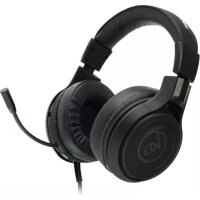
- Warnings
- Overview
- Connect to devices with a 3.5mm jack
- Connect to PC
- Compliance Information
- Federal Communication Commission Interference Statement
- Canadian ICES Statements
- Limited Warranty
- Warranty Information
- Contact
- WE'RE HERE TO HELP YOU!
- NEED ASSISTANCE SETTING UP THIS PRODUCT?
- IOGEAR
- Configuración: PC
Brand : IOGEAR
Model : GHG601
Category : Headphones