
SRU5100 - Universal remote PHILIPS - Free user manual and instructions
Find the device manual for free SRU5100 PHILIPS in PDF.


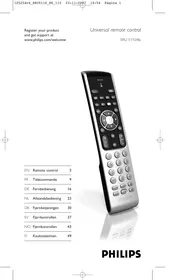
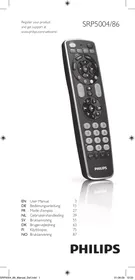
| Product type | Universal remote control |
| Brand | Philips |
| Model | SRU5100 |
| Power supply | 2 AAA alkaline batteries (1.5 V) |
| Dimensions (L x W x H) | Approximately 20 x 5 x 2 cm |
| Weight (with batteries) | Approximately 100 g |
| Infrared range | Up to 10 meters |
| Compatible devices | TV, VCR, cable box, satellite receiver, DVD player |
| Number of programmable codes | Up to 5 modes (TV, VCR, SAT, CBL, DVD) |
| Programming methods | Direct code entry, automatic search, brand search |
| Main functions | Power, volume, mute, channels, menu, guide, transport keys (play, pause, etc.), navigation keys, Shift key for secondary functions |
| Display or indicator | Red LED indicator |
| Sleep timer | Yes, programmable from 1 to 99 minutes (TV mode only) |
| Battery saver | Auto shut-off after 30 seconds if a key is held down |
| Code memory retention | Codes retained for 10 minutes during battery change |
| Combo device compatibility | TV/VCR, TV/DVD, DVD/VCR (separate mode programming) |
| Volume/Mute priority control | Ability to assign volume to a specific mode |
| Direct VCR/DVD key access | From any mode, last device used |
| Material | ABS plastic |
| Color | Black (as shown) |
| Care and cleaning | Clean with a soft, dry cloth; do not use abrasive cleaners |
| Warranty | Limited lifetime warranty (manufacturing defects) |
| Country of manufacture | China |
| Repairability / Support | Technical support: 919-573-7853; return to store with proof of purchase |
Frequently Asked Questions - SRU5100 PHILIPS
User questions about SRU5100 PHILIPS
0 question about this device. Answer the ones you know or ask your own.
Ask a new question about this device
Download the instructions for your Universal remote in PDF format for free! Find your manual SRU5100 - PHILIPS and take your electronic device back in hand. On this page are published all the documents necessary for the use of your device. SRU5100 by PHILIPS.
USER MANUAL SRU5100 PHILIPS
Battery Installation 8
Battery Saver 8
Code Saver 8
Power-On Default 8
Code Setup 8
Code Entry 9
Direct Code Entry 9
Code Search 9
Brand Search 10
Code Identification Feature 11
Sleep Timer 11
Programming Combo Device Codes 12
Controlling Combo Devices 12
Controlling Devices with Power On and Off .... 12
VCR/DVD/DVR Punch-Through Feature ..... 13
Volume/Mute Control Feature 13
Setting Volume/Mute Control, Punch-Through . 14
Setting any Mode to use its own Volume/Mute 14
Troubleshooting 15
Congratulations on your purchase of a Philips Universal Remote Control. Philips Universal Remotes let you replace a broken or lost remote or combine more than one remote into one.
This remote control operates the common features of most but not all models and brands of IR Infrared Controlled Video Equipment. This remote may provide functions that are not available on your equipment. Some functions of your particular equipment (e.g. menu functions) may not be controlled by this remote. In such cases, use the original remote control for your equipment. Please use this manual to become familiar with your Philips Universal Remote. After you are familiar with your remote the first thing you need to do is to install batteries and setup your remote for your particular product and brand.
Thank you for buying a Philips remote and we hope it will give you many years of service.
Button Functions
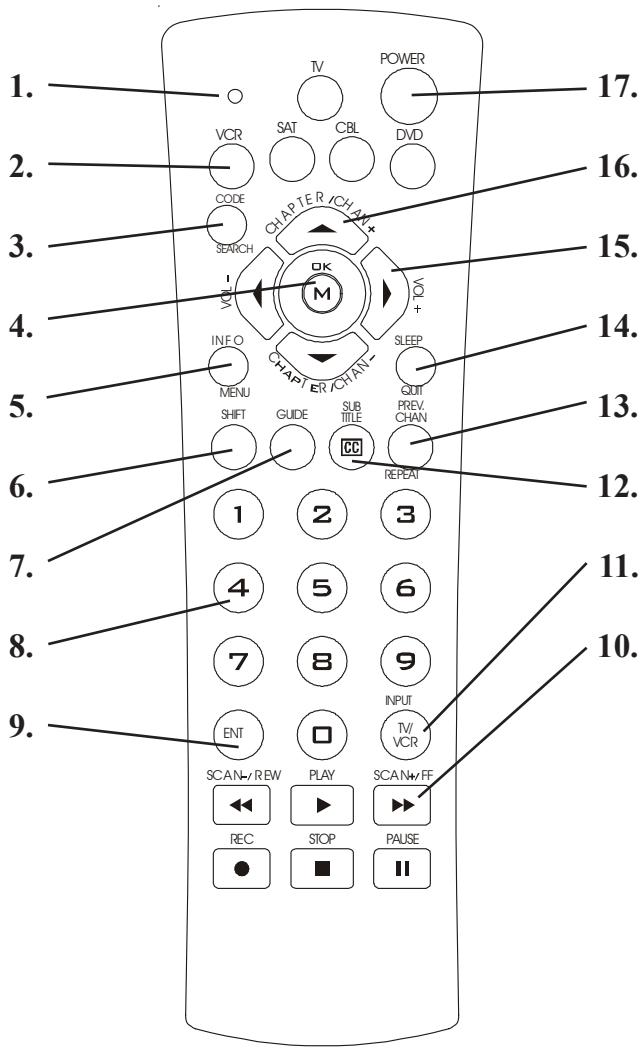
Note: The REC button must be pressed TWICE to record from your VCR. For some brands of VCRs, you might need to press the REC button once, then press it again for three seconds.
Some buttons on the remote might have functions that are referred to by different names on the device you are controlling. E.G. PREV.CHAN may be called RECALL, or ENTER may be called DISPLAY. These differences depend on the brand and model of your product. Also, this remote can only operate features that exist on your product. E.G., your product must have PREV.CHAN ability for the PREV.CHAN button to operate this feature.
Button Functions, cont.
- Red Indicator Lights when any button is pressed.
- TV, VCR, SAT, CBL, DVD Selects product to be operated.
- CODE SEARCH Used for setup.
- MUTE Turns off the TV sound while the picture remains. OK Selects menu items for the device you are controlling.
- INFO Displays/selects on-screen channel information, etc. MENU Access the Menu functions of the device you are controlling.
- SHIFT Press to access "shifted" functions (labeled in Green). See page 7.
- GUIDE displays on-screen program guide.
- NUMBERS Enter numbers for direct channel selection. Some products require Enter to be pressed after channel selection.
- ENTER Used after direct channel number entry to immediately change to the selected channel.
- RECORD, PLAY, STOP, REW, FF, PAUSE VCR control buttons operate your VCR even when the remote is set to operate the TV. Also operates DVD Scan -/+ . SCAN + and SCAN - buttons control the speed of Fast Forward and Reverse Playback respectively in DVD mode.
- TV/VCR/INPUT For some TVs, press repeatedly to select from available viewing sources (antenna, cable box, VCR, etc.).
- CC (SUBTITLE) TV Closed Caption (if your TV has this feature) or DVD Subtitle toggle.
- PREV. CHAN Returns to the previously selected channel, or DVD repeat toggle.
- SLEEP Turns off the TV after a period of 1 to 99 minutes. QUIT Used to exit menu functions.
- VOLUME UP/DOWN Changes the volume level of the product, normally the TV.
- CHANNEL UP/DOWN Changes the channels. CHAPTER +/- controls DVD/CD track selection i.e. DVD/CD Track Skip Up/Down (in DVD and SAT modes). Note the VCR buttons also control DVD when in DVD Mode.
- POWER Turns product On or Off.
Button Functions, cont.
SAT Functions
GUIDE button displays on-screen Satellite Channel Guide. (Press GUIDE first, then SHIFT to access).
CHAPTER+ and CHAPTER- buttons perform the "Page+" and "Page-" function for on-screen Guide Menus used by some Satellite systems.
INFO button brings up Satellite Display screen for current Channel and system information.
DVD Functions
SCAN+ and SCAN- buttons control the speed of Fast Forward and Reverse Playback respectively.
CHAPTER+ and CHAPTER- buttons respectively locate the succeeding or preceding Chapters or Tracks on a disc.
SUBTITLE button turns the subtitles on or off.
REPEAT button performs DVD players “A-B Repeat” (or RPT A.B) function for repeat play of current Chapter or Track.
INFO button brings up DVD Display or Control Menu for Chapter/Track/Title number, Time remaining/elapsed indication, system information, etc.
PLAY button is used to start Disc playback and for Menu selection on some DVD players.
STOP button stops Disc playback.
PAUSE button pauses Disc playback - press PLAY to resume.
INPUT button activates the DVD Player's SETUP Menu.
TV/VCR/INPUT
When in TV mode the TV/VCR/INPUT button performs the INPUT source switch function.
When in a mode that has been programmed for VCR, the TV/VCR/INPUT button performs the TV/VCR antenna switch function.
When in a mode that has been programmed for Cable, the TV/VCR/INPUT button performs the A/B switch function.
When in a mode that has been programmed for SAT, the TV/VCR/INPUT button performs the TV/SAT switch function.
When in a mode that has been programmed for DVD, the TV/VCR/INPUT button performs the DVD Setup function.
OK means the same as SELECT - some manufacturers use the OK label and others use the SELECT label on their remotes.
CC will activate the Closed Caption feature if your device has that feature.
Button Functions, cont.
SHIFT Button
The SHIFT button is a “toggle” button. I.E., press and release it to get into shifted operation, press and release again to get back out. The Red Indicator is on when you are in “shifted” mode.
The shifted functions are those labeled in Green, i.e., MENU, QUIT, OK, and the navigation keys. When not in Shift, these buttons operate respectively as INFO, SLEEP, MUTE (M), CHAPTER/CHAN UP/DOWN, and VOLUME UP/DOWN. The non-shifted functions are those labeled in Black or Blue.
To access the shifted “green” functions, press and release SHIFT. The Red Indicator will stay on while in Shift mode and blinks off briefly for any subsequent button press. Press and release the desired button labeled in green for that function. To exit Shifted operation, press and release the SHIFT button. Note: the remote will automatically time-out from Shifted mode if no button is pressed for approximately 15 seconds.
To access the following functions in SAT or DVD Modes, press SHIFT first.
MENU button brings up the Menu screen - use with the UP, DOWN, LEFT, and RIGHT navigation buttons.
OK button is used for on-screen Menu selection.
QUIT button is used to Exit or Clear on-screen Menu displays.
Examples:
To access Menu and use the navigation functions.
- Press and release SHIFT (red indicator turns on).
- Press and release the MENU (INFO) button.
- Press and release the UP, DOWN, LEFT and RIGHT buttons as desired.
- Press and release the QUIT (SLEEP) button to clear the on-screen Menu display.
- Press and release SHIFT for normal remote operation (red indicator turns off).
To use navigation functions for Guide.
- Press and release GUIDE.
- Press and release SHIFT (red indicator turns on).
- Press and release the UP, DOWN, LEFT and RIGHT buttons as desired.
- Press and release SHIFT (red indicator turns off).
- Press and release GUIDE to clear the on-screen Guide display.
Setup
Battery Installation
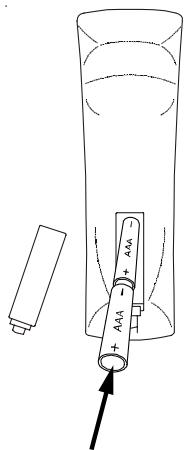
- On the back of the remote, push down on the tab and lift the cover off.
- Match the batteries to the + and - marks inside the battery case, then insert 2 AAA Alkaline batteries.
- Press the battery cover back into place.
Battery Saver
Your remote automatically turns off if the buttons are depressed more than 30 seconds. This will save your batteries should your remote get stuck in a place where the buttons remain depressed (e.g., between the sofa cushions).
Code Saver
You will have up to 10 minutes to change the batteries in your remote without losing codes you have programmed. However, do not press any buttons until batteries are installed in the remote. If buttons are pressed without batteries in the remote, all codes will be lost.
Power-On Default
The remote powers on in TV mode.
Code Setup
The CODE SEARCH button is used to setup the remote. You can either setup the remote using the code for your brand of product, from the code tables (on separate sheet), or you can search through the library of codes until you find a code that works for your product.
Please refer to “Programming with Code Search” on page 9 for more information on using the code search feature to learn how to search through the library of codes for your products.
NOTE: You can store any kind of code under any mode (except TV). I.E. you can store a VCR code under the CBL button, or a DVD code under the VCR button, etc. However, you can only store TV codes under the TV button.
Direct Code Entry
- Press and hold the CODE SEARCH button until the red indicator stays on, then release the CODE SEARCH button.
- Press and release the desired mode button (TV, VCR, etc.). The red indicator blinks, then stays lit.
- Enter the 3-digit code from the code tables (on separate sheet). Note: after a valid code entry, the red indicator turns off. For an invalid code, the red indicator flashes.
- With your device on, press CHANNEL UP. If the device responds, no further programming is required. Note: If some buttons do not operate your equipment, try one of the other codes for your brand.
Write your codes down here for easy reference later.
| Type | Type stored | Code |
| TV | TV | |
| VCR | ||
| SAT | ||
| Cable | ||
| DVD |
Code Search
If your product does not respond after you have tried all the codes for your brand, or if your brand is not listed, try searching for your code by following these steps.
- Manually turn on the device (TV, VCR, etc.) to be controlled.
- Press and hold the CODE SEARCH button until the red indicator stays on, then release the CODE SEARCH button.
- Press and quickly release the desired mode button (TV, VCR, etc.). The red indicator blinks off once.
- Press the CHANNEL UP button repeatedly (up to 300 times) until the device to be controlled changes channel. The red indicator blinks off with each button press. If you accidentally overshoot the code required, press the CHANNEL DOWN button to backtrack through the library until the device changes channel. Pressing CHANNEL UP changes direction to forward again.
- Press and release MUTE to install the code.
Code Search, cont.
Most users will store VCR codes under the VCR button, Cable codes under CABLE, etc. If (for example) you want to store a VCR code under CABLE, first follow the procedure for Direct Code Entry (previous page) and press CABLE in step 2 of Direct Code Entry, then enter ANY VCR code in step 3 of Direct Code Entry. Then follow the steps above for Code Search (or Brand Search, below). Note: If the device does not have a CHANNEL UP button, use PLAY (VCR only) or POWER instead. Code Search starts from the currently stored three digit number under that mode.
Code Search by Brand
Lets you search for a code for a specific Brand within the Code Library for a particular manufacturer.
- Turn on the device (TV, VCR, etc.) to be controlled.
- Press and hold the CODE SEARCH button until the red indicator remains on, then release the CODE SEARCH button.
- Press and quickly release the desired mode button (TV, VCR, etc.). The red indicator blinks off once.
- Press and release the numeric button (0-9) corresponding to the desired manufacturer (see table on code list sheet). The red indicator blinks off once. Note: pressing "0" performs a full library search, same as the normal Code Search Method on the previous page.
- Press the CHANNEL UP button (or POWER or PLAY (VCR only)) repeatedly until the device to be controlled changes channel. The red indicator blinks off with each button press. If you accidentally overshoot the code required, press the CHANNEL DOWN button to backtrack through the library until the device changes channel. Pressing CHANNEL UP changes direction to forward again.
- Press and release MUTE to install the code.
Brand Search Method entry is now complete.
Note: When all codes under a brand have been searched, the red indicator flashes rapidly for 3 seconds.
Code Identification Feature
The Code Identification Feature allows you to identify the three-digit library code stored under your device key. For example, if you want to find out what three-digit code is stored under your TV device key, follow the six steps below:
- Press and hold the CODE SEARCH button until the red indicator stays on. Release the CODE SEARCH button.
- Press and release the desired mode button (TV, VCR, etc.). The red indicator blinks, then stays lit.
- Press and release the CODE SEARCH button. The red indicator blinks off.
- To find the first digit for the code stored under the mode key pressed in step 2, press each numeric key from 0-9 in turn. When the red indicator blinks off, the number you pressed is the first digit for the code you are searching for.
- To find the second digit, repeat step 4, this time when the red indicator blinks off, this is the second digit.
- Repeat step 4 again to find the third digit.
Sleep Timer
The SLEEP button operates the Sleep function of your device providing it supports the Sleep function. Alternatively, you can enable the remote to turn off your TV after a period of 1 to 99 minutes as shown below. This feature is only available for the TV Mode and the remote must be in TV Mode to set a Sleep Timer. This feature works even if your TV does not have its own Sleep function.
- Press and release the TV Mode button.
- Press and hold the CODE SEARCH button until the red indicator stays on. Release the CODE SEARCH button.
- Press and release the SLEEP button (Note any previously set Sleep timer is cancelled at this point and the remote returns to normal operation).
- Press and release the numeric buttons (01-99) for the time required. The red indicator blinks off to indicate button press acceptance and remains off after the second button press.
- TV Sleep Timer now set.
- Leave the Remote pointing towards the TV with an unobstructed path.
To cancel the Sleep Timer, press and release the POWER button in TV Mode or repeat Steps 1, 2 and 3 above.
Setup, cont.
Programming Combo Device Codes
Some Combo devices (e.g. TV/VCR, TV/DVD, DVD/VCR, etc.) will require you to set up two different Mode buttons to control both parts of the Combo device. For example, if you have a TV/DVD Combo, you might need to set up one code under the TV button to control the TV part AND a separate code (under any other Mode button) to control the DVD part.
Controlling Combo Devices
Some Combo devices (e.g. TV/VCR, TV/DVD, DVD/VCR, etc.) have separate buttons on the original remote to select the part of the Combo device to be controlled. For example, if your Combo device is a DVD/VCR then its original remote might have separate DVD and VCR buttons for selection of the Combo part you would control. The equivalent button functions can be found on your Philips remote by using the device Mode and CODE SEARCH buttons.
Referring to "Programming with Code Search" on page 9, set up a device Mode (e.g., DVD) with the correct code for your Combo device. Assuming the DVD/VCR Combo device is the example and its code is programmed under DVD Mode, press and hold the DVD Mode button for more than one second to send the DVD button command. To send the VCR button command, quickly press and release the CODE SEARCH button followed by pressing and releasing the DVD Mode button. This method can be applied similarly to all Combo devices (e.g., TV/VCR, TV/DVD, DVD/VCR, etc.) and is available for all Modes. Note: this feature is not supported by all codes.
Controlling Devices Requiring Separate Power On and Off Buttons
Some devices (e.g., certain RCA TVs) require separate Power On and Power Off buttons to turn the device on and off. The equivalent button functions can be found on your Philips remote by using the device Mode and POWER buttons. Referring to "Programming with Code Search" on page 9, set up a device Mode (e.g., TV) with the correct code for your device.
Assuming a TV device is the example and its code is programmed under TV Mode, to turn your TV on, press and hold the TV Mode button for more than one second to transmit the Power On button command.
Setup, cont.
Controlling Devices Requiring Separate Power On and Off Buttons, cont.
To turn the TV off, press and release the POWER button to transmit the Power Off button command. This method can be applied similarly to any device and is available for all Modes. Note: this feature is not supported by all codes.
VCR/DVD/DVR Punch-Through Feature
This remote allows the 6 VCR transport buttons (i.e., PLAY, PAUSE, STOP, FF, REWIND, and REC) to punch-through control from any Mode programmed with TV, SAT, or Cable codes to the last VCR, DVD, or DVR programmed Mode you used. Normally, other types of remotes only punch-through (from another Mode) on the 6 VCR buttons to the device programmed under the VCR Mode button. This is not much use if you are using a DVD programmed under a Mode other than VCR. For example, if you have 3 DVD, VCR, or DVR devices programmed into this remote, the last one you accessed on the remote will be the one that has control of the 6 VCR transport buttons when in any other Mode. This feature will not operate if the programmed TV, SAT, or Cable code has its own VCR transport button control, e.g., a TV Combo, SAT/PVR, etc.
Volume/Mute Control and Punch-Through Feature
This remote lets you select which device Mode controls your Volume/Mute buttons. The remote is initially set (factory default) for all device Modes programmed with "Visual" codes (e.g., TV, VCR, DVD, DVR, SAT & CABLE) and "Audio" codes (e.g., CD & AUDIO) to use their own Volume/Mute control if present. If the programmed "Visual" code has no Volume/Mute operation of its own, then those buttons will punch-through control to the TV Mode device without needing to change to TV Mode. Please refer to the next page for more information.
Setup, cont.
Any Mode chosen for Volume/Mute control MUST have its own Volume/Mute function or the Volume/Mute buttons will do nothing.
Setting ALL Volume/Mute Control to any one Mode
This routine can set all Modes to “punch-through” to any one chosen Mode for Volume/Mute button control without the needing to change to that Mode.
- Press and hold the CODE SEARCH button until the red indicator turns on, then release the button.
- Press and hold the MUTE button until the red indicator blinks off, then release the button.
- Press and release the desired Mode button (TV, VCR, etc.) for Volume/Mute control, the red indicator blinks then stays on.
- Press and release the MUTE button and the red indicator turns off. The red indicator will blink rapidly for three seconds if the Mode you have selected has no Volume/Mute control.
- All other Modes will now punch-through to your chosen Mode for Volume/Mute control.
- All “Visual” and “Audio” programmed Modes will now punch-through to the respective Modes you have chosen for Volume/Mute control.
Setting any Mode to use its own Volume/Mute Control
This routine can set any Mode to use only its own Volume/Mute control. Note - If your chosen Mode has no Volume/Mute functions of its own then the Volume/Mute buttons will do nothing.
- Press and hold the CODE SEARCH button until the red indicator turns on, then release the button.
- Press and hold the MUTE button until the red indicator blinks off, then release the button.
- Press and release the desired Mode button (TV, VCR, etc.), the red indicator blinks then stays on.
- Press and release the VOLUME- (Down) button, the red indicator blinks then stays on.
- Press and release the MUTE button and the red indicator turns off.
- All “Visual” and “Audio” programmed Modes will now punch-through to the respective Modes you have chosen for Volume/Mute control.
Troubleshooting
Remote does not operate your product.
- Press the mode button of the product you want to control. • Program the remote with a new code. • Install new batteries. (You might have to reprogram your remote after installing new batteries.)
- Remote may not be compatible with your product.
Remote does not operate some features of your product.
• Program remote with a new code. - Remote may not be able to operate all features of your product or button names might be different than your product.
Red Indicator blinks after you program a product code.
• Remote did not accept the code. - Try to program the code again or try a different code.
For help with setup, please call: 919-573-7853.
Limited Lifetime Warranty
The manufacturer warrants that this product shall be free from defects in material, workmanship and assembly, under normal use, in accordance with the specifications and warnings, for as long as you own this product. This warranty extends only to the original purchaser of the product, and is nontransferable. Defective products, together with the dated proof of purchase, must be returned to the place of purchase for repair or replacement. THERE ARE NO OTHER EXPRESS WARRANTIES. Incidental and consequential damages are disclaimed where permitted by law. This warranty gives you specific legal rights, and you may also have other rights which vary from state to state.
Made in China. Quality Assured in USA. Ledgewood, NJ 07852
| Type | Type stored | Code |
| TV | TV | |
| VCR | ||
| SAT | ||
| Cable | ||
| DVD |
| Type | Type stored | Code |
| TV | TV | |
| VCR | ||
| SAT | ||
| Cable | ||
| DVD |


- BUTTON FUNCTIONS
- BUTTON FUNCTIONS, CONT
- SAT FUNCTIONS
- DVD FUNCTIONS
- TV/VCR/INPUT
- SHIFT BUTTON
- EXAMPLES
- SETUP
- BATTERY INSTALLATION
- BATTERY SAVER
- CODE SAVER
- POWER-ON DEFAULT
- CODE SETUP
- DIRECT CODE ENTRY
- CODE SEARCH
- CODE SEARCH, CONT
- CODE SEARCH BY BRAND
- CODE IDENTIFICATION FEATURE
- SLEEP TIMER
- SETUP, CONT
- PROGRAMMING COMBO DEVICE CODES
- CONTROLLING COMBO DEVICES
- CONTROLLING DEVICES REQUIRING SEPARATE POWER ON AND OFF BUTTONS
- CONTROLLING DEVICES REQUIRING SEPARATE POWER ON AND OFF BUTTONS, CONT
- VCR/DVD/DVR PUNCH-THROUGH FEATURE
- VOLUME/MUTE CONTROL AND PUNCH-THROUGH FEATURE
- SETTING ALL VOLUME/MUTE CONTROL TO ANY ONE MODE
- SETTING ANY MODE TO USE ITS OWN VOLUME/MUTE CONTROL
- TROUBLESHOOTING
- REMOTE DOES NOT OPERATE YOUR PRODUCT
- REMOTE DOES NOT OPERATE SOME FEATURES OF YOUR PRODUCT
- RED INDICATOR BLINKS AFTER YOU PROGRAM A PRODUCT CODE
- LIMITED LIFETIME WARRANTY
Brand : PHILIPS
Model : SRU5100
Category : Universal remote