Cocoon 300 - Telephone TOPCOM - Free user manual and instructions
Find the device manual for free Cocoon 300 TOPCOM in PDF.


| Product type | DECT cordless phone |
| Brand | Topcom |
| Model | Cocoon 300 |
| Dimensions (handset) | Approx. 160 x 50 x 30 mm |
| Weight (handset) | Approx. 130 g (with battery) |
| Weight (base) | Approx. 80 g |
| Base power supply | Mains adapter 230 V AC / 9 V DC, 300 mA |
| Handset battery | Rechargeable NiMH, 2.4 V, 600 mAh |
| Standby time | Up to 100 hours |
| Talk time | Up to 10 hours |
| Charging time | 20 hours (first charge) |
| Indoor range | Up to 50 m |
| Outdoor range | Up to 300 m |
| Phonebook | 50 entries (name and number) |
| Call list | 30 entries |
| Main functions | Hands-free, intercom, 3-way conference, call transfer, redial of last 5 numbers, keypad lock, alphabetical phonebook |
| Display | Backlit LCD screen with battery, range, message indicators |
| Ringtones | 9 melodies, volume adjustment (0-9) for external and internal calls |
| Caller ID | CLIP / Caller ID (FSK and DTMF) with name display if stored |
| Voice mail indication | Yes (specific icon) |
| Max number of handsets | 5 handsets per base |
| Max number of bases | 4 bases per handset |
| Care and cleaning | Clean with a soft, slightly damp cloth. Do not use abrasive products. |
| Warranty | 2 years against manufacturing defects (excluding battery) |
Frequently Asked Questions - Cocoon 300 TOPCOM
User questions about Cocoon 300 TOPCOM
0 question about this device. Answer the ones you know or ask your own.
Ask a new question about this device
Download the instructions for your Telephone in PDF format for free! Find your manual Cocoon 300 - TOPCOM and take your electronic device back in hand. On this page are published all the documents necessary for the use of your device. Cocoon 300 by TOPCOM.
USER MANUAL Cocoon 300 TOPCOM
DECLARATION OF CONFORMITY
We, TTS Nv, Grauwmeer 17, 3001 Heverlee, Belgium, declare that our product:
Product name: TOPCOM
Model type: Cocoon 300
is in conformity with the essential requirements of the R&TTE directive 1999/5/EC and carries the CE mark accordingly.
Supplementary information:
The product complies with the requirements of:
Low Voltage Directive 73/23/EEC
EMC Directive 89/336/EEC
Date: 12/06/2001
Place: Heverlee, Belgium
Name: Verheyden Geert
Function: Technical Director
Signature:

European contact: TTS Nv, R&D department, Research Park, Grauwmeer 17, 3001
Heverlee, Belgium. Tel: +32 16 398920, Fax: +32 16 398939
TOPCOM®
Cocoon 300
!! Belangrijk !!
1) To use 'Caller ID' (display caller), this service has to be activated on your phone line. Normally you need a separate subscription from your telephone company to activate this function. If you don't have the Caller ID function on your phone line, the incoming telephone numbers will NOT be shown on the display of your telephone.
2) When a phone call comes in, only the handset rings and not the base unit.
!! Wichtig!!
GB The features described in this manual are published with reservation to modifications.
- Geef uw PINcode in.
- COURT = 100ms
- LONG = 250ms
4.3.1 External Call 57
4.3.2 Number preparation 57
4.3.3 Redialling the last number dialled 57
4.3.4 Redial one of the last 5 numbers dialled 57
4.3.5 Calling a programmed number from the Phone Book 58
4.3.6 An internal call: calling another handset 58
4.4 Receiving a Call 58
4.4.1 Receiving an external call 58
4.4.2 Receiving an internal call 58
4.4.3 Receiving an external call during an internal call 59
4.5 Activate/Deactivate handsfree function 59
4.6 Transferring a call to another handset 59
4.7 Out of Range Warning 59
4.8 Setting the speaker volume 59
4.9 Call Duration Indicator on the Display 60
4.10 Turning off the microphone (mute) 60
4.11 Pause key 60
4.12 Conference call (two internal DECT handsets and one external caller) 60
4.13 Locating a misplaced handset (paging) 60
4.14 Using the alphanumeric keypad 61
4.15 The Phone Book 61
4.15.1 Adding a number and a name to Phone Book 61
4.15.2 Looking up a number in the Phone Book 62
4.15.3 Changing a name or number in the Phone Book 62
4.15.4 Deleting name and number from the Phone Book 62
4.16 Turning the handset on/off 63
4.16.1 Turning the handset off 63
4.16.2 Turning the handset on 63
4.17 Setting the ring volume level on the handset 63
4.17.1 Setting the ring volume for external calls (0-9) 63
4.17.2 Setting the ringer volume for internal calls (1-9) 63
4.18 Setting the ringer melody on the handset 64
4.18.1 Setting a ringer melody for external calls (1-9) 64
4.18.2 Setting a ringer melody for internal calls (1-9) 64
TOPCOM®
Cocoon 300
4.19 Locking the key pad 64
4.20 Turning key click on/off 65
4.21 The R key (flash) 65
4.22 Changing the PIN code 65
4.23 Subscribing a handset with a Butler 1000, 1010, 1210 base unit 66
4.24 Subscribing Cocoon 300 handset on Butler 575/575+ & Cocoon100/100+ & Butler 2000 base unit 66
4.25 Subscribing a Butler 1800T handset to a Cocoon 300 base unit 67
4.26 Removing subscription of a handset with a base unit 67
4.27 Selecting a base unit 68
4.27.1 Automatic selection 68
4.27.2 Manual selection 68
4.28 Barring outgoing calls 68
4.29 Default settings (reset) of the parameters 69
4.30 Complete Reinitialisation of the telephone 69
5 CALLER ID/CLIP
5.1 Setting the date and time 70
5.2 The Call List 71
5.3 Calling a number from the Call List 71
5.4 Storing a number from the Call List in the Phone Book 71
5.5 Deleting numbers from the Call List 72
5.5.1 Deleting one number 72
5.5.2 Delete all numbers 72
6 VOICE MAIL INDICATOR 72
7 GARANTEE
70
72
72
1 INSTALLATION
Before you use the telephone for the first time, you must first make sure the battery is charged for 20 hours. If you do not do this, the telephone will not work optimally.
For installation, do the following:
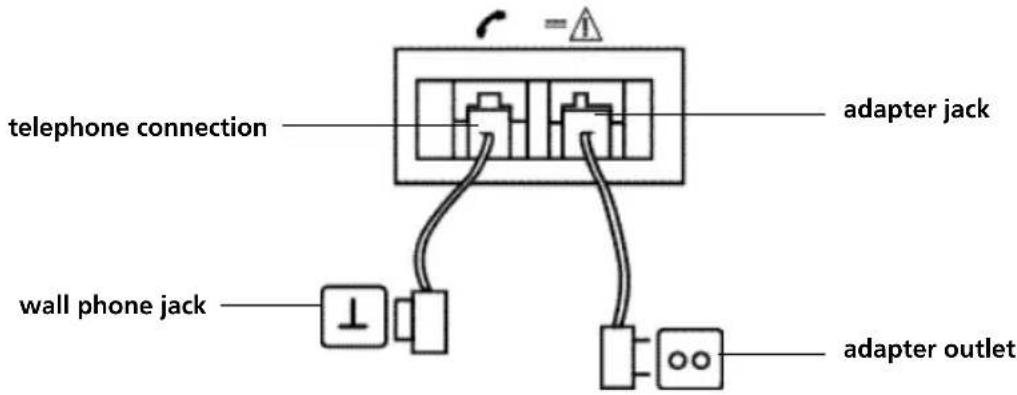
- Plug one end of the adaptor into the outlet and the other end into the adapter jack on the bottom of the telephone.
- Connect one end of the telephone cord with the wall phone jack and the other end to the bottom of the telephone.
- Open the battery compartment (see below).
- Put the battery in the battery compartment and connect the battery connector to the handset
- Close the battery compartment.
- Leave the handset on the base unit for 20 hours. The Line/Charge indicator (LED) on the base unit will light up.

Battery indicator:
• The battery is fully charged
• The battery is half drained (50%)
- The battery is low. When the battery is low, you will hear warning signals and the battery symbol on the display will blink.
TOPCOM®
Cocoon 300
2 KEYS/LED
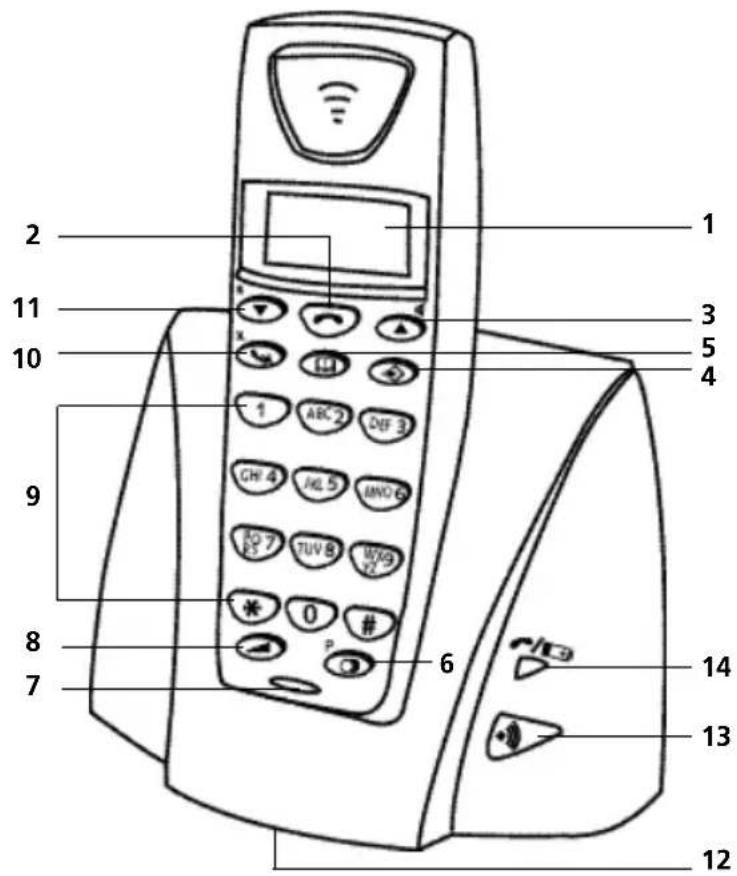
1 Display
2 Line key
3 Up/Handsfree key
4 Programming key
5 Phonebook key
6 Redial/Pause key
7 Microphone
8 Volume/Ringer key
9 Alphanumeric keys
10 Delete/Mute key
11 Down/Flash key
12 Base
13 Paging key
14 Line/Charge indicator (LED)


3 DISPLAY (LCD)
4
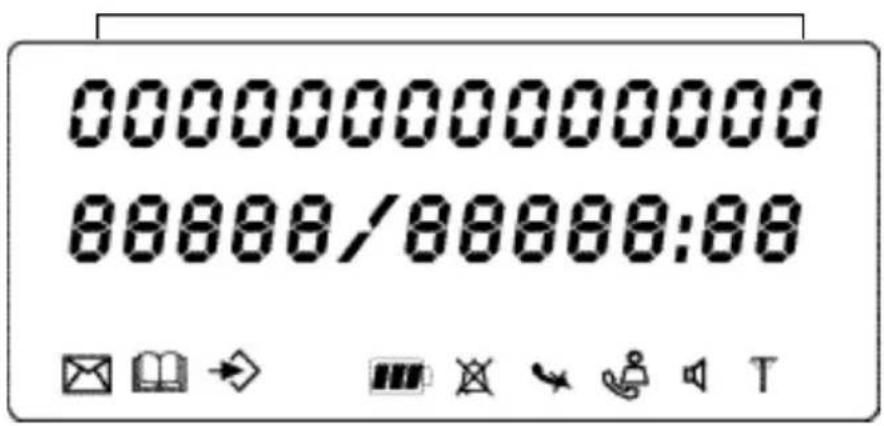
1 Number of calls received.
2 Date (day/month) of calls received.
3 Time (hour:minutes) of calls received.
4 Call information.
5 Symbol display(): T
- this symbol means that the handset is located within the range of the base unit.
- when this symbol starts blinking, this means you are beyond the range of the base unit. Move closer to the base unit so that the connection between the base unit and the handset can be restored.
- this symbol means that the handset is located within the range of the base unit. - when this symbol starts blinking, this means you are beyond the range of the base unit. Move closer to the base unit so that the connection between the base unit and the handset can be restored.
6 Symbol display():

- this symbol means that the telephone has received calls that are automatically stored in the Call List.
7 Symbol display():

- this symbol means that the mute function is activated, the microphone is turned off during a conversation.
8 Symbol display():

- this symbol appears on the display when one makes or receives a call.
9 Symbol display():

- this symbol means that the ringer is turned off. When one receives a call, the telephone does not ring. The telephone will ring when one receives an internal call.
10 Symbol display ( ):
- this symbol is the battery indicator.
11 Symbol display ( ):
- this symbol means you are in the menu.
12 Symbol display ( ):
- this symbol appears when you browse the numbers in the Phone Book.
13 Symbol display ( ):
- this symbol appears when you have received a voice mail message (see chapter 6).
14 Symbol display ( ):
- this symbol means that the handsfree function is activated. You can now talk without having to pick up the handset.
4 OPERATION
4.1 Tone/Pulse setting
The unit has been set to tone dialling mode (DTMF). If your system works on pulse dialling, you can switch to pulse dialling (in most cases this is not necessary).
Take the following steps:
- Press the Programming key .
- Press the Up or Down key repeatedly until 'SETTING' appears on the display.
- Press the Programming key .
- Press the Up or Down key repeatedly until 'DIAL MODE' appears on the display.
- Press the Programming key .
- The current status appears on the display:
- 'TONE': Tone dialling for most of the telephone exchanges and phone lines
- 'PULSE': Pulse dialling for old telephone exchanges that not operate on tone dialling
- Press the Up or Down key to make your selection.
- Press the Programming key to confirm your selection.
4.2 Setting the language
The telephone has 5 display languages: see display languages table on packaging!!
TOPCOM®
Cocoon 300
To set the language, do the following:
- Press the Programming key .
- Press the Up or Down key repeatedly until 'SETTING' appears on the display
- Press the Programming key
- 'LANGUE' appears on the display.
- Press the Programming key .
- The language set appears on the display.
- Press the Up or Down key repeatedly to select the language you would like to use.
- Once the desired language appears on the display, press the Programming key to confirm your selection or repeatedly press the Mute/Delete key to leave the menu.
4.3 Making Calls
4.3.1 External Call
- Press the Line key
- The Line/Charge indicator (VED) on the base unit will blink. 'EXT' and the Call symbol appear on the display.
- You will hear the dial tone. Dial the telephone number you wish to call.
- The number appears on the display and is dialled.
- After finishing your call, press the Line key to hang up or put the handset back on the base unit.
4.3.2 Number preparation
- Dial the telephone number you wish to call. You can correct the number by pressing the Delete/Mute key
- Press the Line key
- The Line/Charge indicator (LED) on the base unit will blink. 'EXT' and the Call symbol appear on the display.
- The telephone number is dialled automatically.
- After finishing your call, press the Line key 🔍 to hang up or put the handset back on the base unit.
4.3.3 Redialling the last number dialled
- Press the Line key - The Line/Charge indicator (VED) on the base unit will blink. 'EXT' and the Call symbol appear on the display.
- You will hear the dial tone.
- Press the Redial key ☐ the number you last called is dialled automatically without having to re-enter the number.
4.3.4 Redial one of the last 5 numbers dialled
- Press the Redial key (the number you last called appears on the display. If you would like to dial one of the last 5 numbers dialled, press the Redial key a few times until the desired number appears on the display.
- Press the Line key
- The number shown on the display is dialled automatically without you having to re-enter the number.
- After finishing your call, press the Line key to hang up or put the handset back on the base unit.
4.3.5 Calling a programmed number from the Phone Book
The telephone has a Phone Book in which you can program the telephone number of calls received by name. If you would like to call a number from the Phone Book, do the following:
- Press the Phone Book key 📄The first number of the Phone Book appears on the display.
- Press the Up or Down key repeatedly to select the telephone number you wish to call.
- Press the Line key
- The number shown on the display, is dialled automatically without you having to re-enter the number.
- After finishing your call, press the Line key to hang up or put the handset back on the base unit.
4.3.6 An internal call: calling another handset
This function only works if multiple handsets are subscribed to the base unit!
- Press the Programming key .
- Press the Up or Down key repeatedly until 'INTERCOM' appears on the display.
- Press the Programming key
- 'INT' appears on the display
- Dial the number of the handset you would like to call.
- After finishing your call, press the Line key to hang up or put the handset back on the base unit.
4.4 Receiving a Call
4.4.1 Receiving an external call
- All subscribed handsets will ring when you receive a call.
- The Call symbol blinks on the display.
- The telephone number of the caller appears on the display if you have Caller ID service (CLIP). Consult your telephone company. The name of the caller also appears on the display if:
- the name is programmed into the Phone Book
- the network sends the name together with the telephone number (FSK CID system only).
- Press the Line key to accept the external call.
- During the call 'EXT' and the symbol appear on the display. The call timer starts running.
- After finishing your call, press the Line key to hang up or put the handset back on the base unit.
4.4.2 Receiving an internal call
This function only works if multiple handsets are subscribed to the base unit!
- The handset rings.
- 'INT' and the number of the handset you are trying to reach, appear on the display. The Call symbol blinks on the display.
TOPCOM®
Cocoon 300
- Press the Line key to accept the internal call.
- During the call, 'INT', the handset number of the caller and the symbol appear on the display. The call timer starts running.
- After finishing your call, press the Line key to hang up or put the handset back on the base unit.
4.4.3 Receiving an external call during an internal call
If you receive an external call during an internal call, you will hear a call waiting tone (double beep) on both handsets being used for an internal call.
- Press the Line key twice to accept the external call.
- After finishing your call, press the Line key to hang up or put the handset back on the base unit.
4.5 Activate/deactivate handsfree function
This function allows you to communicate without having to pick up the handset. When you are on the phone, press the Up/Handsfree key ▲to activate the handsfree function.
Press the same button to deactivate the handsfree function.
Note : When you are calling in handsfree mode and you want to change the volume, press the Volume button
Attention !! When you use the handsfree function for a long time, the batteries will be empty quickly !
4.6 Transferring a call to another handset
- You have an external caller on the line.
- Press the Programming key
- 'INTERCOM' appears on the display.
- Press the Programming key .
- The external call is now on hold.
- 'INT' appears on the display.
- Dial the number of the handset to which you would like to transfer the call.
- If the handset dialled is answered, you can have an internal conversation. Press the Line key and the external call is transferred.
- If the handset dialled is not answered, press the Down key 🤔 speak to the external caller again.
4.7 Out of Range Warning
If the handset is out of range of the base unit, a warning signal will sound.
- 'SEARCHING' appears on the display and the symbol blinks on the display.
- Move closer to the base unit.
- As soon as you are back within range of the base unit, a signal sounds and the symbol stops blinking.
4.8 Setting the speaker volume
Use the Volume/Ringer key → to set the volume of the speaker (handset). You can choose from 5 levels. The telephone is set to level '3' by default.
TOPCOM®
Cocoon 300
During a call, you can change the volume as follows:
- Press the Volume/Ringer key /
- The volume level currently set appears on the display.
- Use the number keys to set the desired level (1-5).
- Press the Volume/Ringer key / to confirm your selection.
Note : You have 8 seconds to set the desired volume; if you do not, the telephone returns to standby mode and the volume remains unchanged.
4.9 Call Duration Indicator on the Display
As soon as you press the Line key the call duration appears on the display (minutes-seconds). E.g. "01-20" for 1 minute and 20 seconds.
The call duration remains visible on the display for 5 seconds after each call.
4.10 Turning off the microphone (mute)
It is possible to turn off the microphone during a call by pressing the Delete/Mute key 🎨. Now you can speak freely without the caller being able to hear you.
- You are on the phone. The Line/Charge indicator (LED) on the base unit will blink and the Call symbol appears on the display.
- Press the Delete/Mute key to turn off the microphone.
- The symbol 'X' appears on the display ( )
- When you want to resume the conversation, press the Delete/Mute key again.
- The symbol 'X' disappears from the display (☐). The person on the other end of the line can hear you again.
4.11 Pause key
If you dial a telephone number and you would like to add a pause to this number, press the Pause key ⓐ the desired place in the number.
When you call this number, this pause (3 seconds) is automatically included.
4.12 Conference call (two internal DECT handsets and one external caller)
You can have a telephone conversation with one internal and one external caller at the same time.
- While on the line with an external caller, press the Programming key
- 'INTERCOM' appears on the display.
- Press the Programming key .
- The external call is now on hold.
- 'INT' appears on the display.
- Dial the number of the handset you would like to include in the call.
- Once the handset dialled is answered, keep the '#' key pressed for 3 seconds.
- 'CONFERENCE' appears on the display.
- Now you are connected to one external and one internal caller (conference call).
4.13 Locating a misplaced handset (paging)
If you cannot find the handset, briefly press the Paging key on the base unit.
All handsets subscribed with the base unit will sound a signal so you can locate the misplaced handset. To stop the signal, briefly press the Line key on the handset.
4.14 Using the alphanumeric keypad
Use the alphanumeric keypad to type text. To select a letter, press the corresponding key. E.g. if you press the alphanumeric key '5', the first character (j) appears on the display. Press it repeatedly to select other characters from this key.
Press the '2' key twice to select the letter 'B'. If you would like to select both 'A' and 'B' after each other, first press the '2' key once to select 'A', wait 2 seconds until the cursor moves to the next position and then press the '2' key twice to select 'B'. You can delete characters mistakenly typed by using the Delete key. The character in front of the cursor will be deleted. You can move the cursor by pressing the Up and Down keys ▲▼
Available characters
Press the right keys to get the following characters:
| Keys First | Second Third Fourth Fifth press press press press press | ||||
| 1 + - / 1 | |||||
| 2 | A | B | C | 2 | |
| 3 | D | E | F | 3 | |
| 4 | G | H | I | 4 | |
| 5 | J | K | L | 5 | |
| 6 | M | N | O | 6 | |
| 7 | P | Q | R | S | 7 |
| 8 T | U | V | 8 | ||
| 9 | W | X | Y | Z | 9 |
| 0 | SPACE | 0 | |||
4.15 The Phone Book
4.15.1 Adding a number and a name to the Phone Book
- Press the Programming key →.
- Press the Up or Down key ▲▼ repeatedly until 'PHONE BOOK' appears on the display.
- Press the Programming key →.
- 'SEARCH' appears on the display.
- Press the Up or Down key ▲▼ repeatedly until 'ADD NEW' appears on the display.
- Press the Programming key
- 'NAME' appears on the display.
- Enter the name. Use the alphanumeric keys.
- Press the Programming key →.
- Enter the telephone number. Use the alphanumeric keys.
- Press the Programming key →.
- You will hear a long beep. The name and the number are stored in the Phone Book.
4.15.2 Looking up a number in the Phone Book
- Press the Programming key .
- Press the Up or Down key repeatedly until 'PHONE BOOK' appears on the display.
- Press the Programming key .
- 'SEARCH' appears on the display.
- Press the Programming key .
- Enter the first letters of the desired name.
- Press the Programming key .
- The first name, corresponding with these letters appears on the display.
- Press the Up or Down key to browse for other numbers in the Phone Book.
- Once the desired number appears on the display, the number will be automatically dialled once the Line key is pressed.
4.15.3 Changing a name or number in the Phone Book
- Press the Programming key .
- Press the Up or Down key repeatedly until 'PHONE BOOK' appears on the display.
- Press the Programming key .
- 'SEARCH' appears on the display.
- Press the Up or Down key repeatedly until 'EDIT' appears on the display.
- Press the Programming key .
- The first number in the Phone Book appears on the display.
- Press the Up or Down key ▲▼ the desired number appears on the display.
- Press the Programming key to change the selected number programmed into the memory.
- Press the Delete key to delete each letter of the name and use the alphanumeric keypad to enter the correct name.
- Press the Programming key .
- Press the Delete key to delete each digit of the number and use the alphanumeric keypad to enter the correct number.
- Press the Programming key to save the changes made.
4.15.4 Deleting name and number from the Phone Book
- Press the Programming key .
- Press the Up or Down key repeatedly until 'PHONE BOOK' appears on the display.
- Press the Programming key .
- 'SEARCH' appears on the display.
- Press the Up or Down key repeatedly until 'DELETE' appears on the display.
- Press the Programming key .
- The first number in the Phone Book appears on the display.
- Press the Up or Down key until the number you want to delete appears on the display.
- Press the Delete key .
- 'DELETE?' appears on the display.
- Press the Programming key to confirm that you want to delete it.
4.16 Turning the handset on/off
4.16.1 Turning the handset off
The handset is turned on.
- Press the Programming key .
- Press the Up or Down key repeatedly until 'POWER OFF?' appears on the display.
- Press the Programming key . The telephone turns itself off. You cannot dial any more numbers, nor receive any calls.
Note : If you would like to leave the menu without turning off the handset, press the Delete/Mute key ↗.
4.16.2 Turning the handset on
The handset is turned off.
- Press the Programming key . The telephone turns itself on.
4.17 Setting the ring volume level on the handset
If you want, you can change the ring volume of an incoming call. You have 10 levels. You can set the ring volume of internal and external calls separately so you can hear a difference.
If you select level '0', the symbol appears on the display and you no longer hear the phone ring when an external call is received (you still hear it ring for internal calls).
Level '9' is the highest level. The telephone is set to level '5' by default.
4.17.1 Setting the ring volume for external calls (0-9)
- Press the Programming key .
- Press the Up or Down key repeatedly until 'RING SEL' appears on the display.
- Press the Programming key .
- 'OUTSIDE' appears on the display.
- Press the Programming key .
- Press the Up or Down key repeatedly until 'VOLUME' appears on the display.
- Press the Programming key .
- The current volume level used appears on the display.
- Enter a number between 0 and 9 to select the desired ringer volume. Use the number keypad to do this.
- Press the Programming key to confirm your selection.
4.17.2 Setting the ringer volume for internal calls (1-9)
- Press the Programming key .
- Press the Up or Down key repeatedly until 'RING SEL' appears on the display.
- Press the Programming key .
- 'EXTERNAL' appears on the display.
- Press the Up or Down key repeatedly until 'INTERNAL' appears on the display.
- Press the Programming key .
- Press the Up or Down key repeatedly until 'VOLUME' appears on the display.
- Press the Programming key .
- The current volume level appears on the display.
- Enter a number between 1 and 9 to select the desired ringer volume. Use the number keypad to do this.
- Press the Programming key to confirm your selection.
4.18 Setting the ringer melody on the handset
If you want, you can change the ringer melody for an incoming call. You have 9 ringer melodies to choose from (1-9). By default, the ringer melody is set to '5'.
4.18.1 Setting a ringer melody for external calls (1-9)
- Press the Programming key .
- Press the Up or Down key repeatedly until 'RING SEL' appears on the display.
- Press the Programming key .
- 'EXTERNAL' appears on the display.
- Press the Programming key .
- 'MELODIES' appears on the display.
- Press the Programming key .
- The currently set ringer melody appears on the display.
- Enter a number between 1 and 9 to select he desired ringer melody. Use the number keypad to do this.
- Press the Programming key to confirm your selection.
4.18.2 Setting a ringer melody for internal calls (1-9)
- Press the Programming key .
- Press the Up or Down key repeatedly until 'RING SEL' appears on the display.
- Press the Programming key .
- 'EXTERNAL' appears on the display.
- Press the Up or Down key repeatedly until 'INTERNAL' appears on the display.
- Press the Programming key .
- 'MELODIES' appears on the display.
- Press the Programming key .
- The currently set ringer melody appears on the display.
- Enter a number between 1 and 9 to select the desired ringer melody. Use the number keypad for this.
- Press the Programming key to confirm your selection.
4.19 Locking the key pad
If you lock the alphanumeric keypad, it is impossible to dial a telephone number.
Only the Programming key can still be used. 'KEY LOCKED' will be displayed on the display.
- Press the Programming key .
- Press the Up or Down key repeatedly until 'KEY SETUP' appears on the display.
- Press the Programming key .
- KEY LOCK' appears on the display.
- Press the Programming key .
- The current status of the keypad appears on the display:
- 'LOCK': the keypad is locked
- 'UNLOCK': the keypad is not locked
- Press the Up or Down key to make your selection.
- Press the Programming key to confirm your selection.
4.20 Turning key click on/off
You can set the telephone to make a sound whenever you press a key.
- Press the Programming key .
- Press the Up or Down key repeatedly until 'KEY SETUP' appears on the display.
- Press the Programming key .
- Press the Up or Down key repeatedly until 'KEY CLICK' appears on the display.
- Press the Programming key .
- The current status appears on the display:
- 'CLICK ON': turn on key click
- 'CLICK OFF': turn off key click
- Press the Up or Down key to make your selection.
- Press the Programming key to confirm your selection.
4.21 The R key (flash)
Press the Flash key 'R' to use certain services such as "call waiting" (if your telephone company offers this feature); or to transfer calls if you use a telephone exchange (PABX). The Flash key 'R' is a brief interruption of the line. You can set the flash time to 100ms or 250ms. If your system requires another flash time, do the following:
- Press the Programming key .
- Press the Up or Down key repeatedly until 'SETTING' appears on the display
- Press the Programming key .
- Press the Up or Down key repeatedly until 'RECALL' appears on the display.
- Press the Programming key .
- Press the Up or Down key repeatedly to select the flash time:
- SHORT = 100ms
- LONG = 250ms
- Press the Programming key to confirm your selection.
4.22 Changing the PIN code
Certain functions are only available if you know the PIN code of the telephone. Thanks to this secret code, settings are displayed that only you can change. The PIN code has 4 digits. The default PIN code setting is '0000'. If you would like to change the default PIN code and set your own secret code, do the following:
- Press the Programming key .
- Press the Up or Down key repeatedly until 'SETTING' appears on the display.
- Press the Programming key .
- Press the Up or Down key repeatedly until 'PIN CODE' appears on the display.
- Press the Programming key .
- 'OLD CODE' appears on the display.
- Enter the old PIN code. Use the number keys.
- Press the Programming key .
- 'NEW CODE' appears on the display.
- Enter the new PIN code in. Use the number keys.
- Press the Programming key .
- 'AGAIN' appears on the display.
- Enter the new PIN code again. Use the number keys.
- Press the Programming key .
- You hear a confirmation tone. The new PIN code has been set.
Caution : Do not forget your personal PIN code. If you do, you have to restore the default settings (reset – see section 4.30).
4.23 Subscribing a handset to a Cocoon 300/350, Butler 1000, 1010, 1210 base unit
In order to be able to make and receive telephone calls, a new handset has to be subscribed to the base unit. You can subscribe 5 handsets to one base unit. By default, each handset is subscribed as handset 1 on the base unit upon delivery (base unit 1).
!!! You only need to subscribe the handset if: !!!
- the handset subscription has been removed from the base unit (e.g. for reinitialisation)
- you want to subscribe a different handset to this base unit.
The underlined procedure is only applicable to a Cocoon 300/350, Butler 1000, 1010, 1210 handset and base unit!!
Keep the Paging key on the base unit pressed for 10 seconds until the Line/Charge indicator
on the base unit begins to blink rapidly. The Line/Charge indicator will blink rapidly for one minute. During this minute, the base unit is in subscribing mode and you must do the following to subscribe the handset:
- Press the Programming key .
- Press the Up or Down key repeatedly until 'BASE SUB' appears on the display.
- Press the Programming key .
- 'BASE_' appears on the display.
- Enter a number of the base unit you would like to subscribe the handset to (1-4). Use the number keypad.
Note: Each handset can be subscribed to 4 different DECT base units. Each base unit is assigned a number from 1 to 4 in the handset. When you subscribe a new handset, you can assign a base unit number. It is best to use '1'.
- 'SEARCHING' and the symbol appears on the display.
- The RFPI code (each base unit has a unique RFPI code) appears on the display and a signal sounds when the handset has found the base unit.
- Press the Programming key .
- 'PIN' appears on the display.
- Enter the 4-digit PIN code of the base unit in (default PIN code is '0000'). Use the number keypad.
- Press the Programming key .
- The handset is subscribed to the base unit.
4.24 Subscribing Cocoon 300 handset on Butler 575/575+ & Cocoon100/100+ & Butler 2000 base unit
Press the Paging key on the Butler 575/575+ or Cocoon100/100+ or Butler 2000 base unit for +/- 15 seconds until you hear a beep. The base unit is now in subscribing mode. For 1 minute, the base unit is in subscribing mode and you have to do the following to subscribe the handset:
- Press the Programming key .
- Press the Up or Down key repeatedly until 'BASE SUB' appears on the display.
TOPCOM®
Cocoon 300
- Press the Programming key .
- 'BASE_' appears on the display.
- Enter a number for the base unit to which you would like to subscribe the handset (1-4). Use the number keypad.
- 'SEARCHING' and the symbol appear on the display.
- The RFPI code (each base unit has a unique RFPI code) appears on the display and a signal sounds once the base unit is found by the handset.
- Press the Programming key .
- 'PIN' appears on the display.
- Enter the 4-digit PIN code of the base unit (default PIN code is '1590'). Use the number keypad.
- Press the Programming key .
- The handset is subscribed to the base unit.
4.25 Subscribing a Butler 1800T handset to a Cocoon 300 base unit
The below procedure only applies to a Butler 1800T handset and Cocoon 300 base unit!!
Press the Paging key on the base unit for 10 seconds until the Line/Charge indicator on the base unit starts to blink quickly. The Line/Charge indicator will blink quickly for one minute. During this minute, the base unit is in subscribing mode and you must do the following to subscribe the handset:
- Press the key once.
- Press the OK key and select a base unit (1-4) with the keys.
- Press the OK key.
- Enter the PIN code of your base unit. Usually: 0000.
- Press OK. The Butler 1800T now searches for your DECT base unit. As soon as it finds it, you will see the identification code of this base unit on the display.
- Press OK to confirm your selection or press ESC to cancel the subscription.
4.26 Removing subscription of a handset to a base unit
It is possible to cancel subscription of a handset to a base unit. You would do this if a handset is damaged and has to be replaced by a new one.
Caution: You can only cancel subscription of another handset, not the handset you are using to do the cancellation procedure.
- Press the Programming key .
- Press the Up or Down key repeatedly until 'SETTING' appears on the display.
- Press the Programming key .
- Press the Up or Down key repeatedly until 'REMOVE HS' appears on the display.
- Press the Programming key .
- 'PIN' appears on the display.
- Enter your 4-digit PIN code in (default PIN code is '0000'). Use the number keypad.
- Press the Programming key .
- 'REMOVE HS' appears on the display.
- Dial the number of the handset you want to remove (1 -5). Use the number keypad.
- Press the Programming key .
- 'REMOVE HS' appears on the display and the handset is removed
- NOT SUB' appears on the handset removed.
4.27 Selecting a base unit
If your handset is subscribed to several base unit stations (max. 4), you must select a base unit because the handset can only communicate with one base unit at a time. There are two possibilities:
4.27.1 Automatic selection
If you set the handset to 'automatic selection', the handset will automatically choose the closest base unit in standby.
- Press the Programming key .
- Press the Up or Down key repeatedly until 'SETTING' appears on the display.
- Press the Programming key .
- Press the Up or Down key repeatedly until 'BASE SEL' appears on the display.
- Press the Programming key .
- Press the Up or Down key repeatedly until 'AUTO' appears on the display.
- Press the Programming key .
- 'SEARCHING' and the symbol appear on the display.
- A signal sounds once the handset has found a base unit.
4.27.2 Manual selection
If you set the handset to 'manual selection', the handset will only choose the base unit you have set.
- Press the Programming key .
- Press the Up or Down key repeatedly until 'SETTING' appears on the display.
- Press the Programming key .
- Press the Up or Down key repeatedly until 'BASE SEL' appears on the display.
- Press the Programming key .
- Press the Up or Down key repeatedly until 'MANUAL' appears on the display.
- Press the Programming key .
- 'BASE -' appears on the display.
- Enter the number of the base unit you want to select (1-4). Use the number keypad.
- Press the Programming key .
- 'SEARCHING' and the symbol appear on the display.
- A signal sounds once the selected base unit has been found.
Notes :
- Before you can select a base unit, the base unit must be subscribed to the handset first.
- If 'NOT SUB' appears on the display, this means the selected base unit does not exist or the handset has not been subscribed.
4.28 Barring outgoing calls
You can program the handsets to bar calls to certain telephone numbers so that for instance '00' international numbers cannot be called. Up to 5 numbers (of max. 5 digits) can be barred.
To do this, do the following:
- Press the Programming key .
- Press the Up or Down key repeatedly until 'SETTING' appears on the display.
TOPCOM®
Cocoon 300
- Press the Programming key .
- Press the Up or Down key repeatedly until 'BARRING' appears on the display.
- Press the Programming key .
- 'PIN' appears on the display.
- Enter your PIN code
- Press the Programming key .
- 'BAR NUM' appears on the display. You are in memory "1._".
- Press the Up or Down key to select one of the 5 memories.
- Enter the number (max. 5 digits) to be barred, e.g. 01486.
- Press the Programming key .
- 'HS ____' (= number on the handset (1-5)) '01486' (= the barred numbers) appear on the display.
- Enter the numbers of the handsets from which the barred numbers cannot be called.
- e.g. Press the number key 2, 3 and 5. On the display, this will appear: HS _2 3_5 01486 These handsets can no longer dial numbers beginning with '01486'.
- Press the Programming key to confirm your selection.
Repeat the same procedure described above if you would like to bar other numbers (max. 5)!
4.29 Default settings (reset) of the parameters
You can reset the standard (default) settings in the telephone so that they are the same they were when you bought the telephone. You need the PIN code to do this.
The default settings are:
Keypad: not locked
Key clicks: active
Speaker volume: level 3
Ringer melody: 1
Ringer volume : 5
Selection base unit: automatic
To restore the default settings, do the following:
- Press the Programming key .
- Press the Up or Down key repeatedly until 'SETTING' appears on the display.
- Press the Programming key .
- Press the Up or Down key repeatedly until 'RESET' appears on the display.
- Press the Programming key .
- 'PIN' appears on the display.
- Enter your PIN code.
- Press the Programming key .
4.30 Complete Reinitialisation of the telephone
This function allows you to completely reinitialise the telephone without requiring your PIN code. This will delete all Phone Book memory entries, all handsets will be removed, all default settings will be restored and the default PIN code will be restored to '0000'.
Do the following:
- Disconnect the battery in the telephone.
- Keep the '*' key pressed and reconnect the battery until the handset rings continually and the display lights up. Release the '*' button and press the Programming key
- The handset finds the base unit and a signal sounds.
- Briefly press the '*' key.
- 'RESET?' appears on the display.
- Press the Programming key to confirm your selection of disconnect the battery to discontinue the procedure.
- 'RESETTING' appears on the display and a long beep tone sounds.
- 'NOT SUB' appears on the display. The handset is completely reinitialised.
Afterwards, you must resubscribe all handsets as described in point 4.23! However you no longer need to set the base unit to subscription mode, because this now happens automatically!
5 CALLER ID/CLIP
(This service only works when you have a Caller ID/Clip subscription. Contact your telephone company).
When you receive a call, the telephone number of the caller, the date and time appears on the handset display. The telephone can receive calls in both FSK and DTMF. If the name is programmed in the Phone Book, the name in the Phone Book is displayed!
The telephone can store 30 calls in a Call List that can be reviewed later. The telephone never stores the same call twice. When the memory is full, the new calls automatically replace the oldest calls in the memory. The symbol 🚗 on the display blinks if the call is not read or not answered. If the Call List is empty and you press the Up key ▲ three beep tones will sound.
You can view the information of an incoming call as follows:
- Press the Up key ▲The name (if sent by the network or present in the Phone Book memory) of the caller, the sequence number of the call in the Call List, the date and time of the call appear on the display.
- Press the Down key. The telephone number of the caller appears on the display.
5.1. Setting the date and time
When you receive an incoming call and the date and time are not sent together with the telephone number, this means that the date and the time will not be shown on the display. By setting the date and time, they will be shown on the display, together with the telephone number, every time a call comes in!
- Press the Programming key
- Press the Up or Down key a few times until 'SETTING' appears on the display.
- Press the Programming key .

- 'DATE/TIME' appears on the display.
- Press the Programming key again.
- When 'YEAR' appears on the display, enter the 2 last numbers of the year (00=2000, 01=2001, ...) and press the Programming key to confirm.
- When 'MONTH' appears on the display, enter the month (01=January, 02=February, ...) and press the Programming key to confirm.
- When 'DAY' appears on the display, enter the day of the month and press the Programming key to confirm.
- When 'HOUR' appears on the display, enter the current hour (in 24h format) and press the Programming key to confirm.
- When 'MINUTES' appears on the display, enter the minutes and press the Programming key to confirm.
The date and time are now set!
5.2 The Call List
The calls received are stored in the Call List (max. 30 numbers).
- Briefly press the Up key to view the most recent call.
- The name of the most recent caller appears on the display. If no name is available, 'NO NAME' appears on the display.
- If it is a private number, 'UNAVAL' appears on the display.
- The date and time the call was received are linked to each call.
- Briefly press the Down key to view the telephone number of the call.
- Briefly press the Down key to browse other numbers on the list.
Notes :
- If neither the Up or Down key ▲▼ is pressed for 15 seconds, the telephone will return to standby mode.
- After a call is received, the number of the caller remains on the display for 15 seconds after the last ring.
- Caller ID is not available while you are on the line.
5.3 Calling a number from the Call List
- Press the Up key to go to the Call List
- Press the Up key to look up the desired call. Press the Down key to view the telephone number.
- Once the number is on the display, press the Line key and the number is dialled automatically. (The symbols and 'EXT' appear on the display and the call timer starts.)
5.4 Storing a number from the Call List in the Phone Book
- Press the Up key to go to the Call List.
- Press the Up key to look up the desired number.
- Press the Phone Book key twice.
- 'STORE' appears on the display.
- The number is stored in the Phone Book. If the call was displayed without a name (NO NAME), you can add a name to this number in the Phone Book afterwards
- The telephone returns to standby-modus.
5.5 Deleting numbers from the Call List
5.5.1 Deleting one number
- Press the Up key to go to the Call List.
- Press the Up key find the call you would like to delete.
- Once this call appears on the display, press the Delete key
- 'DELETE?' appears on the display.
- Press the Programming key to confirm your selection or the Delete key to cancel.
- The call is deleted and the next call appears on the display.
5.5.2 Delete all numbers
- Press the Up key to go to the Call List.
- Keep the Delete key pressed until 'DELETE ALL' appears on the display.
- Press the Programming key to confirm your selection or the Delete key to cancel.
- All calls are deleted.
6 VOICE MAIL INDICATOR
This function only works if you have the voice mail or phone mail service and if the network sends this indication along with the FSK caller ID (CLIP) information!
When you receive a new message in your voice mail system, the 'icon will appear on the display. Once you have listened to your messages, the 'icon will disappear.
7 WARRANTY
Warranty: 2 years on defects of the device
Attention: Return your device in the original packaging.
Do not forget to include your purchase invoice.
The warranty is not valid without the purchase invoice.
TOPCOM®
Cocoon 300
1 INSTALLATION 75
2 TASTEN/LED 76
3 DISPLAY (LCD) 76
4 FUNKTION 77
Batterieanzeige:
it's nice talking to you
www.topcom.be



- DECLARATION OF CONFORMITY
- TOPCOM®
- COCOON 300
- BELANGRIJK
- WICHTIG
- 5 CALLER ID/CLIP
- 6 VOICE MAIL INDICATOR 72
- 7 GARANTEE
- 70
- 72
- 1 INSTALLATION
- 2 KEYS/LED
- 3 DISPLAY (LCD)
- 4 OPERATION
- 4.1 TONE/PULSE SETTING
- 4.2 SETTING THE LANGUAGE
- 4.3 MAKING CALLS
- 4.3.1 EXTERNAL CALL
- 4.3.2 NUMBER PREPARATION
- 4.3.3 REDIALLING THE LAST NUMBER DIALLED
- 4.3.4 REDIAL ONE OF THE LAST 5 NUMBERS DIALLED
- 4.3.5 CALLING A PROGRAMMED NUMBER FROM THE PHONE BOOK
- 4.3.6 AN INTERNAL CALL: CALLING ANOTHER HANDSET
- 4.4 RECEIVING A CALL
- 4.4.1 RECEIVING AN EXTERNAL CALL
- 4.4.2 RECEIVING AN INTERNAL CALL
- 4.4.3 RECEIVING AN EXTERNAL CALL DURING AN INTERNAL CALL
- 4.5 ACTIVATE/DEACTIVATE HANDSFREE FUNCTION
- 4.6 TRANSFERRING A CALL TO ANOTHER HANDSET
- 4.7 OUT OF RANGE WARNING
- 4.8 SETTING THE SPEAKER VOLUME
- 4.9 CALL DURATION INDICATOR ON THE DISPLAY
- 4.10 TURNING OFF THE MICROPHONE (MUTE)
- 4.11 PAUSE KEY
- 4.12 CONFERENCE CALL (TWO INTERNAL DECT HANDSETS AND ONE EXTERNAL CALLER)
- 4.13 LOCATING A MISPLACED HANDSET (PAGING)
- 4.14 USING THE ALPHANUMERIC KEYPAD
- AVAILABLE CHARACTERS
- 4.15 THE PHONE BOOK
- 4.15.1 ADDING A NUMBER AND A NAME TO THE PHONE BOOK
- 4.15.2 LOOKING UP A NUMBER IN THE PHONE BOOK
- 4.15.3 CHANGING A NAME OR NUMBER IN THE PHONE BOOK
- 4.15.4 DELETING NAME AND NUMBER FROM THE PHONE BOOK
- 4.16 TURNING THE HANDSET ON/OFF
- 4.16.1 TURNING THE HANDSET OFF
- 4.16.2 TURNING THE HANDSET ON
- 4.17 SETTING THE RING VOLUME LEVEL ON THE HANDSET
- 4.17.1 SETTING THE RING VOLUME FOR EXTERNAL CALLS (0-9)
- 4.17.2 SETTING THE RINGER VOLUME FOR INTERNAL CALLS (1-9)
- 4.18 SETTING THE RINGER MELODY ON THE HANDSET
- 4.18.1 SETTING A RINGER MELODY FOR EXTERNAL CALLS (1-9)
- 4.18.2 SETTING A RINGER MELODY FOR INTERNAL CALLS (1-9)
- 4.19 LOCKING THE KEY PAD
- 4.20 TURNING KEY CLICK ON/OFF
- 4.21 THE R KEY (FLASH)
- 4.22 CHANGING THE PIN CODE
- 4.23 SUBSCRIBING A HANDSET TO A COCOON 300/350, BUTLER 1000, 1010, 1210 BASE UNIT
- 4.24 SUBSCRIBING COCOON 300 HANDSET ON BUTLER 575/575+ & COCOON100/100+ & BUTLER 2000 BASE UNIT
- 4.25 SUBSCRIBING A BUTLER 1800T HANDSET TO A COCOON 300 BASE UNIT
- 4.26 REMOVING SUBSCRIPTION OF A HANDSET TO A BASE UNIT
- 4.27 SELECTING A BASE UNIT
- 4.27.1 AUTOMATIC SELECTION
- 4.27.2 MANUAL SELECTION
- NOTES
- 4.28 BARRING OUTGOING CALLS
- 4.29 DEFAULT SETTINGS (RESET) OF THE PARAMETERS
- 4.30 COMPLETE REINITIALISATION OF THE TELEPHONE
- SETTING THE DATE AND TIME
- 5.2 THE CALL LIST
- 5.3 CALLING A NUMBER FROM THE CALL LIST
- 5.4 STORING A NUMBER FROM THE CALL LIST IN THE PHONE BOOK
- 5.5 DELETING NUMBERS FROM THE CALL LIST
- 5.5.1 DELETING ONE NUMBER
- 5.5.2 DELETE ALL NUMBERS
- 6 VOICE MAIL INDICATOR
- 7 WARRANTY
- 1 INSTALLATION 75
- 2 TASTEN/LED 76
- 3 DISPLAY (LCD) 76
- 4 FUNKTION 77
- BATTERIEANZEIGE
Brand : TOPCOM
Model : Cocoon 300
Category : Telephone