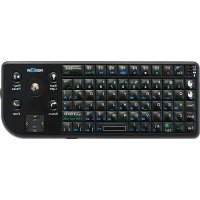
Wireless Keyboard - Keyboard Mede8er - Free user manual and instructions
Find the device manual for free Wireless Keyboard Mede8er in PDF.



| Product type | Wireless keyboard |
| Brand | Mede8er |
| Model | Wireless Keyboard |
| Connection technology | Bluetooth |
| Power supply | 3 AA alkaline batteries (included) |
| Estimated battery life | Several months depending on usage |
| Dimensions | Approximately 279 x 110 x 10 mm |
| Weight | Approximately 230 g (with batteries) |
| Wireless range | Up to 10 meters |
| Compatibility | Mac OS X 10.4.10 or later |
| Function keys | Brightness, Exposé, Dashboard, audio control, eject |
| Customization | Via System Preferences > Keyboard & Mouse |
| Cleaning | Slightly damp soft cloth, no solvents |
| Operating temperature | 10°C to 35°C |
| Humidity | 5% to 95% (non-condensing) |
| Safety | Keep batteries away from children, do not expose to fire |
| Battery maintenance | Replace all batteries at the same time, do not mix |
| Spare parts | Standard AA batteries commercially available |
| Repairability | Not user-serviceable (except batteries) |
| Color | White |
Frequently Asked Questions - Wireless Keyboard Mede8er
User questions about Wireless Keyboard Mede8er
0 question about this device. Answer the ones you know or ask your own.
Ask a new question about this device
Download the instructions for your Keyboard in PDF format for free! Find your manual Wireless Keyboard - Mede8er and take your electronic device back in hand. On this page are published all the documents necessary for the use of your device. Wireless Keyboard by Mede8er.
USER MANUAL Wireless Keyboard Mede8er
Apple Wireless Keyboard
Setting Up Your Apple Wireless Keyboard
Congratulations on selecting the Apple Wireless Keyboard as your input device.
Using the Wireless Keyboard
The information in this booklet supplements the setup instructions in the user's guide that came with your Mac. Follow the steps on the next several pages to:
• Install batteries in your keyboard.
- Set up your Mac.
- Use Setup Assistant to set up your keyboard with your Mac.
- Use Software Update to install the latest software.
Don't turn on your keyboard until you start up your Mac in Step 3.
Important: Keep the battery compartment cover and the batteries out of the reach of small children.
Step 1: Install the Batteries
Follow the instructions below to install batteries in your Apple Wireless Keyboard.
To install batteries in the keyboard:
1 Use a coin to remove the battery compartment cover.

text_image
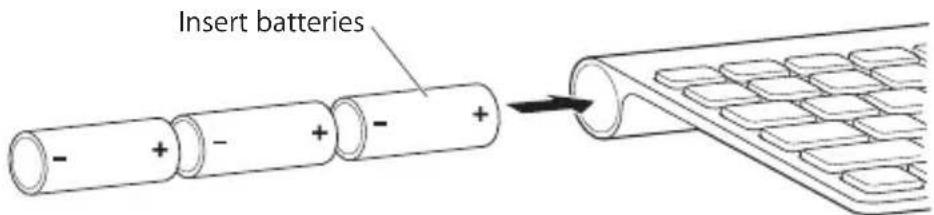
Battery compartment cover2 Slide the batteries into the battery compartment as shown below.
text_image
Insert batteries - + - + - + →3 Replace the battery compartment cover and leave the keyboard turned off until you start up your Mac in Step 3.
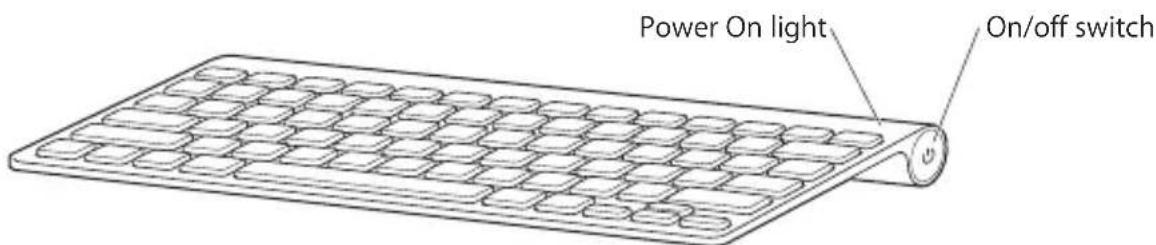
Note: When the Power On light is off, the keyboard is off.
Step 2: Set Up Your Mac
Follow the instructions in the user's guide that came with your Mac to set it up. Because you have a wireless keyboard, skip the instructions to connect a USB keyboard.
Wait to start up your Mac until instructed to do so in Step 3.
Step 3: Pair Your Keyboard
Before you can use your keyboard, you have to pair it with your Mac. Pairing allows your keyboard to communicate wirelessly with your Mac. You only have to pair once.
The first time you start up your Mac, Setup Assistant guides you in setting up your Apple Wireless Keyboard and pairing it with your Mac.
text_image
Power On light On/off switch1 Push and release the On/off (⏻) switch to turn on the Apple Wireless Keyboard.
2 Turn on your Mac.
3 When your Mac starts up, follow the onscreen instructions in Setup Assistant.
Step 4: Install Software
To use your keyboard and take advantage of the full range of features, you need to update your Mac to Mac OS X v10.4.10 or later and install the keyboard software update.
To update to the latest version of Mac OS X and install the keyboard software update, choose Apple ( Apple ) > Software Update from the menu bar and follow the onscreen instructions.
Using Your Keyboard
Use the keys at the top of your keyboard to adjust the brightness of your display, open Exposé, view Dashboard widgets, control volume, and more.

| Decrease ( ) or increase ( ) the brightness of your display. | |
| Use Exposé All Windows to see all of the open windows on your desktop at once. | |
| Open Dashboard to access your widgets and get information about the weather, stocks, and more. | |
| Rewind or go to the previous song, movie, or slideshow. | |
| Play or pause songs, movies, or slideshows. | |
| Fast-forward or go to the next song, movie, or slideshow. | |
| Mute the sound coming from the speakers or headphone port on your computer. | |
| Decrease ( ) or increase ( ) the volume of sound coming from the speakers or headphone port on your computer. | |
| Press and hold the Media Eject key to eject a disc. |
Customizing Your Keyboard
You can customize your keyboard using the Keyboard pane of Keyboard & Mouse preferences.
To customize your keyboard:
1 Choose Apple (✗) > System Preferences.
2 Click Keyboard & Mouse.
3 Click Keyboard or Keyboard Shortcuts.
Click Keyboard Shortcuts to assign shortcuts to menu commands in a Mac OS X application or in the Finder.
More information about your keyboard is available in Mac Help. Open Mac Help and search for "keyboard."
Renaming Your Keyboard
Your Mac automatically gives your wireless keyboard a unique name the first time you pair it. You can rename your keyboard using Keyboard & Mouse preferences. Choose Apple ( Apple ) > System Preferences and click Keyboard & Mouse. Click the Bluetooth® tab and enter a name in the Name field.
Cleaning Your Keyboard
Follow these guidelines when cleaning the outside of your keyboard:
- Remove the batteries from the keyboard.
- Use a damp, soft, lint-free cloth to clean the exterior of the keyboard. Avoid getting moisture in any openings.
- Don't use aerosol sprays, solvents, or abrasives.
About Your Batteries
Your Apple Wireless Keyboard comes with three alkaline batteries. You can use alkaline, lithium, or rechargeable AA batteries in your keyboard.
WARNING: When you replace the batteries, replace them all at the same time. Don't mix old batteries with new batteries or mix battery types (for example, don't mix alkaline and lithium batteries). Don't open or puncture the batteries, install them backwards, or expose them to fire, high temperatures, or water. Keep batteries out of the reach of children.
You can use Keyboard & Mouse preferences to check the battery level. Choose Apple ( Apple ) > System Preferences. Click Keyboard & Mouse and click Bluetooth.
Note: To conserve battery power, turn your keyboard off when you aren't using it. If you don't plan to use your keyboard for an extended period, remove the batteries.
Dispose of batteries according to your local environmental laws and guidelines.
Ergonomics
For information about ergonomics, health, and safety, visit the Apple ergonomics website at www.apple.com/about/ergonomics.
Support
For support and troubleshooting information, user discussion boards, and the latest Apple software downloads, go to www.apple.com/support.
Regulatory Compliance Information
Compliance Statement
This device complies with part 15 of the FCC rules. Operation is subject to the following two conditions: (1) This device may not cause harmful interference, and (2) this device must accept any interference received, including interference that may cause undesired operation. See instructions if interference to radio or television reception is suspected.
Radio and Television Interference
The equipment described in this manual generates, uses, and can radiate radio-frequency energy. If it is not installed and used properly—that is, in strict accordance with Apple's instructions—it may cause interference with radio and television reception.
This equipment has been tested and found to comply with the limits for a Class B digital device in accordance with the specifications in Part 15 of FCC rules. These specifications are designed to provide reasonable protection against such interference in a residential installation. However, there is no guarantee that interference will not occur in a particular installation.
You can determine whether your computer system is causing interference by turning it off. If the interference stops, it was probably caused by the computer or one of the peripheral devices.
If your computer system does cause interference to radio or television reception, try to correct the interference by using one or more of the following measures:
- Turn the television or radio antenna until the interference stops.
- Move the computer to one side or the other of the television or radio.
- Move the computer farther away from the television or radio.
- Plug the computer into an outlet that is on a different circuit from the television or radio. (That is, make certain the computer and the television or radio are on circuits controlled by different circuit breakers or fuses.)
If necessary, consult an Apple Authorized Service Provider or Apple. See the service and support information that came with your Apple product. Or, consult an experienced radio or television technician for additional suggestions.
Important: Changes or modifications to this product not authorized by Apple Inc. could void the FCC compliance and negate your authority to operate the product. This product was tested for FCC compliance under conditions that included the use of Apple peripheral devices and Apple shielded cables and connectors between system components. It is important that you use Apple peripheral devices and shielded cables and connectors between system components to
reduce the possibility of causing interference to radios, television sets, and other electronic devices. You can obtain Apple peripheral devices and the proper shielded cables and connectors through an Apple-authorized dealer. For non-Apple peripheral devices, contact the manufacturer or dealer for assistance.
Responsible party (contact for FCC matters only):
Apple Inc., Product Compliance
1 Infinite Loop M/S 26-A
Cupertino, CA 95014-2084
Industry Canada Statements
Complies with the Canadian ICES-003 Class B specifications. Cet appareil numérique de la classe B est conforme à la norme NMB-003 du Canada. This device complies with RSS 210 of Industry Canada.
This Class B device meets all requirements of the Canadian interference-causing equipment regulations.
European Compliance Statement
This product complies with the requirements of European Directives 72/23/EEC, 89/336/EEC, and 1999/5/EC.
Bluetooth Europe–EU Declaration of Conformity
This wireless device complies with the specifications EN 300 328, EN 301-489, EN 50371, and EN 60950 following the provisions of the R&TTE Directive.
Caution: Modification of this device may result in hazardous radiation exposure. For your safety, have this equipment serviced only by an Apple Authorized Service Provider.
VCCI Class B Statement
情報処理装置等電波障害自主規制について
Singapore Wireless Certification
Complies with IDA Standards DB00063
Taiwan Wireless Statement
於 2.4GHz 區域內操作之
無線設備的警告聲明
Taiwan Class B Statement
Class B 設備的警告聲明
NIL
Apple and the Environment
Apple Inc. recognizes its responsibility to minimize the environmental impacts of its operations and products.
More information is available on the web at:
www.apple.com/environment
中国
| 有毒或有害物质 | 零部件 | |
| 电路板 | 附件 | |
| 铅(Pb) | X | X |
| 汞(Hg) | O | O |
| 镉(Cd) | O | O |
| 六价铬(Cr,VI) | O | O |
| 多溴联苯(PBB) | O | O |
| 多溴二苯醚(PBDE) | O | O |
Disposal and Recycling Information
When this product reaches its end of life, please dispose of it according to your local environmental laws and guidelines.
For information about Apple's recycling programs, visit: www.apple.com/environment/recycling
Battery Disposal Information
Dispose of batteries according to your local environmental laws and guidelines.
European Union—Disposal Information

The symbol above means that according to local laws and regulations your product should be disposed of separately from household waste. When this product reaches its end of life, take it to a collection point designated by local authorities. Some collection points accept products for free. The separate collection and recycling of your product at the time of disposal will help conserve natural resources and ensure that it is recycled in a manner that protects human health and the environment.
© 2007 Apple Inc. All rights reserved. Apple, the Apple logo, Exposé, Mac, and Mac OS are trademarks of Apple Inc., registered in the U.S. and other countries. Apple Store is a service mark of Apple Inc., registered in the U.S. and other countries.
The Bluetooth® word mark and logos are registered trademarks owned by Bluetooth SIG, Inc. and any use of such marks by Apple is under license.
www.apple.com
Printed in XXXX
