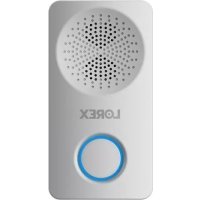
ACCHM1 - Wireless doorbell Lorex - Free user manual and instructions
Find the device manual for free ACCHM1 Lorex in PDF.



| Product Type | Wi-Fi Chime |
| Brand | Lorex |
| Model | ACCHM1 |
| Height | 99 mm |
| Width | 52 mm |
| Power Source | Wall outlet (100-240 V) |
| Connectivity | Wi-Fi 2.4 GHz |
| Light Indicator | Blue LED: solid = normal operation, blinking = ready for connection |
| Main Functions | Ringtone for 2K video doorbell, connection via Lorex Home app |
| Package Contents | Wi-Fi Chime, power adapter, reset pin |
| Reset | Reset button accessible with the pin |
| Installation | Plug into an outlet, configure via the Lorex Home app |
| Compatibility | Lorex 2K Video Doorbell |
| Maintenance | Clean with a soft, dry cloth. Do not use liquids. |
| Safety | Complies with FCC Part 15 regulations |
| Warranty | Visit lorex.com/warranty |
| Customer Service | help.lorex.com |
Frequently Asked Questions - ACCHM1 Lorex
User questions about ACCHM1 Lorex
0 question about this device. Answer the ones you know or ask your own.
Ask a new question about this device
Download the instructions for your Wireless doorbell in PDF format for free! Find your manual ACCHM1 - Lorex and take your electronic device back in hand. On this page are published all the documents necessary for the use of your device. ACCHM1 by Lorex.
USER MANUAL ACCHM1 Lorex
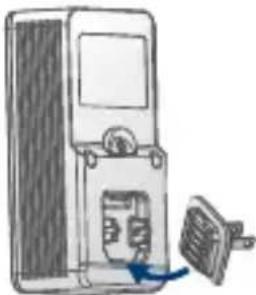
To attach the power plug, hook the power plug's bottom tab into the chime slot and push in.
natural_image
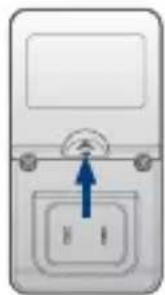
Diagram of a device with a component inserted into a housing, showing internal structure and a blue arrow indicating direction (no text or symbols present)To detach the power plug, hold onto the plug then push up on the detach switch.
natural_image
Diagram of a device with a blue arrow pointing to a button labeled 'B' (no text or symbols beyond basic labels)Wi-Fi Chime overview
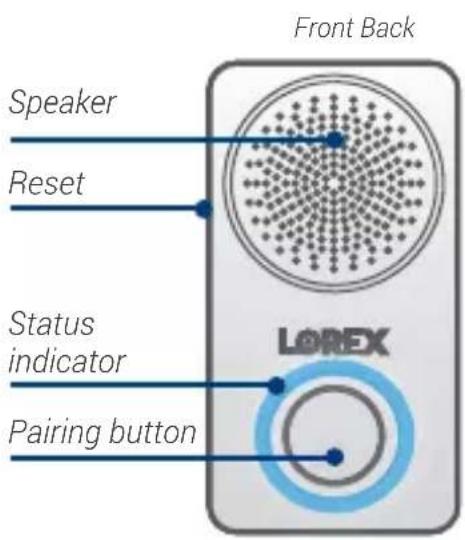
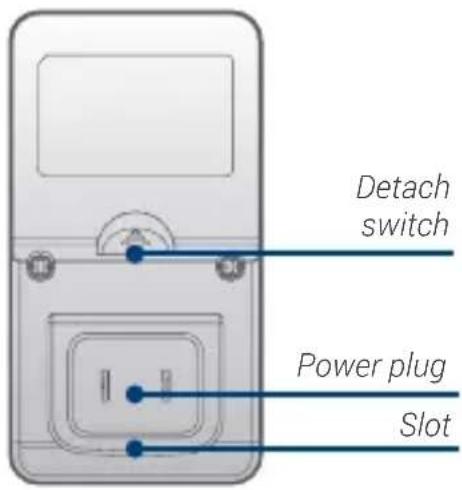
Status indicator

Solid blue
Operating correctly.

Flashing blue
- Ready for connection.
• Network connection failed. Use the pin to reset.
Dimensions
Height: 3.9" (99mm)
Width: 2.0" (52mm)
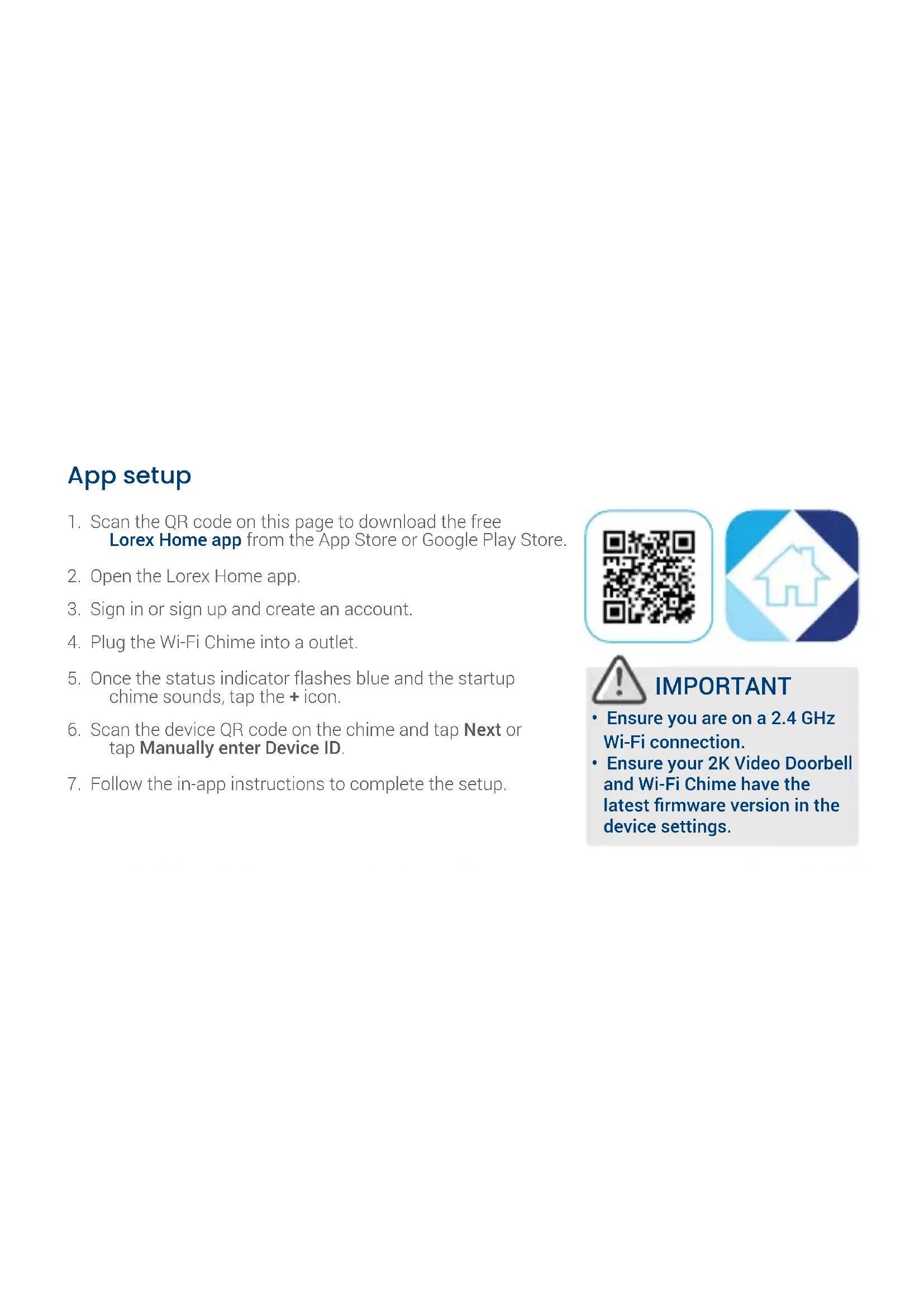
App setup
- Scan the QR code on this page to download the free Lorex Home app from the App Store or Google Play Store.
- Open the Lorex Home app.
- Sign in or sign up and create an account.
- Plug the Wi-Fi Chime into a outlet.
- Once the status indicator flashes blue and the startup chime sounds, tap the + icon.
- Scan the device QR code on the chime and tap Next or tap Manually enter Device ID.
- Follow the in-app instructions to complete the setup.


natural_image
Abstract icon of a house inside a diamond shape, surrounded by blue geometric shapes (no text or symbols)
IMPORTANT
- Ensure you are on a 2.4 GHz Wi-Fi connection.
- Ensure your 2K Video Doorbell and Wi-Fi Chime have the latest firmware version in the device settings.
Link to the 2K Video Doorbell
There are two ways to link the Wi-Fi Chime to the 2K Video Doorbell.
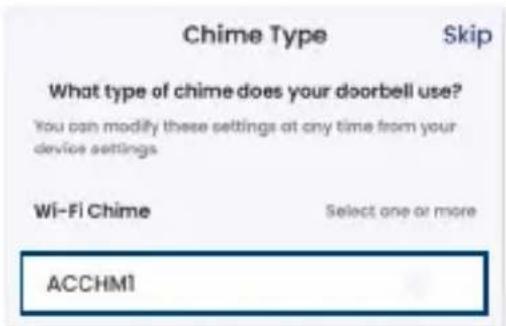
• During the doorbell setup:
When the Chime Type screen appears, select your Wi-Fi Chime, then tap Complete.
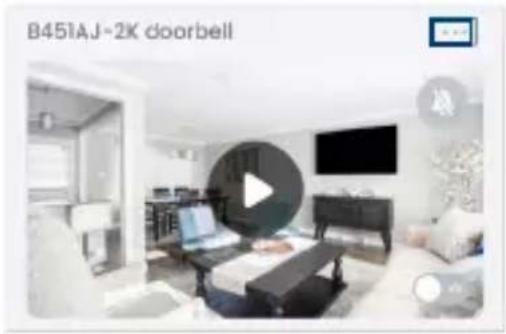
• After the doorbell setup:
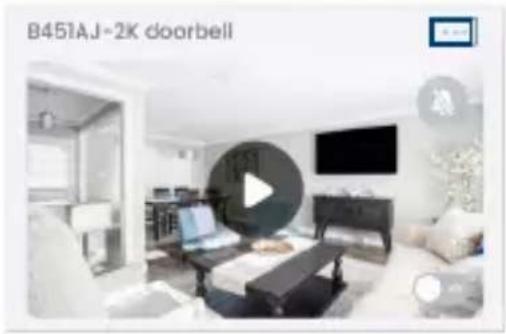
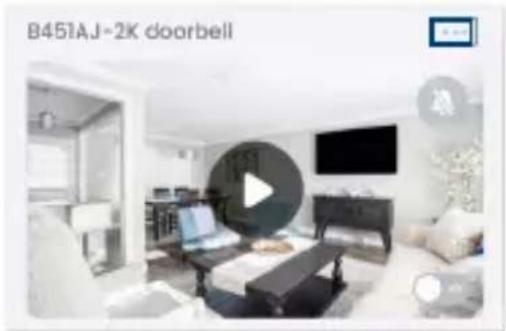
- Tap the ••• icon for the 2K Video Doorbell.
- Tap Doorbell Chime, then tap Wi-Fi Chime.
- Select your chime, then tap Save.
natural_image
Interior view of a modern living room with TV, sofa, and wall art (no visible text or symbols)Copyright © 2021 Lorex Corporation
As our products are subject to continuous improvement, Lorex reserves the right to modify product design, specifications and prices, without notice and without incurring any obligation. E&OE. All rights reserved.

This device complies with part 15 of the FCC Rules. Operation is subject to the following two conditions: (1) This device may not cause harmful interference, and (2) This device must accept any interference received, including interference that may cause undesired operation.
For up-to-date information and support, please visit: help.lorex.com
Please see our full Terms of Service and Limited Hardware Warranty Policy at lorex.com/warranty
ACCHM1_QSG_TRILINGUAL_R1
LOREX®
Carillon Wi-Fi
natural_image
Diagram of a device with a fan or vent, showing internal components and a blue arrow indicating direction (no text or symbols present)natural_image
Diagram of a device with a blue arrow pointing to a button labeled 'B' (no text or symbols beyond basic labels)
natural_image
Abstract icon of a house inside a diamond shape, surrounded by blue geometric shapes (no text or symbols)
IMPORTANT
natural_image
Interior view of a modern living room with TV, sofa, and wall-mounted screens (no visible text or symbols)Copyright © 2021 Lorex Corporation
natural_image
Illustration of a desktop computer case with a separate air vent component (no text or symbols)natural_image
Close-up of a device's front panel with a blue arrow pointing to a button labeled 'E' and 'H' (no text or symbols beyond basic labels)
natural_image
Abstract icon of a house inside a diamond shape, surrounded by blue geometric shapes (no text or symbols)
IMPORTANTE
natural_image
Interior view of a modern living room with TV, sofa, and computer (no visible text or symbols)Copyright © 2021 Lorex Corporation
Brand : Lorex
Model : ACCHM1
Category : Wireless doorbell