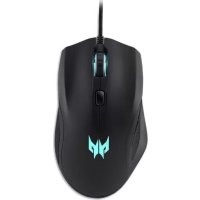
CESTUS 320 PMW800 - Computer mice ACER - Free user manual and instructions
Find the device manual for free CESTUS 320 PMW800 ACER in PDF.



| Product Type | Computer Mouse |
| Brand | Acer |
| Model | CESTUS 320 PMW800 |
| Sensor Type | Optical |
| Interface | USB |
| Number of programmable buttons | 6 |
| Maximum resolution (DPI) | 6500 |
| Cable length | 1.8 m (∅3.0 mm) |
| Dimensions (L x W x H) | 127 x 74 x 44 mm |
| Weight | 125 g ± 5 g |
| RGB lighting | Yes, 4 modes: Spectrum, Flashing, Slow flashing, Off |
| System compatibility | Windows 10, 8.1, 8, 7 |
| Power supply | Via USB port |
| Operating temperature | 0 °C to 40 °C |
| Operating humidity | 10% to 85% (non-condensing) |
| Customization software | Downloadable at go.acer.com/predator-quartermaster |
| Box contents | Gaming mouse, quick start guide, warranty booklet |
| Maintenance | Clean with a dry, soft cloth |
| Safety | Do not disassemble, do not immerse in water |
| Spare parts and repairability | No user-repairable parts. Contact an authorized Acer service center |
| Manufacturer | Acer Inc. |
Frequently Asked Questions - CESTUS 320 PMW800 ACER
User questions about CESTUS 320 PMW800 ACER
0 question about this device. Answer the ones you know or ask your own.
Ask a new question about this device
Download the instructions for your Computer mice in PDF format for free! Find your manual CESTUS 320 PMW800 - ACER and take your electronic device back in hand. On this page are published all the documents necessary for the use of your device. CESTUS 320 PMW800 by ACER.
USER MANUAL CESTUS 320 PMW800 ACER
natural_image
Close-up of a black and white computer mouse with a white abstract logo on the side (no text or symbols visible)Quick Start Guide / Guide de démarrage rapide Kurzanleitung / Guide de démarrage rapide Skrócona instrukcja obsługi / Snabbstartguide Hurtigstartguide / Pikakäynnistysopas
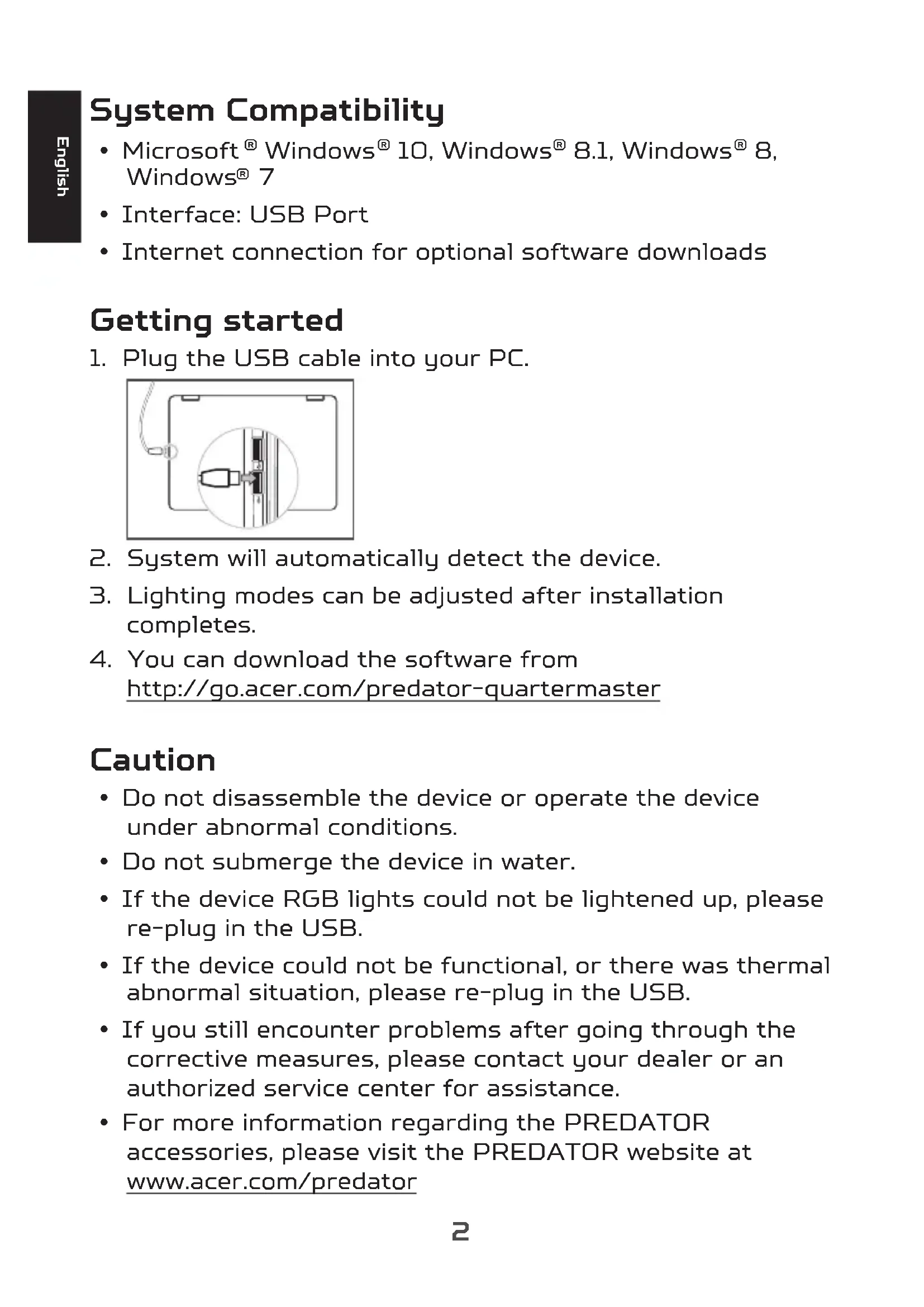
1600 (Teal blue) → 3200 (Green) → 5000 (White) → 6500 (Red)
Combo Button
- Button 4+5+6: lighting effect switch (Spectrum / Blink / Breathing / Off)
Contents of the box
- Gaming mouse x 1
- Quick start guide x 1
- Warranty booklet x 1
System Compatibility
- Microsoft® Windows® 10, Windows® 8.1, Windows® 8, Windows® 7
- Interface: USB Port
- Internet connection for optional software downloads
Getting started
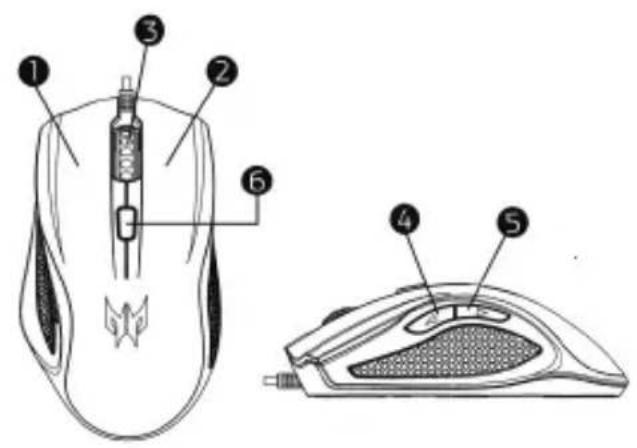
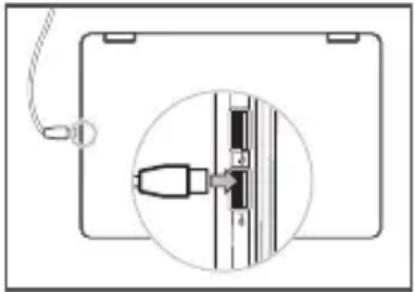
- Plug the USB cable into your PC.
natural_image
Diagram of a device with a cable and connector, showing a magnified view of the internal structure (no text or symbols)- System will automatically detect the device.
- Lighting modes can be adjusted after installation completes.
- You can download the software from http://go.acer.com/predator-quartermaster
Caution
- Do not disassemble the device or operate the device under abnormal conditions.
- Do not submerge the device in water.
- If the device RGB lights could not be lightened up, please re-plug in the USB.
- If the device could not be functional, or there was thermal abnormal situation, please re-plug in the USB.
- If you still encounter problems after going through the corrective measures, please contact your dealer or an authorized service center for assistance.
- For more information regarding the PREDATOR accessories, please visit the PREDATOR website at www.acer.com/predator
Environment
Temperature:
- Operating: 0 °C to 40 °C
• Non-operating: -20 °C to 60 °C
Humidity (non-condensing):
• Operating: 10% to 85%
• Non-operating: 10% to 95%
Manufacturer address
Acer Inc.
8F, 88, Sec. 1, Xintai 5th Rd. Xizhi, New Taipei City 221, Taiwan

Europe – EU Declaration of Conformity
We declare under our sole responsibility that the product is conformity with all the essential requirements and other provisions of the European Council Directive RoHS Directive (2011/65/EU), EMC Directive (2014/30/EU) and the Low Voltage Directive (2014/35/EU) issued by the Commission of the European Community.
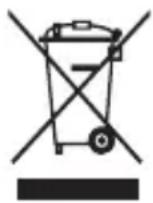
This product must not be disposed of with your other household waste or treat them in compliance with the local regulations or contact your local city office, your household waste disposal service or the shop where you purchased the product.
This device complies with Part 15 of the FCC Rules. Operation is subject to the following two conditions: (1) This device may not cause harmful interference, and (2) this device must accept any interference received, including interference that may cause undesired operation.
This equipment has been tested and found to comply with the limits for a Class B digital device, pursuant to Part 15 of the FCC Rules. These limits are designed to provide reasonable protection against harmful interference in a residential installation. This equipment generates, uses and can radiate radio frequency energy and, if not installed and used in accordance with the instructions, may cause harmful interference to radio communications. However, there is no guarantee that interference will not occur in a particular installation. If this equipment does cause harmful interference to radio or television reception, which can be determined by turning the equipment off and on, the user is encouraged to try to correct the interference by one of the following measures:
- Reorient or relocate the receiving antenna.
- Increase the separation between the equipment and receiver.
- Connect the equipment into an outlet on a circuit different from that to which the receiver is connected.
- Consult the dealer or an experienced radio/TV technician for help.
FCC Caution: Any changes or modifications not expressly approved by the party responsible for compliance could void the user's authority to operate this equipment.
Notice: Canadian users
CAN ICES-3(B)/NMB-3(B)
Please visit www.acer.com/predator for warranty.
Spécifications
Bouton combo
natural_image
Diagram of a mechanical device with a cable and pin, showing a close-up view of a component (no text or symbols)8F, 88, Sec. 1, Xintai 5th Rd. Xizhi, New Taipei City 221, Taiwan
natural_image
Technical diagram showing a mechanical assembly with a component inserted into a housing, and a magnified inset highlighting a detail (no text or symbols present)8F, 88, Sec. 1, Xintai 5th Rd. Xizhi, New Taipei City 221, Taiwan

Bouton combo
natural_image
Diagram of a mechanical device with a cable and pin, showing a close-up view of a component (no text or symbols)8F, 88, Sec. 1, Xintai 5th Rd. Xizhi, New Taipei City 221, Taiwan

natural_image
Diagram of a mechanical device with a cable and pin, showing a close-up view of a component (no text or symbols)8F, 88, Sec. 1, Xintai 5th Rd. Xizhi, New Taipei City 221, Taiwan

Komboknapp
natural_image
Diagram of a mechanical device with a cable and pin, showing a close-up view of a component (no text or symbols)8F, 88, Sec. 1, Xintai 5th Rd. Xizhi, New Taipei City 221, Taiwan

Europe – EU konformitetsdeklaration
Systemkompatibilitet
- Microsoft® Windows® 10, Windows® 8.1, Windows® 8, Windows® 7
- Grensesnitt: USB-port
- Internett-tilkobling for valgfrie programvarenedlastinger
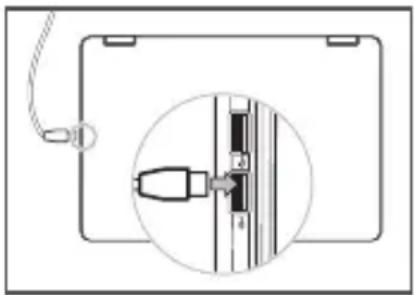
Komme i gang
- Plugg inn USB-kabelen i PCen.
natural_image
Diagram of a device with a cable and connector, showing a magnified view of a mechanical component (no text or symbols)8F, 88, Sec. 1, Xintai 5th Rd. Xizhi, New Taipei City 221, Taiwan

Europa - EU-samsvarserklæring
Vi erklærer under eget ansvar at dette produktet overholder følgende standarder i samsvar med bestemmelsene i Europa-rådets RoHS-direktiv (2011/65/EU), EMC-direktivet (2014/30/EU) og lavspenningsdirektivet (2014/35/EU) utstedt av EU-kommisjonen.
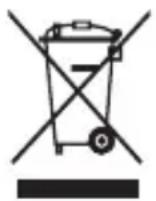
Dette produktet må ikke kastes sammen med annet husholdningsavfall, men behandles i samsvar med lokale bestemmelser. Kontakt kommunale instanser, renovasjonstjenesten eller butikken der du kjøpte produktet.
Yhdistelmäpainike
natural_image
Diagram of a device with a cable and connector, showing a magnified view of the internal structure (no text or symbols)8F, 88, Sec. 1, Xintai 5th Rd. Xizhi, New Taipei City 221, Taiwan

Systemets kompatibilitet
- Microsoft® Windows® 10, Windows® 8.1, Windows® 8, Windows® 7
- Interface: USB-port
- Internetforbindelse for valgfrie softwaredownloads
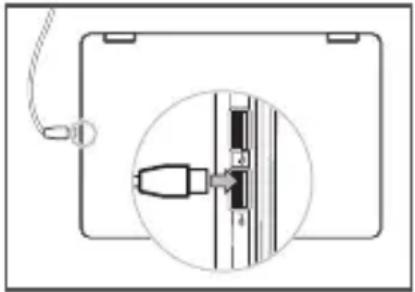
Kom godt i gang
- Tilslut USB-kablet til computeren.
natural_image
Diagram of a device with a cable and connector, showing a magnified view of the internal structure (no text or symbols)8F, 88, Sec. 1, Xintai 5th Rd. Xizhi, New Taipei City 221, Taiwan

Europa – EU overensstemmelseserklæring
natural_image
Pure mechanical diagram showing a bracket with a cable and a magnified inset of a vertical component (no text or symbols)組合按鈕
natural_image
Diagram showing a device with a cable and connector, plus an inset close-up of a mechanical component (no text or symbols)natural_image
Diagram showing a device with a cable and connector inserted into a panel, enclosed in an oval (no text or symbols)8F, 88, Sec. 1, Xintai 5th Rd., Xizhi, New Taipei City 221, Taiwan
组合按钮
natural_image
Diagram showing a device with a cable and connector, plus an inset close-up of a mechanical component (no text or symbols)- Combo Button
- Contents of the box
- System Compatibility
- Getting started
- Caution
- Environment
- Temperature:
- Humidity (non-condensing):
- Manufacturer address
- Europe – EU Declaration of Conformity
- Spécifications
- Bouton combo
- Komboknapp
- Europe – EU konformitetsdeklaration
- Systemkompatibilitet
- Komme i gang
- Europa - EU-samsvarserklæring
- Yhdistelmäpainike
- Systemets kompatibilitet
- Kom godt i gang
- Europa – EU overensstemmelseserklæring
- 組合按鈕
- 组合按钮
Brand : ACER
Model : CESTUS 320 PMW800
Category : Computer mice