
BDH8900M - Blu-ray player SAMSUNG - Free user manual and instructions
Find the device manual for free BDH8900M SAMSUNG in PDF.
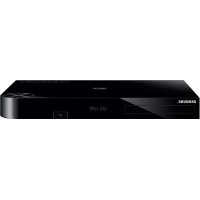



| Product Type | Blu-ray player with hard drive |
| Brand | Samsung |
| Model | BDH8900M |
| Dimensions (W x D x H) | 430 x 282 x 55 mm |
| Weight | 2.7 kg |
| Built-in hard drive capacity | 1 TB |
| Maximum HDMI video resolution | 2160p (4K) |
| Digital audio output | Optical TOS-Link |
| Network connection | Ethernet 100BASE-TX, built-in Wi-Fi |
| Wireless security | WEP, WPA-PSK, WPA2-PSK, WPS |
| Blu-ray region code | B (Europe, Africa, Middle East, etc.) |
| DVD region code | 2 or 4 depending on region |
| Compatible disc formats | Blu-ray, Blu-ray 3D, DVD, CD, BD-RE/R, DVD±RW/±R, CD-RW/R |
| Main functions | Timeshift, hard drive recording, AllShare, Screen Mirroring, Samsung Apps |
| Included accessories | Remote control, AAA batteries, RF cable, power cord, user manual |
| Laser class | 1 |
| Operating temperature | +5°C to +35°C |
| Operating humidity | 10% to 75% |
| Warranty | 1 year parts and labor (France) |
| Maintenance and cleaning | Use a soft, dry cloth. Do not use chemical products. |
| Safety instructions | Do not obstruct ventilation openings, avoid exposure to water and heat sources. |
Frequently Asked Questions - BDH8900M SAMSUNG
User questions about BDH8900M SAMSUNG
0 question about this device. Answer the ones you know or ask your own.
Ask a new question about this device
Download the instructions for your Blu-ray player in PDF format for free! Find your manual BDH8900M - SAMSUNG and take your electronic device back in hand. On this page are published all the documents necessary for the use of your device. BDH8900M by SAMSUNG.
USER MANUAL BDH8900M SAMSUNG
BD-HDD Combo user manual

imagine the possibilities
Thank you for purchasing this Samsung product.
To receive more complete service,
please register your product at
www.samsung.com/register
For more information on how to use e-Manual (P. 9)
Figures and illustrations in this User Manual are provided for reference only and may differ from actual product appearance. Product design and specifications may be changed without notice.
Available Recording Time for internal HDD
You can record digital broadcast on the internal HDD as below.
Depending on the actual broadcast, available recording time may be different with the table shown below.
In On Screen Display, you can check available recording time as shown in "high" case in the table shown below.
| Broadcast Type | Estimated Bitrate | Recording Time | |
| BD-H8500 | BD-H8900 | ||
| HD | 8 Mbps (Normal) | 124 Hours | 257 Hours |
| 20 Mbps (High) | 49 Hours | 102 Hours | |
| SD | 5 Mbps (Normal) | 199 Hours | 411 Hours |
| 10 Mbps (High) | 99 Hours | 205 Hours | |
I NOTE I
- Since the product's Timeshift and other implemented functions require a certain amount of HDD space allocated internally, the total size shown in the Storage Device Manager of Settings menu may differ from the HDD's capacity shown in the manual.
Region Code
Both products and discs are coded by region. These regional codes must match for a disc to play. If the codes do not match, the disc will not play. The Region Number for this product is displayed on the rear panel of the product.
| Disc Type | Region Code | Area |
| Blu-ray Disc | B | Europe, Greenland, French territories, Middle East, Africa, Australia and New Zealand. |
| DVD-VIDEO | 2 | Europe, Japan, the Middle East, Egypt, Africa, Greenland |
| 4 | Mexico, South America, Central America, Australia, New Zealand, Pacific Islands, Caribbean |
Logos of Discs the product can play
| Blu-rayDisc 3D Blu-ray Disc | |
| BD LIVE™ | DIVX.HD |
| BD-Live DivX | |
| PAL | |
| PAL broadcast System in U.K.,France, Germany, etc. | |
Accessories
Check for the supplied accessories below.
RF cable for TV, Remote Control, Batteries for Remote Control (AAA Size), Power cord, User Manual
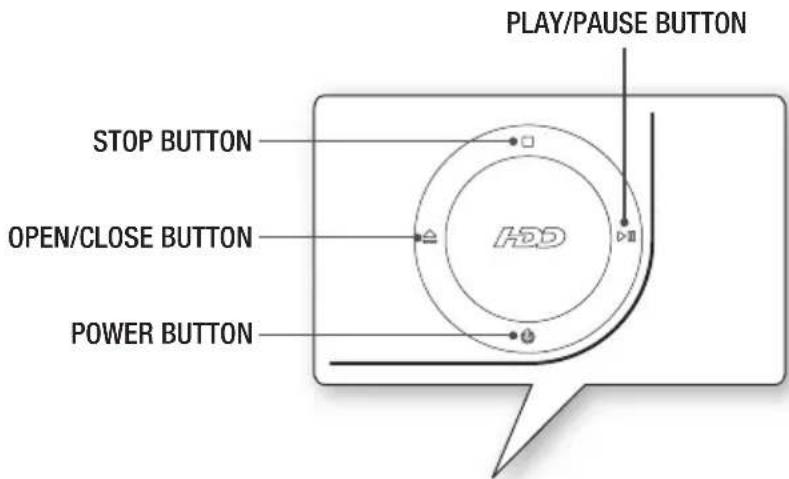
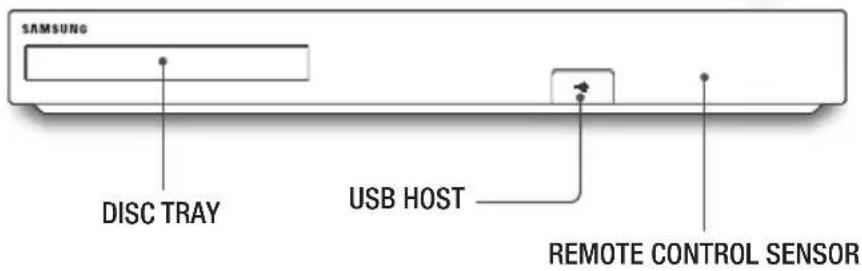
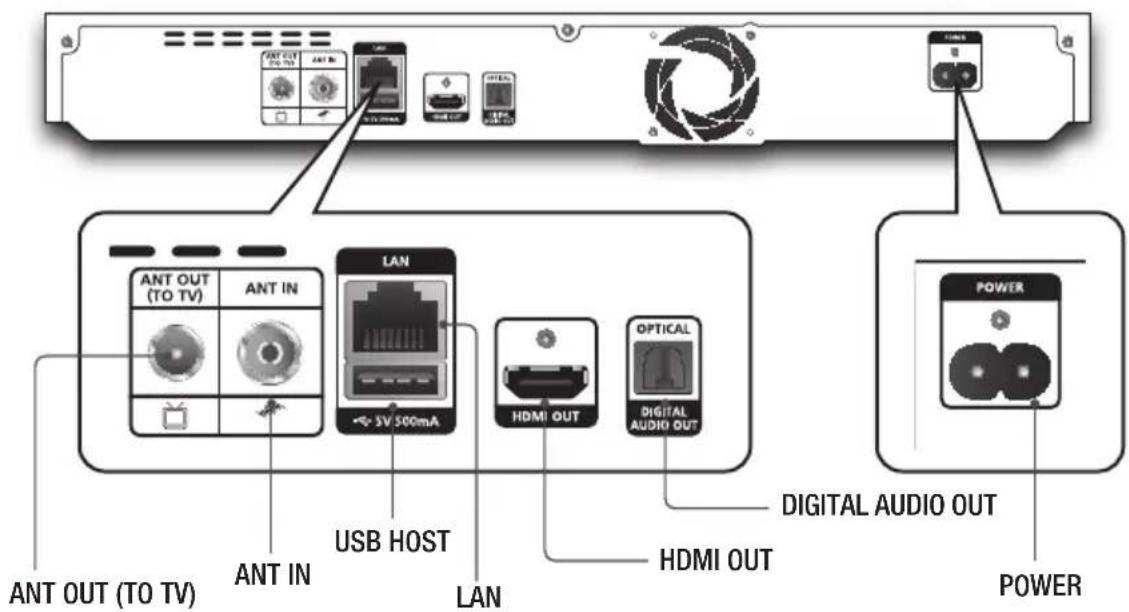
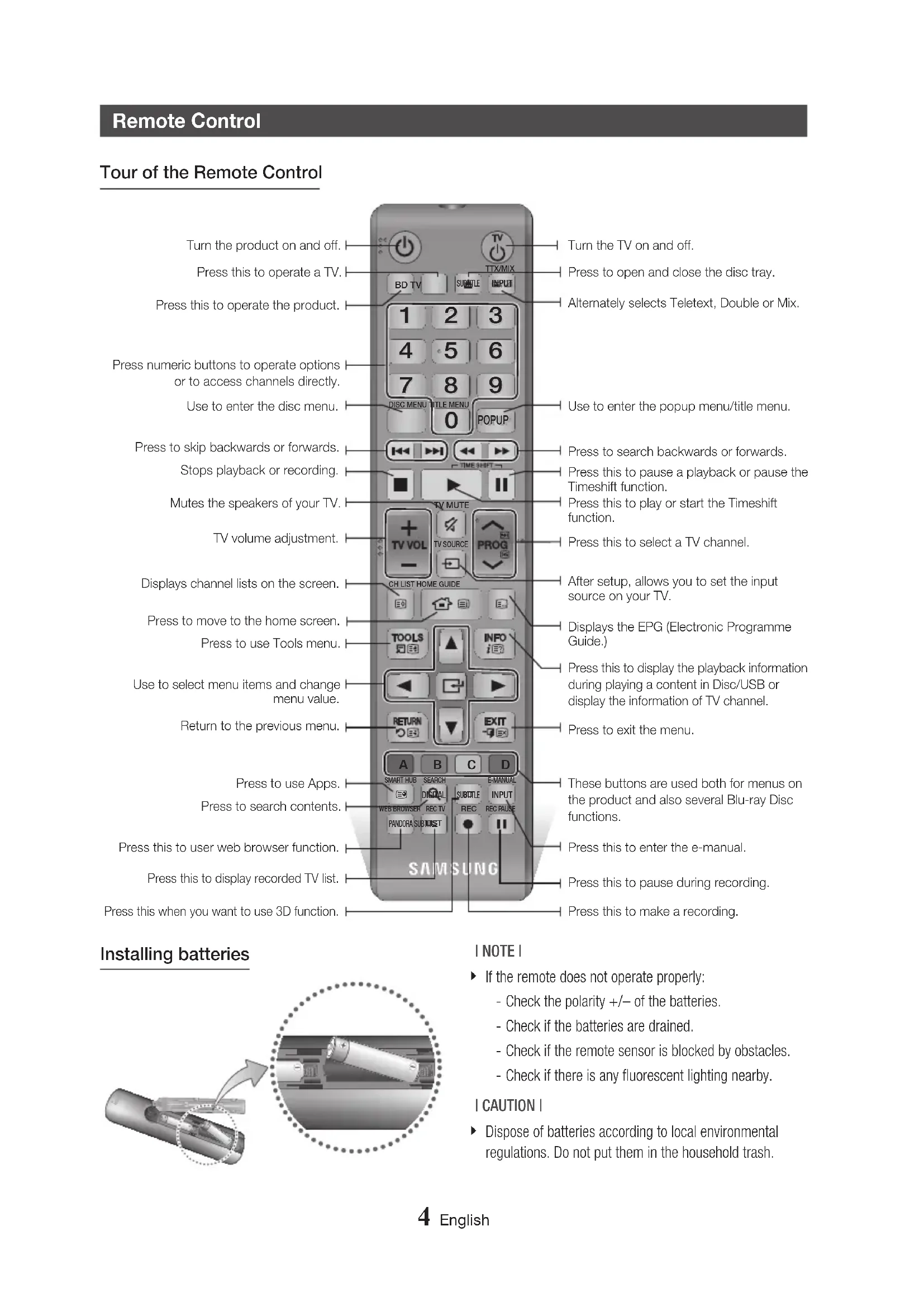
Remote Control
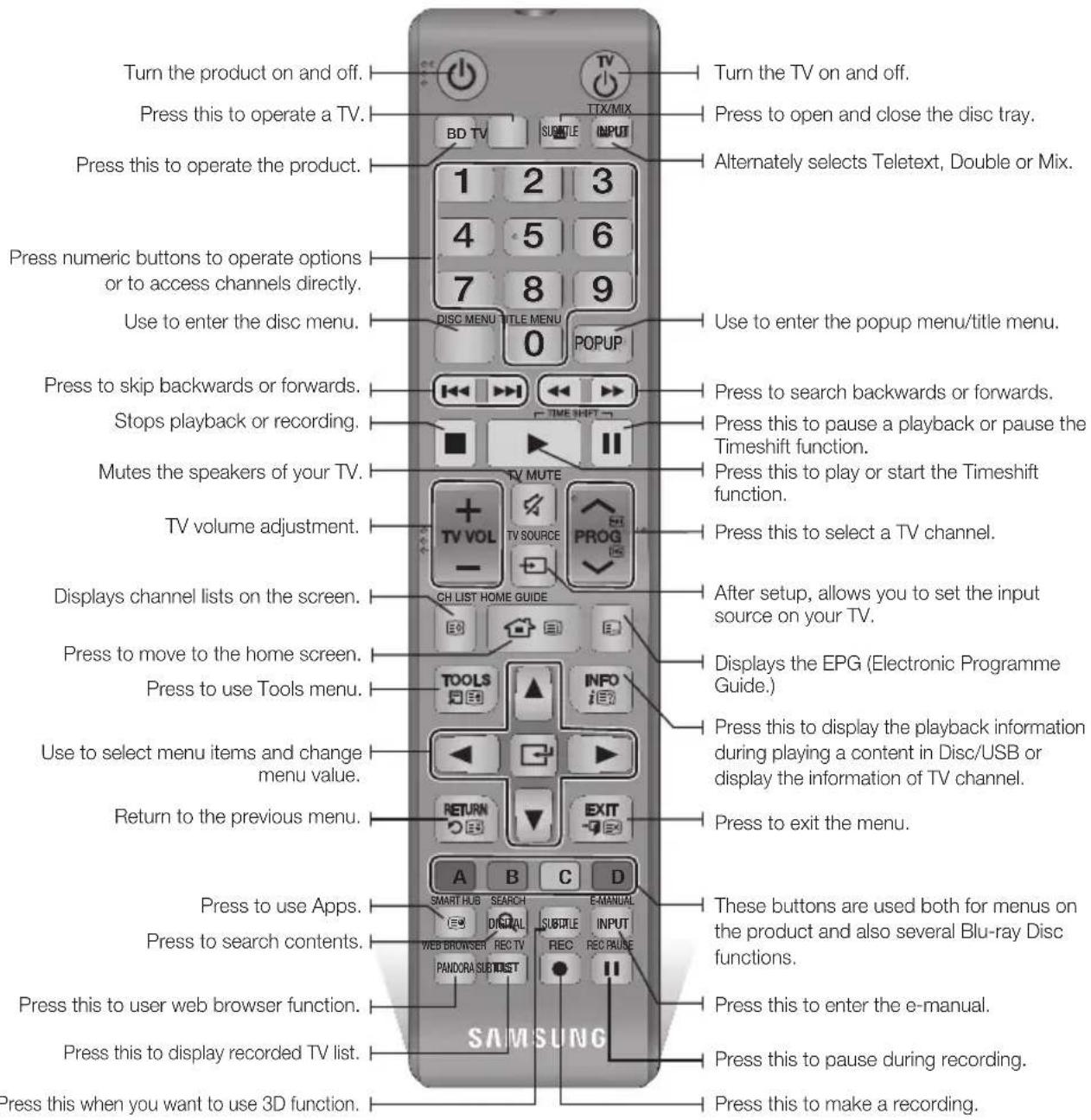
Tour of the Remote Control
Installing batteries
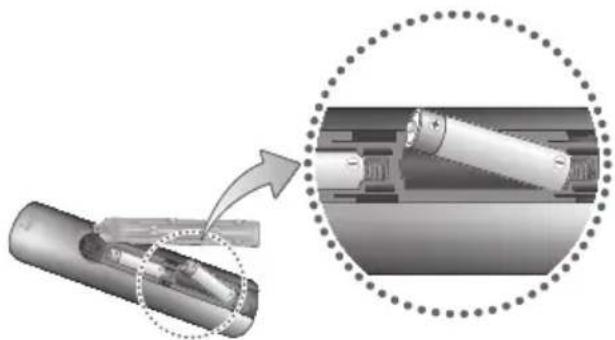
NOTE
If the remote does not operate properly: - Check the polarity (+/-) of the batteries. - Check if the batteries are drained. - Check if the remote sensor is blocked by obstacles. - Check if there is any fluorescent lighting nearby.
CAUTION
- Dispose of batteries according to local environmental regulations. Do not put them in the household trash.
Setting the Remote Control to Operate Your TV
To determine whether your television is compatible, follow the instructions below.
- Turn your television on.
- Point the remote control towards the television.
- Press the TV button to set the TV mode.
- Press and hold the TV POWER button, and then enter the two-figure code in the table to the right that corresponds to the brand of your television by pressing the appropriate number buttons.
If your television is compatible with the remote control, it will turn off.
The remote is now programmed to operate the TV.
NOTE
If several codes are listed for your television brand, try each one in turn until you find one that works. If you replace the remote control's batteries, you must set the brand code again.
You can control certain functions of your TV with this remote control.
| Button Function | |
| TV POWER | Used to Turn the television on and off. |
| Number | Used to input number directly. |
| TV VOL +/- | Used to adjust the volume of the television. |
| TV MUTE | Used to toggle the sound on and off. |
| PROG (A/V) | Used to select the desired channel. |
| TV SOURCE | Used to select an external source connected to the TV. |
NOTE
The functions listed above will not necessarily work on all televisions. If you encounter problems, use the TV remote control.
TV Control Codes
| Brand Code | |
| SAMSUNG | TV POWER+01, +02, +03, +04, +05, +06, +07, +08, +09 |
| AIWA TV POWER+82 | |
| ANAM | TV POWER+10, +11, +12, +13, +14, +15, +16, +17, +18 |
| BANG & OLUFSEN | TV POWER+57 |
| BLAUPUNKT TV POWER+71 | |
| BRANDT TV POWER+73 | |
| BRIONVEGA TV POWER+57 | |
| CGE TV POWER+52 | |
| CONTINENTAL EDISON | TV POWER+75 |
| DAEWOO | TV POWER+19, +20, +23, +24, +25, +26, +27, +28, +29, +30, +31, +32, +33, +34 |
| EMERSON TV POWER+64 | |
| FERGUSON TV POWER+73 | |
| FINLUX | TV POWER+06, +49, +57 |
| FORMENTI TV POWER+57 | |
| FUJITSU TV POWER+84 | |
| GRADIENTE TV POWER+70 | |
| GRUNDIG | TV POWER+49, +52, +71 |
| HITACHI | TV POWER+60, +72, +73, +75 |
| IMPERIAL | TV POWER+52 |
| JVC | TV POWER+61, +79 |
| LG | TV POWER+06, +19, +20, +21, +22, +78 |
| LOEWE | TV POWER+06, +69 |
| LOEWE OPTA TV POWER+06, +57 | |
| MAGNAVOX TV POWER+40 | |
| METZ | TV POWER+57 |
| MITSUBISHI | TV POWER+06, +48, +62, +65 |
| MIVAR | TV POWER+52, +77 |
| NEC TV POWER+83 | |
| NEWSAN | TV POWER+68 |
| Brand Code | |
| NOBLEX | TV POWER+66 |
| NOKIA | TV POWER+74 |
| NORDMENDE | TV POWER+72, +73, +75 |
| PANASONIC | TV POWER+53, +54, +74, +75 |
| PHILIPS | TV POWER+06, +55, +56, +57 |
| PHONOLA | TV POWER+06, +56, +57 |
| PIONEER | TV POWER+58, +59, +73, +74 |
| RADIOLA | TV POWER+06, +56 |
| RADIOMARELLI | TV POWER+57 |
| RCA TV POWER+45, +46 | |
| REX | TV POWER+74 |
| SABA | TV POWER+57, +72, +73, +74, +75 |
| SALORA TV POWER+74 | |
| SANYO | TV POWER+41, +42, +43, +44, +48 |
| SCHNEIDER TV POWER+06 | |
| SELECO | TV POWER+74 |
| SHARP | TV POWER+36, +37, +38, +39, +48 |
| SIEMENS | TV POWER+71 |
| SINGER | TV POWER+57 |
| SINUDYNE TV POWER+57 | |
| SONY | TV POWER+35, +48 |
| TELEAVA | TV POWER+73 |
| TELEFUNKEN | TV POWER+67, +73, +75, +76 |
| THOMSON | TV POWER+72, +73, +75 |
| THOMSON ASIA | TV POWER+80, +81 |
| TOSHIBA | TV POWER+47, +48, +49, +50, +51, +52 |
| WEGA | TV POWER+57 |
| YOKO | TV POWER+06 |
| ZENITH | TV POWER+63 |
Connections
Connecting to a TV
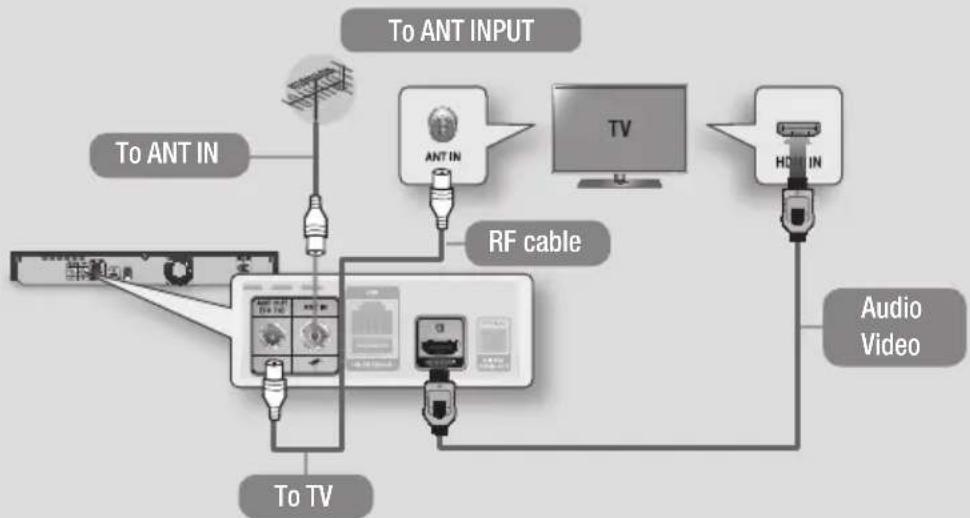
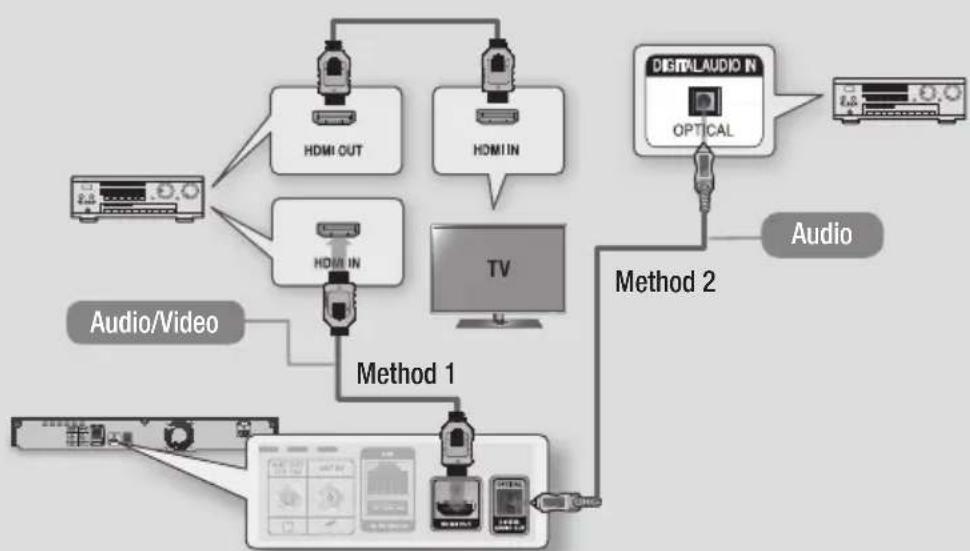
Connecting to an Audio System
Method 1: Connecting to an HDMI-supported AV receiver
Use an HDMI cable (not included)
Method 2: Connecting to an AV receiver with Optical input
Use an Optical Cable (not included) - You will hear sound only through the front two speakers with Digital Output set to PCM.
Network Connection
You can connect your product to your network router using one of the methods illustrated below.
Wired Network
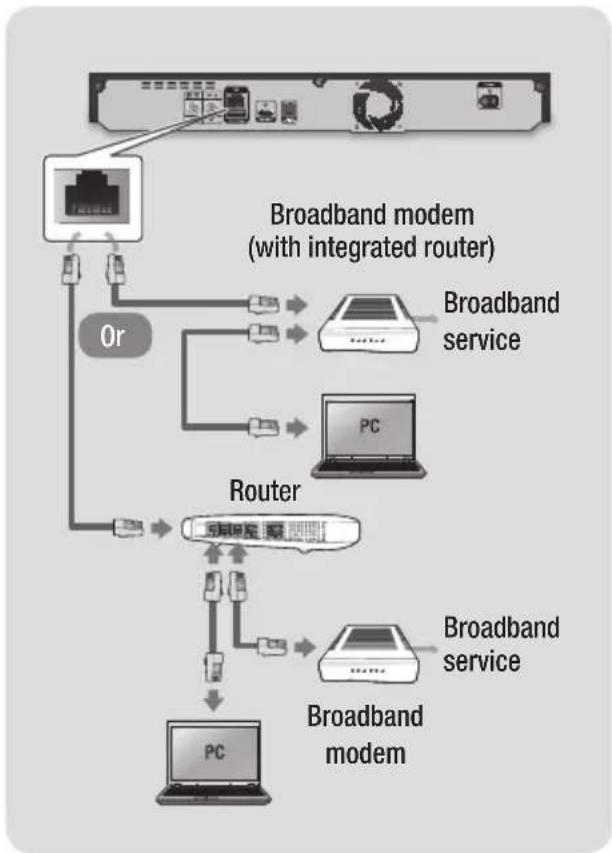
NOTE
- Internet access to Samsung's software update server may not be allowed, depending on the router you use or your ISP's policy. For more information, contact your ISP (Internet Service Provider).
- DSL users, please use a router to make a network connection. To use the AllShare function with your PC, you must connect your PC.
Wireless Network
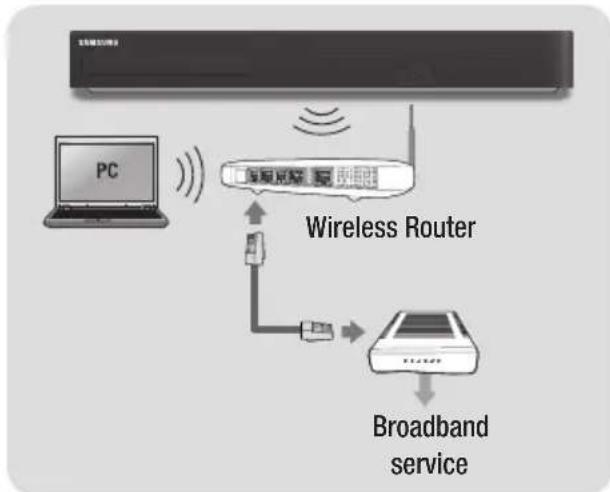
NOTE
If the wireless router supports DHCP, your product can use a DHCP or static IP address to connect to the wireless network. - Set your wireless router to Infrastructure mode. Ad-hoc mode is not supported. The product supports only the following wireless security key protocols:
- WEP (OPEN/SHARED), WPA-PSK (TKIP/AES), WPA2-PSK (TKIP/AES)
- Select a channel on the wireless router that is not currently being used. If the channel set for the wireless router is currently being used by another device nearby, it will result in interference and communication failure. If you select the Pure High-throughput (Greenfield) 802.11n mode and set the Encryption type on your router to WEP, TKIP or TKIP-AES (WPS2Mixed), the product will not support a connection in compliance with new Wi-Fi certification specifications. If your router supports WPS (Wi-Fi Protected Setup), you can connect to the network via PBC (Push Button Configuration) or PIN (Personal Identification Number). WPS will automatically configure the SSID and WPA key in either mode.
- Wireless LAN, by its nature, may cause interference, depending on the operating conditions (router performance, distance, obstacles, interference by other radio devices, etc.). To use the AllShare function with your PC, you must connect your PC.
The Setup Procedure
The Home screen will not appear if you do not configure the initial settings. - The OSD (On Screen Display) of this product may change after you upgrade the software version. The access steps may differ depending on the menu you selected.
Turn on your TV after connecting the product. When you connect the product to a TV for the first time, the product turns on automatically and the Initial Settings screen appears. Start the Initial Settings Procedure.
NOTE
- When the product is connected to the TV for the first time, the product turns on automatically. This is normal operation.
- Password: Enter the desired 4-digit password using the number buttons.
1) Belgium, France, Italy, Norway: You cannot set the password to "0000". Please choose other numbers. 2) Others: Default password is set to 0000.
The Home Screen
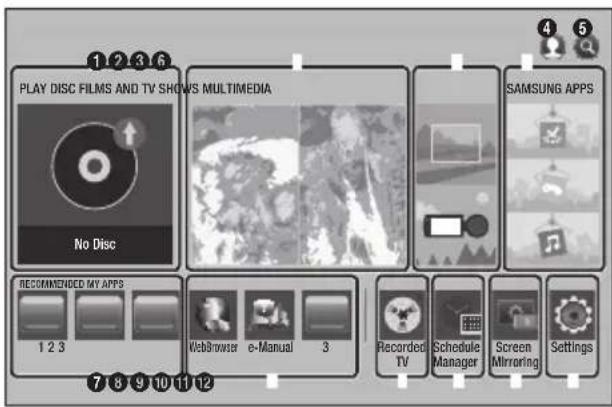
| 1 | PLAY DISC : Lets you play photos, videos, or music content from Disc. |
| 2 | FILMS AND TV SHOWS : Lets you view Films and TV Shows from the Internet. I NOTE I Depending on your country, this menu function may not be supported. |
| 3 | MULTIMEDIA : Lets you play photos, videos, or music content from USB or mobile devices, or PCs. |
| 4 | Sign In : Lets you log in with your Samsung account. |
| 5 | Search : Lets you search for contents in Films and TV Shows, Apps and YouTube by entering corresponding search words. |
| 6 | SAMSUNG APPS : Gives you access to various for pay or free of-charge applications you can download. |
| 7 | RECOMMENDED : Gives you direct access to recommended applications. |
| 8 | MY APPS : Apps downloaded from My Apps are displayed. |
| 9 | Recorded TV : Access Recorded TV directly. |
| 10 | Schedule Manager : Reserve the desired TV programmes. |
| 11 | Screen Mirroring : Lets you view the screen of your smart phone or android tablet on a TV you have connected to the product. |
| 12 | Settings : Opens the product's menu. In the menu can set various functions to suit your personal preferences. |
NOTE
In the Home menu screen, it will switch to DTV Channel mode after 3 minutes. When accessing the Settings menu, the screen saver will be activated after 5 minutes.
Saves power by turning off the product automatically when no user operation is received for 4 hours. If the Auto Power Off menu is set to Off, the power will not turn off automatically.
Accessing the Settings Screen
- Select Settings on the Home screen, and then press the button.
The Settings screen appears.
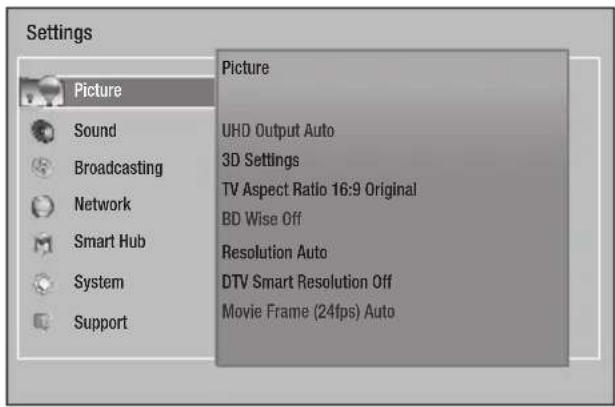
- To access the Settings menus, sub-menus, and options, please refer to the remote control illustration and the setting table.
Buttons on the Remote Control used for the Settings menu
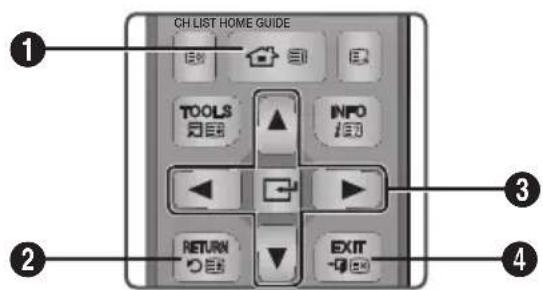
| 1 | HOME button:Press to move to the Home screen. |
| 2 | RETURN button:Return to the previous menu. |
| 3 | Enter/DIRECTION buttons: • Press ▲▼▲▶to move the cursor or select an item. • Press the G button to activate the currently selected item or confirm a setting. |
| 4 | EXIT button:Press to exit the current menu. |
How to use the e-Manual
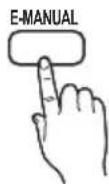
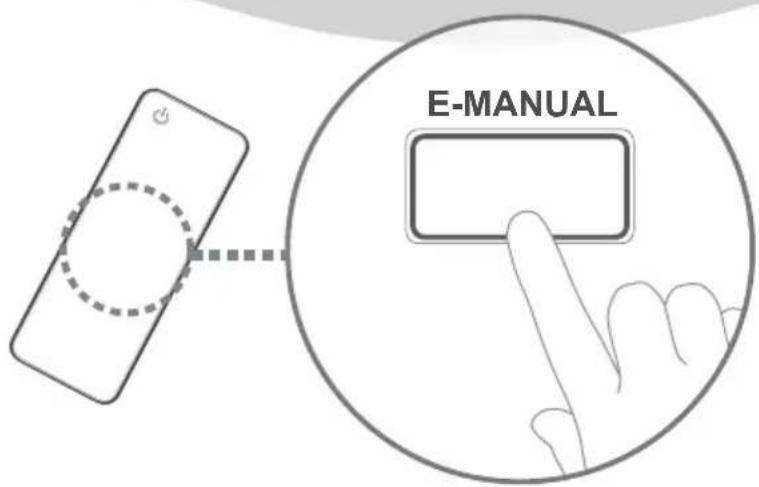
You can find instructions about your product's features in the e-Manual in your product. To use, press the E-MANUAL button on your remote control.
Press the left/right buttons to highlight a category, and then press the button.
The E-manual Screen
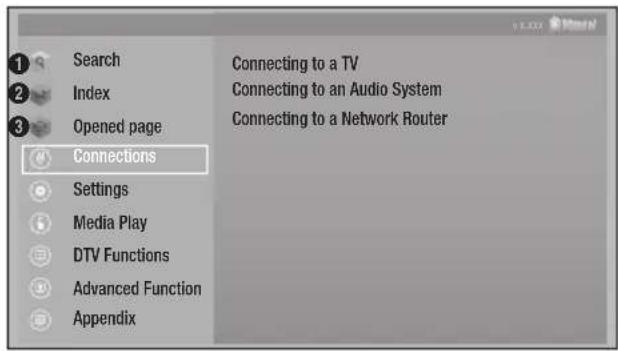
| 1 | Search : Allows you to search for information by entering words. |
| 2 | Index : Displays the index screen. |
| 3 | opened page : Contents that have been searched on the E-manual screen at least once will appear. |
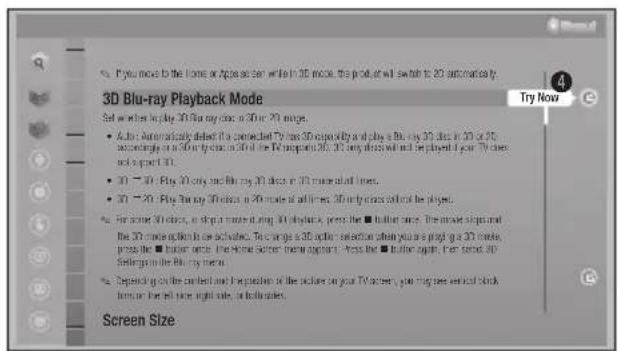
| 4 | Try Now : Allows you to go to corresponding OSD menu. |
NOTE
This function is not enabled in some menus. If the displayed E-manual page on your TV screen is incomplete and partially hidden, set the Fit Screen Size to Size 1.
Troubleshooting
If the BD-HDD combo seems to have a problem, first try this list of possible problems and solutions. If none of these troubleshooting tips apply, visit "www.samsung.com", then click on Support, or call Samsung customer service centre.
| PROBLEM SOLUTION | |
| The screen is blocked • If the HDMI output is set to a resolution your TV cannot support (for example, 1080p), you may not see a picture on your TV. • Press th (STOP) button (on top panel) for more than 5 seconds with no disc inside on the home screen. All settings will revert to the factory settings. • When the factory default settings are restored, all stored user BD data is deleted. | |
| Forgot password • Press the | □ (STOP) button (on top panel) for more than 5 seconds with no disc inside on the home screen. All settings including the PIN will revert to the factory settings. Don’t use this unless absolutely necessary. • When the factory default settings are restored, all stored user BD data is deleted. |
Repairs
If you contact us to repair your product, an administration fee may be charged if either:
- An engineer is called out to your home at your request and there is no defect in the product.
- You bring the unit to a repair centre and there is no defect in the product.
We will provide you with the amount of the administration fee before we make a home visit or begin any work on your product.
We recommend you read this manual thoroughly, search for a solution online at www.samsung.com, or contact Samsung Customer Care before seeking to repair your product.
Disc and Format Compatibility
Disc types and contents your product can play
| Contents Media Details | ||
| VIDEO | Blu-ray Disc3D Blu-ray Disc | BD-ROM or BD-RE/R disc recorded in the BD-RE format. |
| DVD-VIDEODVD±RW/±RCD-RW/R | DVD-VIDEO, DVD±RW/±R discs that have been recorded and finalized.Media containing DivX, MKV or MP4 contents. | |
| MUSIC | CD-RW/RDVD±RW/±RBD-RE/R | Music recorded on CD-RW/R, DVD±RW/±R, BD-RE/R containing MP3 or WMA contents. |
| PHOTO | CD-RW/RDVD±RW/±RBD-RE/R | Photos recorded on CD-RW/R, DVD±RW/±R, BD-RE/R media containing JPEG contents. |
| VIDEO MUSIC PHOTO | HDDUSB | Video, music and photos stored in HDD or USB. |
Disc types your product cannot play
HD DVD
DVD-ROM/PD/ MV-Disc, etc.
DVD-RAM
Super Audio CD (except CD layer)
DVD-RW (VR mode)
CVD/CD-ROM/CDV/ CD-G/CD-I/LD (CD-Gs play audio only, not graphics.)
3.9 GB DVD-R for
Authoring.
NOTE
The product may not play certain CD-RW/R and DVD±RW/±R because of the recording conditions. If a DVD±RW/±R has not been recorded properly in DVD video format, it will not be playable. Your product will not play content that has been recorded on a DVD±RW/±R at a bit-rate that exceeds 10 Mbps. Your product will not play content that has been recorded on a BD-RE/R at a bit rate that exceeds 25 Mbps. Playback may not work for some types of discs, or when you use specific operations, such as angle change and aspect ratio adjustment. Information about the discs is written in detail on the disc box. Please refer to this if necessary. When you play a BD-J title, loading may take longer than a normal title or some functions may perform slowly.
Copy Protection
- Because AACS (Advanced Access Content System) is approved as content protection system for Blu-ray Disc format, similar to use of CSS (Content Scramble System) for DVD format, certain restrictions are imposed on playback, analogue signal output, etc., of AACS protected contents. The operation of this product and restrictions on this product may vary depending on your time of purchase as those restrictions may be adopted and/or changed by AACS after the production of this product. Furthermore, BD-ROM Mark and BD+ are additionally used as content protection system for Blu-ray Disc format, which imposes certain restrictions including playback restrictions for BD-ROM Mark and/or BD+ protected contents. To obtain additional information on AACS, BD-ROM Mark, BD+, or this product, please contact SAMSUNG customer care centre.
- Many Blu-ray Disc/DVDs are encoded with copy protection. Because of this, you should only connect your Product directly to your TV, not to a VCR. Connecting to a VCR results in a distorted picture from copy-protected Blu-ray Disc/DVDs.
- Under the U.S. Copyright laws and Copyright laws of other countries, unauthorized recording, use, display, distribution, or revision of television programmes, videotapes, Blu-ray Discs, DVDs, and other materials may subject you to civil and/or criminal liability.
- Cinavia Notice: This product uses Cinavia technology to limit the use of unauthorized copies of some commercially-produced film and videos and their soundtracks. When a prohibited use of an unauthorized copy is detected, a message will be displayed and playback or copying will be interrupted.
More information about Cinavia technology is provided at the Cinavia Online Consumer Information Centre at http://www.cinavia.com. To request additional information about Cinavia by mail, send a postcard with your mailing address to: Cinavia Consumer Information Centre, P.O. Box 86851, San Diego, CA, 92138, USA.
This product incorporates proprietary technology under licence from Verance Corporation and is protected by U.S. Patent 7,369,677 and other U.S. and worldwide patents issued and pending as well as copyright and trade secret protection for certain aspects of such technology. Cinavia is a trademark of Verance Corporation.
Copyright 2004-2014 Verance Corporation. All rights reserved by Verance. Reverse engineering or disassembly is prohibited.
Network Service Disclaimer
All content and services accessible through this device belong to third parties and are protected by copyright, patent, trademark and/or other intellectual property laws. Such content and services are provided solely for your personal noncommercial use. You may not use any content or services in a manner that has not been authorized by the content owner or service provider. Without limiting the foregoing, unless expressly authorized by the applicable content owner or service provider, you may not modify, copy, republish, upload, post, transmit, translate, sell, create derivative works, exploit, or distribute in any manner or medium any content or services displayed through this device.
THIRD PARTY CONTENT AND SERVICES ARE PROVIDED "AS IS." SAMSUNG DOES NOT WARRANTY CONTENT OR SERVICES SO PROVIDED, EITHER EXPRESSLY OR IMPLIEDLY, FOR ANY PURPOSE. SAMSUNG EXPRESSLY DISCLAIMS ANY IMPLIED WARRANTIES, INCLUDING BUT NOT LIMITED TO, WARRANTIES OF MERCHANTABILITY OR FITNESS FOR A PARTICULAR PURPOSE. SAMSUNG DOES NOT GUARANTEE THE ACCURACY, VALIDITY, TIMELINESS, LEGALITY, OR COMPLETENESS OF ANY CONTENT OR SERVICE MADE AVAILABLE THROUGH THIS DEVICE AND UNDER NO CIRCUMSTANCES, INCLUDING NEGLIGENCE, SHALL SAMSUNG BE LIABLE, WHETHER IN CONTRACT OR TORT, FOR ANY DIRECT, INDIRECT, INCIDENTAL, SPECIAL OR CONSEQUENTIAL DAMAGES, ATTORNEY FEES, EXPENSES, OR ANY OTHER DAMAGES ARISING OUT OF, OR IN CONNECTION WITH, ANY INFORMATION CONTAINED IN, OR AS A RESULT OF THE USE OF ANY CONTENT OR SERVICE BY YOU OR ANY THIRD PARTY, EVEN IF ADVISED OF THE POSSIBILITY OF SUCH DAMAGES.
Third party services may be terminated or interrupted at any time, and Samsung makes no representation or warranty that any content or service will remain available for any period of time. Content and services are transmitted by third parties by means of networks and transmission facilities over which Samsung has no control. Without limiting the generality of this disclaimer, Samsung expressly disclaims any responsibility or liability for any interruption or suspension of any content or service made available through this device.
Samsung is neither responsible nor liable for customer service related to the content and services. Any question or request for service relating to the content or services should be made directly to the respective content and service providers.
Licence
Manufactured under license from Dolby Laboratories. Dolby and the double-D symbol are trademarks of Dolby Laboratories.
Manufactured under licence under U.S. Patent Nos:

5,956,674; 5,974,380; 6,226,616; 6,487,535; 7,212,872; 7,333,929; 7,392,195; 7,272,567 & other U.S. and worldwide patents issued & pending. DTS-HD, the Symbol, & DTS-HD and the Symbol together are registered trademarks & DTS-HD Master Audio is a trademark of DTS, Inc. Product includes software. © DTS, Inc. All Rights Reserved.
DivX

- ABOUT DIVX VIDEO: DivX
is a digital video format created by DivX, LLC, a subsidiary of Rovi Corporation. This is an official DivX Certified device that has passed rigorous testing to verify that it plays DivX video. Visit divx.com for more information and software tools to convert your files into DivX videos.
- ABOUT DIVX VIDEO-ON-DEMAND: This DivX Certified® device must be registered in order to play purchased DivX Video-on-Demand (VOD) movies. To obtain your registration code, locate the DivX VOD section in your device setup menu. Go to vod.divx.com for more information on how to complete your registration.
- DivX Certified® to play DivX® video up to HD 1080p, including premium content.
DivX, DivX Certified and associated logos are trademarks of Rovi Corporation or its subsidiaries and are used under license.
Covered by one or more of the following U.S. patents: 7,295,673; 7,460,668; 7,515,710; 7,519,274
The terms HDMI and HDMI

High-Definition Multimedia
Interface, and the HDMI Logo are trademarks or registered trademarks of HDMI Licensing LLC in the United States and other countries.
Oracle and Java are registered trademarks of Oracle and/or its affiliates. Other names may be trademarks of their respective owners.

- Rovi Flow-Down Licence Terms (Terms of Use)
- This application incorporates software and technology of Rovi Corporation ("Rovi"). The Rovi software and technology (collectively, the "Rovi Technology") allows End Users to access music-related data ("Rovi Data") over the Internet and otherwise from proprietary Rovi databases (the "Rovi Databases") located on Rovi servers (the "Rovi Servers") and to perform other functions. You may access and use Rovi Data only by means of the intended End User functions of this application software.
- You agree that you will use the Rovi Data, the Rovi Technology, and the Rovi Servers for your own personal non-commercial use only. You agree not to assign, copy, transfer or transmit the Rovi Data to any third party. You agree not to use or exploit Rovi Data, the Rovi Technology, the Rovi Databases, or the Rovi Servers, except as expressly permitted herein.
- You agree that your non-exclusive licence to access the Rovi Databases and to use the Rovi Data, the Rovi Technology, and the Rovi Servers will terminate if you violate these restrictions. If your licence terminates, you agree to cease any and all use of the Rovi Data, the Rovi Technology, and the Rovi Servers. Rovi reserves all rights in Rovi Data, the Rovi Technology, and Rovi Servers, including all ownership rights. You agree that Rovi may enforce its rights under this Agreement against you directly in its own name.
- Rovi reserves the right to delete data from the Rovi Databases or to change data categories for any cause that Rovi deems sufficient. No warranty is made that the Rovi Technology or Rovi Servers are error-free or that functioning of Rovi Technology or Rovi Servers will be uninterrupted. Rovi is not obligated to provide you with any new enhanced or additional data types or categories that Rovi may choose to provide in the future and is free to discontinue its online services at any time.
- The data you submit to use will not be personal data or personally identifiable data, but rather only data respecting music albums and associated data that does not appear in the Rovi Lookup Database. You certify that to the best of its knowledge the album to which the submitted data corresponds is commercially available and that you End User are lawfully permitted to submit the data.
- To the extent that you, the End User, provide any information or original works of authorship to be added to Rovi Databases, you represent and warrant that you are the sole author of such work(s) and further hereby assign to Rovi all rights of copyright therein, including the right to register the copyright in such work(s) as part of the Rovi Database.
- THE ROVI TECHNOLOGY AND EACH ITEM OF ROVI DATA ARE LICENSED TO YOU "AS IS." ROVI MAKES NO REPRESENTATIONS OR WARRANTIES, EXPRESS OR IMPLIED, REGARDING THE ACCURACY OF ANY ROVI DATA ON THE ROVI SERVERS. ROVI DISCLAIMS ALL WARRANTIES EXPRESS OR IMPLIED, INCLUDING, BUT NOT LIMITED TO, IMPLIED WARRANTIES OF MERCHANTABILITY, FITNESS FOR A PARTICULAR PURPOSE, TITLE AND NON-INFRINGEMENT. ROVI DOES NOT WARRANT THE RESULTS THAT WILL BE OBTAINED BY YOUR USE OF THE ROVI TECHNOLOGY OR ANY ROVI SERVER. IN NO CASE WILL ROVI BE LIABLE TO YOU OR ANY THIRD PARTY FOR ANY CONSEQUENTIAL OR INCIDENTAL DAMAGES OR FOR ANY LOST PROFITS OR LOST REVENUES RESULTING FROM YOUR USE OF ROVI DATA, THE ROVI TECHNOLOGY OR OTHERWISE.
- Open Source Licence Notice
- In the case of using open source software, Open Source Licences are available on the product menu.
- Blu-ray Disc™, Blu-ray™, and the logos are trademarks of Blu-ray Disc Association.
Hereby, Samsung Electronics, declares that this equipment is in compliance with

the essential requirements and other relevant provisions of Directive 1999/5/EC.
The original Declaration of Conformity may be found at http://www.samsung.com, go to Support > Search Product Support and enter the model name.
This equipment may be operated in all EU countries.
This equipment may only be used indoors.
- © 2014 Samsung Electronics Co., Ltd. All rights reserved; No part or whole of this user's manual may be reproduced or copied without the prior written permission of Samsung Electronics Co., Ltd.
Warning
CAUTION
RISK OF ELECTRIC SHOCK DO NOT OPEN
CAUTION: TO REDUCE THE RISK OF ELECTRIC SHOCK, DO NOT REMOVE THE COVER (OR BACK). THERE ARE NO USER SERVICEABLE PARTS INSIDE. REFER ALL SERVICING TO QUALIFIED PERSONNEL.
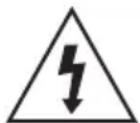
This symbol indicates that high voltage is present inside. It is dangerous to make any kind of contact with any internal part of this product.

This symbol indicates that important literature concerning operation and maintenance has been included with this product.
- The slots and openings in the cabinet and in the back or bottom are provided for necessary ventilation. To ensure reliable operation of this apparatus, and to protect it from overheating, these slots and openings must never be blocked or covered.
- Do not place this apparatus in a confined space, such as a bookcase, or built-in cabinet, unless proper ventilation is provided.
- Do not place this apparatus near or over a radiator or heat register, or where it is exposed to direct sunlight.
- Do not place vessels (vases etc.) containing water on this apparatus. A water spill can cause a fire or electric shock.
- Do not expose this apparatus to rain or place it near water (near a bathtub, washbowl, kitchen sink, or pool, etc.). If this apparatus accidentally gets wet, unplug it and contact an authorized dealer immediately.
- This apparatus uses batteries. In your community, there might be environmental regulations that require you to dispose of these batteries properly. Please contact your local authorities for disposal or recycling information.
- Do not overload wall outlets, extension cords or adaptors beyond their capacity, since this can result in fire or electric shock.
- Route power-supply cords so that they are not likely to be walked on or pinched by items placed on or against them. Pay particular attention to cords at the plug end, at wall outlets, and the point where they exit from the apparatus.
- To protect this apparatus from a lightning storm, or when it is left unattended and unused for long periods of time, unplug it from the wall outlet and disconnect the antenna or cable system. This will prevent damage to the set due to lightning and power line surges.
- Before connecting the AC power cord to the DC adaptor outlet, make sure the voltage designation of the DC adaptor corresponds to the local electrical supply.
- Never insert anything metallic into the open parts of this apparatus. Doing so may create a danger of electric shock.
- To avoid electric shock, never touch the inside of this apparatus. Only a qualified technician should open this apparatus.
- Make sure to plug the power cord in until it is firmly seated. When unplugging the power cord from a wall outlet, always pull on the power cord's plug. Never unplug by pulling on the power cord. Do not touch the power cord with wet hands.
- If this apparatus does not operate normally - in particular, if there are any unusual sounds or smells coming from it - unplug it immediately and contact an authorized dealer or service center.
- Maintenance of Cabinet.
- Before connecting other components to this product, be sure to turn them off.
- If you move your product suddenly from a cold place to a warm place, condensation may occur on the operating parts and lens and cause abnormal disc playback. If this occurs, unplug the product, wait for two hours, and then connect the plug to the power outlet. Then, insert the disc, and try to play back again.
- Be sure to pull the power plug out of the outlet if the product is to remain unused or if you are leaving the house for an extended period of time (especially when children, elderly, or disabled people will be left alone in the house).
- Accumulated dust can cause an electric shock, an electric leakage, or a fire by causing the power cord to generate sparks and heat or the insulation to deteriorate.
- Contact an authorized service center for information if you intend to install your product in a location with heavy dust, high or low temperatures, high humidity, chemical substances, or where it will operate 24 hours a day such as in an airport, a train station, etc. Failing to do so may lead to serious damage of your product.
- Use only a properly grounded plug and wall outlet.
- An improper ground may cause electric shock or equipment damage. (Class I Equipment only.)
- To turn this apparatus off completely, you must disconnect it from the wall outlet. Consequently, the wall outlet and power plug must be readily accessible at all times.
- Do not allow children to hang on the product.
- Store the accessories (battery, etc.) in a location safely out of the reach of children.
- Do not install the product in an unstable location such as a shaky self, a slanted floor, or a location exposed to vibration.
- Do not drop or strike the product. If the product is damaged, disconnect the power cord and contact a service center.
- To clean this apparatus, unplug the power cord from the wall outlet and wipe the product using a soft, dry cloth. Do not use any chemicals such as wax, benzene, alcohol, thinners, insecticide, air fresheners, lubricants, or detergent. These chemicals can damage the appearance of the product or erase the printing on the product.
- Do not expose this apparatus to dripping or splashing. Do not put objects filled with liquids, such as vases, on the apparatus.
- Do not dispose of batteries in a fire.
- Do not plug multiple electric devices into the same wall socket. Overloading a socket can cause it to overheat, resulting in a fire.
- There is danger of an explosion if you replace the batteries used in the remote with the wrong type of battery. Replace only with the same or equivalent type. WARNING - TO PREVENT THE SPREAD OF FIRE, KEEP CANDLES AND OTHER ITEMS WITH OPEN FLAMES AWAY FROM THIS PRODUCT AT ALL TIMES. WARNING - This product contains chemicals known to the State of California to cause cancer and reproductive toxicity.

CLASS 1 LASER product
This Compact Disc player is classified as a CLASS 1 LASER product. Use of controls, adjustments or performance of procedures other than those specified herein may result in hazardous radiation exposure.
CAUTION:
- THIS PRODUCT USES AN INVISIBLE LASER BEAM WHICH CAN CAUSE HAZARDOUS RADIATION EXPOSURE IF DIRECTED. BE SURE TO OPERATE PRODUCT CORRECTLY AS INSTRUCTED.
- THIS PRODUCT UTILIZES A LASER. USE OF CONTROLS OR ADJUSTMENTS OR PERFORMANCE OF PROCEDURES OTHER THAN THOSE SPECIFIED HEREIN MAY RESULT IN HAZARDOUS RADIATION EXPOSURE. DO NOT OPEN COVERS AND DO NOT REPAIR YOURSELF. REFER SERVICING TO QUALIFIED PERSONNEL.
This product satisfies CE regulations when shielded cables and connectors are used to connect the unit to other equipment. To prevent electromagnetic interference with electric appliances, such as radios and televisions, use shielded cables and connectors for connections.
CLASS 1 LASER PRODUCT KLASSE 1 LASER PRODUKT LUOKAN 1 LASER LAITE KCLASS 1 LASER APPARAT PRODUCTO LÁSER CLASE 1
I NOTES I
If the Region number of a Blu-ray Disc/DVDs does not correspond to the Region number of this product, the product cannot play the disc.
IMPORTANT NOTE
The mains lead on this equipment is supplied with a molded plug incorporating a fuse. The value of the fuse is indicated on the pin face of the plug. If it requires replacing, a fuse approved to BS1362 of the same rating must be used.
Never use the plug with the fuse cover omitted if the cover is detachable. If a replacement fuse cover is required, it must be of the same colour as the pin face of the plug. Replacement covers are available from your dealer.
If the fitted plug is not suitable for the power points in your house or the cable is not long enough to reach a power point, you should obtain a suitable safety approved extension lead or consult your dealer for assistance.
However, if there is no alternative to cutting off the plug, remove the fuse and then safely dispose of the plug. Do not connect the plug to a mains jack, as there is a risk of shock hazard from the bared flexible cord.
To disconnect the apparatus from the mains, the plug must be pulled out from the mains socket, therefore the mains plug shall be readily operable. The product unit accompanying this user manual is licenced under certain intellectual property rights of certain third parties.
Precautions
Important Safety Instructions
Read these operating instructions carefully before using the unit. Follow all the safety instructions listed below.
Keep these operating instructions handy for future reference.
- Read these instructions.
- Keep these instructions.
- Heed all warnings.
- Follow all instructions.
- Do not use this apparatus near water.
- Clean only with a dry cloth.
- Do not block any ventilation openings. Install in accordance with the manufacturer's instructions.
- Do not install near any heat sources such as radiators, heat registers, stoves, or other apparatus (including AV receivers) that produce heat.
- Do not defeat the safety purpose of the polarized or grounding-type plug. A polarized plug has two blades with one wider than the other. A grounding type plug has two blades and a third grounding prong. The wide blade or the third prong are provided for your safety. If the provided plug does not fit into your outlet, consult an electrician for replacement of the obsolete outlet.
- Protect the power cord from being walked on or pinched particularly at plugs, convenience receptacles, and the point where it exits the apparatus.
- Only use attachments/accessories specified by the manufacturer.
- Use only with the cart, stand, tripod, bracket, or table specified by the manufacturer, or sold with the apparatus. When a cart is used, use caution when
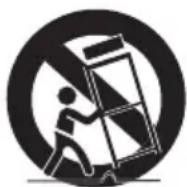
moving the cart/apparatus combination to avoid injury from tip-over.
- Unplug this apparatus during lightning storms or when unused for long periods of time.
- Refer all servicing to qualified service personnel. Servicing is required when the apparatus has been damaged in any way, such as when the power-supply cord or plug is damaged, liquid has been spilled or objects have fallen into the apparatus, the apparatus has been exposed to rain or moisture, does not operate normally, or has been dropped.
Disc Storage & Management
- Holding Discs
- Fingerprints or scratches on the disc may reduce sound and picture quality or cause skipping.
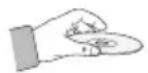
- Avoid touching the surface of a disc where data has been recorded.
- Hold the disc by the edges so that fingerprints will not get on the surface.
- Do not stick paper or tape on the disc.
- Cleaning Discs
- If you get fingerprints or dirt on the disc, clean it with a mild detergent diluted in water and wipe with a soft cloth.
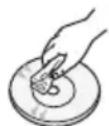
- When cleaning, wipe gently from the inside to the outside of the disc.
Disc Storage
- Do not keep in direct sunlight.
- Keep in a cool ventilated area.
- Keep in a clean protection jacket and store vertically.
Notes on the USB connection
- Your product supports USB storage media, MP3 products, digital cameras, and USB card readers.
- Some USB/digital camera devices may not be compatible with the product.
- Your product supports the FAT16, FAT32, and NTFS file systems (read only).
- Connect USB devices directly to the product's USB port. Connecting through a USB cable may cause compatibility problems.
- Inserting more than one memory device into a multi-card reader may cause the reader to operate improperly. The product supports the PTP protocol.
- Do not disconnect a USB device during a "loading" process.
- The bigger the image resolution, the longer the image takes to display.
- This product cannot play MP3 files with DRM (Digital Rights Management) downloaded from commercial sites.
- Your product only supports video that is under 30fps (frame rate).
- Your product only supports USB Mass Storage Class (MSC) devices such as thumb drives, flash card readers and USB HDD. (HUB is not supported.) Certain USB HDD Devices, multi-card readers and thumb drives may not be compatible with this product.
- If some USB devices require excessive power, they may be limited by the circuit safety device.
- If playback from a USB HDD is unstable, provide additional power by plugging the HDD into a wall socket. If the problem continues, contact the USB HDD manufacturer.
- During the playback or copying, do not disconnect a USB device. SAMSUNG is not responsible for any data file damage or data loss.
- Your product does not support compression file, sparse file and encryption file of NTFS
- You can repair or format a USB device on your Desktop PC. (MS-Windows OS only)
Connect a USB device before using the Timeshift and Recorded TV functions.


Do not use a USB memory stick. We do not support USB memory sticks.


We recommend using a USB HDD with at least 5400 rpm, but USB HDDs of RAID type are not supported.
- To use the Timeshift mode or the Recorded TV function, a connected USB device must execute the Device Format function to be properly formatted for recording.
- During device formatting, do not disconnect the device while formatting is in progress. If you format the device, all files will be deleted.
- Before formatting your device to this product, please back up your files to prevent damage or loss of data. SAMSUNG is not responsible for any data file damage or data loss.
- Recorded videos are DRM (digital rights management) protected and cannot be played on a PC or other product. Note that files saved on the TV cannot be used after the main board is changed.
- At least 100 MB of free space is required for recording.
- Recording will stop if the storage's free space becomes less than 50 MB.
- If the USB device has failed the Device Performance Test, the USB device must go through the Device Format and Device Performance Test again before you record with the Guide or Channel Manager. If the device has failed the Performance Test, it cannot be used for recording.
Note on the firmware upgrade of CAM
Some CAMs in the market with older firmware versions are not fully interoperable with this device, which is compliant with the v1.3 specification.
This is a problem with legacy CAMs, not with this CI Plus compliant device.
In this case, the problem can be resolved by applying a firmware upgrade to the CAM.
Please contact your network operator or CAM operator for this.
Check whether the CAM firmware has been upgraded for compatibility with CI+ 1.3 version.
Using the 3D function
IMPORTANT HEALTH AND SAFETY INFORMATION FOR 3D PICTURES.
Read and understand the following safety information before using the 3D function.
- Some viewers may experience discomfort while viewing 3D TV, such as dizziness, nausea, and headaches. If you experience any such symptom, stop viewing 3D TV, remove the 3D Active Glasses, and rest.
- Watching 3D images for an extended period of time may cause eye strain. If you feel eye strain, stop viewing 3D TV, remove your 3D Active Glasses, and rest.
- A responsible adult should frequently check on children who are using the 3D function. If there are any reports of tired eyes, headaches, dizziness, or nausea, have the child stop viewing 3D TV and rest.
- Do not use the 3D Active Glasses for other purposes (such as general eyeglasses, sunglasses, protective goggles, etc.).
- Do not use the 3D function or 3D Active Glasses while walking or moving around. Using the 3D function or 3D Active Glasses while moving around may cause you to bump into objects, trip, and/or fall, and cause serious injury.
- When displaying 3D programmes with this model, the actual screen may appear as shown below:
| Screen Display Description | ||
| Side by Side | Same screen duplicates horizontally. | |
| Top & Bottom | Same screen duplicates vertically. | |
- 3D programme reception, recording and playback of this model may not fully support 3D, due to the 3D broadcast format is not yet standardized worldwide. It is not the product's malfunction or disorder.
- If you want to enjoy 3D content, connect a 3D device (3D compliant AV receiver or TV) to the product's HDMI OUT port using a high-speed HDMI cable. Put on 3D glasses before playing the 3D content. The product outputs 3D signals only through HDMI cable connected to the HDMI OUT port.
- The video resolution in 3D play mode is determined by the resolution of the original 3D video. You can not change the resolution.
- Some functions such as BD Wise, screen size adjustment, and resolution adjustment may not operate properly in 3D play mode. You must use a high-speed HDMI cable for proper output of the 3D signal.
- Stay at least three times the width of the screen from the TV when watching 3D images. For example, if you have a 46-inch screen, stay 138 inches (11.5 feet) from the screen.
- Place the 3D video screen at eye level for the best 3D picture.
- When the product is connected to some 3D devices, the 3D effect may not function properly.
- "Blu-ray 3D" and "Blu-ray 3D" logo are trademarks of the Blu-ray Disc Association.
Specifications
| General | Weight 2.7Kg | |
| Dimensions 430 (W) x 282 (D) x 55 (H) | mm | |
| Operating Temperature Range +5°C to +35°C | ||
| Operating Humidity Range 10 % to 75 % | ||
| HDMI | Video Resolution | H8500 : 1080p, 1080i, 720p, 576p/480p H8900 : 2160p, 1080p, 1080i, 720p, 576p/480p |
| Audio PCM, Bitstream | ||
| Audio Output Digital TOS-Link Optical | ||
| Network | Ethernet 100BASE-TX Terminal | |
| Wireless LAN Built-in | ||
| Security | WEP(OPEN/SHARED) WPA-PSK(TKIP/AES) WPA2-PSK(TKIP/AES) | |
| WPS(PBC) Supported | ||
| HDD Capacity | BD-H8500 | 500 GB |
| BD-H8900 | 1 TB | |
- Network speeds equal to or below 10 Mbps are not supported.
- Design and specifications are subject to change without prior notice.
- For the power supply and power consumption, refer to the label attached to the product.
- Weight and dimensions are approximate.
Contact SAMSUNG WORLD WIDE
If you have any questions or comments relating to Samsung products, please contact the SAMSUNG customer care centre.
| Area Contact Centre | Web Site | |
| AUSTRIA | 0800 - SAMSUNG (0800 - 7267864) | www.samsung.com/at/support |
| BELGIUM 02-201-24-18 | www.samsung.com/be/support (Dutch)www.samsung.com/be_fr/support (French) | |
| BOSNIA 051 331 999 | www.samsung.com/support | |
| BULGARIA 07001 33 11, sharing cost | www.samsung.com/bg/support | |
| CROATIA 062 726 786 | www.samsung.com/hr/support | |
| CZECH 800 - SAMSUNG (800-726786) | www.samsung.com/cz/support | |
| DENMARK 70 70 19 70 | www.samsung.com/dk/support | |
| FINLAND 030-622 515 | www.samsung.com/ft/support | |
| FRANCE 01 48 63 00 00 | www.samsung.com/fr/support | |
| GERMANY | 0180 6 SAMSUNG bzw.0180 6 7267864*("0,20 €/Anruf aus dem dt. Festmetz.,aus dem Mobilfunk max. 0,60 €/Anruf) | www.samsung.com/de/support |
| CYPRUS | 8009 4000 only from landline, toll free | www.samsung.com/gr/support |
| GREECE | 80111-SAMSUNG (80111 7267864) only from land line(+30) 210 6897691 from mobileand land line | |
| HUNGARY | 0680SAMSUNG (0680-726-786)0680PREMIUM (0680-773-648) | http://www.samsung.com/hu/support |
| ITALIA 800-SAMSUNG (800.7267864) | www.samsung.com/it/support | |
| LUXEMBURG 261 03 710 | www.samsung.com/support | |
| MONTENEGRO 020 405 888 | www.samsung.com/support | |
| Area Contact Centre | Web Site |
| SLOVENIA080 697 267090 726 786(€ 0,10/Min) | www.samsung.com/si/support |
| NETHERLANDS0900-SAMSUNG (0900-7267864)(€ 0,10/Min) | www.samsung.com/nl/support |
| NORWAY 815 56480 | www.samsung.com/no/support |
| POLAND0 801-172-678* lub +48 22 607-93-33** (calkowity koszt polaczenia jak za 1 impulses wedlug taryfy operatora)** (koszt polaczenia wedlug taryfy operatora) | www.samsung.com/pl/support |
| PORTUGAL 808 207267 | www.samsung.com/pt/support |
| ROMANIA08008 SAMSUNG (08008 726 7864)TOLL FREE No. | www.samsung.com/ro/support |
| SERBIA 011 321 6899 | www.samsung.com/rs/support |
| SLOVAKIA 0800 - SAMSUNG(0800-726 786) | www.samsung.com/sk/support |
| SPAIN 0034902172678 | www.samsung.com/es/support |
| SWEDEN 0771 7267864(SAMSUNG) | www.samsung.com/se/support |
| SWITZERLAND 0848726 78 64 (0848-SAMSUNG) | www.samsung.com/ch/support(German)www.samsung.com/ch_fr/support(French) |
| U.K0330 SAMSUNG (7267864) | www.samsung.com/uk/support |
| EIRE0818 717100 | www.samsung.com/ei/support |
| LITHUANIA8-800-77777 | www.samsung.com/lt/support |
| LATVIA 8000-7267 | www.samsung.com/lw/support |
| ESTONIA 800-7267 | www.samsung.com/ee/support |
Correct disposal of batteries in this product
(Applicable in the European Union and other European countries with separate battery return systems.)
This marking on the battery, manual or packaging indicates that the batteries in this product should not be disposed of with other household waste at the end of their working life. Where marked, the chemical symbols Hg, Cd or Pb indicate that the battery contains mercury, cadmium or lead above the reference levels in EC Directive 2006/66.
If batteries are not properly disposed of, these substances can cause harm to human health or the environment.
To protect natural resources and to promote material reuse, please separate batteries from other types of waste and recycle them through your local, free battery return system.
Correct Disposal of This Product (Waste Electrical & Electronic Equipment)
(Applicable in the European Union and other European countries with separate collection systems)
This marking on the product, accessories or literature indicates that the product and its electronic accessories (e.g. charger, headset, USB cable) should not be disposed of with other household waste at the end of their working life. To prevent possible harm to the environment or human health from uncontrolled waste disposal, please separate these items from other types of waste and recycle them responsibly to promote the sustainable reuse of material resources.
Household users should contact either the retailer where they purchased this product, or their local government office, for details of where and how they can take these items for environmentally safe recycling.
Business users should contact their supplier and check the terms and conditions of the purchase contract. This product and its electronic accessories should not be mixed with other commercial wastes for disposal.
WARRANTY CONDITIONS
7,460,668; 7,515,710; 7,519,274
LASER PRODUCT CLASS 1
Airport Plaza, Geneva Building
Leonardo Da Vincilaan 19
1831 Diegem, Belgium
Netherlands tel.: 0900-SAMSUNG (0900-7267864) (€0.10/min)
www.samsung.com
www.samsung/be (Dutch)
www.samsung.com/be_fr (French)
WARRANTY CONDITIONS
Airport Plaza, Geneva Building
Leonardo Da Vincilaan 19
1831 Diegem, Belgium
Luxembourg tel.: 261 03 710
www.samsung.com
www.samsung/be (Dutch)
www.samsung.com/be_fr (French)
WARRANTY CONDITIONS
Correct Disposal of This Product (Waste Electrical & Electronic Equipment)
- BD-HDD COMBO USER MANUAL
- IMAGINE THE POSSIBILITIES
- FOR MORE INFORMATION ON HOW TO USE E-MANUAL (P. 9)
- AVAILABLE RECORDING TIME FOR INTERNAL HDD
- I NOTE I
- REGION CODE
- LOGOS OF DISCS THE PRODUCT CAN PLAY
- ACCESSORIES
- REMOTE CONTROL
- TOUR OF THE REMOTE CONTROL
- INSTALLING BATTERIES
- NOTE
- CAUTION
- SETTING THE REMOTE CONTROL TO OPERATE YOUR TV
- TV CONTROL CODES
- CONNECTIONS
- CONNECTING TO A TV
- CONNECTING TO AN AUDIO SYSTEM
- METHOD 1: CONNECTING TO AN HDMI-SUPPORTED AV RECEIVER
- METHOD 2: CONNECTING TO AN AV RECEIVER WITH OPTICAL INPUT
- NETWORK CONNECTION
- WIRED NETWORK
- WIRELESS NETWORK
- THE SETUP PROCEDURE
- THE HOME SCREEN
- ACCESSING THE SETTINGS SCREEN
- BUTTONS ON THE REMOTE CONTROL USED FOR THE SETTINGS MENU
- HOW TO USE THE E-MANUAL
- THE E-MANUAL SCREEN
- TROUBLESHOOTING
- REPAIRS
- DISC AND FORMAT COMPATIBILITY
- DISC TYPES AND CONTENTS YOUR PRODUCT CAN PLAY
- DISC TYPES YOUR PRODUCT CANNOT PLAY
- COPY PROTECTION
- NETWORK SERVICE DISCLAIMER
- LICENCE
- WARNING
- RISK OF ELECTRIC SHOCK DO NOT OPEN
- CLASS 1 LASER PRODUCT
- I NOTES I
- IMPORTANT NOTE
- PRECAUTIONS
- IMPORTANT SAFETY INSTRUCTIONS
- DISC STORAGE & MANAGEMENT
- HOLDING DISCS
- CLEANING DISCS
- DISC STORAGE
- NOTES ON THE USB CONNECTION
- CONNECT A USB DEVICE BEFORE USING THE TIMESHIFT AND RECORDED TV FUNCTIONS
- NOTE ON THE FIRMWARE UPGRADE OF CAM
- USING THE 3D FUNCTION
- CONTACT SAMSUNG WORLD WIDE
- CORRECT DISPOSAL OF BATTERIES IN THIS PRODUCT
- CORRECT DISPOSAL OF THIS PRODUCT (WASTE ELECTRICAL & ELECTRONIC EQUIPMENT)
- WARRANTY CONDITIONS
- LASER PRODUCT CLASS
Brand : SAMSUNG
Model : BDH8900M
Category : Blu-ray player