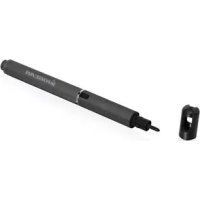
PenScript - Digital stylus IOGEAR - Free user manual and instructions
Find the device manual for free PenScript IOGEAR in PDF.


| Product Type | Active Digital Stylus |
| Brand | IOGEAR |
| Model | PenScript |
| Power Source | 1 AAA alkaline battery (included) |
| Battery Life | Auto sleep after 4 minutes of inactivity |
| Compatibility | Capacitive touchscreens (smartphones, tablets) |
| Tip | Precision POM (polyoxymethylene) |
| Dimensions (approx.) | 140 mm length, 9 mm diameter |
| Weight (with battery) | Approximately 20 g |
| Package Contents | Stylus, AAA battery, quick start guide, warranty card |
| Warranty | 1 year limited |
| Features | Power button with LED indicator, auto power off, software-free operation |
| Maintenance | Clean the tip with a soft cloth, store with the cap |
| Safety | Use recommended batteries, do not expose to moisture |
| Certifications | FCC Part 15 Class B, CE, Industry Canada NMB-003 |
Frequently Asked Questions - PenScript IOGEAR
User questions about PenScript IOGEAR
0 question about this device. Answer the ones you know or ask your own.
Ask a new question about this device
Download the instructions for your Digital stylus in PDF format for free! Find your manual PenScript - IOGEAR and take your electronic device back in hand. On this page are published all the documents necessary for the use of your device. PenScript by IOGEAR.
USER MANUAL PenScript IOGEAR
natural_image
Solid lime green vertical bar with dark border (no text or symbols)Quick Start Guide
PenScript™ Active Stylus
Any capacitive touchpanel device.*
*PenScript may not work with some devices with screen protectors.
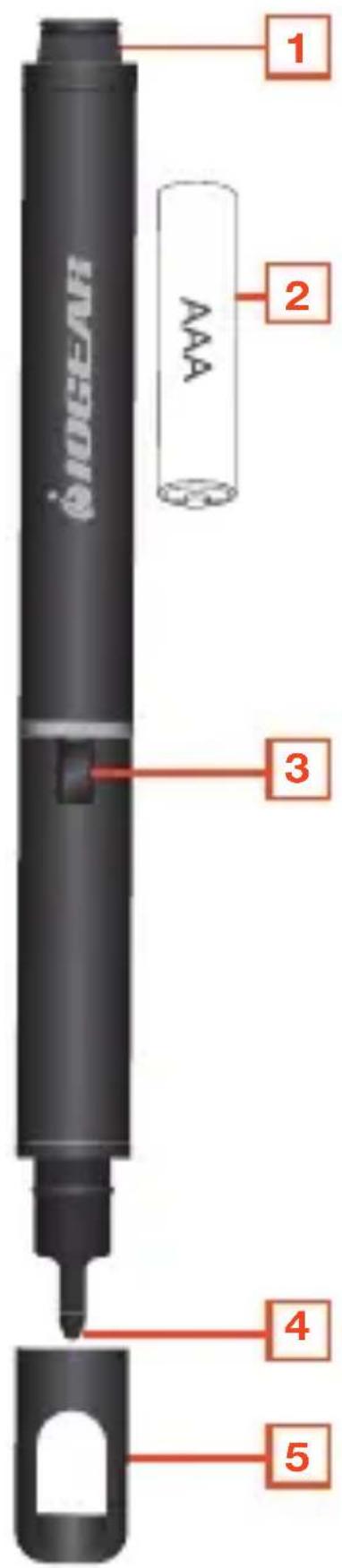
Overview
- Battery Cap
- AAA Battery
- Power Button with LED indicator
- Stylus POM Tip
- Stylus Cap
Battery Installation:
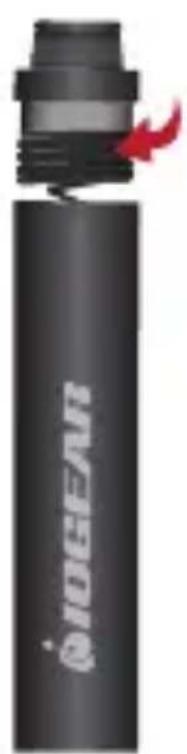
- Unscrew battery cap counter-clockwise.
- Insert the AAA battery with the “+” sign towards the inside of the stylus.
- Close the battery cap clockwise.
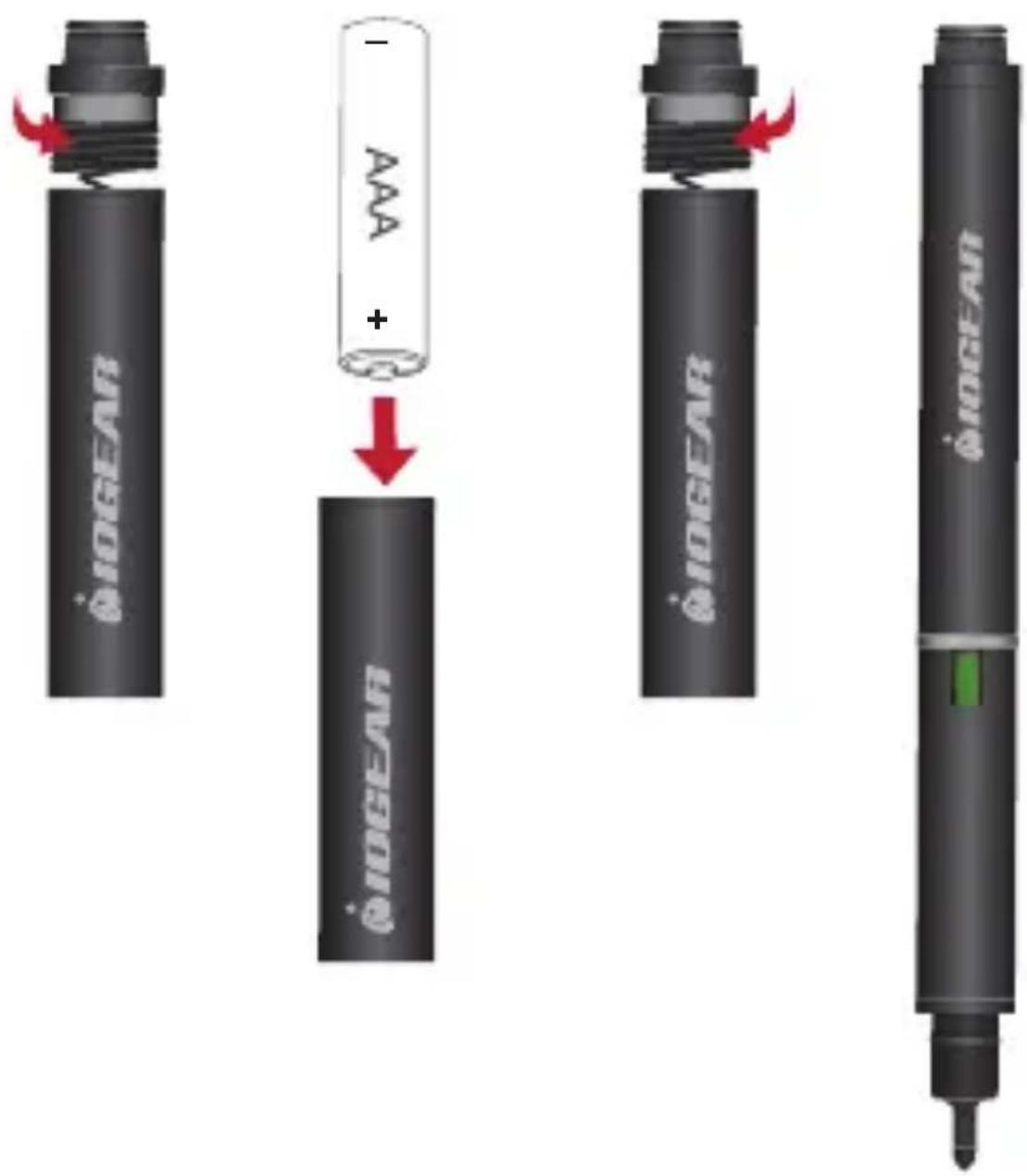
Once the battery is installed correctly, a green LED should light up when the power button is pressed.
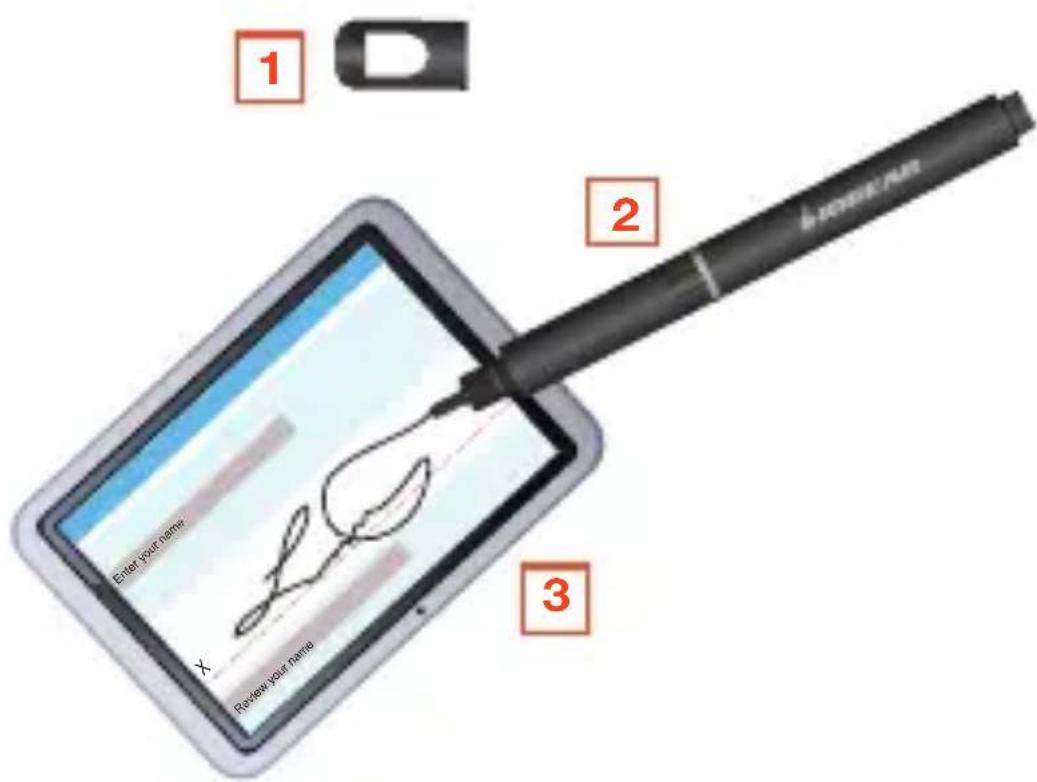
Using the PenScript Active Stylus:
- Remove the Stylus Cap.
- Press power button to turn on the Stylus.
- You can now use the stylus with virtually any smartphone or tablet. It also works very well with some of the most popular note-taking apps today.
No additional software is needed to use PenScript with your mobile devices.
Note: To conserve power, the PenScript will automatically power off after 4 minutes of inactivity.
Compliance Information
FCC Statement
This equipment has been tested and found to comply with the limits for a Class B digital device, pursuant to Part 15 of the FCC Rules.
These limits are designed to provide reasonable protection against harmful interference in a residential setting. This product generates, uses, and can radiate radio frequency energy and, if not installed and used as directed, it may cause harmful interference to radio communications.
Although this product complies with the limits for a Class B digital device, there is no guarantee that interference will not occur in a particular installation.
CE Compliance
This device has been tested and found to comply with the following European Union directives:
Electromagnetic Capability (2004/108/EC), Low Voltage (2006/95/EC) and R&TTED (1999/5/EC).
Canada, Industry Canada (IC) Notices
Complies with the Canadian ICES-003 Class B specifications.
Declaration of Conformity and related documents can be downloaded directly from our website:
http://www.iogear.com/product/GSTYA100/certifications
Limited Warranty
WE'RE HERE TO HELP YOU! NEED ASSISTANCE SETTING UP THIS PRODUCT?
Make sure you:
- Visit www.iogear.com for more product information
- Visit www.iogear.com/support for live help and product support
Warranty Information
This product carries a 1 Year Limited Warranty.
For the terms and conditions of this warranty, please go to
http://www.iogear.com/support/warranty
Register online at http://www.iogear.com/register
Important Product Information
Product Model ____
Serial Number ____
Contact
iogear.custhelp.com
support@iogear.com
www.iogear.com
19641 Da Vinci, Foothill Ranch, CA 92610
natural_image
Close-up of a black cylindrical device labeled 'IOGEAR' with a red arrow pointing to it (no additional text or symbols visible)
natural_image
Black cylindrical device labeled 'BIODEAR' with a red arrow pointing to its tip (no additional text or symbols visible)
natural_image
Black cylindrical device with green internal component and 'MOECHOAN' branding on top (no other text or symbols visible)iogear.custhelp.com support@iogear.com www.iogear.com 19641 Da Vinci, Foothill Ranch, CA 92610
iogear.custhelp.com support@iogear.com www.iogear.com 19641 Da Vinci, Foothill Ranch, CA 92610
- Quick Start Guide
- Overview
- Battery Installation:
- Using the PenScript Active Stylus:
- Compliance Information
- FCC Statement
- CE Compliance
- Canada, Industry Canada (IC) Notices
- Limited Warranty
- WE'RE HERE TO HELP YOU! NEED ASSISTANCE SETTING UP THIS PRODUCT?
- Make sure you:
- Warranty Information
- Important Product Information
- Contact
Brand : IOGEAR
Model : PenScript
Category : Digital stylus