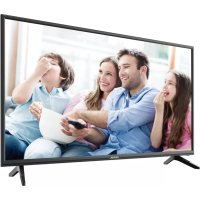
LDS4074 - Television DENVER - Free user manual and instructions
Find the device manual for free LDS4074 DENVER in PDF.



| Product Type | LED TV |
| Screen Size | 40 inches (102 cm) estimated |
| Screen Resolution | Full HD 1920 x 1080 pixels |
| Tuner | Triple tuner (DVB-T2, DVB-C, DVB-S2) + analog |
| Connectivity | 2 x HDMI, 1 x VGA, 1 x USB, 1 x SCART, 1 x LAN (RJ45), optical output, headphone jack |
| Smart TV | Yes (Netflix, YouTube, etc.) |
| Common Interface | CI+ (Common Interface Plus) |
| Power Supply | 100-240 V AC, 50/60 Hz |
| Power Consumption | 55 W (max) |
| Annual Consumption | 57 kWh/year |
| Energy Class | A (according to standard 2010/1062) |
| Weight | Not specified |
| Dimensions (without stand) | Not specified |
| Wall Mounting | VESA mount not included |
| Safety | Important safety instructions included |
| Maintenance | Clean with a slightly damp cloth |
| Warranty | 2 years (according to local legislation) |
Frequently Asked Questions - LDS4074 DENVER
User questions about LDS4074 DENVER
0 question about this device. Answer the ones you know or ask your own.
Ask a new question about this device
Download the instructions for your Television in PDF format for free! Find your manual LDS4074 - DENVER and take your electronic device back in hand. On this page are published all the documents necessary for the use of your device. LDS4074 by DENVER.
USER MANUAL LDS4074 DENVER
HD SMART TV with DVB-T2/S2/DVB-C and H.265/HEVC Support
o el:M d LDS-3272/LDS-4074
natural_image
Line drawing of a flat-screen monitor with two side supports (no text or symbols)Quick start guide
Kurzanleitung
Full installation user manual can be found at www.denver-electronics.com. Search for the model number.
IMPORTANT SAFETY INSTRUCTIONS - READ CAREFULLY BEFORE USE.
Take note of the following safety information which appears on the back of the TV.

CAUTION TO PREVENT ELECTRICAL SHOCK, DO NOT REMOVE ANY COVER SCREWS, NO USER SERVICEABLE PARTS INSIDE, REFER SERVICING TO QUALIFIED SERVICE PERSONNEL.

This symbol indicates that there are important operating maintenance instructions in the literature accompanying this unit.
This symbol indicates that dangerous voltage constituting a risk of electric shock is present within this unit.
Keep these instructions
• Do not use this TV near water.
• Clean only with a slightly damp cloth.
• Do not block any ventilation openings.
• Install in accordance with the supplied Quick Start Guide and this User Guide.
- Protect the power chord from being walked on or pinched, particularly at plugs, and the point where it exits from the TV.
- Do not allow the power chord to overhang the edge of a table.
• Unplug this TV during lightening storms or when unused for long periods of time.

WARNING! TO REDUCE THE RISK OF FIRE OR ELECTRICAL SHOCK, DO NOT EXPOSE THIS TV TO RAIN OR MOISTURE. THE TV MUST NOT BE EXPOSED TO DRIPPING AND SPLASHING AND NO OBJECTS FILLED WITH LIQUIDS SHOULD BE PLACED ON THE TV.
NOTE: No naked flames such as candles should be placed on the TV.
Smell/odor from TV
New televisions may produce an unusual smell or odor when first turned on.
Due to the manufacturing process of components, televisions and other electronic products can have parts that may produce a smell after the product is first turned on and warms up.
The smell will usually dissipate within a few days of use and does not return.
This is normal and occurs with many electronic products. Please ensure there is sufficient ventilation around the TV and in the room and the odor will dissipate.
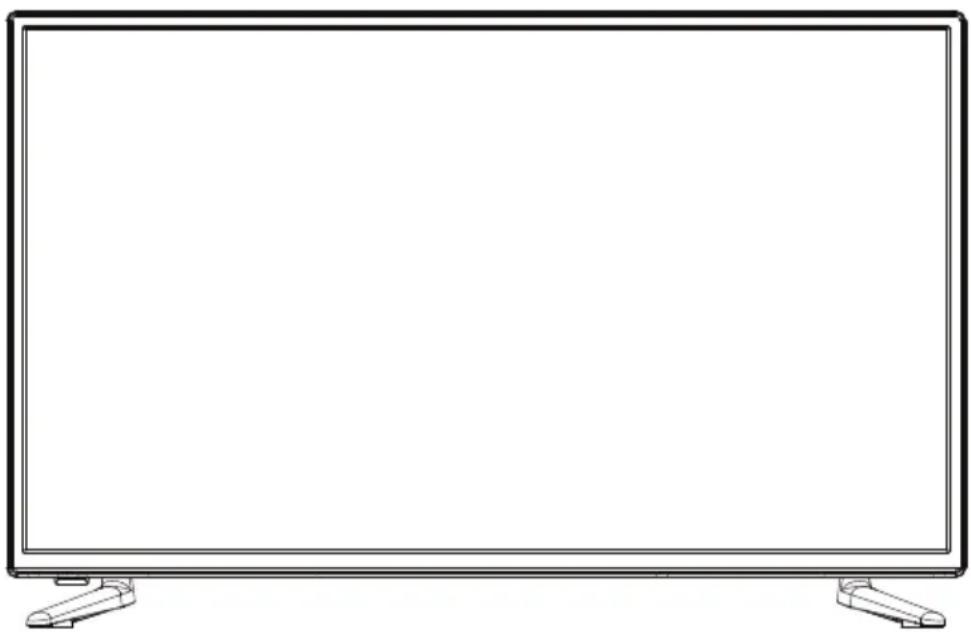
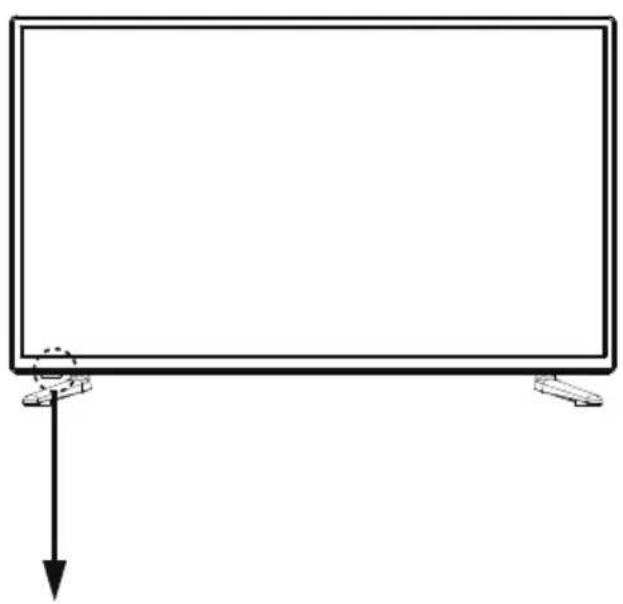
Front View
natural_image
Simple line drawing of a blank rectangular frame with a downward arrow and two small footprints at the bottom (no text or symbols)LED indicator Remote Control window(keep clear)
Model:LDS-3272
Model:LDS-4074
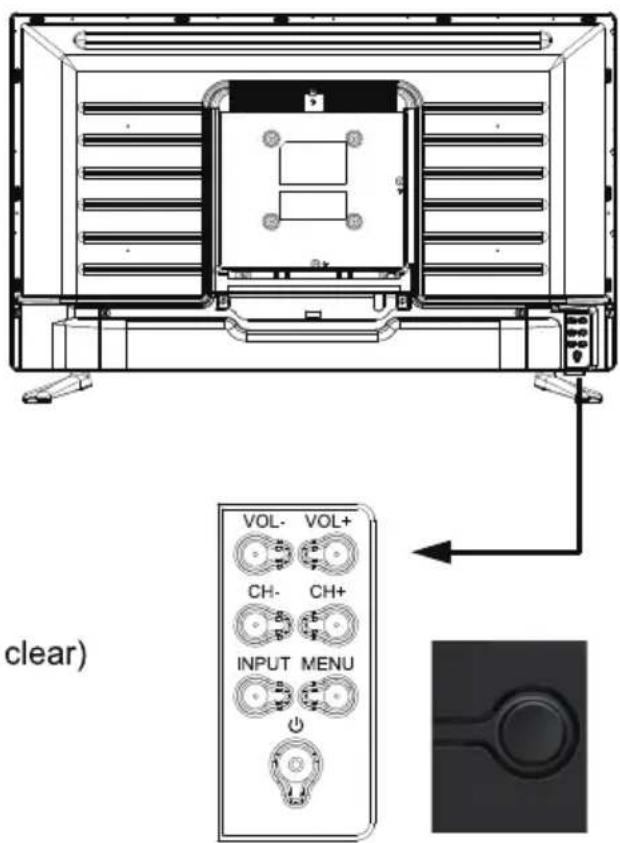
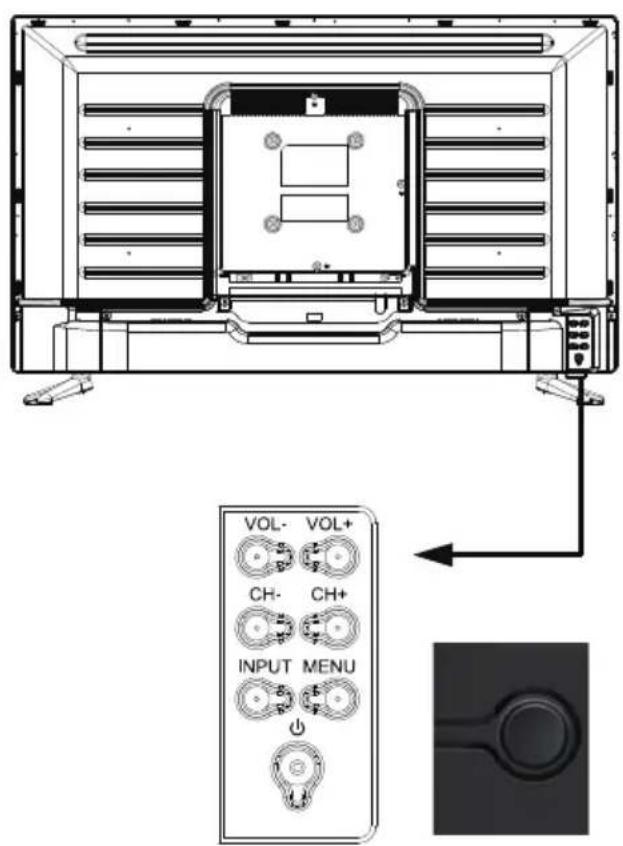
The functions of the TV buttons are described below.
POWER/STANDBY: Turn on/off the TV set.
INPUT: Press to select the source.
MENU: Press to display the OSD menu, Press again to exit the menu.
CH+/CH-: Press to scan through channels.
They are also can be used to move down/up in the OSD menu screen.
VOL+/VOL-: Press to adjust the volume.
They are also can be used to move left/right in the OSD menu screen.
VOL+ button can be used to skip forward to next menu.
natural_image
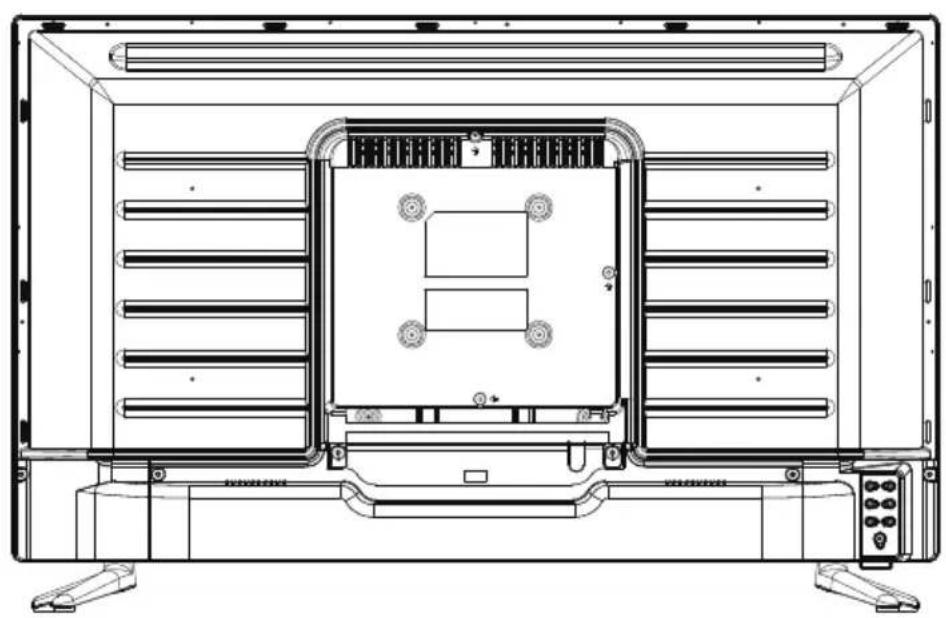
Technical line drawing of a mechanical or electrical enclosure with no visible text, numbers, or symbols.TV1(52) HDMI3 OFFICALTV2(T2/C) USB Optimum Inference Mini YrRPR Mini AV 0 SV——500mA

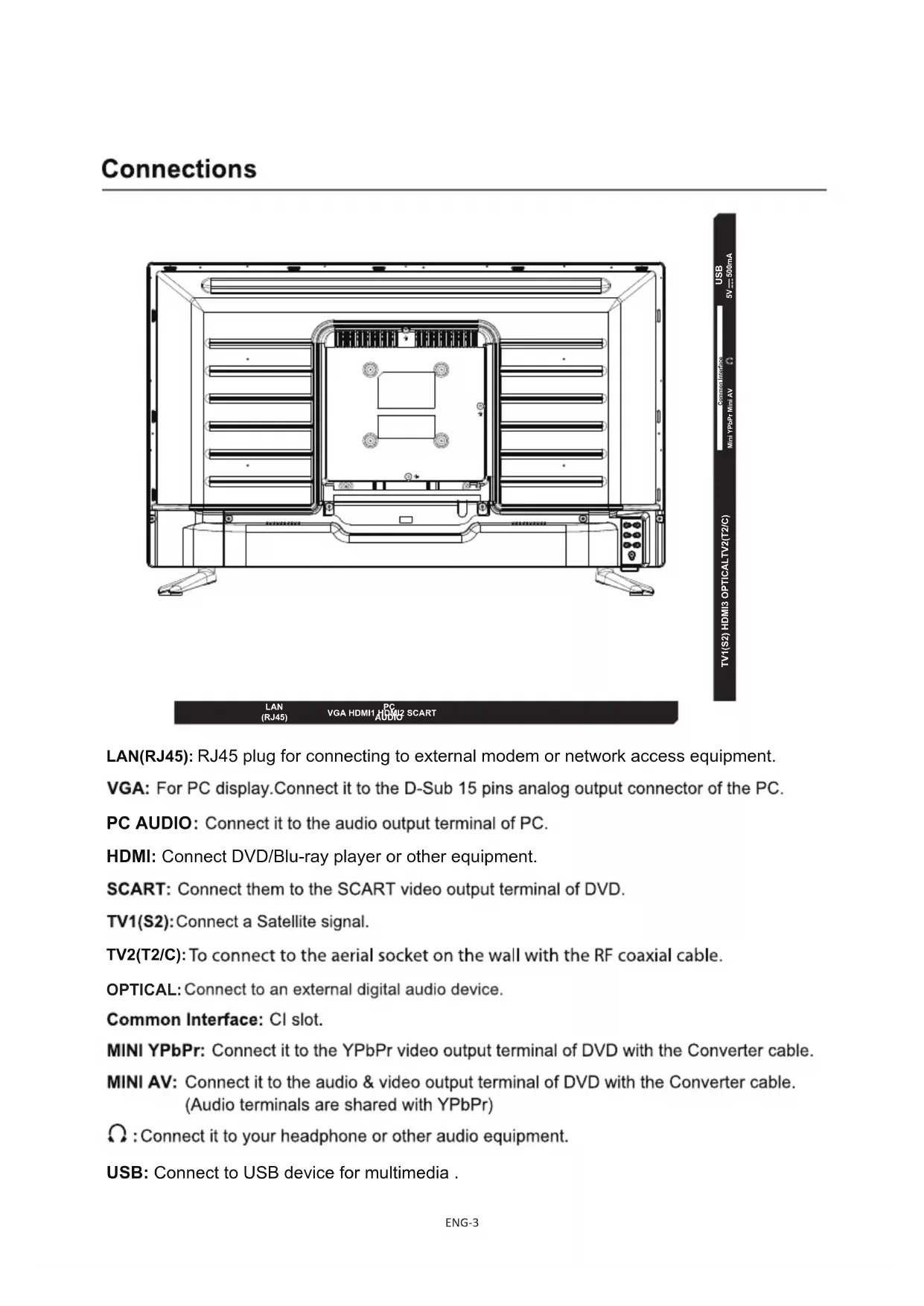
LAN(RJ45): RJ45 plug for connecting to external modem or network access equipment.
VGA: For PC display. Connect it to the D-Sub 15 pins analog output connector of the PC.
PC AUDIO: Connect it to the audio output terminal of PC.
HDMI: Connect DVD/Blu-ray player or other equipment.
SCART: Connect them to the SCART video output terminal of DVD.
TV1(S2): Connect a Satellite signal.
TV2(T2/C): To connect to the aerial socket on the wall with the RF coaxial cable.
OPTICAL: Connect to an external digital audio device.
Common Interface: CI slot.
MINI YPbPr: Connect it to the YPbPr video output terminal of DVD with the Converter cable.
MINI AV: Connect it to the audio & video output terminal of DVD with the Converter cable. (Audio terminals are shared with YPbPr)
Ω : Connect it to your headphone or other audio equipment.
USB: Connect to USB device for multimedia.
Installation of TV channels
This TV comes with triple tuner.
For digital terrestrial TV: (DVB-T2 - H.265 HEVC)
For digital cable TV: (DVB-C)
For digital satellite TV: (DVB-S2)
+ it has an analogue tuner aswell.
When you start the TV for the first time, you will enter a first time installation mode, Here you shall choose language& what country you are in. You do this by pushing the arrow left/right keys.
When you are finished making these settings, push OK button to get to autotuning menu.
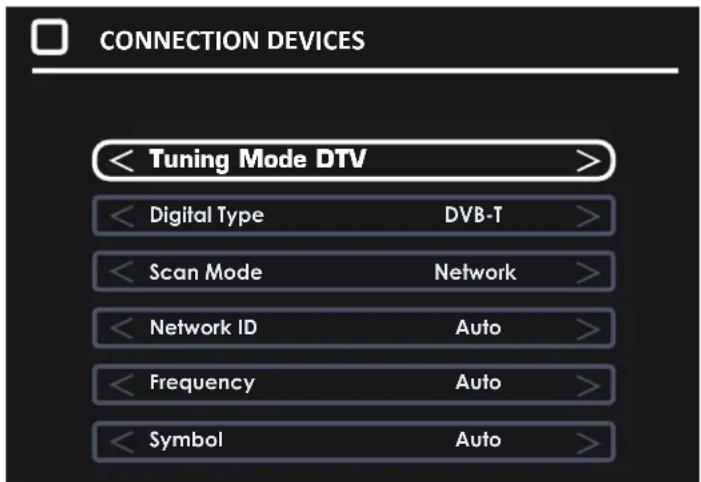
Choose Tune type. (either DTV, ATV (analogue, or both))
Then choose digital type: DVB-T for terrestrial (if you have own antenna on the roof), DVB-C if you have digital cable TV (please notice, you need to know the DVB-C info from your cable provider) or DVB-S if you have a satellite dish.
If using DVB-T, you can just make an autoscan, and it will scan in all available channel.
If using DVB-C, you can use either full scan or Network scan (some countries demand this). And insert Network ID, Frequency, Symbol rate and LCN on/off.
If using DVB-S, you have to know what satellite your dish are pointing towards, and choose this in the setup menu.
Example:
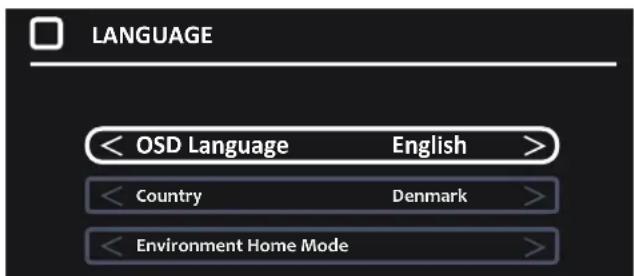
Please notice. The TV has a common interface+ input. This allows you to insert CA module + smartcard from your TV/cable provider to watch pay per view channels and selectable channels outside of your package.
Pay attention on the description shown on the back of the TV on how to insert CA module.
Streaming
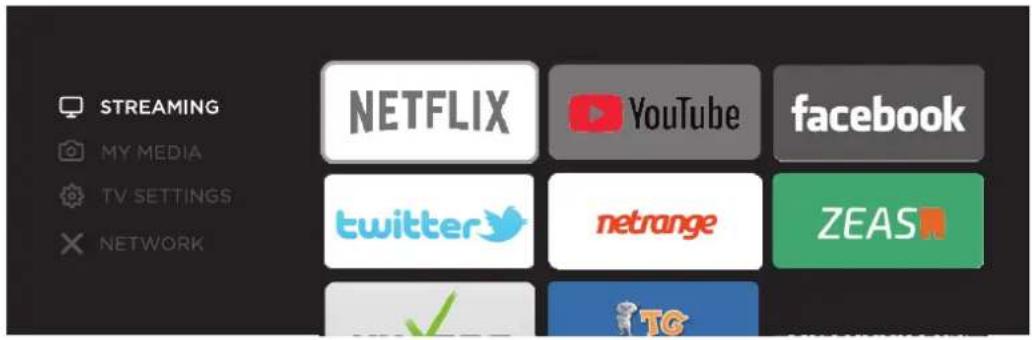
- Press MENU button on the main unit or on the remote to display the main interface. Then use the Arrow buttons to select STREAMING and press OK to enter. Use the Arrow buttons to select the desired APP and press OK button to view. Or press the hotkey on the remote control to enter the desired APP directly.
Network Settings
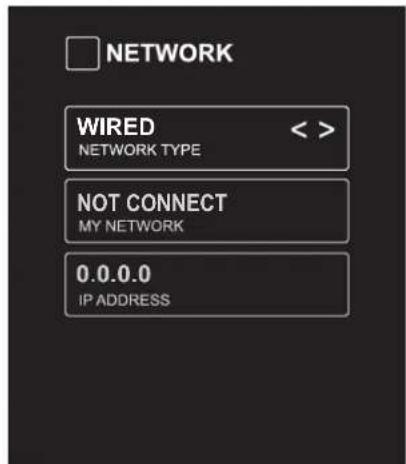
- Press MENU to display the main interface, use the Arrow buttons to highlight TV SETTINGS and press OK to confirm. Then Use the Arrow buttons to select NETWORK to enter and adjust each option setting.
| NETWORK TYPE | Select Wired and Wireless network, then connect the TV to the wired network or search the wireless network through searching available Wifi. |
| MY NETWORK | Display the current network which you connect to. |
| IP ADDRESS | Display the current IP information. |
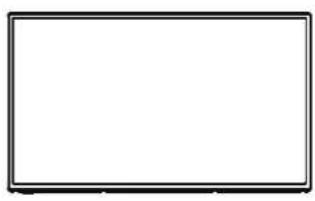
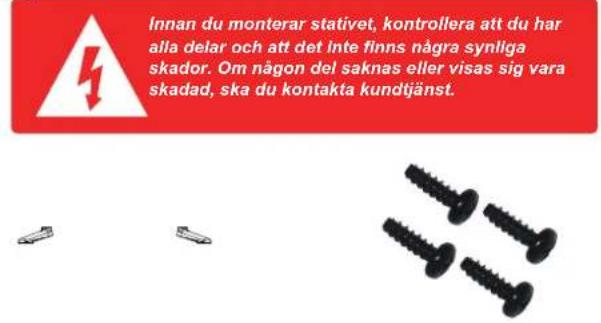
1. The parts needed for installing the stand (supplied)
natural_image
Empty rectangular frame with black border (no text or symbols)TV set
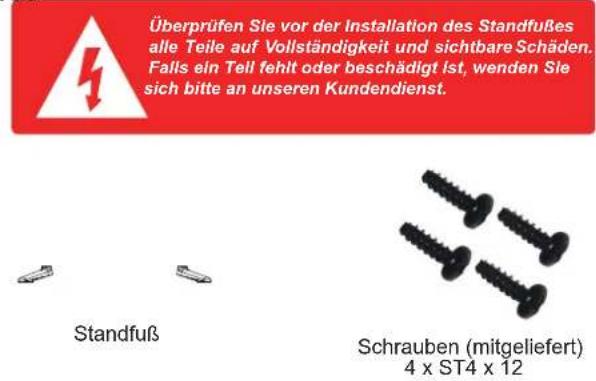
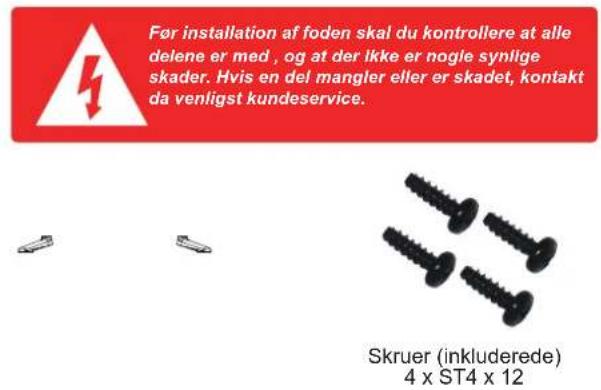
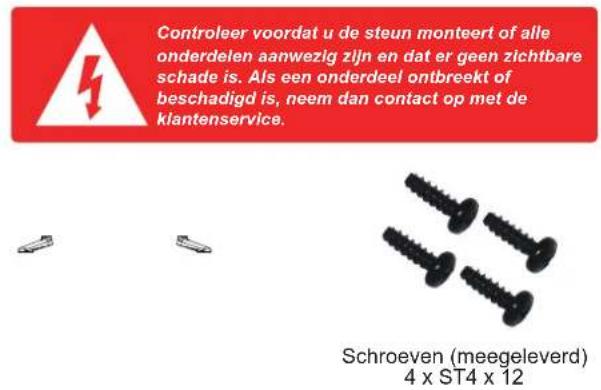
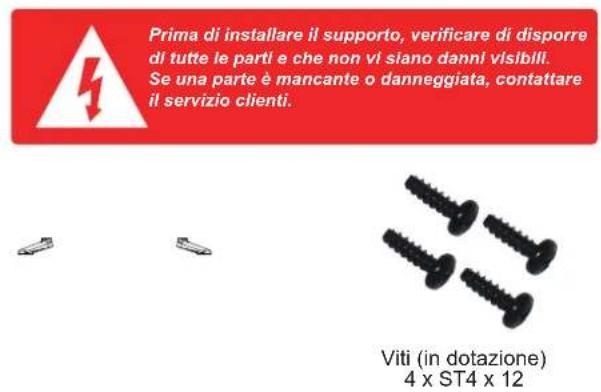
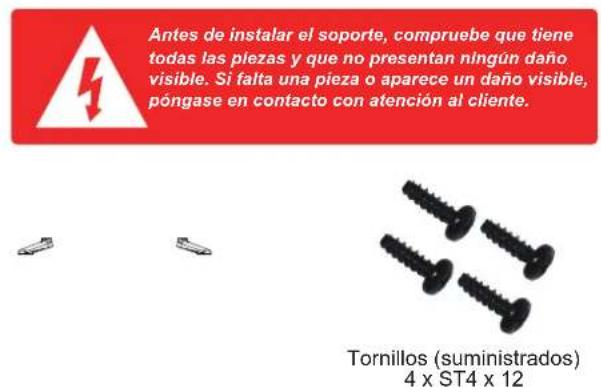
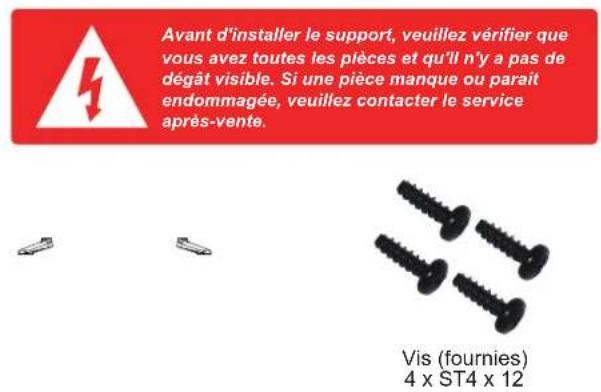
Before installing the stand, please check that you have all of the parts and that there is no visible damage. If a part is missing or appears damaged, please contact customer service.

Stand

Screws(supplied)
4 x ST4 x 12
2. How to install the Stand?
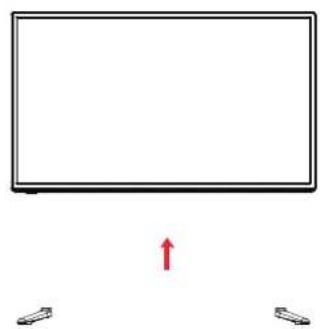
Place the TV face down on a soft and flat surface (blanket, foam, cloth, etc.) to prevent any damage to the TV.
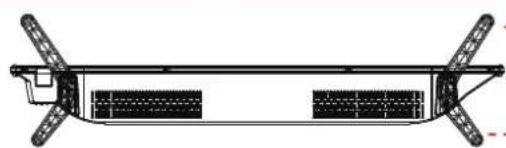
Put the stand to the neck of the TV set as shown below.
natural_image
Simple diagram showing a blank screen with two small icons at the bottom, no text or symbols present.
- Before you put on the stand, please make sure the direction is correct as shown below.
- When you are putting on the stand, please make sure the neck of the TV set is in the correct position and attached tightly.
If you do not attach the stand correctly, it will make the TV unstable and may tip over.
natural_image
Technical line drawing of a mechanical assembly with no visible text or symbolsFront
(Longer)
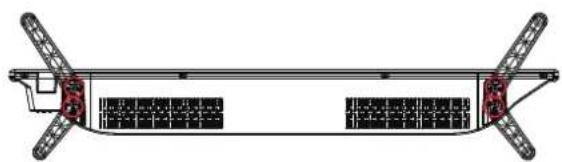
Attach the stand with the supplied screws.
natural_image
Technical line drawing of a multi-panel aircraft or cargo structure with no visible text or symbols
When attaching the stand, make sure the screws are attached tightly.
If the screws do not attach tightly, it will lead the TV to be unstable or may even tip over.
3. Warnings.
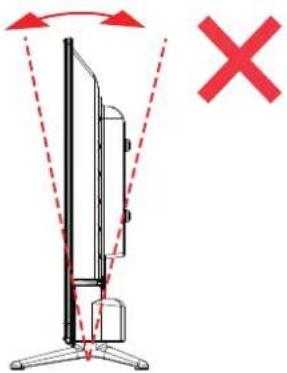
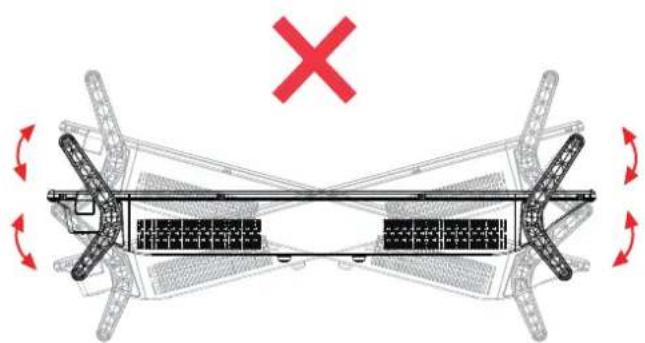
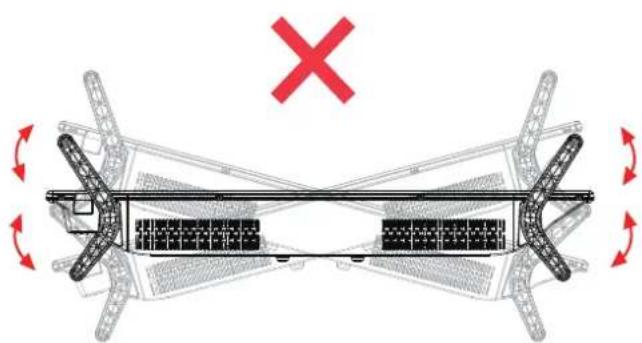
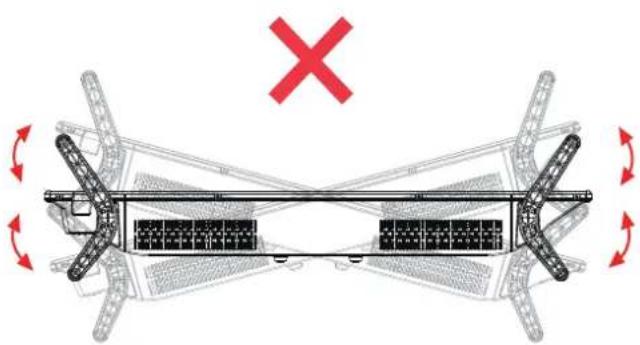
a. It can not be tilted to the front or back as shown below. Doing so may damage the stand.
natural_image
Diagram of a vertical TV with red X and dashed arrows indicating rotation direction (no text or symbols)b. It can not be tilted to the left or right as shown below. Doing so may damage the stand.
natural_image
Diagram of a mechanical or structural assembly with directional arrows and a red 'X' symbol, no readable text or labels present.ALL RIGHTS RESERVED, COPYRIGHT DENVER ELECTRONICS A/S
DENVER®
www.denver-electronics.com
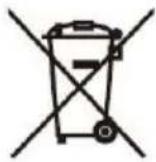
Electric and electronic equipment and included batteries contains materials, components and substances that can be hazardous to your health and the environment, if the waste material (discarded electric and electronic equipment and batteries) is not handled correctly.
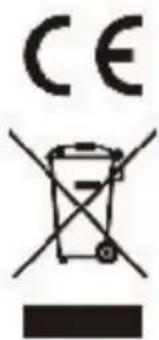
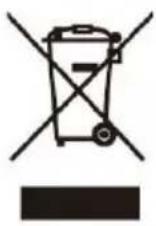
Electric and electronic equipment and batteries is marked with the crossed out trash can symbol, seen below. This symbol signifies that electric and electronic equipment and batteries should not be disposed of with other household waste, but should be disposed of separately.
As the end user it is important that you submit your used batteries to the appropriate and designated facility. In this manner you make sure that the batteries are recycled in accordance with legislature and will not harm the environment.
All cities have established collection points, where electric and electronic equipment and batteries can either be submitted free of charge at recycling stations and other collection sites, or be collected from the households. Additional information is available at the technical department of your city.
Please enter: www.denver-electronics.com and then click the search ICON on topline of website. Write modelnumber:LDS-3272 or LDS-4074.
Now enter product page, and red directive is found under downloads/other downloads.
Operating Frequency Range: 177.5MHz \~ 858MHz
Max Output Power: 55W
DENVER ELECTRONICS A/S
Omega 5A, Soeften
DK-8382 Hinnerup
Denmark
www.facebook.com/denverelectronics
Sicherheitshinweise
natural_image
Simple line drawing of a blank rectangular frame with a downward arrow and a small icon at the bottom (no text or symbols)natural_image
Technical line drawing of a mechanical or electrical enclosure with internal components and mounting feet (no text or symbols)LAN (RJ45)
VGA HDMI1 HDMI2 SCART PC AUDIO
natural_image
Empty white rectangle with black border (no text or symbols)Fernseher
natural_image
Simple diagram showing a blank monitor with two small accessories below and a red upward arrow (no text or symbols)
natural_image
Technical line drawing of a mechanical assembly with supports and internal components (no text or symbols)Vom (länger)
Hinten
natural_image
Technical line drawing of a rectangular structural component with supports and internal compartments (no text or symbols)
natural_image
Diagram of a vehicle interior with directional arrows and a red 'X' symbol, no readable text or labels present.denver-electronics.com
SERVICEKARTE
natural_image
Simple line drawing of a blank rectangular frame with a downward arrow at the bottom (no text or symbols)natural_image
Technical line drawing of a mechanical or electrical enclosure with internal components and mounting feet (no text or symbols)LAN (RJ45)
VGA HDMI1 HDMI2 SCART PC AUDIO
natural_image
Empty white rectangle with black border (no text or symbols)TV Fod
natural_image
Simple diagram showing a blank monitor with two small devices at the base, one with a red upward arrow (no text or symbols)
natural_image
Technical line drawing of a mechanical assembly with mounting flanges and internal compartments (no text or symbols)Forside (bredere)
Bagside
natural_image
Technical line drawing of a mechanical or structural component with two arms and internal compartments (no text or symbols)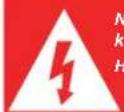
natural_image
Diagram of a mechanical or structural assembly with directional arrows and a red 'X' symbol, no readable text or labels present.ALLE RETTIGHEDER RESERVERET, COPYRIGHT DENVER ELECTRONICS A/S
DENVER®
www.denver-electronics.com
natural_image
Simple line drawing of a blank rectangular frame with a downward arrow at the bottom (no text or symbols)LED-indikator/fjärrkontrollfönster (blockera inte)
Model:LDS-3272

Model:LDS-4074
natural_image
Technical line drawing of a mechanical or electrical enclosure with internal components and mounting feet (no text or symbols)LAN
(RJ45)
VGA HDMI1 HDMI2 SCART PC AUDIO
natural_image
Empty white rectangle with black border (no text or symbols)TV-apparat Stativ
natural_image
Simple diagram showing a blank monitor with two small icons at the bottom, no text or symbols present.
natural_image
Technical line drawing of a mechanical assembly with no visible text or symbolsnatural_image
Technical line drawing of a mechanical assembly with two arms and internal components (no text or symbols)
natural_image
Diagram of a mechanical or structural assembly with directional arrows and a red 'X' symbol, no readable text or labels present.MED ENSAMRÄTT, UPPHOVSRÄTT DENVER ELECTRONICS A/S
DENVER®
www.denver-electronics.com

natural_image
Simple line drawing of a flat-screen monitor with a downward arrow pointing to the side (no text or symbols)natural_image
Technical line drawing of a rectangular electronic device with internal components and mounting feet (no text or symbols)LAN (RJ45)
VGA HDMI1 HDMI2 SCART PC AUDIO
Common Interface: Common Interface-sleuf.
natural_image
Empty white rectangle with black border (no text or symbols)Tv-toestel Steun
natural_image
Simple diagram showing a blank rectangular panel with two small icons below and a red upward arrow (no text or symbols)
natural_image
Technical line drawing of a mechanical assembly with mounting flanges and internal compartments (no text or symbols)Voorkant (langer)
natural_image
Technical line drawing of a mechanical assembly with two vertical supports and internal grid-like components (no text or symbols)
natural_image
Technical diagram of a mechanical assembly with directional arrows and a red X mark, no readable text or symbols present.ALLE RECHTEN VOORBEHOUDEN, AUTEURSRECHT DENVER ELECTRONICS A/S
DENVER®
www.denver-electronics.com
natural_image
Simple line drawing of a blank rectangular monitor with a downward arrow pointing to the side (no text or symbols)natural_image
Technical line drawing of a rectangular electronic device with internal components and mounting feet (no text or symbols)LAN (RJ45)
VGA HDMI1 HDMI2 SCART
natural_image
Empty white rectangle with black border (no text or symbols)Televisore Supporto
natural_image
Simple diagram showing a blank monitor with two small devices at the base, one with a red upward arrow (no text or symbols)
natural_image
Technical line drawing of a mechanical assembly with mounting flanges and internal compartments (no text or symbols)natural_image
Technical line drawing of a mechanical or structural component with two arms and internal compartments (no text or symbols)
natural_image
Technical diagram of a mechanical assembly with directional arrows and a red X mark, no readable text or symbols present.TUTTI I DIRITTI RISERVATI, COPYRIGHT DENVER ELECTRONICS A/S
DENVER®
www.denver-electronics.com
natural_image
Simple line drawing of a blank rectangular monitor with a downward arrow pointing to the side (no text or symbols)natural_image
Technical line drawing of a rectangular electronic device with internal components and mounting feet (no text or symbols)LAN (RJ45)
VGA HDMI1 HDMI2 AUDIO
SCART
natural_image
Empty white rectangle with black border (no text or symbols)TV Soporte
natural_image
Simple diagram showing a blank rectangular panel with two small icons below and a red upward arrow (no text or symbols)
natural_image
Technical line drawing of a mechanical assembly with no visible text or symbolsFrontal (más largo)
natural_image
Technical line drawing of a rectangular structure with two side supports and internal compartments (no text or symbols)
natural_image
Diagram of a mechanical or structural assembly with directional arrows and a red 'X' symbol, no readable text or labels present.TODOS LOS DERECHOS RESERVADOS, COPYRIGHT DENVER ELECTRONICS A/S
DENVER®
www.denver-electronics.com
natural_image
Simple line drawing of a flat-screen monitor with a downward arrow pointing to the side (no text or symbols)natural_image
Technical line drawing of a rectangular electronic device with internal components and mounting feet (no text or symbols)
natural_image
Empty white rectangle with black border (no text or symbols)Télévision Support
natural_image
Simple diagram showing a blank monitor with two small devices below and a red upward arrow (no text or symbols)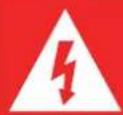
natural_image
Technical line drawing of a mechanical assembly with two vertical supports and internal compartments (no text or symbols)Avant (plus long)
natural_image
Technical line drawing of a mechanical or structural component with two arms and internal compartments (no text or symbols)
natural_image
Diagram of a mechanical or structural assembly with directional arrows and a red 'X' symbol (no text or labels present)TOUS DROITS RÉSERVÉS, COPYRIGHT DENVER ELECTRONICS A/S
DENVER®
www.denver-electronics.com


- HD SMART TV with DVB-T2/S2/DVB-C and H.265/HEVC Support
- Keep these instructions
- Smell/odor from TV
- Front View
- The functions of the TV buttons are described below.
- Installation of TV channels
- Streaming
- Network Settings
- The parts needed for installing the stand (supplied)
- How to install the Stand?
- Warnings.
- DENVER®
- Sicherheitshinweise
- SERVICEKARTE
- MED ENSAMRÄTT, UPPHOVSRÄTT DENVER ELECTRONICS A/S
- ALLE RECHTEN VOORBEHOUDEN, AUTEURSRECHT DENVER ELECTRONICS A/S
- TUTTI I DIRITTI RISERVATI, COPYRIGHT DENVER ELECTRONICS A/S
- TODOS LOS DERECHOS RESERVADOS, COPYRIGHT DENVER ELECTRONICS A/S
- TOUS DROITS RÉSERVÉS, COPYRIGHT DENVER ELECTRONICS A/S
Brand : DENVER
Model : LDS4074
Category : Television