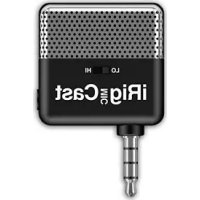
Mic Cast - Microphone IK Multimedia - Free user manual and instructions
Find the device manual for free Mic Cast IK Multimedia in PDF.



| Product Type | Directional microphone for mobile devices |
| Brand | IK Multimedia |
| Model | Mic Cast (iRig Mic Cast) |
| Connectivity | 3.5 mm jack (TRRS) for smartphone/tablet |
| Sensitivity | LO switch (speak close or loud) / HI (speak softly or at distance) |
| Headphone output | 3.5 mm stereo mini-jack for headphones or powered speakers |
| Directionality | Unidirectional (sensitive side towards logo) |
| Power supply | CR2032 battery (included) or power via headphone jack |
| Included accessories | iRig Mic Cast microphone, adjustable table stand for smartphone |
| Recommended apps | iRig Recorder, VocaLive (real-time monitoring) |
| Compatibility | iOS and Android (with headphone jack) |
| Dimensions (microphone) | Approx. 120 x 20 x 20 mm |
| Weight (microphone) | Approx. 30 g |
| Capsule type | Electret condenser |
| Frequency response | 50 Hz – 15 kHz (estimated) |
| Maintenance | Clean with a soft, dry cloth. Do not use chemicals. |
| Safety | Do not expose to water or extreme temperatures. Keep out of reach of children. |
| Warranty | Register at www.ikmultimedia.com/registration to activate warranty |
| Repairability | No user-serviceable parts. Contact IK Multimedia customer service. |
Frequently Asked Questions - Mic Cast IK Multimedia
User questions about Mic Cast IK Multimedia
0 question about this device. Answer the ones you know or ask your own.
Ask a new question about this device
Download the instructions for your Microphone in PDF format for free! Find your manual Mic Cast - IK Multimedia and take your electronic device back in hand. On this page are published all the documents necessary for the use of your device. Mic Cast by IK Multimedia.
USER MANUAL Mic Cast IK Multimedia
Register your iRig Mic Cast 4
Installation and setup 5
Using iRig Mic Cast 7
Troubleshooting 8
Warranty 8
Support and more info 8
Français
iRig Mic Cast 9
Thank you for purchasing iRig Mic Cast.
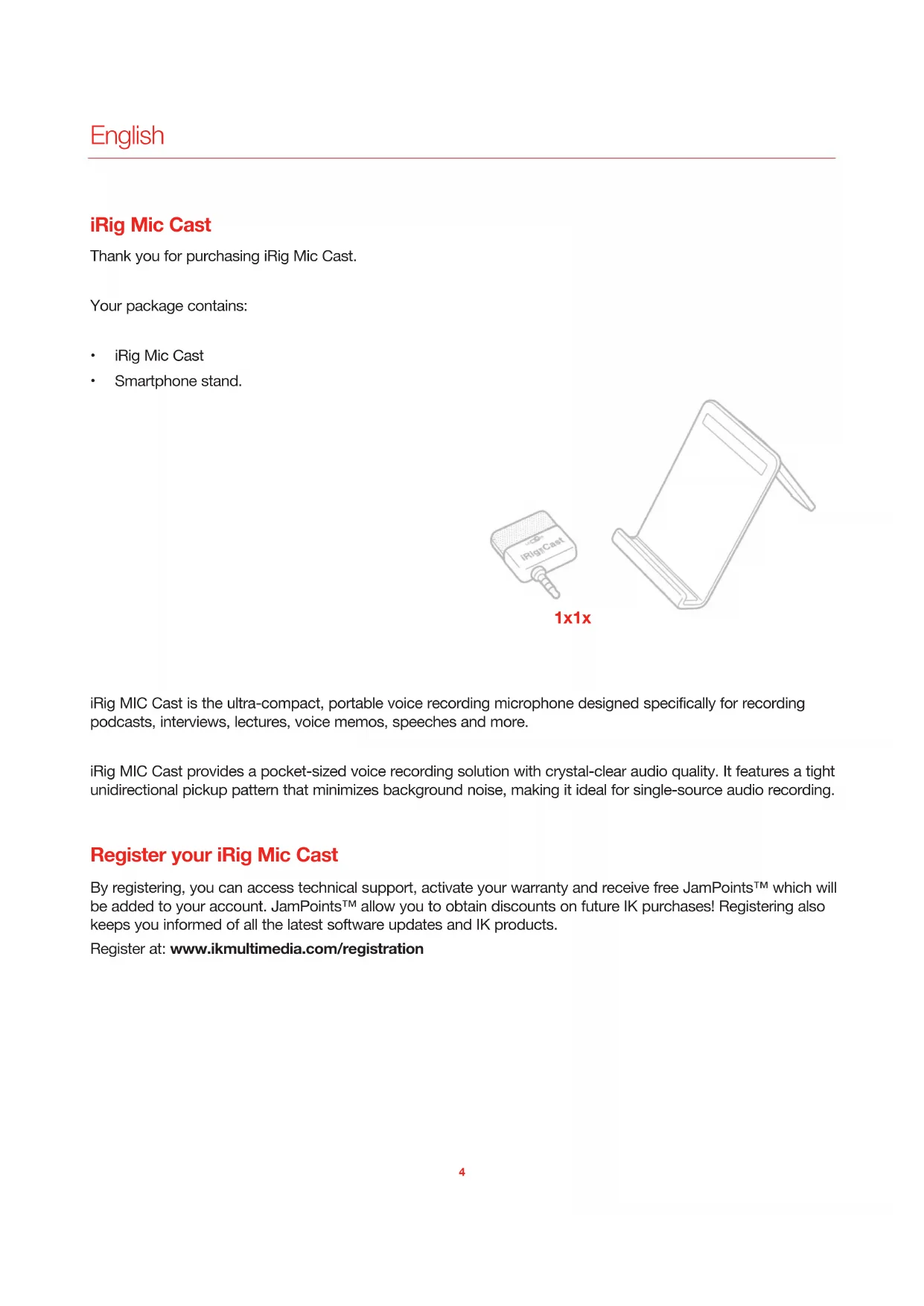
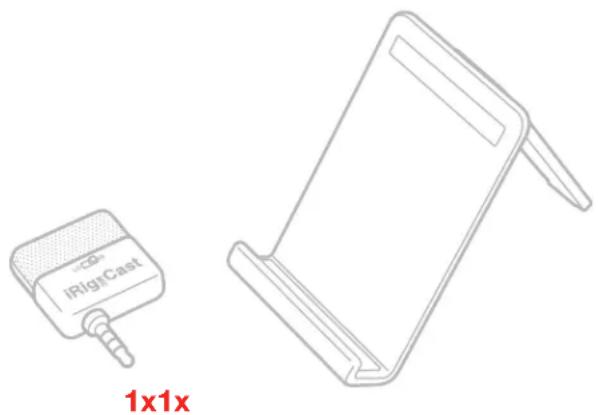
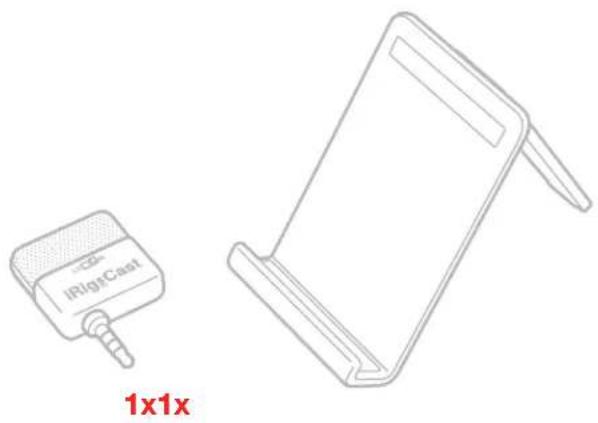
Your package contains:
iRig Mic Cast
- Smartphone stand.
iRig MIC Cast is the ultra-compact, portable voice recording microphone designed specifically for recording podcasts, interviews, lectures, voice memos, speeches and more.
iRig MIC Cast provides a pocket-sized voice recording solution with crystal-clear audio quality. It features a tight unidirectional pickup pattern that minimizes background noise, making it ideal for single-source audio recording.
Register your iRig Mic Cast
By registering, you can access technical support, activate your warranty and receive free JamPoints™ which will be added to your account. JamPoints™ allow you to obtain discounts on future IK purchases! Registering also keeps you informed of all the latest software updates and IK products.
Register at: www.ikmultimedia.com/registration
Installation and setup
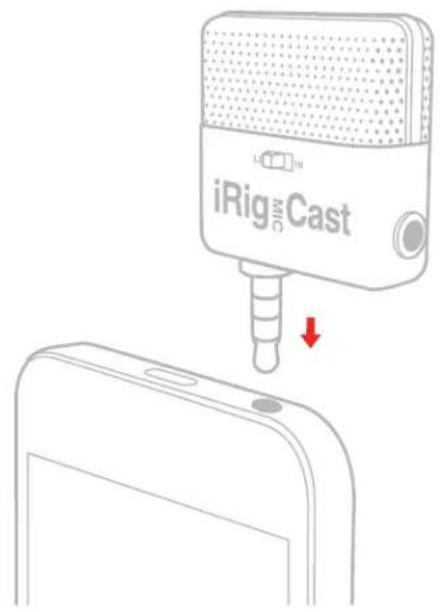
- Plug iRig MIC Cast into the headphone mini-jack on your mobile device. When iRig MIC Cast is plugged in, the mobile device will automatically use it as the audio source for all applications.
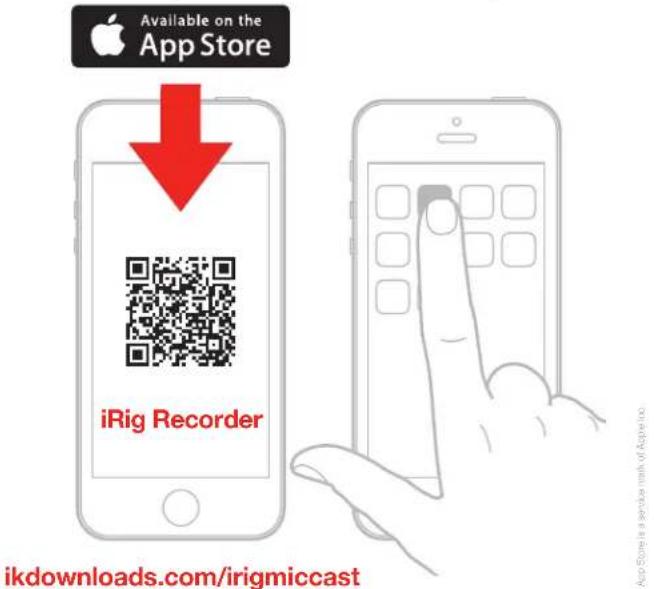
- Download iRig Recorder, VocaLive or any other audio recording or processing app.
- Set the switch to LO if you're talking very close to the microphone (within 1'/30cm ) or very loudly. Set it to HI if you're talking quietly or you are more than 1'/30cm away from the microphone.
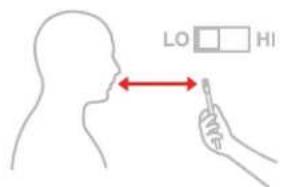
<30cm/1inch
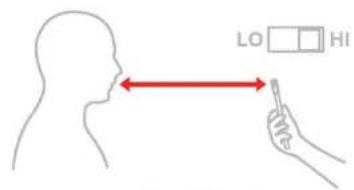
30cm/1inch
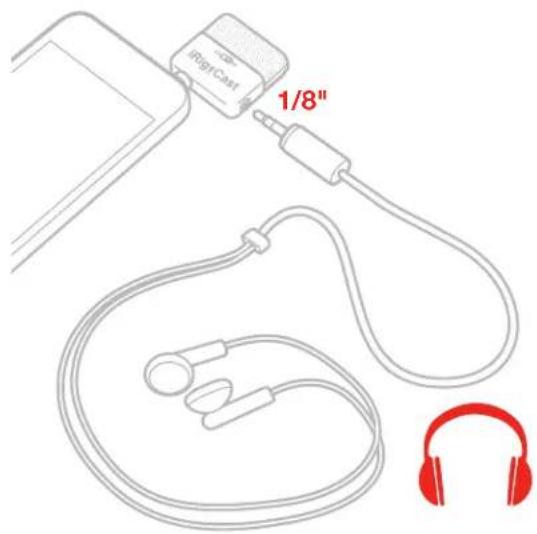
- Connect your headphones or powered speakers to the mini-jack on the right of the iRig MIC Cast.
Using iRig Mic Cast
The iRig MIC Cast picks up the sound from the front of the microphone which has the "iRig MIC Cast" logo.
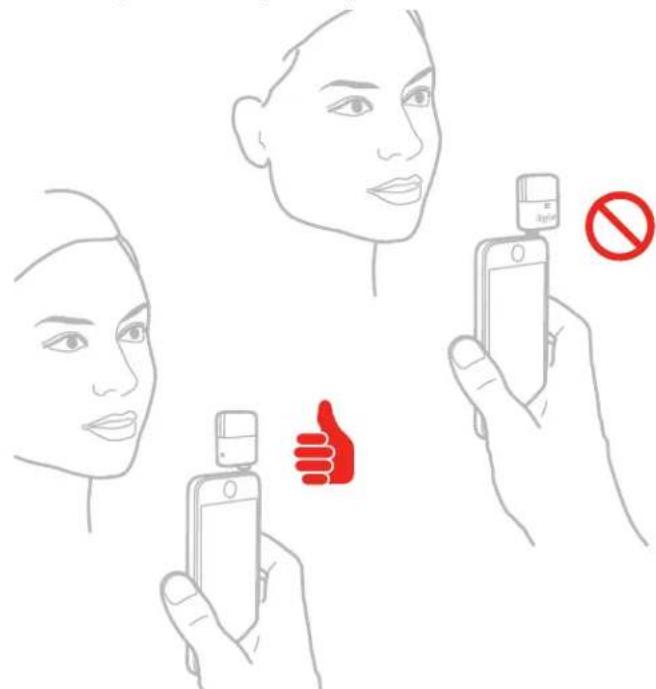
Always point the microphone directly toward the sound source for the best result. The microphone can be rotated if needed.
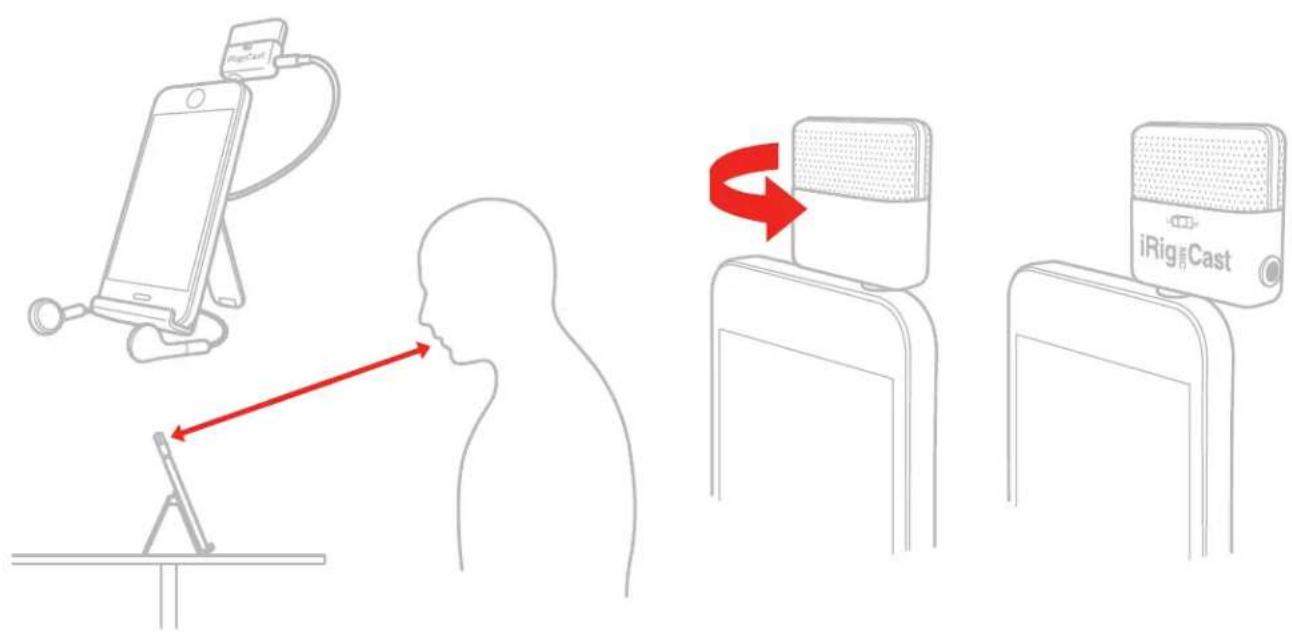
- Never use a MONO mini-jack to connect to the iRig MIC Cast headphone output; Always use a STEREO mini-jack.
- The iRig MIC Cast headphone output duplicates the mobile device output. To hear your recording from this output, you must use an app that supports real-time audio pass-through such as the IK Multimedia iRig Recorder or VocalLive apps.
- iRig MIC Cast comes with an adjustable table stand that will conveniently hold your mobile device in place when recording a podcast. Adjust its rear leg for optimal orientation of the iRig MIC Cast and front camera (if you're using it).
If you're using a mobile device whose headphone mini-jack is located at the bottom, you need to position it upside down on the stand to allow iRig MIC Cast to be plugged in. - Remember that both iRig MIC Cast and the adjustable table support are precision devices that must be handled with care during use.
Troubleshooting
My recording is too quiet.
Set the sensitivity switch from LO to HI on the front of the microphone.
My recording is distorted.
Set the sensitivity switch from HI to LO on the front of the microphone.
I can't hear anything from the headphone output.
Check that the app you're using allows for audio-through from input to output.
The recording appears distant or unfocused.
The microphone is directional; so make sure that the front faceplate of the microphone is pointed directly at your recording source.
Warranty
Please visit:
www.ikmultimedia.com/warranty
for the complete warranty policy.
Support and more info
www.ikmultimedia.com/support
iRig Mic Cast
www.ikmultimedia.com/support
iRig Mic Cast
www.ikmultimedia.com/support
iRig Mic Cast
www.ikmultimedia.com/support
iRig Mic Cast
www.ikmultimedia.com/support
iRig Mic Cast
同构物を確認かわくさい。:
www.ikmultimedia.com/support
iRig Mic Cast
包装盒内有:
iRig MIC Cast
- 智能手机底座
在线注册
www.ikmultimedia.com/support
is a trademark of Google Inc..
P.N:STG-IRIGMICCAST-0002
2015/02/24

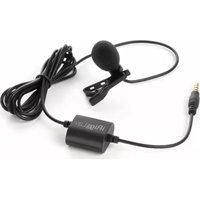

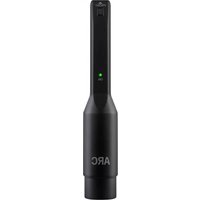
Brand : IK Multimedia
Model : Mic Cast
Category : Microphone