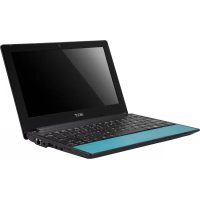
Aspire One AOD260 - Laptop ACER - Free user manual and instructions
Find the device manual for free Aspire One AOD260 ACER in PDF.



| Product type | Laptop (netbook) |
| Brand | Acer |
| Model | Aspire One AOD260 |
| Approximate dimensions | 260 x 180 x 25 mm |
| Approximate weight | 1.1 kg |
| Display | 10.1-inch LCD display |
| Processor | Intel Atom (depending on configuration) |
| RAM | 1 GB (depending on configuration) |
| Hard drive | 160 GB or 250 GB (depending on configuration) |
| Power supply | 19 V AC adapter, integrated lithium-ion battery (removable) |
| Battery life | Approximately 3 to 4 hours depending on usage |
| Connectivity | Wi-Fi 802.11 b/g, Ethernet 10/100, Bluetooth (depending on model) |
| Ports | 2 x USB 2.0, 1 x VGA, 1 x RJ-45, 1 x audio/headphone jack, 1 x microphone input, SD/MMC card reader |
| Webcam | Integrated Acer Crystal Eye webcam |
| Keyboard | Chiclet keyboard with special function keys |
| Touchpad | Touchpad with left and right buttons |
| Speakers | Built-in stereo speaker |
| Maintenance and cleaning | Do not block ventilation slots; clean with a soft dry cloth |
| Security | Kensington lock slot; numeric lock and scroll lock indicators |
| Spare parts and repairability | Removable battery, 3G SIM card access (depending on model), Kensington lock |
| Operating temperature | 5°C to 35°C |
| Operating humidity | 20% to 80% (non-condensing) |
Frequently Asked Questions - Aspire One AOD260 ACER
User questions about Aspire One AOD260 ACER
0 question about this device. Answer the ones you know or ask your own.
Ask a new question about this device
Download the instructions for your Laptop in PDF format for free! Find your manual Aspire One AOD260 - ACER and take your electronic device back in hand. On this page are published all the documents necessary for the use of your device. Aspire One AOD260 by ACER.
USER MANUAL Aspire One AOD260 ACER
© 2010 All Rights Reserved.
Aspire One Series Quick Guide
Original Issue: 11/2010
Aspire One Series Notebook PC
Model number: ____
Serial number: ____
Date of purchase: ____
Place of purchase: ____
First things first
We would like to thank you for making an Acer notebook your choice for meeting your mobile computing needs.
Your guides
To help you use your Acer notebook, we have designed a set of guides:
First off, the setup poster helps you get started with setting up your computer.
The Aspire One Series Generic User Guide contains useful information applying to all models in the Aspire One product range. It covers basic topics such as Acer's eRecovery Management, using the keyboard, audio, etc. Please understand that due to its nature, the Generic User Guide as well as the AcerSystem User Guide will occasionally refer to functions or features which are only contained in certain models, but not necessarily in the model you have purchased. Such instances are marked in the text with language such as "only for certain models".
The Quick Guide introduces you to the basic features and functions of your new computer. For more on how your computer can help you to be more productive, please refer to the AcerSystem User Guide, which contains detailed information on such subjects as system utilities, data recovery, expansion options and troubleshooting. In addition it contains warranty information and the general regulations and safety notices for your notebook. It is available in Portable Document Format (PDF) and comes preloaded on your notebook. Follow these steps to access it:
1 Click on

Start > All Programs > AcerSystem.
2 Click on AcerSystem User Guide.

Note: Viewing the file requires Adobe Reader. If Adobe Reader is not installed on your computer, clicking on AcerSystem User Guide will run the Adobe Reader setup program first. Follow the instructions on the screen to complete the installation. For instructions on how to use Adobe Reader, access the Help and Support menu.
Your Acer notebook tour
After setting up your computer as illustrated in the setup poster, let us show you around your new Acer notebook.
Top view

# Icon Item Description
1 Microphone Internal microphone for sound recording.
2 Display screen Also called Liquid-Crystal Display (LCD), displays computer output (configuration may vary by model).
3 Power button Turns the computer on and off.

| # | Icon | Item | Description |
| 4 | Keyboard For entering data into your computer. | ||
| 5 | Touchpad | Touch-sensitive pointing device which functions like a computer mouse. | |
| 6 | Status indicators1 | Light-Emitting Diodes (LED) that light up to show the status of the computer's functions and components. | |
| 7 | Click buttons (left and right) | The left and right buttons function like the left and right mouse buttons. | |
| 8 | Palmrest Comfortable support area for your hands when you use the computer. | ||
| 9 | Acer Crystal Eye webcam | Web camera for video communication (configuration may vary by model). | |
- The front panel indicators are visible even when the computer cover is closed.
Hotkeys
The computer employs hotkeys or key combinations to access most of the computer's controls like screen brightness and volume output.
To activate hotkeys, press and hold the
| Hotkey Icon Function Description | |||
| + | C0  | Enables/disables the computer's communication devices. (Communication devices may vary by configuration.) | |
| + |  | Puts the computer in Sleep mode. | |
| + |  | Switches display output between the display screen, external monitor (if connected) and both. | |
| + |  | Turns the display screen backlight off to save power. Press any key to return. | |
| + |  | Turns the internal touchpad on and off. | |
| + |  | Turns the speakers on and off. | |
| + | Num Lock | When Num Lock is on, the embedded keypad is in numeric mode. The keys function as a calculator (complete with the arithmetic operators +, -, *, and /). Use this mode when you need to do a lot of numeric data entry. A better solution would be to connect an external keypad.+only for certain models. | |
| + | Scroll Lock | When Scroll Lock is on, the screen moves one line up or down when you press the up or down arrow keys respectively. Scroll Lock does not work with some applications. | |
| + |  | Brightness up Increases the screen brightness. | |
| + < |  | Brightness down Decreases the screen brightness. | |
| + < |  | Volume up Increases the sound volume (only for certain models). | |
| + < |  | Volume down Decreases the sound volume (only for certain models). | |
Using the communication key\*
Here you can enable and disable the various wireless connectivity devices on your computer.
Press
A red toggle indicates the device is off. Click On to enable wireless/Bluetooth connection. Click Off to disable connection.
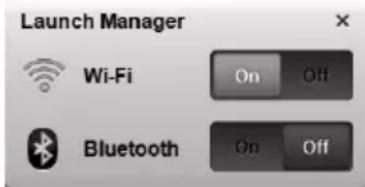
* Communication devices may vary by model.
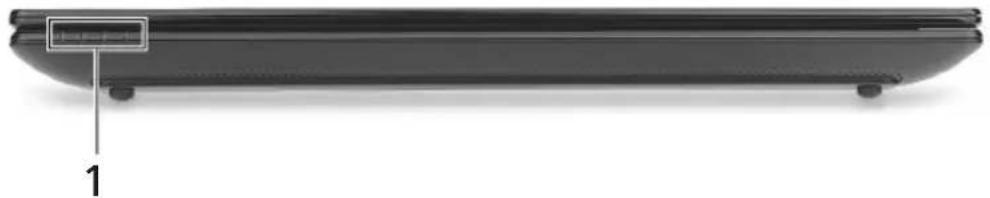
Closed front view
natural_image
Side view of a black laptop with a labeled component (1) on the side, no visible text or symbols on the device itself.# Icon Item Description
1 Power indicator Indicates the computer's power status.


Battery indicator Indicates the computer's battery status.
- Charging: The light shows amber when the battery is charging.
- Fully charged: The light shows blue when in AC mode.

HDD indicator Indicates when the hard disk drive is active.

Communication indicator Indicates the status of 3G/Wireless LAN communication
| Blue light on Orange light on Not It | ||
| 3G on / Wi-Fi on 3G on / Wi-Fi off | 3G off / Wi-Fi on | 3G off / Wi-Fi off |
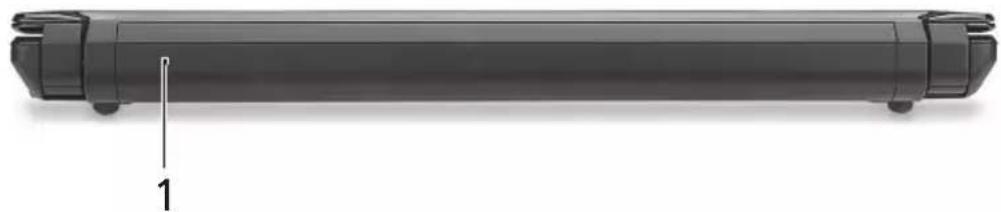
Rear view
natural_image
Side view of a black cylindrical object with a labeled dimension line (1) pointing to its left side, no text or symbols on the object itself.# Item Description
1 Battery bay Houses the computer's battery pack.

Note: Your computer may be equipped with a different battery to the one in the picture.
Left view

# Icon Item Description
1 DC-in-jack Connects to an AC adapter.

2 External display

(VGA) port
Connects to a display device (e.g., external monitor, LCD projector).
3 USB ports Connect to USB devices (e.g., USB mouse, USB camera).
Right view

# Icon Item Description
1

2-in-1 card reader
Accepts Secure Digital (SD) and MultiMediaCard (MMC).
Note: Push to remove/install the card. Only one card can operate at any given time.
2 Headphone/speaker/

line-out jack
Connects to audio line-out devices (e.g., speakers, headphones).

Microphone-in jack Accepts inputs from external microphones.

USB port
Connects to USB devices (e.g., USB mouse, USB camera).
4 Kensington lock slot Connects to a Kensington-compatible

computer security lock.
5

Ethernet (RJ-45) port
Connects to an Ethernet 10/100 based network.
Base view

# Icon Item Description
1 Ventilation slots and cooling fan
Enable the computer to stay cool, even after prolonged use.
Note: Do not cover or obstruct the opening of the fan.
2 Battery release latch Releases the battery for removal.

3 3G SIM card slot Accepts a 3G SIM card for 3G connectivity (only for certain models).
4 Battery bay Houses the computer's battery pack.
5 Battery lock Locks the battery in position.

6 Speaker Emits audio from your computer.
Environment
- Temperature:
- Operating: 5irc C to 35irc C
• Non-operating: -20 °C to 65 °C
• Humidity (non-condensing):
• Operating: 20% to 80%
• Non-operating: 20% to 80%
Gamme Aspire One
Guide rapide
natural_image
Side view of a black electronic device with labeled component '1' (no text or symbols on body)natural_image
Side view of a black cylindrical object with a labeled dimension line (1) pointing to its side, no text or symbols on the object itself.natural_image
Side view of a black electronic device with labeled component '1' (no text or symbols on body)natural_image
Side view of a black cylindrical object with a labeled dimension line (1) pointing to its side, no text or symbols on the object itself.natural_image
Laptop rear panel with a small inset showing a button labeled '1' (no text or symbols on the body)natural_image
Black cylindrical object with a labeled dimension line marked '1' (no other text or symbols)natural_image
Side view of a black laptop with a labeled component (1) on the side, showing no visible text or symbols beyond the label.natural_image
Side view of a black cylindrical object with a vertical line and label '1' pointing to its side (no text or symbols on the object itself)natural_image
Side view of a black laptop with a labeled component (1) on the side, showing no text or symbols on the body.natural_image
Black cylindrical object with a labeled dimension line marked '1' (no other text or symbols)# Item Descrição
natural_image
Front view of a black laptop with a labeled component (no visible text or symbols on the body)natural_image
Side view of a black cylindrical object with a labeled dimension line (1) pointing to its side, no text or symbols on the object itself.# Item Beschrijving
1 Batterijnis Bevat de batterij van de computer.

natural_image
Side view of a black laptop with a labeled component (no visible text or symbols on the device body)# Ikon Element Beskrivelse
1 Strømindikator Angir datamaskinens strømstatus.


Batteriindikator Angir datamaskinens batteristatus.
- Lading: Lampen lyser gult när batteriet lades.
- Helt oppladet: Lampen lyser blått i nettstrømmodus.

natural_image
Black cylindrical object with a vertical line and label '1' pointing to its side (no other text or symbols)# Element Beskrivelse
1 Batterirom Huser datamaskinens batterier.

# Ikon Element Beskrivelse
natural_image
Front view of a black laptop with a labeled component (no visible text or symbols on the body)# Ikon Emne Beskrivelse
1 Strømindikator Angiver computerens strømstatus.


Batteriindikator Angiver computerens batteristatus.
- Oplader: Lampen lyser gult, när batteriet oplader.
- Fuldt opladet: Lampen lyser blåt i AC-tilstand.

Harddiskindikator Angiver, at harddisken er aktiv.

Kommunikations-indikator Angiver status for den trådløse LAN/3G-kommunikation.
natural_image
Black cylindrical object with a labeled dimension line marked '1' (no other text or symbols)# Emne Beskrivelse
1 Batterirum Indeholder computerens batteri.

*Kommunikationsenheterna kan variera mellan olika modeller.
natural_image
Side view of a black laptop with a labeled component (1) on the side, showing no visible text or symbols beyond the label.natural_image
Side view of a black cylindrical device with a labeled dimension line (1) pointing to its side, shown in perspective view.natural_image
Side view of a black laptop with a labeled component (1) on the side, showing no visible text or symbols beyond the label.natural_image
Side view of a black cylindrical object with a labeled dimension line (1) pointing to its left side, no text or symbols on the body itself.# Osio Kuvaus
Kuvake Osio Kuvaus
natural_image
Side view of a black laptop with a labeled component (1) and no visible text or symbols on the body.natural_image
Side view of a black cylindrical object with a labeled dimension line (1) pointing to its left side, no text or symbols on the body itself.# Элемент Описание
natural_image
Black electronic device with a labeled component (1) and a small inset showing a waveform or signal, no text or symbols present.Ikona Element Opis
natural_image
Black cylindrical object with a labeled dimension line marked '1' (no other text or symbols)# Element Opis
Ikona Element Opis
natural_image
Side view of a black laptop with a labeled component (no visible text or symbols on the device body)Ikon Elem Leírás
natural_image
Black cylindrical object with a labeled dimension line marked '1' (no other text or symbols)# Elem Leírás
natural_image
Side view of a black laptop with a labeled component (no visible text or symbols on the device body)# Ikona Položka Popis
1

natural_image
Black cylindrical object with a labeled dimension line marked '1' (no other text or symbols)# Položka Popis
1
Pozice pro baterii
natural_image
Side view of a black laptop with a labeled component (1) on the side, showing no visible text or symbols beyond the label.Ikona Položka Popis
natural_image
Side view of a black cylindrical object with a labeled dimension line (1) pointing to its left side (no text or symbols on the object itself)Položka Popis
natural_image
Side view of a laptop with a labeled component (1) on the side, showing no visible text or symbols on the device itself.Ikona Predmet Opis
natural_image
Black cylindrical object with a labeled dimension line marked '1' (no other text or symbols)Predmet Opis
| 1 | Nosilec za baterijo | Hrani baterijo računalnika. |

Ikona Predmet Opis
* Komunikacijski uređaji razlikuju se obzirom na model.
natural_image
Laptop back view showing a black body and a small labeled component (no text or symbols on the body)# Ikona Stavka Opis
1

natural_image
Black cylindrical object with a labeled dimension line marked '1' (no other text or symbols)# Stavka Opis
Ikona Stavka Opis
| 1 Utori za provjetravanje i ventilator za hlađenje | Omogućavaju rashlađivanje računala i prilikom dugotrajne uporabe.Napomena: Nemojte prekriti ili prepriječiti otvor ventilatora. | |
2 Br  | za oslobađanje baterije | Oslobađa bateriju radi uklanjanja. |
| 3 | Utor za karticu 3G SIM | Prihvaća 3G SIM karticu za 3G povezivanje (samo za određene modele). |
| 4 Prostor za bateriju Sadrži baterijski komplet računala. | ||
5 Br  | paterije Zaključava bateriju u njen položaj. | |
| 6 | Zvučnik | Zvuk se emitira s vašeg računala. |
Okruženje
- Temperatura:
- Radna: 5irc C do 35irc C
• Pohrana: -20 °C do 65 °C
• Vlažnost (nekondenzirajuća):
• Radna: 20% do 80%
• Pohrana: 20% do 80%
Seria Aspire One
Ghid rapid
natural_image
Side view of a black laptop with a labeled component (1) on the side, showing no visible text or symbols beyond the label.natural_image
Black cylindrical object with a labeled dimension line marked '1' (no other text or symbols)Element Descriere
natural_image
Front view of a black electronic device with a labeled component (no visible text or symbols)natural_image
Side view of a black cylindrical object with a labeled dimension line (1) pointing to its left side, no text or symbols on the body itself.# Обект Описание
natural_image
Side view of a black laptop with a labeled component (1) on the side, showing no visible text or symbols beyond the label.natural_image
Side view of a black cylindrical object with a labeled dimension line (1) pointing to its left side, no text or symbols on the body itself.# Objekt Kirjeldus
natural_image
Front view of a laptop computer with a labeled component (no visible text or symbols on the device body)natural_image
Exterior view of a cylindrical mechanical component with a labeled dimension line (1) pointing to its side (no other text or symbols)natural_image
Side view of a black laptop with a labeled component (1) on the side, showing no visible text or symbols beyond the label.natural_image
Black cylindrical object with a vertical line and label '1' pointing to its side (no other text or symbols)# Öğe Açıklama
1 Pil bölmesi
Simge Öğe Açıklama
© 2010 All Rights Reserved.
natural_image
Side view of a black laptop with a labeled component (no text or symbols on the body)アイコン アイテム 説明
natural_image
Black cylindrical object with a labeled dimension line marked '1' (no other text or symbols)アイテム 説明
© 2010 All Rights Reserved.
natural_image
Laptop keyboard with a labeled component (no text or symbols on the body)natural_image
Side view of a black cylindrical object with a vertical line and label '1' pointing to its side (no other text or symbols)* 通訊裝置將依機型而有所不同。
上蓋闔起的前視圖

natural_image
Side view of a laptop with a labeled component (1) and a small inset showing a waveform or signal, no text or symbols on the body.# 圖示 項目 說明
1

電源指示燈 表示電腦的電源狀態。

電池指示燈 表示電腦的電池狀態。
natural_image
Side view of a cylindrical mechanical component with a labeled dimension line (1), no text or symbols on the body itself.# 項目 說明
1 電池槽 用於安裝電腦的電池組。

* 通信设备根据型号可能有所不同。
前视图

natural_image
Side view of a black laptop with a labeled component (1) on the side, showing no visible text or symbols beyond the label.# 图标 项目 描述
1

电源指示灯 表示计算机的电源状态。

natural_image
Side view of a cylindrical mechanical component with a labeled dimension line (1) pointing to its side (no text or symbols on the object itself)# 项目 描述
1 电池槽 安装电池组。

natural_image
Back view of a black electronic device with attached ports and connectors (no visible text or symbols)21345
图标 项目 描述
natural_image
Side view of a black laptop with a labeled component (no visible text or symbols on the device body)# Ikon Item Keterangan
1 Indikator daya Menunjukkan status daya komputer.


Indikator baterai Menunjukkan status baterai komputer.
- Mengisi daya: Lampu akan menyala kuning kecokelatan bila daya baterai sedang diisi.
- Daya terisi penuh: Lampu menyala biru bila dalam mode AC.

Indikator HDD Menunjukkan bila drive hard disk aktif.

natural_image
Black cylindrical object with a labeled dimension line marked '1' (no other text or symbols)# Item Keterangan
1 Tempat baterai Tempat kemasan baterai komputer.

natural_image
Laptop keyboard with a labeled component (no text or symbols on the device body)natural_image
Black cylindrical object with a labeled dimension line marked '1' (no other text or symbols)# รายการ คำอธิบาย
1 ของใสแบตเตอรี
- First things first
- Your guides
- Your Acer notebook tour
- Top view
- # Icon Item Description
- Hotkeys
- Using the communication key\*
- Closed front view
- Rear view
- # Item Description
- Left view
- Right view
- Environment
- Gamme Aspire One
- # Item Descrição
- # Item Beschrijving
- # Ikon Element Beskrivelse
- # Element Beskrivelse
- # Ikon Emne Beskrivelse
- # Emne Beskrivelse
- # Osio Kuvaus
- Kuvake Osio Kuvaus
- # Элемент Описание
- Ikona Element Opis
- # Element Opis
- Ikon Elem Leírás
- # Elem Leírás
- # Ikona Položka Popis
- # Položka Popis
- Ikona Položka Popis
- Položka Popis
- Ikona Predmet Opis
- Predmet Opis
- # Ikona Stavka Opis
- # Stavka Opis
- Ikona Stavka Opis
- Okruženje
- Seria Aspire One
- Element Descriere
- # Обект Описание
- # Objekt Kirjeldus
- # Öğe Açıklama
- Simge Öğe Açıklama
- アイコン アイテム 説明
- アイテム 説明
- 上蓋闔起的前視圖
- # 圖示 項目 說明
- # 項目 說明
- 前视图
- # 图标 项目 描述
- # 项目 描述
- 图标 项目 描述
- # Ikon Item Keterangan
- # Item Keterangan
Brand : ACER
Model : Aspire One AOD260
Category : Laptop