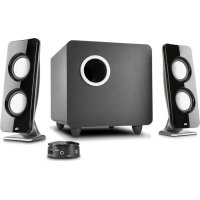
CA3610 - Loudspeaker Cyber Acoustics - Free user manual and instructions
Find the device manual for free CA3610 Cyber Acoustics in PDF.


| Product Type | 2.1 Speaker System (2 satellites + subwoofer) |
| Brand | Cyber Acoustics |
| Model | CA3610 |
| Power Supply | AC 120V power adapter (included) |
| Connectivity | 3.5mm audio input (green), 3.5mm headphone jack, 3.5mm auxiliary input |
| Controls | Main volume, bass, power on/off, headphone jack, auxiliary input on control pod |
| Number of Satellite Speakers | 2 |
| Subwoofer | Yes, with port tuning |
| Features | Bass control, headphone output (auto-mutes speakers), priority auxiliary input |
| Maintenance | Clean with dry cloth only |
| Safety | Class II double insulation, do not open, avoid water and humidity, do not block ventilation openings |
| Spare Parts | Power adapter included, audio cables included |
| Repairability | No user-serviceable parts, contact qualified service |
| Usage | Computers, smartphones, MP3/DVD players, game consoles (RCA Y-adapter not included) |
| Recommended Placement | Subwoofer on floor near a wall, satellites on either side of audio source |
Frequently Asked Questions - CA3610 Cyber Acoustics
User questions about CA3610 Cyber Acoustics
0 question about this device. Answer the ones you know or ask your own.
Ask a new question about this device
Download the instructions for your Loudspeaker in PDF format for free! Find your manual CA3610 - Cyber Acoustics and take your electronic device back in hand. On this page are published all the documents necessary for the use of your device. CA3610 by Cyber Acoustics.
USER MANUAL CA3610 Cyber Acoustics
natural_image
Three black audio/video speakers with speaker blocks and a small control unit (no visible text or symbols)CA-3610 Owner's Guide
Powered Speaker System with Control Pod
Thank you!
Merci!
¡Gracias!
Getting Started
Pour commencer
Inicio
natural_image
Illustration of a box with an open lid, next to three speakers and a closed book (no text or symbols)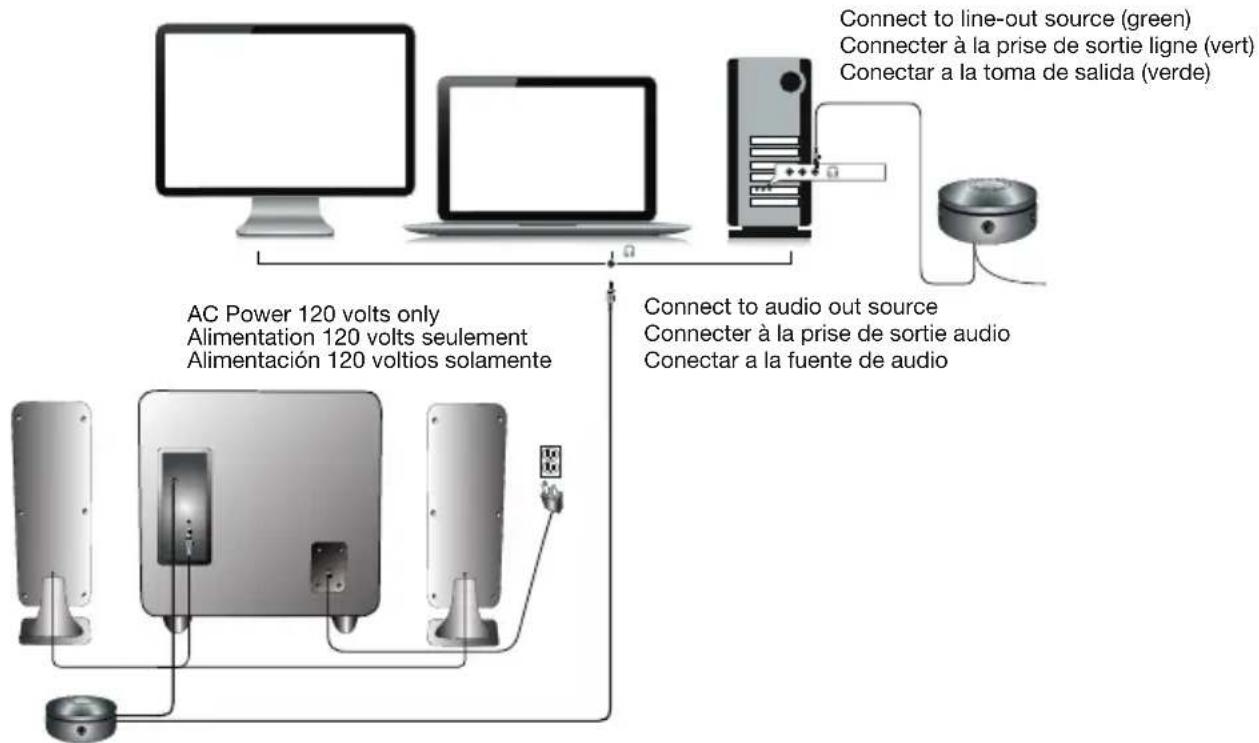
Aux cable not included
Câble auxiliaire non fourni
TO PREVENT FIRE OR SHOCK HAZARD, DO NOT USE THE PLUG WITH AN EXTENSION CORD, RECEPTACLE OR OTHER OUTLET UNLESS THE BLADES CAN BE FULLY INSERTED TO PREVENT BLADE EXPOSURE. TO REDUCE THE RISK OF FIRE OR ELECTRIC SHOCK, DO NOT EXPOSE THIS APPLIANCE TO RAIN OR MOISTURE. TO PREVENT ELECTRICAL SHOCK, MATCH WIDE BLADE PLUG TO WIDE SLOT, FULLY INSERT.
natural_image
Black triangular warning symbol with white lightning bolt symbol (no text)The lightning flash with arrowhead symbol, within an equilateral triangle, is intended to alert the user to the presence of uninsulated "dangerous voltage" within the product's enclosure that may be of sufficient magnitude to constitute a risk of electric shock to persons.
CAUTION
RISK OF ELECTRIC SHOCK DO NOT OPEN
WARNING: TO REDUCE THE RISK OF ELECTRIC SHOCK, DO NOT REMOVE COVER (OR BACK). NO USER SERVICEABLE PARTS INSIDE. REFER SERVICING TO QUALIFIED SERVICE PERSONNEL.

natural_image
Black triangular warning symbol with exclamation mark (no text or numbers)The exclamation point within an equilateral triangle is Intended to alert the user to the presence of important operating and maintenance (servicing) instructions in the literature accompanying the appliance.
See the bottom of the set
IMPORTANT SAFETY INSTRUCTIONS
-
Read these instructions - All the safety and operating instructions should be read before this product is operated.
-
Keep these instructions - The safety and operating instructions should be retained for future reference.
-
Heed all warnings - All warnings on the appliance and in the operating instructions should be adhered to.
-
Follow all instructions All operating and use instructions should be followed.
-
Do not use this apparatus near water. The appliance should not be used near water or moisture for example, in a wet basement or near a swimming pool, and the like.
-
Clean only with dry cloth.
-
Do not block any ventilation openings. Install in accordance with the manufacture's instructions.
-
Do not install near any heat sources such as radiators, heat registers, stoves, or other apparatus (including amplifiers) that produce heat.
-
Do not defeat the safety purpose of the polarized or grounding plug. A polarized plug has two blades with one wider than the other. A grounding plug has two blades and a third grounding prong. The wide blade or the third prong is provided for your safety. If the provided plug does not fit into your outlet, consult an electrician for replacement of the obsolete outlet.
-
Protect the power cord from being walked on or pinched particularly at the plugs, convenience receptacles, and at the point where they exit from the apparatus.
-
Only use attachments/accessories specified by the manufacturer.
-
Use only with the cart, stand, tripod, bracket, or table specified by the manufacturer, or sold with the apparatus. When a cart or rack is used, use caution when moving the cart/apparatus combination to avoid injury from tip-over.

natural_image
Symbolic illustration of a person climbing a ladder inside a circle with a 'over' label (no text or symbols on the diagram itself)-
Unplug the apparatus during lightning storms or when unused for long periods of time.
-
Refer all servicing to qualified personnel. Servicing is required when the apparatus has been damaged in any way, such as power supply cord or plug is damaged, liquid has been spilled or objects have fallen into the apparatus has been exposed to rain or moisture, does not operate normally, or has been dropped.
-
Please keep the unit in a good ventilation environment.
-
CAUTION: These servicing instructions are for use by qualified service personnel only. To reduce the risk of electric shock, do not perform any servicing other than that contained in the operating instructions unless you are qualified to do so.
-
WARNING: Please refer the information on exterior bottom enclosure for electrical and safety information before installing or operating the apparatus.
-
WARNING: To reduce the risk of fire or electric shock, do not expose this apparatus to rain or moisture. The apparatus shall not be exposed to dripping or splashing and that no objects filled with liquids, such as vases, shall not be placed on apparatus.
-
WARNING: The mains plug is used as disconnect device, the disconnect device shall remain readily operable.
-
This is CLASS II apparatus with double insulation, and no protective earth Provided.
-
Correct Disposal of this product. This marking indicates that this product should not be disposed with other household wastes throughout the EU. To prevent possible harm to the environment or human health from uncontrolled waste disposal, recycle it responsibly to promote the sustainable reuse of material resources. To return your used device, please use the return and collection systems or contact the retailer where the product was purchased. They can take this product for environmental safe recycling.
-
Do not install this equipment in a confined space such as a book case or similar unit. The ventilation should not be impeded by covering the ventilation openings with items such as newspaper, table-cloths, curtains etc.
-
No naked flame sources, such as lighted candles, should be placed on the apparatus.
-
Attention should be drawn to environmental aspects of battery disposal.
-
Use of the apparatus in moderate climates.
AVERTISSEMENT
NE JAMAIS UTILISER UN CÂBLE DE RALLONGE, OU UNE PRISE OU AUTRES RACCORDS QUI EMPÊCHENT LE BRANCHEMENT COMPLET DE LA FICHE AFIN D'ÉVITER TOUT RISQUE DE FEU OU CHOC DANGEREUX. NE JAMAIS LAISSER CET APPAREIL SOUS LA PLUIE OU L'HUMIDITÉ POUR ÉVITER TOUT DANGER DE FEU OU CHOC ÉLECTRIQUE, LA FICHE DOIT TOUJOURS ÊTRE BRANCHÉE COMPLÈTEMENT SUR UNE PRISE LUI CONVENANT.
natural_image
Black triangular warning symbol with a lightning bolt inside, indicating electrical hazard (no text)natural_image
Black triangular warning symbol with exclamation mark (no text or numbers)natural_image
Symbolic icon of a person pushing a box under a diagonal line, enclosed in a circle (no text or symbols)A Three-Piece Powered Speaker System
Introduction
This speaker system is designed to deliver superior audio performance to computers, smartphones, iPod®, MP3 players, DVD players, and other portable audio devices. The system offers high efficient, long excursion drivers combined with a low distortion, high powered amplifier that provides deep bass with clarity and a greater dynamic audio range.
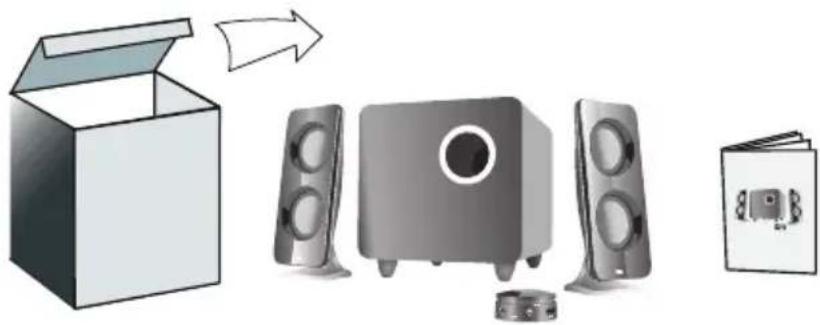
Box Contents
- 2 x satellite speakers
- Subwoofer
- Control pod
- Owner's guide with connection diagram
Caution
- Do not plug the power supply in until all connections are made.
- Use only the AC power cable supplied with these speakers.
- Keep speakers away from sources of extreme heat, such as stereo amplifiers, space heaters, stoves, and heat vents.
- Use a dry cloth for cleaning. Do not wipe any part of the system with cleaning solvents, such as furniture wax, bleach, benzene, acetone, or ammonia.
Speaker Preparation
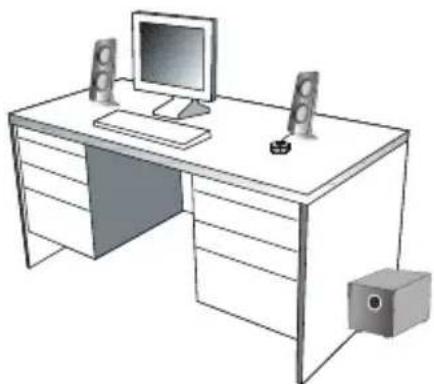
- Subwoofer—place on the floor near a wall or corner, for optimum performance. Adjust distance from the corner or wall to affect quality of bass performance as desired. Direct open port toward wall to increase bass punch.
- Satellite Speakers—For best stereo separation, place on opposite sides of the listening device, computer, or TV screen (as far apart as possible is usually best). For example, if you are listening to the speakers using a laptop on a desk, place the left satellite speaker on the far left corner of the desk, and the right satellite speaker on the far right corner of the desk.
natural_image
Line drawing of a desktop computer setup with monitor, speakers, and audio unit (no text or symbols)Speaker Connection
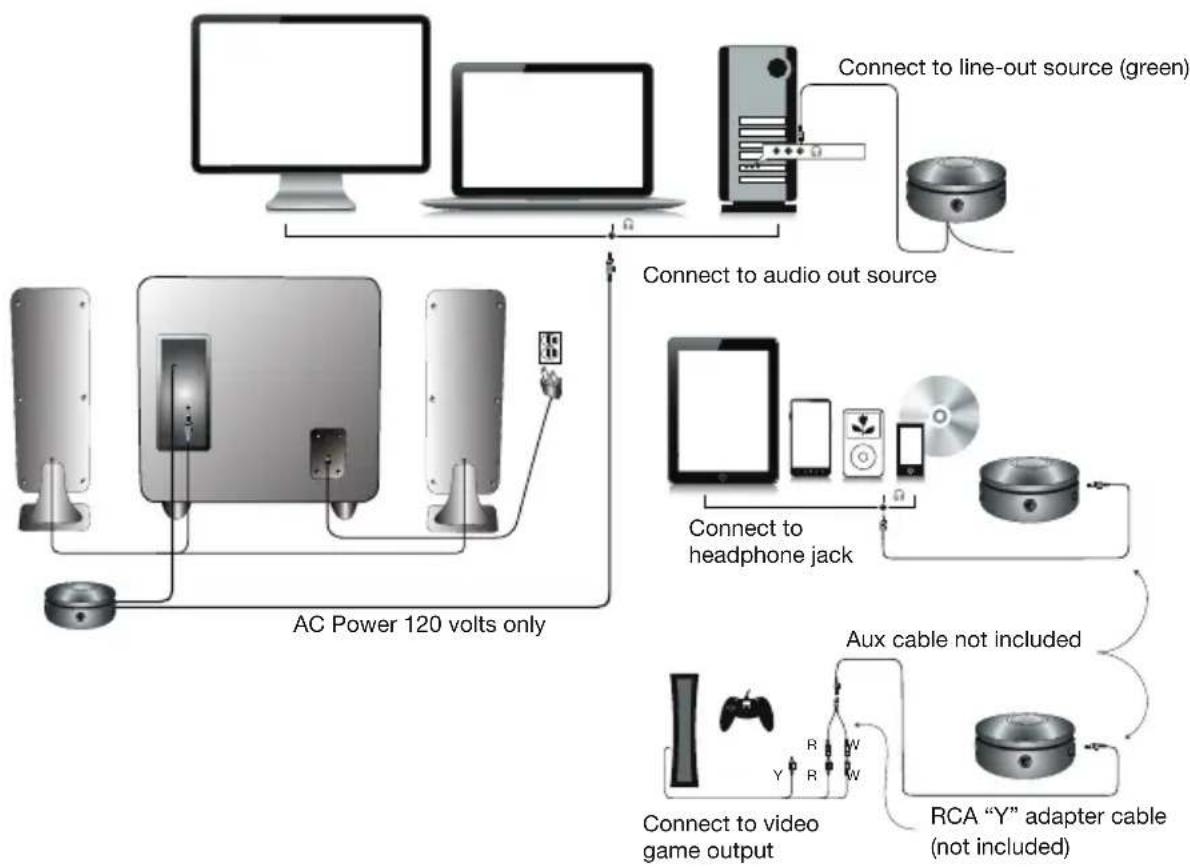
You can connect these speakers to a variety of devices, such as laptop, computer, smartphone, iPod, MP3 player, CD player, DVD player, and other audio devices. Please read the following instructions along with the diagrams provided to identify which diagram most closely matches your connection source.
Desktop computer
• Take the cable with the green plug and plug it into the green output/source jack in the back or front of the computer (also referred to as the sound/audio out jack).
- Connect the gray plug to the "To Speaker" jack on the back of the subwoofer.
• Take the AC power cord and plug it into a wall socket or power strip.
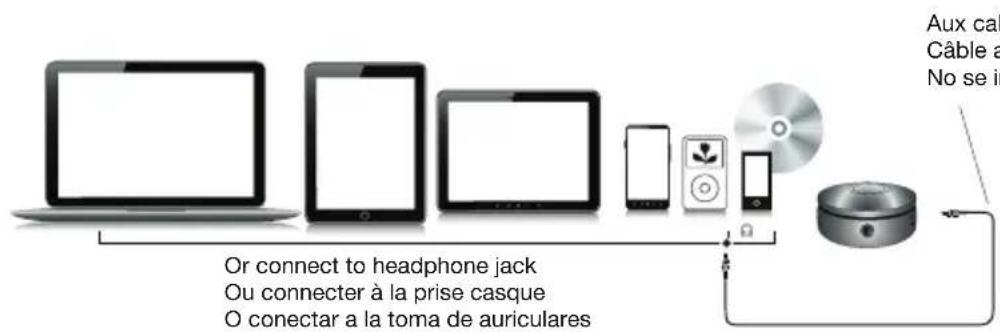
Smartphone, iPod, MP3 player, DVD Player, or CD player
• Take the cable with the green plug and plug it into the green output/source jack of the audio device.
- Connect the gray plug to the "To Speaker" jack on the back of the subwoofer.
• Take the AC power cord and plug it into a wall socket or power strip.
Gaming system
- In order to connect these speakers to a game console, you will need a console gaming adapter, also known as a "Y adapter", which has dual-RCA outputs and is sold separately.
- Turn off the power to your gaming system.
• Take the red and white dual-RCA connections on the Y adapter, and plug them into the matching red and white RCA jacks on your gaming system.
• Take the green stereo jack at the other end of the Y adapter, and plug that into the control pod cable with the green plug. - Connect the gray plug to the "To Speaker" jack on the back of the subwoofer.
flowchart
graph TD
    A["Computer"] -->|Connect to line-out source (green)| B["Server"]
    C["Desktop Computer"] -->|Connect to audio out source| D["AC Power 120 volts only"]
    D --> E["Monitor"]
    F["Smartphone"] --> G["Headphones"]
    H["Radio System"] --> I["Radio Cable"]
    J["Video Game Controller"] --> K["Video Game Output"]
    L["Aux cable not included"] --> M["RCA "Y" adapter cable (not included)"]
    N["Video Game Controller"] --> O["Video Game Output"]
    P["Video Game Controller"] --> Q["Video Game Output"]
Controls and Features
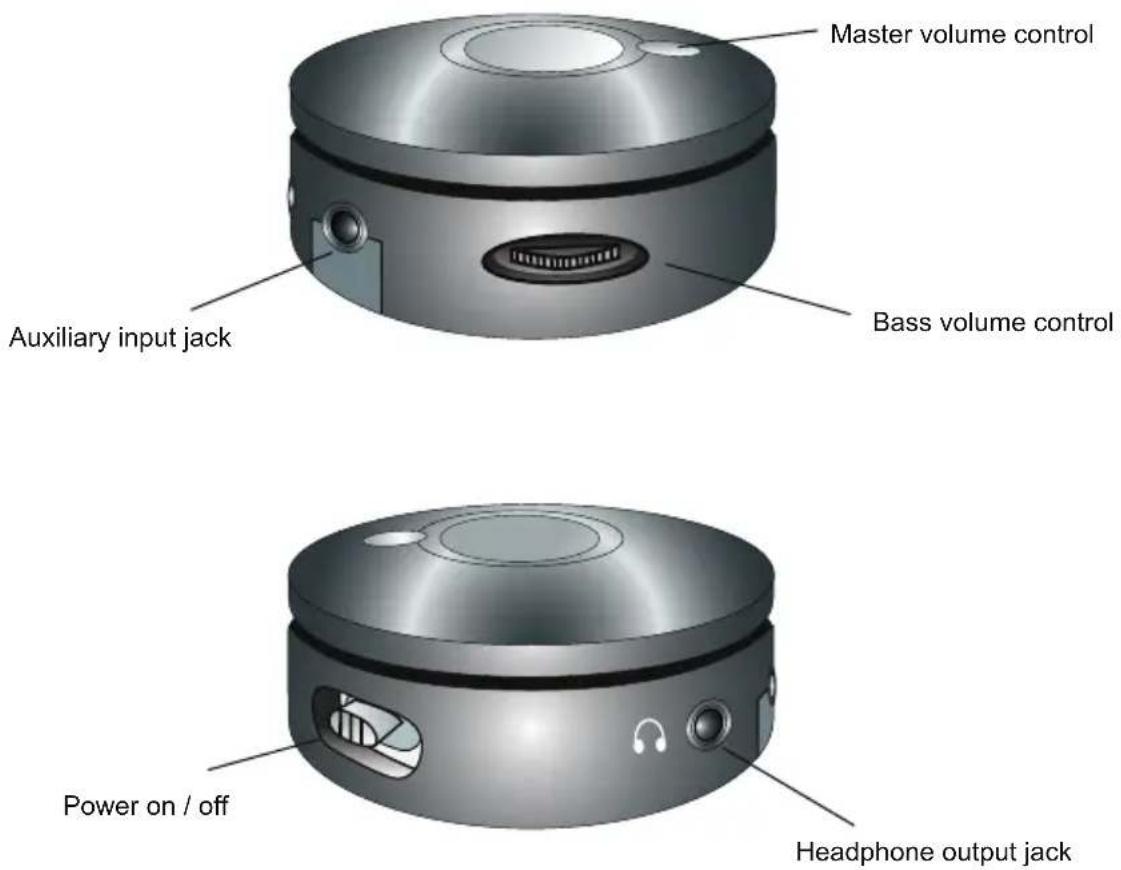
- Power—the on/off button is on the side of the control pod. Slide to turn the speaker on or off.
- Master Volume Control—this volume is on the top of the control pod and is indicated by the words "MAX" and "MIN." Rotate clockwise to turn the volume up, and counter-clockwise to turn the volume down.
- Bass Volume Control – the bass volume is located on the side of the control pod. Turn knob to the right to increase bass, turn knob to the left to decrease.
- Headphone Output Jack—connect your headphones to this jack and they will mute the speaker system automatically. The master volume can then be used to turn the volume up or down to your headphones.
- Auxiliary Input Connection—the auxiliary input jack allows the connection of a second audio source. For example, if your speakers are connected to your computer, you would still be able to plug in an iPod or smartphone using the 3.5mm input jack on the side of the control pod. The connected iPod or smartphone would override your computer's audio source connection while it's plugged in.
Multi-function Control Pod
Troubleshooting
Symptom:
Speaker system will not power on.
Solution:
- Power button is not turned on. Slide the power button back and forth and check for the blue LED indicator light to come on.
- Verify the AC power cord is plugged into the wall outlet.
- Check if the wall outlet or power strip you are using is actually getting power, i.e. not a switched outlet.
Symptom:
Speaker does not produce sound.
Solution:
- Verify the speaker is getting power. Check above steps.
- Make sure the volume is turned up to audible listening level.
- Verify that all cables are plugged into the correct jacks.
- Many times users believe that the speakers are not working, when in fact they are having trouble with the sound source. The most common problem when connecting to a computer is that the connections are incorrect. Make sure you are connected to the audio output jack from your computer. Many times, this jack will be green. Also, make sure your media device or CD/DVD device is playing and the software volume settings are turned up and not muted.
- If you still have problems, disconnect the speaker source cable from your computer and connect to a smartphone, iPod, or anything else with a 3.5mm headphone output. If your speakers work on this other source, you know they are functioning as normal and the issue likely lies with your computer or the connections.
Symptom:
Sound is distorted.
Solution:
- Turn the volume down by 25% or 50%. If this does not work, also check the audio software volume level and decrease it if necessary.
- Adjust the computer's master volume control by balancing the volume until it's at 50% , then adjust the volume levels on the speakers.
- Adjust the bass volume control to test for maximum and minimum output. You may also need to move the subwoofer either closer or farther away from a wall or corner to affect the sound performance.
If you have questions or need assistance with your speakers, we're here to help.
Call 360-883-0333 during the hours of 8 am to 5 pm (United States PST) or send email to support@cyberacoustics.com
iPod, iPhone, iPad, and iPad mini are a trademarks of Apple, Inc.
Merci!
CA-3610
natural_image
Line drawing of a desktop computer setup with monitor, speakers, and audio equipment (no text or symbols)natural_image
Line drawing of a desktop computer setup with monitor, speakers, and speaker tower (no text or symbols)Speaker does not produce sound.
Solución:


- CA-3610 Owner's Guide
- Thank you!
- Merci!
- ¡Gracias!
- CAUTION
- IMPORTANT SAFETY INSTRUCTIONS
- AVERTISSEMENT
- Introduction
- Box Contents
- Speaker Preparation
- Speaker Connection
- Desktop computer
- Smartphone, iPod, MP3 player, DVD Player, or CD player
- Gaming system
- Controls and Features
- Troubleshooting
- Symptom:
- Speaker system will not power on.
- Solution:
- Speaker does not produce sound.
- Sound is distorted.
- Solución:
Brand : Cyber Acoustics
Model : CA3610
Category : Loudspeaker