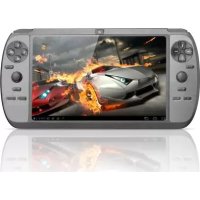
Gaming G1 Force - Tablet Yarvik - Free user manual and instructions
Find the device manual for free Gaming G1 Force Yarvik in PDF.


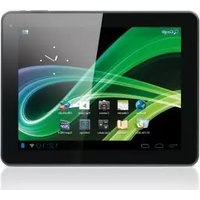
| Product Type | Gaming Tablet |
| Brand | Yarvik |
| Model | Gaming G1 Force |
| Screen | 7 inches (diagonal), IPS type |
| Approximate Dimensions | 190 x 110 x 10 mm |
| Approximate Weight | 300 g |
| Power Supply | 5V power adapter, rechargeable lithium-ion battery |
| Main Functions | Virtual Key Mapping (VKM), physical gaming, touch navigation |
| Wireless Connectivity | Wi-Fi 802.11 b/g/n, Bluetooth (not specified) |
| Processor | Quad-core (estimated) |
| RAM Memory | 1 GB (estimated) |
| Internal Storage | 8 GB (estimated) |
| Operating System | Android |
| Camera | VGA front camera (estimated) |
| Headphone Jack | Yes, 3.5 mm |
| Speakers | Built-in speaker |
| Care and Cleaning | Slightly damp cotton cloth, water only |
| Safety | Do not disassemble, avoid moisture and heat sources |
| Spare Parts and Repairability | Battery and adapter replaceable by a professional only |
| General Information | Compliant with CE, RoHS, WEEE standards |
Frequently Asked Questions - Gaming G1 Force Yarvik
User questions about Gaming G1 Force Yarvik
0 question about this device. Answer the ones you know or ask your own.
Ask a new question about this device
Download the instructions for your Tablet in PDF format for free! Find your manual Gaming G1 Force - Yarvik and take your electronic device back in hand. On this page are published all the documents necessary for the use of your device. Gaming G1 Force by Yarvik.
USER MANUAL Gaming G1 Force Yarvik
Please consult the legal information available on your Tablet under Settings - About device - Legal information or visit http://source.android.com/source/licenses.html for more information (internet connection required)
Android™ is a trademark of Google Inc.
Please visit our website for CE declaration: www.yarvik.com

facebook.com/yarvik

twitter.com/yarvikce

youtube.com/yarvikce

forum.yarvik.com
YARVIK
G1 FORCE
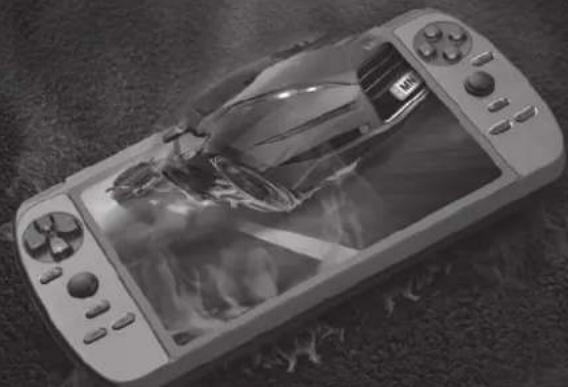
7" GAMING TABLET FOR ANDROID™
natural_image
Black-and-white photo of a gaming console with a car displayed on screen (no visible text or symbols)YARVIK.COM
START GUIDE
TAB07-220
G1 FORCE
7" GAMING TABLET FOR ANDROID™
Start guide
3 Getting on the Internet 22
Internet instellen / Zugriff auf das Internet / Accès à Internet / Cómo acceder a Internet / Aceder à internet / Łączenie z Internetem / Připojení k internetu / Pripojenie
k internetu / At komme på internettet / Gå ut på Internet / Σύνδεση στο Internet / Collegamento a Internet / Подключение к Интернету / Koble til Internett / Kako se povezati na internet / Підключення до Интернету / دخول الإنترنت / Kapcsolódás az Intemetre / Свързване към Интернет / Conectare la Internet / Spajanje na Internet
natural_image
Front view of a handheld gaming device with control panels and a blank screen (no visible text or symbols)1x
G1 Force 7" Gaming Tablet
G1 Force 7" Gaming Tablet
G1 Force 7" Gaming Tablet
1x
- Start guide
- Snelstart handleiding
- Schnellstartanleitung
- Guide de Démarrage
- Guía de Inicio
- Guia de iniciação
- Przewodnik Uruchamiania
- Návod k Použití
- Stručný návod na obsluhu
- Startvejledning
- Startguide
-
Οδηγός έναρξης
-
Guida di avvio
- Краткое руководство пользователя
- Startveiledning
- Aloitusopas
- Короткий посібник користувача
دليل البدء - - Használati útmutató
- Ръководство за старт
- Ghid de pornire
- Brzi vodič
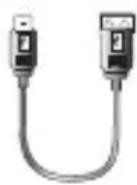
1x
- USB host cable
- USB host kabel
- USB Host Kabel
- Câble USB hôte
- Host USB cable
- Cabo de anfitrião USB
- Hosta USB kabel
- USB host kabel
-
USB host kábel
-
USB-værtskabel
- USB-värdkabel
- Καλώδιο κεντρικού υπολογιστή (host) USB
- Cavo host USB
- USB-кабель для подключения внешних устройств
-
USB vertskabel
-
Gostiteljski kabel USB
- USB-кабель підключення зовнішніх пристроїв
- USB کبل
- USB host kábel
- USB хост кабел
- Cablu host USB
- USB kabel za domaćina
- You can find the manual in the Tablet App menu
- De handleiding is te vinden in het Tablet App menu
2 Buttons & Connections
Knoppen & Aansluitingen / Tasten & Anschlüsse / Boutons et connexions / Botones y conexiones / Botões e ligações / Przyciski i złącza / Tlačítka a připojení / Tlačidlá a pripojenia / Knapper & tilslutninger / Knappar & Anslutningar / Плńktra & Συνδέσεις / Pulsanti e collegamenti / Кнопки и разъемы / Knapper og tilkoblinger / Gumbi in Povezave / Кнопки та роз'єми / لازرار والتوصيلات / Gombok és csatlakozások / Бутони и връзки / Butoane şi conexiuni / Tipke i veze
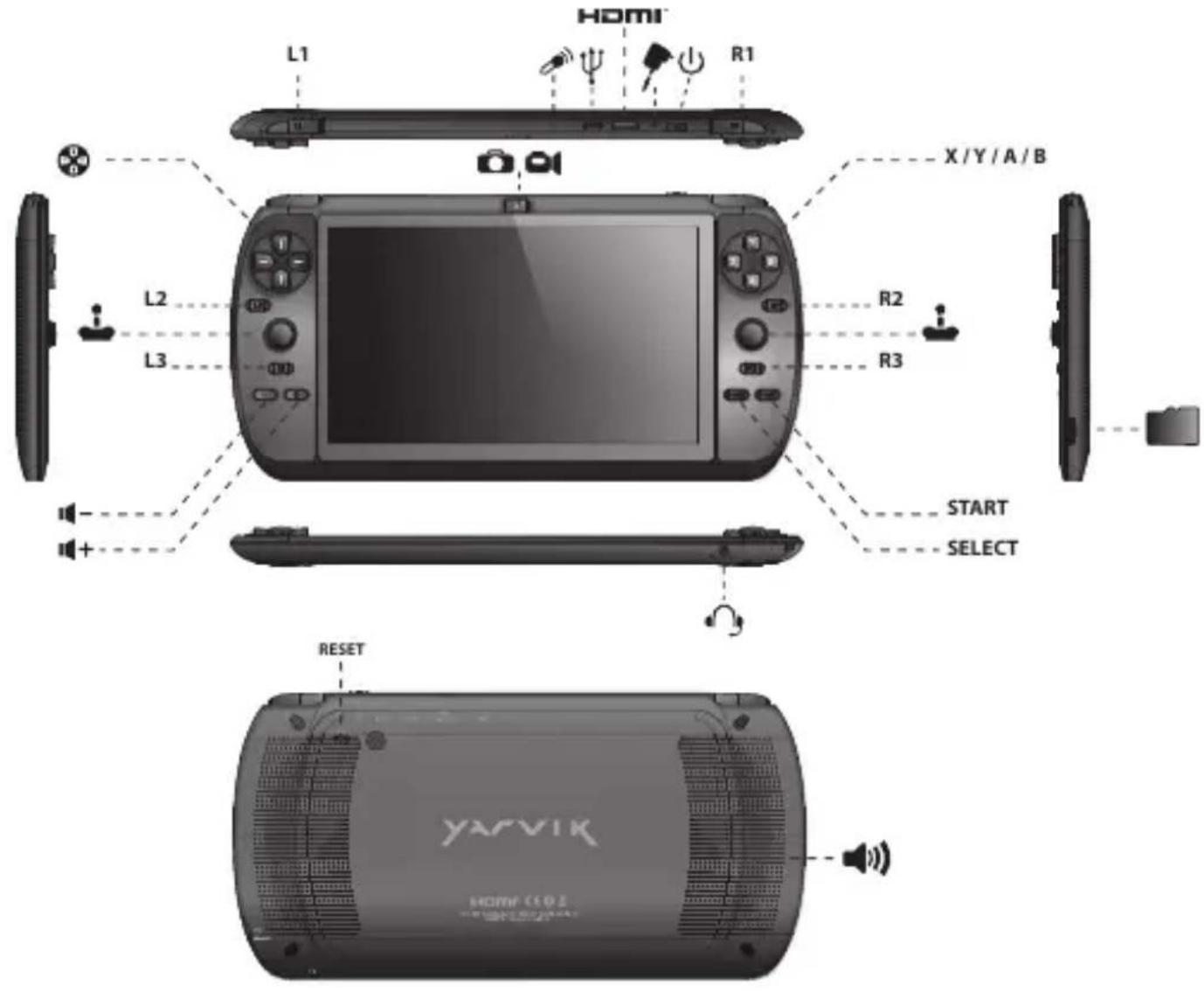
| (↓) | On/Off | |
| - Hold 3 sec. for On or Off- 3 sec. indrukken voor Aan of Uit- Zum Ein-/Ausschalten 3 Sek. drücken- Appuyez pendant 3 s pour allumer ou éteindre- Pulse durante 3 s para encender o apagar el dispositivo- Mantenha premido durante 3 segundos para ligar ou desligar- Naciśnij i przytrzymaj przez 3 sek., aby włączyć lub wyłączyć- Přidržením po dobu 3 s zapínáte nebo vypínáte- Podržte 3 sek. pre zapnutie alebo vypnutie- Hold 3 sek. for On [Til] eller Off [Fra]- Håll ned 3 sekunder för På eller Av- Кратήστε 3 δευτ. για ενεργοποίηση (On) ή απενεργοποίηση (Off) | - Tenere premuto 3 sec. per l'accensione o lo spegnimento.- Удерживайте в течение 3 с для включения или выключения- Trykk 3 sek. for på eller av- Držite 3 sek. za vklop ali izklop- Утримуйте протягом 3 с для увімкнення або вимкнення- ثبت لددة 3 ثوان للتشغيل أو الإيقاف- Nyomja 3 mp-ig a be- vagy kikapcsoláshoz- Задръжте 3 сек. за включване или изключване- Pentru activare sau dezactivare, mențineți apăsarea timp de 3 sec.- Držite 3 sek. za uključivanje ili isključivanje | |
| (↓) | Sleep/Wake | |
| - Press 1 sec. for Sleep or Wake- 1 sec. indrukken voor Slaapstand of uit Slaapstand- Für Betriebszustand 1 Sek. drücken- Appuyez pendant 1 s pour la mise en veille ou le réveil- Pulse 1 s para que la tableta entre en el estado de inactividad o activarla- Pressione 1 seg. para suspensão ou Wake segundos para ligar ou desligar- Naciśnij przez 1 sek., aby przełączyć w stan uśpienia lub wybudzić- Stisknutím po dobu 1 s spustíte režim spánku nebo probuzení- Stlačte 1 sek. pre spánok alebo prebudenie- Tryk på 1 sek. til slumre-eller Wake- Tryck på 1 sek. för att sova eller Wake- Патήστε 1 δευτερόλεπτο. για την κατάσταση νάρκης ή WakeVolume - + - Volume up or Down- Volume harder of zachter- Leiser oder laute- Augmentez ou baissez le volume- Subir o bajar volumen- Aumentar ou diminuir volume- Zwiększanie lub zmniejszanie poziomu głośności- Zvýšení nebo snížení hlasitosti- Zvýšenie alebo zníženie hlasitosti- Lydstyrke op eller ned- Justera volymen uppåt eller nedåt- Aúξηση ή μείωση της έντασης ήχου | - Premere 1 sec. per la funzione Sleep o Wake (Sveglia).- Нажимайте в течение 1 с для перехода в спящий режим или продолжения работы- Trykk 1 sek. for standby eller gå ut av standby- Pritisnite 1 sek. za spanje ali bujenje- Натискайте протягом 1 с для переходу у сплячий режим або продовження роботи- اضغط لددة 1 ثانية للنوم أو الに基づة- Nyomja 1 mp-ig az alváshoz vagy felébresztéshez- Натиснете 1 сек. за заспиване или събуждане- Pentru stare de repaus sau reactivare, apăsați timp de 1 sec.- Pritisnite 1 sek. za spavanje ili buđenje uređaja- Aumento o abbassamento del volume- Переключатель увеличения или уменьшения громкости- Volum opp eller ned- Jakost - +: Povečanje ali zmanjšanje jakosti- Клавіша гучності- رفع الصوت أو خفضه- Hangerő fel vagy le- Усилване или намаляване силата на звука- Creșterea sau reducerea volumului- Glasnoća + i – | |
 | Built-in Camera | - Built -in Camera- Ingebouwde Camera- Integrierte Kamera- Caméra intégrée- Cámara integrada- Câmara incorporada- Wbudowana kamera- Zabudovaný fotoaparát- Zabudovaný fotoaparát- Indbygget kamera- Inbyggd kamera- Ενσωματωμένη Κάμε- Fotocamera integrata- Встроенная камера- Innebygget kamera- Vgrajena kamera- Вбудована камера- کاميرا مدمجة- Beépített kamera- Вградена камера- Cameră încorporată- Slušalice- Ugrađena kamera |
 | Built-in Microphone | - Built-in Microphone- Ingebouwde microfoon- Integriertes Mikrofon- Microphone intégré- Micrófono integrado- Microfone incorporado- Wbudowany mikrofon- Zabudovaný mikrofon- Zabudovaný mikrofón- Indbygget mikrofon- Inbyggd mikrofon- Ενσωματωμένο Μικρόφωνο- Microfono integrato- Встроенный микрофон- Innebygget mikrofon- Vgrajeni mikrofon- Вбудований мікрофон- ميكروفون مدمج- Beépített mikrofon- Вграден микрофон- Microfon încorporat- Ugrađeni mikrofonn |
- On the bottom of the G1 Force screen you can always find the status bar. The status bar contains both system information and function buttons.
NL
Getting on the Internet
Internet instellen / Zugriff auf das Internet / Accès à Internet / Cómo acceder a Internet / Aceder à internet / Lączenie z Internetem / Pripojení k internetu / Pripojenie k internetu / At komme på internettet / Gå ut på Internet / Σύνδεση στο Internet / Collegamento a Internet / Подключение к Интернету / Koble til Internett / Kako se povezati na internet Підключення до Интернету / دخول الإنترNET / Kapcsolódás az Intemetre / Свързване към Интернет / Conectare la Internet / Spajanje na Internet
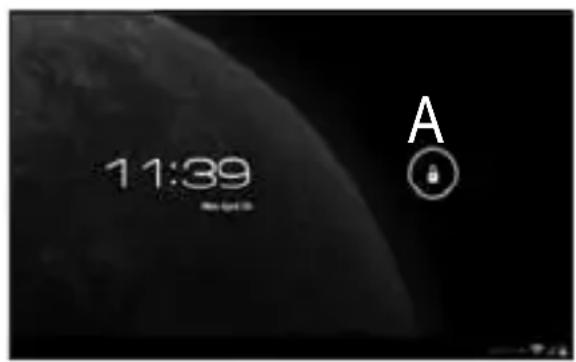
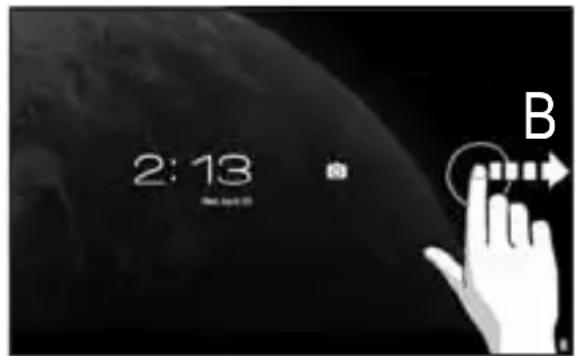
- Slide the lock bar (A) to the right (B) to unlock
- Schuif de vergrendeling (A) naar rechts (B) voor ontgrendelen
- Sperrsymbol (A) zum Entsperren nach rechts (B) schieben
- Faites glisser la barre de verrouillage (A) vers la droite (B) pour déverrouiller.
- Deslice la barra de bloqueo (A) hacia la derecha (B) para desbloquear el dispositivo
- Arraste o cadeado (A) para a direita (B) para desbloquear
- Przeciągnij pasek blokady (A) do prawej (B), aby odblokować
- Přetažením zamykací lišty (A) směrem doprava (B) odemkněte zařízení
- Posuňte lištu uzamknutia (A) doprava (B) a odomknite
- Glid läsebjælken (A) til højre (B) for at läse op
- Skjut låslist (A) till höger (B) för att låsa upp
- Σύρετε τη γραμμή κλειδώματος (Α) προς τα δεξιά (Β) για ξεκλείδωμα
- Fare scorrere la barra di blocco (A) verso destra (B) per sbloccare.
- Перетяните бегунок (А) вправо (В) для разблокировки
- Stryk låselinjen (A) mot høyre (B) for å låse opp
- Povlecite zaklepno vrstico (A) v desno (B) in odklenite
- Перетягніть повзунок (А) праворуч (В) для розблокування
- حرك شريط القFL (A) إلى اليمين (B) للفتح
- Csúsztassa el a lezáró gombot (A) jobbra (B) a feloldáshoz
- Плъзнете лента за заключване (A) надясно (B), за да отключите
natural_image
Microscopic view of a biological tissue sample with visible fibrous structures and a dark background (no text or symbols)- ا Compact على زر التطبيق والأداة
- Nyomja meg az „alkalmazások és widgetek” gombot
- Натиснете бутона за приложения и графични елементи
- Apăsați pe aplicație și pe butonul widget
-
Pritisnite tipku za aplikacije i widgete
-
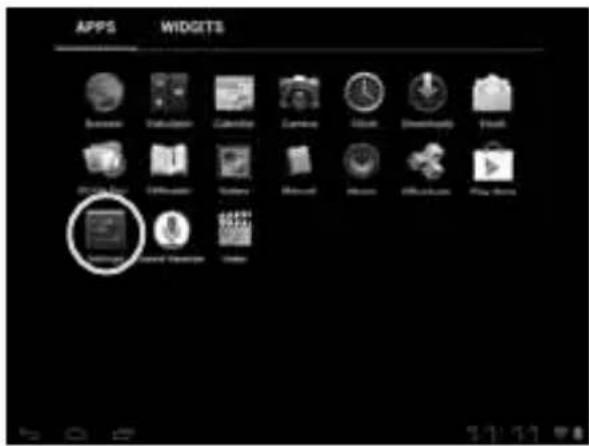
Press Settings menu
-
Klik op Settings (Instellingen)
- Settings-Menü drücken
- Appuyez sur Menu paramètres
- Pulse el menú Settings (Configuración)
- Prima o Menu de definições
- Naciśnij przycisk menu ustawień
- Stiskněte nabídku Nastavení
- Stlačte ponuku Nastavenia
- Tryk på menuen Settings [Indstillinger]
- Tryck på Inställningsmenyn
- Πατήστε το μενού Settings (Ρυθμίσεις)
- Premere il menu Settings (Impostazioni).
- Нажмите меню Settings (настроек)
- Trykk Settings-menyen
- Pritisnite meni Settings (Nastavitev)
- Натисніть меню Settings (установок)
- ا功效 على قائمة الإعدادات
- Nyomja meg a Settings (Beállítások) menüt
- Натиснете меню Settings (Настройки)
- Apăsați pe meniul Settings (Setări)
- Pritisnite izbornik Settings (Postavke)
3 Slide the On/Off button to "On"
- Schuif de Aan/uit-knop op "Aan"
- Ein/Aus-Schaltfläche auf „On“ („An“) schieben.
- Faites glisser le bouton marche/arrêt pour l'allumer.
- Deslice el botón On/Off (Activado/Desactivado) hasta la posición "On" (Activado)
- Deslize o botão On/Off (Ligar/Desligar) para a posição "On" ("Ligado")
- Przeciagnij przełącznik do pozycji „On” („Wł.“)
- Přetáhněte tlačítko Zap./Vyp. na „On“ („Zap.“)
- Posuňte vypínač do polohy „On“ („Zap.“)
- Glid knappen On/Off [Til/fra] til "On" [Til]
- Skjut På/Av-knappen till "På"
Σύρετε το κουμπί Οη/Off στη θέση “Οη” - Fare scorrere il pulsante di accensione/spegnimento su "On".
- Перетяните кнопку On/Off (Выкл./Вкл.) на «On» («Вкл.»)
- Sett på/av-knappen til "On"
- Povlecite gumb Vklop/Izklop na »On« (»Vklop«)
- Перетягніть клавішу On/Off (Вимк./Увімк.) на «On» («Увімк.»)
- (On) إلى "التشغيل" (On/Off) - حرك زر التشغيل/الإي Pharmaceuticals
- Állítsa a On/Off (Be/Ki) gombot „On” („Be”) állásba
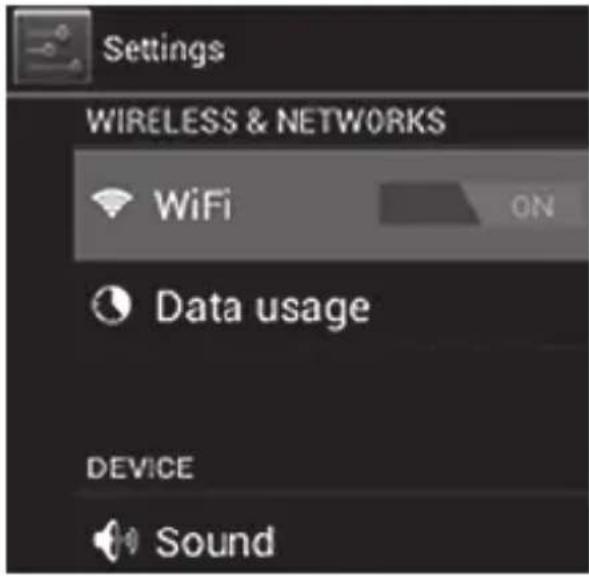
- Плъзнете бутона On/Off (Вкл/Изкл) към „On" („Вкл”)
- Glisați butonul On/Off (Activare / Dezactivare) spre „On“ („Activat”)
- Kliznite gumb On/Off (Uklj./Isklj.) na „On“ (Uklj.)
4. Choose your Wireless Network.
- Kies uw draadloze netwerk.
- WLAN auswählen.
- Choisissez votre réseau sans fil.
- Seleccione su red inalámbrica.
- Escolha a sua rede sem fios.
- Wybierz Wireless Network (Sieć bezprzewodowa).
omrežje)
- Оберіть Wireless Network (безпроводову мережу).
- اختر شبكتك اللا스لكية.
- Válassza ki a Wireless Network (vezeték nélküli) hálózatot.
- Изберете своята Wireless Network (Безжична мрежа).
- Alegeti-vă o Wireless Network (Rețea fără fir).
- Odaberite bežičnu mrežu.
4.1. Non secured, Tap the network of your choice.
- Niet beveiligd, tik op het netwerk van uw keuze.
- Bei ungesichertem Netzwerk auf das gewünschte Netzwerk tippen.
- Non sécurisé, sélectionnez le réseau de votre choix.
- No protegida, pulse la red a la que desee conectarse.
- Se não estiver protegida, toque numa rede à sua escolha.
- Niezabezpieczona; dotknij wybranej sieci.
- Nezabezpečeno, klepněte na libovolnou sít'.
- Nezabezpečené, poklepte na sieť podľa vlastného výberu.
- Ikke sikret. Tap på foretrukket netværk.
- Icke säker, Peka på det nätverk du vill välja.
- Χωρίς ασφάλεια, αγγίξτε το επιθυμητό δίκτυο.
- Non protetta, selezionare la rete che si desidera.
- Если сеть Non secured (незащищена), выберите ее.
- Usikret nett, trykk på ønsket nettverk.
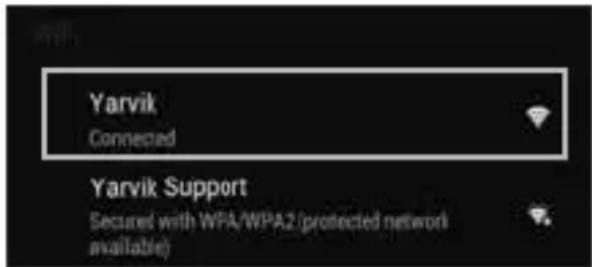
- Non secured (Nezavarovano), Dotaknite se želenega omrežja.
- Якщо мережа Non secured (незахищена), виберіть її.
- غير آمنة. انفر على شبكة من اختيارك.
- Non secured (Nem biztonságos), érintse meg a kívánt hálózatot.
- Ако е Non secured (Не защитена), натиснете върху мрежа по избор.
- Rețea Non secured (Nesecurizată), înscrieti rețeaua alesă.
- Non secured (Neosigurane) mreže, dodirnite naziv mreže
4.2. Secured Network, Type password then press Connect.
- Beveiligd netwerk, vul wachtwoord in en klik op Connect (Verbinden).
- Bei gesichertem Netzwerk Kennwort eingeben und Connect (Verbinden) drücken.
- Réseau sécurisé, tapez le mot de passe puis appuyezsur « Connect » (Connector).
- Si la red está protegida, escriba la contraseña y pulse Connect (Conectar).
- Se for uma rede protegida, digite a palavra-passe e depois prima Connect (Ligar).
- Zabezpieczona sieć; wprowadź Password (Hasło) i naciśnij Connect (Połącz).
- Zabezpečená sít', napište Password (Heslo), poté stiskněte Connect (Připojit).
- Zabezpečená siet', napíšte Password (Heslo) a potom stlačte Connect (Pripojit').
- Sikret netværk. Indtast adgangskode, og tryk derefter på Connect [Tilslut].
- Skyddat nätverk, ange lösenordet och tryck sedan på Connect (Anslut).
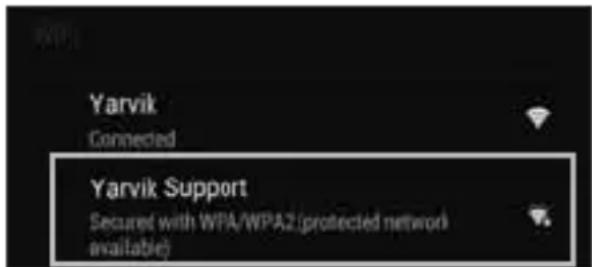
- Δίκτυο με ασφάλεια, πληκτρολογήστε τον κωδικό πρόσβασης και πατήστε Connect (Σύνδεση).
- Rete protetta, digitare la password, quindi premere Connect (Connetti).
- Если сеть Secured (защищена), введите пароль, а затем нажмите кнопку Connect (подключения).
- Sikret nett, skriv inn passord og trykk Connect.
- Secured Network (Zavarovano omrežje), Vtipkajte geslo in pritisnite Connect (Poveži).
-
Якщо мережа Secured (захищена), введіть пароль та натисніть клавішу Connect (підключення).
-
شبكة آمنة. اكتب كلمة الّرور ثم اضغط على Connect
- Secured (Biztonságos) hálózat, adja meg a jelszót és érintse meg a Connect (csatlakozás) gombot.
- Secured (Защитена) мрежа, напишете паролата и след това натиснете Connect (Свързване).
- Rețea Secured (Securizată), înscrieti parola, apoi apăsați pe Connect (Conectare).
-
Secured (Osigurane) mreže, upišite lozinku i pritisnite Connect (Spoji)
-
Check Wi-Fi connection.
-
Controleer Wi-Fi verbinding.
- WLAN-Verbindung überprüfen.
- Vérifiez la ae la conexión Wi-Fi.
- Verifique a ligação Wi-Fi.
- Sprawdź stan połączenia Wi-Fi.
- Kontrola Wi-Fi připojení.
- Skontrolujte pripojenie Wi-Fi.
- Kontroller Wi-Fi-tilslutning.
- Kontrollera Wi-Fi-anslutning.
- Ελέγξτε τη σύνδεση Wi-Fi.
- Controllare la connessione Wi-Fi
- Проверьте Wi-Fi-соединение.
- Sjekk den trådløse tilkoblingen.
- Preverite Wi-Fi povezavo.
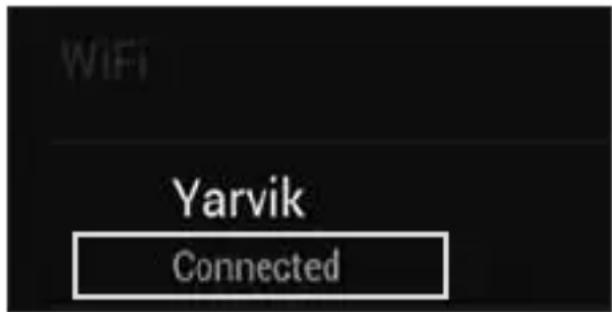
- Перевірте Wi-Fi-підключення.
- Wi-Fi. - خفق من اتصال
- Ellenőrizze a Wi-Fi kapcsolatot.
- Проверка на Wi-Fi връзка.
- Verificați conexiunea Wi-Fi.
- Provjerite Wi-Fi vezu.
- With The Browser App you can now browse the internet.
-
Met de Browser App kunt u nu het internet op.
-
Mit dem Browser-App können Sie im Internet surfen.
- Avec l'application du navigateur, vous pouvez maintenant naviguer sur Internet.
- Con la aplicación Browser (Navegador) podrá navegar por Internet.
- Com a aplicação Browser (Navegador), pode então navegar na internet.
- Za pomocą aplikacji Browser (Przeglądarka) możesz surfować po Internecie.
- Pomocí Browser (Prohlížeče) aplikací můžete brouzdat po internetu.
- Pomocou aplikácie Browser (prehliadača) si môžete teraz prezerat internetové stránky.
- Med browser-app'en kan du navigere på internettet.
-
Med webbläsarappen kan du nu surfa på Internet.
-
Με την εφαρμογή Browser μπορείτε πλέον να εξερευνήσετε το Internet.
- Con la app Browser ora è possibile navigare su Internet.
- Теперь с помощью Browser (браузера) можно приступить к обзору Интернета.
- Med Browser-applikasjonen (nettleseren) kan du nå surfe på Internett.
- Z aplikacijo brskalnika lahko zdaj brskate po internetu
- Тепер можна розпочати перегляд веб-сайтів в Інтернеті за допомогою Browser (браузера). Browser - یکنک تصفح الإنترت آن باستخدام تطبيق
- A Browser (Böngésző) alkalmazásokkal nem böngészhet az Interneten.
- Сега можете да сърфирате в Интернет с Browser (Браузъра).
- Cu aplicația Browser puteți acum să navigați pe Internet.
- Pomoću aplikacije Browser (Preglednik) sada možete pregledavati internetske sadržaje.
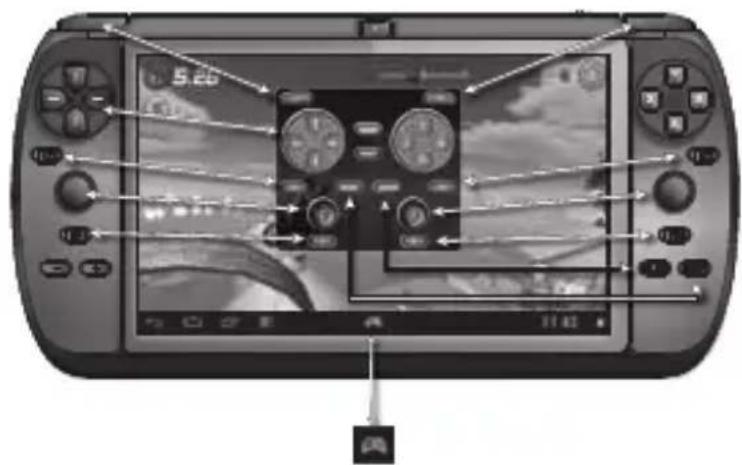
Fig.1
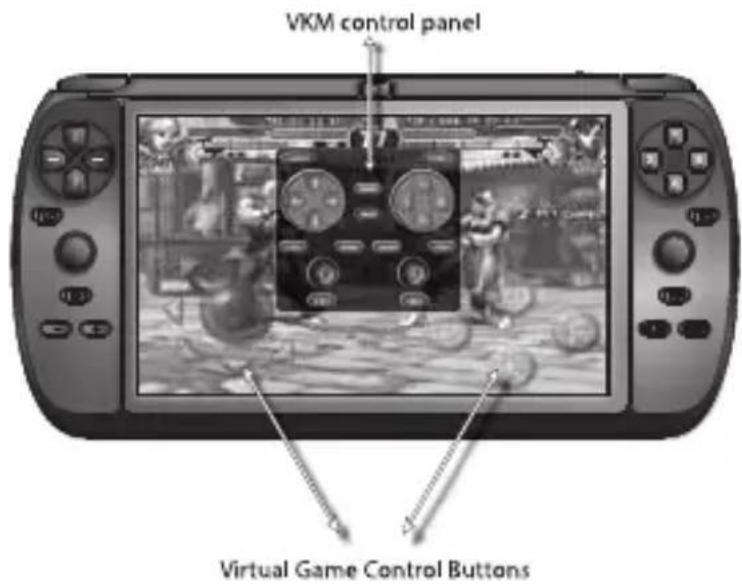
Fig.2
natural_image
Hand interacting with a digital game controller displaying a character's face on the screen (no text or symbols visible)Fig.3
natural_image
Illustration of a hand interacting with a game controller on a PC, showing action and screen capture (no text or symbols)Fig.4
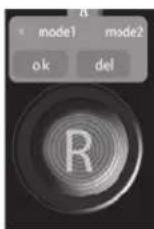
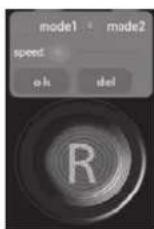
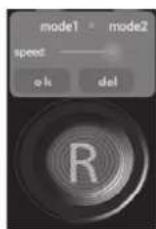
Fig.5
natural_image
Illustration of a hand interacting with a game controller on a handheld gaming device (no text or symbols visible)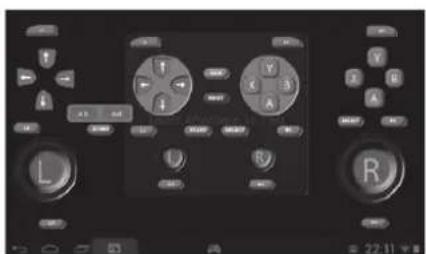
Fig.6
Fig.7
natural_image
Hand interacting with a digital game controller displaying a video game (no visible text or symbols)
Virtual Key Mapping
Virtual key mapping / Virtuele toetsen toewijzen / Virtual Key Mapping / Mapping de touches virtuelles / Virtual key mapping / Mapeamento de Teclas Virtuais / Mapowanie przycisków virtualnych / Mapování virtuálních kláves / Mapovanie virtuálnych tlačidiel / Virtuel tastkobling / Virtual key mapping / Автіστοίχιση εικονικών πλήκτρων / Mappatura tasti virtuali / Виртуальное сопоставление клавиш / Virtual Key Mapping (virtuell tilordning av knapper) / Virtualno določanje tipk / Віртуальне зіставлення клавіш / تعيßen الفاتIBC الافتراضیه / Virtuális billentyű hozzárendelés / Разположение на виртуална клавиатура / Cartografiere virtuală a tastelor / Virtualno mapiranje tipki
The Virtual Key Mapping ^™ (VKM ^™ ) is an intuitive easy to use application to allow linking of the physical hardware gaming buttons to the Virtual control buttons of games.
(Fig.1)
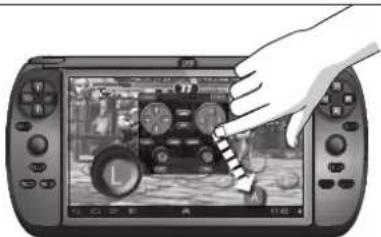
After a Game is opened, press on the VKM icon 📄 to display the VKM control panel overlay.
(Fig.2)
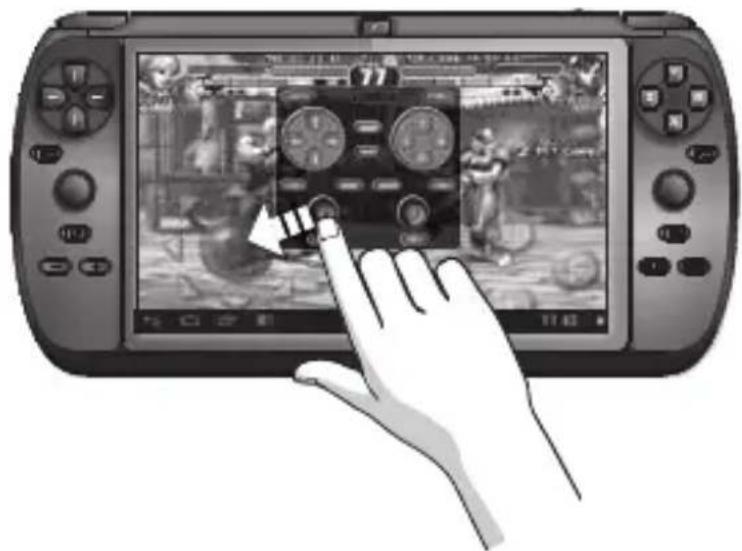
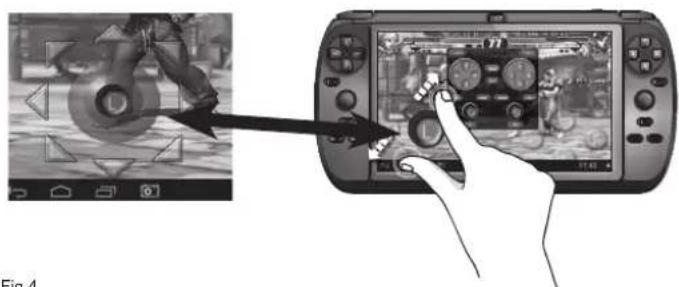
Touch and hold your finger onto the desired VKM button and then slide your finger towards the Virtual control button on the screen.
(Fig.3-4)
For virtual Direction Pads (D-PAD), move the left joystick to the desired spot. Some Virtual D-PADs are larger as the standard joystick circle. You can simply enlarge it to by pinching it and resize the joystick to the correct overlapping size.
For Virtual single push buttons, move the desired VKM key of choice to the correct spot on the screen to link the corresponding hardware button.
(Fig.5)
After you have mapped out all desired Virtual Keys, press the green SAVE button and then the button and your mapping for the selected game is saved in memory. The next time you start the game, the system will automatically remember the saved VKM setting. When you want to change the VKM setting, press the again and move the desired Virtual Key to the new desired spot and press the green button when ready or press the red RESET button to clear all Virtual Keys if you want to clear all mapped buttons and assign them newly.
(Fig.6)
DELETING A MAPPED KEY
When you want to delete a Virtual Key, which you do not want to use anymore, tap on the virtual key once and choose DEL and the Virtual Key will be deleted from the screen position. Press OK if you want to keep the Virtual Key in its position
(Fig.7)
VIRTUAL JOYSTICK MODES
The Virtual mapped joystick has two modes. MODE 1 is for analog joystick mode with circular movements.
MODE2 is for emulating swipe movements. When you map the Joystick on the desired screen position, tap it once and the mode selection will appear. In MODE 2 you will see a slider selection for the speed you want for the swipe action. Just experiment with the game, which speed suits the best. Press OK after you selected the mode you want to use.
TIP: With some games, not all buttons are being used and when you experience strange behavior when not assigned hardware buttons are pressed, move the non-assigned Virtual buttons to an area in the game, where there are no virtual controls.
When you want to experiment with the VKM tool, use the GAMEKEY tester APP keys to any position on the screen, save the setting and use the hardware buttons to see the simulation of finger touches normally pressed on the touch screen.

TIP: Many games and game emulators function automatically with the Physical game buttons and no VKM assignment is needed. In these games an Option/Settings menu is mostly present where the physical keys can be assigned to the game key definitions / controls.
Also see instruction video on tablet: Homescreen: icon

(Fig.8)
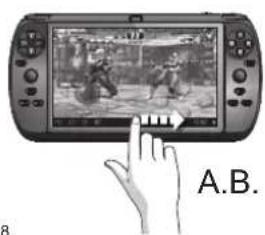
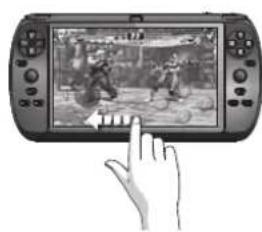
HIDE AND UNHIDE THE ANDROID NAVIGATION BAR
A. Swipe from left to right to hide the Android Navigation Bar
B. Swipe from right to left to unhide the Android Navigation Bar
ELIMINAR UMA TECLA MAPEADA
e atribua as teclas VKM a
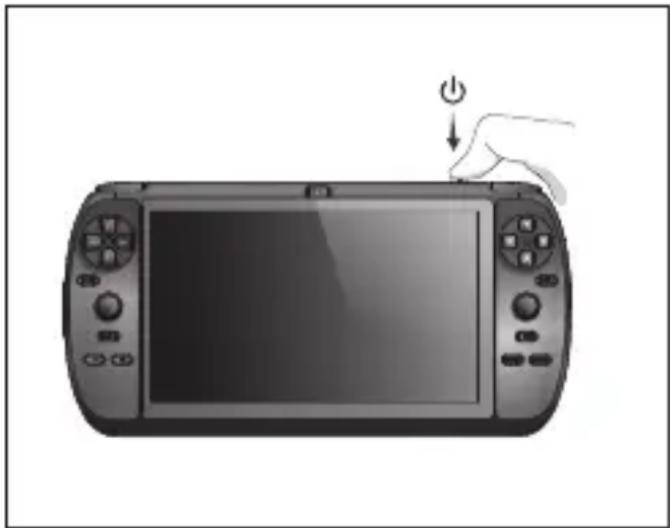
Your Tablet acts much slower than normal, doesn't react well or freezes. Restart the tablet using the On/Off button. All data/settings will be saved, the tablet will only shutdown. Afterwards hold the On/Off button until the tablet starts up again.
NL
1 Hold for 10 seconds
Start up after Soft Reset
- To Start up: Hold for 5 seconds, tablet will start up
- Tablet weer opstarten: 5 seconden indrukken, Tablet start op
- Einschalten: 5 Sekunden gedrückt halten; das Tablet startet
- Pour démarrer : appuyez pendant 5 s, la tablette se met en marche
- Para iniciar el dispositivo: mantenga pulsado el botón durante 5 segundos y la tableta se encenderá
- Para arrancar: Mantenha premido durante 5 segundos e o tablet arranca
- Aby uruchomić: Naciśnij i przytrzymaj przez 5 sekundy; tablet uruchomi się
- Spuštění: Přidržte po dobu 5 sekund, tablet se spustí
- Spustenie: Podržte 5 sekundy a tablet sa spustí
- Start: Hold i 5 sekunder, og tablet'en vil starte
- För att starta: Håll intryckt i 5 sekunder, och surfplattan kommer att starta
- Για Εκκίνηση: Κρατήστε πατημένο για 5 δευτερόλεπτα και η ταμπλέτα θα εκκινήσει
- Per l'avvio: tenere premuto 5 secondi, il tablet si avvia.
- Начало работы: удерживайте в течение 5 секунд, чтобы включить планшет.
- For å starte: Hold inne i 5 sekunder, tableten starter opp
- Držite gumb vklop/izklop 5 sekunde in tablični računalnik se bo zagnal
- Розпочати роботу: утримуйте протягом 5 с для увімкнення планшета.
natural_image
Illustration of a handheld gaming device with a hand pressing a button (no text or symbols)Declaration of Conformity
We,
YARVIK
Ampereweg 3
2627 BG Delft
The Netherlands
Declare under our sole responsibility that the product:
Brand name : YARVIK
Model no.: TAB07-220
Product description : G1 Force 7" Gaming Tablet
Compliance with the essential requirements
of the following Directives is declared:
- EMC DIRECTIVE : 2004/108/EC
- LVD DIRECTIVE : 2006/95/EC
- R&TTE DIRECTIVE : 1999/5/EC
- ROHS DIRECTIVE : 2011/65/EU
To which this declaration is based on with full conformance to the following European norms and standards:
Tablet
- EMC : EN 55022:2006 + A1:2007
EN 55024:1998 + A1:2001 + A2:2003
EN 61000-3-2:2006
EN 61000-3-3:2008
Signed, Delft, 5-12-2013
YARVIK
R. Ramaekers,
Purchase Director
Important information
CE!
Wireless LAN-Regulatory information
Depending on the model, the wireless LAN built-in into tablet devices can only be used in the following countries: Austria, Belgium, Bulgaria, Czech Republic, Denmark, Finland, France, Germany, Greece, Hungary, Iceland, Ireland, Italy, Luxembourg, the Netherlands, Norway, Poland, Portugal, Romania, Slovakia, Slovenia, Spain, Sweden, Switzerland, Turkey and the United Kingdom.
Conditions of use
When using the IEEE 802.11b/g/n Wireless LAN standard, channels 1 to 13
(2.4 GHz ...2.4835 GHz) are selectable for both indoor and outdoor use, however with restrictive conditions applying in France, Italy and Norway, as follows:
- France: When using this product indoor, all channels can be used without restrictions. Outdoor only channels 1 to 6 are allowed. This means that in Peer-to-Peer, the WLAN feature can only be used outside if the peer sets up the communication on an authorized channel (i.e., between 1 & 6). In infrastructure mode, please make sure the access point is configured to a channel from 1 to 6 before setting up the connection.
- Italy: Use of the RLAN network is governed: Disposal of Old Electrical & Electronic
- with respect to private use, by the Legislative Decree of 1.8.2003, no. 259 ("Code of Electronic Communications"). In particular Article 104 indicates when the prior obtainment of a general authorization is required and Art. 105 indicates when free use is permitted;
- with respect to the supply to the public of the WLAN access to telecom networks and services, by the Ministerial Decree 28.5.2003, as amended, and Art. 25 (general authorization for electronic communications networks and services) of the Code of electronic communications.
- Norway: Use of this radio equipment is not allowed in the geographical area within a radius of 20 km from the centre of Ny-Ålesund, Svalbard.
WEEE Symbol Information
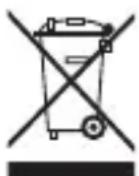
Correct Disposal of This product (Waste Electrical & Electronic Equipment).
(Applicable in the European Union and other European countries with separate collection systems).
This marking shown on the product or its literature indicates that it should not be disposed with other household wasted at the end of its working life. To prevent possible harm to the environment or human health from uncontrolled waste disposal, please separate this from other types of wastes and recycle it responsibly to promote the sustainable reuse of material resources. Household users should contact either the retailer where they purchased this product, or their
local government office, for details of where and how they can take this item for environmentally safe recycling.
Business users should contact their supplier and check the terms and conditions of the purchase contract. This product should not be mixed with other commercial wastes of disposal.
Disposal of waste batteries (applicable in the European Union and other European countries with separate collection systems)
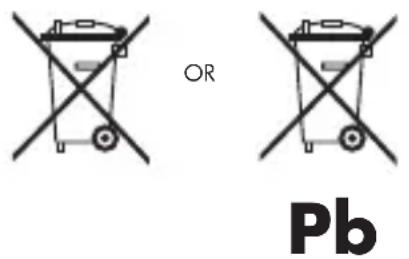
Either of the symbols shown next may appear on the battery or on the packaging to indicate that the battery provided with this product shall not be treated as household waste. On certain batteries this symbol might be used in combination with a chemical symbol. The chemical symbols for mercury (Hg) or lead (Pb) are added if the battery contains more than 0.0005% mercury or 0.004% lead. By ensuring these batteries are disposed of correctly, you will help prevent potentially negative consequences for the environment and human health which could otherwise be caused by inappropriate waste handling of the battery. The recycling of the materials will help to conserve natural resources. In case of products that for safety, performance or data integrity reasons require a permanent connection with an incorporated battery, this battery should be replaced by qualified service staff only. To ensure that the battery will be treated properly, hand over the product at end-of-life to the applicable collection point for the recycling of electrical and electronic equipment.
For all other batteries, please view the section on how to remove the battery from the product safely. Hand the battery over to the applicable collection point for the recycling of waste batteries. For more detailed information about recycling of this product or battery, please contact your local Local government Office, your household waste disposal service or the shop where you purchased the product.
When travelling to and within the United States of America, please be aware that the U.S.
Department of Transportation (DOT) recently published new regulations that apply to passengers travelling with lithium metal batteries and lithium-ion batteries.
For detailed information, visit http://safetravel.dot.gov/whats_new_batteries.html.
Safety Information
Yarvik Tablet device
- Yarvik is not responsible for any interference that you may experience or that may be caused when operating this device.
-
Warning: We strongly advise to connect this device to a earthed wall socket when charging.
-
Opening or dismantling the main unit or any of its accessories, for whatever reason, could lead to damages that are not covered by the guarantee.
- To avoid electrical shock, do not open the cabinet. Refer servicing to qualified personnel only.
- To prevent fire or shock hazard, do not expose your tablet device or any of its accessories to rain or moisture.
- Do not use or store your tablet device in a location subject to heat sources, such as radiators or air ducts; direct sunlight; excessive dust; moisture or rain; mechanical vibration or shock; strong magnets or speakers that are not magnetically shielded; excessively high and low temperatures; and high humidity.
- Turning off your tablet device with the power button does not disconnect the device completely from mains voltage. To disconnect it completely, unplug the AC adapter or the power cord from mains. The socket-outlet shall be installed near the equipment and shall be easily accessible.
- Audio and picture distortion may occur if this equipment is positioned in close proximity to any equipment emitting electromagnetic radiation.
- This apparatus is also designed for IT power system with phase to phase voltage 230V, for customers in Norway.
- Observe the following precautions to provide adequate air circulation and to ensure normal reliable operation:
- Do not use the tablet device and/or the AC adapter while covered or wrapped in cloth. Ensure the AC adapter operates in a clear environment.
- Turn off the tablet device before putting the device into a bag or a carrying case.
- Do not use your tablet device directly on your lap. The temperature of the base of the unit will rise during normal operation and over time could result in discomfort or burns.
- Do not use your tablet device while walking. Listening to music with headphones or watching the LCD screen while walking may lead to an unexpected accident and result in personal injuries.

- Using connected headphones on the tablet device for too long and/or setting the audio volume up too high when using headphones may cause serious hearing damage.
- Avoid strong beating of or to the product.
- Don't operate the touch screen of the tablet device with sharp objects, as this may result in scratching the screen surface.
- Only use permitted batteries, chargers and accessories with your tablet device. The use of any other products with the device can be dangerous and may violate the warranty regulations.
- Only use a slightly wet cotton cloth to clean the device, and only use water to wetten the cotton cloth. The tablet device should not be cleaned with any sort of (glass) cleaning aid.
Wireless functionality
- If radio interference with other devices occurs while using your tablet device, do not use the wireless functionality. Use of the wireless functionality may cause a malfunction of the devices,
resulting in an accident.
- In some situations or environments, the use of the wireless functionality might be restricted by the proprietor of the building or responsible representatives of the organization, for example on board airplanes, in hospitals or in any other environment where the risk of interference with other devices or services is perceived or identified as harmful. If you are uncertain about the policy applying to the use of wireless functionality in a specific organization or environment, you are encouraged to first ask for authorization prior to switching it on. Consult your physician or the manufacturer of personal medical devices (pacemakers, hearing aids, etc.) regarding any restrictions on the use of wireless functionality.
- If using wireless functionality near a pacemaker, make sure it is at least 19 inches / 50 cm away from the pacemaker.
- Due to the transmission and reception properties of wireless communications, data can occasionally be lost or delayed. This can be due to the variation in radio signal strength that results from changes in the characteristics of the radio transmission path. Yarvik will not be held responsible for damages of any kind resulting from the delays or errors in data transmitted or received via wireless functionality, or failure of wireless functionality to transmit or receive such data.
- If the equipment does cause harmful interference to radio/TV reception, which can be determined by turning the equipment off and on, the user is encouraged to try to correct the interference by one or more of the following measures: reorient or relocate the receiving antenna, increase the distance between the sender and the receiver, consult the dealer or an experienced radio/TV technician for help. Yarvik will not be responsible for any radio/TV interference nor for any other undesired effect.
Wireless LAN Security
Creating security settings for the Wireless LAN is extremely important. Yarvik assumes no responsibility for any security problems that may arise from the use of the Wireless LAN.
Battery pack
Do not charge the battery pack in any way other than as described in the Start guide or as designated by Yarvik in writing.
AC adapter
- It is highly recommended that you use a genuine Yarvik AC adapter supplied by Yarvik for your product.
- This AC adapter is intended for use with the tablet device IT products only.
- Do not place the AC adapter in contact with your skin. Remove the AC adapter away from your body if it becomes warm and causes discomfort.
RoHS
This products has been certified as RoHS Compliant.
Dimensions, specifications, images & illustrations
All dimensions, specifications, images and illustrations are subject to change without prior notice.
NOTES
Copyright Information
©2013 YARVIK. All rights reserved. This document may not in whole or in part be reproduced, stored in a retrieval system, transmitted in any form or by any means, electronic, mechanical, photocopying, recording, or otherwise, or reduced to any electronic medium or machine-readable form without prior consent, in writing, from YARVIK.
Disclaimer
The publishers and author assume no responsibility whatsoever for the uses made of this material or for decisions based on its use. Further, YARVIK makes no warranties, either expressed or implied, regarding the contents of this product, its completeness, accuracy, merchantability, or fitness for any particular purpose. Neither the publisher nor anyone else who has been involved with the creating, production, or delivery of the material shall be liable for any reason and improvements and/or changes in the products and/or options described in this document may be made at any time and without notice.
Android ^TM is a trademark of Google Inc
All other brand and product names used throughout this document are trademarks or registered trademarks of their respective companies. The brand and product names are used in editorial fashion only and for the benefit of such companies. No such use, or the use of any trade name, is intended to convey endorsement or other affiliation with the document.
The software bundled with this product includes software files subject to certain open source license requirements. Such open source software files are subject solely to the terms of the relevant open source software license. The open source software on this device is provided to you on an "AS IS" basis to the maximum extent permitted by applicable law. The preferred license for the Android Open Source Project is the Apache Software License, 2.0 ("Apache 2.0" of which you may obtain a copy via this link: http://www.apache.org/licenses/LICENSE-2.0. The Linux kernel patches are under the GPLv2 license of which you may obtain a copy via http://www.kernel.org/pub/linux/kernel/COPYING. You may also obtain a copy of GNU General Public License, Version 3 at http://www.gnu.org/licenses/gpl.html
For the relevant copyright and licensing terms of the open source files contained on the device, please access the "Open source license" section located at: Settings => About Tablet => Legal information and then "Open Source Licenses".
Product specifications are subject to change without prior notice
WWW.YARVIK.COM
http://safetravel.dot.gov/whats_new_batteries.html.



- YARVIK
- G1 FORCE
- Buttons & Connections
- NL
- Getting on the Internet
- Slide the On/Off button to "On"
- Choose your Wireless Network.
- omrežje)
- Virtual Key Mapping
- (Fig.1)
- (Fig.2)
- (Fig.3-4)
- (Fig.5)
- (Fig.6)
- DELETING A MAPPED KEY
- (Fig.7)
- VIRTUAL JOYSTICK MODES
- (Fig.8)
- HIDE AND UNHIDE THE ANDROID NAVIGATION BAR
- ELIMINAR UMA TECLA MAPEADA
- Start up after Soft Reset
- Declaration of Conformity
- Tablet
- Important information
- CE!
- Wireless LAN-Regulatory information
- Conditions of use
- WEEE Symbol Information
- (Applicable in the European Union and other European countries with separate collection systems).
- Disposal of waste batteries (applicable in the European Union and other European countries with separate collection systems)
- Safety Information
- Yarvik Tablet device
- Wireless functionality
- Wireless LAN Security
- Battery pack
- AC adapter
- RoHS
- Dimensions, specifications, images & illustrations
- NOTES
- Copyright Information
- Disclaimer
- Android TM is a trademark of Google Inc
Brand : Yarvik
Model : Gaming G1 Force
Category : Tablet