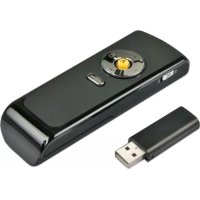
32819 - Remote control Lindy - Free user manual and instructions
Find the device manual for free 32819 Lindy in PDF.



| Product Type | Gyroscopic Wireless Presenter Remote Control |
| Brand | Lindy |
| Model | 32819 |
| Dimensions (L x W x H) | 28 x 80 x 20 mm |
| Power Supply | 2 AAA batteries (included) |
| Wireless Interface | USB 2.0 (receiver dongle) |
| Wireless Range | Up to 30 meters |
| Frequency Band | 2.4 GHz (64 channels, GFSK) |
| Main Functions | 3D gyroscopic mouse, left/right click, page up/down, scroll, F5/Esc buttons |
| Low Battery Indicator | LED |
| Material | Rubber textured surface |
| Supported Operating Systems | All USB-compatible systems (Windows, Mac, Linux) |
| Operating Temperature | 0°C to 50°C |
| Package Contents | Device, USB dongle, 2 AAA batteries, manual |
| Connection Type | 2.4 GHz wireless |
| Gyroscopic Technology | Yes |
| Laser Pointer | No (intentionally absent for international use) |
| Installation | Plug & Play |
| Maintenance and Cleaning | Clean with a soft, dry cloth. Avoid liquids. |
| Safety | Do not expose to moisture or extreme temperatures. No laser pointer. |
Frequently Asked Questions - 32819 Lindy
User questions about 32819 Lindy
0 question about this device. Answer the ones you know or ask your own.
Ask a new question about this device
Download the instructions for your Remote control in PDF format for free! Find your manual 32819 - Lindy and take your electronic device back in hand. On this page are published all the documents necessary for the use of your device. 32819 by Lindy.
USER MANUAL 32819 Lindy
Wireless Gyro Presenter
User Manual English
Thank you for purchasing the LINDY Wireless Gyro Presenter. This Presenter allows you to control your computer from up to 30m away giving you the freedom to move around a presentation space. Simple controls allow you to concentrate on what's important, your presentation and audience.
Unlike other products, the Presenter does not include a laser pointer making it suitable for international travel and use in environments where lasers may be prohibited.
Package Contents
2.4GHz Wireless Gyro Presenter - USB Dongle Receiver (stored in the Presenter) - 2 x AAA Batteries This manual
Features
Plug & Play Installation 3D Gyroscopic Mouse - Left & Right Mouse, Page Up & Down Buttons - Scroll Up & Down Toggle control F5/Esc Button - Low Battery indicator (LED) Rubberized textured surface providing grip
Specification
- Host Interface USB 2.0
- Wireless 2.4GHz 64 Channel (2MHz bandwidth) GFSK Supported OS All modern USB enabled OS Power 2 x AAA Batteries (included)
- Temperature Range 0°C ~ 50°C
- Dimensions (WxDxH) 28 × 80 × 20 mm
Setup
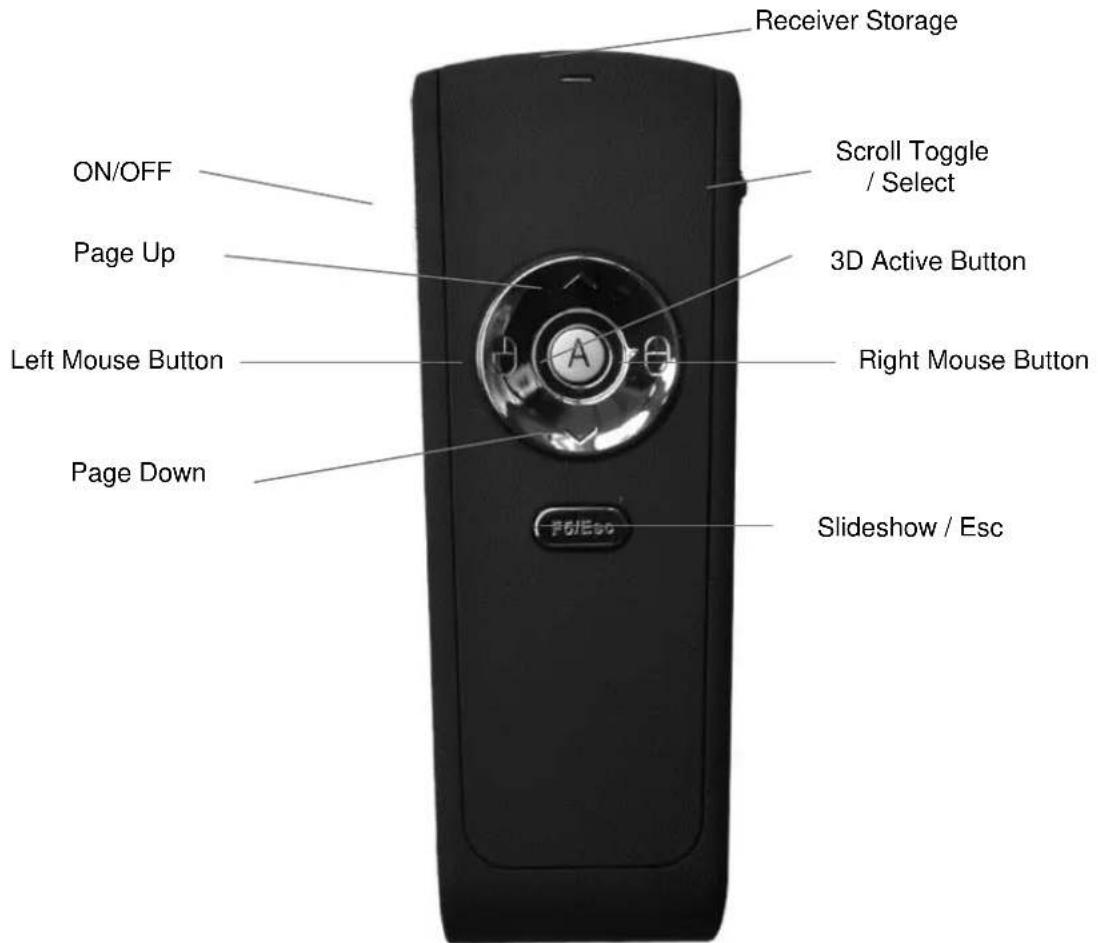
The Gyro Presenter is compatible with all modern USB enabled OS and can be ready for use in seconds.
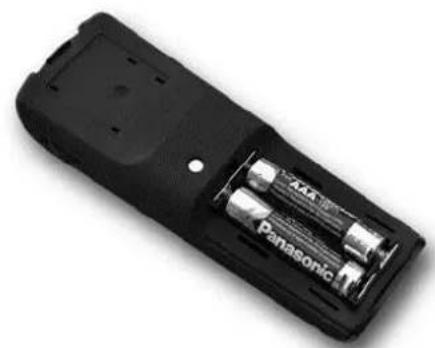
- Install batteries into the handset.
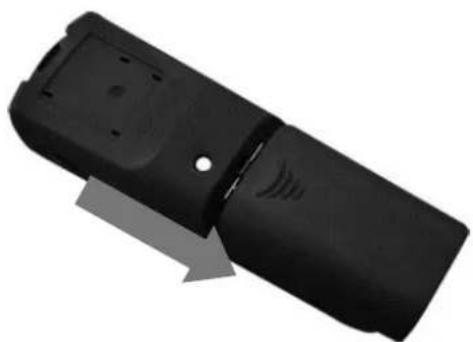
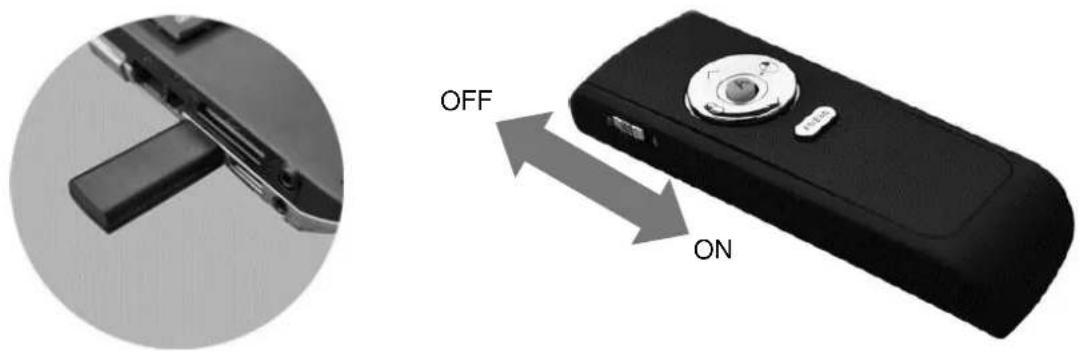
- Remove the USB Receiver from its built-in storage at the top end of the Presenter.
- Connect the receiver to an available USB port on your computer and wait for the computer to go through its 'new hardware' installation. Depending on your specific permissions, you should not need to do anything during this process.
- Power on the Presenter by sliding the ON/OFF switch to the ON position.
Operation
The Gyro Presenter is used to interact with a PC as you would a standard mouse, but without requiring a solid surface to work on.
- Pressing the 3D Active Button activates the Gyro Control until it is released.
- Quickly double-pressing the 3D Active Button locks in the Gyro control; this is released by a single press on the button.
| A | 3D Active |
| ^ | Previous Page – Returns to the Previous Slide in Presentations / Page up in Mouse Mode |
| √ | Next Page – Advances to the Next Slide in Presentations / Page Down in Mouse Mode |
| ∅ | Mouse Left |
| ∅ | Mouse Right |
| $^,^,^,^,^,^,^ | Slideshow Toggle Key – Starts a Slideshow (F5) and Exits from a Slideshow (Esc) |
Troubleshooting
The Radio Frequency (RF) codes are factory preset for your Presenter and should work out of the box.
However, if for any reason the Presenter does not function correctly, try these steps.
1. Ensure
a. The receiver is properly inserted into the computer's USB Port. b. Check that the device is shown in your Device Manager as a HID-compliant device and that there is no exclamation mark shown next to it.
If there is a problem:
i. Remove and reinsert the receiver into the USB Port. ii. Check that the device driver is up to date via Properties in Device Manager.
c. Check that the Presenter Handset is turned ON.
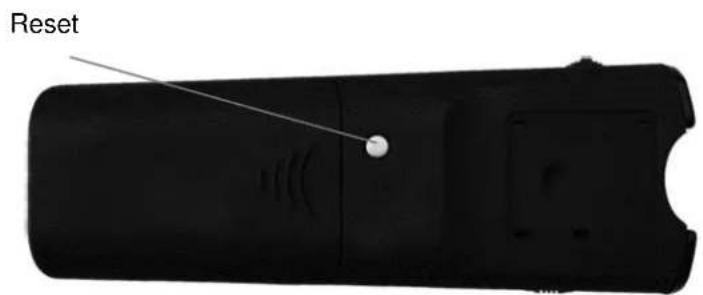
- Reset the Presenter's RF channel by pressing the Connect Button on the bottom of the Presenter. This will switch the Presenter and Receiver to a different channel.
Introduction
Teesside Industrial Estate
Thornaby, Stockton-on-Tees
TS17 9JY, England
Declaration of Conformity
LINDY Part Number: 32819
Description: Wireless Gyro Presenter
We, LINDY Electronics LTD, hereby declare that the above product is in conformity with the EU Directive 2006/95/EC (Low Voltage Directive), 2004/108/EC (Electromagnetic Compatibility), 1999/5/EC R&TTE (Radio and Telecommunications Terminal Equipment) and 2011/65/EU (Restriction of the use of certain hazardous substances - RoHS).
The following standards were used to evaluate the product for electromagnetic compatibility:
EN 55022:2010
EN 55024:2010
EN 60950-1:2006+A11:2009
EN 61000-3-2:2006+A2:2009
EN 61000-3-3:2008
EN 300 440-1 V1.5.1 (2009-03)
EN 300 440-2 V1.3.1 (2009-03)
EN 301 489-1 V1.8.1 (2008-04)
EN 301 489-17 V2.1.1 (2009-05)
Date: 03 October 2013
Signature:

Name: Darren N. Casey
Position: Managing Director, LINDY Electronics LTD
LINDY Supplier Office Reference: 720156 250913
L/PF/103c/DOC/EMC-R&TTE-RoHS
Issue 2
(EC-Declaration of Conformity)
Ref. LINDY S-Office: 720156
Managing Director
Jürgen Lindenberg, Peter Lindenberg, Diars Abernetty
Antsgernt Monshno. H48 786
www.LINDY.de
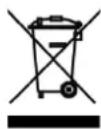
WEEE (Waste of Electrical and Electronic Equipment), Recycling of Electronic Products
Europe, United Kingdom
In 2006 the European Union introduced regulations (WEEE) for the collection and recycling of all waste electrical and electronic equipment. It is no longer allowable to simply throw away electrical and electronic equipment. Instead, these products must enter the recycling process.
Each individual EU member state has implemented the WEEE regulations into national law in slightly different ways. Please follow your national law when you want to dispose of any electrical or electronic products. More details can be obtained from your national WEEE recycling agency.
Germany/Deutschland
- WIRELESS GYRO PRESENTER
- PACKAGE CONTENTS
- FEATURES
- SPECIFICATION
- SETUP
- OPERATION
- TROUBLESHOOTING
- ENSURE
- INTRODUCTION
- DECLARATION OF CONFORMITY
- (EC-DECLARATION OF CONFORMITY)
- WEEE (WASTE OF ELECTRICAL AND ELECTRONIC EQUIPMENT), RECYCLING OF ELECTRONIC PRODUCTS
- EUROPE, UNITED KINGDOM
- GERMANY/DEUTSCHLAND
Brand : Lindy
Model : 32819
Category : Remote control