ManualGo.com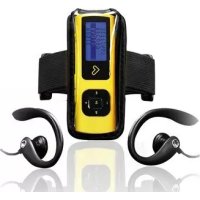
1504 - Mp3 player ENERGY SISTEM - Free user manual and instructions
Find the device manual for free 1504 ENERGY SISTEM in PDF.



Download the instructions for your Mp3 player in PDF format for free! Find your manual 1504 - ENERGY SISTEM and take your electronic device back in hand. On this page are published all the documents necessary for the use of your device. 1504 by ENERGY SISTEM.
USER MANUAL 1504 ENERGY SISTEM
Energy Sistem thanks you for buying your new Sport MP3 Energy™. We wish you enjoy using it. This compact music player, ideal for outdoor activities, includes a sport kit with adjustable armband and adaptable sport earphones. It also has and LCD screen, an integrated FM radio tuner module and a retractable USB connector with pendrive style. We recommend that you fully read this user manual in order to enjoy the product in a safe way and with the best results.
Do not expose your MP3 Energy™ to shakes, dust, direct sun light, moisture or extreme temperatures. ≥ Do not use abrasive or corrosive cleansers. ≥ Keep the device clean and dust free with a soft and dry cloth. ≥ Recharge the battery when the low battery icon appears on screen. ≥ Do not disassemble the device. Any repairs must be performed by qualified Energy Sistem Soyntec’s personnel.28 MAIN FEATURES
Plays MP3 / WMA music. ≥ Ergonomic sport earphones. ≥ Adjustable sport armband. ≥ Backlit LCD screen with resolution of 96*64. ≥ Retractable USB connector with pendrive style. ≥ 9 equalization modes includes Normal, Rock, Pop, Classic, Soft, Jazz, DBB-Bass, UserEQ y SRS WOW. ≥ Special equalization SRS WOW: 3D sound effects, TruBass and FOCUS. ≥ Built-in FM tuner with presets and direct recording. ≥ Digital voice recording with the built-in microphone. ≥ Rechargeable Li-Ion Battery. ≥ Folder navigation. ≥ Shows ID3 tag information (title, artist). ≥ A-B repeat mode. ≥ 7 repeat modes and 2 play modes: Normal and Random. ≥ Upgradeable firmware. ≥ No drivers needed (except W98).29 ENGLISH PRODUCT CONTENT
Energy Sistem® Sport MP3 Player Energy™ 15 Series. ≥ User manual. ≥ Neckstrap. ≥ Ergonomic sport earphones. ≥ Adjustable sport armband with carrying bag. ≥ Software and drivers CD.30 GENERAL OvERvIEW
4. REC: Voice record.
5. MENU: Back to the previous menu / Main Menu / Show options menu.
6. USB 2.0 Hi-Speed retractable connector for battery charging and data transfer with PC.
7. PREVIOUS: Previous element / Fast backwards.
8. NEXT: Next element / Fast forward.
9. VOLUME +: Increase volume / Element up.
10. VOLUME - : Decrease volume / Element down.
Your MP3 Energy™ has an integrated rechargeable Li-Ion battery. It comes fully charged from factory, but it is recommended to perform a full recharge before the first use. Recharge the battery connecting the player to a computer using the retractable USB 2.0 connector. Optionally, you can recharge the battery with an AC/DC power adaptor with a female USB Type A connector (Note: the output of the AC/DC must be 500mA maximum). Charging time is between 2 and 3 hours, depending if the player is powered off or working. To keep the battery in good conditions, we recommend not using the player while charging and not leaving it charging for more than 8 hours. Your MP3 Energy™ uses two systems for battery saving: It can power off the LCD display after some seconds of inactivity, and it can power off completely after some minutes of inactivity. Both systems are configurable, respectively, browsing the menus SETTINGS -> LCD set, and SETTINGS -> Power off. In order to maximize the battery’s lifespan, it is recommended not to disable completely these power saving features.32
To power on your MP3 Energy™ press PLAY for 2 seconds. Note: When powering on, the device performs a memory check. The power on time depends on the amount of occupied memory. Press PLAY for 3 seconds to power off the device. At that moment, the device will save your settings. Note: If you power off the device directly with the reset button, your last changes in the settings will be lost, and it will not remember the last song played. Additionally you can access the menu SETTINGS -> Power off and set the power off time for the player. With the option “Stdby time” you can set the time that the player will remain on with no song being played and no interaction with any button. With the option “Sleep time” you can define when the player will power off, regardless if it is being used or not.33 ENGLISH
Your MP3 Energy™ allows you to enjoy MP3 / WMA codified music due to its high fidelity sound processor. To enter the play mode for MP3/WMA files, press the PLAY button over the MUSIC option. To start, resume or pause the music playback press the PLAY button. Pressing briefly the PREVIOUS/NEXT buttons you access the previous/next music track. You can also rewind or fast forward the playback keeping pressed the PREVIOUS/NEXT button. Use the VOLUME+/- to set the volume up/down respectively. While the playback is paused on the music playback screen, you can access the “Browser” submenu by pressing MENU. Browse through the different options with the VOLUME+/- buttons and select one by pressing the PLAY button.
1. “Browser”: It shows the music files inside the built-in memory. Use the central buttons to
find the song you want to play and press PLAY to select it. The VOLUME +/- buttons moves your selection one line up/down respectively, and PREVIOUS/NEXT buttons move your selection 4 lines at once. Press PLAY to enter folders and MENU to go back.
2. “Delete file”: Allows you to delete the song currently selected.
3. “Delete all”: Eliminates all the MP3 and WMA inside the player’s built-in memory.
4. “Exit”: Brings you back to the music player screen. Alternatively you can go back at any
You can access the “Play Settings” submenu by pressing the MENU button while the playback is under way. Browse through the different options with the PREVIOUS/NEXT buttons and select one by pressing the PLAY button:
1. “Repeat”: Allows you to choose between the different available types of playback and
repetition: Intro, Normal, Repeat one, Folder, Repeat folder, Repeat all and Random.
2. “Equalizer”: You can choose the equalization that best fits your likings. You can find
seven different preset options: Normal, Rock, Pop, Classic, Soft, Jazz and DBB-Bass. Additionally you can use the UserEQ equalization to further personalize the sound.
3. “SRS WOW Mode”: The ninth equalization is the special mode SRS WOW, which brings
you advanced effects like 3D sound, Trubass or FOCUS. To select it press PLAY on “SRS WOW” and configure it pressing PLAY again over “Adjust WOW”.
4. “Replay”: This is the A-B replay mode, which allows you to repeat a part of a song
indefinitely. Once you select the option, mark the start point (A) pressing the MENU button. Once the song reaches your desired end point, press MENU again to mark the ending point (B). The selection will loop endlessly until you press once again the MENU button.
5. “Exit”: Brings you back to the music player screen. Alternatively you can go back at any
time pressing MENU. You can watch the lyrics of a song while it is being played by holding the MENU button a couple seconds. The lyrics are TXT files with the same name as the music file but with the LRC file extension. If your songs do not have this LRC files, the lyrics will not be shown, but the music will playback with no problems.35 ENGLISH To go back to the main menu of the player, hold the MENU button a few seconds. Going back to the main menu will pause the music playback. Note: If your song has lyrics, pause first the playback to go back to the main menu. FM RADIO Your MP3 Energy™ has an integrated FM radio with 20 presets and direct recording. To listen to the radio, select the RADIO option in the main menu. The player will position at the same station that you had selected last time. With the NEXT/PREVIOUS buttons you can browse the FM frequency range. With single pressings you will advance/return one step, and holding the buttons will perform auto searches. In case you position the dial on a broadcast with a preset, its number will appear at the middle of the screen. With single pressing on the VOLUME +/- buttons you can browse up/down the presets available in memory. Holding VOLUME +/- will increase/decrease the volume respectively. You can access the radio options submenu by pressing the MENU button while on the FM radio frequency screen. Browse through the different options with the VOLUME+/- buttons and select one by pressing the PLAY button:
1. “Auto Search”: It scans the frequency range and stores the first 20 broadcasts in the
2. “Save”: Allows you to save the broadcast currently selected inside the next free preset. If
the 20 presets are all occupied you must delete one of them.
3. “Delete”: Choose this option to erase the currently selected preset.36
4. “Delete all”: Erases all current presets.
5. “Record”: You can record the current FM broadcast on WAV files. Press the PLAY button
to begin recording, and pause/resume the recording by pressing PLAY button once again. To finish the recording press the MENU button. To exit the FM record mode back to the frequency screen, hold the MENU button.
6. “Exit”: Brings you back to the frequency scren. Alternatively you can go back at any time
pressing MENU. To go back to the main menu, hold the MENU button a few seconds. Going back to the main menu will close the FM reception. DIGITAL vOICE RECORDING
Your MP3 Energy™ is able to perform voice recording with its integrated microphone. To enter the voice record mode, press the REC button at any time. Press PLAY to start recording. You can pause/resume the recording by pressing PLAY once again. To finish recording, press the MENU button. To exit the voice record mode, hold the MENU button.37 ENGLISH PLAYbACK OF WAv / ACT RECORDINGS
The sound files that you recorded are stored inside the “RECORD” folder. The files are ACT format for voice recordings and WAV format for FM recordings. You can listen to these files by selecting the RECORD option at the main menu. Doing so will bring you to the recordings playback screen, where only the ACT or WAV files inside the memory are available. Select the file you want to hear using PREVIOUS/NEXT and press PLAY to begin the playback. To exit the RECORD mode, hold the MENU button. While the playback is paused on the record playback screen, you can access the “Browser” submenu by pressing MENU. Browse through the different options with the VOLUME+/- buttons and select one by pressing the PLAY button.
1. “Browser”: It shows the recordings inside the built-in memory. Use the central buttons to
find the song you want to play and press PLAY to select it. The VOLUME +/- buttons moves your selection one line up/down respectively, and PREVIOUS/NEXT buttons move your selection 4 lines at once. Press PLAY to enter folders and MENU to go back.
2. “Delete file”: Allows you to delete the recording currently selected.
3. “Delete all”: Eliminates all the ACT and WAV inside the player’s built-in memory.
4. “Exit”: Brings you back to the music player screen. Alternatively you can go back at any
time pressing MENU. Exit the RADIO mode by pressing the MENU button at the main radio screen.38
You can configure multiple aspects of your MP3 Energy™ very easily. At the main menu select the SETTINGS option and choose the one you need pressing the PLAY button. To adjust the screen parameters choose “LCD set”. Inside this submenu, selecting “Brightness” will allow you to change the luminosity of the screen, and selecting “Darkmode” will allow you to set the time when the screen will get darker to save battery after the last button press. Choose 0 seconds if you want the screen always lit. You can select the player language between English, Spanish and French selecting them from the “Language” menu. To know the amount of free memory available in your player’s memory, choose SETTINGS -> Memory info from the main menu.39 ENGLISH FIRMWARE REINSTALLATION
Your MP3 Energy™ has an installed operating system, usually called firmware, which sometimes needs to be reinstalled. The process is easy, but has to be performed carefully, and only when it is really necessary. If you see that the player halts, reboots randomly, or you have problems to access the memory content from your computer, then try pressing the RESET button with a needle or clip. If the problem persists then the firmware might be damaged and you should reinstall the latest version available. IMPORTANT: First of all, make a backup of the files inside your MP3 Energy™ that you want to keep and disconnect the device from your PC, since during the firmware reinstallation the memory will be formatted and erased. It is also is very important to make sure that your computer is virus-free and has no halt/lock problems. Follow these steps to reinstall the firmware:
1. Insert the bundled Driver CD in a CD/DVD drive of your computer and the CD
MENU will automatically appear. Select “Download Energy 15 Series Firmware” to access our website (you can access manually from a web browser from www. energysistem.com).
2. Select your model at the products section and download the latest version
available from the download zone. Note : Make sure the firmware you download is specific for your model because otherwise you can severely damage the unit. Uncompress the file in your computer.40
3. Open the “Readme” file and follow the instructions.
4. Unplug the USB connector, turn on the unit and wait for the main menu (it may
take up to a few minutes).
5. Connect again the unit to the computer with the retractable connector.
6. Go to “My PC” and double click on the drive that represents your MP3 built-in
7. You can again transfer data to your MP3 Energy™ and enjoy it right away.
PC CONNECTION In order to enjoy the best sound for your favourite music in your MP3 Energy™, you have to first copy the music files from your PC to its internal memory. Connect your player to a free USB connector in your computer using its retractable USB connector or a USB type A male/female cable. The device will be detected automatically without installing any driver. Once detected, you can read/write to the device’s memory just as if you where using a regular disk drive. After all the data is transferred, disconnect the player from the computer and close the retractable connector to avoid it gets damaged accidentally. IMPORTANT: To avoid any data loss, always perform a safe USB device extraction before disconnecting the USB cable from the device of the PC. In Windows XP, for example, you can find the safe extraction icon in the task bar, next to the system clock.41 ENGLISH TROUbLESHOOTING
1. Why can’t I play some MP3 files?
The MP3 file has to be compressed along some standards like MPEG1/MPEG2/ MPEG 2.5 layer 3. Otherwise, the file must be converted using a software application.
2. My player doesn’t power on and/or my computer doesn’t detect it, what can I do?
Probably there is a problem with the firmware. Check the user manual section “FIRMWARE REINSTALLATION”.
3. Why can’t I play some WMA files?
Make sure that you are not coding the WMA files with DRM.
4. The ID3 tag data appear as corrupted characters.
The text of the usually displayed fields (Title, Artist,…) must be in UNICODE format to assure complete compatibility in their display. Regardless of the seemingly strange characters, the audio quality is not affected. Have any other question? Check the product F.A.Q. section at www.energysistem.com Technical support email addres:support@energysistem.co.uk42 WARRANTY Energy Sistem Soyntec S.A. warrants its products to be free from defects in materials and workmanship at the time of purchase. The special 36-months warranty is valid for the European Union. For other countries, please refer to your specific legislation or your local distributor. WARRANTY PROCEDURE
5. Visit the Support section at http://support.energysistem.com and select your
product to view the FAQ (Frequently Asked Questions). The solution to your problem is very likely to have been already published there. You will also be able to download user manuals, user guides, drivers and updates.
6. If you cannot find an appropriate solution in the Support section, you may send us
your enquiry or warranty service request by email: support@energysistem.co.uk
7. Alternatively, you may prefer to contact the distributor from which you purchased
the product, presenting the purchase receipt or invoice.43 ENGLISH
Important: we recommend you to make a backup of the data inside the player memory, because on the process of warranty management by our aftersales department the memory is likely to be formatted, thus erasing all the content. Energy Sistem help desk team will not perform any backup of the memory contents, so it is advisable to deliver the player with blank memory or with the original factory content. Specifications are subject to change without notice. © 2011 / 2012 by Energy Sistem
. All rights reserved. Trademarks. All company, brand and product names are trademarks or registered trademarks of their respective companies.45 ESPAÑOL Manuel de l’utilisateur4647 frANçAIS INTRODUCTION