THUNDER 340W - Mobile Phone KAZAM - Free user manual and instructions
Find the device manual for free THUNDER 340W KAZAM in PDF.


User questions about THUNDER 340W KAZAM
0 question about this device. Answer the ones you know or ask your own.
Ask a new question about this device
Download the instructions for your Mobile Phone in PDF format for free! Find your manual THUNDER 340W - KAZAM and take your electronic device back in hand. On this page are published all the documents necessary for the use of your device. THUNDER 340W by KAZAM.
USER MANUAL THUNDER 340W KAZAM
Touch screen & keys 13
Touch tips 13
Zooming tips 14
Rotate the screen 15
Key tips. Error!Bookmark not defined.
Home screen 15
Quick start: Home screen 15
Working with Menus 16
Shortcut 17
Arranging your Home screen 18
Application menu 18
Application menu 18
Phone status bar and notifications 19
Checking notifications and ongoing activates 19
Toolkits 19
Dial pad 20
Make a call 20
Options available during a call 20
Text entry 21
On-screen keyboard 21
Enter text 21
Enter Various Characters 22
Edit Text 22
Select Text 23
Copy/Paste Text 23
Communication 24
24
People 26
Phone 27
Email 27
Multimedia 30
Camera 30
Music 31
FM radio 33
Photos 34
Tools 35
Calendar 35
36
Internet Explorer 37
Connect to Networks and Devices 37
Determine the Network You Are Using 37
Edit or Create New Access Points 38
Wi-Fi Networks 38
Bluetooth 39
Connect to a computer via USB 40
Settings 41
Accessing Password 45
PIN Code 45
PIN2 Code 45
PUK Code 46
PUK2 Code 46
Precautions 47
Frequently Asked Questions and Troubleshooting 50
Safety Information and Notices 53
Using the Mobile Phone and Charger 53
Using the Mobile Phone 54
Using the Battery 55
Using the Charger 56
Requirements for Mobile Phone 57
Requirements for the Battery 57
Requirements for the Charger and AC Adapter 57
Cleaning and Maintenance 58
About Windows phone
A Windows phone can perform many of the same functions as a computer. But you can also adjust it to better suit your needs, to receive the information you want, and have fun at the same time. You can add and delete applications, or enhance them to improve functionality. At Store you can download a range of applications and games from a constantly growing collection. You can also integrate applications on your Windows phone with your personal data and online accounts. For example, you can back up your track of your appointments, and engage in as much social networking as you like.
Trademarks and Permissions
KAZAM is a trademark or registered trademark of KAZAM. Microsoft, Windows, and the Windows Phone logo are trademarks of the Microsoft group of companies. Other trademarks, products, service and company names mentioned are the property of their respective owners.
Applications
An application is a phone program that helps you perform a task. For example, there are applications to make calls, take photos and download more applications.
Note: The colors and specifications shown/mentioned in the user manual may differ from the actual product. Images shown are for representation purpose only.
The content of the manual is correct when it is released, but we reserve the right to modify the technical specification without additional notification.
Some content in the manual may be different from the mobile phone, as the accessory software, SIM card or service varies by providers.
For an online guide of Windows Phone general functionality, see Microsoft's How-to pages for Windows Phone 8: http://www.windowsphone.com/en-gb/how-to/wp8/
Your phone
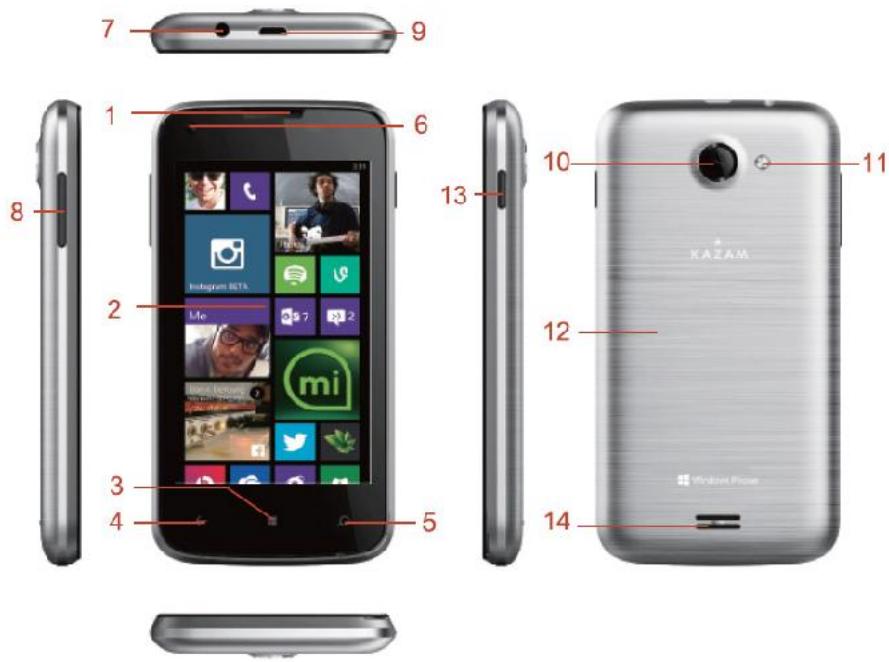
| 1. Earpiece | 2. Touch Screen |
| 3. Start Button | 4. Back Key |
| 5. Search | 6. Front Camera |
| 7. Earphone jack | 8. Volume Keys |
| 9. USB-port | 10. Rear Camera |
| 11. Torch | 12. Battery Cover |
| 13. Power Key | 14. Loudspeaker |
Phone overview
| 1 | Earpiece | When making a phone call, the sound will be heard through this speaker located above the touch screen. |
| 2 | Touch Screen | Use your fingers to navigate the capacitive touch screen. Navigate through menus by tapping, swiping or long pressing an item. |
| 3 | Start Button | Press the Start Button to get home to the Start Screen at any given time. Long press the Start button to activate Speech, the inbuilt voice search. |
| 4 | Back Key | Takes you back one screen from where you are. Long press the back key to quickly switch between recent applications. |
| 5 | Search | Press the Search button to go straight to the powerful Bing search engine. From there you can also use Local Scout – the location search, Visual Search – searching for items using the camera (including scanning barcodes), Audio Search – to identify what song is being played, or type a query in the text box for anything else. |
| 6 | Front Camera | This camera is used to make Skype calls, video calls or take selfies. |
| 7 | Earphone jack | Plug in any standard 3.5mm headphones/headsets to listen to music, make phone calls or listen to the FM-radio. The jack has to be connected to headphones in order to listen to FM-radio. |
| 8 | Volume Keys | Press these buttons to adjust the speaker volume, in-call volume and headset /earphone volume. |
| 9 | USB-port | Use this port to connect the bundled USB-cable to a PC or charger. |
| 10 | Rear Camera | This is the main camera, use the shutter button to take pictures or to perform a Visual Search. |
| 11 | Torch | The LED-torch can be used as a flash for low light images or as a Torch to guide you on the right path. |
| 12 | Battery Cover | Remove the Battery Cover to reveal the battery, SIM-slots and SD-card slot. |
| 13 | Power Key | Short press to enter standby, long press to power off or on the device. |
| 14 | Loudspeaker | This speaker is the main loudspeaker of the device. |
Getting started
let's get you up and running
Assemble & charge
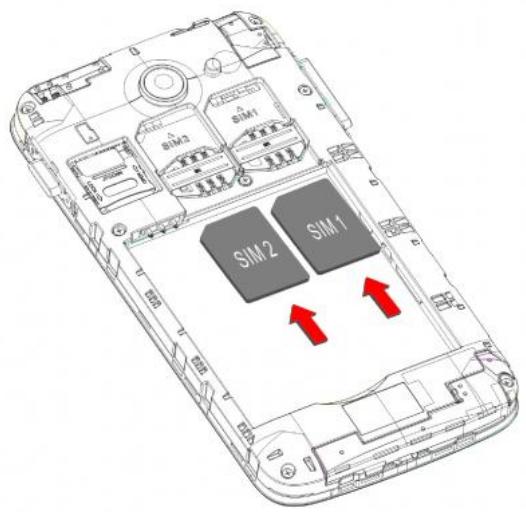
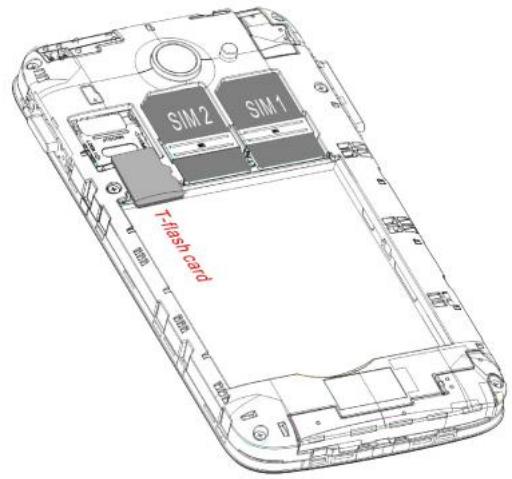
SIM card in
Make sure that the clipped corner of the SIM card is facing the correct direction and the metallic contacts are facing the correct direction. Slide the SIM card into the card slot until it stops.
SD card in
Slide the SD card into the SD card slot with the metallic pins facing downwards. Push the card until it locks into place.
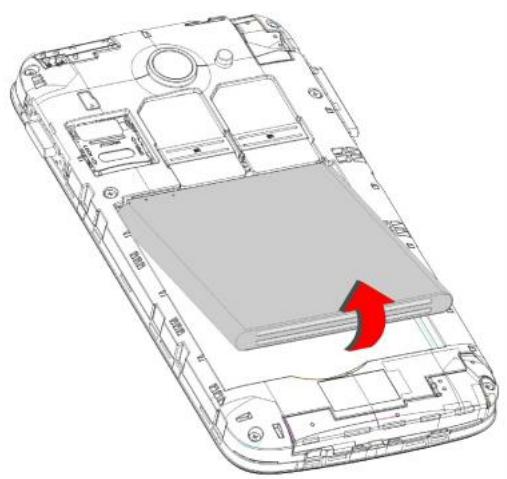
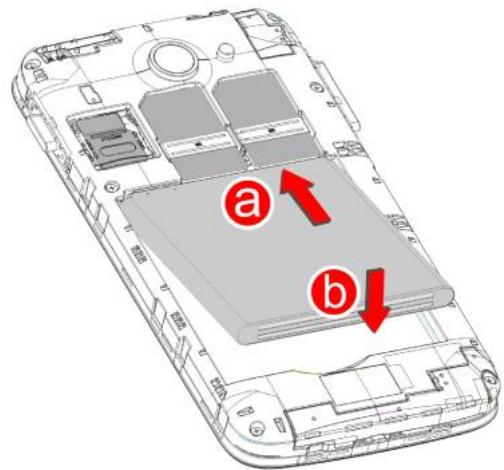
Battery in
With the metallic contacts of the battery facing the metallic contacts in the battery slot, press the battery down until it locks into place.
Charge up
Ensure the battery is inserted in the handset. To charge the battery, plug in the charger connector at your phone (USB interface) and then plug the other end into an AC power socket.
The battery symbol indicates the charging status. While charging, the charge indicators will scroll. When all the scroll bars are steady, the battery is fully charged. Disconnect the charger from the phone.
Disconnect the charger from the AC power socket.

Note: If the battery is completely empty, the battery icon will reappear after a few minutes of charging.
Touch screen & keys
A few essentials
Touch tips
Here are some tips on how to navigate around your phone.
Touch
To choose an icon or option, touch it.
Touch & hold
Open special functions or additional options. Try it: From Application menu, touch Music icon to enter Music library, then touch and hold a
song, some options will be available to you. For example: add to..., create radio station, share, delete, etc.
Drag
To scroll through a list or move slowly, drag across the touchscreen. Try it: on the Home screen, touch People icon to enter contacts list, you can drag contacts list up or down to scroll list.
Slide
To slide by moving your finger up or down on the touch screen quickly. Scroll through a list or move quickly, slide across the touchscreen (drag quickly and release).
Double-touch
Touch quickly twice to zoom in/out. For example, double-touch a picture in Gallery to zoom in/out.
Zooming tips
When looking at maps, webpages or photos, place two fingers on the touch screen at once and pinch them together to zoom out or spread them apart to zoom in.

Note: Use the zoom function when you view photos, maps or when you browsing the web.
Rotate the screen
On some screens, the orientation of the screen rotates with the phone as you turn it from upright to its slide and back again. You can turn this feature on and off.
Home screen
quick access to the things you need most
Quick start: Home screen
The Home screen gives you all your latest information in one place. It's what you see when you turn on the phone. It is the equivalent of the desktop on a computer. It's your gateway to the main features in your phone.

Note: Your Home screen might look a little different.
Working with Menus
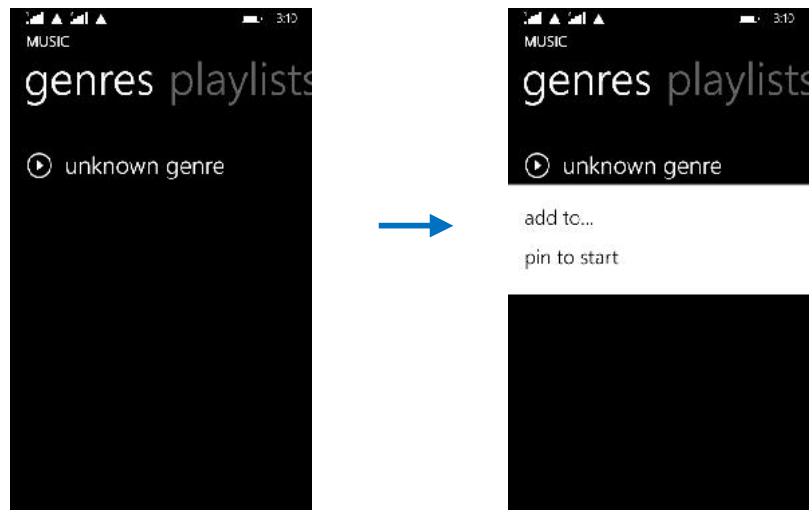
The phone provides you with Options menus and context menus. Options menus
- Options menus contain tools that apply to the activities of the current screen or application, not to any specific item on the screen. You can open options menu by touch and hold one option.
- Not all screens have options menus. If you touch and hold one option on a screen that has no options menu, nothing happens.

pin to start
Context menus
Context menus contain tools that apply to specific item on the screen. You can open a context menu by touching and holding an item on the screen. Not all items have context menus. If you touch and hold an item that has no context menu, nothing happens.
Shortcut
To add a shortcut to Home screen
- From Home screen, slide to the left.
- You will see application menu.
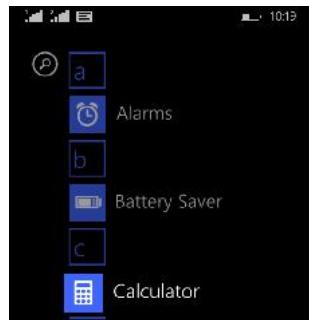
- Touch and hold an application icon select pin to start, can see the application in the bottom of the main screen.
To remove a shortcut on Home screen
If you want to remove the shortcut, you can touch and hold the shortcut icon on Home screen, then option in the top right corner of delete.
Arranging your Home screen
To move an item on Home screen
Touch and hold an item on Home screen, then drag it where you want.
Application menu
enjoy applications from the Application menu
Application menu
The Application menu, which you open from your Home screen, contains the applications that come installed with your phone.
The Application menu extends beyond the screen width, so you need to slide up and down to view all content.
To open the Application menu
- On Home screen, slide to the left.
To browse the Application menu
Open the Application menu, then slide the screen up or down.
Phone status bar and notifications
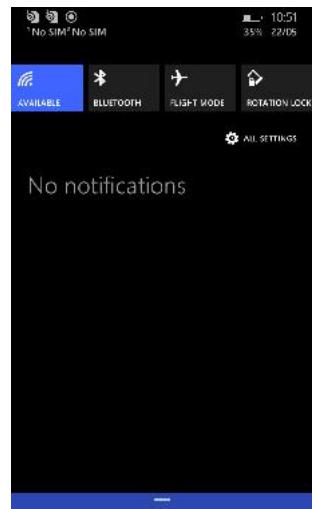
The status bar at the top of the screen contains icons that tell you about messages and phone status and shows what's going on in your phone. At the top you get notifications when there is something new or ongoing. For example, new message, missed call, signal strength, battery status and other information appear here.
Checking notifications and ongoing activates
You can drag down the status bar to open the Notification panel and get
more information. For example, view missed calls from Notification panel.
To open the Notification panel
Drag the status bar downwards.
To close the Notification panel
Drag the bottom of the Notification panel upwards.
Toolkits
In the toolkits you can quickly start the common applications such as Bluetooth, Wi-Fi and so on.
Dial pad
Make a call
Touch Phone icon on the Home screen.
In dialing screen, input number and touch dial icon to dial the inputted number.
Options available during a call
During a call, there are some call options available to you. These call options can be seen only during a call. When a call is in progress, you can put it on hold, initiate a phone conference, mute your microphone etc.
To
Key pad: Go to the key pad.
Touch

Speaker: To turn on/off the speaker.
Touch

Mute: Mute your voice so that the other party cannot hear you.
Touch

Hold: To place a call on hold.
Touch

Add call: Open dial pad to dial the second call.
Touch

End: To end a call.
Touch
end call
Press Volume keys to adjust the call volume.
Text entry
On-screen keyboard
You can open keyboard by touching a text field.
keyboard input method
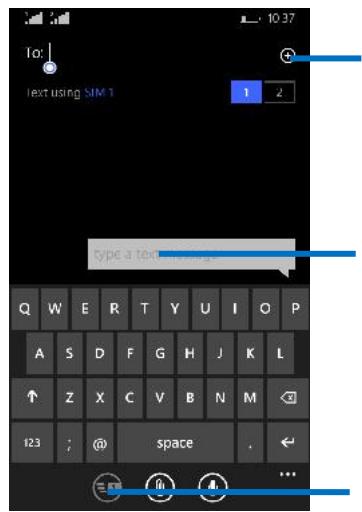
Touch this icon to select desired contact from phonebook.
Text field
Send message
Enter text
- Touch the keys on the keyboard to type. You can also drag your fingers between each key to spell out words using the swipe technology to predict words.
- Use the Delete key to erase characters to the left of the cursor.
- When you finished typing, Press Back key to close the keyboard.
Enter Various Characters
- Touch the Symbols key to switch to the numbers and symbols keyboard.
Edit Text
You can edit the text you enter in text fields and use menu commands to copy, and paste text, within or across applications. Some applications do not support editing some or all of the text they display. Others may offer their own way to select text you want to work with.
- Touch and hold the text field that contains the text to select the word.
- Copy the text.
Select Text
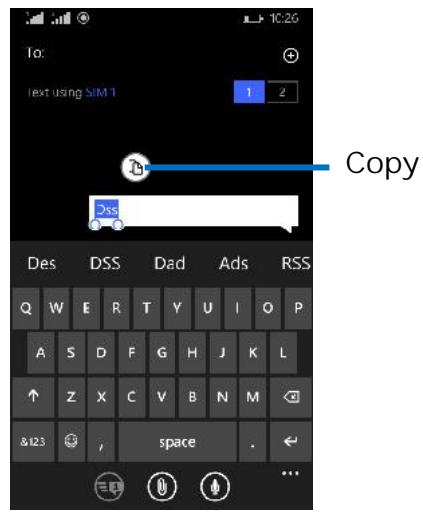
You can select text for copying. The selected text is highlighted in blue.
- Touch and hold the portion that contains text. Some options open with icons.
- Move the cursor to select the text.
Copy/Paste Text
- Touch Copy icon in the menu that opens.
- Touch paste icon in the menu that opens. The text is inserted at the cursor.
You can paste the text that you copied from one application into a text field in any application.
Communication
it's good to talk, text or email.
Messaging
Find it: Application menu > Messaging
You can compose, send and receive text messages from your phone, and also can compose, send and receive multimedia messages, which contain media files such as pictures, videos and audios.
When you view your messages, they appear as conversations, which means that all messages to and from a particular person are grouped together.
-Compose new message
- From your Menu screen, touch Messaging icon or find it: Application menu > Messaging - SIM1 or Messaging - SIM2.
-
Touch
-
To add recipient(s), touch , then find and mark the contact name. To add more than one contact, mark the contact name for the desired recipients. You can also enter the recipient's phone number manually.
- After you finish marking contact(s), touch
- Touch Type a text message to enter your message text.
- If you want to insert a media file, touch , and select an attachment.
-
Then to send the message.
-
Delete message threads
-
From your Menu screen, touch Messaging icon or find it: Application menu > Messaging - SIM1 or Messaging - SIM2.
- Touch and hold the message thread.
- Select the conversations you want to delete.
-
Touch Delete in the menu that pops up.
-
Forward a message
-
From your Menu screen, touch Messaging icon or find it: Application menu > Messaging - SIM1 or Messaging - SIM2.
- Touch the conversation containing the message you want to forward.
- Touch and hold the message you want to forward.
-
Touch Forward in the menu that opens.
-
Add recipient(s), touch , then find and mark the contact name. To add more than one contact, mark the contact name for the desired recipients. You can also enter the recipient's phone number manually.
-
Then to send the message.
-
Messaging settings
-
From your Menu screen, touch Messaging icon or find it: Application menu > Messaging - SIM1 or Messaging - SIM2.
- Press More, select Settings in the menu that opens.
- You can change messages settings.
People
Find it: Application menu > People
The People application offers you to store and manage all your people.
-
Add a people
-
From your Home screen, touch People icon or find it: Application menu > People.
- Touch
- Select storage path to which you want to add this new people.
- Enter the information for the people. Touch a people to
-
After you finish, touch ⑤. view its details
-
Search a people
-
From your Home screen, touch People icon or find it: Application menu > People.
- Touch
-
Input the first character of the name you are searching for in the cursor, and then all records meeting the conditions will be displayed. Search results will be different due to different input content.
-
Contact groups
You can assign contacts to groups to get quicker access to them from the Contacts application. It allows you to create a new group such as VIP, schoolmate, friends, family or co-worker.
To create a new group
- From your Home screen, touch People icon or find it: Application menu > People.
- Select GROUPS.
- Touch
- Choose account under which you want to create group.
- Input the information of group, then touch ⑤.
Phone
Find it: Application menu > Phone
History
Find it: Application menu > Phone > history tab
You can see all the phone records.
Find it: Application menu > Email
The Email application in your phone offers you to compose, send and receive emails through your regular email account.
You need create account first, and then create email to send. You can configure Email for most accounts in just a few steps.
-
Set up an email account in your phone
-
From your Home screen, then find it: Application menu > Settings > Email + Accounts.
-
Enter your email address and password, then touch sign in.
-
If the settings for the email account cannot be downloaded automatically, complete the setup manually. If necessary, contact your email service provider for detailed settings.
- When you are prompted, enter a name for your email account, so that it is easily identifiable. The same name shows in the emails you send from this account.
-
After you finish, touch sign in.
-
Create and send an email
-
From your Home screen, then find it: Application menu > Email.
- Touch
- Enter recipients' addresses, and subject.
- Compose email. Press , you can attach a file, select the type of attachment, and select the file which you want to attach from the list that appears.
- If you want to add Cc/Bcc, press More, then touch Add Cc/Bcc.
-
When you finish, touch send to send the email.
-
Receive emails
-
From your Home screen, then find it: Application menu > Email.
-
Touch more to sync, you can download new emails.
-
Read your emails
-
From your Home screen, then find it: Application menu > Email.
-
In the email inbox, scroll up or down, and touch the email you want to read.
-
Reply to an email
-
From your Home screen, then find it: Application menu > Email.
-
In the email inbox, scroll up or down, and touch the email to which you want to reply.
-
Touch to select Reply or Reply all.
-
Enter your reply, touch send to send the email.
-
Forward an email
-
From your Home screen, then find it: Application menu > Email.
- In the email inbox, scroll up or down, and touch the email you want to forward.
- Touch to select forward.
- Enter your forward, then touch send.
Multimedia
listen it, watch it, capture it, enjoy it!
Camera
Find it: Application menu > Camera
Take a photo or record a video with the camera in your phone. You can hold the camera horizontally or vertically. Share a photo or a video with your friends, or upload your photos and videos to a web service.
- Camera control overview
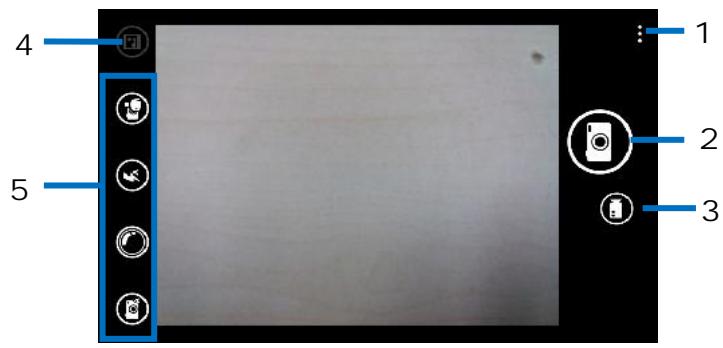
1 Touch More to photo settings or video settings
2 Take a photo
3 Record a video
4 Preview photos
5 Additional Settings
Take a photo
- Adjust your picture size, color effect, and other settings if you wish.
- Frame your subject on screen.
- Touch the shutter icon on the screen.
The picture you just took is displayed for a moment, and then is displayed as a thumbnail.
-
Shoot a video
-
Adjust the video quality, color effect, and other settings if you wish.
- Point the lens to the scene you want to shoot
- Touch the camcorder icon to start.
- Touch the camcorder icon again to stop shooting.
Music
Find it: Application menu > Music
The phone comes with a Music player that plays songs, listen to audio book and podcasts you have stored. It gives you a host of setting options to make your listening experience interesting.
You can easily transfer your favorite music from your PC to the SD card and experience a whole world of interesting and melodious music.
When you copy music to your SD card, the Music player searches the card for music files and builds a catalog of your music, based on information about each file that is stored in the file itself.
Music library
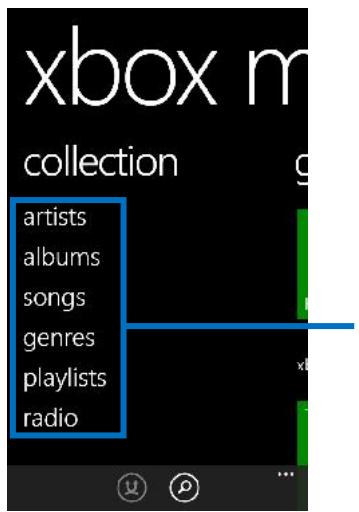
Categories
Touch to select artists, albums, songs, genres, playlists or radio.
The Music library offers the following multiple categories that you can select.
Categories
Artists: Songs classified by singers
Albums: Songs classified by albums
Songs: Display all songs
Genres According to the different types of store songs
Playlists: Display playlists
Radio Play radio songs
FM radio
Find it: Application menu > FM radio
The phone comes with an in-built FM Radio. You can listen to FM radio stations, and add them to channel list. You have to plug in an earphone, as the antenna of the FM radio. You can listen to the radio either through an earphone, or through the speaker in the phone.
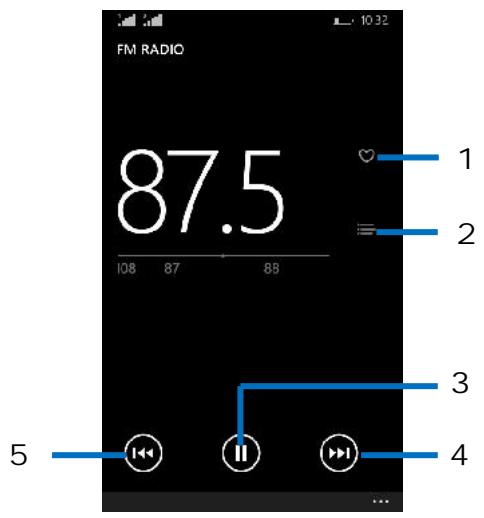
1 Save or remove a channel as a favorite
2 Channel list
3 Start or stop button
4 The next channel
5 The previous channel
Photos
Find it: Application menu > Photos
The Photos offers you to view photos and play videos which are downloaded as well as those taken by the phone camera.
From Photos, you can also share your photos and videos with your friends, via Messaging, Bluetooth, or Email.
- Touch an album to open it and view its contents.
-
Touch a picture or a video in an album to view it.
-
Share an Album
-
From your Home screen, then find it: Application menu > Photos.
-
Select the photos you want to share.
-
Touch in the menu that opens.
- In the menu that opens, touch the application to use to share the selected albums. You can share via Email, Facebook, and Messaging etc.
Tools
stay on top of things
Calendar
Find it: Application menu > Calendar
Your phone has a calendar for managing your time schedule. You can use the calendar to keep track of important events. After entering the calendar function menu, you can select year, month and date.
- To set the calendar view
- From your Home screen, then find it: Application menu > Calendar.
- Touch
- Select day, week, month or year in the menu that opens.
- To add a calendar event
- From your Home screen, then find it: Application menu > Calendar.
- Touch
- Enter the subject, location, time, and data for the event.
- After you finish, touch
Calculator
Find it: Application menu > Calculator
Keep your calculations on your finger tips with the calculator. Using this application allows you to make calculations. The calculator provides the basic arithmetic functions; addition, subtraction, multiplication, and division.
How to use the calculator
- From your Home screen, find it: Application menu > Calculator.
- Enter the first number using the numeric keys.
- Enter the operation for your calculation by touching the Plus, Minus, Multiplication, or Division key.
- Enter the next number.
- To view the result, touch the " = " (equals) key.
Touch, you can only erase one numeric before the cursor.
Touch c, you can erase all numeric before the cursor.
Internet Explorer
You can open several windows at the same time and switch among them easily.
- Open the web browser
From your Home screen, touch Internet Explorer icon or find it: Application menu > Internet Explorer.
- Search and address bar
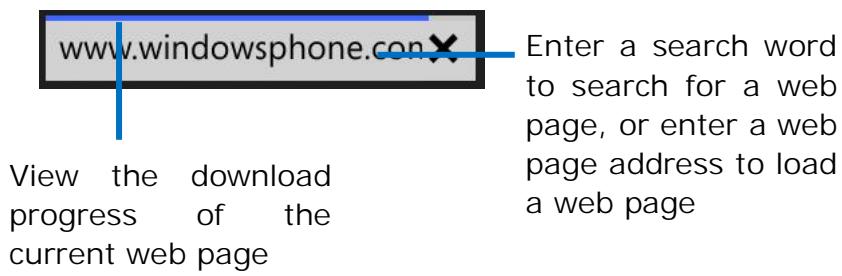
Connect to Networks and Devices
Your phone can connect to a variety of networks and devices, including Wi-Fi, Bluetooth, devices such as headsets. You can also transfer files to/from your PC through the data cable.
Determine the Network You Are Using
- From Application menu, touch Settings.
- Touch mobile + SIM > SIM1 settings or SIM2 settings. The name of the wireless service provider you are currently registered with is selected.
Edit or Create New Access Points
If you and your wireless service provider determine that you need to change the settings of your current access point name (APN) or to create a new one, you must obtain the APN and detailed settings from your provider.
- From Application menu, touch Settings.
- Touch mobile + SIM > SIM1 settings or SIM2 settings > add internet APN.
- Enter the APN settings that you obtained from your wireless service provider.
- When you finished, touch
Wi-Fi Networks
Wi-Fi is a wireless networking technology that can provide internet access at distance of up to 20 meters. To use Wi-Fi on your phone, you access a wireless access point, or "hotspot". Some hotspots are open and you can simply connect to them. Others are hidden or implement other security features, so you must configure your phone so it can connect to them.
TIP: Turn off Wi-Fi when you are not using it, to extend the life of your battery.
-
Connect to Wi-Fi Network
-
From Application menu, touch Settings.
-
Touch Wi-Fi.
-
Check Wi-Fi to turn it on. The phone scans for available Wi-Fi networks and displays the names of those it finds. Secured networks are indicated with a Lock icon.
- Touch a network to connect to it
If the network is secured, you are prompted to enter a password or other credentials (Ask your network administrator for details)
Bluetooth
Bluetooth is a short-range wireless communications technology that devices can use to exchange information over a distance of about 10 meters.
-
Turn Bluetooth On/Off
-
From Application menu, touch Settings.
- Touch Bluetooth.
- Turn it on or off.
- Pair With Bluetooth Devices
You must pair your phone with a device before you can connect to it. Once you pair your phone with a device, they stay paired unless you unpair them.
- From Application menu, touch Settings.
- Touch Bluetooth.
- If Bluetooth is not turned on, check Bluetooth to turn it on. Your phone scans for and displays the IDs of all available Bluetooth devices in range.
- Touch the ID of the desired device in the list to pair it.
Connect to a computer via USB
You can connect your phone to a computer with a USB cable to transfer music, pictures, and other files between your phone's SD card and the computer.
The connection to USB interfaces has to be limited to USB 2.0 version or higher. The connection to so called power USB is prohibited.
Settings
the settings for various features of the phone
Get to know the settings in your phone so that you can personalize them to your own requirements. Go to Settings to configure how your phone looks, sounds, communication, privacy, and operations in a variety of ways:
| Start + theme | Change your phone's background and accent color to match your mood today, this week, or all month. |
| Ringtones + sounds | Configure how your phone rings, vibrates and so on. |
| Email + accounts | Set up email, contacts, and others. |
| Lock screen | Setting your phone's background, notifications, screen times out after and so on. |
| Notifications + actions | Manage action center |
| Wi-Fi | Turn Wi-Fi on or off. |
| Airplane mode | Turn airplane mode on or off. |
| Bluetooth | Turn Bluetooth on or off, search for available Bluetooth devices, and make your phone visible or invisible to other Bluetooth devices. |
| Mobile + SIM | Set data connection. |
| Internet sharing | Turn on or off sharing. When internet sharing is turned on, Wi-Fi or VPN can’t be used. |
| VPN | Set up about VPN. |
| Workplace | Add a workplace account. |
| Kid’s corner | Kid’s Corner is a place on your phone where you can share apps, videos, games, and music with your child. |
| Battery save | You can know battery life remaining. |
| Data sense | This feature finds more efficient ways to use cellular data and displays your usage. |
| Storage sense | See what’s taking up space on your phone. |
| Brightness | Let you set the screen brightness. |
| Screen rotation | When Rotation lock is on, your screen will stay in the current orientation when you rotate your phone. |
| Project my screen | Display on a TV, monitor, or projector. |
| Find my phone | Setup needed. |
| Backup | Save stuff to the cloud. |
| Sync my settings | Use settings across devices. |
| Driving mode | Driving Mode turns off all notifications except texts and phone calls when you’re driving. |
| Location | Turn on or off Location services. |
| Advertising id | Turn on or off Advertising id. |
| USB | Let you set up about USB. |
| Data + time | Let you choose preferences such as format and time zone. |
| Keyboard | Let you select the keyboard, and you can add keyboard. |
| Language | Let you select the language for the text on your phone and add languages. |
| Region | Let you select Country/Region. |
| Feedback | Send phone usage feedback to help improve Microsoft and partner products and services. |
| Speech | Press and hold the Search button to use Speech. |
| Ease of access | Set text size, high contrast, and more. |
| Phone update | Get software updates. |
| About | About your phone's information. |
Accessing Password
The cell phone and SIM card use several accessing passwords. These passwords help to prevent the cell phone from being embezzled. You can use the function options in the security settings of settings menu to change accessing password (except for PUK and PUK2).
PIN Code
PIN code (Personal Identification Number) can prevent the SIM card from being embezzled. The PIN code is provided along with the SIM card. If the PIN code checking is activated, it is necessary to input the PIN code when the cell phone powers on every time.
If a wrong PIN code has been input for 3 times straight, it is needed to input the PUK code, then input a new PIN code and input it again for confirmation.
PIN2 Code
Some SIM cards may provide PIN2 code, while PIN2 code needs to be used in some functions like Call Cost. These functions can be used only if the SIM card supports them.
If a wrong PIN2 code has been input for 3 times straight, it is needed to input the PUK2 code, then input a new PIN2 code and input it again for confirmation.
PUK Code
PUK code (Personal Unlock Key) is used to change locked PIN code. PUK code is provided along with the SIM card. If not provided, please contact your local service provider for PUK code.
If wrong PUK code has been input for 10 times straight, the SIM card cannot be used any more. Please contact your service provider for a new SIM card.
- PUK code cannot be changed. If the PUK code is lost, please contact your service provider.
PUK2 Code
PUK2 code is provided along with some SIM cards for changing locked PIN2 code.
If wrong PUK2 code has been input for 10 times straight, the SIM card cannot be used any more. Please contact your service provider for a new SIM card.
The PUK2 code cannot be changed. If it is lost, please contact your service provider.
Precautions
| Please carefully read and observe the terms below: Safe power on Do not use your mobile phone where it is forbidden to use or you might cause a disturbance or danger. | |
| Safe transportation first Please observe all related local laws and regulations. Do not use your mobile phone while driving. Safe transportation should be considered first when driving. | |
| Disturbance All mobile phone performances might be disturbed. | |
| Turn off when in the hospital Please follow related limitations. Please switch your mobile phone off when near a medical instrument. | |
| Turn off on an airplane Please follow related limitations. Do not use your mobile phone on an airplane. | |
| Turn off when at a gasoline station Do not use your mobile phone at a filling station or around fuels or chemicals. |
| Turn off around exposure Area Please observe related limitations and do not use your mobile phone near an area where explosions can occur. | |
| Proper use As described in this manual, your mobile phone can be used only in the correct location. If possible, please do not touch the antenna area of your phone. | |
| Use qualified after sales service Only a qualified technician can install or repair your mobile phone. Please contact the authorized service center in case of phone failure. | |
| Accessories and batteries Only use the authorized accessories and batteries and do not connect to incompatible manufacturers or products. | |
| Waterproof Your mobile phone is not waterproof. Please keep it away from water. | |
| Backup Remember to make a backup or keep a written record of all important information saved in your mobile phone. | |
| Connect to other devices Please read the user manual of the device to get more detailed security instructions before connecting to other devices and do not connect to an incompatible product. | |
| SOS | SOS emergency calls Make sure your mobile phone is switched on and in a service area. In idle mode, input the SOS number, then press the Dial Key. Advise where you are and do not hang up without permission. |
Frequently Asked Questions and Troubleshooting
| Frequently Asked Questions | Cause and Solution |
| Fail to power on | Press the power on key for more than 1 second. Check if the battery is properly connected. Please remove and install it again, retry to turn it on; Check if battery is appropriately charged. |
| Fail to connect network | Weak signal. Please try and move to a location with strong signal and try connecting to the network again; Please ensure that you are not beyond the network coverage of service providers; Please ensure you have a valid SIM card. Please contact your network provider for further information; |
| Display information while turning on | Check if the SIM card is installed correctly Handset lock password. If the handset lock is activated, you have to input handset password. Input PIN: Inputting PIN while turning on each time is activated, you have to input the PIN code. Input PUK code: When you've input wrong PIN code for 3 times will lock the SIM card. You need to input the PUK code provided by your network provider. |
| Poor quality of calling | Please check if the sound volume is tuned improperly In an area with poor receiving condition, example: basement, the signal might be weak. Try searching a location with stronger signal reception and call again. |
| While using the mobile phone in the peak period of communication, like commute time, you may be unable to call because of line congestion. | |
| Standby duration shortened | The standby duration is relative to the system setting of network. While the mobile phone is in an area with poor signal strength and cannot receive the signal, the handset will continuously search for a base station. This will significantly reduce battery charge. It is recommended that you turn off your mobile in area with no signal reception to save battery. Need replacing the battery. Please change a new battery. |
| SIM Card Error | Dirt on the metal surface of an SIM card. Use clean cloth to wipe the metal touch point on an SIM card. The SIM card is not installed. The SIM card is damaged. Please contact your network service provider. |
| Fail to dial out | Please check if you press the dial key after dialing. Please check if calling is forbidden because of defaulting. Please check if the SIM is valid. Please check if the call barring is set. Please check if the fixed dial function is set. |
| Callers cannot contact you | Please check if the mobile phone is on and connected with the network. Please check if the Call barring or call divert is activated. Please check if the SIM card is valid. |
| Fail to charge | Poor power connection. Please check if the plug is connected well. Please confirm if the environment temperature is within the range of 0°C ~40°C while charging. The battery or charger is damaged. You need to replace it. |
| Fail to set some functions | Wrong operation. The network provider does not support the function, or you have not applied for it. |
Note: If the instructions above cannot help you solve problems, please record, Mobile phone model and IMEI number. Then contact your local KAZAM Customer Support Center:
| Denmark 00 45 35 25 80 09 | Weekdays: 9am – 6pm |
| France 01 57 32 40 49 | Weekdays: 9am – 6pm |
| Germany 0696 698 4449 | Weekdays: 9am – 6pm |
| Weekends: 10am – 6pm | |
| Italy 02 4527 9022 | Weekdays: 9am – 6pm |
| Norway 00 47 22 70 82 72 | Weekdays: 9am – 6pm |
| Poland 00 48 22 203 03 12 | Weekdays: 9am – 6pm |
| Spain 00 34 911 776 152 | Weekdays: 9am – 6pm |
| Sweden 00 46 (0)8 57 92 90 53 | Weekdays: 9am – 6pm |
| UK 00 44 (0)208 822 3637 | Weekdays: 9am – 6pm, |
| Weekends: 10am – 6pm |
Safety Information and Notices Using the Mobile Phone and Charger
Danger:
Only use authorized battery and chargers. Using other brands may cause battery leakage, overheating, explosion or even fire.
Caution:
Keep the phone away from dust, water and damp areas. Dust, water or other liquids may cause overheating, electrical leakage, and/or phone failure.
The phone, battery, charger and AC adapter are not waterproof. Keep them away from rain and liquid.
Warning:
Do not bump, shake or tamper with the phone or charger. This may cause battery leakage, overheating, explosion or even fire.
Do not place the battery, phone or charger near a microwave or high-voltage device. This may cause battery leakage, overheating, explosion or even fire; also prevent the phone and AC adapter from overheating, smoking or short circuiting.
Do not use the phone around volatile oil. This may cause fire, breakdown or damage.
To avoid any damage or breakdown, do not disassemble the phone, battery, charger or internal components by yourself.
Location:
The socket-outlet shall be installed near the equipment and shall be easily accessible.
Using the Mobile Phone
Warning:
Please confirm if the environment temperature is within the range of 0^ 40^ while charging.
Do not use the phone while you are driving. Pull over and stop your automobile to dial or listen to a phone call.
Usage of mobile phones in aircrafts or hospitals is prohibited. Switch the phone off to prevent interference with electronic medical devices. Follow any rules or regulations in such places.
Do not use the phone at a gas station, near fuel or near chemicals.
Do not use the phone near electronic medical devices such as hearing aids, pacemakers and auto-control devices such as fire detectors and automatic doors.
If you have to use your mobile phone near an electronic medical device such as a pacemaker, please contact your manufacturer or dealer for information about preventing interference.
Caution:
Electronic systems in automobiles such as anti-lock brakes, speed control, or fuel spraying systems, are usually not influenced by wireless devices. Manufacturers of these systems will tell you whether they are provided with good screening functions. If you suspect that an automobile failure is caused by a wireless wave, please contact your automobile dealer.
Avoid using your phone in crowded places.
Do not store your mobile phone near or with a credit card, disk or other magnetic materials. This may effect information stored on your phone. Keep your phone away from pins. Pins can be absorbed by the phone's receiver magnet, which may cause harm.
If you intend not to use your mobile phone for a long period of time, please remove the battery from the phone. Leaving the battery inside the mobile phone for a long period of time may cause moisture to the battery, and it can damage the mobile phone or the battery.
Using the Battery
Danger:
Do not dispose of the battery into a fire. Doing so may cause battery explosion or even fire.
If you have difficulties installing the battery, do not force the installation. This may cause battery leakage, overheating, explosion or even fire.
Keep metal objects away so they do not come in contact with the battery or its connectors as it may cause the battery to short circuit, overheat or explode.
Do not weld the polarities of the battery directly together. This may cause battery leakage, overheating, explosion or even fire.
Battery liquid is severely harmful for your eyes. If battery liquid gets in your eyes, do not rub them. Instead, wash your eyes with water first and then go directly to a doctor for help.
Do not use or store your phone in high temperature areas. This may cause battery leakage, overheating, explosion or even fire.
Warning:
Replace the battery when the normal usage time begins to decrease or if you notice the battery is overheated or has changed shape or color. If battery liquid leaks onto your skin or clothes, immediately wash the affected parts with water.
If the battery begins to leak or emits a strange odor, properly dispose of the battery according to local regulations. Do not throw it into a fire.
Caution:
Do not leave the product or its battery inside a vehicle. This may damage the product, overheat the battery, or pose a risk to the vehicle.
Warnings on Battery:
(a) Please use appointed battery in case of explosion risk.
(b) Please dispose of lifeless battery under guidance.
Using the Charger
Danger:
Only use the charger that came with the phone. Using a different charger may cause the phone to breakdown or explode.
If the charger short circuits, a fire may occur.
- Do not use a damaged, worn or broken charger. This may cause a fire.
- Clean dust away from the power socket to avoid the possibility of a fire.
- Do not store the charger near any liquids. If liquids spill onto the charger, it may cause it to overheat or breakdown.
If liquid does spill onto the charger, immediately unplug the power cable to prevent overheating, fire or another type of breakdown.
Do not use the charger in places with high humidity like a bathroom. This may cause a fire or other breakdown.
Do not touch the charger, power cable or socket with wet hands. This may cause an electric shock.
Requirements for Mobile Phone
Avoid using your mobile phone in extremely high or low temperatures. It is recommended that you do not use your mobile phone near a telephone, TV set, radio or other radio frequency sensitive devices.
Requirements for the Battery
When not in use, store the battery in a cool, well-ventilated place with sunshine.
If you will not be using the mobile phone for an extended period of time, charge the battery on a regular basis to avoid battery breakdown.
The phone battery wears out fast. If charging the battery does not improve its performance, it is time to replace the battery. Properly dispose of the battery according to local regulations. Do not throw it into a fire.
Caution: Risk of explosion if battery is replaced by an incorrect type. Dispose of used batteries according to the instructions.
Requirements for the Charger and AC Adapter
Please confirm if the environment temperature is within the range of 0^ 40^ while charging.
Cleaning and Maintenance
The mobile phone, the battery and the charger are not waterproof. Do not use them in places with high humidity like a bathroom and also avoid spilling any liquids on them.
Use a soft cloth to clean the mobile phone, the battery and the charger. Do not use alcohol, diluted liquid or benzene to clean the mobile phone. If dust gets in the sockets the phone can be damaged, short-circuit or even the lose the ability to be re-charged. Be sure to clean the socket regularly.


www.kazam.mobi
C€1313