
SWR12 BLANC - Smart bracelet SONY - Free user manual and instructions
Find the device manual for free SWR12 BLANC SONY in PDF.

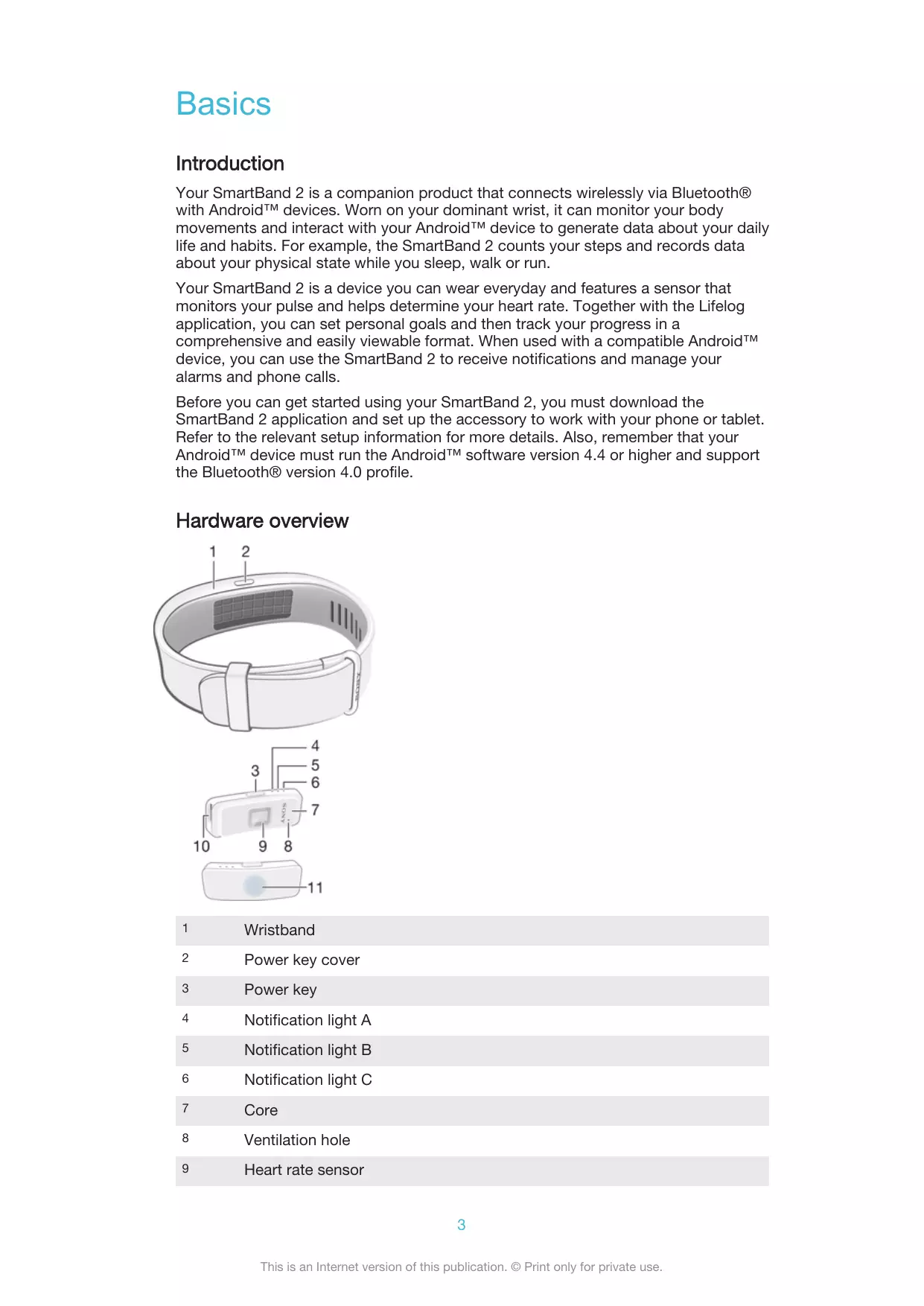

| Product type | Connected bracelet (fitness tracker) |
| Brand | Sony |
| Model | SWR12 White |
| Dimensions (bracelet) | Length: 240 mm, width: 18 mm |
| Weight | Approximately 25 g |
| Screen | OLED, monochrome, 128x36 pixel resolution |
| Power | Rechargeable lithium-ion battery (approx. 5 days battery life) |
| Sensors | Accelerometer, optical heart rate sensor |
| Main functions | Step counter, sleep tracking, call and message notifications, music control, alarm |
| Connectivity | Bluetooth 4.0 |
| Water resistance | IP68 (water resistant up to 1.5m for 30 min) |
| Compatibility | Android 4.4+ and iOS 8.0+ |
| Strap material | Hypoallergenic silicone |
| Color | White |
| Care and cleaning | Clean with a slightly damp soft cloth; avoid abrasive products |
| Safety instructions | Do not expose to extreme temperatures; avoid strong impacts |
| Spare parts and repairability | Replaceable strap; battery not user-replaceable |
| General information | Class B, compliant with Canadian NMB-003 standard |
Frequently Asked Questions - SWR12 BLANC SONY
User questions about SWR12 BLANC SONY
0 question about this device. Answer the ones you know or ask your own.
Ask a new question about this device
Download the instructions for your Smart bracelet in PDF format for free! Find your manual SWR12 BLANC - SONY and take your electronic device back in hand. On this page are published all the documents necessary for the use of your device. SWR12 BLANC by SONY.
USER MANUAL SWR12 BLANC SONY
Introduction. 3 Hardware overview 3 Charging your SmartBand 2. 4 Assembly. 5 Wearing your SmartBand 2. 5 Turning on and off. 6
Setting up your SmartBand 2. 7
Preparing to use your SmartBand 2. 7 Reconnecting the SmartBand 2. 8 Resetting your SmartBand 2. 8
Using your SmartBand 2. 9
Using the SmartBand 2 application. 9 Getting notified. 9 Measuring Stress & Recovery. 9 Smart wake up alarms. 11 Out-of-range alert notifications. 12 Do not disturb. 13 Remote control. 13 Connecting to Google Fit. 14 Notification lights. 14
Logging your activities using the Lifelog application. 16
Using the Lifelog application. 16 Setting goals. 18 Editing logged activities. 18 Synchronising data with the Lifelog application. 19
Important information 20
Using your SmartBand 2 in wet and dusty conditions. 20 Legal information. 20
Basics
Introduction
Your SmartBand 2 is a companion product that connects wirelessly via Bluetooth® with Android™ devices. Worn on your dominant wrist, it can monitor your body movements and interact with your Android™ device to generate data about your daily life and habits. For example, the SmartBand 2 counts your steps and records data about your physical state while you sleep, walk or run.
Your SmartBand 2 is a device you can wear everyday and features a sensor that monitors your pulse and helps determine your heart rate. Together with the Lifelog application, you can set personal goals and then track your progress in a comprehensive and easily viewable format. When used with a compatible Android™ device, you can use the SmartBand 2 to receive notifications and manage your alarms and phone calls.
Before you can get started using your SmartBand 2, you must download the SmartBand 2 application and set up the accessory to work with your phone or tablet. Refer to the relevant setup information for more details. Also, remember that your Android™ device must run the Android™ software version 4.4 or higher and support the Bluetooth® version 4.0 profile.
Hardware overview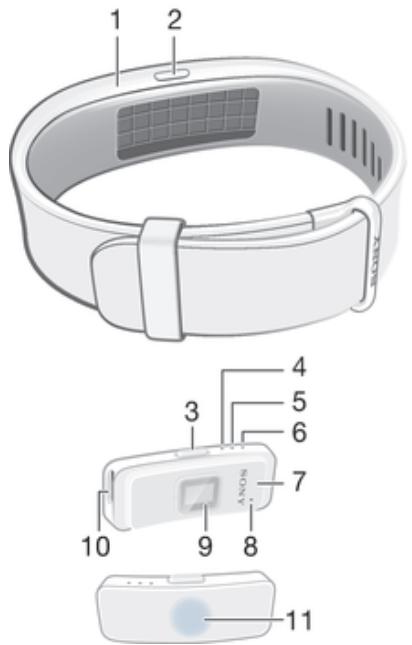
| 1 | Wristband |
| 2 | Power key cover |
| 3 | Power key |
| 4 | Notification light A |
| 5 | Notification light B |
| 6 | Notification light C |
| 7 | Core |
| 8 | Ventilation hole |
| 9 | Heart rate sensor |
10
Micro USB port
11
NFC detection/tapping area

The ventilation hole is not used for resetting the device. Do not insert or force sharp objects in the hole as this may damage the device.
Charging your SmartBand 2
Before using your SmartBand 2 for the first time, you need to charge it for approximately 30 minutes. Sony chargers are recommended.
Your SmartBand 2 turns off automatically when the charger is connected. You cannot turn on the device while a charger is connected.
To charge your SmartBand 2
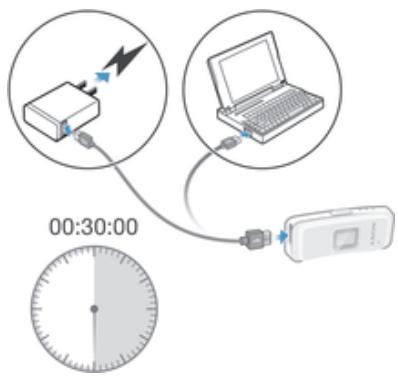
1 Plug one end of the USB cable into the charger or into the USB port of a computer. 2 Plug the other end of the cable into the Micro USB port of your SmartBand 2. 3 While the battery is charging, notification light A changes from red to orange. The notification light changes to green when you reach 90% battery power.

Make sure the USB port is dry before you insert a USB cable into the port.

Your SmartBand 2 turns off when connecting to a charger, and goes back to its previous on/off state when the charger is unplugged.
Battery notification light status
Red light: Battery is charging and the charge level is less than 15%.
Orange light: Battery is charging and the charge level is between 15% and 90%.
Green light: Battery is charging and the charge level is greater than 90%.
To check the battery level of your SmartBand 2
- From the main application screen of your Android™ device, find and tap the SmartBand 2 application. The battery percentage level appears on the screen.
Low battery level notification
When your SmartBand 2 reaches a specific battery level, the device vibrates and the red light starts flashing every 4 seconds until you charge the device or it powers off. The low battery level notification is triggered when you have approximately 5 minutes left in Heart Activity mode and 75 minutes in STAMINA mode. The time varies depending on usage. When battery level is below 1%, your SmartBand 2 automatically turns off. You need to charge your SmartBand 2 when the battery runs out of power.

If the "Do not disturb" function is turned on, you will not get the low battery notification.
Assembly
To personalise your SmartBand 2, you can replace the wristband with bands of different colours, which can be purchased separately.
To assemble your SmartBand 2
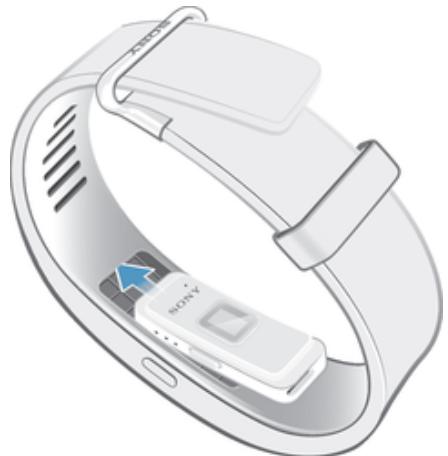
- Insert the core into the wristband in such a way that the power key is inserted underneath the power key cover.
Wearing your SmartBand 2
You should wear the SmartBand 2 on your dominant hand and position the device on your wrist two fingers above the wrist bone. Wear your SmartBand 2 on your wrist snugly but comfortably, neither too tight nor too loose. In order for the SmartBand 2 to monitor your pulse, it should stay in place on your wrist. While you're exercising, tighten the wristband a bit. When you're done, loosen the wristband.
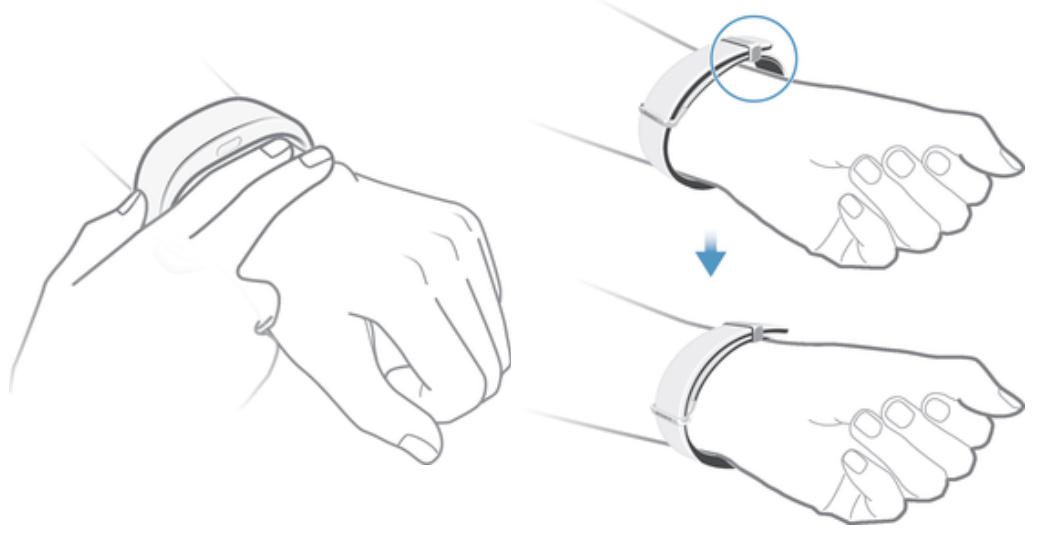
Caring for your SmartBand 2 and your skin
To help avoid skin irritation, correctly adjust the bracelet's fit around your wrist and clean your SmartBand 2 regularly. Rinse the SmartBand 2 with fresh water under a faucet and dry the device completely, particularly after performing rigorous activity, heavy sweating or exposing the device outdoors.
If you start to experience skin irritation or an allergic reaction, stop wearing your SmartBand 2. Contact your physician if symptoms persist.
Turning on and off
To turn on the SmartBand 2
- Press and hold down the power key until your SmartBand 2 vibrates. All notification lights turn on one by one and then turn off. When turning on your SmartBand 2 for the first time, it automatically enters pairing mode and notification light A flashes until your SmartBand 2 is connected to a device.
To turn off the SmartBand 2
- Press and hold down the power key until your SmartBand 2 vibrates. All notification lights are on simultaneously and then turn off one by one.
Setting up your SmartBand 2
Preparing to use your SmartBand 2
For your SmartBand 2 to work properly, you must install the latest version of the SmartBand 2 application on the Android™ device, and then pair and connect it with your Android™ device. You also need to install the Lifelog application, which adds extra features and functions that allow you to, for example, see more detailed information about your daily activities.
You can set up your SmartBand 2 using NFC, which launches the pairing, connection and setup procedures automatically, or you can use the Bluetooth® option to do the steps manually.
A setup wizard in the SmartBand 2 application guides you through the process of setting up your SmartBand 2 for the first time.
! All applications required for the SmartBand 2 to work are available on Google Play™.
To set up your SmartBand 2 using NFC
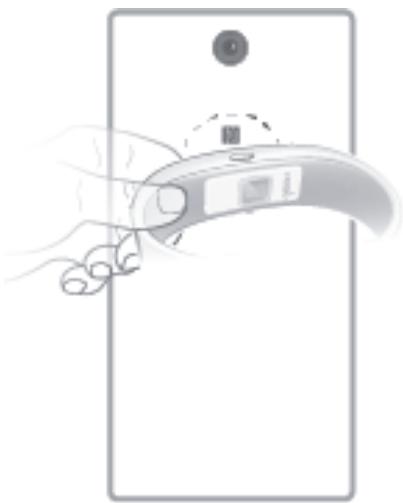
1 Make sure that your SmartBand 2 is fully charged. 2 Android™ device: Make sure that the NFC function is turned on and that the screen is active and unlocked. 3 Place the Android™ device over your SmartBand 2 so that the NFC detection area of each device touches the other, then follow the instructions on the Android™ device to install the SmartBand 2 application and the Lifelog application. appears briefly in the status bar and permanently in the Notification panel when a connection with the SmartBand 2 is active.
When starting your SmartBand 2 for the first time and the SmartBand 2 has not been paired with a device before, your SmartBand 2 automatically enters pairing mode. If your SmartBand 2 is turned on and has been paired before, it tries to reconnect to the last paired device instead. Your SmartBand 2 can only be paired to one device at a time.
You can set up your SmartBand 2 using NFC even when the SmartBand 2 is turned off. The SmartBand 2 turns on when the NFC detection area touches it. If you have problems pairing your SmartBand 2 with an Android™ device using NFC, try to connect manually using Bluetooth®. You can drag down the status bar to open the Notification panel and get quick access to the SmartBand 2 application and the Lifelog application.
To set up your SmartBand 2 using Bluetooth®
1. Make sure that your SmartBand 2 is fully charged. 2. Android™ device: Make sure that you have installed or updated the SmartBand 2 application to the latest version. 3. Turn on your SmartBand 2. 4. Android™ device: Turn on the Bluetooth® function, then scan for Bluetooth® devices and select SWR12 in the list of available devices. 5. Android™ device: Follow the instructions that appear on the screen. appears briefly in the status bar and permanently in the Notification panel when a connection with the SmartBand 2 is active.
You can drag down the status bar to open the Notification panel and get quick access to the SmartBand 2 application and the Lifelog application.
Reconnecting the SmartBand 2
In cases where a connection gets lost, for example, when the connected Android™ device goes out of range, your SmartBand 2 vibrates 3 times if the out-of-range alert is turned on, and your SmartBand 2 automatically performs a series of reconnection attempts if Bluetooth® is turned on. In case the auto-reconnection fails, you can use the power key to manually force the accessory to try reconnecting, or you can use NFC to reconnect the two devices.
To force the SmartBand 2 to try reconnecting
- Briefly press the power key.
To reconnect your SmartBand 2 using NFC
1. Android™ device: Make sure that the NFC function is turned on and that the screen is active and unlocked. 2. Place the Android™ device over your SmartBand 2 so that the NFC detection area of each device touches the other.
The SmartBand 2 application opens automatically when your SmartBand 2 connects with your Android™ device using NFC.
Resetting your SmartBand 2
Reset your SmartBand 2 if it behaves unexpectedly or if you want to connect it to a new device.
To perform a factory reset
1. Turn off your SmartBand 2. 2. Press and hold down the power key for more than 10 seconds.
If you are pairing the SmartBand 2 with a new Android™ device, your SmartBand 2 may attempt to reconnect with your previous Android™ device even after a factory reset. Unpair your SmartBand 2 with the previous device first and then pair it with the new Android™ device.
To unpair your SmartBand 2
1 From the main application screen of your Android™ device, find and tap SmartBand 2 > Forget SmartBand. 2 Tap OK to confirm.
You can also unpair your SmartBand 2 from the Bluetooth® settings of the Android™ device.
Using your SmartBand 2
Using the SmartBand 2 application
You can view and change settings for your SmartBand 2 by using the SmartBand 2 application on your Android™ device. You can also view your current pulse, stress and physical activities, such as steps, from the SmartBand 2 application.
Getting notified
You can set your SmartBand 2 to vibrate when you get an incoming call or a notification from your Android™ device.
All notifications that appear in the status bar on a connected Android™ device can be forwarded to your SmartBand 2. You can use the SmartBand 2 application to select which notifications to forward.
| Notified by | Vibration feedback | Lights feedback |
| Incoming calls | Vibrating continuously | All lights flashing white continuously |
| Smart wake up alarm | Vibrating continuously | Not available |
| Other notifications | Vibrating once | Light A flashing the same colour as on your Android™ device for 5 minutes |
To turn on the "Get Notified" function
1 From the main application screen of your Android™ device, find and tap SmartBand 2 > Settings. 2 Tap Get notified, then drag the sliders beside Off, Incoming call and Notifications to the on position. 3 Follow the on-screen instructions to get access of reading notifications for your SmartBand 2.
To select which notifications to forward to your SmartBand 2
1 From the main application screen of your Android™ device, find and tap SmartBand 2 > Settings > Get notified. 2 Drag the sliders beside Off and Notifications to the on position. 3 Tap Get notifications from, then select the desired apps.
To mute the ringtone for an incoming call
- Briefly press the power key.
Measuring Stress & Recovery
Stress is a natural part of everyday life and contributes to the healthy and balanced overall condition of an individual. The Stress & Recovery values provided by the SmartBand 2 refer to a combination of your Heart Rate (HR) and Heart Rate Variability (HRV). SmartBand 2 analyses your Heart Rate Variability (HRV) and assesses how well your body manages stress levels during different situations throughout the day.
The SmartBand 2 can measure Heart Rate (HR) and Heart Rate Variability (HRV) even if the device is disconnected from an Android™ device. Data collected using the heart rate sensor is stored for up to 72 hours and synced to the Android™ device once connected via Bluetooth or NFC.
This product is intended to help you track your exercise and lifestyle. It is not a medical device and data from it should never be used to make medical decisions (like preventing, diagnosing,
monitoring, or treating a disease or injury) or replace the advice of a medical professional. Sony Mobile disclaims any warranty that this device could be used or suitable for medical purposes. Seek medical advice before undertaking a new or altered training regime using this device, particularly if using this device together with a pacemaker or other medical devices.

Extensive use of pulse and stress measurement increases battery consumption.
Pulse measurement
Pulse measurement is the generally recommended method of determining your heart rate (HR), which can be a rough indicator of intensity of exercise. Pulse rate is expressed by the number of times your heart beats per minute (BPM). Although "pulse rate" and "heart rate" are two different concepts, the terms are used in the same context in this User guide.
Stress and recovery levels
Stress & Recovery is determined using Heart Rate Variability (HRV). The heart rate is never constant and the time difference between two consecutive heartbeats changes from beat to beat. This variation is called Heart Rate Variability (HRV). If the variation in-between heartbeats is high, this indicates a relaxed or recovering state. If the variation is low, this indicates stress.
Activities such as reading a book may result in low stress levels, or can even be tracked as recovery. For example, busy moments at work or school may result in a high stress indication. It is important to note that a stress reaction does not have to be negative; it may also indicate that you are experiencing something exciting or fun. To balance periods of high stress, you need to recover by relaxing and sleeping well. A medium stress level may indicate effortless productivity, which is common during work and social activities.
Recovery mostly occurs while you sleep. There are factors that can affect your recovery measurements. A physically active lifestyle, healthy nutrition, lower consumption of alcohol, and elimination of stress factors make it possible to improve recovery during sleep in the long run. Avoiding highly strenuous physical activities and "slowing down" mental activities well before going to bed also have a positive effect on recovery.

Stress & Recovery values provided by the SmartBand 2 are not a reliable source for analysing overall fitness. Low intensity exercises, for example, can be misinterpreted incorrectly as recovery.

To get a measurement of your Stress & Recovery, wear your SmartBand 2 for at least one night when you go to bed.
How the SmartBand 2 measures your pulse and stress
The SmartBand 2 uses green lights paired with light-sensitive photodiodes to detect the amount of blood flowing through your wrist at any given moment. By flashing its lights hundreds of times per second, the SmartBand 2 can calculate the number of times the heart beats each minute and provide an estimate of your heart rate.
Factors that affect pulse and stress measurement
Many factors can affect the performance of the SmartBand 2 heart rate sensor:
- Skin perfusion. Skin perfusion - how much blood flows through your skin - varies significantly from person to person and can also be impacted by the environment. If you're exercising in the cold, for example, the skin perfusion in your wrist may be too low for the heart rate sensor to get a result.
- Movement. Rhythmic movements such as running or cycling give better results from the heart rate sensor compared with irregular movements like tennis or boxing.
- Skin pigmentation variations. Permanent or temporary changes to your skin, such as some tattoos. The ink, pattern, and saturation of some tattoos can block light from the sensor, making it difficult to get reliable results.
Getting the most from the SmartBand 2 heart rate sensor
Even under ideal conditions, the SmartBand 2 may not be able to get a reliable heart rate reading every time for each individual. And for a small percentage of users, various factors may make it impossible to get any heart rate reading at all. Perform the following steps if you want to improve the reading from the heart rate sensor:
- Make sure that you wear your SmartBand 2 snugly, but comfortably on your wrist. If it does not stay in place on your wrist and the heart rate sensor fails to get a good reading, tighten the wristband.
- You may need to clean the SmartBand 2, especially the heart rate sensor, after exercising or heavy sweating.
Measuring pulse and stress automatically
The SmartBand 2 measures your pulse, stress, and recovery level about six times an hour.
Measuring pulse and stress manually
You can have your SmartBand 2 perform a reading of your pulse at any time, either from the device itself or from your Android™ device.
To get the best heart rate data when exercising, initiate the heart rate sensor a few minutes before your physical activity so that the sensor is able to detect your pulse.
! Notifications, except for incoming calls and alarms, are not passed to your SmartBand 2 when you measure your pulse and stress manually.
To measure your pulse and stress manually from your SmartBand 2
1. To start measuring your pulse and stress level, double-press the power key. The notification lights start to flash orange alternately and then together when the reading is complete. The results are then displayed on the SmartBand 2 and Lifelog application on your Android™ device. 2. To end the measurement, double-press the power key again. If the SmartBand 2 cannot detect your pulse, it vibrates three times and the notification lights start to flash alternately in orange. If the heart rate sensor fails to get a reading, adjust the SmartBand 2's position on your wrist or clean the sensor. For more information on improving the reading from the heart rate sensor, see Getting the most from the SmartBand 2 heart rate sensor on page 11.
To measure your pulse and stress manually from your Android™ device
1. From the main application screen of your Android™ device, find and tap SmartBand 2. The SmartBand 2 immediately attempts to get a reading from the heart rate sensor and displays the results on the SmartBand 2 or Lifelog application. 2. To end the measurement, quit the SmartBand 2 application.
STAMINA mode
To reduce battery consumption, you can turn on STAMINA mode, which disables automatic measurement of pulse and stress. You can still manually start a measurement even while your SmartBand 2 is in STAMINA mode.
To turn on/off STAMINA mode
1. From the main application screen of your Android™ device, find and tap SmartBand 2 > Settings. 2. Tap STAMINA mode, then drag the slider to the On/Off position.
Smart wake up alarms
You can set one or several Smart wake up alarms in the SmartBand 2 application. The Smart wake up alarm wakes you up at the best time based on your sleep cycle.
The alarm notifies you with a continuous vibration. After you set a time frame for when you would like to be awoken by the alarm, your SmartBand 2 detects when you have reached a state of light sleep (after a period of deep sleep) and then wakes you up.
For example, if you set a Smart wake up alarm for between 06:30 and 07:00 AM, the alarm wakes you up sometime between 06:30 and 07:00 AM when you reach a state of light sleep. If you do not reach a state of light sleep during this period, the Smart wake up alarm wakes you up at 07:00 AM.
If you want to add, remove or change a Smart wake up alarm, your SmartBand 2 must be connected to the Android™ device.
To add a Smart wake up alarm
1 From the main application screen of your Android™ device, find and tap SmartBand 2 > Settings. 2 Tap Smart wake up, then tap 3 Tap Time and select the relevant values for the hour and minute, then tap OK. 4 To edit a period, tap the plus or minus icons beside the Wake-up period. 5 Tap Repeat, then mark the days on which you want the alarm to recur and tap OK. 6 When you're finished, tap SAVE.
To edit an existing Smart wake up alarm
1 From the main application screen of your Android™ device, find and tap SmartBand 2 > Settings. 2 Tap Smart wake up, then tap the alarm that you want to edit. 3 Edit the options as desired. 4 When you're finished, tap SAVE.
To delete a Smart wake up alarm
1 From the main application screen of your Android™ device, find and tap SmartBand 2 > Settings. 2 Tap Smart wake up, then tap the alarm that you want to delete. 3 Tap DELETE.
To turn on a Smart wake up alarm
1 From the main application screen of your Android™ device, find and tap SmartBand 2 > Settings. 2 Tap Smart wake up. 3 Drag the slider beside the alarm that you want to turn on.
To snooze a Smart wake up alarm when your SmartBand 2 vibrates
- Briefly press the power key.
To turn off a Smart wake up alarm when your SmartBand 2 vibrates
- Press and hold down the power key until your SmartBand 2 vibrates once shortly.
Out-of-range alert notifications
You can receive a notification when you leave your Android™ device behind by turning on the Out-of-range alert notification. Your SmartBand 2 then notifies you with three short vibrations when the distance between your SmartBand 2 and the connected Android™ device becomes too great and causes a disconnection. This function is turned off by default.
To turn on the Out-of-range alert notification function
1. From the main application screen of your Android™ device, find and tap SmartBand 2 > Settings. 2. Tap Get notified, then drag the slider beside Out-of-range alert to the on position.
Do not disturb
You can turn on the Do not disturb function if you do not want to be interrupted by notifications. When the Do not disturb function is enabled, only the Smart wake up alarm is active.
To turn on the Do not disturb function
1. From the main application screen of your Android™ device, find and tap SmartBand 2 > Settings. 2. Tap Get notified > Do not disturb, then drag the slider beside Off to the on position.
To set the Do not disturb interval
1. From the main application screen of your Android™ device, find and tap SmartBand 2 > Settings. 2. Tap Get notified > Do not disturb, then drag the slider beside Off to the on position. 3. Tap Start time and select the relevant values for the hour and minute, then tap OK. 4. Tap End time and select the relevant values for the hour and minute, then tap OK.
Remote control
You can use your SmartBand 2 to control media playback and the Find phone application on the connected Android™ device. You can select which application you want to control using the SmartBand 2. If you select a media application, you can manage media playback on the Android™ device. If you select the Find phone application, you can make your Android™ device ring loudly.
The three notification lights on the SmartBand 2 are blue when you are using it as a remote control.
To turn on the remote control function
1. From the main application screen of your Android™ device, find and tap SmartBand 2 > Settings. 2. Tap Remote control, then drag the slider beside Off to the on position.
To select which application can be used with remote control
1 From the main application screen of your Android™ device, find and tap SmartBand 2 > Settings. 2 Tap Remote control, then drag the slider beside Off to the on position. 3 Tap Active application, then select an application as desired.
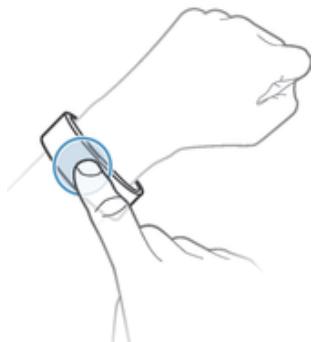
1 Make sure that your SmartBand 2 is connected to your Android™ device. 2 Select music player as the application that can be controlled through your SmartBand 2. 3 Briefly press the power key on your SmartBand 2. 4 To play or pause the music file, tap the SmartBand 2 once. To go to the next music file, tap twice. To go to the previous music file, tap three times. 5 To end remote control, briefly press the power key or wait for 10 seconds without tapping the SmartBand 2. The three blue notification lights turn off.
Connecting to Google Fit
You can use your SmartBand 2 with Google's online health and fitness service, Google Fit. With the Google Fit application, you can measure, track and store fitness data online.
To connect your SmartBand 2 to Google Fit
1 From the main application screen of your Android™ device, find and tap SmartBand 2 > Settings. 2 Tap Google Fit, then drag the slider beside Off to the on position, then follow the on-screen instructions to confirm your Google account.
Notification lights
You can determine the status of your SmartBand 2 via the three notification lights on the device.
| Notification light activity | Status of the SmartBand 2 |
| All lights illuminating in white one by one, then turning off simultaneously | Powered on |
| All lights illuminating in white simultaneously, then turning off one by one | Powered off |
| Light A flashing in green | Factory data resetting/Updating firmware |
| Light A flashing in blue | Connecting to the Android™ device |
| All lights illuminating in blue one by one, then turning off simultaneously | Connected to the Android™ device |
| All lights illuminating in white one by one, then turning off simultaneously | Not connected to the Android™ device |
| All lights flashing in orange continuously | Measuring pulse and stress and recovery level manually |
| All lights flashing in blue continuously | Remote controlling |
| All lights flashing in red continuously | Low battery level |
| All lights flashing in white continuously | Incoming calls |
Logging your activities using the Lifelog application
Using the Lifelog application
The Lifelog application records your physical, social and entertainment activities. For example, you can monitor your stress and recovery, and see how long you've been walking or running. You can also see what pictures you took and what music you listened to. To start using the Lifelog application, you need to download it from Google Play™ and then set up an account.
The statistics that the Lifelog application generates from your physical activities, for example, walking distance and calorie count, are based on the height and weight data you provide. Results may vary from user to user. Also, remember that you need an Internet connection to synchronise data to the Lifelog application on your Android™ device. ! Lifelog is designed to help you track your daily activities, including any exercise you perform. Take note, however, that SmartWear products are not medical devices and data from Lifelog is not meant to replace the advice of a qualified medical professional.
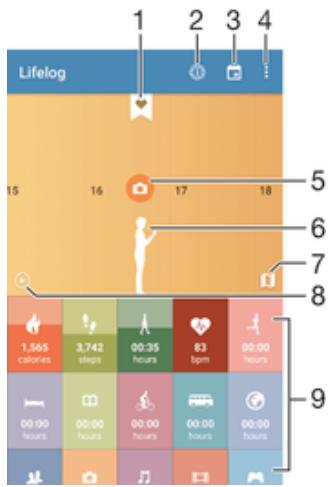
1 View detailed information about a LifeBookmark 2 View list of Lifelog insights, such as comparison of steps with others 3 View all logged activities for the selected day 4 View menu options 5 View information about application usage 6 View physical activities log 7 Switch between dashboard and map view 8 View all logged activities since the start of the day 9 Activities dashboard
To set up an account for the Lifelog application
1 From the main application screen of your Android™ device, find and tap Lifelog. 2 Follow the instructions that appear on the screen and accept the terms and conditions. 3 Create a new account or select an existing one. 4 Follow the instructions that appear on the screen to create a Lifelog account.
To log in to the Lifelog application
1 From the main application screen of your Android™ device, find and tap Lifelog. 2 Follow the instructions that appear on the screen and accept the terms and conditions.
Adjusting the stride length for walking and running
The Lifelog application uses the number of steps you have taken and your stride length to calculate the distance you have walked or run. The automatic stride length used by default is based on your gender and height. If you feel that the distances measured by the Lifelog application are not accurate enough, you can adjust your stride length.
To adjust the stride length for walking
1 From the main application screen of your Android™ device, find and tap Lifelog. 2 Tap ⋮ > Settings > Profile. 3 Find and tap Stride length. 4 Unmark the Automatic checkbox if it is marked, then scroll up or down to adjust the setting and tap SET.
To adjust the stride length for running
1 From the main application screen of your Android™ device, find and tap Lifelog. 2 Tap ⋮ > Settings > Profile. 3 Find and tap Running stride length. 4 Unmark the Automatic checkbox if it is marked, then scroll up or down to adjust the setting and tap SET.
Activity box overview
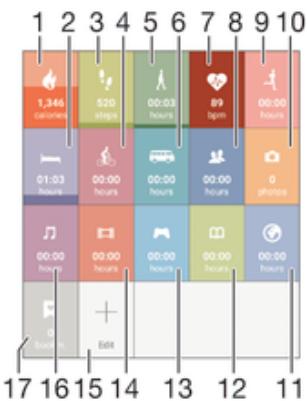
1 View the amount of active calories that you have burned while exercising and the passive calories that you have burned while not exercising. 2 View your sleep hours and check the quality of your sleep based on the information collected. 3 View the number of steps you have taken and logged in the Lifelog application. 4 View the total time you have spent riding a bicycle for longer than just a few steps. 5 View the total time you have spent walking for longer than just a few steps. 6 View the total time you have spent taking transportation for longer than just a few steps. 7 View the history of your pulse and stress and recovery levels logged in the Lifelog application. 8 View the time you have spent using communication applications from Google Play™ and select applications such as the Phone and the Messaging applications from Sony. View the total time you have spent running with a high steps-per-minute ratio for longer than just a few steps.
10 View how many photos you have taken. 11 View your total time spent browsing while using applications from Google Play™ and select web browsers. 12 View your total time spent reading books or comics using applications from Google Play™ and select applications. 13 View your total time spent playing games using applications from Google Play™. 14 View your total time spent watching movies, TV shows and other video content using applications from Google Play™ and select applications. 15 Edit to show or hide activities. 16 View the time you have spent listening to music using applications from Google Play™ and select applications such as the Music application. 17 View all logged Life Bookmarks.
Activity overview
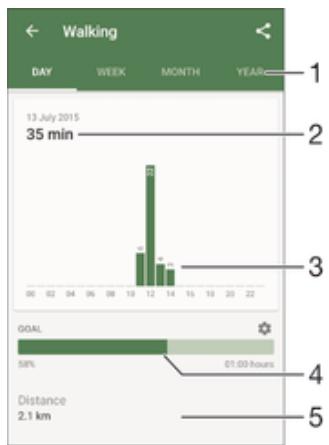
1 Show data in a day, week, month or year view. 2 Show the current activity in different units. 3 Show the amount of activity using the chosen unit type. 4 Show your current goal status. 5 Details about your activity.
Setting goals
Set goals for activities in your daily life, for example, the number of steps to take, the distance you want to walk, or the amount of calories you want to burn.
To set a goal
1 In the Lifelog application, tap the activity that you want to set a goal for. 2 Tap DAY, then find and tap. 3 Scroll up or down to adjust the value for your goal, then tap SET.
Editing logged activities
Lifelog can recognise four types of moving activity: Walking, Running, Cycling and Transport. You can change the logged moving activity type or delete a sleeping activity as needed.
To change the moving activity type
1 From the main application screen of your Android™ device, find and tap Lifelog. 2 Swipe left or right on the timeline to navigate to the logged moving activity that you want to change. 3 Tap the moving activity animation, then tap ⋮ > Edit activity. 4 Select an activity type, then tap DONE.
To delete a sleeping activity
1 From the main application screen of your Android™ device, find and tap Lifelog. 2 Swipe left or right on the timeline to navigate to the logged sleeping activity that you want to delete. 3 Tap the sleeping activity animation, then tap > DELETE.
Synchronising data with the Lifelog application
When your SmartBand 2 is connected to your Android™ device, data gets synchronised automatically to the Lifelog application. When the SmartBand 2 gets disconnected from the Android™ device, it can continue to collect data until the memory becomes full. It's therefore recommended to synchronise data between the two devices regularly to free up memory on your SmartBand 2.
Important information
Using your SmartBand 2 in wet and dusty conditions
Your SmartBand 2 is waterproof and protected against dust, so don't worry if you get caught in the rain or want to wash off dirt after wearing it for a period of time. But remember that the SmartBand 2 is only protected in fresh and chlorinated water up to 3 meters for a maximum of 30 minutes. Rinse the SmartBand 2 with fresh water under a faucet and dry the device completely after swimming. Abuse and improper use of your SmartBand 2 will invalidate warranty. The device has Ingress Protection rating IP65/68. For more info, see support.sonymobile.com.
Your SmartBand 2 has a capless USB port. The USB port must be completely dry before a cable can be connected for charging. If your SmartBand 2 gets exposed to water and the USB port gets wet, wipe the SmartBand 2 dry with a microfibre cloth and shake it several times with the USB port facing downwards. Repeat the procedure until no moisture is visible in the USB port.
Your warranty does not cover damage or defects caused by abuse or use of your SmartBand 2 against Sony Mobile's instructions. For more information about the warranty, refer to the Important information, which can be accessed via support.sonymobile.com.
Legal information
Sony SWR12
This product is intended to help you track your exercise and lifestyle. It is not a medical device and data from it should never be used to make medical decisions (like preventing, diagnosing, monitoring, or treating a disease or injury) or replace the advice of a medical professional. Sony Mobile disclaims any warranty that this device could be used or suitable for medical purposes. Seek medical advice before undertaking a new or altered training regime using this device, particularly if using this device together with a pacemaker or other medical devices.
Bluetooth
Prior to use, please read the Important information leaflet separately provided.
This User guide is published by Sony Mobile Communications Inc. or its local affiliated company, without any warranty. Improvements and changes to this User guide necessitated by typographical errors, inaccuracies of current information, or improvements to programs and/or equipment, may be made by Sony Mobile Communications Inc. at any time and without notice. Such changes will, however, be incorporated into new editions of this User guide.
All rights reserved.
©2015 Sony Mobile Communications Inc.
Interoperability and compatibility among Bluetooth® devices varies. Device generally supports products utilising Bluetooth spec. 1.2 or higher, and Headset or Handsfree profile.
Sony is the trademark or registered trademark of Sony Corporation. Bluetooth is the trademark of the Bluetooth (SIg) Inc. and is used under license. All other marks are the property of their respective owners rights reserved.
All product and company names mentioned herein are the trademarks or registered trademarks of their respective owners. Any rights not expressly granted herein are reserved. All other trademarks are property of their respective owners.
Visit www.sonymobile.com for more information.
All illustrations are for illustration only and may not accurately depict the actual accessory.
Declaration of Conformity
We, Sony Mobile Communications AB of
Nya Vattentornet
SE-221 88 Lund, Sweden
declare under our sole responsibility that our product
Sony type RD-0180
and in combination with our accessories, to which this declaration relates is in conformity with the appropriate standards EN 300 328:V1.8.1, EN 300 330-2:V1.5.1, EN 301 489-7:V1.3.1 EN 301 489-17:V2.2.1, EN 301 489-3:V1.6.1 and EN 60 950-1: 2006+A11:2009+A1:2010+A12:2011, A2:2013 following the provisions of, Radio Equipment and Telecommunication Terminal Equipment directive 1999/5/EC.
Lund, February 2015
C€0682

Pär Thuresson,
Quality Officer, SVP, Quality & Customer Services
FCC Statement
This device complies with Part 15 of the FCC rules. Operation is subject to the following two conditions: (1) This device may not cause harmful interference, and (2) This device must accept any interference received, including interference that may cause undesired operation.

Any change or modification not expressly approved by Sony may void the user's authority to operate the equipment.
This equipment has been tested and found to comply with the limits for a Class B digital device, pursuant to Part 15 of the FCC Rules. These limits are designed to provide reasonable protection against harmful interference in a residential installation. This equipment generates, uses and can radiate radio frequency energy and, if not installed and used in accordance with the instructions, may cause harmful interference to radio communications. However, there is no guarantee that interference will not occur in a particular installation.
If this equipment does cause harmful interference to radio or television reception, which can be determined by turning the equipment off and on, the user is encouraged to try to correct the interference by one or more of the following measures:
Reorient or relocate the receiving antenna. - Increase the separation between the equipment and receiver. Connect the equipment into an outlet on a circuit different from that to which the receiver is connected. - Consult the dealer or an experienced radio/TV technician for help.
IMPORTANT NOTICE FOR MEXICO
Industry Canada Statement
This device complies with RSS-210 of Industry Canada.
Operation is subject to the following two conditions: (1) this device may not cause interference, and (2) this device must accept any interference, including interference that may cause undesired operation of the device.
This Class B digital apparatus complies with Canadian ICES-003.
- SETTING UP YOUR SMARTBAND
- USING YOUR SMARTBAND
- LOGGING YOUR ACTIVITIES USING THE LIFELOG APPLICATION
- IMPORTANT INFORMATION
- BASICS
- INTRODUCTION
- CHARGING YOUR SMARTBAND
- TO CHARGE YOUR SMARTBAND
- BATTERY NOTIFICATION LIGHT STATUS
- TO CHECK THE BATTERY LEVEL OF YOUR SMARTBAND
- LOW BATTERY LEVEL NOTIFICATION
- ASSEMBLY
- WEARING YOUR SMARTBAND
- CARING FOR YOUR SMARTBAND 2 AND YOUR SKIN
- TURNING ON AND OFF
- TO TURN ON THE SMARTBAND
- TO TURN OFF THE SMARTBAND
- PREPARING TO USE YOUR SMARTBAND
- TO SET UP YOUR SMARTBAND 2 USING BLUETOOTH®
- RECONNECTING THE SMARTBAND
- TO FORCE THE SMARTBAND 2 TO TRY RECONNECTING
- TO RECONNECT YOUR SMARTBAND 2 USING NFC
- RESETTING YOUR SMARTBAND
- TO PERFORM A FACTORY RESET
- TO UNPAIR YOUR SMARTBAND
- USING THE SMARTBAND 2 APPLICATION
- GETTING NOTIFIED
- TO TURN ON THE "GET NOTIFIED" FUNCTION
- TO SELECT WHICH NOTIFICATIONS TO FORWARD TO YOUR SMARTBAND
- TO MUTE THE RINGTONE FOR AN INCOMING CALL
- MEASURING STRESS & RECOVERY
- PULSE MEASUREMENT
- STRESS AND RECOVERY LEVELS
- HOW THE SMARTBAND 2 MEASURES YOUR PULSE AND STRESS
- FACTORS THAT AFFECT PULSE AND STRESS MEASUREMENT
- STAMINA MODE
- SMART WAKE UP ALARMS
- TO ADD A SMART WAKE UP ALARM
- TO EDIT AN EXISTING SMART WAKE UP ALARM
- TO DELETE A SMART WAKE UP ALARM
- TO TURN ON A SMART WAKE UP ALARM
- TO SNOOZE A SMART WAKE UP ALARM WHEN YOUR SMARTBAND 2 VIBRATES
- TO TURN OFF A SMART WAKE UP ALARM WHEN YOUR SMARTBAND 2 VIBRATES
- OUT-OF-RANGE ALERT NOTIFICATIONS
- DO NOT DISTURB
- REMOTE CONTROL
- CONNECTING TO GOOGLE FIT
- TO CONNECT YOUR SMARTBAND 2 TO GOOGLE FIT
- NOTIFICATION LIGHTS
- USING THE LIFELOG APPLICATION
- TO SET UP AN ACCOUNT FOR THE LIFELOG APPLICATION
- TO LOG IN TO THE LIFELOG APPLICATION
- ADJUSTING THE STRIDE LENGTH FOR WALKING AND RUNNING
- TO ADJUST THE STRIDE LENGTH FOR WALKING
- TO ADJUST THE STRIDE LENGTH FOR RUNNING
- ACTIVITY BOX OVERVIEW
- ACTIVITY OVERVIEW
- SETTING GOALS
- TO SET A GOAL
- EDITING LOGGED ACTIVITIES
- SYNCHRONISING DATA WITH THE LIFELOG APPLICATION
- USING YOUR SMARTBAND 2 IN WET AND DUSTY CONDITIONS
- LEGAL INFORMATION
- SONY SWR
- BLUETOOTH
- DECLARATION OF CONFORMITY
- FCC STATEMENT
- IMPORTANT NOTICE FOR MEXICO
- INDUSTRY CANADA STATEMENT
Brand : SONY
Model : SWR12 BLANC
Category : Smart bracelet