AEROSKULL BLEU BTH - Headphones JARRE - Free user manual and instructions
Find the device manual for free AEROSKULL BLEU BTH JARRE in PDF.


| Product type | Portable 2.1 speaker with built-in subwoofer |
| Brand | JARRE |
| Model | AEROSKULL BLUE BTH |
| Total power | 70 W RMS (1% THD+N) |
| Speakers | 2 × 15 W + 1 subwoofer 40 W |
| Wireless connections | Bluetooth A2DP with aptX |
| Audio inputs | Line-in 3.5 mm, 30-pin connector for Apple |
| Controls | Touch sensor (teeth), backlit IR remote control |
| Power supply | Mains 230 V ~ 50 Hz |
| Remote control batteries | 2 × AAA (supplied) |
| Included accessories | Remote control, dock adapters (S/M/L), power cable, quick guide |
| Maintenance | Clean with a soft dry cloth. Do not use solvents or sprays. |
| Safety | Do not expose to water, heat or humidity. Unplug before cleaning. |
| Warranty | 2 years |
| Intended use | Indoor only |
Frequently Asked Questions - AEROSKULL BLEU BTH JARRE
User questions about AEROSKULL BLEU BTH JARRE
0 question about this device. Answer the ones you know or ask your own.
Ask a new question about this device
Download the instructions for your Headphones in PDF format for free! Find your manual AEROSKULL BLEU BTH - JARRE and take your electronic device back in hand. On this page are published all the documents necessary for the use of your device. AEROSKULL BLEU BTH by JARRE.
USER MANUAL AEROSKULL BLEU BTH JARRE
Preface by MusicLife Ltd.
Jarre Technologies, founded by the musical legend, Jean Michel Jarre has unveiled its latest speaker system, the Aeroskull. Uniquely designed to arouse fascination and curiosity, the Aeroskull is a monument to design, power and precision.
Optimal sound quality goes hand in hand with design at Jarre Technologies. The Aeroskull features two 15 Watt speakers hidden behind sunglasses with an impressive 40 Watt Sub Woofer covering the whole of the back of the skull as well as 1 % THD (Total Harmonic Distortion), to deliver an uncompromising listening experience. Jean Michel Jarre first used the image of the skull in 1976 on the cover of his world renowned album, Oxygen which sold over 15 million copies. He says, “For me, the skull symbolises the perfect acoustic instrument it is the sound box for word, song and music.”
The Aeroskull is compatible with all generations of iPhones and iPods and a jack cable can also connect to any Mp3 player, computer or CD/DVD player. Bluetooth simplifies connection to any smartphone and the listening experience is optimised by the APTX CODECs.
mUSICLIFE
O
O
O
Preface by Jean-Michel Jarre
Today we listen to more music than at any time in our history.
We're listening everywhere and anywhere, while paying less attention to how we do so. Whether experiencing audio through the miniature plastic speakers of a laptop, the cheap earphones connected to our mobile phones, or the small sound-systems in public areas, we have gradually abandoned our demand for quality, and in the process, I believe, our emotional relationship with sound.
For many years I dreamt of a sound system that would evoke one of the iconic designs associated with our musical heritage, such as the elegant phonograph or the glossy jukebox, while complementing virtually any interior. At the heart of this design would be a sound system powerful enough to do justice to every kind of music (including mine!) at any volume, combining a strong, clear bass with superb definition in the higher frequencies. The sound system of my dreams is now a reality.
The world-class yet affordable AeroSkull® will gratify lovers of both music and design, while rendering every kind of music in a multitude of platforms and formats, including iTunes .mp3s and superior-quality .wav files. Here at last is the performance I've longed for in the form I've desired.
I hope the AeroSkull® gives you as much listening pleasure in your home as it gives me in mine.
Bonne écoute!
Jean-Michel Jarre
O
O
O
O SAFETY INSTRUCTIONS
APPENDIX I - COMPATIBLE DEVICES
APPENDIX II - AEROSKULL® GUARANTEE
APPENDIX III - PRODUCT FAQ
APPENDIX IV - TRADEMARKS & CERTIFICATIONS
O
O
In the box
One AeroSkull
② One remote control
③ One Quick User guide
One Power supply
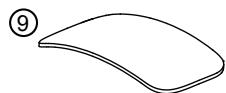
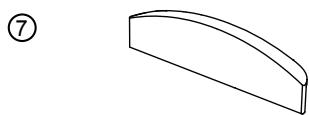
⑤ One S size Adaptor iPhone® / iPod® adaptors
One M size Adaptor iPhone® / iPod® adaptors
One L size Adaptor iPhone® / iPod® adaptors
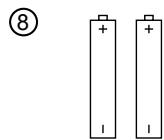
(8) Two AAA batteries for the remote control
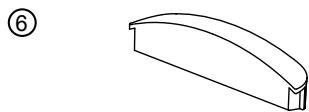
One dock cap
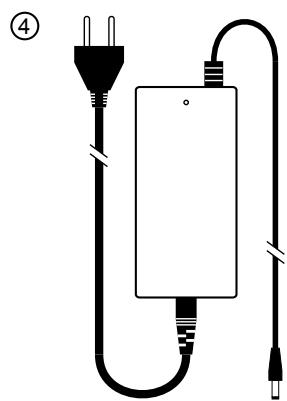
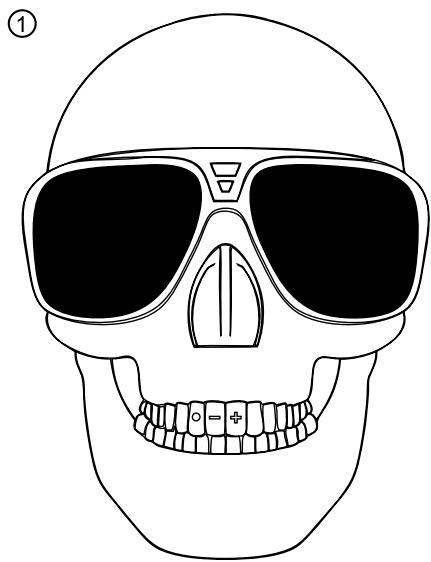
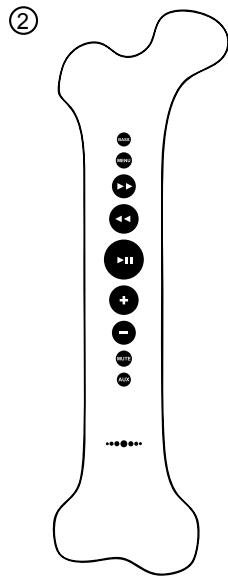
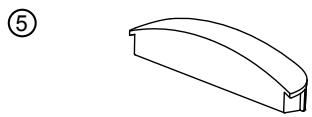
O
O
O
PREFACE BY MUSICLIFE LTD.
O PREFACE BY JEAN-MICHEL JARRE
IN THE BOX
PRODUCT DESCRIPTION OF THE AEROSKULL®
Product Description of the AeroSkull®
Total output power 70 W RMS at 1% THD+N
2.1 System with built-in subwoofer
Bass Reflex Cabinet
Bluetooth® , A2DP, atpX® for high quality wireless audio
Line-in 3.5mm
30 pin connector
Touch sensor control
IR remote with backlight
Meets all Apple requirements for Made for iPod and
iPhone docking speaker.
O
O
O
PREFACE BY MUSICLIFE LTD.
O PREFACE BY JEAN-MICHEL JARRE
IN THE BOX
PRODUCT DESCRIPTION OF THE AEROSKULL®
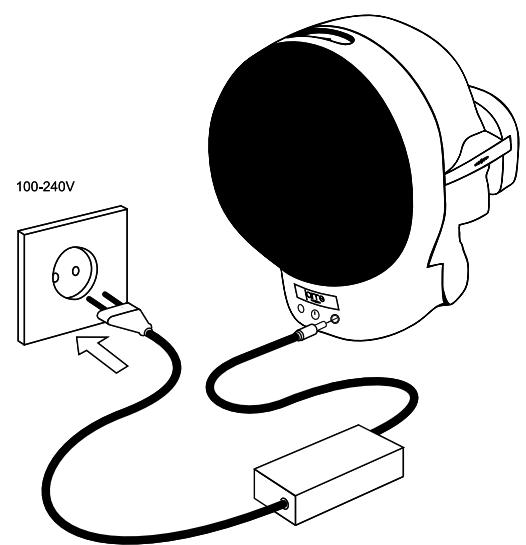
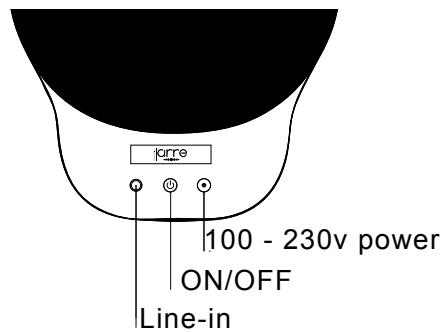
To start, plug the AeroSkull® into the power socket and press the power button located at the back of the speaker.
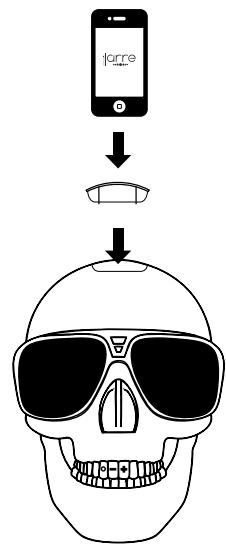
Dock your iPhone® or iPod® on top of the AeroSkull® to start playing music. Please see Appendix 1 for a detailed compatibility list.
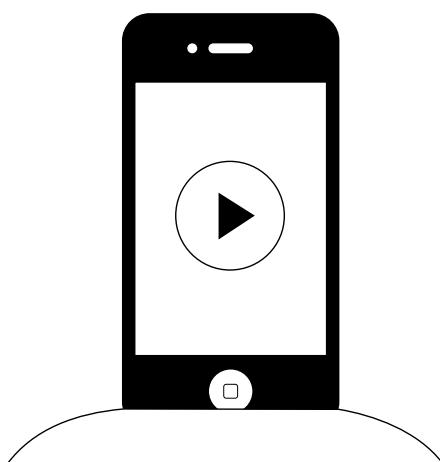
Turn on your favourite music and enjoy the sound!
O
O
O
PREFACE BY MUSICLIFE LTD.
O PREFACE BY JEAN-MICHEL JARRE
IN THE BOX
PRODUCT DESCRIPTION OF THE AEROSKULL®
AEROSKULL® QUICK START
- Using the Dock (only for Apple® products)
Using Bluetooth
AEROSKULL® REMOTE CONTROL
OPERATING THE AEROSKULL®
OPERATING THE REMOTE CONTROL
O MAINTAINANCE AND CARE
FIRST HELP BEFORE ASSISTANCE
O SAFETYINSTRUCTIONS
APPENDIX I - COMPATIBLE DEVICES
APPENDIX II - AEROSKULL® GUARANTEE
APPENDIX III - PRODUCT FAQ
APPENDIX IV - TRADEMARKS & CERTIFICATIONS
Using Bluetooth
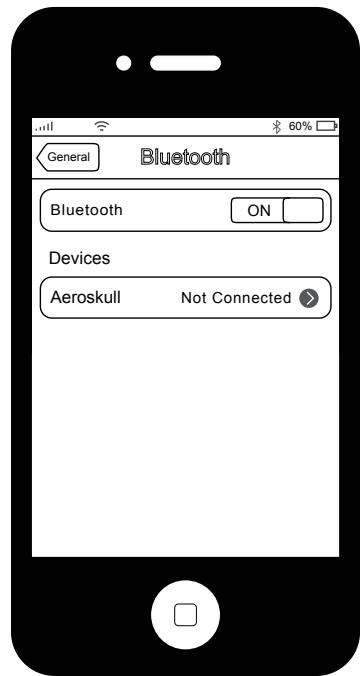
Connecting to Iphone® or Ipod®:
- Make sure no device is docked on the AeroSkull®;
- Go to Settings on your iOS device;
- Look for General in the list;
- Then under General go to Bluetooth;
- Make sure Bluetooth is On;
- Under Devices tap the list item AeroSkull to connect;
- Once connected the Bluetooth Led light will turn on.
Connecting to Android® Phones:
- Make sure no device is docked on the AeroSkull®;
- Go to Settings;
- Tap on Bluetooth;
- Turn On the Bluetooth;
- Look for AeroSkull in the list of Available Devices;
- Tap on the list item AeroSkull to pair and connect;
- Once connected the Bluetooth Led light will turn on.
Connecting to Windows® Phones:
- Make sure no device is docked on the AeroSkull®;
- Once connected the Bluetooth Led light will turn on.
Connecting to Apple® Laptop or Desktop:
- Make sure no device is docked on the AeroSkull®;
- Turn on Bluetooth on your computer;
- On Desktop top navigation bar click on the Bluetooth icon and from the Bluetooth dropdown select Set Up Bluetooth Device;
From the list of devices select AeroSkull and press Continue, wait for the confirmation message; - Go back to the Bluetooth dropdown on the navigation bar;
- Roll over the AeroSkull on the list, another dropdown will appear;
- Select Use as Audio Device;
- Now you can play the audio of your computer directly from the speaker;
- Once connected the Bluetooth Led light will turn on.
PREFACE BY MUSICLIFE LTD.
O PREFACE BY JEAN-MICHEL JARRE
IN THE BOX
PRODUCT DESCRIPTION OF THE AEROSKULL®
Using the Dock (only for Apple® products)
Using Bluetooth
AEROSKULL® REMOTE CONTROL
OPERATING THE AEROSKULL®
OPERATING THE REMOTE CONTROL
O MAINTAINANCE AND CARE
FIRST HELP BEFORE ASSISTANCE
O SAFETYINSTRUCTIONS
APPENDIX I - COMPATIBLE DEVICES
APPENDIX II - AEROSKULL® GUARANTEE
APPENDIX III - PRODUCT FAQ
APPENDIX IV - TRADEMARKS & CERTIFICATIONS
Aeroskull® remote control
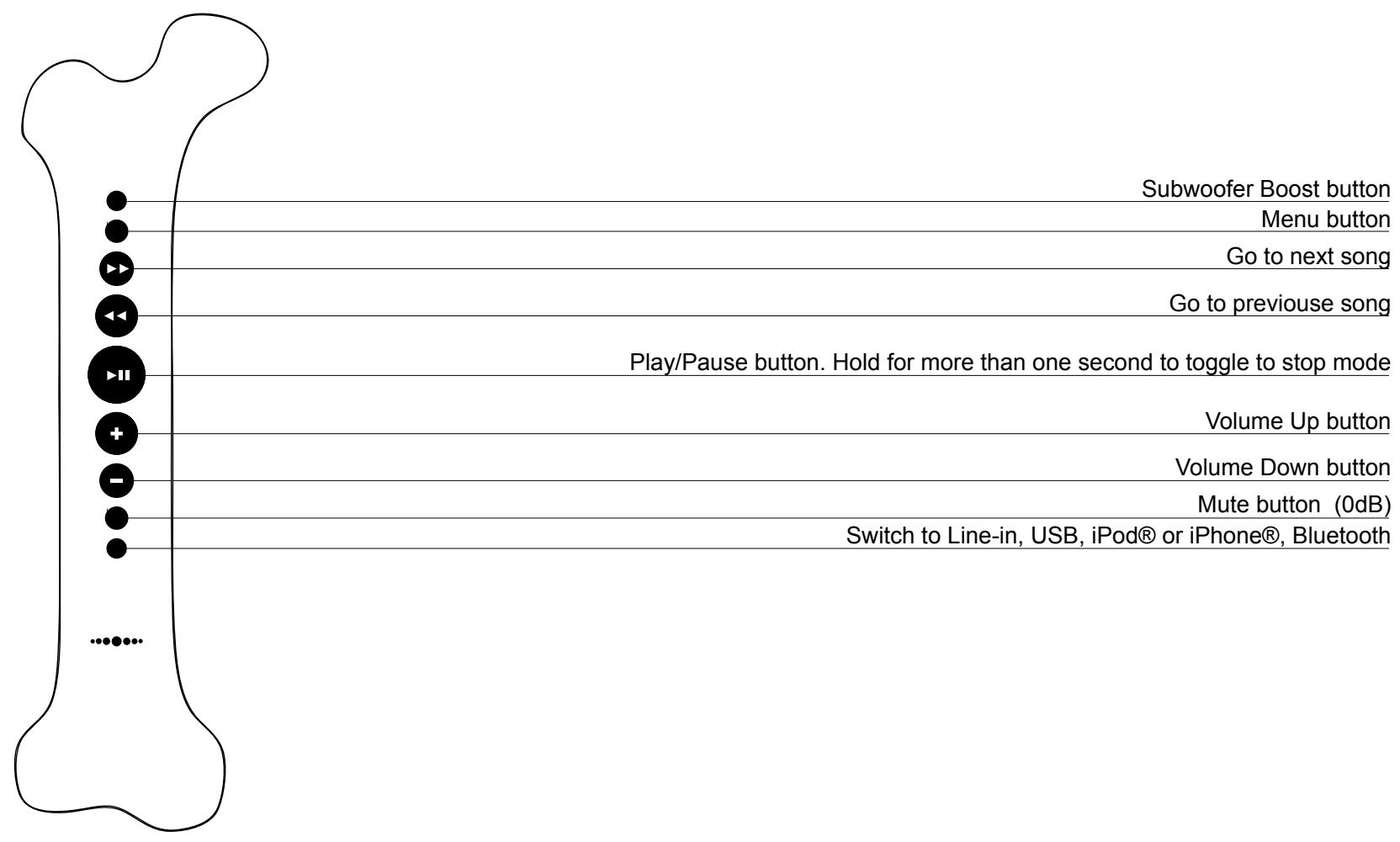
Operating the AeroSkull®
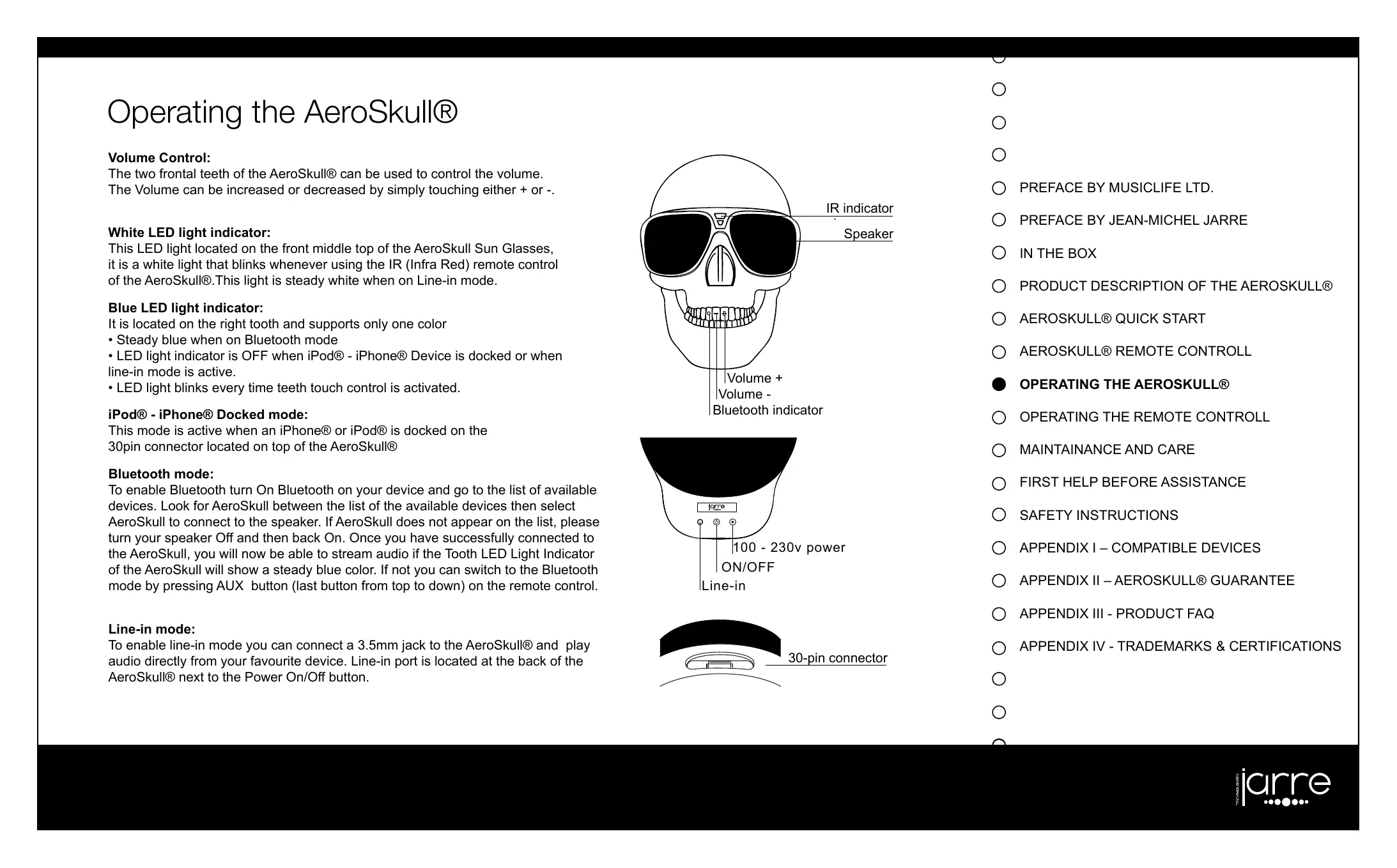
Volume Control:
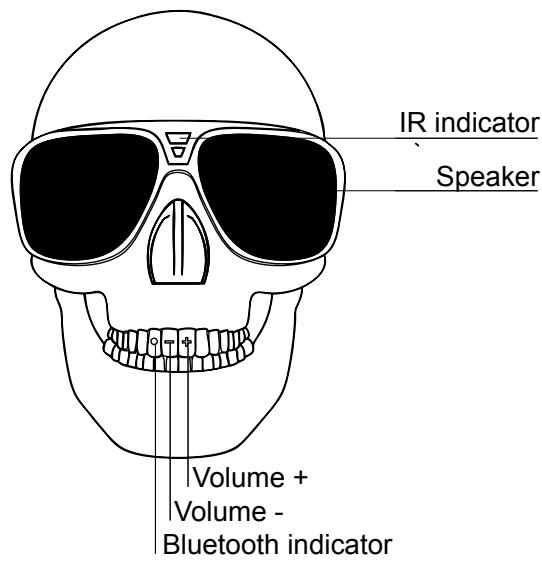
The two frontal teeth of the AeroSkull® can be used to control the volume. The Volume can be increased or decreased by simply touching either + or
White LED light indicator:
This LED light located on the front middle top of the AeroSkull Sun Glasses, it is a white light that blinks whenever using the IR (Infra Red) remote control of the AeroSkull®. This light is steady white when on Line-in mode.
Blue LED light indicator:
It is located on the right tooth and supports only one color
- Steady blue when on Bluetooth mode
- LED light indicator is OFF when iPod® - iPhone® Device is docked or when line-in mode is active.
- LED light blinks every time teeth touch control is activated.
iPod® - iPhone® Docked mode:
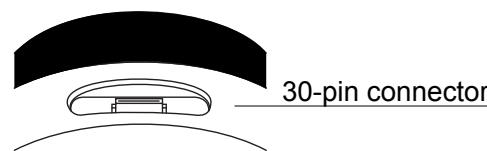
This mode is active when an iPhone® or iPod® is docked on the 30pin connector located on top of the AeroSkull®
Bluetooth mode:
To enable Bluetooth turn On Bluetooth on your device and go to the list of available devices. Look for AeroSkull between the list of the available devices then select AeroSkull to connect to the speaker. If AeroSkull does not appear on the list, please turn your speaker Off and then back On. Once you have successfully connected to the AeroSkull, you will now be able to stream audio if the Tooth LED Light Indicator of the AeroSkull will show a steady blue color. If not you can switch to the Bluetooth mode by pressing AUX button (last button from top to down) on the remote control.
Line-in mode:
To enable line-in mode you can connect a 3.5mm jack to the AeroSkull® and play audio directly from your favourite device. Line-in port is located at the back of the AeroSkull® next to the Power On/Off button.
O
O
O
PREFACE BY MUSICLIFE LTD.
O PREFACE BY JEAN-MICHEL JARRE
IN THE BOX
PRODUCT DESCRIPTION OF THE AEROSKULL®
Operating the Remote Controller
Navigating through the iPhone and iPod
Pressing
- Preface by MusicLife Ltd.
- Preface by Jean-Michel Jarre
- In the box
- Product Description of the AeroSkull®
- Using Bluetooth
- Connecting to Iphone® or Ipod®:
- Connecting to Android® Phones:
- Connecting to Windows® Phones:
- Connecting to Apple® Laptop or Desktop:
- Aeroskull® remote control
- Operating the AeroSkull®
- Volume Control:
- White LED light indicator:
- Blue LED light indicator:
- iPod® - iPhone® Docked mode:
- Bluetooth mode:
- Line-in mode:
- Operating the Remote Controller
- Navigating through the iPhone and iPod
- Navigating to Bluetooth Mode
- Muting the speaker
- Bass Boost
- Maintenance and Care
- Cleaning
- Replacing the remote control batteries
- Batteries precautions
- MAINTAINANCE AND CARE
- First Help before assistance
- Safety Information
- CAUTION
- Important information related to the safety of the product.
- To prevent electrical shocks never try to open the product.
- Power Supply
- Important Notices
- SAFETY INSTRUCTIONS
- Environment information
- Author copyright
- Appendix I - Compatible Devices
- iPhone®
- iPod nano®
- iPod touch®
- iPod classic®
- Appendix II - AeroSkull® guarantee
- Appendix III - Product FAQ
- Appendix IV – Trademarks & Certifications
Brand : JARRE
Model : AEROSKULL BLEU BTH
Category : Headphones