CENTRALEA5400WFAK-WA042T - All-in-one computer UFSUNITE - Free user manual and instructions
Find the device manual for free CENTRALEA5400WFAK-WA042T UFSUNITE in PDF.


| Product type | All-in-one computer |
| Brand | UFSUNITE |
| Model | CENTRALEA5400WFAK-WA042T |
| Operating system | Windows 10 |
| Touch screen | Yes (on some models) |
| Built-in camera | Yes, with infrared camera for Windows Hello |
| Microphone | Microphone array with echo cancellation and noise suppression |
| Wi-Fi connectivity | Yes |
| Bluetooth connectivity | Yes |
| USB ports | USB 3.2 Gen1, USB 3.2 Gen2 Type-C, USB 2.0 |
| Video ports | HDMI input and output |
| Network port | RJ-45 Gigabit Ethernet |
| Audio jack | Combined headphone/microphone jack |
| Power supply | AC adapter 100-240V, 50-60Hz, output 19V/4.74A (90W) or 20V/6A (120W) |
| Security | Kensington security slot |
| Included peripherals | Wireless keyboard and mouse (optional) |
| Environmental standards | ENERGY STAR, EPEAT |
| Maintenance | Clean with a soft cloth, avoid abrasive cleaners |
| Repairability | Contact dealer or qualified technician |
Frequently Asked Questions - CENTRALEA5400WFAK-WA042T UFSUNITE
User questions about CENTRALEA5400WFAK-WA042T UFSUNITE
0 question about this device. Answer the ones you know or ask your own.
Ask a new question about this device
Download the instructions for your All-in-one computer in PDF format for free! Find your manual CENTRALEA5400WFAK-WA042T - UFSUNITE and take your electronic device back in hand. On this page are published all the documents necessary for the use of your device. CENTRALEA5400WFAK-WA042T by UFSUNITE.
USER MANUAL CENTRALEA5400WFAK-WA042T UFSUNITE
PC All-in-One ASUS 15
PlacerVotePCAll-in-OneASUS 33
Compliance Statement of Innovation, Science and Economic Development Canada (ISED) 65
Radio Frequency (RF) Exposure Information. 66
Directive Ecodesign 69
Compliance Statement of Innovation, Science and Economic Development Canada (ISED)
This device complies with Innovation, Science and Economic Development Canada licence exempt RSS standard(s). Operation is subject to the following two conditions: (1) this device may not cause interference, and (2) this device must accept any interference, including interference that may cause undesired operation of the device.
Operation in the band 5150-5250 MHz is only for indoor use to reduce the potential for harmful interference to co-channel mobile satellite systems.
CAN ICES-3(B)/NMB-3(B)
Radio Frequency (RF) Exposure Information
The radiated output power of the wireless device is below the Industry Canada (IC) radio frequency exposure limits. The wireless device should be used in such a manner such that the potential for human contact during normal operation is minimized.
This device has also been evaluated and shown compliant with the IC RF Exposure limits under mobile exposure conditions (antennas are greater then 20cm from a person's body).
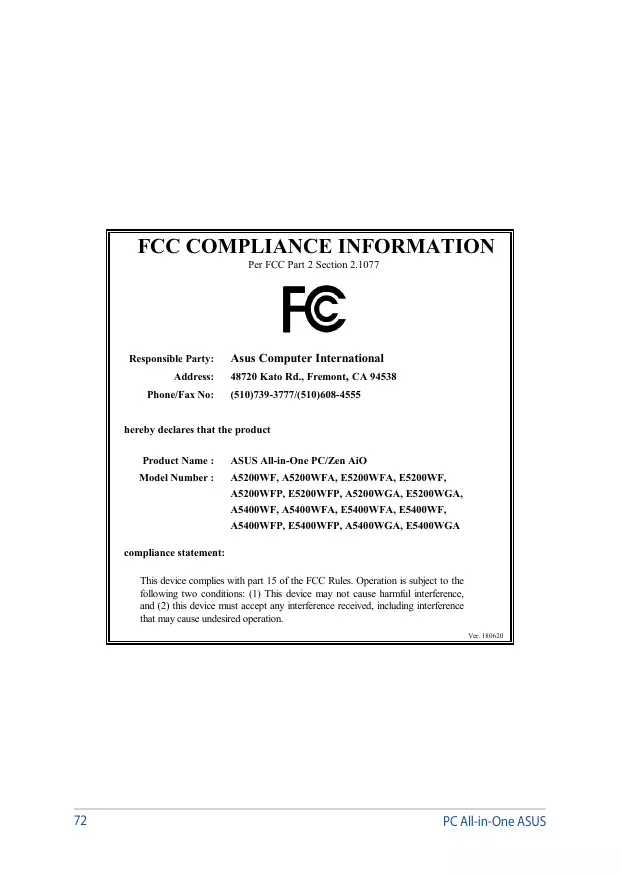
Per FCC Part 2 Section 2.1077

Responsible Party: Asus Computer International
Address: 48720 Kato Rd., Fremont, CA 94538
Phone/Fax No: (510)739-3777/(510)608-4555
hereby declares that the product
Product Name: ASUS All-in-One PC/Zen AiO
Model Number : A5200WF, A5200WFA, E5200WFA, E5200WF, A5200WFP, E5200WFP, A5200WGA, E5200WGA, A5400WF, A5400WFA, E5400WFA, E5400WF, A5400WFP, E5400WFP, A5400WGA, E5400WGA
compliance statement:
This device complies with part 15 of the FCC Rules. Operation is subject to the following two conditions: (1) This device may not cause harmful interference, and (2) this device must accept any interference received, including interference that may cause undesired operation.
Ver. 180620
Brand : UFSUNITE
Model : CENTRALEA5400WFAK-WA042T
Category : All-in-one computer