ManualGo.com
ZR20 - Camcorder CANON - Free user manual and instructions
Find the device manual for free ZR20 CANON in PDF.


Download the instructions for your Camcorder in PDF format for free! Find your manual ZR20 - CANON and take your electronic device back in hand. On this page are published all the documents necessary for the use of your device. ZR20 by CANON.
USER MANUAL ZR20 CANON
● If you have any questions, call the Canon U.S.A. Information Center toll-free at 1-800-828-4040 (U.S.A. only). CANADA
2828, 16th Street, N.E. Calgary, Alberta T2E 7K7
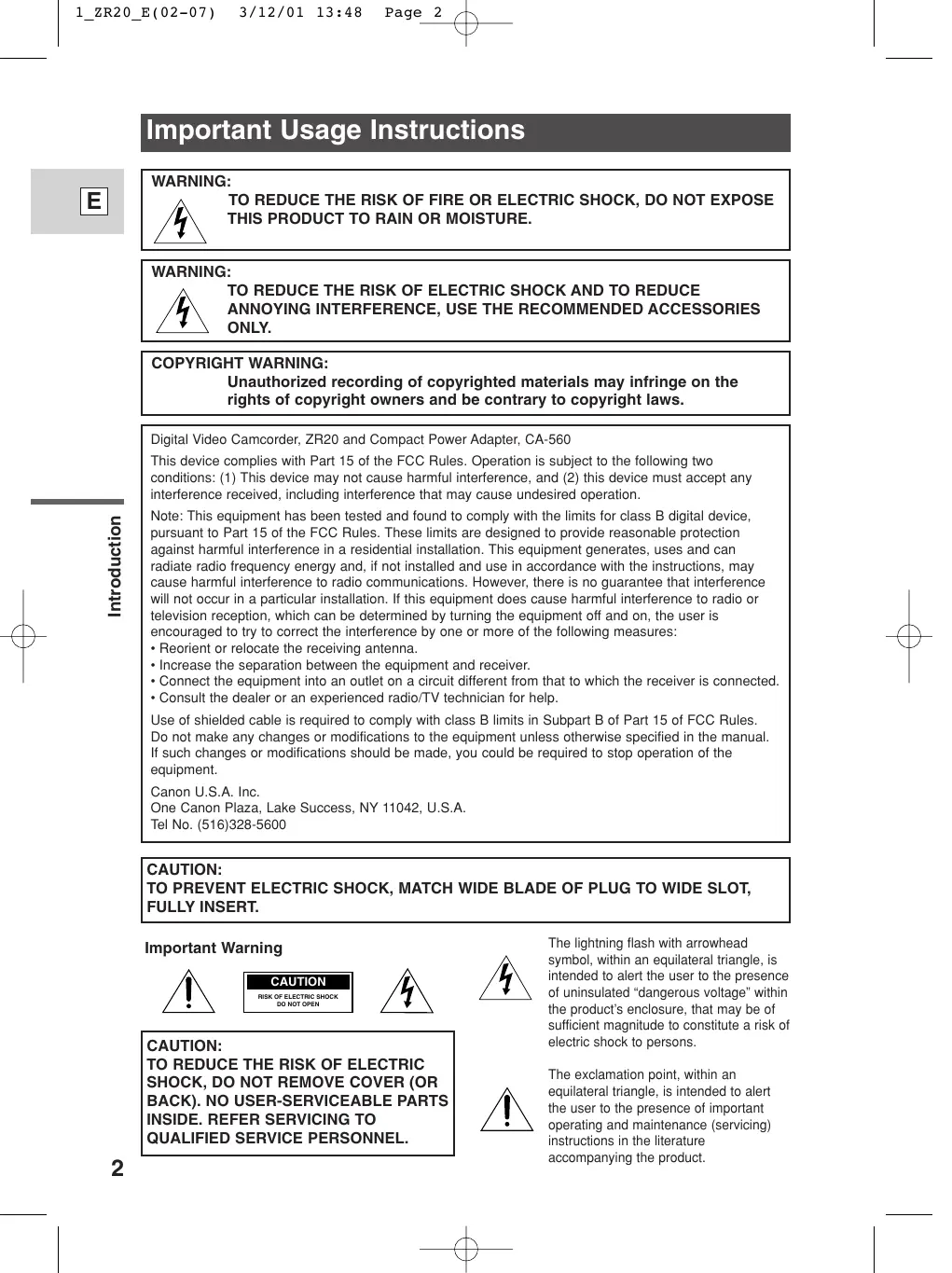
TO REDUCE THE RISK OF FIRE OR ELECTRIC SHOCK, DO NOT EXPOSE THIS PRODUCT TO RAIN OR MOISTURE.
ANNOYING INTERFERENCE, USE THE RECOMMENDED ACCESSORIES
ONLY. COPYRIGHT WARNING: Unauthorized recording of copyrighted materials may infringe on the rights of copyright owners and be contrary to copyright laws. Digital Video Camcorder, ZR20 and Compact Power Adapter, CA-560 Introduction This device complies with Part 15 of the FCC Rules. Operation is subject to the following two conditions: (1) This device may not cause harmful interference, and (2) this device must accept any interference received, including interference that may cause undesired operation. Note: This equipment has been tested and found to comply with the limits for class B digital device, pursuant to Part 15 of the FCC Rules. These limits are designed to provide reasonable protection against harmful interference in a residential installation. This equipment generates, uses and can radiate radio frequency energy and, if not installed and use in accordance with the instructions, may cause harmful interference to radio communications. However, there is no guarantee that interference will not occur in a particular installation. If this equipment does cause harmful interference to radio or television reception, which can be determined by turning the equipment off and on, the user is encouraged to try to correct the interference by one or more of the following measures:
- Reorient or relocate the receiving antenna.
- Increase the separation between the equipment and receiver.
- Connect the equipment into an outlet on a circuit different from that to which the receiver is connected.
- Consult the dealer or an experienced radio/TV technician for help. Use of shielded cable is required to comply with class B limits in Subpart B of Part 15 of FCC Rules. Do not make any changes or modifications to the equipment unless otherwise specified in the manual. If such changes or modifications should be made, you could be required to stop operation of the equipment. Canon U.S.A. Inc. One Canon Plaza, Lake Success, NY 11042, U.S.A. Tel No. (516)328-5600 CAUTION: TO PREVENT ELECTRIC SHOCK, MATCH WIDE BLADE OF PLUG TO WIDE SLOT, FULLY INSERT. Important Warning CAUTION
RISK OF ELECTRIC SHOCK
SHOCK, DO NOT REMOVE COVER (OR
The lightning flash with arrowhead symbol, within an equilateral triangle, is intended to alert the user to the presence of uninsulated “dangerous voltage” within the product’s enclosure, that may be of sufficient magnitude to constitute a risk of electric shock to persons. The exclamation point, within an equilateral triangle, is intended to alert the user to the presence of important operating and maintenance (servicing) instructions in the literature accompanying the product. 1_ZR20_E(02-07) 3/12/01 13:48 Page 3
IMPORTANT SAFETY INSTRUCTIONS
In these safety instructions the word “product” refers to the Canon Digital Video Camcorder ZR20 and all its accessories.
1. Read Instructions — All the safety and
operating instructions should be read before the product is operated.
2. Retain Instructions — The safety and
operating instructions should be retained for future reference.
3. Heed Warnings — All warnings on the
product and in the operating instructions should be adhered to.
4. Follow Instructions — All operating and
maintenance instructions should be followed.
6. Accessories — Do not use accessories
not recommended in this manual as they may be hazardous.
7. Avoid magnetic or electric fields — Do
not use the camera close to TV transmitters, portable communication devices or other sources of electric or magnetic radiation. They may cause picture interference, or permanently damage the camera.
8. Water and Moisture — Hazard of electric
shock — Do not use this product near water or in rainy/moist situations.
9. Placing or Moving — Do not place on an
unstable cart, stand, tripod, bracket or table. The product may fall, causing serious injury to a child or adult, and serious damage to the product. A product and cart combination should be moved with care. Quick stops, excessive force, and uneven surfaces may cause the product and cart combination to overturn.
11. Polarization — The CA-560 Compact
Power Adapter is equipped with a polarized 2-prong plug (a plug having one blade wider than the other). The 2-prong polarized plug will fit into the power outlet only one way. This is a safety feature. If you are unable to insert the plug fully into the outlet, try reversing the plug. If the plug still fails to fit, contact your electrician to replace your obsolete outlet. Do not defeat the safety purpose of the polarized plug.
12. Power Cord Protection — Power cords
should be routed so that they are not likely to be walked on or pinched by items placed upon or against them. Pay particular attention to plugs and the point from which the cords exit the product.
5. Cleaning — Unplug this product from the
wall outlet before cleaning. Do not use liquid or aerosol cleaners. The product should be cleaned only as recommended in this manual.
10. Power Sources — The CA-560 Compact
Power Adapter should be operated only from the type of power source indicated on the marking label. If you are not sure of the type of power supply to your home, consult your product dealer or local power company. Regarding other power sources such as battery power, refer to instructions in this manual.
13. Outdoor Antenna Grounding — If an
outside antenna is connected to the product, be sure the antenna is grounded so as to provide some protection against voltage surges and built-up static charges. Section 810 of the National Electrical Code, ANSI / NFPA No. 70—1984, provides information with respect to proper grounding of the mast and supporting structure, grounding of the lead-in wire to an antenna discharge unit, size of grounding conductors, location of antenna discharge unit, connection to grounding electrodes, and requirements for the grounding electrode. See figure
14. Lightning — For added protection of this
product during a lightning storm, or when it is left unattended and unused for long periods of time, disconnect it from the wall outlet and disconnect the antenna. This will prevent damage to the product due to lightning and power-line surges.
15. Power Lines — An outside antenna
system should not be located in the vicinity of overhead power lines or other electric light or power circuits, or where it can fall into such power lines or circuits. When installing an outside antenna system, extreme care should be taken to keep from touching such power lines or circuits as contact with them might be fatal.
16. Overloading — Do not overload wall
outlets and extension cords as this can result in a risk of fire or electric shock.
17. Objects and Liquid Entry — Never push
objects of any kind into this product through openings as they may touch dangerous voltage points or short out parts that could result in a fire or electric shock. Be careful not to spill liquid of any kind onto the product.
18. Servicing — Do not attempt to service
this product yourself as opening or removing covers may expose you to dangerous voltage or other hazards. Refer all servicing to qualified service personnel.
Disconnect this product from the wall outlet and all power sources including battery, and refer servicing to qualified service personnel under the following conditions: a. When the power-supply cord or plug is damaged. b. If any liquid has been spilled onto, or objects have fallen into, the product. c. If the product has been exposed to rain or water. d. If the product does not operate normally even if you follow the operating instructions. Adjust only those controls that are covered by the operation instructions. Improper adjustment of other controls may result in damage and will often require extensive work by a qualified technician to restore the product to its normal operation. e. If the product has been dropped or the cabinet has been damaged. f. When the product exhibits a distinct change in performance. This indicates a need for service.
20. Replacement Parts — When
replacement parts are required, be sure the service technician has used replacement parts that are specified by Canon or that have the same characteristics as the original part. Unauthorized substitutions may result in fire, electric shock or other hazards.
1_ZR20_E(02-07) 3/12/01 13:48 Page 6 Thank you for Choosing a Canon First, we’d like to thank you for purchasing this Canon camcorder. Its advanced technology makes it very easy to use — you will soon be making high-quality videos which will give you pleasure for years to come.
To get the most out of your new camcorder, we recommend that you read this manual thoroughly — there are many sophisticated features which will add to your recording enjoyment. Your camcorder is supplied with the following accessories: WL-D74 Wireless Controller Two AA batteries SS-700 Shoulder Strap Lens cap and lens cap cord BP-512 Battery Pack CA-560 Compact Power Adapter (including AC power cable) Lithium button battery S-150 S-video Cable Introduction Getting started To get started we suggest that you master the basic operations of the camcorder first, before moving on to use its full range of features. For quick reference In addition to the contents and index please refer to:
- Finding Your Way Around the ZR20 ( 8)
- Screen displays ( 104)
- Troubleshooting — in case you run into any problems ( 97) Symbols used in this instruction manual: : Reference page numbers : Functions that can be operated from the body of the camcorder : Functions that can be operated from the wireless controller : Supplementary notes for camcorder operation ` : Operation confirmation beeps ( 21)
- Capital letters are used to refer to settings displayed in the menus and buttons labeled on the camcorder itself, e.g. Press the MENU button.
STV-250N Stereo Video Cable 1_ZR20_E(02-07) 3/12/01 13:48 Page 7 Introducing the ZR20 Compact and Stylish The ZR20 is small and light. Many various functions are condensed into its compact body. Also, the slim and stylish design makes it easy to carry and use and shooting videos a pleasure. IEEE 1394 DV Terminal Still Photos Just press the photo button to capture still pictures. 2.5” LCD Screen A 2.5” LCD screen makes it easy for you to shoot colorful, well composed video. It is also great for playback. Image Stabilizer Stabilizes your recordings even in long telephoto shots.
From wide-angle to 10× telephoto—with unparalleled optical quality. The digital zoom magnifies this up to 200× for even more dramatic results. Digital Effects Advanced digital technology allows you to add special effects during recording or playback. Audio Dubbing/AV Insert Editing Introduction Using a DV cable, connect the ZR20 to a PC equipped with a DV terminal and transfer your original images to your PC. 10× Lens and 40×/200× Digital Zoom Add new sound to original sound, or replace original sound and images on a pre-recorded tape. Analog Line-in Recording Connect to a VCR or analog camcorder and record onto a DV tape in the ZR20. Internal charging The ZR20 can charge a battery pack itself, smoothing the transition between charging and shooting, and allowing for a smaller, lighter AC power adapter. PCM Digital Sound
REC SEARCH + button (p. 49)/ (fast forward) button (p. 26) Record review button (p. 49)/ REC (record) SEARCH – button(p. 49)/ (rewind) button (p. 26) FOCUS button (p. 66)/ (play/pause) button (p. 26) AE SHIFT button (p. 63)/ (stop) button (p. 26) BATT. (battery) RELEASE button (p. 13) Mastering the Basics LCD screen (p. 23) Backup battery cover (p. 92) Battery attachment unit (p. 12) LCD panel OPEN button (p. 23) Strap attachment bar (p. 89) Selector dial (p. 29, 38) DC IN 9.5V CHARGE indicator (p. 12) CHARGE DC IN terminal (p. 11) Self-timer button (p. 61)/ REC PAUSE (LINE-IN) button (p. 76, 78) Program selector (p. 50) REC PAUSE (LINE-IN)
Viewfinder focusing lever (p. 88) Viewfinder protect cover (p. 94) PHOTO button (p. 46) Accessory shoe Zoom controller (p. 22) Speaker (p. 29) Mastering the Basics Viewfinder (p. 88, 94) Strap attachment bar (p. 89) POWER indicator (p. 18) Start/Stop button (p. 19) Grip belt (p. 88) POWER switch (p. 18) C AM ER A
CAMERA OFF PLAY(VCR) Cassette compartment cover (p. 16) Cassette compartment (p. 16)
Terminal cover Remote sensor (p. 40) Stereo microphone (p. 82) Terminal cover S-video IN/OUT terminal (p. 31)
Provide power from an AC outlet Charge a battery pack Notes:
- The power adapter converts current from a household power socket (100–240 V AC, 50/60 Hz) to the DC current used by your camcorder.
- If the adapter is used next to a TV, it may cause bars to appear on the TV — move the adapter away from the TV or the antenna cable. Connecting the camcorder to an AC outlet CAMERA OFF
Use the power adapter to provide your camcorder with instant power from an AC outlet. Always turn the camcorder off before connecting/removing the power source.
Set the POWER switch to OFF. Connect the power adapter to the camcorder’s DC IN terminal. Connect the power cable to the power adapter. Plug the power cable into an AC outlet. Disconnect the power adapter from the camcorder after use. Unplug the power cable from the AC outlet, then disconnect it from the adapter.
3/12/01 13:49 Page 12 Attaching and charging the battery packs
Mastering the Basics Charge indicator Your battery pack was partially charged before it left the factory. It should have enough power for you to check that your camcorder is working properly. However, you must charge the battery pack fully if you want it to power the camcorder for more than a few minutes. Always turn the camcorder off and raise the viewfinder before connecting/removing the battery.
1. Set the POWER switch to OFF.
2. Attach the battery to the camcorder.
- Remove the battery pack’s terminal cover.
- Rotate the viewfinder upwards.
- With the triangle on the battery pack pointing downwards, align the edge of the battery pack with the line on the camcorder, press lightly and slide the battery down until it clicks into place.
3. Connect the power adapter to the camcorder.
4. Connect the power cable to the adapter and plug it into an AC
- The charge indicator flashes red to show that charging is in progress. Single flashes mean that the battery pack is less than 75% charged. Double flashes mean that it is more than 75% charged. The indicator glows steadily when the battery pack is fully charged. If the indicator blinks rapidly and continuously (twice a second), the battery pack may be defective.
- The battery pack will also charge when the POWER switch is turned to positions other than OFF. The CHARGE indicator may both flash or stay lit.
5. When charging is complete, disconnect the power adapter from the
camcorder. Unplug the power cable from the AC outlet, then disconnect it from the adapter.
6. Remove the battery pack after use.
- Rotate the viewfinder upwards.
- Press and hold the BATT. RELEASE button while you slide the battery up. Notes:
- Never connect an unspecified product to the camcorder’s DC terminal. Likewise, do not connect the power adapter to an unspecified product.
- You can find detailed notes for using the batteries in the “Notes on Using the Batteries” ( 90). These notes include charging and recording times and how to install the backup battery. CA-560 Compact Power Adapter Mastering the Basics Specifications Power supply Power consumption Rated output Operating temperature range Dimensions Weight 100–240 V AC, 50/60 Hz 34 W
32°F–104°F (0°C–40°C) 2 1/4 × 1 1/8 × 4 1/8 in (57 × 28 × 104 mm) 6 3/8 oz (180 g) (without power cable) Weight and dimensions are approximate. Errors and omissions excepted. Subject to change without notice. When replacement of power supply is required, please return it to the responsible nearest Canon Service Center and please replace it with the same type number CA-560 or equivalent. The Adapter can be used with a power supply between 100 and 240 V AC. For areas where 120 V AC power is not used, you will need a special plug adapter. Contact your nearest Canon Service Center for further information.
3/12/01 13:49 Page 14 Using the Charge Adapter CR-560 Kit (optional) The Compact Power Adapter CA-560 included with the camcorder can be used along with the CR-560 Kit for 3 different ways to power the camcorder or charge battery packs:
1. Charge the BP-500 Series battery packs with power from your car battery.
2. Operate the camcorder with power from your car battery.
3. Charge the BP-500 Series battery packs from a household AC outlet.
The Charge Adapter/Car Battery Cable Kit CR-560 includes the following: Mastering the Basics Charge Adapter Car Battery Cable DC Cable
1. Charge the BP-500 Series battery packs with power from your car
battery. 1 or 2 battery pack(s) + Charge Adapter + Car Battery Cable→ car’s cigarette lighter CHARGE To car’s cigarette lighter
- Fast charging for the high-capacity BP-522 and BP-535 (both optional). Fifteen minutes of charging gives 60 minutes of recording (using the viewfinder).
2. Operate the camcorder with power from your car battery.
Camcorder + DC Cable + Charge Adapter + Car Battery Cable → car’s cigarette lighter
3. Charge the BP-500 Series battery packs from a household AC
- Fast charging for the high-capacity BP-522 and BP-535 (both optional). Fifteen minutes of charging gives 60 minutes of recording (using the viewfinder). Note:
- For full details of how to use the CR-560, refer to its instruction manual.
OPEN/EJECT Only use videocassettes marked with the D logo.* Mastering the Basics Loading and unloading
1. Make sure that you have attached a power source.
2. Slide the OPEN / EJECT 5 switch (on the bottom of the
camcorder) to release the cassette compartment cover.
- Pull the cover fully open (while holding the button) and wait a couple of seconds for the cassette compartment to open automatically.
- The confirmation beep sounds when the cassette cover fully opens.
3. Load or unload the cassette.
- Insert the cassette gently with the window facing the grip belt, and the REC/SAVE tab up.
- Remove the cassette by pulling it straight out.
4. Press the P mark on the compartment until it clicks, and wait
5. Click the cover back into place.
- Do not interfere with the cassette compartment while it is opening or closing automatically, and do not attempt to close the cover until the cassette compartment has fully retracted.
- After loading a cassette, use record search ( 49) to find the point where you want to start recording.
- Be careful not to get your fingers caught in the cassette compartment cover.
- Do not leave the cassette in the camcorder after use — return it to its case and store it in a cool, clean, dry place.
- When you turn the camcorder’s power on, v flashes in the display until you load a cassette.
- With some types of tapes, the remaining tape display may not give an accurate reading ( 105). 2_ZR20_E(08-34) 3/12/01 13:49 Page 17 Protecting tapes from accidental erasure
REC SAVE REC SAVE To protect your recording from accidental erasure, slide the tab on the cassette so that it exposes the hole. (This switch position is usually labeled SAVE or ERASE OFF.) If you load this cassette and put the camcorder in record pause mode ( 18), “THE TAPE IS SET FOR ERASURE PREVENTION” is displayed for approx. 4 seconds and then the v mark flashes in the display. If you want to record on the cassette again, slide the tab back so the hole is closed.
- To protect the tape heads, transfer cassettes directly from the tape case to the camcorder — do not open the tape protect cover or touch the tape itself.
- Do not use cassettes where the tape has been damaged or spliced — they may damage the camcorder.
- Do not insert anything into the small holes on the cassette or cover them with cellophane tape.
- Handle cassettes with care — dropping them or exposing them to external shocks may cause internal damage.
- Store cassettes in the provided case, first rewinding them to the start of the tape and then storing them upright.
- A cassette with metal plated terminals may become dirty with use, affecting information transfer. Therefore, after using a tape about 10 times, be sure to clean the terminals with a cotton swab. Mastering the Basics Handling cassettes Cassette memory You are unable to use the cassette memory function with this camcorder.
4, 5 CAMERA OFF PLAY(VCR) Before you start recording Mastering the Basics Have you completed the following steps?
- Attached a power source ( 12).
- Removed the lens cap ( 88) and fastened the shoulder strap (
- Chosen the display: viewfinder ( 88) or LCD screen ( 23) 89). Notes:
- When you’re using the viewfinder, fully close the LCD or rotate the LCD so that it faces the same direction as the lens ( 23).
- When using the viewfinder with the BP-522 or BP-535 Battery Pack (both optional) attached, extend the viewfinder and rotate it to a comfortable angle. You may also want to install the backup battery ( and time display ( 43).
92) in order to set the date
1. Press the small green button on the POWER switch and hold, turn
the POWER switch to CAMERA.
- The camcorder automatically sets to record pause mode. PAUSE appears in the display.
- If you haven’t set the date and time display, SET THE TIME ZONE, DATE AND TIME appears in the display. For setting the time zone, see p. 43. For setting the date and time, see p. 45.
- The camcorder power indicator lights up red.
- The confirmation beep sounds.
- The camcorder will turn itself off if you leave it in record pause mode for more than about 5 minutes. To return to record pause mode, turn the POWER dial to OFF and then back to CAMERA.
3. Slide the program selector to [.
- This selects the camcorder’s Easy Recording program. It allows you to simply point and shoot without making any manual adjustments ( 52).
4. Press and release the start/stop button once to begin recording.
- For still image recording, see p. 46.
5. Press and release the start/stop button again to pause recording.
- The camcorder returns to record pause mode and PAUSE reappears in the display.
- You can stop and restart recording as often as you like by pressing the start/stop button. Note:
- After loading a cassette, start recording when the tape counter has stopped. When you have finished recording Replace the lens cap. Return the viewfinder to its retracted position. Return the LCD screen flush to the camcorder body. Unload the cassette. Turn the POWER switch to OFF. Disconnect the power source. Mastering the Basics
- To check that the camcorder is recording correctly, make a test recording first.
- Before making important recordings, clean the video heads using a Canon DVM-CL Digital Video Head Cleaning Cassette or a commercially available digital video head cleaning cassette.
- To close the LCD panel, rotate it vertically until the screen faces you, then press the upper right corner until it clicks securely closed.
- You cannot monitor the sound from the speaker when recording.
- For tips on how to make better videos, see p. 33.
- For extra recording time, set REC MODE to LP ( 20).
3/12/01 13:49 Page 20 Changing the recording mode (SP/LP) You can record and play back a tape in SP (standard play) and LP (long play) modes. LP extends tape usage by 1.5 times. You can’t add sound (audio dubbing) or images (AV insert) to a tape that has been recorded in LP mode. If you plan to use either of these functions later, record in SP mode. CAMERA
36) Mastering the Basics To change to LP mode, open the menu and select VCR SET UP. Then select REC MODE, set it to LP and close the menu.
- When recording and playing back tapes in LP mode, the nature of the tape and usage conditions may affect recording, mosaic-like noise may appear in the image and the sound may be distorted during playback. For important recordings, therefore, set the camera to SP mode.
- If you record in both modes on the same tape, the picture may become distorted during playback and the time code may not be written correctly.
- A tape recorded in LP mode on other digital equipment may produce mosaiclike noise and the sound may become distorted when played back on this camcorder, and vice versa. 2_ZR20_E(08-34) 3/12/01 13:49 Page 21 16:9 (Widescreen TV recording)
Produces images in the 16:9 format for playback on widescreen TVs. CAMERA
16:9••••••••OFF 36) To switch 16:9 to ON, open the menu and select CAM.SET UP. Then select 16:9, set it to ON and close the menu. Confirmation/Warning beeps Mastering the Basics Notes:
- “16:9” is shown in the display when you switch the 16:9 mode on.
- You cannot use the 16:9 mode with the Easy Recording program.
- If you play back a recording made for 16:9 on a normal TV screen, the image will appear to be vertically “squashed” (compressed).
- If you connect the camcorder to a TV with an S1 terminal or the Video ID-1 system, recordings made in the 16:9 mode for wide screen TVs will automatically play back in wide screen mode on the TV screen. The camcorder’s short operation confirmation beeps are indicated by ` in the illustrations. Beeps sound upon certain camcorder operations such as when you turn the camcorder on, during the self-timer countdown, right before the camcorder’s automatic shut-off, and also upon any unusual condition of the camcorder. Beeps are not recorded on the tape. CAMERA
Zoom out Mastering the Basics 10× optical zoom The camcorder’s 10× zoom lens allows you to choose the best picture angle for each scene:
- Move the zoom control towards W to zoom out to wide-angle.
- Move it towards T to zoom in to telephoto. You can also control the speed of zooming:
- Move the control slightly to zoom slowly.
- Move it farther to zoom more quickly. (The farther you move the zoom control, the faster the zoom speed.) The T and W buttons on the wireless controller adjust the picture angle, but not the zoom speed. 40×/200× digital zoom Magnifies the camcorder’s zoom range by up to 20×. The zoom control continues to work as usual. You can freely zoom in and out between 1× and 200× magnification — the camcorder automatically switches between optical zooming (up to 10×) and digital zooming (10× to 200×). CAMERA
D.ZOOM••••••40× 36) To change the digital zoom, open the menu and select CAM.SET UP. Then select D.ZOOM, set it to OFF or 200× and close the menu. Notes:
- When zooming, as a rule, keep at least 3 ft 33/8 in (1 m) between you and your subject. However when the zoom is at the wide-angle position, you can focus on a subject as close as 3/8 in (1 cm).
- Image resolution is slightly lower when the magnification is greater than 10×.
- The zoom indicator appears for 4 seconds. When the digital zoom is set to 40×, the zoom indicator extends (light blue). When the digital zoom is set to 200× zoom, the zoom indicator extends again (a darker blue). 2_ZR20_E(08-34) 3/12/01 13:49 Page 23 Using the LCD Screen Opening and closing the LCD screen
Slide the LCD panel OPEN button and open the panel by pulling it away from the camcorder. This automatically switches the LCD screen on and the viewfinder off. When you close the LCD panel, press the upper corner until it clicks closed. The LCD screen automatically switches off and the viewfinder switches back on. Mastering the Basics Changing the angle of the LCD screen You can choose the angle of the screen that suits you best by opening and rotating the screen, also you can rotate the LCD screen so that faces in the direction of the lens ( 25). 180° 90° 90° You can also push the panel flat against the camcorder until it is flush with the side, with the screen facing outwards.
3/12/01 13:49 Page 24 Notes: Avoid touching the LCD screen when moving the LCD panel. Do not hold the camcorder by the LCD panel or the viewfinder. Make sure you open the LCD panel at 90°, before attempting to rotate it. Always rotate the LCD panel vertically into place, before closing it or pushing it flat against the side of the camcorder.
- Always fully close the LCD panel until it clicks securely.
- Be careful not to leave the LCD, viewfinder or lens exposed to direct sunlight outdoors or in a window. Doing so could cause damage.
- Bright light falling on the LCD screen may cause glare that makes it difficult for you to view the image. In this case, switch to using the viewfinder. You are also able to adjust the brightness of the screen (see “Adjusting the LCD screen” below).
Adjusting the LCD screen Mastering the Basics You can adjust the brightness of the LCD screen. CAMERA
36) Open the menu and select DISP.SET UP from the menu. Then select BRIGHTNESS, adjust the level with the selector dial and close the menu. A bar showing the level appears in the display.
- Turn the selector dial up to make the display brighter.
- Turn the selector dial down to make the display darker. Notes:
- The camcorder will remember your brightness setting even after you turn it off.
- The brightness of the LCD does not affect that of the recorded images or the viewfinder. About the LCD Screen The LCD screen built into this camcorder is a high precision product. However, small black dots or bright points of light (red, blue or green) may appear constantly on the LCD screen. This is not a malfunction of the LCD screen and they are not recorded on the tape. (Effective dots: more than 99.99%)
2_ZR20_E(08-34) 3/12/01 13:49 Page 25 Allowing the subject to monitor recording
When you turn the LCD panel so that it faces the same direction as the lens, you can watch yourself during recording or let your subject monitor recording. The viewfinder is also activated when the panel is in this position. (Adjusting the viewfinder, 88)
- You can choose the display style, reversed (mirror on) or not (mirror off). The recording itself is unaffected regardless of which one you choose. CAMERA MIRROR••••••ON 36) To turn the mirror mode off, open the menu and select DISP.SET UP. Then select MIRROR, set it to OFF and close the menu. Mastering the Basics
The indicators that appear in the LCD display when MIRROR is turned on: REC REC PAUSE EJECT Self-timer ( 61)
- These and all other indicators appear normally in the viewfinder.
REC SEARCH REC SEARCH FOCUS AE SHIFT CAMERA OFF PLAY(VCR) Mastering the Basics You can use the LCD screen for instant, on-the-spot playback. The camcorder also plays back the sound track via the built-in speaker ( 29).
- When you play back a tape, you can also close the LCD panel with its screen side facing up.
- When you’re using the viewfinder to view playback, close the LCD panel. To play back your recordings on a TV, see p. 30. To use the wireless controller, see p. 40. Note:
- To avoid accidental recording, make sure that you slide the tab on the cassette so that it exposes the hole (the switch position is usually labeled SAVE or ERASE OFF).
1. Attach a power source and turn the POWER switch to PLAY
3. Press the e (play) button to start playback.
- To end playback, press the 3 (stop) button.
- To wind the tape forwards, stop playback and press the 1 (fast forward) button.
- To wind the tape backwards, stop playback and press the ` (rewind) button.
- If the playback picture is rough (mosaic-like noise), clean the video heads using a Canon DVM-CL Digital Video Head Cleaning Cassette or a commercially available digital video head cleaning cassette.
2_ZR20_E(08-34) 3/12/01 13:49 Page 27 Other playback modes Playback pause Press the a (pause) button. To resume normal playback, press it again, or press the e (play) button. The camcorder automatically goes into stop mode after about 5 minutes’ playback pause.
Fast forward playback To play back the recording at about 9.5 times normal speed, press and hold the 1 (fast forward) button during normal playback or press and hold the 1 (fast forward) button during normal fast forward. Rewind playback For reverse playback at about 9.5 times normal speed, press and hold the ` (rewind) button during normal playback or press and hold the ` (rewind) button during normal rewind. Frame Advance To play back frame by frame, press the +/ ae button repeatedly during playback pause. Press and hold to play back continuous frame advance. REW PLAY
Frame Reverse To play back in reverse frame by frame, press the –/4a button repeatedly during playback pause. Press and hold to play back continuous frame reverse. Slow Forward Playback To play back at about 1/5 normal speed, press the SLOW M button during normal playback. Press the PLAY e button to return to normal playback.
- The camcorder automatically returns to playback after about 30 seconds of slow playback.
3/12/01 13:49 Page 28 Slow Reverse Playback To play back in reverse at about 1/5 normal speed, press the –/4a button and then the SLOW M button during normal playback. Press the PLAY e button to return to normal playback.
- The camcorder automatically returns to ×1 reverse playback after about 30 seconds of slow playback. Reverse Playback To play back in reverse at normal speed, press the –/4a button during normal forward playback. Press the PLAY e button to return to normal forward playback.
- The camcorder automatically goes into stop mode after about 2 minutes of paused reverse playback. Mastering the Basics Forward ×2 Playback Press the ×2 button during normal playback. Press the PLAY e button to return to normal playback. Reverse ×2 Playback Press the –/4a button and then the ×2 button during normal playback. Press the PLAY e button to return to normal playback. Notes:
- Mosaic-like noise appears on the screen during some of the special playback modes.
- There’s no audio during special playback.
The camcorder has a built-in speaker so you can review the sound track alongside the picture during tape playback. The built-in speaker is monaural. Notes:
- Sometimes audio may sound distorted when the volume is turned up high. If this happens, turn down the volume.
- The speaker turns off when the camcorder is set to any mode other than PLAY (VCR) mode. Mastering the Basics Adjust the speaker volume by turning the selector dial.
- Turn the selector dial up to increase the volume, and down to lower the volume.
- A bar appears in the display to indicate the current volume. It disappears in 4 seconds.
- You can turn off the volume completely by turning the selector dial down until OFF appears. Using the headphones
- You can also use the headphones to monitor the sound track. Change the setting of the AV/headphones terminal through the menu ( 30).
- You can adjust the headphone volume separately from the built-in speaker, either during PLAY (VCR) mode or CAMERA mode. The volume level is the same regardless of mode.
- The levels you adjust for the built-in speaker and headphones are memorized separately. The camcorder remembers your levels even if you turn the camcorder off and back on again.
- The speaker turns off when you use headphones.
You can connect the camcorder to a TV or VCR in order to play back your recordings. You will need to attach a power source to the camcorder ( 11). Power off all devices before starting the connections. See your TV or VCR instruction manual for further details. Switching the AV/headphone terminal
IN/OUT Mastering the Basics MIC Through the menu, the camcorder’s AV/headphone terminal can be switched to function as either the AV terminal or the headphone terminal. CAMERA
36) Open the menu and select VCR SET UP. Then select AV/PHONES and set it to AV or PHONES.
- When the terminal is switched to PHONES, PHONES appears in the display. Using the headphones
- Make sure you switch the AV/headphones terminal to PHONES before using headphones. If the AV/headphones terminal is not switched to PHONES before you use the headphones, noise will come out from the headphones.
2_ZR20_E(08-34) 3/12/01 13:49 Page 31 If your TV (or VCR) has an S (S1) -video input terminal For higher picture quality, we recommend playing back recordings on a TV with an S (S1) terminal. If you connect the camcorder to a TV with an S1 terminal, recordings made in the 16:9 mode for wide screen TVs will automatically play back in wide screen mode on the TV screen.
MIC Mastering the Basics When connecting for playback on a TV screen, make sure the AV/headphone terminal is switched to AV. If PHONES appears in the display, switch the terminal.
- Use the S-150 S-video Cable to connect the S-video terminals. Use the STV-250N Stereo Video Cable to connect the AUDIO terminals. Connect the white plug to the white AUDIO terminal L (left). Connect the red plug to the red AUDIO terminal R (right). Do not connect the yellow plug.
- If you are connecting the camcorder to a TV, set the TV/VIDEO selector on the television to VIDEO.
- If you are connecting the camcorder to a VCR, set the input selector on the VCR to LINE.
3/12/01 13:49 Page 32 If your TV (or VCR) has audio/video input terminals INPUT VIDEO
When connecting for playback on a TV screen, make sure the AV/headphone terminal is switched to AV. If PHONES appears in the display, switch the terminal.
- Connect the camcorder using the STV-250N Stereo Video Cable. Connect the white plug to the white audio terminal L (left). Connect the red plug to the red audio terminal R (right). Connect the yellow plug to the yellow video terminal VIDEO.
- If you are connecting the camcorder to a TV, set the TV/VIDEO selector on the television to VIDEO.
- If you are connecting the camcorder to a VCR, set the input selector on the VCR to LINE. Notes:
- If you are going to use the TV as a monitor while you are shooting, remember to keep the TV volume turned down as long as the camcorder’s audio terminals are connected. If the sound from the TV speakers is picked up by the microphone, an unpleasant high-pitched squeal, called feedback, may be produced.
- For TVs having the Video ID-1 system: If you connect the camera to the TV’s S terminal or video in terminal, recordings made in the 16:9 mode for wide screen TVs will automatically play back in wide screen mode on the TV screen. 2_ZR20_E(08-34) 3/12/01 13:49 Page 33 Tips for Making Better Videos Holding the camcorder For maximum stability, grip the camcorder in your right hand and keep your right elbow pressed against your body. If necessary support the camcorder with your left hand. With practice, you will be able to operate the controls by touch, without taking your eye off the action.
Using a tripod Mastering the Basics To prevent any unwanted movement, you can mount the camcorder on a tripod, (or any flat surface at a suitable height) and operate it with the wireless controller.
- When you are using a tripod, be careful not to leave the viewfinder exposed to bright sunlight or it may melt. (The light is concentrated by the viewfinder lens.)
- Make sure that the fastening screw of the tripod is no longer than 1/4 inch (5.5 mm), or it will damage the camcorder. Composition The most important element in the scene does not have to be in the center. For a more interesting picture, try to position your subject so it is slightly to one side. Leave some space on the side of the frame that the subject is facing or moving towards. Don’t cut off the top of the subject’s head, and don’t cut people off at the neck, hips or knees (move a little bit above or below). Watch out for distracting objects in the background.
3/12/01 13:49 Page 34 Picture angle Instead of zooming while recording, try to choose your picture angle before you begin. A good way to tell a story with video is to begin with a long shot that establishes the situation, and then move in with medium shots and close-ups to show the details. Remember to change your viewpoint for each shot. Long shot Medium shot Close-up Remember that any camcorder movement or change in picture angle should have a definite purpose. Avoid unnecessary or half-hearted movements. Mastering the Basics Camcorder moves Use pans to record a landscape or follow a moving subject. Decide the area you want to cover and stand facing the end of your panning angle. Without moving your feet, turn your waist to the starting position. Start recording, and after a few seconds begin to turn slowly from the waist. Hold the final image for a few seconds before you stop recording. Tilt the camcorder up to exaggerate the height of the subject. Tilt down from the top of a building, for example, as an introduction to subjects at the bottom.
MENU With most camcorders, even the slightest hand movements will be noticeable during telephoto recording. However, the ZR20’s image stabilizer allows you to obtain steady recordings even at high magnification. CAMERA
- The image stabilizer is designed to deal with a normal degree of camcorder shake.
- Keep the image stabilizer turned off when the camcorder is mounted on a tripod.
- The image stabilizer is not as effective as usual during the Low Light mode. Using the Full Range of Features To turn the image stabilizer off, open the menu and select CAM.SET UP. Then select IMAGE S. i, set it to OFF and close the menu.
- The i mark disappears from the display when the stabilizer is off.
- The image stabilizer cannot be turned off when the program selector is set to the [ (Easy Recording) position.
Many of the camcorder’s advanced functions are selected from menus which appear in the display. There are 2 main menus: CAM. MENU Camera menu VCR MENU VCR menu
36) 37) List of Menus Turn to the appropriate page for a detailed explanation of each function. 2 CAM. MENU CAMERA Set the POWER switch to CAMERA. There are 4 submenus within the CAM. MENU. Using the Full Range of Features
2 VCR set up submenu
Using the Full Range of Features Set the POWER switch to PLAY(VCR). There are 3 submenus within the VCR MENU. 1 VCR set up submenu
SCREEN SET Turn the POWER switch to the desired setting. Press the MENU button to open the menu. Turn the selector dial and move the arrow to the desired submenu. Press the selector dial in to select.
- The submenu appears.
5. Turn the selector dial and move the arrow to the desired function.
6. Press the selector dial in to select.
- The function and its settings only appear.
7. Turn the selector dial and move the arrow to the desired setting.
- If you are setting a function other than the white balance or shutter speed, the function will be set if you skip to step 11.
8. Press the selector dial in to select.
- The function is set and you return to the submenu.
9. Turn the selector dial and move the arrow to b RETURN.
10.Press the selector dial in to select.
- You return to the main menu. 11.Press the MENU button.
- The main menu disappears. Using the Full Range of Features Notes:
- Pressing the MENU button at any time closes the menu.
- Selecting b RETURN takes you back one menu, or closes the main menu.
- Items that are unavailable, due to the tape situation or the settings of other menu items, appear in purple.
- You may often find it convenient to use the wireless controller to move around the menus. Press its MENU button to open/close the menu and use the arrow keys in place of turning the selector dial. Push the SET button to select.
- Pressing the start/stop button or the PHOTO button will close the menu and start recording.
- You can display the menus on a connected TV screen by turning TV SCREEN ( 104) on through the menu or using the wireless controller’s TV SCREEN button. See p. 30 for TV hookup instructions.
The supplied wireless controller can operate the camcorder from a distance of up to 16 feet (5 m). Point it at the camcorder’s remote sensor while you press the buttons. There are some functions that cannot be operated without the wireless controller:
16f Using the Full Range of Features Inserting batteries
Insert two AA batteries, following the = and - markings. Be careful not to reverse the polarity of the batteries. Notes:
- When using the wireless controller in brightly lit places or outdoors, the effective range will be less.
- The camcorder may have difficulty picking up the remote control signals at extremely close range.
- Do not leave the controller exposed to direct sunlight, or in hot or humid places.
- When the batteries run out, replace them both together.
- If the wireless controller doesn’t work, see p. 42. 3_ZR20_E(35-73) 3/12/01 13:50 Page 41 When Operating 2 Canon DV Camcorders (Remote Sensor Mode) To prevent interference from other Canon wireless controllers being used nearby, there are 2 remote sensor modes and an off setting. The wireless controller and the camcorder have to be set to the same mode in order to be compatible.
REMOTE SET The wireless controller and the camcorder have been preset to mode 1. If you change the mode on the camcorder, be sure to change the mode on the wireless controller to the same mode. CAMERA
A 1 : Mode 1 A 2 : Mode 2 OFFB : Sensor off To change the mode... ...on the camcorder: Open the menu and select SYSTEM. Then select WL.REMOTE, set it to A 1 or A 2 and close the menu.
- The selected mode will appear on the display for 4 seconds. Using the Full Range of Features To turn the remote sensor off: Open the menu and select SYSTEM. Then select WL.REMOTE, set it to OFF B and close the menu.
- B appears in the display. ...on the wireless controller: Press and hold the REMOTE SET button on the wireless controller. Simultaneously press the ZOOM W button for mode 1 or the ZOOM T button for mode 2. Continue to press simultaneously for over 2 seconds.
- Be sure to set the wireless controller to the same mode as the camcorder.
Make sure the camcorder and the wireless controller are both set to the same mode. Check the mode the camcorder is set to by pushing any button other than the REMOTE SET button on the wireless controller. The camcorder’s mode appears in purple for about 4 seconds. Set the wireless controller’s mode accordingly by pressing the aforementioned button combinations. If the wireless controller still doesn’t work, change the batteries. Using the Full Range of Features Note:
- The mode the camcorder is set to also appears for 4 seconds when you turn the power on.
3_ZR20_E(35-73) 3/12/01 13:50 Page 43 Setting the Date and Time
MENU The date and/or time display forms part of the data code. You can choose to display or hide it during playback ( 69). Set the date and time display when you first start using your camcorder. Install the backup battery before you begin ( 92).
- Before you start setting the date and time, select your home time zone from the menu. Setting the time zone/daylight saving time CAMERA SYSTEM T.ZONE/DST••N.Y. 36)
1. Open the menu and select SYSTEM.
2. Select T.ZONE/DST.
- The time zone display appears on the screen.
- Your camcorder’s time zone is factory-preset to New York. If you are at another time zone, select your time zone first and daylight saving time (DST) setting if necessary. Using the Full Range of Features
3. Move up or down the list of time zones with the selector dial.
Select the option that represents your time zone.
- If you are now in daylight saving time, select the time zone with the daylight saving time mark C next to the area.
Using the Full Range of Features No. Time zone
No. Time zone WELLGTN (Wellington) SAMOA HONOLU (Honolulu) ANCHOR (Anchorage) L.A. (Los Angeles) DENVER CHICAGO N.Y. (New York) CARACAS RIO (Rio de Janeiro) FERNAN. (Fernando de Noronha) AZORES Notes:
- After you have selected your time zone and set the date and time, when you travel to another time zone, there is no need to reset the date and time. Just set the time zone to your destination and the camcorder’s clock will automatically change to display the correct time for your destination.
- The camcorder automatically accounts for the number of days in a month and leap year. 3_ZR20_E(35-73) 3/12/01 13:50 Page 45 Setting the clock After you set the date and time, the date/time and home time zone will be displayed for about 4 seconds each time you turn the power on.
- The year display starts to flash.
3. Turn the selector dial up and down to change the year. Press the
dial in to move to another part of the display.
- Once you move from the year, the next part of the display starts flashing.
4. Set the month, day, hours, and minutes in the same way.
5. Press the MENU button when finished, and to start the clock.
Using the Full Range of Features Notes:
- To make a change to part of the date and time, press the selector dial in at step 3 to move to the part to be changed. Turn the dial to make the change, then close the menu.
- The date can be set to any year between 2001 and 2030.
- If you press the MENU button in the middle of setting the date and time, you leave the menu, and the clock starts.
- If you press the selector dial in after setting the minutes you can set the date and time again from the start. Date and time display You can choose to display or hide the date and time display during recording. When the date and time display is set to ON, the date and time show in the lower left-hand corner of the display but the time zone disappears in about 4 seconds. The large, 4-second display will no longer appear when you turn on the power. It is not automatically superimposed on your recordings. CAMERA
36) To turn it on, open the menu and select DISP.SET UP. Then select D/T DISPLAY, set it to ON and close the menu.
You can record still pictures like a photograph. The camcorder records the picture and sound to tape for several seconds. The exposure is automatically adjusted. Take still photos that you can record onto a floppy disk with the optional Floppy Disk Still Image Recorder FR-100 ( 48) and transfer to a PC for image enhancement and printout. Also, starting your shooting with a still photo makes it easy to find the beginning again later with the Photo Search function ( 72). You can take a still picture at any time during regular video recording, or you can put the camcorder into record pause mode first, then take a still picture. Using the Full Range of Features CAMERA During record mode Press the PHOTO button fully down and the still picture will be taken immediately.
- The camcorder takes the image immediately, and then records the “photo” to the tape for approximately 6 seconds. During this time the camcorder also records the sound, and the display shows the still picture.
- A counter display appears, and counts up as the camcorder records the picture.
- The camcorder returns to record pause mode. During record pause mode
1. Press the PHOTO button halfway down and hold it:
- “PHOTO” flashes at the bottom right of display.
- During autofocus F flashes white in the display as the camcorder adjusts the focus and it is displayed continuously as a green mark when the camcorder is ready to take the still picture.
- If the subject is unsuitable for autofocus ( 98), the camcorder may not be able to focus, and F may continue to flash white in the display. Continue to hold the PHOTO button halfway down, then press the FOCUS button and adjust the focus manually with the selector dial.
- If you are using manual focus ( 66), the F mark starts as a continuous green mark. Focus with the selector dial.
2. Press the PHOTO button fully down to take the still picture.
- The camcorder takes the image immediately, and then records the “photo” to the tape for approximately 6 seconds. During this time the camcorder also records the sound, and the display shows the still picture.
- A counter display appears, and counts up as the camcorder records the picture. F disappears from the display.
- The camcorder returns to record pause mode. Notes:
- The camcorder automatically returns to record pause mode after recording a still image for approximately 6 seconds. If you turn the POWER switch to OFF during that time, the camcorder will respond only after recording is complete.
- The wireless controller’s PHOTO button has no half-way setting. Press the button fully and the camcorder immediately takes the “photo”.
- Only take “photos” where it is bright enough to see the image in the display. Using the Full Range of Features
The FR-100 captures images taken with the camera, compressing them in JPEG format and recording them as still images onto a floppy disk.
IN/OUT Using the Full Range of Features DV cable
1. Connect the power sources for the camera and the FR-100.
2. Turn the camera’s POWER switch to PLAY (VCR), and connect
the camera and the FR-100 with the DV cable (supplied with the FR-100).
3. Insert a floppy disk into the FR-100.
4. Play back your cassette in the camera and search for the image you
want to capture. Find exactly the frame you want by using frame advance/reverse ( 27).
5. Press the FR-100’s CAPTURE button to record the image onto the
6. After you have finished recording images, remove the floppy disk
and insert it into your PC’s disk drive. Note:
- For full details of how to use the FR-100, refer to its instruction manual.
3_ZR20_E(35-73) 3/12/01 13:51 Page 49 Searching and Reviewing While Recording Record search When the camcorder is in record pause mode, you can use record search to play the tape forwards or backwards to find the point where you want to start or resume recording. This is useful when you want to add a new scene to a previously used cassette. By using record search, you can ensure a smooth, noise-free join between the new scene and the old one.
REC SEARCH REC SEARCH CAMERA
1. Press and hold the REC SEARCH + or – button on the camcorder
while you check the picture in the display.
- The + button plays the recording forwards and the – button plays it backwards.
2. Release the button when you find the point where you want to start
recording. Record review When the camcorder is in record pause mode, you can use record review to play back the last few seconds of your recording and then return automatically to record pause mode. You can quickly make sure that a scene has recorded properly and then go on to shoot the next scene, without producing any noise in the picture. Using the Full Range of Features
- The camcorder returns to record pause mode. CAMERA
1. Press and release the c (record review) button while you check the
picture in the display.
- The camcorder rewinds the tape, plays back the last few seconds, and returns to record pause mode. Note:
- Noise may appear on the screen when you play the tape backwards.
The camcorder provides you with a choice of 7 recording programs. They use different combinations of camcorder settings in order to adjust the exposure and other functions to match the recording situation.
- For simple point-and-shoot operation, select the Easy Recording program. Slide the program selector to the [ position.
- For normal shooting conditions, slide the program selector to Q (program AE) mode. Open the program menu and select AUTO ( 51).
- For various other recording conditions, the camcorder has 5 more specialized AE (auto exposure) programs. Using the Full Range of Features Availability of functions in each recording program Position of program selector
[(Easy Recording) Recording Program Shutter Speed Focus White balance AE Shift Image stabilizer (ON/OFF) Digital effects 16:9 h : Available
Slide the program selector to Q (program AE) mode. Press the selector dial in to display the program menu. Turn the selector dial to move the arrow up or down the display. Press the selector dial in to select the desired program.
- The program will appear in the display.
5. Press the start/stop button to begin recording.
Using the Full Range of Features Notes:
- The name of your selected recording program appears constantly on the left of the display, with the exception of Auto, which is displayed and then disappears after 4 seconds.
- Avoid changing programs during recording as the brightness of the image may change suddenly.
- If you switch the camcorder from the [ program to the Q program, the camcorder returns to the Auto program.
- When recording in dark places a bright light in the scene may cause a vertical light bar (“smear”) to appear. This is a normal feature of camcorders.
3/12/01 13:51 Page 52 Easy Recording The simplest way to use the camcorder is with the program selector set to the [ position. The camcorder will take care of focus, exposure and other adjustments, leaving you free to point and shoot.
Auto This is the same as the Easy Recording program, except that you now have the option of using any of the camcorder’s manual functions. AUTO Using the Full Range of Features Sports This program is useful for recording high-speed sports scenes in brightly lit conditions. Normal playback will be slightly jerky, but you will get clear images which can be analyzed frame by frame during slow or paused playback. Portrait Use this program outdoors to make subjects stand out from a softened foreground and background. It works well for still-lifes and close-ups. The effect is most noticeable when the zoom position is between the middle range and the telephoto end. Focus manually for maximum accuracy, and be careful when recording action scenes, as this program may cause fast moving objects to shudder.
SPORTS PORTRAIT 3_ZR20_E(35-73) 3/12/01 13:51 Page 53 Spotlight This program is designed for recording spotlit scenes, such as on a stage. The exposure is automatically adjusted for glare-free recordings of subjects lit by a concentrated light source.
SPOTLIGHT Sand & Snow Use this program in places where the background is so bright that the subject appears underexposed in the display — a sunny beach or ski resort, for example. You may notice some shudder when recording moving subjects. SAND&SNOW Low Light LOW LIGHT Using the Full Range of Features This program allows you to record in dimly lit places. It is generally best used for close-ups of slow or stationary subjects, as moving subjects may leave a trailing after-image. However, you can take advantage of this to create special effects, by rapid zooming or by panning along with a moving subject. Picture quality will not be as good as in normal lighting conditions, and autofocus may not work as well as usual.
3_ZR20_E(35-73) 3/12/01 13:51 Page 54 Using Digital Effects Use the camcorder’s digital effects for more interesting productions.
- Faders: Start or end scenes on a tape with a fade to or from black ( 55). Fade Trigger, Vertical Wipe, Horizontal Wipe, Mosaic Fade*
- Effects: Add flavor to your recordings ( 56). Art, Black and White, Sepia, Mosaic
- Available during PLAY (VCR) mode only Availability of digital effects in CAMERA mode MOVIE PHOTO Faders
h : Available Q (Program AE) [ (Easy Recording) Recording Program MOVIE PHOTO
i : Not available Availability of digital effects in PLAY(VCR) playback modes Playback Reverse Playback Still picture playback Set only (Press PLAY or PAUSE to fade in) Using the Full Range of Features
Effects (Press PAUSE to fade out) Forward/reverse ×2 playback
Faders Slow forward/ reverse playback Set only
h : Available Notes:
- When you do not want to use digital effects, press the DIGITAL EFFECTS button and select D.EFFECT | from the digital effects menu. Press the DIGITAL EFFECTS button to close the menu.
- The camcorder remembers your chosen digital effect setting until you change it.
- Digital effects can be selected but not operated on a blank blue screen (appears in PLAY (VCR) mode). The display continues to flash.
- Digital effects operated during PLAY (VCR) mode are not recorded onto the original tape.
- Digital effects can be added to another tape when dubbing using the AV out terminal (PLAY (VCR) mode), but not the DV out terminal.
- You cannot operate digital effects while photo/date searching.
- If you slide the program selector to [ (Easy Recording) while the digital effect display is flashing, it will disappear from the display and reappear when you return to Q (program AE) mode.
- The digital effect display will flash for 2 seconds after setting, even if DISPLAYS is set to OFF in the menu. 3_ZR20_E(35-73) 3/12/01 13:51 Page 55 Faders
Fade Trigger (FADE-T) When you start recording, the scene gradually fades in from a black screen. When you stop recording, it gradually fades out. Vertical Wipe (WIPE ) When you start recording, the picture begins as a thin vertical line in the center of the screen which gradually expands sideways until it fills the whole of the screen. When you end a scene, the image is wiped from the top and bottom of screen. Using the Full Range of Features Horizontal Wipe (WIPE ) When you start recording, the picture begins as a thin horizontal line in the center of the screen which gradually expands upwards and downwards until it fills the whole screen. When you end a scene, the image is wiped from both sides of the screen. Mosaic Fade (M. FADE)* Blurs the image by enlarging the size of some pixels. The image appears as increasingly large squares of color as it fades out, and smaller squares when it fades in. *Available during PLAY (VCR) mode only.
Effects Using the Full Range of Features Sepia (SEPIA) Makes a monochrome image with a brownish tint.
Mosaic (MOSAIC) Blurs the image by enlarging the size of some pixels. Art (ART) Adds a paintlike effect, called solarization, to the image. Black and White (BLK & WHT) Makes the image black and white. 3_ZR20_E(35-73) 3/12/01 13:51 Page 57 Digital effects can be set with the controls on the body of the camcorder or the wireless controller. Pressing the ▲/▼ buttons on the wireless controller correspond to turning the selector dial up and down, and pressing the SET button corresponds to pressing the selector dial in.
DIGITAL EFFECTS SET ON/OFF D.EFFECTS ON/OFF Operating faders Sound and image fade together. When operating faders in CAMERA mode, make sure the program selector is set to Q. CAMERA
1. Press the DIGITAL EFFECTS button to open the digital effects
- D.EFFECT |, FADER and EFFECT appear.
- FADE-T, WIPE , WIPE PLAY (VCR) mode. settings appear. M.FADE also appears in Using the Full Range of Features Select fader
3. Select the desired setting.
- The name of your selected fader flashes in the display. Fader on/off
5. Press the ON/OFF button.
- The name of your selection stops flashing.
- Each time you press the ON/OFF button, the chosen fader is activated (display lights continuously) or deactivated (display flashes).
Fade in- Press the start/stop button. Fade out- Press the start/stop button. If you’re in PLAY (VCR) mode: Fade in- Press the e (play) button. Fade out- Press the a (pause) button. Operating effects Sound records/plays back normally. When operating effects in CAMERA mode, make sure the program selector is set to Q. CAMERA
PLAY (VCR) Select effect
1. Press the DIGITAL EFFECTS button to open the digital effects
menu. Using the Full Range of Features
- D.EFFECT |, FADER and EFFECT appear.
- ART, BLK&WHT, SEPIA, MOSAIC settings appear.
3. Select the desired setting.
- The menu disappears and the name of your selected setting flashes in the display. Effect on/off
5. If you’re in PLAY (VCR) mode, press the e (play) button.
6. Press the ON/OFF button.
- The name of your selection stops flashing and takes effect on the display.
- Each time you press the ON/OFF button, the chosen effect is activated or deactivated.
3_ZR20_E(35-73) 3/12/01 13:51 Page 59 Audio Recording Selecting the audio mode ZR20 can record sound on a tape in two audio modes — 16-bit and 12-bit. The 16-bit mode produces the higher sound quality (slightly superior to CD) while the 12-bit mode records on two channels (stereo 1), leaving 2 channels free (stereo 2) for you to add new sound at a later date. CAMERA
AUDIO MODE••12bit 36) To switch to the 16-bit mode, open the menu and select VCR SET UP. Then select AUDIO MODE, set it to “16 bit” and close the menu.
- “16 bit” is shown in the display for approximately 4 seconds. Notes:
- For details on adding new sound, see p. 82.
- For details of playing back a tape that has new sound on stereo 2, see p. 85.
- When you record to the ZR20 from a camcorder with DV terminal outputs, the audio mode becomes automatically set to 12 bit. Using the Full Range of Features External microphone For greater creative control over audio recording, you can connect an external microphone to the camcorder via the MIC terminal. When using the MIC terminal, use a microphone with a built-in power supply (condenser microphone). It is possible to connect almost any stereo microphone with a plug diameter of 1/8 inch (3.5 mm), however, their audio levels will be different from that of the builtin microphone.
3/12/01 13:51 Page 60 Notes:
- Be careful when using long microphones as they may extend into the frame.
- You can monitor the sound while recording by setting the AV/headphone terminal to headphones ( 30) and attaching stereo headphones to the H terminal. Wind screen The camcorder has an automatic wind screen to prevent wind noise from interfering with the sound track. Make sure it’s off when you want the microphone to be as sensitive as possible. Use the wind screen when recording in windy places such as the beach or near buildings. CAMERA
Using the Full Range of Features
36) To turn it on, open the menu and select VCR SET UP. Then select WIND SCREEN, set it to ON and close the menu.
- WS O is shown in the display when you turn the wind screen on. Notes:
- The wind screen can be used for audio dubbing with the built-in microphone as well as recording.
- The wind screen does not operate when an external microphone is connected to the MIC terminal. 3_ZR20_E(35-73) 3/12/01 13:51 Page 61 Setting the Self-Timer CAMERA OFF PLAY(VCR) START /STOP PHOTO SELF TIMER MENU CAMERA OFF PLAY(VCR) This is useful when you want to include yourself in the picture when recording movies or still photographs. CAMERA
self-timer button on the body of the camcorder the SELF TIMER button on the wireless controller. 25). For movies
2. Press the start/stop button.
- The camcorder starts to record after a 10-second countdown period (or after 2 seconds when you use the wireless controller). The time remaining counts down in the display (e.g. “5 SEC”).
- SELF-T disappears from the display when recording begins. Using the Full Range of Features
- SELF-T appears in the display.
- To have the subject monitor recording, rotate the LCD panel 180° (
3. Press the start/stop button to end recording.
2. Press a PHOTO button on the camcorder body or the wireless
- The camcorder automatically adjusts the focus 2 seconds before the countdown is complete. The F mark flashes white then turns green after the focus and exposure are set. If you are using the wireless controller, the F mark starts flashing immediately after you press the PHOTO button.
- The camcorder takes the picture for approximately 6 seconds.
3_ZR20_E(35-73) Using the Full Range of Features
3/12/01 13:51 Page 62 Notes:
- To cancel the self-timer before the countdown has begun, press the SELF TIMER button.
- To cancel the self-timer once the countdown has begun, press the SELF TIMER button, start/stop if you’re shooting movies, or PHOTO if you’re taking a still image. 3_ZR20_E(35-73) 3/12/01 13:51 Page 63 Using AE Shift By controlling the level of the automatic exposure (AE) function, you can lighten or darken the image slightly. This allows you to compensate for backlit, overexposed scenes.
CAMERA Make sure the program selector is set to Q.
- eAE appears light blue.
3. Turn the selector dial to choose your desired level.
- Levels are from –2 to +2, in 0.25 intervals (excluding –1.75 and +1.75).
- The higher the setting, the brighter the image. Using the Full Range of Features
1. Press the selector dial in and select any recording program other
than Spotlight or Sand & Snow from the program menu.
2. Press the AE SHIFT button.
- You cannot adjust the exposure without the e mark before AE in the display. Push the AE SHIFT button so that e appears before AE. Then you can adjust the exposure manually.
- You cannot adjust the AE Shift when the camcorder is set to [ (Easy Recording), the Spotlight recording program or the Sand & Snow recording program.
3_ZR20_E(35-73) 3/12/01 13:51 Page 64 Setting the Shutter Speed Set the shutter speed manually to take stable shots of quickly moving subjects.
1. Make sure the camcorder is set to the Q (program AE) mode.
2. Press the selector dial in and choose AUTO from the program
3. Open the menu and select CAM.SET UP.
5. Press the selector dial in to select the desired shutter speed.
Concerning shooting in fluorescent lighting When the camcorder is set to [ (Easy Recording) or the Auto recording program, it automatically detects the flicker of fluorescent lighting and adjusts the shutter speed to compensate. However, if the brightness of the LCD or viewfinder display starts to flicker, make sure the camcorder is set to the Auto recording program and select the 1/100 shutter speed.
3_ZR20_E(35-73) 3/12/01 13:51 Page 65 Guidelines for shooting using high shutter speeds
- When shooting with a shutter speed of 1/1000 or higher, do not shoot the sun directly. Recommended shutter speeds when shooting:
- People doing outdoor sports such as golf or tennis
1/2000 or 1/4000 (or 1/8000 to freeze the action even more clearly)
- Moving cars or trains or other rapidly moving vehicles such as roller coasters 1/1000, 1/500 or 1/250
- People doing indoor sports such as basketball 1/100 Using the Full Range of Features Notes:
- You are unable to set the shutter speed in any recording program other than AUTO. The SHUTTER display becomes set to ‘‘– – –’’.
- The image may not appear smooth when a high shutter speed is set.
- The camcorder returns to the auto shutter setting when you slide the program selector to [ (Easy Recording), or change the recording program.
3_ZR20_E(35-73) 3/12/01 13:51 Page 66 Adjusting Focus Manually
The camcorder can focus automatically. All you have to do is point it, and whatever is in the center of the display will usually be in sharp focus. If it does not seem to be focusing well, it may be because the subject is not suitable for autofocus. You can use the manual focusing function for more control over focusing. Focus lock CAMERA REC SEARCH Using the Full Range of Features Press the FOCUS button to turn off autofocus. The focus remains locked at the point set by autofocus. (eM.FOCUS appears in the display.) You can now adjust the focus manually with the selector dial. Press the FOCUS button again when you want to return to autofocus.
- If you zoom in on your subject after turning off autofocus, it may not stay in focus. It is generally best to adjust the zoom first, and then the focus. REC SEARCH FOCUS AE SHIFT Manual focus CAMERA REC SEARCH REC SEARCH FOCUS AE SHIFT Use the selector dial to set the focus.
- Turn the selector dial downward to move the focus farther away.
- Turn the selector dial upwards to bring the focus nearer. Notes:
- You cannot adjust the focus without the e mark before M.FOCUS in the display. Push the FOCUS button so that e appears before M.FOCUS. Then you can adjust the focus manually.
- The manual focus setting is canceled if you select the [ (Easy Recording) program.
- When you are using the [ (Easy Recording) program, autofocus cannot be turned off.
- See “Troubleshooting” on p. 97 for a list of subjects which may not be suitable for autofocus.
3_ZR20_E(35-73) 3/12/01 13:51 Page 67 Setting the White Balance The camcorder’s auto white balance system compensates for a wide range of lighting conditions. Although slight variations are unavoidable, colors will appear natural in virtually every situation.
In some cases, you will get better results by setting the white balance yourself, or using one of the two preset modes: T Indoor Mode
- Under halogen or studio/video lighting
- Subject is of one dominant color
- Close ups U Outdoor mode
- In daylight, especially for closeups and where the subject is of one dominant color CAMERA
36) Make sure the camcorder is set to the Q (program AE) mode. Open the menu and select CAM.SET UP. Select WHITE BAL. a) For the indoor, outdoor or auto settings, press the selector dial in to choose the setting. Using the Full Range of Features
- T/U appears in the display when you set the white balance to indoor/outdoor mode. b) To set the white balance yourself, point the camcorder at a white object (such as a sheet of paper) and zoom in until it fills the display. Then press the selector dial in to select SETW.
- Make sure to continue pointing the camcorder at the white object until you have finished setting the white balance.
- The W display flashes then remains lit.
- Depending on the light source, the flashing may at times continue. The result will remain better than with the auto setting and you can continue recording.
3/12/01 13:51 Page 68 Setting the white balance manually will probably work better than auto white balance when shooting: Subjects with one dominant color, such as sky, sea or forest Close-ups In rapidly changing lighting conditions Using the Full Range of Features In places lit by certain types of fluorescent or mercury vapor lights
- Turn the digital zoom off (if neccessary) to set a more accurate white balance.
- If you have set the white balance and lighting conditions change, reset the white balance.
- Try to record with light from a single source. Correct white balance cannot be obtained for two types of lighting at once.
- You cannot set the white balance or choose the indoor/outdoor mode when the program selector is set to the [ (Easy Recording) program.
- The white balance returns to the AUTO setting when you slide the program selector to [ (Easy Recording).
- When you turn the camcorder on, the white balance returns to AUTO. If you then switch the white balance to SET, the camcorder will remember your last setting.
- During normal outdoor shooting, setting to AUTO may provide better results. 3_ZR20_E(35-73) 3/12/01 13:51 Page 69 Displaying Date, Time and Camcorder Data (Data Code) A data code, containing the date and time the recording was made and other camcorder data (shutter speed and exposure settings) is automatically recorded on a special data section of the tape.
MENU DATA CODE CAMERA OFF PLAY(VCR) During PLAY (VCR) mode, the data code can be displayed or hidden while the camcorder is in play, slow or still mode. Camcorder data may be displayed as “– – –” during fast forward, rewind, reverse playback, forward and reverse ×2 playback. Press the DATA CODE button on the wireless controller. Selecting date/time Select whether you want the date, the time, or both to show up on your data code display ( 70). Using the Full Range of Features
- Press it once to display, once more to hide it. PLAY (VCR)
3/12/01 13:51 Page 70 Setting the data code You can also choose which type of data code to display — either the date/time, camera data or both. PLAY (VCR)
Date & Time Date/Time & Camera data JAN. 1,2001 F32 1/250 F32 1/250 JAN. 1,2001 12:00:00 AM F32 1/250 F32 1/250 12:00:00 AM 12:00 AM JAN. 1,2001 F32 1/250 F32 1/250 12:00 AM JAN. 1,2001 Notes:
- The data code will read “– – –” in the following situations: – During playback of a blank section of tape. – If the tape was recorded before entering the date and time in the camcorder’s memory. – If the tape was recorded on a camcorder without a data code function. – If noise or tape damage prevents the data code from being read.
- If a recording made on ZR20 is played back on a different DV camcorder, the data code may not be displayed correctly.
- The data code will appear in the display even if DISPLAYS ( 104) has been set to OFF through the menu. 3_ZR20_E(35-73) 3/12/01 13:51 Page 71 Six-second auto date The 6-second auto date appears for 6 seconds to mark the changeover of a day if the tape was being recorded at 12:00 midnight. It also appears for 6 seconds when you start playback and have the data code turned off. The 6-second auto date will adjust for any time zone changes you have indicated.
- When 6SEC.DATE is turned on but DISPLAYS ( second auto date will still appear for 6 seconds.
104) is turned off, the 6-
Using the Full Range of Features
This allows you to move quickly through still pictures recorded anywhere on a tape (photo search) or between different days or areas of recording (date search) on a tape. PLAY (VCR)
1. Press the SEARCH SELECT button to choose between photo/date
search. Using the Full Range of Features
- PHOTO SEARCH or DATE SEARCH is shown in the display for 4 seconds.
2. Press the - and + buttons to move backwards or forwards
through the still pictures or between different days of recording.
- Press once to move to the start of the previous/next still picture or day on the tape.
- You can press more than once to move to the corresponding still picture or day (up to a maximum of 10 times), e.g. press the + button 5 times to move forward 5 still pictures or days.
- PHOTO SEARCH/DATE SEARCH appears in the middle of the display alongside the - or + mark and number to search through. You can change direction easily by pressing the button for the opposite direction. Notes:
- Press 3 (stop) to stop mid-search.
- If you begin a search very close to the start of a recorded still picture during photo search, the camcorder may skip straight past it.
- When you have set the area for the World Clock, date search also looks for the change in date based on the adjusted time.
- A date/area cannot be identified if the total recording time on that day/area was less than 1 minute.
- Date search playback may start just before or after the beginning of the located section.
- If the data code is not displayed correctly you will not be able to operate the date search correctly.
Use the wireless controller to mark a point on a tape that you want to return to following playback. CAMERA
1. Press the ZERO SET MEMORY button on the wireless controller
during playback at a point you want to return to later.
- The time code is replaced by a tape counter that is set to zero with the  indication.
- Press the ZERO SET MEMORY button once more to cancel the zero set memory.
- RTN1 or `RTN appears in the display.
- The tape counter with  indication disappears from the display and the time code reappears. Notes:
- The zero set memory may not function correctly where there is a break between recordings on the tape.
- You can also use zero set memory to mark a position on a tape in CAMERA mode. When you then play back the tape, pressing rewind will take you back to the pre-marked position.
- If you remove the tape while the zero set memory is set, the memory is canceled and the tape counter reverts to time code.
- The camcorder remembers your setting even if you turn it off and back on again or move the program selector. Using the Full Range of Features
2. When you have finished playback, fast forward or rewind the tape.
The tape stops automatically when it reaches the zero set position.
4_ZR20_E(74-87) 3/12/01 17:38 Page 74 Editing to a VCR By connecting the camcorder to a VCR, you can edit your recordings in order to remove unwanted scenes — or combine different shots to create your own video productions.
1. Connect the camcorder to the VCR.
- See “Connections for Playback on a TV Screen” on p. 30.
2. Prepare the TV and VCR.
- Turn on the TV and set the TV/VIDEO selector to VIDEO.
- Turn on the VCR, and set its input selector to LINE. Load a blank cassette, and put the VCR in record pause mode.
- See your TV and VCR instruction manuals for details.
3. Turn the camcorder’s POWER switch to PLAY (VCR).
4. Load your recorded cassette.
1. Find a point on your recorded cassette slightly before the section
2. Start to play it back while you monitor the picture on the TV.
3. Start recording on the VCR as soon as the section you want to copy
appears on the screen.
4. Pause the VCR at the end of the section you want to copy, then stop
playback on the camcorder.
5. Repeat steps 1 to 4 until your edited recording is complete.
- The quality of the edited tape will be slightly lower than that of the original. m (LANC) terminal The m terminal allows you to connect the camcorder to equipment. Some buttons on editing equipment may operate differently from those on the camcorder.
- m (LANC) is a trademark. It stands for Local Application Control Bus System.
- We cannot guarantee the results when connecting to equipment not bearing the LANC m symbol. 4_ZR20_E(74-87) 3/12/01 17:38 Page 75 Dubbing to/from a Cassette with Digital Video Equipment Digital video equipment fitted with the DV terminal lets you edit, copy and transfer data digitally, with virtually no generation loss in image and sound quality. The DV terminal is for both line-in and line-out, since a single DV cable can handle data in both directions.
- If a digital VCR is connected and an anomalous signal is sent from the VCR, the images recorded on the tape may also be anomalous (although it may not appear so on the TV image), or not recorded at all.
- You are unable to dub tapes recorded with the copyright protective signal.
Side with arrow Side with arrow Preparations Example dubbing to the camcorder
1. Connect the camcorder and the other digital device.
2. Prepare the other device.
- Connect the Canon CV-150F DV cable (optional) with the sides of the plugs marked with the arrows facing as shown above.
- Turn on the power and load a recorded cassette.
3. Turn the camcorder’s POWER switch to PLAY (VCR).
- DV IN appears in the display.
4_ZR20_E(74-87) 3/12/01 17:38 Page 76 Dubbing
1. Find a point on your recorded cassette slightly before the section
you want to copy and set it to playback pause mode.
2. Press the camcorder’s REC PAUSE button.
- The camcorder enters record pause mode.
3. Start playback on the other digital device while you monitor the
5. When you get to the point where you want to stop recording, press
6. Stop playback on the other device.
- If the cable is not connected properly, or if the cable is unconnected when you press REC PAUSE, the camcorder displays the caution ‘‘CHECK THE DV INPUT.’’ An anomalous image may also flash onto the screen.
- Blanks between recordings on the playback tape are recorded as anomalous images on the tape that is being recorded to.
- During DV dubbing you cannot add digital effects.
Copyright signal Certain pre-recorded software tapes are copyright protected. If you try to play back such a cassette, “COPYRIGHT PROTECTED PLAYBACK IS RESTRICTED” appears in the display for a few seconds and then the camcorder displays a blank blue screen; you cannot view the contents of the cassette. If you try to record from such a tape via the digital cable “COPYRIGHT PROTECTED DUBBING RESTRICTED” appears in the display; you cannot record the contents of the tape. 4_ZR20_E(74-87) 3/12/01 17:38 Page 77 Recording from a VCR, TV or Analog Camcorder (Analog Line-in) You can record a video played on your VCR or analog camcorder (for digital camcorders, see p. 75) or a TV program onto a tape in the ZR20, if the TV or other device has audio/video outputs.
- If an anomalous signal is sent from the TV or VCR, the images recorded on the tape may also be anomalous (although it may not appear so on the TV image), not recorded at all, or COPYRIGHT PROTECTED DUBBING RESTRICTED may appear in the display.
- You are unable to dub tapes recorded with the copyright protective signal. REC SEARCH REC SEARCH FOCUS
IN/OUT IN/OUT OUTPUT S-150 S-video Cable
MIC You cannot use headphones while doing analog line-in recording. If you have the AV/headphones terminal set to headphones, it will automatically switch to AV for analog line-in recording. PHONES disappears from the display.
1. Connect the camcorder to the VCR, TV or other camcorder.
2. Prepare the device. (Example connecting to the VCR)
Editing Preparations
- Set the TV/Video selector on the television to Video. For further details, see “Connections for Playback on a TV Screen” on p. 30.
- Turn on the VCR. Load your recorded cassette, and put the VCR in playback pause mode.
- See your TV and VCR instruction manuals for details.
4_ZR20_E(74-87) 3/12/01 17:38 Page 78 Dubbing
1. Find a point on your recorded cassette slightly before the section
you want to copy and set it to playback pause mode.
2. Press the REC PAUSE button.
- S-video and AV IN/OUT terminals work as input terminals.
- The camcorder enters record pause mode.
3. Start playback on the other device or turn on the TV to see the
desired program while you monitor the picture.
4. Press the pause button.
5. When you get to the point where you want to stop recording, press
6. Stop playback on the other device.
- You can monitor the picture in the viewfinder or LCD.
4_ZR20_E(74-87) 3/12/01 17:38 Page 79 Recording Over Existing Scenes (AV Insert Editing) You can insert new scenes from your VCR or other camcorder onto your prerecorded tape using the ZR20’s analog line-in or DV in terminals. Original video and audio will be replaced with the new video and audio.
Scene to be inserted The playback tape Insert start point Insert end point Before inserting The tape in the camcorder After inserting The tape in the camcorder The video and audio of the new scene replace that of the old. : Signal flow
IN/OUT IN/OUT OUTPUT S-150 S-video Cable
MIC Make sure the AV/headphone terminal is set to AV through the menu ( PHONES appears in the display, switch the terminal. REC PAUSE 30). If SEARCH SELECT ZERO SET MEMORY REW PLAY
Side with arrow Side with arrow
4_ZR20_E(74-87) 3/12/01 17:38 Page 80 Preparations
The tape in the camcorder: When using the ZR20’s AV insert function, only record to tapes recorded in SP mode with continuously recorded time codes. If there are non-recorded portions or portions recorded in a mode other than SP mode on the tape, recording will stop. The playback tape: Use only tapes without non-recorded portions. If there are non-recorded portions or changes in the recording mode, you may not be able to insert AV correctly. You cannot insert AV in the following cases:
- The playback tape has been poorly recorded.
- During special playback: fast forward playback, rewind playback or slow playback etc. (analog only). TV: You cannot insert AV from a TV program with anomalous synchronized signals, such as when the program itself received poor signals. Editing Example recording from a VCR
1. Connect the camcorder to the VCR.
2. Prepare the VCR and TV.
- Set the TV/Video selector on the television to Video. For further details, see “Connections for Playback on a TV Screen” on p. 30.
- Turn on the VCR and load a recorded cassette.
- See your TV and VCR instruction manuals for details.
3. Turn the camcorder’s POWER switch to PLAY (VCR) and load a
- Make sure the REC/SAVE tab on the cassette has been slid to REC (closed position).
1. On the VCR, locate a point 3 seconds before the scene to be
inserted. Set the VCR to playback pause mode.
2. On the camcorder, press PLAY and locate the recording start
point. Set the camcorder to playback pause mode.
- You can use the playback buttons on the body of the camcorder or the special playback functions on the wireless controller in the same way as in playback mode.
3. Press the AV INSERT button.
- AV INSERT and 2a appear in the display.
4. Play back the cassette in the VCR.
- Inserting stops and AV INSERT disappears from the display. The camcorder returns to stop mode.
- If instead of pressing STOP you press PAUSE, the camcorder returns to the AV insert pause mode.
- If you set the zero set memory at the position on the tape where you want to stop inserting, every time you return to that point, the camcorder will cancel its AV inserting and enter stop mode.
7. Stop playback on the VCR.
4_ZR20_E(74-87) 3/12/01 17:38 Page 82 Audio Dubbing You can add sound to the original sound on a pre-recorded tape from audio products (AUDIO IN) or with the internal or external microphone (MIC. IN). The original sound will not be erased. For best results, add sound to tapes that have been recorded with this camcorder in SP mode with 12-bit sound. If there are non-recorded portions on the tape, or portions recorded in a mode other than SP mode, or with 16-bit or 12-bit, 4-channel sound, dubbing will stop. If your tape hasn’t been recorded in SP mode with 12-bit sound, we recommend dubbing your original tape onto a blank tape using the ZR20’s analog line-in function, then dubbing audio onto the new tape. Make absolutely sure to set the audio mode of the new tape to 12-bit and the recording mode to SP.
To connect other audio equipment: : Signal flow OUTPUT STV-250N Stereo Video Cable
- Make sure the AV/headphone terminal is set to AV through the menu ( PHONES appears in the display, switch the terminal. Notes:
- Do not use the yellow video terminal.
- The AV terminal doesn’t put out any video, so connect the S-video terminals and check your TV, or check the LCD or the viewfinder as you add new sound. Always check the new sound with the speaker. To connect an external microphone:
30). If 4_ZR20_E(74-87) 3/12/01 17:38 Page 83 Notes:
- When you add sound using the built-in microphone make sure not to connect any cables to the MIC terminal.
- To use your TV to monitor video, connect the S-video terminal ( 31) or the AV terminal (use only the video plug) to your TV. You can monitor the sound with headphones only when using the S-video terminal ( 30).
Preparations Turn the camcorder’s POWER switch to PLAY (VCR) and load a recorded cassette.
- Make sure the REC/SAVE tab on the cassette has been slid to REC (closed position). Dubbing REC PAUSE SEARCH SELECT ZERO SET MEMORY REW PLAY
Editing Do not connect/disconnect any cables to/from the camcorder when dubbing audio or preparing to dub audio. PLAY (VCR)
1. Open the menu and select VCR SET UP.
4. Locate the point where you want to start audio dubbing, then press
- You can use the playback buttons on the body of the camcorder or the special playback functions on the wireless controller in the same way as in playback mode.
- The camcorder becomes set to playback pause mode.
- AUDIO DUB. and appear on the display.
6. Press the PAUSE button (and start play on the other audio device
- Audio dubbing starts.
- If MIC. IN, direct your voice into the microphone. changes to .
7. When you get to the point where you want to stop dubbing, press
the STOP button (and then stop play on the other audio device if AUDIO IN). Editing
- Audio dubbing stops and AUDIO DUB. disappears from the display.
- The camcorder returns to stop mode.
- You can also set zero set memory ( 73) at the place you want to stop audio dubbing, then every time you return to that position, audio dubbing will cancel.
- You cannot use the DV terminal while adding sound.
- You might want to adjust the audio mix ( 85) when playing back a tape with added sound.
- There may be a loss of sound quality if you add sound to a tape recorded on a camcorder other than the ZR20.
- After adding sound 3 or more times to the same place on a tape, there may be some loss in sound quality. 4_ZR20_E(74-87) 3/12/01 17:38 Page 85 Setting the Audio Mix
CAMERA MIX AUDIO BALANCE MONITOR ST-1 ST-2 OFF PLAY(VCR) When you play back a tape that was recorded in 12-bit mode, you can set the audio output to play: stereo 1 (the original sound), stereo 2 (any new sound, dubbed to the tape after recording), or mix the balance between the two.
- Audio from the 16-bit mode only contains stereo 1 sound and so you cannot/do not need to select the audio mix. The same is true for the 12-bit stereo 1 mode, unless new sound has been added post-recording. PLAY (VCR) Choose the output. Editing
- Press AUDIO MONITOR on the wireless controller.
- Starting with the last selected setting, 4 settings appear as you push the button: – STEREO1 for just stereo 1. – STEREO2 for just stereo 2. – MIX/FIXED for an equal mix of stereo 1 and 2. – MIX/VARI. (mix variable) for when you want to mix the balance between stereo 1 and 2.
- To simply choose STEREO1, STEREO2 or MIX/FIXED, make sure your choice appears on the display.
- If you choose MIX/VARI., you can go on to mix the balance.
- Use the ST-1/ST-2 keys to mix the balance. A bar showing the mix appears on the screen for 4 seconds. Note:
- When you have chosen the output, STEREO1, STEREO2, MIX/FIXED or MIX/VARI. is shown in the top left of the display for a few seconds. If you turn the power off the output is set to STEREO1.
4_ZR20_E(74-87) 3/12/01 17:38 Page 86 Selecting audio output channels
When you play back a tape whose audio has been recorded on multiple channels, you can change the output channels of that sound. PLAY (VCR)
1. Load a tape recorded with multiple-channel audio.
2. Open the menu and select VCR SET UP. Then select OUTPUT CH,
set it to the desired setting and close the menu.
- Refer to the following list. Editing OUTPUT CH setting
Played back sound Tape recorded with stereo sound Tape recorded on multiple channels L/R L+R channels main + sub L/L L channel only main only R/R R channel only sub only 4_ZR20_E(74-87) 3/12/01 17:38 Page 87 Connecting to a PC By using a DV cable and connecting the camcorder to a PC equipped with a DV terminal conforming to IEEE 1394/DV compatible capture board, you can transfer images taken with the camcorder to your PC.
- While connected, it is recommended that you power your camcorder from a household power socket using the power adapter.
- Turn off the power of both the camcorder and the PC before connecting.
- Optional software necessary.
IN/OUT DV Cable (commercially available) Note:
- Operation may not work correctly, depending on the software you are using, and the specifications of your PC and its settings. Editing
Adjust the viewfinder
- Set the camcorder to CAMERA mode. Extend the viewfinder straight out, then adjust the viewfinder focusing lever to suit your eyesight.
- Rotate the viewfinder to an angle that allows you to view comfortably. Store the camcorder with the viewfinder flush with the body of the camcorder.
- To view with the viewfinder, make sure the LCD panel is either turned so that the subject can monitor viewing, or totally closed with the screen facing inwards. Prepare the lens cap
- Attach the cord to the lens cap, and pass the grip belt through the loop on the cord.
- Hook the lens cap on to the grip belt while you are recording, and place it over the lens when you have finished. Additional Information Fasten the grip belt
- Release the Velcro fastening and hold the camcorder with your right hand while you adjust the belt with your left. Your index finger should reach the zoom control and photo button, and your thumb should reach the start/stop button comfortably. 5_ZR20_E(88-114) 3/12/01 13:53 Page 89 Attach the shoulder strap
- For extra security and portability, attach the shoulder strap before using the camcorder.
- Pass the ends through the attachment bars and adjust the length as shown. Be careful not to leave the viewfinder exposed to bright sunlight, or it will melt. (The light is concentrated by the viewfinder lens.) Adjust the angle of the viewfinder to prevent sunlight from entering. Additional Information
Charging and recording times
- These times vary — the safest policy is always to have 2 or 3 times as many battery packs as you think you will need.
- You will get more recording time if you turn the camcorder off between shots, instead of leaving it in record pause mode. Time needed for full recharge BP-512 BP-511 (optional) BP-522 (optional) BP-535 (optional) 1 hr. 10 min. 1 hr. 10 min. 2 hr. 2 hr. 50 min. Maximum recording time Using viewfinder Using LCD screen 2 hr. 45 min. 2 hr. 10 min. 2 hr. 45 min. 2 hr. 10 min. 5 hr. 50 min. 4 hr. 35 min. 9 hr. 15 min. 7 hr. 15 min.
- Recording time will be shorter than usual at low temperatures. You can use the battery pack between 32° and 104°F (0° to 40°C), but it works best between 50° and 86°F (10° to 30°C).
- If the battery pack starts to give you much less recording time than usual, it has reached the end of its life and must be replaced. Note:
- These figures show how long you can view playback with the LCD, after attaching a fully-charged battery pack. Playback time will be shortened at low temperatures. Additional Information Battery pack BP-512 BP-511 (optional) BP-522 (optional) BP-535 (optional)
The indicator in the display shows you approximately how much charge the battery pack has left:
- “CHANGE THE BATTERY PACK” appears in the display for 4 seconds when the power is completely exhausted. The empty battery mark then appears and starts to flash. The power indicator light also flashes.
- The indicator is not constant — different levels will be shown when you subject the battery pack and camcorder to different conditions.
When to recharge You can recharge a lithium ion battery pack whenever it is convenient. Unlike a conventional battery pack, it does not have to be fully discharged first. However, as the battery pack will naturally discharge itself over time, it is best to charge it the same day you plan to use it, or the day before. Taking care of the battery pack
Keep the terminals clean.
- The camcorder adapter or battery pack will not work properly if the terminal are dirty. Attach the terminal cover whenever the battery pack is not being used. Additional Information Always attach the terminal cover.
- Do not allow any metal objects to touch the terminals, as this can cause a short circuit and damage the battery pack. Attach the terminal cover whenever the battery pack is not being used. Storing the battery pack
- If you do not use a battery pack for a period of more than a few months any remaining charge may cause damage to the battery pack, and reduce usage time. To prevent damage therefore, aim to use a battery pack’s complete charge before storage. See the optional battery pack’s instructions for further details.
3/12/01 13:53 Page 92 Installing the backup battery Open the backup battery cover on the battery attachment unit, and insert the CR2025 lithium battery with the + side facing outwards. Click the cover back into place. This backup battery allows the camcorder to remember the date and time and other settings when main power source is removed. It has a life span of about a year. When it needs replacing (or if it has not been installed), the y mark flashes in the display. Remove the old battery by pushing up then releasing and lifting out. Make sure to attach a power source to the camcorder first, so it will remember your chosen settings when you change the battery. DANGER! Treat the battery pack with care.
- Keep it away from fire (or it might explode).
- Do not expose the battery pack to temperatures greater than 140°F (60°C). Do not leave it near a heater, or inside a car in hot weather, for example.
- Do not try to disassemble or modify it.
- Do not drop or knock it.
- Do not get it wet. Additional Information WARNING!
- The battery used in this device may present a fire or chemical burn hazard if mistreated. Do not recharge, disassemble, heat above 212°F (100°C) or incinerate.
- Replace the battery with a Sony, Hitachi Maxell, Sanyo or Panasonic CR2025, or Duracell DL2025. Use of another battery may present a risk of fire or explosion. Cautions:
- Do not pick up the battery using tweezers or other metal tools — this will cause a short circuit.
- Wipe the battery with a clean, dry cloth to ensure proper contact.
- Keep the battery pack out of reach of children — if it is swallowed, contact a physician immediately, as the battery case may break down and the battery fluids damage the stomach and intestines.
- Do not disassemble, heat or immerse the battery in water, to avoid the risk of explosion. 5_ZR20_E(88-114) 3/12/01 13:53 Page 93 Maintenance Cautions Avoid high temperatures and high humidity.
- Do not leave the camcorder inside a car in hot weather, for example.
- Be careful of heat radiating from video lighting equipment.
- Do not take the camcorder into a humid room.
Avoid sudden changes in temperature.
- If you take the camcorder from a cold place to a warm place, condensation may form on the lens and internal parts ( 96). Do not point the lens or viewfinder at strong light sources.
- Never point it at the sun, and do not leave it aimed at a bright subject.
- Be especially careful when leaving the camcorder on a tripod. Avoid magnetic or electric fields.
- Do not use the camcorder close to TV transmitters, portable communication devices or other sources of electric or magnetic radiation. They may cause picture interference, or permanently damage the camcorder. Do not expose the camcorder to water.
- Cover the camcorder when you are recording in rain or mist.
- There is a risk of electric shock if water gets inside the camcorder — contact qualified service personnel as soon as possible. Protect the lens.
- Sand and dust can damage the lens — be especially careful on windy days. Handle the camcorder gently.
- Vibration or shock can cause damage.
- Do not use the viewfinder or LCD panel as a carrying handle. Additional Information Do not disassemble the camcorder.
- This is very dangerous as there is a risk of electric shock — if the camcorder does not function properly, take it to qualified service personnel.
3/12/01 13:53 Page 94 Storage If you do not intend to use the camcorder for some time, store it in an area which is free of dust and moisture, and where the temperature is no higher than 86°F (30°C). After storage, check each part and function of your camcorder to make sure everything is still working properly. Note:
- These cautions also apply to accessories such as battery packs and cassettes. Maintenance Viewfinder
- Clean the viewfinder screen. Rotate the viewfinder upwards. Remove the viewfinder protect cover and clean by inserting a cotton swab. When finished, return it flush with the camcorder.
- The viewfinder screen scratches easily. Take care when cleaning. Additional Information LCD
- Clean the LCD screen using a commercially available cleaning cloth for glasses.
- Where there is a big change in temperature, moisture may form on the surface of the screen. Wipe clean with a soft, dry cloth.
- At low temperatures the display may appear to be much darker than usual. This is not a fault, and as the screen warms up the display will return to normal.
Camcorder body and lens
- Use a soft, dry cloth to clean the camcorder body or lens. Never use chemically treated cloth or volatile solvents such as paint thinner. 5_ZR20_E(88-114) 3/12/01 13:53 Page 95 Video heads
- When mosaic-like noise appears on the playback picture, the video heads may be dirty. When the video heads are badly contaminated, the camcorder may show a blank blue screen or a warning.
- For the best picture possible, after using the camcorder for approximately 20 hours, clean the video heads using Canon’s DVM-CL Digital Video Head Cleaning Cassette. If the “noise” remains, repeat the cleaning (up to maximum of 5 times).
- Do not use a wet-type cleaning cassette, as this can cause damage.
Using the camcorder abroad Power sources
- You can use the compact power adapter to operate your camcorder and charge battery packs in any country where the electricity supply is between 100 and 240 V AC, 50/60 Hz. Contact your Canon dealer for information about plug adapters for overseas use. TV playback
- Although you can always play back your recordings on the LCD screen, your camcorder can only be connected to TVs which use its NTSC system. This TV system is used in the following countries: American Samoa, Bahama, Barbados, Bermuda, Bolivia, Canada, Chile, Columbia, Costa Rica, Cuba, Ecuador, El Salvador, Guam, Guatemala, Greenland, Haiti, Honduras, Jamaica, Japan, Korea, Mexico, Micronesia, Myanmar, Nicaragua, Panama, Peru, Philippines, Puerto Rico, Saint Lucia, Surinam, Taiwan, Trinidad and Tobago, USA, Venezuela. Additional Information
3/12/01 13:53 Page 96 Condensation Condensation may form on the camcorder when it is moved from a cold place to a warm place. Using the camcorder while condensation is present can damage both the tape and the camcorder. Condensation may become a problem: When you take the camcorder from a cold place to a warm room When a cold room is heated rapidly When the camcorder is left in a humid room When the camcorder is taken from an airconditioned room to a warm, humid place Additional Information Protecting the camcorder from condensation
- Before you take the camcorder to a warm or humid place where condensation is likely to be a problem, unload the cassette and put the camcorder in a plastic bag. Wait until the camcorder reaches room temperature before you take it out of the bag. What happens when condensation is detected
- “CONDENSATION HAS BEEN DETECTED” is displayed for approximately four seconds. Then, the power indicator flashes and the h mark flashes in the display. If there is a cassette in the camcorder, it stops automatically and “REMOVE THE CASSETTE” is displayed for approximately 4 seconds and then v flashes in the display. If you have the beep turned on, it will sound.
- The camcorder may not detect the condensation immediately — the condensation warning may not start flashing for 10 to 15 minutes.
- You cannot load a cassette when condensation is detected. What you should do
- Remove the cassette, leave the cassette compartment open, and turn the camcorder off.
- Leave it in a dry place until the condensation evaporates. After the condensation warning stops flashing, wait at least another hour before trying to use the camcorder.
5_ZR20_E(88-114) 3/12/01 13:53 Page 97 Troubleshooting Refer to this checklist first if you have any problems with your camcorder. Possible explanations are given for each problem on the list — turn to the page numbers in parentheses for more information.
Make sure that the camcorder is properly connected if you are using it with a TV or VCR. Consult your dealer or service outlet if problems persist. Recording/Playback Cause and/or what to do about it ? Nothing happens when I press the buttons.
- The camcorder is not set to the appropriate mode ( 18, 26).
- The cassette is not loaded or is set for erasure prevention ( 16-17).
- The cassette has reached the end.
- The power source is not properly connected, or the battery pack is exhausted or not properly attached 11-15, 91).
- The function cannot be used in that recording program ( 50). ? The camcorder turned itself off.
- The camcorder was in record pause mode for more than about 5 minutes 18).
- The battery pack is exhausted 12-15, 91). ? The cassette compartment stopped mid-operation while loading/unloading a cassette.
- The battery pack’s power is exhausted. Recharge or change to a new battery pack ( 12-15).
- The cassette is not loaded or is set for erasure prevention ( 16-17).
- The cassette has reached the end. ? The start/stop button doesn’t work. ? There’s no picture in the display.
- The camcorder is not set to the appropriate mode ( 18, 26). ? There’s a blank blue screen in the display.
- You are attempting to play back or record copyright protected material 76).
- The video heads are badly contaminated ( 95). ? The camcorder won’t focus.
- The camcorder is on manual focus 66).
- The viewfinder lens needs adjusting 88).
- The lens is dirty ( 94). Additional Information Problem
- Some subjects are not suitable for autofocus. In these situations, you will often get better results using manual focus ( 66). Focus on something which is about the same distance away, lock the focus, and then point the camcorder at your original, hard-to-focus subject. Horizontal stripes Many subjects at different distances Behind glass Without much contrast (e.g. a white wall) Reflective surfaces (e.g. shiny car surfaces) Fast moving objects Dark subjects Night scenes Additional Information Recording/Playback (Cont.)
Problem Cause and/or what to do about it ? Some/all of the digital effects don’t work.
- There are a number of restrictions on using the digital effects. ( 54-58). ? The e (play) button doesn’t work.
- The camcorder is not set to PLAY (VCR) mode ( 26).
- The cassette is not loaded ( 16).
- The cassette has reached the end. ? There’s a bright stripe on the screen.
- When recording in dark places a bright light in the scene may cause a vertical light bar (“smear”) to appear. This is a normal feature of camcorders. ? The playback picture is rough (with mosaic-like noise).
- The video heads need cleaning ( 95). ? There’s no picture on the TV screen, even though the tape is moving.
- The video heads need cleaning ( 95).
- The TV/VIDEO selector on the TV isn’t set to VIDEO ( 31-32). 5_ZR20_E(88-114) 3/12/01 13:53 Page 99 ? There’s no sound coming from the speaker during playback.
- The speaker has been turned off with the selector dial ( 29).
- Headphones are being used.
Miscellaneous Problem Cause and/or what to do about it ? The wireless controller doesn’t work.
- The remote sensor mode is set to OFFB in the menu ( 41).
- The remote sensor modes of the wireless controller and the camcorder itself are different ( 41).
- The batteries are dead or not inserted. ? The power indicator is flashing.
- Check the screen displays ( ? The camcorder malfunctions.
- External interference may cause the camcorder’s microprocessor to malfunction temporarily. If random letters appear in the display or if normal operation is interrupted, remove and then replace the power source. ? The DV cable is connected correctly, but there’s nothing in the display.
- Remove the cable and then reconnect it or turn the power off and back on again. ? The camcorder becomes warm during use.
5_ZR20_E(88-114) 3/12/01 13:53 Page 100 The ZR20 System Diagram (Availability differs from area to area) WS-20 Wrist Strap SS-700 Shoulder Strap WD-30.5 Wideconverter WL-D74 Wireless Controller MiniDV Video Cassette BP-500 Series Battery Pack CR-560 Charge Adapter/ Car Battery Cable Kit TL-30.5 Teleconverter FS-30.5U Filter Set CA-560 Compact Power Adapter BP-500 Series Battery Pack ZR-1000 Zoom Remote Controller S-150 S-video Cable STV-250N Stereo Video Cable Additional Information BP-900 Series Battery Pack VCR CV-150F DV Cable Stereo Microphone (commercially available) FR-100 Floppy Disk Still Image Recorder SC-1000 Soft Carrying Case
VL-10Li Battery Video Light SC-A50 Soft Carrying Case Digital Device Personal Computer 5_ZR20_E(88-114) 3/12/01 13:53 Page 101 Optional Accessories Call or visit your local retailer/dealer for genuine Canon video accessories. You can also obtain genuine accessories for your Canon camcorder by calling: 1-800-828-4040, Canon U.S.A. Information Center. BP-500 Series Battery Packs Extra batteries for use with the ZR20. BP-511 BP-522
BP-535 CR-560 Charge Adapter/Car Battery Cable Kit Connect the car battery cable to power your camcorder or recharge battery packs on the move. The car battery cable plugs into your car’s cigarette lighter socket and runs off a 12-24 V DC negative ground battery. Also, when used with the CA-560 Compact Power Adapter, this charge adapter can charge the BP-500 series lithium ion battery packs from an AC outlet. TL-30.5 Tele-converter This tele-converter lens increases the focal length of the camcorder lens by a factor of
- The image stabilizer is not as effective as usual when the tele-converter is attached. Additional Information WD-30.5 Wide-converter This lens decreases focal length by a factor of 0.7, giving you a wide perspective for indoor shots or panoramic views.
3/12/01 13:53 Page 102 FS-30.5U Filter Set Neutral density and MC protector filters to help you take control of difficult lighting conditions. VL-10Li Battery Video Light This compact yet powerful video light can be used for both indoor and outdoor shooting.
- Use the BP-900 Series battery packs to power the light. Approximate usage times are as follows: BP-915 60 min. BP-930 120 min. BP-945 170 min.
- Charge the BP-900 Series battery packs with the CA-910 Compact Power Adapter (optional). Additional Information Zoom Remote Controller ZR-1000 When this product is plugged into the LANC m terminal of a Canon camcorder, it is possible to control functions such as the start and stop of recording and the zoom and focusing functions while the camcorder is mounted on a tripod, without touching the camcorder body itself.
WS-20 Wrist Strap Provides an extra measure of protection for active shooting. 5_ZR20_E(88-114) 3/12/01 13:53 Page 103 SC-1000 Soft Carrying Case A handy camcorder bag with padded compartments and plenty of space for accessories.
SC-A50 Soft Carrying Case This lightweight bag keeps the camcorder within easy reach without weighing you down or getting in the way. Genuine leather. FR-100 Floppy Disk Still Image Recorder The FR-100 captures images taken with your digital camcorder, compressing them in JPEG format and recording them as still images onto a floppy disk. Image files can then be easily opened and viewed on your computer.
To display the date and time, press the DATA CODE button. See also p. 69. SCREEN Press the wireless controller’s TV SCREEN button or turn TV SCREEN on through the menu to see the other displays on the TV screen. (The displays appear white on-screen.) They will not be added to any recordings you make with the camcorder. DATA CODE CAMERA
36) To turn TV SCREEN off, open the menu and select DISP.SET UP. Then select TV SCREEN, set it to OFF and close the menu. For instructions on how to hook the camcorder up to your TV, see p. 30. Turning off the LCD screen displays You can turn off the displays to give you a clear screen for playback. PLAY (VCR)
Additional Information
- If you turn the displays off, the LCD screen will be completely blank, but the camcorder will continue to show warning/caution displays when necessary. indicates a flashing display. Record pause mode 18) Recording (
19) PAUSE REC The backup battery is not properly installed, or needs replacing 92). 5_ZR20_E(88-114) 3/12/01 13:53 Page 105 Shows how much battery power remains 91). Fast forward ( Rewind ( 26) REW Fast forward playback 27) Rewind playback 27) No cassette is loaded, or it is set for erasure prevention 16, 17). Frame advance playback ( 27) Remaining tape (Green: more than five minutes. Yellow: less than five minutes. Red: final few seconds.) 5min Frame reverse playback ( 27) Playback pause (forward and reverse) 27) Slow playback (forward and reverse) 27) ...finally, it tells you when you have completely run out of tape.
END ×2 playback (forward and reverse) ( 28) The camcorder is ejecting the tape 16). EJECT
×1 playback (forward and reverse) ( 28) Photo Search ( The safety mechanism is activated. Unload the cassette and turn the camcorder off. Turn it on again and reload the cassette.
DATE SEARCH Zero set memory (forward and reverse) 73) RTN RTN
- AF/AE locked. F mark lights up green
SYSTEM RETURN 1/250 Additional Information 10sec SELF–T Zero set memory 73) Audio mode ( Data code ( 0:00:00M 59) 69) 64) White balance is 67) Set Indoor Outdoor U The remote sensor is turned off ( 41). Self-timer countdown 61) Shutter speed ( M.FOCUS 16bit F1.8 1/250 12:00 AM JAN. 1,2001 The 16:9 mode: the display flashes when the effect is being selected, and appears steadily when it is activated ( 21). Digital effects. The display flashes when the function is being selected and appears steadily when it is activated ( 54). 16:9 FADE–T WIPE WIPE M.FADE ART BLK&WHT SEPIA MOSAIC
5_ZR20_E(88-114) 3/12/01 13:53 The wind screen is turned on ( 60). Page 107 WSON Time Code
VOLUME OFF The AV/headphone terminal is switched to headphones 30) Audio output ( 85) PHONES This records counter information, including hour, minute, second, and frame number on a special data code area on the tape itself. It is reset automatically when a new tape is loaded. In CAMERA mode, the frame number doesn’t appear in the display. Recording reminder STEREO1 0sec STEREO2 MIX/FIXED MIX/VARI 10sec Mix balance ( 85) ST–1 Audio input ( 83) Microphone input 75) Condensation warning 96) AUDIO IN MIC.IN DV IN When you start recording, the camcorder counts from 0SEC to 10SEC. Shots which are shorter than ten seconds may be difficult to edit later. On the other hand, if you are not planning to edit the recording, remember that a shot which does not contain action should generally last no longer than 10 seconds. Additional Information DV input ( ST–2
3/12/01 13:53 Page 108 Caution phrases The camcorder displays various caution phrases — they appear for 4 seconds before disappearing. Appears each time you turn the power on, until you set the time zone, date and time ( 43). Appears when the battery pack is exhausted 91). SET THE TIME ZONE,
Appears as a warning to protect the cassette and also when condensation is detected. Remove the cassette as soon as possible after the camcorder has displayed the caution.
Refer to p. 76 or p. 77 Appears when the tape has reached the end. COPYRIGHT PROTECTED DUBBING RESTRICTED TAPE END Refer to p.17 Additional Information
Appears when you try to do audio dubbing or AV insert on a tape recorded in any mode other than SP mode 79, 82). Appears when you try to do audio dubbing on a tape recorded in 16-bit audio or 12-bit, 4-channel mode 82-84). Appears when the camcorder detects a blank section of a tape during audio dubbing or AV insert 79, 82).
[BLANK] 5_ZR20_E(88-114) 3/12/01 13:53 Appears immediately after you start recording, and the video heads are badly contaminated. Make sure to clean the video heads when this caution appears. 95) Page 109 HEADS DIRTY,
Additional Information
ZR20 Power Supply (rated): 7.4 V DC Power Consumption (while recording with the AF turned on):
3.3 W (Using viewfinder),
4.2 W (Using LCD screen)
Television system: EIA standard (525 lines, 60 fields) NTSC color signal Video recording system: 2 rotary heads, helical scanning DV system (Consumer digital VCR SD system) Digital component recording Audio recording system: PCM digital sound: 16 bit (48kHz/2ch), 12 bit (32kHz/4ch) Image sensor: 1/4” CCD (charge coupled device), approx. 460,000 pixels (approx. 290,000 effective pixels) Tape format: Videocassettes bearing the D mark. Tape speed: SP: 3/4 ips (18.81 mm/s), LP: 1/2 ips (12.56 mm/s) Maximum recording time (with an 80 min. cassette): SP: 80 min., LP: 120 min. Fast forward/rewind time: Approx. 2 min. 20 sec. (with a 60 min. cassette) Lens: F/1.8–2.9, 10× power zoom, 4.2–42.0 mm Focusing system: TTL autofocus, manual focusing possible Minimum focusing distance: 3ft 33/8 in (1 m) (3/8 in (1 cm) on maximum wide angle) Maximum shutter speed: 1/8,000 sec. Minimum illumination: 2.5 lx (using the Low Light program) Recommended illumination: More than 100 lx Filter diameter: 30.5 mm Viewfinder: 0.44 in, TFT color LCD, approx. 113,000 pixels LCD screen: 2.5 in measured diagonally, TFT color, approx. 112,000 pixels Microphone: Stereo electret condenser microphone DV terminal input/output: Special 4-pin connector (conforms to IEEE1394) AV/headphone terminal: ø 3.5 mm minijack Audio input: –10dBV/ at least 40 kohms, (L, R), unbalanced output: –10dBV (47 kohm load)/ less than 3 kohms, unbalanced Video: 1 Vp-p/75 ohms unbalanced S-video terminal input/output: 1 Vp-p (Y signal), 0.286 Vp-p (C signal) MIC terminal input: ø 3.5 mm stereo minijack, – 57 dBV (with 600 ohm mic)/ at least 5 kohms LANC u terminal: ø 2.5 mm mini minijack Operating temperature range: 32–104 °F (0–40 °C) Dimensions: 21/4 × 4 × 51/4 in (57 × 102 × 134 mm) Weight: 1 lb 3 oz (540 g) BP-512 Battery Pack Battery type: Rechargeable lithium ion battery Rated voltage: 7.4 V DC Operating temperature: 32°–104°F (0°–40°C) Battery capacity: 1100 mAh Dimensions: 11/2 × 7/8 × 21/8 in (38 × 21 × 55 mm) Weight: 21/2 oz (70 g) Weight and dimensions are approximate Errors and omissions excepted. Subject to change without notice. Canon is a trademark of Canon Inc. 5_ZR20_E(88-114) 3/12/01 13:53 Page 111 Index Date Search, 72 Digital Effects, 54 Digital Zoom, 22 DV Dubbing, 75 16:9, 21
Abroad, Using the Camcorder, 95 Accessories, 7, 101 Adapter, AC, 11-13, 15 AE Programs, 50 AE Shift, 63 Analog line-in, 77 Art, 56 Audio Dubbing, 82 Audio Mix, 85 Audio Mode, 59 Audio Output, 86 Audio Recording and Playback, 29, 56, 85 Audio/Video Terminal, 30 Auto, 52 Autofocus, 66, 98 AV Insert, 79
Backup Battery, 92 Basic Recording, 18 Battery Charger, 14-15 Battery Pack, 12, 14-15, 90 Beep, 21 Black and White, 56
Easy Recording, 52 Editing to a VCR, 74 Effects, 56 External Microphone, 59, 82
Fade Trigger, 55 Faders, 55 Fast Forward, 26 Feedback, 32 Finding Your Way Around the ZR20, 8 Floppy Disk Still Image Recorder, 48 Focusing, 66
Head Cleaning, 95 Headphones, 29, 30 Horizontal Wipe, 55
Data Code, 69 Date and Time, 43
LANC, 74 LCD Screen, 23 Lens Cap, 88 Loading Cassettes, 16 Low Light, 53 LP Mode, 20 Additional Information Cables, 6, 31 Cassettes, 16 Charging the Battery Pack, 12, 14-15, 90 Choosing a Recording Program, 50 Cleaning the Camcorder, 94 Clock, 45 Condensation, 96 Connecting to a PC, 87 Connection to TV or VCR, 30
Optional Accessories, 101
Pause, Record, 18 PC Connection, 87 Photo Search, 72 Playback, 26 Playback Connection, 30 Playback Pause, 27 Portrait, 52 Power Adapter, 11-13, 15 Powering Your Camcorder, 11 Pre-Marked Position, 73 Preparing the Camcorder, 88 Problems, 97 Additional Information
Using the Camcorder Abroad, 95 Using the Menus, 36
Recharging the Battery Pack, 90 Recording, 18 Recording Programs, 50 Record Pause Mode, 18 Record Review, 49 Record Search, 49 Remote Control, 40 Remote Sensor, 40-41 Rewind, 26 VCR, 30 Vertical Wipe, 55 Videocassettes, 16 Video Heads, 95 Video ID-1 system, 31 Viewfinder, 88, 94
White Balance, 67 Wide-angle, 22 Widescreen TV, 21 Wind Screen, 60 Wipe, 55 Wireless Controller, 40
S1 video input terminal, 31 Sand & Snow, 53 Screen Displays, 104 Self-Timer, 61 Sepia, 56 Shutter Speed, 64 Speaker, 29 Specifications, 13, 110 SP Mode, 20
Zero Set Memory, 73 Zooming, 22 5_ZR20_E(88-114) 3/12/01 13:53 Page 113 U.S.A. CANON® ZR20 DIGITAL VIDEO CAMCORDER LIMITED WARRANTY The limited warranty set forth below is given by Canon U.S.A., Inc. (“CUSA”) with respect to each Canon ZR20 Digital Video Camcorder (“DV Camcorder”) purchased and used in the United States.
Each Canon DV Camcorder, when delivered to you in new condition in its original container, is warranted against defective material or workmanship as follows: for a period of one (1) year from the date of original purchase (three (3) months in the case of the video head part), defective parts or DV Camcorders returned to a CUSA factory service center (“CUSA Center”) or an authorized DV Camcorder service facility (“Service Facility”), and proven to be defective upon inspection, will be repaired or exchanged for new or comparable rebuilt parts or DV Camcorders. The warranty period for repaired or replacement parts or DV Camcorders shall begin upon shipment of the same, but shall in no event exceed the original warranty period of the defective part or DV Camcorder. Non-Canon brand peripheral equipment and software which may be distributed with Canon DV Camcorders are sold “AS IS”, without warranty of any kind by CUSA, including any implied warranty regarding merchantability or fitness for a particular purpose. The sole warranty with respect to such non-Canon brand items is given by the manufacturer or producer thereof. CUSA shall have no responsibility under this limited warranty for use of Canon DV Camcorders in conjunction with incompatible peripheral equipment and incompatible software. In order to obtain warranty service, contact the authorized Canon retail dealer from whom you purchased the DV Camcorder or call the CANON INFORMATION CENTER AT 1-800-828-4040 (which is open from 9:00 a.m. to 5:00 p.m. (E.S.T.), Monday through Friday, excluding holidays). Have your unit serial number and your date of purchase available when you make the call to expedite service. In either case you will be directerd to ship the DV Camcorder, postage prepaid, to the CUSA Center or Service Facility nearest to you. You must include a copy of the proof of purchase (bill of sale) and a complete explanation of the problem. DV Camcorders covered by this limited warranty will be repaired and returned to you without charge by the CUSA Center or the Service Facility. Repairs not under warranty will be at such cost as the CUSA Center or Service Facility may from time to time generally establish. This limited warranty covers all defects encountered in normal use of the DV Camcorder, and does not apply in the following cases: (a) Loss of or damage to the DV Camcorder due to abuse, mishandling, improper packaging by you, alteration, accident, leaking batteries, exterior nicks, scratches or dents, electrical current fluctuations, failure to follow operating instructions, maintenance and environmental instructions prescribed in CUSA’s instruction manual, or service performed by other than a CUSA Center or Service Facility. (b) Use of parts or supplies (other than those sold by CUSA) which cause damage to the DV Camcorder or cause abnormally frequent service calls or service problems. (c) If any DV Camcorder has had its serial number or dating altered or removed. This limited warranty does not apply to accessories or consumables for the DV Camcorder, which are sold “AS IS”, without warranty of any kind by CUSA. Additional Information NO IMPLIED WARRANTY, INCLUDING ANY IMPLIED WARRANTY OF MERCHANTABILITY OR FITNESS FOR A PARTICULAR PURPOSE, APPLIES TO THE DV CAMCORDER AFTER THE APPLICABLE PERIOD OF EXPRESS WARRANTY STATED ABOVE, AND NO OTHER EXPRESS WARRANTY OR GUARANTY, EXCEPT AS MENTIONED ABOVE, GIVEN BY ANY PERSON, FIRM OR CORPORATION WITH RESPECT TO THE DV CAMCORDER SHALL BIND CUSA. (SOME STATES DO NOT ALLOW LIMITATIONS ON HOW LONG AN IMPLIED WARRANTY LASTS, SO THE ABOVE LIMITATION MAY NOT APPLY TO YOU) CUSA SHALL NOT BE LIABLE FOR LOSS OF REVENUES OR PROFITS, EXPENSE FOR SUBSTITUTE EQUIPMENT OR SERVICE, STORAGE CHARGES, LOSS OF DATA, OR ANY OTHER SPECIAL, INCIDENTAL OR CONSEQUENTIAL DAMAGES CAUSED BY THE USE, MISUSE OR INABILITY TO USE THE DV CAMCORDER, REGARDLESS OF THE LEGAL THEORY ON WHICH THE CLAIM IS BASED, AND EVEN IF CUSA HAS BEEN ADVISED OF THE POSSIBILITY OF SUCH DAMAGES. NOR SHALL RECOVERY OF ANY KIND AGAINST CUSA BE GREATER IN AMOUNT THAN THE PURCHASE PRICE OF THE DV CAMCORDER SOLD BY CUSA AND CAUSING THE ALLEGED DAMAGE. WITHOUT LIMITING THE FOREGOING, YOU ASSUME ALL RISK AND LIABILITY FOR LOSS, DAMAGE OR INJURY TO YOU AND YOUR PROPERTY AND TO OTHERS AND THEIR PROPERTY ARISING OUT OF USE, MISUSE OR INABILITY TO USE THE DV CAMCORDER NOT CAUSED DIRECTLY BY THE NEGLIGENCE OF CUSA. (SOME STATES DO NOT ALLOW THE EXCLUSION OR LIMITATION OF INCIDENTAL OR CONSEQUENTIAL DAMAGES, SO THE ABOVE LIMITATION MAY NOT APPLY TO YOU.) THIS LIMITED WARRANTY SHALL NOT EXTEND TO ANYONE OTHER THAN THE ORIGINAL PURCHASER OF ANY DV CAMCORDER, OR THE PERSON FOR WHOM IT WAS PURCHASED AS A GIFT, AND STATES YOUR EXCLUSIVE REMEDY. This limited warranty gives you specific legal rights, and you may also have other rights which vary from state to state. Canon U.S.A., Inc. One Canon Plaza Lake Success, New York 11042
CANON CONSUMER DIGITAL VIDEO EQUIPMENT LIMITED
WARRANTY The limited warranty set forth below is given by Canon Canada Inc. (“Canon Canada”) with respect to Canon digital video equipment purchased in Canada. This limited warranty is only effective upon presentation of a bill of sale or other proof of purchase for this Canon digital video equipment to a Canon Service Facility when repairs are required. Canon consumer video digital equipment is warranted under normal, non-commercial, personal use, against defective materials or workmanship as follows: Parts: Defective parts will be exchanged for new parts or, at Canon Canada’s option, comparable rebuilt parts for a period of one year from the date of original purchase, except Video Heads which will be exchanged for a period of 3 months from the date of purchase. Labour: For a period of one year from the date of original purchase, labour will be provided free of charge by our Canon Service Facilities in Canada. This limited warranty covers all defects except where: (a) The loss or damage to the product results from: i) accident, natural disaster, mishandling, abuse, neglect, unauthorized product modification or failure to follow instructions contained in the instruction manual; ii) the use of accessories, attachments, products, supplies, parts or devices with this Canon product that do not conform to Canon specifications or that cause abnormally frequent service problems;
iii) repairs or services performed by any party other than a Canon Service Facility;
iv) defective batteries or any exposure to water, sand or dirt;
v) shipping (claim must be presented to the shipper);
(b) Any serial number on the video equipment is altered or removed. (c) The digital video equipment is used for commercial, professional or industrial purposes. This limited warranty does not cover the cabinet (exterior finish) of the digital video equipment, video cassette tapes, head cleanings, nor does it apply to digital video equipment purchased outside Canada.
TO OBTAIN WARRANTY SERVICE
Ship your Canon digital video equipment in its original carton, box or equivalent, properly packed, fully insured with shipping charges prepaid, together with a copy of your bill of sale or other proof of purchase and a description of the problem to any of the Canon Service Facilities in Canada. LIMITATIONS Except as otherwise required by applicable legislation, this warranty is in lieu of all other warranties, conditions, guarantees or representations, express or implied, statutory or otherwise, relative to this Canon product, including implied warranties or conditions of merchantability or fitness for a particular purpose. Canon Canada assumes no liability for special, consequential or incidental damages or loss that may arise, whether on account of negligence or otherwise, from the use, misuse or inability to use this Canon product (including loss of profit, revenue, video tapes or enjoyment) or from failure to conform to any express or implied warranties, conditions, guarantees or representations. Any recovery under this limited warranty shall not exceed the purchase price of the product. Canon Canada does not assume or authorize any other person to assume for Canon Canada any other liability with respect to this Canon product. This warranty does not extend to any person other than the original purchaser of this Canon product or the person for whom it was purchased as a gift and states your exclusive remedy. Additional Information
If you plan to take important videos or if the product has not been used for some time, please check all functions with the instruction book before using it.