HPSON IN AIR 5000 - Enceinte sans fil ALTEC LANSING - Free user manual and instructions
Find the device manual for free HPSON IN AIR 5000 ALTEC LANSING in PDF.
Download the instructions for your Enceinte sans fil in PDF format for free! Find your manual HPSON IN AIR 5000 - ALTEC LANSING and take your electronic device back in hand. On this page are published all the documents necessary for the use of your device. HPSON IN AIR 5000 by ALTEC LANSING.
USER MANUAL HPSON IN AIR 5000 ALTEC LANSING
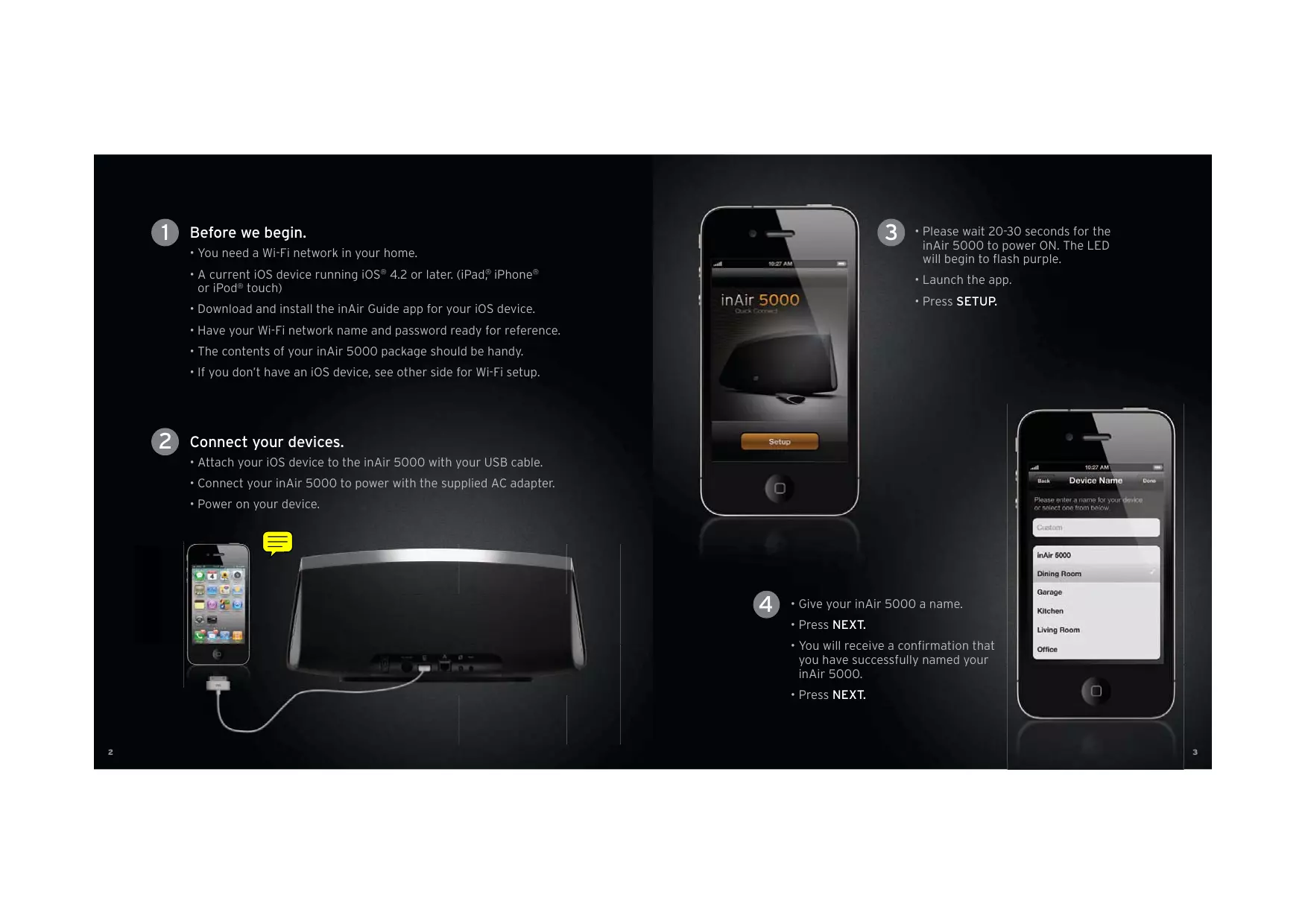
Before we begin. • You need a Wi-Fi network in your home. • A current iOS device running iOS® 4.2 or later. (iPad,® iPhone® or iPod® touch)
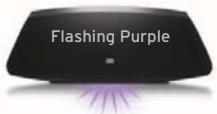
• Please wait 20-30 seconds for the inAir 5000 to power ON. The LED will begin to flash purple. • Launch the app. • Press SETUP.
• Download and install the inAir Guide app for your iOS device. • Have your Wi-Fi network name and password ready for reference. • The contents of your inAir 5000 package should be handy. • If you don’t have an iOS device, see other side for Wi-Fi setup.
Connect your devices. • Attach your iOS device to the inAir 5000 with your USB cable. • Connect your inAir 5000 to power with the supplied AC adapter. • Power on your device.
• Give your inAir 5000 a name. • Press NEXT. • You will receive a confirmation that you have successfully named your inAir 5000. • Press NEXT.
Before we begin. • You need a Wi-Fi network in your home. • A current iOS device running iOS® 4.2 or later. (iPad,® iPhone® or iPod® touch)
• Please wait 20-30 seconds for the inAir 5000 to power ON. The LED will begin to flash purple. • Launch the app. • Press SETUP.
• Download and install the inAir Guide app for your iOS device. • Have your Wi-Fi network name and password ready for reference. • The contents of your inAir 5000 package should be handy. • If you don’t have an iOS device, see other side for Wi-Fi setup.
Connect your devices. • Attach your iOS device to the inAir 5000 with your USB cable. • Connect your inAir 5000 to power with the supplied AC adapter. • Power on your device.
• Give your inAir 5000 a name. • Press NEXT. • You will receive a confirmation that you have successfully named your inAir 5000. • Press NEXT.
Before we begin. • You need a Wi-Fi network in your home. • A current iOS device running iOS® 4.2 or later. (iPad,® iPhone® or iPod® touch)
• Please wait 20-30 seconds for the inAir 5000 to power ON. The LED will begin to flash purple. • Launch the app. • Press SETUP.
• Download and install the inAir Guide app for your iOS device. • Have your Wi-Fi network name and password ready for reference. • The contents of your inAir 5000 package should be handy. • If you don’t have an iOS device, see other side for Wi-Fi setup.
Connect your devices. • Attach your iOS device to the inAir 5000 with your USB cable. • Connect your inAir 5000 to power with the supplied AC adapter. • Power on your device.
• Give your inAir 5000 a name. • Press NEXT. • You will receive a confirmation that you have successfully named your inAir 5000. • Press NEXT.
• Choose your Wi-Fi network.
• Be sure you have disconnected the USB cable. • When you see inAir5000 inAir Guide you are ready to use your player.
• Enter the password if needed. • Press NEXT.
• Enter your email address so that we can inform you about firmware updates. • The ‘Send me info’ slider lets you opt-in to upcoming info about Altec Lansing products and promotions.
• This is the Settings screen for your inAir 5000. • You can change the name of your inAir 5000, check for updates and get device information. • ENJOY!
• Choose your Wi-Fi network.
• Be sure you have disconnected the USB cable. • When you see inAir5000 inAir Guide you are ready to use your player.
• Enter the password if needed. • Press NEXT.
• Enter your email address so that we can inform you about firmware updates. • The ‘Send me info’ slider lets you opt-in to upcoming info about Altec Lansing products and promotions.
• This is the Settings screen for your inAir 5000. • You can change the name of your inAir 5000, check for updates and get device information. • ENJOY!
• Choose your Wi-Fi network.
• Be sure you have disconnected the USB cable. • When you see inAir5000 inAir Guide you are ready to use your player.
• Enter the password if needed. • Press NEXT.
• Enter your email address so that we can inform you about firmware updates. • The ‘Send me info’ slider lets you opt-in to upcoming info about Altec Lansing products and promotions.
• This is the Settings screen for your inAir 5000. • You can change the name of your inAir 5000, check for updates and get device information. • ENJOY!
• Choose your Wi-Fi network.
• Be sure you have disconnected the USB cable. • When you see inAir5000 inAir Guide you are ready to use your player.
• Enter the password if needed. • Press NEXT.
• Enter your email address so that we can inform you about firmware updates. • The ‘Send me info’ slider lets you opt-in to upcoming info about Altec Lansing products and promotions.
• This is the Settings screen for your inAir 5000. • You can change the name of your inAir 5000, check for updates and get device information. • ENJOY!
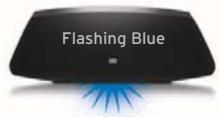
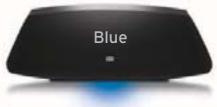
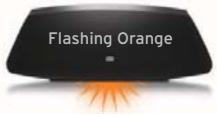
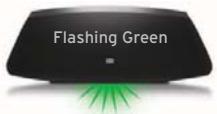
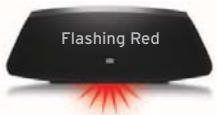
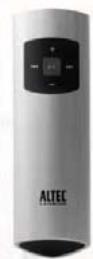
The inAir 5000 LED is a helpful tool. Here’s what it means: Setting up your inAir 5000 remote. Color
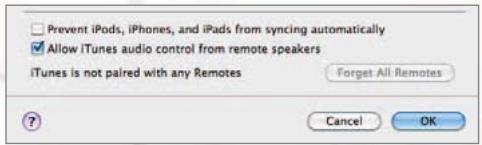
• In iTunes, go to preferences and select ‘devices’. • Select the check box for ‘allow iTunes audio control from remote speakers’. • Look for the Airplay icon at the bottom right of iTunes, click and select your inAir 5000.
Start playing music! For additional information, please visit: support.alteclansing.com

ManualGo.com