
PW315 - Webcam AVERMEDIA - Free user manual and instructions
Find the device manual for free PW315 AVERMEDIA in PDF.


| Product type | Full HD Webcam |
| Brand | AVERMEDIA |
| Model | PW315 |
| Video resolution | 1920 x 1080 pixels (Full HD) |
| Refresh rate | 30 frames per second |
| Built-in microphone | Yes, stereo or mono (depending on model) |
| Viewing angle | 80° (diagonal) |
| Focus | Autofocus |
| Low light correction | Yes |
| Connection | USB 2.0 (integrated 1.5 m cable) |
| Compatibility | Windows, macOS, Chrome OS, Linux (UVC) |
| Plug and Play | Yes, no additional driver required |
| Mounting support | Adjustable clip for monitor or tripod (standard threading) |
| Dimensions (approx.) | 95 x 50 x 45 mm |
| Weight (approx.) | 100 g |
| Power supply | Via USB port (5 V, 500 mA) |
| Maintenance and cleaning | Clean the lens with a soft, dry cloth; do not use chemical products |
| Safety | Do not expose to humidity or extreme temperatures |
| Spare parts and repairability | Not user-repairable; contact AVERMEDIA support |
| Warranty | 2 years (depending on region) |
Frequently Asked Questions - PW315 AVERMEDIA
User questions about PW315 AVERMEDIA
0 question about this device. Answer the ones you know or ask your own.
Ask a new question about this device
Download the instructions for your Webcam in PDF format for free! Find your manual PW315 - AVERMEDIA and take your electronic device back in hand. On this page are published all the documents necessary for the use of your device. PW315 by AVERMEDIA.
USER MANUAL PW315 AVERMEDIA
Setting up the Live Streamer CAM 313 with Skype
What you need:
Live Streamer CAM 313
USB port
Desktop or laptop computer
- Skype
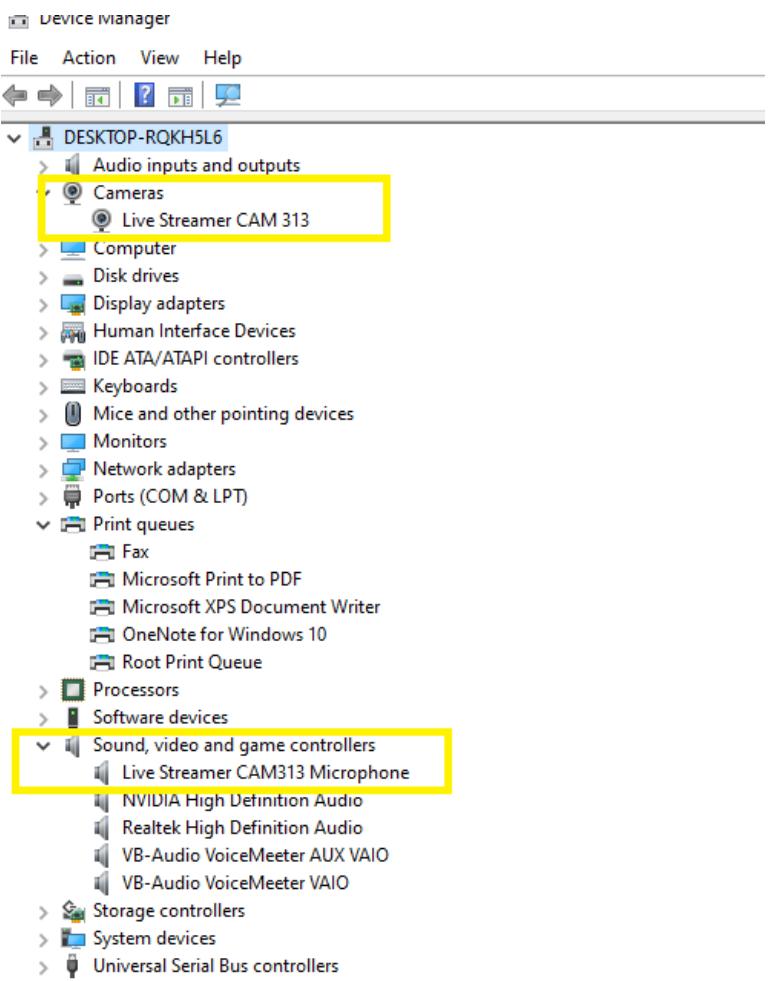
In the search box on the taskbar, type Device Manager, then select from the menu:
- Cameras -> Live Streamer CAM 313
Sound, video and game controllers → Live Streamer CAM 313 Microphone
To set your default output speaker, please do the following:
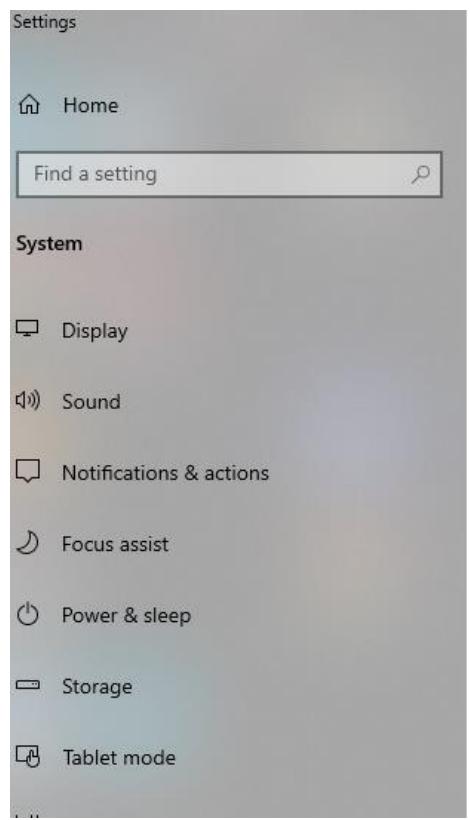
- Open Settings
- Click on System
- Click on Sound
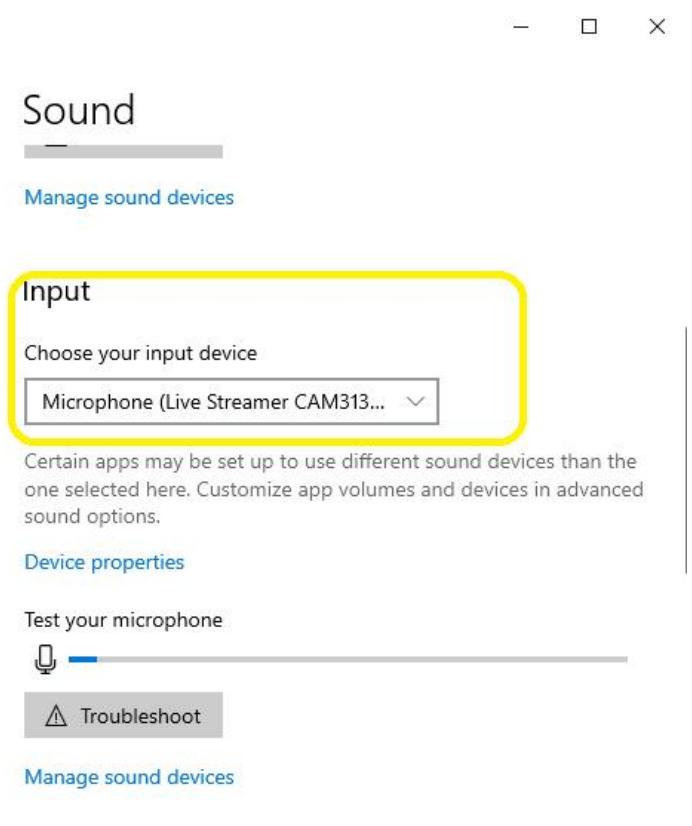
The Sound page includes two sections separating the output and input options:
In the section that states "Choose your output device" select the speaker option that suits your needs. If none are available in the dropdown, it will default to your standard speaker settings.
In the section that states, "Choose your input device", select the "Microphone (Live Streamer CAM 313 MIC)" to begin using the Live Streamer CAM313.
Launch Skype, click the "...” (Ellipsis button) on the corner.
Select "Settings" to view the Audio Settings window.
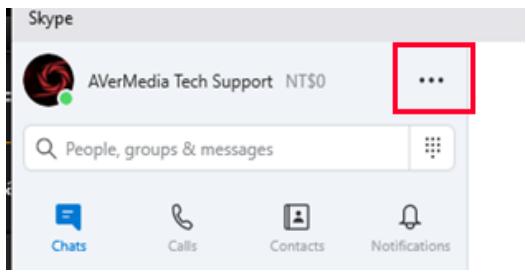
Click "Audio & Video Settings" and then click the "Live Streamer CAM 313" in the drop-down box and select it.

Step-by-Step Guide
Detecting the Live Streamer CAM 313 on Apple
The Live Streamer CAM313 is a USB plug-and-play device; therefore, it doesn't require a separate driver installation.
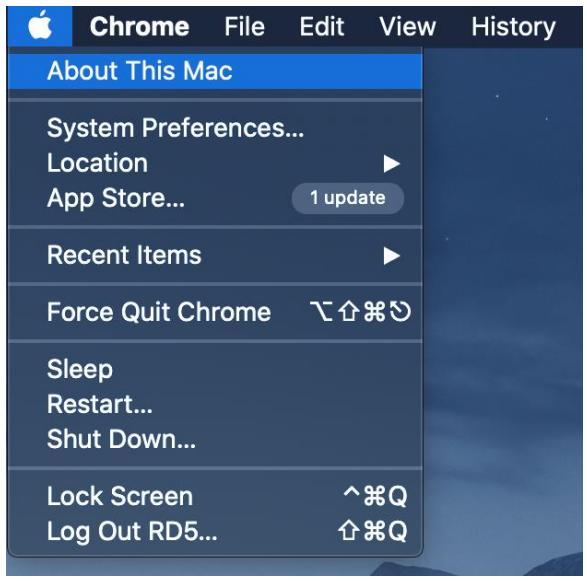
In order to confirm that the device is detected properly, click on the Apple icon at the top left corner of your desktop, and click on: "About this Mac"
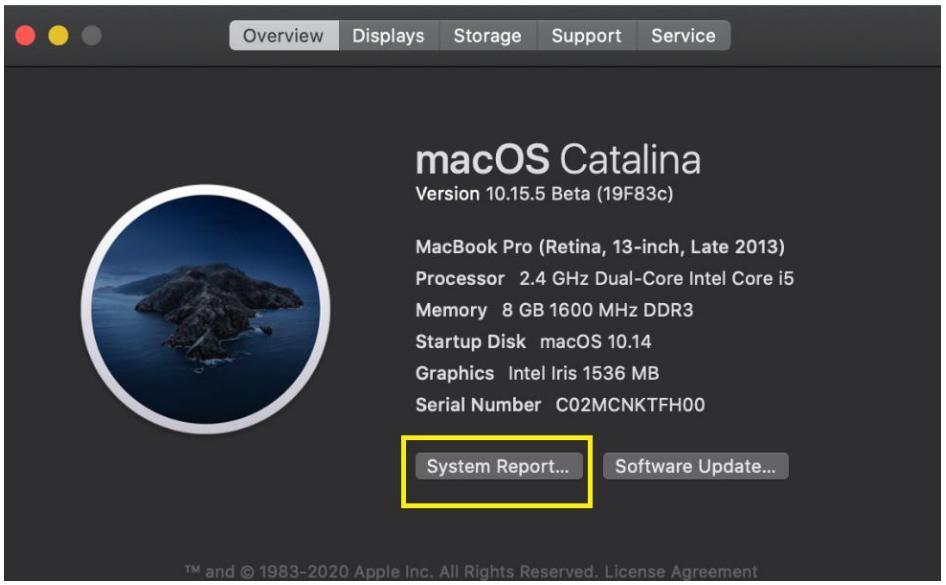
In the below screen, click on Generate "System Report"
Under USB devices you will find the Live Streamer CAM313 shown here:
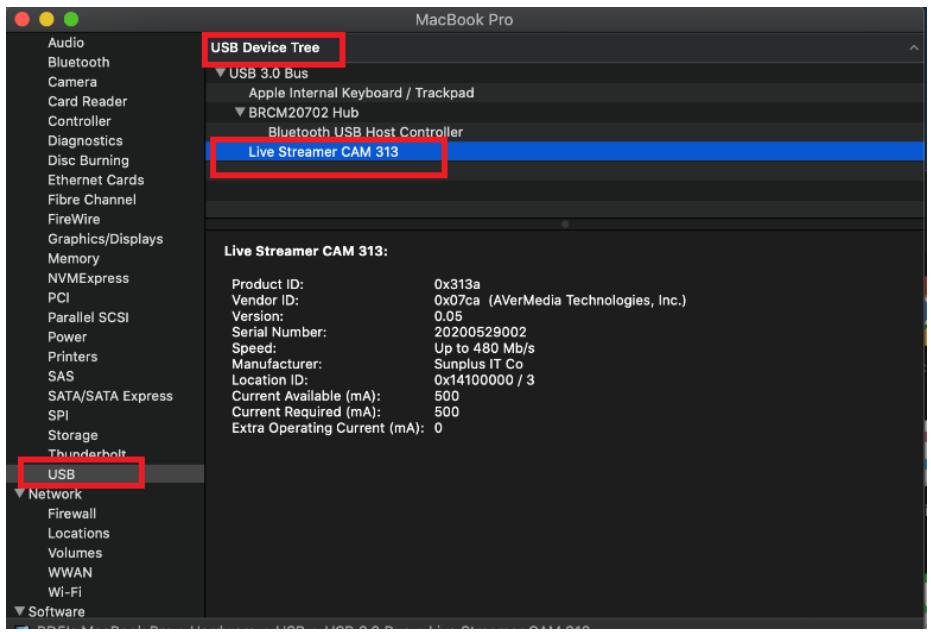
If it is listed in the USB devices, the Live Streamer CAM313 is successfully detected by your Apple computer.
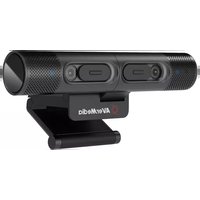
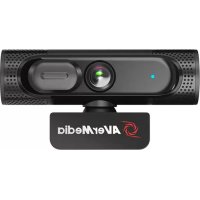
Brand : AVERMEDIA
Model : PW315
Category : Webcam