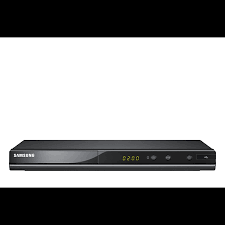
USER MANUAL DVD-C360 SAMSUNG
Thank you for purchasing this Samsung product.
To receive more complete service, please register your product at
www.samsung.com/global/register
1. Setting up
- Refer to the identification label located on the rear of your player for its proper operating voltage.
Install your player in a cabinet with adequate ventilation holes. (7 10cm) Do not block ventilation holes on any of the components for air circulation.
- Do not push the disc tray in by hand.
- Do not stack components.
- Be sure to turn all components off before moving the player.
- Before connecting other components to this player, be sure to turn them off.
- Be sure to remove the disc and turn off the player after use, especially if you are not going to use it for a long time.
- The mains plug is used as a disconnect device and shall stay readily operable at any time.
2. For your safety
- This product utilizes a laser. Use of controls or adjustments or performance of procedures other than those specified herein may result in hazardous radiation exposure.
- Do not open covers and do not repair yourself. Refer servicing to qualified personal.
3. Caution
- Your player is not intended for industrial use but for domestic purposes. Use of this product is for personal use only.
- Apparatus shall not be exposed to dripping or splashing and no objects filled with liquids, such as vases, shall be placed on the apparatus.
- Exterior influences such as lightning and static electricity can affect normal operation of this player. If this occurs, turn the player off and on again with the POWER button, or disconnect and then reconnect the AC power cord to the AC power outlet. The player will operate normally.
- When condensation forms inside the player due to sharp changes in temperature, the
player may not operate correctly. If this occurs, leave the player at room temperature until the inside of the player becomes dry and operational.
4. Disc
- Do not use record-cleaning sprays, benzene, thinner, or other volatile solvents that may cause damage to the disc surface.
- Do not touch the disc's signal surface. Hold by the edges or by one edge and the hole in the center.
- Wipe the dirt away gently; never wipe a cloth back and forth over the disc.
5. Environmental info
- The battery used in this product contains chemicals that are harmful to the environment.
- So, dispose of batteries in the proper man.
ner, according to federal, state, and local regulations.
The product unit accompanying this user manual is licensed under certain intellectual property rights of certain third parties. This license is limited to private non-commercial use by end-user consumers for licensed contents. No rights are granted for commercial use. The license does not cover any product unit other than this product unit and the license does not extend to any unlicensed product unit or process conforming to ISO/OUR 11172-3 or ISO/OUR 13818-3 used or sold in combination with this product unit. The license only covers the use of this product unit to encode and/or decode audio files conforming to the ISO/OUR 11172-3 or ISO/OUR 13818-3. No rights are granted under this license for product features or functions that do not conform to the ISO/OUR 11172-3 or ISO/OUR 13818-3.
CAUTION: USE OF ANY CONTROLS, ADJUSTMENTS, OR PROCEDURES OTHER THAN SPECIFIED HEREIN MAY RESULT IN HAZARDOUS RADIATION EXPOSURE.
Contents
Precautions 2
Setup CD Audio 8
General Features 2 Folder Selection 8
Description 3 MP3/WMA/CD Audio Playback. 8
Tour of the Remote Control. 4 MPEG4 Playback 9
Connections Playing media files Using the USB Host
Choosing a Connection 5 Feature (Only DVD-C360,C450,C450K) 9
Basic Functions CD Ripping (Only DVD-C360,C450,C450K) 10
Playing a Disc 6 Picture CD Playback 10
Using the Search and Skip Functions 6 Karaoke Function Using the Display Function 6 Karaoke Function (Only DVD-C450K,C350K) 10 Using the Disc Menu and Title Menu 6 Changing Setup Menu Repeat Play 6 Using the Setup Menu 11 Slow Play 7 Setting Up the Language Features 11
Advanced Functions Setting Up the Audio Options.. 11
Adjusting the Aspect Ratio (EZ View) .. 7 Setting Up the Display Options. 11
Selecting the Audio Language. . 7 Setting Up the Parental Control. 11
Selecting the Subtitle Language. . 7 Setting Up the Divx. 12
Changing the Camera Angle. . 7 Reference
Using theBookmark Function. . 7 Troubleshooting. 12
Using the Zoom Function. . 8 Specifications. 12

General Features
Excellent Sound
Dolby Digital, a technology developed by Dolby Laboratories, provides crystal clear sound reproduction.
Screen
Both regular and widenscreen(16:9) pictures can be viewed.
Slow Motion
An important scene can be viewed in slow motion.
Parental Control (DVD)
The parental control allows users to set the level necessary to prohibit children from viewing harmful movies such as those with violence, adult subject matter, etc.
Functions
You can select various languages (Audio/Subtitle) and screen angles while enjoying movies.
Progressive Scan
Progressive scanning creates an improved picture
with double the scan lines of a conventional interlaced picture.
EZ VIEW (DVD)
Easy View enables picture adjustment to match your TV's screen size (16:9 or 4:3).
Digital Photo Viewer (JPEG)
You can view Digital Photos on your TV.
Repeat
You can repeat a song or movie simply by pressing the REPEAT button.
MP3/WMA
This unit can play discs created from MP3/WMA files.
MPEG4
This unit can play MPEG4 formats within an avi file.
CD Ripping
(Only DVD-C360, C450, C450K)
This feature lets you copy audio files from discs to USB device into MP3 format. (only audio CD (CD DA)
Note
- Discs which cannot be played with this player.
DVD-ROM DVD-RAM
CD-ROM CDV
CDI CVD
- CDGs play audio only, not graphics.
- Ability to play back may depend on recording conditions.
DVD-R, +R
CD-RW
DVD+RW, -RW (V mode)
- The unit may not play certain CD-R, CD-RW and DVD-R due to the disc type or recording conditions.
COPY PROTECTION
Many DVD discs are encoded with copy protection. Because of this, you should only connect your DVD player directly to your TV, not to a VCR. Connecting to a VCR results in a distorted picture from copy-protected DVD discs.
This product incorporates copyright protection technology that is protected by methods claims of certain U.S. patents and other
Disc Markings
| Play Region Number |
| PAL | PAL broadcast system in U.K, France, Germany, etc. |
| DOLBY DIGITAL | Dolby Digital disc |
| STEREO | Stereo disc |
| DIGITAL SOUND | Digital Audio disc |
| dits Digital Out | DTS disc |
| MP3 disc |
intellectual property rights owned by Rovi Corporation and other rights owners. Use of this copyright protection technology must be aauthorized by Rovi Corporation, and is intended for home and other limited viewing uses only unless otherwise authorized by Rovi Corporation. Reverse engineering or disassembly is prohibited.
PROGRESSIVE SCAN OUTPUTS (576p)
"CONSUMERS SHOULD NOTE THAT NOT ALL HIGH DEFINITION TELEVISION SETS ARE FULY COMPATIBLE WITH THIS PRODUCT AND MAY CAUSE ARTIFACTS TO BE DISPLAYED IN THE PICTURE, IN CASE OF 576 PROGRESSIVE SCAN PICTURE PROBLEMS, IT IS RECOMMENDED THAT THE USER SWITCH THE CONNECTION TO THE 'STANDARD DEFINITION' OUTPUT. IF THERE ARE QUESTIONS REGARDING YOUR TV SET COMPATIBILITY WITH THIS MODEL 576p DVD PLAYER, PLEASE CONTACT SAMSUNG'S CUSTOMER SERVICE CENTER."
Region Number
Both the DVD player and the discs are coded by region. These regional codes must match in order for the disc to play. If the codes do not match, the disc will not play.
The Region Number for this player is described on the rear panel of the player.
DivX Certification
DivX, DivX Certified, and associated logos are trademarks of
DivXNetworks, Inc and are used under license. DivX Certified to play DivX video.

Descriptions
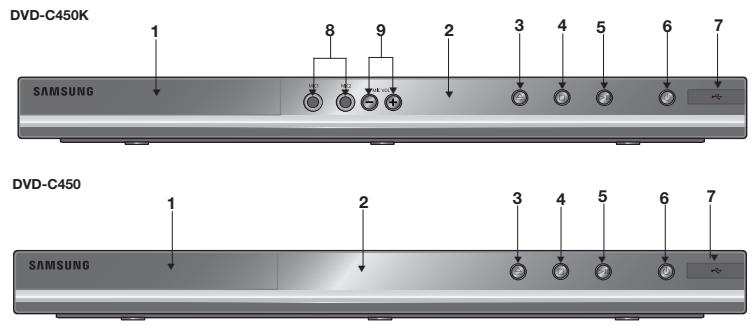
Front Panel Controls
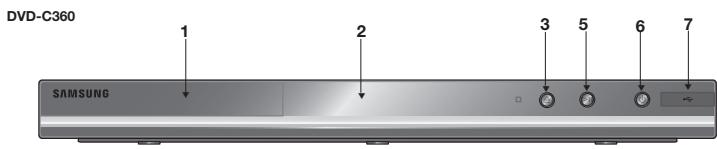
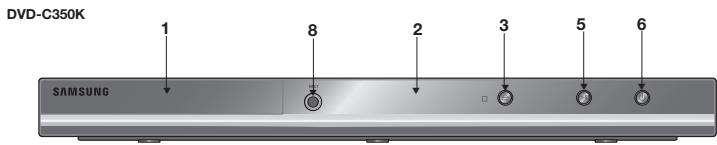
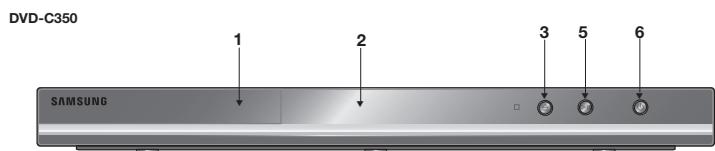
- DISC TRAY
Place the disc here.
2.DISPLAY
Operation indicators are displayed here.
- OPEN/CLOSE/STOP (▲)
Press to open and close the disc tray
- STOP
(Only DVD-C450,C450K)
Stop disc play.
- PLAY/PAUSE
Play or pause the disc / Stops Disc Play
- POWER ON/OFF (O)
Turn On/Off the DVD Player
- USB HOST
(Only DVD-C360,C450,C450K)
Connect digital still camera, MP3 player, memory stick, Card reader, or another removable storage devices.
- MIC 1/2
(Only DVD-C350K,C450K)
Connect Microphone for karaoke functions.
- MICROPHONE VOLUME
(Only DVD-C450K)
Use to adjust microphone volume level. Use the button by pressing it. Turn it to the left or right to control the volume.
DVD-C350K DVD-C350
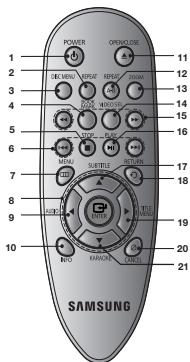
1.DVD POWER Button
Turns the power on or off.
- REPEAT Button
Allows you to repeat play a title, chapter, track, or disc.
3.DISCMENUButton
Brings up the Disc menu.
- BOOKMARK
Quickly find bookmark sections of a DVD.
-
STOP Button (■)
-
SKIP Buttons (▶/▶)
Use to skip the title, chapter or track
- MENU Button
Brings up the DVD player's menu.
- ENTER/▲/▼,▲/▶ Buttons
This button functions as a toggle switch.
9.AUDIO Button (
Use this button to access various audio functions on a disc.
- INFO Button
Displays the current disc mode.
- OPEN/CLOSE (▲) Button
To open and close the disc tray.
- REPEAT A-B Button
Allows you to repeat A-B disc.
13.ZOOMButton
Enlarges the DVD Picture.
14.VIDEO SEL. Button
Selects video output for mats.
15.SEARCH Buttons ( / )
Allow you to search forward/ back ward through a disc.
- PLAY/PAUSE Button (▶II)
Begin/Pause disc play.
-
SUBTITLE Button (▲)
-
RETURN Button
Returns to a previous menu.
- TITLE MENU Button (▶)
Brings up the Title menu.
- CANCEL Button
Use to remove menus
or status displays from the screen.
- KARAOKE Button (▼)
(Only DVD-C350K)
Use to begin Karaoke functions.
Tour of the Remote Control
DVD-C450K
DVD-C450
DVD-C360
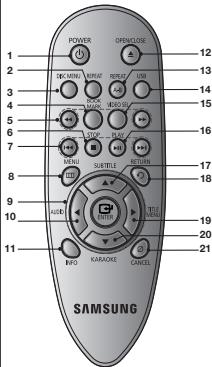
1.DVD POWER Button
Turns the power on or off.
- REPEAT Button
Allows you to repeat play a title, chapter, track, or disc.
3.DISCMENUButton
Brings up the Disc menu.
- BOOKMARK
Quickly find bookmark sections of a DVD.
5.SEARCH Buttons ( / )
Allow you to search forward/ back ward through a disc.
-
STOP Button (■)
-
SKIP Buttons (←/→)
Use to skip the title, chapter or track
- MENU Button
Brings up the DVD player's menu.
- ENTER /▲/▼,▲/▶ Buttons
This button functions as a toggle switch.
- AUDIO Button (▲)
Use this button to access various audio functions on a disc.
- INFO Button
Displays the current disc mode.
- OPEN/CLOSE (▲) Button
To open and close the disc tray.
- REPEAT A-B Button
Allows you to repeat A-B disc.
- USB Button
15.VIDEO SEL. Button
Selects video output formats.
- PLAY/PAUSE Button (▶II)
Begin/Pause disc play.
-
SUBTITLE Button (▲)
-
RETURN Button
Returns to a previous menu.
- TITLE MENU Button (▶)
Brings up the Title menu.
- KARAOKE Button (▼)
(Only DVD-C450K)
Use to begin Karaoke functions.
- CANCEL Button
Use to remove menus or status displays from the screen.
Choosing a Connection
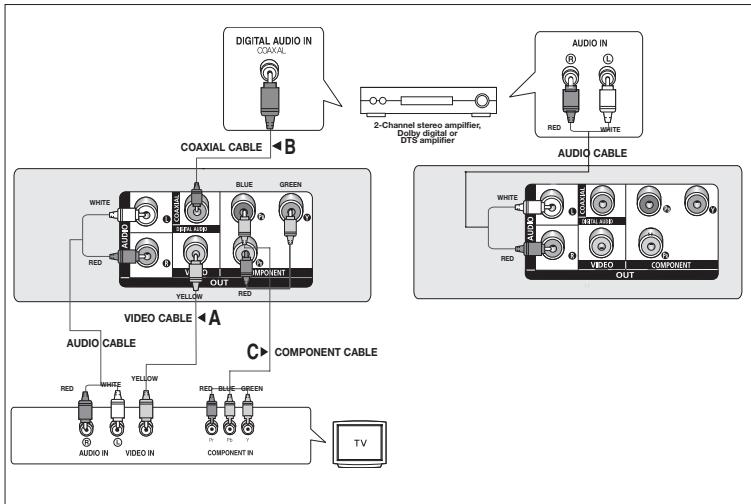
The following shows examples of connections commonly used to connect the DVD player with a TV and other components.
Before Connecting the DVD Player
- Always turn off the DVD player, TV, and other components before you connect or disconnect any cables.
Refer to the user's manual of the additional components you are connecting for more information on those particular components.
A. Connecting to a TV (VIDEO)
- Using video/audio cables, connect the VIDEO (yellow)/AUDIO (red and white) OUT terminals on the rear of the DVD player to the VIDEO (yellow)/AUDIO (red and white) IN terminals of TV.
- Turn on the DVD player and TV.
- Press the input selector on your TV remote control until the Video signal from the DVD player appears on the TV screen.
Note
- Noise may be generated if the audio cable is placed too close to the power cable.
- If you want to connect to an Amplifier, please refer to the Amplifier connection section below.
- The number and position of terminals can vary depending on your TV set. Please refer to the user's manual of the TV.
- If there is one audio input terminal on the TV, connect it to the [AUDIO OUT][left] (white) terminal of the DVD player.
- If you press the Video SEL. button when DVD Player is in stop mode or no disc is inserted, the Video Output mode changes in the following sequence: (I-SCAN → P-SCAN).
B. Connection to an Audio System (2 Channel Amplifier, Dolby Digital,MPEG2 or DTS Amplifier)
- Using the audio cables, connect the AUDIO (red and white) OUT terminals on the rear of the DVD player to the AUDIO (red and white) IN terminals of the Amplifier. If using a coaxial cable, connect the DIGITAL AUDIO OUT (COAXIAL) terminal on the rear of the DVD player to the DIGITAL AUDIO IN (COAXIAL) terminal of the Amplifier.
- Using the video signal cable(s), connect the Video or COMPONENT terminals on the rear of the DVD player to the Video or COMPONENT terminals of your TV.
- Turn on the DVD player, TV, and Amplifier.
- Press the input select button of the Amplifier to select external input in order to hear sound from the DVD player.
Refer to your Amplifier's user manual to set the Amplifier's audio input.
C. Connections to a TV Interlace / Progressive
- Using Component video cables (not included), connect the COMPONENT VIDEO OUT (PR, PB and Y) jacks on the rear of the DVD player to the COMPONENT IN (PR, PB and Y) jacks of your TV.
- Using the audio cables, connect the AUDIO (red and white) OUT terminals on the rear of the DVD player to the AUDIO (red and white) IN terminals of TV. Turn on the DVD player and TV.
-
Set the Video Output to I-SCAN/P-SCAN in the Display Setup menu. You can use theVIDEO SEL. button to change the Video Output mode.
-
Press the input selector on your TV remote control until the Component signal from the DVD player appears on the TV screen.
- Set the Video Output to I-SCAN/P-SCAN in the Display Setup menu. You can use theVIDEO SEL. button to change the Video Output mode.
Note
- What is "Progressive Scan"? Progressive scan has twice as many scanning lines as the interlace output method has. Progressive scanning method can provide better and clearer picture quality.
Playing a Disc
Before Play
- Turn on your TV and set it to the correct Video Input by pressing TV/VIDEO button on the TV remote control.
- If you connected an external Audio System, turn on your Audio System and set it to the correct Audio Input.
After plugging in the player, the first time you press the DVD POWER button, this screen comes up: If you want to select a language, press a / button then press ENTER (This screen will only appear when you plug in the player for the first time.) If the language for the startup screen is not set, the settings may change whenever you turn the power on or off. Therefore, make sure that you select the language you want to use. Once you select a menu language, you can change it by pressing the / button on the front panel of the unit for more than 5 seconds with no disc in the unit. Then the SELECT MENU LANGUAGE window appears again where you can reset your preferred language.
Using the Search and Skip Functions
During play, you can search quickly through a chapter or track, and use the skip function to jump to the next selection.
Searching through a Chapter or Track
During play, press the SEARCH (or ) button on the remote control for more than 1 second.
| DVD | 2X, 4X, 64X, 128X |
| VCD | 4X, 8X |
| CD | 2X, 4X, 8X |
Note
- The speed marked in this function may be different from the actual playback speed.
- No sound is heard during search mode (Except CD).
Skipping Tracks
During play, press the SKIP (or button.
- When playing a DVD, if you press the SKIP (▶) button, it moves to the next chapter. If you press the SKIP (▲) button, it moves to the beginning of the chapter. One more press makes it move to the beginning of the previous chapter.
- When playing a VCD or a CD, if you press the SKIP (▶) button, it moves to the next track. If you press the SKIP (▶) button, it moves to the beginning of the track. One more press makes it move to the beginning of the previous track.
- If a track exceeds 15 minutes when playing a VCD and you press the button, it moves forward 5 minutes. If you press the button, it moves backward 5 minutes.
Using the Display Function
When Playing a DVD/VCD/MPEG4
- During play, press the INFO button on the remote control.
-
Press the / buttons to select the desired item.
-
When playing VCD, the Disc Menu may not work.
-
Press the / buttons to make the desired setup and then press the ENTER button.
- To make the screen disappear, press the INFO button.
| T | To access the desired title when there is more than one in the disc. For example, if there is more than one movie on a DVD, each movie will be identified. |
| Most DVD discs are recorded in chapters so that you can quickly find a specific passage. |
| Allows playback of the film from a desired time. You must enter the starting time as a reference. The time search function does not operate on some disc. |
| Refers to the subtitle languages available in the disc. You will be able to choose the subtitle languages or, if you prefer, turn them off from the screen. A DVD disc can have up to 32 different subtitles. |
| Shortcut | Enter and press the▶按钮 to access the desired Audio, Angle, Bookmark, EZ View function and Zoom.
Refers to the language of the film soundtrack. In the example, the soundtrack is played in English 5.1CH. A DVD disc can have up to eight different soundtracks. Some DVD discs are have more angle function from any picture.
Bookmark function make you easily and quickly to find a track or chapter from DVD or CD.
The EZ View function is use for changing the aspect ratio in DVD.
The ZOOM function is use for Enlarge DVD Picture |
Using the Disc and Title Menu
During stop mode of a DVD disc, press the DISC MENU/TITLE MENU button on the remote control.
Note
- The Disc Menu or Title Menu may not work. Depending on the disc.
- You can also use the Disc Menu, using the DISC MENU button on the remote control.
- Title Menu will only be displayed if there are at least two titles in the disc.
Repeat Play
Repeat the current track, chapter, title, a chosen section (A-B), or all of the disc.
When playing a DVD/VCD
Press the REPEAT buttons to select Chapter, Title, Track, Disc or Repeat : Off
DVD repeats play by chapter or title, VCD repeat play by disc or track.
- Chapter : repeats the chapter that is playing.
- Title : repeats the title that is playing.
- Disc : repeats the disc that is playing.
-Repeat:Off
- Track : repeats the track that is playing.
Using the A-B Repeat function
- Press the REPEAT A-B button at the point where you want repeat play to start (A).
-
Press the REPEAT A-B button at the point where you want the repeat play to stop (B).
-
To return to normal play, press the CANCEL button.
-
To return to normal play, press the REPEAT A-B then press the ENTER button until the display shows Repeat : Off
Note
- A-B REPEAT allow you to set point (B) directly after point (A) has been set.
- Depending on the disc, the Repeat function may not work.
- When playing VCD, the Disc Menu may not work.
Slow Play
This feature allows you to repeat scenes slowly containing sports, dancing, musical instruments being played etc., so you can study them more closely.
When playing a DVD/VCD
- During play, press the PLAY/PAUSE (▶II) button.
- Press the SEARCH (▶) button to choose the play speed between 1/2, 1/4, 1/8 and 1/16 of normal during PAUSE.
advanced functions
Adjusting the Aspect Ratio (EZ View)
To play back using aspect ratio (DVD)
- During play, press the INFO button on the remote control.
- Press the / buttons to select Shortcut, then press the ENTER button.
-
Press the / buttons to select EZ View, then press the ENTER button.
-
Each time you press the button, the screen size changes. For graphics of the screen sizes and the sequence in which the sizes change, see the next column.
If you are using a 16:9 TV
For 16:9 aspect ratio discs
-NORMAL WIDE
- SCREEN FIT
-ZOOMFIT
- VERTICAL FIT
If you are using a 4:3 TV
For 16:9 aspect ratio discs
- 4:3 Letter Box
- 4:3 Pan Scan
- SCREEN FIT
- ZOOM FIT
For 4:3 aspect ratio discs
-NORMAL SCREEN
- SCREEN FIT
- ZOOM FIT
For 4:3 aspect ratio discs
NORMAL SCREEN
SCREEN FIT
- ZOOM FIT
Note
This function may behave differently depending on the type of disc.
Selecting the Audio Language
You can select a desired audio language quickly and easily with the AUDIO button.
- Press the AUDIO/按钮. The Audio changes when the button is pressed repeatedly. The audio languages are represented by abbreviations.
Press Audio / button at remocon repeatedly to select the desired Audio on MPEG4 then press the ENTER.
Note
- This function depends on audio languages are encoded on the disc and may not work.
- A DVD disc can contain up to 8 audio languages.
Selecting the Subtitle Language
You can select a desired subtitle quickly and easily with the SUBTITLE (▲) button.
- Press the SUBTITLE / button. The subtitle languages are represented by abbreviations. The subtitle changes when the button is pressed repeatedly.
Press SUBTITLE / button atromo repeatedly to select the desired subtitle language on a MPEG4 then press the ENTER.
- To remove the SUBTITLE icon, press the SUBTITLE / button.
Note
- You have to change the desired subtitle in the Disc Menu, according to discs. Press the DIS MENU button.
- This function depends on what subtitles are encoded on the disc and may not work on all DVDs.
- A DVD disc can contain up to 32 subtitle languages.
Changing the Camera Angle
When a DVD contains multiple angles of a particular scene, you can use the ANGLE function.
If the disc contains multiple angles, the ANGLE appears on the screen.
- During play, press the INFO button on the remote control.
- Press the / buttons to select Shortcut. then press the ENTER button.
- Press the / buttons to select Angle, then press the ENTER button.
- Press the / buttons on the remote control to select the desired angle.
Note
- If the disc has only one angle, this feature won't work. Currently, very few discs have this feature.
- Depending on the disc, these functions may not work.
Using theBookmark Function
This feature lets you bookmark sections of a DVD or VCD (Menu Off mode) so you can quickly find them at a later time.
Using theBookmark Function DVD/VCD
- During play, press the INFO button on the remote control.
- Press the / buttons to select Shortcut, then press the ENTER button
- Press the / buttons to select Bookmark then press the ENTER button.
- When you reach the scene you want to mark, press-the ENTER button. You can bookmark up to 12 scenes at a time.
Note
- Depending on a disc, theBookmark function may not work.
- When playing VCD, the Disc Menu may not work.
Recalling a Marked Scene
1~3. The first 1~3 steps are the same as those for "Using theBookmark Function".
4. Press the buttons to select a marked scene.
5. Press the PLAY/PAUSE (▶II) button to skip to the marked scene.
Clearing aBookmark
1~3. The first 1~3 steps are the same as those for "Using theBookmark Function".
4. Press the / buttons to select the bookmark number you want to delete.
5. Press the CANCEL button to delete a bookmark number.
Using the Zoom Function
-
Using the Zoom Function (DVD/VCD) (DVD-C350,C350K)
-
During play, press the ZOOM button on the remote control.
- Using the Zoom Function (DVD/VCD) (DVD-C360,C450,C450K)
- During play, press the INFO button on the remote control.
- Press the / buttons to select Shortcut, then press the ENTER button
-
Press the / buttons to select Zoom, then press the ENTER button.
-
During DVD/VCD play, press ENTER to zoom in 2X/3X/4X/ Normal in order.
CD Audio or discs with MP3/WMA/JPEG contain individual songs and/or pictures that can be organized into folders as shown below. They are similar to how you use
your computer to put files into different folders.
Open the disc tray. Place the disc on the tray. Close the tray, and the tray closes.
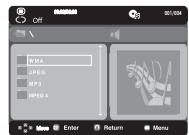
Folder Selections
The folder can be selected in Stop or Play mode.
- To select the Parent Folder
Press the RETURN button to go to parent folder, or press the / buttons to select "... and press ENTER to go to the parent folder.
MP3/WMA/CD Audio Playback
- Open the disc tray. Place the disc on the tray. Close the tray.
- Only one kind of file is played back when a disc or a folder contains both MP3 and WMA files.
- Press the / buttons to select a song file.
- Press ENTER to begin playback of the song file.
Repeat/Random playback
Press the REPEAT button to change the playback mode. There are four modes, such as Off, Track, Folder and Random.
- Off: Normal Playback
- Track: Repeats the current song file.
- Folder: Repeats the song files which have the same extension in the current folder.
- Random: Song files which have the same extension will be played in random order.
To resume normal play, press the CANCEL button.
CD-R MP3/WMA file
When you record MP3 or WMA files on CD-R, please refer to the following.
- Your MP3 or WMA files should be ISO 9660 or JOLIET format.
ISO 9660 format and Joliet MP3 or WMA files are compatible with Microsoft's DOS and Windows, and with Apple's Mac. This format is the most widely used.
- When naming your MP3 or WMA files, do not exceed 8 characters, and enter“.mp3“.wma” as the file extension.
General name format: Title.mp3. or Title.wma. When composing your title, make sure that you use 8 characters or less, have no spaces in the name, and avoid the use of special characters including: , , , = , +
- Use a decompression transfer rate of at least 128 Kbps when recording MP3 files.
Sound quality with MP3 files basically depends on the rate of compression/ decompression you choose. Getting CD audio sound requires an analog/digital sampling rate, that is conversion to MP3 format, of at least 128 Kbps and up to 160 Kbps. However, choosing higher rates, like Kbps or more, only rarely give better sound quality. Conversely, files with decompression rates below 128 Kbps will not be played properly.
- Use a decompression transfer rate of at least 64Kbps when recording WMA files.
Sound quality with WMA files basically depends on the rate of compression/decompression you choose. Getting CD audio sound requires an analog/digital sampling rate, that is conversion to WMA format, of at least 64Kbps and up to Kbps. Conversely, files with decompression rates below 64Kbps or over Kbps will not be played properly.
- Do not try recording copyright protected MP3 files.
Certain "secured" files are encrypted and code protected to prevent illegal copying. These files are of the following types: Windows Media (registered trade mark of Microsoft Inc) and SDMI™ (registered trade mark of The SDMI Foundation). You cannot copy such files.
- Important:
The above recommendations cannot be taken as a guarantee that the DVD player will play MP3 recordings, or as an assurance of sound quality. You should note that certain technologies and methods for MP3 file recording on CD-Rs prevent optimal playback of these files on your DVD player (degraded sound quality and in some cases, inability of the player to read the files).
- This unit can play a maximum of 500 files and 500 folders per disc.
MPEG4 Play Function
MPEG4 is a compressed video format designed to deliver DVD quality video at lower data rates and smaller file sizes. Types of MPEG4 files are DivX or Xvid. These files have an .avi extension. AVI files are used to contain the audio and video data. This unit can only play AVI format files with the ".avi" extension.
- Open the disc tray. Place the disc on the tray. Close the tray.
- Press the / buttons to select an avi file (DivX/XviD) and then press ENTER button.
Repeat playback
Press the REPEAT button to change playback mode. There are 3 modes, such as Track, Folder and Off.
- Track: repeats the track that is playing.
- Folder : repeats the AVI files which have the same extension in the current folder.
-Off
MPEG4 Function Description
| Function | Description |
| Skip (← or →) | During play, press the ↙ or ➔ button, it moves forward or backward 5 minutes. |
| Search (← or →) | During play, press the SEARCH (← or ➔) button and press again to search at a faster speed. Allows you to search at a faster speed in an AVI file. (2X, 4X, 8X) |
| Slow motion Play | Allows you to search at a slower speed in an AVI file. (1/2, 1/4, 1/8, 1/16) |
- These functions may not work depending on MPEG4 file.
CD-R AVI file
This unit can play the following video compression formats within the AVI file format:
- DivX 3.11 contents
- DivX 4 contents (Based on MPEG-4 Simple Profile)
- DivX 5 contents (MPEG-4 simple profile plus additional features such as bi-directional frames. Qpel and GMC are also supported.)
-XviDMPEG-4 compliant Contents.
This unit supports all resolutions up to maximum below.
DivX5
720x480@30fps
720x576@25fps
Maximum bit rate :4Mbps
Note
- Some MPEG-4 files created on a personal computer may not be play back. That is why Codec Type, Version and Higher resolution over specification is not supported.
- This unit supports CD-R/RW written in MPEG4 in accordance with the "ISO9660 format".
(Only DVD-C360,C450,C450K)
You can enjoy the media files such as pictures, movies and tunes saved in an MP3 player, USB memory or digital camera in high audio by connecting the storage device to the USB port of the DVD Player.
Using the USB HOST feature
- Connect the USB device to the USB port on the front of the unit.
- Press the / buttons to select a file in USB. Press ENTER to Open file.
Note
- Each time the USB button on the remote control is pressed, a frame of the USB device selection will appear.
- "USB" appears on the display screen.
- When playing DVD or CD and USB inserted, "Press USB to select device" appear at the top left corner for a moment.
- USB MENU screen appears on the TV screen and the saved file is played.
Skip Forward/Back
During playback, press the (▶/▶) button.
- When there is more than one file, when you press the button, the next file is selected.
- When there is more than one file, when you press the button, the previous file is selected.
Safe USB Removal
To prevent damage to the memory stored in the USB device, perform safe removal before disconnecting the USB cable.
- Press the STOP (■) button
- Remove the USB cable.
Fast playback
To play back the disc at a faster speed, press (▶/▶) during playback.
- Each time you press either button, the playback speed will change as follows: 2x → 4x → 8x .
Compatible Devices
- USB devices that support USB Mass Storage v1.0. (USB devices that operate as a removable disk in Windows (2000 or later) without additional driver installation.)
- MP3 Player: Flash type MP3 player.
-
Digital camera: Cameras that support USB Mass Storage v1.0.
-
Cameras that operate as a removable disk in Windows (2000 or later) without additional driver installation.
-
USB Flash Drive: Devices that support USB2.0 or USB1.1.
-
You may experience a difference in playback quality when you connect a USB1.1 device.
-
USB card Reader: One slot USB card reader and Multi slot USB card reader
-
Depending on the manufacturer, the USB card reader may not be supported.
-
If you install multiple memory devices into a multi card reader, you may experience problems.
-
If you use a USB extension cable, the USB device might not be recognized.
-
CBI (Control/Bulk/Interrupt) is not supported.
-
Digital Cameras that use PTP protocol or require additional program installation when connected to a PC are not supported.
-
A device using NTFS file system is not supported. (Only FAT 16/32 (File Allocation Table 16/32) file system is supported.)
- Some MP3 players, when connected to this product, may not operate depending on the sector size of their file system.
- The USB HOST function is not supported if a product that transfers media files by its manufacturer-specific program is connected.
- Does not operate with Janus enabled MTP (Media Transfer Protocol) devices.
- The USB host function of this product does not support all USB devices.
CD Ripping (Only DVD-C360, C450, C450K)
This feature lets you to copy audio files from disc to USB device into MP3 format.
- Open the discs tray. Place the Audio CD(CD DA) disc on the tray, and close the tray. Connect the USB device to the USB port on the front of the unit.This screen will be displayed. Press ENTER to select disc.
- Press the RETURN button to display the ripping screen.
-
Press the / buttons, then press the ENTER button to select files for ripping.
-
To deselect files, press ENTER button again.
-
Press the and button to select START, then press the ENTER button begin ripping. The Ripping menu contain the following buttons:
-
Mode (Fast/Normal)
- Bit Rate, press ENTER to change 128kbps → 192kbps → 256kbps → 320kbps. Standart: 128kbps.
Better Quality : 320kbps.
- Device selection, press ENTER to change between devicered (max 4).
- Select - Unselect, Press ENTER to change from Select all or Select none.
- Start ripping, press ENTER to start ripping process.
Note
- To return to CDDA screen, press the RETURN button again.
- When the CD ripping is in process the player will automatically begin playing.
- Only Audio CD (CD DA) discs can be ripped.
- Because the speed is 2.6x of normal speed. User is unable to play the CD DA through the rip ping process.
Picture CDPlayback
- Select the desired folder.
- Press the / buttons to select a Picture file in the clips menu and then press the ENTER button.
Note
- Press the STOP button to return to the clips menu.
- When playing a Kodak Picture CD, the unit displays the Photo directly, not the clips menu.
Rotation
- Each time the / button is pressed, the picture rotates 90 degrees clockwise.
- Each time the button is pressed, the picture rotates 180 degrees.
- Each time the button is pressed, the picture changes to the mirror appearance.
Zoom
- Each time the ENTER Button is pressed repeatedly, the picture is enlarged. zoom mode : 100% , 125% , 150% , 200% .
Slide show
- When you press the ENTER/PLAY at JPEG file, it will go to full screen mode and automatically slide show.
Note
- Depending on a file size, the amount of time between each picture may be different from the manual.
- If you don't press any button, the slide show will start automatically in about 10 seconds by default.
CD-R JPEG Disc
- Only files with the ".jpg" and ".JPG" extensions can be played.
- If the disc has not been closed during the recording phase,(ie has not been finalised) it will take longer to start playing and not all of the recorded files may be played.
- Only CD-R discs with JPEG files in ISO 9660 or Joliet format can be played.
- The name of the JPEG file may not be longer than 8 characters and should contain no blank spaces or special characters ( / = + ).
- Only a consecutively written multi-se sion disc can be played. If there is a blank segment in the multi-session disc, the disc can be played only up to the blank segment.
- A maximum of 500 images can be stored on a single CD.
- Kodak Picture CDs are recommended.
- When playing a Kodak Picture CD, only the JPEG files in the pictures folder can be played.
- Kodak Picture CD: The JPEG files in the pictures folder can be played automatically.
- Konica Picture CD: If you want to see the Picture, select the JPEG files in the clips menu.
- Fuji Picture CD: If you want to see the Picture, select the JPEG files in the clips menu.
- QSS Picture CD: The unit may not play QSS Picture CD.
- If the number of files in 1 Disc is over 500, only 500 JPEG files can be played.
- If the number of folders in 1 Disc is over 500, only JPEG files in 500 folders can be played
karaoke functions
Karaoke Functions
Operation Sequence (Only DVD-C450K, C350K)
- Connect the Mixed Audio Out terminals with the TV or Amplifier.
- Connect Mic into Mic jack. When a MIC is connected, the karaoke functions can be used.
Mic Volume and Key Control
- Playback the Karaoke Disc containing the wanted songs.
- Press the KARAOKE button to select Mic Volume then press KARAOKE button again to select keycon.
- Press the / buttons to change the desired tone.
Note
- If you hear feedback (squealing or howling) while using the karaoke feature, move the microphone away from the speakers or turn down the microphone volume or the speaker volume.
- When playing MP3, WMA, DTS and LPCM disc, the karaoke functions will not operate.
- When the MIC is connected, Digital Out does not work.
- The MIC sound outputs only from Analog Audio Out.
The Setup menu lets you customize your DVD player by allowing you to select various language preferences, set up a parental level, even adjust the player to the type of television screen you have.
- With the unit in Stop mode, press the MENU button on the remote control.Use the buttons to select Setup, then press the or ENTER button.
- Press the / buttons to access the different features. Press the or ENTER button to access the sub features.
- To make the setup screen disappear after setting up, press the MENU button again.
Note
Depending on the disc, some Setup Menu selections may not work.
Setting Up the Language Features
If you set the player menu, disc menu, audio and subtitle language in advance, they will come up automatically every time you watch a movie.
- With the unit in Stop mode, press the MENU button.
- Press the / buttons to select Language Setup Page, then press the or ENTER button.
- Press the / buttons to select the desired language, then press the or ENTER button.
Note
- The language is selected and the screen returns to Language Setup menu.
- To make the setup menu disappear, press the MENU button.
- If the selected language is not recorded on the disc, the original pre-recorded language is selected.
- Select "Original" if you want the default soundtrack language to be the original language the disc is recorded in.
- Select "Automatic" if you want the subtitle language to be the same as the language selected as the audio language.
- Some discs may not contain the language you select : in that case the disc will use its original language setting.
Setting Up the Audio Options
Audio Options allows you to setup the audio device and sound status settings depending on the audio system in use.
- With the unit in Stop mode, press the MENU button.
- Press the / buttons to select Audio Setup Page, then press the or ENTER button.
- Press the / buttons to select the desired item, then press the or ENTER button.
Note :
Even when PCM Down sampling is Off
- Some discs will only output down sampled audio through the digital outputs.
- There is no analog audio output when you play a DTS sound disc.
Manufactured under license from Dolby Laboratories, "Dolby" and the double-D symbol are trademarks of Dolby Laboratories. "DTS" and "DTS Digital Out" are trademarks of Digital Theater Systems, Inc.
Setting Up the Display Options
Display options enable you to set various video functions of the player.
- With the unit in Stop mode, press the MENU button.
- Press the / buttons to select Display Setup Page, then press the or ENTER button.
-
Press the / buttons to select the desired item, then press the or ENTER button.
-
Consult your TV User's Manual to find out if your TV supports Progressive Scan. If Progressive Scan is supported, follow the TV User's Manual regarding Progressive Scan settings in the TV's menu system.
- If Video Output is set incorrectly, the screen may be blocked.
- When the resolution is changed during playback, it may take a few seconds for a normal image to appear.
Setting Up the Parental Control
The Parental Control function works in conjunction with DVDs that have been assigned a rating, which helps you control the types of DVDs that your family watches. There are up to 8 rating levels on a disc.
Setting Up the Rating Level / Changing the Password
- With the unit in Stop mode, press the MENU button.
- Press the / buttons to select Parental Page, then press the or ENTER button.
- Press the / buttons to select Parental/Password, then press the or ENTER button.
- Press the / buttons to select Rating Level you want, then press the ENTER button. e.g) Setting up in KID SAFE.
- Enter your password. If this is the first time, enter 0000. Then, enter a new password. The new password must be a number other than 0000 to activate the parental control function. Then, re-enter the new password.
Note
1 KID SAFE.
G (General Audiences) : All Ages Admitted.
PG (Parental Guidance suggested): Some material may not be suitable for young children.
PG 13 (PG-13 Parents strongly cautioned): Some material may be in appropriate for children under 13.
PGR (Parental Guide Recommended): These are not necessarily unsuitable for children, but viewer discretion is advised, and parents and guardians are encouraged to supervise younger viewer.
R (Restricted): Under 17 requires accompanying adult.
NC17 (NC-17): No one 17 and under admitted.
ADULT.
- If you have forgotten your password, see "Forgot Password" in the Troubleshooting Guide.
Setting Up the DivX
Setting Up the DivX
- With the unit in Stop mode, press the MENU button.
- Press the / buttons to select DivX Page, then press the or ENTER button.
- Press the / buttons to select the desired item, then press the or ENTER button.
Note :
- Press Ok will make the registration code window disappear.
DivX can only be accessed at stop mode.
reference
Troubleshooting
Before requesting service (troubleshooting), please check the following.
| Problem | Action |
| The screen is blocked | • Press the ■ / ▲ button (on front panel) for more than 5 seconds under no disc inside. All settings will revert to the factory settings. |
| Forgot password. | • Press the ■ / ▲ button (on the panel) for more than 5 seconds under no disc inside. All settings including the password will revert to the factory settings. Don’t use this unless absolutely necessary. |
Specifications
| General | Power Requirements | AC 110-240 V ~ 50/60 Hz |
| Weight | DVD-C350,C350K,C360 : 1.2 KgDVD-C450,C450K : 1.5 Kg |
| Power Consumption | 6W |
| Dimensions | DVD-C350,C350K,C360 :360mm (W) X 207mm(D) X 42mm (H)DVD-C450,C450K :430mm (W) X 207mm(D) X 42mm (H) |
| Operating TemperatureRange | +5°C to +35°C |
| Operating Humidity Range | 10 % to 75 % |
| VideoOutput | Component Video | Y : 1.0 Vp-p (75 Ω load)Pr : 0.70 Vp-p (75 Ω load)Pb : 0.70 Vp-p (75 Ω load) |
| AudioOutput | Maximum Output Level | 2Vrms |
| Frequency Response | 20Hz ~ 20kHz |
| Digital Audio Out | Coaxial terminal (S/PDIF) |
If you have any questions or comments relating to Samsung products, please contact the SAMSUNG customer care center.
Contact SAMSUNG WORLD WIDE
| Region | Area | Contact Center ☒ | Web Site |
| North America | Canada | 1-800-SAMSUNG (726-7864) | www.samsung.com/ca |
| Mexico | 01-800-SAMSUNG (726-7864) | www.samsung.com/mx |
| U.S.A | 1-800-SAMSUNG (726-7864) | www.samsung.com/us |
| Latin America | Argentine | 0800-333-3733 | www.samsung.com/ar |
| Brazil | 0800-124-421, 4004-0000 | www.samsung.com.br |
| Chile | 800-SAMSUNG (726-7864) | www.samsung.com/cl |
| Nicaragua | 00-1800-5077267 | www.samsung.com/latin |
| Honduras | 800-7919267 | www.samsung.com/latin |
| Costa Rica | 0-800-507-7267 | www.samsung.com/latin |
| Ecuador | 1-800-10-7267 | www.samsung.com/latin |
| El Salvador | 800-6225 | www.samsung.com/latin |
| Guatemala | 1-800-299-0013 | www.samsung.com/latin |
| Jamaica | 1-800-234-7267 | www.samsung.com/latin |
| Panama | 800-7267 | www.samsung.com/latin |
| Puerto Rico | 1-800-682-3180 | www.samsung.com/latin |
| Rep. Dominica | 1-800-751-2676 | www.samsung.com/latin |
| Trinidad & Tobago | 1-800-SAMSUNG (726-7864) | www.samsung.com/latin |
| Venezuela | 0-800-100-5303 | www.samsung.com/latin |
| Colombia | 01-8000112112 | www.samsung.com.co |
| Europe | Belgium | 02 201 2418 | www.samsung.com/be (Dutch) www.samsung.com/be.fr (French) |
| Czech Republic | 800-SAMSUNG (800-726786) | www.samsung.com/cz |
| Denmark | 8-SAMSUNG (7267864) | www.samsung.com.dk |
| Finland | 30-6227 515 | www.samsung.com/fi |
| France | 01 4863 0000 | www.samsung.com/fr |
| Germany | 01805-SAMSUNG (726-7864 € 0,14/Min) | www.samsung.de |
| Hungary | 06-80-SAMSUNG (726-7864) | www.samsung.com/hu |
| Italia | 800-SAMSUNG (726-7864) | www.samsung.com/lt |
| Luxemburg | 02 261 03 710 | www.samsung.com/lu |
| Netherlands | 0900-SAMSUNG (0900-7267864) € 0,10/Min) | www.samsung.com/nl |
| Norway | 3-SAMSUNG (7267864) | www.samsung.com/no |
| Poland | 0 801 1855AMUNG (172678), 022-607-93-33 | www.samsung.com/pol |
| Portugal | 60820-SAMSUNG (726-7864) | www.samsung.com.pt |
| Slovakia | 0800-SAMSUNG (726-7864) | www.samsung.com/sk |
| Spain | 902-1-SAMSUNG (902 172 678) | www.samsung.com/es |
| Sweden | 0771 726 7864 (SAMSUNG) | www.samsung.com/se |
| U.K. | 0845-SAMSUNG (7267864) | www.samsung.com/uk |
| Eire | 0818 717 100 | www.samsung.com/le |
| Austria | 0810-SAMSUNG (7267864, € 0.07/min) | www.samsung.com/at |
| Switzerland | 0848-SAMSUNG (7267864, CHF 0.08/min) | www.samsung.com/chwww.samsung.com/chfr/(French) |
| CIS | Russia | 8-800-555-55-55 | www.samsung.ru |
| Kazakhstan | 8-10-800-500-55-500 | www.samsung.com/kz.ru |
| Uzbekistan | 8-10-800-500-55-500 | www.samsung.com/kz.ru |
| Kyrgyzstan | 00-800-500-55-500 | www.samsung.com/kt |
| Tadjikistan | 8-10-800-500-55-500 | www.samsung.ua |
| Ukraine | 8-800-502-0000 | www.samsung.com/ua.ru |
| Belarus | 810-800-500-55-500 | www.samsung.com/ee |
| Moldova | 00-800-500-55-500 | www.samsung.com/ft |
| Lithuania | 8-800-77777 | www.samsung.com/ll |
| Latvia | 8000-7267 | www.samsung.com/lv |
| Estonia | 800-7267 | www.samsung.com/ee |
| Asia Pacific | Australia | 1300 362 603 | www.samsung.com/au |
| New Zealand | 0800 SAMSUNG (0800 726 786) | www.samsung.com.nz |
| China | 400-810-5858, 010-6475 1880 | www.samsung.com/cn |
| Hong Kong | 3698-4698 | www.samsung.com/hkwww.samsung.com/hk,en' |
| India | 3030 8282, 1800 110011, 1800 3000 8282 | www.samsung.com/in |
| Indonesia | 0800-112-8888 | www.samsung.com/id |
| Japan | 0120-327-927 | www.samsung.com/jp |
| Malaysia | 1800-86-999999 | www.samsung.com/my |
| Philippines | 1-800-10-SAMSUNG (726-7864), 1-800-3-SAMSUNG (726-7864), 1-800-8-SAMSUNG (726-7864), 02-5805777 | www.samsung.com/ph |
| Singapore | 1800-SAMSUNG (726-7864) | www.samsung.com.sg |
| Thailand | 1800-29-3232, 02-689-3232 | www.samsung.com/th |
| Taiwan | 0800-329-999 | www.samsung.com.tw |
| Vietnam | 1 800 588 889 | www.samsung.com/vn |
| Middle East & Africa | Turkey | 444 77 11 | www.samsung.com/tr |
| South Africa | 0860-SAMSUNG (726-7864) | www.samsung.com.za |
| U.A.E | 800-SAMSUNG (726-7864), 8000-4726 | www.samsung.com/aee |
Lecteur DVD
(Unique DVD-C450,C450K)
- Touche OPEN/CLOSE (△)