 ManualGo.com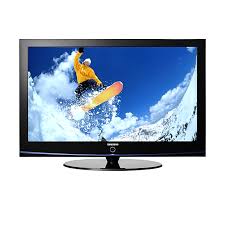
PS50A410 - Television SAMSUNG - Free user manual and instructions
Find the device manual for free PS50A410 SAMSUNG in PDF.



Download the instructions for your Television in PDF format for free! Find your manual PS50A410 - SAMSUNG and take your electronic device back in hand. On this page are published all the documents necessary for the use of your device. PS50A410 by SAMSUNG.
USER MANUAL PS50A410 SAMSUNG
Contact SAMSUNG WORLD-WIDE If you have any questions or comments relating to Samsung products, please contact the SAMSUNG customer care centre. Country Customer Care Centre Web Site AUSTRIA Plasma TV user manual imagine the possibilities Thank you for purchasing this Samsung product. To receive more complete service, please register your product at www.samsung.com/global/register Model Serial No. BN68-01808A-01 BN68-01808A-Eng.indb 1 2008-11-05 오후 2:56:54 User Instructions Screen Image retention Do not display a still image (such as on a video game or when hooking up a PC to this PDP) on the plasma monitor panel for more than 2 hours as it can cause screen image retention. This image retention is also known as “screen burn”. To avoid such image retention, reduce the degree of brightness and contrast of the screen when displaying a still image. Height The PDP can normally operate only under 2000m in height. It might abnormally function at a place over 2000m in height so do not install and operate there. Heat on the top of the PDP TV The top side of the product may be hot after long period of use as heat dissipates from the panel through the vent hole in the upper part of the product. This is normal and does not indicate any defect or operation failure of the product. However, children should be prevented from touching the upper part of the product. The product is making a ‘cracking’ noise. A ‘cracking’ noise may occur when the product contracts or expands due to a change of surrounding environment such as temperature or humidity. This is normal and not a defect of the unit. Cell Defects The PDP uses a panel consisting of 1,230,000(SD-level) to 3,150,000(HD-level) pixels which require sophisticated technology to produce. However, there may be few bright or dark pixels on the screen. These pixels will have no impact on the performance of the product. Avoid operating the TV at temperatures below 5°C(41°F) A still image displayed too long may cause permanent damage to the PDP Panel. Watching the PDP TV in 4:3 format for a long period of time may leave traces of borders displayed on the left, right and centre of the screen caused by the difference of light emission on the screen. Playing a DVD or a game console may cause similar effect to the screen. Damages caused by the above effect are not covered by the Warranty. Afterimage on the Screen. Displaying still images from Video games and PC for longer than a certain period of time may produce partial afterimages. To prevent this effect, reduce the ‘brightness’ and ‘contrast’ when displaying still images. Warranty - Warranty does not cover any damage caused by image retention. - Burn-in is not covered by the warranty. Installation Be sure to contact an authorized service centre, when installing your set in a location with heavy dust, high or low temperatures, high humidity, chemical substance and where it operates continually such as the airport, the train station etc. Failure to do so may cause a serious damage to your set. Contact SAMSUNG WORLDWIDE If you have any questions or comments relating to Samsung products, please contact the SAMSUNG customer care centre. (See back cover for more informations.) © 2008 Samsung Electronics Co., Ltd. All rights reserved. English - BN68-01808A-Eng.indb 2 2008-11-05 오후 2:56:55 General Information
Function Description Operation
- English Contents Storing Channels Automatically p. 13
- Storing Channels Manually p. 14
- Adding / Locking Channels p. 15
- Sorting the Stored Channels p. 16
- Assigning Names to Channels p. 16
- Fine Tuning Channel Reception p. 17
- Teletext Feature (depending on the model) p. 30
- Wall Mount Kit Specifications (VESA) p. 32
- Wall- mount adjustment (Sold separately) p. 33
- Preparing before installing Wall- Mount on the wall p. 34
- How to assemble the Stand-Base (depending on the model) p. 34
- Securing the TV to the Wall p. 35
- Troubleshooting p. 36
- Specifications p. 37
- Changing the Picture Standard p. 18
- Customizing the Picture Settings p. 18
- Configuring Detailed Settings on the Picture p. 19
- Picture Options p. 20
- Resetting the Picture Settings to the Factory Defaults p. 22
- Sound Control Sound Features p. 23
- Selecting the Sound Mode (depending on the model) p. 24
- Connecting Headphones (Sold separately) p. 24
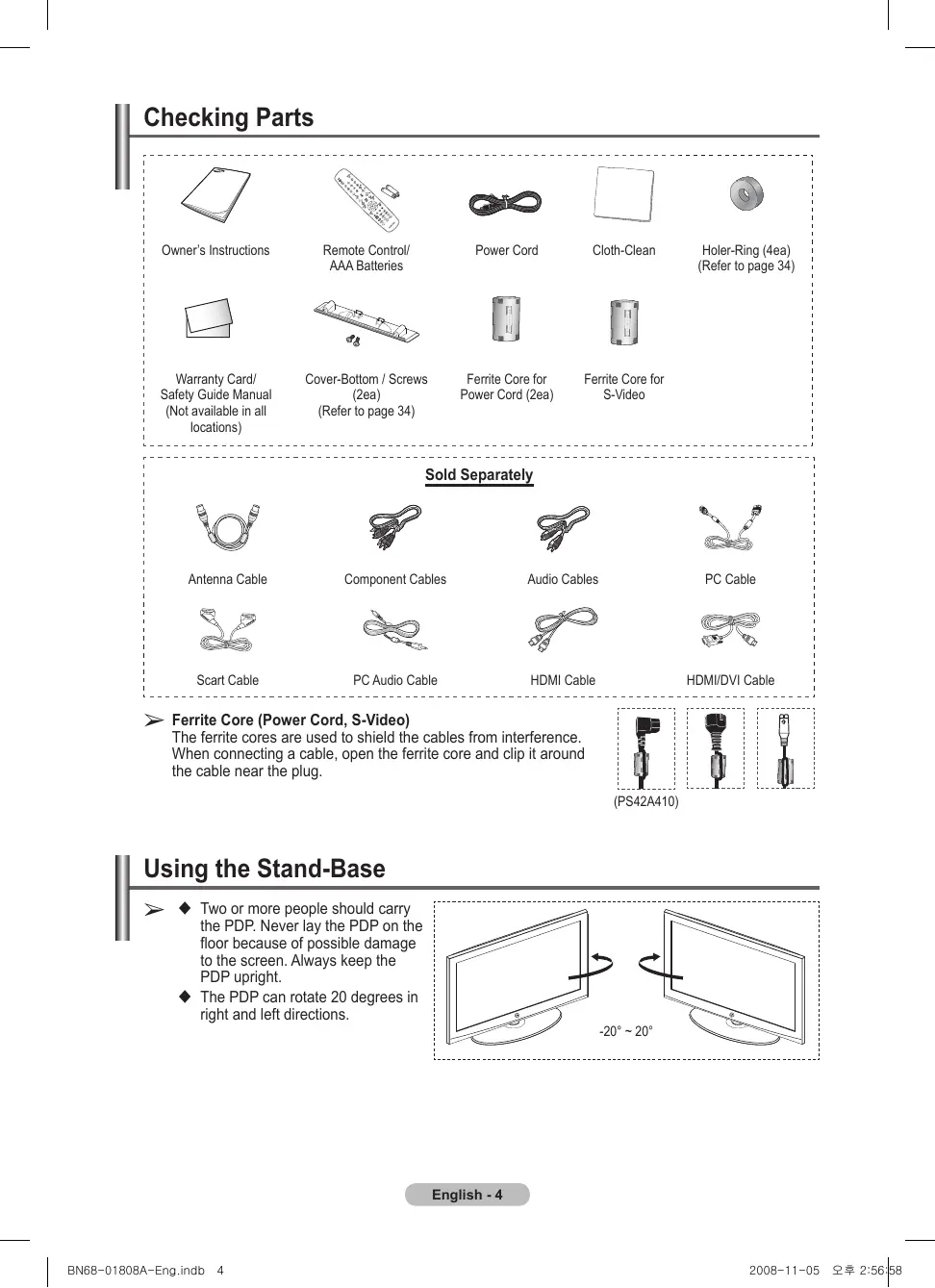
Important Note Symbols Press English - BN68-01808A-Eng.indb 3 2008-11-05 오후 2:56:56 Checking Parts Owner’s Instructions Remote Control/ AAA Batteries Power Cord Cloth-Clean Warranty Card/ Safety Guide Manual (Not available in all locations) Cover-Bottom / Screws (2ea) (Refer to page 34) Ferrite Core for Power Cord (2ea) Ferrite Core for S-Video Holer-Ring (4ea) (Refer to page 34) Sold Separately Antenna Cable Component Cables Audio Cables PC Cable Scart Cable PC Audio Cable HDMI Cable HDMI/DVI Cable Core (Power Cord, S-Video) ➢ Ferrite The ferrite cores are used to shield the cables from interference. When connecting a cable, open the ferrite core and clip it around the cable near the plug. (PS42A410) Using the Stand-Base
Two or more people should carry the PDP. Never lay the PDP on the floor because of possible damage to the screen. Always keep the PDP upright. The PDP can rotate 20 degrees in right and left directions. -20° ~ 20° English - BN68-01808A-Eng.indb 4 2008-11-05 오후 2:56:58 Control Panel Front (or Side) Panel
➢ The product colour and shape may vary depending on the model. 1 SOURCE Toggles between all the available input sources (TV, Ext.1, Ext.2, AV, S-Video, Component, PC, HDMI1, HDMI2). 2 MENU Press to see an on-screen menu of your TV’s features. 3 – Press to increase or decrease the volume. In the on-screen menu, use the – + buttons as you would use the ◄ and ► buttons on the remote control.
C/P. Press to change channels. In the on-screen menu, use the C/P. buttons as you would use the ▲ and ▼ buttons on the remote control. ENTER In the on-screen menu, use this button as you would use the ENTER button on the remote control.
POWER Press to turn the TV on and off. Power Indicator Blinks and turns off when the power is on and lights up in stand-by mode. Remote Control Sensor Aim the remote control towards this spot on the TV. 7 Speakers English - BN68-01808A-Eng.indb 5 2008-11-05 오후 2:56:59 Connection Panel Rear Panel
Cable Television Network
The product colour and shape may vary depending on the model. Whenever you connect an audio or video system to your set, ensure that all elements are switched off. When connecting an external device, match the colour of the connection terminal to the cable. 1 POWER IN Connect the supplied power cord. 2 COMPONENT IN Audio (AUDIO L/R) and video (Y/PB/PR) inputs for Component. 3 PC IN(PC) / (AUDIO) Connect to the video and audio output jack on your PC. 5 Connecting external Audio Devices Connect RCA audio signals from the TV to an external source, such as Audio equipment. 6 SERVICE − Connector for service. − Connect the serial jack between the electro-motion wall mount bracket and your TV when you want to adjust the TV viewing angle using your remote control. 4 EXT 1, EXT 2 Inputs or outputs for external devices, such as VCR, DVD, video game device or video disc players. Input/Output Specification Connector EXT 1 EXT 2 Input Output Video Audio(L/R) RGB Video + Audio(L/R) Only TV output is
available. Output you can
choose. Continued... English - BN68-01808A-Eng.indb 6 2008-11-05 오후 2:57:02 7 HDMI IN 1,2 - No additional Audio connection is needed for an HDMI to HDMI connection. - When using an HDMI/DVI cable connection, you must use the HDMI IN 2 jack. What is HDMI? - “ High Definition Multimedia interface” allows the transmission of high definition digital video data and multiple channels of digital audio. - The HDMI/DVI terminal supports DVI connection to an extended device with the appropriate cable (not supplied). The difference between HDMI and DVI is that the HDMI device is smaller in size, has the HDCP (High Bandwidth Digital Copy Protection) coding feature installed, and supports multi - channel digital audio.
DVI IN (HDMI2) AUDIO R/L
DVI audio outputs for external devices. 8 ANT IN 75Ω Coaxial connector for Aerial/Cable Network. Supported modes for HDMI/DVI and Component HDMI/DVI 50Hz HDMI/DVI 60Hz Component 480i
➢ The product colour and shape may vary depending on the model. 1 S-VIDEO or VIDEO / AUDIO L/R Video (S-Video or Video) and audio inputs for external devices, such as a camcorder or VCR. 2 Headphones jack You can connect a set of headphones if you wish to watch a television programme without disturbing the other people in the room. Prolonged use of headphones at a high volume may damage your hearing.
English - BN68-01808A-Eng.indb 7 2008-11-05 오후 2:57:03 Viewing the Remote Control 1 POWER button (turns the TV on and off) 2 Selects the TV mode directly 3 Number buttons for direct channel access 4 One/Two-digit channel selection 5 Temporary sound switch-off Volume increase Volume decrease 7 Use to quickly select frequently used functions. 8 Control the cursor in the menu 9 Use to see information on the current broadcast @ Channel control button (Refer to page 15) # Available source selection $ Previous channel Next channel Previous channel ^ Returns to the previous menu & Exit the on-screen menu
- Displays the main on-screen menu ( Picture size selection ) Selects the HDMI mode directly a Picture effect selection (Refer to page 18) Teletext Functions (Refer to page 30) 2 Exit from the teletext display (depending on the model) 7 Teletext size 9 Teletext reveal 0 Fastext topic selection ! Teletext display/mix both teletext information and the normal broadcast 12 Teletext store # Teletext mode selection (LIST/FLOF) $ Teletext sub page % P :Teletext next page P :Teletext previous page ^ Teletext hold & Teletext cancel
- Teletext index Continued... English - BN68-01808A-Eng.indb 8 2008-11-05 오후 2:57:04 Installing Batteries in the Remote Control
Lift the cover at the back of the remote control upward as shown in the figure.
Install two AAA size batteries. Make sure to match the “+” and “–” ends of the batteries with the diagram inside the compartment. Do not mix battery types, i.e. alkaline and manganese.
Close the cover as shown in the figure. Remove the batteries and store them in a cool and dry place if you won’t be using the remote control for a long time. The remote control can be used up to about 23 feet from the TV. (Assuming typical TV usage, the batteries last for about one year.)
remote control doesn’t work! Check the following: ➢ If1.the Is the TV power on?
2. Are the plus and minus ends of the batteries reversed?
3. Are the batteries drained?
4. Is there a power cut, or is the power cord unplugged?
5. Is there a special fluorescent light or a neon sign nearby?
Switching Your Television On and Off The main lead is attached to the rear of the television.
Plug the main lead into an appropriate socket. The main voltage is indicated on the rear of the television and the frequency is 50 or 60Hz.
Press the (Power) button (On/Off) on the front of the television or press the POWER button on the remote control to switch the television on. The programme that you were watching last is re-selected automatically. If you have not yet stored any channels, no clear picture appears. Refer to “Storing Channels Automatically” on page 13 or “Storing Channels Manually” on page 14. If the television is initially powered on, several basic customer settings proceed automatically. Refer to “Plug & Play Feature” on page 10.
To switch the television off, press the (Power) button (On/Off) on the front of the television or press the POWER button on the remote control.
To switch the TV on, press the (Power) button (On/Off) on the front of the TV or press the POWER button or number buttons on the remote control. Viewing the Menus
Press the MENU button. The main menu is displayed on the screen. Its left side has six icons: Picture, Sound, Channel, Setup, Input.
Press the ▲ or ▼ button to select one of the icons. Press the ENTER button to access the icon’s sub-menu.
Press the ▲ or ▼ button to move to items in the menu. Press the ENTER button to enter items in the menu.
Press the ▲/▼/◄/► button to change the selected items. Press the RETURN button to return to the previous menu.
Press the EXIT button to exit from the menu.
Picture Mode : Standard Cell Light 7 Contrast 95 Brightness Sharpness 50 Colour 50 Tint G50 R50 Detailed Settings Picture Options Reset : OK Move Enter Exit English - BN68-01808A-Eng.indb 9 2008-11-05 오후 2:57:05 Plug & Play Feature When the television is initially powered on, several basic customer settings proceed automatically and subsequently. The following settings are available. If you accidentally select the wrong country for your TV, the characters on the screen may be wrongly displayed. Plug & Play Start Plug & Play.
If the television is in standby mode, press the POWER button on the remote control. The message Start Plug & Play is displayed. Press the ENTER button.
The Language menu will automatically appear after several seconds.
Select the appropriate language by pressing the ▲ or ▼ button. Press the ENTER button. The message Select Home Use when installing this TV in your home. is displayed.
Press the ◄ or ► button to select Store Demo or Home Use, then press the ENTER button. The message to check the connected status of the antenna is displayed. The default selection is Home Use. We recommend setting the TV to Home Use mode for the best picture in your home environment. Store Demo mode is only intended for use in retail environments. If the unit is accidentally set to Store Demo mode and you want to return to Home Use (Standard): Press the Volume button. When the volume OSD is displayed, press and hold the MENU button for 5 seconds.
Make sure that the antenna is connected to the TV. Press the ENTER button. The Country menu is displayed.
Select your country or area by pressing the ▲ or ▼ button. Press the ENTER button.
Enter Plug & Play Select 'Home Use' when installing this TV in your home. Store Demo Move Home Use Enter
United Kingdom Austria Eastern Europe Others Move Enter Skip Plug & Play P 1 C - 40 MHz Start Enter Skip Continued... English - 10 BN68-01808A-Eng.indb 10 2008-11-05 오후 2:57:06
Press the ENTER button to start search the channels. The channel search will start and end automatically. After all the available channels are stored, Clock Set menu is automatically displayed. Press the ENTER button. Plug & Play Clock Set Month Day
Press the ◄ or ► button to select Month, Day, Year, Hour, or Minute. Set these by pressing the ▲ or ▼ button. You can set the Month, Day, Year, Hour, or Minute directly by pressing the numeric buttons on the remote control. Move
Press the ENTER button to confirm your setting. The message Enjoy your viewing is displayed. When you have finished, press the ENTER button. Even if the ENTER button is not pressed, the message will automatically disappear after several seconds.
If you want to reset this feature … 1 Press the MENU button to display the menu. 2 Press the ▲ or ▼ button to select Setup, then press the ENTER button. 3 Press the ENTER button again to select Plug & Play. The message Start Plug & Play is displayed. Year Hour
Adjust Enter Enjoy your viewing
Setup Plug & Play Language : English Time Light Effect : In Watching TV Wall-Mount Adjustment Melody : Off Entertainment : Off Energy Saving : Off PIP Move Enter Using the TOOLS Button You can use the TOOLS button to select your frequently used functions quickly and easily. The “Tools” menu changes depending on which external input mode you are viewing.
Press the TOOLS button. The Tools menu will appear. Tools
Press the ▲/▼/◄/►/ENTER buttons to display, change, or use the selected items. For a more detailed description of each function, refer to the corresponding page. Picture Mode Sound Mode Sleep Timer
SRS TS XT
Energy Saving Dual I-II
Standard Custom Off Off Off Mono Adjust Move
- Picture Mode, see page 18
- Sound Mode, see page 23
- Sleep Timer, see page 25
- SRS TS XT, see page 23
- Energy Saving, see page 27
- Dual I-II, see page 24
- Auto Adjustment, see page 29 Viewing External Signal Sources You can switch between viewing signals from connected equipment, such as a VCR, DVD, Set-Top Box, and the TV source (broadcast or cable).
Press the ENTER button again to select Source List.
Press the ▲ or ▼ button to select the signal source, then press the ENTER button. Available signal sources: TV, Ext.1, Ext.2, AV, S-Video, Component, PC, HDMI1, HDMI2. ➢ toYouthecanTV.choose only those external devices that are connected You can select these options simply by pressing the SOURCE ➢ button on the remote control.
Input Source List : TV Edit Name Move
Enter Return To watch television programme again, press the TV button and ➢ select the channel number required. can also watch HDMI mode simply by pressing the HDMI ➢ You button on the remote control. English - 12 BN68-01808A-Eng.indb 12 2008-11-05 오후 2:57:07 Editing Device Names You can give a name to the external source.
Press the ▲ or ▼ button to select the external source to be edited, then press the ENTER button.
Select the required device by pressing ▲ or ▼, then press the ENTER button. Available device names: VCR, DVD, Cable STB, Satellite STB, PVR STB, AV Receiver, Game, Camcorder, PC, TV, IPTV, Blu-Ray, HD DVD, DMA.
Press the EXIT button to exit. Input
Source List : TV Edit Name Move Enter
Return Storing Channels Automatically You can scan for the frequency ranges available to you (availability depends on your country). Automatically allocated programme numbers may not correspond to actual or desired programme numbers. However you can sort numbers manually and clear any channels you do not wish to watch.
Press the ▲ or ▼ button to select Channel, then press the ENTER button.
Press the ENTER button again. The available countries are listed.
Select your country by pressing the ▲ or ▼ button, then press the ENTER button.
Press the ENTER button again to start the search. The search will end automatically. To stop the search before it has finished, press the MENU or the ENTER button.
Channel Belgium Kingdom Country : United France Auto Store Manual Store Germany Italy Channel Manager Netherlands Sort Spain Name Switzerland Fine Tune United Kingdom
Enter Return Channel Country : United Kingdom Auto Store Manual Store Channel Manager Sort Name Fine Tune
Move Enter Return Auto Store P 1 C - Storing Channels Manually You can store television channels, including those received via cable networks. When storing channels manually, you can choose: Whether or not to store each of the channels found. The programme number of each stored channel which you wish to identify.
Press the ▲ or ▼ button to select Channel, then press the ENTER button.
Select the required option by pressing the ▲ or ▼ button, then press the ENTER button.
When you are satisfied with your setting, press the ENTER button.
Press the EXIT button to exit.
Channel Country : United Kingdom Auto Store Manual Store Channel Manager Sort Name Fine Tune
Enter Return Manual Store Programme Colour System Sound System Channel Search Store Move Programme (Programme number to be assigned to a channel) − Press the ▲ or ▼ button until you find the correct number. You can also select the channel number directly by pressing the numeric buttons (0~9). Colour System: Auto/PAL/SECAM/NTSC4.43 − Press the ▲ or ▼ button to select the required colour standard. Sound System: BG/DK/I/L − Press the ▲ or ▼ button to select the required sound standard. Channel (When you know the number of the channel to be stored) − Press the ▲ or ▼ button to select C (Air channel) or S (Cable channel). − Press the ► button, then press the ▲ or ▼ button to select the required number. You can also select the channel number directly by pressing the numeric buttons (0~9). If there is abnormal sound or no sound, re-select the sound standard required. Search (When you do not know the channel numbers) − Press the ▲ or ▼ button to start the search. − The tuner scans the frequency range until the first channel or the channel that you selected is received on the screen. Store (When you store the channel and associated programme number) − Set to OK by pressing the ENTER button.
mode ☛ Channel P (Programme mode): When completing tuning, the broadcasting stations in your area have been assigned to position numbers from P00 to P99. You can select a channel by entering the position number in this mode. C (Air channel mode): You can select a channel by entering the assigned number to each air broadcasting station in this mode. S (Cable channel mode): You can select a channel by entering the assigned number for each cable channel in this mode. English - 14 BN68-01808A-Eng.indb 14 2008-11-05 오후 2:57:08 Adding / Locking Channels Using the Channel Manager, you can conveniently lock or add channels.
Press the ▲ or ▼ button to select Channel, then press the ENTER button.
Press the ▲ or ▼ button to select Channel Manager, then press the ENTER button. Adding channels Using the Channel List, you can add channels.
Select Channel List by pressing the ENTER button.
Move to the ( ) field by pressing the ▲/▼/◄/► buttons, select a channel to be added, and press the ENTER button to add the channel. If you press the ENTER button again, the ( ) symbol next to the channel disappears and the channel is not added.
Channel Country : United Kingdom Auto Store Manual Store Channel Manager Sort Name Fine Tune
Enter Return Channel Manager Channel List Child Lock : Off
Locking channels This feature allows you to prevent unauthorized users, such as children, from watching unsuitable programmes by muting out video and audio. Move Enter Return Channel List P 1 C -- 1 / 10 Prog.
Select On by pressing the ▲ or ▼ button, then press the ENTER button.
Press the ▲ or ▼ button to select Channel List, then press the ENTER button.
Move to the ( ) field by pressing the ▲/▼/◄/► buttons, select a channel to be locked, and press the ENTER button. If you press the ENTER button again, the ( ) symbol next to the channel disappears and the channel lock is canceled. A blue screen is displayed when Child Lock is activated. Add Move Page
10 Press the EXIT button to exit. can select these options simply by pressing the CH LIST ➢ You button on the remote control. English - 15 BN68-01808A-Eng.indb 15 2008-11-05 오후 2:57:10 Sorting the Stored Channels This operation allows you to change the programme numbers of the stored channels. This operation may be necessary after using the auto store.
Press the ▲ or ▼ button to select Channel, then press the ENTER button.
Select the channel that you wish to move by pressing the ▲ or ▼ button, then press the ENTER button.
Select the number of the programme to which the channel is to be moved by pressing the ▲ or ▼ button. Press the ENTER button. The channel is moved to its new position and all other channels are shifted accordingly.
Repeat steps 4 to 5 until you have moved all the channels to the required programme numbers.
Press the EXIT button to exit.
Channel Country : United Kingdom Auto Store Manual Store Channel Manager Sort Name Fine Tune
Return Sort Prog. Ch. Name
Return Assigning Names to Channels Channel names will be assigned automatically when channel information is broadcast. These names can be changed, allowing you to assign new names.
Press the ▲ or ▼ button to select Channel, then press the ENTER button.
Press the ▲ or ▼ button to select the channel to be assigned to a new name, then press the ENTER button.
Press the ▲ or ▼ button to select a letter, a number, or a symbol (Results in this sequence: A~Z, 0~9, +, -, *, /, blank). Move on to the previous or next letter by pressing the ◄ or ► button, then press the ENTER button.
Repeat steps 4 to 5 for each channel to be assigned to a new name.
Press the EXIT button to exit.
Channel Country : United Kingdom Auto Store Manual Store Channel Manager Sort Name Fine Tune
Enter Return Name Prog. Ch. Name
Enter Return English - 16 BN68-01808A-Eng.indb 16 2008-11-05 오후 2:57:10 Fine Tuning Channel Reception If the reception is clear, you do not have to fine tune the channel, as this is done automatically during the search and store operation. If the signal is weak or distorted, you may have to fine tune the channel manually.
Press the ▲ or ▼ button to select Channel, then press the ENTER button.
To obtain a sharp, and clear picture and good sound quality, press the ◄ or ► button until you reach the optimal setting. Press the ENTER button. Fine Tune Store will change the colour of the Channel OSD (On Screen Display) from White to Red and add the “*” mark. To reset the fine tuning to 0, select Reset by pressing the ▲ or ▼ button. Press the ENTER button.
Press the EXIT button to exit.
Channel Country : United Kingdom Auto Store Manual Store Channel Manager Sort Name Fine Tune
Move Enter Return Fine Tune P 1
Reset Adjust Save Return P 1* Mono Picture Sound
SRS TS XT
Changing the Picture Standard You can select the type of picture which best corresponds to your viewing requirements.
Press the ENTER button to select Picture.
Press the ENTER button again to select Mode.
Select the required mode by pressing the ▲ or ▼ button, then press the ENTER button. Available modes: Dynamic, Standard, Movie The settings values may vary depending on the input source.
Picture Mode : Standard Cell Light 7 Contrast 95 Brightness 45 Sharpness 50 Colour Tint G50 R50 Detailed Settings
Picture Options Reset : OK Move
Press the EXIT button to exit. Choose Dynamic for viewing the TV during the day or when there is bright light in the room. Choose Standard for general TV watching mode. Choose Movie when viewing the movie. Enter Return Picture Mode : Standard Dynamic Cell Light 7 Standard Contrast 95 Movie Brightness Sharpness 50 Colour 50 Tint G50 R50 Detailed Settings Picture Options Reset : OK Move Easy Setting Enter Return Tools
Press the TOOLS button on the remote control.
Press the ▲ or ▼ button to select Picture Mode.
Press the ◄ or ► button to select the required option. Picture Mode Sound Mode Sleep Timer
SRS TS XT
Energy Saving Dual I-II
Move Standard Custom Off Off Off Mono
Exit Adjust Customizing the Picture Settings Your television has several setting options that allow you to control the picture quality.
Press the ENTER button to select Picture.
Press the ENTER button again to select Mode.
Select the required mode by pressing the ▲ or ▼ button, then press the ENTER button. Available modes: Dynamic, Standard, Movie
Picture Mode : Standard Cell Light 7 Contrast 95 Brightness 45 Sharpness 50 Colour Tint G50 R50 Detailed Settings Picture Options Reset : OK Move Enter
Select the required option by pressing the ▲ or ▼ button, then press the ENTER button.
When you are satisfied with your setting, press the ENTER button.
Press the EXIT button to exit. Return Cell Light - Contrast – Brightness – Sharpness – Colour – Tint In Analog TV, Ext., AV, S-Video modes of the PAL system, you cannot use the Tint Function. In PC mode, you can only make changes to Cell Light, Contrast, and Brightness. Press the ◄ or ► button until you reach the optimal setting.
English - 18 BN68-01808A-Eng.indb 18 2008-11-05 오후 2:57:12 Configuring Detailed Settings on the Picture You can set detailed picture settings. 1 Press the MENU button to display the menu. 2 Press the ENTER button to select Picture. 3 Press the ▲ or ▼ button to select Detailed Settings, then press the ENTER button. 4 Select the required option by pressing the ▲ or ▼ button, then press the ENTER button. Available options: Black Adjust, Dynamic Contrast, Gamma, Colour Space, White Balance, Edge Enhancement 5 When you are satisfied with your setting, press the ENTER button. 6 Press the EXIT button to exit. ➢ Detailed Settings is available in Standard or Movie mode. PC mode, you can only make changes to Dynamic ➢ InContrast, Gamma and White Balance from among the
Picture Mode : Standard Cell Light 7 Contrast 95 Brightness 45 Sharpness 50 Colour Tint G50 R50 Detailed Settings
Picture Options Reset : OK Move
Enter Return Detailed Settings items. Move Enter Return Black Adjust: Off/Low/Medium/High You can directly select the black level on the screen to adjust the screen depth. Dynamic Contrast: Off/Low/Medium/High You can adjust the screen contrast so that the optimal contrast is provided. Gamma: -3 ~ +3 You can adjust the middle brightness of pictures. Press the ◄ or ► button until you reach the optimal setting. Colour Space: Auto/Native/Custom Colour space is a colour matrix composed of red, green and blue colours. Select your favorite colour space to experience the most natural colour. − Auto: Auto Colour Space automatically adjusts to the most natural colour tone based on program sources. − Native: Native Colour Space offers deep and rich colour tone. − Custom: Adjusts the colour range to suit your preference. (see “Customizing the Colour Space”) Customizing the Colour Space Colour: Red/Green/Blue/Yellow/Cyan/Magenta Adjusts the Colour range to suit your preference. Colour is available when Colour Space is set to Custom. Press the ▲ or ▼ button to select Red, Green, Blue, Yellow, Cyan or Magenta. Press the ENTER button. − Red/Green/Blue: In Colour, you can adjust the RGB values for the selected colour. Press the ▲ or ▼ button to select Red, Green or Blue to change it. Press the ENTER button. Press the ◄ or ► button to decrease or increase the value of a particular item. Press the ENTER button. − Reset: Resets the colour space to the default values. White Balance: R-Offset/G-Offset/B-Offset/R-Gain/G-Gain/B-Gain/Reset You can adjust the color temperature for more natural picture colors. R-Offset/G-Offset/B-Offset/R-Gain/G-Gain/B-Gain: Changing the adjustment value will refresh the adjusted screen. Select the required option by pressing the ▲ or ▼ button, then press the ENTER button. Press the ◄ or ► button until you reach the optimal setting. Reset: The previously adjusted white balance will be reset to the factory defaults. Flesh Tone:-15~+15 You can emphasize the pink tone in the picture. Press the ◄ or ► button until you reach the optimal setting. Changing the adjustment value will refresh the adjusted screen. Edge Enhancement: Off/On You can emphasize object boundaries.
English - 19 BN68-01808A-Eng.indb 19 2008-11-05 오후 2:57:12 Picture Options You can set detailed picture settings. 1 Press the MENU button to display the menu. 2 Press the ENTER button to select Picture. 3 Press the ▲ or ▼ button to select Picture Options, then press the ENTER button. 4 Select the required option by pressing the ▲ or ▼ button, then press the ENTER button. 5 When you are satisfied with your setting, press the ENTER button. 6 Press the EXIT button to exit. In PC mode, you can only make changes to the Color Tone, Size and Screen Burn Protection from among the items in Picture Options.
Picture Mode : Standard Cell Light 7 Contrast 95 Brightness 45 Sharpness 50 Colour Tint G50 R50 Detailed Settings
Picture Options Reset : OK Move
Enter Return Colour Tone: Cool2/Cool1/Normal/Warm1/Warm2 When the picture mode is set to Dynamic or Standard, Warm1 and Warm2 cannot be selected. Size: Auto Wide/16:9/Wide Zoom/Zoom/4:3/Just Scan Move Enter Return You can select the picture size which best corresponds to your Size viewing requirements. Auto Wide uto Wide: Expanding and pulling up the picture from 4:3 to 16:9 16:9 ratio. Wide Zoom Zoom − 16:9: Sets the picture to 16:9 wide mode. 4:3 ide Zoom: Magnify the size of the picture more than 4:3. Just Scan Move the screen up/down using the ▲ or ▼ button after selecting the by pressing the ► or ENTER button. − Zoom: Magnify the size of the picture vertically on screen. Move Enter Return − 4:3: Sets the picture to 4:3 normal mode. − J ust Scan: Use the function to see the full image without any cutoff when HDMI (720p/1080i) or Component (1080i) signals are input. After selecting Just Scan in HDMI (1080i) or Component (1080i) mode: Press the ◄ or ► button to select , then press the ENTER button. Press the ▲, ▼, ◄ or ► button to move the picture up, down, left and right. Reset: Press the ◄ or ► button to select Reset, then press the ENTER button. You can initialize the setting. With the HDMI Just Scan picture size, depending on the AV devices, the screen may be cut off or a specific colour appears on the screen. For an HDMI (1080p) connection of 24, 25, 30, 50, and 60 Hz, and for a Component (1080p) connection of 50 and 60Hz, only the input source is supported. You can change the picture size simply by pressing the P.SIZE button on the remote control. Depending on the input source, the picture size options may vary. The items available may differ depending on the selected mode. Auto Wide function is available only in TV, Ext.1, Ext.2, AV, and S-Video mode. Settings can be adjusted and stored for each external device you have connected to an input of the TV. In PC Mode, only “16:9” and “4:3” mode can be adjusted.
Positioning and Sizing the screen using Zoom Resizing the screen using the Zoom enables the positioning and sizing of the screen to up/down direction using the ▲ or ▼ button as well as the screen size. Move the screen up/down using the ▲ or ▼ button after selecting the by pressing the ◄ or ► button. Resize the screen vertically using the ▲ or ▼ button after selecting the by pressing the ◄ or ► Continued... button. English - 20 BN68-01808A-Eng.indb 20 2008-11-05 오후 2:57:13
Picture Options Screen Mode: 16:9/Wide Zoom/Zoom/4:3 Colour Tone : Normal When setting the picture size to Auto Wide in a 16:9 wide TV, Size : Auto Wide you can determine the picture size you want to see the 4:3 Screen Mode : 16:9 16:9 Digital NR : Wide Zoom WSS (Wide Screen Service) image or nothing. Each individual DNle Zoom European country requires different picture size so this function HDMI Black Level : 4:3 is intended for users to select it. Blue only mode : Off Screen Burn Protection − 16:9: Sets the picture to 16:9 wide mode. − Wide Zoom: Magnify the size of the picture more than 4:3. − Zoom: Magnify the size of the picture vertically on screen. Move Enter Return − 4:3: Sets the picture to 4:3 normal mode. This function is available in Auto Wide mode. This function is not available in Component or HDMI mode. Digital NR: Off/Low/Medium/High/Auto If the signal received by the television is weak, you can activate this feature to reduce any static and ghosting that may appear on the screen. When the signal is weak, select one of the other options until the best picture is displayed. DNIe: Off/Demo/On This TV includes the DNIe function so as to provide a high visual quality. If you set DNIe to on, you can view the screen with the DNIe feature activated. If you set the DNIe to Demo, you can view the applied DNIe and normal pictures on the screen, for demonstration purposes. Using this function, you can view the difference in the visual quality. DNIeTM (Digital Natural Image engine) This feature brings you more detailed image with 3D noise reduction, detail enhancement, ntrast enhancement and white enhancement. New image compensation Algorithm gives brighter, clearer, more detailed image to you. DNIeTM technology will fit every signal into your eyes. This cofunction is not available in PC mode. DNIe is only available in Dynamic mode. HDMI Black Level: Normal/Low Using this function, you can adjust the image quality when the screen burn (appearance of black level, low contrast, low color, etc.) is encountered by the HDMI input for RGB limited range (16 to 235). This function is active only when the externel input connects to HDMI(RGB signals). Blue Only Mode: Off/On This function is for AV device measurement experts. This function displays the blue signal only by removing the red and green signals from the video signal so as to provide a Blue Filter effect that is used to adjust the Colour and Tint of video equipment such as DVD players, Home Theaters, etc. Using this function, you can adjust the Colour and Tint to preferred values appropriate to the signal level of each video device using the Red/Green/Blue/Cyan/Magenta/Yellow Colour Bar Patterns, without using an additional Blue Filter. Blue Only Mode is available when the picture mode is set to Movie or Standard. Screen Burn Protection To reduce the possibility of screen burn, this unit is equipped with screen burn prevention technology. This technology enables you to set picture movement up/down Picture Options (Vertical Line) and side to side (Horizontal Dot). The Time Colour Tone : Normal setting allows you to program the time between movement of Size : Auto Wide the picture in minutes. Screen Mode : 16:9 Digital NR : Auto
ixel Shift: Using this function, you can minutely move DNle : On pixels on the PDP in horizontal or vertical direction to HDMI Black Level : Normal Blue only mode : Off minimize after image on the screen. Screen Burn Protection
- Set Pixel Shift to On by pressing the ▲ or ▼ button, then press the ENTER button. Move Enter Return
- Select the required option by pressing the ▲ or ▼ button, then press the ENTER button. Screen Burn Protection Available options: Horizontal Dot, Vertical Line, Time
Continued... Pixel Shift White Scrolling ➢ Optimum condition for pixel shift; Horizontal Dot Vertical Line Time (minute)
Pixel Shift Pixel Shift Horizontal Dot Vertical Line Time TV/Ext/AV/Component/HDMI
2 min he Pixel Shift value may differ depending on the monitor ➢ Tsize (inches) and mode. Move : On
Return ➢ This function is not available in the Just Scan mode.
hite: This function helps remove after images on the screen by changing the colour of pixels to white. Use this function when there are remaining after images or symbols on the screen especially when you displayed a still image on the screen for a long time. crolling: This function helps remove after images on the screen by moving all the pixels on the PDP according to a pattern. Use this function when there are remaining after images or symbols on the screen especially when you displayed a still image on the screen for a long time. Gray: When you watch TV with the screen ratio of 4:3, the screen is prevented from any − Side damage by adjusting the white balance on both extreme left and right sides. Dark: When you set the screen ratio to 4:3, it darkens the left and right sides. Light: When you set the screen ratio to 4:3, it brightens the left and right sides. To remove after images on the screen, use either White or Scrolling function. Although both of the two functions remove after images on the screen, Scrolling is more effective. The after image removal function has to be executed for a long time (approximately 1 hour) to effectively remove after images on the screen. If after image is not improved after the execution of the function, repeat the function again. Press any button on the remote control to cancel this feature.
Resetting the Picture Settings to the Factory Defaults You can set detailed picture settings.
Picture Mode : Standard Cell Light 7 Contrast 95 Brightness 45 Sharpness 50 Colour Tint G50 R50 Detailed Settings Picture Options Reset : OK OK Cancel Move Enter Return
English - 22 BN68-01808A-Eng.indb 22 2008-11-05 오후 2:57:14 Sound Features
Sound Press the MENU button to display the menu. Mode : Custom Press the ▲ or ▼ button to select Sound, then press the Equalizer ENTER button.
SRS TS XT
: Off Auto Volume : Off 3 Select the required option by pressing the ▲ or ▼ button, then TV Speaker : On Sound Select : Main press the ENTER button. Available options: Mode, Equalizer, SRS TS XT, Auto Volume, TV Speaker, Sound Select 4 When you are satisfied with your setting, press the ENTER Move Enter Return button. Equalizer 5 Press the EXIT button to exit. Mode: Standard/Music/Movie/Speech/Custom
You can select the type of special sound effect to be used
when watching a given broadcast. Easy Setting Balance 100Hz 300Hz 1kHz 3kHz 10kHz 1 Press the TOOLS button on the remote control. 2 Press the ▲ or ▼ button to select Sound Mode. Move Adjust Return 3 Press the ◄ or ► button to select the required option. Tools Equalizer: Balance/100Hz/300Hz/1kHz/3kHz/10kHz The television has several settings which allow you to control Picture Mode : Standard Sound Mode ◄ Custom the sound quality. Sleep Timer : Off If you make any changes to these settings, the sound
SRS TS XT
: Off Energy Saving : Off mode is automatically switched to Custom. Dual I-II : Mono SRS TS XT: Off/On TruSurround XT is a patented SRS technology that solves the problem of playing 5.1 multichannel content over two speakers. Adjust Move Exit TruSurround delivers a compelling, virtual surround sound experience through any two-speaker playback system, including internal television speakers. It is fully compatible with all multichannel formats.
TruSurround XT, SRS and Symbol are trademarks of SRS Labs, Inc. TruSurround XT technology is incorporated under license from SRS Labs, Inc. Easy Setting 1 Press the TOOLS button on the remote control. 2 Press the ▲ or ▼ button to select SRS TS XT. Tools 3 Press the ◄ or ► button to select Off or On. Auto Volume: Off/On Picture Mode : Standard Sound Mode : Custom Each broadcasting station has its own signal conditions, and Sleep Timer : Off so it is not easy to adjust the volume every time the channel is
SRS TS XT
◄ Off Energy Saving : Off changed. This feature lets you automatically adjust the volume Dual I-II : Mono of the desired channel by lowering the sound output when the modulation signal is high or by raising the sound output when the modulation signal is low. Adjust Move Exit TV Speaker: Off/On If you don't want to hear the sound through TV speaker, set the TV speaker to Off. The +, - and MUTE buttons do not operate when TV Speaker is set to Off. When TV Speaker is set to Off, you can operate only Sound Select (in PIP mode) in Sound menu. Sound Select: Main/Sub When the PIP feature is activated, you can listen to you can operate only Sound Select (in PIP mode) in Sound menu. - Main: Used to listen to the sound of the main picture. - Sub: Used to listen to the sound of the sub picture.
English - 23 BN68-01808A-Eng.indb 23 2008-11-05 오후 2:57:15 Selecting the Sound Mode (depending on the model) The DUAL I-II button displays/controls the processing and output of the audio signal. When power is switched on, the mode is automatically preset to either “DUAL-I” or “Stereo”, depending on the current transmission. Easy Setting 1 Press the TOOLS button on the remote control. 2 Press the ▲ or ▼ button to select Dual I-II. 3 Press the ◄ or ► button to select the required option. Tools Picture Mode Sound Mode Sleep Timer
SRS TS XT
Energy Saving Dual I-II Move NICAM Stereo Standard Custom Off Off Off Mono On-screen indication Regular broadcast (Standard audio) Mono (Normal use) Regular + NICAM Mono NICAM Mono (Normal) NICAM Stereo NICAM stereo Mono (Normal) NICAM dual-1 Regular broadcast (Standard audio) Bilingual or DUAL-I/II Dual I Stereo Stereo
Exit Adjust Type of broadcast Mono (Normal use) Dual II Mono (Forced mono)
If the receiving conditions deteriorate, listening will be easier if the mode is set to Mono. If the stereo signal is weak and automatic switching occurs, switch to Mono. Connecting Headphones (Sold separately) You can connect a set of headphones to your set if you wish to watch a TV programme without disturbing other people in the room. ➢ When you insert the head set jack into the corresponding TV Side Panel port, you can operate only “Auto Volume” in Sound menu. ➢ Prolonged use of headphones at a high volume may damage your hearing.
You will not hear sound from the speakers when you connect headphones to the TV. ➢ The headphone volume and TV volume are adjusted separately. English - 24 BN68-01808A-Eng.indb 24 2008-11-05 오후 2:57:15 Time Features
Press the ▲ or ▼ button to select Setup, then press the ENTER button.
Select the required option by pressing the ▲ or ▼ button, then press the ENTER button. Available options: Clock Set, Sleep Timer, Timer 1, Timer 2, Timer 3
When you are satisfied with your setting, press the ENTER button.
Press the EXIT button to exit. Clock Set You can set the television clock so that the current time is displayed when pressing the INFO button on the remote control. You must also set the time if you wish to use the automatic on or off timers. − Press the ◄ or ► button to select Month, Day, Year, Hour, or Minute. Set these by pressing the ▲ or ▼ button. You can set the Month, Day, Year, Hour, or Minute directly by pressing the numeric buttons on the remote control. In the event of a power interruption or the set being turned off at the supply, the settings for the Clock will be lost. Sleep Timer You can select a time period of between 30 and 180 minutes after which the television automatically switches to standby mode. − Select the preset time interval (Off, 30, 60, 90, 120, 150, or
180) for staying on by pressing the ▲ or ▼ button.
Easy Setting 1 Press the TOOLS button on the remote control. 2 Press the ▲ or ▼ button to select Sleep Timer. 3 Press the ◄ or ► button to select the minute, then press the ENTER button.
Setup Plug & Play Language : English Time Light Effect : In Watching TV Wall-Mount Adjustment Melody : Off Entertainment : Off Energy Saving : Off PIP Move Enter
Tools Picture Mode Sound Mode Sleep Timer
SRS TS XT
Energy Saving Dual I-II
Standard Custom Off Off Off Mono
Timer 1 / Timer 2 / Timer 3 Adjust Move Exit You can set the On/Off timers so that the television will switch on or off automatically at the time you select. You must set the clock first. − Press the ◄ or ► button to select the required item below. Press the ▲ or ▼ button to adjust to the setting satisfied. On Time : Select hour, minute, and On/Off. (To activate timer with the setting satisfied, set to On.) Off Time : Select hour, minute, and On/Off. (To activate timer with the setting satisfied, set to On.) Repeat : Select Once, Everyday, Mon~Fri, Mon~Sat, or Sat~Sun. Volume : Select the required volume level. You can set the hour, minute, directly by pressing the number buttons on the remote control.
Power Off ☛ Auto When you set the timer “On”, the TV will eventually turn off, if no controls are operated for 3 hours after the TV was turned on by timer. This function is only available in timer “On” mode and prevents overheating, which may occur if a TV is on for too long time. English - 25 BN68-01808A-Eng.indb 25 2008-11-05 오후 2:57:16 Language / Melody / Light Effect / Entertainment / Energy Saving / PIP
Setup Press the MENU button to display the menu. Plug & Play Press the ▲ or ▼ button to select Setup, then press the Language : English Time ENTER button. Light Effect : In Watching TV Wall-Mount Adjustment Select the required option by pressing the ▲ or ▼ button, then Melody : Off
Entertainment : Off press the ENTER button. Energy Saving : Off PIP
Available options: Language, Melody, Light Effect, Entertainment, Energy Saving, PIP Move Enter Return When you are satisfied with your setting, press the ENTER button. Press the EXIT button to exit. Language It is variable depending on the model. When you start using the television for the first time, you must select the language which will be used for displaying menus and indications. Light Effect: Off/In Standby/In Watching TV/Always You can turn on/off the blue LED on the front of TV according to the situation. Use it for saving power or when the LED dazzles your eyes. − Off: The blue LED is always off. − In Standby: The blue LED lights while in Standby mode and it turns off when your TV is turned on. − In Watching TV: The blue LED lights when watching TV and it turns off when your TV is turned off. − Always: The blue LED always lights. Set the Light Effect to Off to reduce the power consumption. Melody: Off/Low/Medium/High The TV power on/off melody sound can be adjusted. The Melody does not play - When no sound is output from the TV because the MUTE button has been pressed. - When no sound is output from the TV because the – (Volume) button has been pressed. - When the TV is turned off by Sleep Timer function. Entertainment: Off/Sports/Cinema/Game Entertainment mode enables you to select the optimal display and sound for sports, cinema and games. − Off: Switches the Entertainment function off. − Sports: Provides the optimal picture and sound quality for sports. − Cinema: Provides the optimal picture and sound quality for movie watching. You can experience a richer picture and enhanced sound. − Game: Provides the optimal picture and sound quality for games. This mode accelerates the playing speed when using an external game console connected to the TV. If you set any of the three Entertainment modes to On, the settings will be locked and can not be adjusted. If you want to make Picture and Sound mode adjustments, the Entertainment mode must be turned off. The Entertainment settings are saved for each input source.
Continued... English - 26 BN68-01808A-Eng.indb 26 2008-11-05 오후 2:57:18 Energy Saving: Off/Low/Medium/High This feature adjusts the screen brightness depending on the surrounding lighting conditions. − Off: Switches off the Energy Saving mode. − Low: Operates in standard mode regardless of the surrounding illumination. − Medium: Enters Medium power saving mode regardless of the surrounding illumination. − High: Enters maximum power saving mode regardless of the surrounding illumination. Easy Setting 1 Press the TOOLS button on the remote control. 2 Press the ▲ or ▼ button to select Energy Saving. 3 Press the ◄ or ► button to select the required option. PIP (Picture in Picture): PIP(On/Off)/Source/Size/Position/ Programme You can display a sub picture within the main picture. In this way you can watch TV programme or monitor the video input from any connected devices. − PIP: On/Off You can activate or deactivate the PIP function. Table of PIP Settings Main Picture Component HDMI1, 2
Sub Picture Tools Picture Mode Sound Mode Sleep Timer
SRS TS XT
Energy Saving Dual I-II
Move Standard Custom Off Off Off Mono Exit Adjust
PIP PIP Source Size Position Programme Move Analog TV broadcasts only Ext1, Ext2, AV − Source: TV/Ext.1/Ext.2/AV You can select a source of the sub-picture. − Size:
You can select a size of the sub-picture. If main picture is in PC and Component mode, Size is not available. − Position:
You can select a position of the sub-picture. In Double( , ) mode, Position cannot be selected. − Programme You can select a channel of the sub-picture only when the Source is set to TV.
Setting up Your PC Software (Based on Windows XP) The Windows display-settings for a typical computer are shown below. But the actual screens on your PC will probably be different, depending upon your particular version of Windows and your particular video card. But even if your actual screens look different, the same, basic set-up information will apply in almost all cases. (If not, contact your computer manufacturer or Samsung Dealer.)
Right click the mouse on the Windows Desktop, then click on Properties. The Display Properties will be displayed. Click on Settings tab, then set the Display Mode with reference to the Display Modes Table. You do not need to change the Colours settings. Click on Advanced. A new settings dialog box will be displayed. Click on the Monitor tab, then set the Screen refresh rate with reference to the Display Modes Table. Set the Vertical Frequency and Horizontal Frequency individually if you can do so instead of setting the Screen refresh rate. Click on OK to close the window, then Click on OK button to the Display Properties window. Automatic re-booting may commence at this moment. English - 27 BN68-01808A-Eng.indb 27 2008-11-05 오후 2:57:18 Input Mode (PC) Both screen position and size will vary depending on the type of PC monitor and its resolution. The table below shows all of the display modes that are supported: D-Sub Input Mode Resolution Vertical Frequency (Hz) Pixel Clock Frequency (MHz) Sync Polarity (H/V) PS42A410/ PS42A412 PS50A410/ PS50A412 IBM 640 x 350 720 x 400
VESA 640 x 480 640 x 480 640 x 480 800 x 600 800 x 600 800 x 600 1024 x 768 1024 x 768 1024 x 768 1360 x 768
Vertical Frequency (Hz) Pixel Clock Frequency (MHz) Sync Polarity (H/V) VESA 640 x 480 800 x 600 1024 x 768 1360 x 768
When using an HDMI/DVI cable connection, you must use the HDMI IN 2 jack. The interlace mode is not supported. The set might operate abnormally if a non-standard video format is selected. Separate and Composite modes are supported. SOG is not supported. For the PS42A410/PS42A412, PC text quality is optimum in VESA mode(1024 x 768@60Hz). For the PS50A410/PS50A412, PC text quality is optimum in VESA mode (1360 x 768@60Hz). English - 28 BN68-01808A-Eng.indb 28 2008-11-05 오후 2:57:18 Setting the PC ➢ Preset to the PC mode by pressing the SOURCE button.
Select the required option by pressing the ▲ or ▼ button, then press the ENTER button.
When you are satisfied with your setting, press the ENTER button.
Press the EXIT button to exit. Auto Adjustment : Auto adjustment allows the PC screen of set to self-adjust to the incoming PC video signal. The values of fine, coarse and position are adjusted automatically. Easy Setting 1 Press the TOOLS button on the remote control. 2 Press the ▲ or ▼ button to select Auto Adjustment, then press the ENTER button. Screen Adjustment: Coarse/Fine/Position/Image Reset Coarse/Fine The purpose of picture quality adjustment is to remove or reduce picture noise. If the noise is not removed by Fine-tuning alone, then adjust the frequency as best as possible (coarse) and Fine-tune again. After the noise has been reduced, re-adjust the picture so that it is aligned on the center of screen. 1 Press the ▲ or ▼ button to select Coarse or Fine, then press the ENTER button. 2 Press the ◄ or ► button to adjust the screen quality, vertical stripes may appear or the picture may be blurry. Press the ENTER button. Position Adjust the PC’s screen positioning if it does not fit the TV screen. 1 Adjust the position by pressing the ▲/▼/◄/► button. 2 Press the ENTER button. Image Reset You can replace all image settings with the factory default values.
Picture Mode : Standard Cell Light 7 Contrast 95 Brightness 45 Sharpness 50 Auto Adjustment Screen Adjustment
Detailed Settings Picture Options Reset : OK Move Enter Return Auto Adjustment in Progress Please wait. Tools Picture Mode Sound Mode Sleep Timer
SRS TS XT
Energy Saving PIP Auto Adjustment
Standard Custom Off Off Off Exit Enter Screen Adjustment Coarse Fine Position Image Reset Move
Enter Return Position Move Enter Return Image Reset is completed. English - 29 BN68-01808A-Eng.indb 29 2008-11-05 오후 2:57:19 Teletext Feature (depending on the model) Most television stations provide written information services via teletext. The index page of the teletext service gives you information on how to use the service. In addition, you can select various options to suit your requirements by using the remote control buttons. For teletext information to be displayed correctly, channel reception must be stable. Otherwise, information may be missing or some pages may not be displayed.
(Exit) Exit from the teletext display (depending on the model) (size) Press to display the double-size letters in the upper half of the screen. For lower half of the screen, press it again. To display normal screen, press it once again. (reveal) Used to display the hidden text (answers to quiz games, for example). To display normal screen, press it again. Coloured buttons (red/green/yellow/blue) If the FASTEXT system is used by a broadcasting company, the different topics covered on a teletext page are colour-coded and can be selected by pressing the coloured buttons. Press one of them corresponding to the required. The page is displayed with other coloured information that can be selected in the same way. To display the previous or next page, press the corresponding coloured button. (teletext on/mix) Press to activate teletext mode after selecting the channel providing the teletext service. Press it twice to overlap the teletext with the current broadcasting screen. (store) Used to store the teletext pages. (mode) Press to select the teletext mode (LIST/FLOF). If you press it in the LIST mode, it switches into the List save mode. In the List save mode, you can save teletext page into list using the (store) button. (sub-page) Used to display the available sub-page. (page up) Used to display the next teletext page. (page down) Used to display the previous teletext page. (hold) Used to hold the display on a given page if the selected page is linked with several secondary pages which follow on automatically. To resume, press it again. (cancel) Used to display the broadcast when searching for a page. (index) Used to display the index (contents) page at any time while you are viewing teletext. can change teletext pages by pressing the numeric buttons ➢ You on the remote control. Continued... English - 30 BN68-01808A-Eng.indb 30 2008-11-05 오후 2:57:21 The teletext pages are organized according to six categories: Part
Contents Selected page number. Broadcasting channel identity. Current page number or search indications. Date and time. Text. Status information. FASTEXT information. information is often divided between several pages ➢ Teletext displayed in sequence, which can be accessed by: Entering the page number Selecting a title in a list Selecting a coloured heading (FASTEXT system) ➢ Press the TV button to exit from the teletext display. English - 31 BN68-01808A-Eng.indb 31 2008-11-05 오후 2:57:22 Wall Mount Kit Specifications (VESA) Install your wall mount on a solid wall perpendicular to the floor. When attaching to other building materials, please contact your nearest dealer. If installed on a ceiling or slanted wall, it may fall and result in severe personal injury. Product Family inch VESA Spec. (A * B) Standard Screw 23 ~ 26 200 * 100
46 ~ 52 400 * 400 600 * 400
700 * 400 (No VESA) 57 ~ 70 800 * 400 80 ~ 1400 * 800 42 ~ 58 400 * 400 600 * 400
676 * 407 (No VESA) LCD-TV PDP-TV Quantity
provided the standard dimensions for wall mount kits as shown in the table above. ➢ We purchasing our wall mount kit, a detailed installation manual and all parts necessary for ➢ When assembly are provided. not use screws longer than the standard dimension, as they may cause damage to the inside of ➢ Do the TV set. wall mounts that do not comply with the VESA standard screw specifications, the length of the ➢ For screws may differ depending on their specifications. not use screws that do not comply with the VESA standard screw specifications. ➢ Do Do not use fasten the screws too strongly, this may damage the product or cause the product to fall, leading to personal injury. Samsung is not liable for these kinds of accidents. is not liable for product damage or personal injury when a non-VESA or non-specified wall ➢ Samsung mount is used or the consumer fails to follow the product installation instructions. 57” and 63” models do not comply with VESA Specifications. Therefore, you should use our ➢ Our dedicated wall mount kit for this model. ➢ Do not exceed 15 degrees tilt when mounting this TV. not install your Wall Mount Kit while your TV is turned on. DIt omay result in personal injury due to electric shock. English - 32 BN68-01808A-Eng.indb 32 2008-11-05 오후 2:57:22 Wall- mount adjustment (Sold separately) Once the auto wall mount is installed, the position of your TV can be easily adjusted. Rear Panel Auto Wall-Mount Serial Cable(1P to 1P)(Not supplied) Entering the menu Press the ▲, ▼, ◄ or ► button on your remote control. ➢ The Wall Mount Adjustment screen is displayed. ➢ If the Wall Mount Adjustment screen is not displayed when clicking on a direction button while watching your TV, use the menu to display that screen.
- Press the MENU button to display the menu. Press the ▲ or ▼ button to select Setup, then press the ENTER button.
- Press the ▲ or ▼ button to select Wall-Mount Adjustment, then press the ENTER button.
Move Enter Wall-Mount Adjustment Adjust to the desired position using the ▲, ▼, ◄, ► buttons. ➢ If you press an arrow button when no OSD is displayed on the TV screen, the Adjustment screen appears. ➢ Press the INFO button to reset. Press the ◄ or ► button to select Yes, then press the ENTER button. The position is initialized to the default setting. Position Adjust Press the blue button. Press the ▲ and ▼ buttons to select a save mode from either Position1, Position2 or Position3 in order to save the current position. ➢ To not save the current position, press the RETURN button. ➢ When selecting a save mode, you cannot use the Color buttons.
Press the ENTER button to save. ➢ When Position1 is selected, the message Current position saved as Position1 is displayed.
Press the ENTER button. ➢ The saved Position appears on the left side of the OSD.
Setup Plug & Play Language : English Time Light Effect : In Watching TV Wall-Mount Adjustment Melody : Off Entertainment : Off Energy Saving : Off PIP
Remembering the Position
Center Save Select a mode to Save. Position 1 Position 2 Position 3 Move Enter Return English - 33 BN68-01808A-Eng.indb 33 2008-11-05 오후 2:57:24 Moving to the remembered position
Pressing a Color (Red, Green, Yellow) button moves the auto Position 1 wall mount to the saved position. ➢ You can move the wall mount to one of the 3 pre-set positions by pressing the Red (Position 1), Green (Position
2) or Yellow (Position 3) buttons.
➢ If you adjust the positon after moving to a pre-set position, Adjust Save Center the position display will disappear. For installation, refer to the Installation Manual provided with the wall mount. For product installation and the installation and moving of the wall mount, make sure to consult a specialized installation company. This installation manual is to be used when attaching the wall mount to a wall. When attaching to other building materials, please contact your nearest dealer. 42 inches model is not compatible with the older wall mount model (WMN5090A).
Wall-Mount Adjustment
Preparing before installing Wall- Mount on the wall Case A. Installing SAMSUNG Wall-Mount Case B. Installing other company’s Wall-Mount
Install Wall Mount with the torque range of 15kgf·cm or less. Make sure that parts can be damaged if the torque is out of the specified range.
ccessory Kit contains Holder–Ring [①] for installing other company’s Wall-Mount on Samsung TV. (Case B) How to assemble the Stand-Base (depending on the model) Using the 6 screws for securing the stand base and the monitor, firmly attach the monitor to the stand base. (The exterior of the set may be different than the picture.) In case of installing your TV on the wall, close the cover (1) on the stand-base connection part using two screws for hiding. Warning Firmly secure the stand to the TV before moving it, as the stand may fall and could cause serious injury. or more people should carry ➢ Two the TV. Never lay the TV on the floor because of possible damage to the screen. Always store the TV upright. English - 34 BN68-01808A-Eng.indb 34 2008-11-05 오후 2:57:26
Securing the TV to the Wall Pulling, pushing, or climbing on the TV may cause the TV to fall. In particular,
ensure your children do not hang over or destabilize the TV; doing so may cause the TV to tip over, causing serious injuries or death. Follow all safety precautions provided on the included Safety Flyer. For added stability, install the anti-fall device for safety purposes, as follows. To avoid the TV from falling:
Put the screws into the clamps and firmly fasten them onto the wall. Confirm that the screws have been firmly installed onto the wall. ➢ You may need additional material such as an anchor Pared depending on the type of wall. ➢ Since the necessary clamps, screws, and string are not supplied, please purchase these additionally.
Remove the screws from the center back of the TV, put the screws into the clamps, and then fasten the screws onto the TV again. ➢ Screws may not be supplied with the product. In this case, please purchase the screws of the following specifications.
Connect the clamps fixed onto the TV and the clamps fixed onto the wall with a strong string and then tie the string tightly. ➢ Install the TV near to the wall so that it does not fall backwards. Pared ➢ It is safe to connect the string so that the clamps fixed on the wall are equal to or lower than the clamps fixed on the TV. ➢ Untie the string before moving the TV.
Verify all connections are properly secured. Periodically check connections for any sign of fatigue for failure. If you have any doubt about the security of your connections,contact a professional installer. English - 35 BN68-01808A-Eng.indb 35 2008-11-05 오후 2:57:28 Troubleshooting Before contacting the Samsung after-sales service, perform the following simple checks. If you cannot solve the problem using the instructions below, note the model and serial number of the television and contact your local dealer. No sound or picture Check that the mains lead has been connected to a wall socket. Check that you have pressed the (Power) button (On/Off) on the front panel or press the POWER button on the remote control. Check the picture contrast and brightness settings. Check the volume. Check if TV Speaker is set to Off. Normal picture but no sound Check the volume. Check whether the volume MUTE button on the remote control has been pressed. No picture or black and white picture Adjust the colour settings. Check that the broadcast system selected is correct. Sound and picture interference Try to identify the electrical appliance that is affecting the television, then move it further away. Plug the television into a different main socket. Blurred or snowy picture, distorted sound Check the direction, location and connections of your aerial. This interference often occurs due to the use of an indoor aerial. Remote control malfunctions Replace the remote control batteries. Clean the upper edge of the remote control (transmission window). Check that the “+” and “–” ends of the batteries are inserted correctly. Check that the batteries are drained. Screen is black and power indicator light blinks steadily On your computer check; Power, Signal Cable. The TV is using its power management system. Move the computer’s mouse or press any key on the keyboard. On your equipment check (STB, DVD, etc) ; Power, Signal Cable. The TV is using its power management system. Press the Source button on the panel or remote control. Turn the TV off and on. The damaged picture appears in the corner of the screen. If Just Scan is selected in some external devices, the damaged picture may appear in the corner of the screen. This symptom is caused by external devices, not TV. The “Resets all settings to the default values” message appears. This appears when you press and hold the EXIT button for a while. The product settings are reset to the factory defaults. English - 36 BN68-01808A-Eng.indb 36 2008-11-05 오후 2:57:28 Specifications The descriptions and characteristics in this booklet are given for information purposes only and are subject to modification without notice. Model Name Screen Size (Diagonal) PS42A410/PS42A412 PS50A410/PS50A412 42 inch 50 inch PC Resolution 1024 x 768 @ 60 Hz 1360 x 768 @ 60 Hz Sound (Output) 10 W x 2 10 W x 2 1055 x 700 x 95 mm 1055 x 760 x 316 mm 1231 x 770 x 95 mm 1231 x 822 x 316 mm 28 Kg 32 Kg 34 Kg 37 Kg Dimension (WxHxD) Body With stand Weight Body With stand Environmental Considerations Operating Temperature Operating Humidity Storage Temperature Storage Humidity This device is a Class B digital apparatus. Design and specifications are subject to change without prior notice. For the power supply and Power Consumption, refer to the label attached to the product. BN68-01808A-Eng.indb 37 2008-11-05 오후 2:57:28 Correct Disposal of This Product (Waste Electrical & Electronic Equipment) (Applicable in the European Union and other European countries with separate collection systems) This marking shown on the product or its literature, indicates that it should not be disposed with other household wastes at the end of its working life. To prevent possible harm to the environment or human health from uncontrolled waste disposal, please separate this from other types of wastes and recycle it responsibly to promote the sustainable reuse of material resources. Household users should contact either the retailer where they purchased this product, or their local government office, for details of where and how they can take this item for environmentally safe recycling. Business users should contact their supplier and check the terms and conditions of the purchase contract. This product should not be mixed with other commercial wastes for disposal. BN68-01808A-Eng.indb 38 2008-11-05 오후 2:57:28 Nom station
Retour Nom station Prog.
Entrer Retour Français - 16 BN68-01808A_00FRE.indd 16 11/4/2008 10:10:28 AM Type de programme Programme normal (Audio standard) NICAM Stéréo
PIP Source Taille Position
PS42A410/ PS42A412 PS50A410/ PS50A412
Caract. VESA (A * B) Vis standard 23 ~ 26 200 * 100
46 ~ 52 57 ~ 70 800 * 400 80 ~ 1400 * 800 42 ~ 58 TELEVISEUR ECRAN A PLASMA
: −−−− VCR : −−−− DVD Kabel-STB Sat-STB PVR-STB AV-Receiver : −−−−Spiel
Navig. Eingabe Zurück
Eingabe Zurück Deutsch - 16 BN68-01808A-00GER.indd 16 11/4/2008 9:34:30 AM 640 x 350 720 x 400 640 x 480 640 x 480 640 x 480 800 x 600 800 x 600 800 x 600 1024 x 768 1024 x 768 1024 x 768 1360 x 768 200 * 200 400 * 400 600 * 400 700 * 400 (No VESA)
57 ~ 70 800 * 400 80 ~ 1400 * 800 42 ~ 58 PDP-TV
400 * 400 600 * 400 676 * 407 (No VESA) 63 ~ 70 800 * 400 80 ~ 1400 * 800 Menge
Beschikbare toestelnamen: VCR, DVD, Kabel STB, Satelliet STB, PVR STB, AV-ontvanger, Spelcomputer, Camcorder, PC, TV, IPTV, BLU-Ray, HD DVD, DMA.
Verpl. Enter Terug Naam
Enter Terug Nederlands - 16 BN68-01808A-00Dut.indd 16 11/4/2008 9:35:56 AM 640 x 480 640 x 480 640 x 480 800 x 600 800 x 600 800 x 600 1024 x 768 1024 x 768 1024 x 768 1280 x 1024 1280 x 1024 1360 x 768 1600 x 1200
VESA Spec. (A * B) Standaardschroeven 23 ~ 26 200 * 100
46 ~ 52 400 * 400 600 * 400
700 * 400 (Geen VESA) LCD-TV PDP-TV
57 ~ 70 800 * 400 80 ~ 1400 * 800 42 ~ 58 400 * 400 600 * 400
676 * 407 Geen VESA 63 ~ 70 800 * 400
Nucleo in ferrite per S-Video Cable Television Network
Conferma Ritorno Italiano - 16 BN68-01808A-00ITA.indd 16 11/4/2008 9:46:44 AM Sintonia fine P 1
Reset Regola Salva Ritorno 640 x 480 640 x 480 640 x 480 800 x 600 800 x 600 800 x 600 1024 x 768 1024 x 768 1024 x 768 1360 x 768 Spec. VESA (A * B) Vite standard 23 ~ 26 200 * 100
46 ~ 52 400 * 400 600 * 400
700 * 400 (No VESA) 57 ~ 70 800 * 400 80 ~ 1400 * 800 42 ~ 58 PDP-TV
400 * 400 600 * 400 676 * 407 (No VESA) 63 ~ 70 800 * 400 80 ~ 1400 * 800 Quantità
Cable Scart (Euroconector) Nombre
Entrar Volver Español - 16 BN68-01808A_00SPA.indd 16 11/4/2008 10:24:24 AM 640 x 480 640 x 480 640 x 480 800 x 600 800 x 600 800 x 600 1024 x 768 1024 x 768 1024 x 768 1360 x 768
400 * 400 600 * 400 700 * 400 (No VESA)
400 * 400 600 * 400 676 * 407 (No VESA) 63 ~ 70 800 * 400 80 ~ 1400 * 800 Cantidad
Mover Enter Voltar Português - 16 BN68-01808A-00POR.indd 16 11/4/2008 9:57:14 AM Mudar pixels Mudar pixels Pt horizontal Linha vertical Tempo 640 x 480 640 x 480 640 x 480 800 x 600 800 x 600 800 x 600 1024 x 768 1024 x 768 1024 x 768 1360 x 768
Belépés Vissza Magyar - 16 BN68-01808A-00Hun.indd 16 11/4/2008 9:41:29 AM 640 x 480 640 x 480 640 x 480 800 x 600 800 x 600 800 x 600 1024 x 768 1024 x 768 1024 x 768 1280 x 1024 1280 x 1024 1360 x 768 1600 x 1200
Wideo Audio (L/P) RGB Wideo + Audio (L/P) Złącze EXT
Wejdź Powrót Polski - 16 BN68-01808A-00Pol.indd 16 11/4/2008 9:52:52 AM 640 x 480 640 x 480 640 x 480 800 x 600 800 x 600 800 x 600 1024 x 768 1024 x 768 1024 x 768 1360 x 768
: −−−−Video DVD Kabel. receiver Sat. receiver : PVR STB : AV receiver Hra
Posunutí Zadat Zpět Jméno
Zadat Zpět Česky - 16 BN68-01808A-00Cze.indd 16 11/4/2008 10:34:11 AM 640 x 480 640 x 480 640 x 480 800 x 600 800 x 600 800 x 600 1024 x 768 1024 x 768 1024 x 768 1360 x 768
Spec. VESA (A * B) Standardní šroub 23 ~ 26 200 * 100
57 ~ 70 800 * 400 80 ~ 1400 * 800 42 ~ 58 PDP-TV
Remove the screws from the center back of the TV, put the screws into the clamps, and then fasten the screws onto the TV again. ➣ S crews may not be supplied with the product. In this case, please purchase the screws of the following specifications.
Zadať Návrat Slovensky - 16 BN68-01808A-00Slk.indd 16 11/4/2008 10:01:56 AM 640 x 480 640 x 480 640 x 480 800 x 600 800 x 600 800 x 600 1024 x 768 1024 x 768 1024 x 768 1360 x 768
Špec. VESA (A * B) Bežná skrutka 23 ~ 26 200 * 100
46 ~ 52 400 * 400 600 * 400 Množstvo
700 * 400 (Bez VESA) 57 ~ 70 800 * 400 80 ~ 1400 * 800 42 ~ 58 400 * 400 600 * 400
676 * 407 (Bez VESA) 63 ~ 70 800 * 400
Vhod Video Avdio (L/R (L/D))RGB EXT 1
Picture Mode : Standard Cell Light 7 Contrast 95 Brightness Sharpness 50 Colour 50 Tint G50 R50 Detailed Settings Picture Options Reset : OK Move Enter Exit Slovenščina - BN68-01808A-00Sln.indd 9 11/4/2008 10:05:42 AM Plug & Play Start Plug & Play.
Enter Select ‘Home Use’ when installing this TV in your home. Store Demo Move Home Use Enter
United Kingdom Austria Eastern Europe Others Move Enter Skip Plug & Play P 1 C - 40 MHz Start Enter Skip Plug & Play Clock Set Month Day
Enter Enjoy your viewing
Setup Plug & Play Language : English Time Light Effect : In Watching TV Wall-Mount Adjustment Melody : Off Entertainment : Off Energy Saving : Off PIP Move Enter Picture Mode Sound Mode Sleep Timer
SRS TS XT
Energy Saving Dual I-II Move Standard Custom Off Off Off Mono
Exit Input Source List : TV Edit Name Move
Enter Return Source List : TV Edit Name Move
Enter Return Imena naprav, ki so na voljo: VCR, DVD, Cable STB, Satellite STB, PVR STB, AV Receiver, Game, Camcorder, PC, TV, IPTV, Blu-Ray, HD DVD, DMA.
Channel Belgium Kingdom Country : United France Auto Store Manual Store Germany Italy Channel Manager Netherlands Sort Spain Name Switzerland Fine Tune United Kingdom
Enter Return Channel Country : United Kingdom Auto Store Manual Store Channel Manager Sort Name Fine Tune
Move Enter Return Auto Store P 1 C - Channel Country : United Kingdom Auto Store Manual Store Channel Manager Sort Name Fine Tune
Enter Return Manual Store Programme Colour System Sound System Channel Search Store Channel Country : United Kingdom Auto Store Manual Store Channel Manager Sort Name Fine Tune
Enter Return Channel Manager Channel List Child Lock : Off
Channel List P 1 C6 1 / 10 Prog.
Channel Country : United Kingdom Auto Store Manual Store Channel Manager Sort Name Fine Tune
Return Channel Country : United Kingdom Auto Store Manual Store Channel Manager Sort Name Fine Tune
Enter Return Name Prog. Ch. Name
Enter Return Slovenščina - 16 BN68-01808A-00Sln.indd 16 11/4/2008 10:05:50 AM Channel Country : United Kingdom Auto Store Manual Store Channel Manager Sort Name Fine Tune
Move Enter Return Fine Tune P 1
Reset Adjust Save Return
P 1* Mono Picture Sound
SRS TS XT
Picture Mode : Standard Cell Light 7 Contrast 95 Brightness 45 Sharpness 50 Colour Tint G50 R50 Detailed Settings
Picture Options Reset : OK Enter Exit Picture Mode : Standard Dynamic Cell Light 7 Standard Contrast 95 Movie Brightness Sharpness 50 Colour 50 Tint G50 R50 Detailed Settings Picture Options Reset : OK Move Enter Return Tools Picture Mode Sound Mode Sleep Timer
SRS TS XT
Energy Saving Dual I-II
Move Standard Custom Off Off Off Mono
Exit Nastaviť Picture Mode : Standard Cell Light 7 Contrast 95 Brightness 45 Sharpness 50 Colour Tint G50 R50 Detailed Settings Picture Options Reset : OK Move Enter Return Picture Mode : Standard Cell Light 7 Contrast 95 Brightness 45 Sharpness 50 Colour Tint G50 R50 Detailed Settings
Picture Options Reset : OK Move
Enter Return Pixel Shift Pixel Shift Horizontal Dot Vertical Line Time TV/Ext/ AV/ Component/HDMI
2 min Picture Mode : Standard Cell Light 7 Contrast 95 Brightness 45 Sharpness 50 Colour Tint G50 R50 Detailed Settings Picture Options Reset : OK OK Cancel Move Enter Return Slovenščina - 22 BN68-01808A-00Sln.indd 22 11/4/2008 10:05:55 AM Tools Picture Mode Sound Mode Sleep Timer
SRS TS XT
Energy Saving Dual I-II
Move NICAM Stereo Vrsta oddaje Standard Custom Off Off Off Mono Mono (Običajno) Language/Melody/Light Effect/Entertainment/Energy Saving/PIP
PIP Source Size Position Programme Move 640 x 480 640 x 480 640 x 480 800 x 600 800 x 600 800 x 600 1024 x 768 1024 x 768 1024 x 768 1360 x 768
Auto Adjustment in Progress Please wait. Picture Mode : Standard Cell Light 7 Contrast 95 Brightness 45 Sharpness 50 Auto Adjustment
Screen Adjustment Detailed Settings
Picture Options Reset : OK
Tools Picture Mode Sound Mode Sleep Timer
SRS TS XT
Energy Saving PIP Auto Adjustment
Standard Custom Off Off Off Exit Enter Screen Adjustment Coarse Fine Position Image Reset Move
Enter Return Position Move Enter Return Image Reset is completed. Slovenščina - 29 BN68-01808A-00Sln.indd 29 11/4/2008 10:06:00 AM Spec. VESA (A * B) Standardni vijak 23 ~ 26 200 * 100
46 ~ 52 400 * 400 600 * 400
700 * 400 (Ni VESA) 57 ~ 70 800 * 400 80 ~ 1400 * 800 42 ~ 58 PDP-TV
Wall-Mount Adjustment
Save Select a mode to Save. Position 1 Position 2 Position 3 Move Enter Return Slovenščina - 33 BN68-01808A-00Sln.indd 33 11/4/2008 10:06:04 AM Wall-Mount Adjustment