ManualGo.com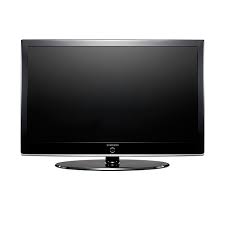
LN-T4061F - TV SAMSUNG - Free user manual and instructions
Find the device manual for free LN-T4061F SAMSUNG in PDF.


Download the instructions for your TV in PDF format for free! Find your manual LN-T4061F - SAMSUNG and take your electronic device back in hand. On this page are published all the documents necessary for the use of your device. LN-T4061F by SAMSUNG.
USER MANUAL LN-T4061F SAMSUNG
- Serial No. ____________ 2007-02-15 4:34:47 Important Warranty Information Regarding Television Format Viewing Wide screen format LCD Displays (16:9, the aspect ratio of the screen width to height) are primarily designed to view wide screen format full-motion video. The images displayed on them should primarily be in the wide screen 16:9 ratio format, or expanded to fill the screen if your model offers this feature and the images are constantly moving. Displaying stationary graphics and images on screen, such as the dark side-bars on nonexpanded standard format television video and programming, should be limited to no more than 5% of the total television viewing per week. Additionally, viewing other stationary images and text such as stock market reports, video game displays, station logos, web sites or computer graphics and patterns, should be limited as described above for all televisions. Displaying stationary images that exceed the above guidelines can cause uneven aging of LCD Displays that leave subtle, but permanent burned-in ghost images in the LCD picture. To avoid this, vary the programming and images, and primarily display full screen moving images, not stationary patterns or dark bars. On LCD models that offer picture sizing features, use these controls to view different formats as a full screen picture. Be careful in the selection and duration of television formats used for viewing. Uneven LCD aging as a result of format selection and use, as well as burned-in images, are not covered by your Samsung limited warranty. U.S.A Only The product unit accompanying this user manual is licensed under certain intellectual property rights of certain third parties. In particular, this product is licensed under the following US patents: 5,991,715, 5,740,317, 4,972,484, 5,214,678, 5,323,396, 5,539,829, 5,606,618, 5,530,655, 5,777,992, 6,289,308, 5,610,985, 5,481,643, 5,544,247, 5,960,037, 6,023,490, 5,878,080, and under US Published Patent Application No. 2001-44713-A1. This license is limited to private non-commercial use by end-user consumers for licensed contents. No rights are granted for commercial use. The license does not cover any product unit other than this product unit and the license does not extend to any unlicensed product unit or process conforming to ISO/IEC 11172-3 or ISO/IEC 13818-3 used or sold in combination with this product unit. The license only covers the use of this product unit to encode and/or decode audio files conforming to the ISO/IEC 11172-3 or ISO/IEC 13818-3. No rights are granted under this license for product features or functions that do not conform to the ISO/IEC 11172-3 or ISO/IEC 13818-3. Other countries The product unit accompanying this user manual is licensed under certain intellectual property rights of certain third parties. This license is limited to private non-commercial use by end-user consumers for licensed contents. No rights are granted for commercial use. The license does not cover any product unit other than this product unit and the license does not extend to any unlicensed product unit or process conforming to ISO/IEC 11172-3 or ISO/IEC 13818-3 used or sold in combination with this product unit. The license only covers the use of this product unit to encode and/or decode audio files conforming to the ISO/IEC 11172-3 or ISO/IEC 13818-3. No rights are granted under this license for product features or functions that do not conform to the ISO/IEC 11172-3 or ISO/IEC 13818-3. Precautions When Displaying a Still Image A still image may cause permanent damage to the TV screen
- Do not display a still image on the LCD panel for more than 2 hours as it can cause screen image retention. This image retention is also known as "screen burn". To avoid such image retention, reduce the degree of brightness and contrast of the screen when displaying a still image. Watching the LCD TV in 4:3 format for a long period of time may leave traces of borders displayed on the left, right and center of the screen caused by the difference of light emission on the screen. Playing a DVD or a game console may cause a similar effect to the screen. Damages caused by the above effect are not covered by the Warranty.
- Displaying still images from Video games and PC for longer than a certain period of time may produce partial after-images. To prevent this effect, reduce the ‘brightness’ and ‘contrast’ when displaying still images. Précautions à prendre lors de l’affichage d’une image fixe Une image fixe peut causer des dommages irrémédiables à l’écran du téléviseur.
- Troubleshooting p. 81
- Installing the Stand p. 83
- Disconnecting the Stand p. 83
- Wall-Mount Adjustment (Sold separately) p. 84
- Wall Mount Kit Specifications (VESA) p. 85
- Using the Anti-Theft Kensington Lock p. 86
- Specifications One-Touch Button English - 2007-02-15 9:02:57 General Information List of Features Adjustable picture settings that can be stored in the TV’s memory. Automatic timer to turn the TV on and off. A special sleep timer. Excellent Digital Interface & Networking : With a built-in HD digital tuner, non-subscription HD broadcasts can be viewed with no Set-Top/Cable Box needed. Remote Control The supplied remote can be used to operate the TV as well as most DVD players, Set-Top boxes, Cable Boxes and VCRs. Excellent Picture Quality - DNIe technology provides life-like clear images. SRS TruSurround XT - SRS TruSurround XT provides a virtual Dolby surround system. Accessories Please make sure the following items are included with your LCD TV. If any items are missing, contact your dealer. Remote Control & Batteries (AAA x 2) (BN59-00599A) Power Cord (3903-000144) Cleaning Cloth (BN63-01798A) Cover-Bottom LN-T4061F : BN63-03031A LN-T4065F : BN63-03298A LN-T4661F : BN63-03148A LN-T4665F / LN-T5265F : BN63-03308A Owner’s Instructions Warranty Card / Registration Card / Safety Guide Manual (Not available in all locations) The items color and shape may vary depending on the model. English - BN68-01178A-Eng.indd 2 2007-02-15 8:56:52 Viewing the Control Panel Buttons on the Lower-Right Part of the Panel The buttons on the lower-right panel control your TV’s basic features, including the on-screen menu. To use the more advanced features, you must use the remote control. <LN-T4061F / LN-T4661F> p. 87
The product color and shape may vary depending on the model. 1 SOURCE Toggles between all the available input sources (TV, AV1, AV2, S-Video1, S-Video2, Component1, Component2, PC, HDMI1, HDMI2, HDMI3). In the on-screen menu, use this button as you would use the ENTER button on the remote control.
2 MENU Press to see an on-screen menu of your TV’s features.
Press to increase or decrease the volume. In the on-screen menu, use the + VOL - buttons as you would use the ◄ and ► buttons on the remote control.
Press to change channels. In the on-screen menu, use the < CH > buttons as you would use the ▲ and ▼ butons on the remote control. 5 SPEAKERS (Power) Press to turn the TV on and off. 7 POWER INDICATOR Blinks and turns off when the power is on and lights up in stand-by mode.
REMOTE CONTROL SENSOR
Aim the remote control towards this spot on the TV. English - BN68-01178A-Eng.indd 3 2007-02-16 1:54:32 Viewing the Connection Panel Rear Panel Jacks Use the rear panel jacks to connect A/V components that will be connected continuously, such as VCR or DVD players. For more information on connecting equipment, see pages 6-11. [Side Panel Jacks] 1 AUDIO OUT Connects to the audio input jacks on your Amplifier/ Home theater. 2 DIGITAL AUDIO OUT (OPTICAL) Connects to a Digital Audio component. 3 PC IN Connects to the video and audio output jacks on your PC. 7 COMPONENT IN 1,2 Connects Component video/audio. 8 AV IN 1 / AV IN 2 Video and audio inputs for external devices, such as a camcorder or VCR. S-VIDEO Connects an S-Video signal from a camcorder or VCR. 9 POWER INPUT Connects the supplied power cord 4 HDMI IN 1,2,3 /DVI IN(HDMI1) (AUDIO R/L) Connects to the HDMI jack of a device with an HDMI output. 0 KENSINGTON LOCK The Kensington lock (optional) is a device used to Use the HDMI IN 1 jack for a DVI connection to an physically fix the system when used in a public place. external device. If you want to use a locking device, contact the dealer You should use the DVI to HDMI cable or DVI-HDMI where you purchased the TV. adapter (DVI to HDMI) for a video connection,and the The place of the Kensington Lock may be different DVI IN ‘R-AUDIO-L’ jack for audio. depending on its model. - The HDMI IN 1 jack does not support PC connection HEADPHONE - No sound connection is needed for an HDMI to HDMI Connects a set of external headphones for private connection listening. - When using an HDMI/DVI cable connection, you must use @ WISELINK the HDMI IN 1 jack. Connect this to the jack on the optional wall mount
bracket. This will allow you to adjust the TV viewing Connects to an antenna or cable TV system. angle using your remote control. 6 EX LINK Connect this to the jack on the optional wall mount bracket. This will allow you to adjust the TV viewing angle using your remote control. English - BN68-01178A-Eng.indd 4 2007-02-15 8:56:54 Remote Control You can use the remote control up to a distance of about 23 feet from the TV. When using the remote, always point it directly at the TV. You can also use your remote control to operate your VCR, Cable box, DVD player, or Set-Top Box. 1 POWER Turns the TV on and off. 2 NUMERIC BUTTONS Press to change the channel.
) SOURCE Press to display all of the available video sources. a PRE-CH Tunes to the previous channel. Press to select additional channels(digital b WISELINK and analog) being broadcast by the same This function enables you to view and station. For example, to select channel play photo (JPEG) and audio files “54-3”, press “54”, then press “–” and “3”. (MP3) from an external device. (Refer to page 65) 4 CH LIST c REC Used to display Channel Lists on the This remote can be used to control screen. recording on Samsung recorders. (Refer to page 79) 5 ANTENNA Press to select “AIR” or “CABLE”. d CH / CH Press to change channels. 6 VCR/DVD Functions - Rewind e EXIT - Stop Press to exit the menu. - Play/Pause - Fast/Forward 7 VOL / VOL Press to increase or decrease the volume.
Press to switch to your favorite channels. l CH Displays the available channels in SLEEP sequence. (These buttons change Press to select a preset time interval channels in the PIP window only.) for automatic Shut off. m MTS SRS Press to choose stereo, mono or Selects SRS TruSurround XT mode. Separate Audio Program SET (SAP broadcast). Sets the remote to control your TV, VCR, Cable, DVD, or Set-Top Box n RESET When your remote does not work,
TV, DVD, STB, CABLE, VCR
change the batteries and press the Press to operate your TV,DVD, STB, RESET button for 2-3 seconds before CABLE (box), or VCR use. (See pages 17-21) ( When pressing this button, a number of buttons on the remote control (e.g. TV, DVD, STB, CABLE, VCR, VOL and CH buttons) light up for a few seconds and then turn off to save power. This function is convenient for using the remote at night or when dark. This is a special remote control for the visually impaired, and has Braille points on the Power, Channel, STOP, PLAY/PAUSE and Volume buttons. The performance of the remote control may be affected by bright light. English - BN68-01178A-Eng.indd 5 2007-02-15 8:56:55 Installing Batteries in the Remote Control
1. Lift the cover at the back of the remote control upward as shown in the figure.
2. Install two AAA size batteries.
Make sure to match the "+" and "–" ends of the batteries with the diagram inside the compartment.
3. Replace the cover.
Remove the batteries and store them in a cool, dry place if you won’t be using the remote control for a long time. The remote control can be used up to about 23 feet from the TV. (Assuming typical TV usage, the batteries should last for about one year.) If the remote control doesn’t work, check the following:
1. Is the TV power on?
2. Are the plus and minus ends of the batteries reversed?
3. Are the batteries drained?
4. Is there a power outage, or is the power cord unplugged?
5. Is there a special fluorescent light or neon sign nearby?
Connections Connecting VHF and UHF Antennas If your antenna has a set of leads that look like the diagram to the right, see "Antennas with 300 Ω Flat Twin Leads" below. If your antenna has one lead that looks like the diagram to the right, see "Antennas with 75 Ω Round Leads". If you have two antennas, see "Separate VHF and UHF Antennas". Antennas with 300 Ω Flat Twin Leads If you are using an off-air antenna (such as a roof antenna or "rabbit ears") that has 300 Ω twin flat leads, follow the directions below.
1. Place the wires from the twin leads under the screws on a 300-75 Ω adapter
(not supplied). Use a screwdriver to tighten the screws.
2. Plug the adaptor into the ANT 2 IN (CABLE) terminal on the back of the TV.
ANT 2 IN (CALBE) Antennas with 75 Ω Round Leads
1. Plug the antenna lead into the ANT 1 IN (AIR) terminal on the back of the TV.
ANT 1 IN (AIR) Separate VHF and UHF Antennas If you have two separate antennas for your TV (one VHF and one UHF), you must combine the two antenna signals before connecting the antennas to the TV. This procedure requires an optional combiner-adaptor (available at most electronics shops).
1. Connect both antenna leads to the combiner.
2. Plug the combiner into the ANT 1 IN (AIR) terminal on the bottom of the rear panel.
UHF ANT 1 IN (AIR) VHF English - BN68-01178A-Eng.indd 6 2007-02-15 8:56:56 Connecting Cable TV To connect to a cable TV system, follow the instructions below. Cable without a Cable Box
1. Plug the incoming cable into the ANT 2 IN (CABLE) terminal on the back of the TV.
ANT 2 IN (CABLE) Because this TV is cable-ready, you do not need a cable box to view unscrambled cable channels. Connecting to a Cable Box that Descrambles All Channels
1. Find the cable that is connected to the ANT OUT terminal on your cable box.
This terminal might be labeled "ANT OUT", "VHF OUT" or simply, "OUT". ANT IN ANT OUT
2. Connect the other end of this cable to the ANT 2 IN (CABLE) terminal on the back of the TV.
ANT 2 IN (CABLE) Connecting to a Cable Box that Descrambles Some Channels If your cable box descrambles only some channels (such as premium channels), follow the instructions below. You will need a twoway splitter, an RF (A/B) switch, and four lengths of RF cable. (These items are available at most electronics stores.)
1. Find and disconnect the cable that is
connected to the ANT IN terminal on your cable box. This terminal might be labeled "ANT IN", ANT IN "VHF IN" or simply, "IN".
2. Connect this cable to a two-way splitter.
3. Connect an RF cable between the OUTPUT
terminal on the splitter and the IN terminal on the cable box. Incoming cable Splitter Splitter Cable Box
4. Connect an RF cable between the
ANT OUT terminal on the cable box and the B–IN terminal on the RF(A/B) switch. Incoming cable Splitter RF (A/B) Switch Cable Box
5. Connect another cable between the other
OUT terminal on the splitter and the A–IN terminal on the RF (A/B) switch. Incoming cable Splitter Cable Box
6. Connect the last RF cable between the
OUT terminal on the RF (A/B) switch and the ANT IN terminal on the rear of the TV. RF (A/B) Switch ANT IN Incoming cable TV Rear Splitter Cable Box RF (A/B) Switch After you have made this connection, set the A/B switch to the "A" position for normal viewing. Set the A/B switch to the "B" position to view scrambled channels. (When you set the A/B switch to "B", you will need to tune your TV to the cable box’s output channel, which is usually channel 3 or 4.) English - BN68-01178A-Eng.indd 7 2007-02-15 8:56:58 Connecting a VCR Video Connection These instructions assume that you have already connected your TV to an antenna or a cable TV system (according to the instructions on pages 6-7). Skip step 1 if you have not yet connected to an antenna or a cable system.
1. Unplug the cable or antenna
from the back of the TV.
to the ANT IN terminal on the back of the VCR.
Connect an RF Cable between the ANT OUT terminal on the VCR and the ANT 1 IN (AIR) or ANT 2 IN (CABLE) terminal on the TV. TV Rear Panel VCR Rear Panel
4. Connect a Video Cable
between the VIDEO OUT jack on the VCR and the AV IN 1 (or AV IN 2) [VIDEO] jack on the TV.
Connect Audio Cables between the AUDIO OUT jacks on the VCR and the AV IN 1 (or AV IN 2) [R-AUDIO-L] jacks on the TV.
If you have a “mono” (non-stereo) VCR, use a Y-connector (not supplied) to hook up to the right and left audio input jacks of the TV. If your VCR is stereo, you must connect two cables. 5 Audio Cable (Not supplied)
4 Video Cable (Not supplied) 3 RF Cable (Not supplied) Follow the instructions in “Viewing a VCR or Camcorder Tape” to view your VCR tape. Each VCR has a different back panel configuration. When connecting a VCR, match the color of the connection terminal to the cable. S-Video Connection Your Samsung TV can be connected to an S-Video signal from an VCR. (This connection delivers a better picture as compared to a standard VCR.)
To begin, follow steps 1–3 in the previous section to connect the antenna or cable to your VCR and your TV.
Connect an S-Video Cable between the S-VIDEO OUT jack on the VCR and the AV IN1 [S-VIDEO] jack on the TV.
Connect Audio Cables between the AUDIO OUT jacks on the VCR and the AV IN1 [R-AUDIO-L] jacks on the TV. TV Rear Panel VCR Rear Panel 3 Audio Cable (Not supplied) 2 S-Video Cable (Not supplied) 1 RF Cable (Not supplied) An S-Video cable may be included with a VCR. (If not, check your local electronics store.) Each VCR has a different back panel configuration. When connecting a VCR, match the color of the connection terminal to the cable. English - BN68-01178A-Eng.indd 8 2007-02-15 8:56:59 Connecting a Camcorder The side panel jacks on your TV make it easy to connect a camcorder to your TV. They allow you to view the camcorder tapes without using a VCR
1. Connect a Video Cable
between the AV IN2 [VIDEO] jack on the TV and the VIDEO OUT jack on the camcorder.
Connect Audio Cables between the AV IN2 [R-AUDIO-L] jacks on the TV and the AUDIO OUT jacks on the camcorder. TV Side Panel Camcorder 1 Video Cable (Not supplied) 2 Audio Cable (Not supplied) Each Camcorder has a different back panel configuration. When connecting a Camcorder, match the color of the connection terminal to the cable. Connecting a DVD Player or Set-Top/Cable Box The rear panel jacks on your TV make it easy to connect a DVD player or Set-Top/Cable box to your TV.
1. Connect a Component
TV Rear Panel Cable between the COMPONENT IN(1 or 2) [Y, PB, PR] jacks on the TV DVD Player or Set-Top/Cable Box and the COMPONENT [Y, PB, PR] jacks on the DVD player or Set-Top/Cable Box.
Connect Audio Cables between the COMPONENT IN(1 or 2) [R-AUDIO-L] jacks on the TV and the AUDIO OUT jacks on the DVD player or Set-Top/Cable Box.
Audio Cable (Not supplied)
Component Cable (Not supplied) Component video separates the video into Y (Luminance (brightness)), Pb (Blue) and Pr (Red) for enhanced video quality. Be sure to match the component video and audio connections. For example, if connecting the video cable to COMPONENT IN, connect the audio cable to COMPONENT IN also. Each DVD Player and Set-Top/Cable box has a different back panel configuration. When connecting a DVD player or Set-Top/Cable box, match the color of the connection terminal to the cable. English - BN68-01178A-Eng.indd 9 2007-02-15 8:57:00 Connecting a DVD Player or Set-Top/Cable Box via HDMI This connection can only be made if there is an HDMI Output connector on the external device.
Connect an HDMI Cable between the HDMI IN (1,2 or 3) jack on the TV and the HDMI jack on the DVD player or Set- Top/Cable Box. DVD Player, Set-Top/Cable Box Rear Panel Side Panel Jacks TV Rear Panel
HDMI Cable (Not supplied) What is HDMI?
- HDMI(High-Definition Multimedia Interface), is an interface that enables the transmission of digital audio and video signals using a single cable
- The difference between HDMI and DVI is that the HDMI device is smaller in size and has the HDCP (High Bandwidth Digital Copy Protection) coding feature installed Each DVD player and or Set-Top/Cable box has a different back panel configuration. Connecting a DVD Player or Set-Top/Cable Box via DVI This connection can only be made if there is a DVI Output connector on the external device.
Connect a DVI to HDMI Cable or DVI-HDMI Adapter between the HDMI IN 1 jack on the TV and the DVI jack on the DVD player or Set-Top/Cable Box.
Connect Audio Cables between the DVI IN (HDMI 1) [R-AUDIO-L] jack on the TV and the AUDIO OUT jacks on the DVD player or Set-Top/Cable Box. TV Rear Panel DVD Player, Set-Top Box
Audio Cable (Not supplied) DVI to HDMI Cable (Not supplied) Each DVD player and Set-Top/Cable Box has a different back panel configuration. When connecting a DVD player or Set-Top/Cable Box, match the color of the connection terminal to the cable. When using an HDMI/DVI cable connection,you must use the HDMI IN1 jack. English - 10 BN68-01178A-Eng.indd 10 2007-02-15 8:57:01 Connecting a Digital Audio System The rear panel jacks on your TV make it easy to connect a Digital Audio System to your TV.
Connect an Optical Cable between the “DIGITAL
AUDIO OUT (OPTICAL)”
jacks on the TV and the Digital Audio Input jacks on the Digital Audio System.
When a Digital Audio System is connected to the
(OPTICAL)” terminal: Decrease the volume of the TV, and adjust the volume level with the system’s volume control. Digital Audio System TV Rear Panel Optical Cable (Not supplied) 5.1CH audio is possible when the TV is connected to an external device supporting 5.1CH. Each Digital Audio System has a different back panel configuration. Connecting an Amplifier/DVD Home Theater
Connect Audio Cables between the AUDIO OUT [R-AUDIO-L] on the TV and AUDIO IN [R-AUDIOL] on the Amplifier/DVD Home Theater.
When an audio amplifier is connected to the "AUDIO OUT [L-AUDIO-R]" terminals: Decrease the volume of the TV, and adjust the volume level with the Amplifier’s volume control. Connecting a PC Using the D-Sub Cable
Connect a D-Sub Cable between PC IN [PC] connector on the TV and the PC output connector on your computer.
Connect a PC Audio Cable between PC IN [AUDIO] jack on the TV and the Audio Out jack of the sound card on your computer. TV Rear Panel Amplifier/DVD Home Theater Audio Cable (Not supplied) Each Amplifier/DVD Home Theater has a different back panel configuration. When connecting an Amplifier/DVD Home Theater, match the color of the connection terminal to the cable. TV Rear Panel Using the D-Sub Cable
PC Audio Cable (Not supplied)
onnect a HDMI/DVI cable between the HDMI1/DVI IN jack on the TV and the PC output jack on your computer.
2. Connect a 1Stereo/2RCA
cable between the DVI IN [L-AUDIO-R] jack on the TV and the Audio Out jack of the sound card on your computer.
1Streo/2RCA Cable (Not supplied)
HDMI/DVI Cable (Not supplied) Each PC has a different back panel configuration. When connecting a PC, match the color of the connection terminal to the cable. When using an HDMI/DVI cable connection,you must use the HDMI IN1 terminal. English - 11 BN68-01178A-Eng.indd 11 2007-02-15 10:31:43 Operation Turning the TV On and Off Press the POWER You can also use the button on the remote control. button on the front of the panel. Plug & Play Feature When the TV is initially powered on, basic settings proceed automatically and subsequently: Menu language, Shop Mode, Channels and Time will be set.
1. Press the POWER button on the remote control.
The message “Menu language, Shop Mode, Channels and Time will be set.” is displayed. Press the ENTER button, then “Select the language of the OSD” menu is automatically displayed. Start Plug & Play Select the language of the OSD. Menu Language : English
2. Press the ▲ or ▼ buttons to select language, then press the ENTER button.
The message “Select Home Mode when installing this TV at home.” is displayed. Español Français
3. Press the ◄ or ► buttons to select “Shop” or “Home”, then
press the ENTER button. The message “Select the antennas to memorize.” is displayed. We recommend setting the TV to Home mode for the best picture in your home environment. Shop mode is only intended for use in retail environments. If the unit is accidentally set to Shop mode and you want to return to Dynamic (Home) mode, press any Volume button and then hold down the MENU button for five seconds on the side panel of the TV.
4. Press the ▲ or ▼ buttons to memorize the channels of the selected connection.
Press the ENTER button to select “Start”. If the antenna is connected to ANT 1(AIR), select “Air” and if it is connected to ANT 2 (CABLE), select “Cable”.
If both ANT 1 (AIR) and ANT 2 (CABLE) are connected, select the “Air + Cable”.
In Cable mode, you can select the correct signal source among STD, HRC, and IRC by pressing the ▲ or ▼ button, then press the ENTER button. Contact your local cable company to identify the type of cable system that exists in your particular area.
Move Skip Plug & Play Select Home Mode when installing this TV at home. Shop Home Move Enter Skip Plug & Play Select the antennas to memorize. Air Start Cable Start Air+Cable Start Move Enter Skip Plug & Play Auto Program in progress. The TV will begin memorizing all of the available channels. After all the available channels are stored, the Auto program menu reappears. Press the ENTER button when channel memorization is complete. The message “Select the clock mode.” is displayed.
To stop the search before it has finished, press the ENTER button with stop selected. Enter Air Channel 50 35% Stop Enter Skip Plug & Play Auto Program is incomplete. 16 Channels were memorized. Air : 16, Cable : 0.
The message “Select the time zone in which you live.” is displayed. Plug & Play Set the daylight savings time. Daylight Savings Time
Press the ▲ or ▼ buttons to highlight the time zone for your local area Press the ENTER button. If you have received a digital signal, the time will be set automatically. If not, see page 48 to set the clock. Move
Yes Enter Exit Plug & Play Select the time zone in which you live. Newfoundland Atlantic Eastern Central Mountain Pacific Alaska Hawaii
9. The message “Enjoy your watching.” is displayed.
When you have finished, press the ENTER button. Move Enter Exit Enjoy your watching.
If you want to reset this feature...
Press the ▲ or ▼ buttons to select "Setup", then press the ENTER button.
3. The message “Menu language, Shop Mode, Channels and Time will be set.”
or CH button to change channels. When you press the CH or CH button, the TV changes channels in sequence. You will see all the channels that the TV has memorized. (The TV must have memorized at least three channels). You will not see channels that were either erased or not memorized. See page 16 to memorize channels. Using the PRE-CH Button to select the Previous Channel
1. Press the PRE-CH button.
The TV will switch to the last channel viewed. To quickly switch between two channels that are far apart, tune to one channel, then use the number button to select the second channel. Then use the PRE-CH button to quickly alternate between them. English - 13 BN68-01178A-Eng.indd 13 2007-02-15 8:57:07 Adjusting the Volume
or VOL buttons to decrease or increase the volume. Using Mute At any time, you can cut off the sound using the MUTE button.
1. Press MUTE button and the sound cuts off.
The word " " will appear in the lower-left corner of the screen.
2. To turn mute off, press the MUTE button again, or simply press the
VOL or VOL buttons. Viewing the Display The display identifies the current channel and the status of certain audio-video settings.
1. Press the INFO button on the remote control.
Air 7 The TV will display the channel, the type of sound, and the status of certain picture and sound settings. Mono Picture Mode : Dynamic Sound Mode : Custom MTS : Stereo 05 : 54 pm Press the INFO button once more or wait approximately 10 seconds and the display disappears automatically. English - 14 BN68-01178A-Eng.indd 14 2007-02-15 8:57:08 Viewing the Menus
1. With the power on, press the MENU button.
The main menu appears on the screen. The menu’ s left side has five icons: Picture, Sound, Channel, Setup, Input.
2. Use the ▲ or ▼ buttons to select one of the five icons.
Then press the ENTER button to access the icon’s sub-menu.
3. Press the EXIT button to exit.
Move Enter Exit The on-screen menus disappear from the screen after about one minute. Memorizing the Channels Your TV can memorize and store all of the available channels for both "off-air" (Air) and "Cable" channels. After the available channels are memorized, use the CH or CH buttons to scan through the channels. This eliminates the need to change channels by entering the channels digits. There are three steps for memorizing channels: selecting a broadcast source, memorizing the channels (automatic) and adding or deleting channels (Channel Lists). Selecting the Video Signal-source Before your television can begin memorizing the available channels, you must specify the type of signal source that is connected to the TV (i.e. an Air or a Cable system).
Air Start Cable Start Air+Cable Start Move Move When selecting the Cable TV system : Press the ENTER button to start the auto program. By default, the cable TV system is set to “STD”. If you want to select another type of cable system, press the ▲ or ▼ button to select “STD”, “HRC” or “IRC”.
STD, HRC and IRC identify various types of cable TV systems. Contact your local cable company to identify the type of cable system that exists in your particular area. At this point the signal source has been selected. Press the ENTER button to start the auto program. To stop the search before it has finished, press the ENTER button with stop selected.
5. After all the available channels are stored, the “Auto Program” menu reappears.
Press the EXIT button to exit. Return Channel Select the antennas to memorize.
Air: “Air” antenna signal. / Cable: “Cable” antenna signal. / Air+Cable: “Air” and “Cable” antenna signals.
Return Return Auto Program Selects a cable system. Analog Start STD HRC IRC Digital STD HRC IRC Move Move Enter Enter Return Return Auto Program Auto Program in Progress. Cable Channel 50 50% Stop Enter Return Plug & Play Auto Program is complete. 16 Channels were memorized. Air : 16, Cable : 0.
Enter Return English - 16 BN68-01178A-Eng.indd 16 2007-02-15 8:57:12 Setting Up Your Remote Control After the television has been set up properly, your remote control can operate in five different modes: TV, DVD, Cable, Set-Top Box, VCR. Pressing the corresponding button on the remote control allows you to switch between these modes, and control whichever piece of equipment you choose. The remote control might not be compatible with all DVD Players, VCRs, Cable boxes, and Set-Top Boxes. Setting Up the Remote to Operate Your VCR
1. Turn off your VCR.
Press the VCR button on your TV’s remote control.
Press the SET button on your TV’s remote control.
4. Using the number buttons on your remote control, enter three digits of the VCR code
listed on page 19 of this manual for your brand of VCR. Make sure you enter three digits of the code, even if the first digit is a “0”. (If more than one code is listed, try the first one.)
5. Press the POWER button on the remote control.
Your VCR should turn on if your remote is set up correctly. If your VCR does not turn on after set up, repeat steps 2, 3, and 4, but try one of the other codes listed for your brand of VCR. If no other codes are listed, try each VCR code, 000 through 080. ote on Using Remote Control Modes: VCR When your remote control is in “VCR” mode, the volume buttons still control your TV’s volume. Setting Up the Remote to Operate Your Cable Box
1. Turn off your cable box.
Press the CABLE button on your TV’s remote control.
Press the SET button on your TV’s remote control.
4. Using the number buttons on your remote control, enter three digits of the cable box code
listed on page 20 of this manual for your brand of cable box. Make sure you enter three digits of the code, even if the first digit is a “0”. (If there is more than one code listed, try the first one.)
5. Press the POWER button on the remote control.
Your cable box should turn on if your remote is set up correctly. If your cable box does not turn on after set up, repeat steps 2, 3, and 4, but try one of the other codes listed for your brand of cable box. If no other codes are listed, try each code, 000 through 046. ote on Using Remote Control Modes: Cable Box When your remote control is in “CABLE” mode, the volume buttons still control your TV’s volume. English - 17 BN68-01178A-Eng.indd 17 2007-02-15 8:57:13 Setting Up the Remote to Operate Your DVD
1. Turn off your DVD.
Press the DVD button on your TV’s remote control.
Press the SET button on your TV’s remote control.
4. Using the number buttons on your remote control, enter three digits of the DVD code
listed on page 20~21 of this manual for your brand of DVD. Make sure you enter three digits of the code, even if the first digit is a “0”. (If there is more than one code listed, try the first one.)
5. Press the POWER button on the remote control.
Your DVD should turn on if your remote is set up correctly. If your DVD does not turn on after set up, repeat steps 2, 3, and 4, but try one of the other codes listed for your brand of DVD. If no other codes are list-ed, try each code, 000 through 141. ote on Using Remote Control Modes: DVD When your remote control is in “DVD” mode, the volume buttons still control your TV’s volume. Setting Up the Remote to Operate Your STB
1. Turn off your STB.
Press the SET button on your TV’s remote control.
4. Using the number buttons on your remote control, enter three digits of the STB code
listed on page 21 of this manual for your brand of STB. Make sure you enter three digits of the code, even if the first digit is a “0”. (If there is more than one code listed, try the first one.)
5. Press the POWER button on the remote control.
Your STB should turn on if your remote is set up correctly. If your STB does not turn on after set-up, repeat steps 2, 3 and 4, but try one of the other codes listed for your brand of STB. (If no other codes are listed, try each code, 000 through 074.) ote on Using Remote Control Modes: STB When your remote control is in “STB” mode, the volume buttons still control your TV’s volume. English - 18 BN68-01178A-Eng.indd 18 2007-02-15 8:57:13 Remote Control Codes VCR Brand SAMSUNG ADMIRAL AIWA AKAI AUDIO DYNAMICS BELL&HOWELL BROKSONIC CANDLE CANON CITIZEN COLORTYME CRAIG CURTIS MATHES DAEWOO DIMENSIA DYNATECH ELECTROHOME EMERSON FISHER FUNAI GENERAL ELECTRIC GO VIDEO HARMAN KARDON HITACHI INSTANT REPLAY JC PENNEY JCL JVC KENWOOD KLH KONIA LG(Goldstar) LIOYD LOGIK LXI MAGNAVOX MARANTZ MARTA MEI MEMOREX MGA MIDLAND MINOLTA MITSUBISHI Code
DVD Receiver AV Receiver Code
English - 21 BN68-01178A-Eng.indd 21 2007-02-15 8:57:14 To Select the Source Use to select TV or other external input sources connected to the TV. Use to select the input source of your choice.
When you connect equipment to the LCD, you can choose between the following sets of jacks: TV, AV1, AV2, S-Video1, S-Video2, Component1, Component2, PC, HDMI1, HDMI2, HDMI3 on the TV’s rear panel. HDMI1, HDMI2, HDMI3 input can only be selected when the external device is turned on and connected via HDMI. AV2/S-Video2/HDMI3 is located on the side of the TV. Move
Return Source List AV1 AV2 S-Video1 S-Video2 Component1 Component2 You can choose only those external devices that are connected to the TV. Enter : ---: ---: ---: ---: ---: ---- ▼More Move Enter Return Press the SOURCE button on the remote control to view an external signal source. To Edit the Input Source Name Name the device connected to the input jacks to make your input source selection easier.
Move Enter Return English - 22 BN68-01178A-Eng.indd 22 2007-02-15 8:57:17 Picture Control Using Automatic Picture Settings Your TV has Three automatic picture settings ("Dynamic", "Standard", "Movie") that are preset at the factory. You can activate either Dynamic, Standard, Movie by making a selection from the menu.
1. Press the MENU button to display the menu.
Press the ENTER button, to select “Picture”.
Press the ▲ or ▼ buttons to select the "Dynamic", "Standard", "Movie" picture setting. Press the ENTER button.
Enter Return Picture Mode : Dynamic Dynamic Standard Contrast 100 Movie Brightness Sharpness Color Tint G 50 R 50 Balck light 10 ▼More Choose Dynamic to increase the clarity and sharpness of the picture. Choose Standard for the standard factory settings. Choose Movie for a natural Image without picture enhancements. Move Enter Return
3. Press the ▲ or ▼ buttons to select "Contrast", "Brightness", "Sharpness",
- When you make changes to Contrast, Brightness, Sharpness, Color, Tint(G/R) the OSD will be adjusted accordingly.
- When in PC mode, Tint, Sharpness, and Color are not available. Move Enter
Move Adjust Return Press the P.MODE button on the remote control repeatedly to select the desired picture mode. English - 23 BN68-01178A-Eng.indd 23 2007-02-15 8:57:19 Activating Backlight You can adjust the screen brightness by adjusting the LCD backlight brightness. (0~10)
Press the ENTER button to select “Picture”.
2. Press the ▲ or ▼ button to select “Backlight”, then press the ENTER button.
3. Press the ◄ or ► button to decrease or increase the valueof the backlight
brightness. Press the ENTER button. Press the EXIT button to exit. Move Enter
Move Adjust Return Adjusting the Color Tone You can change the color of the entire screen according to your preference.
3. Press the ▲ or ▼ button to select "Cool2", "Cool1", "Normal", "Warm1",
Press the ENTER button to select “Picture”. Move
Press the ENTER button to select “Picture”.
2. Press the ENTER button to select “Mode”
Press the ▲ or ▼ button to select “Movie”, then press the ENTER button.
3. Press the ▲ or ▼ button to select “Detailed settings”, then press the
You can directly select the black level on the screen to adjust the screen depth.
Enter Return Detailed Settings Black Adjust Dynamic Contrast Gamma Color Space White Balance My Color Control Edge Enhancement XVYCC Activating Black adjust Off: Turns off the black adjustment function. Low: Sets the black color depth to low. Medium: Sets the black color depth to medium. High: Sets the black color depth to high. Return Picture Move
Press the ENTER button. Move Off: Turns off the dynamic contrast adjustment function. Low: Sets the dynamic contrast to low. Medium: Sets the dynamic contrast to medium. High: Sets the dynamic contrast to high. Return
Changing the Color Space
10. Press the ▲ or ▼ button to select “Color Space”, then press the ENTER button.
Press the ENTER button. Move Wide : Wide Color Space offers deep and rich color tone. Auto : Auto Color Space automatically adjusts to the most natural color tone based on program sources.
You can adjust the color temperature for more natural picture colors.
13. Select the required option by pressing the ▲ or ▼ button, then press the
button. : Off : Off : Auto Detailed Settings Move Activating White Balance Return Detailed Settings Black Adjust Dynamic Contrast Gamma Color Space White Balance My Color Control Edge Enhancement XVYCC Color space is a color matrix composed of red, green, and blue colors. Select your favorite color space to experience the most natural color.
: Off : Off Enter Return White Balance R offset G offset B offset R gain G gain B gain Reset Move Changing the adjustment value will refresh the adjusted screen.
You can emphasize object boundaries in the picture.
Pink Green Blue White Reset Pink: Darkens or lightens the pink color Green: Darkens or lightens the green color Blue: Darkens or lightens the blue color White: Darkens or lightens the white color Reset: The previously adjusted colors will be reset to the factory defaults.
Return Activating XVYCC The traditional TVs couldn’t clearly implement sharp, solid, and texture images.This TV can implement those effects using the xvYCC signals, which support extended color space. The traditional TVs couldn’t also implement part of colors for movie contents. This TV can implement the same colors as in the films using the xvYCC signals. Accordingly you can enjoy powerful color presentation of movies with your TV.
Return English - 27 BN68-01178A-Eng.indd 27 2007-02-15 8:57:28 Changing the Screen Size Occasionally, you may want to change the size of the image on your screen. Your TV comes with six screen size options, each designed to work best with specific types of video input. Your cable box or satellite receiver may have its Picture own set of screen sizes as well. ▲More Color Tone : Cool2 Detailed settings Size : 16 : 9 Digital NR : Low Active Color : On DNle : On Reset : OK
1. Press the MENU button to display the menu.
Press the ENTER button, to select “Picture”.
3. Press the ▲ or ▼ buttons to select the screen format you want.
Press the ENTER button. Press the EXIT button to exit.
- 16:9 : Sets the picture to 16:9 wide mode.
- Zoom1 : Magnifies the size of the picture on the screen.
- Zoom2 :Magnifies the size of the picture more than “Zoom1”.
- Wide Fit : Enlarges the aspect ratio of the picture to fit the entire screen.
- 4:3 : Sets the picture to 4:3 normal mode.
- Just Scan : U se the function to see the full image without any cutoff when HDMI 720p/1080i/1080p signals are input.
Enter Return Alternately, you can press the P.SIZE button on the remote control repeatedly to change the picture size. If you watch a still image or the 4:3 mode for a long time (over 2 hours), an image may be burned onto the screen. View the TV in 16:9 mode as much as possible. HD (High Definition) 16:9 - 1080i/1080p (1920x1080), 720P (1280x720) 16:9 Sets the picture to 16:9 wide mode. Wide Fit Enlarges the aspect ratio of the picture to fit the entire screen. Zoom1 The screen size when Wide screen is vertically enlarged. Zoom2 he screen size when the Zoom1 screen is vertically enlarged. 4:3 Sets the picture to 4:3 normal mode. Just Scan Use the function to see the full image without any cutoff when HDMI (720p/1080i/1080p) or DTV (1080i) signals are input.
- In TV, VIDEO, S-VIDEO, and all COMPONENT (480i, 480p) modes, all screen modes can be selected. (16:9 • Zoom1 • Zoom2 • 4:3).
- You can select only the 16:9, 4:3 and Wide Fit screen sizes in the DTV Component (720p, 1080i) or HDMI (720p, 1080i) mode.
- In PC modes, only 16:9 & 4:3 modes can be selected.
- You must select Zoom with P. Size button on the remote if you want to move the Zoom 1or 2 picture up or down. hen watching a DTV’s HD signal, you can use Wide Fit. Horizontal zoom (Wide Fit) sets the optical picture format by expanding it both horizontally and vertically. For example, you can reset the picture in 4:3 format to 16:9. Wide Fit does not support all external devices (DVD, VCR etc.).
- Some cable boxes and satellite receivers have their own set of screen sizes, which may differ from the ones above. English - 28 BN68-01178A-Eng.indd 28 2007-02-15 8:57:31 Setting the Active Color If you turn on this option, the colors of the sky and grass will be stronger and clearer for a more vivid on-screen picture.
1. Press the MENU button to display the menu.
Press the ENTER button, to select “Picture”.
2. Press the ▲ or ▼ button to select "Active Color", then press the ENTER button.
3. Press the ▲ or ▼ button to select "Off" or "On"
Press the ENTER button. Press the EXIT button to exit. Picture Mode is available only in Dynamic mode. Move
Enter Return Picture Picture ▲More Color Tone : Cool2 Detailed settings Size : 16 : 9 Digital NR : Low Active Color : Off Off DNle : Off : OK Reset Move Enter Move Enter Return Return DNIe (Digital Natural Image engine) This TV includes the the DNIe function to provide high visual quality. If you set DNIe to on, you can view the screen with the DNIe feature activated. If you set the DNIe to Demo, you can view the applied DNIe and normal pictures on the screen, for demonstration purposes. Using this function, you can view the difference in the visual quality.
1. Press the MENU button to display the menu.
Press the ENTER button, to select “Picture”.
- Off: Switches off the DNIe mode.
- Demo: The screen before applying DNIe appears on the left screen. The screen after applying DNIe appears on the right.
- On: Switches on the DNIe mode. Press the EXIT button to exit.
DNIeTM (Digital Natural Image engine) This feature brings you a more detailed image with 3D noise reduction and detailed, contrast and white enhancement. This function doesn’t work when the Input Source is PC. The DNle function is not supported in the Movie mode. Picture ▲More Color Tone : Cool2 Detailed settings Size : 16 : 9 Digital NR : Low Active Color : On DNle : On Reset : OK Move
1. Press the STILL button to freeze a moving picture.
Normal sound will still be heard. Press again to cancel. While V-Chip is in operation, the Still function cannot be used. Setting the Film Mode You can automatically sense and process film signals from all sources and adjust the picture for optimum quality.
: Off Wall-Mount Adjustment PIP
3. Press the ▲ or ▼ buttons to select "On" or "Off", then press the ENTER button.
Function Help : Off SW Upgrade Press the EXIT button to exit. Film mode is supported in TV, VIDEO, S-VIDEO, and COMPONENT480i. Move
Return Setup ▲ More Film Mode : Off Off Wall-Mount Adjustment PIP Function Help : Off SW Upgrade Move Enter Return HDMI Black Level You can select the black level on the screen to adjust the screen depth.
- Normal: The screen gets brighter.
- Low: The screen gets darker. This function is active only when an external device (DVD player, STB etc.) is connected to the TV via HDMI(RGB Signal). Press the EXIT button to exit. Blue Screen Melody Home theater PC Energy Saving HDMI Black Level ▼ More Move : Off : Off : Off : Off Normal :Normal Low Enter Return English - 30 BN68-01178A-Eng.indd 30 2007-02-15 8:57:35 Viewing Picture-in-Picture This product has one built-in tuner, which does not allow PIP to function in the same mode. For example, you cannot watch one TV channel in the main screen, and a different one in the PIP screen. Please see ‘PIP Settings’below for detaileds. You can use the PIP feature to simultaneously watch two video sources. (See page 38 to select the PIP picture sound.) While V-Chip (See page 56) is in operation, the PIP function cannot be used. While xvYCC (See page 27) is in operation, the PIP function cannot be used. Activating Picture-in-Picture
1. Press the MENU button to display the menu.
Wall-Mount Adjustment
Function Help : Off SW Upgrade Move
2. Press the ENTER button again.
Analog TV broadcasts only Return PIP PIP Size Position Channel If you turn the TV off while watching in PIP mode and turn it on again, the PIP window will disappear. You can view Analog TV broadcasts on the PIP screen (sub-picture) when the main picture is from an external device connected to HDMI1,2,3, Component1,2, or PC Enter : Off : On : Cable 3 Enter Return Alternately, you can press the PIP button on the remote control repeatedly to activate or deactivate the PIP.
Changing the PIP Channel
Press the ▲ or ▼ buttons to select the desired channel in the PIP window. Press the ENTER buttons. MAIN: PC / HDMI 1,2,3 / Component 1,2 PIP: TV(Analog)
The channel can be active when the sub picture is set to TV. PIP PIP Size Position Channel Move
Press the ▲ or ▼ buttons to select the desired channel in the PIP window.
Press the ENTER buttons. The Double ( Position mode. ), Double Wide ( ) mode cannot be selected in PIP PIP Size : On
Press the ▲ or ▼ buttons to select the desired channel in the PIP window. Press the ENTER buttons.
PIP PIP Size Move Changing the Size of the PIP Window
If the main picture is in PC and HDMI 1 mode, Size is not available. You may notice that the picture in the PIP window becomes slightly unnatural when you use the main screen to view a game or karaoke. You can adjust picture position only by using the size menu. Move
: Cable 3 Enter Return English - 32 BN68-01178A-Eng.indd 32 2007-02-15 8:57:39 Sound Control Customizing the Sound The sound settings can be adjusted to suit your personal preference. (Alternatively, you can use one of the "automatic" settings.)
3. Press the ◄ or ► buttons to select a particular frequency to adjust.
Press the ▲ or ▼ buttons to increase or decrease the level of the particular frequency.
- L/R Sound Balance Adjustment : To adjust the sound balance of the L/R speakers.
Adjust 10K Return Using Automatic Sound Settings Your TV has automatic sound settings ("Standard", "Music", "Movie", "Speech", and "Custom") that are preset at the factory. Or, you can select "Custom", which automatically recalls your personalized sound settings.
Choose Standard for the standard factory settings. Choose Music when watching music videos or concerts. Choose Movie when watching movies. Choose Speech when watching a show that is mostly dialog (i.e., news). Choose Custom to recall your personalized settings (see “Customizing the Sound”).
Return Press the S.MODE button on the remote control repeatedly to select one of the sound settings. English - 33 BN68-01178A-Eng.indd 33 2007-02-15 8:57:42 Setting the TruSurround XT TruSurround XT is a patented SRS technology that solves the problem of playing 5.1 multichannel content over two speakers. TruSurround delivers a compelling, virtual surround sound experience through any two-speaker playback system, including internal television speakers. It is fully compatible with all multichannel formats.
Sound Mode : Custom Press the ▲ or ▼ buttons to select "Sound", then press the ENTER button. Equalizer SRS TruSurround XT : On Multi-Track Options Auto Volume : Off Internal Mute : Off Sound Select : Main Reset
2. Press the ▲ or ▼ buttons to select "SRS TruSurround XT", then press the
TruSurround XT, SRS and Symbol are trademarks of SRS Labs, Inc. TruSurround XT technology is incorporated under license from SRS Labs, Inc. Choosing a Multi-Channel Sound (MTS) track - Digital The digital-TV transmission system is capable of simultaneous transmission of many audio tracks (for example, simultaneous translations of the program into foreign languages). The availability of these additional “multitracks” depends upon the program. Preferred Language
Quick way to access the MTS menu: Just press the “MTS” button on the remote control. You can listen in a language other than your chosen language by pressing the MTS button.
3. Press the ENTER button to select “Preferred Language”.
Press the ▲ or ▼ buttons to choose the language (English, Spanish or French) you want, then press the ENTER button.
Enter Return Multi-Track Options Preferred Language : English English Spanish Multi-Track Sound : Stereo French Move Enter Return You can listen in a language other than the favorite language by pressing the MTS button on the remote control. English - 34 BN68-01178A-Eng.indd 34 2007-02-15 8:57:44 Choosing a Multi-Channel Sound (MTS) track - Analog Multi-Track Sound
- Choose Mono for channels that are broadcasting in mono, or if you are having difficulty receiving a stereo signal.
- Choose Stereo for channels that are broadcasting in stereo.
- Choose SAP to listen to the Separate Audio Program, which is usually a foreign-language translation. Move Enter Return Press the MTS buttons on the remote control repeatedly to select “Mono”, “Stereo”, or “SAP”. Automatic Volume Control Reduces the differences in volume level among broadcasters.
1. Press the MENU button to display the menu.
3. Press the ▲ or ▼ buttons to set Auto Volume "On" or "Off" then press the
When Internal Mute is set to “On”, Sound menus except Multi-track Options cannot be adjusted. The VOL , VOL and MUTE buttons do not operate when the Internal Mute is set to On. TV'S Internal Speakers Enter Return Sound Mode : Custom Equalizer SRS TruSurround XT : On Multi-Track Options Auto Volume : Off Off Internal Mute : Off Sound Select : Main Press the EXIT button to exit.
AV, S-Video Component, PC, HDMI Internal Mute Off Speaker Output Speaker Output Speaker Output Sound Output Sound Output Sound Output Internal Mute On Mute Mute Mute Sound Output Sound Output Sound Output Video No Signal Mute Mute Mute Mute Mute Mute When “Internal mute” is set to “On”, Sound menus except “Multi-Track Options” cannot be adjusted. Setting the On/Off melody A melody sound can be set to come on when the TV is powered On or Off.
3. Press the ▲ or ▼ buttons to select “Off”, “Low”, “Medium”, “High”, then press
- Off : Turns off the melody function.
- LOW : Sets the melody volume to low.
- Medium : Sets the melody volume to medium.
- High : Sets the melody volume to high.
Manufactured under license from Dolby Laboratorories. "Dolby" and the double-D symbol are trademarks of Dolby Laboratories. English - 36 BN68-01178A-Eng.indd 36 2007-02-15 8:57:48 Listening to the Sound of the Sub (PIP) Picture When the PIP feature is activated, you can listen to the sound of the sub (PIP) picture.
Press the EXIT button to exit.
- Main: Used to listen to the sound of the main picture..
- Sub: Used to listen to the sound of the sub picture.
Move You can select this option when “PIP” is set to “On”. Enter Return Resetting the Sound Settings to the Factory Defaults If Game Mode is On, the Reset Sound function is activated. Selecting the Reset function resets the equalizer setting to the factory defaults.
Enter Return Connecting Headphones You can connect a set of headphones to your set if you wish to watch a TV program without disturbing the other people in the room. When you insert the head set jack into the corresponding port, you can operate only “Multi track option” in Sound menu. Prolonged use of headphones at a high volume may damage your hearing. You will not receive sound from the speakers when you connect headphones to the system. The headphone volume and TV volume are adjusted separately.
Press the ANTENNA button on the remote control. Move If the antenna is connected to ANT 1 IN (AIR), select “Air” and if it is connected to ANT 2 IN (CABLE), select “Cable”. Enter Return Channel Antenna : Air Air Auto Program Cable Clear Scrambled Channel Channel List Name Fine Tune Signal Strength LNA : On Press the EXIT button to exit.
If both ANT 1 IN (AIR) and ANT 2 IN (CABLE) are connected, select the antenna input you want. If the antenna input is not selected properly, noise may appear on the screen. Clearing Scrambled Channels - Digital The Clear Scrambled Channel function is used to filter out scrambled channels after Auto Program is completed. It removes the scrambled channels from the list by tuning the digital cable channels. This process may take up to 20~30 minutes.
ENTER button. It searches scrambled channels, which are to be removed from the list. To stop searching scrambled channels; Press the ▼ button to select Stop, then press the ENTER button. Press the ◄ button to select Yes, then press the ENTER button.
Enter Return Clear Scrambled Channel Removing scrambled channel. DTV Cable 3-1 50%
3. When the scrambled channel searching is completed, press the ENTER button.
Press the EXIT button to exit. Stop
Enter Return Clear Scrambled Channel Scrambled Channel Searching is completed. 0 Channels are deleted.
Return English - 38 BN68-01178A-Eng.indd 38 2007-02-15 8:57:52 Setting the Channel Lists You can add or delete a channel so only channels you want are displayed.
Return Channel List All Added Favorite Default List Mode
4. Press the ▲ or ▼ buttons to select a channel to delete, then press the
ENTER button. Press the ▲ or ▼ buttons to select “Delete”, then press the ENTER button to delete the channel. The mark will disappear. Move Air 5 DTV Air 2-1 Air3 Air4 Air 5 Air 6 Air 7 DTV Air 7-1 Air 8 DTV Air 2-1 Air3 Air4 Air 5 Air 6 Air 7 DTV Air 7-1 Air 8 Move The mark will appear and the channel will be added. Press the EXIT button to exit.
- P.MODE (Red) button: Press repeatedly to select “All”, “Added”, or “Favorite”.
- S.MODE (Green) button: Press to add all channels deleted.
- STILL (Yellow) button: Press to delete all channels memorized. Air 9 Air 10 DTV Air 10-1 Watch DTV Air 10-2 Add DTV Air 10-3 Delete DTV Air 10-1 Favorite DTV Air 10-2 DTV Air 10-3 List Mode Enter 1/2 DTV Air 10-1 DTV Air 10-2 DTV Air 10-3 Air 12 DTV Air 13-1 DTV Air 13-2 DTV Air 13-3 DTV Air 13-4 Delete All
Page Return English - 39 BN68-01178A-Eng.indd 39 2007-02-15 8:57:55 To Set-Up Your Favorite Channels You can set channels you watch frequently as favorites.
4. Press the ▲ or ▼ buttons to select your favorite channels to watch among the
labeled channels. Then press the ENTER button. Press the ▲ or ▼ buttons to select “Favorite”, then press the ENTER button. The " " symbol will be highlighted and the channel will be set as a Favorite. To cancel your Favorite channel selection, press the ENTER button until the " " symbol is no longer highlighted. Press the EXIT button to exit.
Return Channel List All Added Favorite Default List Mode The CH.List you have chosen will now be set. : All All ► Added Favorite Press the EXIT button to exit. Move Enter Return Alternately, press the CH LIST button on the remote control to bring up the Channel Lists. Viewing the Channel Lists You can display a list of all channels, added channels or your favorite channels.
3. Press the ▲ or ▼ buttons to select “All”, “Added” or “Favorite”, then press the
4. Press the ▲ or ▼ buttons to select “Channel”, then press the ENTER button.
To toggle between your all channels, add channels, or favorite channels, use the red (P.Mode) button on the remote control.
- P.MODE (Red) button: Press repeatedly to select “All”, “Added”, or “Favorite” Enter
Page Return English - 41 BN68-01178A-Eng.indd 41 2007-02-15 8:57:59 Labeling Channels Channels can be labeled so that their call letters appear whenever the channel is selected.
Press the ▲ or ▼ buttons to select the channel to be assigned a new name, then press the ENTER button. Press the ▲ or ▼ buttons to select a letter, a number or a blank (Results in this sequence: A...Z, 0...9, +, -, *, /, blank). Press the ► button to switch to the next field, which will be selected. Select a second letter or digit by pressing the ▲ or ▼ buttons, as above. Repeat the process to select the last three digits. When you have finished, press the ENTER button to assign the new name. To erase the assigned new name, select "Clear" by pressing the ◄ or ► button, then press the ENTER button.
The names of digital broadcasting channels are automatically assigned and thus cannot be assigned by users. Air 3 Clear Air 4 Clear Air 5 Clear Air 6 Clear Move Clear
Adjust Return LNA (Low Noise Amplifier) If the TV is operating in a weak-signal area, sometimes the LNA function can improve the reception (a low-noise preamplifier boosts the incoming signal).
Press the EXIT button to exit. Move
LNA functions when the antenna is set to Air or Cable. Settings will be stored separately in each channel. (See “Selecting the antenna.” on page 38)
3. Press the ◄ or ► buttons to adjust the fine tuning.
To store the fine tuning setting in the TV’s memory, press the ENTER button.
Enter Press the EXIT button to exit. "*" will appear next to the name of fine-tuned channels. Return Fine Tune Air 24
If you do not store the fine-tuned channel in memory, adjustments are not saved.
4. To reset the fine tuning setting, press the ▼ button to select "Reset",
Reset Move Enter Return Checking the Digital-Signal Strength Unlike analog channels, which can vary in reception quality from “snowy” to clear, digital (HDTV) channels have either perfect reception quality or you will not receive them at all. So, unlike analog channels, you cannot fine tune a digital channel. You can, however, adjust your antenna to improve the reception of available digital channels.
Channel Antenna : Air Auto Program Clear Scrambled Channel Channel List Name Fine Tune Signal Strength LNA : On Press the ▲ or ▼ buttons to select “Signal Strength”, then press the ENTER button. If the signal strength meter indicates that the signal is weak, physically adjust your antenna to increase the signal strength. Continue to adjust the antenna until you find the best position with the strongest signal. Move
Press the EXIT button to exit
Enter Return English - 43 BN68-01178A-Eng.indd 43 2007-02-15 8:58:05 PC Display Using Your TV as a Computer (PC) Display Setting Up Your PC Software (Based on Windows XP) The Windows display-settings for a typical computer are shown below. The actual screens on your PC will probably be different, depending upon your particular version of Windows and your particular video card. However, even if your actual screens look different, the same basic set-up information will apply in almost all cases. (If not, contact your computer manufacturer or Samsung Dealer.)
1. First, click on "Control Panel" on the Windows start menu.
2. When the control panel window appears, click on "Appearance and Themes" and a
display dialog-box will appear.
3. When the control panel window appears, click on "Display" and a display dialog-box
4. Navigate to the "Settings" tab on the display dialog-box.
The correct size setting (resolution) Optimum: 1920 X 1080 pixels If a vertical-frequency option exists on your display settings dialog box, the correct value is "60" or "60 Hz". Otherwise, just click "OK" and exit the dialog box. Display Modes If the signal from the system equals the standard signal mode, the screen is adjusted automatically. If the signal from the system doesn’t equal the standard signal mode, adjust the mode by referring to your videocard user guide; otherwise there may be no video. For the display modes listed below, the screen image has been optimized during manufacturing. D-Sub Input Mode Resolution Horizontal Frequency (kHz) Vertical Frequency (Hz) Pixel Clock Frequency (MHz) Sync Polarity (H/V) IBM 720 X 400 640 X 480
HDMI/DVI Input English - 44 BN68-01178A-Eng.indd 44 2007-02-15 8:58:05 Setting up the TV with your PC How to Auto Adjust Use the Auto Adjust function to have the TV set automatically adjust the video signals the monitor receives. The function also automatically fine-tunes the settings and adjusts the frequency values and positions. This function does not work in DVI-Digital mode.
Image Lock ► Position ► Auto Adjustment ► Image Reset ► Press the EXIT button to exit. Move Enter Return Auto Adjustment in Progress. Please Wait Adjusting the Screen Quality The purpose of the picture quality adjustment is to remove or reduce picture noise. If the noise is not removed by fine tuning alone, then do the frequency adjustments to the utmost and fine tune again(See page 44). After the noise has been reduced, re-adjust the picture so that it is aligned on the center of the screen.
Image Lock Position Auto Adjustment Image Reset Change to the PC mode first.
Press the ◄ or ► buttons to adjust the screen quality.
Vertical stripes may appear or the picture may be blurry. Press the ENTER button.
Press the EXIT button to exit. Enter Position
Image Lock Position Auto Adjustment Image Reset
Change to the PC mode first.
2. Press the ▲ or ▼ button to select "Image Reset", then press the ENTER button.
Move Enter Return Press the EXIT button to exit. Image Reset is completed. Setting the Home Theater PC This function enables you to view higher quality pictures while in PC Mode. After setting the Home Theater PC function to On, you can go into the Detailed Settings menu and make adjustments without affecting settings in the regular TV mode.
Off: Turns off the settings for screen-related functions in PC input mode. On: Turns on the settings for screen-related functions in PC input mode to provide more dynamic scenes. Press the EXIT button to exit. This function is available only in PC mode. Setup ▲More Blue Screen
Enter Clock Set Set Current date adn time. Month
5. Press the ◄ or ► buttons to move to “Month”, “Day”, “Year”, “Hour”, “Minute”,
or “am/pm”. Set the date and time you want by pressing the ▲ or ▼ buttons, then press the ENTER button. Press the EXIT button to exit.
The current time will appear every time you press the INFO button.
You can set the month, day, year, hour, and minute directly by pressing the number buttons on the remote control. Adjust Return Clock Set Set current data and time. Month
5. Press the ▲ or ▼ buttons to highlight the time zone for your local area,
then press the ENTER button.
6. Press the ▲ or ▼ buttons to select “DST” (Daylight Saving Time), then press
the ENTER button. Press the ▲ or ▼ buttons to select “On” or “Off”, then press the ENTER button. Depending on the broadcast station and signal, the auto time may not be set correctly. If this occurs, set the time manually.
The Antenna or cable must be connected in order to set the time automatically. Enter
Return Time Zone Select the time zone in which you live. Newfoundland Atlantic Eastern Central Mountain Pacific Alaska Hawaii Move Enter
3. Press the ▲ or ▼ buttons to adjust “Minute”.
Simply press the SLEEP button on the remote control for a Quick way to access the sleep timer setting. Activation Off
the next step. Set other items using the same method as above.
Press the ▲or▼ button Repeat Select Once, Everyday, Mon-Fri, MonSat, Sat-Sun Press the ▲or▼ button Volume Select the required volume level. Press the ▲or▼ button Contents When the On Timer is active, you can turn on a specific channel or play back contents such as photo or audio files. (Make sure that an USB device is connected to your TV.) Press the ▲or▼ button Return Timer 1
- The current time will appear every time you press the INFO button.
- You can set the hour, minute, and channel by pressing the number buttons on the remote control. Press the EXIT button to exit. Function Description Selecting a Menu Language
Enter Return Setup Plug & Play Language : English English Time Español Game Mode : Off Français V-Chip Caption Menu TransParency : High ▼More Move Enter Return English - 50 BN68-01178A-Eng.indd 50 2007-02-15 8:58:19 Setting the Blue Screen Mode If no signal is being received or the signal is very weak, a blue screen automatically replaces the noisy picture background. If you wish to continue viewing the poor picture, you must set the "Blue Screen" mode to "Off"
Enter Return Setup ▲More Press the EXIT button to exit. Pressing the ▲ or ▼ buttons will alternate between “On” or “Off” Blue Screen Melody : Off Off : Off
Home theater PC : Off Energy Saving HDMI Black Level ▼ More Move : Off :Normal Enter Return Using the Game Mode When connecting to a game console such as PlayStationTM or XboxTM, you can enjoy a more realistic gaming experience by selecting Game mode.
3. Select "On" or "Off" by pressing the ▲ or ▼ buttons, then press the ENTER button.
To disconnect the game console and connect another external device, cancel game mode in the Setup menu.
If you display the TV menu in Game mode, the screen shakes slightly.
Return Caption Caption Caption Mode Caption Options Press the EXIT button to exit.
- The default is “CC1”.
- CC1: The Primary Synchronous Caption Service. These are captions in the primary language that must be in sync with the sound, preferably matched to a specific frame.
- CC2: The Special Non-Synchronous Use Captions. This channel carries data that is intended to augment information carried in the program.
- CC3: Secondary Synchronous Caption Service. Alternate program-related caption data, typically second language captions.
- CC4: Special Non-Synchronous Use Captions. Similar to CC2.
- Text1: First Text Service. This may be various non-program related data.
- Text2: Second Text Service. Additional data, usually not program related.
- Text3/Text4: Third and Fourth Text Services. These data channels should be used only if Text1 and Text2 are not sufficient. Enter Move : On Default : Default CC1 : Off CC2 CC3 CC4 Text1 Text2 Enter Return The Caption feature doesn’t work in COMPONENT, HDMI or PC modes. The availability of captions depends on the program being broadcast. Press the CAPTION button on the remote control to select "On" or " Off". English - 52 BN68-01178A-Eng.indd 52 2007-02-15 8:58:23 Viewing Closed Captions (On-Screen Text Messages) - Digital The Digital Captions function operates on digital channels.
1. Press the MENU button to display the menu.
5. Press the ▲ or ▼ buttons to select “Caption Options”, then press the ENTER
button. Press the ▲ or ▼ buttons to select “Size”, then press the ENTER button. Press the ▲ or ▼ buttons to select the desired Caption option, then press the ENTER button. Press the ▲ or ▼ button to select the desired sub-menu options (see options below), then press ENTER . Press the EXIT button to exit. The availability of captions depends on the program being broadcast. “Default” means to follow the standard set by the broadcaster.
- Size: This option consists of “Default”, “Small”, “Standard”, and “Large”. The default is “Standard”.
- Font Style: This option consists of “Default”, “Style0 ~ Style 7”. You can change the font you want. The default is “Style 0”.
- Foreground Color: This option consists of “Default”, “White”, “Black”, “Red”, “Green”, “Blue”, “Yellow”, “Magenta”, and “Cyan”. You can change the color of the letter. The default is “White”.
- Background Color: This option consists of “Default”, “White”, “Black”, “Red”, “Green”, “Blue”, “Yellow”, “Magenta”, and “Cyan”. You can change the background color of the caption. The default is “Black”.
- Foreground Opacity: This option consists of “Default”, “Transparent”, “Translucent”, “Solid”, and “Flashing”. You can change the opacity of the letter.
- Background Opacity: This option consists of “Default”, “Transparent”, “Translucent”, “Solid”,and “Flashing”. You can change the background opacity of the caption.
- Return to Default: This option sets each of “Size”, “Font Style”, “Foreground Color”, “Bakcground color”, “Foreground Opacity”, and “Background Opacity” to its default. Return Caption Caption Caption Mode Caption Options
Enter Return Setup Plug & Play Language : English Time Game Mode : Off High V-Chip Medium Caption Low Menu TransParency : Medium Opaque ▼More Move Enter Return Using the Energy Saving Feature This feature adjusts the brightness of the TV in order to reduce power consumption. When watching TV at night, set the "Energy Saving " mode option to "High" to reduce eye fatigue as well as power consumption.
Select the required option (Off, Low, Medium, High, Auto) by pressing the ▲ or ▼ button. Press the ENTER button.
Off: Turns off the energy saving function. Low: Sets the TV to low energy saving mode. Medium: Sets the TV to medium energy saving mode. High: Sets the TV to high energy saving mode. Auto: Automatically adjusts the brightness of the TV screen in accordance with the scenes. Press the EXIT button to exit. Setup ▲More Blue Screen Melody Home Theater PC Energy Saving HDMI Black Level ▼ More Move
Wall-Mount Adjustment Film Mode
PIP Function Help : Off SW Upgrade
Press the EXIT button to exit. The predetermined value of the function help is On. Move
Return Setup ▲ More Film Mode : Off Wall-Mount Adjustment PIP Function Help : Off Off SW Upgrade Move Enter Return Digital Noise Reduction If the broadcast signal received by your TV is weak, you can activate the Digital Noise Reduction feature to help reduce any static and ghosting that may appear on the screen.
1. Press the MENU button to display the menu.
Press the ENTER button to select “Picture”.
Press the ENTER button. Off: Turns the screen noise reduction function off. Low: Reduces screen noise at a low level. Medium: Reduces screen noise at a medium level. High: Reduces screen noise at a high level. Auto: Automatically recognizes and reduces screen noise. Press the EXIT button to exit. Picture ▲More Color Tone : Cool2 Detailed settings Size : 16 : 9 Digital NR : Low Active Color : On DNle : On : OK Reset Move
Return Picture ▲More Color Tone : Cool2 Detailed settings Off Size : 16Low : 9 Medium Digital NR : Off High Active Color : Off Auto DNle : Off : OK Reset Move Enter Return English - 55 BN68-01178A-Eng.indd 55 2007-02-15 8:58:29 Using the V-Chip The V-Chip feature automatically locks out programs that are deemed inappropriate for children. The user must enter a PIN (personal ID number) before any of the V-Chip restrictions are set up or changed. When the V-chip feature is activated, the PIP features do not function. Setting Up Your Personal ID Number (PIN)
The message “Enter PIN” will appear. Enter your 4 digit PIN number.
The “V-Chip” screen will appear. Press the ▲ or ▼ buttons to select “Change PIN”, then press the ENTER button. The Change PIN screen will appear. Choose any 4 digits for your PIN and enter them. As soon as the 4 digits are entered, the “Confirm new PIN” screen appears. Re-enter the same 4 digits. When the Confirm screen disappears, your PIN has been memorized.
TV Parental Guidelines MPAA Rating Canadian English Canadian French Downloadable U.S. Rating Change PIN Press the EXIT button to exit. If you forget the PIN, press the remote-control buttons in the following sequence, which resets the pin to 0-0-0-0 : Power Off. → Mute → 8 → 2 → 4 → Power On.
Return Change PIN Enter New PIN U.S.A Only This product is covered by the following U.S.patents :US4,930,158,US4,930,160 Confirm New PIN Enter PIN Return English - 56 BN68-01178A-Eng.indd 56 2007-02-15 8:58:31 How to Enable/Disable the V-Chip
3. The “V-Chip” screen will appear.
To enable the V-Chip feature, press the ENTER button so that the “V-Chip Lock” field is “On”. (Pressing the ▲ or ▼ buttons will alternate between “On” and “Off”.)
MPAA Rating Canadian English Canadian French Press the ENTER button. Press the EXIT button to exit.
Downloadable U.S. Rating Change PIN Move Enter
Return V-Chip V-Chip Lock : off TV Parental Guidelines MPAA Rating Canadian English Canadian French Downloadable U.S. Rating Change PIN Move Off
Enter Return How to Set up Restrictions Using the “TV Parental Guidelines” First, set up a personal identification number (PIN), and enable the V-Chip. (See previous section.) Parental restrictions can be set up using either of two methods: The TV guidelines or the MPAA rating.
The message “Enter PIN” will appear. Enter your 4 digit PIN number.
3. The “V-Chip” screen will appear. Press the ▲ or ▼ buttons to select “TV Parental
Canadian French Downloadable U.S. Rating
4. The “TV Parental Guidelines” screen will appear.
Press the ▲ or ▼ buttons to select one of the six aged based categories:
At this point, one of the TV-Ratings is selected. Press the ENTER button. Depending on your existing setup, the “ ” symbol will be selected. (Blank = Unblocked, = Blocked) While “ ” is selected, press the ENTER button to block or unblock the category. To select a different TV-Rating, press the ▲ or ▼ buttons and then repeat the process.
The TV-Y, TV-Y7, TV-G, TV-PG, TV-14 and TV-MA have additional options. See the next step to change any of the following sub-ratings: FV: Fantasy violence / D: Sexually Suggestive Dialog / L: Adult Language / S: Sexual situation / V: Violence
The V-Chip will automatically block certain categories that are “more restrictive”. For example, if you block “TV-Y” category, then TV-Y7 will auto matically be blocked. Similarly, if you block the TV-G category, then all the cat egories in the “young adult” group will be blocked (TV-G, TV-PG, TV-14, and TV-MA). The sub-ratings (D, L, S, V) work together similarly. (See next section.) How to set the FV, D, L, S and V sub-ratings. First, select one of these TV-Ratings: TV-Y, TV-Y7, TV-G, TV-PG, TV-14, or TV-MA (See Step 4, on previous page), and press the ► button. The “ ”symbol will be displayed for each sub-rating. While “ ” is selected, press the ENTER button to go to a sub rating. Press ENTER to block the sub rating. To select a different TV-Rating, press the ▲ or ▼ buttons and then repeat the process.
The V-chip will automatically block certain categories that are “More restrictive”. For example, if you block “L” sub-rating in TV-PG, then the “L” sub-ratings in TV-14 and TV-MA will automatically be blocked.
7. Press the EXIT button to clear all the screens. (Or proceed to the next section,
and set up additional restrictions based on the MPAA codes.)
These categories consist of two separate groups: TV-Y and TV-Y7 (young children through age 7), and TV-G through TV-MA (everybody else). The restrictions for these two groups work independently: If a household includes very young children as well as young adults, the TV guidelines must be set up separately for each age group. (See next step.) English - 58 BN68-01178A-Eng.indd 58 2007-02-15 8:58:35 How to Set up Restrictions Using the MPAA Ratings: G, PG, PG-13, R, NC-17, X, NR The MPAA rating system uses the Motion Picture Association of America (MPAA) system, and its main application is for movies. When the V-Chip lock is on, the TV will automatically block any programs that are coded with objectionable ratings (either MPAA or TV-Ratings).
3. The “V-Chip” screen will appear. Press the ▲ or ▼ buttons to select
TV Parental Guidelines MPAA Rating Canadian English Canadian French Downloadable U.S. Rating Change PIN Move
Return MPAA Rating Allow All Block All Block
4. The “MPAA Rating” screen will appear. Repeatedly press the ▲ or ▼ buttons to
select a particular MPAA category. Pressing the ▲ or ▼ buttons will cycle through the MPAA categories:
G: General audience (no restrictions). PG: Parental guidance suggested. PG-13: Parents strongly cautioned. R: Restricted. Children under 17 should be accompanied by an adult. NC-17: No children under age 17. X: Adults only. NR: Not rated.
Enter Return MPAA Rating Allow All Block All Block
Move Enter Return Allow all: Press to unlock all TV ratings. / Block all: Press to lock all TV ratings.
While a particular category is selected, press the ENTER button to activate it. The “ ” symbol will be displayed. Press the ENTER button to block or unblock the category. The V-Chip will automatically block any category that is “more restrictive”. For example, if you block the “PG-13” category, then “R”, “NC-17” and “X” will automatically be blocked also. Press the EXIT button to exit. English - 59 BN68-01178A-Eng.indd 59 2007-02-15 8:58:38 How to Set up Restrictions Using the ‘Canadian English’
3. The “V-Chip” screen will appear. Press the ▲ or ▼ buttons to select
Programming intended for children under age 8. Programming generally considered acceptable for children 8 years and over to watch on their own. General programming, suitable for all audiences. Parental Guidance. Programming contains themes or content which may not be suitable for viewers under the age of 14. Adult programming. Enter
Return Canadian English ” symbol is Allow All Block All Block C8+
14+ 18+ Allow all: Press to unlock all TV ratings. / Block all: Press to lock all TV ratings.
MPAA Rating Canadian English Canadian French Downloadable U.S. Rating Change PIN Press the EXIT button to exit.
: On TV Parental Guidelines Move
4. Press the ▲ or ▼ buttons to select a appropriate restriction.
Press the ENTER button to activate the restriction selected. The “ indicated. Return V-Chip Move
Enter Return Canadian English Allow All Block All Block C8+
3. The “V-Chip” screen will appear. Press the ▲ or ▼ buttons to select
TV Parental Guidelines MAPP Rating Canadian English Canadian French Downloadable U.S. Rating Change PIN Move
4. Press the ▲ or ▼ buttons to select an appropriate restriction.
Press the ENTER button to activate the restriction selected. The “ indicated.
Allow All Block All Block 8 ans+ 13 ans+ 16 ans+ 18 ans+ Allow all: Press to unlock all TV ratings. / Block all: Press to lock all TV ratings.
- 8 ans+: Programming generally considered acceptable for children 8 years and over to watch on their own.
- 13 ans+: Programming may not be suitable for children under the age of 13.
- 16 ans+: Programming is not suitable for children under the age of 16.
- 18 ans+: Programming restricted to adults.
Return Canadian French ” symbol is Press the EXIT button to exit.
3. The “V-Chip” screen will appear. Press the ▲ or ▼ buttons to select
“Downloadable U.S. Rating”, then press the ENTER button. If information is not downloaded from the broadcasting station, the Downloadable U.S. rating menu is deactivated. Parental restriction information is automatically downloaded while watching DTV channels. It may take several seconds. The Downloadable U.S. rating menu is available for use after information is downloaded from the broadcasting station. However, depending on the infor mation from the broadcasting station, it may not be available for use.
V-Chip Lock Press the EXIT button to exit.
Allow all: Press to unlock all TV ratings. / Block all: Press to lock all TV ratings. Parental restriction levels differ depending on the broadcasting station. The default menu name and Downloadable US rating changes depending on the downloaded information. Even if you set the On-screen display to your desired language, the "Downloadable U.S. Rating" menu will appear in English only. The rating will automatically block certain categories that are more restrictive. The rating titles(For example: Humor Level..etc) and TV ratings(For example: DH,MH,H..etc) may differ depending on the broadcasting station.
MPAA Rating Canadian English Canadian French Downloadable U.S. Rating Change PIN Move Enter
Return The number of current rating title RAting title Downloadable U.S. Rating Humor Level ” symbol is : On TV Parental Guidelines
4. Press the ▲ or ▼ buttons to select a appropriate restriction.
Press the ENTER button to activate the restriction selected. The “ indicated. Return V-Chip 41/2
Allow All Block All Move Enter Return The nimber of all rating title English - 62 BN68-01178A-Eng.indd 62 2007-02-15 8:58:45 Setting the Light Effect (LN-T4065F / LN-T4665F / LN-T5265F) You can turn on/off the blue LED on the front of TV.
3. Press the ▲ or ▼ button to select “Off”, “In Standby”, “In Watching TV” or “Always”,
Off: LED will not come on. In Standby: Turns the LED on in standby mode. In Watching TV: Turns the LED on while watching TV. Always: LED will come on after you turn the TV off. Setup ▲More Blue Screen : On Melody : Off Off Home Theater PC : Off In Standby Light Effect : Watching Mode On In Watching TV Energy Saving : Off Always ▼ More Move Enter Return Press the EXIT button to exit. Upgrading the Software Samsung may offer upgrades for TV's firmware in the future. Please contact the Samsung call center at 1-800-SAMSUNG (726-7864) to receive information about downloading upgrades and using a USB drive. Upgrades will be possible by connecting a USB drive to the USB port located on located on the side of your TV.
1. Insert a USB drive containing the firmware upgrade into the WISELINK port on
the side of the TV. TV Side Panel
The message Scanning for USB... It may take up to 30 seconds. is displayed. Please be careful to not disconnect the power or remove the USB drive while upgrades are being applied. The TV will shut off and turn on automatically after completing the firmware upgrade. Please check the firmware version after the upgrades are complete.
Setup ▲ More Film Mode : Off Wall-Mount Adjustment PIP Function Help : Off SW Upgrade Move Enter
Return SW Upgrade Scanning for USB... It may take up to 30 seconds. English - 63 BN68-01178A-Eng.indd 63 2007-02-15 8:58:47 WISELINK Using the WISELINK Function This function enables you to view and listen to photo (JPEG) and audio files (MP3) saved on a USB Mass Storage Class (MSC) device. TV Side Panel Press the POWER button on the remote control or front Example panel. Connect a USB device containing JPEG and/or MP3 files to the WISELINK jack (USB jack) on the side of the TV. If you enter the WISELINK mode with no USB device connected the message “There is no device connected” will appear. In this case, insert the USB device, exit the screen by pressing the WISE LINK button on the remote control and enter the WISELINK screen again. Photo and audio files must be named in English, French, or Spanish. If not, the files can not be played. Change the file names to English, French,or Spanish if necessary. The file system only supports FAT16/32 (The NTFS file system is not supported) Certain types of USB devices may not be compatible with this TV. Wiselink only supports the USB Mass Storage Class device (MSC). MSC is a Mass Storage Class Bulk-Only Transport device. Examples of MSC are Thumb drives and Flash Card Readers (Both USB HDD and HUB are not supported.) Before connecting your device to the TV, please back up your files to prevent them from damage or loss of data. SAMSUNG is not responsible for any data file damage or data loss. Recommended image resolution for Wiselink is 600 mega pixels. Please connect directly to the USB port of your TV. If you are using a separate cable connection, there may be a USB Compatibility problem. Only MP3 and JPEG file formats are supported. We recommend the sequential jpeg format. Progressive jpeg uses a lot of memory and decoding may fail. Do not disconnect the USB device while it is “loading.” Neither PTP (Picture Transfer Protocol) nor MTP (Media Transfer Pprotocol) is supported. The playing duration of an mp3 file may be displayed as ‘00:00:00’ if its playing time information is not found at the start of the file The higher the resolution of the image, the longer it takes to display on the screen. If the horizontal resolution of an image is higher than 5000, it cannot be decoded. If the vertical resolution of an image is higher than 4000, it cannot be decoded. Using the Remote Control Button in WISELINK Menu Button Operations Move the cursor and select an item Select the currently selected item. Play or pause the Slide Show or MP3 file. Return to the previous menu Run various functions from the Photo and Music menus. Stop the current slide show or MP3 file. Page Up or Down (file list item) Stop the current function and return to the previous high-level menu. English - 64 BN68-01178A-Eng.indd 64 2007-02-15 8:58:48 Using the WISELINK Menu
press the ENTER button. The WISELINK menu differs depending on the USB Memory Device connected to TV. Enter
To exit WISELINK mode, press the WISELINK button on the remote control.
1. Complete Steps 1 to 3 of “Using the WISELINK Menu”. (Refer to page 65)
2. Press the ◄ or ► button to move to “Photo”, then press the ENTER button.
The saved file information is displayed as a folder or file. XTICK 861MB/994MB Free Move Enter Return
3. Press the ▲, ▼, ◄ and ► buttons to select a file, then press the ENTER button.
- Pressing the ENTER button over a photo icon shows the currently selected photo in full screen.
- Pressing the ENTER button over a folder icon shows the JPEG files included in the folder. To exit WISELINK mode, press the WISELINK button on the remote control. Up Folder Forder1 File 4 File 9 Select
Moving to a photo may take a few seconds to load the file. At this point, the icon will appear at the top left of the screen.
This menu only shows files whose file extension is jpg. Files of other formats such as bmp or tiff will not be displayed.
The thumbnails are numbered from left to right and from top to bottom, from 1 to 15.
Certain types of USB Digital camera and audio devices may not be compatible with this TV.
Folders are displayed first and they are followed by all JPEG files in the current folder. The folders and JPEG files are sorted in alphabetical order.
If the photo is displayed in full screen, you can zoom in and out or rotate the photo on the screen.
1. Complete Steps 1 to 3 of “Using the WISELINK Menu”. (Refer to page 65)
2. Press the ◄ or ► button to move to “Photo”, then press the ENTER button.
The saved file information is displayed as a folder or file. XTICK 861MB/994MB Free Move
During the slide show, files are displayed in order from the currently shown file.
MP3 files can be automatically played during the Slide Show if the Default Background Music is set to On. To enable this function, MP3 files and other photo files must be located in the same folder on the USB Memory Device.
5. Press the INFO button during “Slide Show” to set the option (Slide show Speed,
Background Music, Background Music Setting, List). Press the ▲ or ▼ button to select the option, then press the ENTER button.
- After setting the option press the ENTER button to make a change. Slide show Speed Background Music Background Music Setting List INFO Exit English - 67 BN68-01178A-Eng.indd 67 2007-02-15 8:58:53 Using the Menu during a Slide Show Slide Show Speed: Select to control the slide show speed. Fast You can select Slow, Normal, or Fast. Background Music: Select to choose whether you want to play an MP3 file during a slide show. OFF You can select Music "ON" or "OFF". Background Music Setting: Background Music Setting While the slide show is in progress, MP3 files and folders under the same directory are displayed. Select a folder using the ▲ or ▼ buttons and press the ENTER button. The selected folder will be highlighted. Press the RETURN button again to return to the slide show screen. The selected background music is played. Choose files for background music ◄◄ 1/1/Page ►► Select Move Enter Return If you turn Off the Background Music, even if the Background Music Settings have been set up, the background music will not be played. List: The file information is displayed as a folder or JPEG file. Up Folder Forder1 File 4 File 9 Select INFO Photo 0001 Photo 0001 None File 5 File 6 File 7 File 8 File 10 File 11 File 12 File 13 Photo menu Move View Return To exit WISELINK mode, press the WISELINK button on the remote control. English - 68 BN68-01178A-Eng.indd 68 2007-02-15 8:58:55 Slideshow function information icon (Displayed at the top left of the screen). Icon Play Current OSD Function (Photo) SlideShow Photo SlideShow is in progress. You are able to pause a SlideShow and Music by pressing the PLAY/PAUSE button on the remote control during a SlideShow. Pause Photo Pause To resume the SlideShow, press the PLAY/PAUSE button on the remote control again. Move to Next Photo Pressing the (right) direction button on the remote control allows you to move to the next photo. Move to Previous Photo Pressing the (left) direction button on the remote control allows you to move to the previous photo When selecting a photo file, the photo file information is displayed on the left side of the TV screen, such as the resolution, the date modified and the order of the file in the current directory (e.g. 10th out of 15). Such as the resolution Date modified Order of the file in the current directory Photo Up Folder Forder1 File 4 File 9 108 x 81 Dec20. 2006 4/25 Select INFO Photo 0001 Photo 0001 None File 5 File 6 File 7 File 8 File 10 File 11 File 12 File 13 Photo menu Move View Return English - 69 BN68-01178A-Eng.indd 69 2007-02-15 8:58:56 Rotating
1. Complete Steps 1 to 3 of “Using the WISELINK Menu”. (Refer to page 65)
2. Press the ◄ or ► button to move to “Photo”, then press the ENTER button.
The saved file information is displayed as a folder or file. XTICK 861MB/994MB Free Move Enter Return
- The INFO button, the Rotate option and Enter must be pressed each time you want to rotate the picture. For example, from 90 to 180 degrees. To rotate a photo, press the INFO button to open the options window, select the “Rotate” option and press the ENTER button. Whenever you do this, the photo on the screen is rotated. (90°, 180°, 270°, 0°) Slide Show Rotate Zoom List INFO Exit To exit WISELINK mode, press the WISELINK button on the remote control.
The rotated file is not saved.
The Zoom/Slide Show option is disabled when the Rotate option is selected. The Rotating function information icon (Displayed at the top left of the screen). Icon Current OSD Function Rotating (90°) This rotates a photo by 90 degrees Rotating (180°) This rotates a photo by 180 degrees Rotating (270°) This rotates a photo by 270 degrees Rotating (0°) This rotates a photo to its original position English - 70 BN68-01178A-Eng.indd 70 2007-02-15 8:58:58 Zooming-in
1. Complete Steps 1 to 3 of “Using the WISELINK Menu”. (Refer to page 65)
2. Press the ◄ or ► button to move to “Photo”, then press the ENTER button.
The saved file information is displayed as a folder or file. XTICK 861MB/994MB Free Move Enter Return
4. Press the INFO button to display the option(Slide Show, Rotate, Zoom, List).
Press the ▲ or ▼ button to select “Zoom”, then press the ENTER button. The enlarged photo image appears on the screen. To enlarge a displayed photo, press the INFO button to open the Options window, select the “Zoom” option and press the ENTER button. Whenever you do this, the following zoom options are applied in sequence.
- The INFO button, the Rotate option and Enter must be pressed each time you want to Zoom the picture. For example, from x 2 to x 4.
- Zoom(x 2): Zoom-in to the photo x2.
- Zoom(x 4): Zoom-in to the photo x4.
- Zoom(x 1): Restore the photo to its original size. Slide Show Rotate Zoom List INFO Exit
To pan up/down/left/right, press the ▲, ▼, ◄ and ► buttons. Images with a resolution larger than 1280 X 720 are not supported. To exit WISELINK mode, press the WISELINK button on the remote control. English - 71 BN68-01178A-Eng.indd 71 2007-02-15 8:58:59 Zoom function information icon (Displayed at the top left of the screen). Icon Current OSD Function
Zoom (x 2) Zoom-in to a photo x2.
Zoom (x 4) Zoom-in to a photo x4.
Zoom (x 1) Restore a photo to its original size. Pan Down Pan down to view the lower part of a zoomed-in photo. Pan Up Pan up to view the upper part of a zoomed-in photo. Pan Right Pan right to view the right side of a zoomed-in photo. Pan Left Pan left to view the left side of a zoomed-in photo. Pan Down (END) Pan to the bottom of a zoomed-in photo. Pan Up (END) Pan to the top of a zoomed-in photo. Pan Right (END) Pan to the right-most part of a zoomed-in photo. Pan Left (END) Pan to the left-most part of a zoomed-in photo. The Rotate/Slide show option is disabled when the Zoom option is selected. English - 72 BN68-01178A-Eng.indd 72 2007-02-15 8:59:01 Using the MP3 List This menu shows MP3 files from among the files saved on a USB memory device.
1. Complete Steps 1 to 3 of “Using the WISELINK Menu”. (Refer to page 65)
2. Press the ◄ or ► button to move to “Photo”, then press the ENTER button.
The saved file information is displayed as a folder or file. Move
3. Press the ▲ or ▼ button to select a file, then press the ENTER button.
Nat King Cole-Fly me to the moon To select all files or a file, press the INFO button to display the Music menus. Press the ENTER button to select “Play”, “Music Repeat”, or “Cancel the selected file”.
- Pressing the ENTER button over a musical note icon immediately plays the music file.
- Pressing the ENTER button over a folder icon shows the music files included in the folder. Play Music Repeat CancelExit the selected file Exit INFO Exit To exit WISELINK mode, press the WISELINK button on the remote control.
The selected file is displayed on the top with its playing time.
FF ►► /REW ◄◄ Key does not function during the play. 00:04:00 Folder 1
4. Press the PLAY/PAUSE
button while playing an MP3 file to pause the file. Press the STOP button ▄ to exit Play mode. This menu only shows files with the MP3 file extension. Files with other file extensions are not displayed,even if they are saved on the same USB device. Return Upper Folder To select a file on the next page, press the REW ◄◄ or FF ►► button to move to the next page.
Enter 001 Swan Song feat.TBNY 00:04:01 002 Beatles-Yesterday 00:04:28 003 Fall in Love 00:04:12 004 Tom Waits-Time 00:05:39 005 Chuk Mangione-Feel So good 00:04:30 006 Nat King Cole-Fly me to the moon 00:04:30 007 Ryuichi Sakamoto-Rain 00:03:54 008 Bon jovi-This ain’t a love song 00:05:25 : Folder icon : Photo icon : Move to the previous folder stage icon Music function information icon (Displayed at the top left of the screen). Icon Current OSD Function (Music) All When all music files are being played. (Music) One When a music file is being played. (Music) Play/Pause (Music) Stop When pressing the PLAY/PAUSE button on the remote control while music is playing. The music stops and the ‘Play’ text appears at the top of the screen. When pressing the STOP ▄ button on the remote control when music is stopped. The music resumes and the ‘Stop’ text appears at the top of the screen. English - 73 BN68-01178A-Eng.indd 73 2007-02-15 8:59:02 Music Repeat
1. Complete Steps 1 to 3 of “Using the WISELINK Menu”. (Refer to page 65)
2. Press the ◄ or ► button to move to “Music”, then press the ENTER button.
The saved file information is displayed as a folder or file. XTICK 861MB/994MB Free Move
Select to repeatedly play MP3 files in the current folder.
Enter Nat King Cole-Fly me to the moon 00:04:00 Upper Folder You can select On or Off Folder 1
- On: Plays back a music file or all music files repeatedly
- Off: Doesn’t play back the music files repeatedly. Play Music Repeat CancelExit the selected file To exit WISELINK mode, press the WISELINK button on the remote control. INFO 001 Swan Song feat.TBNY 00:04:01 002 Beatles-Yesterday 00:04:28 003 Fall in Love 00:04:12 004 Tom Waits-Time 00:05:39 005 Chuk Mangione-Feel So good 00:04:30 006 Nat King Cole-Fly me to the moon 00:04:30 007 Ryuichi Sakamoto-Rain 00:03:54 008 Bon jovi-This ain’t a love song 00:05:25 Exit English - 74 BN68-01178A-Eng.indd 74 2007-02-15 8:59:03 Using the Setup Menu Setup displays the user settings of the WISELINK menu.
1. Complete Steps 1 to 3 of “Using the WISELINK Menu”. (Refer to page 65)
Background Music Setting Music Repeat Off : On Screen Saver : Off Move Enter Return Background Music Setting: You can select the background music to play during a slide show. You can also select the background music while a slide show is playing by pressing the INFO button and selecting the “Background Music Setting” menu. Slide Show Speed : Fast Background Music : Off
Background Music Setting Music Repeat Off : On Screen Saver : Off ◄◄ 1/1/Page ►► Move Enter Return Music Repeat: Select to repeatedly play MP3 files in the current folder. You can select "On" or "Off". On: Off: (Music) All, (Music) All, Slide Show Speed : Fast Background Music : Off Background Music Setting (Music) One (Music) One Music Repeat : OnOn Screen Saver : Off Off Move Enter Return Screen Saver: Select to set the waiting time before the screen saver appears. The screensaver will appear when no button is pressed for 1, 3 or 5 minutes. Slide Show Speed : Fast Background Music : Off Background Music Setting To exit WISELINK mode, press the WISELINK button on the remote control. Music Repeat : On Screen Saver : Off 1 min. 3 min. 5 min. Move Enter Return English - 76 BN68-01178A-Eng.indd 76 2007-02-15 8:59:06 About Anynet+ What is Anynet+? Anynet+ is an AV network system that enables you to control all connected Samsung AV devices with the TV's remote. Connecting Anynet+ Devices The Anynet+ system can be used only with Samsung AV devices that have the Anynet+ feature. To be sure your Samsung AV device has this feature, check if there is an Anynet+ mark on it. To directly connect to TV
onnect the [HDMI 1], [HDMI 2] or [HDMI 3] jack on the TV and the HDMI OUT jack of the corresponding Anynet+ device using the HDMI cable.
onnect the HDMI IN jack of the home theater and the HDMI OUT jack of the corresponding Anynet+ device using the HDMI cable. HDMI 1.3 Cable HDMI 1.3 Cable Connect the Optical cable between [Digital Audio Out (Optical)] on your TV and Digital Audio Input on the Home Theater. Connect only one Home Theater. You can listen to 5.1 channel sound through the home theater’s speakers. Otherwise, you can only listen to 2 channel stereo sound in other cases. Make sure to connect the Digital Audio IN (Optical) of the home theater and the TV correctly to listen to TV sound through the home theater. However, you cannot listen to sound from the BD recorder that is sent to the home theater via the TV in 5.1 channel sound because the TV outputs only 2 channel stereo sound. Please see the manual for the home theater. You can connect an Anynet+ device using the HDMI 1.3 cable. Some HDMI cables may not support Anynet+ functions. Anynet+ works when the AV device supporting Anynet+ is in the Standby or On status. Anynet+ supports up to 12 AV devices in total. English - 77 BN68-01178A-Eng.indd 77 2007-02-15 8:59:07 Setting Up Anynet+ The following settings are to use Anynet+ functions. To use the Anynet+ Function, HDMI Control must be set to On
Searching Connections Move Yes Enter Return The Select Device setting of the TV remote control is to be set to TV to use the Anynet+ function. If you set Auto Turn Off to On, connected external devices are also turned off when the TV is turned off. However, if the device is recording, it may not be turned off. When the Anynet+ (HDMI-CEC) function is disabled, all the Anynet+ related operations are deactivated. Scanning and Switching between Anynet+ Devices
Press the Anynet+ button. Anynet+ devices connected with the TV are listed.
2. Press the ▲ or ▼ button to select to a particular device and press the ENTER button.
It is switched to the selected device. Air28 Recevier: On Connect Recorder Setup
3. If you cannot find a device you want, press the ▲ or ▼ button to select Searching
Connections, then press the ENTER button. The meassage Configuring Anynet+ connection... is displayed. When searching devices completes, the connected devices are listed in the Anynet+ menu. Move Enter Exit Setup HDMI Control : On
Switching to the selected devices may take up to 2 minutes. You cannot cancel the Auto Turn Off : Yes operation during the switching operation. Searching Connections The time required to scan for devices is determined by the number of connected devices. Move Enter Return When the device scan is complete, the number of found devices is not displayed. Although the TV automatically scans devices when it is turned on using the POWER button, devices connected when the TV is on or under a specific circumstance are not displayed in the device list. Therefore select Searching Connections menu to search devices. If you have selected external input mode by pressing the SOURCE button, you cannot use the Anynet+ function. Make sure to switch to an Anynet+ device by using the Anynet+ button. English - 78 BN68-01178A-Eng.indd 78 2007-02-15 8:59:07 Anynet+ Menu The Anynet+ menu changes depending on the type and status of the Anynet+ devices connected to the TV. Anynet+ Menu Description Watch TV Switches from Anynet+ to TV broadcast mode. (Device_Name) Menu Shows the menu of the connected device. Example. When a DVD Recorder is connected, the DVD Recorder’s title menu appears. (Device_Name) Operation Shows the play control menu of the connected device. Example. When a DVD Recorder is connected, the play control menu of the DVD Recorder appears. Connected to (Device_Name) Your TV connects to the corresponding device. Receiver Sound is output through the receiver. Setup You can set the environment for using Anynet+. TV Remote Control Buttons Available in Anynet+ Mode Device Type Operating Status Available Buttons After switching to the device, when the menu of the corresponding device is displayed on the screen. Numeric buttons ▲/▼/◄/►/ENTER buttons Color buttons EXIT button After switching to the device, while playing a file ◄◄ (Backward search) ►►(Forward search) (Stop) ► (Play/Pause) Device with built-in Tuner After switching to the device, when you are watching a TV program CH ▲/▼ button Audio Device When Receiver is activated VOL +/- button MUTE button Anyview2 When watching TV ► (Play/Pause) Anynet+ Device The Anynet+ function only works when the remote control is set to TV. The REC button works only in Watch TV status. You cannot control Anynet+ devices using the buttons on the side of the TV. You can control Anynet+ devices only using the TV remote control. The TV remote control may not work under certain conditions. In this case, re-select the Anynet+ device. The Anynet+ functions do not work withother manufacturers' products. In Anynet+ mode, the color buttons may not work properly. Recording You can make a recording of a TV program using a recorder. Press the REC button. Recording begins. (Only when the Anynet+ enabled recording device is connected.) The current TV program is recorded in the Watching TV status. If you are watching video from another device, the video from the device is recorded. English - 79 BN68-01178A-Eng.indd 79 2007-02-15 8:59:07 Listening through a Receiver (Home theater) You can listen to sound through a receiver instead of the TV speaker.
Press the ▲ or ▼ button to select Receiver, then press the ENTER button.
Now you can listen to sound through the receiver.
Air28 Recevier: On Connect Recorder Setup Press the EXIT button to exit. When the receiver is set to On, you can listen to the TV sound through the 2-channel receiver. If the receiver is exclusively for a home theater only (supporting audio only), it may not appear in the device list. Only when you have connected the optical jack of the TV and the receiver properly, does Receiver work. In case of a content with copyright problem, listening through the receiver may not properly operate. Move Enter Exit Check Points before Requesting Service Symptom Solution Anynet+ does not work. ■ Check if the device is an Anynet+ device. The Anynet+ system supports Anynet+ devices only. ■ Connect only one receiver (home theater). ■ Check if the Anynet+ device power cord is properly connected. ■ Check the Anynet+ device’s Video/Audio/HDMI 1.3 cable connections. ■ Check whether the TV remote control is in TV mode. ■ Check whether it is Anynet+ exclusive remote control. ■ Anynet+ doesn’t work at a certain condition. (Searching channels, Operating WISELINK) ■ Check if the Anynet+ device is properly connected to the TV and check if the Anynet+ I want to start Anynet+. (HDMI-CEC) is set to On in the Anynet+ Setup menu. ■ Press the TV button on the TV remote control to switch to TV. Then press the Anynet+ button to show the Anynet+ menu and select a menu you want. ■ Select Watch TV in Anynet+ menu. I want to exit Anynet+. ■ Press the SOURCE button on the TV remote control and select a device other than Anynet+ devices. ■ Press CH, CH LIST, PRE-CH, etc. to change to the TV mode. (Note that the channel button operates only when a tuner-embedded Anynet+ device is not connected.) ■ You cannot use the remote control when you are configuring Anynet+ or switching to a The Connecting to Anynet+ device... message appears on the view mode. screen. ■ Use the remote control when the Anynet+ setting or switching to view mode is complete. The Anynet+ device does not play. You cannot use the play function when an auto channel scan is in progress or in WISELINK mode. Stop the currently running function. The connected device is not displayed. ■ Check whether or not the device supports Anynet+ functions. ■ Check whether or not the HDMI 1.3 cable is properly connected. ■ Check whether HDMI Control is set to On in the Anynet+ setup menu. ■ Search Anynet+ devices again. ■ You can connect an Anynet+ device using the HDMI 1.3 cable only. Some HDMI cables may not support Anynet+ functions. English - 80 BN68-01178A-Eng.indd 80 2007-02-15 8:59:07 Appendix Troubleshooting If the TV seems to have a problem, first try this list of possible problems and solutions. If none of these troubleshooting tips apply, call your nearest Samsung service center. Problem Possible Solution Poor picture Try another channel. Adjust the antenna. Check all wire connections. Poor sound quality. Try another channel. Adjust the antenna. No picture or sound. Try another channel. Press the SOURCE button. Make sure the TV is plugged in. Check the antenna connections. No sound or sound is too low at maximum volume. First, check the volume of units connected to your TV (digital broadcasting receiver, DVD, cable broadcasting receiver, VCR, etc.). Then, adjust the TV volume accordingly. Picture rolls vertically. Check all wire connections. The TV operates erratically. Unplug the TV for 30 seconds, then try operating it again. The TV won’t turn on. Make sure the wall outlet is working. Remote control malfunctions Replace the remote control batteries. Clean the upper edge of the remote control (transmission window). Check the battery terminals. “Check signal cable” message. Ensure that the signal cable is firmly connected to the PC source. “Not Supported Mode” message. Check the maximum resolution and the frequency of the Video Adapter. Compare these values with the data in the Display Modes. Digital broadcasting screen problem. Please check the digital signal strength and input antenna. The image is too light or too dark. Adjust the Brightness and Contrast. Adjust the Fine tuning. Black bars on the screen. Make sure the broadcast you’re receiving is High Definition (HD). HD channels sometimes broadcast Standard Definition (SD) programming, which can cause black bars. Set your cable/satellite box to stretch or widescreen mode to eliminate the bars. Picture has a Red/Green or Pink tint. Make sure the Component cables are connected to the correct jacks. Closed Captioning not working. If you are using a Cable/Satellite box, you must set Closed Captioning on the box, not your TV. Snowy picture Your cable box may need a firmware upgrade. Please contact your Cable company. Ghosting on picture This is sometimes caused by compatibility issues with your cable box. Try connecting Component cables instead. English - 81 BN68-01178A-Eng.indd 81 2007-02-15 8:59:08 Problem Possible Solution Horizontal bars appear to flicker, jitter or shimmer on the image. Adjust the Coarse tuning and then adjust the Fine tuning. Vertical bars appear to flicker, jitter or shimmer on the image. Adjust the Coarse tuning and then adjust the Fine tuning. Screen is black and power indicator light blinks steadily. On your computer check: Power, Signal Cable. The TV is using its power management system. Move the computer's mouse or press any key on the keyboard. Image is not stable and may appear to vibrate when you have a computer connected to the PC input. If the setting is not correct, use your computer utility program to change the display settings. Your TV supports multiscan display functions within the following frequency domain: Horizontal frequency (kHz) 30~60 Vertical frequency (Hz) 60~75 PC Maximum refresh rate (at 60 Hz) 1920 X 1080 Image is not centered on the screen. Adjust the horizontal and vertical position. The screen position must be adjusted on the output source (i.e. STB) with a digital signal. If a still image is displayed for an extended period of time, residual images or blurring may appear. When you need to leave the monitor unused for an extended period of time, adjust the settings so that the monitor automatically goes into energy saving mode or activates the screen saver to display moving images.. The TFT LCD panel uses a panel consisting of sub pixels (3,147,264) which require sophisticated technology to produce. However, there may be few bright or dark pixels on the screen. These pixels will have no impact on the performance of the product. English - 82 BN68-01178A-Eng.indd 82 2007-02-15 8:59:08 Installing the Stand <2> <3>
1. Place the TV face down on a soft cloth or cushion on a table.
2. Put the stand into the hole at the bottom of the TV.
3. Insert screw into the hole indicated and tighten.
Disconnecting the Stand <2> <3> <4>
1. Place the TV face down on a soft cloth or cushion on a table.
2. Remove four screws from the back of the TV.
3. Separate the stand from the TV.
4. Cover the bottom hole with a cap.
English - 83 BN68-01178A-Eng.indd 83 2007-02-15 8:59:10 Wall-Mount Adjustment (Sold separately) Tras instalar el montaje en la pared, puede ajustar fácilmente la posición del televisor. TV Rear Panel Auto Wall-Mount EX-LINK Cable (Not supplied) Entering the menu
2. Press the ▲ or ▼ buttons to select “Wall-Mount Adjustment”,
then press the ENTER button.
3. Adjust to the desired position using the ▲,▼,◄,► buttons.
Setup ▲ More Film Mode : Off Wall-Mount Adjustment PIP Function Help : Off SW Upgrade When you turn the power off, your TV moves to the initial installation position. When you turn the power on, your TV moves to the last remembered position you adjusted. Move Enter
Return Wall Mount Adjusment Position1 Position 1 2 3 INFO Center Adjust Using the Remote Control Buttons Button Exit Operations Wall-mount angle adjustment Tilt Up, Tilt Down, Move right, Move left Reset Moves to the initial installation position Remembering the position and moving to the remembered position Remembers 3 positions with the Red, Green and Yellow buttons. Moves to the remembered position using these 3 color buttons. For installation, refer to the Installation Manual provided. For product installation and the installation and moving of the wall mount, make sure to consult a specialized installation company. This installation manual is to be used when attaching the wall mount to a wall. When attaching to other building materials, please contact your nearest dealer English - 84 BN68-01178A-Eng.indd 84 2007-02-15 8:59:12 Wall Mount Kit Specifications ( VESA ) When attaching to other building materials, please contact your nearest dealer. Product Family LCD-TV PDP-TV inch VESA Spec. (A * B) Standard Screw (C * D) Quantity 23~ 26 200 * 100 M4 * L10
We provided the standard dimensions for wall mount kits as shown in the table above. When purchasing our wall mount kit, a detailed installation manual and all parts necessary for assembly are provided. Do not use screws longer than the standard dimension, as they may cause damage to the inside of the TV set. Our 63” model does not comply with VESA Specifications. Therefore, you should use our dedicated wall mount kit for this model. English - 85 BN68-01178A-Eng.indd 85 2007-02-15 8:59:13 Using the Anti-Theft Kensington Lock The Kensington lock is a device used to physically fix the system when using it in a public place. The locking device has to be purchased separately. The appearance and locking method may differ from the illustration depending on the manufacturer. Please refer to the manual provided with the Kensington lock for proper use. Cable Figure 2 Figure 1 <Optional> The place of the Kensington Lock may be different depending on its model. 1. Insert the locking device into the Kensington slot on the LCD TV (Figure 1), and turn it in the locking direction (Figure 2).
2. Connect the Kensington lock cable.
3. Fix the Kensington lock to a desk or a heavy stationary object.
43.5 X 4.1 X 27.8 inches
(1106 x 104.2 x 706 mm)
43.5 X 12.8 X 30.2 inches
50 °F to 104 °F (10 °C to 40 °C) 10% to 80%, non-condensing -4 °F to 113 °F (-20 °C to 45 °C) 5% to 95%, non-condensing 50 °F to 104 °F (10 °C to 40 °C) 10% to 80%, non-condensing -4 °F to 113 °F (-20 °C to 45 °C) 5% to 95%, non-condensing Screen Size (Diagonal) Power Consumption PC Resolution Sound Output Dimensions (WxDxH) Body With stand Weight With Stand Without stand Environmental Considerations Operating Temperature Operating Humidity Storage Temperature Storage Humidity Model Name Screen Size (Diagonal) Power Consumption PC Resolution Sound Output Dimensions (WxDxH) Body With stand Weight With Stand Without stand Environmental Considerations Operating Temperature Operating Humidity Storage Temperature Storage Humidity LN-T4065F LN-T4665F LN-T5265F 40 inches 46 inches 52 inches 245 W 265 W 320 W 1920 x 1080 @ 60 Hz 1920 x 1080 @ 60 Hz 1920 x 1080 @ 60 Hz 10W X 2 10W X 2 10W X 2
40.9 X 3.8 X 24.2 inches
(1040.7 x 97 x 615.4 mm)
40.9 X 11.4 X 26.4 inches
46.3 X 12.6 X 30 inches
(1175.8 x 320 x 761.4 mm)
52.2 X 4.8 X 31 inches
(1327 x 122 x 787.4 mm)
52.2 X 12.6 X 33.6 inches
50 °F to 104 °F (10 °C to 40 °C) 10% to 80%, non-condensing -4 °F to 113 °F (-20 °C to 45 °C) 5% to 95%, non-condensing 50 °F to 104 °F (10 °C to 40 °C) 10% to 80%, non-condensing -4 °F to 113 °F (-20 °C to 45 °C) 5% to 95%, non-condensing 50 °F to 104 °F (10 °C to 40 °C) 10% to 80%, non-condensing -4 °F to 113 °F (-20 °C to 45 °C) 5% to 95%, non-condensing Stand Swivel (Left / Right) -20˚ ~ 20˚ Design and specifications are subject to change without prior notice. This device is a Class B digital apparatus. For the power supply, refer to the label attached to the product. English - 87 BN68-01178A-Eng.indd 87 2007-02-15 8:59:14 This page is intentionally left blank. BN68-01178A-Eng.indd 88 2007-02-15 8:59:14 Table des matières Informations générales
TV, DVD, STB, CABLE, VCR, VOL
between the DVI IN (HDMI 1) [R-AUDIO-L] jack on the TV and the AUDIO OUT jacks on the DVD player/Set-Top Box.
DVD Receiver AV Receiver Code
3. Press the ▲ ou ▼ buttons to select “Froide2”, “Froide1”, “Normal”, “Chaude1” ou
- Zoom1: Permet d'agrandir la taille de l'image affichée à l'écran.
- Zoom2: Magnifies the size of the picture more than “Zoom1”.
- Format large: Enlarges the aspect ratio of the picture to fit the entire screen.
- 4:3: Pour régler l’image en mode normal, c.-à-d. 4:3.
- Off: Désactive le mode DNIe.
ISI ISI Size Position
If main picture is in PC mode, Size is not available.
Intro. Retour DTV Cable 3-1 Effacer les canaux brouillés 60% Scrambled Channel Searching is completed. 0 Channels are deleted.
Poids Avec support Sans support 21.1kg (46.52 lbs)