
3500C - GPS Fishfinder LOWRANCE - Free user manual and instructions
Find the device manual for free 3500C LOWRANCE in PDF.


| Product Type | Chartplotter GPS sounder |
| Screen Size | 5 inches (12.7 cm) diagonal, color |
| Screen Resolution | 480 x 480 pixels (230,400 pixels) |
| Backlight | Yes, cold cathode, multiple levels |
| Power Supply | 10 to 15 V DC (with 3 A fuse) |
| Dimensions (H x W x D) | 13.8 x 17.6 x 8.6 cm |
| Waterproof | Yes, suitable for saltwater |
| GPS Receiver | External LGC-2000, 12 parallel channels, GPS/WAAS |
| Antenna | External with 7.6 m (25 ft) cable |
| Base Map | Detailed continental US and Hawaii |
| Custom Mapping | Compatible with MapCreate 6, FreedomMaps, Navionics |
| Map Memory | Up to 1 GB on MMC or SD card |
| Waypoints | 1,000 |
| Icons (Markers) | 1,000 |
| Routes | 100, up to 100 waypoints per route |
| Tracks | 10, up to 9,999 points per track |
| Zoom Levels | 39 ranges, from 0.02 to 4,000 miles |
| Storage Temperature | -20 °C to +75 °C |
| Menu Languages | 10 selectable languages |
| Warranty | 1 year |
| Included Accessories | LGC-2000 module, Y-cable, mounting bracket, screws, protective cover |
Frequently Asked Questions - 3500C LOWRANCE
User questions about 3500C LOWRANCE
0 question about this device. Answer the ones you know or ask your own.
Ask a new question about this device
Download the instructions for your GPS Fishfinder in PDF format for free! Find your manual 3500C - LOWRANCE and take your electronic device back in hand. On this page are published all the documents necessary for the use of your device. 3500C by LOWRANCE.
USER MANUAL 3500C LOWRANCE
Mapping GPS Receiver Operation Instructions
Copyright © 2004 Lowrance Electronics, Inc. All rights reserved.
No part of this manual may be copied, reproduced, republished, transmitted or distributed for any purpose, without prior written consent of Lowrance Electronics. Any unauthorized commercial distribution of this manual is strictly prohibited.
Lowrance® and GlobalMap® 3500C are registered trademarks of Lowrance Electronics, Inc. MapCreate™, FreedomMaps™, IMSTM and NauticPaths™ are trademarks of LEI. Fishing Hot Spots® is a registered trademark of Fishing Hot Spots Inc. Navionics® is a registered trademark of Navionics, Inc.

eXitSource Database, copyright © 2001-2003 Zenrin Co. Ltd. Exit Authority™ and eXitSource™ are trademarks of Zenrin Co. Ltd.
Lowrance Electronics may find it necessary to change or end our policies, regulations and special offers at any time. We reserve the right to do so without notice. All features and specifications subject to change without notice. All screens in this manual are simulated.
For free owner's manuals and the most current information on this product, its operation and accessories,
visit our web site:
www.lowrance.com
Lowrance Electronics Inc. 12000 E. Skelly Dr.
Tulsa, OK USA 74128-2486
Printed in USA.
Table of Contents
Section 1: Read Me First! 1
Capabilities and Specifications: GlobalMap® 3500C 2
How Lowrance GPS Works 4
Introduction to GPS and WAAS. 6
How to use this manual: typographical conventions 8
Section 2: Installation & Accessories. 11
Preparations. 11
GPS Antenna/Receiver Module 11
Power Connections 12
NMEA 0183 Cable Connections. 15
NMEA Wiring. 16
Mounting the Unit: Bracket, In-Dash or Portable 16
MMC or SD Card Memory Card Installation 20
Other Accessories 21
Face Cover. 21
Section 3: Basic GPS Operations 23
Keyboard 23
Power/lights on and off 24
Main Menu 24
Pages 26
Satellite Status Page 26
Navigation Page 28
Map Page 30
Background map vs. MapCreate map content 31
Resize Window command 33
Basic GPS Quick Reference 36
Find Your Current Position 37
Moving Around the Map: Zoom & Cursor Arrow Keys 37
Selecting Any Map Item With the Cursor 38
Searching 38
Set a Waypoint. 40
To create and save a Waypoint: 40
Navigate to a Waypoint 42
Set Man Overboard (MOB) Waypoint 43
Navigate Back to MOB Waypoint 43
Navigate to Cursor Position on Map 44
Navigate to a Point of Interest 45
Creating and Saving a Trail 46
Displaying a Saved Trail 48
Navigating Trails. 48
Visual Trailing 49
Navigate a Trail (forward) 49
Navigate a Back Trail (backtrack, or reverse) 51
Transfer Custom Maps and GPS Data Files 52
Custom Maps: 52
GPS Data files: 52
Cancel Navigation 54
Section 4: Advanced GPS Operations. 55
Find Distance From Current Position to Another Location 55
Find Distance From Point to Point 55
Icons 56
Create Icon on Map 56
Create Icon at Current Position 56
Delete an Icon. 56
Navigate to an Icon 57
Routes. 57
Create and Save a Route 58
Delete a Route 61
Edit a Route Name. 61
Edit Route Waypoints 61
Navigate a Route 62
Navigate a Route in Reverse 62
Trails 63
Delete a Trail. 63
Edit a Trail Name 64
Edit a Trail Color 64
Edit a Trail Pattern 64
Utilities 65
AlarmClock. 65
Sun/Moon Rise & Set Calculator 65
Trip Calculator 65
Trip Down Timer 65
Trip Up Timer 65
Waypoints 65
Delete a Waypoint 65
Edit a Waypoint 66
Selecting a Waypoint 66
Set a Waypoint by Average Position 66
Set a Waypoint by Projecting a Position 67
Section 5: System & GPS Setup Options. 69
Alarms 69
AutoSatellite Search. 70
Check MMC Files and Storage Space 70
Communications Port Configuration 71
Configure NMEA 71
Coordinate System Selection 72
To setup Loran TD: 73
Map Fix 73
To configure a map fix: 74
Customize Page Displays 75
GPS Simulator 76
To get to the GPS Simulator: 76
Simulating Trail or Route Navigation 77
Initialize GPS 77
Map Auto Zoom 78
Map Data 78
Show Map Data 78
Pop-up Map Information 79
Map Boundaries 79
Fill Water With White 79
Map Overlays (Range Rings; Lat/Long Grid) 79
Map Datum Selection 80
Map Detail Category Selection 80
Map Orientation 81
Navionics* Charts. 82
To display a Navionics chart: 83
Port Information 83
To view Port Services information: 83
Tidal Current Information. 85
To view Tidal Current information: 85
Tide Information 87
To view tide information: 87
Overlay Data 88
Pop-up Help 91
Reset Options 92
Screen Contrast and Brightness 92
Set Language 93
Set Local Time 94
Show WAAS Alarm. 94
Software Version Information 95
Sounds and Alarm Sound Styles. 96
Track Smoothing. 96
Trail Options 97
Delete All Trails 97
Update Trail Option 97
Delete Trail. 99
New Trail. 99
Trail Visible/Invisible and Other Trail Options 99
Transparency 99
Units of Measure 100
Section 6: Searching. 101
Find Addresses 101
Find Any Item Selected by Map Cursor 104
Find Interstate Highway Exits 105
Find Map Places or Points of Interest (POI) 107
Find Streets or Intersections 109
Find a Street 109
Find an Intersection 111
Find Waypoints 113
Section 7: Supplemental Material 117
FCC Compliance. 121
WARNING!
A CAREFUL NAVIGATOR NEVER RELIES ON ONLY ONE METHOD TO OBTAIN POSITION INFORMATION.
CAUTION
When showing navigation data to a position ( waypoint), a GPS unit will show the shortest, most direct path to the waypoint. It provides navigation data to the waypoint regardless of obstructions. Therefore, the prudent navigator will not only take advantage of all available navigation tools when traveling to a waypoint, but will also visually check to make sure a clear, safe path to the waypoint is always available.
WARNING!
When a GPS unit is used in a vehicle, the vehicle operator is solely responsible for operating the vehicle in a safe manner. Vehicle operators must maintain full surveillance of all pertinent driving, boating or flying conditions at all times. An accident or collision resulting in damage to property, personal injury or death could occur if the operator of a GPS-equipped vehicle fails to pay full attention to travel conditions and vehicle operation while the vehicle is in motion.
Section 1: Read Me First!
How this manual can get you out on the road, fast!
Welcome to the exciting world of digital GPS! We know you're anxious to begin navigating, but we have a favor to ask. Before you grab the GlobalMap® 3500C and begin installing it, please give us a moment or two to explain how our manual can help you get the best performance from your compact, wide-screen, mapping GPS receiver.
First, we want to thank you for buying a Lowrance GPS unit. Whether you're a first time user or a professional fisherman, you'll discover that your GlobalMap 3500C is easy to use, yet capable of handling demanding navigation tasks. When you team your unit with our custom mapping software MapCreate™ 6, you have an incredible combination. You won't find another GPS unit with this much power and this many features for this price!
Our goal for this book is to get you on the road fast, with a minimum of fuss. Like you, we'd rather spend more time navigating and less time reading the manual!
So, we designed our book so that you don't have to read the whole thing from front to back for the information you want. At the start (or end) of each segment, we'll tell you what content is coming up next. If it's a concept you're already familiar with, we'll show you how and where to skip ahead for the next important topic. We've also made it easy to look up any tips you may need from time to time. Here's how:
The manual is organized into 7 sections. This first section is an introduction to Lowrance GPS. It tells you the basics you need to know before you can make the unit look around and tell you where you are.
Section 2 will help you install your unit and the GPS antenna module. We'll show you how to get the MultiMedia Card (MMC) correctly installed inside the unit. We'll also tell you about some of the available accessories.
Section 3 covers Basic GPS Operation. It will show you how easy it is to run the GlobalMap 3500C, right out of the box. This section features a one-page GPS Quick Reference. (If you've already jumped ahead and figured out how to install the unit yourself, and you just can't wait any longer, turn to the Quick Reference on page 36 and head for the road with your GPS unit!)
Section 3 contains short, easy-to-scan GPS lessons that follow one another in chronological order. They're all you'll need to know to find your way on the water or in the wilderness quickly.
After you've learned the basics (or if you already have some GPS experience), you may want to try out some of the GlobalMap 3500C's many advanced navigation features. That brings us to Section 4, Advanced GPS Operations. This section contains the rest of the unit's GPS command functions, organized in alphabetical order.
When you come to a GPS menu command on the GlobalMap 3500C's screen, you can look it up in the manual by skimming over the table of contents, just flipping through Section 3 or scanning through the command portion of Section 4.
This unit is ready to use right out of the box, but you can fine tune and customize its operation with dozens of options. We describe how to use general system options along with GPS options in Section 5, System Setup and GPS Setup Options. Section 5 is organized in alphabetical order.
In Section 6, we go into more detail on one of the GlobalMap 3500C's most remarkable capabilities — Searching. We'll introduce a search example in the Basic GPS Operation section, but there are so many map items you can search for, we had to give this function its own section in the manual! For example, did you know this unit can look up business phone numbers, functioning as a virtual Yellow Pages? We'll show you how in Section 6.
Finally, in Section 7, we offer Supplemental Material, including a list of the GPS datum used, warranties and customer service information.
Now, if you're into the fine details, glance over the next segment on specifications to see just how much GPS power your GlobalMap 3500C contains. It's important to us (and our power users), but, if you don't care how many watts of power the unit has, or how many waypoints it can store, skip ahead to important information on how our GPS works, on page 4.
Capabilities and Specifications: GlobalMap® 3500C
General
Display: Color 5.0" (12.7 cm) diagonal high contrast Film SuperTwist LCD; programmable to viewing preference.
Resolution: 480 pixel x 480 pixel resolution; 230,400 total pixels.
Backlighting:............ Incandescent cold cathode backlit screen with multiple lighting levels; backlit keypad.
Input power: 10 to 15 volts DC.
Case size: 5.4" H x 6.9" W x 3.4" D (13.8 x 17.6 x 8.6 cm); sealed and waterproof; suitable for salt-water use.
MMC slots: . One with waterproof door (SD card compatible).
Recording:......MMC & SD memory cards for recording GPS trip details and displaying charts or custom maps.
Back-up memory:............ Built-in memory stores GPS data for decades. User settings are stored when unit is turned off.
Languages: 10; menu languages selectable by user.
GPS
Receiver/antenna: ....... External; LGC-2000 12 parallel channel NMEA-2000-ready GPS/WAAS receiver/antenna.
Background map:....... Built-in custom, detailed Lowrance map. Contains: enhanced detail of continental U.S. and Hawaii. Includes more than 60,000 nav aids and 10,000 wrecks/obstructions in coastal and Great Lakes waters. Metro areas, selected major streets/highways and interstate exit services details included.
Custom mapping: ....... MapCreate™ 6 software optional; optional plug and play LEI FreedomMaps™ offer the same high detail without the computer work of MapCreate. Other plug and play mapping options include IMS™ Fishing Hot Spots®, LEI NauticPaths™ charts and Navionics® charts.
Mapping memory: ....... Up to 1 gigabyte on one MMC (or SD) card.
Position updates: ....... Every second.
Position points: 1,000 waypoints; 1,000 event marker icons.
Audible alarms: . . . . . . . . . . . . . . . . . . . . . . . . . . . . . . . . . . . . . . . . . . . . . . . . . . . . . . . . . . . . . . . . . . . . . . . . . . . . . . . . . . . . . . . . . . . . . . . - Arrival/off-course/anchor.
Graphic symbols for waypoints or event marker icons: 42.
Routes: 100; up to 100 waypoints per route.
Plot Trails: 10 savable; up to 9,999 points per trail.
Zoom range: 39 ranges; 0.02 to 4,000 miles.
NOTE:
The above memory capacities refer only to the GlobalMap 3500C's on-board memory. The amount of GPS data you can record and save for recall later is limited only by the number of MMC cards you have.
NOTICE!
The storage temperature range for your GlobalMap 3500C is from -4 degrees to +167 degrees Fahrenheit (-20 degrees to +75 degrees Celsius). Extended storage in temperatures higher or lower than specified will damage the liquid crystal display in your unit. This type of damage is not covered by the warranty. For more information, contact the factory's Customer Service Department; phone numbers are listed on the last page.
How Lowrance GPS Works
You'll navigate faster and easier if you understand how the GlobalMap 3500C scans the sky to tell you where you are on the earth — and, where you're going. (But if you already have a working understanding of GPS receivers and the GPS navigation system, skip on ahead to Section 2, Installation & Accessories on page 11. If you're new to GPS, read on, and you can later impress your friends with your new-found knowledge.)
First, think of your unit as a small but powerful computer. (But don't worry — we made it easy to use, so you don't need to be a computer expert to find your way!) The GlobalMap 3500C includes a keypad and a screen with menus so you can tell it what to do. The screen also lets the unit show your location on a moving map, as well as point the way to your destination.
This gimbal-mounted GlobalMap 3500C uses an external antenna/receiver module, which makes the whole system work something like your car radio. But instead of your favorite dance tunes, this receiver tunes in to a couple of dozen GPS satellites circling the earth. (It will also listen in to the WAAS satellites in orbit, but more about that in the upcoming segment introducing you to GPS and WAAS.)
Your unit listens to signals from as many satellites as it can "see" above the horizon, eliminates the weakest signals, then computes its location in relation to those satellites. Once the GlobalMap 3500C figures its latitude and longitude, it plots that position on the moving map shown on the screen. The whole process takes place several times a second!
The performance doesn't stop there. Stored in the permanent memory of each unit is a basic background map of the entire world. We lock it in here at the factory — you can't change or erase this map.
The background map is suitable for many navigation chores, but for maximum accuracy and much more detail, you need our optional map-making software, MapCreate™ 6. Some unit features — such as searching for businesses and addresses — won't work without a custom MapCreate map. There is so much detail in our background map (and even more in MapCreate) that we'll describe their contents and differences in Section 3, Basic GPS Operations, on page 31.
Another portion of the GlobalMap 3500C's onboard memory is devoted to recording GPS navigation information, which includes waypoints, event marker icons, trails and routes. This lets you look back the way you came. Think of this data storage like the hard drive memory in a computer or a tape in a cassette tape recorder. You can save several different GPS data files, erase 'em and record new ones, over and over again. Like any computer file, these GPS Data Files (file format *.usr) can be shared between Lowrance GPS or sonar/GPS units or even personal computers.
This GlobalMap 3500C has one more thing in common with a personal computer. Just as computers have a floppy disk drive for storing and exchanging files, the unit has a slot for an MMC (MultiMedia Card) or SDC (Secure Digital card) flash memory card. These solid-state memory devices are about the size of a postage stamp, but can hold data ranging from 8 MB to 1 GB in size. (Compare that to a floppy disk's 1.44 MB capacity!) This unit uses all that MMC space for two key GPS purposes.
First, you can backup your onboard GPS Data Files by copying them to the MMC. Since the MMC is removable (like a floppy disk or a cassette tape), you can store these GPS Data Files on a personal computer equipped with an MMC card reader. (Or store them on a pocketful of MMCs, if you don't have a computer.) Our MapCreate mapping software can save, edit or create its own GPS Data Files, which can be copied to the MMC and then loaded from the MMC into the unit's memory. (NOTE: No matter where they come from, GPS Data Files must be loaded from the MMC into memory before the GlobalMap 3500C can use them.)
The other key GPS use for MMCs is storage of special high-detail, custom maps, which you can produce on your computer with our MapCreate software. These MapCreate custom maps contain much greater detail than the basic background map. These Custom Map Files (file format *.lcm) can also be shared between Lowrance GPS or sonar/GPS units and personal computers.
This unit automatically reads Custom Map Files directly from the MMC or SDC. To use a custom map, all you need to do is slide an MMC containing a map into the GlobalMap 3500C.
Introduction to GPS and WAAS
Well, now you know the basics of how the unit does its work. You might be ready to jump ahead to Section 2, Installation & Accessories, on page 11, so you can mount your GlobalMap 3500C and plug in the power. Or you might want to see how our text formatting makes the manual tutorials easy to skim. If that's the case, move on to "How to Use This Manual" on page 8. But, if you want to understand the current state of satellite navigation, look over this segment describing how GPS and its new companion WAAS work together to get you where you're going.
The Global Positioning System (GPS) was launched July 17, 1995 by the United States Department of Defense. It was designed as a 24-hour-a-day, 365-days-a-year, all weather global navigation system for the armed forces of the U.S. and its allies. Civilian use was also available at first, but it was less accurate because the military scrambled the signal somewhat, using a process called Selective Availability (SA).
GPS proved so useful for civilian navigation that the federal government discontinued SA on May 2, 2000, after the military developed other methods to deny GPS service to enemy forces. Reliable accuracy for civilian users jumped from 100 meters (330 feet) under SA to the present level of 10 to 20 meters (about 30 to 60 feet.)
Twenty-four satellites orbit 10,900 nautical miles above the Earth, passing overhead twice daily. A series of ground stations (with precisely surveyed locations) controls the satellites and monitors their exact locations in the sky. Each satellite broadcasts a low-power signal that identifies the satellite and its position above the earth. Three of these satellites are spares, unused until needed. The rest virtually guarantee that at least four satellites are in view nearly anywhere on Earth at all times.
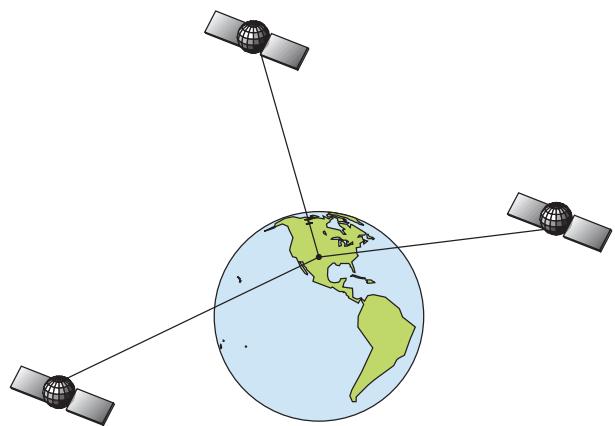
A minimum of three satellites are required to determine a 2D fix.
The system requires signal reception from three satellites in order to determine a position. This is called a 2D fix. It takes four satellites to determine both position and elevation (your height above sea level — also called altitude). This is called a 3D fix.
Remember, the unit must have a clear view of the satellites in order to receive their signals. Unlike radio or television signals, GPS works at very high frequencies. These signals can be easily blocked by trees, buildings, an automobile roof, even your body.
Like most GPS receivers, this unit doesn't have a compass or any other navigation aid built inside. It relies solely on the signals from the satellites to calculate a position. Speed, direction of travel, and distance are all calculated from position information. Therefore, in order for the GlobalMap 3500C to determine direction of travel, you must be moving and the faster, the better. This is not to say that it won't work at walking or trolling speeds — it will. There will simply be more "wandering" of the data shown on the display.
GPS is plenty accurate for route navigation, but the U.S. Federal Aviation Administration has special needs for aircraft traffic control that go beyond basic GPS. The FAA has a plan under way to boost GPS performance even further with its Wide Area Augmentation System, or WAAS. This GPS add-on will include a time control element that will help airliners fly closer together while avoiding collisions. In addition to carefully spacing airplanes along travel corridors, WAAS will eventually make instrument landings and takeoffs more accurate as it replaces existing aviation navigation systems.
Non aviators can use WAAS signals to make their GPS navigation even more accurate. Your unit receives both GPS and WAAS signals. However, WAAS has some limits you should know about.
First, the U.S. government has not completed construction of the WAAS system, so it is not yet fully operational. The ground stations are in place, but only a few of the needed WAAS satellites have been launched.
WAAS can boost the accuracy of land GPS navigation, but the system is designed for aircraft. The satellites are in a fixed orbit around the Equator, so they appear very low in the sky to someone on the ground in North America. Aircraft and vessels on open water can get consistently good WAAS reception, but terrain, foliage or even large man-made structures frequently block the WAAS signal from ground receivers.
You'll find that using your GPS receiver is both easy and amazingly accurate. It's easily the most accurate method of electronic navigation available to the general public today. Remember, however, that this receiver is only a tool. Always have another method of navigation available, such as a map or chart and a compass.
Also remember that this unit will always show navigation information in the shortest line from your present position to a waypoint, regardless of terrain! It only calculates position, it can't know what's between you and your destination, for example. It's up to you to safely navigate around obstacles, no matter how you're using this product.
How to use this manual: typographical conventions
Many instructions are listed as numbered steps. The keypad and arrow " keystrokes" appear as boldface type. So, if you're in a real hurry (or just need a reminder), you can skim the instructions and pick out what menu command to use by finding the boldface command text. The following paragraphs explain how to interpret the text formatting for those commands and other instructions:
Arrow Keys
The arrow keys control the movement of dotted cross-hair lines on your mapping screen called the cursor. The arrow keys help you move around the menus so you can execute different commands. They are represented by symbols like these, which denote the down arrow key, the up arrow, the left arrow and the right arrow: .
Keyboard
The other keys perform a variety of functions. When the text refers to a key to press, the key is shown in bold, sans serif type. For example, the "Enter/Icons" key is shown as ENT and the "Menu" key is shown as MENU.
Menu Commands
A menu command or a menu option will appear in small capital letters, in a bold sans serif type like this: ROUTE PLANNING. These indicate that you are to select this command or option from a menu or take an action of some kind with the menu item. Text that you may need to enter or file names you need to select are show in italic type, such as trail name.
Instructions = Menu Sequences
Most functions you perform with this unit are described as a sequence of key strokes and selecting menu commands. We've written them in a condensed manner for quick and easy reading.
For example, instructions for navigating a trail would look like this:
1.From the Map Page,press MENU|MENU|to MY TRAILS|ENT.
2. Press to Trail 1 | ENT| | to NAVIGATE | ENT.
3. You are asked to wait while it converts the trail into a route.
4. The wait message disappears and the GlobalMap 3500C begins showing navigation information along the trail. Now, begin moving and follow your GlobalMap 3500C.
Translated into complete English, step 1 above would mean: "Start on the Map Page. Press the Menu key twice. Next, repeatedly press (or press and hold) the down arrow key to scroll down the menu and select (highlight) the My Trails menu command. Finally, press the Enter key."
Step 2 would mean: "Press the down arrow key repeatedly to scroll to the trail named Trail 1, and press Enter. Next, press the right arrow key and then the down arrow key to highlight the Navigate command, then press Enter."
Notes
Section 2:
Installation & Accessories
Preparations
You can install the GPS system in some other order if you prefer, but we recommend this installation sequence:
Caution:
You should read over this entire installation section before drilling any holes in your vehicle or vessel!
- Determine the approximate location for the GPS unit, so you can plan how and where to route the cables for the antenna and power. This will help you make sure you have enough cable length for the desired configuration.
- Determine the approximate location for the GPS antenna module and its cable route.
- Determine the location of your battery or other power connection, along with the power cable route.
- Install the GPS antenna and route the antenna cable to the GPS unit.
- Install the power cable and route it to the GPS unit.
- Mount the GPS unit.
GPS Antenna/Receiver Module
This unit's package includes the LGC-2000 GPS module. This device contains the unit's external antenna and receiver for GPS and WAAS signals. The antenna/receiver module comes with a 25-foot Y-adapter extension cable. This module can be mounted on a flat surface or pole, or an optional magnet is available for temporary mounting on any ferrous surface.
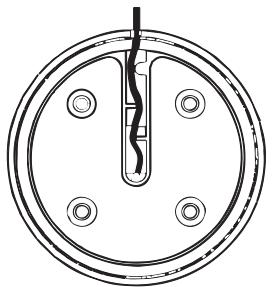
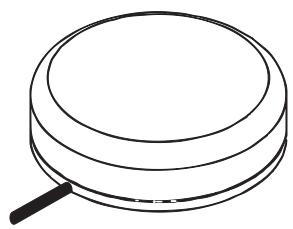
LGC-2000 Module, bottom view (left) and top view (right).
You need to select an antenna installation location that has a clear, unobstructed view of the sky. After the module is installed, connect it to the end of the Y-adapter extension cable as shown in the following diagram. To connect it to the unit, insert the cable's splitter plug into the Network socket on the back of the unit and your system is ready to use. See the module's instruction sheet, publication part number 988-0147-981, for complete installation directions.
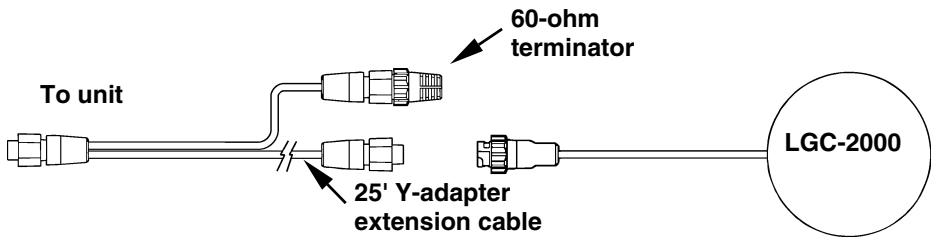
LGC-2000 Cable Connection.
NOTE:
The second plug on the extension cable's Y-adapter will have a 60-ohm terminator attached to it. Do not remove this terminator. You must leave the terminator connected to this socket at all times for your antenna/receiver to function correctly.
In an automobile, you may achieve good results by simply placing the external antenna on the top of the dash, at the base of the windshield. A piece of the rubber non-skid shelf liner material available in recreational vehicle supply stores will help hold the antenna in place. This may not work well if you have a cab-over design pickup truck camper or motor home. If dashboard reception is poor, simply relocate the antenna module elsewhere on the vehicle for a clearer view of the sky.
Power Connections
Your unit comes with a power/data cable that splits into three ends, each with several exposed wires (shown in the following figure). The end with 4 wires (blue, yellow, orange and shield) is a Data cable that connects to a NMEA 0183 interface. The end with three wires (red, black and shield) is a power cable that connects to a NMEA-2000 buss. The thicker three-wire cable (red, black and white) is the Power Supply for your unit (and optional external speaker connection for some units).
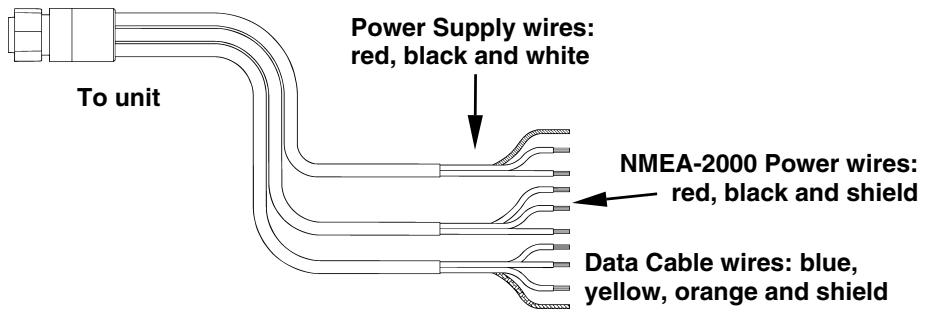
The Power/Data cable for this unit.
Depending on your configuration, you may not use all of these wires. (For example, many units cannot operate an optional external speaker, so the white wire on the Power Supply cable isn't functional.) The following segments include instructions for installing all the wires that you will use with this unit.
Powering a NMEA-2000 Buss (NMEA-2000 Power cable)
A NMEA-2000 buss must be connected to a power source to operate. If you have a pre-existing NMEA-2000 installation, it may already be connected to another power source. If your NMEA-2000 buss is already powered, you can ignore the NMEA-2000 Power cable. Never attach two power sources to a single NMEA-2000 buss.
If you do need to power your NMEA-2000 buss, attach the NMEA-2000 Power cable to your boat's battery just as indicated in the following segment for connecting your unit's Power Supply cable. The NMEA-2000 Power cable's red wire should be attached (with provided 3-amp fuse) to the boat battery's positive terminal, and the NMEA-2000 Power cable's black and shield wires should both be attached to the battery's negative terminal.
NOTE:
If the NMEA-2000 buss draws power directly from the boat's battery, the LGC-2000 will remain on (drawing power) all the time. The LGC-2000's current draw is very small and shouldn't decrease the boat's storage battery life, but if this small draw is a concern, you can install a switch between the NMEA-2000 buss and the battery.
Powering Your Unit
(Power Supply cable - red and black wires)
The unit works from a 12-volt battery system. For the best results, attach the power cable directly to the battery. You can attach the power cable to an accessory or power buss, however you may have problems
with electrical interference. Therefore, it's safer to go ahead and attach the power cable directly to the battery.
CAUTION:
When using the unit in a saltwater environment, we strongly recommend that you shut off the power supply to the power cable when the unit is not in use. When the unit is turned off but still connected to a power supply, electrolysis can occur in the power cable plug. This may result in corrosion of the plug body along with the electrical contacts in the cable and the unit's power socket.
In saltwater environments we recommend you connect the power cable to the auxiliary power switch included in most boat designs. If that results in electrical interference, or if such a switch is not available, we recommend connecting direct to the battery and installing an inline switch. This will let you shut off power to the power cable when the unit is not in use. When you are not using the unit, you should always shut off power to the power cable, especially when the power cable is disconnected from the unit.
If possible, keep the power cable away from other boat wiring, especially the engine's wires. This will provide the best isolation from electrical noise. If the cable is not long enough, splice #18 gauge wire onto it. The power cable has two wires, red and black. Red is the positive lead, black is negative or ground. (There is also a white wire to power an optional external speaker for some units.) Make sure to attach the in-line fuse holder to the red lead as close to the power source as possible.
For example, if you have to extend the power cable to the battery or power buss, attach one end of the fuse holder directly to the battery or power buss. This will protect both the unit and the power cable in the event of a short. It uses a 3-amp fuse.
CAUTION:
All of the wires in the power/data cable have bare ends for easier installation. The bare ends on any unused wires could cause an electrical short if left exposed. To prevent this, you should cover the individual wire ends — either by capping them with wire nuts or wrapping them with electrical tape. (You should cut off the bare wire before taping off the ends.)
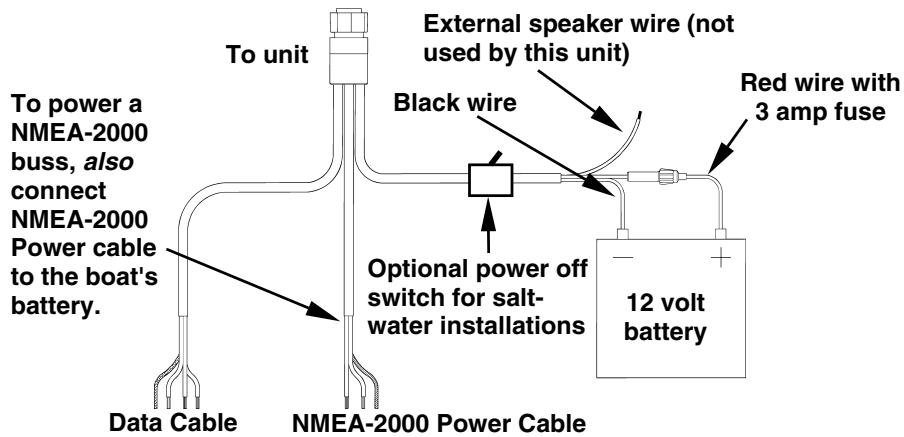
Power connections for the GlobalMap 3500C GPS unit.
NOTE:
If you're powering a NMEA-2000 buss, you will attach both the NMEA-2000 Power cable and the unit's Power Supply cable to the boat's battery. To attach the NMEA-2000 Power cable, connect the red wire to battery's + and black and shield wires to battery's -.
WARNING:
This product must be independently fused with the enclosed 3-amp fuse (or equivalent), even if you connect to a fused accessory or power buss.
If a malfunction happens inside the unit, extensive damage can occur if the enclosed fuse is not used. As with all electrical devices, this unit could be damaged to a point that it is unrepairable and could even cause harm to the user when not properly fused.
CAUTION:
Do not use this product without a 3-amp fuse wired into the power cable! Failure to use a 3-amp fuse will void your warranty.
This unit has reverse polarity protection. No damage will occur if the power wires are reversed. However, the unit will not work until the wires are attached correctly.
An optional 8-foot, CA-4 external power cable with a cigarette lighter adapter is available from Lowrance.
NMEA 0183 Cable Connections
NMEA is a standard communications format for marine electronic equipment. For example, an autopilot can connect to the NMEA inter
face on the GlobalMap 3500C and receive positioning information. The GlobalMap 3500C can exchange information with any device that transmits or receives NMEA 0183 data.
See the following diagram for general wiring connections. Read your other product's owner's manual for more wiring information.
NMEA Wiring
(Data cable)
To exchange NMEA 0183, the GlobalMap 3500C has one NMEA 0183 version 2.0 communication port. Com port one (Com-1) can be used to receive NMEA format GPS data. The com port can also transmit NMEA format GPS data to another device.
The four wires for the com port are combined with the Power Supply cable and NMEA-2000 Power cable to form the power/data cable (shown earlier). Com-1 uses the yellow wire to transmit, the orange wire to receive and the shield wire for signal ground. Your unit does not use the blue wire.

Com-1 wiring to receive NMEA position information from some other GPS receiver

Com-1 wiring to transmit NMEA position information to another NMEA-compatible device.
Mounting the Unit: Bracket, In-Dash or Portable
You can install the GlobalMap 3500C on the top of a dash with the supplied gimbal bracket. It can also be installed in the dash or mounted on a portable power supply.
If you use the supplied bracket, you may be interested in the optional R-A-M® bracket mounting system. This converts the unit's gimbal bracket to a swivel mount, which can be used on the dash or overhead mounting positions. Installation instructions are supplied with the R-A-M mounting kits. R-A-M offers permanent mounts and temporary mounts suitable for many vehicle types. See your Eagle dealer or visit the LEI web site (www.lei-extras.com) for the latest options; accessory
ordering information is on the inside back cover of this manual. For a complete look at the many mounting options, visit the RAM web site at www.ram-mount.com.
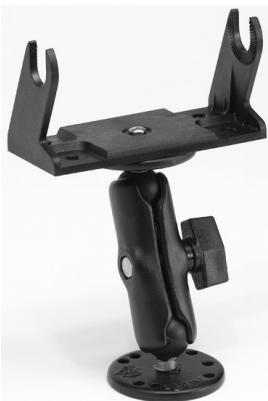
Optional R-A-M mounting system.
Bracket Installation
Mount the GlobalMap 3500C in any convenient location, provided there is clearance behind the unit when it's tilted for the best viewing angle. You should also make sure there is enough room behind the GlobalMap 3500C to attach the power and GPS antenna/receiver module cables. (A drawing on the next page shows the dimensions of a gimbal-mounted GlobalMap 3500C.)
Holes in the bracket's base allow wood screw or through-bolt mounting. You may need to place a piece of plywood on the back side of thin fiberglass panels to reinforce the panel and secure the mounting hardware.
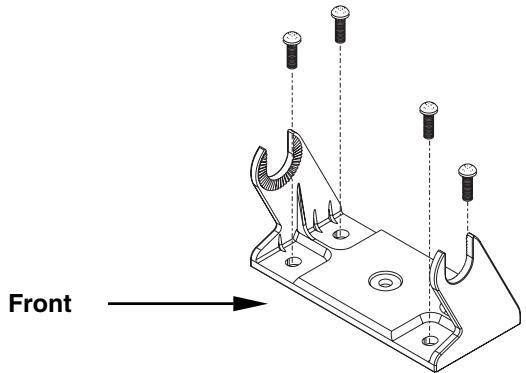
Install the gimbal bracket. Orient the bracket so the arms slope toward the front of your unit.
Drill a 1-inch (25.4 mm) hole in the dash for the power and antenna cables. The best location for this hole is immediately under the gimbal bracket location. This way, the bracket can be installed so that it covers the hole, holds the cables in position and results in a neat installation. Some customers, however, prefer to mount the bracket to the side of the cable hole — it's a matter of personal preference.

Front view (left) and side view (right) showing dimensions of the GlobalMap 3500C when mounted on gimbal bracket.
After drilling the hole, pass the antenna connector up through the hole from under the dash. Pass the power cable's bare-wire end down though the hole from the top.
If you wish, you can fill in the hole around the cables with a good marine caulking compound. (Some marine dealers stock cable hole covers to conceal the opening.) No matter what type of installation you prefer, be sure to leave enough slack in the cables to allow tilting or swiveling the GlobalMap 3500C. If you choose to fill in the hole, be sure to position the cables against the rear edge of the hole as you apply the fill material.
Before positioning the bracket, be sure to hold the cables against the rear edge of the hole. Then, slide the bracket over the hole and butt the rear of the bracket base firmly against the cables, thus pinning them in place against the side of the hole. Finally, fasten the bracket to the dash. Attach the unit to the gimbal bracket using the supplied gimbal knobs and washers.
In-Dash Installation
You can mount the GlobalMap 3500C in the dash with an optional FM-5 In-Dash Adapter Kit. The kit includes mounting hardware, a template for cutting the hole and an instruction sheet, part 988-0147-43.
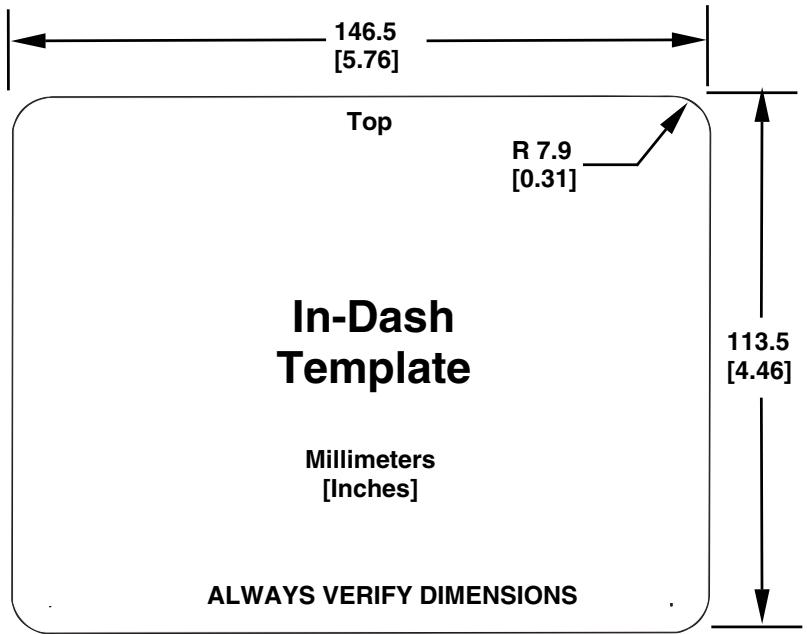
In-dash mounting template for the GlobalMap 3500C, showing dimensions. NOTE: The figure above is not printed to scale. A scaled template (FM-5 In-Dash Adapter Kit instructions) is available for free download from our web site, www.lowrance.com.
Portable Installation
Like many Lowrance products, the GlobalMap 3500C is capable of portable operation by using an optional portable power pack. The power pack and the magnet-equipped antenna module expand the uses for your GPS unit. The portable power pack makes it easy to transfer your unit from a boat to a car, recreational vehicle, airplane or other vehicle without drilling and mounting a second bracket. You can use your unit in your own car or boat, then take it along when riding in a friend's vehicle that's not equipped with GPS.
The portable power pack includes a sealed, rechargeable battery.
MMC or SD Card Memory Card Installation
Your GlobalMap 3500C uses a MultiMedia Card to store information, such as custom maps, waypoints, trails and other GPS data. The unit can also use Secure Digital Cards (SD card or SDC) to store data.
NOTE:
Throughout this manual, we will use the term MMC, but just remember that your unit can use an MMC or SD card to store data.
Both of these solid-state flash memory devices are about the size of a postage stamp. An SD card is slightly thicker than an MMC. As this manual went to press, MMCs and SD cards were available in various storage capacities up to 1 gigabyte.
Additional MMC cards are available from LEI Extras; see ordering information inside the back cover of this manual. MMCs and SD cards are also available at many camera and consumer electronics stores.
The MMC slot is located in a compartment on the front of the case. The compartment door is located at the lower right corner. The following figure shows a close-up with the door opened.
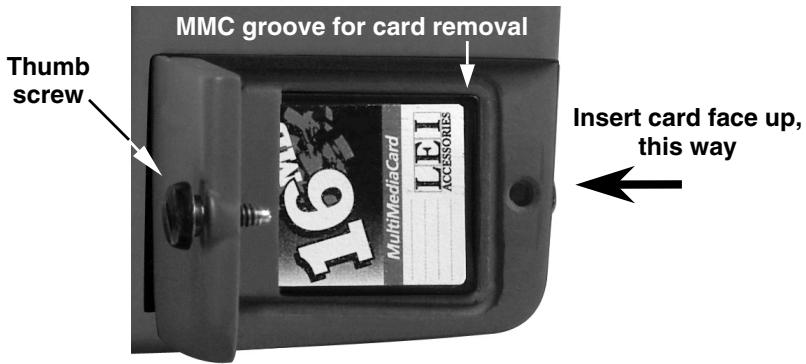
Memory card compartment with a 16 MB MMC card installed.
To remove an MMC
- Open the card compartment door by unscrewing the thumb screw. The screw should only be finger tight. If it was over-tightened, use a thumbnail, a coin or a screwdriver to open the door.
- Just press a finger against the label of the MMC and drag it from the slot.
- Drag the MMC from the slot.
To add an MMC or SD Card
- Open the card compartment door.
- Grasp the bottom of the MMC and push the top of the card into the slot. Once the card is started, use your fingernails to slide it the rest of the way to the left, until it is firmly seated in the slot.
- Close the compartment door and fasten the thumb screw finger tight.
Other Accessories
Other accessories include MMC cards, MMC card readers and MapCreate™ 6 custom mapping software for your computer. MMC card readers are available in USB and parallel port versions.
If these accessories are not available from your dealer, see the accessory ordering information on the inside back cover of this manual.
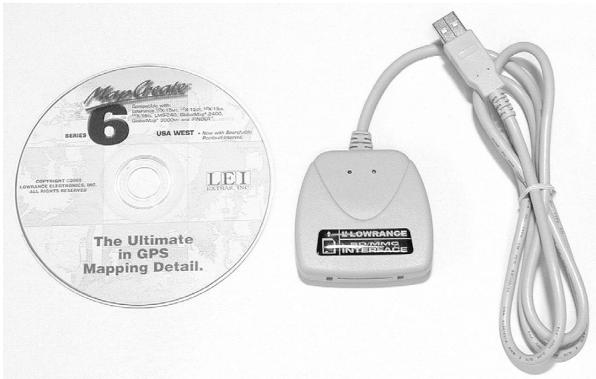
MapCreate™ 6 CD-ROM, left; MMC card reader for USB ports, right.
Now that you have your GlobalMap 3500C installed, move on to Section 3, Basic GPS Operations. There, we'll present a series of step-by-step tutorials to teach you the basics of GPS navigation.
Face Cover
Your unit comes with a white protective cover that snaps on and off the front of the unit. This cover is intended for use when your unit and the vehicle it's mounted in are idle.
WARNING:
When the unit is mounted in an unprotected area, such as an open boat cockpit, the protective face cover must be removed when the vehicle is moving at high speed. This includes towing a boat on a trailer at highway speeds. Otherwise, wind blast can pop off the cover.
Notes
Section 3:
Basic GPS Operations
This section addresses the unit's most basic GPS operations. The tutorials presented in Sec. 3 follow a chronological order. Sec. 4, Advanced GPS Operations, will discuss other more advanced functions and utilities. Material in Sec. 4 is arranged in alphabetical order.
Before you turn on the unit and find where you are, it's a good idea to learn about the different keys, the four Page screens and how they all work together. BUT, if you just can't wait to get outside, turn to the one-page Quick Reference on page 36.
Keyboard
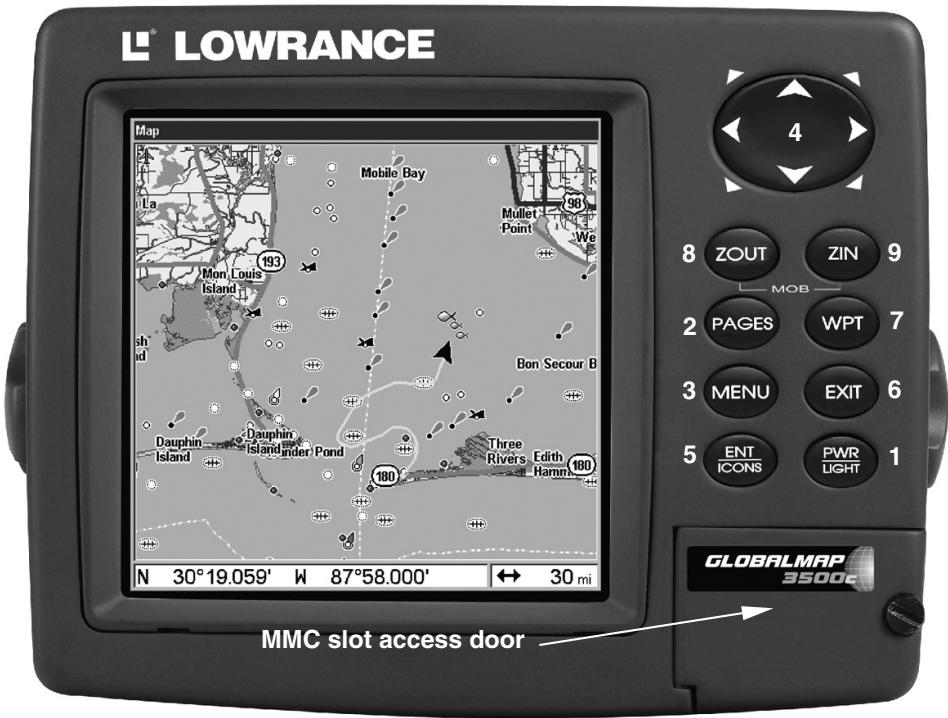
GlobalMap 3500C GPS unit, front view, showing Map Page, keyboard and access door for the MMC slot.
- PWR/LIGHT (Power & Light) - The PWR key turns the unit on and off and activates the backlight.
- PAGES - Pressing this and the arrow keys (4) switches the unit between the three different page screens. (Satellite Status Page,
Navigation Page and Map Page.) Each page represents one of the unit's major operation modes.
- MENU - Press this key to show the menus and submenus, which allow you to select a command or adjust a feature. This also accesses search functions for streets, intersections, addresses and highway exits.
- ARROW KEYS - These keys are used to navigate through the menus, make menu selections, move the map cursor and enter data.
- ENT/Icons (Enter & Icons) - This key allows you to save data, accept values or execute menu commands. It is also used to create event marker icons.
- EXIT - The Exit key lets you return to the previous screen, clear data or erase a menu.
- WPT - (Waypoint) The Waypoint key is used to save and recall waypoints, search for waypoints and access the waypoint list. It also launches the Point-of-Interest (POI) search menus and is involved in some navigation functions.
- ZOUT - (Zoom Out) - This key lets you zoom the screen out. This lets you see a larger geographic area on the map. Less detail is seen as you zoom out.
- ZIN - (Zoom In) - This key lets you zoom the screen in. Zooming in lets you see greater detail in a smaller geographic area on the map.
Power/lights on and off
To turn on the unit, press PWR. As the unit powers up, the Map Page is displayed first. (To switch to another page, press PAGES|← or → to Page Name|EXIT.)
To turn on the backlight, press PWR again. The unit has three backlight levels to select from. Repeatedly pressing PWR will cycle through the backlight settings and turn off the backlight.
Turn off the unit by pressing and holding the PWR key for 3 seconds.
Main Menu
The unit has a Main Menu, which contains some function commands and some setup option commands. The tutorial lessons in this section will deal only with functions, the basic commands that make the unit do something. The GPS will work fine for these lessons right out of the box with the factory default settings. But, if you want to learn about the various options, see Sec. 5, System Setup and GPS Setup Options.
You can access the Main Menu from any of the three Page screens by pressing MENU | MENU. To clear the menu screen and return to the page display, press EXIT.
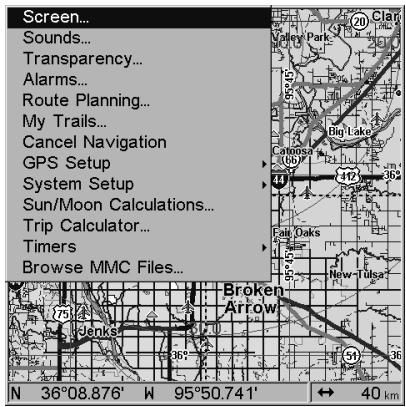
Main Menu.
The Main Menu commands and their functions are:
Screen command: changes the contrast or brightness of the display screen.
Sounds command: enables or disables the sounds for key strokes and alarms and sets the alarm style.
Transparency command: adjust the level of transparency for menus.
Alarms command: turns GPS alarms on or off and changes alarm thresholds.
Route Planning command: used to plan, view or navigate a route.
My Trails command: shows, hides, creates and deletes plot trails. Also used to navigate or backtrack a trail.
Cancel Navigation command: turns off the various navigation commands. Used to stop navigating after you have reached your destination waypoint, Point of Interest or map cursor location; or after you reach the end of a route or trail.
GPS Setup command: sets various GPS receiver options.
System Setup command: sets general configuration options.
Sun/Moon Calculations command: finds the rising and setting time of the sun and the moon.
Trip Calculator command: shows trip status and statistics.
Timers command: controls the up timer, down timer and alarm clock settings.
Browse MMC Files command: this allows you to view the installed MMC card and the files it contains.
Pages
The unit has three Pages that represent the three major operating modes. They are the Satellite Status Page, the Navigation Page and the Map Page. They are accessed by pressing the PAGES key, then using or to select a Page. (Clear the Pages Menu by pressing EXIT.)
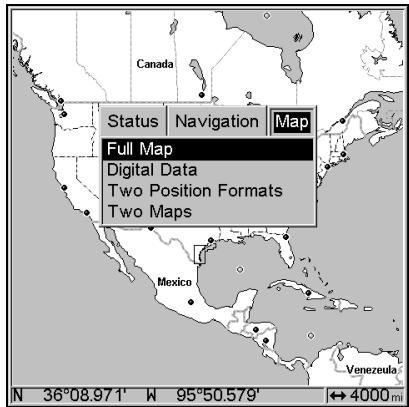
Pages Menu, showing some Map display options.
Satellite Status Page
The Satellite Status Page, shown, provides detailed information on the status of the unit's satellite lock-on and position acquisition. To get to the Satellite Status Page: Press the PAGES key, then use or to select STATUS. (Clear the Pages Menu by pressing EXIT.)
No matter what Page you are on, a flashing current position indicator/question mark symbol and flashing GPS data displays indicate that satellite lock has been lost and there is no position confirmed. The Satellite Status Page shows you the quality and accuracy of the current satellite lock-on and position calculation.
WARNING:
Do not begin navigating with this unit until the numbers have stopped flashing!
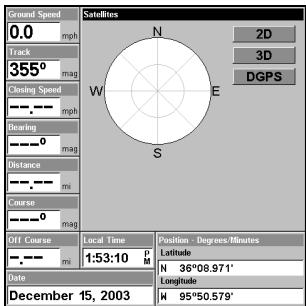
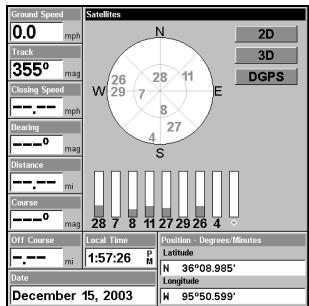
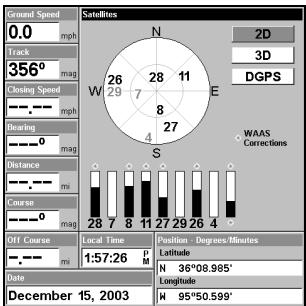
Satellite Status Page. Left view indicates unit has not locked on to any satellites and does not have a fix on its position. Center view shows satellites being scanned. Right view shows satellite lock-on with a 3D position acquired (latitude, longitude and altitude), and WAAS reception.
This screen shows a graphical view of the satellites that are in view. Each satellite is shown on the circular chart relative to your position. The point in the center of the chart is directly overhead. The small inner ring represents 45^ above the horizon and the large ring represents the horizon. North is at the top of the screen. You can use this to see which satellites are obstructed by obstacles in your immediate area if the unit is facing north.
The GPS receiver is tracking satellites that are in bold type. The receiver hasn't locked onto a satellite if the number is grayed out, therefore it isn't being used to solve the position.
Beneath the circular graph are the bar graphs, one for each satellite in view. Since the unit has twelve channels, it can dedicate one channel per visible satellite. The taller the bar on the graph, the better the unit is receiving the signals from the satellite.
NOTE:
One of the data display options for the Satellite Status page is "Position Error" (horizontal position error), which can appear in one of the page's data boxes. If you turn on Position Error, it will show you the expected error from a benchmark location. In other words, if the Position Error box shows 50 feet, then the position shown by the unit is estimated to be within 50 feet of the actual location.
This also gives you an indicator of the fix quality the unit currently has. The smaller the position error number, the better (and more accurate) the fix is. If the position error flashes dashes, then the unit hasn't locked onto the satellites, and the number shown isn't valid. (For details, see the topic Customize Page Displays in Sec. 5.)
The Satellite Status Page has its own menu, which is used for setting various options. (Options and setup are discussed in Sec. 5). To access the Satellite Status Page Menu, from the Status Page, press MENU.
Navigation Page
This screen has a compass rose that not only shows your direction of travel, but also the direction to a recalled waypoint. To get to the Navigation Page: Press PAGES | → or ← to NAVIGATION | EXIT.
The navigation screen looks like the one below when you're not navigating to a waypoint or following a route or trail. Your position is shown by an arrow in the center of the screen. Your trail history, or path you've just taken, is depicted by the line extending from the arrow. The arrow pointing down at the top of the compass rose indicates the current track (direction of travel) you are taking.
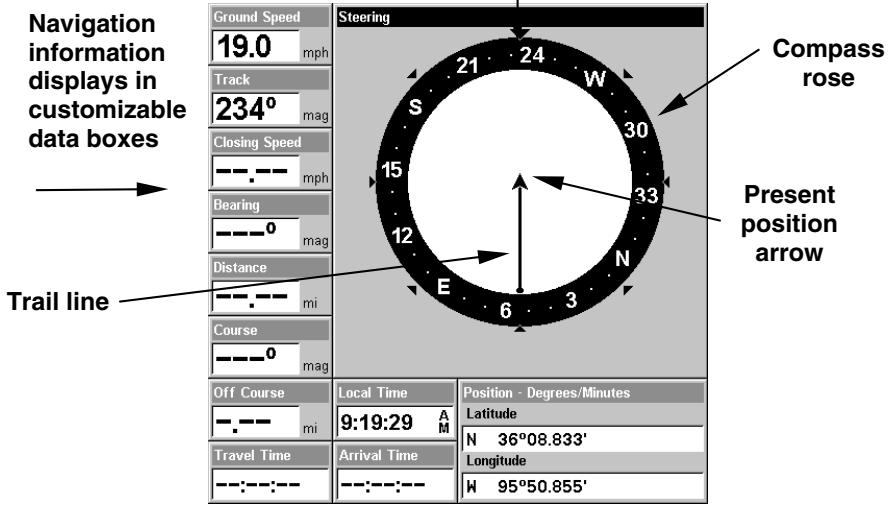
Track or compass heading indicator, showing direction of travel
Navigation Page, recording a trail, traveling southwest. Page looks like this when the unit is not navigating to a waypoint, following a route, or backtracking a trail.
When navigating to a waypoint, the Navigation screen looks like the following figure. Your ground speed, track, distance and bearing to waypoint, and course are all shown digitally on this screen.
NOTE:
Remember, when the Speed, Track and Position information displays are flashing, satellite lock has not been achieved and no position fix has been determined. A question mark will also flash on the present position arrow in the center of the compass rose.
Speed (ground speed) is the velocity you are making over the ground. (If you wish, you can customize the Speed data box to display Closing Speed instead. Closing Speed is also known as velocity made good. It's
the speed that you're making toward the waypoint. For instructions, see the Customize Page Displays entry in Sec. 5.)
Track is the heading, or the current direction you are actually traveling. Bearing is the direction of a line-of-sight from your present position to the destination. No matter what direction you are steering, the Bearing data box shows the compass direction straight to the destination from your location at the moment. Distance shows how far it is to the waypoint you're navigating toward.
The Off Course window shows the current cross track error. This shows the distance you are off-course to the side of the desired course line. The course line is an imaginary line drawn from your position when you started navigating to the destination waypoint. The course line is shown on the Navigation Page screen (and the Map Page screen) as a dotted line.
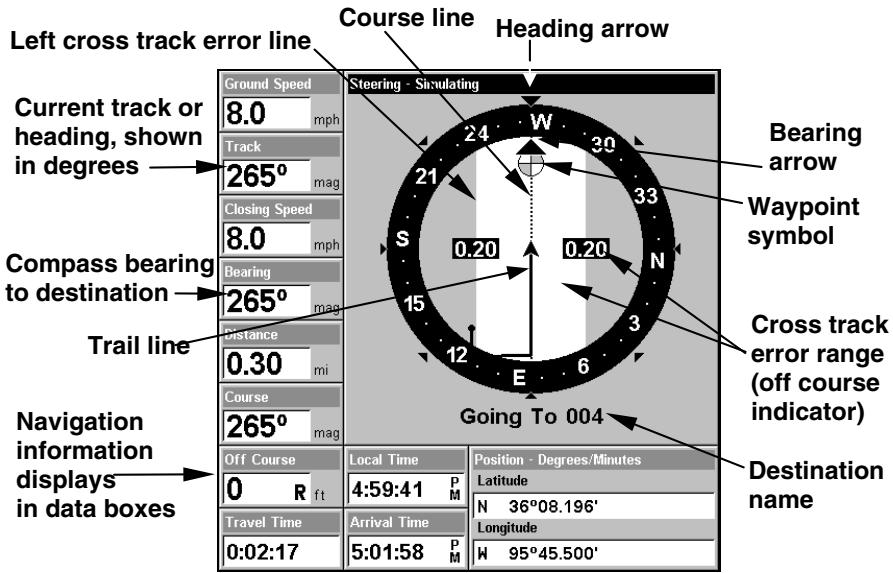
Navigation Page, going to a waypoint while creating a new trail.
The cross track error range is shown on the compass rose as a wide, white, corridor enclosing the course line. The outer edges of this white corridor represent lines that show the current cross track error range. The default for the cross track error range is 0.20 miles.
For example, if the present position symbol touches the right cross track error line, then you are 0.20 miles to the right of the desired course. You need to steer left to return to the desired course. You can use the ZIN or ZOUT keys to change the cross track error range.
A circular symbol depicting your destination ( waypoint) appears on the screen as you approach the waypoint, as shown on the screen in the preceding figure.
Travel Time is the time that it will take to reach your destination at your present closing speed. (You can also customize the time data box to show Arrival Time instead. Arrival Time is the local time it will be when you arrive at the destination, based upon your present closing speed and track.)
In the preceding example figure, the driver is headed west (a 265^ track) toward a waypoint 265^ (bearing) away. The cross track error range (white corridor) is 0.20 miles either side of the course. The driver is headed toward trail waypoint 4, which is 0.3 miles away. The vehicle is right on course. Traveling at a speed of 8mph , the driver will arrive at the waypoint in 2 minutes, 17 seconds.
The Navigation Page has its own menu, which is used for some advanced functions and for setting various options. (Options and setup are discussed in Sec. 5). To access the Navigation Page Menu, from the Navigation Page, press MENU.
Map Page
The Map Page screens show your course and track from a "bird's-eye" view. By default, this unit shows the map with north always at the top of the screen. (This can be changed. See the topic Map Orientation, in Sec. 5.) If you're navigating to a waypoint, the map also shows your starting location, present position, course line and destination. You don't have to navigate to a waypoint, however, to use the map.
Map Page is the default screen that appears when you turn on the unit. To get to the Map Page from another page: Press PAGES or to MAP EXIT. When the Map Page is displayed, a screen similar to the following figures appears.
The arrow in the center of the screen is your present position. It points in the direction you're traveling. The solid line extending from the back of the arrow is your plot trail, or path you've taken.
The map zoom range is the distance across the screen. This number shows in the lower right corner of the screen. In the first of the following example figures, the range is 4,000 miles from the left edge of the map to the right edge of the map.
The Zoom In and Zoom Out keys zoom the map to enlarge or reduce its coverage area and the amount of mapping detail shown. There are 39 available map zoom ranges, from 0.02 miles to 4,000 miles.
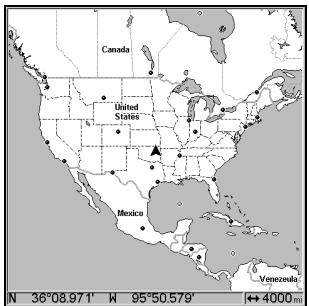
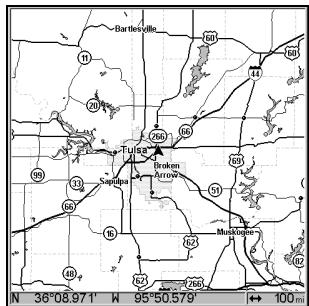
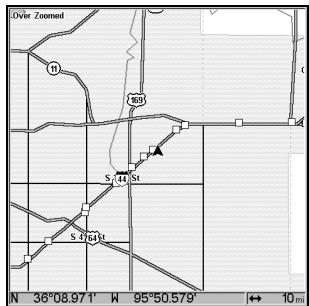
Far left, Map Page opening screen. Center, zoomed to 100 miles and right, zoomed to 10 miles. Over Zoomed means you have reached the detail limits in an area covered only by the basic background map. Zooming in any closer will reveal no more map details because a high-detail custom map has not been loaded on the MMC for this area.
If you're using only the factory-loaded background map, the maximum zoom range for showing additional map detail is 20 miles. You can continue to zoom in closer, but the map will simply be enlarged without revealing more map content (except for a few major city streets.) Load your own high-detail custom map made with MapCreate (or a pre-made FreedomMap from LEI), and you can zoom in to 0.02 miles with massive amounts of accurate map detail.

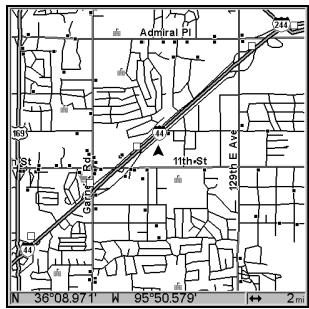
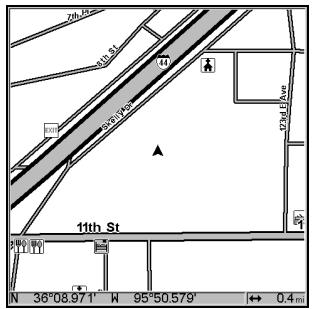
Map Pages with high-detail MapCreate map of an urban area loaded on the MMC. At left, arterial streets appear at the 4 mile zoom range, with a few Point of Interest icons visible. Center, numerous dots representing Points of Interest are visible at the 2 mile range, along with minor streets. Right, at the 0.4 mile zoom, you can see an interstate highway with an exit, major and minor streets as well as Point of Interest icons.
Background map vs. MapCreate map content
The background map includes: low-detail maps of the whole world (containing cities, major lakes, major rivers, political boundaries); and medium-detail maps of the United States.
The medium-detail U.S. maps contain: all incorporated cities; shaded metropolitan areas; county boundaries; shaded public lands (such as national forests and parks); some major city streets; Interstate, U.S. and state highways; Interstate highway exits and exit services information; large- and medium-sized lakes and streams; and more than 60,000 navigation aids and 10,000 wrecks and obstructions in U.S. coastal and Great Lakes waters
MapCreate custom maps include massive amounts of information not found in the background map. MapCreate maps contain the searchable Points of Interest database, all the minor roads and streets, all the landmark features (such as summits, schools, radio towers, etc.); more rivers, streams, smaller lakes and ponds and their names.
What's more important is the large scale map detail that allows your GPS unit to show a higher level of position accuracy. For example, the background map would show you the general outline and approximate shape of a coastline or water body, but the higher detail in MapCreate shows the shoreline completely and accurately (finer detail). Many smaller islands would not be included in the background map, but are, of course, in MapCreate.
NOTE:
Available through LEI Extras (look inside back cover for accessory ordering information), FreedomMaps are pre-made maps that contain all of the same information available in a custom MapCreate map, without any of the work of preparation.
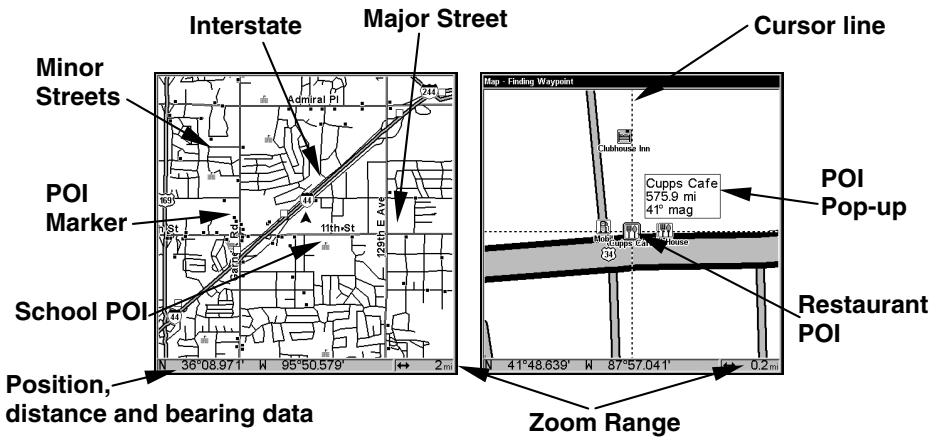
When the map is zoomed out far enough, most POIs appear as square dots. As you zoom in closer, the symbols become readable icons. In the 0.2 mile zoom example at right, the cursor has selected the Cupps Café
POI, which triggers a pop-up box with the POI name. This pop-up box works on POIs at any zoom range.
Tip:
In some urban areas, businesses are so close to one another that their POI icons crowd each other on the screen. You can reduce screen clutter and make streets and other map features easier to see by simply turning off the display of POIs you're not watching for. (To see how, check the text on Map Detail Category Selection, page 80. It shows how to use the Map Categories Drawn menu to turn individual POI displays off and on.) Even though their display is turned off, you can still search for POIs and their icons will pop-up when your unit finds them for you.
The Map Page has its own menu, which is used for several functions and for setting various options. To access the Map Page Menu, from the Map Page, press MENU.
The Pages Menu also offers several map display options under the Map Page category. To access them, press PAGES | ← or → to MAP | ↓ or ↑ to Option | EXIT.
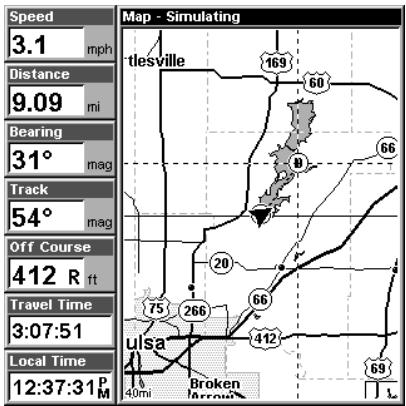
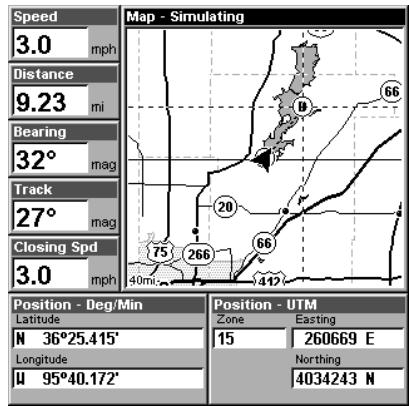
At left, Digital Data map page; at right, Two Position Formats page.
Resize Window command
In pages that have two major windows (such as two maps) you can toggle back and forth between the two windows by pressing PAGES|PAGES. This allows you to change which map your cursor moves on, and which map the menu operates on. A black title bar denotes the active window.
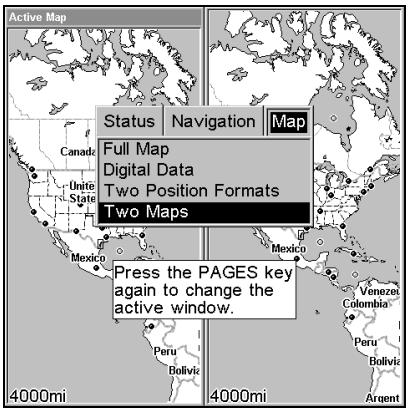

Pages Menu with Two Map option selected, left.
Map Page with two map windows, at right. The left map is active.
Resize Window is another extremely handy feature for pages that have two major windows. You can change the relative size of the windows, as well as horizontal or vertical layout, to suit your viewing preference. Here's how:
- From any two-window display, press MENU | ↓ to RESIZE WINDOW | ENT.
- Four flashing arrows appear along the centerline dividing the two windows. Press an arrow key perpendicular to the centerline to adjust the window widths. Press an arrow key parallel to the centerline to switch between horizontal and vertical layout. (You can only change size, not switch layout, on the Map With Sonar page - it's always two vertical windows.)
Press EXIT to clear the four flashing arrows.
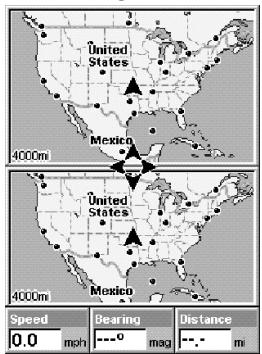
Fig. 1
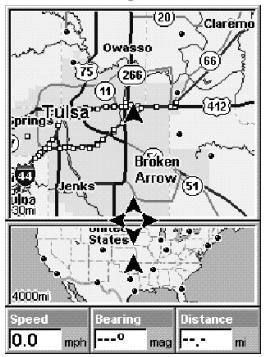
Fig. 2
Fig. 3
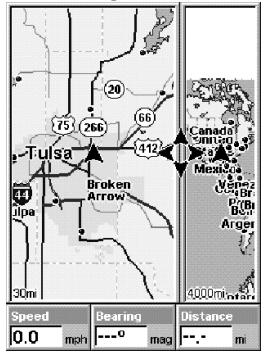
From left to right, after selecting Resize Window command: Fig. 1. Two Maps page display with four flashing arrows on the dividing centerline. Fig. 2. The centerline has been moved down to enlarge the top
map, which is now zoomed in to 40 miles. Fig. 3. Pressing has switched the page layout from horizontal to vertical - note that the relative sizes remain the same.
- To change the window size again or revert back to the original display, just follow the steps above. (Most dual-window displays use half the screen for each window by default.) You can also use the Reset Options command to revert to the factory default.
The following page contains a 12-step quick reference for the most basic GPS operations. If you don't want to carry the manual with you as you practice with the unit, you might consider photocopying this quick reference page and tucking it into your pocket.
Basic GPS Quick Reference
Start outdoors, with a clear view of the open sky. As you practice, try navigating to a location at least a few blocks away. While you're learning, navigation in too small an area will constantly trigger arrival alarms.
- Connect the unit to electric power and the antenna module. Make sure the MMC is in. (See complete installation details beginning on page 11.)
- To turn on the unit, press and release PWR key.
- Opening screen displays map of North America at 4,000 mile zoom range. Rotate through the three main Page screens (Map Page, Satellite Status Page and Navigation Page) by pressing PAGES|← or → to select Page Name|EXIT. Switch Pages to display Satellite Status Page.
- Wait while unit locates satellites and calculates current position. Process is visible on Satellite Page. This takes an average of 1 minute or less under clear sky conditions (unobstructed by terrain or structures.) When the unit acquires position, a tone sounds and a position acquired message appears.
- With position acquired, press PAGES key to display Map Page, which shows a bird's eye view of the earth. You can move around the map by:
Zoom in closer to see greater detail: press ZIN (zoom in key.)
Zoom out to see more area, less detail: press ZOUT (zoom out key.)
Scroll map north, south, east or west using arrow keys . To stop scrolling and return to current position on map, press EXIT key.
6. Set a waypoint (Wpt 001) at your current position so you can navigate back here: press WPT | WPT. Waypoint symbol and "001" appears.
7. ZoomScroll map to find a nearby object or location to go to. Use arrow keys to center cursor cross-hair over the map object or location.
8. Navigate to the selected destination: press MENU|ENT|EXIT. Follow dotted course line on Map Page or compass bearing arrow on Navigation Page.
9. At destination, Arrival Alarm goes off; to clear it, press EXIT. Cancel navigation: press MENU | MENU | ↓ to CANCEL NAVIGATION | ENT | ← to YES | ENT.
10. Return to Wpt 1 by Navigate To Waypoint or Backtrack Trail. To Waypoint: press WPT to SAVED|ENT|ENT|ENT. Use or to select Wpt 001, press ENT|ENT; follow navigation displays. Trail: press MENU|MENU| to MY TRAILS|ENT. Press to Trail 1|ENT| | to NAVIGATE|ENT| to NAVIGATE| to REVERSE|ENT| to NAVIGATE|ENT. (If arrival alarm sounds, press EXIT.) Follow navigation displays.
11. Back home, Arrival Alarm goes off; press EXIT. Cancel navigation: press MENU|MENU|↓ to CANCEL NAVIGATION|ENT|← to YES|ENT.
12. To turn off the unit, press and hold PWR key for three seconds.
Find Your Current Position
Finding your current position is as simple as turning the unit on. Under clear sky conditions, the unit automatically searches for satellites and calculates its position in approximately one minute or less.
NOTE:
"Clear sky" means open sky, unobstructed by terrain, dense foliage or structures. Clouds do not restrict GPS signal reception.
If for some reason satellite acquisition takes longer, you may be inside a structure or vehicle or in terrain that is blocking signal reception. To correct this, be sure you are positioned so that the unit's antenna module has as clear a view of the sky as possible, then turn the unit off and back on again.
Moving Around the Map: Zoom & Cursor Arrow Keys
The map is presented from a bird's eye view perspective. The current zoom range shows in the lower left corner of the screen.
-
Press the ZIN key (zoom in) to move in closer and see greater detail in a smaller geographic area.
-
Press the ZOUT key (zoom out) to move farther away and see less map detail, but a larger geographic area.
When you are traveling, the map will automatically move as you move. This keeps your current location roughly centered on the screen.
You can manually pan or scroll the map northward, southward, eastward or westward by using the arrow keys, which launch the cross-hair map cursor. This allows you to look at map places other than your current position. To clear the cursor, press EXIT, which jumps the map back to the current position or the last known position.
Tip:
Use the cursor to determine the distance from your current position (or last known position, when working indoors) to any map object or location. Simply use the arrow keys to position the cursor over the object or place. The distance, measured in a straight line, appears in the popup data box. Press EXIT to clear the cursor.
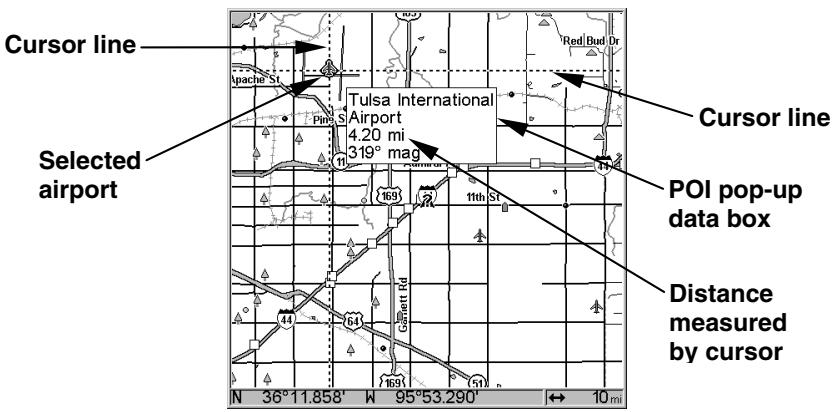
The selected airport to the northwest is 4.2 miles away.
Selecting Any Map Item With the Cursor
- Use the zoom keys and the arrow keys to move around the map and find the item you wish to select.
- Use the arrow keys and center the cursor cross-hair on the desired object. On most items, a pop-up box will give the name of the selected item.
Tip:
This unit has an extremely handy Cursor Undo feature that lets you instantly return to the previous location you were looking at without scrolling. It works like this: Use the cursor (arrow keys) to scroll the map to some far away location or waypoint. Press EXIT to clear the cursor and jump back to your current position on the map. When you want to take another peek at that distant place, just press EXIT again. You can use this trick to toggle between your current position and your destination without a lot of scrolling.
Searching
Now that you've seen how the unit can find where you are, let's search for something somewhere else. Searching is one of the most powerful features in the Lowrance GPS product line.
In this example, we'll look for the nearest fast-food restaurant. For more information on different types of searches, refer to Sec. 6, Searching.
NOTE:
This example requires the Point of Interest (POI) database included with a high detail MapCreate 6 custom map.
After the unit has acquired a position:
-
Press WPT | to POI-RESTAURANTS.
-
You could search the entire restaurant category, but in this example we will narrow our search. Press to SUBCATEGORY column|↓ to FAST FOOD CHAINS|ENT|↓ to NEAREST|ENT.
- The unit says it is calculating, then a list of restaurants appears, with the closest at the top of the list, and the farthest at the bottom of the list. The nearest is highlighted.
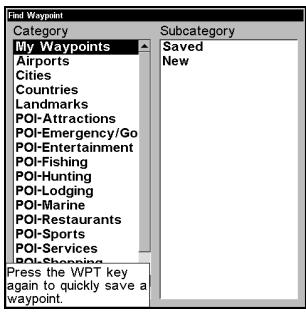
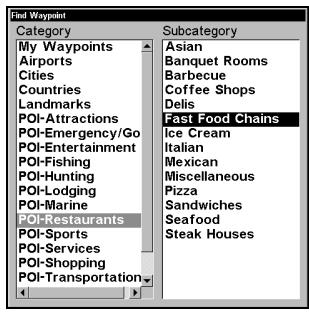
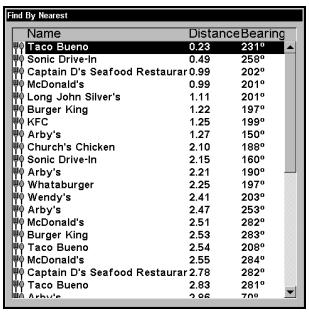
Find Waypoint Menu, left; Category Selection menu, center; and list of the nearest restaurants, right.
- If you wish, you could scroll or here to select another restaurant, but for now we will just accept the nearest one. Press ENT.
- The POI information screen appears. (This is how you can use this unit as a business phone directory!) If you wanted to navigate there, you could press Enter, since the Go To Waypoint command is highlighted. But we just want to see it on the map, so press to FIND ON MAP|ENT.
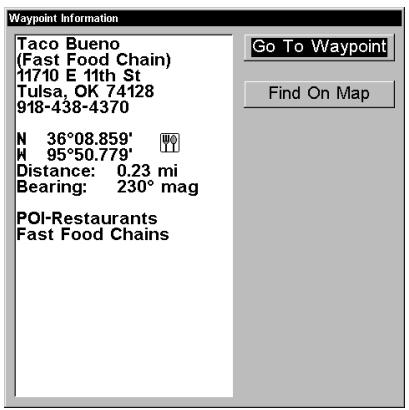
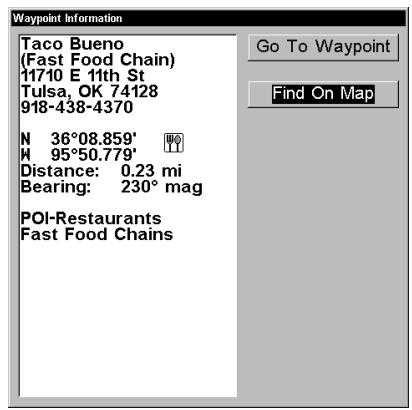
POI information screen on fast food restaurant nearest this position. Screen shows name, street address, phone number, latitude/longitude, distance to restaurant and its compass bearing. Figure at left shows Go To Waypoint command; right figure shows Find On Map command.
- The unit's map appears, with the cross-hair cursor highlighting the restaurant's POI symbol. A pop-up data box shows the POI's name, distance and bearing. A data box at the bottom of the screen continues to display the location's latitude and longitude.
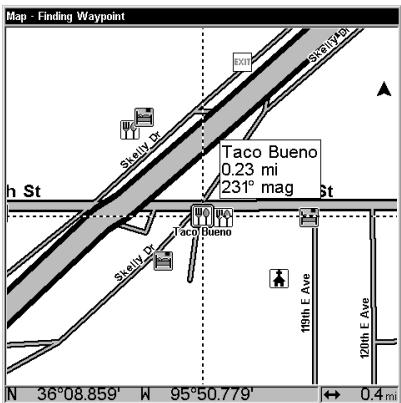
Map screen showing Finding Waypoint, the result of a restaurant search.
- To clear the search and return to the last page displayed, press EXIT|EXIT|EXIT|EXIT. (Before you completely exited out of the Search menus, you could have gone looking for another place.)
NOTE:
Search works from mapping and POI data loaded in the unit. If you do not have a high-detailed custom map (containing POI data) for the area you are searching loaded on the MMC, you may not find anything.
Set a Waypoint
A waypoint is simply an electronic "address," based on the latitude and longitude of a position on the earth. A waypoint represents a location, spot or destination that can be stored in memory, then be recalled and used later on for navigation purposes.
You can create a waypoint at the cursor position on the map, or at your current position while you are navigating. You can create a waypoint at any location by manually entering the position's latitude and longitude. You can copy waypoints from your unit to your personal computer with MapCreate software. When you want to repeat a trip, these archived waypoints can be reloaded into your GPS unit.
To create and save a Waypoint:
These first two techniques use the Quick Save method, the fastest and easiest way to create a waypoint.
Create Waypoint at Current Position
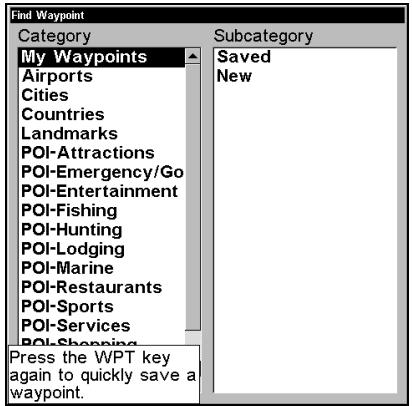
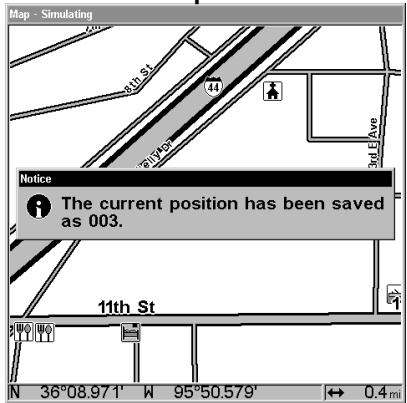
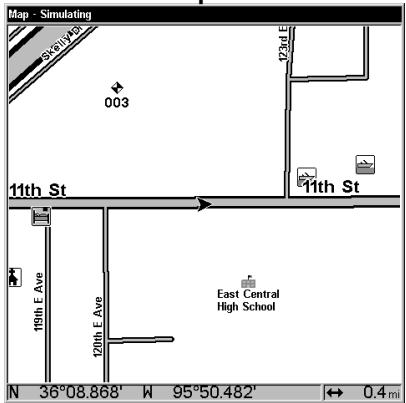
While you are traveling, press WPT|WPT. The waypoint is saved and automatically given a name with a sequential number, such as " waypoint 003." The waypoint symbol and number appear on the map.
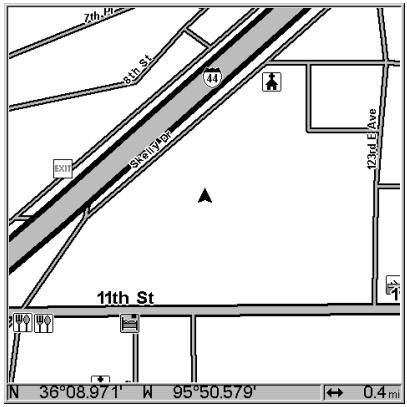
Step 1.
Step 2.
Step 3.
Step 4.
Sequence for setting a waypoint. Step 1: while traveling, quickly press WPT twice to call up Find Waypoint screen (seen in Step 2) and set a point. Step 3: a message says the waypoint has been saved. Step 4: vehicle continues on its way; number waypoint symbol is visible on map.
NOTE:
The Quick Save method uses the default waypoint symbol until you edit an existing waypoint and change its symbol. (Edit Waypoint Symbol is described in Sec. 4.) After you have changed a waypoint symbol, the unit will remember the one you chose and use it the next time you "quick save" a waypoint. To revert back to the default
symbol, edit a waypoint and choose the original symbol, or use the Reset Options command (described in Sec. 5).
Create Waypoint on Map
- Use the arrow keys to move the cursor to the place where you want to make a waypoint.
- Press WPT|WPT. The waypoint is saved and automatically given a name with a sequential number, such as " waypoint 001." The waypoint symbol and number appear on the map.
Create Waypoint by Entering a Position
- Press WPT to SUBCATEGORY column to New | ENT.
- Press to ENTERED POSITION | ENT | to CREATE | ENT.
- Press to Latitude|ENT. Enter the latitude by pressing or to change the first character, then press to the next character and repeat until the latitude is correct. Press ENT.
- Press to LONGITUDE|ENT. Enter the longitude by pressing or to change the first character, then press to the next character and repeat until the longitude is correct. Press ENT, then EXIT|EXIT to return to the previous page display. The waypoint is saved and automatically given a name with a sequential number, such as " waypoint 001." The waypoint symbol and number appear on the map and in the waypoint list.
Navigate to a Waypoint
You can select any waypoint visible on the Map Page with the cursor, then use the Navigate to Cursor command (we'll describe how later in this section.) However, you can avoid scrolling the map to pick your waypoint if you use the Find Waypoint commands:
- Press WPT to SAVED|ENT. To look up the nearest waypoint, press to Nearest|ENT; or, to look by name (and scroll through the entire waypoint list), press ENT. For this example, look by name.
- If your waypoint list is a long one, you can spell out the waypoint name in the FIND BY NAME box to search for it. (Press or to change the first character, then press to move the cursor to the next character and repeat until the name is correct, then press ENT to jump to the list below.)
-
If the list is short, you can jump directly to the FIND IN LIST box by pressing ENT. Use or to select the waypoint name, press ENT and the waypoint information screen appears with the Go To command selected.
-
To begin navigating to the waypoint, press ENT.
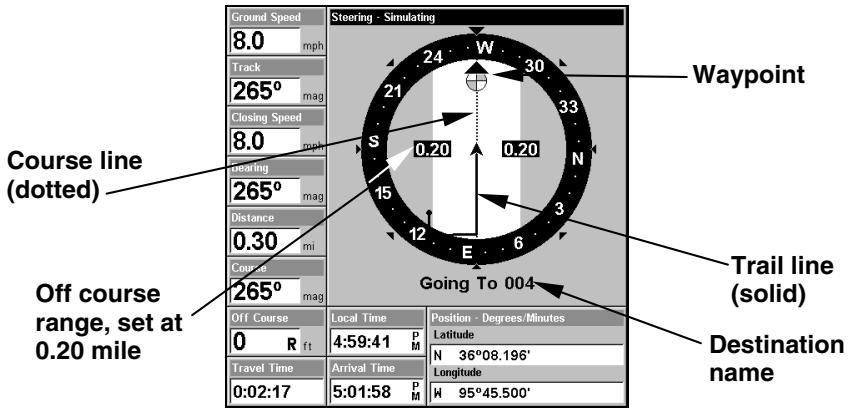
Navigation Page, navigating toward waypoint 004 and leaving a trail.
Set Man Overboard (MOB) Waypoint
One of boating's most terrifying events is having a friend or family member fall overboard. This situation can be deadly on any body of water — fresh or salt. It's particularly dangerous at night or if you're out of sight of land. Of course, the first thing to do is remain calm and then use all standard safety procedures to rescue the person.
This unit has a man overboard feature that shows navigation data to the location where the feature was activated. To activate it, press the ZOUT and ZIN keys at the same time. Your position at the time these keys are pressed is used as the man overboard position.
Caution:
Saving a new "Man Overboard" waypoint will overwrite and erase the previous "Man Overboard" waypoint.
Navigate Back to MOB Waypoint
Find your way back to the accident position with the Navigation Page or Map Page. When MOB is activated, the Navigation Page automatically shows the compass rose with its bearing arrow pointing toward the man overboard position, and the destination name says "Going To Man Overboard." The Map Page displays a Man Overboard waypoint, represented by a human figure, and the steering arrow points where to steer to reach that position.
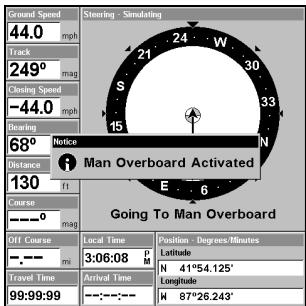
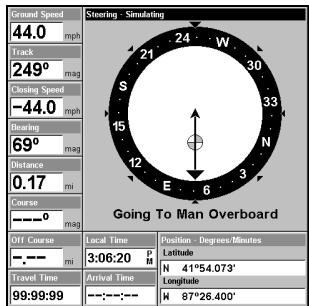
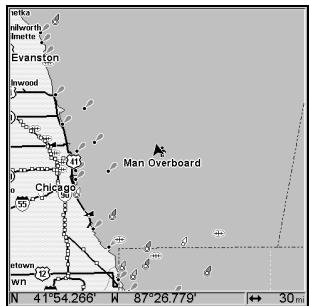
Navigating to Man Overboard: Man Overboard Activated message, left, Navigation Page, center, Map Page, right. The victim is to the starboard of the vessel; the GPS shows which direction to steer to for the rescue.
The man overboard position is also stored in the waypoint list for future reference. It can be edited the same as any other waypoint. This prevents the inadvertent loss of the current Man Overboard position.
To cancel navigation to MOB, press MENU|MENU| to CANCEL NAVIGATION|ENT| to YES|ENT. The unit stops showing navigation information.
Navigate to Cursor Position on Map
The Go To Cursor command navigates to the current cursor position on the map. It's a quick and handy way to navigate to anything you can see on the map display.
- Use the cursor (controlled by the arrow keys) with the zoom in and zoom out keys to maneuver around the map until you find a location you want to go to.
- Center the cursor over the location to select it. See the example in the following figure. (Many map items such as waypoints, Points of Interest, towns, etc. can be "selected," and appear "highlighted" with a pop-up box. Other features, such as a river or a street intersection will not appear "highlighted," but the cursor will take you to those locations just the same.)
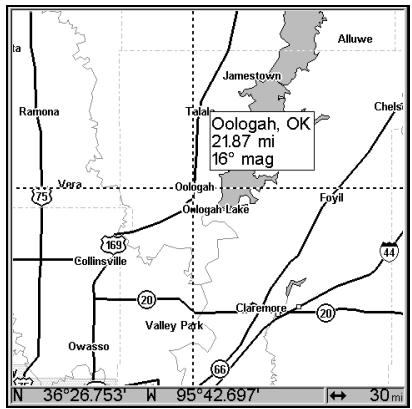
Navigate to cursor. In this example, the cursor has selected the town of Oologah, Oklahoma.
- Press MENU|ENT and the unit will begin navigating to the cursor location.
The Map Page will display a dotted line from your current position to the cursor position. The Navigation Page displays a compass rose showing navigation information to your destination. See the following examples.
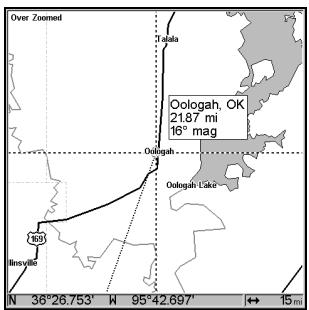
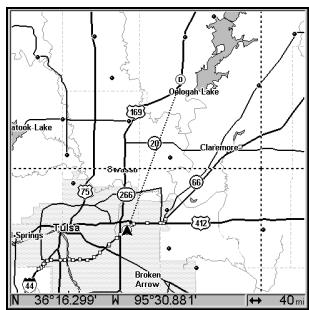
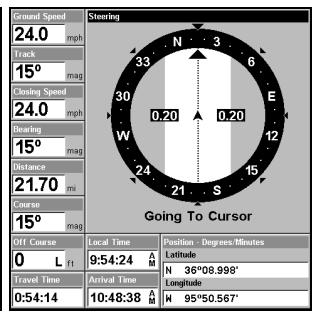
The 15-mile zoom figure at left clearly shows the dotted course line connecting your current position to your destination. The 40-mile zoom, center, shows both current position and destination on screen. The Navigation Page, right, will also show navigation information.
To stop navigating to the cursor, use the Cancel Navigation command: press MENU|MENU| to CANCEL NAVIGATION|ENT| to YES|ENT. The unit stops showing navigation information.
Navigate to a Point of Interest
For POIs that are in view on the map, you can easily use the Navigate to Cursor command above; just use the cursor to select the POI.
The other method involves searching for POIs with the Find Waypoint command, launched with the WPT key. (See the searching example ear-
lier in this section, or turn to Sec. 6, Searching, for detailed instructions on POI searches.)
After you have looked up an item with the Find Waypoint command, use or to make sure the GO TO WAYPOINT command is highlighted at the top of the screen, then press ENT. The unit begins showing navigation information to the item.
To cancel navigation, press MENU|MENU| to CANCEL NAVIGATION|ENT| to YES|ENT. The unit stops showing navigation information.
Creating and Saving a Trail
A trail, or plot trail, is a string of position points plotted by the unit as you travel. It's a travel history, a record of the path you have taken. Trails are useful for repeating a journey along the same track. They are particularly handy when you are trying to retrace your trip and go back the way you came. On the screen, trails are represented by a solid line extending from the back of the current position arrow.
The unit is set at the factory to automatically create and record a trail while the unit is turned on. The unit will continue recording the trail until the length reaches the maximum trail point setting (default is 2,000, but the unit can record trails 9,999 points long). When the point limit is reached, the unit begins recording the trail over itself.
By default, the trail flashes once a second, making it easier to see against the background map. With the default auto setting, this unit creates a trail by placing a dot (trail point) on the screen every time you change directions. (The methods used for creating a trail and the trail update rate can both be adjusted or even turned off. See Sec. 5 for Trail Options.)
To preserve a trail from point A to point B, you must "turn off" the trail by making it inactive before heading to point C or even back to point A. When the current trail is set inactive, the unit automatically creates and begins recording a new trail.
To Save a Trail
- Press MENU|MENU| to MY TRAILS|ENT.
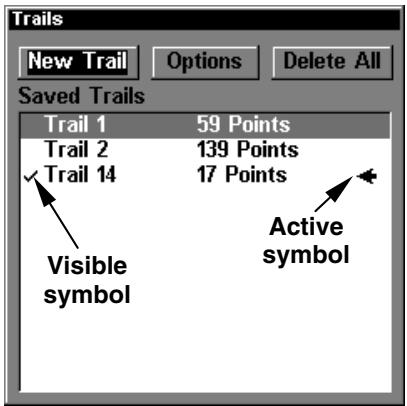
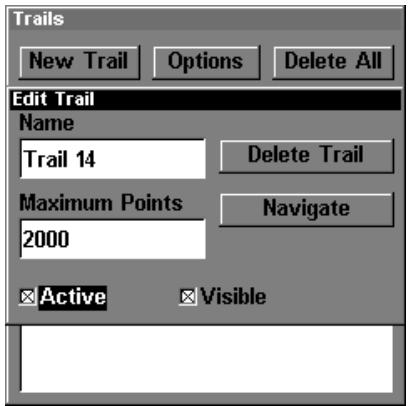
Sequence for saving a trail and beginning a new one (after My Trails command is selected). Left, the Trails Menu. The arrow to the right of Trail 14 indicates the trail is "active," and the check to the left indicates the trail is visible on the map display. The right figure shows the Edit Trail menu, with the Active command selected.
- Press to the Active Trail Name|ENT.
- Press to Active|ENT. This unchecks the Active option.
- To return to the previous page, press EXIT|EXIT|EXIT|EXIT. As you leave the Edit Trail menu, you will notice that a new trail starts with a new sequential number. In the example figure below, the new trail is number 15, showing zero points. Note that Trail 14 is inactive, but it is still visible on the map.
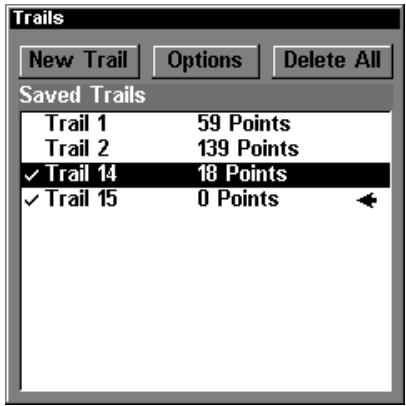
New trail, named "Trail 15," is created when Trail 14 is made inactive. Any new travel will be recorded in this trail, which is active and visible. Trails do not need to be visible in order to be active.
You can save and recall up to 10 different plot trails, which can also be copied to your MMC for archiving or for transfer to your MapCreate software.
Tip:
Another quick way to stop recording one trail and begin a new one is to use the New Trail command: Press MENU|MENU| to My TRAILS|ENT|ENT.
Caution:
You also have the option of completely turning off trail recording, under the Trail Options command. However, if the Update Active Trail option is left turned off, it will cancel the automatic trail creation feature.
Displaying a Saved Trail
The active trail is automatically displayed on the map (the "Visible" option) with the factory default settings. You can selectively turn trail display off and on for any saved or active trail. In the Saved Trails List, visible trails have a check mark in front of the trail name.
To turn off trail display:
- Press MENU|MENU|to MY TRAILS|ENT.
- Press | to enter the Saved Trail list, then use or to select the desired Trail Name|ENT.
- Press to ACTIVE| to VISIBLE|ENT. To return to the previous page, press EXIT|EXIT|EXIT|EXIT.
To turn on trail display:
- Press MENU|MENU|to MY TRAILS|ENT.
- Press | to enter the Saved Trail list, then use or to select the desired Trail Name|ENT.
- Press to ACTIVE to VISIBLE | ENT. To return to the previous page, press EXIT | EXIT | EXIT | EXIT.
Navigating Trails
There are three methods for following a trail: visual trailing, navigating a trail (forward) and backtracking a trail (backward). Try each method to see which you prefer.
Visual trailing is the simplest method. It uses only the Map Page and requires no menu commands at all. The technique works the same if you are running a trail forward (from start to end) or backward (from
end to start.) However, visual trailing provides no navigation information during the trip, such as the time to your destination.
The other two methods provide a full range of navigation data and work with both the Map Page and Navigation Page. The only difference between them is "navigating a trail" follows a trail forward (from start to end) while "backtracking" follows a trail in reverse (from end to start.)
When hiking at walking speed with a hand-held GPS, we often just use visual back trailing because it is a bit better at following each little turn on a foot path. At faster speeds, such as the highway or on the water, the Navigate Trail and Backtrack Trail commands are handy.
Visual Trailing
- On the Map Page, zoom (ZIN or ZOUT) so your flashing trail is visible.
- Begin moving and watch the Map Page. Simply walk or steer so that your current position arrow traces along the trail you have just made.
Tip:
Generally, when using this method, the smaller the zoom range, the more accurately you will be able to steer along the trail.
Navigate a Trail (forward)
The following figures illustrate the menu sequence for navigating a trail.
- Press MENU|MENU|to MY TRAILS|ENT.
- Press | to enter the Saved Trail list, then use or to select the desired Trail Name|ENT.
- Press to DELETE TRAIL | to NAVIGATE | ENT.
- Press to NAVIGATE|ENT. The unit begins showing navigation information along the trail.
NOTE:
If you are already located at or near the beginning of your trail, the arrival alarm will go off as soon as you hit Enter. Just press EXIT to clear the alarm and proceed.
- Now, begin moving and follow your unit.
- When you reach your destination, be sure to cancel your navigation: press MENU|MENU| to CANCEL NAVIGATION|ENT. The unit asks if you're sure; press |ENT.
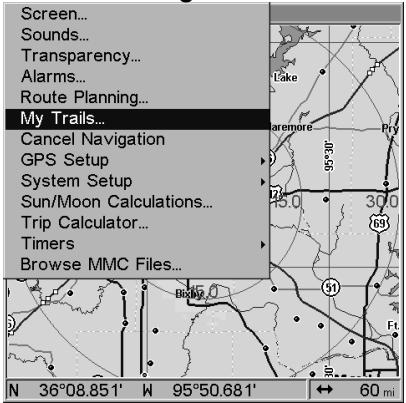
Figure 1.
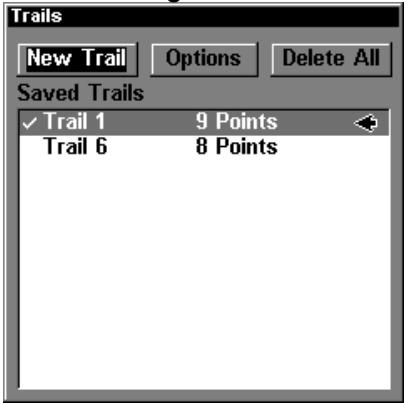
Figure 2.
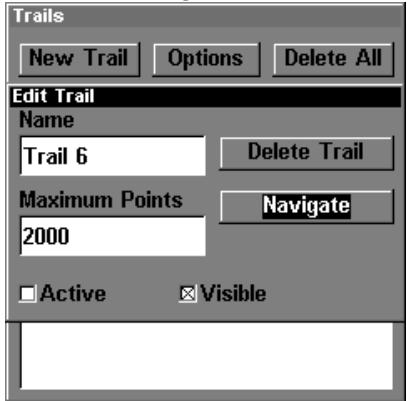
Figure 3.
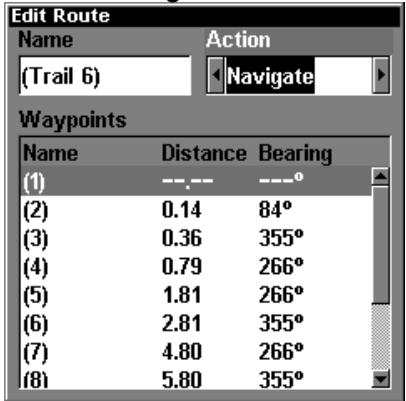
Figure 4.
Navigate a trail menu sequence: Fig. 1, My Trails command. Fig. 2, Trails Menu. Fig. 3, Edit Trail Menu. Fig. 4, Edit Route Menu with Navigate command highlighted for Trail 6. A trail is always converted to a "route" when you navigate the trail.
On the Map Page, the trail you are navigating is represented by a dotted line that alternates with a flashing solid line. The Navigation Page will also show the navigated trail as a dotted line. The bearing arrow on the compass rose points to the next waypoint on the trail.
As you travel, the arrival alarm will go off when you near a trail waypoint, and the bearing arrow on the compass rose will swing around and point to the next trail waypoint. Press EXIT to clear the alarm.
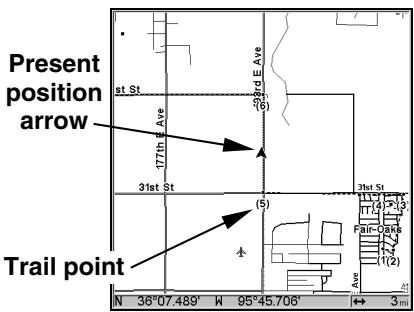
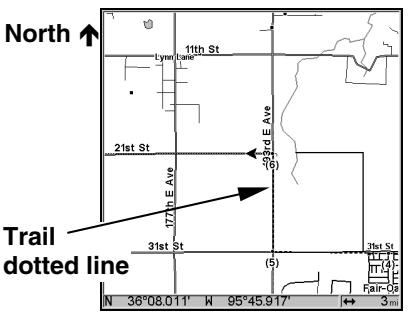
Navigate trail, map views: at left driver is northbound heading straight toward trail point 6. At right, northbound driver has reached point 6 and has turned west to follow trail.
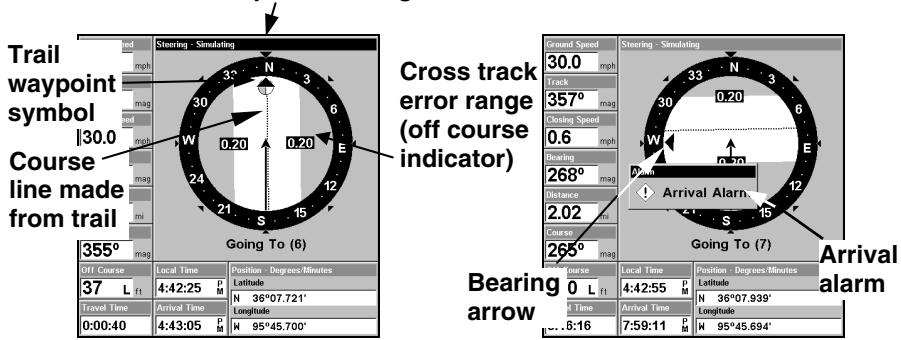
Track or compass heading indicator
Navigate trail, navigation page (compass rose) views: at left, driver is northbound heading straight toward trail point 6; bearing arrow shows the trail point is due north (straight ahead.) At right, driver has reached trail point 6 and must turn west to follow the trail. Arrival alarm goes off and bearing arrow swings around to say turn left (west), toward the next waypoint, trail point 7. The unit now shows navigation information to point 7, which is 2.02 miles away.
Navigate a Back Trail (backtrack, or reverse)
- Press MENU|MENU| to MY TRAILS|ENT.
- Press | to enter the Saved Trail list, then use or to select the desired Trail Name|ENT.
- Press to DELETE TRAIL | to NAVIGATE | ENT.
- Press to NAVIGATE | to REVERSE |ENT| to NAVIGATE |ENT. The unit begins showing navigation information along the trail, in reverse.
NOTE:
If you are already located at or near the end of your trail, the arrival alarm will go off as soon as you hit ENTER. Just press EXIT to clear the alarm and proceed.
- Now, begin moving and follow your unit.
- When you reach your destination, be sure to cancel your navigation: press MENU|MENU| to CANCEL NAVIGATION|ENT. The unit asks if you're sure; press |ENT.
Transfer Custom Maps and GPS Data Files
Custom Maps:
Custom maps work only from the MMC card or SD card. When a card containing a Custom Map File is loaded into the unit, the unit automatically loads the map into memory when the unit is turned on.
Instructions for copying Custom Map Files to an MMC are contained in the instruction manual for your MMC card reader and MapCreate 6 software. For instructions on inserting an MMC into the unit, see Sec. 2, Installation/Accessories.
NOTE:
To load a Navionics® chart, see Sec. 5 for the entry Navionics Charts.
GPS Data files:
GPS Data Files contain waypoints, routes, trails and event marker icons. Instructions for copying GPS Data Files between your computer and an MMC are contained in the instruction manual for your MMC card reader and MapCreate 6 software.
GPS data automatically recorded in the unit's internal memory must be saved to the MMC (as a GPS Data File) in order to store it on your personal computer. GPS Data Files stored on an MMC must be copied from the card to the unit's internal memory before the unit can read them. Here's how:
- Insert the MMC into your unit. Press MENU|MENU| to SYSTEM SETUP|ENT| to TRANSFER MY DATA|ENT and the screen below appears.
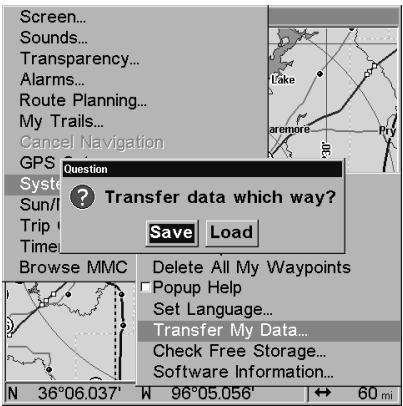
The Transfer My Data submenu asks if you want to save data to the MMC or load data from the MMC into the unit's memory.
- The Transfer My Data menu includes a message which tells you if an MMC is present or not. If no MMC is present, you must first insert a card into the unit in order to activate the Load or Save commands.
To transfer data from the unit to the MMC: press ENT (for SAVE.)
To transfer data from the MMC to the unit: press to LOAD|ENT.
- Saving to MMC: To accept the default name "Data" for the GPS Data File, press to SAVE DATA|ENT. If you wish to rename the file (as shown in the following figures), press ENT to activate the selection box. Press or to change the first character, then press to the next character and repeat until the name is correct. Then, press ENT| to SAVE DATA|ENT.
The unit will display first a progress then a completion message when the data transfer is finished. To return to the Page view, repeatedly press EXIT.
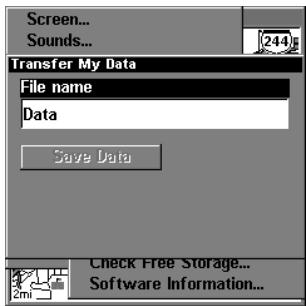
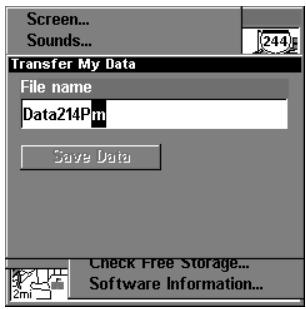
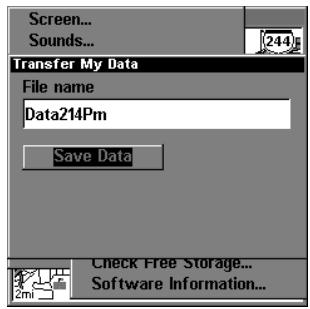
From left to right, these figures show the menu sequence for naming and saving a GPS Data File from the unit's memory to an MMC.
- Loading to unit memory: There may be more than one GPS Data File (*.USR) on the card. To select a file, press ENT to activate the selection box, use ↓ or ↑ to highlight the file, then press ENT to accept the selection. Next, press ↓ to LOAD DATA|ENT. The unit will display a completion message when the data transfer is finished. To return to the Page view, press EXIT|EXIT|EXIT|EXIT.
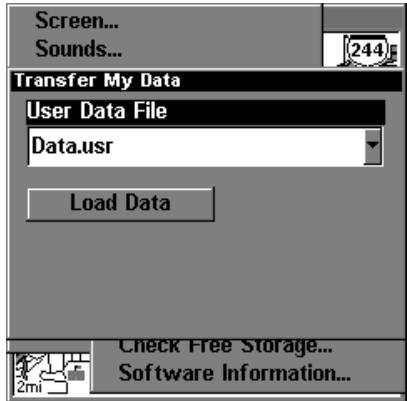
Figure 1.
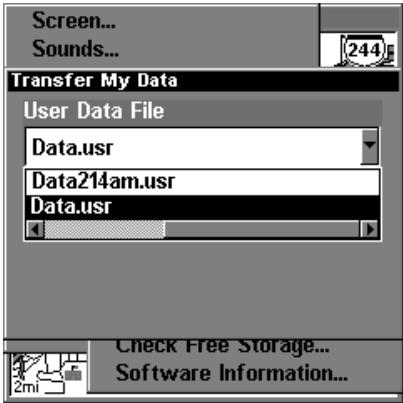
Figure 2.
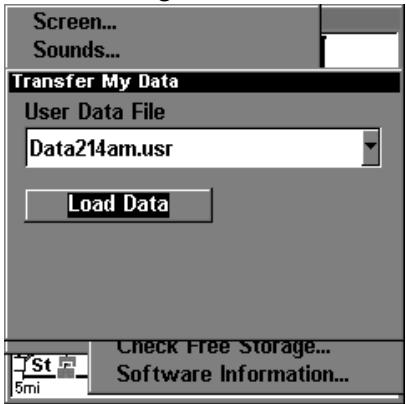
Figure 3.
Figure 4.
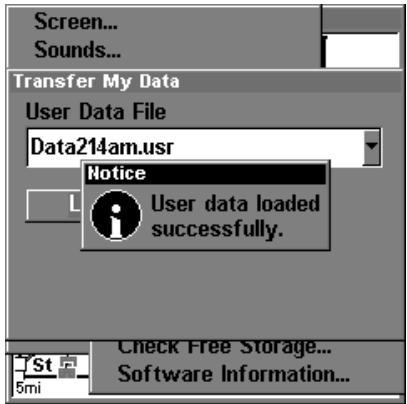
These figures show the menu sequence for loading a GPS Data File from an MMC into the unit's memory.
Cancel Navigation
You can turn off any of the navigation commands after you reach your destination or at any other time by using the Cancel Navigation command. Press MENU|MENU| to CANCEL NAVIGATION|ENT| to YES|ENT.
Section 4: Advanced GPS Operations
Find Distance From Current Position to Another Location
- While on the Map Page press: MENU | ↓ to FIND DISTANCE | ENT.
- Center your cursor over the position you want to find the distance to. A rubber band line appears, connecting your current position to the cursor's location. The distance along that line will appear in a pop-up box. The box also shows the bearing to the point you're measuring to.
- Press EXIT to return to regular operation.
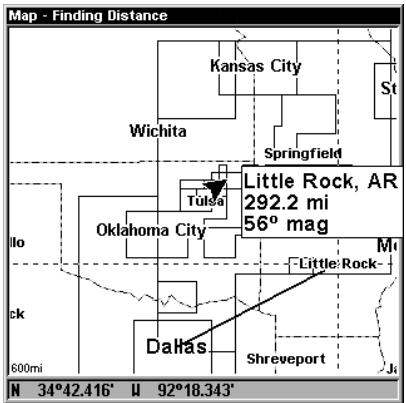
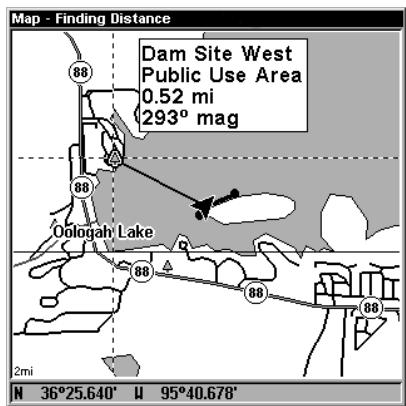
At left, the distance from Dallas to Little Rock is 292.2 miles. At right, the distance from the boat's current position to the boat ramp is 0.52 miles.
Find Distance From Point to Point
You can also measure distance between two other points on the map.
- While on the Map Page press: MENU | ↓ to FIND DISTANCE | ENT.
- Center your cursor over the first position. (A rubber band line appears, connecting your current position to the cursor's location.) Press ENT to set the first point, and the rubber band line disappears.
- Move the cursor to the second position. The rubber band line reappears, connecting the first point you set to the cursor. The distance along that line will appear in the pop-up box.
- Press EXIT to clear the command and return to the page screen. (Press EXIT once more to clear the cursor.)
Icons
Icons are graphic symbols used to mark some location, personal point of interest or event. They can be placed on the map screen, saved and recalled later for navigation purposes. These are sometimes referred to as event marker icons. This unit has 42 different symbols you can pick from when creating an icon.
Icons are similar to waypoints, but they do not store as much information (like names) as waypoints do. You can't use a menu to navigate to icons as you can with waypoints. (But, you can use the map cursor and navigate to any icon on the map.)
You can create an icon at the cursor position on the map, or at your current position while you are navigating.
Create Icon on Map
- Use the arrow keys to move the cursor to the place where you want to make an icon.
- Press ENT and the screen shows a "Select Icon Symbol" menu.
- Press or or or to select your icon symbol, then press ENT. The icon appears on the map.
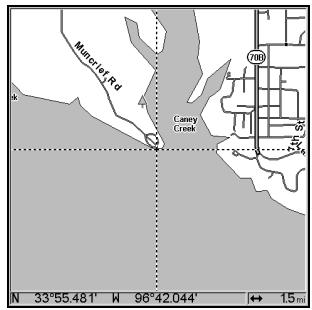
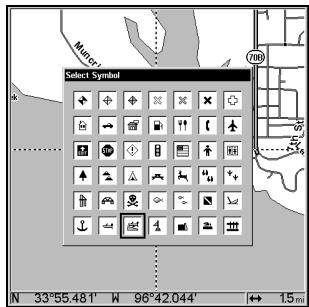
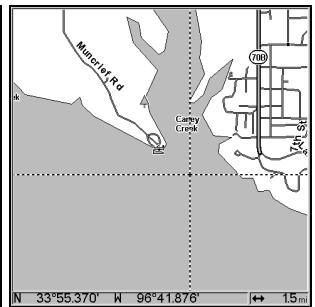
Cursor selects icon location, left; Select Icon Symbol menu, center; Boat Ramp icon on map, right. (Cursor has been moved for clarity.)
Create Icon at Current Position
- While you are traveling, press ENT and the screen shows a "Select Icon Symbol" menu.
- Press or or or to select your icon symbol, then press ENT. The icon appears on the map.
Delete an Icon
You can delete all the icons at one time, you can delete all icons represented by a particular symbol, or you can use the cursor to delete a selected icon from the map.
- Press MENU | ↓ to DELETE MY ICONS | ENT.
- Press to DELETE ALL ICONS, DELETE BY SYMBOL, or DELETE FROM MAP and press ENT.
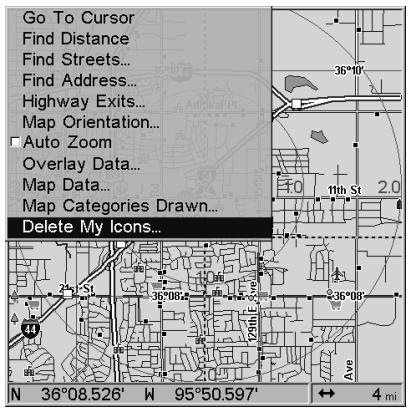
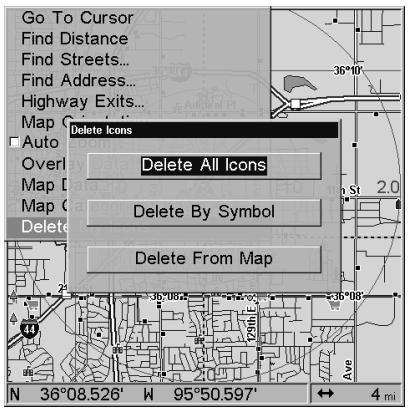
Delete icons menu.
The Delete All Icons command will ask if you are sure. Press to Yes|ENT. All icons will be deleted from the map.
The Delete by Symbol command will launch the Select Symbol menu. Press or or or to select the icon symbol to delete, then press ENT. A message appears saying all icons with the selected symbol have been deleted.
The Delete From Map command will prompt you to move the cursor over an icon to select it. After selecting the icon, press ENT and it disappears from the map.
Navigate to an Icon
Use the Navigate to Cursor command, and use the cursor to select the desired icon on the map.
- Use arrow keys to center cursor cross-hair over the icon.
- To navigate to the selected icon location: press MENU|ENT|EXIT. Follow course line on the Map Page or the compass bearing arrow on the Navigation Page.
Routes
A route is a series of waypoints, linked together in an ordered sequence, that's used to mark a course of travel. You can visualize a route as a string of beads: The beads represent waypoints and the string represents the course of travel connecting waypoint to waypoint.
The course from one waypoint to the next is a leg; routes are composed of one or more legs. The legs of all GPS routes are based on straight lines between waypoints.
A route provides the automatic capability to navigate through several waypoints without having to reprogram the unit after arriving at each waypoint. Once programmed into the GPS unit, a route provides the option of navigating forward through the route waypoints or in reverse order (you can even begin navigating in the middle of a route!).
Create and Save a Route
You have the option of creating and editing a route in the unit, or you can make a route on your computer with our MapCreate 6 software.
PC-created Routes
MapCreate is the easiest method for preparing a route, simply because your PC's larger screen, keyboard and mouse are easier to manipulate than the unit.
To load a MapCreate route into the unit, follow instructions in MapCreate's manual for creating a route and saving it as part of a GPS Data File (file format *.usr). Copy the GPS Data File to an MMC and insert the MMC in the unit. (See Sec. 2 for instructions on installing MMCs. To load the GPS Data File into the unit's memory, see the entry on Transfer Custom Maps & GPS Data Files in Sec. 3, Basic GPS Operations.)
Routes Created in the Unit
You can create a route by selecting existing waypoints from the waypoint list or you can set a series of route waypoints on the map with cursor arrows and the Enter key. In this example, we'll create a route from the map.
- From the NAVIGATION PAGE, press MENU|ENT or from the MAP PAGE, press MENU|MENU| to ROUTE PLANNING|ENT|ENT.
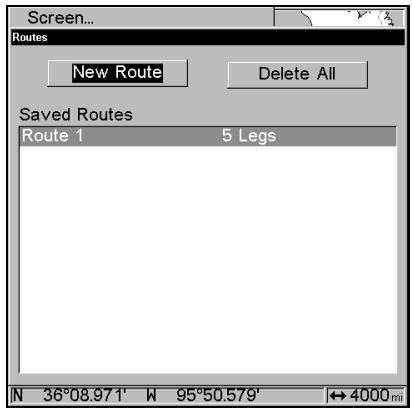
Selecting the Route Planning command on Main Menu will open the Route List screen.
- Press to (END OF ROUTE) | ENT | to ADD FROM MAP | ENT. The Map Page appears with the cursor showing.
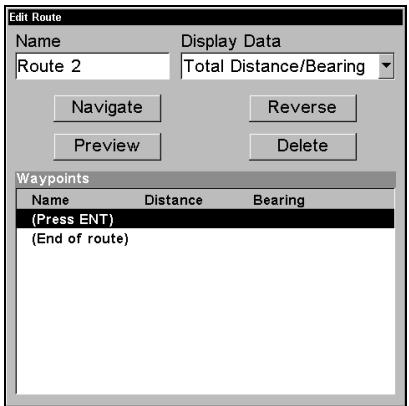
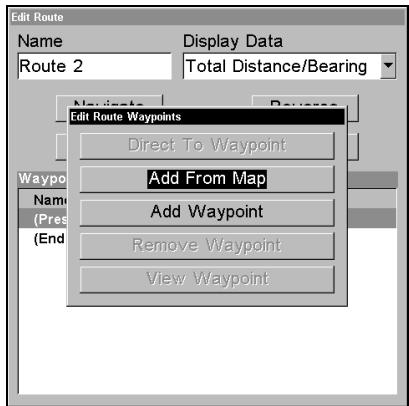
Edit Route menu, left. Edit Route Waypoints menu, right, with Add From Map command selected.
- Use the Zoom keys and arrow keys to move the map and cursor until the cursor is centered on the spot where you want your route to begin. (If you are starting at your current position or the current cursor position, you are already at the starting spot.)
- Set the first route waypoint: press ENT. In this example, we moved to the intersection of 11th Street and 145th E. Ave. to start our route to a public hunting area next to a river. (Creating this example route is illustrated in the following figures.)
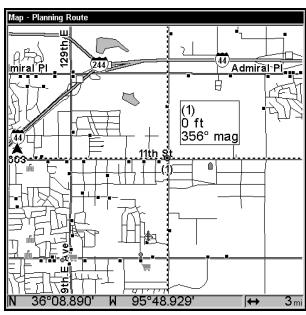
1.
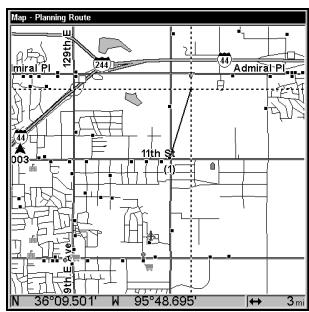
2.
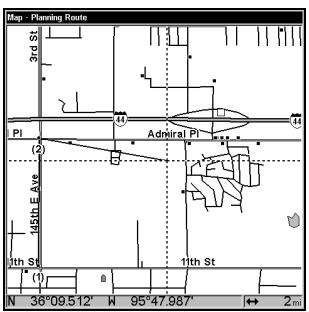
3.
Route creation sequence, from left: Fig. 1. Set route waypoint (1) at 11th St. & 145th Ave. Fig. 2. Zoom in; move cursor north to set point (2) at 145th & Admiral. Fig. 3. With point (2) set, move cursor east to mark interstate on-ramp with waypoint (3). In figures 2 and 3, notice the rubber band line extending from the previously set waypoint to the cursor. This line will become the course for the route.
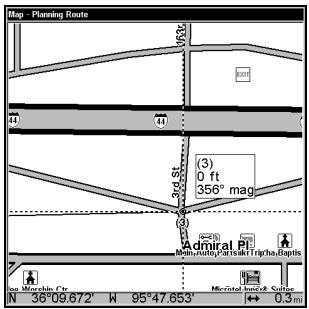
4.
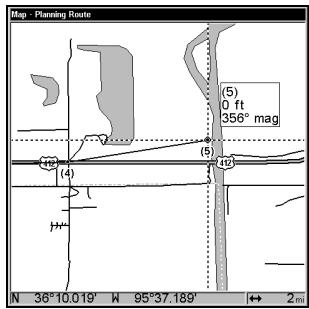
5.
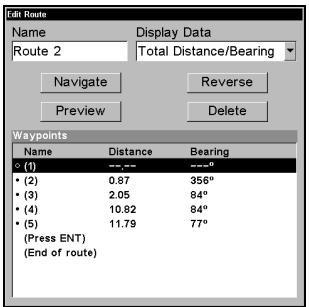
6.
Route creation sequence, continued: Fig. 4. Point (3) set at on-ramp turn. Fig. 5. Waypoint (4) set at highway exit to frontage road leading to river. Waypoint (5) ends the route at a tree stand in the hunting area. Fig. 6. Press EXIT to save the route and you return to this screen.
- Move the cursor to the next point in the route, a spot where you need to turn or change direction, and press ENT to set the next waypoint.
- Repeat step five until the route reaches your destination.
- To save your route, press EXIT. The unit reverts to the Edit Route screen, with the route automatically named "Route 1" and stored in the unit's internal memory. (In our example, Route 1 already existed, so the unit automatically made "Route 2.")
You can edit the route and run other commands, but if you are finished with the route for now, return to the last page displayed by pressing EXIT|EXIT|EXIT|EXIT|EXIT.
Delete a Route
- From the NAVIGATION PAGE, press MENU|ENT or from the MAP PAGE press MENU|MENU| to ROUTE PLANNING|ENT.
- Press to route name|ENT.
- Press to NAVIGATE|ENT| to DELETE|ENT| to YES|ENT.
Tip:
You can also delete all routes at once:
- From the NAVIGATION PAGE, press MENU | ENT or from the MAP PAGE press MENU | MENU | to ROUTE PLANNING | ENT.
- Press to DELETE ALL | ENT | ← to YES | ENT.
Edit a Route Name
You can edit the route name if you wish.
- From the NAVIGATION PAGE, press MENU|ENT or from the MAP PAGE press MENU|MENU| to ROUTE PLANNING|ENT.
- Press to route name|ENT|ENT.
- Press or to change the first character, then press to move the cursor to the next character and repeat until the name is correct, then press ENT. Return to the previous page by pressing EXIT|EXIT|EXIT|EXIT.
Edit Route Waypoints
You can edit the route by adding and removing waypoints.
- From the NAVIGATION PAGE, press MENU|ENT or from the MAP PAGE press MENU|MENU| to ROUTE PLANNING|ENT.
- Press to route name|ENT| to ROUTE WAYPOINTS LIST. Use and to select a waypoint, then press ENT.
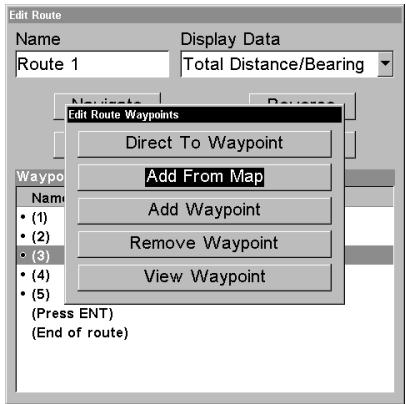
Edit Route Waypoints menu.
- Use and to select a command from the Edit Route Waypoints menu and press ENT. Add From Map lets you insert a waypoint in the route by clicking on a map location with the cursor. Add Waypoint calls up the Waypoint List so you can insert a waypoint from the list. Remove Waypoint will delete the waypoint from the route. View Waypoint will show you where the selected waypoint is on the map.
NOTE:
When adding waypoints to a route, the inserted waypoints will appear in the route in front of the waypoint you have selected. To insert waypoints at the end of the route, make sure to select "End of route)" before adding them.
Navigate a Route
- From the NAVIGATION PAGE, press MENU|ENT or from the MAP PAGE, press MENU|MENU|↓ to ROUTE PLANNING|ENT.
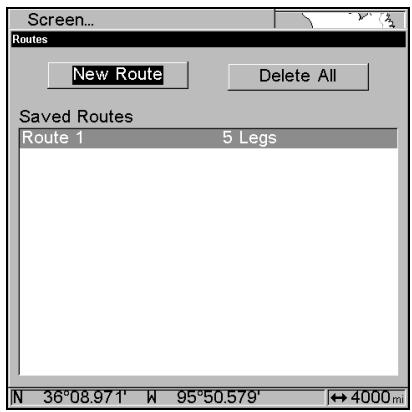
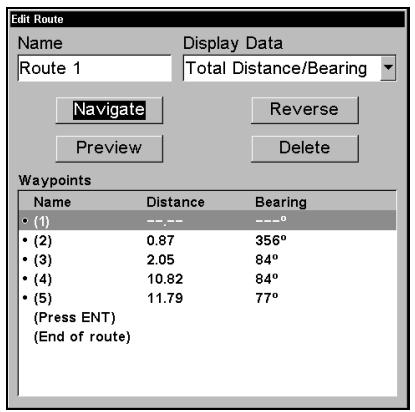
Selecting the Route Planning command on Main Menu brings up the Routes menu, left. Edit Route menu, right. Navigate command is selected in the Action box.
- Press to select route name|ENT| to NAVIGATE|ENT.
- Upon arrival at your destination, cancel navigation: press MENU|MENU|to CANCEL NAVIGATION|ENT|← to YES|ENT.
The following figures show what the Navigation Page and Map Page look like while navigating a route.
Navigate a Route in Reverse
Here's how you run a route backward, from the end waypoint to the beginning waypoint:
-
From the NAVIGATION PAGE, press MENU|ENT or from the MAP PAGE, press MENU|MENU| to ROUTE PLANNING|ENT.
-
Press to select route name|ENT| to NAVIGATE to REVERSE|ENT to NAVIGATE|ENT.
- Upon arrival at your destination, cancel navigation: press MENU|MENU| to CANCEL NAVIGATION|ENT| to YES|ENT.
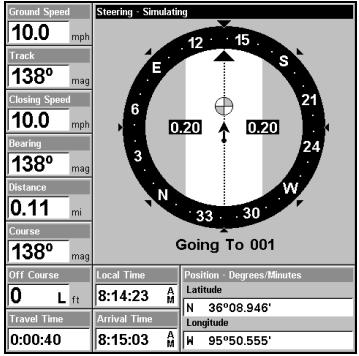
Figure 1.
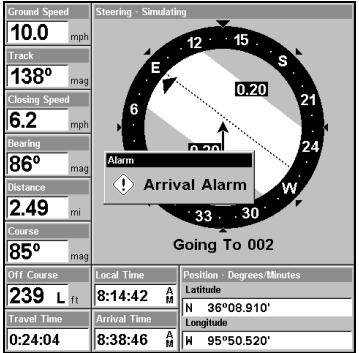
Figure 2.
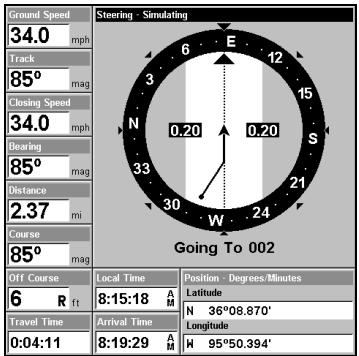
Figure 3.
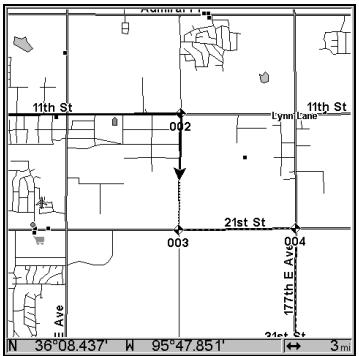
Figure 4.
Navigating along a route: Fig. 1 shows the Navigation Page at the start of a route, heading straight for the first waypoint (Wpt 1). In Fig. 2, the traveler has arrived at Wpt 1; the arrival alarm has been triggered and the bearing arrow on the compass rose has turned to point toward Wpt 2, off to the east. In Fig. 3 the traveler has turned east on his new course and is heading straight for Wpt 2, which is 2.37 miles away. Fig. 4 shows route navigation on the Map Page. In this figure, the traveler has reached Wpt 2 and is half-way along the leg between Wpts 2 and 3.
Trails
Delete a Trail
This is the command used to erase or delete a trail:
Press MENU|MENU| to MY TRAILS|ENT| to trail name|ENT| to DELETETRAIL|ENT| to YES|ENT.
Tip:
You can also delete all trails at once:
- Press MENU|MENU| to MY TRAILS|ENT.
- Press to DELETE ALL | ENT | ← to YES | ENT.
Edit a Trail Name
To edit a trail name: press MENU|MENU| to My TRAILS|ENT| to trail name|ENT|ENT. Press or to change the first character, then press to the next character and repeat until the name is correct. Press ENT then EXIT|EXIT|EXIT|EXIT to return to the previous page display.
Tip:
You can quickly call up the Edit Trail menu by selecting a trail on the map with the cursor. Simply move the cursor over a trail and a pop-up box appears. Press WPT and the Edit Trail menu opens.
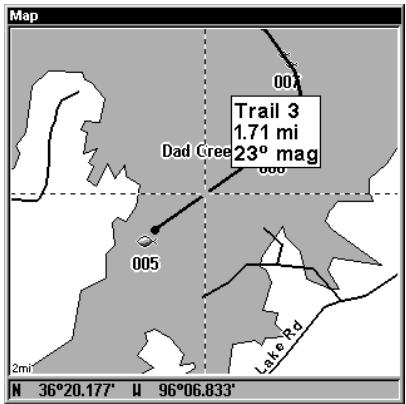
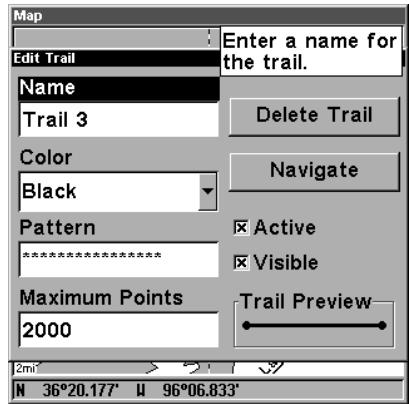
At left, trail selected with map cursor. The pop-up box shows distance and bearing from current position to the selected point on the trail. At right, the Edit Trail menu.
Edit a Trail Color
To edit a trail color: press MENU|MENU| to My TRAILS|ENT| to trail name|ENT| to COLOR|ENT. Press or to select a color style, then press ENT. Press EXIT|EXIT|EXIT|EXIT to return to the previous page display.
Edit a Trail Pattern
To edit a trail pattern: press MENU|MENU|↓ to MY TRAILS|ENT|↓ to trail name|ENT|↓ to PATTERN|ENT. Press ↑ or ↓ to change the first character, then press → to the next character and repeat until the pattern is correct. Press ENT, then EXIT|EXIT|EXIT|EXIT to return to the previous page display.
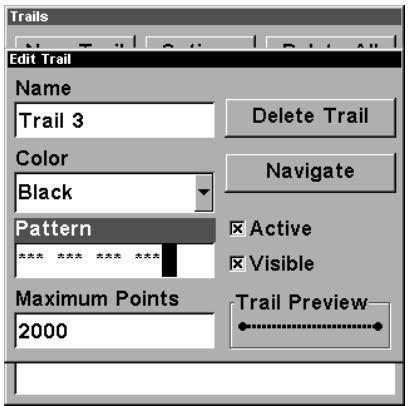
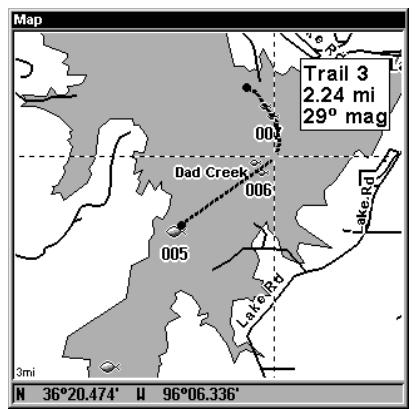
At left, Edit Trail Menu with Pattern option selected. At right, edited trail with dotted line pattern.
Utilities
Utilities are useful tools for traveling or for outdoor activities.
Alarm Clock
To get to the alarm clock menu: press MENU|MENU| to TIMERS|ENT| to ALARM CLOCK|ENT.
Sun/Moon Rise & Set Calculator
To get to the Sun/Moon menu: press MENU|MENU| to SUN/MOON CALCULATIONS |ENT.
Trip Calculator
To get to the Calculator menu: press MENU|MENU| to TRIP CALCULA- TOR|ENT.
Trip Down Timer
To get to the Down Timer menu: press MENU|MENU| to TIMERS|ENT| to DOWN TIMER | ENT.
Trip Up Timer
To get to the Up Timer menu: press MENU|MENU| to TIMERS|ENT|ENT.
Waypoints
Delete a Waypoint
To delete a waypoint from the waypoint list: press WPT|ENT|ENT|ENT| to waypoint name|ENT| to DELETE WAYPOINT|ENT| to YES|ENT. To return to the previous page, press EXIT|EXIT.
To delete a waypoint from the map
-
Use the arrow keys to select the waypoint with the cursor.
-
Press WPT| to DELETE WAYPOINT|ENT| to YES|ENT. To return to the previous page and clear the cursor, press EXIT.
To delete all waypoints at one time: press MENU|MENU| to SYSTEM SETUP|ENT| to DELETE ALL MY WAYPOINTS|ENT| to YES|ENT. To return to the previous page, press EXIT|EXIT.
Edit a Waypoint
Waypoint Name
To edit waypoint name:
- Press WPT|ENT|ENT|ENT| to waypoint name|ENT| to EDIT WAYPOINT|ENT|ENT.
- Press or to change the first character, then press to the next character and repeat until the name is correct. Press ENT then EXIT|EXIT|EXIT|EXIT to return to the previous page display.
Waypoint Symbol
To edit waypoint symbol:
- Press WPT|ENT|ENT|ENT| to waypoint name|ENT| to EDIT WAYPOINT|ENT| to CHOOSE SYMBOL|ENT.
- Use arrow keys to select desired symbol and press ENT. To return to the previous page, press EXIT | EXIT | EXIT | EXIT.
Waypoint Position
To edit waypoint position:
- Press WPT|ENT|ENT|ENT| to waypoint name|ENT| to EDIT WAYPOINT|ENT.
- Latitude: press to LATITUDE|ENT. Press or to change the first character, then press to the next character and repeat until the latitude is correct. Press EXIT.
- Longitude: press to LONGITUDE | ENT. Press or to change the first character, then press to the next character and repeat until the longitude is correct. Press EXIT.
- When latitude and longitude are correct, return to the previous page: press EXIT|EXIT|EXIT|EXIT.
Selecting a Waypoint
To select a waypoint on the map (for navigating to, for editing, etc.), use the arrow keys and center the cursor over the waypoint. A highlighted halo will appear around the waypoint.
Set a Waypoint by Average Position
This feature sets a waypoint at the current position after taking several position readings and averaging them. This boosts waypoint position
accuracy by helping to eliminate errors caused by atmospheric conditions and other factors.
- Press WPT to SUBCATEGORY column to NEW | ENT.
- Press or to AVERAGE POSITION | ENT | press to CREATE | ENT.
- Wait while the unit takes points to average for the position. (The greater the number of points, the greater the accuracy.) When the desired number of points accumulates, press ENT to create and save the waypoint.
- The Edit Waypoint menu appears. You can simply save the waypoint by pressing EXIT | EXIT or you can edit the waypoint.
Set a Waypoint by Projecting a Position
This feature sets a waypoint at a point located a specific distance and bearing from a reference position. The reference position can be selected from your waypoint list, a map feature or from the Points of Interest list.
- Press WPT to SUBCATEGORY column to NEW | ENT.
- Press to PROJECTED POSITION | ENT | to CREATE | ENT.
- Press to CHOOSE REFERENCE|ENT. Use and to select a waypoint, map feature or Point of Interest. When the point has been selected, press ENT and the point's position appears as the reference position.
- Press to DISTANCE|ENT. Press or to change the first character, then press to the next character and repeat until the distance is correct. Press ENT.
- Press to BEARING|ENT. Press or to change the first character, then press to the next character and repeat until the bearing is correct. Press ENT.
- Press ↑ to PROJECTION|ENT. The Edit Waypoint menu appears. You can simply save the new projected waypoint by pressing EXIT|EXIT or you can edit the waypoint. (Press EXIT|ENT if you want to immediately begin navigating to the new waypoint.)
Notes
Section 5:
System & GPS Setup Options
Alarms
This unit has several GPS alarms. The factory default setting has all of these but the anchor alarm turned on. You can turn the alarms off and on and change their distance settings.
You can set an arrival alarm to flash a warning message and sound a tone when you cross a preset distance from a waypoint. For example, if you have the arrival alarm set to .1 mile, then the alarm will flash a message when you come within .1 mile of the recalled waypoint.
The off course alarm warns you when your track drifts too far to the right or left of the course line to the waypoint. For example, if the alarm is set to .1 mile, then the alarm flashes a message if you drift .1 of a mile or more to the right or left of the line to the waypoint.
The anchor alarm is triggered when you drift outside of a preset radius. Again, using the .1 mile as an example, if you're anchored and your boat moves more than .1 of a mile, the alarm will flash a message and sound a tone.
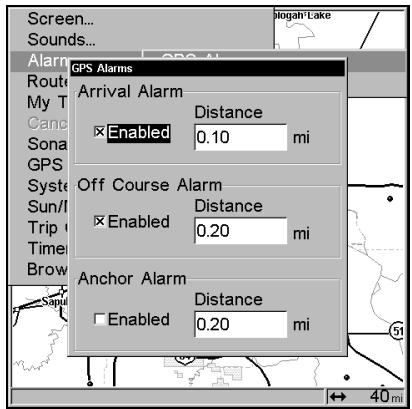
Selecting the Alarms command on Main Menu brings up Alarm menu.
To change alarm settings:
- Press MENU|MENUI< to ALARMS|ENT|ENT.
- Scroll or to select the desired category, then press ENT to check or clear the Enabled box. This turns the alarm on (checked) or off (unchecked.)
- To change distance settings, scroll or to select the desired category, then press |ENT to activate the distance dialog box. Press or
to change the first character, then press to the next character and repeat until the name is correct.
- When your adjustments are finished, return to the last page displayed by repeatedly pressing EXIT.
IMPORTANT ALARM NOTES:
Anchor Alarm - The anchor alarm may be triggered even when you're sitting still. This typically happens when using small (less than .05 mile) anchor alarm ranges.
Arrival Alarm - If you set the arrival alarm's distance to a small number and you run a route (see the Navigate Routes segment), this unit may not show navigation data to the next waypoint, once you arrive at the first one, since you may not be able to come close enough to the first waypoint to trip the arrival alarm.
Auto Satellite Search
To lock onto the satellites, the GPS receiver needs to know its current position, UTC time and date. (Elevation [altitude] is also used in the equation, but it's rarely required to determine a position.) It needs this data so that it can calculate which satellites should be in view. It then searches for only those satellites.
When your GPS receiver is turned on for the first time, it doesn't know what your position or elevation (altitude) is. It does know the current UTC time and date since these were programmed into it at the factory and an internal clock keeps the time while the unit is turned off. (If the time and/or date are incorrect, you can set it using the "Set Local Time" menu.)
The unit begins searching for the satellites using the above data that it acquired the last time it was turned on. This probably was at the factory. Since it's almost certain that you're not at our factory, it's probably looking for the wrong satellites.
If it doesn't find the satellites it's looking for after approximately one minute, it switches to Auto Search. The receiver looks for any satellite in the sky. Due to advanced technology, the auto search time has shrunk significantly from the early days of GPS.
Once the unit locks onto the satellites, it should take less than a minute to find your position the next time it's turned on, provided you haven't moved more than approximately 100 miles from the last location it was used.
Check MMC Files and Storage Space
To check MMC Files:
Press MENU|MENU| to BROWSE MMC FILES|ENT.
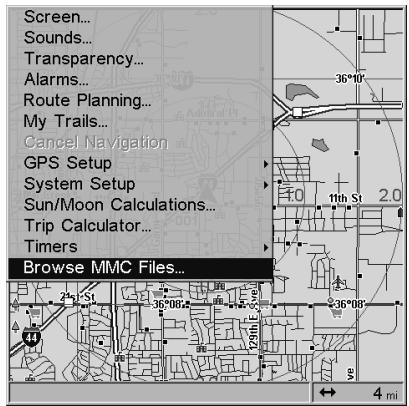
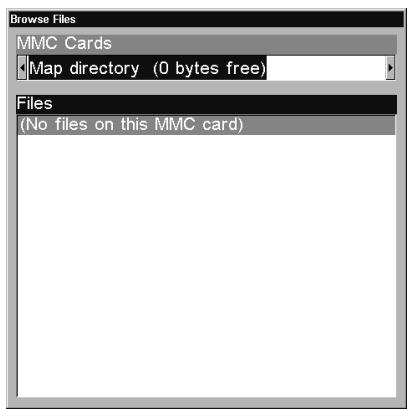
Main Menu, left, MMC File Browser, right.
Communications Port Configuration
The unit has one NMEA 0183 version 2.0 compatible communication port, or com port for short. The Com Port Menu, which is accessed from the System Setup Menu, allows you to configure the communications port to send or receive data to another electronic device, such as an autopilot. The com port can be used for NMEA data transfer.
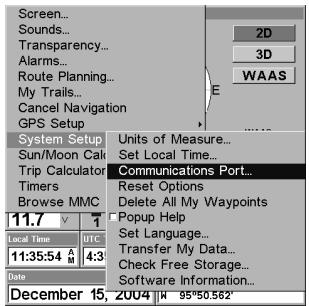
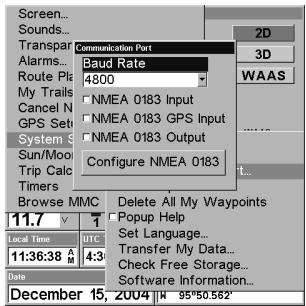
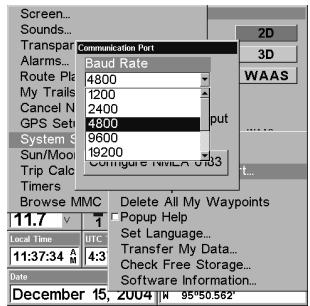
Menu for changing Com Port settings.
For connectors and wiring information for another device, see page 16. For assistance in configuring the unit to communicate with another device, consult the factory; customer service phone numbers are in the back of this manual. Also see the entry Configure NMEA. To set Com Port Configuration:
- Press MENU | MENU | ↓ to SYSTEM SETUP | ENT.
- Press to COMMUNICATIONS PORT | ENT.
Configure NMEA
You can configure the unit to use specific NMEA sentences.
-
Press MENU | MENU | ↓ to SYSTEM SETUP | ENT.
-
Press to COMMUNICATIONS PORT | ENT | to CONFIGURE NMEA | ENT.
- A menu appears showing the prefixes of the available NMEA sentences. A check mark next to a prefix means the prefix is in use. Use to select a prefix, then press ENT to turn off the prefix. (Press ENT again to check the box and turn a prefix on.)
- When the desired prefixes are checked or unchecked, press EXIT | EXIT | EXIT | EXIT to return to the previous page.
Coordinate System Selection
The Coordinate System Menu lets you select the coordinate system to use when displaying and entering position coordinates.
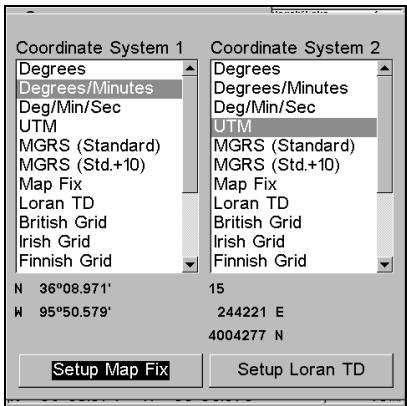
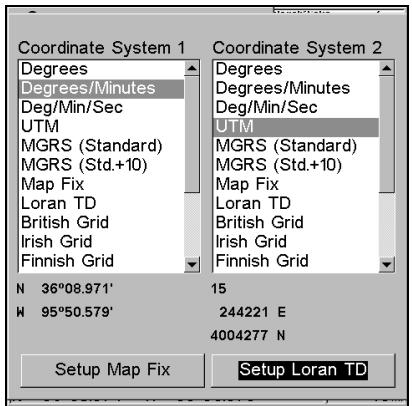
Menu for changing coordinate system used to display positions.
To get to Coordinate System Selection:
- Press MENU|MENU| to GPS SETUP|ENT.
- Press to COORDINATE SYSTEM|ENT.
This unit can show a position in degrees (36.14952^) ; degrees, minutes and thousandths of a minute (36^28.700') ; or degrees, minutes, seconds and tenths of a second (36^28'40.9") . It can also show position in: UTM (Universal Transverse Mercator) projection; MGRS (Standard); MGRS (Standard + 10); Map Fix; Loran TD; British, Irish, Finnish, German, New Zealand, Swedish, Swiss, Taiwan and Greek.
UTM's are marked on USGS topographic charts. This system divides the Earth into 60 zones, each 6 degrees wide in longitude.
British, Irish, Finnish, German, New Zealand, Swedish, Swiss, Taiwan, and Greek grid systems are the national coordinate system used only in their respective countries. In order to use these grid systems, you must be in the respective country. This unit will pick the matching datum for
you when you select the grid. See the entry on Map Datum Selection for more information.
The Military Grid Reference System (MGRS) uses two grid lettering schemes, which are referred to as standard and standard + 10 MGRS on this unit. Your position and datum in use determines which one to use. If you use standard, and your position is off significantly, then try the alternate.
NOTE: When the position format is changed, it affects the way all positions are shown on all screens. This includes waypoints.
To change the coordinate system, press ENT while COORDINATE SYSTEM is highlighted. Press the or arrow keys to highlight the desired format. Press ENT to select it. Press EXIT to erase the menus.
To setup Loran TD:
NOTE:
If the Loran TD conversion is chosen, you must enter the local Loran chain identification for the master and slaves. Do this by selecting "Setup Loran TD" at the bottom of the "Coordinate System" menu and select the ID. Press EXIT to erase this menu.
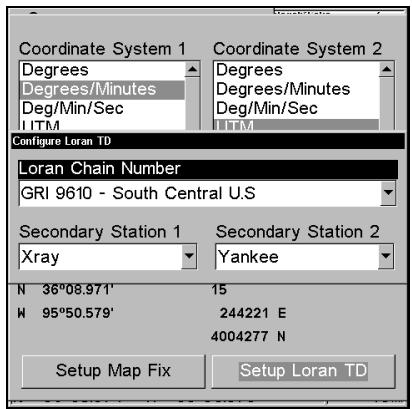
Configure Loran TD menu.
Map Fix
Map Fix is used with charts or maps. This system asks for a reference position in latitude/longitude, which you take from a marked location on the map. It then shows the present position as distance on the map from that reference point.
For example, if it shows a distance of UP 4.00" and LEFT 0.50", you then measure up four inches and to the left a half-inch from the reference point on the map to find your location.
To configure a map fix:
To use this format, you need to follow these steps in order. First, take your map of the area and determine a reference latitude/longitude. (Note: in order for this system to work, the latitude/longitude lines must be parallel with the edge of the map. USGS maps are parallel, others may not be. Also, this works better with smaller scale maps, such as 1:24000.) The reference position can be anywhere on the map, but the closer it is to your location, the smaller the numbers will be that you'll have to deal with.
Once you've decided on a reference position, you can save it as a waypoint. See the waypoint section for information on saving a waypoint. Save the reference position as a waypoint. Exit from the waypoint screens.
- Press MENU | MENU | to GPS SETUP | ENT.
- Press to COORDINATE SYSTEM|ENT.
- Press to SETUP MAP FIX | ENT.
The screen below appears, and MAP SCALE is highlighted. Press ENT and enter the map's scale. This is generally at the bottom of the paper map. It's shown as a ratio, for example 1:24000. Press EXIT and the unit returns to the Configure Map Fix screen.
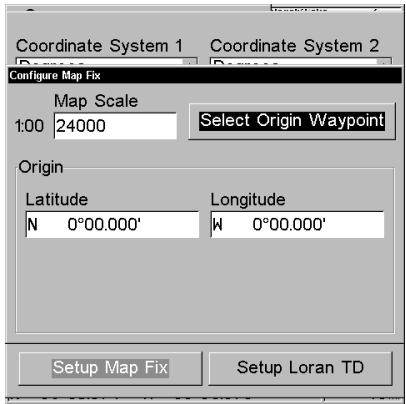
Configure a map fix so the unit can find your position on a printed chart or topographical map.
Press to SELECT ORIGIN|ENT|ENT|ENT to bring up the waypoint list. Select the waypoint that you saved the reference point under and press ENT. The unit displays a waypoint information screen with the command SET AS ORIGIN selected; press ENT and the unit returns to the Configure Map Fix menu. Finally, press EXIT to erase this menu. Now press TO COORD SYSTEM|ENT, select MAP FIX from the list and press ENT|EXIT.
All position information now shows as a distance from the reference point you chose.
Customize Page Displays
Every Page display option except Full Map (on the Map Page) has customizable data boxes to provide constant on-screen information.
The various data available from your unit are divided into categories in the Data Viewer menu. These categories include GPS Data, Navigation, Trip Calculator, Time and Miscellaneous Data. You can select items from any of these categories for display in any data box — the category divisions are only there to help you sort through the information.
To change the information displayed in a data box:
On the Page display you wish to change, press MENU | to CUSTOMIZE|ENT. A data box name flashes, indicating it is selected. Press ENT to change the box or hit , , or to select another box, then press ENT. You'll see a list of categories with "+" or "-" symbols next to each category. A category with a "+" is expandable, meaning its contents are currently hidden.
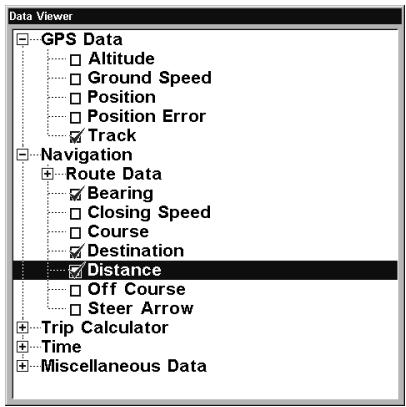
Customize Menu, with "GPS Data" and "Navigation" categories expanded.
Selecting the category name and pressing ENT will show the category's contents, so you can choose items within it. An expanded category (one with a "-" next to its name) can be collapsed to hide its contents. Just select the category name and press ENT.
Expand any categories that might contain data you want to display.
Then press or to select a different data option. With the new option highlighted, press ENT to switch the contents of the box to the new data type, then press EXIT. You can now select another box to change. When
you are finished with the settings, press EXIT again to end the Customize command, and the box name stops flashing.
A Page display can show a limited number of data boxes. You can not turn them off or add more data boxes.
GPS Simulator
The GPS simulator lets you use the unit as if you were outdoors navigating somewhere. It's a great way to practice using your unit. You can set the starting location by entering latitude/longitude (Starting Position) or from a stored waypoint, map place or POI location (CHOOSE START command). You can steer your position and change speed on the map by using the arrow keys (STEER WITH ARROWS command) or by setting the track and speed in the dialog boxes provided on the simulator menu screen.
To get to the GPS Simulator:
- Press MENU|MENU|to GPS SETUP|ENT.
- Press to GPS SIMULATOR | ENT. The GPS Simulator Menu appears.
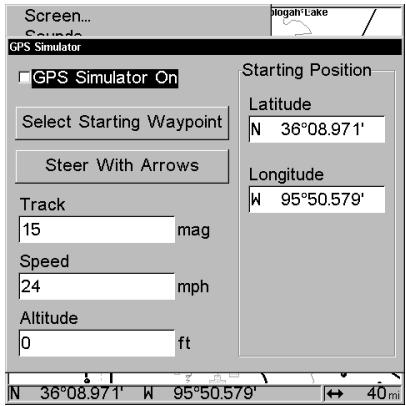
GPS Simulator menu.
Make the desired settings, then turn the simulator on by highlighting the GPS SIMULATOR ON box and pressing ENT key. Press EXIT|EXIT|EXIT to erase this menu. A message and tone appear periodically, warning you that the simulator is on. To turn the simulator off, repeat the above steps or turn the unit off.
While in simulator mode, you can press EXIT to clear the steering and speed boxes from the screen while continuing the simulation. This will allow you to use the map cursor during a simulation. To turn steering and speed boxes back on again, return to the GPS Simulator menu, select the STEER WITH ARROWS command, press ENT, then Press EXIT|EXIT|EXIT to return to the previous page.
Simulating Trail or Route Navigation
In Simulator mode, your unit can automatically follow a trail or route without manual steering if you use these steps:
- From the Map Page, go to the simulator menu. Pick a STARTING POSITION at or near the beginning of your trail/route. Enter an approximate TRACK (shown in compass degrees) that will point you toward the start of the trail/route.
- Set SPEED to zero. Select STEER WITH ARROWS command and press ENT, which turns on the simulator and returns you to the Map Page.
- Begin navigating along the trail/route. (If you are close enough to the first waypoint, the arrival alarm will usually go off as soon as navigation begins. Press EXIT to clear the alarm.) When navigation starts, press to increase speed to the desired setting.
- Press EXIT to turn off the steering and speed boxes. The unit will now automatically "steer" along the trail or route. When you arrive at your "destination," cancel navigation as you normally do.
Tip:
You can pick any spot on the map to begin your simulation session by using the Initialize GPS command. This makes your unit think it's located at the position you select. See its entry following the entry for Hide GPS Features.
Initialize GPS
This command is handy when you are practicing in simulator mode. (See the entry in this section for GPS Simulator.) In simulator mode, this command makes the unit operate as if it is sitting someplace other than its actual location. So, you and your unit could be located in Kansas City, but easily practice navigating in the ocean off Islamorada, Florida.
- Press MENU|MENU|to GPS SETUP|ENT|ENT.
- A message appears, telling you to move the cursor near the desired location and press ENT. When the message automatically clears, follow the message instructions.
- In a moment, your present position marker arrow appears on the map in the location you selected with the cursor. The unit will consider that spot as its last known position until changed by either a live satellite lock-on or a new simulator location.
Map Auto Zoom
This receiver has an auto zoom feature that eliminates much of the button pushing that other brands of GPS receivers force you to make. It works in conjunction with the navigation features.
First, start navigation to a waypoint. (See the waypoint section for more information on navigating to a waypoint.) Then, with the auto zoom mode on, the unit zooms out until the entire course shows, from the present position to the destination waypoint. As you travel toward the destination, the unit automatically begins zooming in — one zoom range at a time — always keeping the destination on the screen.
To turn this feature on, from the MAP PAGE, press MENU|↓ to AUTO ZOOM|ENT|EXIT. Repeat these steps to turn it off.
Map Data
This menu lets you turn the map off, if desired (which turns the map screen into a GPS plotter); turn off or on the pop-up map info boxes; draw the map boundaries or boxes around the areas of high detail; or show water on the map as white to contrast land. You can also turn on or off Map Overlays, which display latitude and longitude grid lines or range rings on the map. This menu lets you select Navionics Maps; for instructions, see the Navionics Charts entry in this section.
To get to Map Data:
From the Map Page, press MENU| to MAP DATA | ENT.
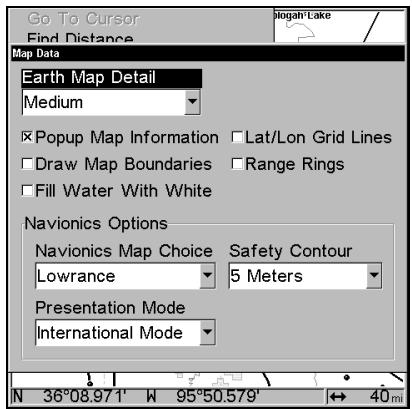
Map Data Menu.
Show Map Data
From the Map Page, press MENU| to MAP DATA | ENT. Press ENT to enter the EARTH MAP DETAIL selection list, and choose how much detail you
want, from Off (so the unit operates like a GPS plotter) to High. After the option is set, press EXIT repeatedly to return to the page display..
Pop-up Map Information
From the Map Page, press MENU| to MAP DATA|ENT. Press to POPUP MAP INFORMATION. With the option highlighted, press ENT to check it (turn on) and uncheck it (turn off.) After the option is set, press EXIT|EXIT to return to the page display.
Map Boundaries
From the Map Page, press MENU| to MAP DATA|ENT. Press to DRAW MAP BOUNDARIES. With the option highlighted, press ENT to check it (turn on) and uncheck it (turn off.) After the option is set, press EXIT|EXIT to return to the page display.
Fill Water With White
From the Map Page, press MENU| to MAP DATA | ENT. Press to FILL WATER WITH WHITE. With the option highlighted, press ENT to check it (turn on) and uncheck it (turn off.) After the option is set, press EXIT | EXIT to return to the page display.
Map Overlays (Range Rings; Lat/Long Grid)
The map screen can be customized with four range rings and/or grids that divide the plotter into equal segments of latitude and longitude.
Range rings are handy for visually estimating distances on the map. The ring diameters are based on the current zoom range. For example: at the 100 mile zoom, the screen will show two rings with your current position in the center. The large ring touching the left and right sides of the screen is 100 miles in diameter (same as the zoom range). The second smaller ring is 50 miles in diameter (always 1/2 the zoom range).
The distance from your current position to the smaller ring (the ring's radius) is 25 miles (always 1/4 the zoom range). With the arrow keys and map cursor, you can scroll the map to see the third and fourth rings. In this example, the distance to the third ring is 75 miles and distance to the fourth ring is 100 miles from your current position.
To set range rings: From the Map Page, press MENU| to MAP DATA|ENT. Press to DRAW MAP BOUNDARIES to RANGE RINGS. With the option highlighted, press ENT to check it (turn on) and uncheck it (turn off.) After the option is set, press EXIT|EXIT to return to the page display.
To set Lat/Long Grid: From the Map Page, press MENU| to MAP DATA|ENT. Press to POPUP MAP INFORMATION to LAT/LON GRID LINES. With the option highlighted, press ENT to check it (turn on) and uncheck it (turn off.) After the option is set, press EXIT|EXIT to return to the page display.
Map Datum Selection
Maps and charts are based on a survey of the area that's covered by the map or chart. These surveys are called "Datums." Maps that are created using different datum will show the same latitude/longitude in slightly different locations.
All datum are named. The GPS system is based on the WGS-84 datum, which covers the entire world. Other datum may also cover the entire world, or just a small portion of it. By default, your position shows using the WGS-84 datum. However, it can show your position using one of 191 different datum. Different datum can be selected; to change the datum:
- Press MENU|MENU| to GPS SETUP|ENT| to DATUM SELECTION|ENT.
2.Scroll or to select the desired datum, then press ENT. - To return to the last page displayed, press EXIT|EXIT.
A list of the datumss used by this unit is in the back of this manual.
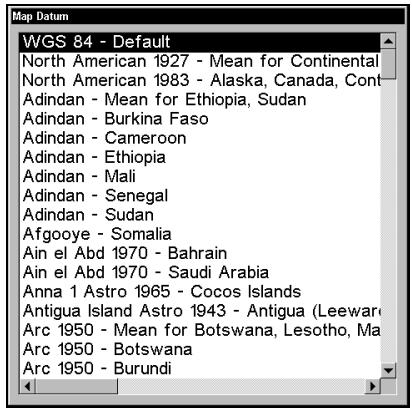
Map Datum Menu.
Map Detail Category Selection
This menu determines which of the mapping features are shown on the screen. This includes, waypoints, trails, icons, cities, highways, etc. You can selectively turn on or off any of these items, customizing the map to your needs.
To get to Map Categories:
1.From the Map Page, press MENU| to MAP CATEGORIES DRAWN|ENT.
2. Press or to select a category or press then press or to select a subcategory. Press ENT to turn it off (no check) or on (checked.)
3. To return to the last page displayed, press EXIT|EXIT.
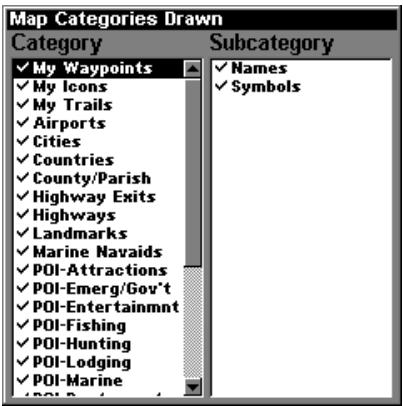
Map Categories Drawn Menu.
Map Orientation
By default, this receiver shows the map with north always at the top of the screen. This is the way most maps and charts are printed on paper.
In Track Up mode, map shows "N" and arrow to indicate north.
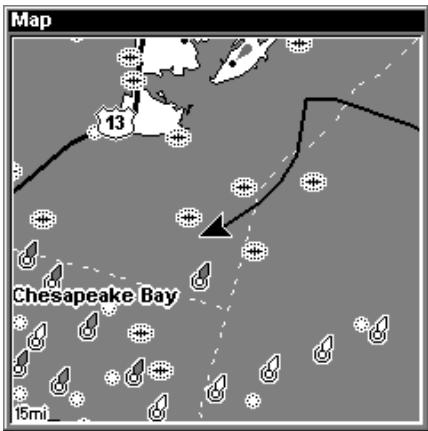
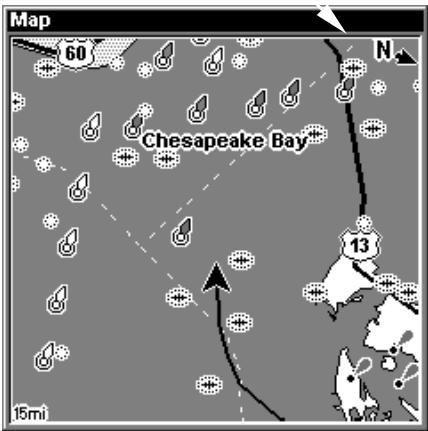
Map orientation at left is shown in north up and at right, track up.
This is fine if you're always traveling due north. What you see to your left corresponds to the left side of the map, to your right is shown on the right side of the map, and so on. However, if you travel any other direction, the map doesn't line up with your view of the world.
To correct this problem, a track-up mode rotates the map as you turn. Thus, what you see on the left side of the screen should always be to your left, and so on.
Another option is course-up mode, which keeps the map at the same orientation as the initial bearing to the waypoint. When either the track-up or course-up mode is on, an "N" shows on the map screen to help you see which direction is north.
To change map orientation: from the Map Page, press MENU| to MAP ORIENTATION | ENT. Use or to select the desired mode, then press ENT. Press EXIT | EXIT to return to the page display.
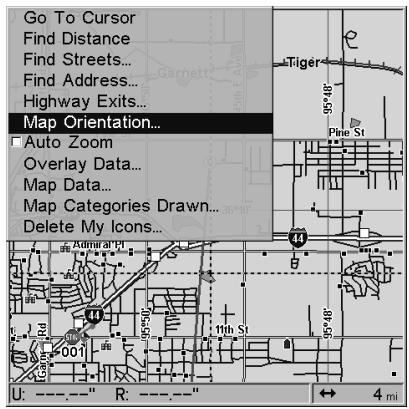
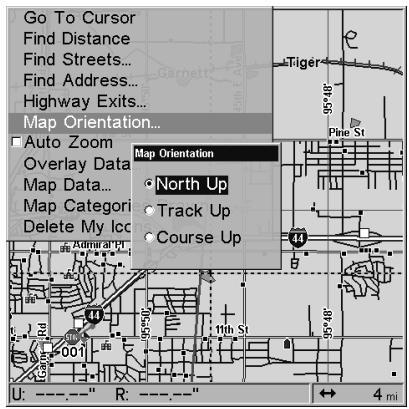
Map Menu, left; Map Orientation menu with the North Up map orientation option selected, right.
NOTE:
In North Up and Course Up, the present position arrow appears in the center of the map page. In Track Up, the position arrow appears centered in the lower third of the page.
Navionics® Charts
Your unit can display Navionics® electronic charts on MMCs. They work just like a MapCreate custom map on an MMC.
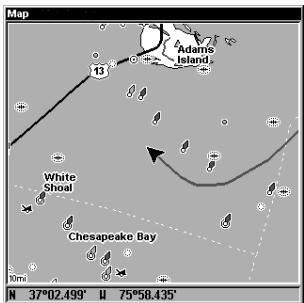
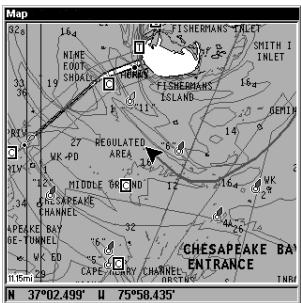
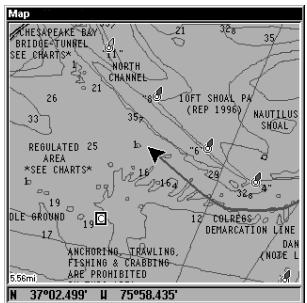
Left, entrance to Chesapeake Bay in a MapCreate 6 custom map, 10 mile zoom. Center, same position on Navionics chart at 11.15 mile zoom and right, 5.56 mile zoom.
To display a Navionics chart:
- Install the Navionics MMC in the memory card compartment and turn on the unit. (For full card install instructions, see Sec. 2.)
WARNING:
You should never format the MMC containing your Navionics chart. Formatting the MMC will permanently erase the chart from the card.
- From the Map Page, press MENU|↓ to MAP DATA|ENT|↓ to NAVIONICS MAP CHOICE|ENT. Use ↑ or ↓ to select the Map Name, then press ENT|EXIT|EXIT.
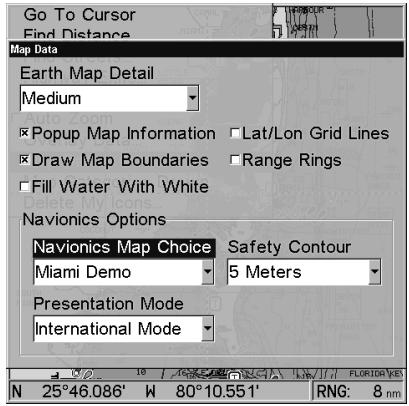
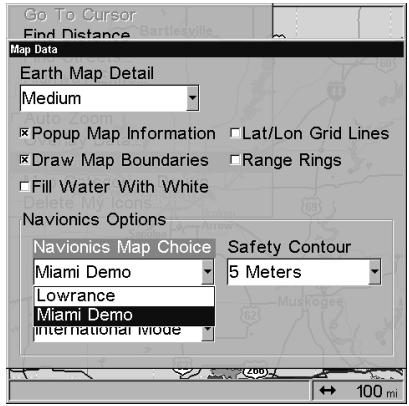
These figures show menu sequence (from left to right, after selecting Map Data command) for choosing a Navionics chart for the Miami area.
- To turn off a Navionics chart, From the Map Page, press MENU|↓ to MAP DATA|ENT|↓ to NAVIONICS MAP CHOICE|ENT. Use ↑ or ↓ to select LOWRANCE, then press ENT|EXIT|EXIT.
Port Information
Navionics charts contain Port Services information, represented by anchor icons on the map display. An example is displayed in the following figure.
To view Port Services information:
- Use the arrow keys to move the cursor over a Port Services icon. When selected, a pop-up name box appears.
- Press WPT to display the Port Services Information screen.
The Port Services information screen has two windows. The top window lists the various service categories. The lower window lists the detailed services available in each basic category.
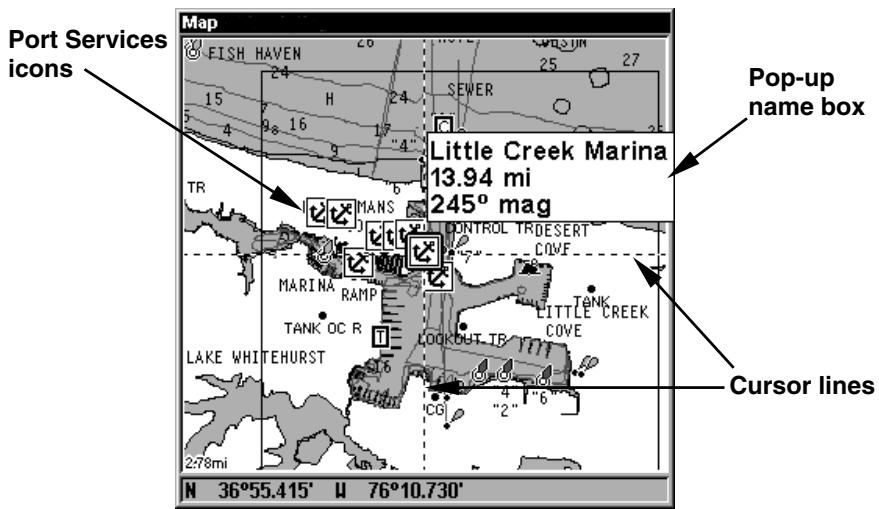
Navionics chart showing Port Services icon selected by cursor.
- To scroll through the Service Categories window: press ENT then use or to see the types of services available. As you highlight a different category, the list in the lower window changes. To return to the Map Page, press EXIT|EXIT.
- Depending on the location, the Detailed Services window may have a long list of services under the General Services category. To scroll through the Detailed Services window: from SERVICE CATEGORIES, press to DETAILED SERVICES|ENT, then use or to read the list of available services. To return to the Map Page, press EXIT|EXIT. To return to the top service category window, press ENT|↑.
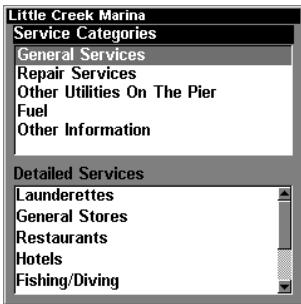
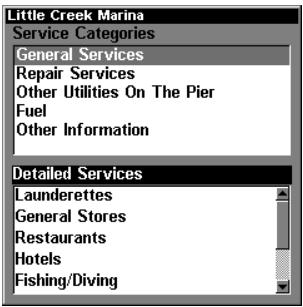
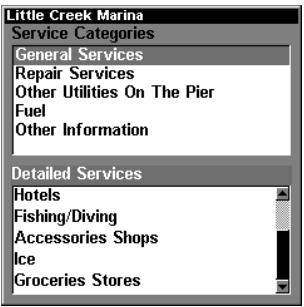
Port Services information screens.
Tidal Current Information
Navionics charts contain Tidal Current information, represented at large zoom ranges by a box icon with the letter "C." The icon stands for a Tidal Current Station location. An example is displayed at right.
When you zoom in to a sufficiently small zoom range, the icon itself becomes an animated arrow showing tidal current velocity and direction for the selected tidal station at the present time. At larger zoom ranges, you can select the boxed "C" icon and it becomes an animated arrow with a pop-up name box. An example is displayed in the following figure.
To view Tidal Current information:
- Use the arrow keys to move the cursor over a Tidal Current Station icon. When selected, a pop-up name box appears.
- Press WPT to display the Tidal Current Information screen.
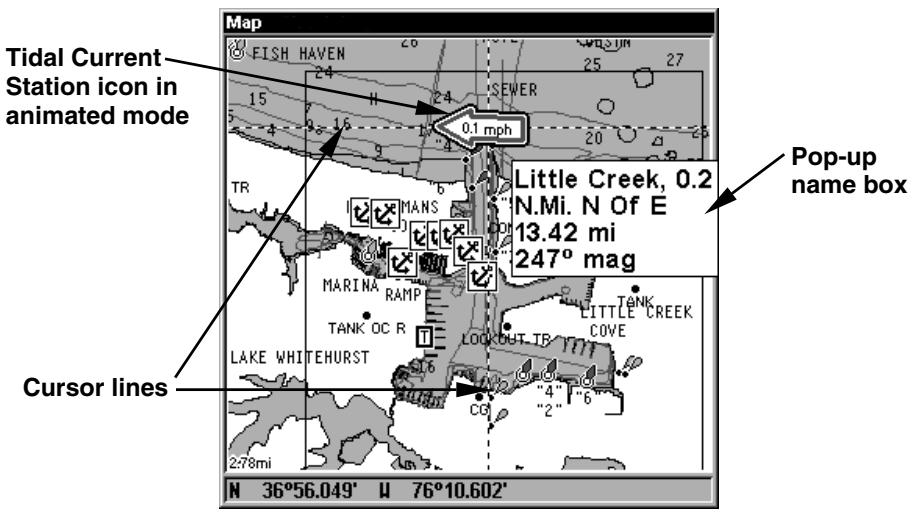
Navionics chart showing Tidal Current Station icon selected by cursor. In this example, the tidal current is in flood but it's about to enter the slack water stage. The current is flowing to the west at 0.1 mph.
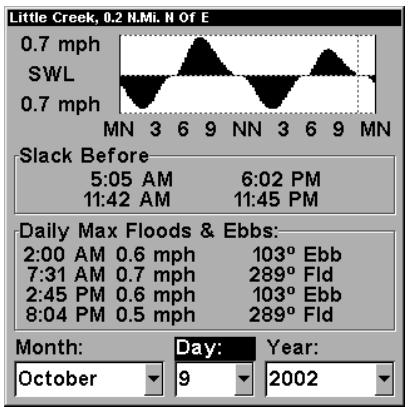
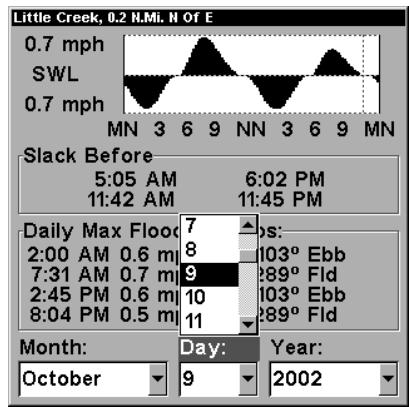
Current Information screen.
The Tidal Current Information screen displays daily tidal current data for this station on this date at the present time. The graph at the top of the screen is an approximate view of the flood and ebb pattern for the day, from midnight (MN), to noon (NN) to midnight (MN). The velocity scale at the top left side of the graph changes dynamically based upon the maximum velocity of the current for that day.
Slack water, the period of little or no current, is represented by the Slack Water Line (SWL). The flood appears above the SWL and the ebb appears below the SWL.
You can look up tidal current data for other dates by changing the month, day and year selection boxes. To select another date:
- Use and to highlight month, day or year, then press ENT.
- Use and to select the desired month, day or year, then press ENT.
To clear the information screen, press EXIT.
Tide Information
Navionics charts contain Tidal Information, represented at large zoom ranges by a box icon with the letter "T." The icon stands for a Tidal Station location. An example is displayed at right.

When you zoom in to a sufficiently small zoom range, the icon itself becomes an animated gauge showing a rising or falling tidal height for the selected station at the present time. At larger zoom ranges, you can select the boxed "T" icon and it becomes an animated gauge with a pop-up name box. An example is displayed in the following figure.
To view tide information:
- Select a Tide Station icon: use the arrow keys to move the cursor over an icon. When it is selected, a pop-up name box appears.
- After selecting the Tide Station icon, press WPT to display the Tide Information screen.
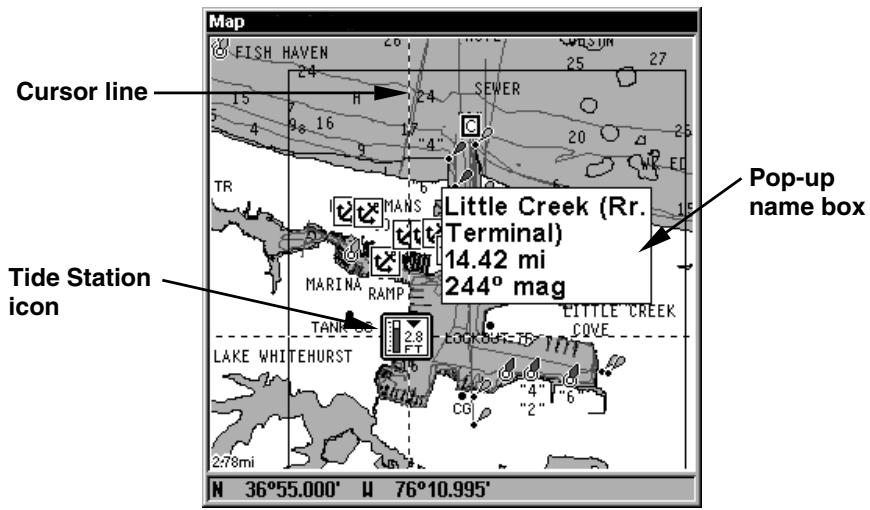
Navionics chart showing Tide Station icon selected by cursor. In the example above, the tide is at 2.8 feet and falling, as shown by the down arrow at the top of the icon.
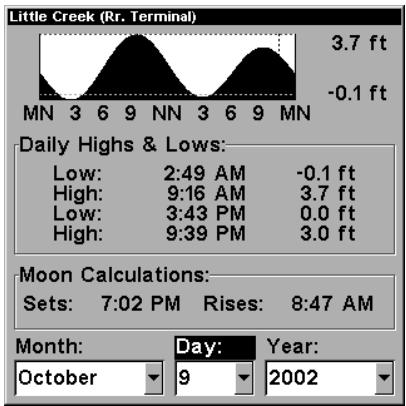
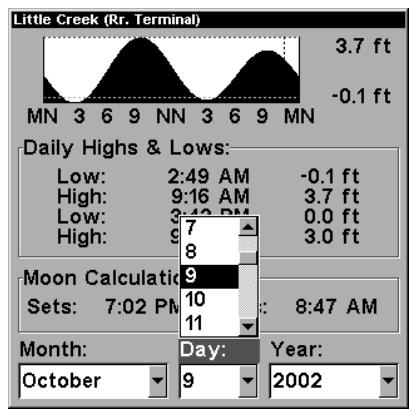
Tide Information screen.
The Tide Information screen displays daily tidal data for this station on this date at the present time. The graph at the top of the screen is an approximate view of the tidal range pattern for the day, from midnight (MN), to noon (NN) to midnight (MN). The dotted line across the graph is the Mean Lower Low Water line (MLLW).
The height scale on the top right side of the graph changes, based upon the maximum range of the tide for that day. The MLLW line also adjusts its position as the height scale changes.
You can look up tidal data for other dates by changing the month, day and year selection boxes. To select another date:
- Use and to highlight month, day or year, then press ENT.
- Use and to select the desired month, day or year, then press ENT.
To clear the information screen, press EXIT.
Overlay Data
On any Page display but Status you can float additional data of your own choosing in your display window. For example, if you left your watch at home, you could add the local time to your display. Or, if you wanted to see details about your route and trip, you could show your bearing, course, average speed and trip distance.
The various data available from your unit are divided into categories in the Overlay Data menu. These categories include GPS Data, Navigation, Trip Calculator, Time and Miscellaneous Data.
You can select items from any of these categories for display, in any combination — the category divisions are there only to help you sort through the information.
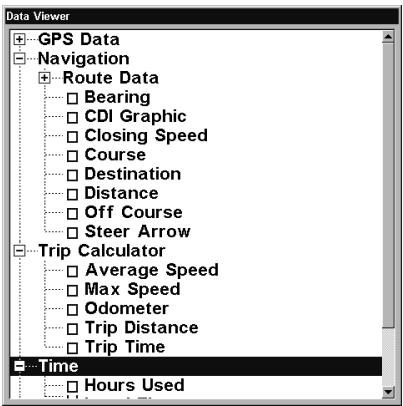
Overlay Data, with "Navigation," "Trip Calculator" and "Time" categories expanded.
To overlay information on your screen:
- While on the Navigation Page or a Map Page, press MENU|↓ to OVERLAY DATA|ENT.
- You'll see a list of the overlay data currently shown, if any. Select (PRESS ENT TO ADD) and press ENT. The data viewer shows information categories with "+" or "-" symbols next to each category name. A category with a "+" next to it is expandable, meaning its contents are currently hidden.
Selecting the category name and pressing ENT will show the category's contents, so you can choose items within it. An expanded category (one with a "-" next to its name) can be collapsed to hide its contents, and make more room on your screen. Just select the category name and press ENT.
- Expand any categories that might contain information you want to display. Then press or to select a display option.
- With the option highlighted, press ENT to check it (turn on) and uncheck it (turn off). As you turn categories on, data will float in your display window. Every Page display has a maximum number of items you can float on your display using the Overlay Data command.
- After all options are set, press EXIT|EXIT to return to the page display.
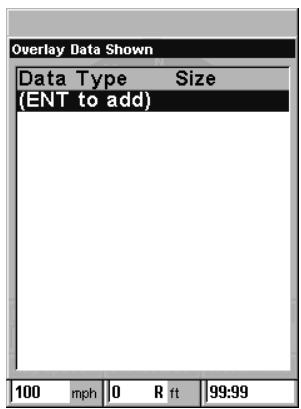
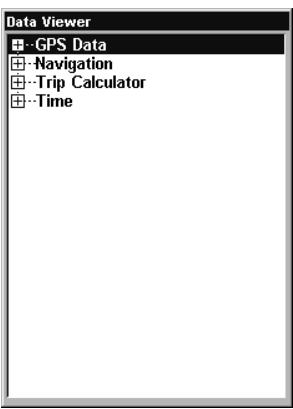
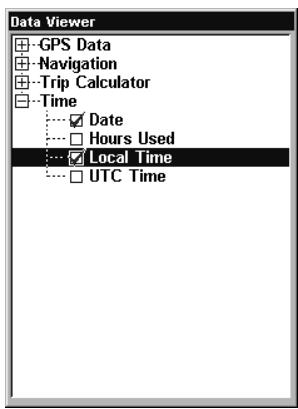
From Overlay Data Shown (left) press ENT to see Data Viewer (center). Select a category and press ENT; then select information to float on screen and press ENT (right).
To remove overlaid data:
- While on the Page that shows the item or items you want to remove, press MENU| to OVERLAY DATA | ENT.
- You'll see a list of the overlay data currently displayed. Select the item you want to remove from your display and press ENT|ENT to remove the data. To remove another item, select the item and press ENT|ENT.
- When you have finished removing all the items you want from the screen, press EXIT to return to the page display.
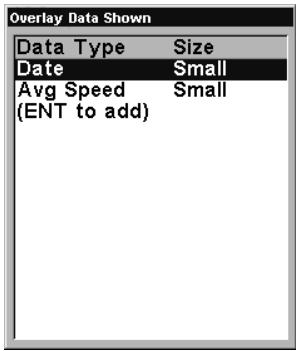
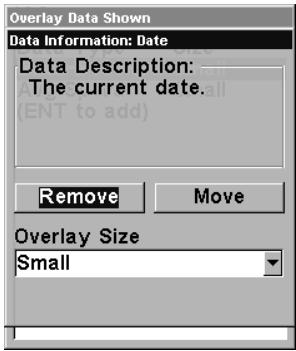
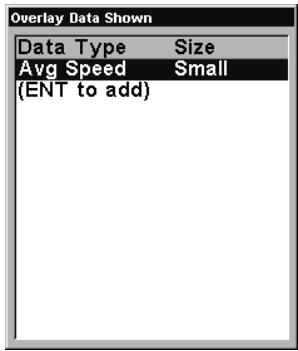
Overlay Data Shown, with Date option selected (left). Press ENT to access REMOVE option (center). Press ENT again to remove item and return to Overlay Data Shown (right).
To move overlaid data:
You may find it useful to rearrange data that is floating in your display window.
- From one of the Map Pages, press MENU| to OVERLAY DATA|ENT.
- You'll see a list of the overlay data currently displayed. Select the item you want to move and press ENT |ENT.
- The data begins to flash on your screen. Use any combination of , , and to move the data to a new location on the screen.
- When satisfied, press EXIT | EXIT.
To change displayed data font size:
- From the Map or Sonar page, press MENU| to OVERLAY DATA|ENT.
- Press or to select Data Type|press ENT, then use or to scroll to overlay size, press ENT. Press or to select the desired data size. Press ENT|EXIT|EXIT.
The selected data type will be displayed in the new size. (To change the font size for another Data Type, repeat these steps, beginning with step two above.)
- To return to the previous page, press EXIT.
NOTE:
Some data types can be displayed in only one font size. If that is the case, the Data Size box will not be displayed for that data type.
NOTE:
The Customize command and the Overlay Data command both use the same information categories. The difference between the two commands is that Customize changes the data boxes on your display, and Overlay Data floats information on the display. See Customize Page Displays, on page 75, for information on customizing data boxes.
Pop-up Help
Help is available for virtually all of the menu labels on this unit. By highlighting a menu item and leaving it highlighted for a few seconds, a "pop-up" message appears that describes the function of the menu item. This feature is on by default.
To set up Popup Help: Press MENU|MENU| to SYSTEM SETUP|ENT| to POPUP HELP. With the option highlighted, press ENT to check it (turn on) and uncheck it (turn off.) After the option is set, press EXIT|EXIT to return to the page display.
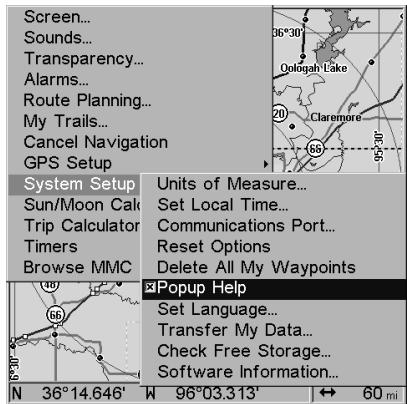
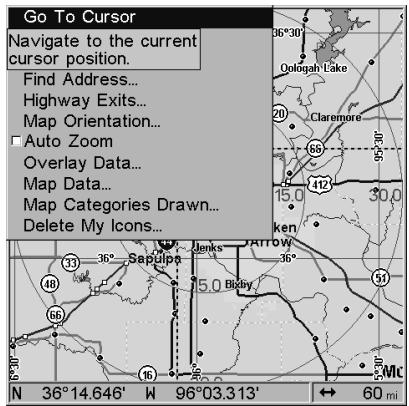
System Setup menu, left, with Pop-up Help command highlighted. At right, this example shows the Pop-up Help message for the Go To Cursor command, located on the Map Menu.
Reset Options
To reset all features to their factory defaults:
- Press MENU|MENU| to SYSTEM SETUP|ENT| to RESET OPTIONS|ENT| to YES|ENT.
NOTE:
Reset Options does not erase any waypoints, routes, icons or plot trails.
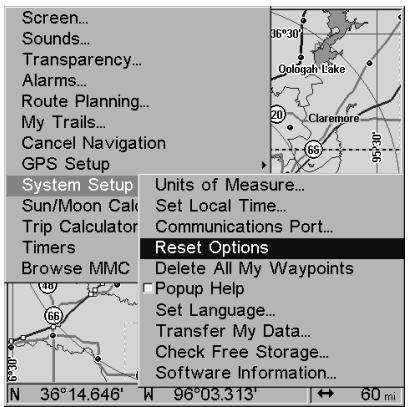
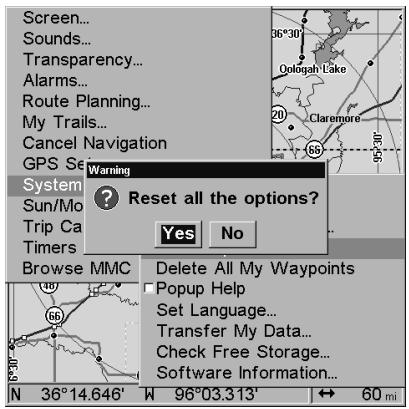
Reset Options command, left, and the Reset Options Menu, right.
Screen Contrast and Brightness
To access the Screen menu, press MENU|MENU|ENT.
Once in the Screen menu:
To adjust the display's contrast:
The CONTRAST slider bar is already selected. Press or to move the bar. The left end of the scale is minimum contrast; the right end is maximum contrast.
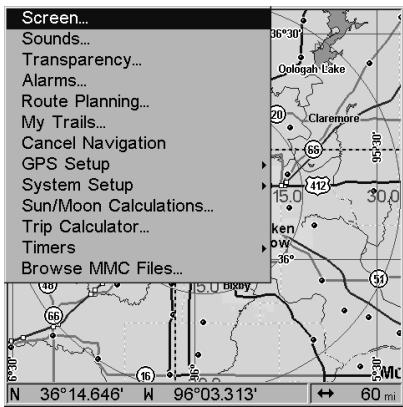
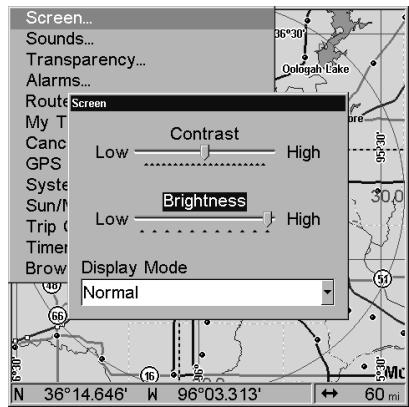
Screen Command, left, and Screen Menu with Contrast bar selected, right.
To adjust the display's brightness:
Press to BRIGHTNESS. Press or to move the bar. The left end of the scale is minimum contrast; the right end is maximum contrast.
To adjust the screen's display mode:
Press to DISPLAY MODE | ENT | press or to select mode | EXIT.
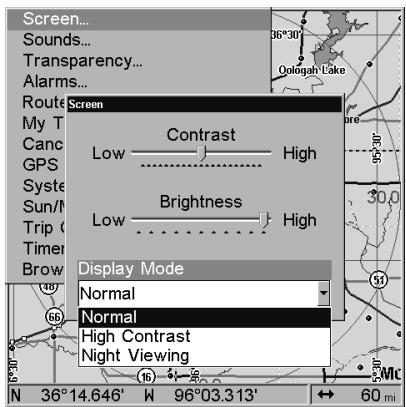
Display Mode menu.
Set Language
This unit's menus are available in 10 languages: English, French, German, Spanish, Italian, Danish, Swedish, Russian, Dutch and Finnish. To select a different language:
- Press MENU | MENU | ↓ to SYSTEM SETUP | ENT.
- Press to SET LANGUAGE...|ENT.
- Use or to select a different language and press ENT. All menus now appear in the language you selected.
Set Local Time
Using the correct local time setting is handy when estimating local arrival time while navigating. Also, the time and date are saved when a waypoint is created.
To access the Set Local Time menu, you must first acquire your position. Once that is done: press MENU|MENU| to SYSTEM SETUP|ENT| to SET LOCAL TIME | ENT.
Once in the Time Settings menu:
To set Local Time: Press ENT. Press or to change the first character, then press to move the cursor to the next character. Repeat until the time is correct, then press ENT.
To set the Month: Press to MONTH|ENT. Press or to select the month, then press ENT.
To set the Day: Press to DAY|ENT. Press or to select the day, then press ENT.
To set the Year: Press to YEAR|ENT. Press or to select the year, then press ENT.
To set the Date Format: Press . Press or to select the date format, then press ENT.
To set the Time Format: Press . Press or to select the time format, then press ENT.
The last field in this menu is CONFIG DST. This feature allows your unit to automatically adjust with the time change caused by Daylight Saving Time (you should only have to set it once). You may select which set of rules matches DST in your region, or simply accept the default.
Once you have each field set the way you want, press EXIT repeatedly until you return to the previous page.
Show WAAS Alarm
When the signal is available, your unit will automatically use WAAS to boost the accuracy of the position fix. When the WAAS signal is lost or acquired, an alarm message appears. Since the U.S. government is still developing the WAAS system, it's not unusual for a GPS/WAAS receiver to frequently lose and reacquire its lock on a WAAS satellite.
That can result in the alarm repeatedly going on and off. If you want, you have the option of turning off the WAAS Acquired/Lost alarm without affecting how the unit uses WAAS. Here's how:
- Press MENU|MENU| to GPS SETUP|ENT| to SHOW WAAS ALARM.
- With the option highlighted, press ENT to uncheck it (turn off) and check it (turn on.) After the option is set, press EXIT|EXIT to return to the page display.
- You can return to this command and press ENT again to turn the feature on.
Software Version Information
From time to time, Lowrance updates the operating system software in some of its products. These software upgrades are usually offered to customers as free downloads from our web site, www.lowrance.com. These upgrades make the unit perform better or introduce a new feature or function. You can find out what software version is running in your unit by using the Software Information command.
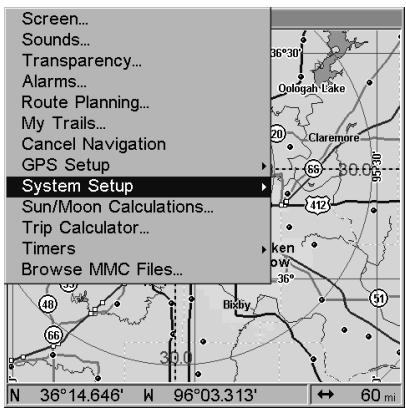
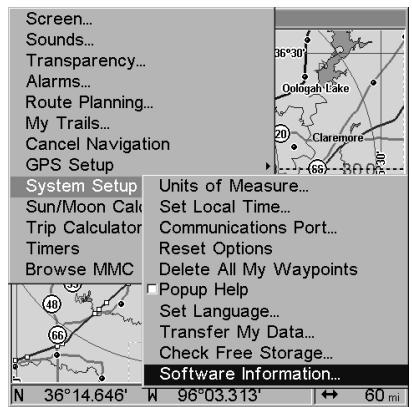
System Setup command left; Software Information command, right.
Software Information

GlobalMap3500c
Version 1.0.0
Build: PC-Win32
Points of Interest Data by infoUSA,
Copyright 2003
Zenrin Copyright, Copyright 1999-2003
Zenrin Co. Ltd.
The Software Information screen.
- Press MENU|MENU| to SYSTEM SETUP|ENT| to SOFTWARE INFO|ENT.
- Read the information displayed on the screen.
- To return to the last page displayed, press EXIT|EXIT|EXIT.
Sounds and Alarm Sound Styles
Sounds triggered by key strokes and alarms can be adjusted:
You first press MENU|MENU|to Sounds|ENT.
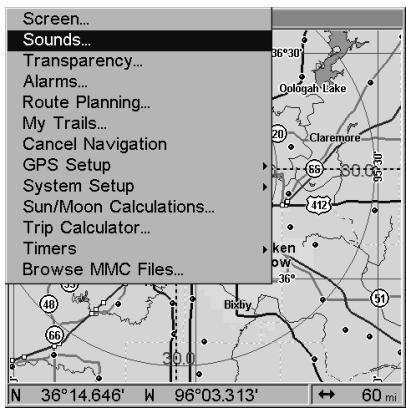
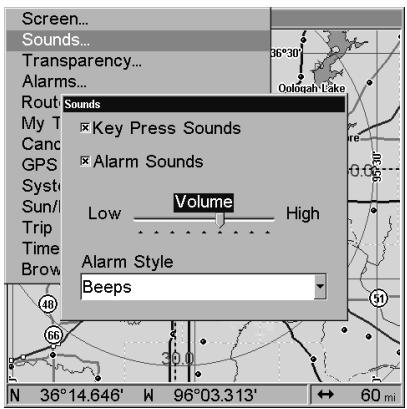
Sounds command, left. At right, the Sounds menu.
Once in the Sounds menu:
To set Key Press Sounds: With the option highlighted, press ENT to check it (turn on) and uncheck it (turn off.) After the option is set, press EXIT | EXIT to return to the page display.
To set Alarm Sounds: Press to ALARM SOUNDS. With the option highlighted, press ENT to check it (turn on) and uncheck it (turn off.) After the option is set, press EXIT|EXIT to return to the page display.
To set Alarm Volume: Press to VOLUME. Press or to move the bar. The left end of the scale is low volume; the right end is high volume. After the option is set, press EXIT|EXIT to return to the page display.
To set Alarm Style: Press to ALARM STYLE|ENT. Press or to change the style, then press ENT. After the option is set, press EXIT|EXIT to return to the page display.
Track Smoothing
This is a factory setting on the GPS Setup menu that should always be left on. When stopped or traveling at slow speeds (such as walking or trolling), Track Smoothing prevents wandering of trails, the steering arrow, compass rose and a map in track-up mode.
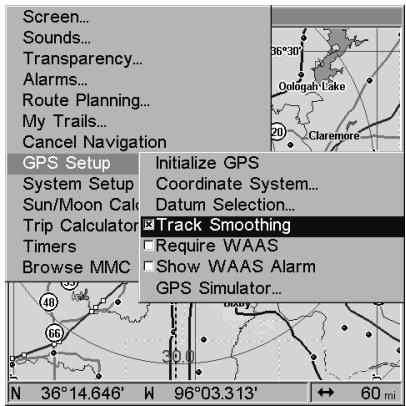
Track Smoothing option, turned on.
Trail Options
There are several options you can use with trails. Some affect all trails, other options can be applied to a particular trail. You can change the way trails are updated, display or hide trails, create a new trail, delete a trail, etc.
General Trail Options
To access the Trails Menu:
1. Press MENU|MENU| to MY TRAILS|ENT.
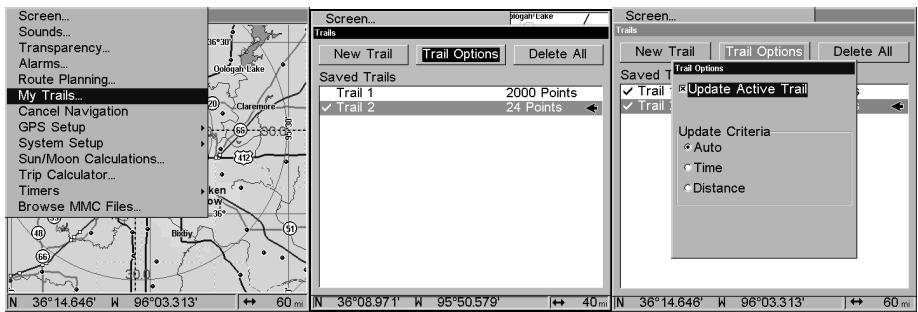
Main Menu, left, Trails Menu, center, Trail Options, right.
Delete All Trails
To remove all of the trails from memory: from the Trails Menu, press to DELETE ALL | ENT|← to YES | ENT.
Update Trail Option
This menu lets you change the way the trail updates occur.
WARNING:
If you uncheck the Update Trail option, automatic trail creation and recording will be turned off. You must turn it back on to record trails. The default setting is on.
From the Trails Menu, press to TRAIL OPTIONS|ENT. With UPDATE ACTIVE TRAIL highlighted, press ENT to check it (turn on) and uncheck it (turn off.)
Update Trail Criteria (Auto, Time, Distance)
The options are automatic, time, or distance. When it's in the default automatic mode, the unit doesn't update the plot trail while you're traveling in a straight line. Once you deviate from a straight line, the unit "drops" a plot point (trail waypoint) onto the trail. This conserves plot trail points. If a plot trail uses all of the available points allotted to it, the beginning points are taken away and placed at the end of the trail.
From the Trails Menu, press to TRAIL OPTIONS|ENT| to UPDATE CRITERIA. Press or to select criteria type|ENT.
Trail Update Rate (Time, Distance)
You can update a trail by time, with a range from 1 second to 9999 seconds; the default is 3 seconds. You can update by distance, with a range from 0.01 mile/nm/km to 9.99 mile/nm/km; the default is 0.10 mi.
With one of the Update Criteria selected, use the cursor arrows to highlight either the UPDATE RATE or UPDATE DISTANCE data entry boxes and press ENT. Press or to change the first character, then press to the next character and repeat until the entry is correct. Press EXIT to return to the Trail Options Menu.
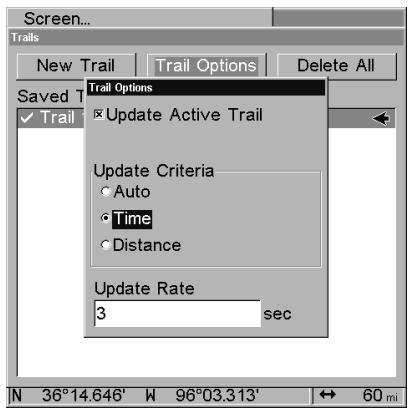
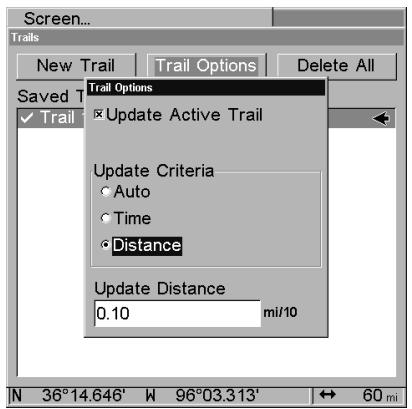
Trail Options menu: Update Time Rate setting, left, and Update Distance setting, right.
Specific Trail Options
Delete Trail
To delete a specific trail: From the Trails Menu, press to Trail Name|ENT. The Edit Trail menu appears as seen in the following figure. Press to DELETE TRAIL|ENT to YES|ENT.
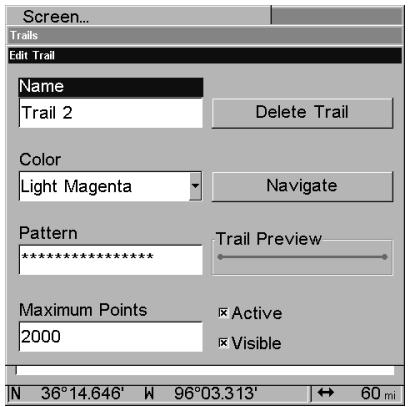
Edit Trail menu.
New Trail
To manually start a new trail, in the Trails Menu, make sure NEW TRAIL is highlighted and press ENT.
Trail Visible/Invisible and Other Trail Options
The name, maximum number of points in the trail, activity, and visibility are all changed on the Edit Trail menu screen. The Active setting determines whether or not the unit is recording new points for a particular trail.
On the Edit Trail menu, press or to highlight the section you wish to change, then press ENT. Make your changes, then press EXIT to erase this menu. Related trail functions are discussed in further detail under the Trails topic in Sec. 4, Advanced GPS Operations.
Transparency
Use the transparency menu to adjust the transparency of menu windows. A high transparency allows you to continue monitoring the screen's display while adjusting feature settings, though the text of the menus may fade until it is unreadable. A low transparency will usually make menu text easier to read, at the cost of watching your display.
Experiment with this feature until you find the right level of transparency for your eyes.
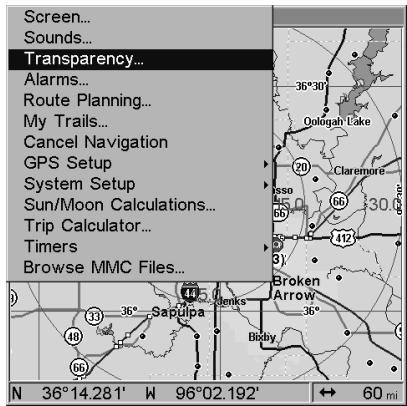
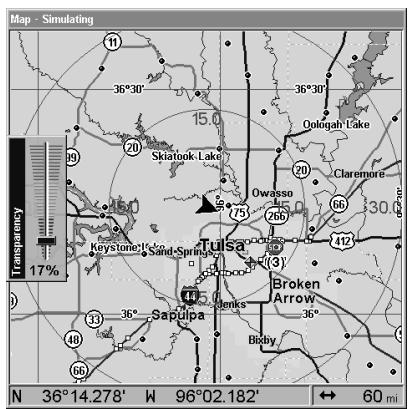
Main Menu with Transparency command selected
To adjust Menu Transparency level:
Press MENU|MENU| to TRANSPARENCY|ENT. The TRANSPARENCY slider bar appears. Press or to move the bar. The lower end of the scale makes the menus opaque; the upper end is maximum transparency.
Units of Measure
This menu sets the speed and distance (statute or nautical miles, meters), depth (feet, fathoms, or meters), temperature (degrees Fahrenheit or Celsius) and heading (true or magnetic) units. To change the units:
Press MENU|MENU|to SYSTEMSETUP|ENT|ENT.
To set Speed/Distance Unit of Measure: Press or to change the Speed/Distance, then press ENT. After the option is set, press EXIT|EXIT|EXIT to return to the page display.
To set Heading: Press or to change the heading type, then press ENT. After the option is set, press EXIT|EXIT|EXIT to return to the page display.
To set Depth: Press or to change the heading type, then press ENT. After the option is set, press EXIT|EXIT|EXIT to return to the page display.
To set Temperature: Press or to change the heading type, then press ENT. After the option is set, press EXIT|EXIT|EXIT to return to the page display.
Section 6: Searching
NOTE:
The background map loaded in your unit lets you to search for U.S. Interstate Highway exits and exit services, as well as some land features, including cities and lakes. For a full set of searchable land features, including landmarks, streets, addresses and Points of Interest, you must load your own high-detail custom map produced with our MapCreate 6 software. For a complete description of what detail is found in the background map and custom MapCreate maps, see page 31. (Remember, our pre-made FreedomMaps contain all the same detail found in custom-made MapCreate maps.)
This unit's varied search functions all begin with either the Find Waypoint menu or the Map Page menu. Press WPT and the Find Waypoint menu appears for waypoints and Points of Interest (POI). From the Map Page, press MENU and the Map Page menu appears for streets, addresses and highway exits.
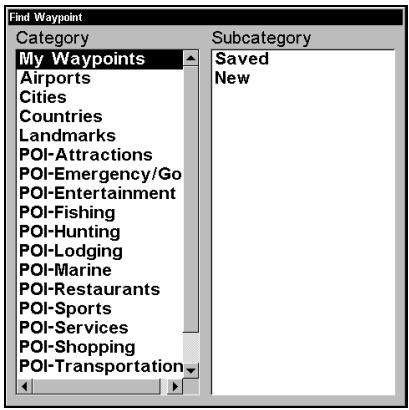
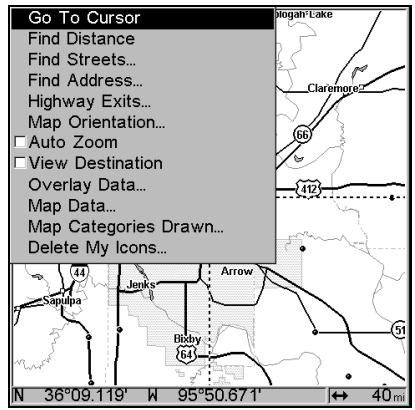
Find Waypoint menu, left; Map Page menu, right.
NOTE:
You can search for items after the unit has acquired a position, or while using the unit in the "indoor" simulator mode. Distance and bearing to the selected item will be calculated from the unit's current position, or the last known position if operating indoors (without a position determined). You can look up items by name, or search for the item nearest to you.
Find Addresses
- From the Map Page, press MENU| to FIND ADDRESS |ENT.
-
Press ENT to search in the Address field.
-
To enter an address number, press or to change the first number, then press to move the cursor to the next number and repeat until the number is correct, then press ENT.
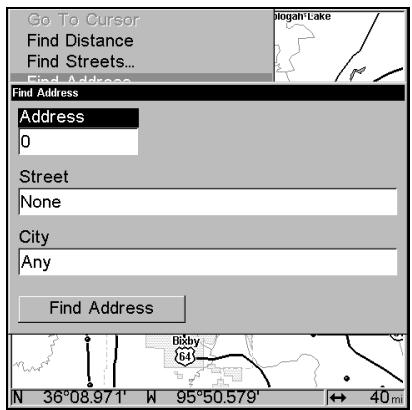
Find Address Menu.
- To enter a street name, press to STREET|ENT. There are two options: A. You can spell out the name in the top selection box. Press or to change the first letter, then press to move the cursor to the next letter and repeat until the name is correct, then press ENT|ENT. B. Jump down to the lower selection list by pressing ENT, then press or to select a street name from the list, then press ENT. The street name you selected is now in the street field.
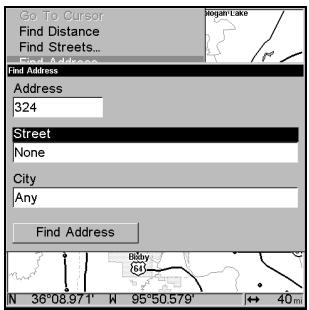
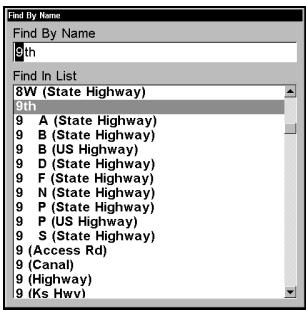
Find Address menu, left; Find Street menu, center,
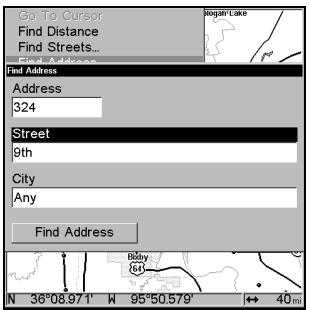
with Find By Name field active; street name entry complete, right.
- To enter a city name, press to City ENT. You will be asked if you want to find addresses only within a particular city. This option is designed so you can limit an address search to a single city if necessary (see the note below.)
If you select yes, there are two options: A. You can spell out the city name in the top selection box. Press or to change the first letter, then
press to move the cursor to the next letter and repeat until the name is correct, then press ENT|ENT. B. Jump down to the lower selection list by pressing ENT, then press or to select a city name from the list, then press ENT. The city name you selected is now in the city field.
NOTE:
We recommend that you do not enter a city name unless the list you are given is too large when searching without it. This unit can actually search quicker without a city and you save time by not entering a city name.
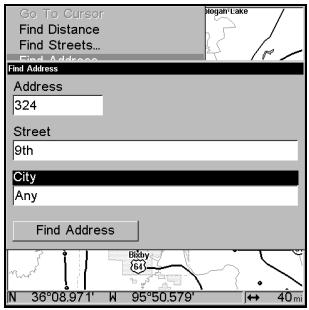
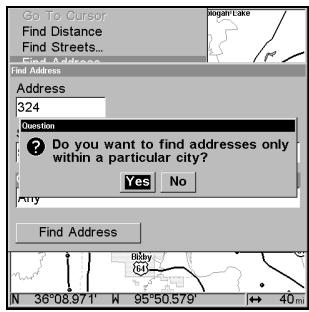
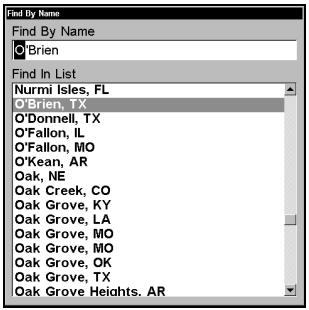
Find City field, left, Search in particular city only option, center; Find City by name, right.
- When the necessary search fields are filled in, press to FIND ADDRESS|ENT. You unit asks you to wait while it searches for the address. (If an address is not in the database, a message appears saying the address could not be found.)
- The unit will display a list of addresses. If the address you are looking for is highlighted at the top of the list, press ENT. If not, use and to select the correct address from the list, then press ENT. The Map Page will then appear with the location selected by the cursor. (In the example below, we are looking for 12303 East 11th Street in Tulsa, not 11th Court, so we had to scroll down the list to select the right one.)
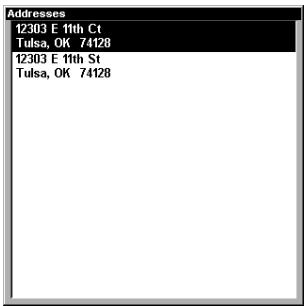
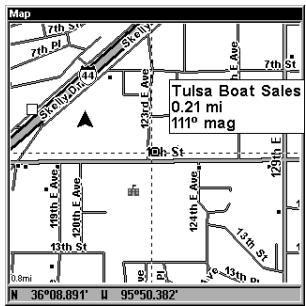
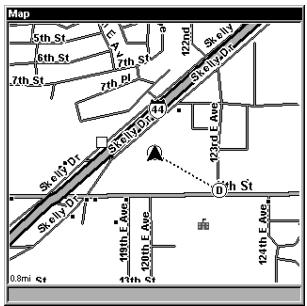
Address search result list, left. At center, Map Page showing location of the address on the map, highlighted by cursor. At right, after the address is located, you can navigate to it ("D" symbol for destination).
- To navigate to the address, press MENU|ENT|EXIT and the unit will begin showing navigation information to the address pointed out by the cursor. If you are only looking up an address (not navigating), just press EXIT to return to the previous page.
Tip:
If the address also happens to be an item in the Point of Interest database, you can look up the item's phone number in the Waypoint Information list. With the address location selected by the cursor on the map, press WPT. The POI's Waypoint Information window appears, with the Go To Waypoint command highlighted. If you want to go ahead and navigate to the POI address, just press ENT|EXIT.
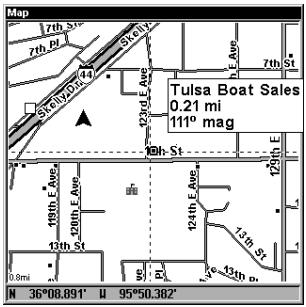
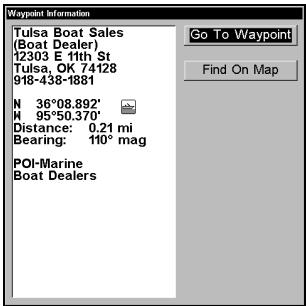
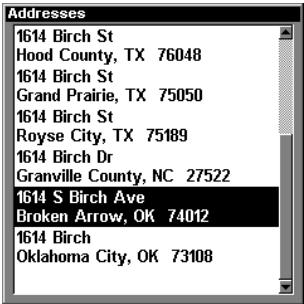
Left, Map Page showing location of the address on the map, highlighted by cursor. Center, this address is a business in the POI database, so you can display the POI information window, then navigate to it. At right, this address is not in the POI database, so the Waypoint key will not display any information for this address.
Find Any Item Selected by Map Cursor
On the Map Page: with a POI or map feature selected by the cursor press WPT. To return to the previous page, press EXIT.
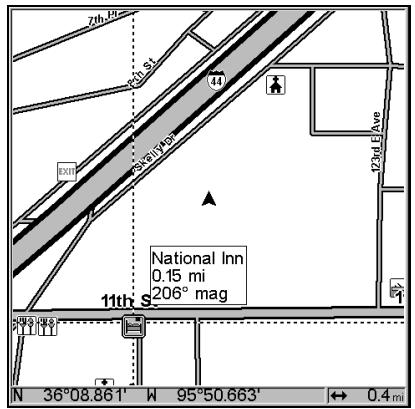
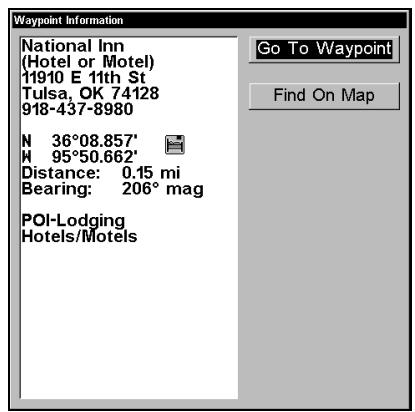
A POI selected by the cursor, left, POI information screen, right.
NOTE:
Since the Go To Waypoint command is highlighted, you can navigate to the selected POI by pressing ENT|EXIT while in the POI Waypoint Information screen.
Find Interstate Highway Exits
- From the Map Page, press MENU | ↓ to HIGHWAY EXITS | ENT, which calls up the Find Exit menu.
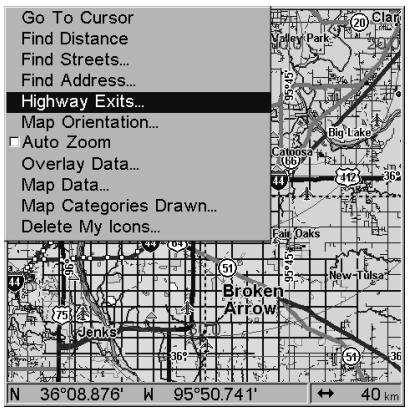
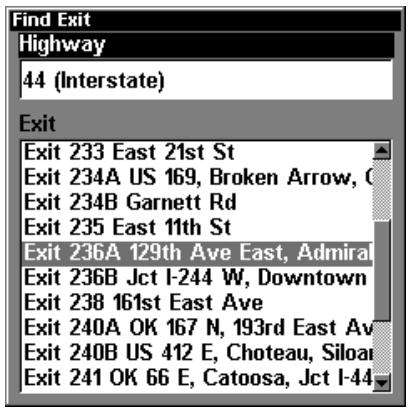
Find Highway Exits command, left, and Find Exit menu, right.
- First, select a highway name by pressing ENT, which calls up the Find By Name menu. There are two highway search options: A. You can spell out the highway name in the top selection box. Press or to change the first letter, then press to move the cursor to the next letter and repeat until the name is correct, then press ENT|ENT. B. Jump down to the lower selection list by pressing ENT, then press or to select a highway from the list, then press ENT.
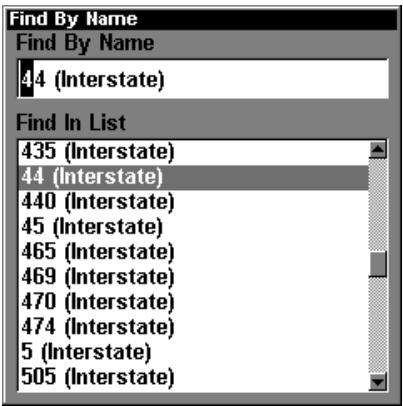
Find By Name menu.
- Once you have selected a highway name you can then select an exit. Press to switch to the Exit List, then press or until you highlight the exit, then press ENT.
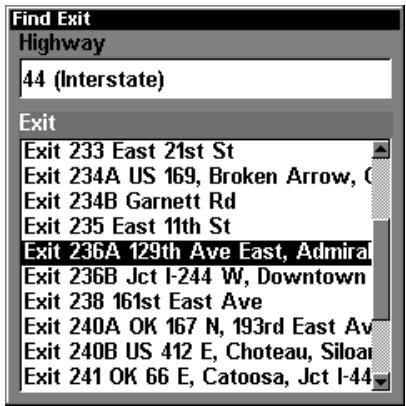
Find Exit menu, with an exit selected in the Exit List.
- In the Exit Information screen you have two choices. A. Press ENT to navigate or "go to" the exit. B. Press |ENT to find the exit on the map.
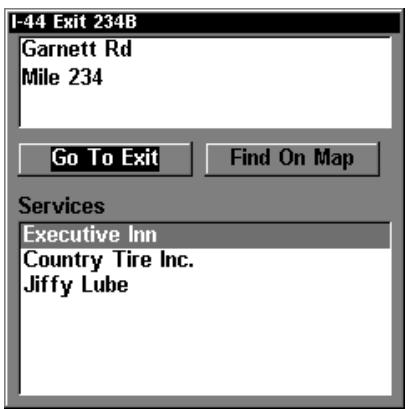
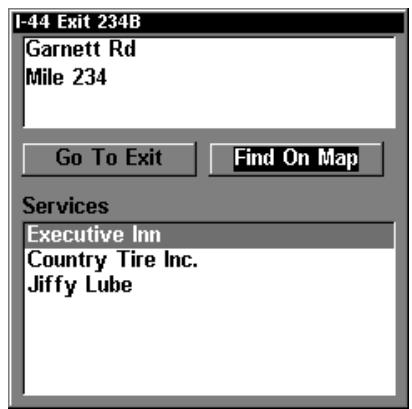
"Go To Exit" option, left, "Find On Map" option, right.
Tip:
You can also look up some additional information on the Exit Services located near this exit. Press to SERVICES|press or to select Service Name|ENT.
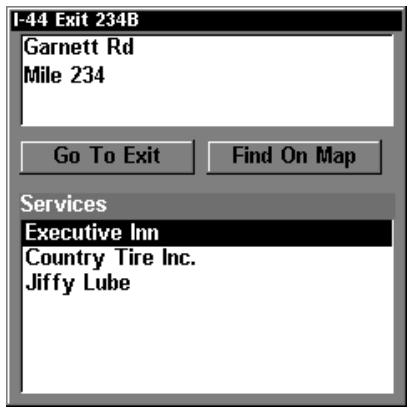
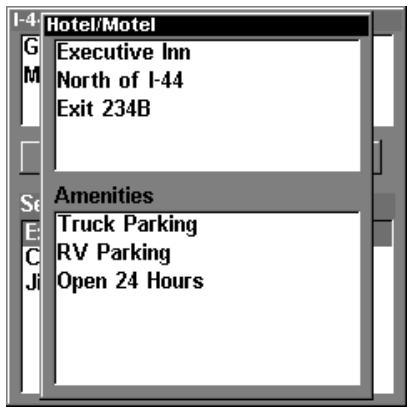
Exit Information screen, left; general location and amenities information, at right.
Find Map Places or Points of Interest (POI)
- Press WPT, press or to select a map place or POI category, then press ENT. (To narrow your search, press then press or to select a subcategory before pressing ENT.) You will be given two options; Search By Name or By Nearest.
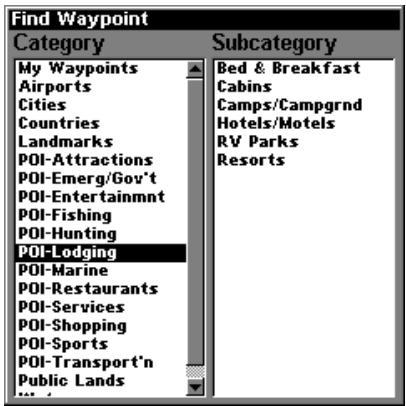
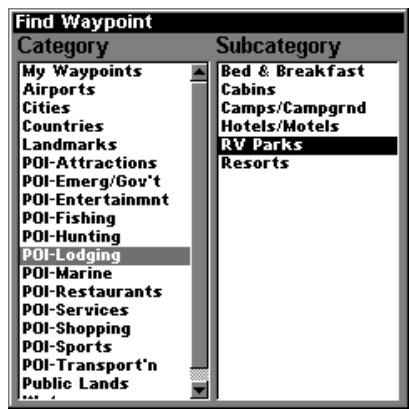
Find Waypoint menu with Lodging POI category selected, left, and with the RV Parks subcategory selected, right.
- Search by nearest POI. Press ENT. The "find by nearest" menu will show a "calculating" screen, then a list of the nearest POI's will appear. Press or to the selected POI and press ENT to call up the POI's Waypoint Information screen.


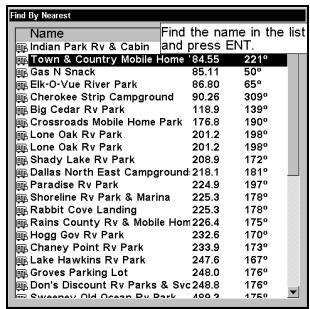
Find by Nearest option, left, Calculating screen, center, POI list, right.
- Search by name of POI. Press ENT. There are two options: A. You can spell out the POI in the top selection box. Press ↑ or to change the first letter, then press → to move the cursor to the next letter and repeat until the name is correct, then press ENT|ENT. B. Jump down to the lower selection list by pressing ENT, then press ↓ or ↑ to select a POI from the list, then press ENT to call up the POI's Waypoint Information screen.
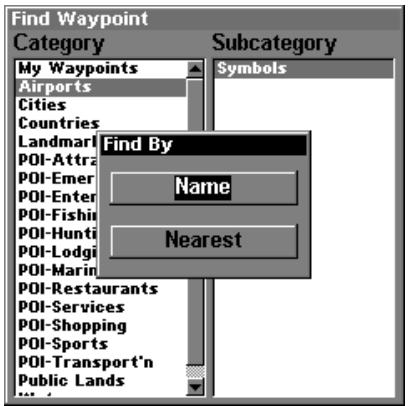
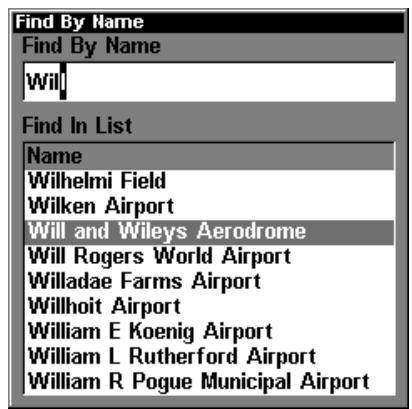
Find by Name option, left, Find by Name menu, right.
- When the POI's Waypoint Information screen is displayed, you can choose to "Go To" the POI waypoint by pressing ENT or find it on the map by pressing | ENT.
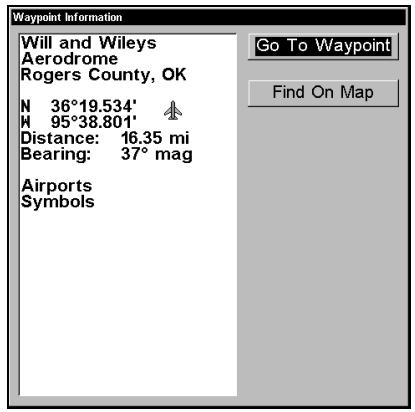

"Go To" POI option, left, "Find on Map" POI option, right.
Find Streets or Intersections
Find a Street
- From the Map Page, press MENU | ↓ to FIND STREETS | ENT and the Find Streets Menu appears.
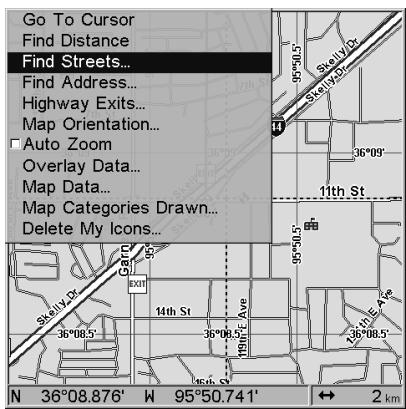
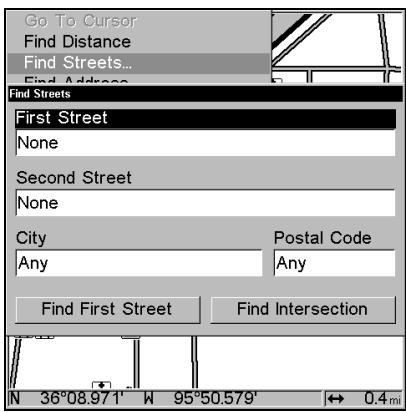
Find Streets command, left, Find Streets menu, right.
- You must first fill in a street name in the First Street dialog box. Press ENT to display the Find By Name menu. There are two options: A. You can spell out the street in the top selection box. Press or to change the first letter, then press to move the cursor to the next letter and repeat until the name is correct, then press ENT|ENT. B. Or you can jump down to the lower box and pick a street from the selection list. Press ENT, then press or to select a street from the list and press ENT.
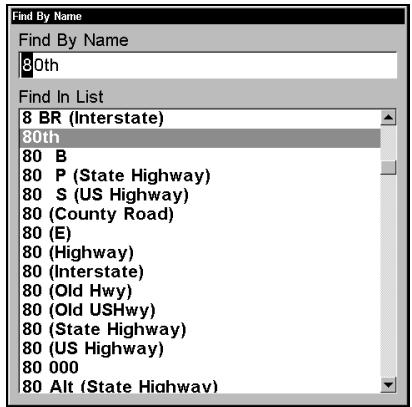
Find Street By Name menu. Spell out name in the top box, or select from the list in the lower box.
- The Find Streets menu reappears with the street you're searching for in the First Street box. (In this example, it's 80th Street.) To search for that street, press to FIND FIRST STREET|ENT. A message appears asking you to wait while the unit finds the street. When the Streets Found list appears, press or to select the street you are searching for and press ENT.
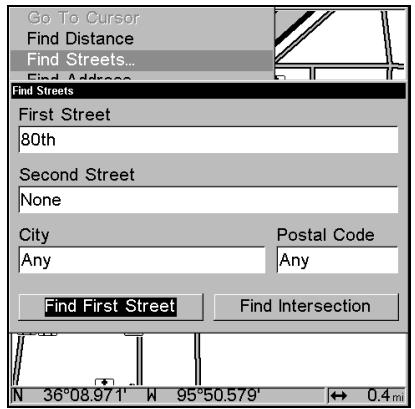
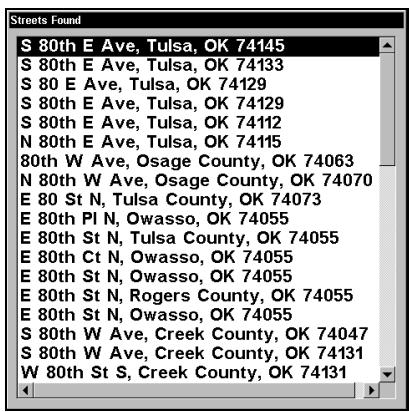
At left, the Find Streets menu with the Find First Street command highlighted. At right, Streets Found list.
- The Map Page appears, with the cursor pointing to the found street.

Map Page showing results of a street search. The cursor points to the located street.
If you want to navigate to the found street at the cursor location, just press MENU|ENT|EXIT.
Find an Intersection
You must enter one street in the First Street dialog box and enter the next street in the Second Street dialog box.
-
From the Map Page, press MENU|↓ to FIND STREETS|ENT and the Find Streets Menu appears.
-
You must fill in a street name in the First Street dialog box. Press ENT to display the Find By Name menu. There are two options: A. You can spell out the street in the top selection box. Press or to change the first letter, then press to move the cursor to the next letter and repeat until the name is correct, then press ENT|ENT. B. Or you can jump down to the lower box and pick a street from the selection list. Press ENT, then press or to select a street from the list and press ENT.
- The Find Streets menu reappears with the street you're searching for in the First Street box. (In this example, it's 80th Street.)
- Now fill in the second street. Press to SECOND STREET|ENT and the Find By Name menu appears again. Just like before, there are two options: A. You can spell out the second street in the top selection box. Press or to change the first letter, then press to move the cursor to the next letter and repeat until the name is correct, then press ENT|ENT. B. Or you can jump down to the lower box and pick the second street from the selection list. Press ENT, then press or to select a street from the list and press ENT.
- The Find Streets menu reappears with the first and second street dialog boxes filled in. In this example, we selected 71st Avenue as our second street. You could now use similar techniques to select a city or Zip code, but your search will probably be faster if you leave those boxes blank. (You can specify a city and/or Zip code later on to narrow the search, if the resulting list is too long.)
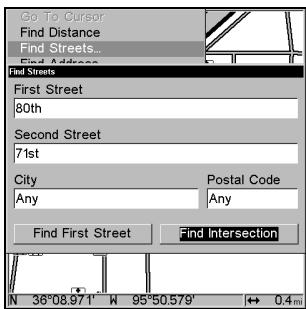
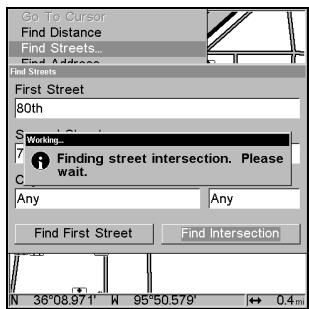
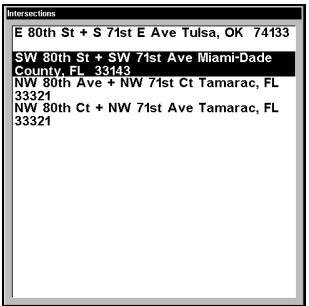
Find Intersection command highlighted, left, and
"Working" message, center. At right is the Intersections Found list.
-
To search for the intersection of the two streets, press to Find INTERSECTION | ENT. A message appears asking you to wait while the unit finds the intersection. When the Intersections Found list appears, press ↑ or ↓ to select the intersection you are searching for and press ENT. (In our example, we selected the intersection of SW 80th Street and SW 71st Avenue in Miami, Fla.)
-
The Map Page appears, with the cursor pointing to the found intersection. The intersection in our example is shown in the following figure.
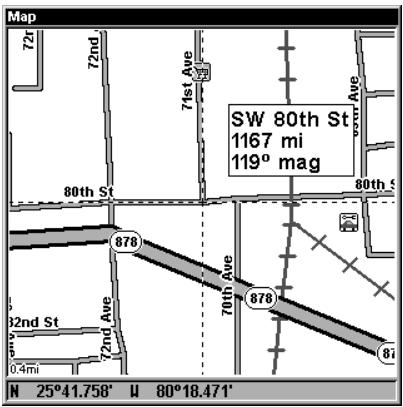
Map Page showing results of an intersection search. The cursor points to the located intersection.
If you want to navigate to the found intersection, just press MENU|ENT|EXIT.
Find Waypoints
- Press WPT|ENT.
- If searching for the waypoint By Name , press ENT . If searching for the Nearest waypoint, press to NEAREST . (To search by name, jump to step 5.)
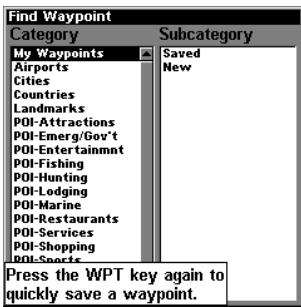
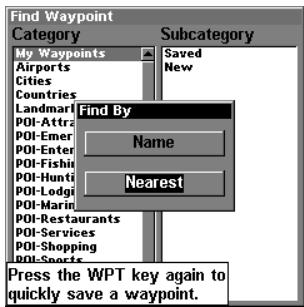

Find Waypoint menu, left; Find By Nearest command, center, Find by Name command, right.
- If you're looking for nearest, the unit says it is calculating, then a list of waypoints appears. The closest is highlighted at the top of the list and the farthest at the bottom of the list.
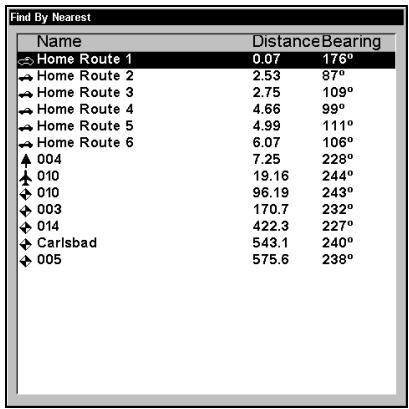
Calculating message, left, and list of the nearest waypoints, right.
- To see location information on the closest (highlighted) waypoint, press ENT and the Waypoint Information screen appears. (If you wanted to, you could select another waypoint from the list with the ↑ or ↓ keys.)
A. To navigate to the waypoint, press ENT. (The Go To Waypoint command is already highlighted.) The unit will show navigation information to the waypoint.
B. To find the waypoint, press to FIND ON MAP | ENT. The Map Page appears with the cursor highlighting the found waypoint.
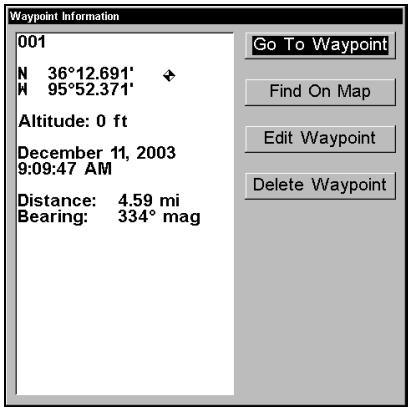
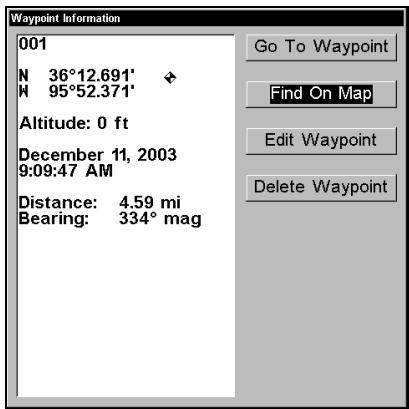
Waypoint Information screens with the Go To Waypoint command selected, left, and the Find on Map command selected, right.
To clear these menus and return to the previous page, press EXIT repeatedly.
- If you're looking by name, there are two options: A. You can spell out the name in the top selection box. Press or to change the first
letter, then press to move the cursor to the next letter and repeat until the name is correct, then press ENT|ENT. B. Or you can jump down to the lower selection list by pressing ENT, then press or to select a waypoint from the list, then press ENT. The waypoint information screen appears.
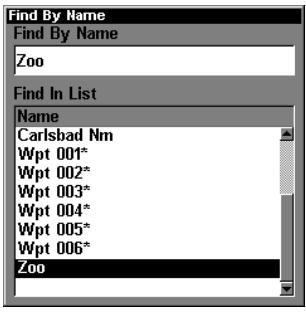
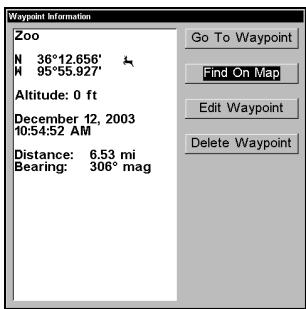
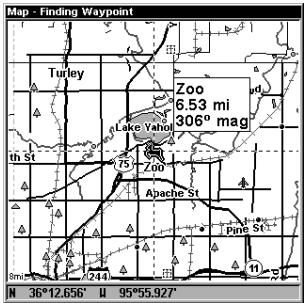
Find By Name menu, left. Waypoint Information screen, center. At right, the found waypoint is highlighted by the cursor on the Map Page.
A. To navigate to the waypoint, press ENT. (Go To Waypoint command is already highlighted.) The unit will show navigation information to the waypoint.
B. To find the waypoint, press to FIND ON MAP|ENT. The Map Page appears with the cursor highlighting the found waypoint.
Notes
Section 7: Supplemental Material Datums Used by This Unit
| WGS 1984 Default | Zaire, Zambia and Zimbabwe | Australian Geodetic 1984 - Australia & Tasmania |
| Adindan Mean for Ethiopia, Sudan | Arc 1950 - Botswana | Ayabelle Lighthouse - Djibouti |
| Arc 1950 - Burundi | ||
| Adindan Burkina Faso | Arc 1950 - Lesotho | Bellevue (IGN) - Efate & Erromango Islands |
| Arc 1950 - Malawi | ||
| Adindan Cameroon | Arc 1950 - Swaziland | Bermuda 1957 - Bermuda |
| Adindan Ethiopia | Arc 1950 - Zaire | Bissau - Guinea- Bissau |
| Arc 1950 - Zambia | ||
| Adindan Mali | Arc 1950 - Zimbabwe | Bogota Observatory - Colombia |
| Adindan Senegal | Arc 1960 - Mean for Kenya, Tanzania | Bukit Rimpah - Indonesia (Bangka & Belitung Islands) |
| Adindan Sudan | Ascension Island 1958 - Ascension Island | Camp Area Astro - Antarctica (McMurdo Camp Area) |
| Afgooye Somalia | Astro Beacon E 1945 - Iwo Jima | Campo Inchauspe - Argentina |
| Ain el Abd 1970 Bahrain | Astro DOS 71/4 - St. Helena Island | Canton Astro 1966 - Phoenix Islands |
| Ain el Abd 1970 Saudi Arabia | Astro Tern Island (FRIG) 1961 - Tern Island | Cape - South Africa |
| Anna 1 Astro 1965 Cocos Islands | Astronomical Station 1952 - Marcus Island | Cape Canaveral - Bahamas, Florida |
| Antigua Island Astro 1943; Antigua (Lee- ward Islands) | Australian Geodetic 1966 - Australia & Tasmania | Carthage - Tunisia |
Chatham Island Astro 1971; New Zealand (Chatham Island)
Chua Astro Paraguay
Corrego Alegre Brazil
Dabola Guinea
Djakarta (Batavia)
Indonesia (Sumatra)
DOS 1968 New Georgia Islands (Gizo Island)
Easter Island 1967
Easter Island
European 1950
Mean for Austria, Belgium, Denmark, Finland, France, West Germany, Gibraltar, Greece, Italy, Luxembourg, Netherlands, Norway, Portugal, Spain, Sweden, Switzerland
European 1950
Mean for Austria, Denmark, France, West Germany, Netherlands, Switzerland
European 1950
Mean for Iraq, Israel, Jordan, Lebanon, Kuwait, Saudi Arabia, Syria
European 1950 Cyprus
European 1950 Egypt
European 1950 England, Channel Islands, Ireland, Scotland, Shetland Islands
European 1950 Finland, Norway
European 1950 Greece
European 1950 Iran
European 1950 Italy (Sardinia)
European 1950 (Sicily) European 1950 Malta
Ireland 1965 Ireland
ISTS 061 Astro 1968
South Georgia Islands
ISTS 073 Astro 1969 Diego Garcia
Johnston Island 1961 Johnston Island
Kandawala Sri Lanka
Kerguelen Island 1949
Kerguelen Island
Kertau 1948
West Malaysia & Singapore
Kusaie Astro 1951
Caroline Islands
L.C. 5 Astro 1961
Cayman Brac Island
Leigon Ghana
Liberia 1964
Liberia
Luzon Philippines (Excluding Mindanao)
Luzon Philippines (Mindanao)
Mahe 1971 Mahe Island
Massawa Ethiopia (Eritrea)
Merchich Morocco
Midway Astro 1961 Midway Islands
Minna Cameroon
Minna Nigeria
Montserrat Island Astro 1958; Montserrat (Leeward Islands)
M'Poraloko Gabon, Nahrwan, Oman (Masirah Island)
Nahrwan Saudi Arabia
Nahrwan
United Arab Emirates
Naparima BWI
Trinidad & Tobago
North American 1927
Mean for Antigua, Barbados, Barbuda, Caicos Islands, Cuba, Dominican Republic, Grand Cayman, Jamaica, Turks Islands
North American 1927
Mean for Belize, Costa Rica, El Salvador, Guatemala, Honduras, Nicaragua
North American 1927
Mean for Canada
North American 1927
Mean for CONUS (Continental United States)
North American 1927
Mean for CONUS (East of Mississippi River) including Louisiana, Missouri, Minnesota
North American 1927
Mean for CONUS (West of Mississippi River)
North American 1927 Alaska
North American 1927 Bahamas (Except San Salvador Island)
North American 1927 Bahamas (San Salvador Island)
North American 1927 Canada (Alberta, British Columbia)
North American 1927 Canada (Manitoba, Ontario)
North American 1927 Canada (New Brunswick, Newfoundland, Nova Scotia, Quebec)
North American 1927 Canada (Northwest Territories, Saskatchewan)
North American 1927 Canada (Yukon)
North American 1927 Canal Zone
North American 1927 Cuba
North American 1927 Greenland (Hayes Peninsula)
North American 1927 Mexico
North American 1983
Alaska, Canada, CONUS
North American 1983 Central America, Mexico
Observaorio Metereo 1939;Azores (Corvo & Flores Islands)
Old Egyptian 1907 Egypt
Old Hawaiian Mean for Hawaii, Kauai, Maui, Oahu
Old Hawaiian Hawaii
Old Hawaiian Kauai
Old Hawaiian Maui
Old Hawaiian Oahu
Oman Oman
Ordinance Survey Great Britain 1936 - Mean for England, Isle of Man, Scotland, Shetland Islands, Wales
Ordinance Survey Great Britain 1936 - England
Ordinance Survey Great Britain 1936 - England, Isle of Man, Wales
Ordinance Survey Great Britain 1936 - Scotland, Shetland Islands
Ordinance Survey Great Britain 1936 - Wales
Pico de las Nieves
Canary Islands
Pitcairn Astro 1967
Pitcairn Island
| Point 58 | South American 1969 Brazil | Tokyo Mean for Japan, Ko-rea, Okinawa |
| Sweden | South American 1969 Chile | |
| Santo (DOS) 1965 Espirito Santo Island | South American 1969 Colombia | Tokyo Japan |
| Tokyo | ||
| Sao Braz Azores (Sao Miguel, Santa Maria Islands) | South American 1969 Ecuador | Korea Tokyo |
| South American 1969 Ecuador (Baltra, Ga-lapagos) | Tokyo Okinawa | |
| Sapper Hill 1943 East Falkland Island | South American 1969 Guayana | Tristan Astro 1968 Tristan da Cunha |
| Viti Levu 1916 | ||
| Schwarzeck Nambia | South American 1969 Guyana | Fiji (Viti Levu Island) |
| Selvagem Grande Salvage Islands | South American 1969 Paraguay | Wake |
| South American 1969 Peru | ||
| SGS 85 Soviet Geodetic System 1985 | South American 1969 Trinidad & Tobago | Eniwetak 1960 |
| South American 1969 Mean for Argentina, Bolivia, Brazil, Chile, Colombia, Ecuador, Guyana, Paraguay, Peru, Trinidad & Tobago, and Venezuela | South American 1969 Venezuela | Marshall Islands Wake Island Astro 1952 Wake Atoll |
| South Asia | WGS 1972 | |
| Singapore | Global Definition | |
| South American 1969 Argentina | Tananarive Observatory 1925; Madagascar | Yacare Uruguay |
| South American 1969 Bolivia | Timbalai 1948 Brunei, East Malaysia | Zanderij Suriname |
FCC Compliance
This device complies with Part 15 of the U.S. Federal Communications Commission (FCC) Rules. Operation is subject to the following two conditions: (1) this device may not cause harmful interference, and (2) this device must accept any interference received, including interference that may cause undesired operation.
Changes or modifications not expressly approved by the manufacturer could void the user's authority to operate the equipment.
Note:
This equipment has been tested and found to comply with the limits for a Class B digital device, pursuant to Part 15 of the FCC Rules. These limits are designed to provide reasonable protection against harmful interference in a residential installation. This equipment generates, uses and can radiate radio frequency energy and, if not installed and used in accordance with the instructions, may cause harmful interference to radio communications. However, there is no guarantee that interference will not occur in a particular installation. If this equipment does cause harmful interference to radio or television reception, which can be determined by turning the equipment off and on, the user is encouraged to try to correct the interference by one or more of the following measures:
Reorient or relocate the receiving antenna.
Increase the separation between the equipment and receiver.
Connect the equipment into an outlet on a circuit different from that to which the receiver is connected.
Consult the factory customer service department for help.
Notes
Notes
Notes
LOWRANCE DATABASES LICENSE AGREEMENT
THIS IS A LEGAL AGREEMENT BETWEEN THE END-USER WHO FIRST PURCHASES THIS PRODUCT AS A CONSUMER ITEM FOR PERSONAL, FAMILY, OR HOUSEHOLD USE ("YOU") AND LOWRANCE ELECTRONICS, INC., THE MANUFACTURER OF THIS PRODUCT ("WE", "OUR", OR "US"). USING THE PRODUCT ACCOMPANIED BY THIS LICENSE AGREEMENT CONSTITUTES ACCEPTANCE OF THESE TERMS AND CONDITIONS. IF YOU DO NOT ACCEPT ALL TERMS AND CONDITIONS, PROMPTLY RETURN THE PRODUCT WITHIN 30 DAYS OF PURCHASE. PLEASE RETURN USING THE ENCLOSED UPS SHIPPING LABEL AND INCLUDE: PROOF OF PURCHASE, NAME, ADDRESS, AND PHONE NUMBER. YOUR PURCHASE PRICE AND ANY APPLICABLE TAXES WILL BE REFUNDED. PLEASE ALLOW 4-6 WEEKS TO PROCESS YOUR REFUND.
- This License Agreement applies to the one or more databases that your product may contain. We refer to these singly as a "Database" and together as the "Databases." Your product may thus include the "WBS Database" which contains worldwide background surface mapping data, the "SmartMap Database" which contains inland mapping data, or other Databases.
- The Databases that your product may contain are licensed, not sold. We grant to you the nonexclusive, nonassignable right to use these Databases for supplemental navigation reference purposes, but only as long as you comply with the terms and conditions of this License Agreement. We reserve the right to terminate this license if you violate any aspect of this License Agreement. You are responsible for using official government charts and prudent navigation for safe travel.
- The Databases housed in your product are protected by the copyright notices appearing on the product or its screen(s). You may NOT modify, adapt, translate, reverse engineer, decompile, disassemble, rent, lease, or resell any Database, and you may NOT create derivative works based upon any Database or its contents. Any unauthorized reproduction, use, or transfer of a Database may be a crime and may subject you to damages and attorney fees.
- This License Agreement will terminate immediately without prior notice from us if you fail to comply with or violate any of the provisions of this Agreement. Upon termination, you will promptly return all products containing one or more Databases to us.
- Prices and programs are subject to change without notice.
- This License Agreement shall be governed by the laws of the State of Oklahoma and comprises the complete and exclusive understanding between you and us concerning the above subject matter.
DATABASES LIMITED WARRANTY
"We", "our", or "us" refers to Lowrance Electronics, Inc., the manufacturer of this product. "You" or "your" refers to the first person who purchases the product as a consumer item for personal, family, or household use. The Databases Limited Warranty applies to the one or more databases that your product may contain. We refer to each of these as a "Database" or together as the "Databases." Your product may thus include the "WBS Database" which contains worldwide background surface mapping data, the "SmartMap Database" which contains inland mapping data, or other Databases.
We warrant to you that we have accurately compiled, processed, and reproduced the portions of the source material on which the Databases are based. However, we are under no obligation to provide updates to the Databases, and the data contained in the Databases may be incomplete when compared to the source material. WE MAKE NO EXPRESS OR IMPLIED WARRANTY OF ANY KIND ABOUT THE ACCURACY OF THE SOURCE MATERIAL ITSELF, INCLUDING BUT NOT LIMITED TO IMPLIED WARRANTY OF MERCHANTABILITY OR FITNESS FOR A PARTICULAR PURPOSE.
If there is a defect in any Database, your exclusive remedy shall be, at our option, either a refund of the price you paid for the product containing the defective Database or a replacement of such product. WE WILL NOT UNDER ANY CIRCUMSTANCES BE LIABLE TO ANYONE FOR ANY SPECIAL, CONSEQUENTIAL, INCIDENTAL, OR OTHER INDIRECT DAMAGE OF ANY KIND.
Some states do not allow the exclusion or limitation of incidental or consequential damages, so the above limitations or exclusions may not apply to you.
This warranty does NOT apply in the following circumstances: (1) when the product has been serviced or repaired by anyone other than us; (2) when the product has been connected, installed, combined, altered, adjusted, or handled in a manner other than according to the instructions furnished with the product; (3) when any serial number has been effaced, altered, or removed; or (4) when any defect, problem, loss, or damage has resulted from any accident, misuse, negligence, or carelessness, or from any failure to provide reasonable and necessary maintenance in accordance with the instructions of the owner's manual for the product.
We reserve the right to make changes or improvements in our products from time to time without incurring the obligation to install such improvements or changes on equipment or items previously manufactured.
This warranty gives you specific legal rights and you may also have other rights which may vary from state to state.
Your remedies under this warranty will be available so long as you can show in a reasonable manner that the defect occurred within one (1) year from the date of your original purchase, and we must receive your warranty claim no later than 30 days after such 1-year period expires. Your claim must be substantiated by a dated sales receipt or sales slip.
LOWRANCE ELECTRONICS FULL ONE-YEAR WARRANTY
"We," "our," or "us" refers to LOWRANCE ELECTRONICS, INC., the manufacturer of this product. "You" or "your" refers to the first person who purchases this product as a consumer item for personal, family or household use.
We warrant this product against defects or malfunctions in materials and workmanship, and against failure to conform to this product's written specifications, all for one (1) year from the date of original purchase by you. WE MAKE NO OTHER EXPRESS WARRANTY OR REPRESENTATION OF ANY KIND WHATSOEVER CONCERNING THIS PRODUCT. Your remedies under this warranty will be available so long as you can show in a reasonable manner that any defect or malfunction in materials or workmanship, or any non-conformity with the product's written specifications, occurred within one year from the date of your original purchase, which must be substantiated by a dated sales receipt or sales slip. Any such defect, malfunction, or non-conformity which occurs within one year from your original purchase date will either be repaired without charge or be replaced with a new product identical or reasonably equivalent to this product, at our option, within a reasonable time after our receipt of the product. If such defect, malfunction, or non-conformity remains after a reasonable number of attempts to repair by us, you may elect to obtain without charge a replacement of the product or a refund for the product. THIS REPAIR, OR REPLACEMENT OR REFUND (AS JUST DESCRIBED) IS THE EXCLUSIVE REMEDY AVAILABLE TO YOU AGAINST US FOR ANY DEFECT, MALFUNCTION, OR NON-CONFORMITY CONCERNING THE PRODUCT OR FOR ANY LOSS OR DAMAGE RESULTING FROM ANY OTHER CAUSE WHATSOEVER. WE WILL NOT UNDER ANY CIRCUMSTANCES BE LIABLE TO ANYONE FOR ANY SPECIAL, CONSEQUENTIAL, INCIDENTAL, OR OTHER INDIRECT DAMAGE OF ANY KIND.
Some states do not allow the exclusion or limitation of incidental or consequential damages, so the above limitations or exclusions may not apply to you.
This warranty does NOT apply in the following circumstances: (1) when the product has been serviced or repaired by anyone other than us; (2) when the product has been connected, installed, combined, altered, adjusted, or handled in a manner other than according to the instructions furnished with the product; (3) when any serial number has been effaced, altered, or removed; or (4) when any defect, problem, loss, or damage has resulted from any accident, misuse, negligence, or carelessness, or from any failure to provide reasonable and necessary maintenance in accordance with the instructions of the owner's manual for the product.
We reserve the right to make changes or improvements in our products from time to time without incurring the obligation to install such improvements or changes on equipment or items previously manufactured.
This warranty gives you specific legal rights and you may also have other rights which may vary from state to state.
REMARKER: You must retain the sales slip or sales receipt proving the date of your original purchase in case warranty service is ever required.
LOWRANCE ELECTRONICS
12000 E. SKELLY DRIVE, TULSA, OK 74128 (800) 324-1356
How to Obtain Service...
...in the USA:
We back your investment in quality products with quick, expert service and genuine Lowrance parts. If you're in the United States and you have technical, return or repair questions, please contact the Factory Customer Service Department. Before any product can be returned, you must call customer service to determine if a return is necessary. Many times, customer service can resolve your problem over the phone without sending your product to the factory. To call us, use the following toll-free number:
800-324-1356
8 a.m. to 5 p.m. Central Standard Time, M-F
Lowrance Electronics may find it necessary to change or end our shipping policies, regulations, and special offers at any time. We reserve the right to do so without notice.
...in Canada:
If you're in Canada and you have technical, return or repair questions, please contact the Factory Customer Service Department. Before any product can be returned, you must call customer service to determine if a return is necessary. Many times, customer service can resolve your problem over the phone without sending your product to the factory. To call us, use the following toll-free number:
800-661-3983
905-629-1614 (not toll-free)
8 a.m. to 5 p.m. Eastern Standard Time, M-F
...outside Canada and the USA:
If you have technical, return or repair questions, contact the dealer in the country where you purchased your unit. To locate a dealer near you, visit our web site, www.lowrance.com and look for the Dealer Locator.
Accessory Ordering Information for all countries
To order Lowrance GPS accessories, please contact:
1) Your local marine dealer or consumer electronics store. Most quality dealers that handle marine electronic equipment or other consumer electronics should be able to assist you with these items.
To locate a Lowrance dealer near you, visit our web site, www.lowrance.com and look for the Dealer Locator. Or, you can consult your telephone directory for listings.
2) U.S. customers: LEI Extras Inc., PO Box 129, Catoosa, OK 74015-0129
Call 1-800-324-0045 or visit our web site www.lei-extras.com.
3) Canadian customers can write: Lowrance/Eagle Canada, 919 Matheson Blvd. E. Mississauga, Ontario L4W2R7 or fax 905-629-3118.
Shipping Information
If it becomes necessary to send a product for repair or replacement, you must first receive a return authorization number from Customer Service. Products shipped without a return authorization will not be accepted. When shipping, we recommend you do the following:
- Please do not ship the knobs or mounting bracket with your unit.
- If you are sending a check for repair, please place your check in an envelope and tape it to the unit.
- For proper testing, include a brief note with the product describing the problem. Be sure to include your name, return shipping address and a daytime telephone number. An e-mail address is optional but useful.
- Pack the unit in a suitable size box with packing material to prevent any damage during shipping.
- Write the Return Authorization (RA) number on the outside of the box underneath your return address.
- For your security, you may want to insure the package through your shipping courier. Lowrance does not assume responsibility for goods lost or damaged in transit.
Visit our web site:

L LOWRANCE
We Lead, We Find, You Win.
Lowrance Pub. 988-0156-081
Printed in USA 121704
© Copyright 2004
All Rights Reserved
Lowrance Electronics, Inc.