
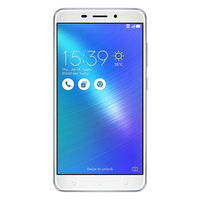
PADFONE 2 A68 4G - Cellphone ASUS - Free user manual and instructions
Find the device manual for free PADFONE 2 A68 4G ASUS in PDF.


| Product Type | Smartphone with dock station transformable into tablet |
| Brand | ASUS |
| Model | PadFone 2 A68 4G |
| Operating System | Android 4.0 Ice Cream Sandwich |
| Screen | Capacitive touchscreen, 4.7 inches |
| Rear Camera | 13 Megapixels |
| Front Camera | 1.2 Megapixels |
| Mobile Connectivity | 4G LTE, 3G, 2G |
| Wi-Fi | Wi-Fi 802.11 b/g/n |
| Bluetooth | Bluetooth 4.0 |
| GPS | Yes, with A-GPS |
| Phone Battery | 2140 mAh (rechargeable) |
| Dock Battery | Additional built-in battery (not specified) |
| Phone Weight | Approximately 135 g |
| Phone Dimensions | 137.9 x 69 x 9 mm |
| Box Contents | PadFone 2, dock, power adapter, signal cable, headset, quick start guide, important notices, warranty card |
| Main Features | Calls, messaging, web browsing, camera, video, GPS, Bluetooth, Wi-Fi, tablet dock, SuperNote, MyLibrary, Polaris Office, App Locker |
| Maintenance | Clean with a soft, dry cloth. Avoid humidity and extreme temperatures. |
| Security | Screen lock, App Locker to protect applications, data backup via Google account |
| Repairability | Spare parts available from the manufacturer or authorized resellers. Contact ASUS support. |
Frequently Asked Questions - PADFONE 2 A68 4G ASUS
User questions about PADFONE 2 A68 4G ASUS
0 question about this device. Answer the ones you know or ask your own.
Ask a new question about this device
Download the instructions for your Cellphone in PDF format for free! Find your manual PADFONE 2 A68 4G - ASUS and take your electronic device back in hand. On this page are published all the documents necessary for the use of your device. PADFONE 2 A68 4G by ASUS.
USER MANUAL PADFONE 2 A68 4G ASUS
Copyright © 2012 ASUSTek Computers, Inc. All Rights Reserved.
No part of this manual, including the products and software described in it, may be reproduced, transmitted, transcribed, stored in a retrieval system, or translated into any language in any form or by any means, except documentation kept by the purchaser for backup purposes, without the express written permission of ASUS Telecom ("ASUS").
Product warranty or service will not be extended if: (1) the product is repaired, modified or altered, unless such repair, modification of alteration is authorized in writing by ASUS; or (2) the serial number of the product is defaced or missing.
ASUS PROVIDES THIS MANUAL "AS IS" WITHOUT WARRANTY OF ANY KIND, EITHER EXPRESS OR IMPLIED, INCLUDING BUT NOT LIMITED TO THE IMPLIED WARRANTYES OR CONDITIONS OF MERCHANTABILITY OR FITNESS FOR A PARTICULAR PURPOSE. IN NO EVENT SHALL ASUS, ITS DIRECTORS, OFFICERS, EMPLOYEES OR AGENTS BE LIABLE FOR ANY INDIRECT, SPECIAL, INCIDENTAL, OR CONSEQUENTIAL DAMAGES (INCLUDING DAMAGES FOR LOSS OF PROFITS, LOSS OF BUSINESS, LOSS OF USE OR DATA, INTERRUsION OF BUSINESS AND THE LIKE), EVEN IF ASUS HAS BEEN ADVISED OF THE POSSIBILITY OF SUCH DAMAGES ARISING FROM ANY DEFECT OR ERROR IN THIS MANUAL OR PRODUCT.
SPECIFICATIONS AND INFORMATION CONTAINED IN THIS MANUAL ARE FURNISHED FOR INFORMATIONAL USE ONLY, AND ARE SUBJECT TO CHANGE AT ANY TIME WITHOUT NOTICE, AND SHOULD NOT BE CONTRUED AS A COMMITMENT BY ASUS. ASUS ASSUMES NO RESPONSIBILITY OR LIABILITY FOR ANY ERRORS OR INACCURACIES THAT MAY APPEAR IN THIS MANUAL, INCLUDING THE PRODUCTS AND SOFTWARE DESCRIBED IN IT.
Products and corporate names appearing in this manual may or may not be registered trademarks or copyrights of their respective companies, and are used only for identification or explanation and to the owners' benefit, without intent to infringe.
Table of Contents
Package contents 5
Chapter 1: Using your PadFone 2
Basics. 6
Navigating your PadFone 2 . 7
Making calls 8
Setting up your contacts list. 8
Connecting to the world 9
Connecting to mobile networks 9
Connecting to Wi-Fi networks. 10
Using Bluetooth 11
Chapter 2: Using your PadFone 2 Station
Basics. 14
Unlocking your device 14
Entering the camera mode 14
Tutorial 15
Home Screen. 16
Screen Views. 17
Chapter 3: Touching and typing
Using gestures 18
Using the onscreen keyboard 19
Using Google voice typing 20
Chapter 4: Using apps and widgets
Using apps on the PadFone 2. 21
Launching apps 21
Messaging 21
Surfing the web 22
Managing notifications 22
Searching your PadFone 2 or web 25
Taking pictures 25
Watch Calendar 26
SuperNote 27
Using apps on the PadFone 2 Station. 29
Managing Apps 29
Task Manager 33
File Manager 34
PlayStore 37
Settings 39
Music 42
Gallery 43
Camera 47
Email 49
Gmail 51
MyLibrary 53
Places and Maps 56
PolarisOffice 57
MyNet 59
AppLocker 63
SuperNote 64
Watch Calendar 66
Using PadFone 2 widgets. 67
Adding widgets 67
Task Manager 68
Using PadFone 2 Station widgets .69
Adding widgets 69
ASUS Battery. 70
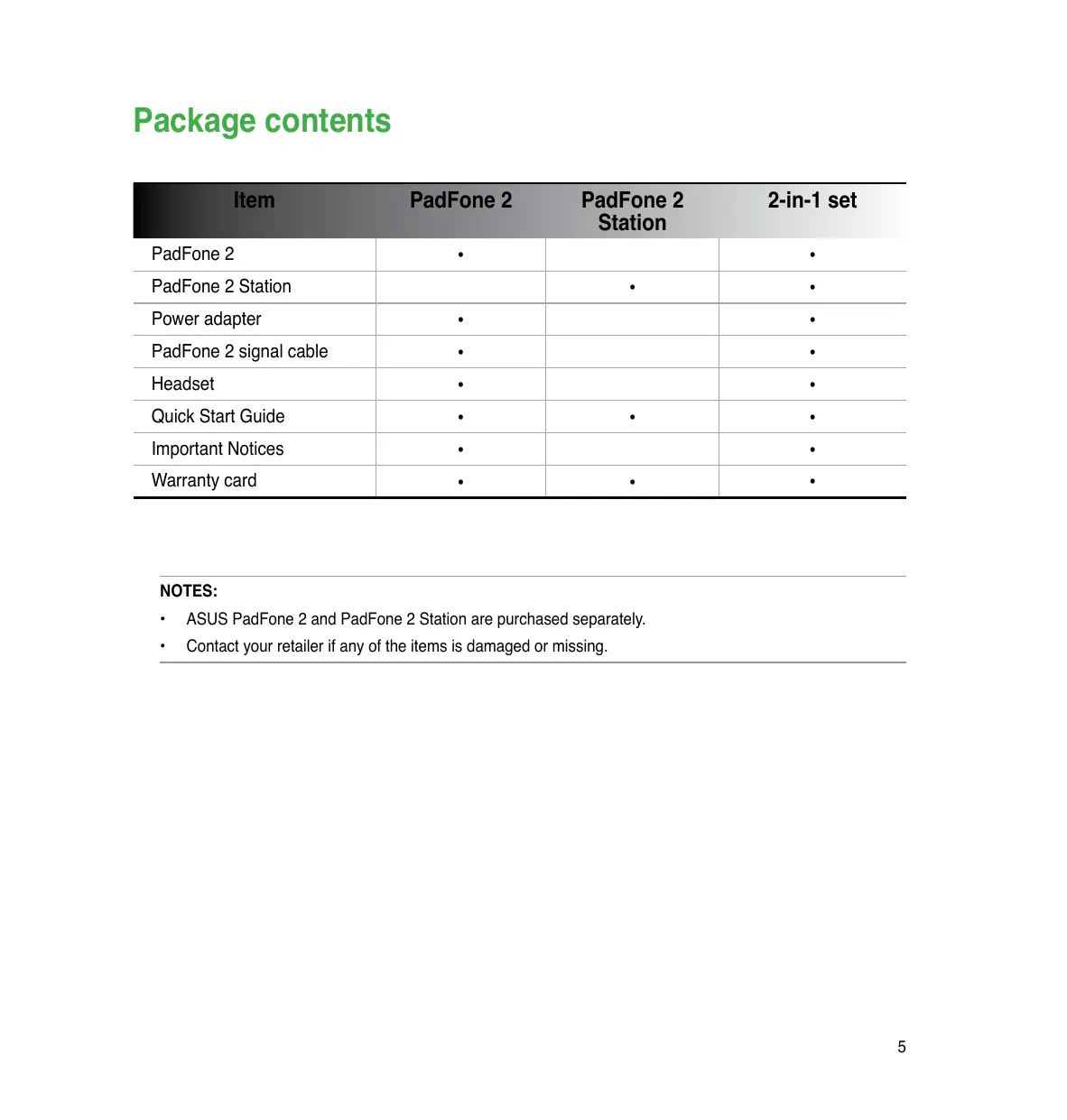
Package contents
| Item | PadFone 2 | PadFone 2 Station | 2-in-1 set |
| PadFone 2 | ● | ● | |
| PadFone 2 Station | ● | ● | |
| Power adapter | ● | ● | |
| PadFone 2 signal cable | ● | ● | |
| Headset | ● | ● | |
| Quick Start Guide | ● | ● | ● |
| Important Notices | ● | ● | |
| Warranty card | ● | ● | ● |
NOTES:
- ASUS PadFone 2 and PadFone 2 Station are purchased separately.
- Contact your retailer if any of the items is damaged or missing.
Using your PadFone 2
Use your PadFone 2 to enjoy the latest features and technologies of Android 4.0 (Ice Cream Sandwich) operating system. Do work and play on your PadFone 2 to fully appreciate the tons of interactive applications and features, and the seamless connectivity solutions in data sharing and communication that Android 4.0 has to offer.
Basics
IMPORTANT:
- Before you start, ensure that you have read all the safety information and operating instructions in the Important Notices to prevent injury or damage to your device.
Refer to your PadFone 2 Quick Start Guide for instructions on installing the SIM card, installing an SD card, installing the battery, and charging your device.
The first time you turn on your PadFone 2, you'll see the Welcome screen.
Touch the menu to choose your preferred language and touch Next Step. Follow the succeeding instructions to set up your PadFone 2.
NOTES:
You can skip some of the steps and set them up later.
You can press the power key for 10 seconds to reset the system.
Navigating your PadFone 2
After you finish setting up your PadFone 2, the Home Screen appears.
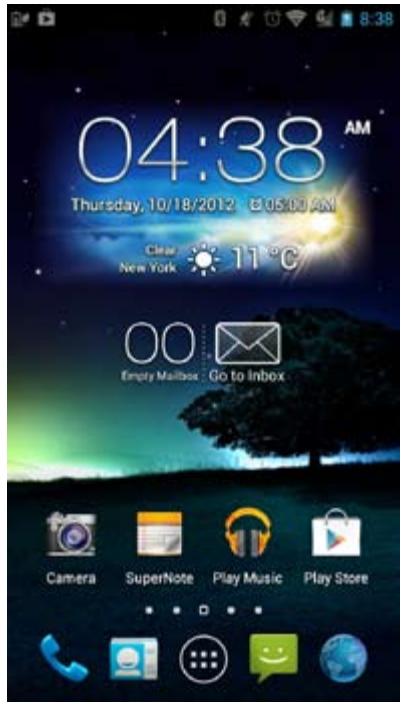
At the bottom of your Home Screen, you'll find three navigation icons , , . These icons, which are always available on the system bar, allow you to instantly jump back to the Home Screen, return to a previous page, or launch a recent app.
| Icon | Description |
| ← | Allows you to go back to the previous screen, until you are in the Home Screen. |
| → | Opens your Home Screen. |
| ← | Opens a thumbnail list of your most recent apps. To launch an app, touch the thumbnail image. If you wish to remove a thumbnail app, swipe it to the left or right. |
Making calls
To make a call:
- Touch on the Home Screen or touch to go to the All apps screen.
- Touch the keys to key in the number you wish to call.
- Touch to dial.
- Touch to end the call.
Setting up your contacts list
To set up your contacts, you can do any of the following:
- Touch then select Create a new contact. Follow the succeeding screen instructions to add a new contact.
-
Import your contacts from your SIM card into your PadFone 2. To import your contacts from your SIM card:
-
Install the SIM card into your PadFone 2.
- From the Home Screen, touch to launch the People app.
- Touch Import/export contacts.
- Touch Import from SIM card. When prompted, select to which account you want to add the contacts.
- To import the contacts one at a time, touch to select a contact you wish to import, then touch OK. When prompted, touch OK to confirm.
Connecting to the world
Connecting to mobile networks
After installing the SIM card, you are ready to use your PadFone 2 to make/receive voice calls or transmit/receive data. Different countries or regions may have different mobile networks available and you may have to configure your PadFone 2 to access these networks.
To configure your Mobile networks setting:
-
Do any of the following to go to the Settings screen:
-
Touch to go to the All apps screen then touch Settings

-
Swipe your finger down from the top of the screen to go to ASUS Quick Settings then touch
-
From the Settings screen, touch More....
- Touch Mobile networks.
NOTE:
For more details about ASUS Quick Settings, refer to the section Managing notifications in Chapter 4.
IMPORTANT:
If your PadFone 2 does not connect to a network, contact your mobile network carrier for assistance.
Refer to your PadFone 2 Quick Start Guide for instructions on how to install a SIM card.
Connecting to Wi-Fi networks
Wi-Fi wireless networking technology allows you to exchange data wirelessly over a network. To use Wi-Fi, enable the Wi-Fi feature in your PadFone 2 and connect to a wireless network. Some wireless networks are secured with a key or protected with digital certificates and requires additional steps to set up; others are open and you can easily connect to them.
TIP:
Turn OFF Wi-Fi when you're not using it to help save battery power.
To enable Wi-Fi and connect to a Wi-Fi network:
-
Do any of the following to go to the Settings screen:
-
Touch to go to the All apps screen then touch Settings

-
Swipe your finger down from the top of the screen to go to ASUS Quick Settings then touch
-
Slide the Wi-Fi switch to ON. When enabled, your PadFone 2 scans for available Wi-Fi networks.
- Touch Wi-Fi to display list of available Wi-Fi networks nearby. Secured networks are indicated with a lock icon.
- Touch a network name to connect to it. If the network is secured or protected, you are prompted to key in a Password or key in other credentials.
NOTE:
For more details about ASUS Quick Settings, refer to the section Managing notifications in Chapter 4.
IMPORTANT:
If your PadFone 2 finds a network that you have connected to previously, it automatically connects to it.
Using Bluetooth
Enabling or disabling Bluetooth in your device
Bluetooth is a wireless standard used for exchanging data over short distances. Bluetooth exists in many products, such as smartphones, computers, tablet devices, and headsets.
Bluetooth is very useful when transferring data between two or more devices that are near each other.
The first time you connect to a Bluetooth device, you must pair it with your PadFone 2.
TIP:
Turn OFF Bluetooth in your PadFone 2 when you're not using it to help save battery power.
To enable or disable Bluetooth in your PadFone 2, you can do any of the following:
- Touch to go to the All apps screen then touch Settings. Slide the Bluetooth switch to ON / OFF.
- Swipe your finger down from the top of the screen to go to ASUS Quick Settings, touch, and touch Bluetooth
Pairing your PadFone 2 with a Bluetooth device
Before you can connect to a device, you must first pair your PadFone 2 to that device. Once paired, the devices stay paired unless you unpair them.
To pair your PadFone 2 to a device:
- Touch to go to the All apps screen then touch Settings . Slide the Bluetooth switch to ON.
- Touch Bluetooth to display all available Bluetooth devices within range. If the device you want to pair with is not in the list, ensure that its Bluetooth feature is turned ON and set as Discoverable. See the technical documentation that came with the device to learn how to turn its Bluetooth ON and how to set it to discoverable.
- If your PadFone 2 has finished scanning before your Bluetooth device is ready, touch Search for devices.
- In the list of available devices, touch the Bluetooth device you want to pair with. Follow the succeeding screen instructions to complete the pairing. If necessary, refer to the technical documentation that came with the device.
Connecting your PadFone 2 to a Bluetooth device
After you have paired your PadFone 2 to a Bluetooth device, you can easily reconnect to it again manually, after it is back in range.
To connect:
- Touch to go to the All apps screen then touch Settings . Slide the Bluetooth switch to ON.
- In the list of PAIRED DEVICES, touch the name of the paired device.
Unpairing and configuring a Bluetooth device
To unpair or configure a Bluetooth device:
- Touch to go to the All apps screen then touch Settings . Slide the Bluetooth switch to ON.
- Touch Bluetooth to display the Bluetooth settings.
- Touch the Bluetooth Quick Settings icon beside the connected Bluetooth device you want to unpair or configure.
-
From the Bluetooth Quick Settings screen, you can do any of the following:
-
Touch Unpair to unpair the device.
- Touch Rename to rename the Bluetooth device.
-
Touch any of the listed profiles to enable or disable profile.
-
Touch when you're finished.
Using your PadFone 2 Station
Install your PadFone 2 into your PadFone 2 Station to extend its battery life and turn it into a tablet device.
IMPORTANT:
- Before you start, ensure that you have read all the safety information and operating instructions in the Important Notices bundled with your PadFone 2 to prevent injury or damage to your device.
Refer to your PadFone 2 Station Quick Start Guide for instructions on inserting your PadFone 2 into the PadFone 2 Station.
NOTES:
The image used is for reference only and may look different on your PadFone 2 Station.
- The Home Screen may update and change with Android OS.
Basics
Unlocking your device
To unlock your device, touch and drag the lock icon out of the circle to the open locked icon.
Entering the camera mode
To enter into Camera mode, touch and drag the lock icon out of the circle to the camera icon.
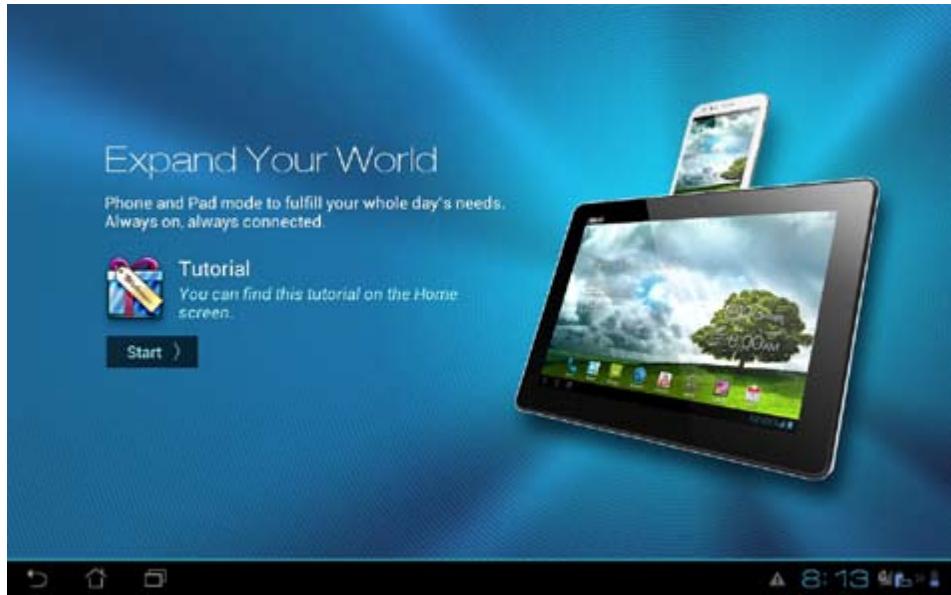
Tutorial
Tutorial automatically starts the first time that you install your PadFone into your PadFone 2 Station. It
offers useful insights about the seamless possibilities of using the PadFone and PadFone 2 Station.
To access it again, swipe your finger to the right and touch Tutorial

from the Home Screen.
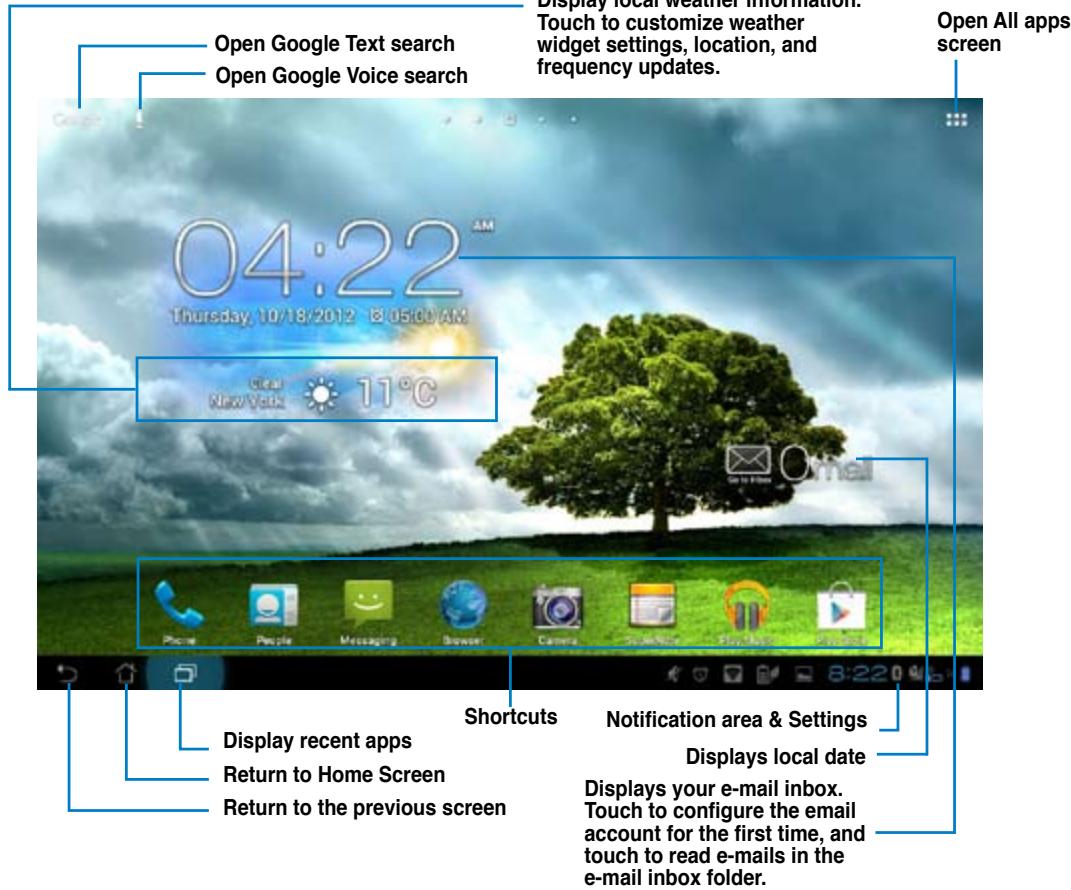
Home Screen
Screen Views
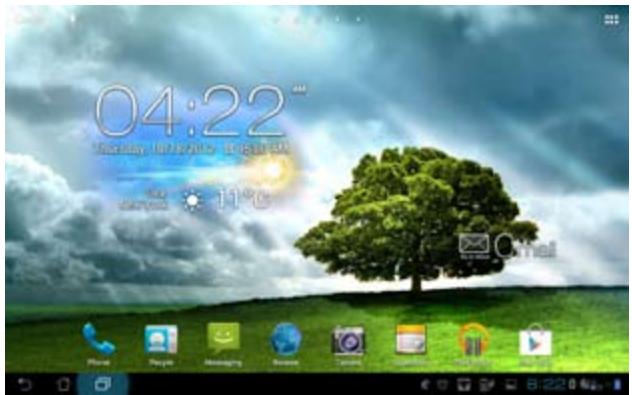
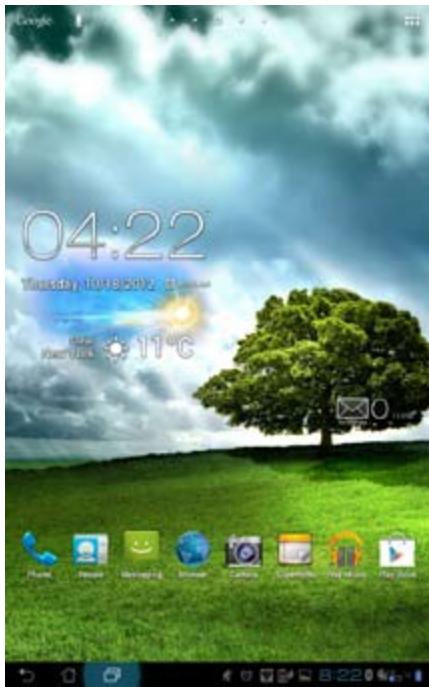
The screen view rotates automatically when you hold the tablet horizontally to vertically, and vice versa.
To enable/ disable Auto-rotate screen, go to Settings > Display.
Landscape view
Portrait view
Touching and typing
Using gestures
Use your fingers to launch apps, move icons, select menu items, press buttons, type on the onscreen keyboard, and perform other useful gestures on your Padpone 2 device's touchscreen.
To key in or type something, touch the part where you need to type and the onscreen keyboard will pop up.
The following table describes more useful gestures.
| Gesture | Description |
| Pinch | Place two fingers on the screen and spread them apart to zoom in and bring them together to zoom out. This gesture can be used in selected apps, including Maps, Gallery, and Browser. |
| Drag | Touch and hold an icon or item then, without lifting your finger, move your finger on the screen to move the icon or item. |
| Touch and hold | Touch and hold an item until an action occurs. |
| Swipe or slide | Quickly move your finger across the screen in one sweeping motion. |
| Double-tap | Quickly tap twice on the screen to zoom. |
Using the onscreen keyboard
You can type text using the onscreen keyboard.
In most apps, the onscreen keyboard appears automatically when needed. In other apps, you can touch where you need to type to open the onscreen keyboard.
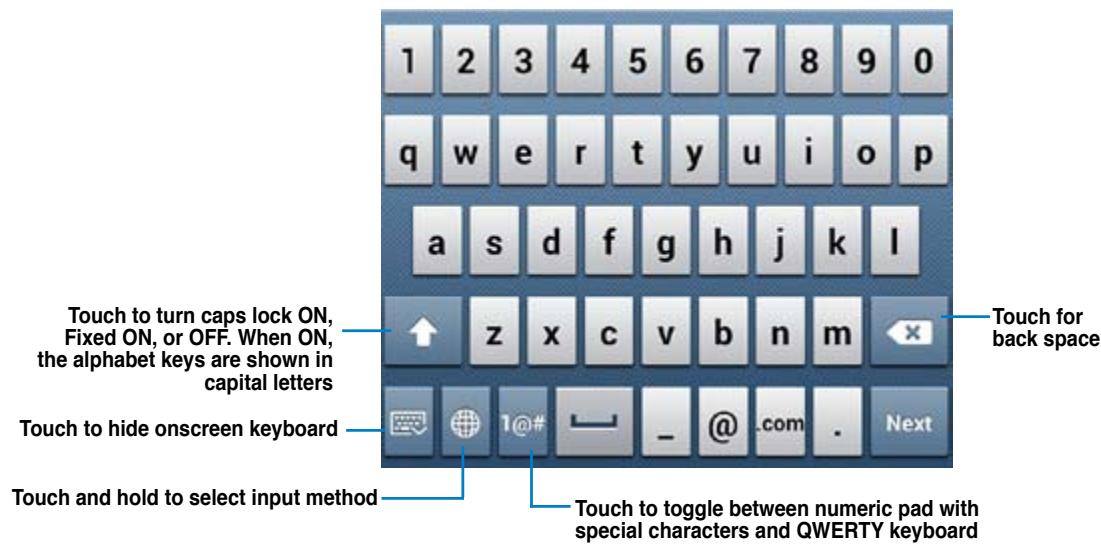
While typing on the onscreen keyboard, the keyboard displays suggestions that may match the text that you need. Touch a suggestion to use it.
Using Google voice typing
Google voice typing uses Google's speech-recognition technology, that converts spoken words into text input. You must be connected to the Internet when using this feature.
As you speak, the converted text is underlined and you can continue speaking to keep it, or you can delete it.
To use Google voice typing:
- Touch text field where you want to type text.
- Depending on the app you're using, you can do either of the following:
If you see the microphone icon beside the text field, touch it.
- If the onscreen keyboard is open, touch then when prompted to Select input method, touch Google voice typing.
- When you see the microphone icon, speak clearly what you want to type. When you pause, Google voice typing transcribes the text you spoke and displays it on the text field.
TIPS:
- Say "period", "comma", "question mark", or "exclamation point" to type these punctuation marks.
- Touch the Backspace key to delete the underlined text.
Using apps and widgets
You can seamlessly use applications between your PadFone 2 and PadFone 2 Station.
NOTES:
- PadFone 2 and PadFone 2 Station are purchased separately.
- Some downloaded applications may work on your PadFone 2 but may not work on your PadFone 2 Station, and vice versa.
Using apps on the PadFone 2
Launching apps
Touch to display all your apps. The main apps screen is where you can see all your apps. From the main apps screen you can:
- Touch an icon to launch an app.
- Swipe the screen to display more apps.
- Drag an app icon into the Home Screen.
See apps compatible with the PadFone 2 Station.
Explore widgets.
Get more apps from the Play Store.
Messaging
Touch to compose and send a message.
Surfing the web
Touch to launch the browser and surf the web.
Managing notifications
Notifications alerts you about new messages, calendar events, media service connections, PC sync information, alarms, and more.
Enable the ASUS Quick Setting app to see more and do more from your Notifications area.
NOTES:
- If ASUS Quick Setting is not enabled, go to the All Apps screen, touch customized setting and enable Use ASUS Quick Setting.

then select ASUS
Depending on your sound settings, you will also hear a sound at the same time a notification icon is displayed on the top left of your screen - everytime a new notification arrives.
To see your notifications, swipe your finger down from the top of the screen.
ASUS Quick Setting
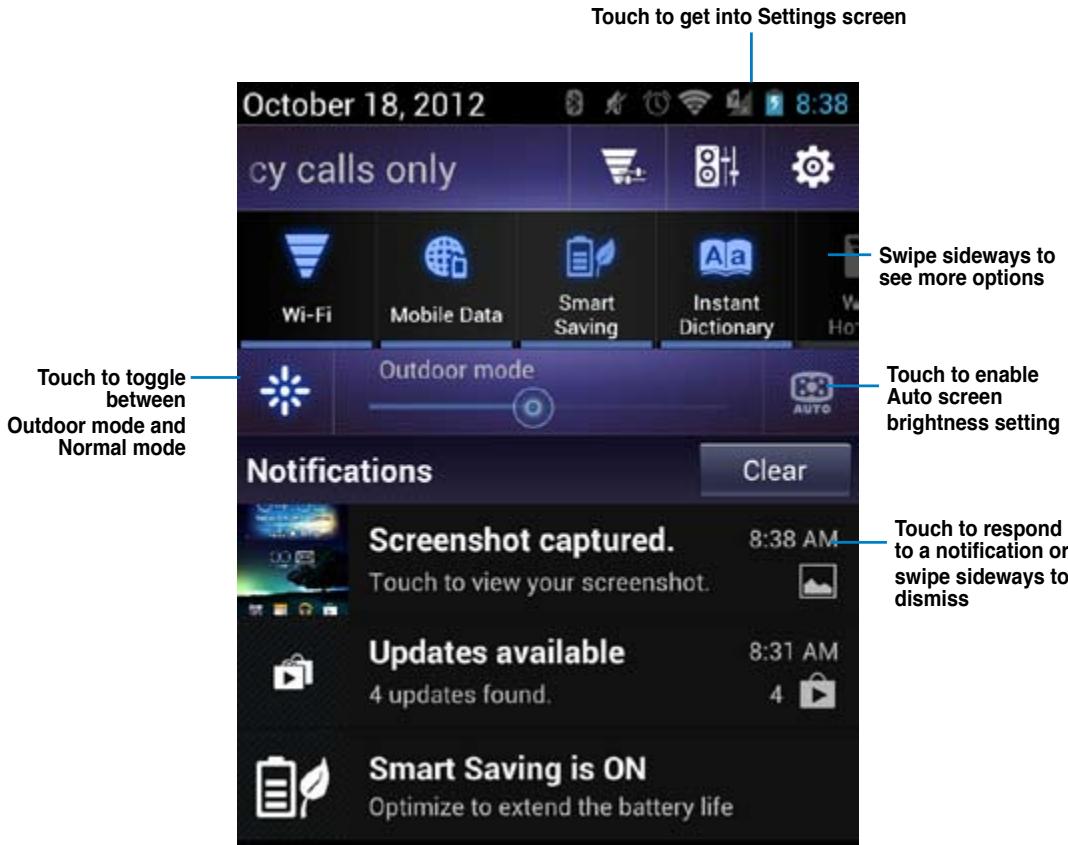
Description
Touch to enable or disable the Wi-Fi connection.
Touch to enable or disable Mobile Data function.
Touch to enable or disable Smart Saving function.
Touch to enable or disable Instant Dictionary app.

Touch to enable or disable Wi-Fi Hotspot function.
Touch to enable or disable the Bluetooth connection.
Touch to enable or disable the GPS function.
Touch to enable or disable the vibrate feature.
Touch to enable or disable the auto-rotate screen feature.
Searching your PadFone 2 or web
Use the Google Search bar at the top of your Home Screen to help you find anything that you need from your PadFone 2 or from the web. To start searching, you can do either of the following:
- Touch Google on the search bar then key in your search item. As you key in your search item, Google lists suggestions that may match your search, touch a suggestion to search for it immediately or touch the arrow beside it to add the term into the search field.
- Touch then when prompted to Speak now, speak clearly the item you're searching.
Taking pictures
Use the camera app, taking pictures and videos with your PadFone 2 is fun and easy.
The camera app works with two cameras, one 1.2 megapixel camera at the front of your device and one 13 megapixel camera at the rear.
The front camera allows you take pictures and videos, while the rear camera allows you to take high resolution pictures and videos. The rear camera also allows you to take pictures in Panorama mode, where you can pan across a subject to create a single picture.
You can view your pictures and videos in the Gallery app.
To start taking pictures or video, go to the Home screen or All Apps screen and touch
Watch Calendar
Watch Calendar allows you to add, edit, and delete an event or appointment and sync it through your Gmail account.
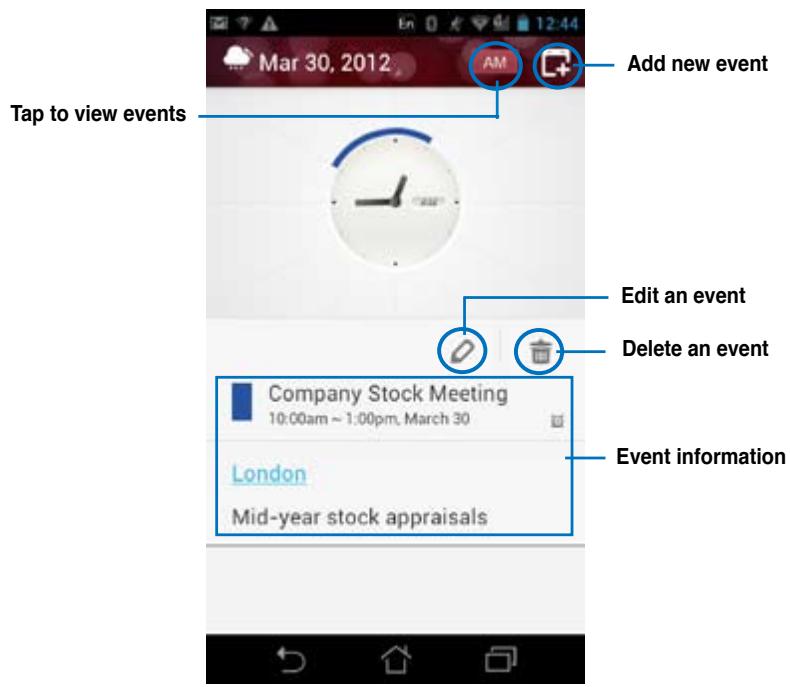
To launch Watch Calendar:
- Touch to go to the All apps screen then touch Watch Calendar
- To add an event or appointment, touch
- Key in the event name, date and time, location and description of the event. To attach a file, touch + and select a file from the Gallery.
- Touch Done.
- To edit the selected event, touch . Touch to delete the selected event.
SuperNote
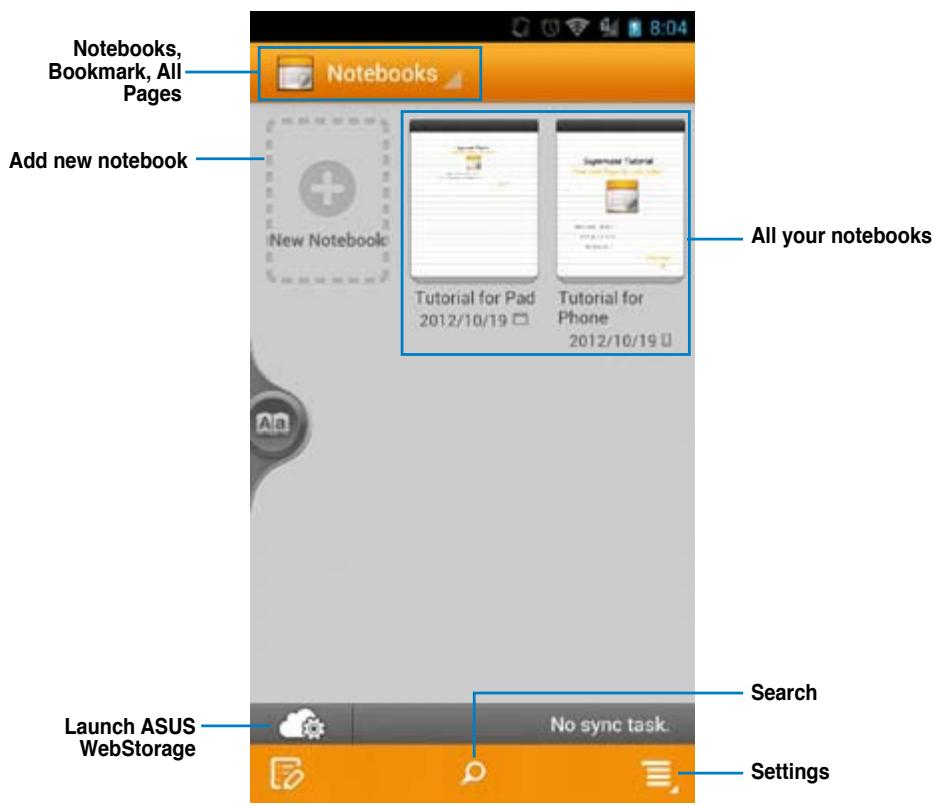
SuperNote is a convenient app used for writing and painting on your PadFone 2. You can take notes, send instant messages, draw sketches, create e-cards with audio recordings or diaries with video, and a lot more.
To launch SuperNote, touch to go to the All apps screen then touch SuperNote
Using SuperNote
To create a new notebook:
- Touch New Notebook.
- Key in a name for the file and choose the notebook type to start writing on the page.
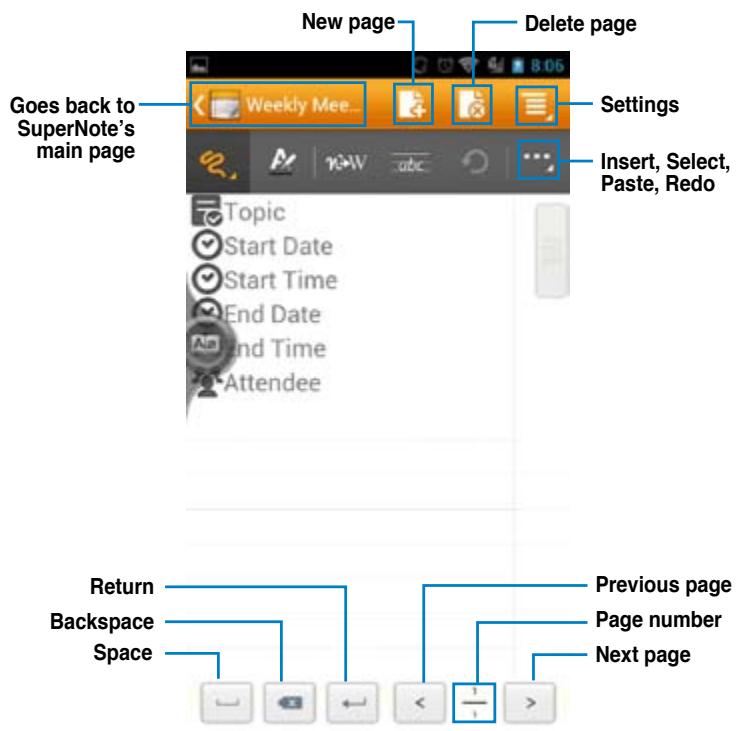
The following screen describes the SuperNote screen features on your PadFone 2.
NOTE:
For more details using SuperNote on your PadFone 2, tap Tutorial for Phone.
Using apps on the PadFone 2 Station
Managing Apps
App shortcut
You can create shortcuts for your favorite apps on your PadFone 2 Home Screen.
- Touch to go to the All apps screen.
- From the All apps screen, touch and hold the icon of the app you wish to move then drag and place the app on the Home Screen.
App info
You can view the detailed app information while you are creating a shortcut for the app. While holding an app from the All apps screen to the Home Screen, the App info will appear on the top of the Home Screen page. Drag the app to App info to display its detailed information.
Removing App from Home Screen
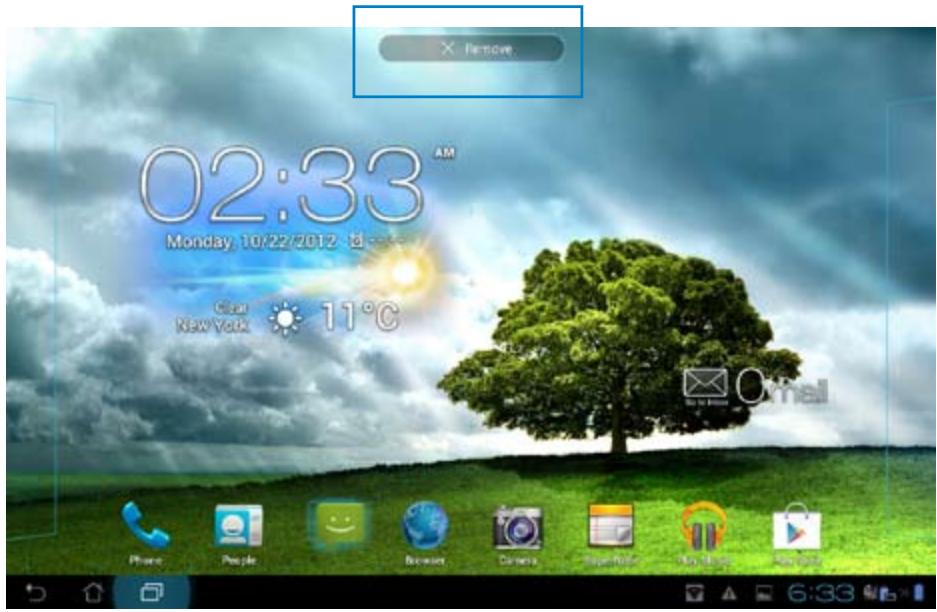
You can remove app shortcuts from your PadFone 2 Home Screen. The original app will remain in your All apps screen. To remove an app in your Home screen:
- Touch and hold an app on your Home Screen until X Remove appears.
- Drag the app to X Remove to remove it from the Home Screen.
App Folder
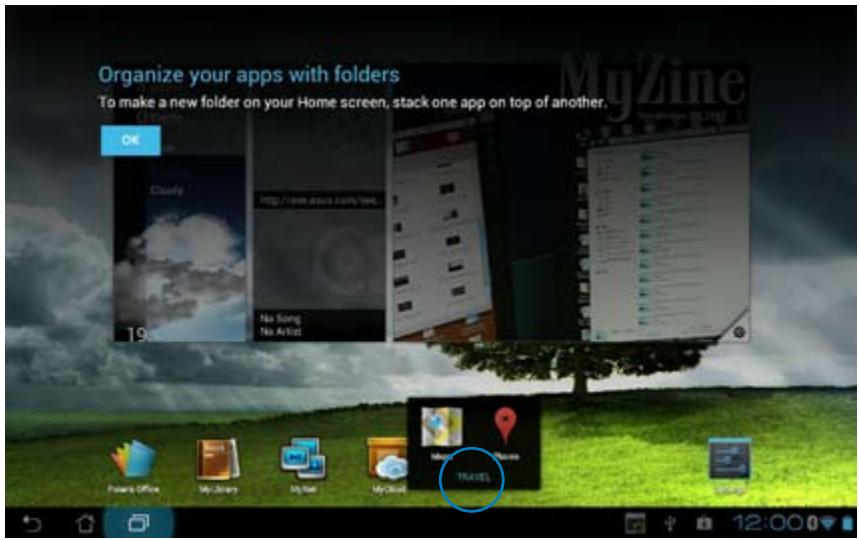
Create folders to organize your applications and shortcuts on your PadFone 2 Station Home Screen.
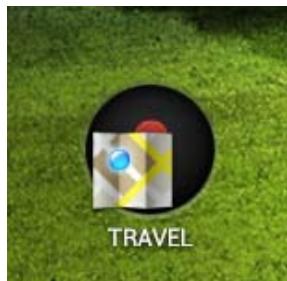
- On your PadFone 2 Station's Home Screen, touch and drag an app or shortcut onto another app and a folder will appear.
- Touch the new folder and tapUnnamed Folder to rename the folder.
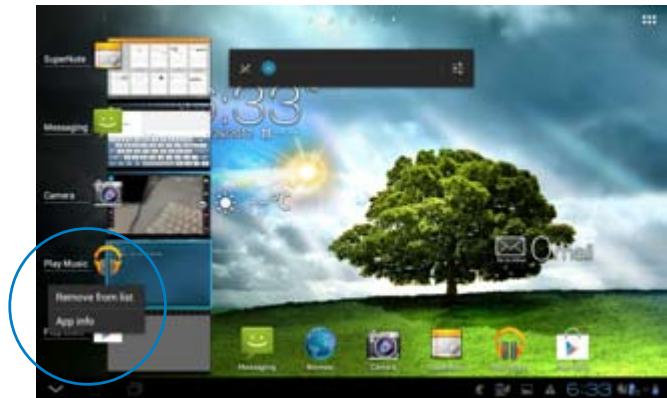
Recent Apps
Recent apps are displayed on the left panel of the Home Screen. You can find detailed information and manage your apps from the Recent Apps list.
- Touch the Recent Apps icon at the lower left corner of the Home Screen.
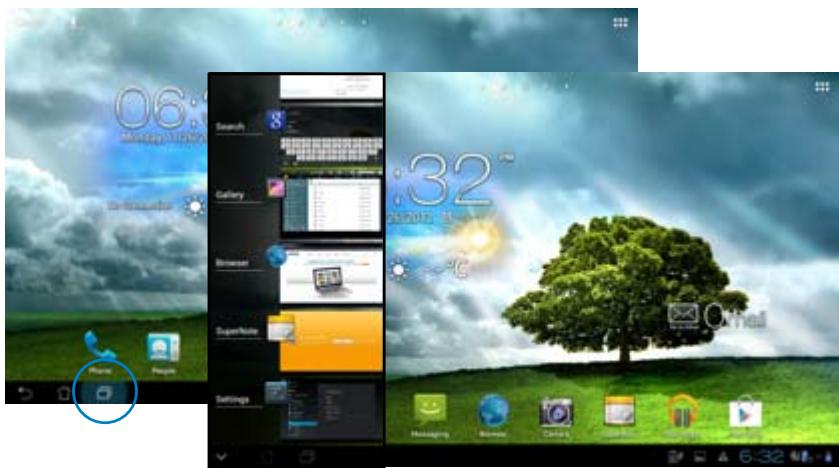
- Swipe up or down the list to view Recent Apps. Swipe a recent app to the left or right to remove from the list.
- Touch and hold a recent app to display the menu. Select to remove app from list or display app information.
Task Manager
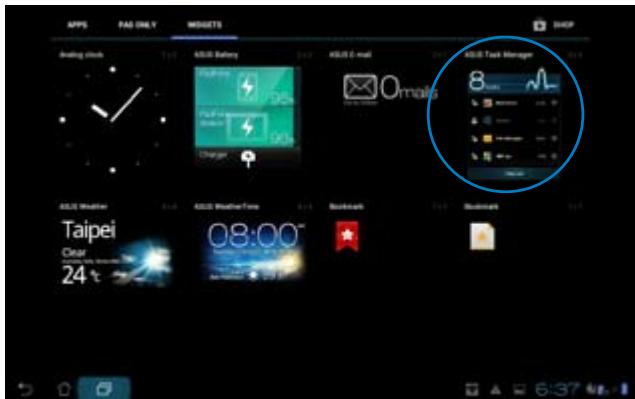
ASUS widget displays a list of currently running utilities and applications and their usages in percentages on your PadFone 2 Station.
- Touch to go to the All apps screen.
- Touch WIZGETs to display the widgets menu.
- Touch and hold ASUS Task Manager to display the ASUS Task Manager box on the Home Screen.
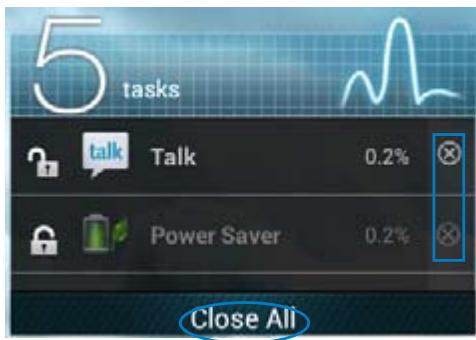
- Touch and hold the widget to display the sizing brackets. Pull the sizing bracket upward or downward to show the complete list of tasks.
- Tap beside each running app to close the app. Touch Close All to close running apps all at once.
File Manager
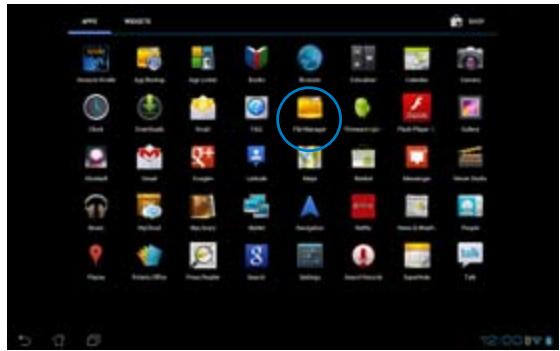
File Manager allows you to easily locate and manage your data either on the internal storage device or the connected external storage devices.
To access the internal storage device:
- Touch to go to the All apps screen.
- Go to All Apps screen, touch File Manager, then go to My Storage.
- The Internal Storage (/sdcard/) and any connected external storage devices (/Removable/) are displayed on the left panel. Touch the source icon on the left panel to display the content list, and touch to select an item.
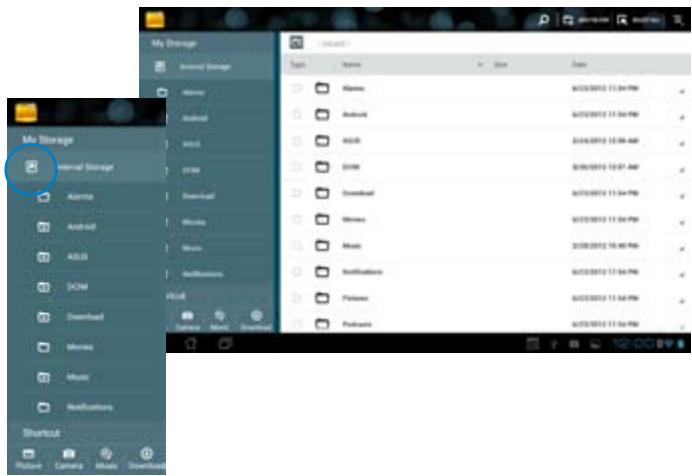
- Touch the Return folder icon to return to the root directory of My Storage.
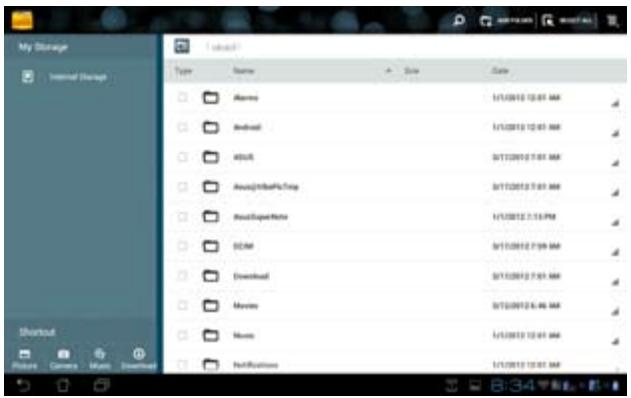
To access the external storage device:
- Touch the USB or SD card icon on the bottom right corner of your Home Screen to display the notification box.
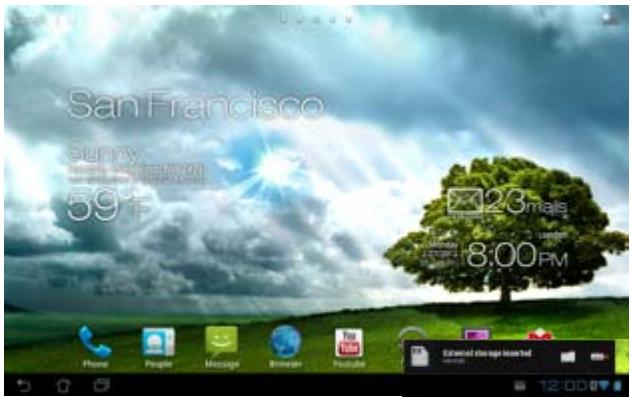
- Touch the folder icon to display its contents.
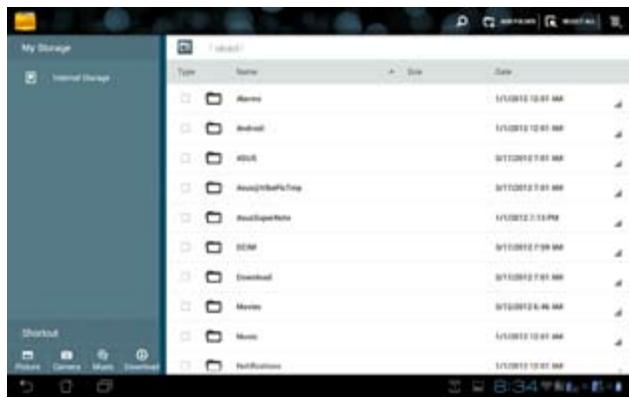
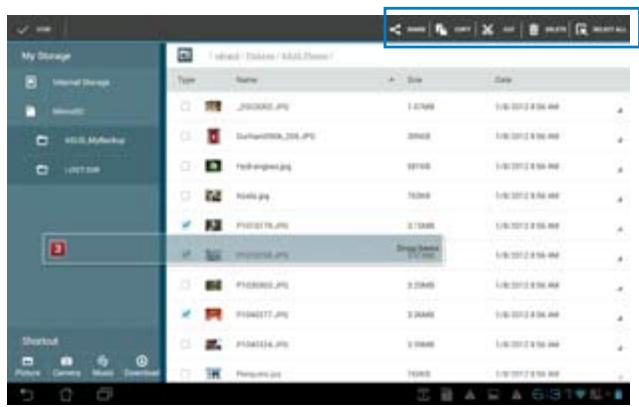
To copy, cut, delete, or share files:
Tick the file you wish to copy, cut, share, or delete and touch the action icon found at the tool bar on the upper right corner of the File Manager screen.
You can also tick the file and drag/drop it to your desired destination folder.
Play Store
Access lots of fun games and tools in the Play Store using your Google account. If you don't have a Google account, please create one.
- Touch to go to the All apps screen.

- From the All apps screen, tap Play Store
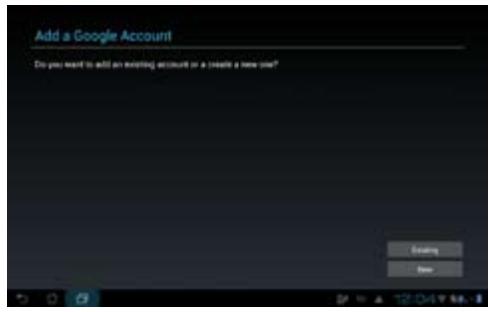
- You need a Google account to access Google Play. If you don't have an existing account, tap New.
- Type your Email and Password to Sign in if you already have an account.
- After signing in, you can start downloading and adding apps to your device from the Play Store.
IMPORTANT:
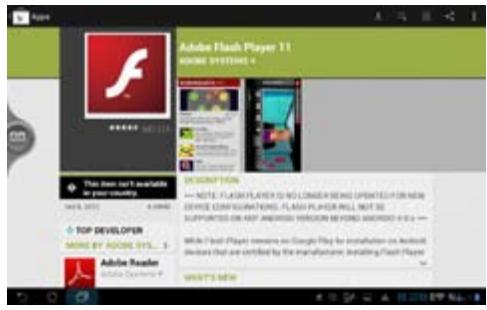
Download the latest Adobe Flash Player version 11.1.112.60 for ICS devices.
NOTES:
You cannot restore the deleted applications, but you can login with the same ID and download them again.
Some applications are free and some might charge you through a credit card.
Settings
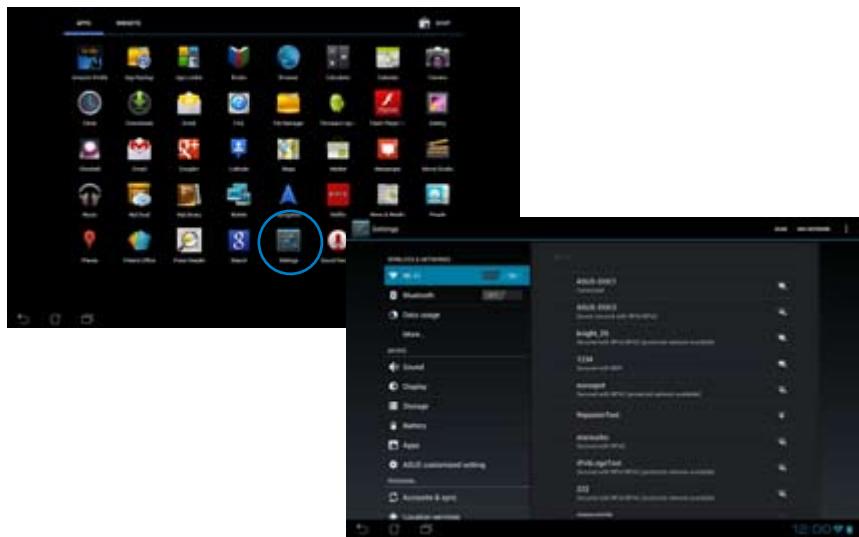
Settings screen allows you to configure the settings of your PadFone 2 Station, including Wireless & networks, Device, Personal, and System settings. Touch the tabs on the left to switch screens and do the configurations.
There are two ways to go to the Settings screen.
From the All apps screen:
Touch Settings to display the settings menu.
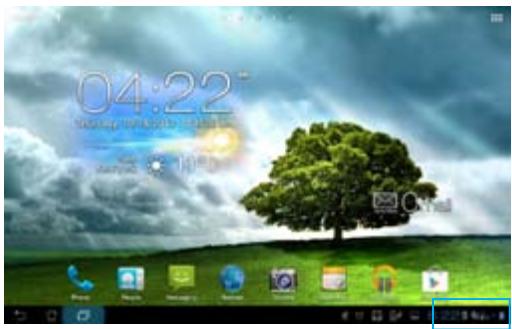
From ASUS Quick Setting:
Touch the notification area on the bottom right corner to launch the ASUS Quick Settings panel.
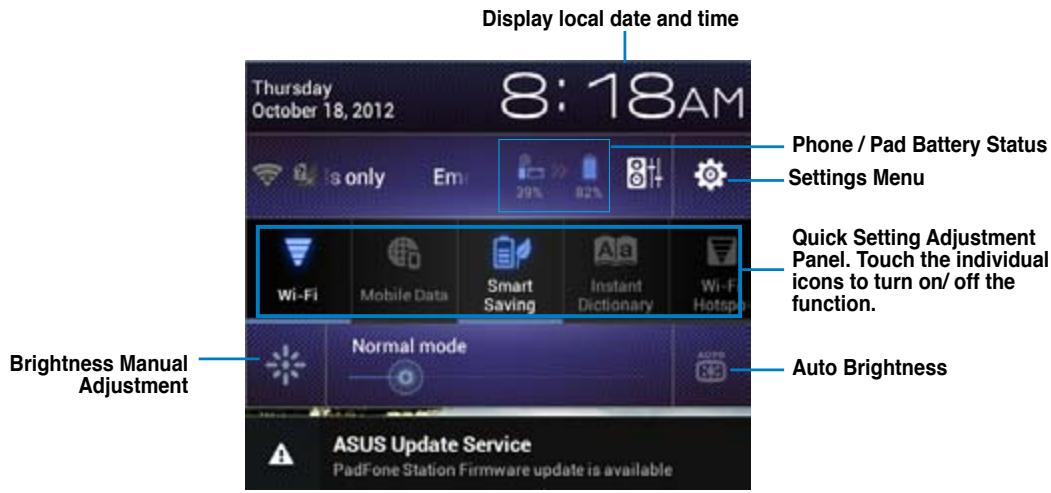
ASUS Quick Setting Adjustment Panel
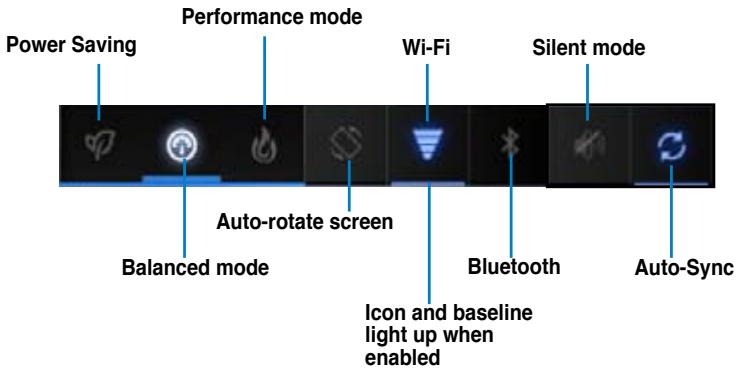
Touch any of the following icons to enable or disable its assigned function.
IMPORTANT:
- Balanced mode [Default mode]: Balances the system's performance and power usage.
Performance mode: Maximizes the system's performance but consumes more battery power.
Power saving mode: Energy saving mode
Notification Panels
Notification panels will appear under the Quick Setting panel for alerts or updates in apps, incoming emails, and utility status.
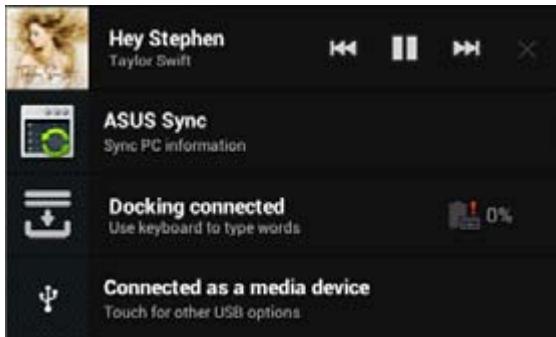
IMPORTANT:
Swipe a notification to the right or to the left to remove item from the list.
Music
Touch Music on the Home Screen to play your music files. This application automatically collects and displays all the audio files stored in your PadFone 2 Station and connected external storage devices. You can shuffle and play all audio files randomly or flip to select an album for your listening pleasure. Use the buttons on the top to conveniently sort or search your audio files.
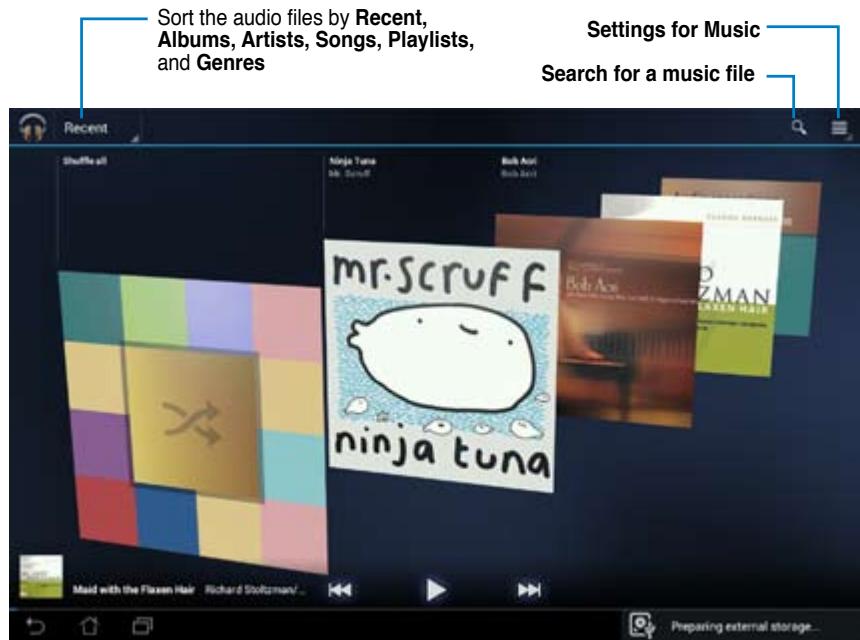
NOTE:
The audio and video codec supported by your PadFone 2 Station:
Decoder
Audio Codec: AAC LC/LTP, HE-AACv1(AAC+), HE-AACv2(enhanced AAC+),
AMR-NB, AMR-WB, MP3, FLAC, MIDI, PCM/WAVE, Vorbis,
WAV a-law/mu-law, WAV linear PCM, WMA 10,
WMA Lossless, WMA Pro LBR
Video Codec: H.263, H.264, MPEG-4, VC-1/WMV, VP8
Encoder
Audio Codec: AAC LC/LTP, AMR-NB, AMR-WB
Video Codec: H.263, H.264, MPEG-4
Gallery
Touch Gallery on the Home Screen to browse for images or video files. This app automatically collects and displays all the images and video files stored in your PadFone 2.
From the Gallery, you can display images in a slideshow or touch to select for image or video files
You can also use the menu buttons on the upper right corner of the Gallery screen to sort the files by album, by location, by time, by people, or by tags.
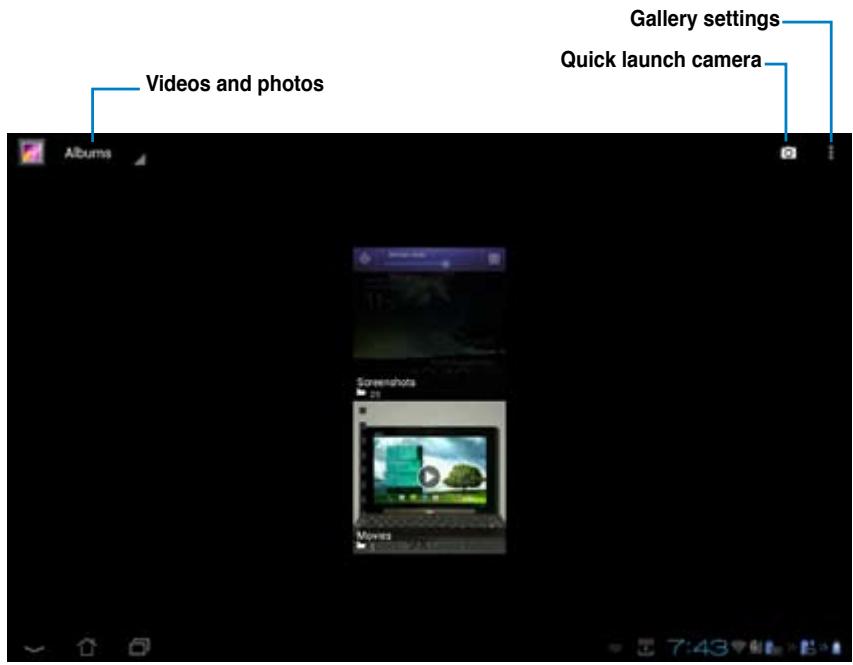
Sharing and deleting albums
Touch and hold an album in the Gallery until the Tool bar on top appears.
Using the Tool bar options, you can upload, delete, or share selected albums online.
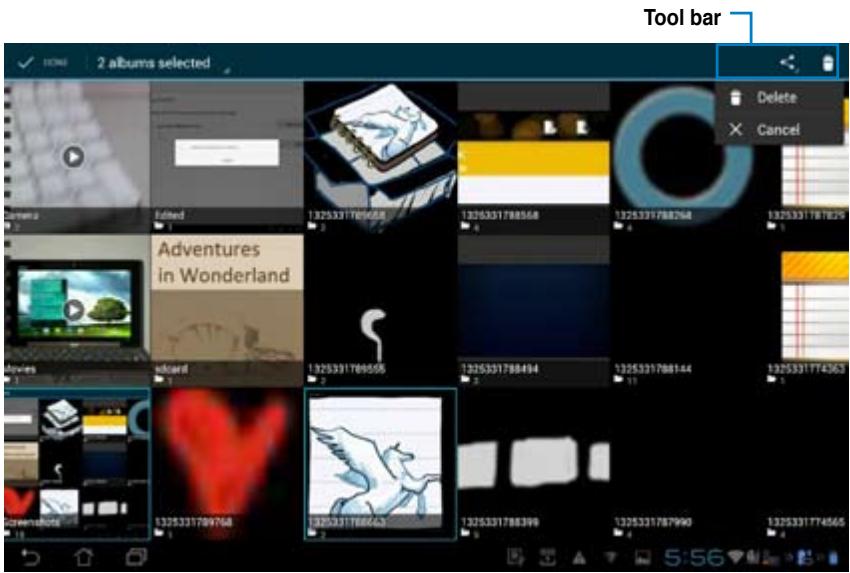
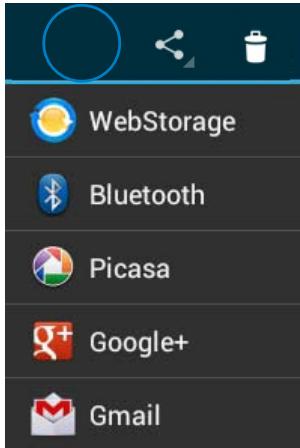
Share the selected album through ASUS Webstorage, Bluetooth®, Picasa®, Google+, or Gmail®
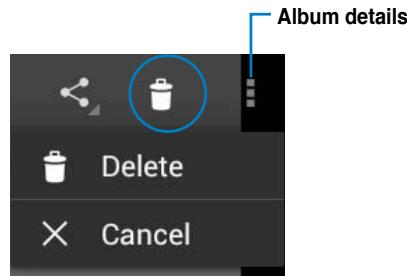
Delete or cancel the selected album
Sharing, deleting, and editing images
Touch an image in the Gallery and use the tool bar on the upper right corner to share, delete, or edit a
selected image.
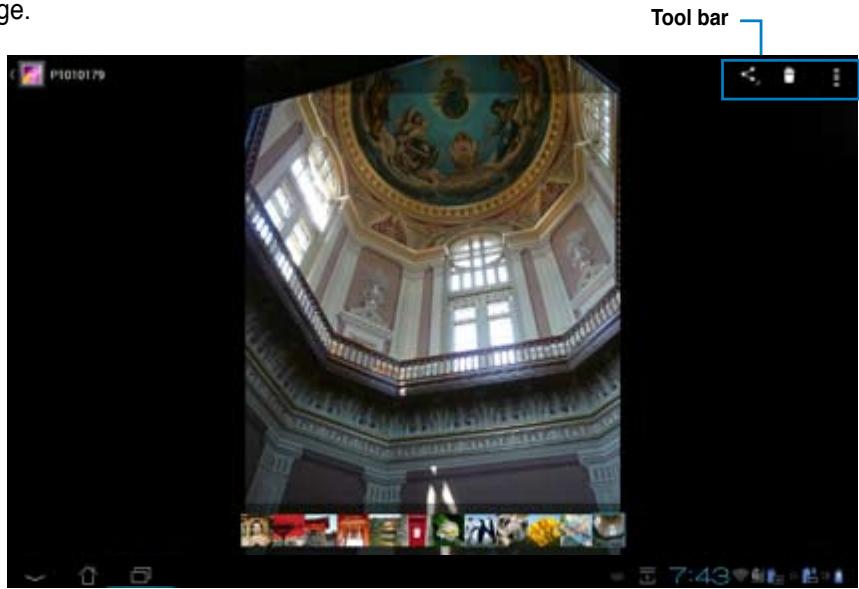
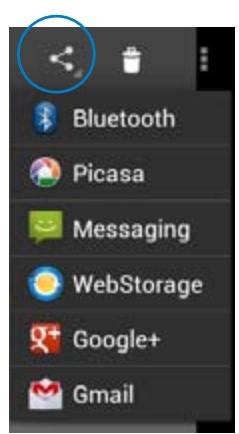
Share the selected album through ASUS Webstorage, Bluetooth®, Picasa®, Google+, or Gmail®
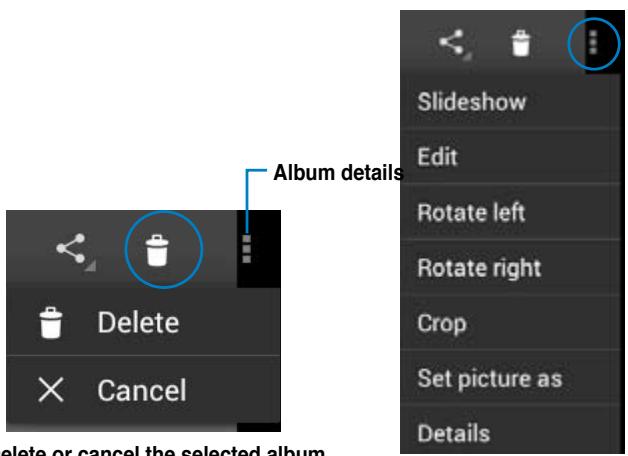
Delete or cancel the selected album
Check the image information, and edit the selected image
CAUTION!
You cannot restore a deleted file.
Gallery widget
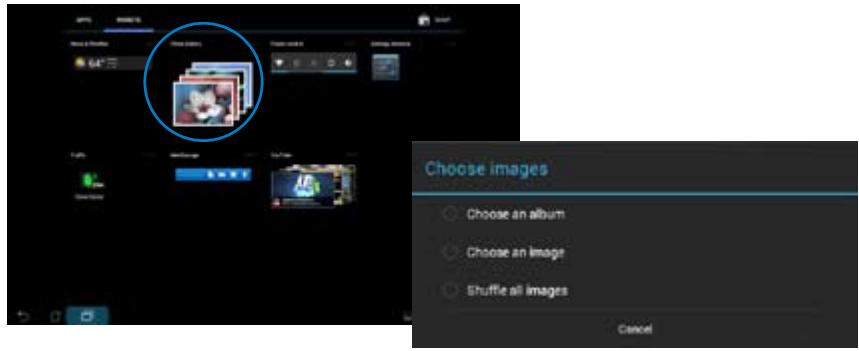
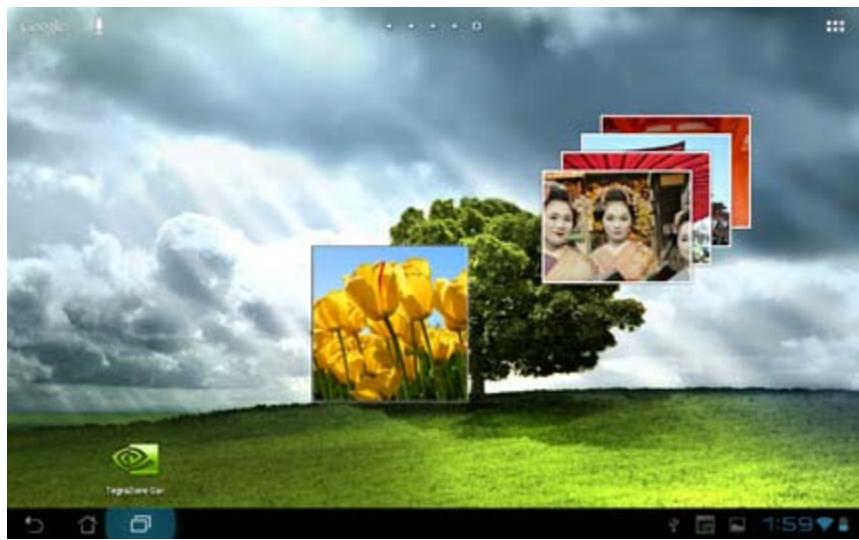
The Photo Gallery widget allows immediate access to your favorite photos or albums right from the Home Screen.
- Touch to go to the All apps screen.
- Touch Widgets to display the widgets menu.
- Touch and hold Photo Gallery until the gallery widget box moves to the Home Screen and displays the Choose images menu box.
- Choose the album or image that you wish to place as a widget on the Home Screen.
Camera
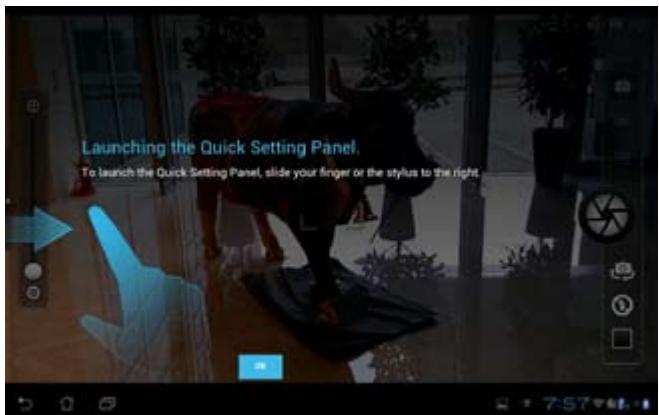
Touch or from the Home screen or All apps screen to take pictures, record videos, or create panoramic images. You can use the front camera or the back camera to take pictures or record videos.
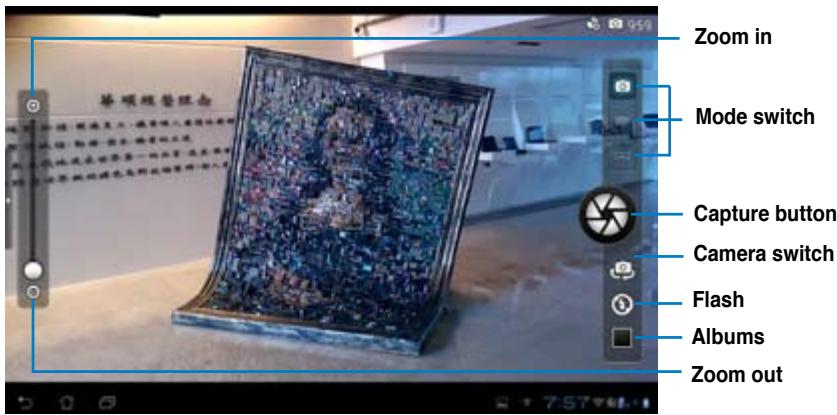
Camera mode
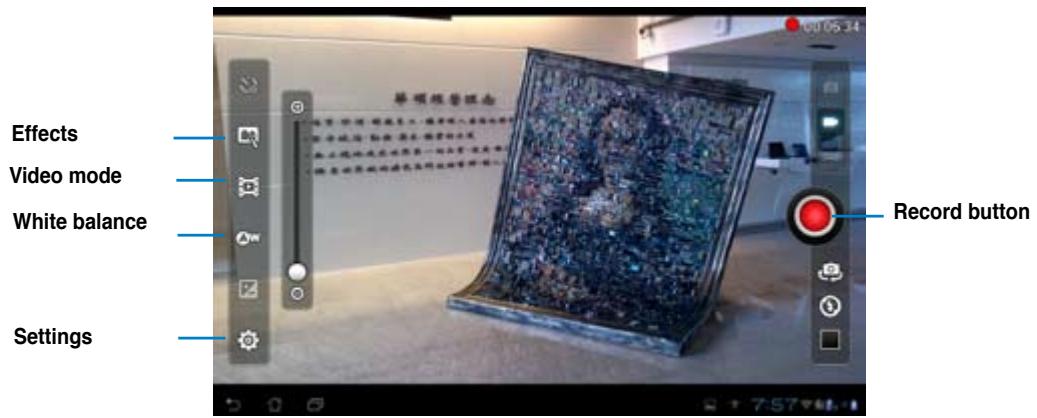
Video mode
Panoramic mode
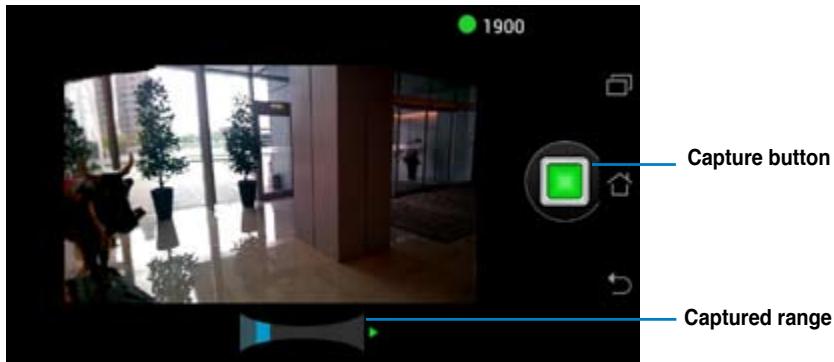

Panoramic image
Email allows you to add several e-mail accounts and conveniently browse and manage your e-mails.
To set up an email account:
- Touch to go to the All apps screen.
- Touch Email to launch the email app.
- From the email app screen, key in your Email address and Password, then touch Next.
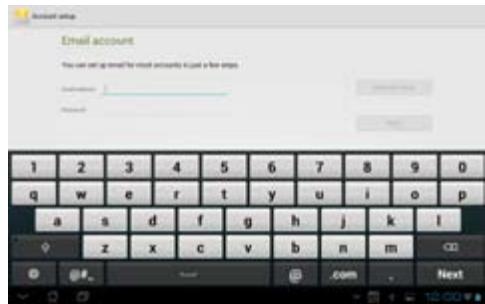
- Wait while your PadFone 2 automatically checks your incoming and outgoing mail server settings.
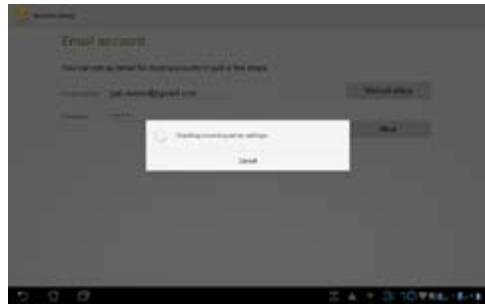
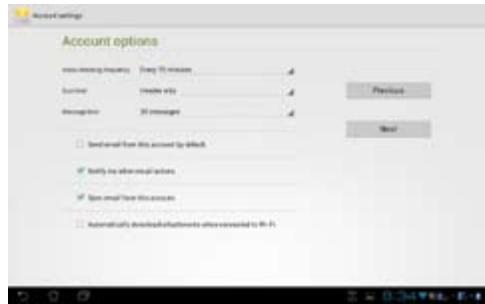
- Configure the Account options and touch Next.
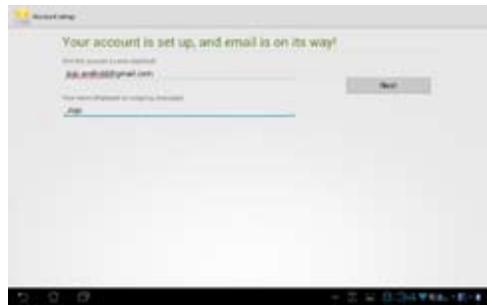
- Provide a name for the account and key in the name you want displayed on the outgoing messages. Touch Next to log into your mail inbox.
To add email accounts:
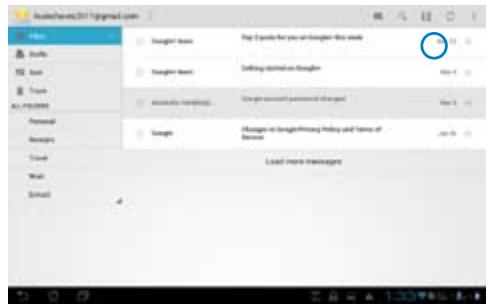
- Touch to go to the All apps screen, touch Email and login using the account that you've previously set up.
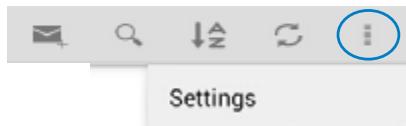
- Touch Settings on the upper right corner to display the preferences for this account.
- Touch Add account on the upper right corner to add another account.
NOTE:
You can include all your e-mail accounts in Email.
Gmail
Gmail (Google mail) allows you to access your Gmail account, receive, and compose e-mails.
To set up a Gmail account:
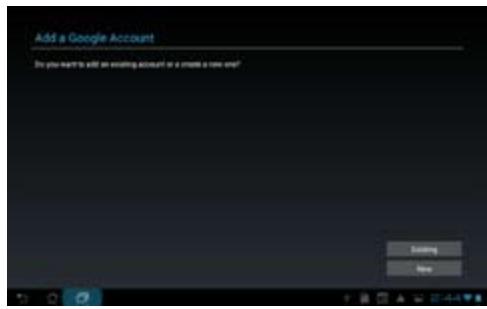
- Touch Gmail from the All apps screen. Touch Existing and type your existing Email and Password, then touch Sign in.
NOTE:
Touch New if you do not own a Google Account.
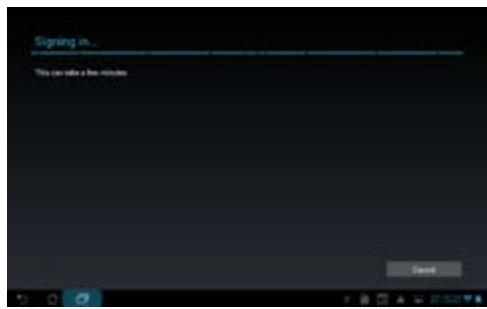
- Wait while your PadFone 2 communicates with Google servers to set up your account.
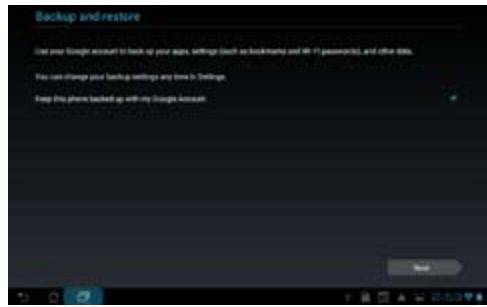
- You can use your Google account to backup and restore your settings and data. Touch Done to sign in to your Gmail.
IMPORTANT:
If you have several e-mail accounts in addition to Gmail, use Email to set up and access all your e-mail accounts at the same time.
MyLibrary
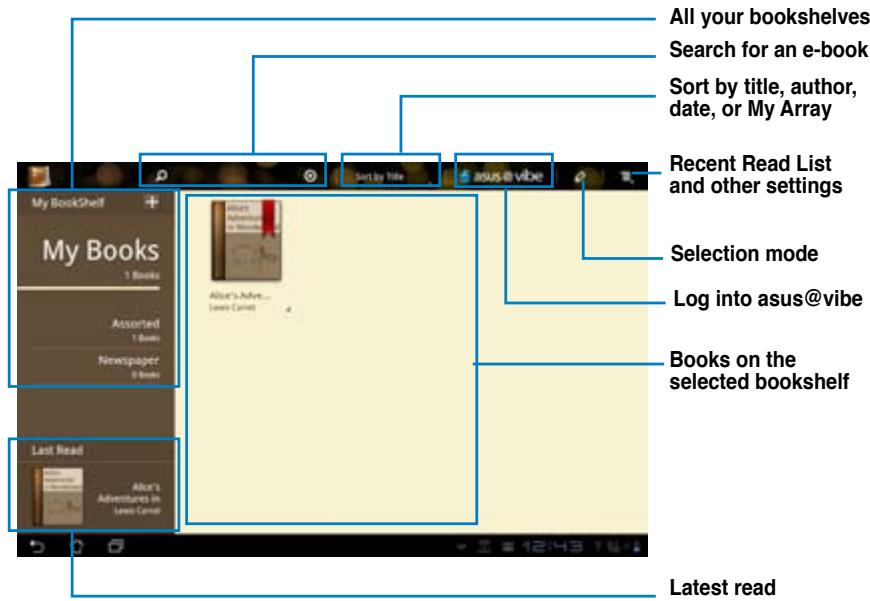
MyLibrary, an integrated interface for your e-book collections, allows you to place your purchased or downloaded e-books into different bookshelves and genres.
Touch to go to the All apps screen, then touch MyLibrary.
NOTE:
Log into apache@vibe to download more e-books.
IMPORTANT:
MyLibrary supports e-books in ePub, PDF and TXT format.
- You may need Adobe Flash® player to open some e-books. Download Adobe Flash® player before using MyLibrary.
Reading your e-books
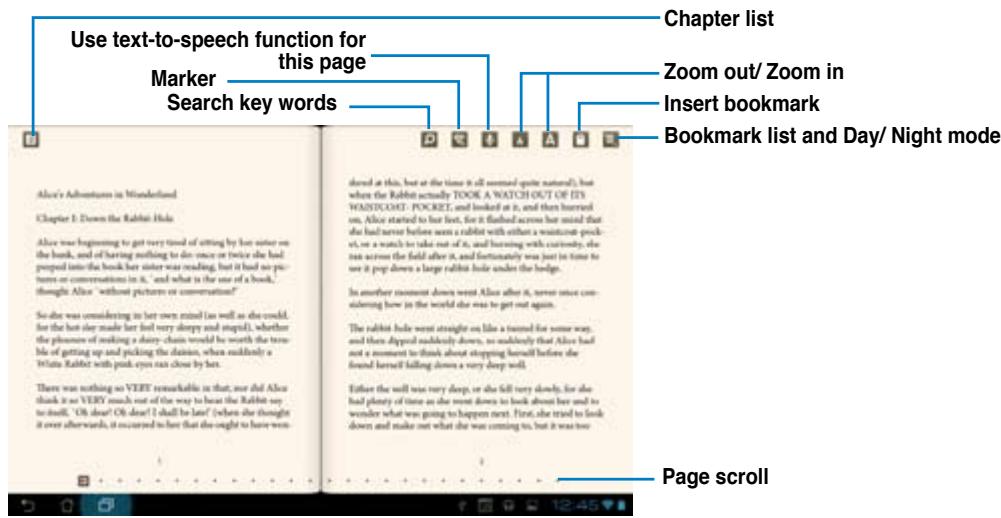
To read e-books:
- Touch to select an e-book on the bookshelf.
- Touch and hold the screen to show the tool bar on the top.
NOTES:
- Android initiates the download and installation of necessary resource if you would like to use the text-to-speech function.
-
Tap on the Bookmark list and select the marked page to show the bookmark icon on the upper right corner of the screen.
-
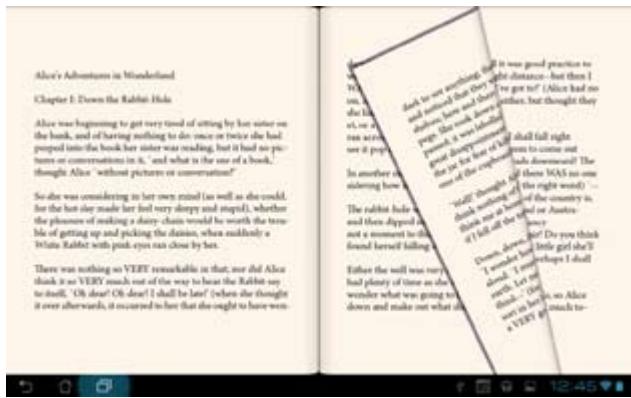
Flip pages like a real book or move the page scroll at the bottom.
Making notes on your e-books
- Touch and hold on a desired word or sentence until the tool menu and the dictionary definition are displayed.
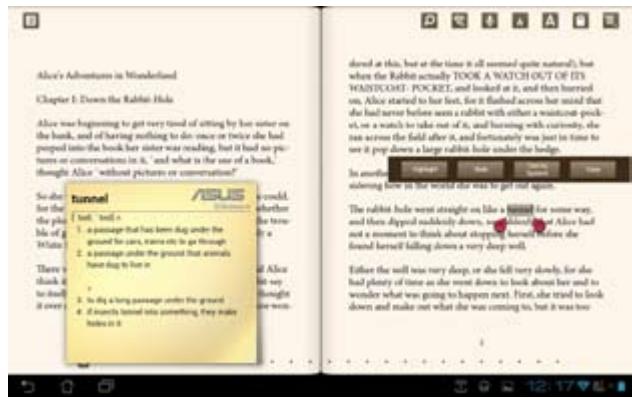
- Once selected, you either highlight the selected word with a marker, add a note, use text-to-speech function for the selected text, or simply copy the word.
- Move the selection point to extend the selected region to a whole phrase or sentence if needed.
Places and Maps
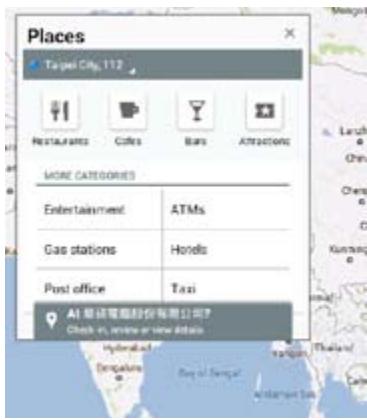
Google Places
Google Places allows you to easily find places such as nearby attractions, restaurants, coffee shops, or gas stations. It also allows you to check in your current location at a specific time and share this information with others.
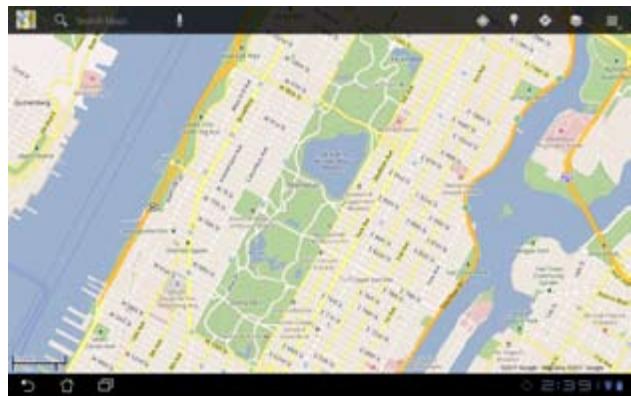
Google Maps
Google Maps allows you to find establishments, view maps, and get directions. Use the tool bar on the top to get directions or create your own maps.
Polaris® Office
Polaris® Office is a set of interrelated desktop applications that allows you to create, read, and edit documents, spreadsheets, and presentations.
To use Polaris® Office:
- Touch to go to the All apps screen.
- In the All apps screen, touch Polaris® Office.
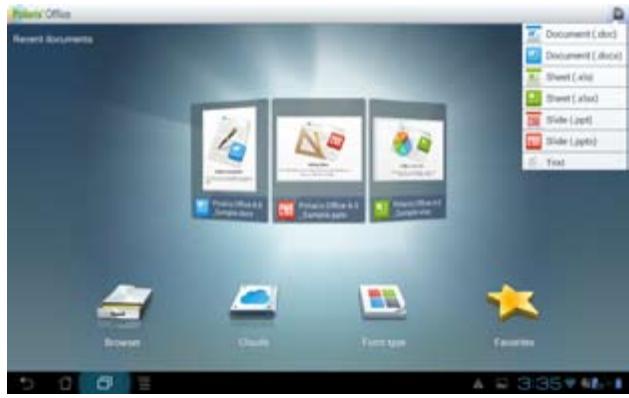
-
Touch any of the following:
-
Touch Browser to view the files/folders in the local storage.
- Touch Clouds to add a cloud service account.
- Touch Form type to view all documents by type.
- Touch Favorites to view your favorite files.
Adding new files
To add new files, touch then select New:
- Touch Document (.doc) or Document (.docx) to start the word processor to edit documents.
- Touch Sheet (.xls) or Sheet (.xlsx) to start the spreadsheet to perform calculation and manage information.
- Touch Slide (.ppt) or Slide (.pptx) to start the application to create and share presentations.
- Touch Text to create text files.
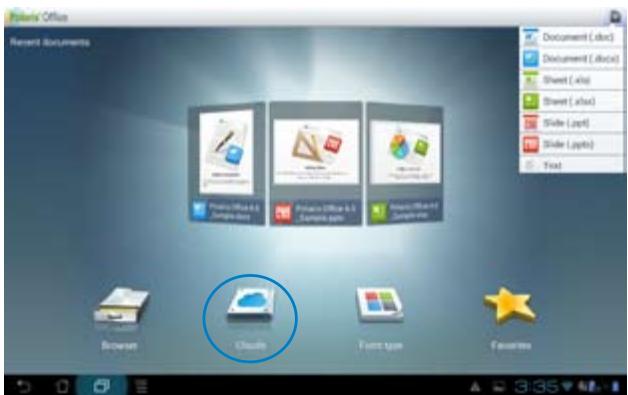
Adding Accounts
You are allowed to edit your files with Polaris® Office from other accounts, including Google docs and Box.net.
- Touch Clouds.
- Select a desired service to add.
- Key in your e-mail account and password and touch OK to add the account.
MyNet
MyNet allows you to store, save, and stream audio, video, and image files between your PadFone 2 Station and a DLNA device such as your computer, TV, or speakers.
NOTE:
DLNA (Digital Living Network Alliance) is the networking standard that allows network devices to seamlessly communicate with each other.
IMPORTANT:
MyNet works with Microsoft Media Player 11 or later version only.
MyNet will not work if the devices are connected via 3G network.
- Your PadFone 2 Station and the DLNA device such as computer, TV, or speakers must be connected to the same wireless network. Otherwise, MyNet will not function.
- Ensure that your PadFone 2 Station and your computer are connected to the same wireless network.
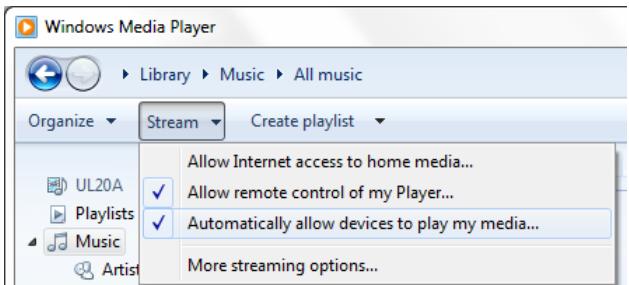
- Click and enable Allow remote control of my Player and Automatically allow devices to play my media in Windows Media Player on your computer. Go to More streaming options to configure, if necessary.
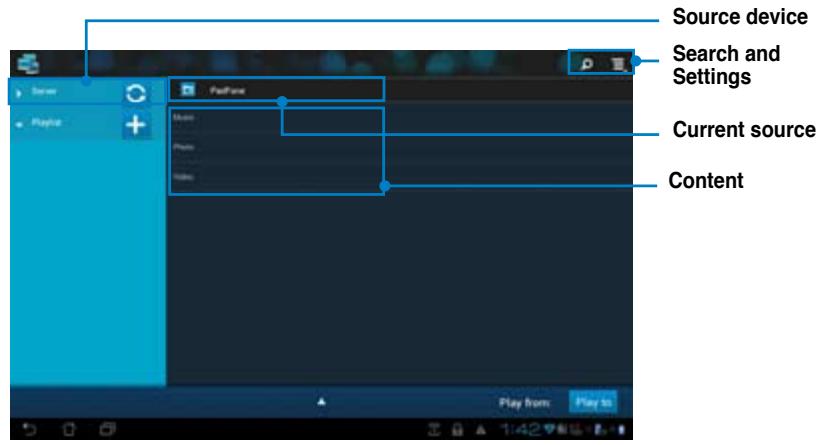
- On the Server list, select the source device on the left panel to view the contents.
-
You can do any of the following:
-
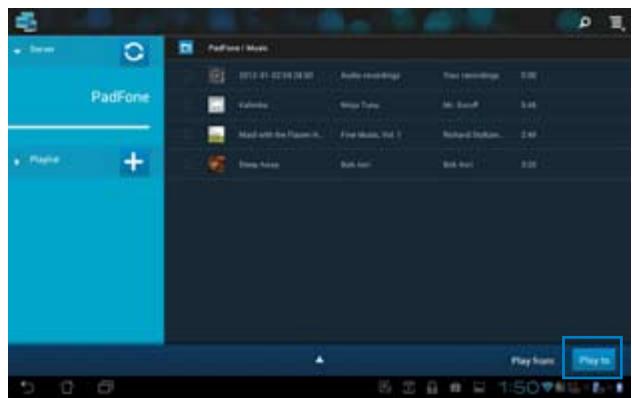
Select a file and touch Play to on the bottom right to start playing on the target device.
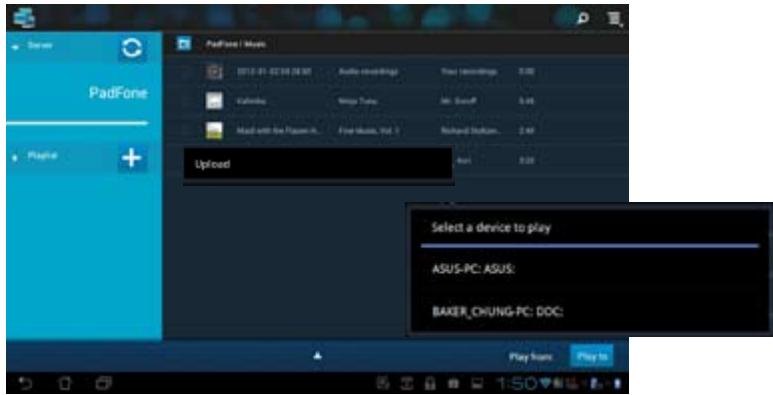
- Touch and hold a file to upload or download it to and from the connecting devices.
- You can also select a file from the Playlist. The Playlist offers a common space for the connected devices to share files. Tap the plus sign (+) to create new lists.
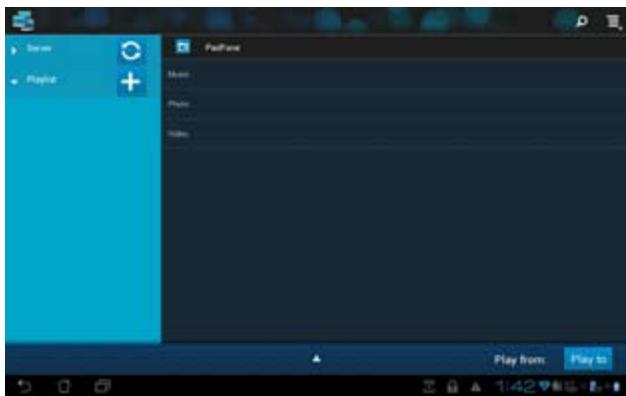
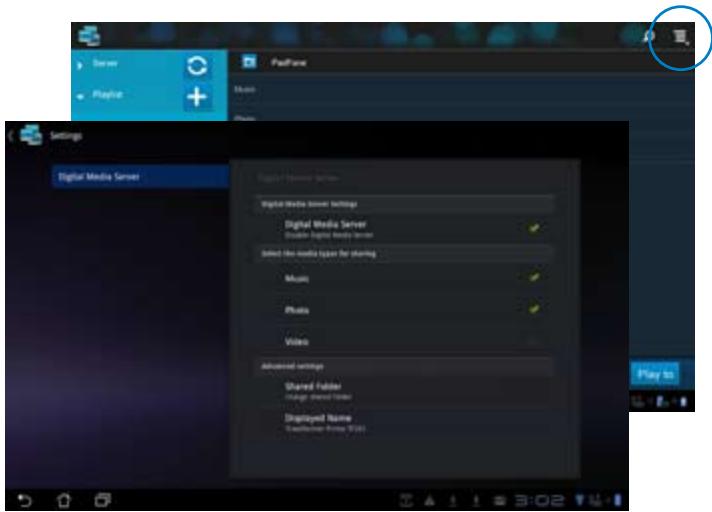
- To enable Digital Media Server, touch Settings on the upper right corner and tick Digital Media Server Settings to allow the other connecting devices to access media files on your PadFone Station. You can also select the location of the file you want to share.
App Locker
App Locker allows you to password-protect your apps.
To use App Locker:
- From the All apps screen, touch on App Locker.
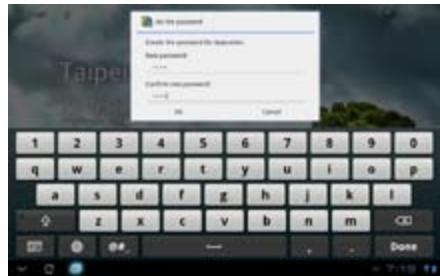
- Set up your password.
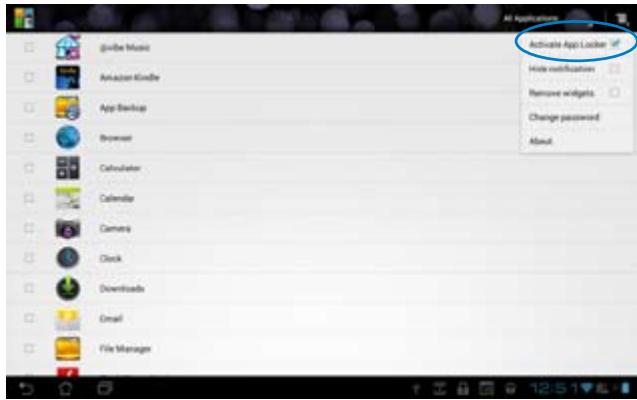
- Tick the apps you would like to lock.
- Activate App Locker from Settings on the upper right corner.
NOTES:
- Locked apps will have lock icons on the Home Screen.
- You will be asked for your password every time you access the locked apps.

SuperNote
SuperNote is a convenient app used for writing and painting on your PadFone 2 Station. You can take notes, send instant messages, draw sketches, create e-cards with audio recordings or diaries with video, and lots more.
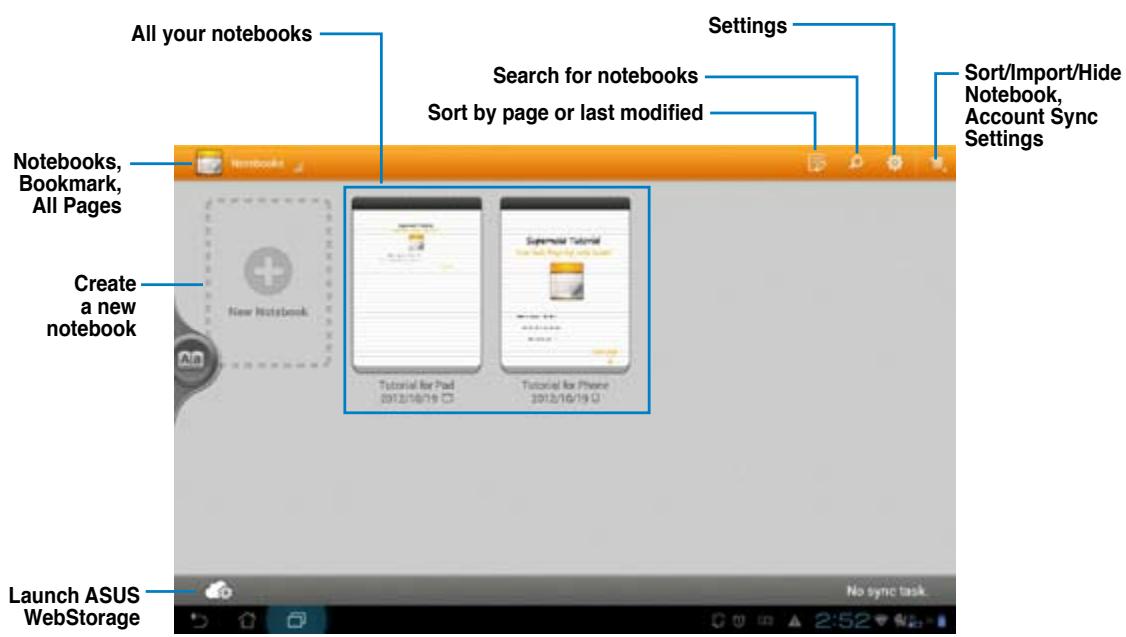
Using SuperNote
To create a new notebook:
- Touch New Notebook.
- Key in a name for the file and choose the notebook type to start writing on the page.
The following screen describes the SuperNote screen features on your PadFone 2 Station:
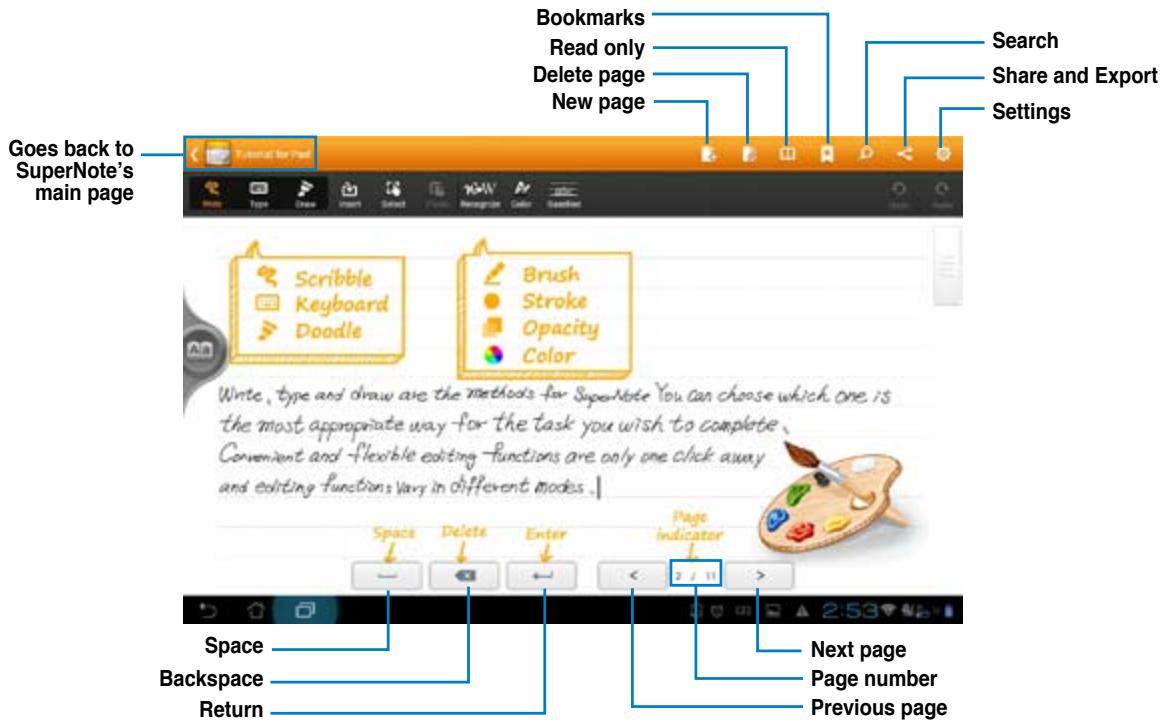
NOTE:
For more details using SuperNote on your PadFone 2 Station, tap Tutorial for Pad.
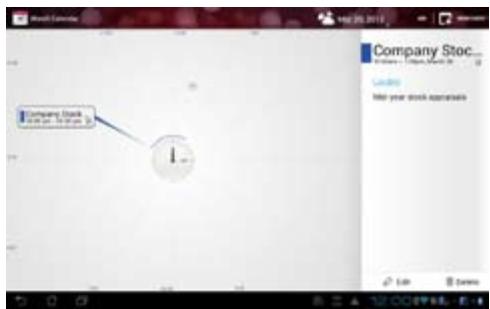
Watch Calendar
Watch Calendar allows you to add, edit and delete an event or appointment and sync it through your Gmail account.
- From the All apps screen, touch Watch Calendar.
- To add an event or appointment, touch New Event.
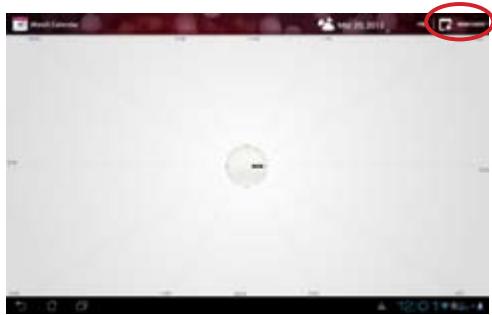
- Key in the event name, date and time, location and description of the event. You can also attach a file by touching + then selecting a file from the Gallery.
- Touch Done.
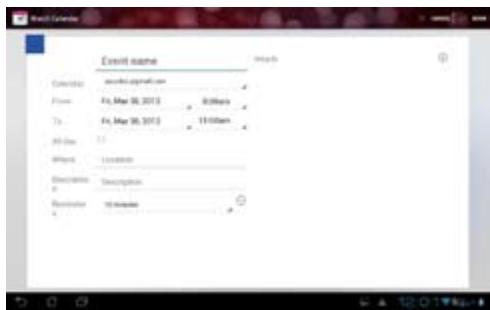
To edit an event, touch the event name and touch Edit.
Touch Delete to delete the selected event.
Using PadFone 2 widgets
Adding widgets
- Widgets are useful and fun applications that brings information and services conveniently to your Home Screen at-a-glance. You can find them in the Widgets tab in the All Apps screen, ready to be moved into your Home Screen.
To see your widgets, touch l on your Home Screen then touch the Widgets tab at the top of screen. From the main Widgets screen, you can:
- Drag a widget to another screen.
- Swipe left or right to move between screens and view more widgets.
IMPORTANT:
- You may be prompted to perform additional tasks (such as registration, activation) before you can use a selected widget.
- If there is not enough room on the screen where you placed a widget, the widget won't get added to that screen.
To remove a widget:
- Touch and hold the widget until X Remove appears then without lifting your finger, drag the widget into X Remove.
Task Manager
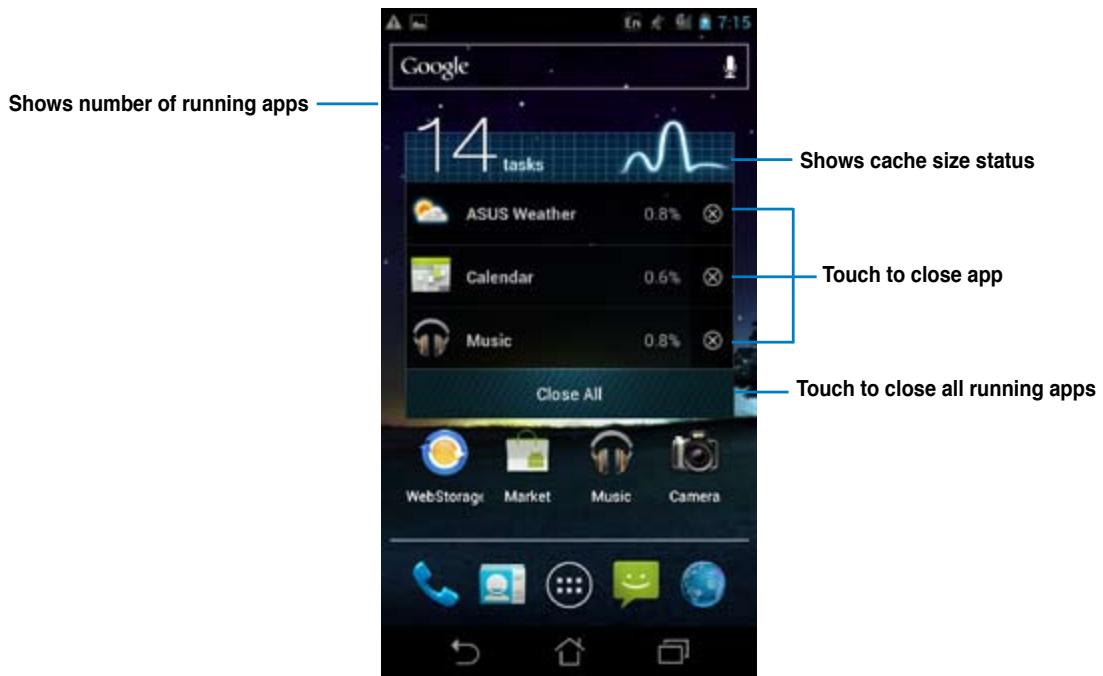
Task Manager is an easy and quick way to close running apps. It effectively cleans your cache and frees more cache space for your PadFone.
To use Task Manager, swipe your screen to the right.
Additional options:
- To resize Task Manager, touch and hold anywhere on the app until the resize border appears. Touch and drag the sizing handle to adjust to your preferred screen size. You can do this to create additional room for more apps.
- To remove Task Manager, touch and hold the app until X Remove appears, then without lifting your finger, drag the app into X Remove.
Using PadFone 2 Station widgets
Adding widgets
Use widgets to conveniently access useful and fun applications on your PadFone 2 Station's Home Screen. You can find them in the Widgets tab in the All Apps screen, ready to be moved into your Home Screen.
To see your widgets, touch to go to the All apps screen, then touch Widgets.
From the main Widgets screen, you can:
Drag a widget to another screen.
- Swipe left or right to move between screens and view more widgets.
IMPORTANT:
- You may be prompted to perform additional tasks (such as registration, activation) before you can use a selected widget.
- If there is not enough room on the screen where you placed a widget, the widget won't get added to that screen.
To remove a widget:
- Touch and hold the widget until X Remove appears then without lifting your finger, drag the widget into X Remove.
ASUS Battery
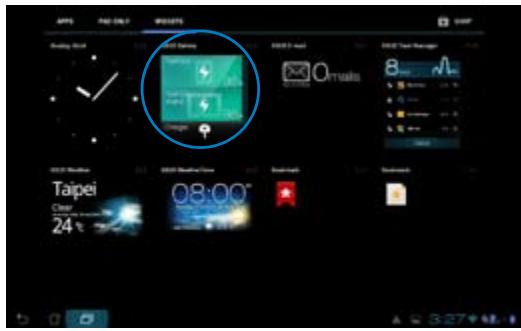
This special widget shows the individual battery status of your PadFone 2 and PadFone 2 Station by percentage and color. The more battery power, the brighter the color.
- Touch to go to the All apps screen.
- Touch Widgets to display the widgets menu.
- Touch and hold ASUS Battery to display the ASUS Battery app.
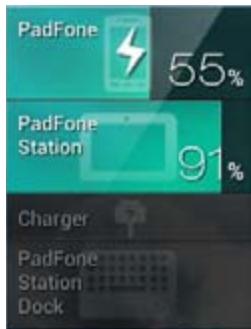
- The ASUS Quick Setting and the notifications panel also display the battery status. The battery status of the PadFone 2 and PadFone 2 Station are shown separately. When battery is low, the battery icon turns from blue to red with an exclamation mark. There will also be a warning sound to notify you when the battery is running low.
ASUS
- Table of Contents
- Chapter 1: Using your PadFone 2
- Chapter 2: Using your PadFone 2 Station
- Chapter 3: Touching and typing
- Chapter 4: Using apps and widgets
- Using apps on the PadFone 2 Station. 29
- Using PadFone 2 widgets. 67
- Using PadFone 2 Station widgets .69
- Package contents
- NOTES:
- Using your PadFone 2
- Basics
- IMPORTANT:
- Navigating your PadFone 2
- Making calls
- To make a call:
- Setting up your contacts list
- Connecting to the world
- Connecting to mobile networks
- NOTE:
- Connecting to Wi-Fi networks
- TIP:
- Using Bluetooth
- Enabling or disabling Bluetooth in your device
- Pairing your PadFone 2 with a Bluetooth device
- Connecting your PadFone 2 to a Bluetooth device
- Unpairing and configuring a Bluetooth device
- Using your PadFone 2 Station
- Unlocking your device
- Entering the camera mode
- Tutorial
- Screen Views
- Landscape view
- Portrait view
- Touching and typing
- Using gestures
- Using the onscreen keyboard
- Using Google voice typing
- TIPS:
- Using apps and widgets
- Using apps on the PadFone 2
- Launching apps
- Messaging
- Surfing the web
- Managing notifications
- ASUS Quick Setting
- Description
- Searching your PadFone 2 or web
- Taking pictures
- Watch Calendar
- SuperNote
- Using SuperNote
- Using apps on the PadFone 2 Station
- Managing Apps
- App shortcut
- App info
- Removing App from Home Screen
- App Folder
- Recent Apps
- Task Manager
- File Manager
- Play Store
- Settings
- From ASUS Quick Setting:
- ASUS Quick Setting Adjustment Panel
- Notification Panels
- Music
- Gallery
- Sharing and deleting albums
- Sharing, deleting, and editing images
- CAUTION!
- Gallery widget
- Camera
- Gmail
- MyLibrary
- Reading your e-books
- To read e-books:
- Making notes on your e-books
- Places and Maps
- Google Places
- Google Maps
- Polaris® Office
- Adding new files
- Adding Accounts
- MyNet
- App Locker
- To use App Locker:
- Using PadFone 2 widgets
- Adding widgets
- To remove a widget:
- Using PadFone 2 Station widgets
- ASUS Battery
- ASUS
Brand : ASUS
Model : PADFONE 2 A68 4G
Category : Cellphone